We used the following calibration settings to test the Aurzen EAZZE D1 MAX. Keep in mind that results can vary slightly between individual units, firmware versions, and picture modes, so you may need to make small tweaks if your unit looks a bit different.
These settings are meant to provide a solid starting point for accurate SDR playback in a typical living room. They aren't meant to be copied 1:1, and your best results will depend on your screen size, throw distance, room brightness, and wall/screen color.
SDR Picture Settings
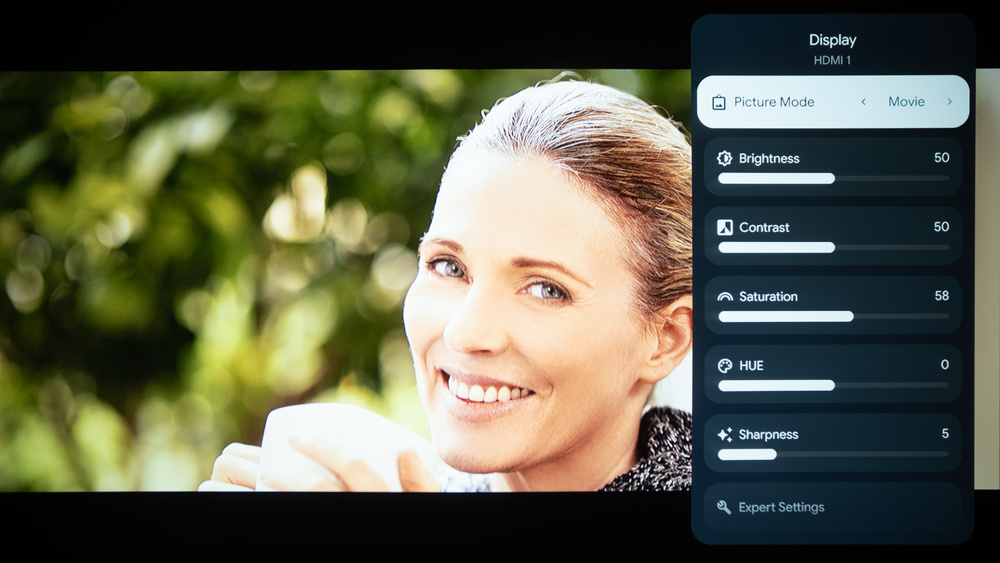
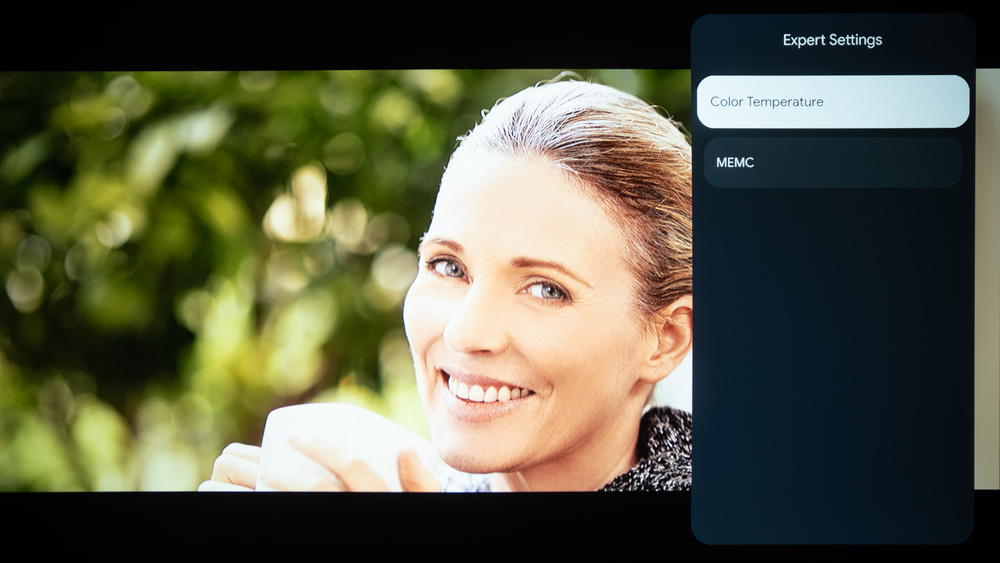
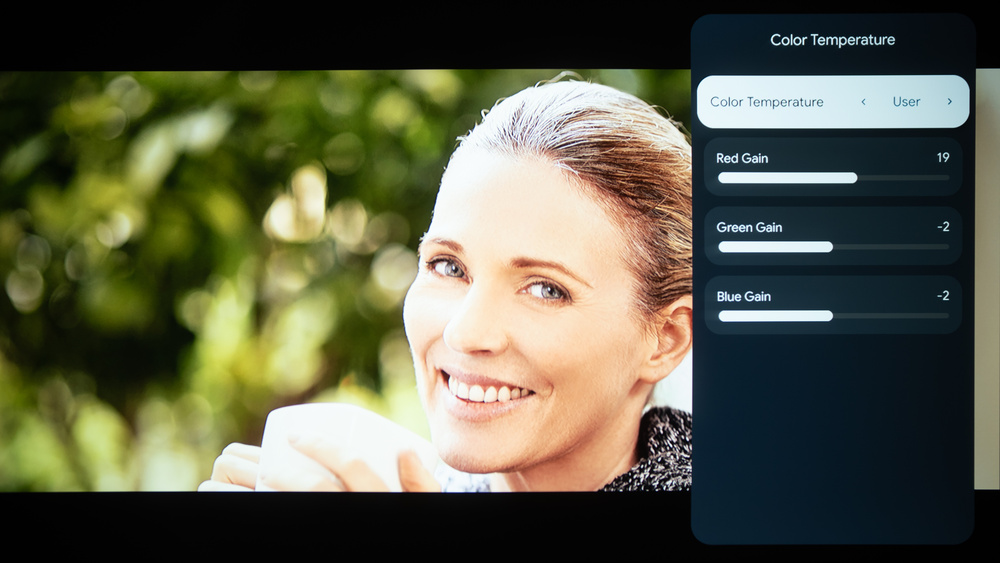
For SDR content, you can choose a few different preset picture modes. We used 'Movie' because it's the most accurate while maintaining high brightness, including adjusting the projector's white balance (see below). All other settings were either left to default, disabled, or left off.
- Picture Mode: Movie
- Saturation: 58
- Sharpness: 5
- Color Temperature: User
Gaming Settings
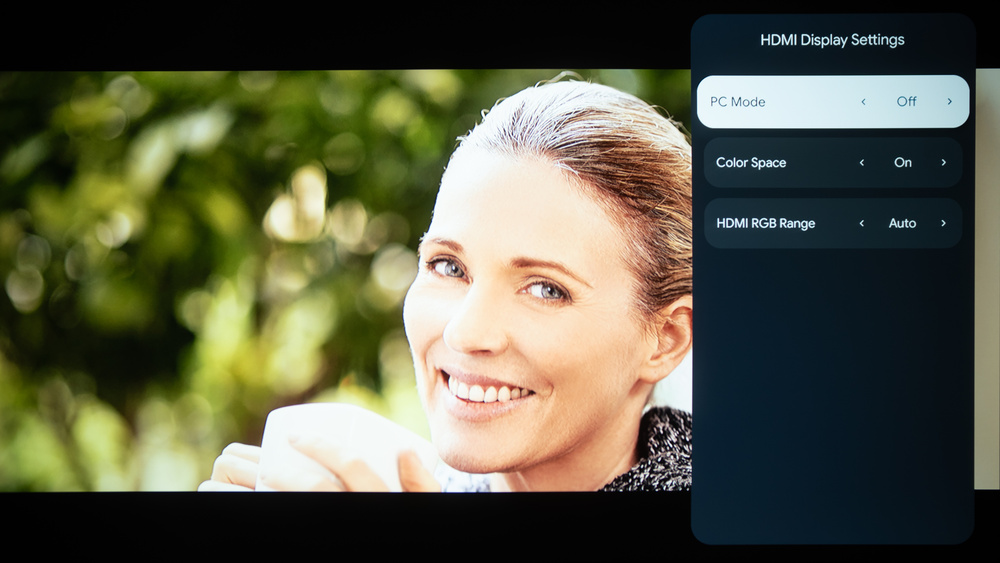
From the base SDR settings, very few changes are required for gaming, as there are limited options. You should enable PC Mode for the lowest input lag it can provide.
Our other settings are the same as those in our SDR Picture Settings.
Other Settings
For information on any other settings or features that fall outside of the scope of our testing, please refer to Aurzen's product page.
White Balance Settings
We found that calibrating the projector resulted in worse accuracy than leaving it at its default out-of-the-box settings. There are limited settings to calibrate it, too, besides Color Temperature. You can try setting Color Space to match your source's color space, but we found that it doesn't change anything.