Having a TV that doesn't display what you want can be frustrating. There are many different reasons why your TV might not be working properly or why the image doesn't look right. Below are some of the most common issues with TVs we're asked about. Even though troubleshooting an LED TV is case-by-case, hopefully this will help you. Keep in mind that some setting names may vary between models and brands, so always check the settings guide for your specific model before adjusting anything.
Picture Quality
Picture quality issues are usually easy to fix. A few quick tweaks to your settings and you should be good to go, no fancy calibration required. There are a few things to keep in mind before you start tweaking your picture settings, though:
- SDR and HDR have separate settings, so you'll need to adjust these while playing content in that format.
- Most TVs have separate settings for each HDMI input, so you'll need to make these changes for each device. Most TVs also offer an option to copy your settings from one input to the others.
- Native apps are usually treated as a separate set of settings, so you'll need to adjust those independently.
- HDR can be tricky to adjust, as the brightness and overall image vary depending on how the content creator mastered the video. It's best to make only minor changes, as you may need to adjust some settings depending on the specific content you're watching. This is easy if you only have one setting to change, but if you adjust everything, it'll take more time.
SDR Is Too Dark/Bright
In SDR, you have full control over how bright the image is. So if you find it too dark or too bright, a few quick settings adjustments will usually solve your problem.
- Adjust the backlight setting on your TV. The exact setting varies, so make sure to check our settings guide for your TV.
- Your TV might also have a "Peak Brightness" setting. This setting increases how bright the TV can get in some scenes. If it's off, your TV won't get nearly as bright as it can, but you usually won't see any variation in brightness between scenes.
HDR Is Too Dark
Unlike SDR, the brightness of HDR content is set by the content creator. Most TVs automatically adjust their Brightness setting to maximum when you're watching HDR content, so you can't adjust that to make it brighter. Our calibrated settings target a dark viewing environment, but if you're in a bright room, you may find HDR content to be too dark. There are a few things you can change if you're watching HDR in a bright room:
- Look for a Dynamic Tone Mapping setting. The exact name varies, but these settings can slightly increase the peak brightness of many scenes.
- Find your TV's eco settings menu or equivalent; there's usually a setting to control the ambient light sensor. Try enabling it. This feature will analyze the ambient light in your room and adjust the TV's brightness to compensate.
- If the above settings still leave the picture too dark for your liking, try a different picture mode. The 'Standard' mode on most TVs delivers a good middle-ground, with a brighter picture than the calibrated mode, but it's still somewhat accurate. The 'Dynamic' or 'Vivid' mode usually delivers a far brighter picture, but these picture modes are usually incredibly inaccurate.
HDR Is Too Bright
Although less common a complaint, as TVs are getting increasingly brighter, some people find HDR content to be a bit too bright. The changes made here are simply the opposite of the section above.
- Disable Dynamic Tone Mapping.
- Disable the ambient light sensor.
- Use one of the more accurate picture modes, usually 'Movie' or 'FILMMAKER Mode' on most TVs.
Blacks look gray
- Reset the Black Level setting.
- Make sure the source and TV RGB settings match. It doesn't really matter whether you use the 'Full' or 'Limited' range, as long as your TV and source are both set to the same thing. The 'Auto' setting usually works fine on most devices.
- Enable local dimming. For most TVs, setting it to 'High' is the most effective, but it's not always the case.
Note: If it's an IPS LED TV, blacks will always look gray. This is especially noticeable in dark rooms.
Colors Don't Pop
- Change Color Temperature to something colder. Colder colors have a blueish tint, giving them the appearance that they pop more.
- Increase the Color setting. This usually saturates the colors, so while it technically makes the image less accurate, it makes colors pop.
- Use the 'Dynamic' or 'Vivid' picture modes. These picture modes will use a combination of stronger colors and cooler temperatures to make the colors more vibrant.
White objects/clouds too yellow or blue
- Reset white balance & color space to default. It's possible you accidentally played with some settings that affected the picture.
- Change the color tone. You should adjust each of these to your preference. What looks like perfect white to one person may look different to another. If you understand how to calibrate the TV, you should be able to provide the best picture possible to you.
- Use different color tone/temperature according to your liking.
- Use different picture modes. Once again, adjust these to your preferences.
Excessive Grain In The Picture
- For content other than movies, enable noise removal settings. The main point of these noise removal settings is to remove gradients/graininess.
Note: Some movies, especially older movies, are naturally grainy. There's not much you can do to remove this sort of grain, as it's supposed to be there.
Dark Portions Are Pixelated
- Enable noise removal settings. Often, these settings help remove any gradients but can also cause a loss in fine details.
- If neither works or is possible, you will need to cope with the issue. This is a common problem with low-quality media, including most streaming services.
Screen Uniformity
You buy a new TV, get it home, set it up, and immediately notice bands across the screen. There's no need to worry - yet. Modern TVs need a bit of a warm-up period, especially models with OLED panels. Some noticeable uniformity issues are completely normal when you first unbox it. It can take 100-200 hours for the panel to stabilize. When you first get a new TV, it's best to let it warm up and leave the TV running for many hours, so you can get a good sense of how uniform it will be while it's still within your return window.
Is This A Stuck Pixel Or Dust?
A quick search on Reddit will show dozens of posts each month from users wondering if their screen has a stuck pixel or if it's dust. If you notice anything odd with your new TV, there are a few things you can do to try to narrow down the issue. Uniformity slides (like this YouTube video) are very helpful in determining the cause of these issues. If you notice any bright spots that are only visible on certain slides, that's most likely a stuck pixel. If, instead, you notice a dark area that's always there, that's either a dead pixel(s) or dust.
To differentiate between dead pixels and dust, try to take a closer look with a magnifying glass. You might even be able to do this with the camera on your phone, but you'll have to have steady hands. If the dark area is oddly shaped, then it's most likely dust or possibly even a bug. Not a software bug, but an actual bug stuck between the layers of the TV. Yes, that's an actual thing that can happen, even at the factory. If you notice this on a new TV, chances are you'll be able to get a new unit from the manufacturer or contact their support for help.
If the dark spot is instead relatively uniform and rectangular, then it's most likely one or more dead pixels. The good news is, there's a chance you can fix this yourself. If you have stuck pixels or pixels that remain dark, try running the JScreenFix tool, either through the TV's browser or by casting it from your phone. If that tool doesn't help, then you'll have to try your luck with the manufacturer. Each TV brand has their own policy for dealing with stuck or dead pixels, and the bad news is, one pixel usually isn't enough to get a panel replacement.
Backlight Failures
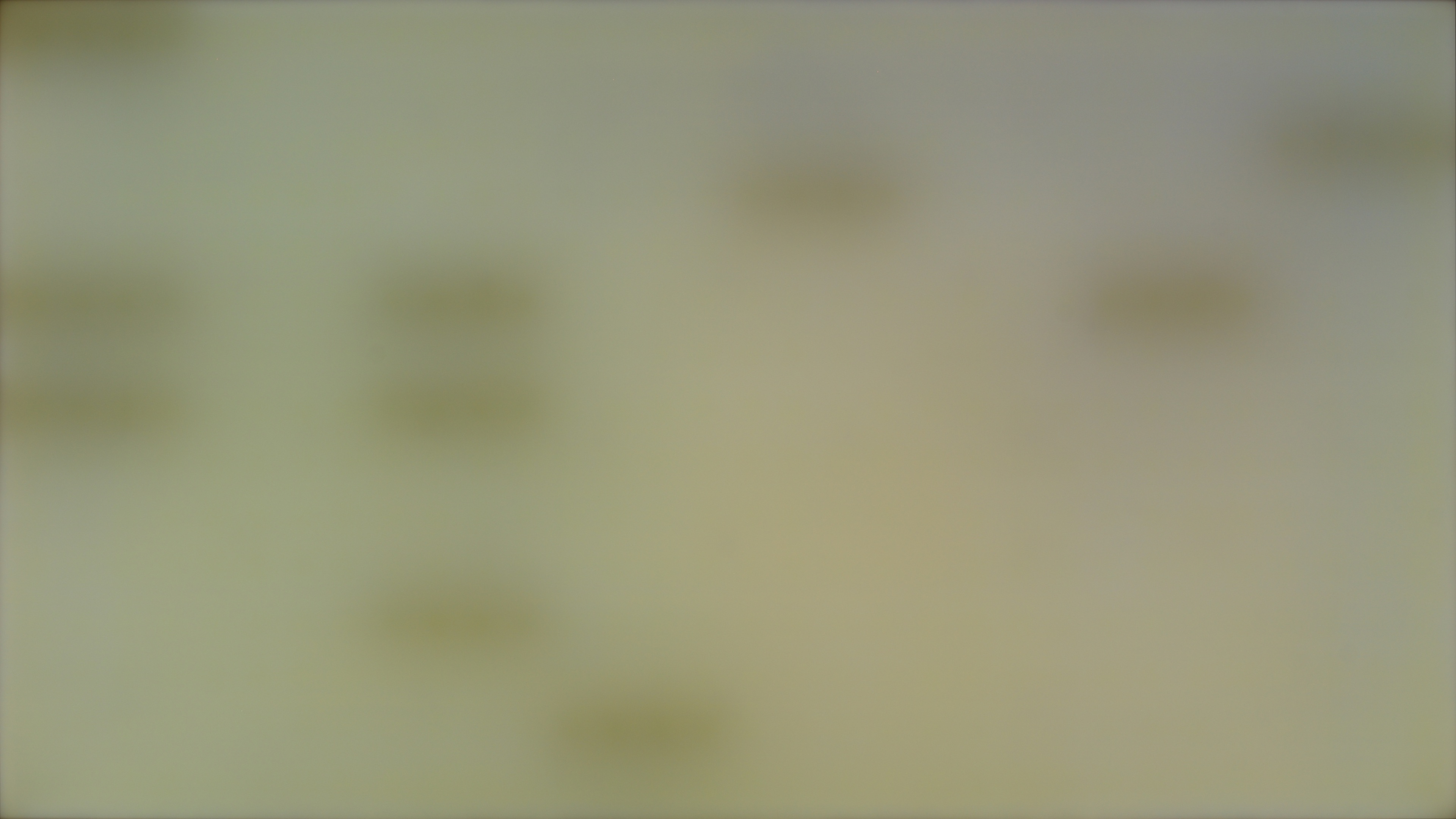
As your TV ages, you'll likely eventually start seeing issues like the dark spots above. It usually starts in one spot, but it quickly spreads as the TV ages. Unlike dead pixels mentioned above, these dark spots are caused by failed LEDs in your TV's backlight. Depending on the technology your TV uses, this might appear in a few different ways. A pattern like the spots above occurs when you have many individual LEDs in an array directly behind the screen.
The size and distribution of these spots will vary depending on the number of LEDs used in the TV. Higher-end premium models might have many thousands of LEDs, so you might not even see these dark zones when they first fail. On the lower-end of the market, you might see the backlight fail in entire columns instead.
Unfortunately, there's usually nothing you can do about these LED failures. It happens naturally as the LEDs in your TV age and start to fail. It's sometimes possible to replace the LEDs, but it's usually not worth it.
OLED Delamination
An increasingly common problem with OLED TVs is a degradation at the sides of the screen known as delamination. There are dozens of reports of this on Reddit, and the problem seems to be increasingly common, sadly. Unfortunately, this issue is caused by minor imperfections in the way the panels are made at the factory, and there's nothing you can do about it. It's not usually covered by the manufacturer warranty, and it usually takes many years before you start to see it, so it's too late for the warranty, anyway.
Similar to the LED failures above, there's nothing you can do about this yourself. You don't need to replace your TV immediately, but it will continue to worsen over time.
Burn-in
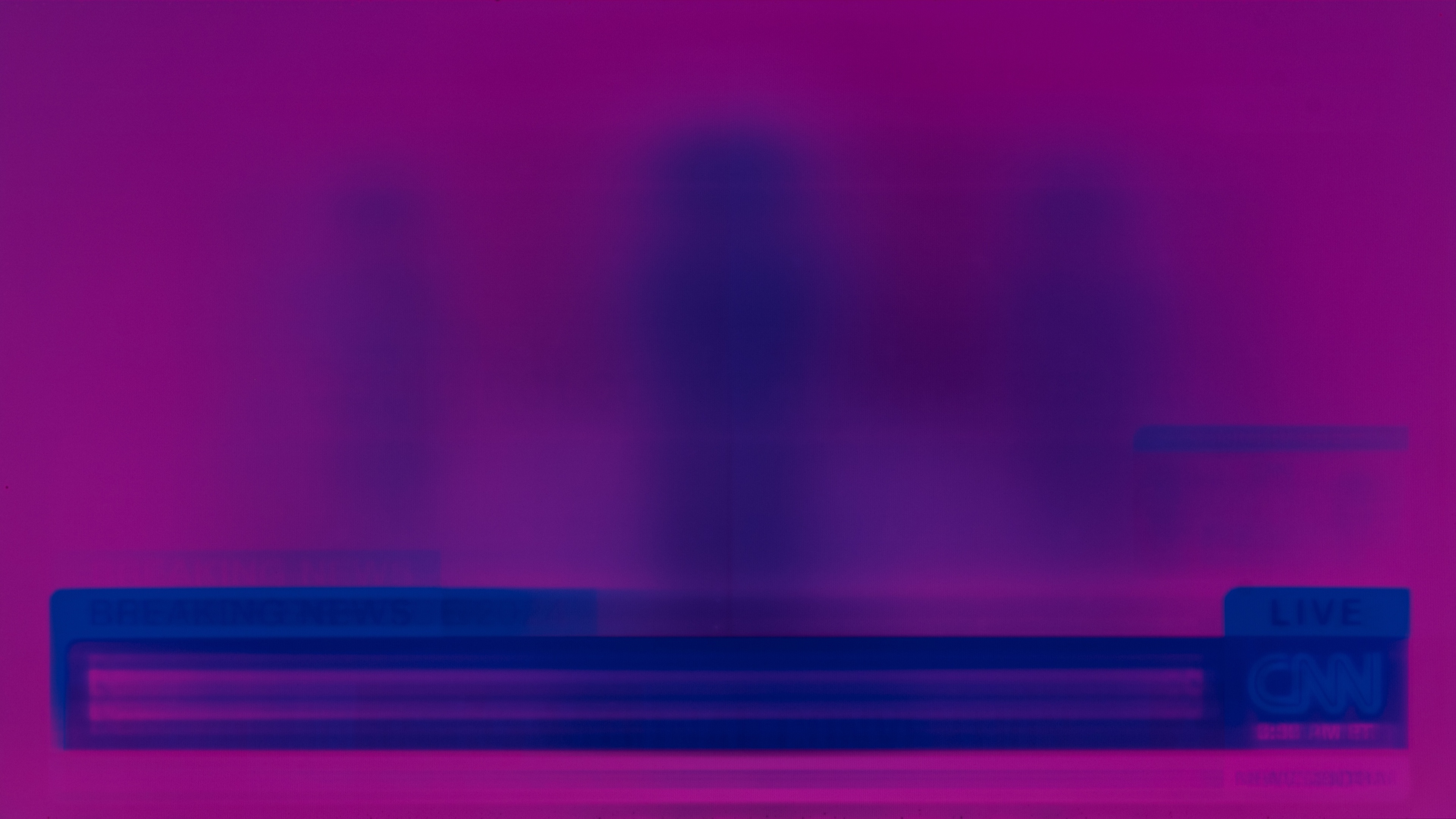
OLED panels on your TV or monitor use an organic material to produce light. These materials age and degrade over time, decreasing the amount of light they can output. Under normal usage, the panel degrades evenly, and modern TVs have many protection mechanisms built-in, so you don't notice this aging. If you often watch the same channels or play the same game, though, parts of the panel can age faster than other parts. This uneven aging is called burn-in.
You can see an extreme example of this aging above. This image was taken after about 13,000 hours of abuse, showing only CNN on this OLED TV. The breaking news banner is clearly burned in, and you can see a silhouette of the anchors in the center of the screen. This is an extreme case, and unless you only watch CNN, it's unlikely your TV will ever get as bad as this. With mixed usage burn-in shouldn't be an issue for most people.
If you do see an after-image with some content that looks like it might be burn-in, there's a good chance it's temporary. All modern OLED TVs have a built-in feature to clean up image retention. The exact setting depends on the model, but look for something similar to Pixel Refresh or Screen Cleaning.
No Signal
If your TV is displaying a "No Signal" message when you switch to an external input, it's usually a quick fix.
- Make sure the input on the TV is set to the input your device is plugged into.
- Check that the appropriate bandwidth setting is enabled on your TV. This setting has various names depending on the brand, so check the settings page for your model to find the correct setting. For game consoles, you'll want to use the highest setting available, usually "2.1" or "4k", but for older Blu-ray players or some cable boxes, you may need to change it to a lower setting like "1.4".
If neither of these fixes the problem, there's probably an issue with your cable.
- Check that the cable is properly connected on both ends.
- Change HDMI cables.
Snowy Image
If you see small white specs on your screen, almost like snow, then your HDMI cable is starting to fail. Replace it with a new one, and your TV should be as good as new.
No HDR
- Make sure your source is playing HDR. You may see Dolby Vision or HDR10 logos from streaming apps appear when you first play the content. However, not all TVs do this, and they don't always specify which HDR format is playing.
- Check to see if the TV supports the format your content is in. LG and Sony TVs don't support HDR10+, while Samsung doesn't support Dolby Vision. If it doesn't, it will usually end up playing in the basic HDR10 format instead.
- Check that the appropriate bandwidth setting is enabled on your TV. This setting has various names depending on the brand, so check the settings page for your model to find the correct setting. You'll need to set this to "2.0", "2.1", or "4k" for HDR playback to work.
- For streaming services, you may need to pay for a higher tier to allow for HDR playback.
High Input Lag
- On most TVs, you have to be in Game Mode for the lowest input lag. The exact setting name varies depending on the brand. Input lag can be considerably higher outside of this mode.
- Restart the TV.
TV Not Switching To Game Mode Automatically
- Check to see if your TV supports auto low latency mode (ALLM). This feature allows the TV to switch to Game Mode when you launch a game from a compatible device for low input lag, but you need to make sure the TV supports it, and it's enabled. If not, there's nothing you can do. All modern consoles support this feature.
- If ALLM isn't working, simply switch into Game Mode manually when you play a game. Some people may even prefer this, as ALLM doesn't always work properly if you're also using your console to stream movies or watch Blu-rays.
No VRR
Most TVs support a variable refresh rate, also known as VRR. This feature adjusts the refresh rate of the TV to match the frame rate coming from the source, reducing screen tearing that can occur without it. For VRR to work, the source needs to support VRR as well.
- Check to make sure the VRR or Game Mode settings on the TV are enabled.
- Verify to see if it's enabled with your console/PC.
- Make sure to only test VRR when you're in a game. Most consoles don't use VRR when they're on their home screens, so it might look like the feature isn't working properly when it actually is.
Chroma 4:4:4 Not Displayed Properly
- If it's a TV we tested, check to see if it properly supports chroma 4:4:4. This is a type of signal that improves text clarity when using it as a PC monitor. Sometimes, a TV simply cannot display chroma 4:4:4 properly, but this is rare.
- Set the TV to PC Mode. This is often the best way to display 4:4:4. Roku TVs automatically switch the TV into PC Mode when a PC is connected. For most TVs, you'll need to change the input label for the input you're using to 'PC' for it to enter PC Mode.
- If you can't find a PC mode setting on your TV, try enabling Game Mode instead. Sometimes, Game Mode has the same effect as PC Mode with low input lag and chroma 4:4:4 support.
- Lower the frame rate or resolution in your PC. 4:4:4 requires extra bandwidth, so limiting the frame rate or resolution can help with it.
Picture Skips/Jumps
- Disable motion interpolation. Motion interpolation is a feature meant to increase the frame rate of your content to match the refresh rate of the TV. However, if it's not effective, it can drop frames and make the image look worse.
- Try different playback sources, like different streaming apps or another DVD. It can often be the problem of the source and not the DVD.
Motion Artifacts
There are many different types of motion artifacts you might see when watching sports or shows. If you see any of the following:
- Ball/puck disappears when watching sports
- People/objects are moving too fast
- Motion is blocky
Try disabling motion interpolation or adjust the De-judder and De-blur sliders to a lower level. The artifacts mentioned above are very common with high levels of motion interpolation, as even high-end modern TVs can't keep up with very fast action.
No Sound From The TV
- Make sure HDMI or audio cable(s) are securely connected to both the TV and the receiver/headphones.
- Make sure the TV is set to output audio to your source device (sound settings).
- Make sure the source device is outputting compatible sound (PCM, DTS, Dolby Digital are safe bets).
- Try a different audio cable.
- See if other devices can play on the receiver.
Audio Is Out Of Sync With The Image
- When using external speakers, try to see if there are 'lip sync' or 'audio delay' features on the receiver.
- If you're using the TV's speakers, check to see if there are any 'lip sync' or 'audio delay' settings.
- Set the input to PC mode through the settings menu.
Note: If you're using a Bluetooth-connected soundbar or headphone, you'll likely hear a delay because of the latency associated with Bluetooth devices.