Equalizing (EQing) your headphones means adjusting their frequency response to change how they sound. This can help tailor the sound to your personal taste or bring a pair of headphones' sound closer to a desired reference target curve. In this guide, we'll explain what an EQ is, why you might want to use it for your headphones, the two most common styles of EQs, popular target curves like the Harman Curve and our very own in-house curve, and how to actually apply an EQ using various tools. We'll also cover the difference between built-in EQ via headphone companion apps versus third-party EQ apps, how to EQ on computers (Windows and Mac) with common software, and important tips to bear in mind when EQing.
What Is An Equalizer (EQ)?
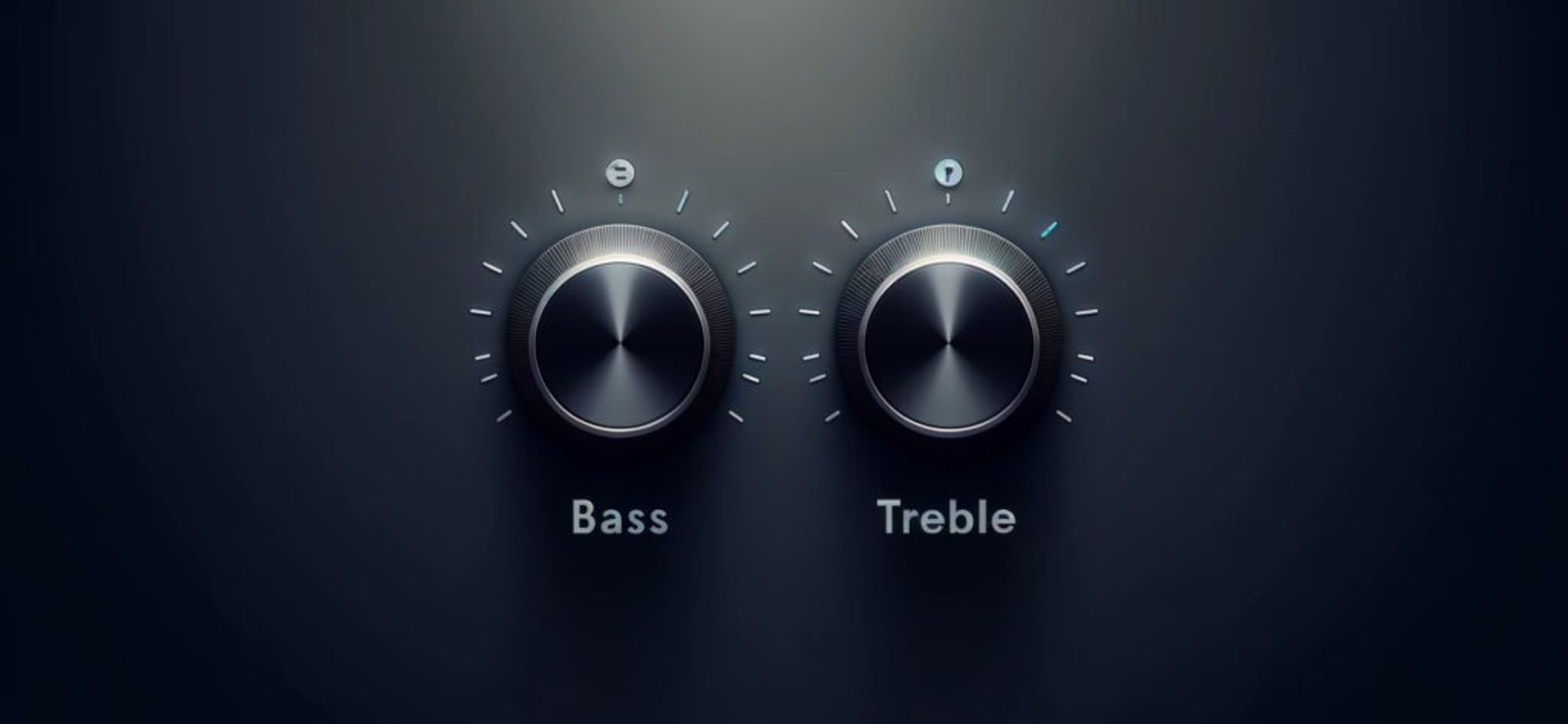
An equalizer is an audio tool that lets you adjust the volume level of specific frequency ranges within a sound signal. In simpler terms, you can think of an EQ as a set of "frequency-specific volume knobs" that turn certain parts of the audio spectrum up or down. For example, you can use an EQ to make the bass louder, or to reduce a treble spike that makes music sound harsh. Some EQs, like the bass and treble controls found on hi-fi systems, are very broad brush, and are best thought of as general tone shapers. Others, like the fully parametric EQ found in the Moondrop Link companion app, allow you to alter the sound in detail, which can be useful to fix problem frequencies.
Why Use EQ For Headphones?
There are a few reasons you might want to EQ your headphones. In general, all of them are about changing the overall sound of the audio you'll hear.
Personal taste plays a big role. Everyone hears a bit differently, and the stock tuning of a pair of headphones might not match your preferences. EQ lets you tailor the sound, adding bass for more impact or reducing harsh treble to prevent fatigue. It's a way to make your headphones sound better to you, which is ultimately what matters.
EQs are also useful for correcting tonal imbalances; many headphones, even expensive ones, have quirks like recessed mids, resonances, or overpowering bass. A few targeted adjustments can bring vocals forward, smooth out harsh highs, or add balance where it's lacking.
Some listeners also like to use an EQ to compensate for the equal-loudness contour (often known as the Fletcher Munson curve, which is one variant of an equal loudness contour) when listening at different levels. Adjusting EQ this way helps maintain a consistent tonal balance, whether you're listening quietly or at higher volumes.
Movie watchers can also use an EQ to boost the frequencies where explosions hit for a more immersive experience, or enhance the vocal range to make dialogue clearer. Similarly, some gamers use an EQ to gain a competitive edge by boosting the frequencies where crucial sounds like footsteps occur. Most gaming headset companion apps come with a robust EQ; some, such as the SteelSeries GG companion app, even offer game-specific EQ presets tailored for this purpose.
Finally, if you want a balanced or studio-reference sound, EQ can help align your headphones with research-backed target curves like the Harman Curve. This might also be useful if you often switch between different pairs of headphones. While EQs can't make two headphones sound identical, they can make them sound more similar, especially in overall tonal character.
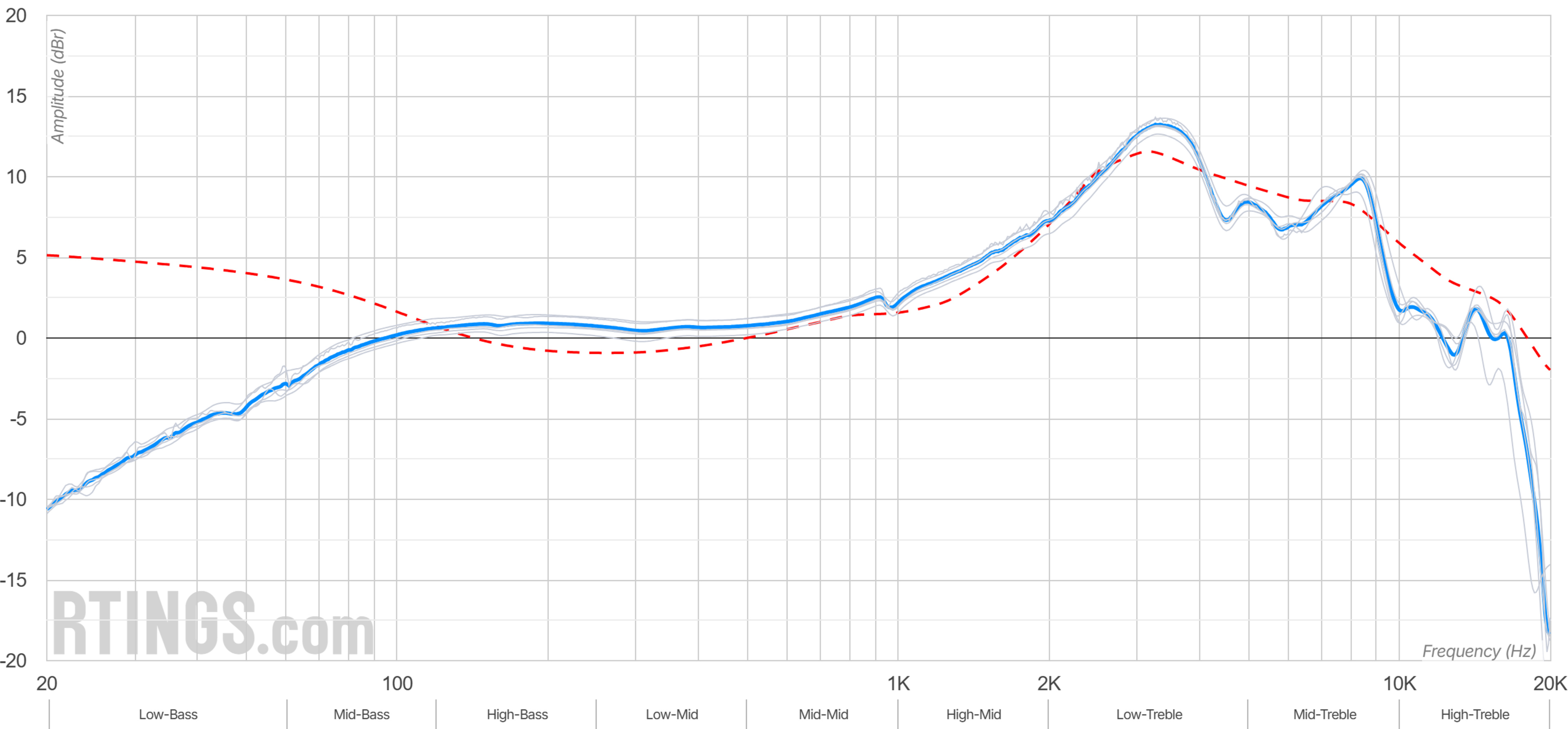
It's worth noting that some audiophiles have historically viewed EQs as impure or degrading to sound quality. But modern digital EQs introduce virtually no distortion (so long as they're used within reasonable limits). And since headphones are minimum phase devices, their frequency response and phase response are linked. This is a good thing because any EQ changes you make will also result in predictable, non-destructive phase shifts. That means when you use an EQ to correct the frequency response, you're also correcting the phase response in a way that aligns with how the pair of headphones' transducers behave. In this context, phase shifts introduced by an EQ aren't a flaw but part of a natural, beneficial correction. Studios rely on EQ constantly to shape the audio you end up hearing. For personal listening, it's a powerful tool to refine a pair of headphones' tonal balance and bring out more clarity or neutrality.
That said, EQs can't fix everything. If a pair of headphones' driver simply cannot produce deep sub-bass, boosting 20Hz by 15 dB won't create miracles (and might just cause distortion). Similarly, EQs won't change things like the group delay or perceived soundstage of a pair of headphones in a direct way (those also depend on driver and ear cup design), though a more balanced frequency response can subjectively make the soundstage appear better by reducing overwhelming frequencies. Think of EQ as fine-tuning the tonal aspects of sound, which is the biggest factor in the perceived sound quality of a pair of headphones. But if headphones have severe distortion or lack capability in a certain range, EQ can't be of much use.
Types Of Equalizers
Before digital EQs became widespread, equalization was done using analog hardware. You might have seen these big boxes with physical knobs in pictures from recording studios. These were the original tools engineers used to adjust tonal balance. Classic analog EQs are often also found on hi-fi systems, where they have tended to use fixed bands controlled by knobs or sliders. You've probably seen the bass and treble knobs on an old Hi-Fi system: those are EQs!
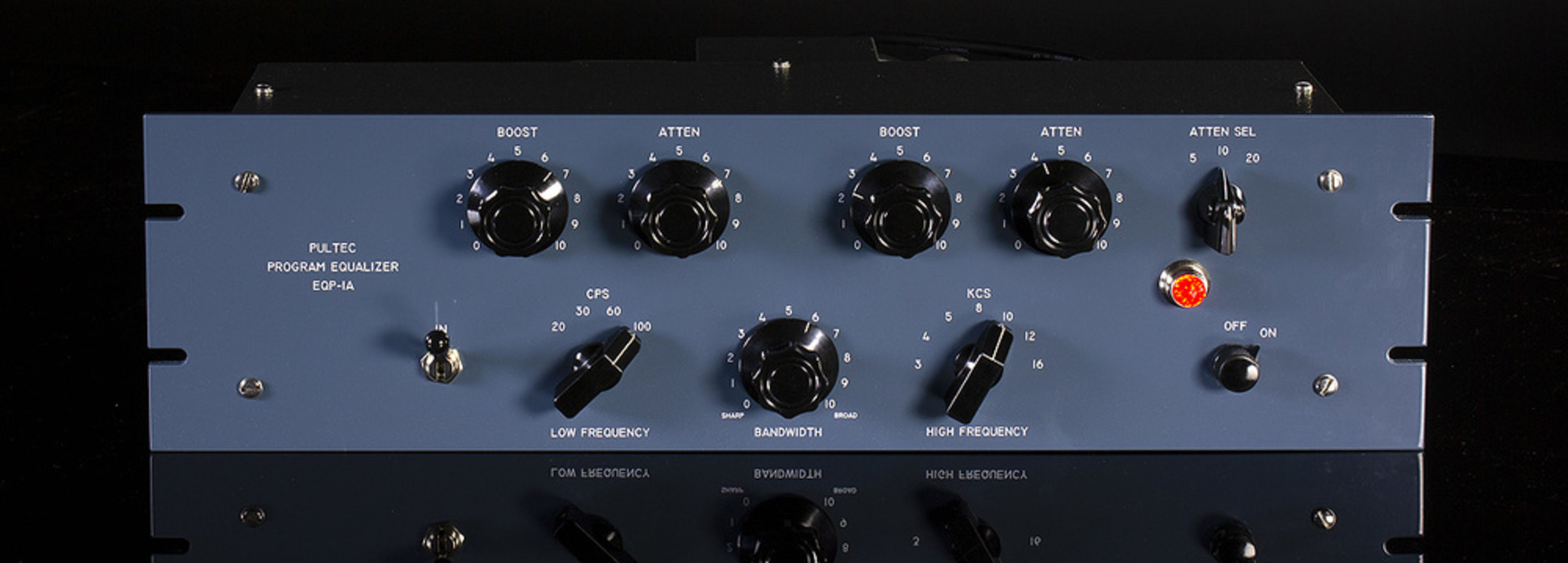
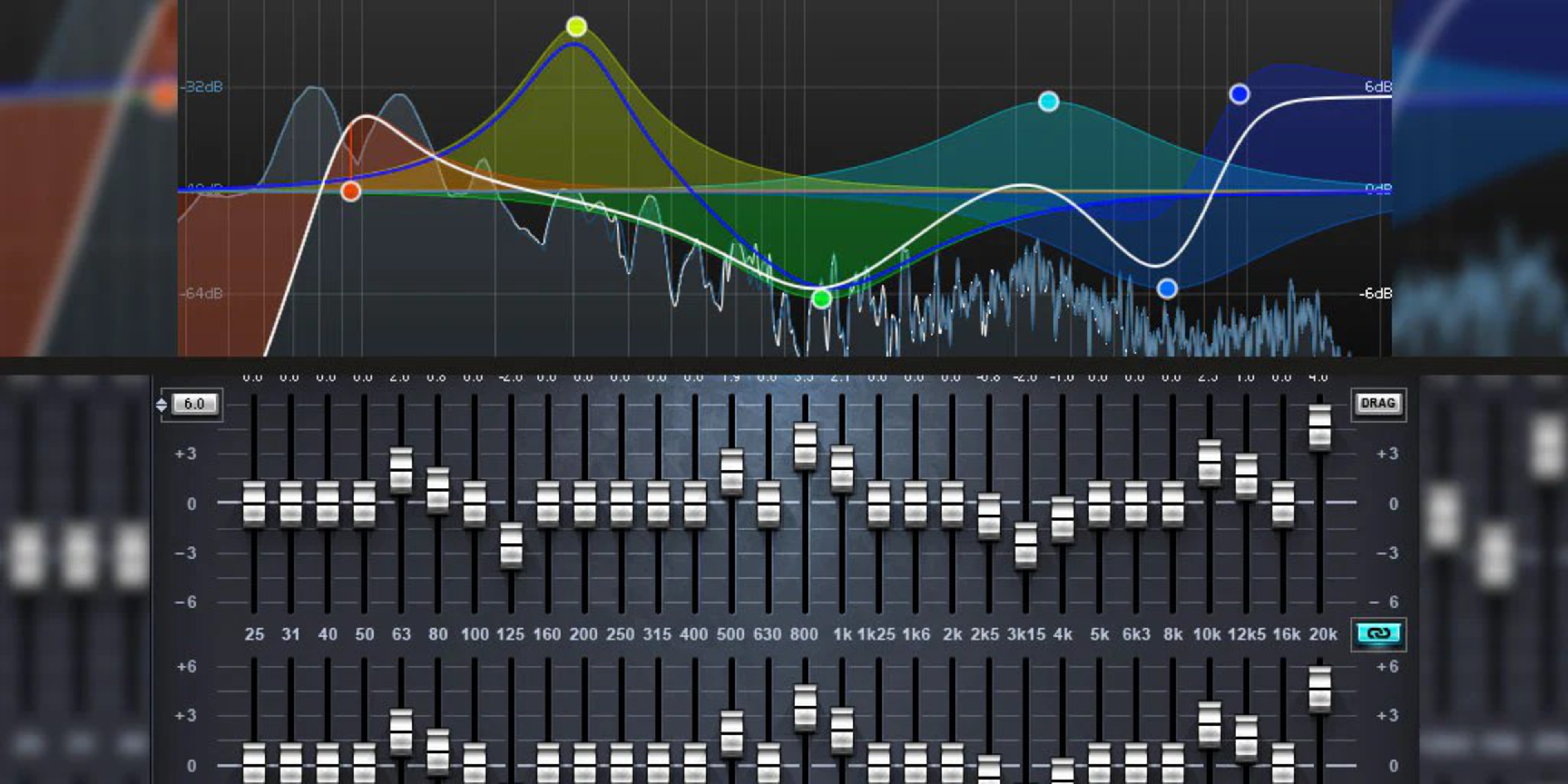
Nowadays, most EQing is done digitally. It's true that some manufacturers, such as Schiit Audio, still offer analog EQs for headphones, and headphone amps sometimes come with EQs built in. But those are usually broad-stroke controls, such as the bass and treble knobs discussed earlier. When EQing your headphones, you'll most frequently encounter two main types of digital equalizers: graphic and parametric. Both allow you to adjust specific frequency ranges, but differ in control and precision.
Graphic EQ
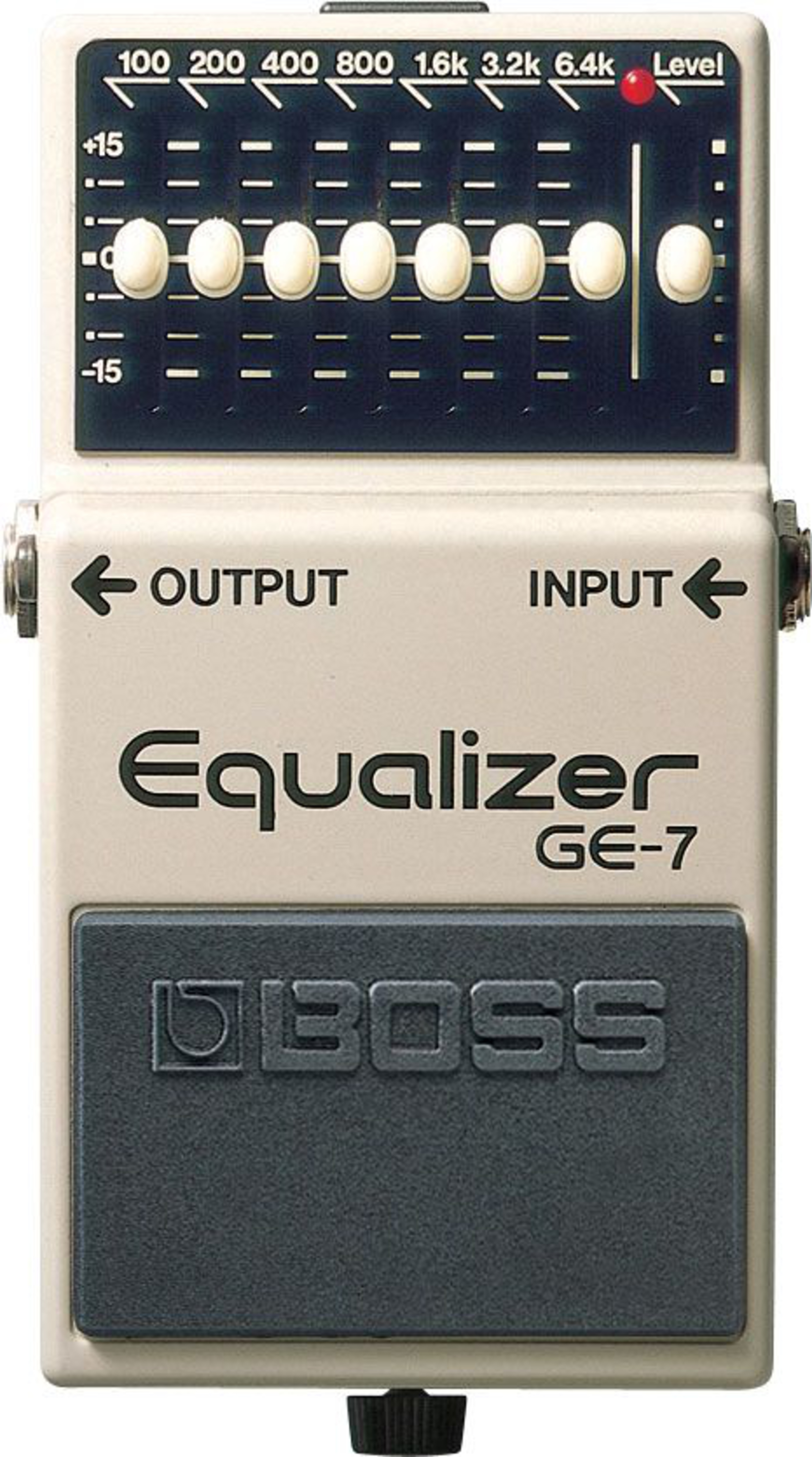
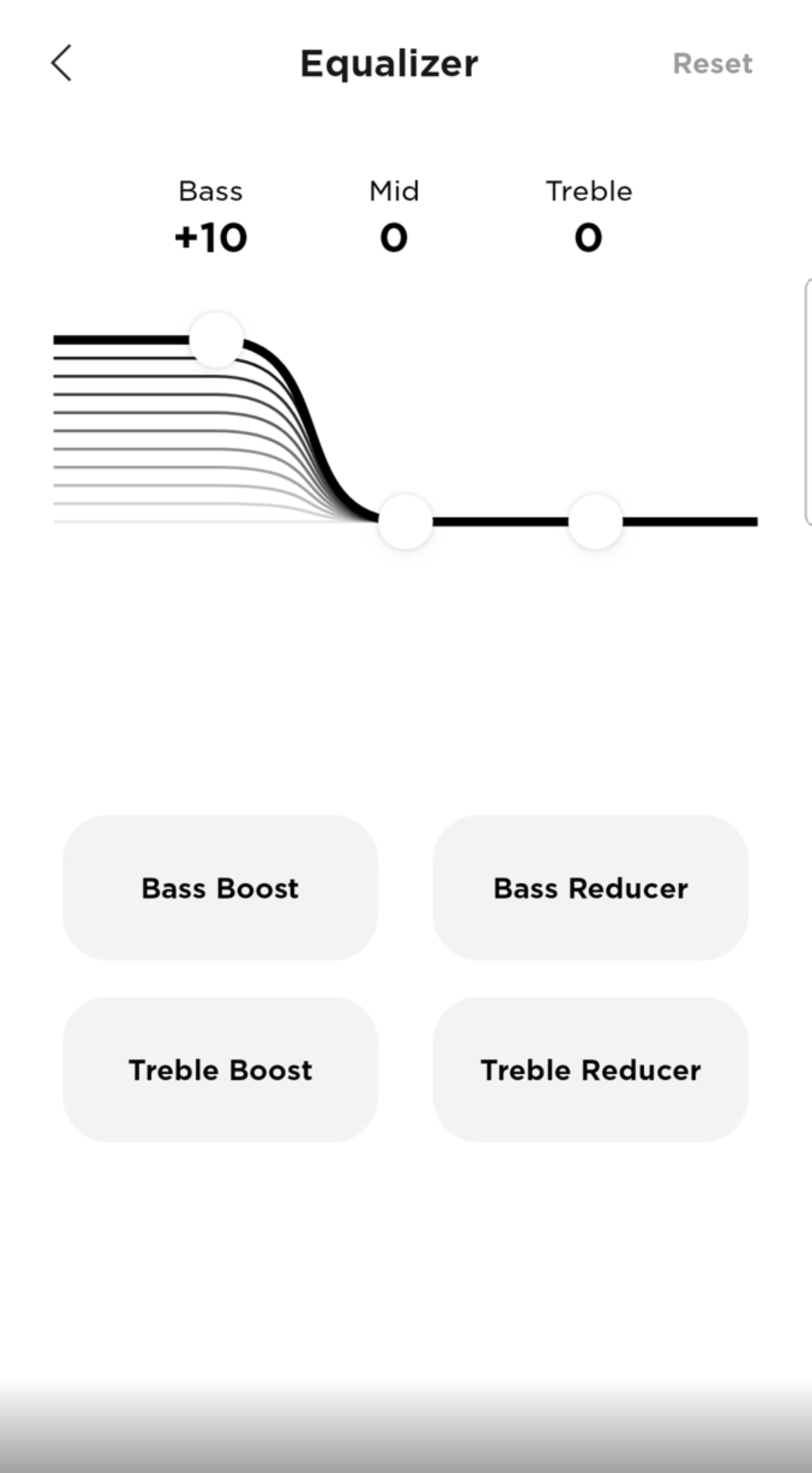
A graphic EQ gives you a series of fixed-frequency bands that you can boost or cut. These are easy to use and found in everything from guitar pedals to consumer apps, but they're relatively coarse tools: you're limited to preset frequencies and can't adjust the width of each band, making them better for broad tonal shaping than detailed corrections. Many manufacturers also don't label the bands' frequencies, which can make them harder to use if you're used to named bands. For example, the Bose Music companion app gives you three sliders for bass, mids, and treble.
Parametric EQ
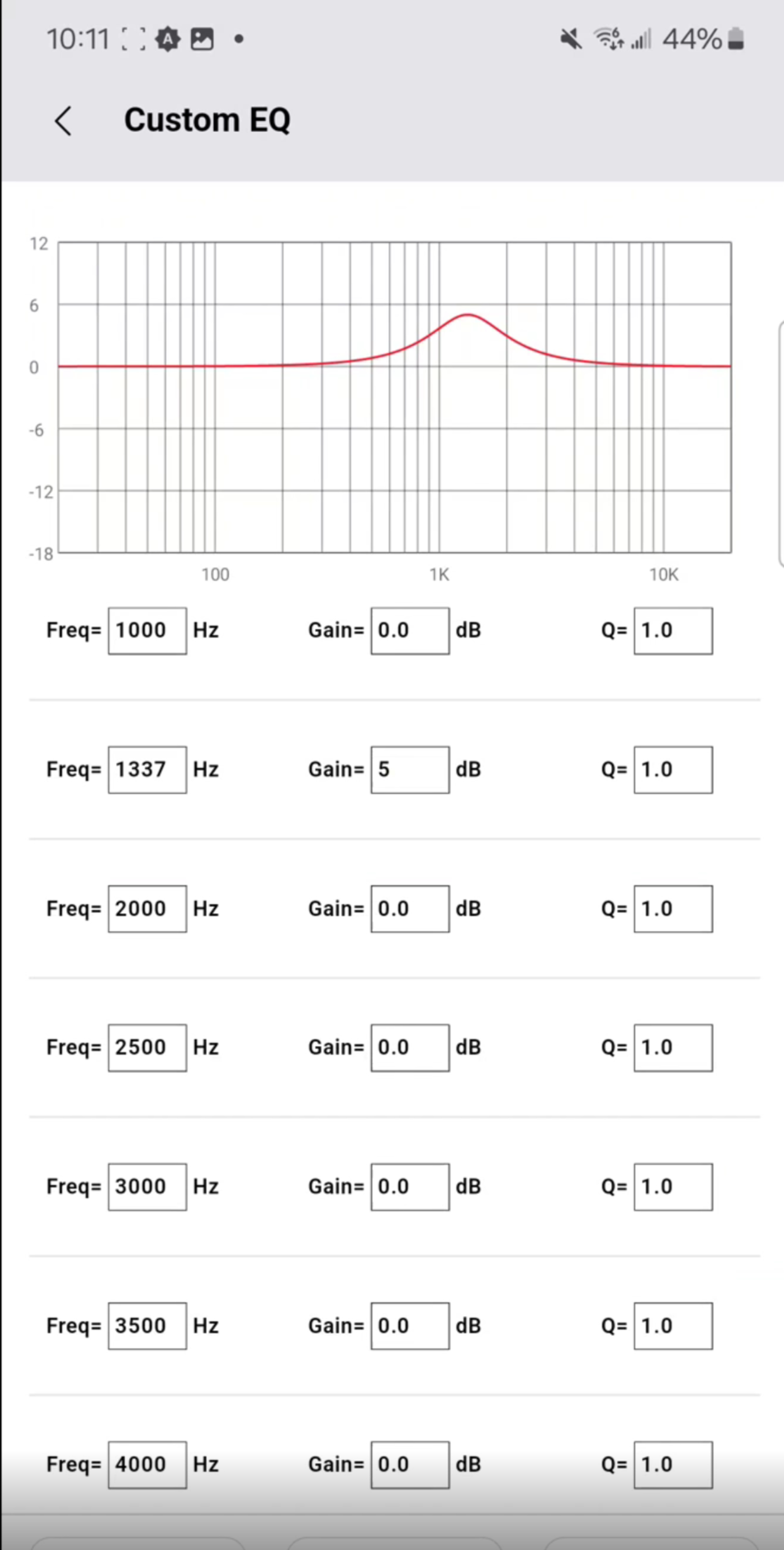
A parametric EQ, on the other hand, lets you fully customize each band: you choose the center frequency, how much to boost or cut, and how wide or narrow the effect is (the "Q" factor). Sometimes, you can also select filter types like peaking, shelf, or pass filters. This allows for more surgical adjustments. For example, a parametric EQ is much more useful than a graphic EQ for reducing a narrow resonance at 5.2kHz without touching neighboring frequencies. While parametric EQs have a steeper learning curve and often require entering exact values or dragging points on a graph, they offer far greater accuracy. Most community-created EQ profiles are provided in parametric format (PEQ) for this reason. In short, graphic EQs are good for quick tone tweaks, while parametric EQs are better for precise tuning.
Target Curves
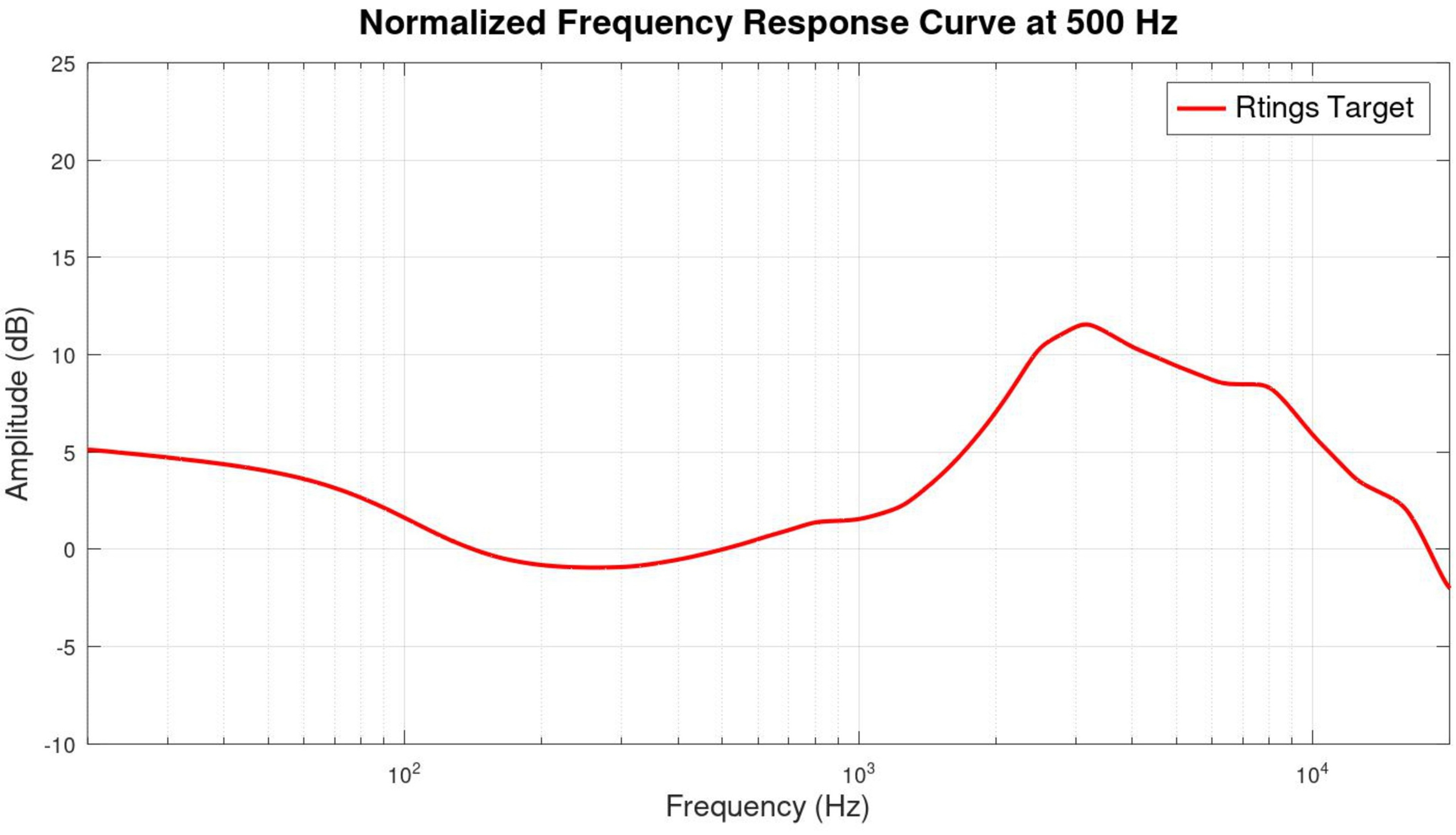
When EQing headphones, you'll often hear about target curves. These are reference frequency responses that researchers have found sound neutral or pleasing to most listeners. The best-known is the Harman Curve, developed through tests at Harman International1,2,3. While Harman has become the most widely referenced target, others exist, including our very own in-house RTINGS.com target curve. As of our Headphones Test Bench 2.0, you can view a selection of target curves on our graph tool. This article isn't the place for detailed explanations of how and why we landed on our target curve, though. If you're interested in that, head over to our article on why One Curve Doesn't Fit All.
For now, it's enough to know that a target curve should be seen as a helpful baseline, not a universal rule. Preferences vary widely: some listeners want more bass, others prefer a brighter sound. While many community EQ presets aim to bring headphones closer to Harman or similar targets, it's perfectly fine to tune an EQ by ear. After all, you're the only person with your particular ears!
Tuning By Ear vs. Using Measurements
There are two main ways to EQ headphones: tuning by ear and tuning by measurements. Often, the best approach is to use both! Tuning by ear involves adjusting EQ settings while listening to familiar music, using your hearing to guide what sounds right to you. It's accessible and personal, letting you tailor sound to your own hearing and taste. The main requirement is a bit of patience! A common technique is to exaggerate individual bands to hear their effect, then dial them back to a natural level. This method can be trial-and-error, and beginners should make small changes and test across multiple tracks to avoid over-correcting. The best approach might be to select five to ten of your favourite tracks, and then adjust the EQ while switching between the tracks until they all sound about as you'd like, without any sounding wildly off or imbalanced.
Tuning by measurements, on the other hand, uses frequency response graphs and target curves as a basis from which to make corrections. If a pair of headphones' measurements show a slight peak at 3.5kHz compared to a target, for example, you can equalize that area down. Tools like AutoEQ automate this by generating filter sets to match known targets: more on this below.
That said, more precise, measurement-based EQing isn't foolproof: measurement rigs vary, and personal preference still matters. You might find a target curve too bright or bassy. That's why many people apply a preset and then fine-tune it by ear. In practice, the best results often come from blending both methods: use measurements to fix known flaws, then adjust for taste.
Using EQ Apps: Companion Headphone Apps vs. Third-Party Solutions
There are two main ways to apply an EQ: through companion headphone apps or third-party software on your device.
Companion Apps
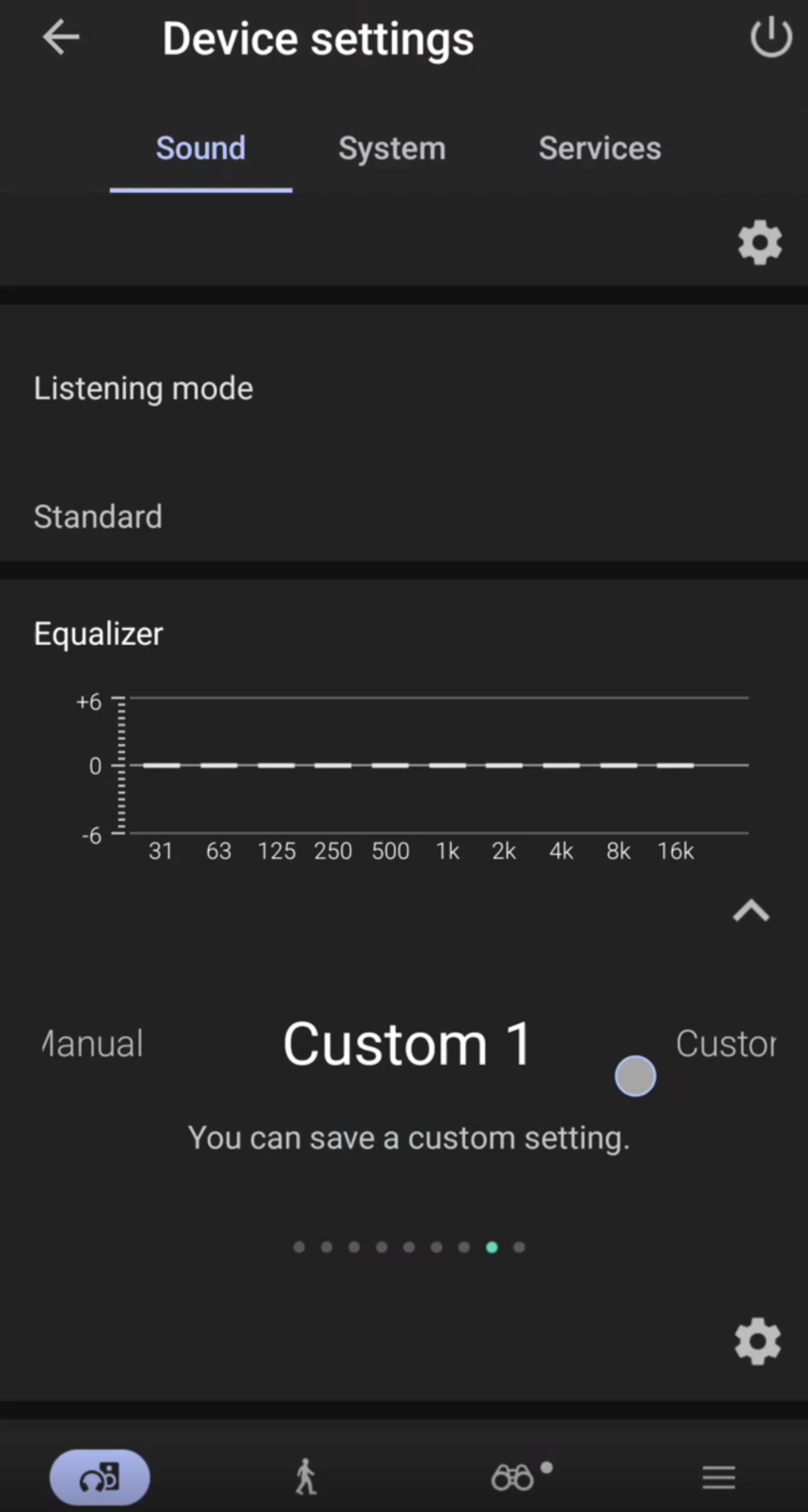
Most wireless headphones—like those from Bose, Sony, Sennheiser, or JBL—offer EQ controls in their companion apps. These are typically graphic EQs with limited bands (e.g., 3-5 sliders or touch-based curves), but they're simple and effective for broad tone shaping. Crucially, the EQ is stored in the headphones' memory and processed by its internal DSP, so your adjustments stay active even when you switch devices or go wired (as long as the headphones are powered on or Active). For example, if you EQ a Sony WH-1000XM6 in the app, that EQ will remain active even if you disconnect from the app and connect the headphones to a different device (the headphones remember it). Some apps even support parametric EQ, though those are rare.
 |
 |
 |
Third-Party Apps
You can use third-party apps for more control, especially with wired headphones or models lacking built-in EQ. The key difference to remember is where the EQ is applied. Companion apps process EQ onboard the headphones, while third-party apps process EQ on the device's output. That means if you switch devices, your EQ settings won't automatically come with you.
Android
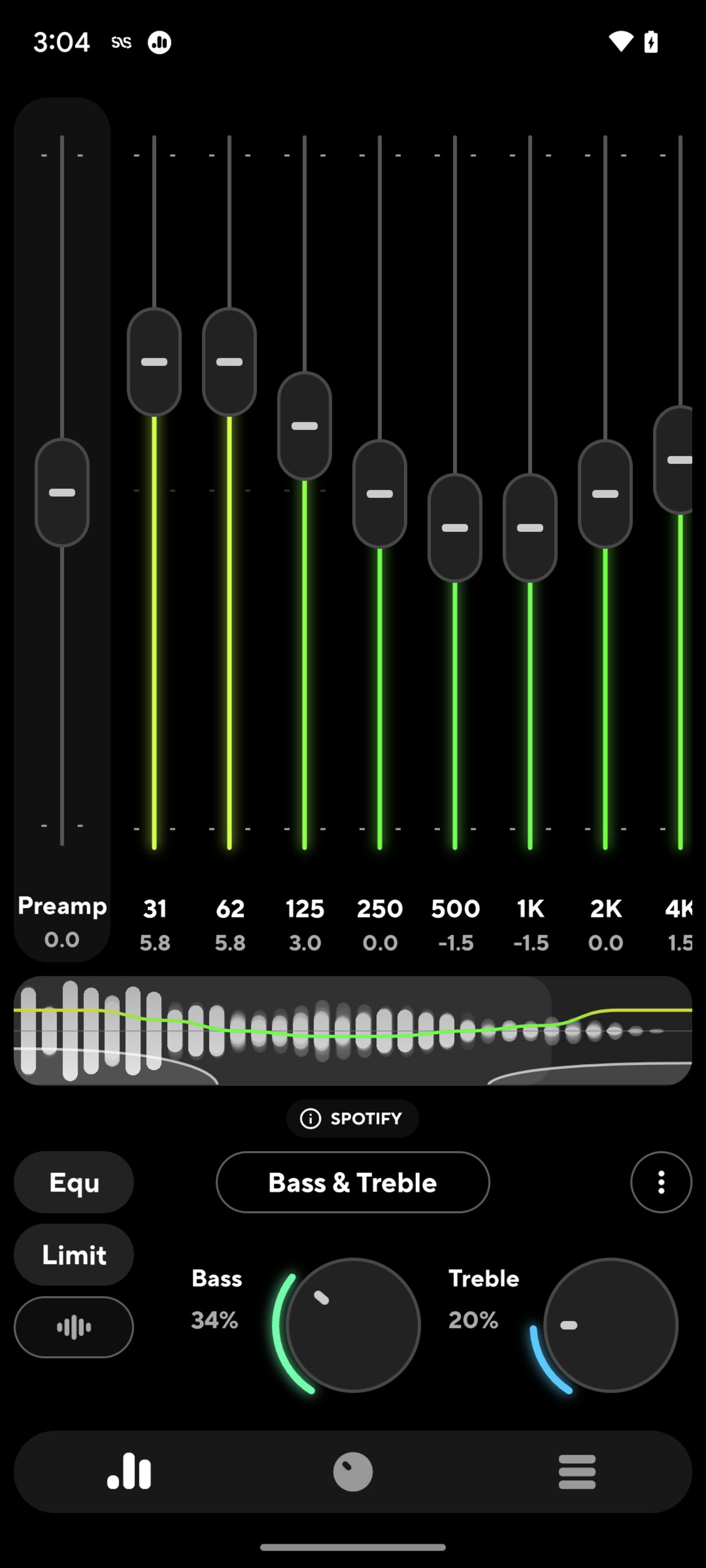
On Android, options like Wavelet and Poweramp Equalizer offer parametric EQ and built-in presets for hundreds of headphones. They also let you build your own presets per device, so each device you can connect to can have a personalized EQ profile automatically applied. One benefit is that you can even apply EQ presets to Bluetooth speakers you connect to and save all your presets in one centralized app. Third-party EQ apps can slightly impact battery life or conflict with some streaming services, though these issues are rare with well-optimized apps.
iOS
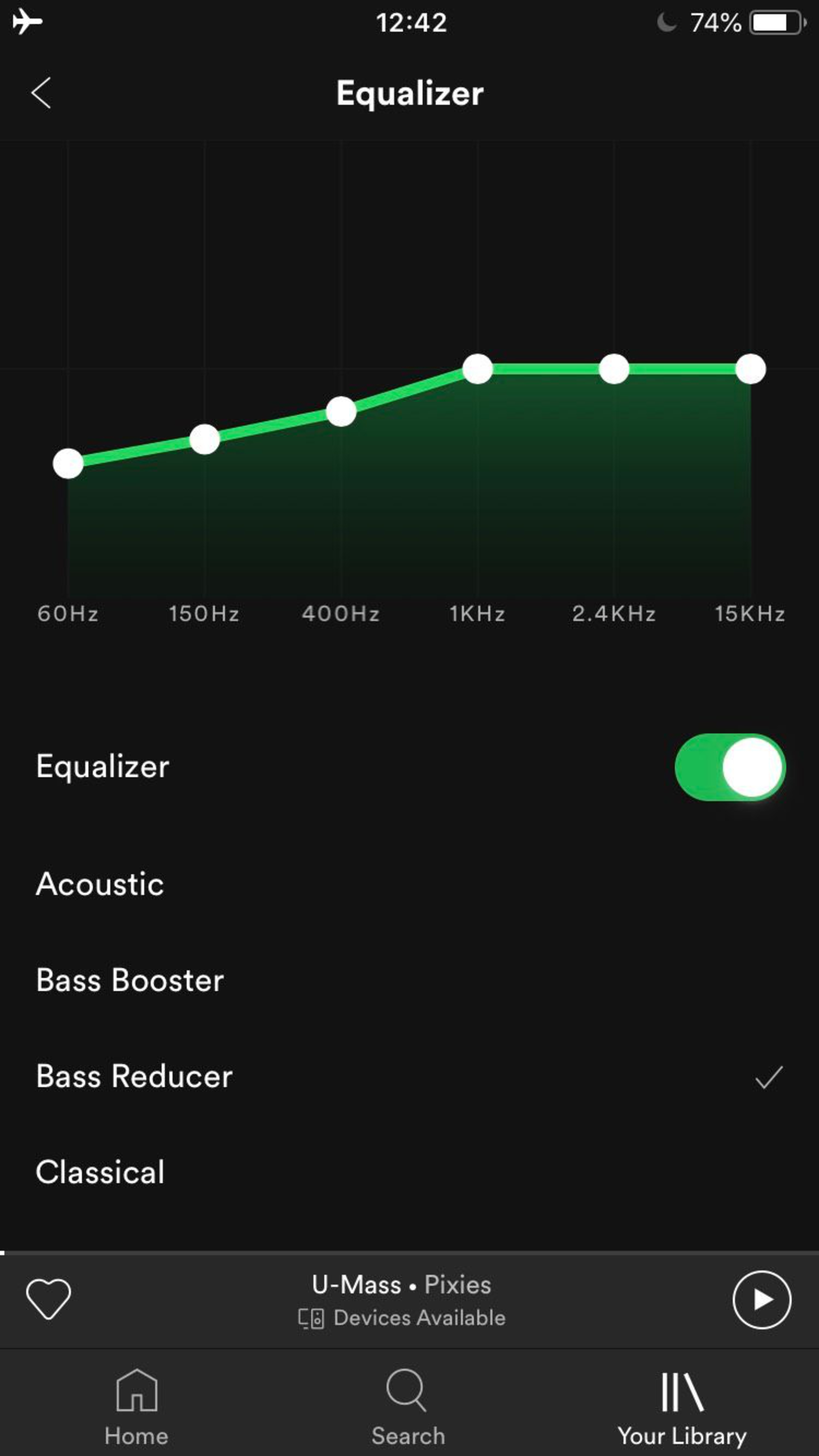
Unfortunately, iOS is more limited because Apple doesn't allow easy access for developers to build system-wide audio effects in the same way. You can access a few different EQ presets in the 'Accessibility' settings menu, and the built-in Apple Music app has a set of EQ presets (rock, jazz, etc.), but neither offers manual custom EQ. Some third-party apps in the App Store (like Boom and Equalizer Pro) can play your local music files with a custom EQ, but they won't apply to streaming apps like Spotify or Apple Music due to sandboxing. If you're using something like Spotify on iOS, you're limited to Spotify's own EQ setting (which is a simple 6-band graphic EQ). So, iOS users have less flexibility system-wide unless they use external DACs with dedicated apps.
 |
 |
Windows
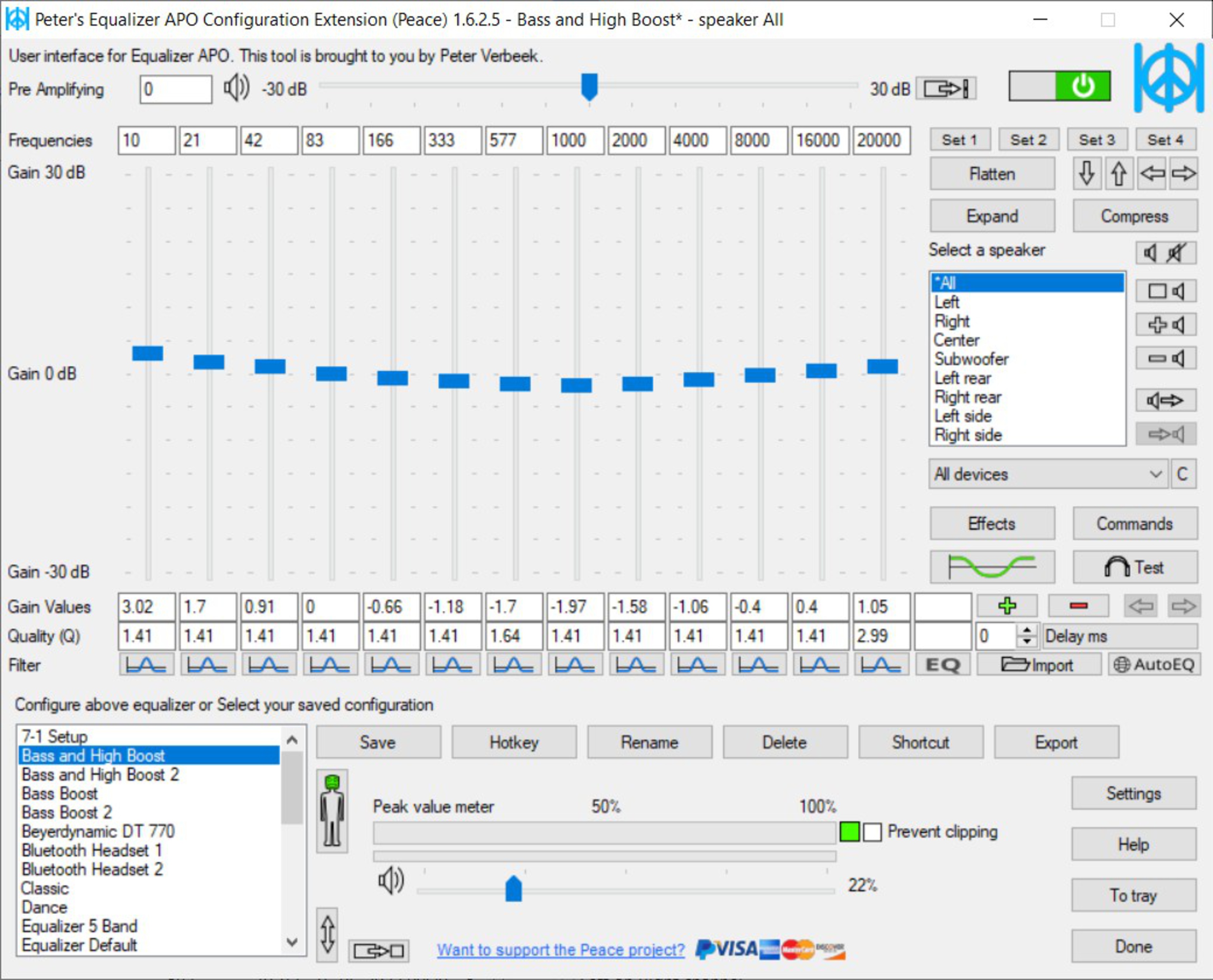
On Windows, Equalizer APO is the go-to solution. It works at the OS audio driver level. You install Equalizer APO, and it can apply a virtually unlimited set of filters to your system sound with no added latency, meaning all audio (music players, games, browser, etc.) gets EQ'd. By itself, Equalizer APO is text-configured (you edit a config file or use a basic GUI), but there are front-ends like Peace GUI that make it easy to add filters and sliders via a nice GUI.
MacOS
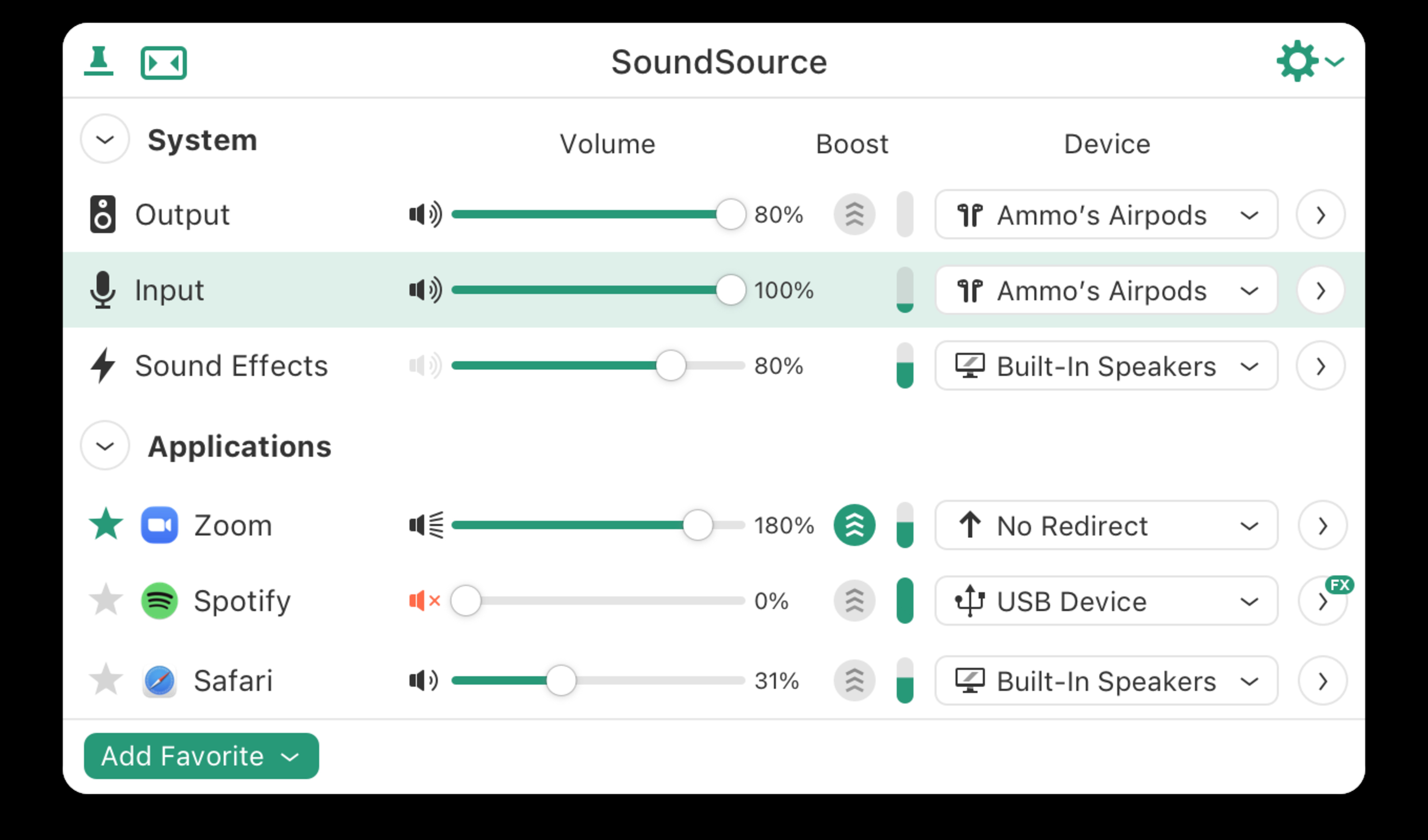
On macOS, system-wide EQ is possible, though not quite as straightforward as Windows. A well-known free option is eqMac, which provides a system-wide audio driver with a built-in EQ (graphic in the free version, and a parametric EQ with the paid version). However, many Mac users swear by Rogue Amoeba's SoundSource. Though paid software, this app lets you apply Audio Unit effects (including Apple's built-in AUParametricEQ or third-party plugins) to your system output or per application.
Linux
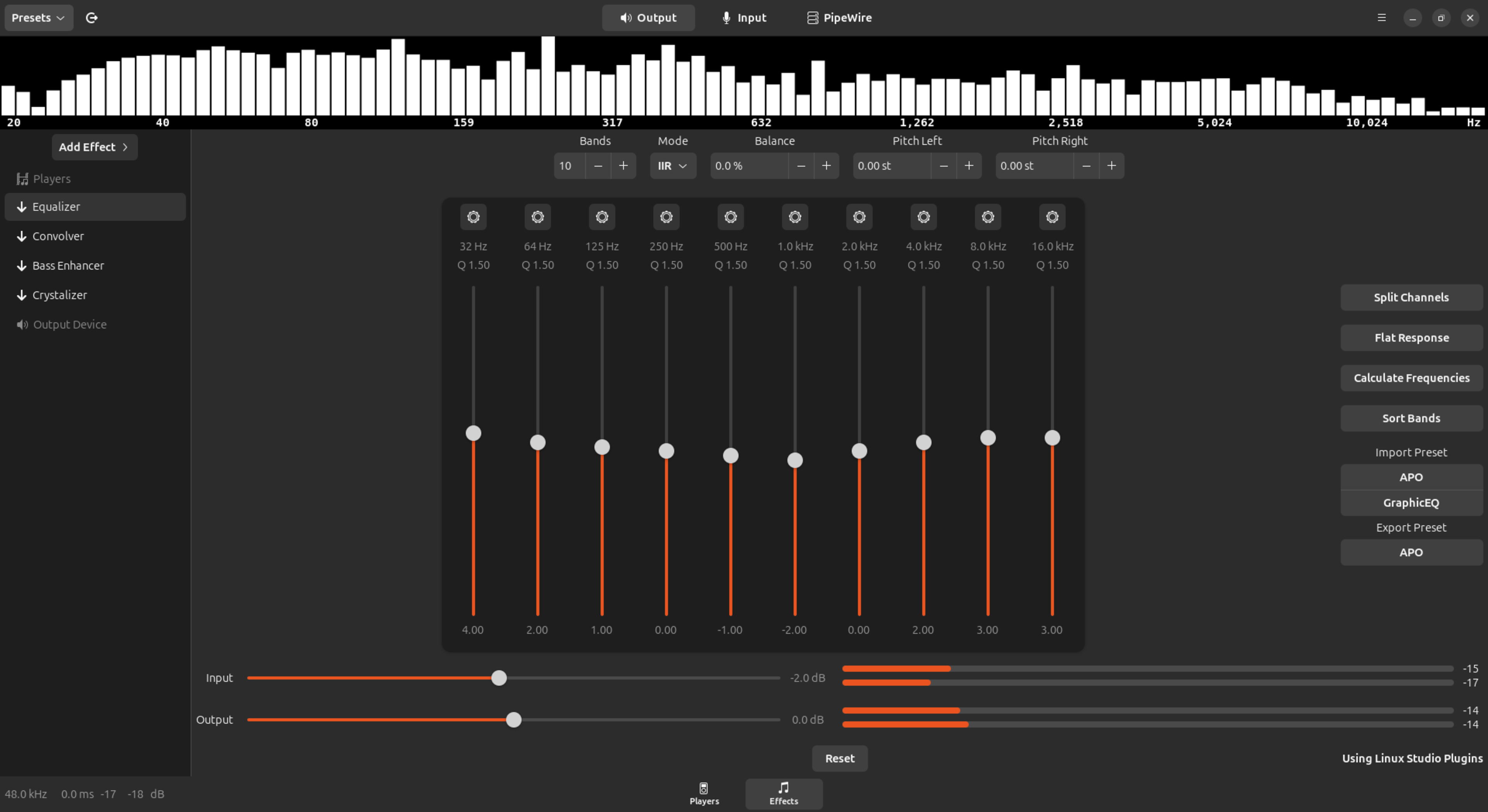
On Linux, you can use tools like PulseEffects (now part of PipeWire, renamed EasyEffects), which allow for system-wide EQ. EasyEffects supports both graphic and fully parametric EQ, along with additional effects like compression and limiting. It's a powerful option for Linux users who want fine-grained audio control across all applications.
Community-Supplied EQ Presets And PEQ Formats
A large online community now shares EQ presets for many headphones, helping users improve sound without starting from scratch. The most notable is AutoEQ by Jaakko Pasanen, which uses measurement data from sources like RTINGS, InnerFidelity, and others to generate EQ settings that match popular targets like the Harman Curve. AutoEQ supports multiple formats: parametric EQ (PEQ), graphic EQ, and even FIR filters for convolution.
PEQ presets are the most common, offering detailed filter settings (frequency, gain, Q) that are compatible with software like Equalizer APO and Wavelet.
Well-known individuals like Oratory1990 also publish PEQ settings based on their own measurements and tuning preferences, and users on forums like Headphones.com also share their own EQ profiles.
PEQ formats are easy to read and input, and using them gives you a fast, research-backed way to optimize your headphones' sound. But remember: they're starting points, not final answers.
RTINGS-Supplied EQ Parameters
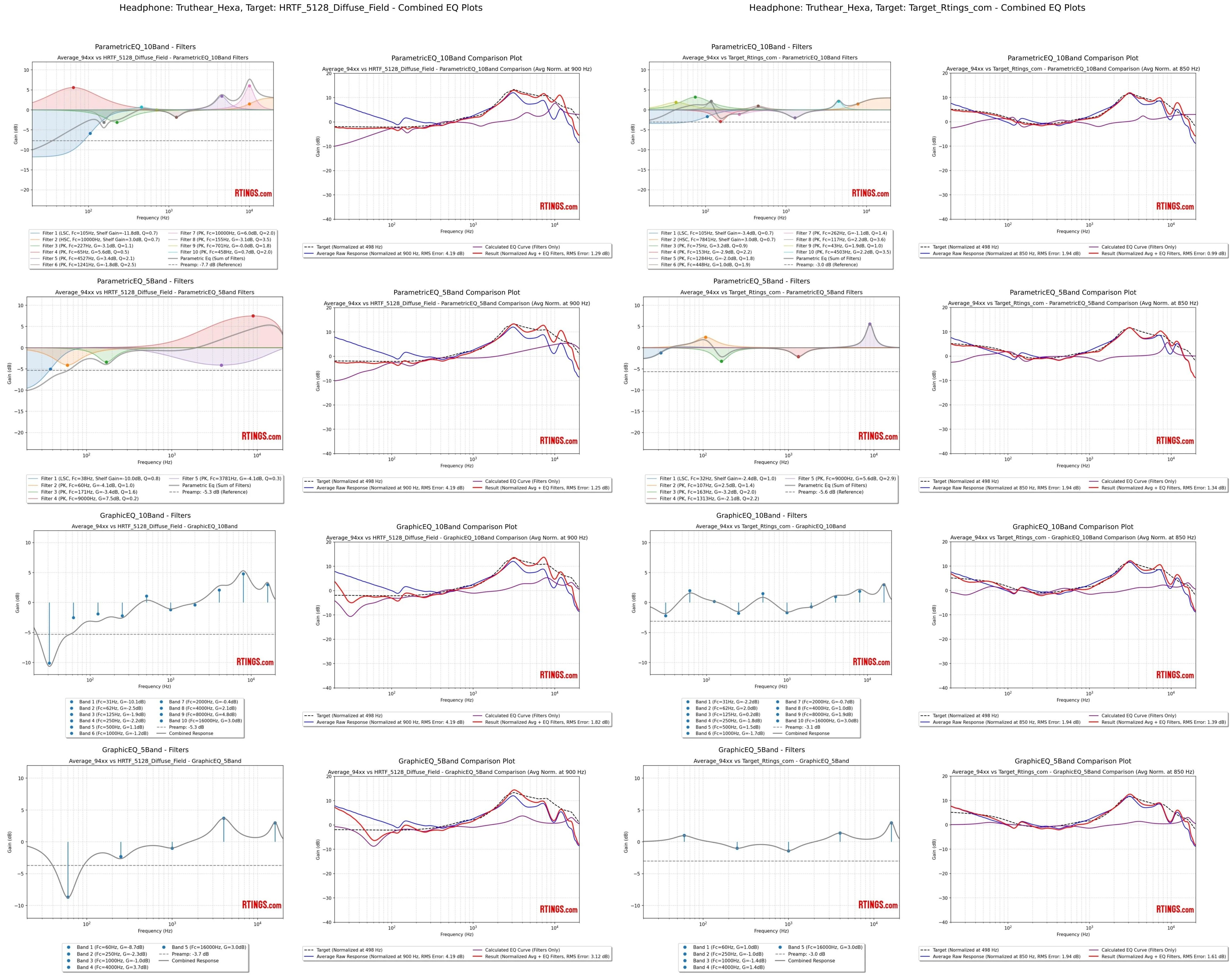
We've started assembling EQ datasheets for the wired headphones we've tested. Right now, we have sheets for all wired headphones and IEMs we've tested that are on Test Bench 1.8 or later. Each sheet includes 5- and 10-band graphic and parametric EQ settings to help achieve the target curves we've started including on our graph tool as of Headphones Test Bench 2.0. Once the project is complete, we'll also provide downloadable text files compatible with Equalizer APO. For now, if you're using another app or platform, you'll probably need to input the settings manually.
For the time being, we're focusing on wired headphones. Bluetooth models pose challenges due to their built-in EQ presets, app-specific tuning limitations, and inconsistent DSP behavior. Supporting those would require significantly more testing and infrastructure. That said, we're not ruling it out for the future.
Tips And Precautions When EQing
- Don't Overdo It: Large EQ boosts can overload your headphones' drivers or cause distortion. The size of the boost at which distortion becomes an audible issue may be greater than you think, but if you need to make big changes, it's still a good rule of thumb to be cautious: sometimes a heavy cut or boost points to a deeper issue with the headphones' tuning. Similarly, using too many narrow filters can introduce phase issues or audible artifacts. Use as few filters as necessary. A wide, gentle adjustment is often better than multiple sharp ones.
- Avoid Clipping: As a general rule, cutting problematic frequencies is cleaner and safer than boosting others, as it preserves headroom, thus reducing the likelihood of clipping. When you do apply boosts, always adjust the preamp level downward by at least the amount of your largest boost to prevent digital clipping and preserve signal headroom. And if you need to raise the volume after cutting, do so slowly, and listen out for clipping. A balanced EQ approach helps you avoid artifacts and keeps your sound clean.
- Know Your Headphones' Limits: No EQ can add what the drivers can't physically produce. Excessive sub-bass boosts may cause distortion or driver strain. If your headphones distort after EQing, you may need to scale back.
- Trust Your Ears: Everyone hears differently. Use reference targets as a guide, but tune to what sounds good to you. If a given target curve feels too bassy or bright, dial it back. Preferences vary, and that's okay. Remember to be careful while experimenting: you don't want to inadvertently damage your hearing by listening too loudly.
- A/B Test Often: Toggle the EQ on and off to hear the difference and avoid getting locked into a skewed sound. Try to match volumes when comparing, as louder usually sounds "better" even when it's not. Similarly, use a variety of reference tracks, ideally from different genres, to test out your EQ profile. You don't want to tune an EQ to just one song, or it might make others sound odd.
- Save Presets: Once you find a good EQ setting, save it. Some apps let you make profiles for different use cases and easily switch between them.
- Avoid DSP Conflicts: Multiple audio enhancements (like Dolby Atmos plus an EQ app) can stack or interfere. To avoid unpredictable results, disable all other processing when using a dedicated EQ, such as Poweramp Equalizer.
Conclusion
We'd like to leave you with one final thought: enjoy the journey! Don't stress about finding the perfect EQ settings once and for all, or with matching any of the various target curves out there. EQ is part science, part art. And tastes change over time, too. There's no perfect curve, only what sounds best to you. Use targets as a guide, trust your ears, and don't be afraid to experiment. As long as you avoid distortion, there's little risk. Whether you're sliding a few bands or building a detailed PEQ, EQs are there to make your headphones sound better for you. Happy listening!