Canon PIXMA TS702a  Printer Review

Reviewed Aug 14, 2024 at 08:23am
Tested using Methodology v1.2 
Canon PIXMA TS702a
6.8
Family 
6.3
Small/Home Office 
7.2
Student 
6.3
Black & White 
8.1
Photo 
7.5
Color Quality 
7.0
Document Quality 
0.0
Scanner 
 0

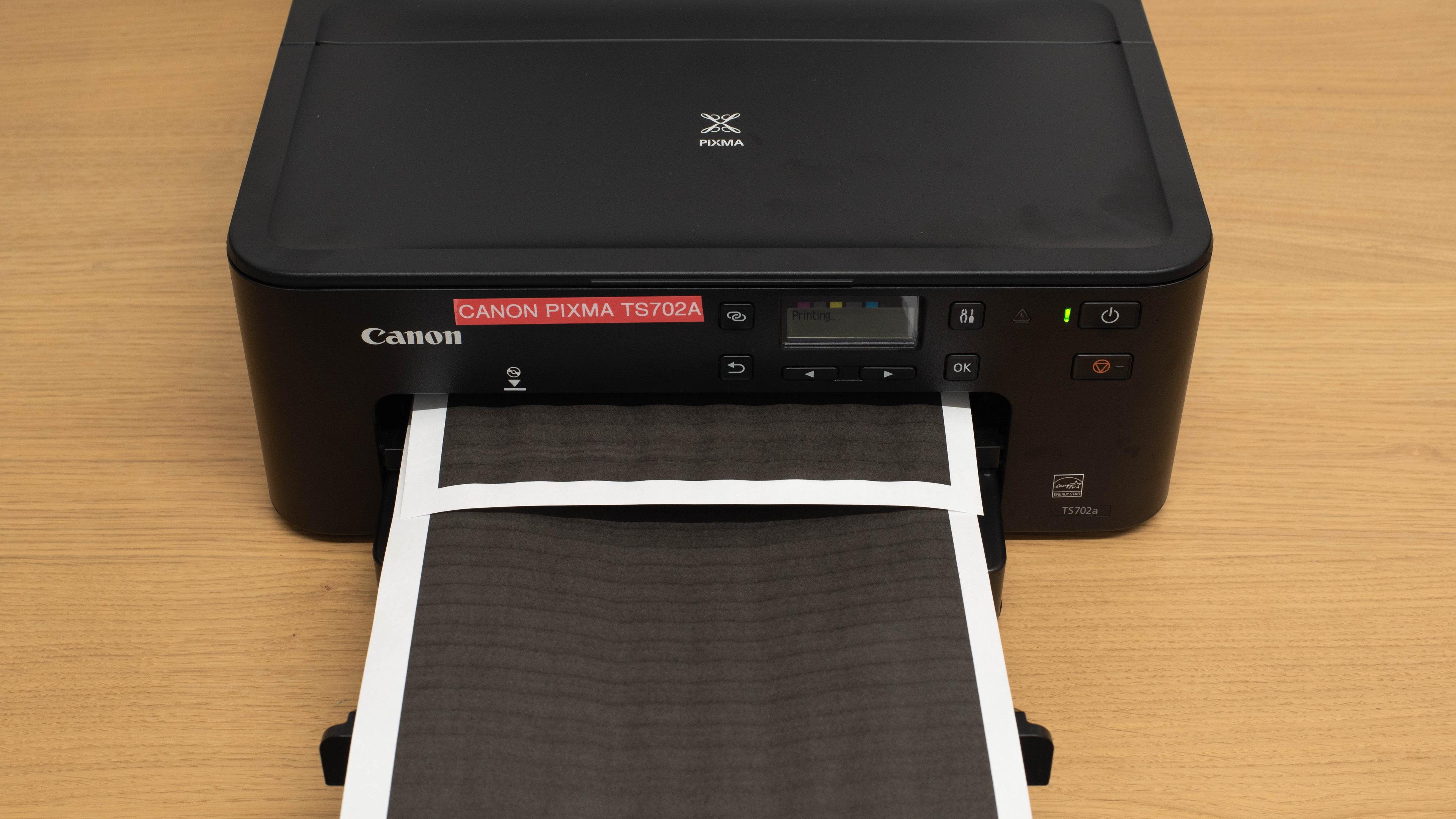
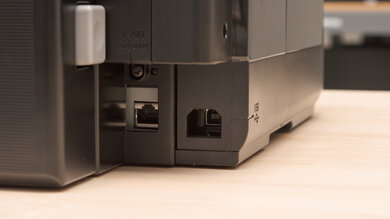
The Canon PIXMA TS702a is a print-only inkjet printer. It uses a five-cartridge system with a dedicated photo black cartridge and is compatible with Canon CLI-281 and PGI-280 ink. It also works with PGI-280XL and CL-281XL high-yield cartridges and PGI-280XXL and CL-281XXL extra high-yield cartridges. Connectivity options include Wi-Fi, Wi-Fi Direct, USB, and Ethernet, and there's also support for Apple AirPrint and Mopria Print Service. It's compatible with Canon's PRINT app, which provides further functionality like scanning from your mobile device.

It's part of the Canon PIXMA TS700 series of printers. A few regional variants are identical in features and performance. See the Differences Between Variants section for more details.

Our Verdict

6.8
Family 

The Canon PIXMA TS702a is okay for family use. It prints very pleasant-looking photos with lots of detail. Although some colors are a bit off, they don't look bad enough to make your pictures appear unnatural. There are also a lot of connectivity options, including compatibility with Canon's mobile app, so the printer is easy to access. Otherwise, you are missing some features that are good to have in a family setting; for example, there's no scanner, so you can't digitize precious family photos. Also, while the cost-per-print is rather low, black yields are quite poor. This means you can expect to change the ink cartridges frequently if you print a lot.

Pros
  • Photos look vibrant and detailed.
  • High yield cartridges available.
  • Lots of connectivity options.
  • Color documents look great.
Cons
  • Low black page yield.
  • No scanner.
  • Alignment issues.
  • High maintenance requirements if you print a lot.
6.3
Small/Home Office 

The Canon PIXMA TS702a is acceptable for small or home office use. It uses a five cartridge system with a dedicated photo black cartridge, so you don't need to worry about using all your ink for color prints. Unfortunately, its black page yield is very low, so you'll have to replace the cartridge frequently if you print a lot. Cartridges are relatively cheap, but needing to do this maintenance task regularly can be annoying. Print speed is fine; it pushes nine black and seven color pages per minute. There are a variety of connectivity options, making it easy to print from any device. Unfortunately, there's no scanner, so this isn't a good choice if your workflow requires you to scan things.

Pros
  • High yield cartridges available.
  • Lots of connectivity options.
  • Cheap replacement ink.
  • Automatic duplex printing.
Cons
  • Low black page yield.
  • No scanner.
  • Alignment issues.
  • High maintenance requirements if you print a lot.
7.2
Student 

The Canon PIXMA TS702a is decent for student use. The cost per print is good, so you won't need to spend much on replacement ink. There are also plenty of connectivity options, making it a great choice if you need to share a printer with roommates who use different platforms and devices. Color printing is where the printer shines; adding a splash of color to a report looks great. Printing speed is fine; if you have long papers or articles to print, know they'll still take a few minutes. Unfortunately, as a print-only unit, there's no scanner.

Pros
  • High yield cartridges available.
  • Lots of connectivity options.
  • Color documents look great.
Cons
  • Low black page yield.
  • No scanner.
  • Alignment issues.
  • High maintenance requirements if you print a lot.
6.3
Black & White 

The Canon PIXMA TS702a is mediocre for black-and-white printing. While documents are legible, fine elements are harder to see. Some alignment issues persist even after running alignment or cleaning tasks, though you can remedy this problem by printing in high quality. High quality printing uses more ink, and unfortunately, page yields are already low on this printer. Thankfully, high-yield and extra-high-yield options are available. Another positive is automatic duplex printing. Since printing speeds are only adequate, pushing just nine pages per minute, you won't need to waste more time manually flipping pages to complete your prints.

Pros
  • High yield cartridges available.
  • Cheap replacement ink.
  • Automatic duplex printing.
Cons
  • Low black page yield.
  • Alignment issues.
  • High maintenance requirements if you print a lot.
8.1
Photo 

The Canon PIXMA TS702a is great for photo printing. Thanks to its good color accuracy and fairly wide color gamut, photos look great. They are detailed, vibrant, and pleasing to the eye. This makes the printer an excellent choice for casual photo printing. Just know it isn't color-accurate enough for professional use. You can print a wide variety of photo paper sizes, and the cost per print is great as well.

Pros
  • Photos look vibrant and detailed.
  • Very good color accuracy.
Cons
  • High maintenance requirements if you print a lot.
7.5
Color Quality 

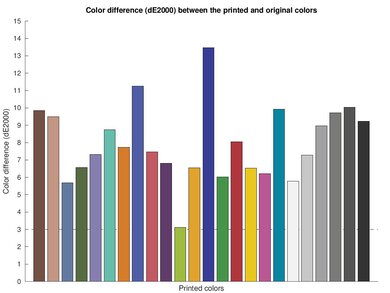
The Canon PIXMA TS702a has good color printing quality. It has a decent color gamut, with enough contrast between colors to reproduce fine details. Color transitions are mostly smooth, but there's some graining. Color accuracy is also very good. For the most part, you don't need to worry about your photos looking too different from the originals

Pros
  • Very good color accuracy.
Cons
None
7.0
Document Quality 

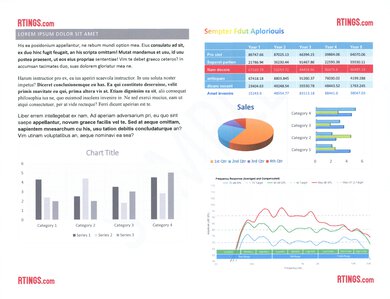
The Canon PIXMA TS702a produces decent documents. Text is legible, although fine elements aren't as detailed. There are some alignment issues that running alignment or cleaning tasks don't fix. Printing in high quality can help improve print quality, but this uses more ink, and page yield is already low for black-and-white printing.

Pros
  • Text is legible.
Cons
  • Alignment issues.
0.0
Scanner 

The Canon PIXMA TS702a is a print-only unit without a scanner.

Pros
None
Cons
  • No scanner.
6.9
Speed 

The Canon PIXMA TS702a isn't the fastest printer. While it only pushes nine black and seven color prints per minute, it warms up quickly. Photo printing is its strength, producing photos at a good speed.

Pros
  • Warms up quickly.
Cons
  • Black and white printing isn't very fast.
7.7
Recurring Costs 

The Canon PIXMA TS702a has relatively low recurring costs, although there's a caveat. Replacement ink is cheap, but page yields are quite low, especially for black printing. If you plan on printing lots of black-and-white documents, be aware that running costs can still add up, as you'll need to replace the ink cartridges often.

Pros
  • Cheap replacement ink.
Cons
  • High maintenance requirements if you print a lot.
  • 6.8
    Family
  • 6.3
    Small/Home Office
  • 7.2
    Student
  • 6.3
    Black & White
  • 8.1
    Photo

  • Performance Usages

  • 7.5
    Color Quality
  • 7.0
    Document Quality
  • 0.0
    Scanner
  • 6.9
    Speed
  • 7.7
    Recurring Costs
  • Changelog

    1.  Updated Aug 14, 2024: Review published.
    2.  Updated Aug 12, 2024: Early access published.
    3.  Updated Aug 07, 2024: Our testers have started testing this product.
    4.  Updated Jul 26, 2024: The product has arrived in our lab, and our testers will start evaluating it soon.

    Check Price

    BlackPIXMA TS702a
    SEE PRICE
    BestBuy.com
    BlackPIXMA TS705a
    Amazon.com

    Differences Between Sizes And Variants

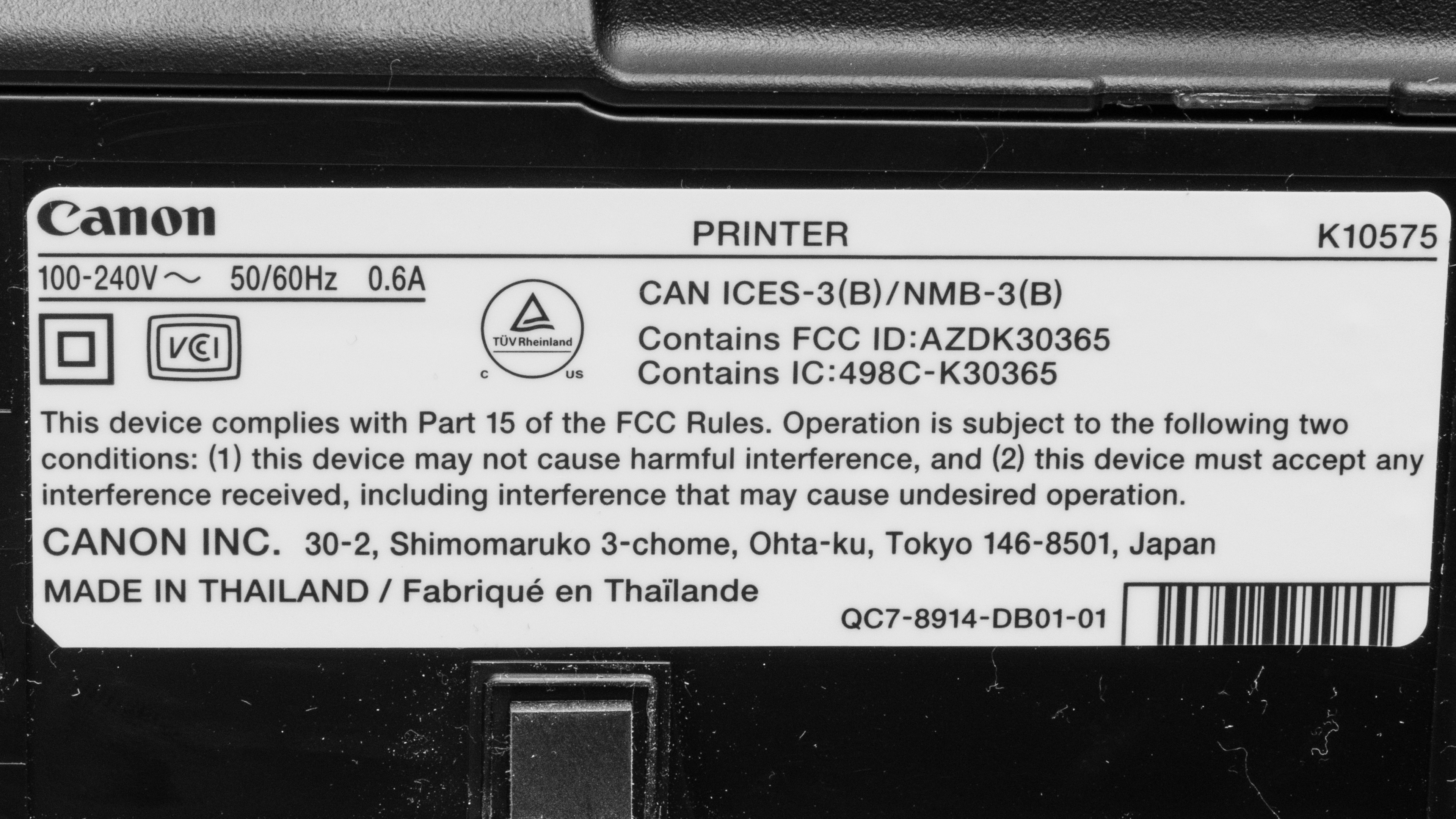
    We tested the Canon PIXMA TS702a, part of the Canon PIXMA TS700 series of print-only printers. A small number of regional variants are available, and they're identical in features and performance.

    Model Region
    Canon PIXMA TS702a North America
    Canon PIXMA TS704a Africa
    Canon PIXMA TS705a Europe
    Canon PIXMA TS706a Japan
    Canon PIXMA TS707a Asia
    Canon PIXMA TS709a Asia

    See our unit's label here.

    Popular Printer Comparisons

    The Canon PIXMA TS702a is a budget print-only inkjet printer. It's very good at photo printing for a printer in its price range. It has very good color accuracy and a fairly wide color gamut, making it well-suited to printing photos at home or for casual use. Otherwise, its functionality and print quality lag a bit behind the competition. It's fairly slow at printing documents, and black-and-white documents suffer from alignment issues. This can be improved by printing in high quality, but with already low page yields, you'll run through more ink this way.

    See our recommendations for the best cheap and budget printers, the best inkjet printers, and the best Canon printers.

    Canon PIXMA MG3620

    The Canon PIXMA TS702a and Canon PIXMA MG3620 have similar strengths and weaknesses. Both excel at photo printing within their respective price points. However, they both have relatively poor page yields. The TS702a is also slightly worse at printing documents. The real difference comes down to functionality. The MG3620 has a scanner, so it's the obvious choice if you need to scan.

    Canon PIXMA TS6320

    The Canon PIXMA TS702a and Canon PIXMA TS6320 are very similar printers. The main difference is that the TS702a is a print-only unit, while the TS6320 is an all-in-one. Which one is best for you depends on whether you need to scan. They both print vibrant photos and only decent documents. The TS702a has a larger sheet capacity, so you won't need to add more paper as often if you print a lot.

    Brother MFC-J1205W/MFC-J1215W

    The Canon PIXMA TS702a and Brother MFC-J1205W/MFC-J1215W are both budget inkjet printers. While the Canon is a print-only model, the Brother is an all-in-one. Despite these differences in use case, they each have distinct printing strengths. You should get the Canon if you like to print photos at home. Its vastly superior color accuracy and wider color gamut result in more vibrant and pleasing photos. By contrast, the Brother's document print quality is much better. Also, the Brother has higher page yields, so you won't need to replace the ink nearly as often.

    Brother MFC-J1010DW

    The Canon PIXMA TS702a and Brother MFC-J1010DW are both great budget inkjet printers. The Brother is the better choice for printing documents and scanning. It stands out for its low cost per print, as well as for its fast printing and scanning speeds. However, it produces pictures with a visible printing pattern, so photo printing isn't recommended. By contrast, you should get the Canon if you print a lot of photos at home. It excels at photo printing thanks to its fairly wide color gamut and very good color accuracy. As a print-only unit, you can't scan anything with it.

    Show more 

    Test Results

    perceptual testing image
    Sort:
    RATINGS
    Category:
    All
    Design
    7.5
    Build Quality
    TypePrinter Only

    The Canon PIXMA TS702a feels well-built overall. The plastic generally feels solid, except for the lid that gives you access to the ink cartridges, which feels cheaper, and its hinges seem flimsy. Design-wise, you get both front and rear access to the sheet rollers. The rear entry provides ample access, but the front access through the ink cartridge bay is a bit narrow. This may make it difficult for anyone with larger hands to access. You do get plenty of access for changing the ink cartridges, though. Unfortunately, you can only change the cartridges when the printer is on, which is an inconvenience. The rear input tray has a transparent plastic cover to help keep the page entry clean, and it also has sturdy wheels to help guide the pages into the printer. There are also good-quality paper guides for the rear input tray and the cassette tray. Finally, the power cord is detachable, so it's easy to replace in case of damage.

    Dimensions
    Height6.3" (16.0 cm)
    Width14.3" (36.3 cm)
    Depth14.2" (36.0 cm)
    Height When In Use
    12.6" (31.9 cm)
    Width When In Use
    14.3" (36.3 cm)
    Depth When In Use
    23.0" (58.4 cm)
    Weight
    11.7 lbs (5.3 kg)
    7.0
    Expected Maintenance
    Ink Related Maintenance
    Expected
    Drum Unit
    No Drum Unit

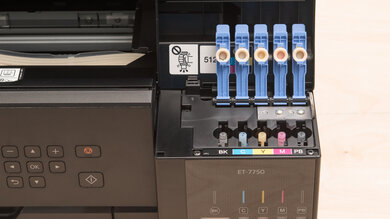
    The Canon PIXMA TS702a requires a decent amount of maintenance to run smoothly. As an inkjet, there's a risk of printhead clogging if it sits unused for long periods. There are built-in maintenance tasks to help, including nozzle check, cleaning, and deep cleaning functions. You can also perform auto head alignment, roller cleaning, and bottom plate cleaning tasks. Beyond this, you can expect to change the ink cartridges fairly regularly if you print a lot. Changing the cartridges is straightforward, though; simply lift the top cover, and the ink cartridges will move to the middle of the access bay. You also gain access to the sheet rollers in case of a jam through this front cover, but the access is a bit narrow, making it tight for anyone with larger hands. Thankfully, you have three additional ways to access the sheet rollers: by lifting the rear input tray, by detaching the rear cover, or by detaching the transport unit. These entries are more spacious and easier to work in.

    You can find the user manual here.

    4.5
    Display Screen
    Display ScreenYes
    Display Screen Size
    2.0" (5.1 cm)
    TouchscreenNo

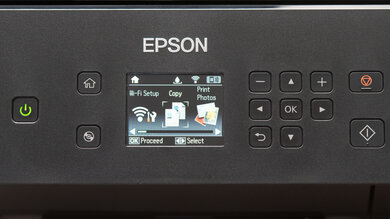
    There's a basic, small display on this printer. Its functionality is quite limited, as you only have a few buttons to navigate the interface. This can make tasks like entering a network password tedious or frustrating. The glass is quite reflective and seems prone to scratching. Visibility is poor unless you're directly in front of the display. Thankfully, the interface is straightforward to use, and most important tasks, like configuring sheet sizes or setting up your Wi-Fi connection, are easy to access. While the buttons are limited in function and number, they still work well; the display is quick and responsive to inputs. Finally, the layout of the main screen, with color legends on top, makes it easy to monitor your ink levels at a glance.

    6.5
    Cartridge
    TechnologyInkjet
    SuperTank
    No
    Photo Cartridge
    Yes
    ColorYes
    Number Of Color Cartridges
    4
    Black Cartridge Model
    PGI-280
    Tested Black Page Yield
    12 prints
    Estimated Black Page Yield
    227 prints
    Color Cartridge Model
    CLI-281
    Tested Color Page Yield
    15 prints
    Estimated Color Page Yield
    343 prints
    Third Party Cartridge
    Purchased One Worked
    Ink Type
    Dye And Pigment
    High Yield Cartridge
    Yes

    This printer uses a five-cartridge system: four dye-based color cartridges for photo and color printing and one pigment-based black cartridge dedicated to monochrome document printing. While color yield is good, the black page yield isn't; you'll run out of black ink before you run out of sheets in the paper cassette. The printer gives low ink warnings on your computer and on its display when ink is running out, but you can still get a few full pages out before the ink fully runs out. It doesn't stop you from printing, so you can use all the ink you paid for.

    0.0
    Scanner Features
    Scanner
    No Scanner
    ADF Capacity
    N/A
    Scan Speed
    N/A
    Duplex Scanning
    No Scanner
    Max Flatbed Scan Size
    N/A
    Max ADF Scan Size
    No Scanner
    Flatbed Hinge Adjustability
    N/A
    Fax
    No
    Copy
    No
    OCR Included
    No Scanner
    N/A
    Scan Quality
    Max Scan Resolution
    N/A
    Max Scan Color Depth
    N/A
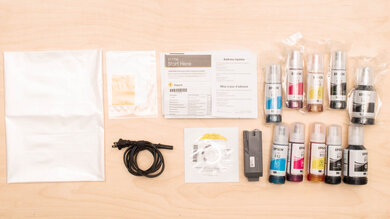
    In The Box

    • User manuals
    • Installation CD
    • 4 x 6 Photo Paper Plus Glossy II (3-sheet sample)
    • Power cable
    • Canon starter cartridges
      • 1x PGI-280 Black
      • 1x CLI-281 Cyan
      • 1x CLI-281 Magenta
      • 1x CLI-281 Yellow
      • 1x CLI-281 Black
    Battery
    Advertised Battery Life
    N/A
    Tested Charging Time
    N/A
    Document
    7.0
    Black & White Documents
    Color Ink Needed For Black & White
    No

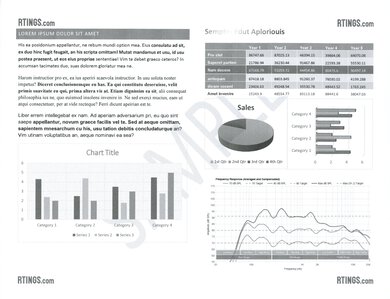
    This printer produces decent-quality black-and-white documents. Text is generally easy to read, although fine elements are harder to see. There are some alignment issues that can't be fixed by running alignment or cleaning tasks. However, printing in high-quality mostly resolves them. Just know that printing in high quality uses more ink, so you can expect lower page yields if you print this way.

    8.0
    Color Documents

    Color documents from this printer generally look very good. Colors are vibrant, and black and white text is legible. However, some smaller elements suffer from graininess, making them harder to read. There are also alignment issues, like with black and white documents, though they aren't nearly as prevalent in color documents. Again, printing in high-quality helps to improve the overall print quality, though this uses more ink and will reduce page yield.

    7.7
    Cost-Per-Print
    See details on graph tool
    Black Cartridge Price
    17.99 US$
    Color Cartridge Price
    51.96 US$
    Black-Only Printing Cost
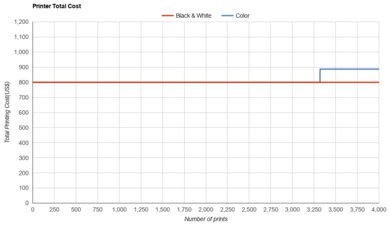
    0.079 US$/print
    Color Printing Cost
    0.151 US$/print
    Photo Printing Cost
    0.361 US$/print
    Ink Subscription
    Optional
    6.9
    Printing Speed
    Black Only Text Document
    9 PPM
    Color Document
    7 PPM
    Photo Printing Time
    32.0 s
    Single Page Out Time (Black Only)
    14.9 s
    Duplex Printing
    Automatic
    Input Tray Capacity
    250 pages

    There are two adjustable paper trays: the front paper cassette holds 250 plain sheets in letter, legal, and A4 sizes, while the rear input tray can hold 100 plain sheets, 10 legal sheets, 20 sheets of 4 x 6 photo paper, or 10 sheets of 5 x 7 photo paper. You can also print on CDs by placing a printable disc on the multi-purpose tray and then sliding the tray on top of the sheet output tray. The output tray can hold 50 sheets.

    Document Printing Sizes
    Letter (8.5" x 11")Yes
    Legal (8.5" x 14")Yes
    Tabloid (11" x 17")No
    A6 (105mm x 148mm)Yes
    A5 (148mm x 210mm)Yes
    A4 (210mm x 297mm)Yes
    Max Paper Weight
    670 g/m²

    You can print custom sizes ranging from 2.17" x 3.51" (55.0mm x 89.0mm) to 8.50" x 26.61" (215.9mm x 676.9mm) using the rear paper tray, and from 5.83" x 8.27" (148.0mm x 210.0mm) to 8.50" x 11.69" (215.9mm x 297.0mm) using the front paper cassette.

    Photo
    7.0
    Color Gamut

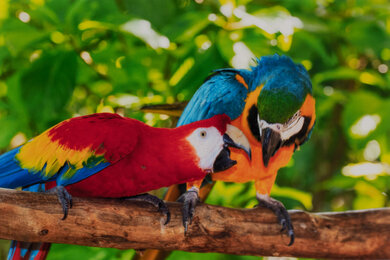
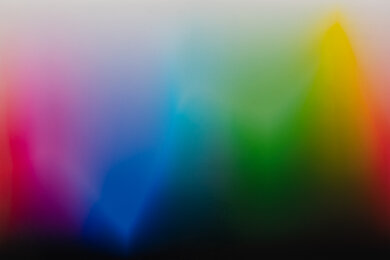
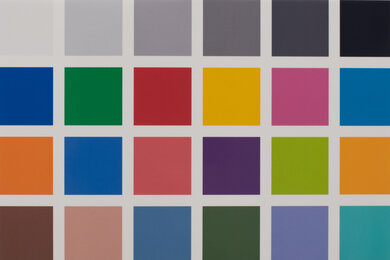
    This printer has a decent color gamut. It's good at printing dark colors but struggles with light colors (especially blues and oranges). Color transitions are mostly smooth, though there's some graining present. Despite this, there's enough contrast to produce fine details, like the parrot's feathers in the bird picture.

    7.9
    Color Accuracy
    Average Color dE
    4.24

    Color accuracy is very good on this printer. For the most part, you don't need to worry about your photos looking too different from the originals. It's great for casual use, but still isn't accurate enough for professional use.

    8.5
    Small Details
    Max Print Resolution (DPI)
    4800 x 1200

    This printer is excellent at reproducing small details. Fine details are a bit soft overall, but you can still differentiate background details from foreground objects.

    9.5
    Photo Printing Sizes
    Glossy Paper (4" x 6")Yes
    Glossy Paper (5" x 7")Yes
    Glossy Paper (8" x 10")Yes
    Glossy Paper (8.5" x 11")Yes
    Glossy Paper (13" x 19")No
    Borderless Printing
    Yes
    Mobile App And Connectivity
    8.0
    Connectivity
    Ethernet
    Yes
    USB Input To Computer
    Yes
    Wireless
    Yes
    Bluetooth
    No
    Wi-Fi via Router
    Yes
    Wi-Fi Direct
    Yes
    External Storage Support
    No
    Apple AirPrint
    Yes
    Mopria Print Service
    Yes
    8.9
    Mobile App
    Mobile AppYes
    App NameCanon PRINT
    iOSYes
    AndroidYes
    Photo (JPEG, PNG)
    Android and iOS
    PDF
    Android and iOS
    Microsoft Office Files
    Android and iOS
    Text Files (TXT)
    No
    Webpages (HTML)
    No

    This printer is compatible with the Canon PRINT app. You can print a range of files from the app and compatible cloud services, run maintenance tasks, and create photo items like collages and calendars. You can also use your phone's camera to make copies and manage your ink subscription.

    OS Compatibility
    WindowsFully
    macOSFully
    Chrome OSFully

    You need to manually install drivers on Windows devices to print, but not on Chrome OS and macOS devices. You can download the drivers here.