- 10.0%Judder 24p
- 10.0%Judder 25p
- 20.0%Judder 24p via 60p
- 20.0%Judder 25p via 60p
- 20.0%Judder 24p via 60i
- 10.0%Judder 24p via Native Apps
- 10.0%Judder 25p via Native Apps
Movies have been shot in 24 frames per second (24p) since 1927, and the vast majority of movies and fictional TV shows are still filmed in that frame rate. However, since most modern TVs refresh at either 60 or 120Hz, this creates a problem. If movies are designed for 24 frames per second, and the TV refreshes at 60 or 120 frames per second, how do you display 24p content evenly? There's also the PAL standard 25p, which is the frame rate that a great deal of Europe and other regions use.
We test our TVs to see if they can remove judder by playing a 24p and 25p video from different sources: a native 24p and 25p source, a TV's native apps, and via 60p signals. We also test 24p via 60i, since many cable boxes still send a 60i signal. We simply check to see if a TV can remove judder from these different sources.
Test results
Test Methodology Coverage
Our TV Judder test was initially added as part of our 1.0 test methodology update. We added a judder-free playback via the native apps test in TV 1.2, but the test remained unchanged through TV 2.0. However, with our TV 2.1 update that focuses on motion, we added three new tests that take a look at whether or not a TV can remove judder from sources that are presented in the PAL standard 25p. We also now assign a score based on how inconsistent frame times are when a TV can't remove judder from a specific signal, since the jerkiness of motion varies between TVs that can't completely remove judder from certain content. Learn how our test benches and scoring system work.
| 1.6 | 1.7 | 1.8 | 1.9 | 1.10 | 1.11 | 2.0 | 2.1 | |
|---|---|---|---|---|---|---|---|---|
| Judder-Free 24p | ✅ | ✅ | ✅ | ✅ | ✅ | ✅ | ✅ | ✅ |
| Judder-Free 24p via 60p | ✅ | ✅ | ✅ | ✅ | ✅ | ✅ | ✅ | ✅ |
| Judder-Free 24p via 60i | ✅ | ✅ | ✅ | ✅ | ✅ | ✅ | ✅ | ✅ |
| Judder-Free 24p via Native Apps | ✅ | ✅ | ✅ | ✅ | ✅ | ✅ | ✅ | ✅ |
| Judder-Free 25p | ❌ | ❌ | ❌ | ❌ | ❌ | ❌ | ❌ | ✅ |
| Judder-Free 25p via Native Apps | ❌ | ❌ | ❌ | ❌ | ❌ | ❌ | ❌ | ✅ |
| Judder-Free 25p via 60p | ❌ | ❌ | ❌ | ❌ | ❌ | ❌ | ❌ | ✅ |
When It Matters
TV judder only matters when you watch movies and many fictional TV shows, since sports and video games are typically displayed in at least 60p. 25p judder matters if you're in a PAL region, such as Europe, or if you're watching 25p content in an NTSC region like North America. With the rise of international content on different streaming services, more 25p content is being shown outside of PAL regions. When this content is shown, it's typically presented in the original frame rate of the content, so it's helpful to have a TV that removes both 24p and 25p judder if you watch a variety of content from different regions.
Overall, judder isn't a major problem; most people won't even notice it. If you're wondering whether it's an issue for you, look at the video above and compare the look of the 24p with judder (left) to the judder-free 24p video (right). The slow-motion videos are exactly what they sound like: slowed down to show the effect of judder. If you don't notice the judder on the left, or it doesn't bother you, there's no need to worry about getting a TV that can do judder-free 24p. If you notice it and it bothers you, make a point of getting a TV that can, but most modern TVs can remove judder from 24p/25p sources and the native apps anyway. Judder isn't the only factor that affects a TV's motion when watching movies and shows. Check out our article on cinematic motion handling for a more in-depth look at the topic.
Our Tests
To conduct our TV judder test, we play a 24 fps and 25 fps video on the TV (you can download the 24 fps video here and the 25 fps video here) using the Apple TV Plex app. The test video cycles a white square through 24 or 25 slots in one second. While it plays, we photograph the screen using a one-second exposure. Each row consists of five or six slots, depending on the frame rate, and the image should be read alternating between left to right for the first row, right to left for the second row, and so on. If all the boxes are the same color, it means each of the slots displayed the square for the same amount of time, so the TV is judder-free with that test.
If certain squares are light and others are dark, it means the TV fails to play each frame for an even amount of time and, therefore, has judder. However, judder doesn't look the exact same on every TV, and some TVs have more noticeable judder depending on the unevenness of frame times. Below are photos of the overall judder performance of the Samsung S95F OLED and the Sony BRAVIA 8 II OLED. As you can plainly see, both TVs have judder when watching 25p content via 60p source, but the Samsung's frames are all over the place in terms of lightness, while the Sony's are only darker every fifth frame. This means that motion is a lot jerkier on the Samsung when watching 25p content via a 60p signal, since the duration of frames are very inconsistent, which results in the TV scoring lower than the Sony for this test.
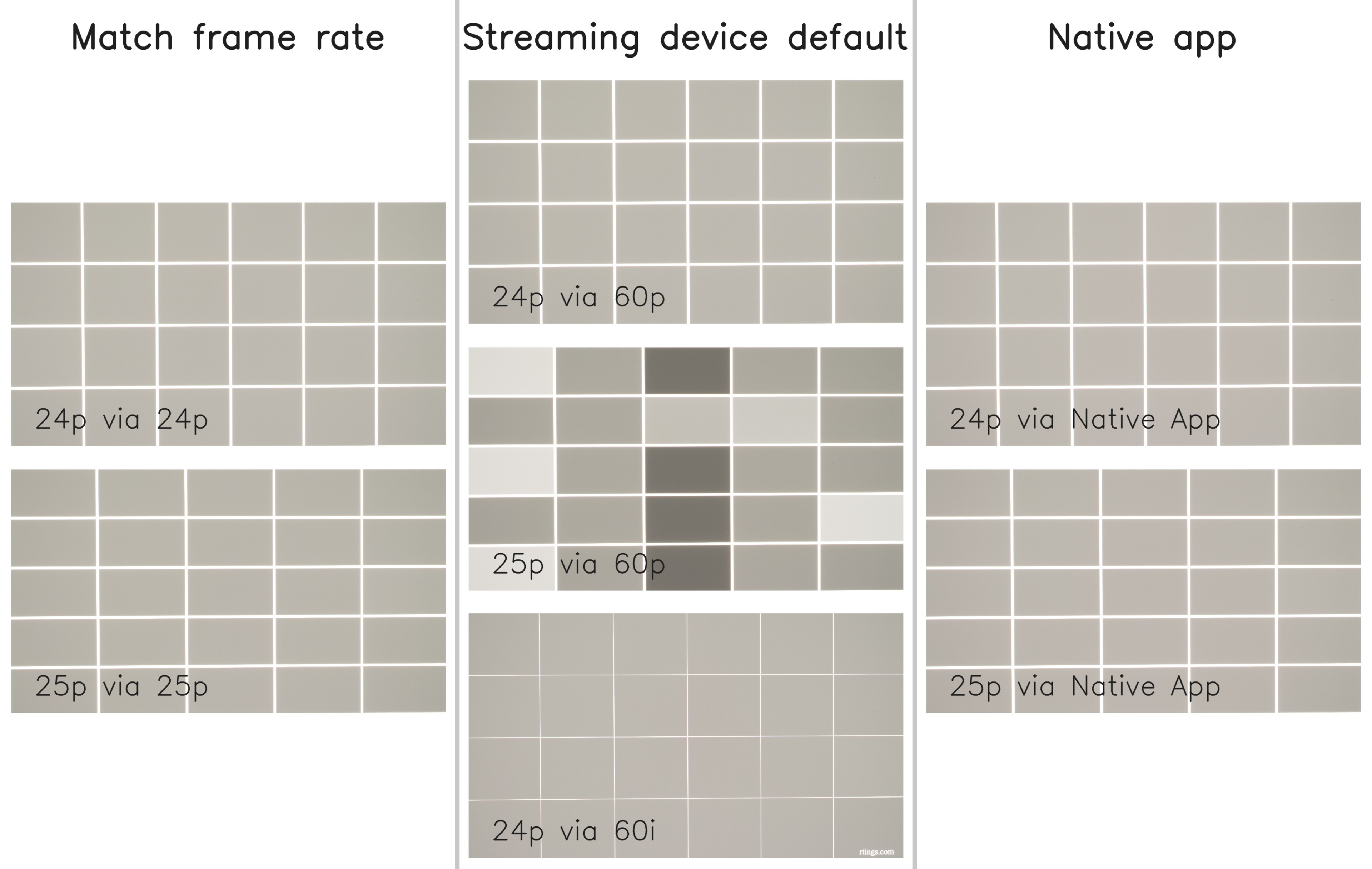 |
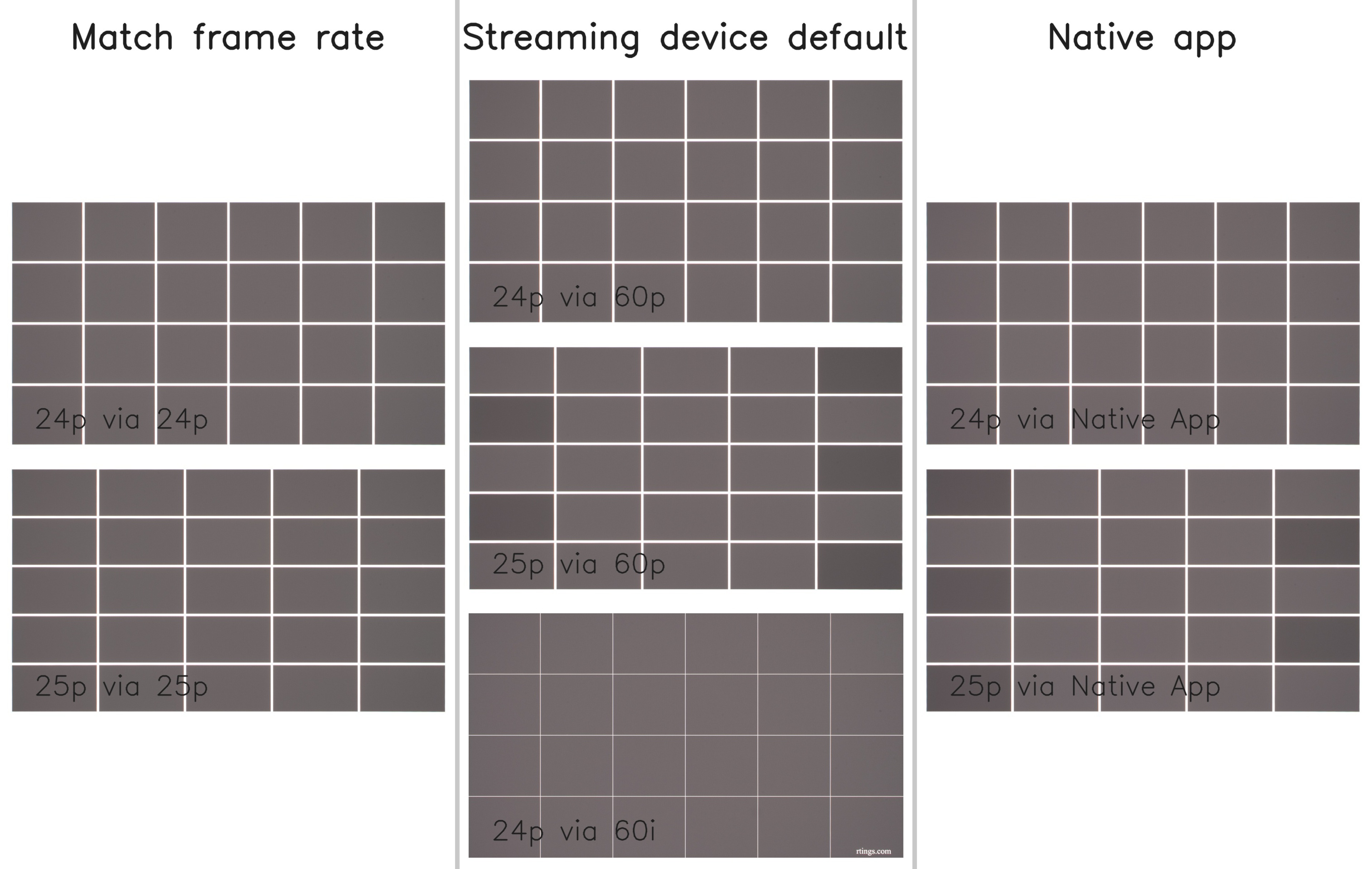 |
Judder-Free 24p
We use this test to see whether a TV has judder on 24p videos sent via a 24Hz signal. Most high-quality sources, like UHD Blu-ray players, support native 24Hz signals. Some streaming boxes like the Apple TV also support this mode, but usually require an extra setting like 'Match Frame Rate.' This setting will adjust the output signal depending on what you're watching, and this is the exact setup we use for this test. So, if you start watching a movie, it'll automatically switch to a 24Hz output. To score perfectly on this judder-free 24p test, a TV must recognize that a 24 fps video is playing and adjust its refresh rate accordingly.
Judder-Free 24p via Native Apps
This test determines whether or not 24p content can be displayed without judder when using a smart TV's native apps. Since pretty much every TV sold nowadays is a smart TV, many consumers are now using a TV's native apps instead of relying on external streaming devices or cable boxes. If you primarily use your TV's native apps and don't want judder, this is an important test to look out for. This test is performed in a very similar manner to the 'Judder-Free 24p' test, but we use the built-in Plex app that we've downloaded and installed onto the TV itself. To score a 10/10 on this test, a TV must display our 24p video without any judder.
Judder-Free 24p via 60p
This test determines whether a TV has judder on 24p videos sent via a 60p signal. This will tell you whether movies and shows played over a 60p signal, like some streaming devices and game consoles, will have judder.
This test uses the same process as the judder-free 24p test, but with the 24p video sent over a 60Hz progressive (60p) signal. To send our 24p video to a TV in a 60p signal, we disable the Apple TV's 'Match Frame Rate' setting. To score perfectly, a TV must recognize that a 24p video is playing over a 60p signal and adjust its refresh rate so the video plays at 24 frames per second. Once again, if the color of the squares in the resulting photo is not even, the TV has judder.
Judder-Free 24p via 60i
We also test whether a TV has judder when playing a 24p video sent via a 60Hz interlaced (60i) signal. Interlaced signals are increasingly uncommon, but some older cable and satellite TV receivers still support this format, usually offering the user a choice between 720p and 1080i signals.
This test uses a similar process as the judder-free 24p test, but with the 24p video sent over a 60i signal. Instead of using an Apple TV, we use an Android box that allows us to send a 60i signal. To score perfectly, a TV must recognize that a 24 fps video is playing over a 60i signal and adjust its refresh rate so the video plays at 24 frames per second. As with the other 24p judder tests, we consider the TV judder-free if the color of the squares in the test photo is the same throughout.
Judder-Free 25p
This test is the same as our 'Judder-Free 24p' test, but we use a 25p video instead. We use this test to see whether a TV has judder on 25p videos sent via a 25Hz signal. This test is important whether you're in a PAL region watching 25p content or you're in an NTSC region watching international content in 25p, since streaming services tend to keep the original frame rate intact in all regions. To perform this test, we play our 25p video clip using the Plex app on an Apple TV with the 'Match Frame Rate' feature enabled. To score perfectly on this judder-free 25p test, a TV must recognize that a 25 fps video is playing and adjust its refresh rate accordingly.
Judder-Free 25p via Native Apps
This test determines whether or not 25p content can be displayed without judder when using a smart TV's native apps. This test is performed using the same method as our 'Judder-Free 24p via Native Apps' test, but with a 25p video. To score a 10/10 on this test, a TV must display our 25p video without any judder.
Judder-Free 25p via 60p
This test determines whether a TV has judder when playing 25p videos sent via a 60p signal. This will tell you whether movies and shows played over a 60p signal, like older streaming devices and some game consoles, will have judder.
This test uses the same process as the 'Judder-Free 24p via 60p' test, but we use a 25p video instead. To send our 25p video to a TV in a 60p signal, we disable the Apple TV's 'Match Frame Rate' setting. To score perfectly, a TV must recognize that a 25p video is playing over a 60p signal and adjust its refresh rate so the video plays at 25 frames per second.
Additional Information
The cause of judder
As mentioned above, most TVs nowadays have either a 60Hz or a 120Hz refresh rate. Some TVs even offer higher refresh rates, but still default to at most 120Hz. Most 120Hz panels can display 24p video without issue because 24 goes into 120 five times, so they can easily display 24p content by simply repeating each frame five times. However, 25p is a bit more challenging for 120Hz models, since 25 doesn't fit evenly into 120. 24p and 25p judder is most noticeable on 60Hz TVs because 60 isn't a multiple of 24 or 25. Even if the TV doubles each frame, there are only 48 or 50 frames per second, and it's still missing 10-12 to reach the 60 fps needed to match the 60Hz refresh rate.
So what 60Hz TVs usually do for 24p is called the 3:2 pulldown (also called telecine): the odd-numbered frames repeat twice, and the even-numbered frames repeat three times to get 60 frames. However, this means that every second frame is held on longer than the next frame, as it stays on the screen for 50 milliseconds compared to 33 milliseconds; this causes the juddery motion. To remove judder, the TV wants to display each frame for an even amount of time. This is even more complex when dealing with 25p, since the pulldown is roughly 2:2:3:2:3.

Above is a diagram depicting the cause of judder. Frames #1 and #3 repeat twice, while frames #2 and #4 repeat three times, so they stay on the screen 50% longer.
So, in the above case, how do 60Hz TVs actually display a 24p signal without judder? When displaying content from a 24p source or a native app, it's actually pretty easy for a 60Hz TV to remove judder. A 60Hz TV will either drop its refresh rate down to 48Hz (or 50Hz for 25p) or slightly increase it to 72Hz so it can multiply the frames by an even number. TVs can't drop down to 24Hz or 25Hz, which explains why they still must increase the amount of frames displayed to match 48, 50, and 72Hz. It's easy for 120Hz TVs to remove 24p judder because they display each frame five times, but 120Hz displays have to drop their refresh rate down to 100Hz to properly play 25p content without judder.
Judder vs stutter
Judder and stutter sound like they're the same thing, but they're not. Judder can make movement look stuttery, but it's not what real stutter is. Stutter is caused by lower-frame-rate content on a TV with a fast response time, as each frame holds on too long. Motion interpolation helps reduce this problem by increasing the frame rate, but using motion interpolation too aggressively leads to the undesirable soap opera effect. There's also micro-judder, which affects the appearance of motion, but is caused by dropped frames during scenes with complex motion.
How To Get The Best Results
Either a TV removes judder, or it doesn't, and it's out of your control, so you need to get a TV with a judder-removal feature if it bothers you. If you already have a TV and are unsure whether it removes judder or not, check to see if there's a cinema/film setting in the motion settings. If it does, and you don't know which sources it removes judder from, it's best to watch movies from native apps, a streaming device that matches the outputted signal to the frame rate of the content you're watching, or directly from a Blu-ray player because most TVs can at least remove judder from 24p and 25p sources. Should your TV not have a judder-free setting and judder bothers you, your best bet is to look for a new TV.
Each major TV brand uses different settings names to remove judder, so we've listed them below. These settings are valid for the 2025 models, but the settings haven't changed much over the years. If you're unsure about the judder-free setting, it usually has Film, Cinema, or Theatre in the name. Some TVs have De-Judder or Judder Reduction settings, but these control the motion interpolation feature.
Hisense: Usually no extra settings are required for judder removal from 24p sources, but for 60Hz sources you have to set Motion Enhancement to 'Film'.
LG: Enable Real Cinema. Note that their OLEDs can't remove judder if the BFI feature is enabled without adding motion interpolation.
Samsung: No additional settings are required. Like with LG, their OLEDs can't remove judder if the BFI feature is enabled without adding motion interpolation.
Sony: For native 24p sources, no additional settings are needed. For 60p/i sources, you need to set Cinemotion to 'High' with Motionflow to 'Custom' and the Clearness and Smoothness sliders at the minimum. This removes judder without adding any unwanted motion smoothing.
TCL: No additional settings are required for 24p/25p sources. However, Motion Clarity must be set to 'Custom' with the sliders set to '0' to remove judder from 60Hz sources.
Depending on your source, you can also adjust the settings to send a 24p signal directly instead of a 60p signal, making it easier for the TV to remove judder. For example, in the video settings on Apple TV, you can select the Match Frame Rate feature. This will automatically adjust the outputted signal to match the frame rate of the content you're playing, so if you watch a movie, it'll adjust the output to 24p or 25p. If you have other devices, go through their settings menu to see if there's anything related to it.
Conclusion
Judder is caused by 24p and 25p films and is most noticeable in scenes with motion that should look smooth. It happens because your TV displays each frame for an uneven amount of time, so some hold on longer than others. Most people won't notice it, but if you do, it can be annoying to watch a movie with judder. Our TV judder tests check to see if a TV can remove judder from different sources and which settings are needed to do so.