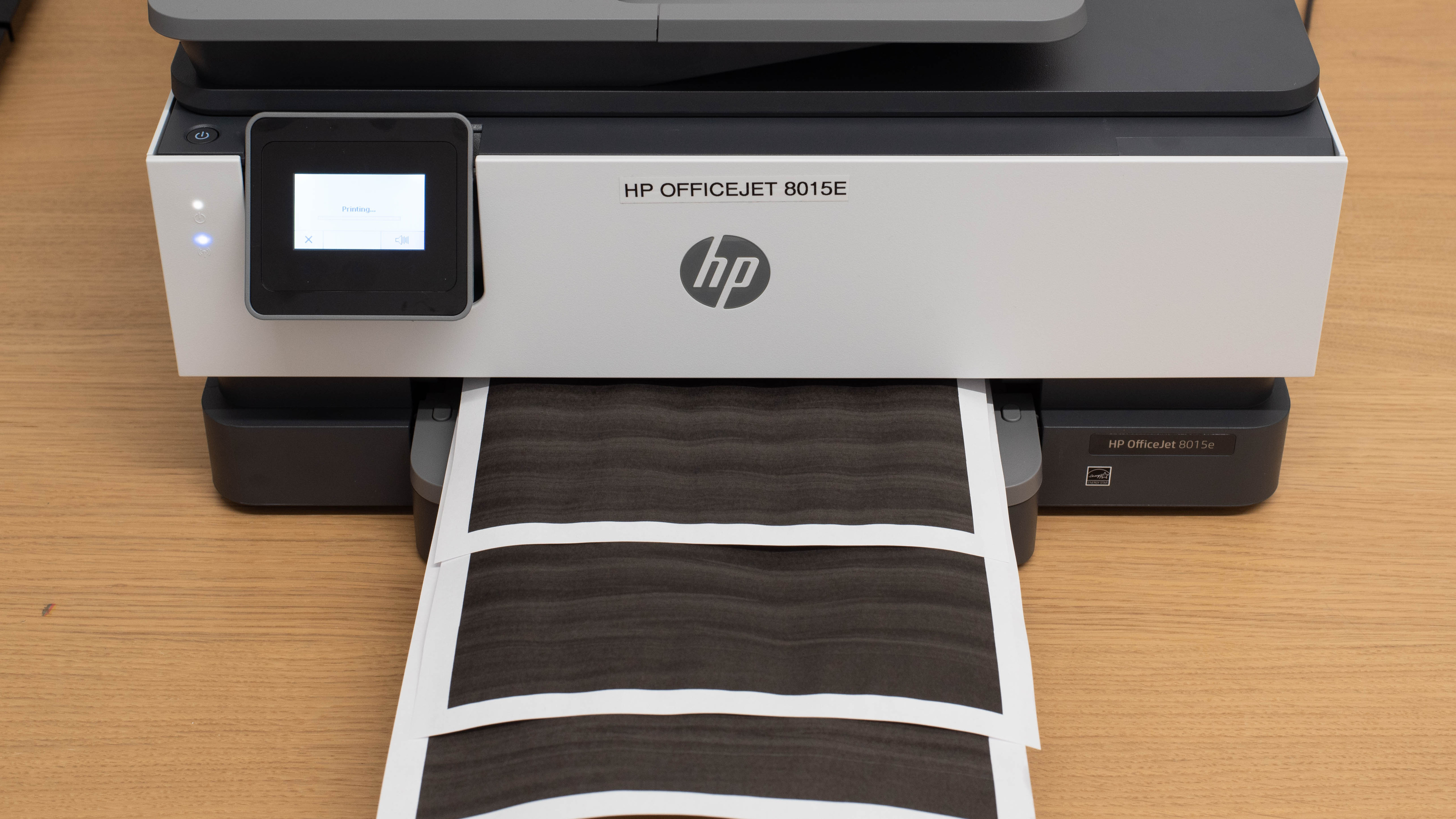
The HP OfficeJet 8015e is a budget all-in-one inkjet printer designed for use in small or home offices. It uses HP's 910 ink cartridges and is compatible with the high-yield 910XL cartridges as well. It has an ADF-equipped scanner but doesn't support duplex scanning or fax. Connectivity options include USB and Wi-Fi, with support for Apple AirPrint and Mopria Print Service. This all-in-one is compatible with the HP Smart app, which lets you perform various tasks and adds more functionality, like mobile fax and optical character recognition.
This printer is part of the HP OfficeJet 8010e series of all-in-ones, which includes a few variants. These variants have identical features and performance, as the model number only changes depending on the region. See the Differences Between Variants section for more details.
Our Verdict
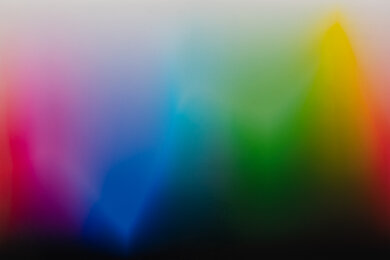
The HP OfficeJet 8015e is okay for home use. It's a good option for printing documents, but it isn't ideal for photo printing, as its narrow color range makes pictures look much darker than the originals and less detailed. Also, printed photos look quite grainy. Its feature set will likely satisfy most households; however, note that its ink cartridges run out quickly and require frequent replacement, resulting in high recurring costs.
- Produces sharp documents.
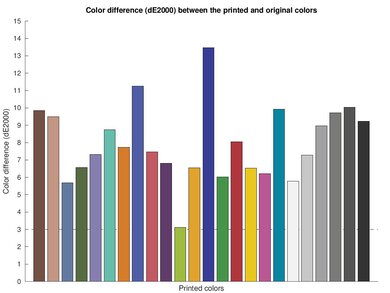
- Decent color accuracy.
- Supports borderless printing up to 8.5" x 11".
- Wired and wireless connectivity options, mobile app support.
- Slow to print color documents.
- Narrow color range makes photos look darker and less detailed.
- Low page yield, high cost-per-print.
- Photos look grainy.
The HP OfficeJet 8015e is okay for use in small offices. It produces nice, high-quality documents; however, its ink cartridges run out quickly, so it'll require more frequent maintenance and cost more in replacement ink. Also, it doesn't support duplex scanning even though it has an ADF, and the automatic feeder itself causes tilted scans. Its overall print speed is decent; it's relatively quick for black-and-white documents but slow for color documents.
- Produces sharp documents.
- Prints black-and white-documents at a decent speed.
- Automatic document feeder.
- Wired and wireless connectivity options, mobile app support.
- Slow to print color documents.
- Slow scan speed via ADF, no duplex scanning.
- ADF produces tilted scans.
- Low page yield, high cost-per-print.
The HP OfficeJet Pro 8015e is a sub-par option if you want a printer that's ready to print even after long idle periods. Like other inkjet printers, it can clog if you don't use it often. Its ink capacity is limited, so you may need to empty a cartridge to clear severe clogs. Also, the printheads aren't user-replaceable, leaving few options if maintenance can't clear a clog. Page yields are only decent, so you'll likely need to change cartridges frequently if you print a lot. On the plus side, it offers a wide range of wireless connectivity options, making it easy to print from many devices.
- Prints black-and white-documents at a decent speed.
- Wired and wireless connectivity options, mobile app support.
- Low page yield, high cost-per-print.
Printheads aren't user-replaceable.
Can clog if it's left unused.
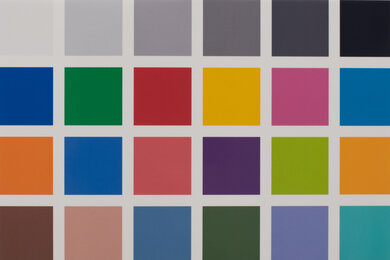
Despite its score, the HP 8015e isn't ideal for photo printing, as it's primarily an office printer. Its narrow color gamut makes pictures look noticeably darker than the originals and causes a significant loss of fine details. Also, pictures look quite grainy, a typical downside of office-oriented models designed to print documents. Another drawback is its low page yield, which results in a high cost-per-print.
- Decent color accuracy.
- Supports borderless printing up to 8.5" x 11".
- Narrow color range makes photos look darker and less detailed.
- Low page yield, high cost-per-print.
- Photos look grainy.
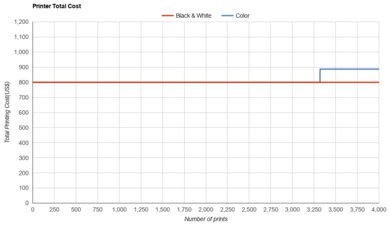
The HP OfficeJet Pro 8015e offers acceptable overall page yields, but its black yields are poor. You can only print about 110 black-and-white pages and around 230 color document pages before you need to replace the cartridges. The Officejet Pro 8025e, which uses the same cartridges, can print around twice as many pages per black cartridge. High-yield 910 XL cartridges are available and can print roughly twice as many pages according to HP's estimates.
- Low page yield, high cost-per-print.
The HP 8015e prints black-and-white documents at a decent 15 pages per minute, but it's much slower for color documents, printing only 6 pages per minute. It's also slow to initialize and get a single page out.
- Prints black-and white-documents at a decent speed.
- Slow to print color documents.
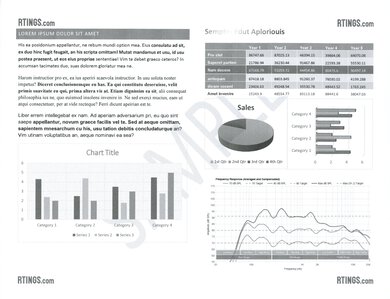
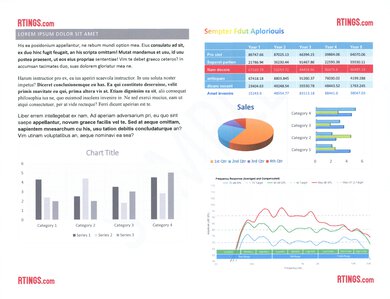
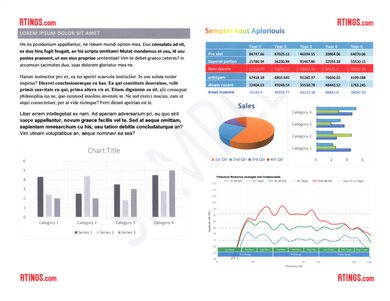
The HP 8015e produces nice documents with sharp text and all fine elements present. Misalignments happen sometimes; you can easily remedy this issue by printing in the 'High Quality' mode, albeit at the cost of increased ink usage.
- Produces sharp documents.
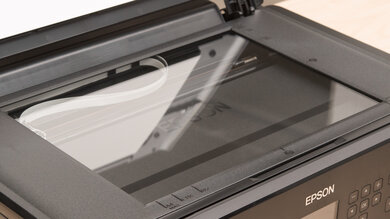
The HP OfficeJet 8015e's scanner produces nice, detailed scans, but you'll need to adjust the scan settings, as the default 'Document' mode removes many finer details, like graph lines. Feature-wise, although this all-in-one has an ADF scanner, it can scan only up to 4 pages per minute and lacks duplex scanning support, so it isn't ideal for scanning long, multi-page, or double-sided documents. Also, scans tend to come out tilted when scanning via the automatic feeder.
- Automatic document feeder.
- Slow scan speed via ADF, no duplex scanning.
- ADF produces tilted scans.
- Scanner lid hinges aren't extendable to accommodate thicker items.
Performance Usages
Changelog
-
Updated Jan 27, 2026:
We've updated text throughout the review after converting to Test Bench 1.3.
- Updated Jan 20, 2026: We've updated the review to Test Bench 1.3, which adds a number of test boxes including Risk of Clogging and Ease of Unclogging. We also updated the Usage and Performance boxes at the top of the review to better integrate the new aspects covered. See the changelog.
- Updated Jul 25, 2024: Review published.
- Updated Jul 22, 2024: Early access published.
Check Price
Differences Between Sizes And Variants
We tested the HP OfficeJet 8015e all-in-one inkjet printer. It's part of the HP OfficeJet 8010e series, which includes a few regional variants. These variants are identical in features and performance.
| Model | Region |
|---|---|
| OfficeJet 8010e | Oceania |
| OfficeJet 8012e | EU |
| OfficeJet 8014e | UK, EU |
| OfficeJet 8015e | America |
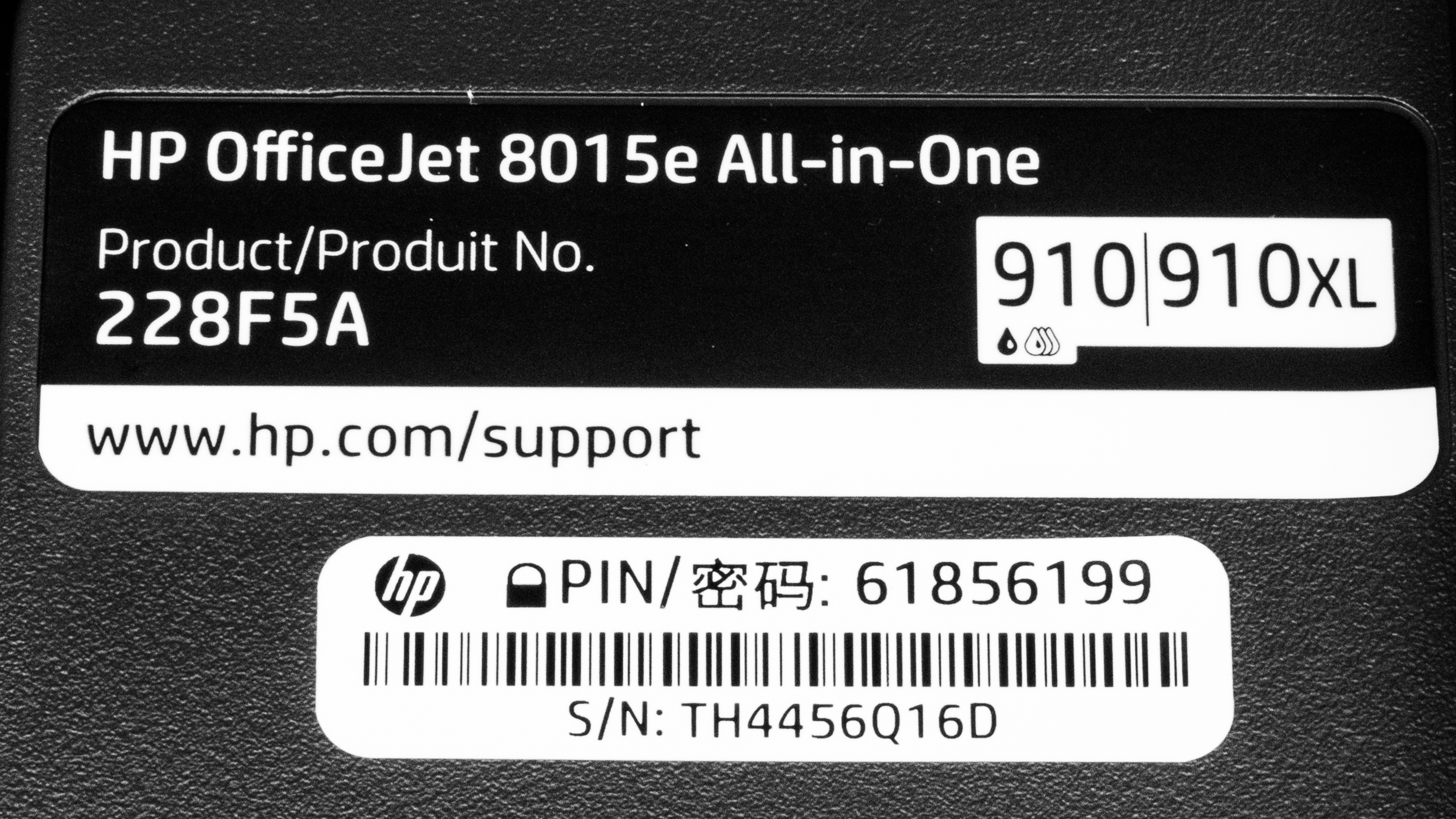
See our unit's label.
Popular Printer Comparisons
The HP OfficeJet 8015e is an okay office printer. It doesn't stand out in any way in terms of features and performance compared to other printers in its class. Its main flaw is its low page yield, so it isn't ideal for those with a large print load.
For more options, see our recommendations for the best inkjet printers, the best office printers, and the best all-in-one printers.
The Epson WorkForce Pro WF-3820 is much better than the HP OfficeJet 8015e. The Epson feels sturdier build-wise, and it has more features, like Ethernet connectivity and fax functionality. It prints and scans faster than the HP, and its cost-per-print is lower because its ink cartridges yield more prints. It isn't quite as color-accurate as the HP when printing photos; however, it can produce finer details and a wider range of colors.
The HP OfficeJet Pro 9015e is a higher-end version of the HP OfficeJet 8015e with better performance and more features. The 9015e has a sturdier build, a nicer display, Ethernet connectivity, and duplex scanning. It prints and scans faster than the 8015e, and its ink cartridges yield significantly more prints, resulting in less frequent maintenance and lower recurring costs.
The HP OfficeJet 8015e and the HP OfficeJet Pro 8025e are very similar feature-wise; the only differences are that the 8025e has Ethernet connectivity and a nicer display. As for performance, the 8025e produces higher quality documents, but it isn't as fast as the 8015e, as it can only print 10 black pages per minute, whereas the 8015e can print up to 15.
The Brother MFC-J1205W/MFC-J1215W and the HP OfficeJet 8015e are both all-in-one inkjet printers designed for small or home offices. Each has its pros and cons. The Brother yields significantly more prints, which means it won't require as much maintenance and will cost less in replacement ink. Unlike the HP, it doesn't have an automatic document feeder to process long, multi-page documents; however, it produces nicer scans, and its scanner lid hinges can extend to accommodate thicker items like textbooks. The HP comes out ahead speed-wise, printing 15 black or six color pages per minute, and it supports automatic duplex printing, a feature the Brother lacks.
Test Results
for pictures & test results
for pictures & test results
for videos & test results

for pictures & test results



for pictures & test results
for pictures & test results