Nearly all TVs on the market in 2026 have built-in smart platforms, but with so many privacy concerns around them, what if you want to convert your modern smart TV into a dumb TV? Smart platforms can be very useful. They provide you with easy access to all your favorite streaming channels, can interact with your smart home devices, and some even let you game on your TV without a PC or console. They all have a dark secret, though: they're monitoring what you do with the TV, and they are actively selling that data to marketing companies.
So what can you do to protect your data? The good news is, there's a very easy way to avoid these issues: simply never connect your TV to the internet. If the TV isn't connected to the internet, it can't send your data back to the manufacturer. In this article, we'll break down how to use your TV without connecting it to the internet, effectively transforming it into a "dumb" TV.
Transforming Your Smart TV Into A Dumb TV
It's actually very simple to transform your smart TV into a dumb one. By declining to connect it to a network or rejecting the TV's terms of use, all TV brands allow you to use it in an offline, or "dumb" mode. Since the TV won't be connected to a network, there's no way for it to send all of your data back to the manufacturer. There are a few notable downsides and limitations to this solution, though:
- In most cases, this means the TV's smart functions won't work. Some TVs allow you to use the preloaded apps without connecting to the internet or accepting the terms of use.
- Obviously, even if you can launch some of the built-in apps, streaming services won't work if the TV isn't connected to the internet. You'll need to use an external streaming device to access your streaming channels. Keep in mind that many of these also track your viewing habits, but some, like the Apple TV, allow you to opt out of tracking.
- It might be possible for TVs to automatically connect to an open (passwordless) network if it's within range, but there's no documented evidence of any TV actually doing this.
- Even if the TV can't send the data back, other investigations into data privacy have shown that it's still collecting it. We don't know how long a TV stores information, but once it's reconnected to the internet, it'll send the stored data back. If you decide you want to reconnect your TV to the internet, even briefly, your data will likely be sent back immediately.
Below, we'll break down the process for using a TV in its offline mode by brand and smart OS. Keep in mind that these are just examples; there may be slight differences in the exact menu setup depending on the specific firmware version and TV model you have.
LG webOS
 |
 |
- Start the initial TV setup and complete the basic prompts, including the display language and time zone.
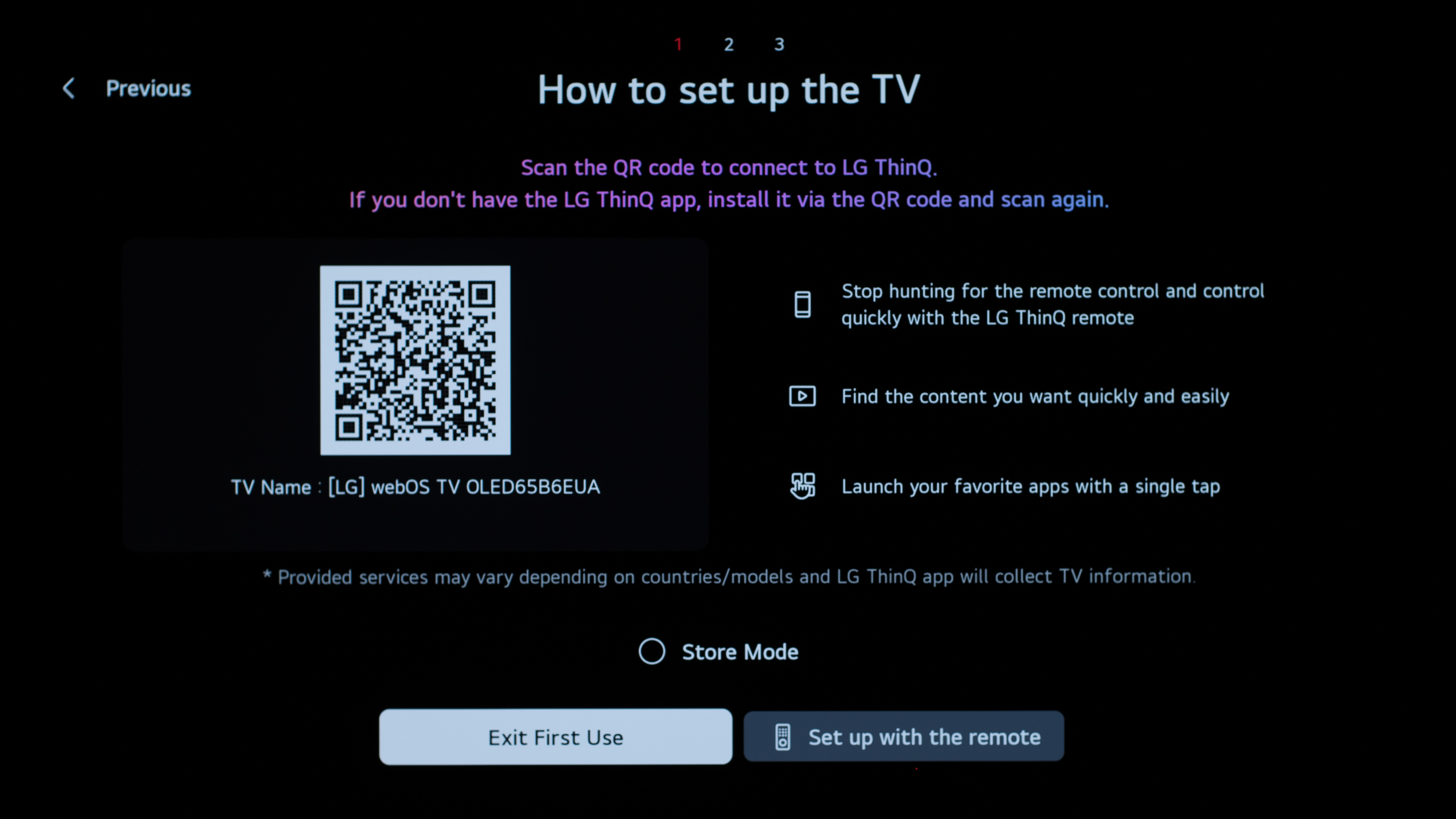
- At the 'How to set up the TV' screen, select 'Exit First Use'.
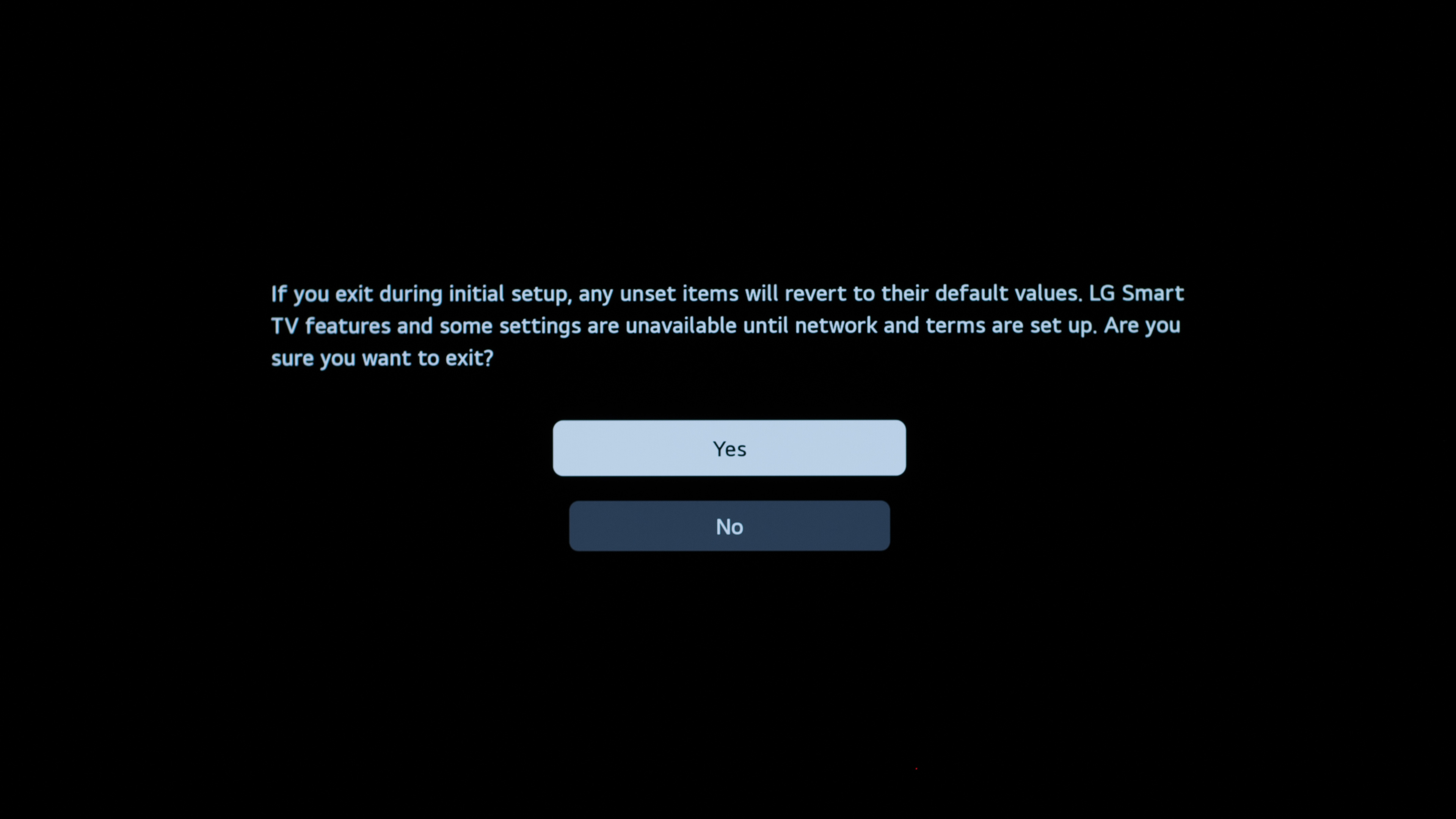
- A message will appear warning that LG Smart TV features and some settings will be unavailable until the network and terms are set up. Select 'Yes' to continue.
- The TV will exit the initial setup and load the normal home screen. The TV can now be used offline without completing the network or smart TV setup. The TV still loads a home screen in this mode, and some of the apps still work, but streaming services aren't available.
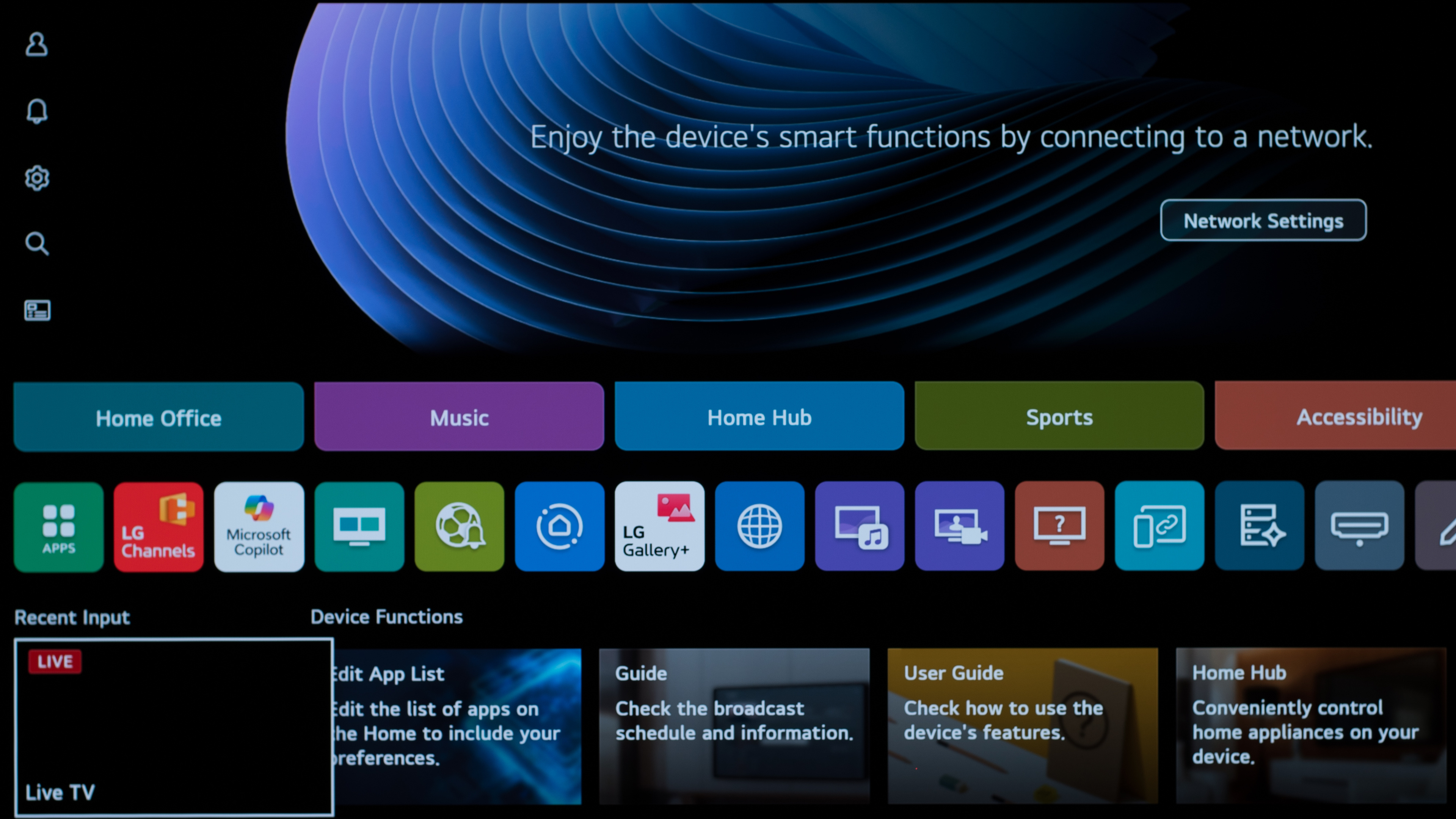
If you change your mind and want to connect the TV to the internet, simply select the 'Network Settings' option from the home screen. Once you connect to your network, the TV will automatically prompt you to accept the various agreements.
Samsung Tizen OS
- The first setup screen displays a QR code for setup using a mobile device. A phone isn't required. Press any button on the Samsung remote to bring up the remote setup option, then press Right on the directional pad to continue using the remote.
- At the 'Let's get set up' screen, select 'Let's Start'.
- At the 'Connect devices to TV and turn them on' screen, select Next. When asked to confirm that no devices are connected, select 'OK'.
- At the 'Connect to the network' screen, don't select a Wi-Fi network. Press Right on the directional pad to highlight Next.
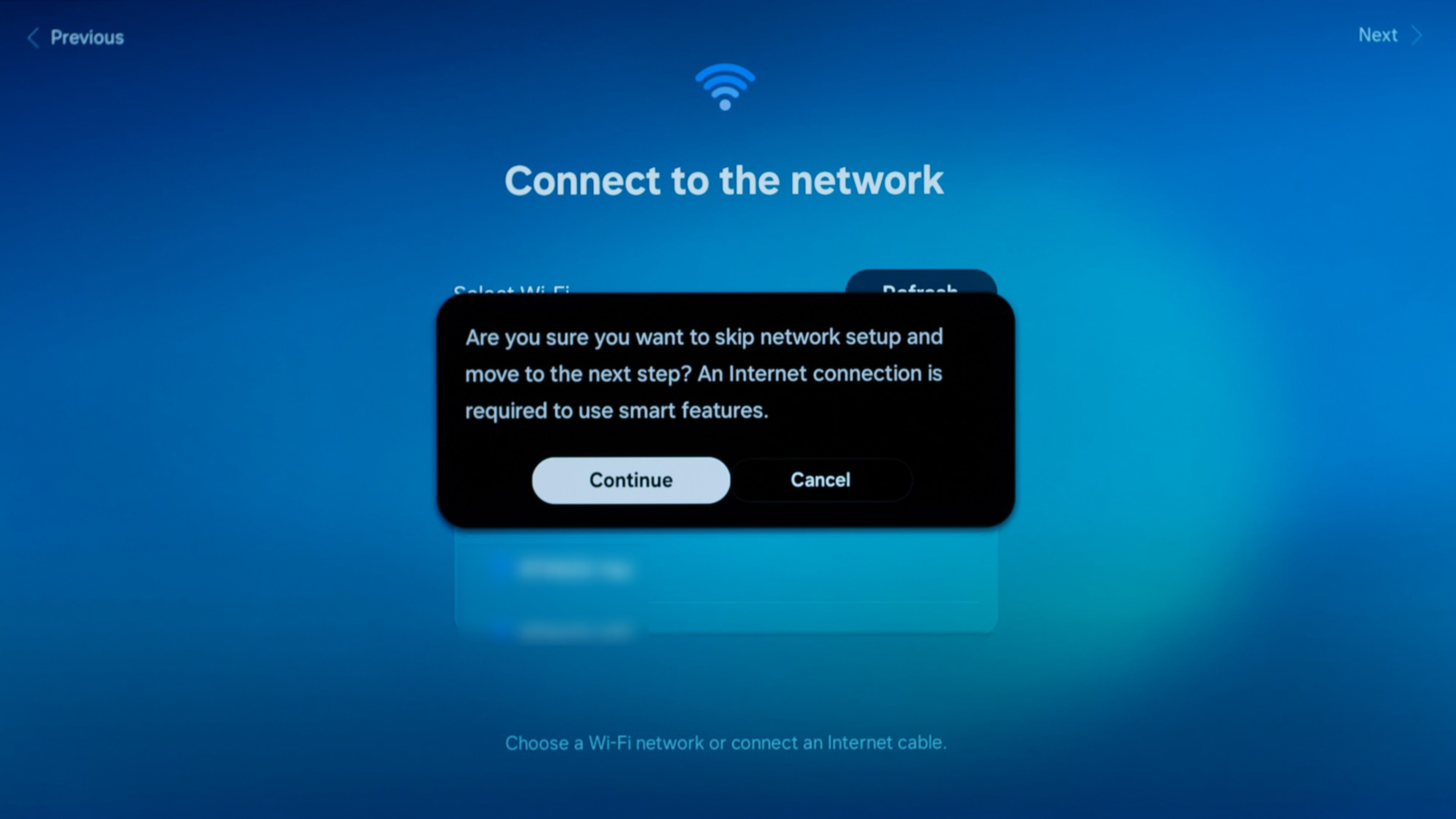
- When asked if you want to skip network setup, select Continue. The TV notes that an internet connection is required for smart features.
- At the 'AI Mode' setup screen, select 'Later'.
- Create and confirm a 4-digit PIN, then select 'Done'.
- Select 'Next' to finish setup. The TV will load the normal home screen and can now be used offline.
 |
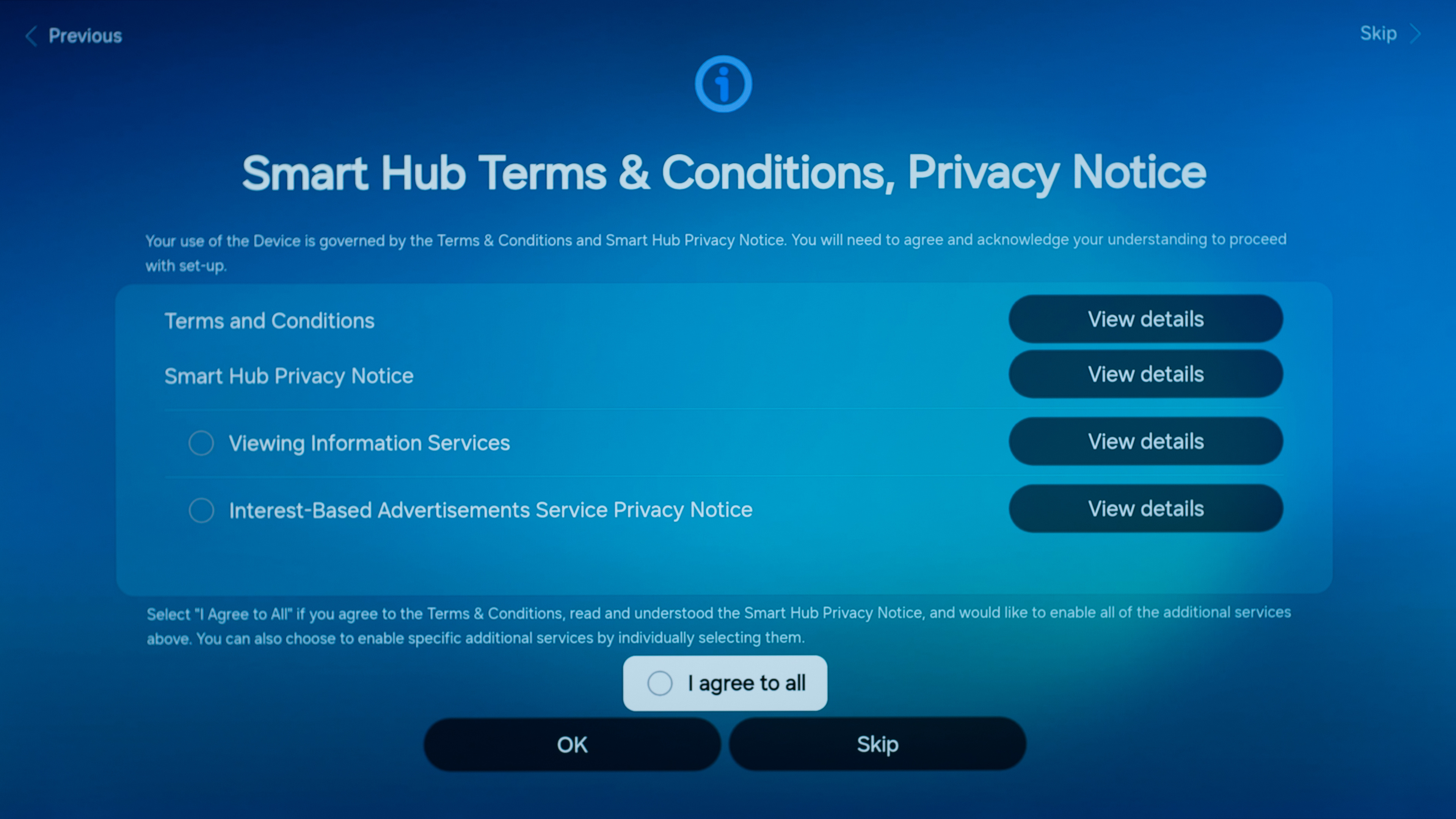 |
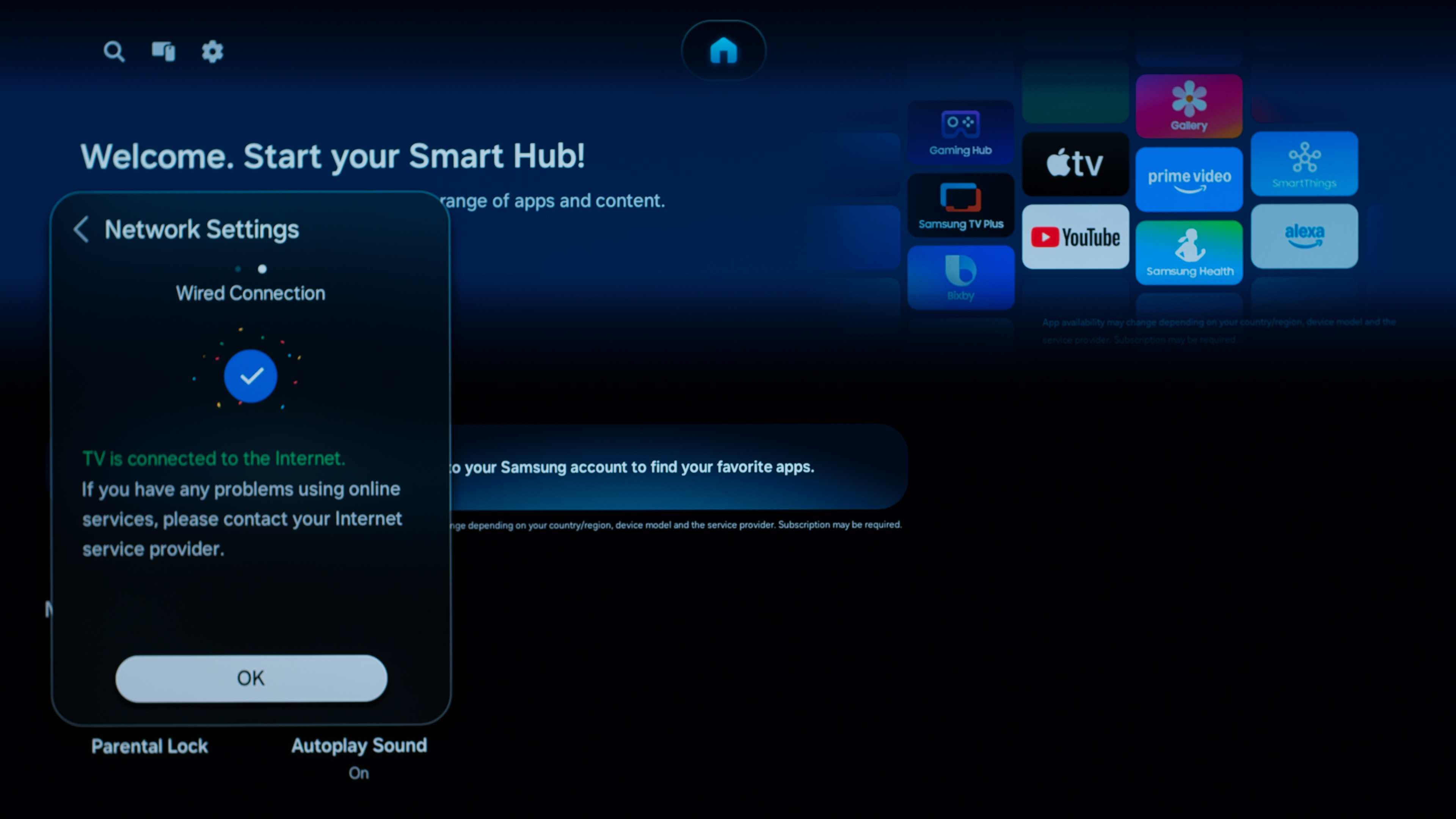
If you change your mind and want to connect the TV to the internet, simply connect it to the network following the menus on the home page. Once you're connected to a network, the TV will automatically display the 'Smart Hub Terms & Conditions' and 'Privacy Notice' menu.
Google TV 12
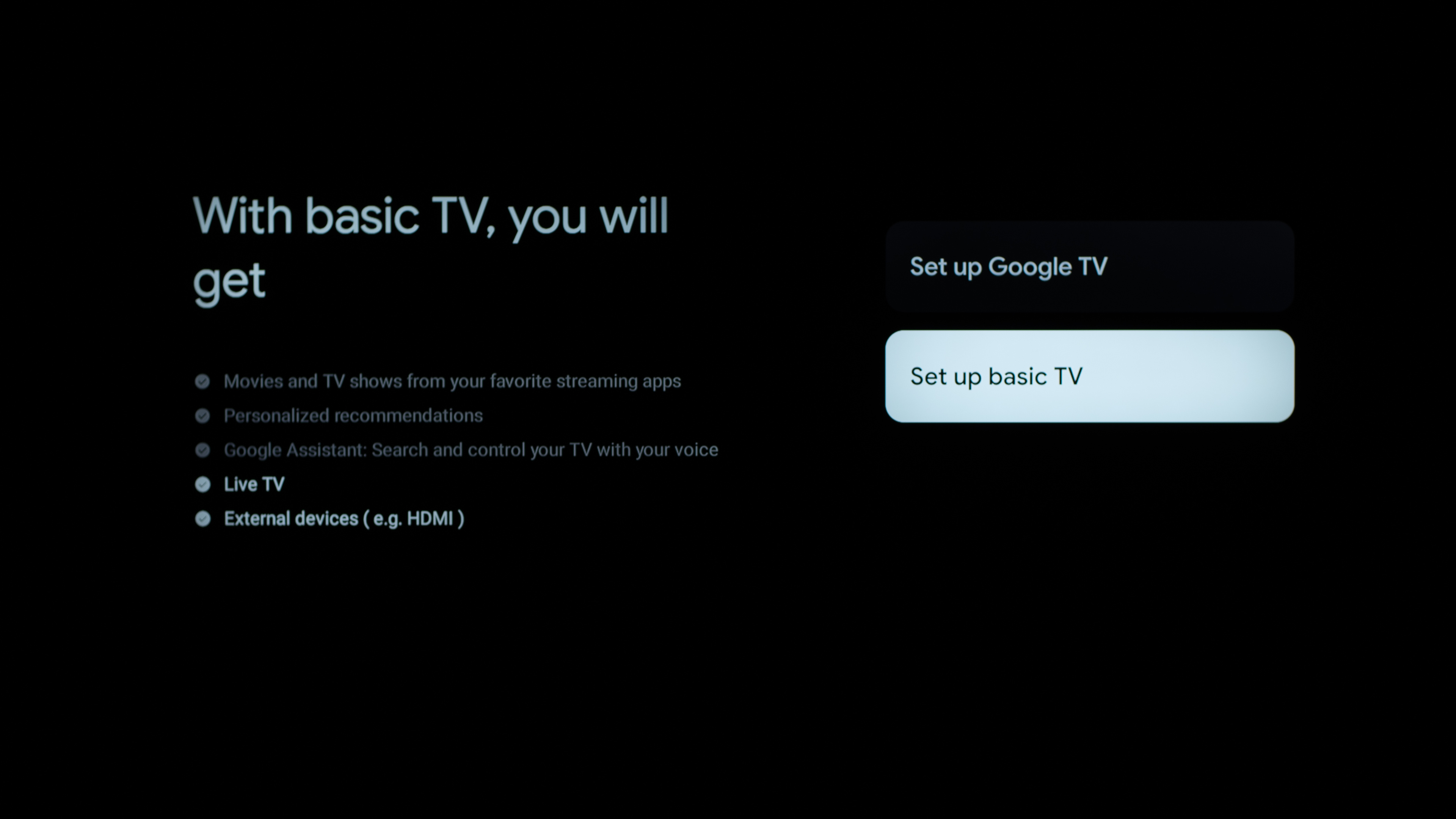
Unlike most TV brands, most Google TV models offer a dedicated 'basic TV' mode that disables most smart features. This mode can still connect to the internet, though, so additional steps are required to prevent it from sending your data home.
- Select your preferred language at the 'Welcome' screen.
- Select your region or country.
- When given the option to set up Google TV or use the TV without the full smart platform, select 'Set up basic TV'.
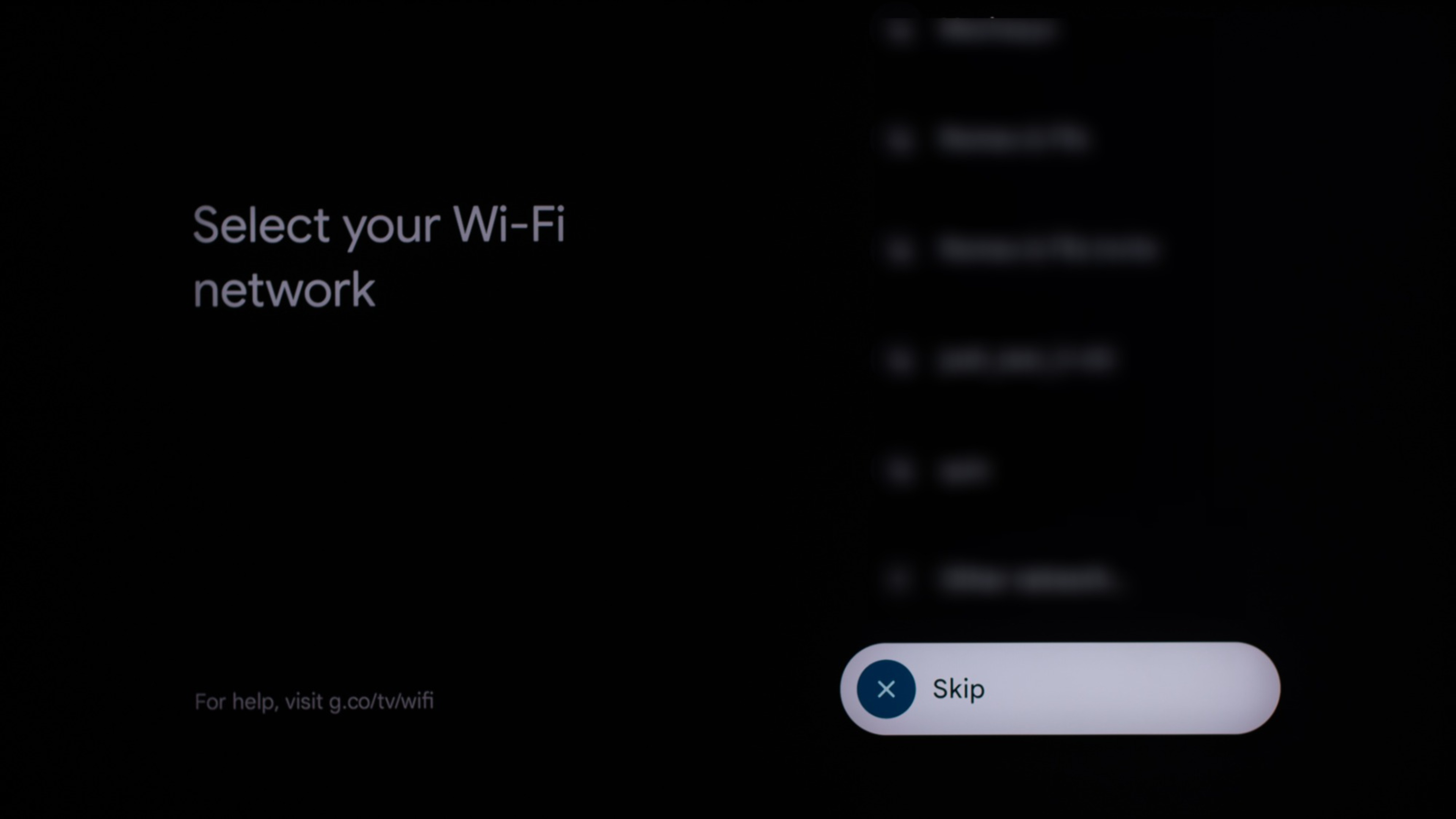
- At the 'Select your Wi-Fi network' screen, don't select a Wi-Fi network. Scroll to the bottom of the network list and select the skip option.
- At the Google 'Hi there' screen, select 'Accept' to continue.
- At the 'Pair Your Remote' screen, pair the remote or press 'Right' to skip.
- Select your time zone.
- At the 'Terms & Privacy' screen, leave the optional 'Terms of User Experience' and 'Share Diagnostics Data' options unchecked, then select 'Agree'.
- At the 'Automatic Updates' screen, select 'Not now'.
- At the 'AirPlay and HomeKit' screen, select 'Next'.
- At the 'Setup complete' screen, select Done. The TV will now operate in Basic TV mode and can be used offline.
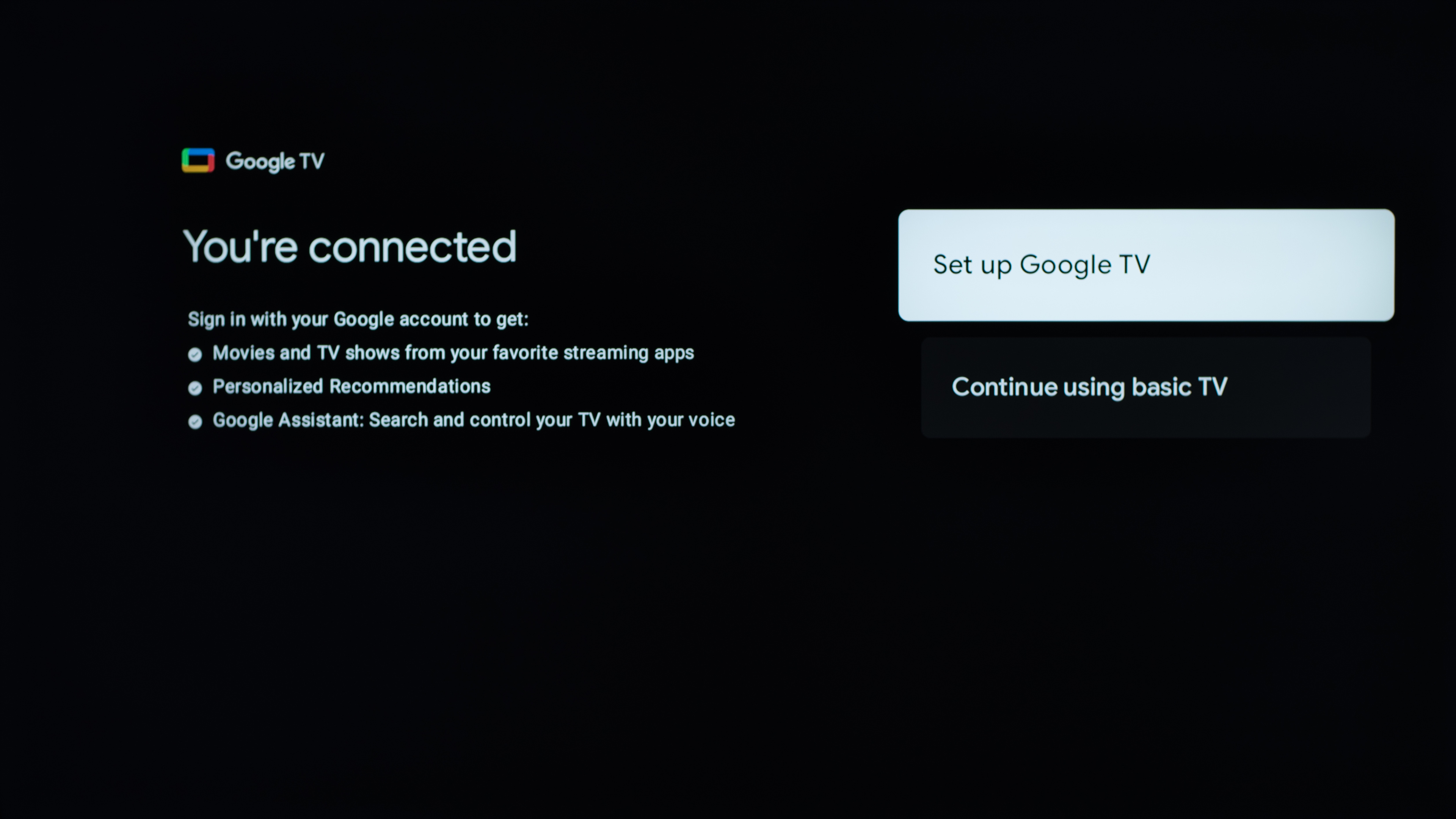
If you decide to use the TV's full smart features, you simply need to go to the TV's network settings menu and connect to a network. Once you're connected, the TV will ask you if you want to stay in Basic TV mode or switch to the full smart interface. If you stay in Basic TV mode, you can use many of the built-in smart apps without completing the Google TV setup, but you'll need to switch to the full interface to install new ones.
Google TV 14
The process for TVs powered by Google TV 14 is largely the same as for Google TV 12, but there are a few differences.
|
 |
- Select language and region.
- On the 'Quickly set up with your phone' screen, press 'Down' on the circular directional pad and select 'Manual setup (with TV remote)'.
- Select 'Home Mode.'
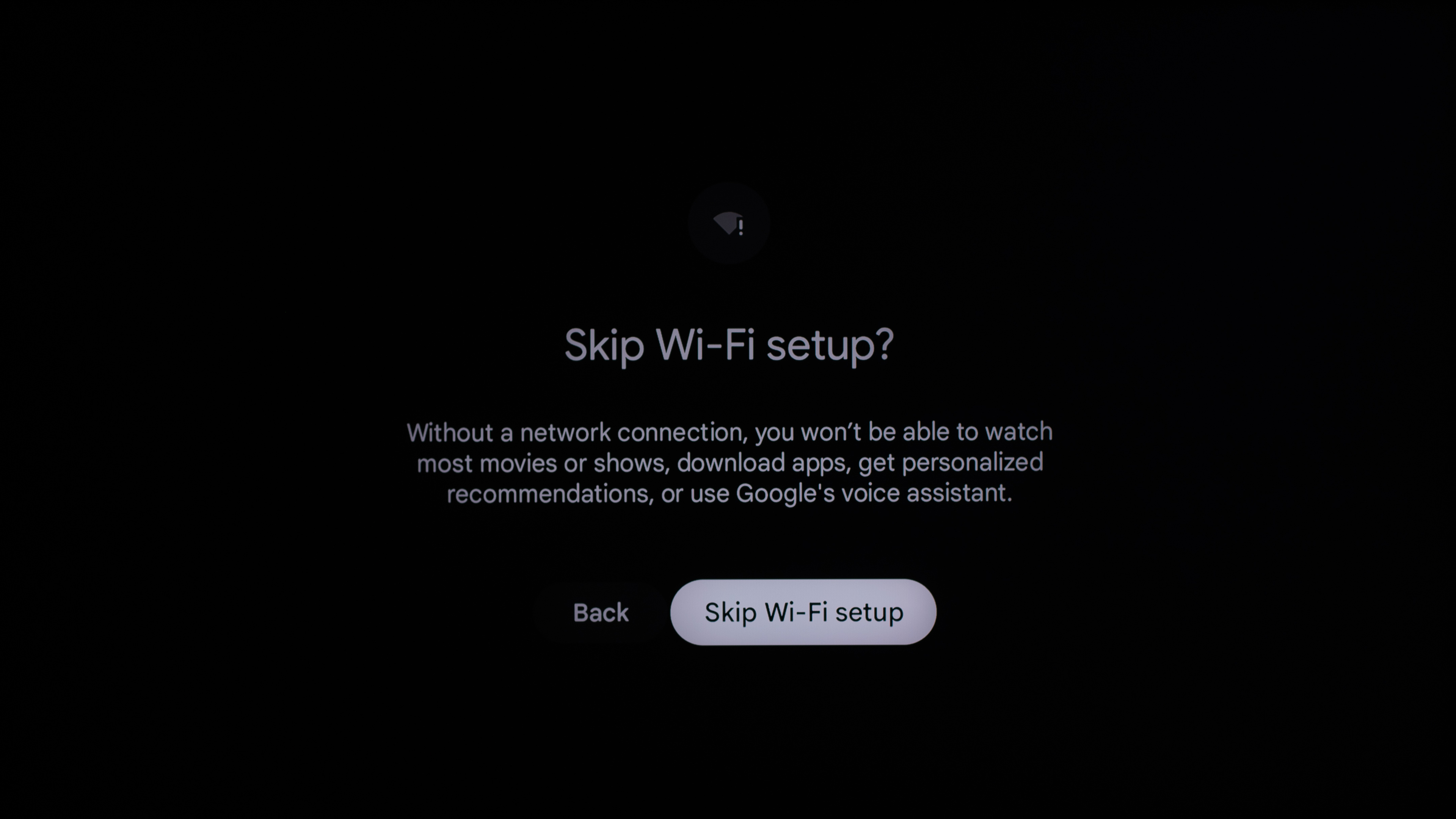
- On the Wi-Fi screen, select 'Skip', then select 'Skip Wi-Fi setup' to confirm.
- On the Google Terms of Service screen, select 'Accept'.
- On the Google services screen, choose whether you want to enable location services, then select 'Accept'.
- Select your 'Time Zone'.
- Pair the remote by holding 'Home' + 'Back' for 3 seconds.
- On 'Set up audio device', select 'Next'.
- On 'Enter your zip code', select 'Skip'.
- On 'Legal Terms', accept the required End User License Agreement and Data Protection Policy. The other options are optional, then select 'Accept'.
- On 'Register your TV', skip registration.
- On 'Apple AirPlay and HomeKit', select 'Next'.
- On 'Setup is complete', select 'Done'.
- The TV will now operate in its offline/basic mode. The preinstalled apps are still shown, but online functionality isn't available while disconnected.
As with Google TV 12, a factory reset isn't required to switch back to the regular smart TV mode. The TV can be fully set up and used offline without a Google account. Preinstalled apps such as YouTube, Netflix, and Prime Video are visible in the Apps menu, but they can't be used for streaming while the TV is offline.
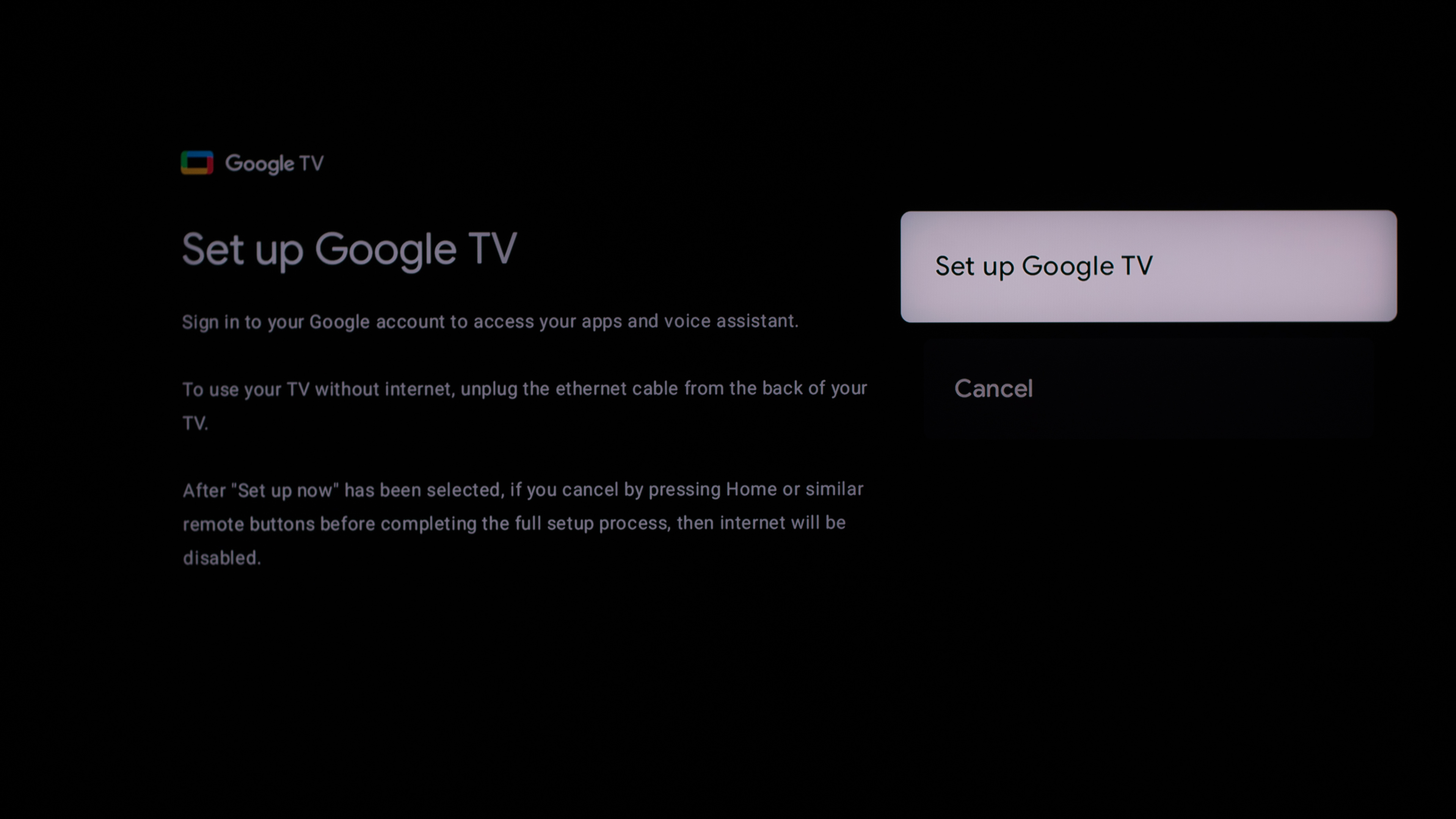
If you connect the TV to the internet and attempt to use an app such as YouTube, the TV prompts you to 'Set up Google TV' and sign in to a Google account. If you select 'Cancel', the TV displays 'Unplug the Ethernet cable to continue'. This prompt can't be dismissed while the TV remains connected. This means you must either disconnect from the internet and continue using the TV offline or complete the Google TV setup and sign in to a Google account to use the online apps. No factory reset is required to switch between these states.
With Google TV 12, you could complete the TV-only/basic setup without a Google account, connect the TV to the internet afterward, and use the preinstalled streaming apps without being forced to sign into Google. Unfortunately, that's no longer possible on Google TV 14.
Fire TV
- Select your preferred language.
- At the 'Set Up with Your Phone' screen, select Use Remote Instead.
- At the 'Connect to Your Network' screen, don't select a Wi-Fi network. Select the option at the bottom to do this later.
- When asked 'Are You Sure?', select Skip Wi-Fi Setup. The TV notes that streaming movies, TV shows, and apps won't be available without an internet connection.
- At the 'Scan for TV channels' screen, select 'No' if you don't want to set up over-the-air channels.
- Setup will finish, and the TV will load the Home screen. While offline, the Home screen displays 'Home is Currently Unavailable'. You can still access basic TV functionality, including settings and external inputs.
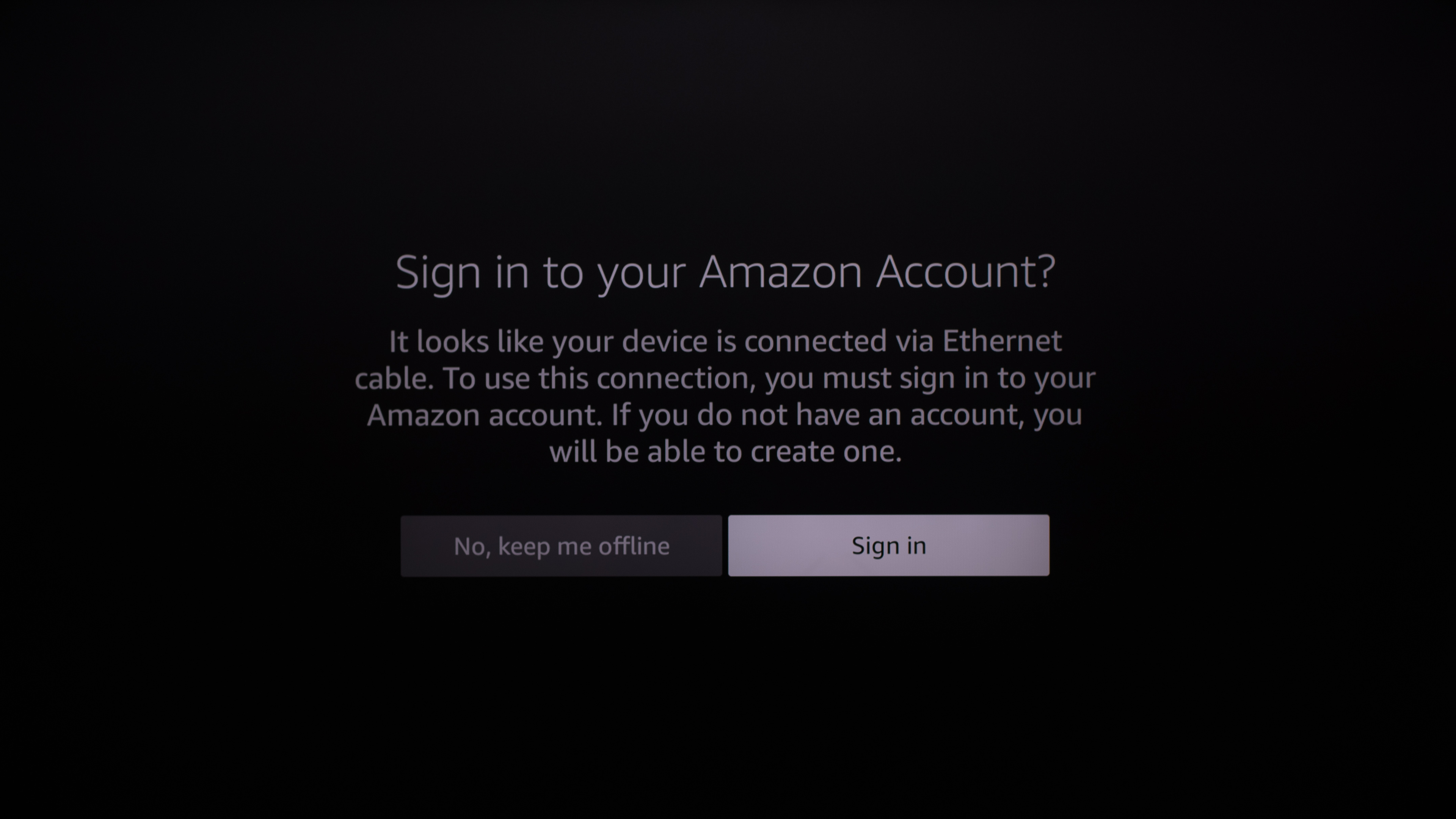
If you change your mind and want to connect your TV to the internet, just follow the prompts to connect to a network from the TV's settings menu. There are a few additional steps that can allow you to continue using the TV as a basic TV.
- Once you connect the TV to the internet after completing the offline setup, you'll be prompted to sign in to an Amazon account. Select 'No, keep me offline' if you don't want to use an account.
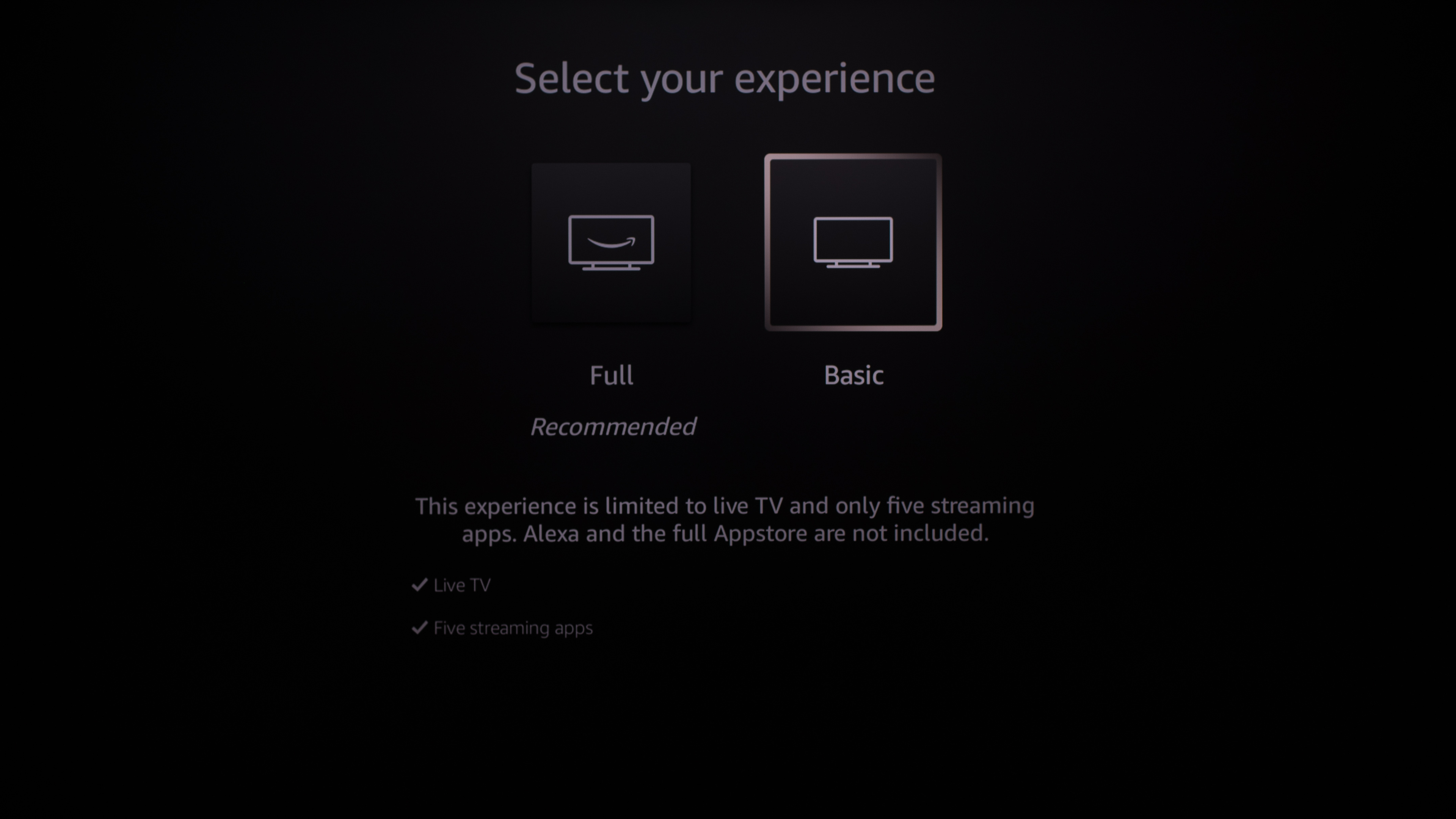
- The TV then lets you choose between the 'Full' and 'Basic' experiences. Select 'Basic' to continue without an Amazon account.
- After accepting Amazon's Conditions of Use, the normal connected Home screen becomes available. Basic mode is limited to live TV and five streaming apps and doesn't include Alexa or the full Appstore.
- Disconnecting from the internet returns the TV to limited offline functionality without requiring a factory reset.
Roku
Roku TVs don't natively support a basic TV mode, but you can get a similar experience by setting the TV up as an in-store demo rather than for home use.
- Follow the remote pairing instructions. At the 'Let's get started' screen, select English.
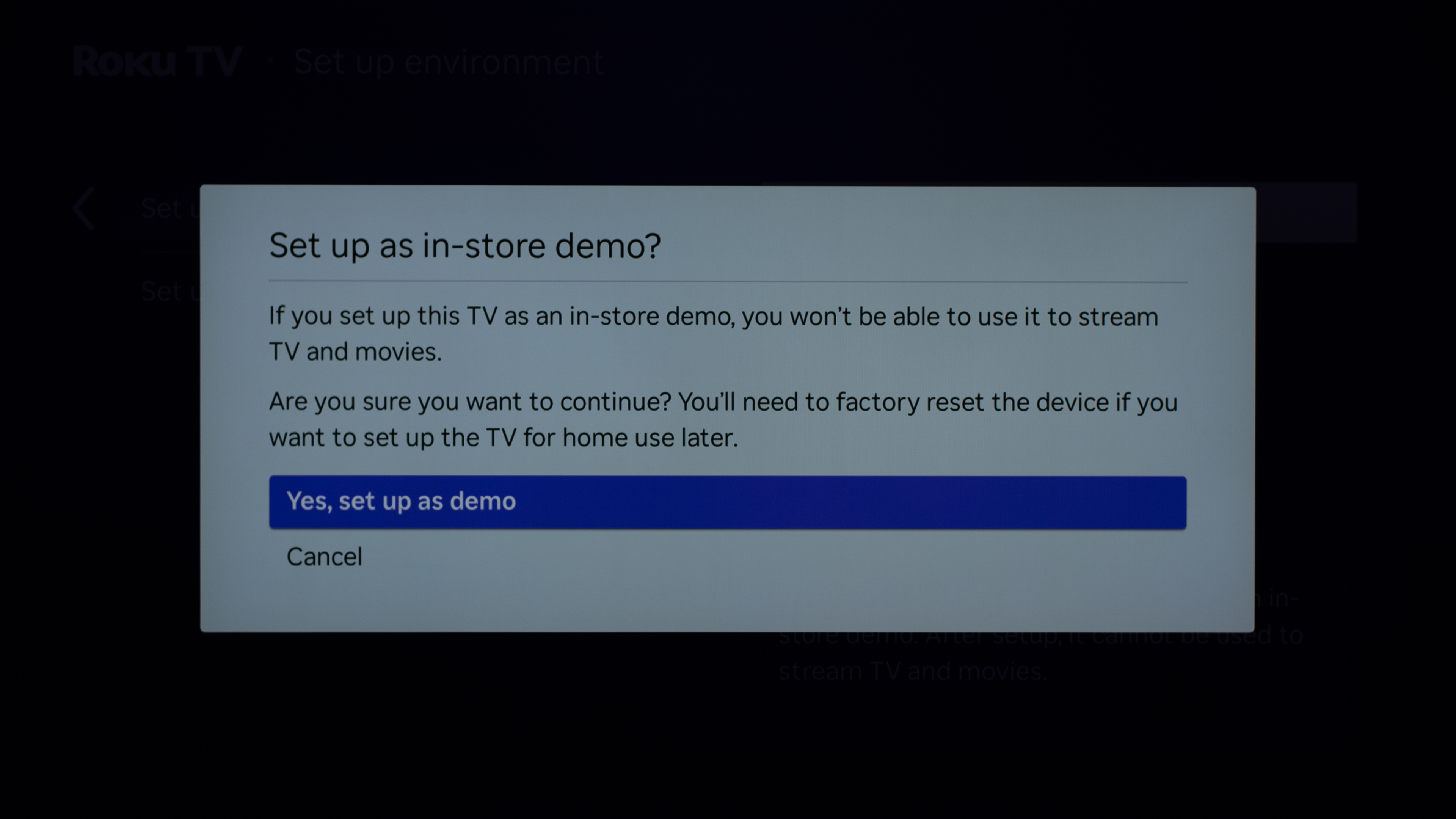
- At the 'Set up environment' screen, select 'Set up as in-store demo'.
- When asked to confirm, select 'Yes, set up as demo'.
- At the 'Voice consent' screen, check 'I understand', then select 'Finish'.
- Once setup is complete, go to Settings > System > Store settings and uncheck 'Show store marketing messages'. This prevents the TV from periodically displaying promotional messages while being used in store mode.
- When connecting an external device such as an Apple TV, go into the Picture settings and change the default picture mode from 'Store Mode' to another picture mode.
Unfortunately, with this approach, even if you connect the TV to the internet later, you still can't use it with streaming apps. You need to factory reset the TV and follow the setup process again to switch it to home use.
Vizio OS
 |
 |
- Select your preferred language on the Choose a Language screen.
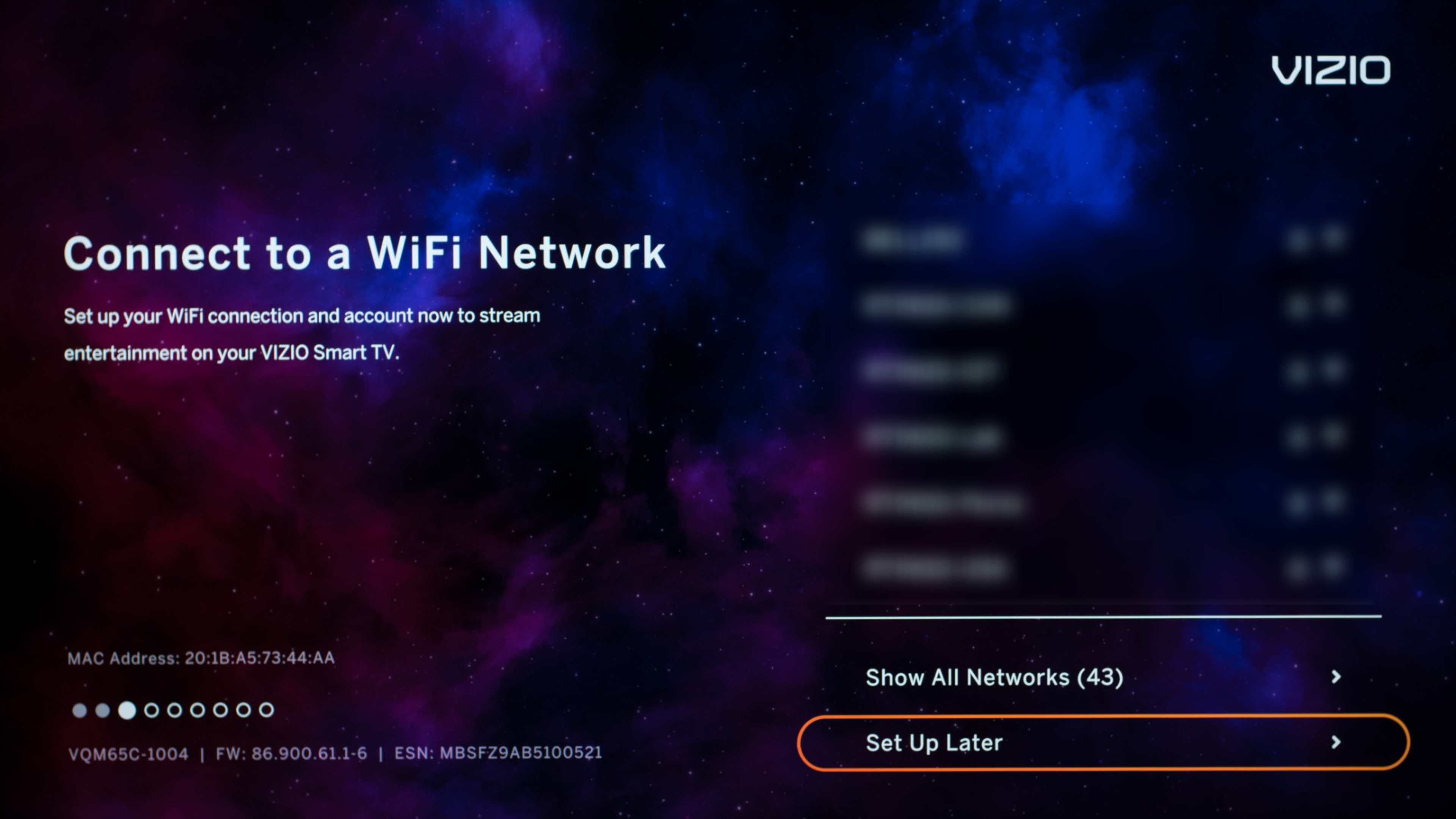
- At the 'Connect to a WiFi Network' screen, don't select a Wi-Fi network. Select 'Set Up Later' at the bottom of the screen.
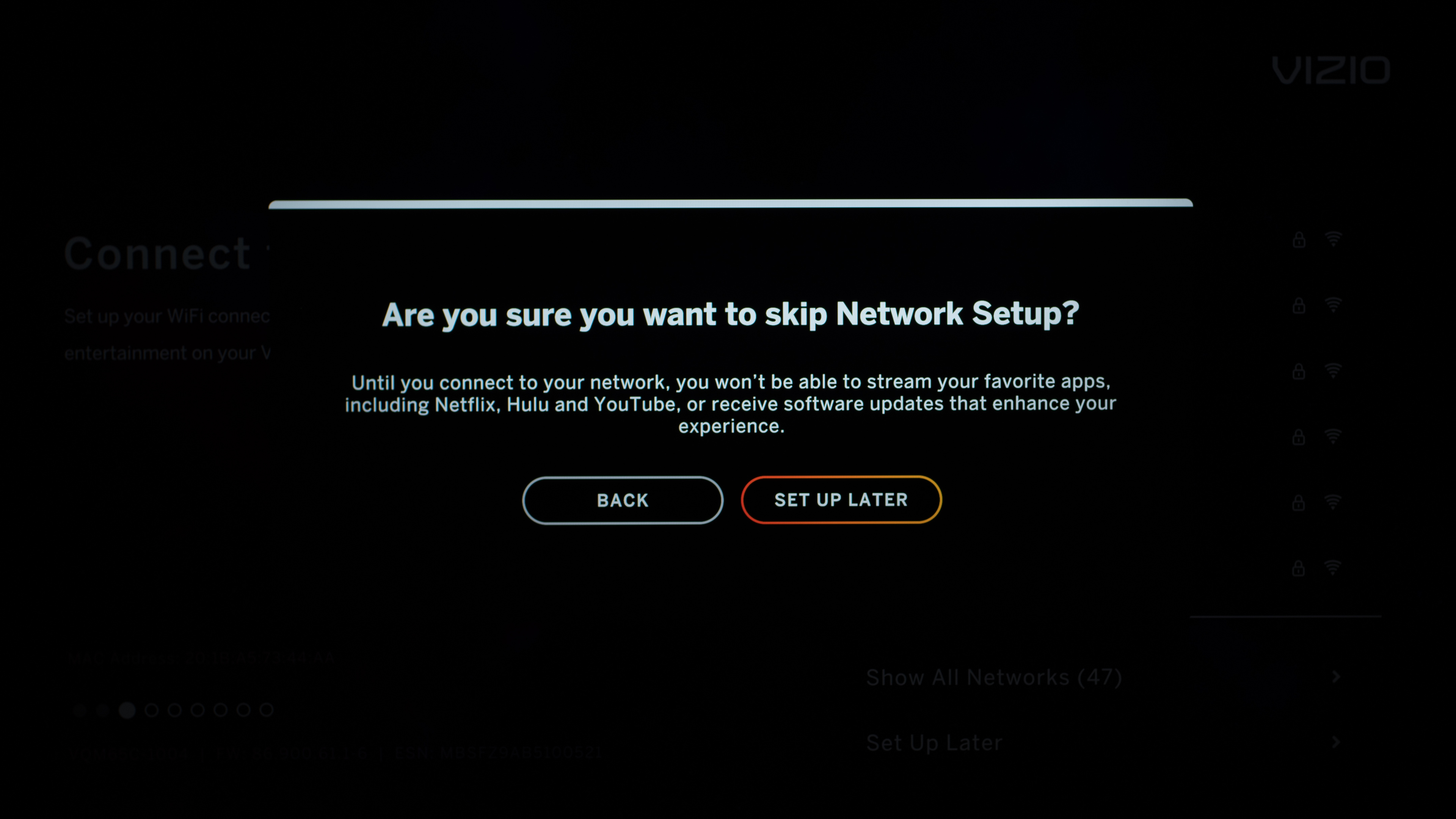
- When asked 'Are you sure you want to skip Network Setup?', select 'Set Up Later' again.
- Continue through the remaining setup screens to complete the offline setup.
- Once setup is complete, the TV can be used offline, but functionality is limited primarily to external inputs and the TV's settings. The smart home interface and streaming functionality aren't available while the TV remains offline.
If you change your mind and want to enable the smart experience, a factory reset isn't required. If you press the Home button after completing the offline setup, the TV displays a Connect Your Network screen. To access the TV's online and smart features, select 'Start Setup' and complete the setup process while connected to the internet.
Conclusion
As you can see, it's generally fairly easy to use any TV without connecting it to the internet. With the exception of models powered by Roku OS, you can also freely switch between offline and online experiences without resetting the TV. Keep in mind that any stored tracking data will likely be transmitted once you connect the TV to your network, though.