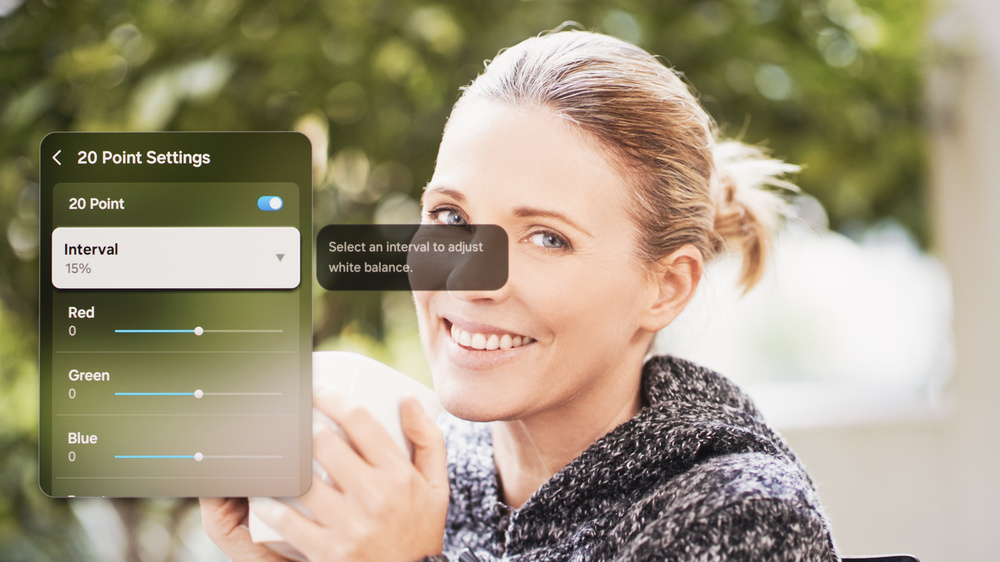
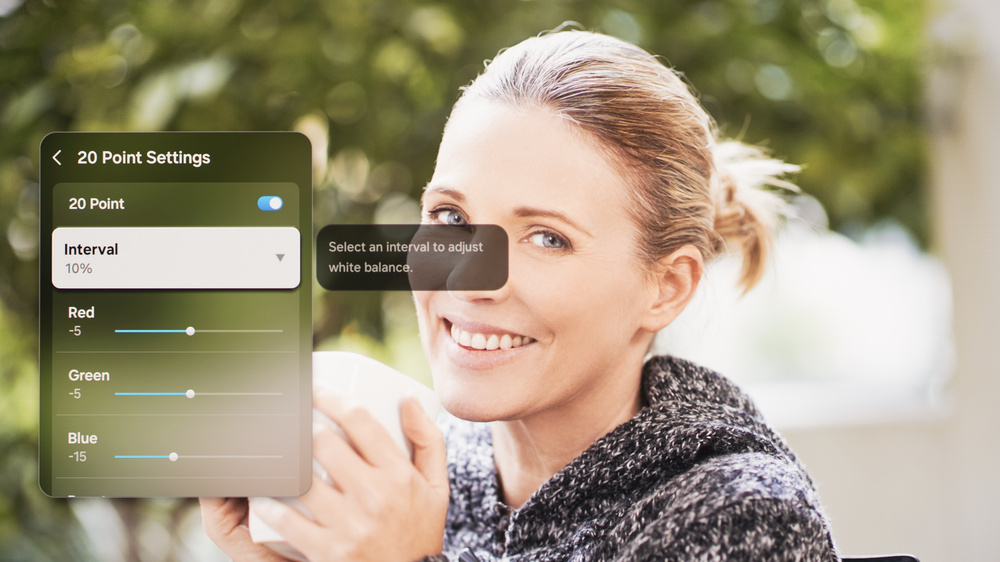
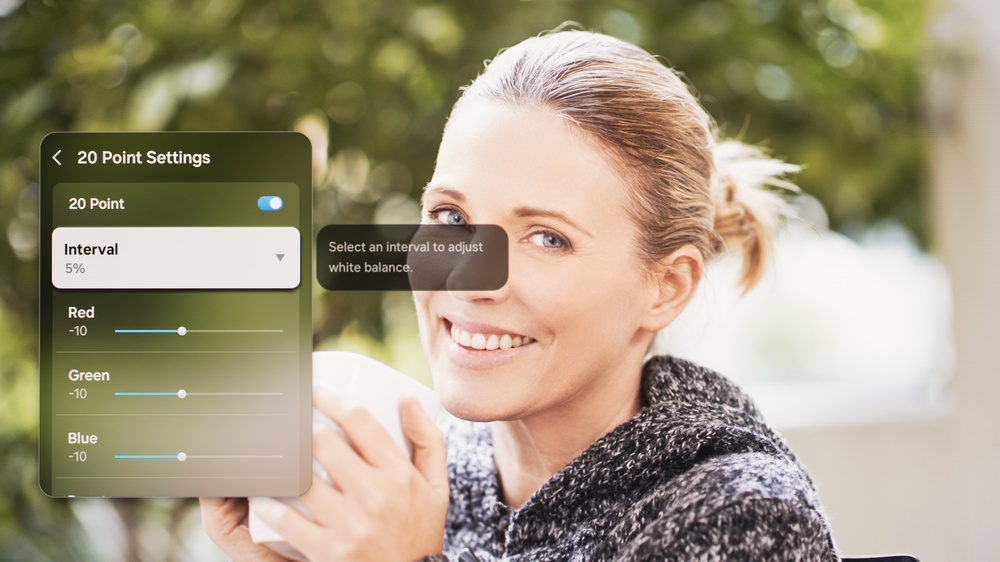
We used the following calibration settings to test the 65-inch Samsung S90F OLED (QN65S90FAFXZA), but they're also valid for the 55-inch (QN55S90FAFXZA) and 77-inch (QN77S90FAFXZA) models that use QD-OLED panels. The 83-inch (QN83S90FAEXZA) model only uses a WOLED panel, and some units of the smaller sizes also use a WOLED panel, so our settings don't apply to those. These settings apply to most types of content, except for gaming or use as a PC monitor, which require a few additional changes, listed below.
These settings are meant to provide a starting point; they're not meant to be copied 1:1. They provide the most accurate image in a moderately lit room, but you should adjust them to match your personal preferences and viewing conditions.
SDR Picture Settings
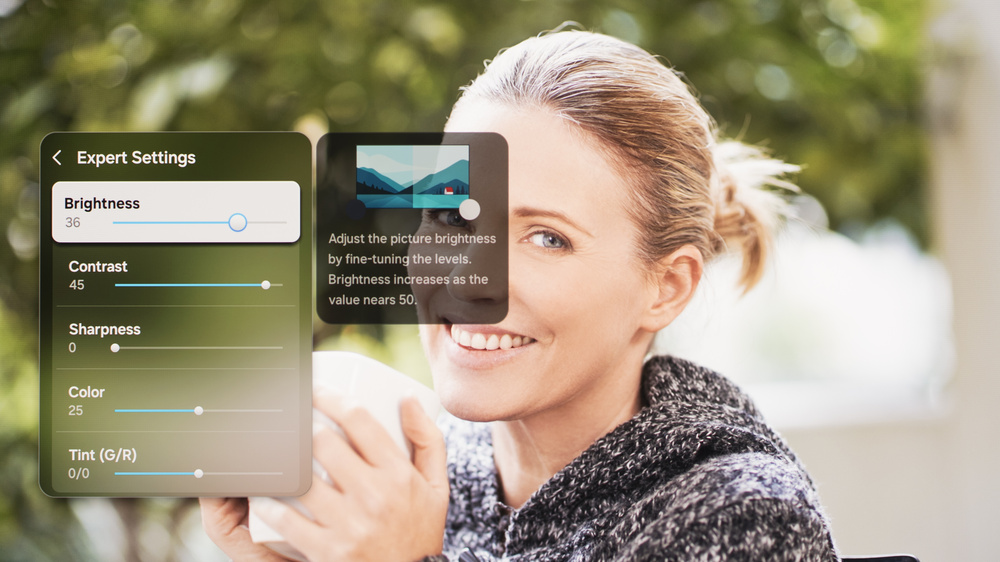
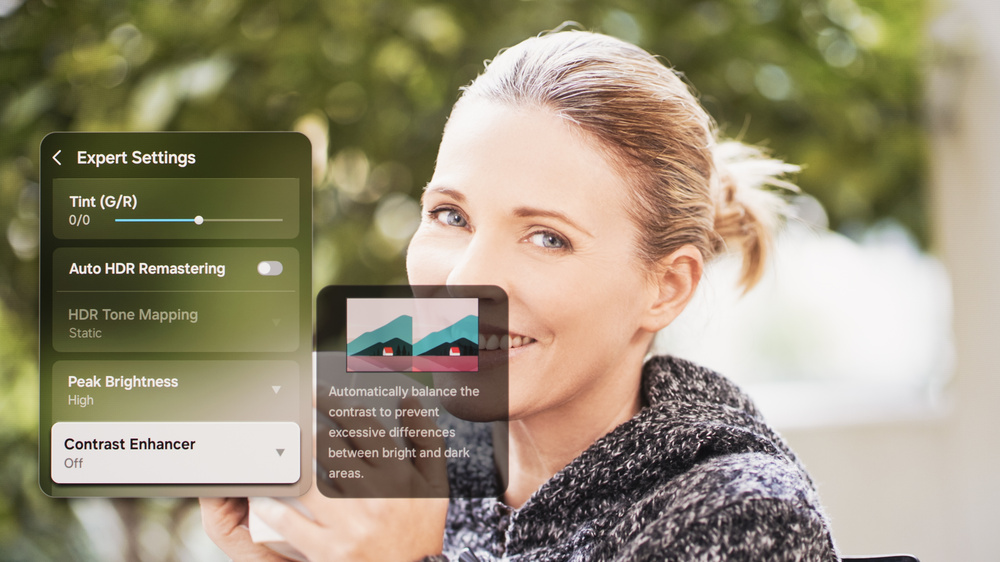
For SDR content, you can choose a few different preset picture modes. We used the 'Movie' Picture Mode because it's the most accurate out of the box and allows for the most customization. A Brightness setting of '36' with Peak Brightness set to 'High' corresponds to about 200 nits on our unit, which is our target for a moderately lit room, but you should adjust these settings depending on your viewing conditions. For our peak brightness test, Brightness was set to maximum, and Peak Brightness was set to 'High.' Below are the settings we used for SDR. All other settings were either disabled or left off. If you're in a dark room, the BT.1886 gamma setting is a good choice, as that's the setting most commonly used during the mastering process.
- Picture Mode: Movie
- Brightness: 36 (200 nits)
- Gamma: 2.2
- Color: 25
- Peak Brightness: High
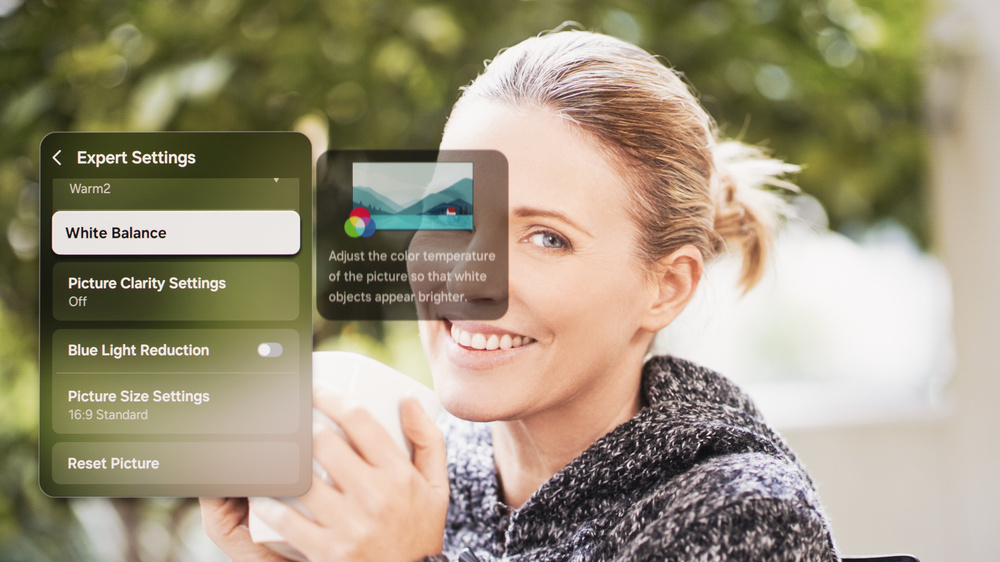
- Color Tone: Warm2
- Color Space: Auto
HDR10 and HDR10+
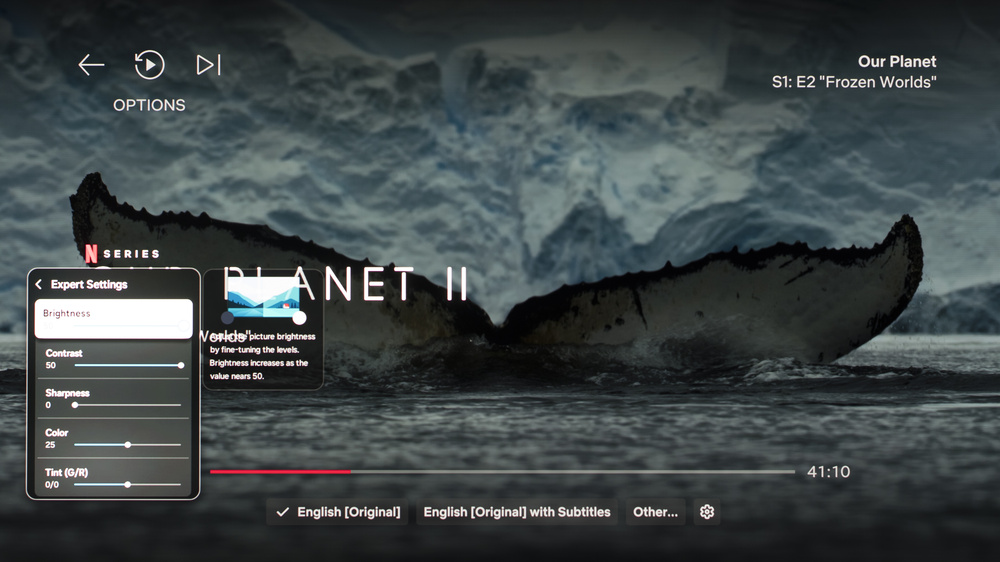
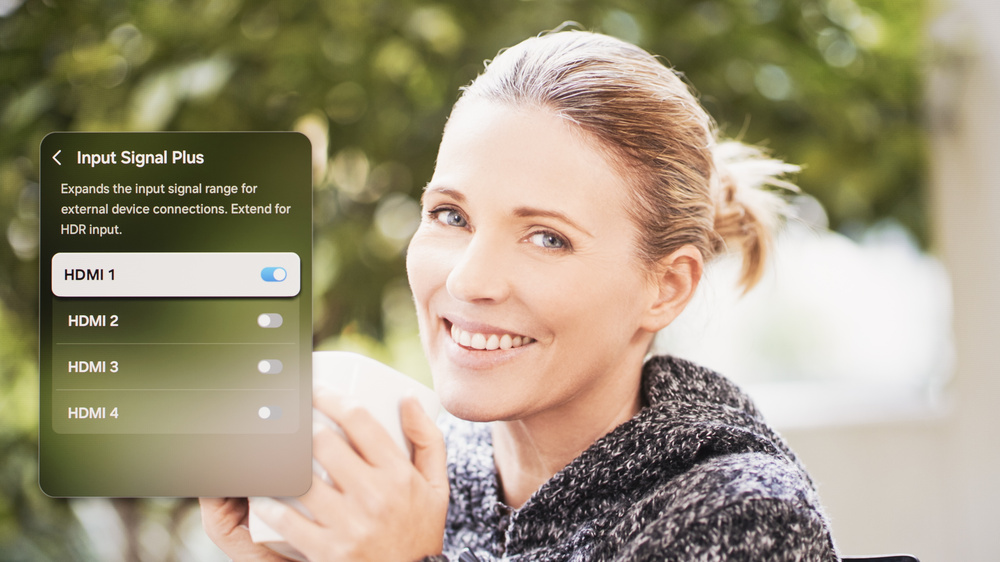
HDR is automatically enabled for native apps. When you start playing HDR content, a small HDR icon appears in the picture settings menu. Once you start playing HDR content, some of the settings change automatically. Below are the settings we used for HDR10. All other settings were either disabled or left off. If you're having any issues with HDR content, make sure Input Signal Plus is enabled.
- Picture Mode: Filmmaker Mode
- Brightness: 50 (Max)
- Contrast: 50 (Max)
- Contrast Enhancer: Off
- HDR Tone Mapping: Static
- Color: 25
- Color Tone: Warm2
- Color Space Settings: Auto
- Peak Brightness: High
- Gamma: {ST.2084} -1
The TV supports HDR10+ from native apps and external devices. As with normal HDR content, when you start playing HDR10+ content, some settings change automatically. Since we don't specifically test HDR10+, we don't have exact settings for it, but they should be the same as our HDR10 settings.
HDR White Point
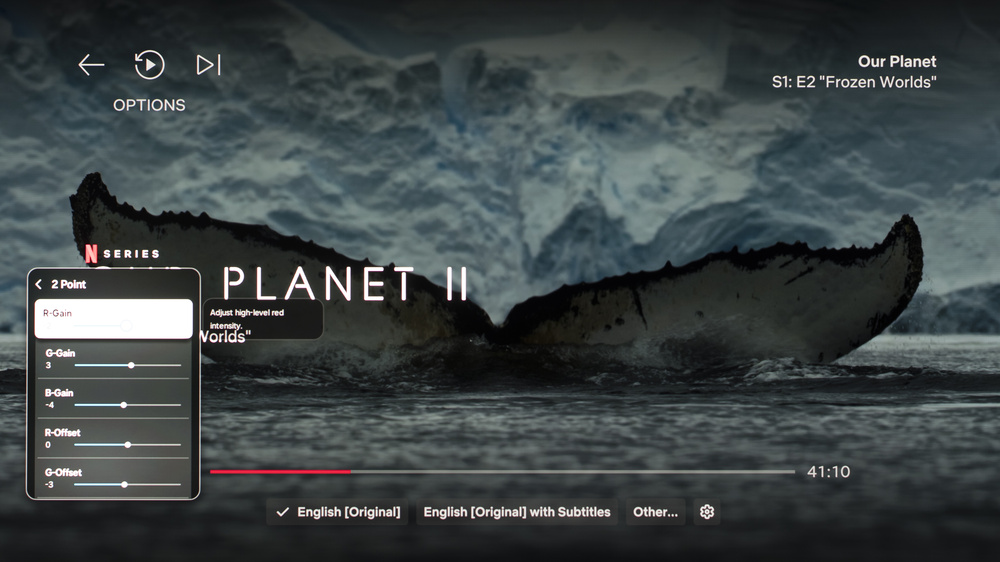
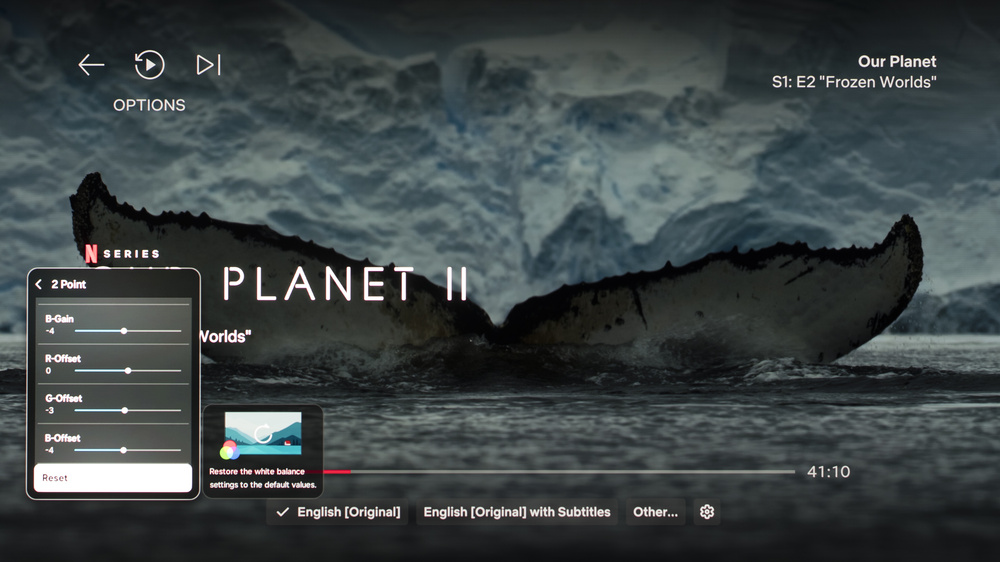
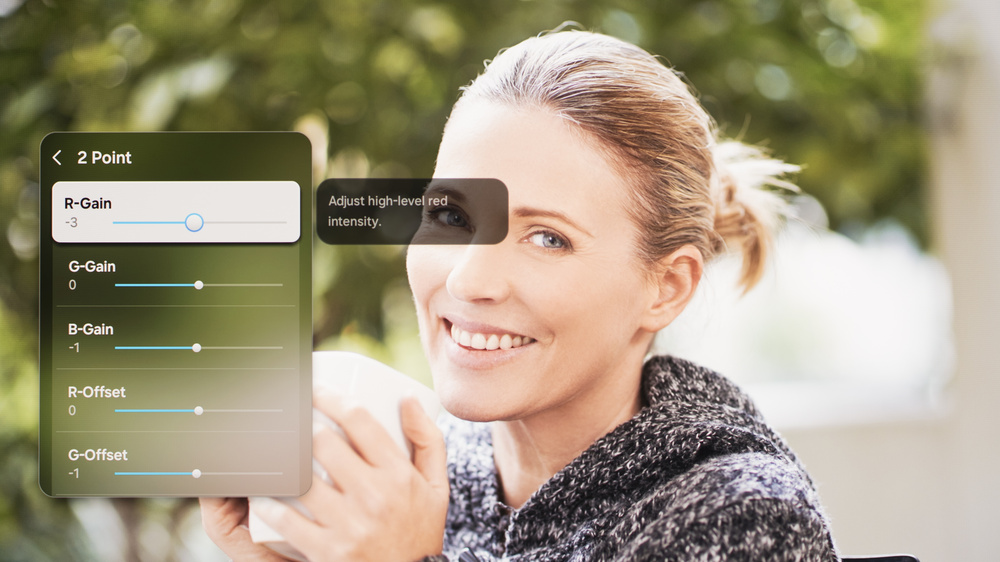
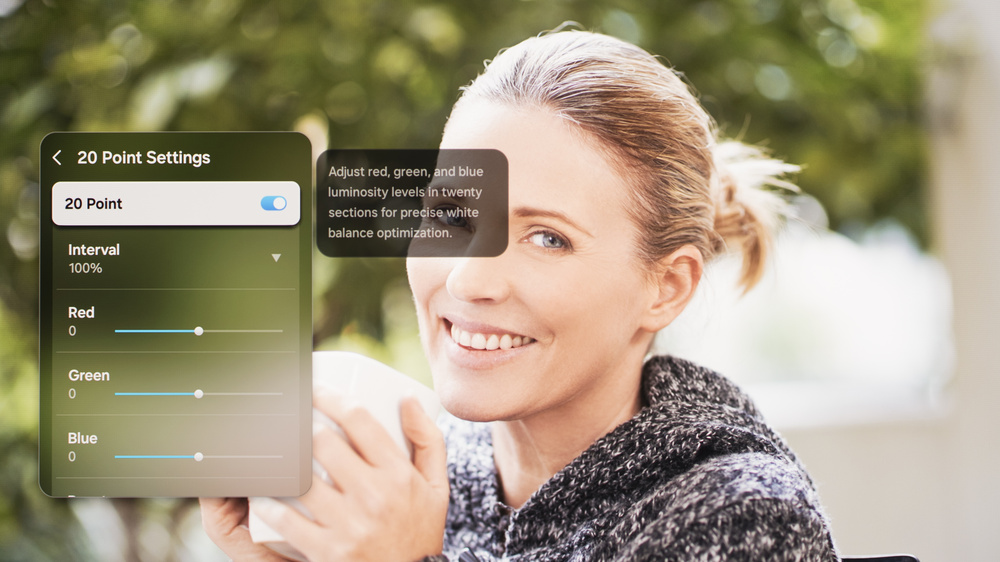
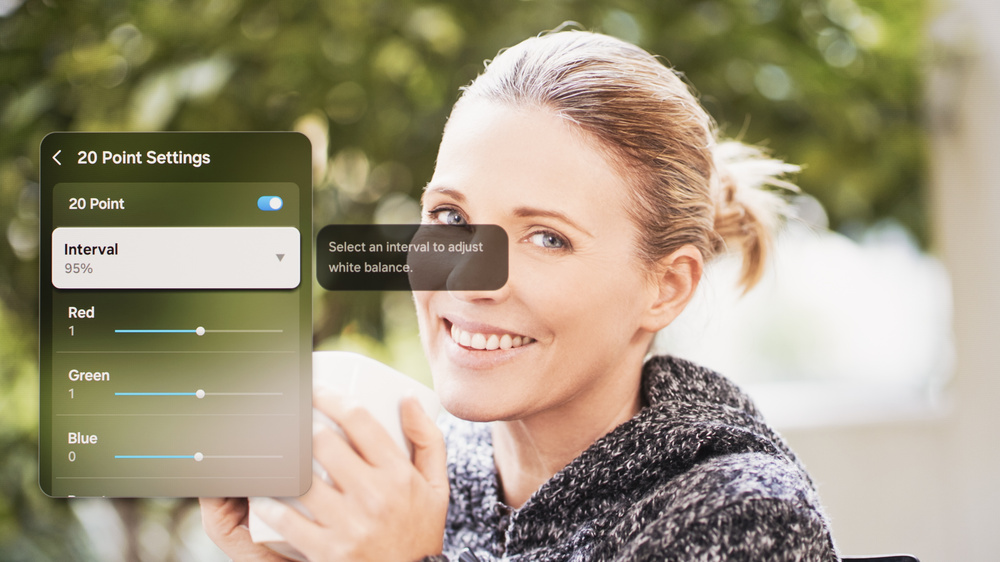
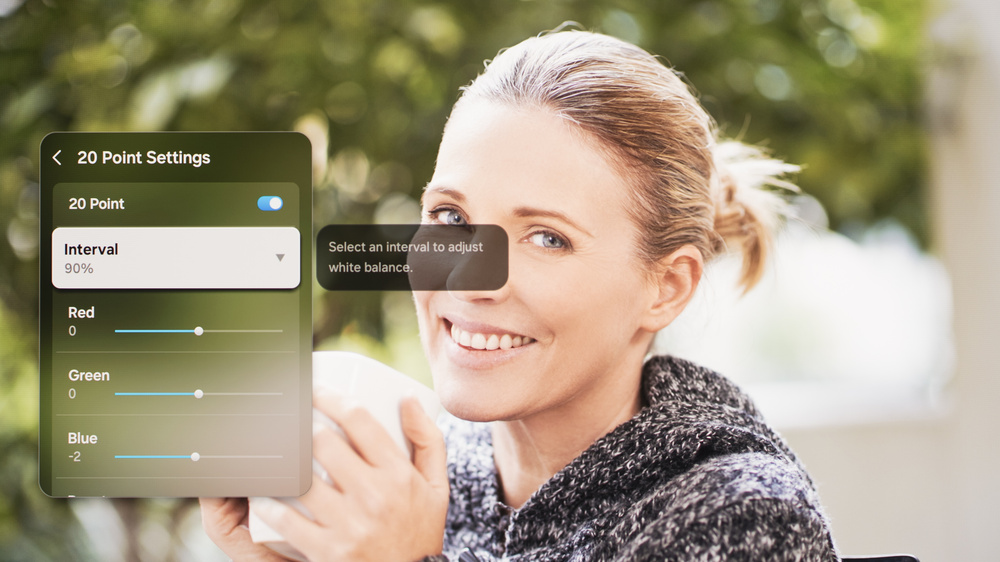
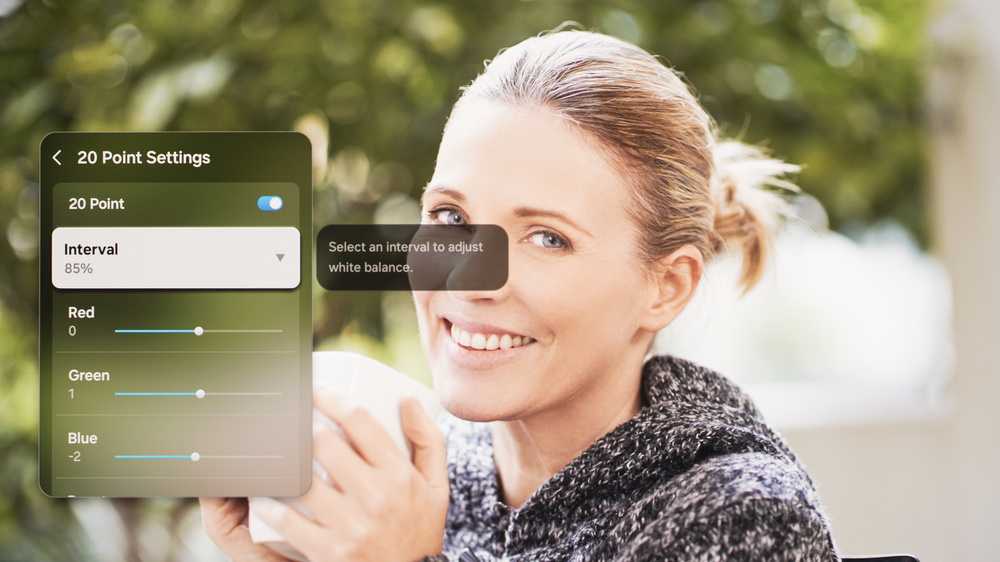
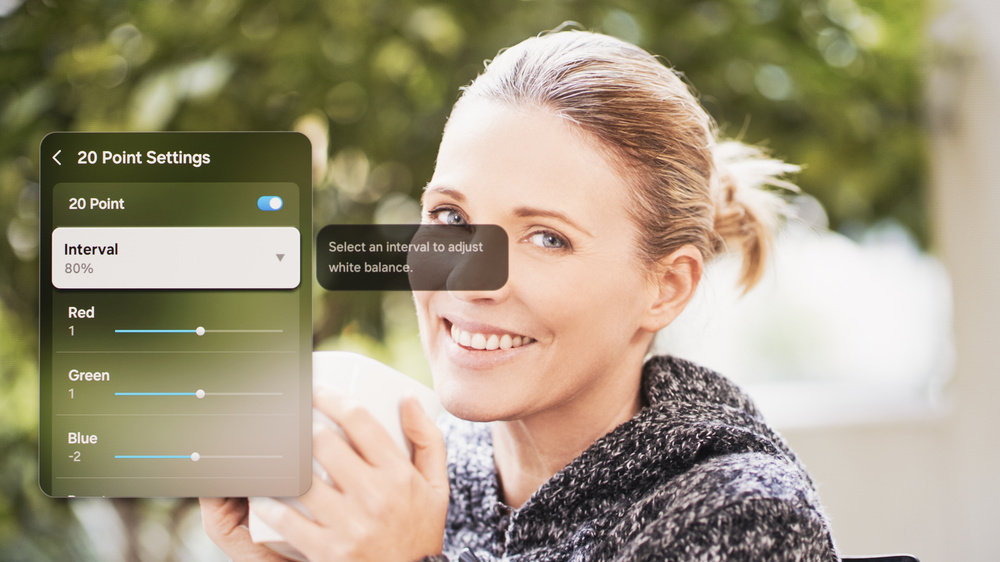
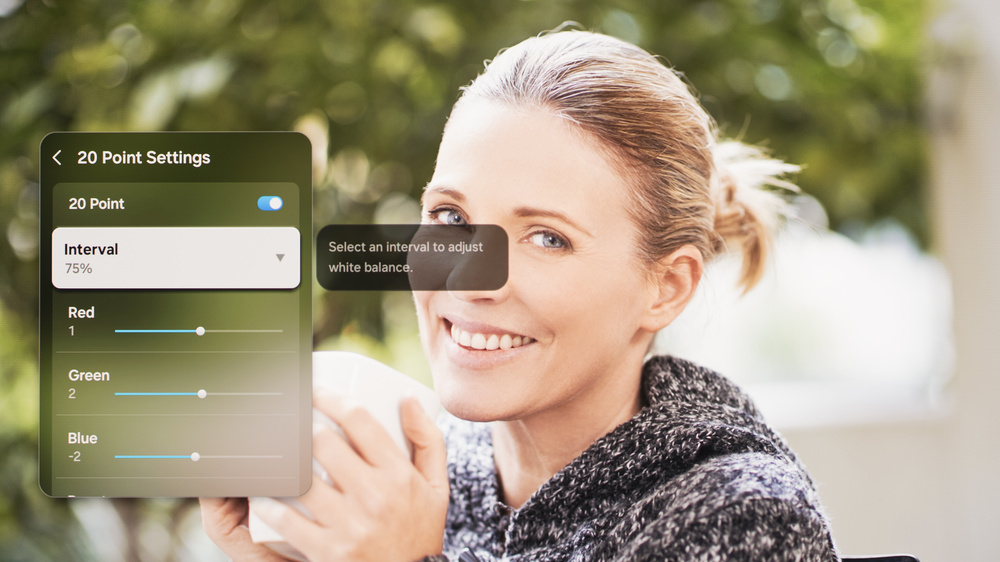
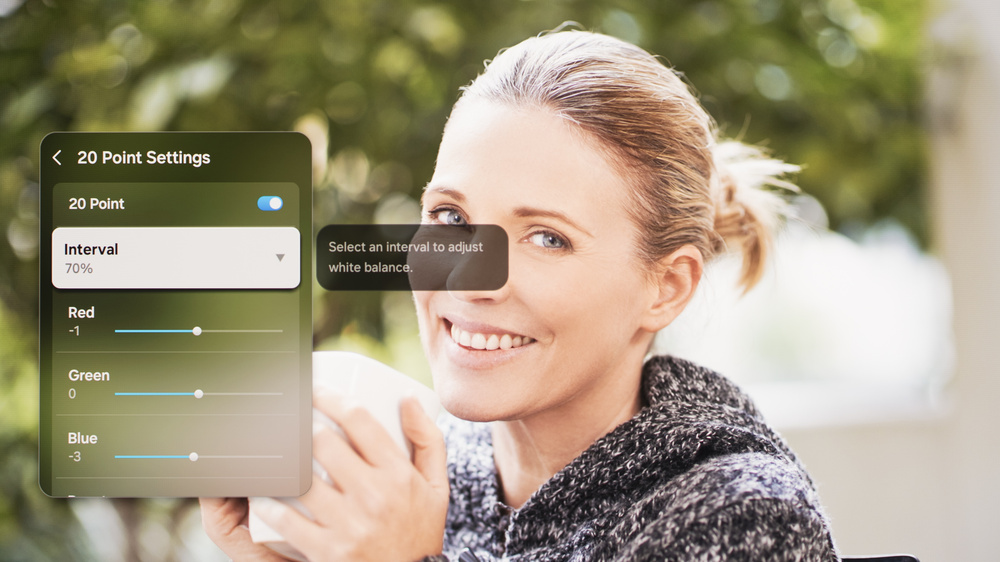
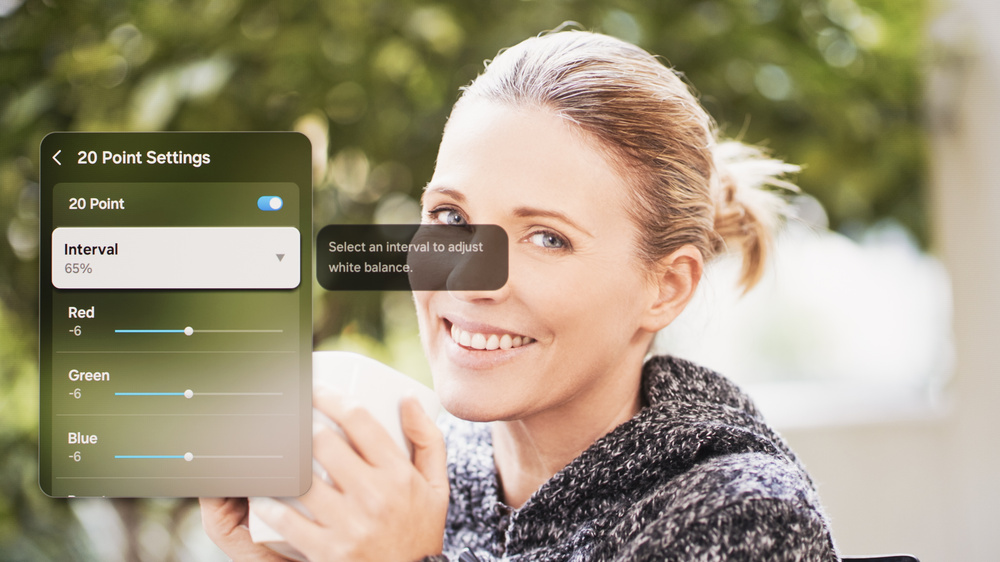
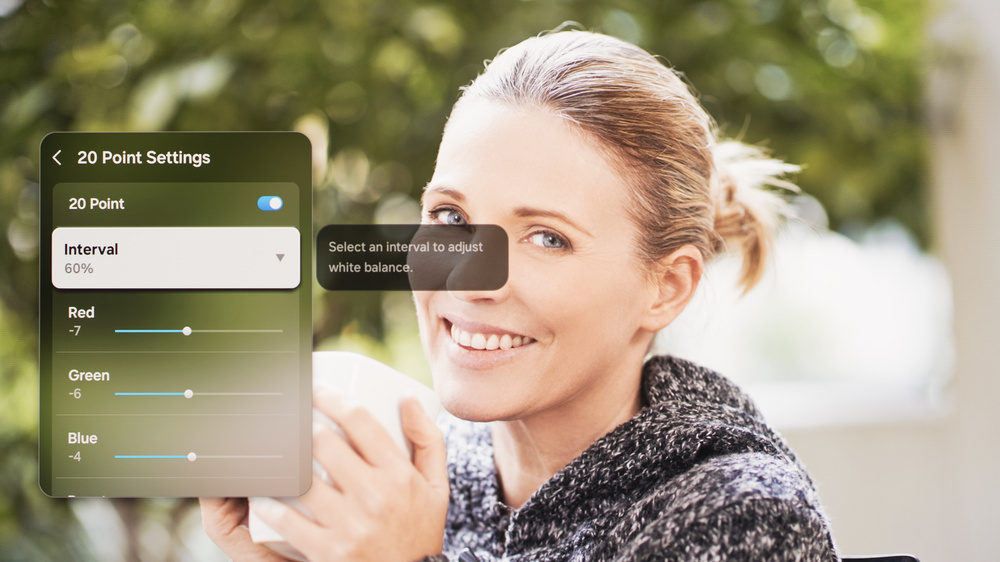
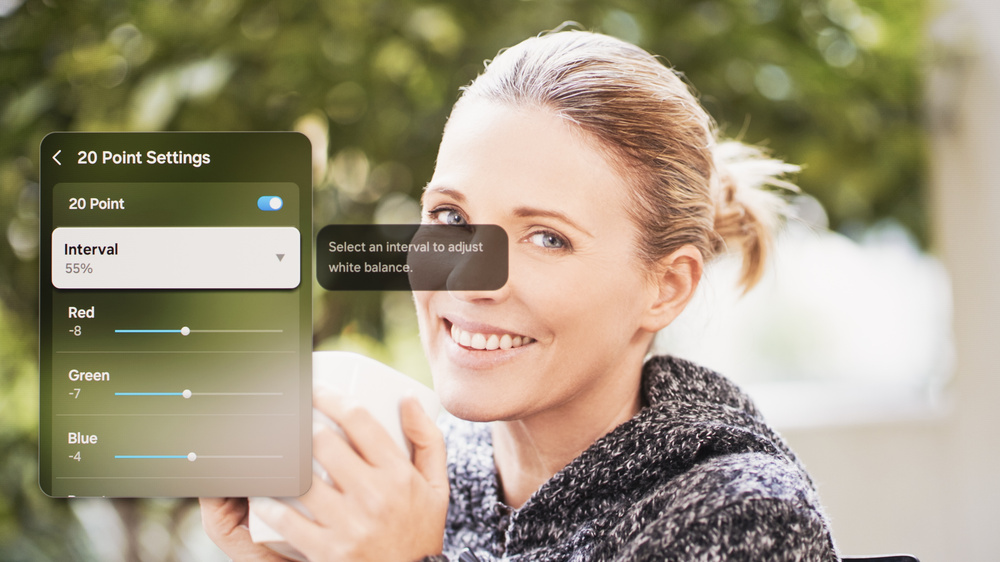
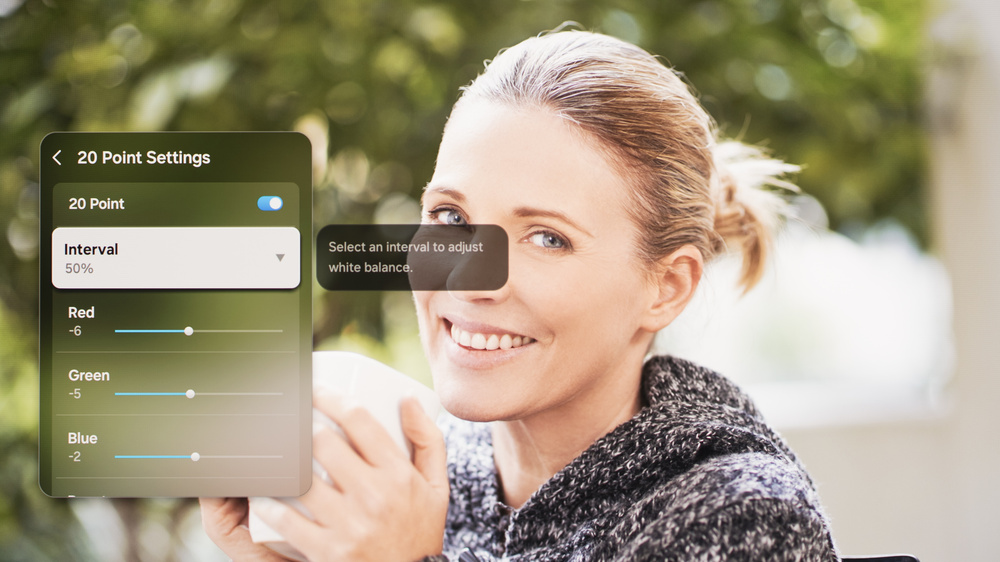
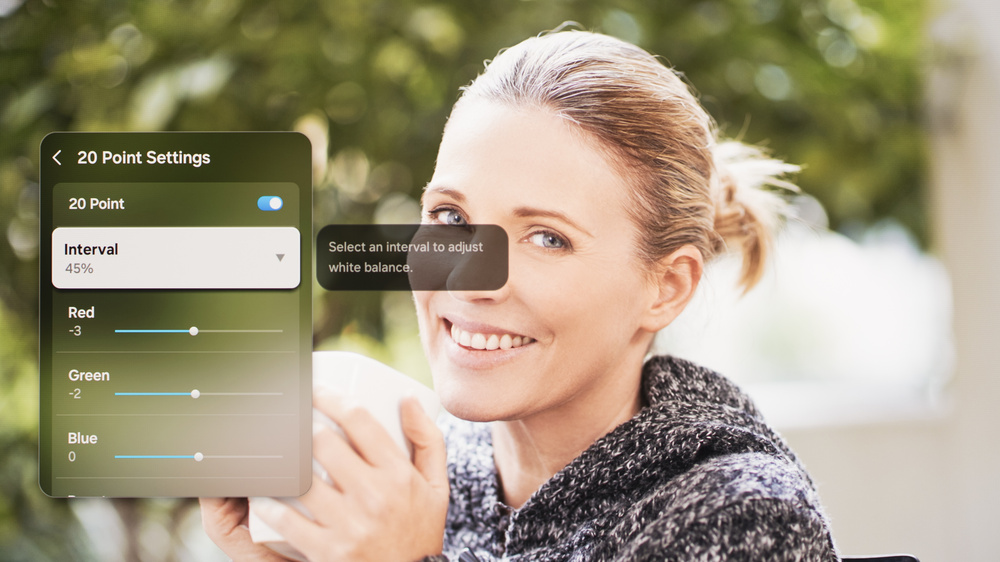
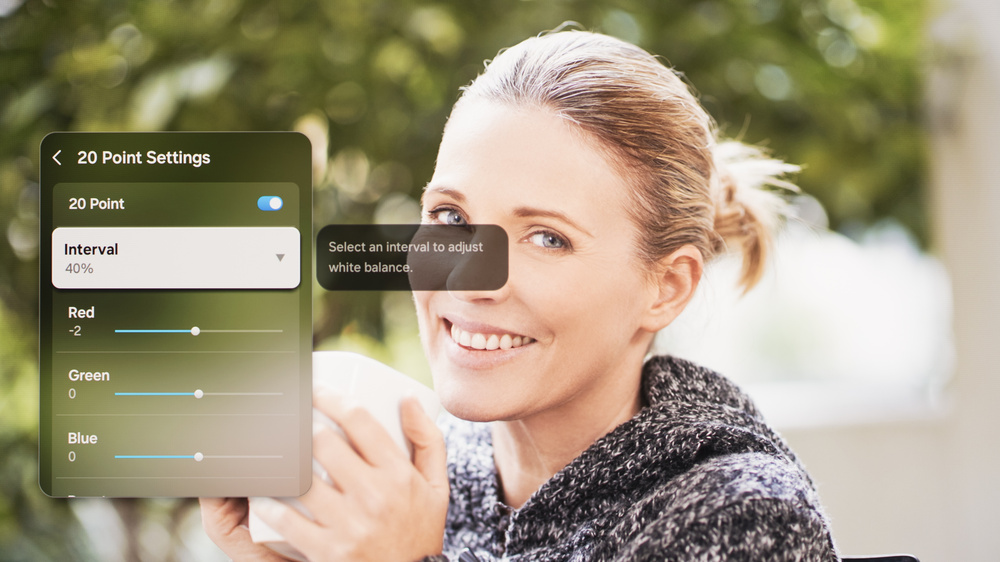
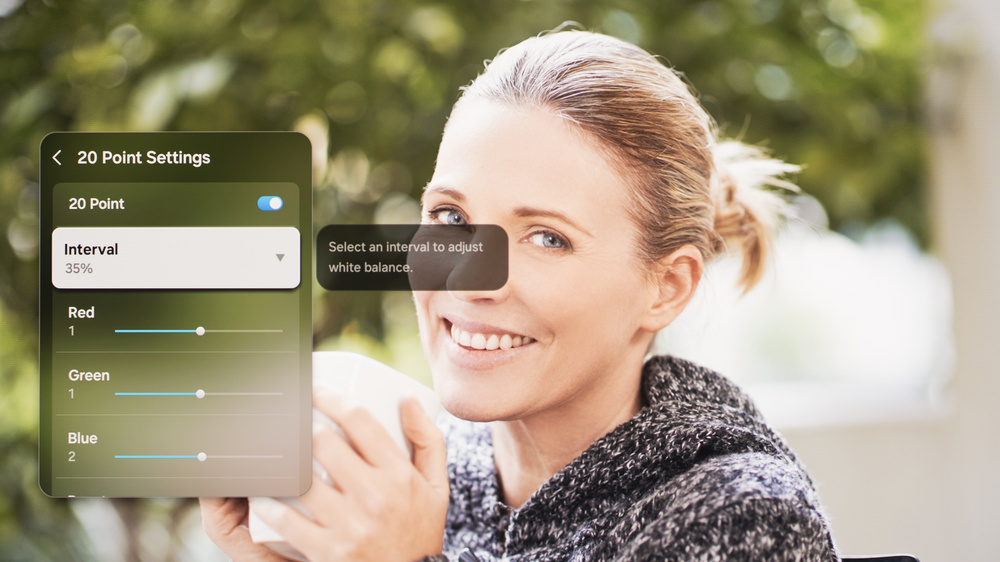
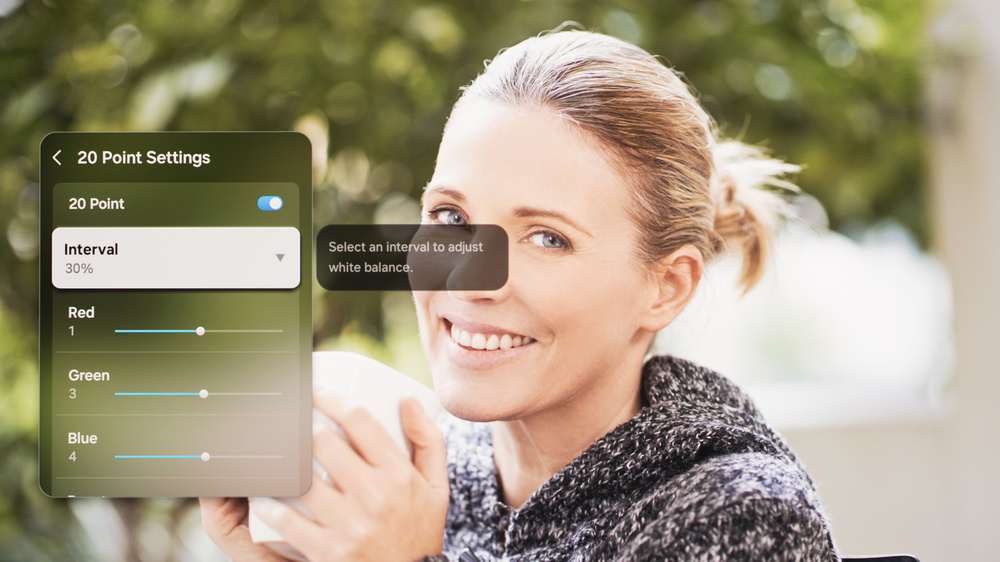
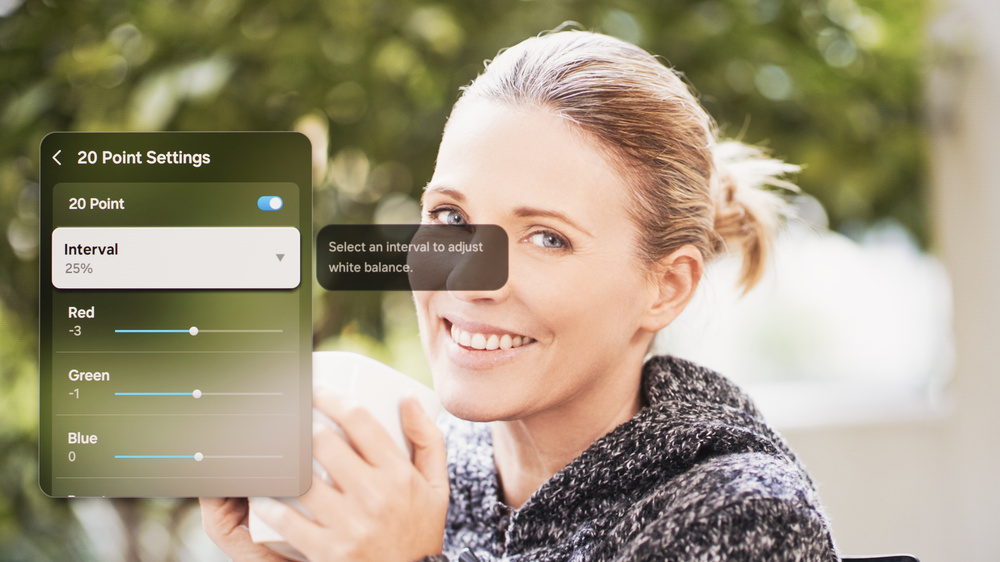
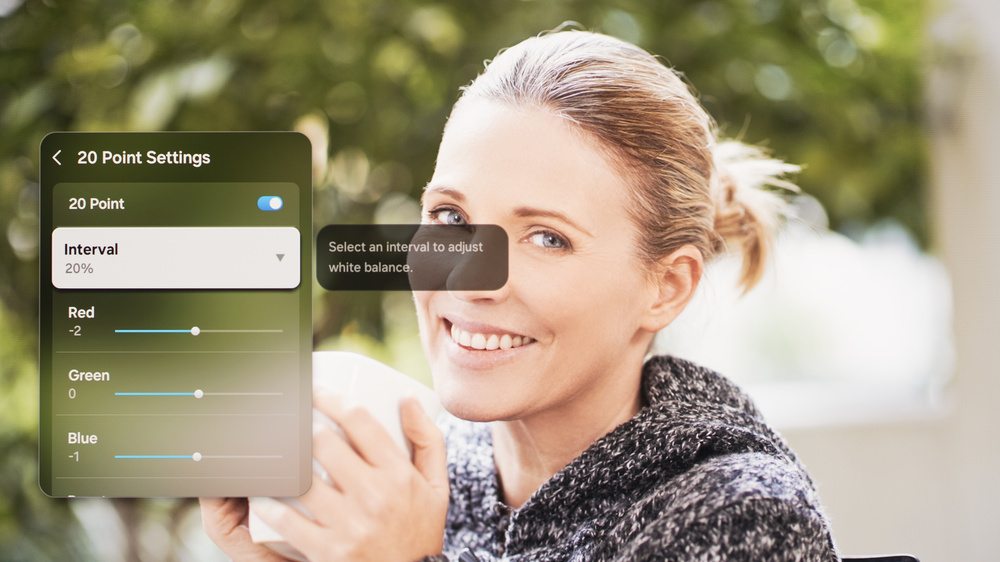
The following are the old results of calibrating our unit's white balance to 6500K in HDR using the 2-point method. We don't publish the values we used for our new 20-point calibration.
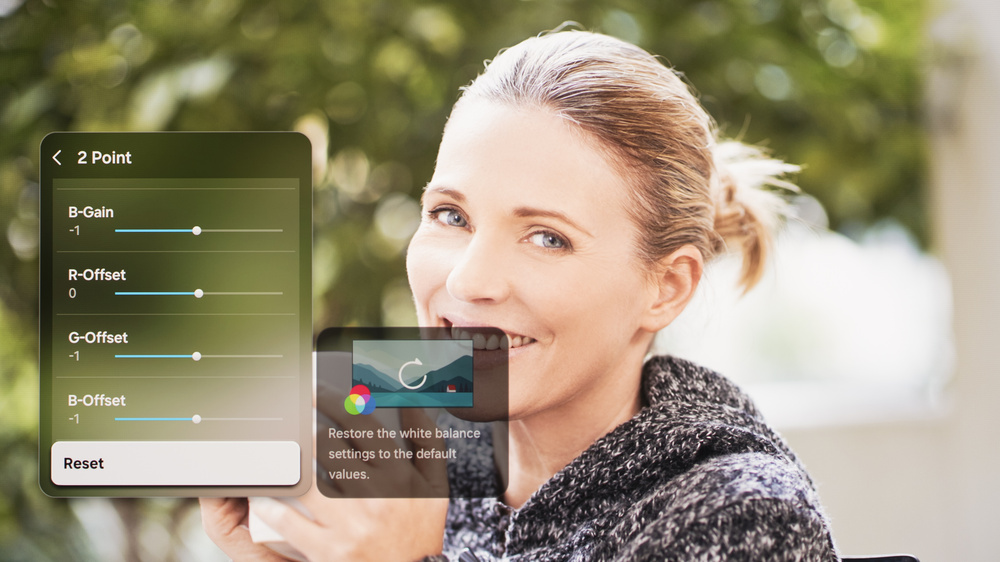
They are provided for reference and shouldn't be copied as the calibration values vary per individual unit, even for the same model and size as the TV we reviewed, due to manufacturing tolerances. If you want to try them, you'll need to enter all values shown, as all of them are active at the same time. If you have worse picture quality, simply reset them to the default values.
Gaming Settings
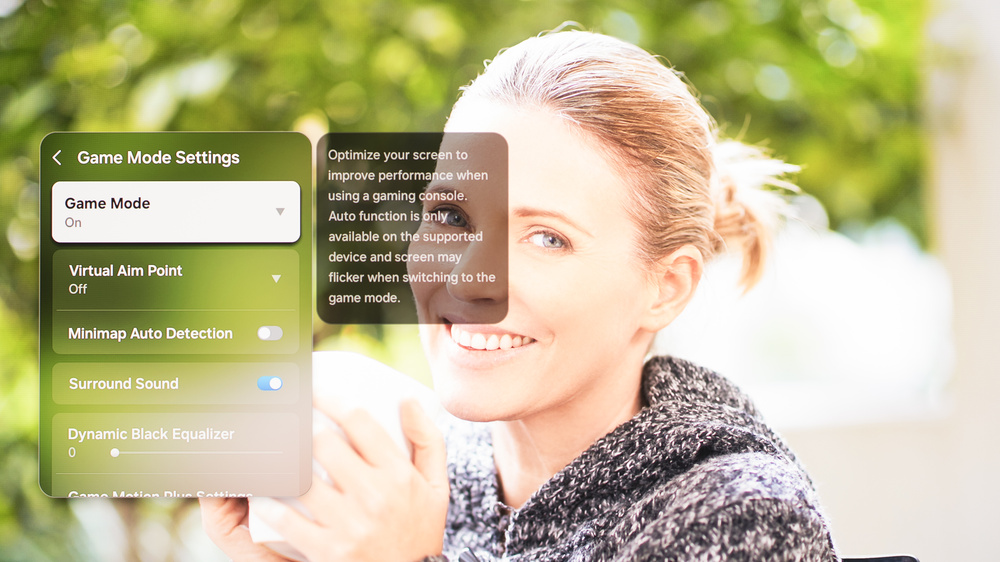
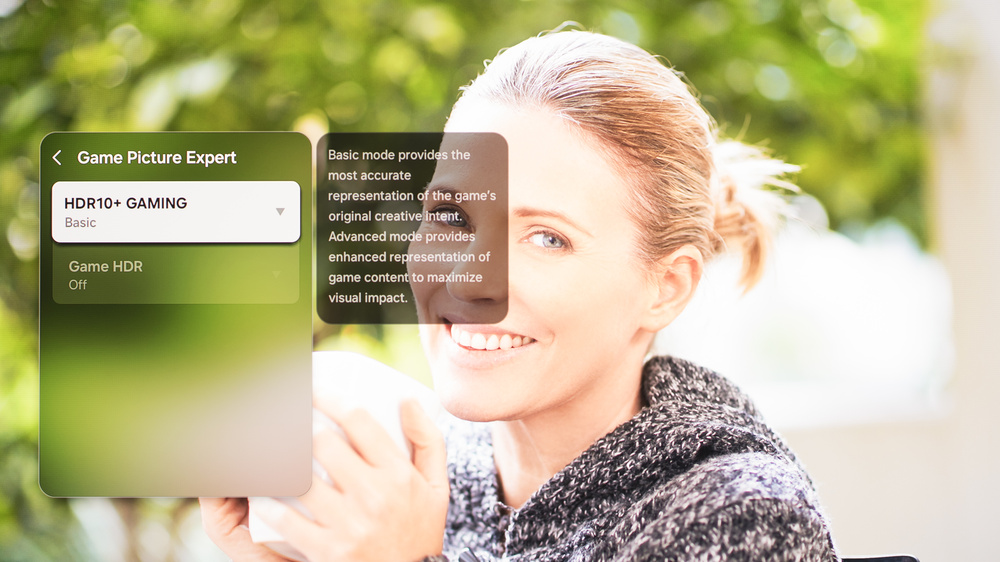
From the base SDR and HDR settings, very few changes are required for the best gaming experience. When you start gaming, it is best to enable Game Mode to get the lowest input lag. The rest of our gaming settings are identical to our regular settings for SDR or HDR. For chroma 4:4:4, you must have the input label set to 'PC' and Game Mode turned on.
Upscaling: Sharpness Processing
For our upscaling test, we set Sharpness to '5.' Sharpness processing was calibrated with no over-sharpening for low-resolution content.
Judder
This TV automatically removes 24p judder from all external sources and from the internal apps.
Stutter Reduction Via Interpolation
Setting De-judder to '3' outputs a framerate equivalent to 30fps, which helps to reduce stutter in 24fps content.
Firmware
The unit we bought and tested was calibrated on software version T-RSMFAKUC-0090-104 0.6.
Other Settings
For information on any other settings or features that fall outside of the scope of our testing, please refer to the user manual found at the bottom of Samsung's webpage for the TV.
White Balance Settings
The following are the results of the white balance and colorspace calibration on our unit. They are provided for reference and should not be copied as the calibration values vary per individual unit, even for the same model and size as the TV we reviewed, due to manufacturing tolerances. If you want to try them, you will need to enter all values shown, as all of them are active at the same time. If you end up with worse picture quality, simply reset them to the default values.