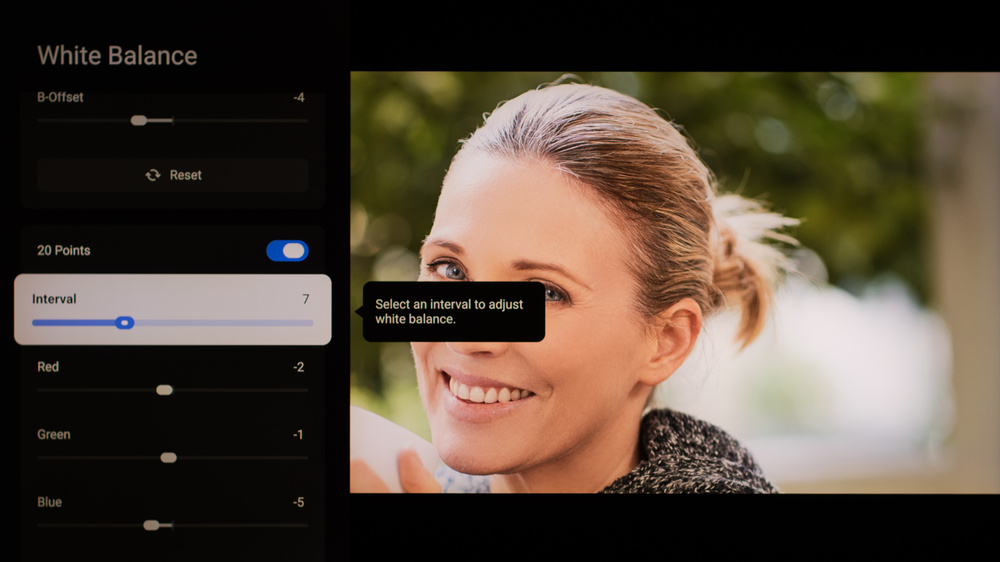
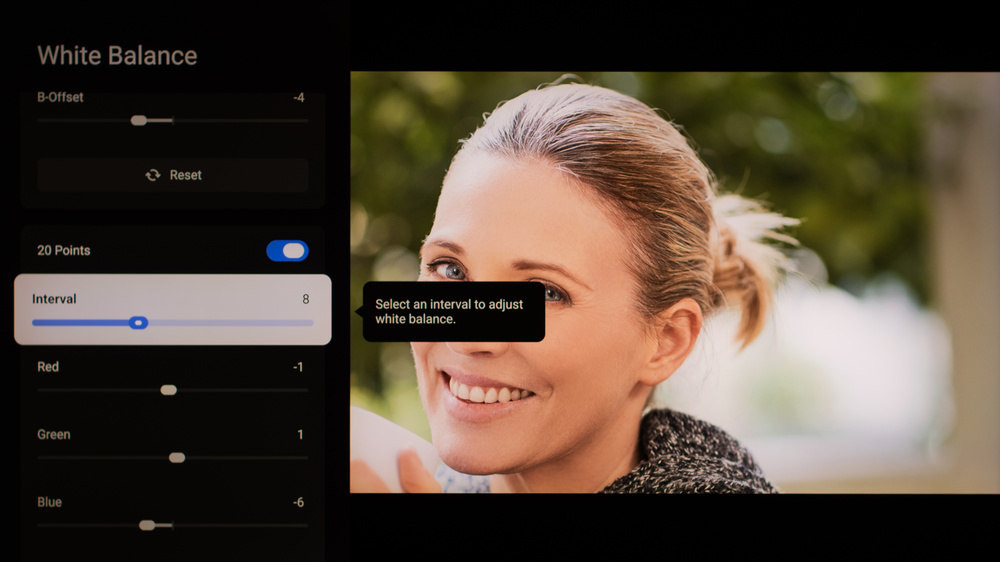
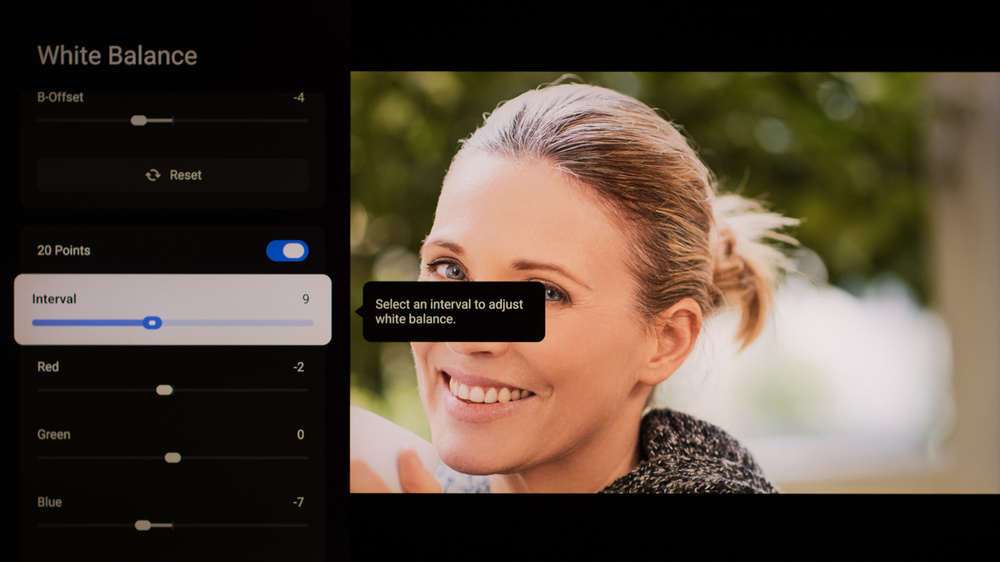
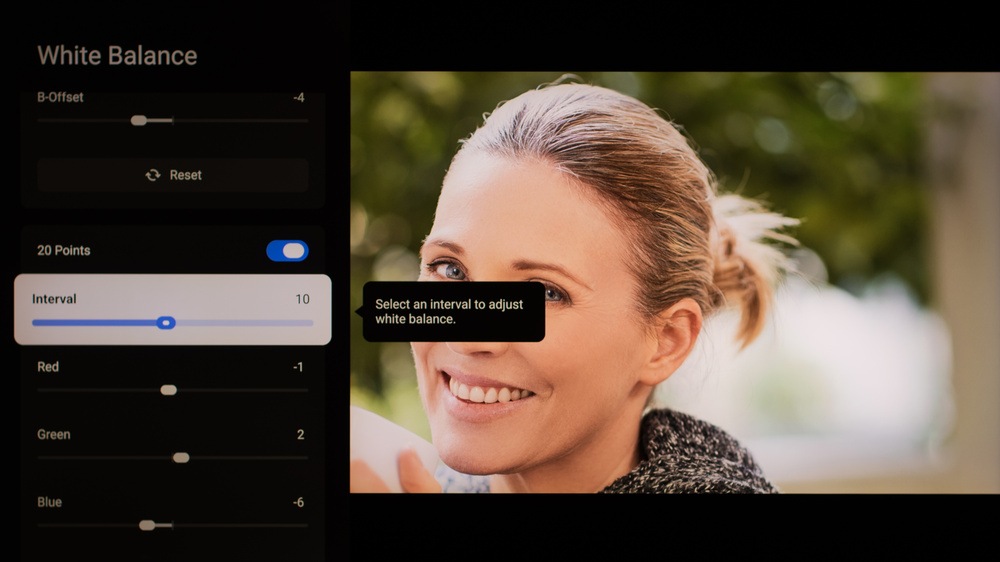
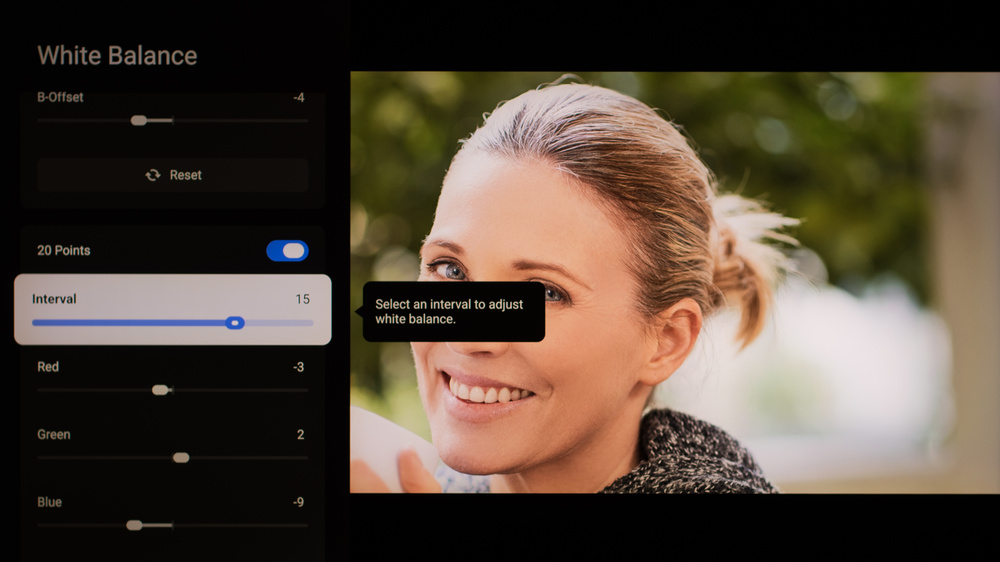
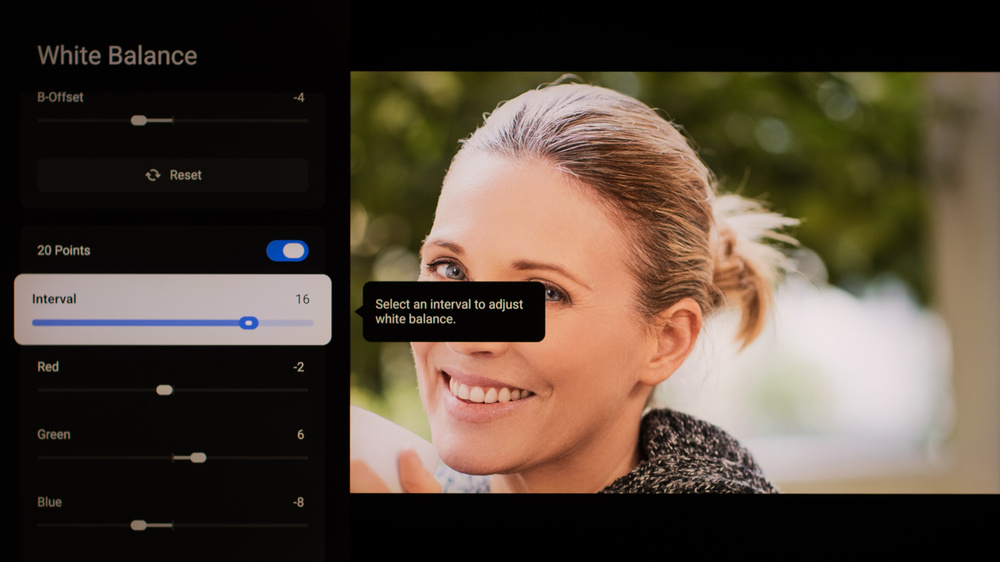
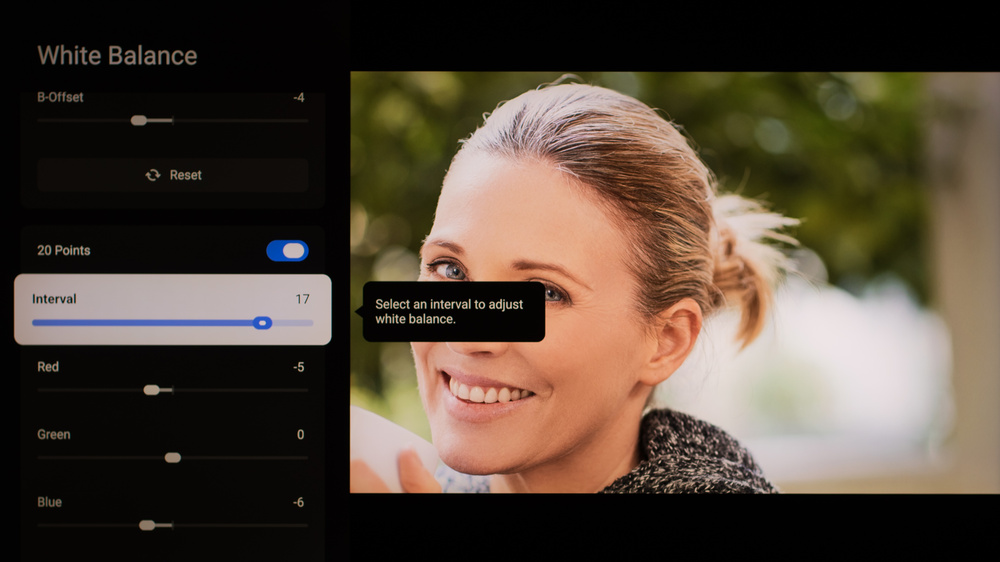
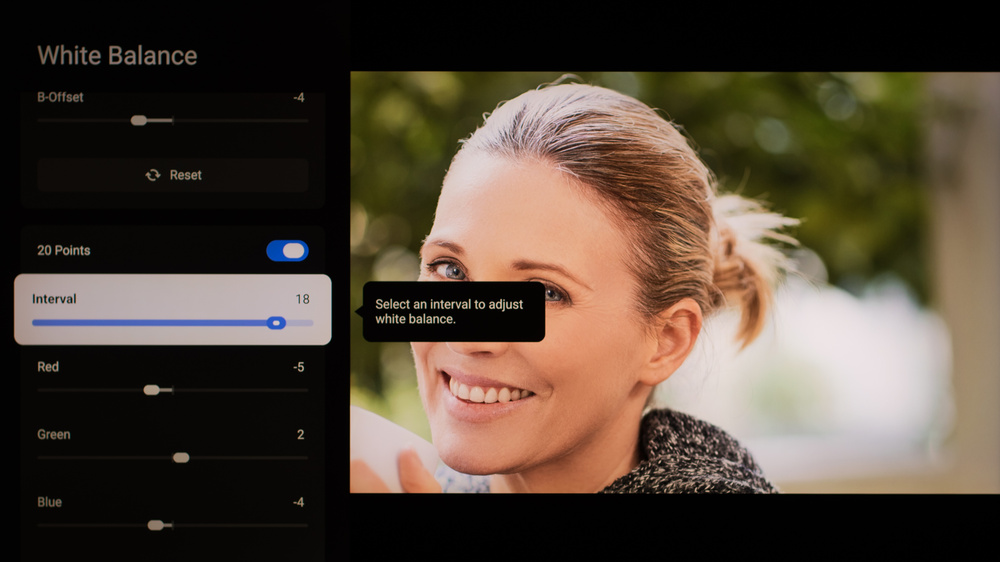
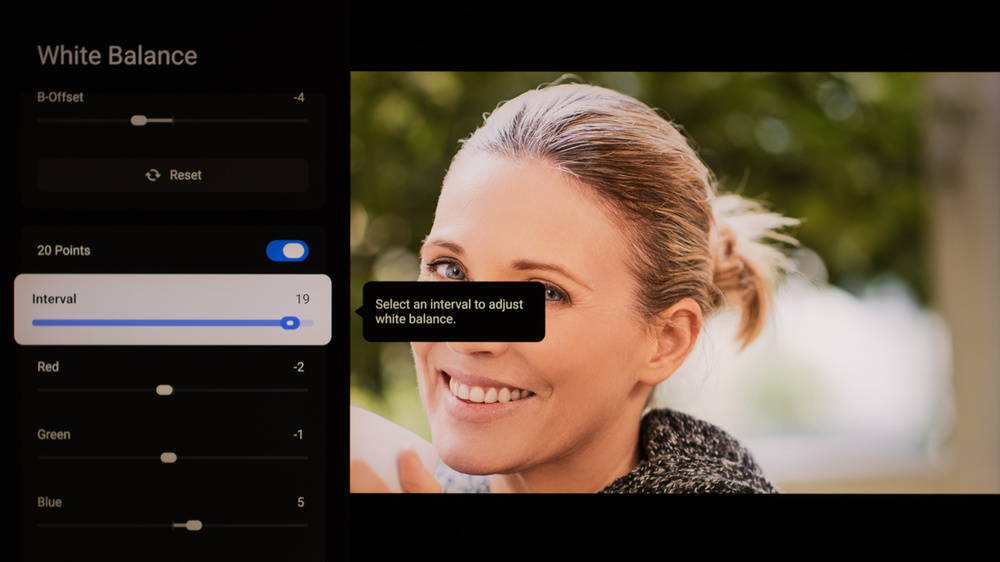
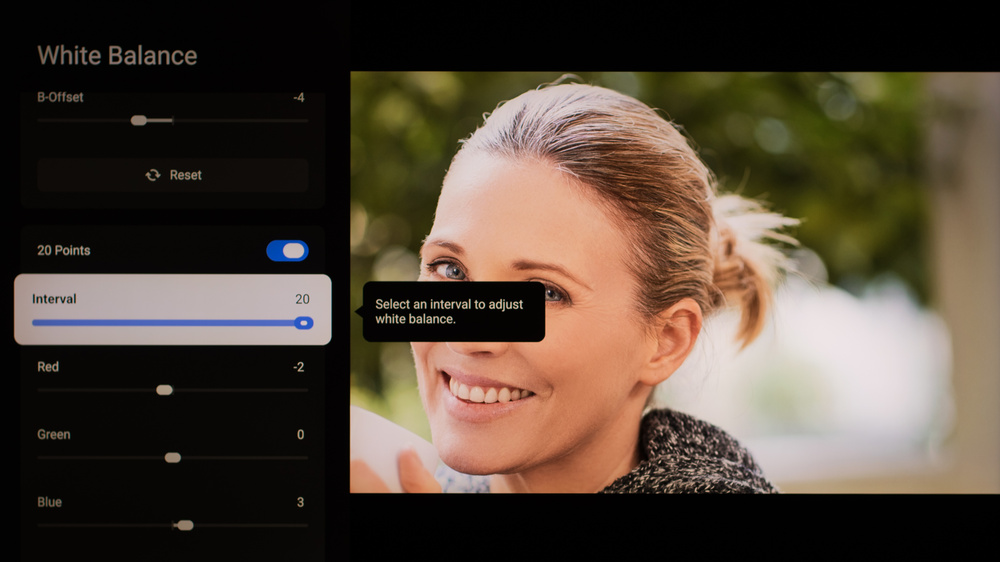
We used the following calibration settings to test the 65-inch TCL QM7L Pro (65QM7L Pro), but they're also valid for the 55 (55QM7L Pro), 75 (75QM7L Pro), 85 (85QM7L Pro), and 98-inch (98QM7L Pro) models. These settings apply to most types of content, except for gaming.
These settings are meant to provide a starting point; they're not meant to be copied 1:1. They provide the most accurate image in a moderately lit room, but you should adjust them to match your personal preferences and viewing conditions.
SDR Picture Settings
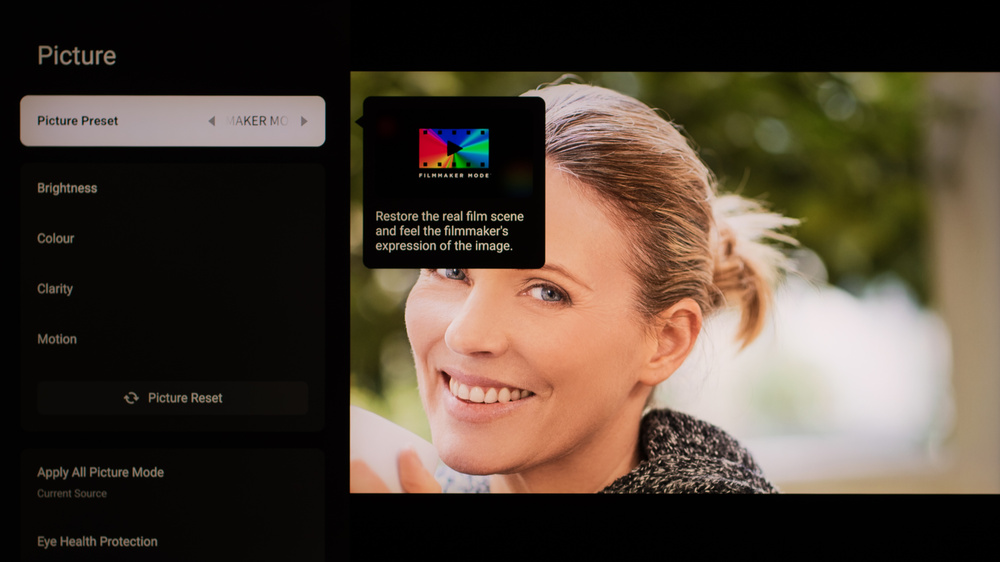
Below are the settings we used to calibrate this TV in SDR. We chose the FILMMAKER MODE picture preset, as it delivers the most accurate image out of the box. All other picture quality settings were left at their defaults. The Gamma setting seems to be over-tracking whatever you set it to, so a '2.2' setting tracks closer to 2.4, and '2.0' tracks closer to 2.2. You should adjust this to your viewing conditions.
- Picture Mode: FILMMAKER MODE
- Gamma: 2.0
- Color Temperature: Warm 5
- Contrast: 100
- Local Contrast: High
Brightness - Accuracy Preferred
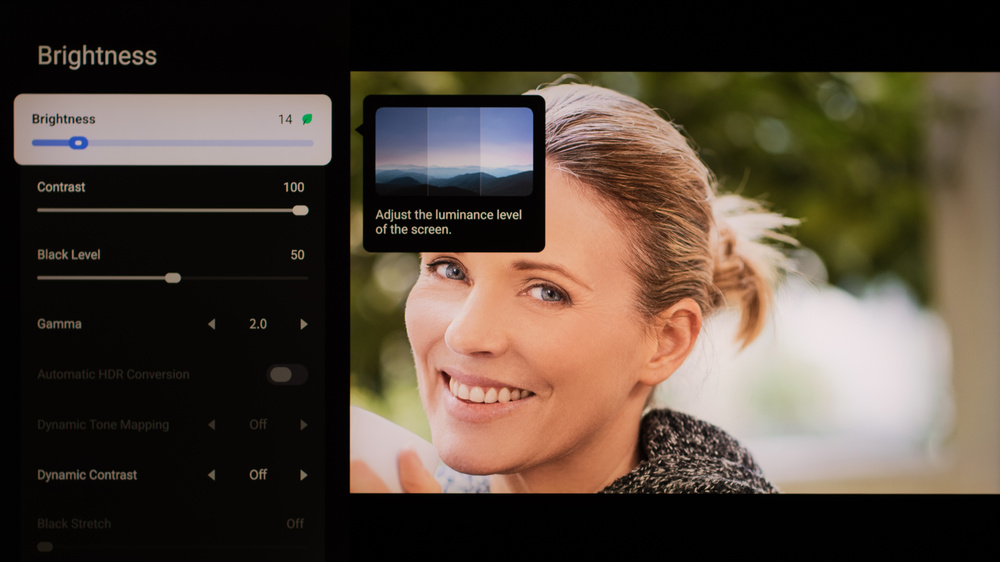
The settings that control the backlight should be adjusted in SDR depending on your viewing conditions. These settings deliver the most accurate image in a completely dark room.
- Brightness: 1 (100 nits)
- Brightness: 14 (200 nits)
- Peak Brightness: Off
Brightness - Brightness Preferred
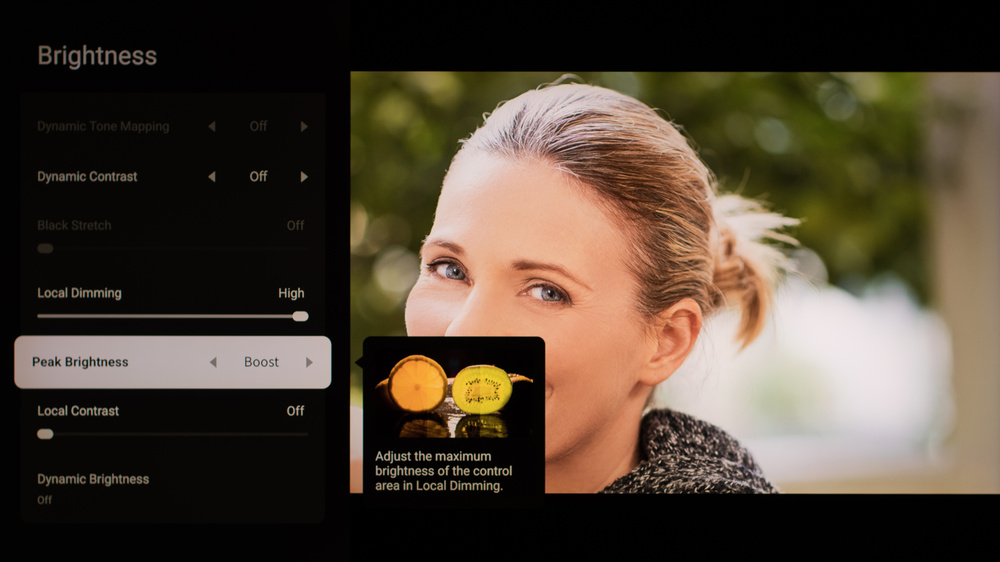
If you prefer a brighter image, set Peak Brightness to 'Boost,' and adjust the Brightness setting as needed.
- Brightness: 100 (adjust as needed)
- Peak Brightness: Boost
HDR
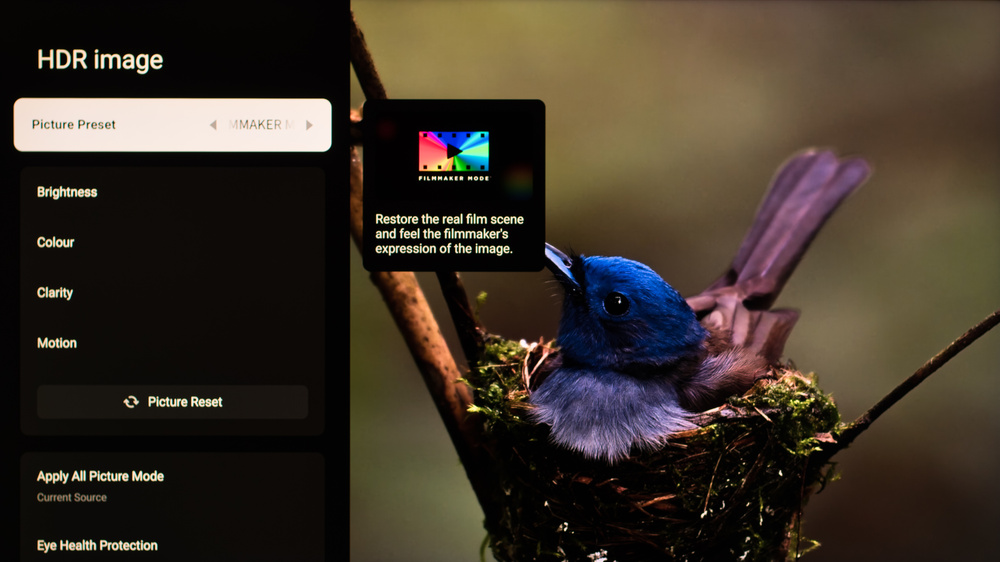
HDR is automatically enabled for native apps. Once you start playing HDR content, some of the settings change automatically. All other picture quality settings were left at their defaults.
- Picture Mode: FILMMAKER MODE
- Contrast: 100
- Gamma: 2.2
- Dynamic Tone Mapping: Off
- Local Contrast: High
- Color Temperature: Warm 5
Brightness - Accuracy Preferred
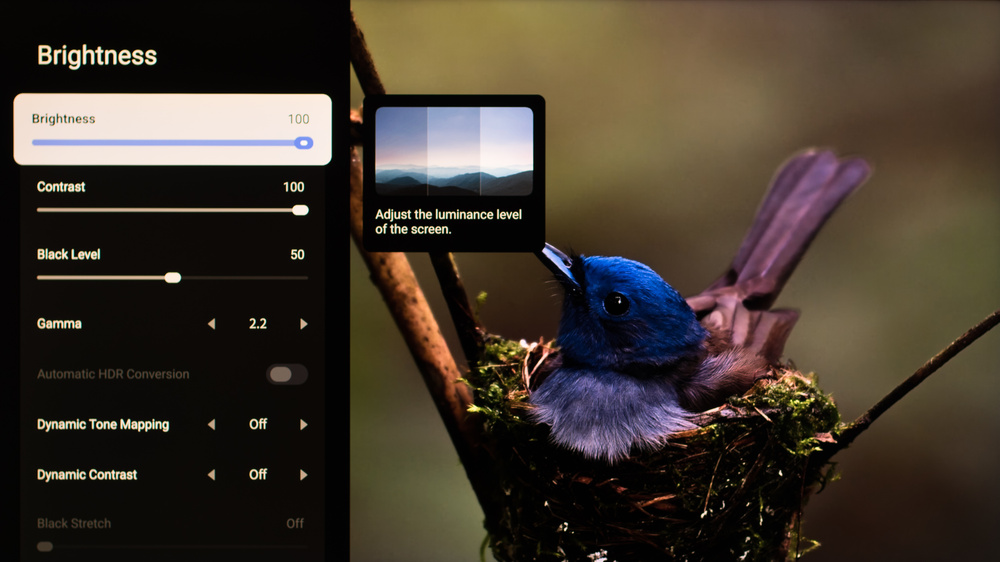
Below are the most accurate settings for HDR10 in a dark room. These settings deliver the most accurate image, but also limit how bright the TV can get.
- Brightness: 100
- Peak Brightness: Low
Brightness - Brightness Preferred
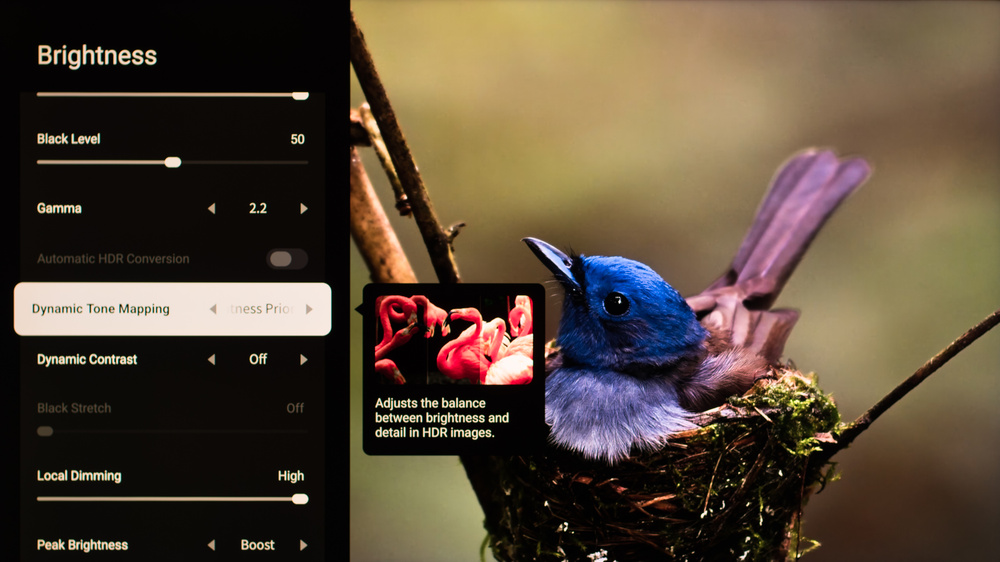
If you prefer a brighter image, you can try adjusting the Dynamic Tone Mapping setting. This increases the peak brightness of the TV by boosting highlights brighter than they should be. There are multiple options available for this setting; you may need to try them all out to see what looks best to you.
- Brightness: 100
- Peak Brightness: High
- Dynamic Tone Mapping: Brightness Priority
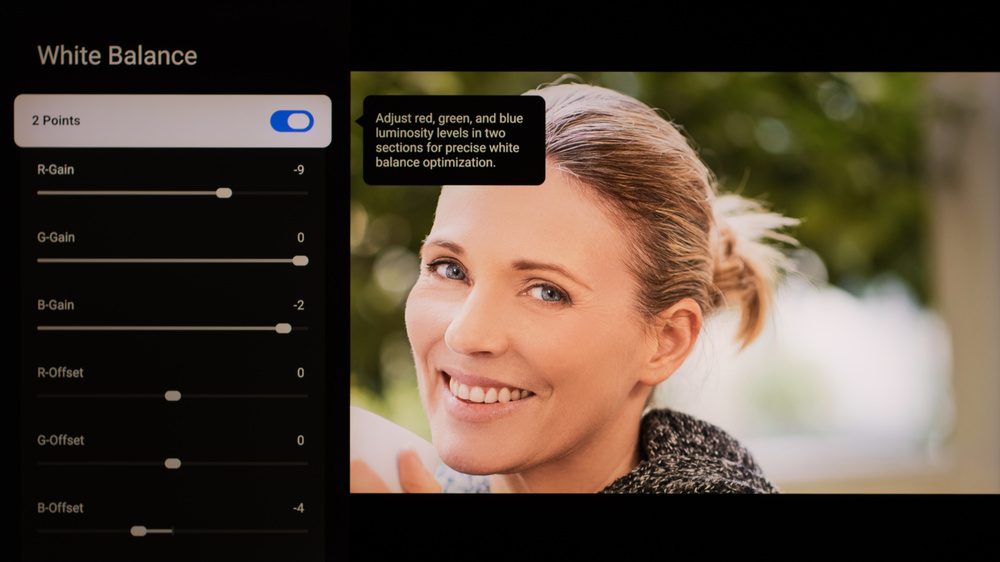
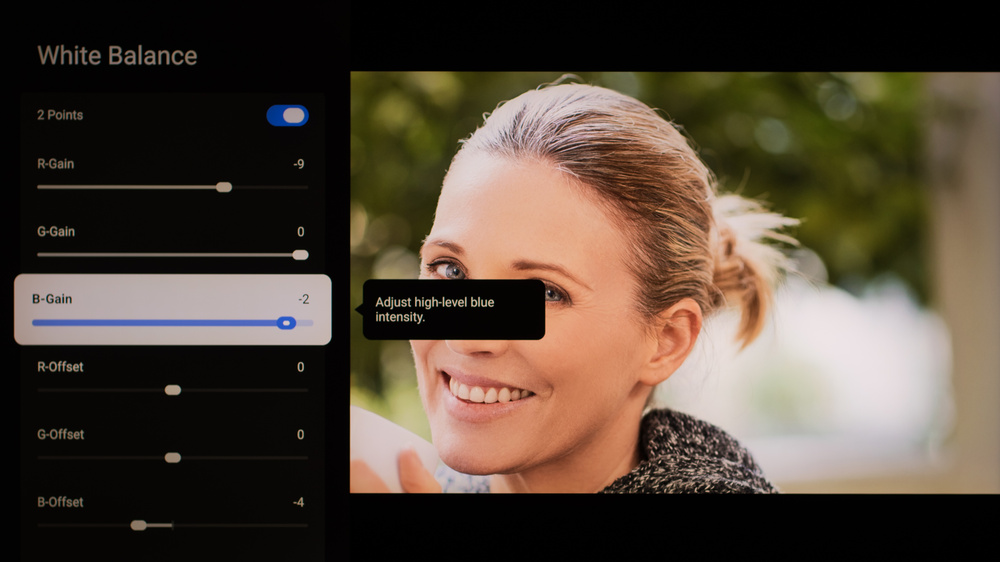
HDR White Balance
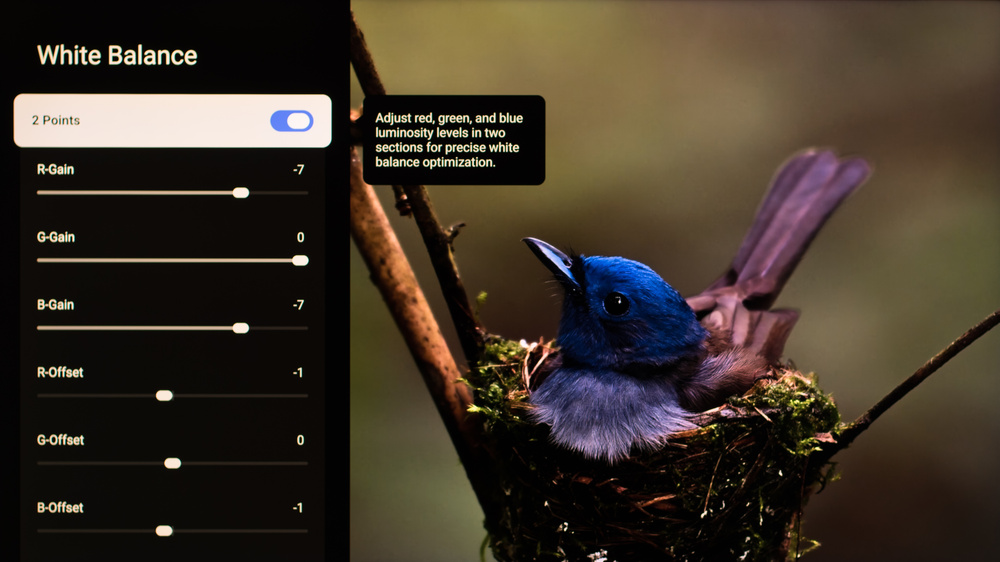
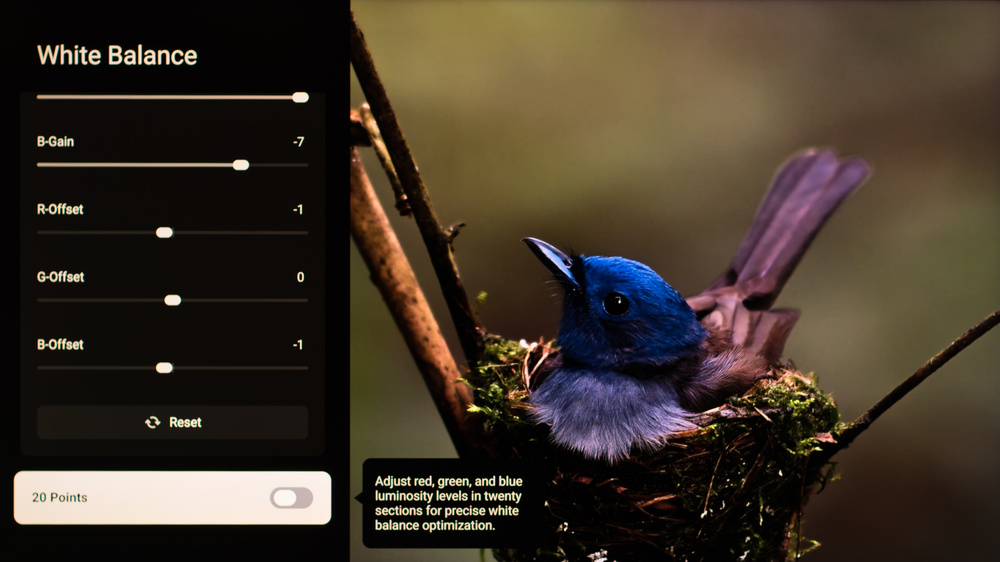
The following are the results of calibrating the white balance of our unit to 6500K in HDR using the 2-point method. These settings are provided for reference only and shouldn't be copied as the calibration values vary per individual unit. If you want to try them, you'll need to enter all values shown, as all of them are active at the same time. If you have worse picture quality, simply reset them to the default values.
Gaming
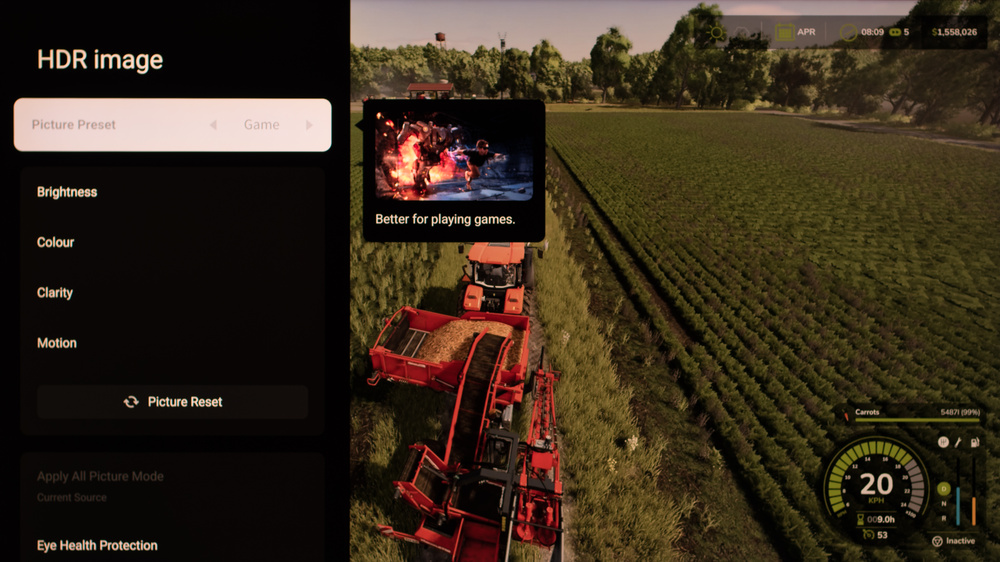
When you start gaming, you can switch to the Game Master mode to get the lowest input lag and enable advanced gaming features. No other changes to picture quality settings are needed. With ALLM enabled, the TV will automatically switch to Game Master mode when you start playing a game.
Motion & Processing
Below are the settings we used for most of our motion and processing tests. Motion and processing can be subjective, so you should adjust these settings to your personal preferences. You might also need to adjust these settings depending on the source and specific content.
Judder
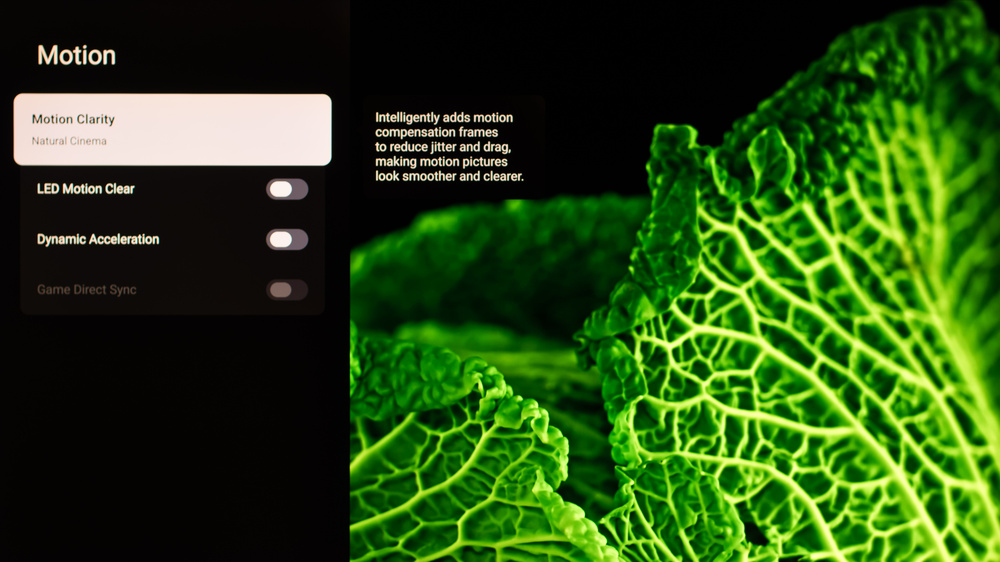
To remove judder on this TV, you need to set Motion Clarity to 'Natural Cinema.'
Stutter Reduction Via Interpolation
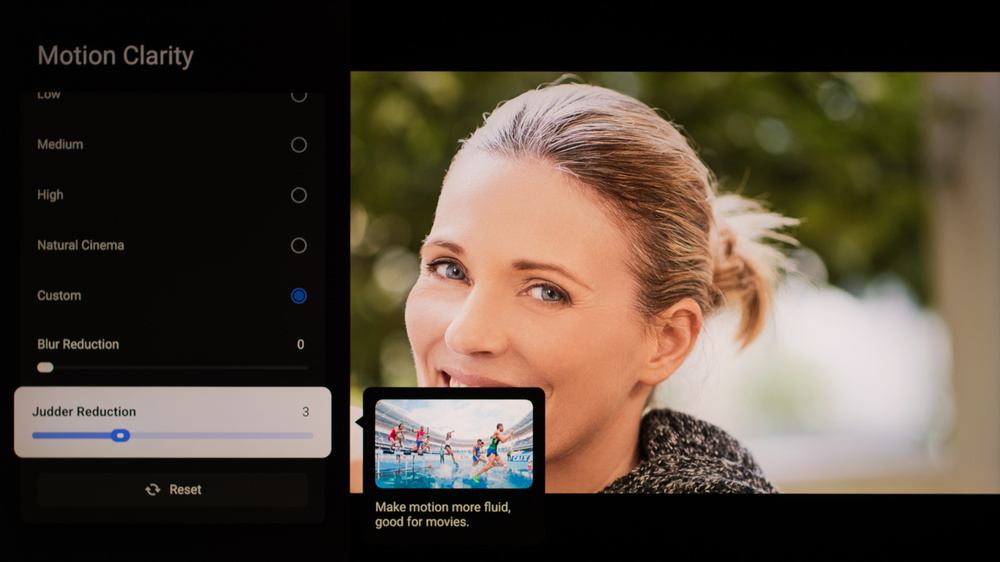
Setting Judder Reduction to '3' outputs a frame rate equivalent to 30 fps, which helps to reduce stutter in 24 fps content.
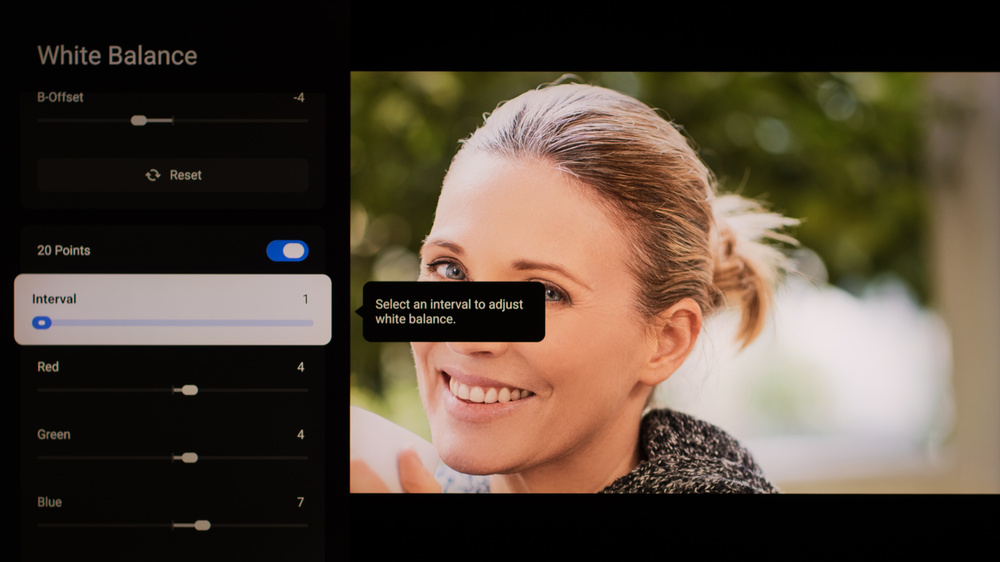
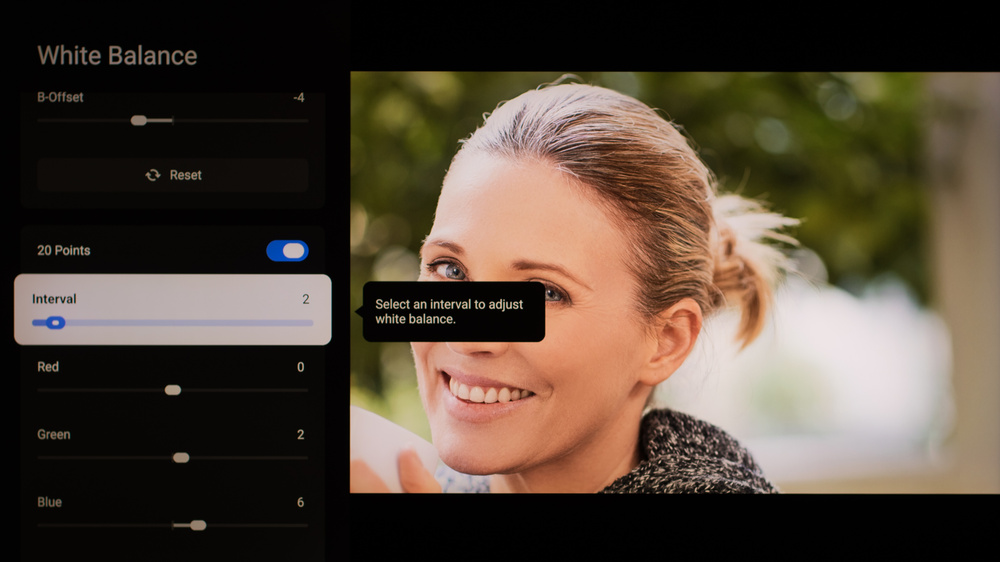
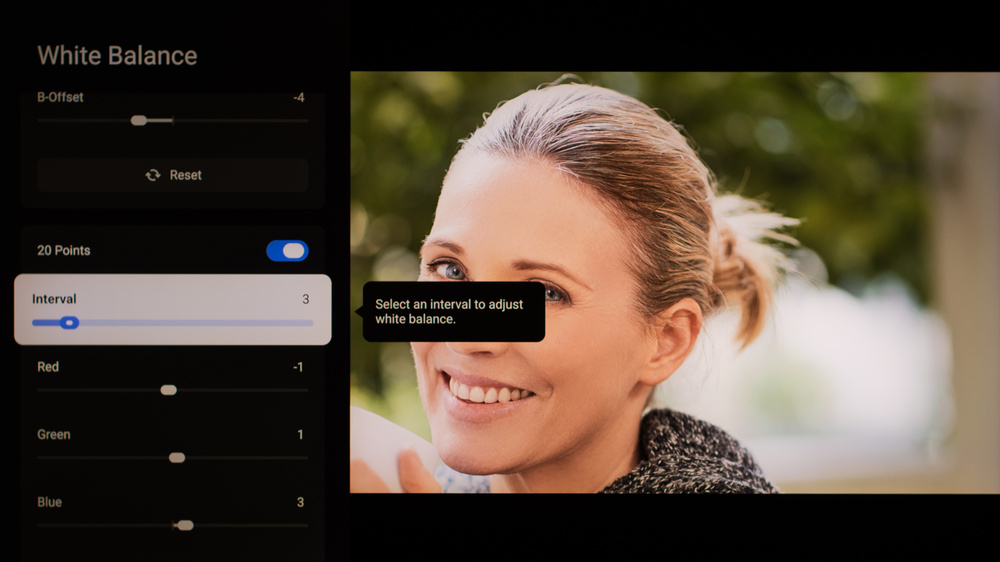
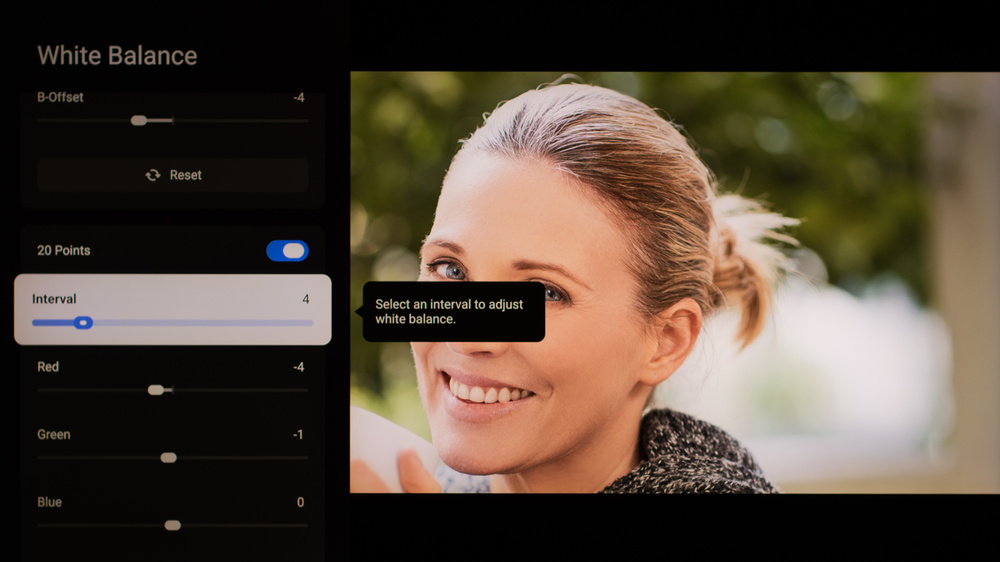
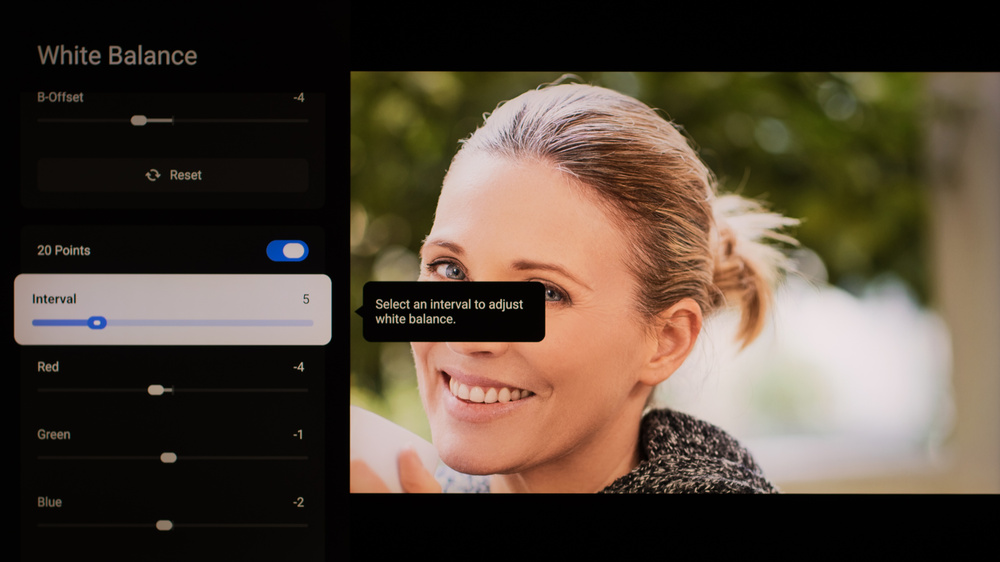
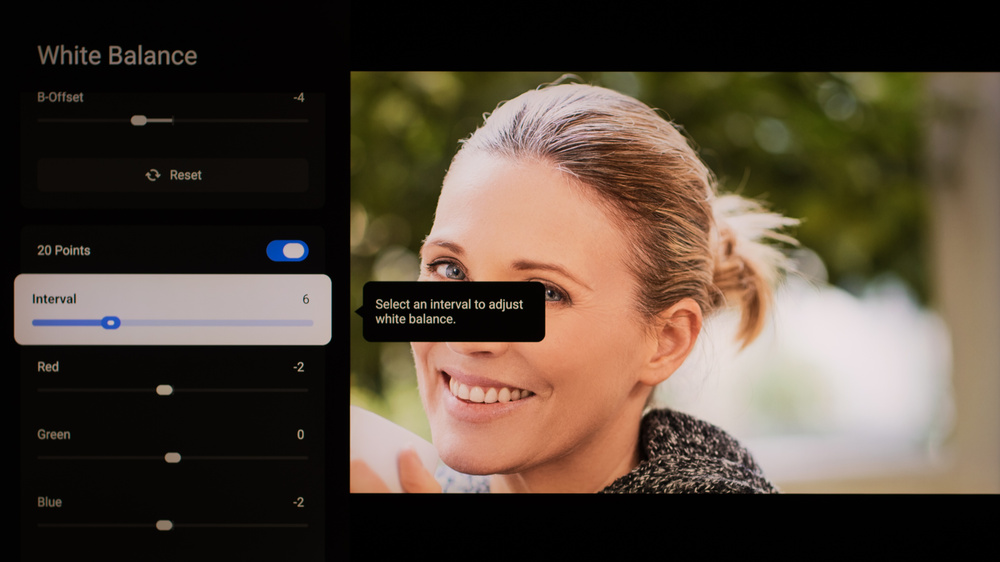
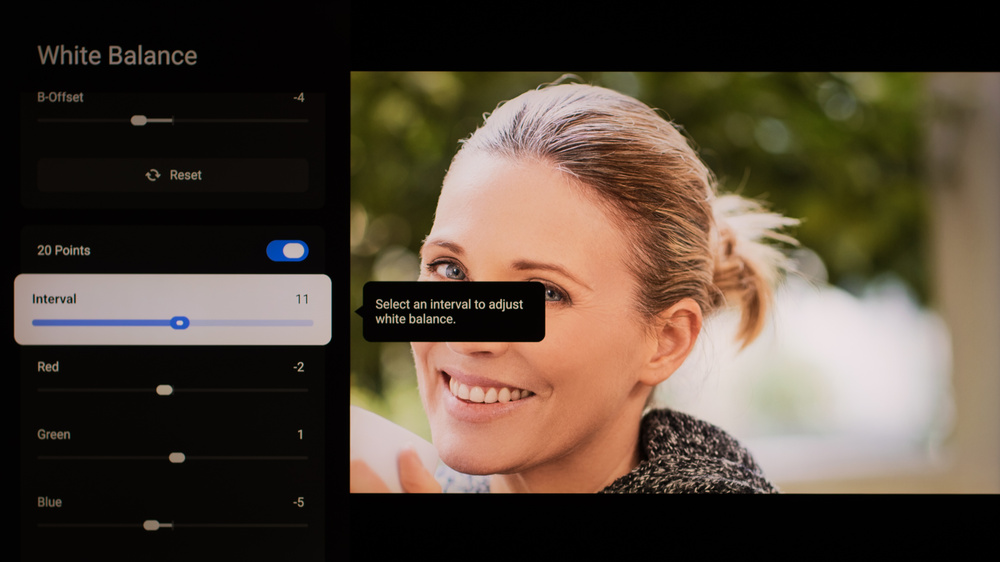
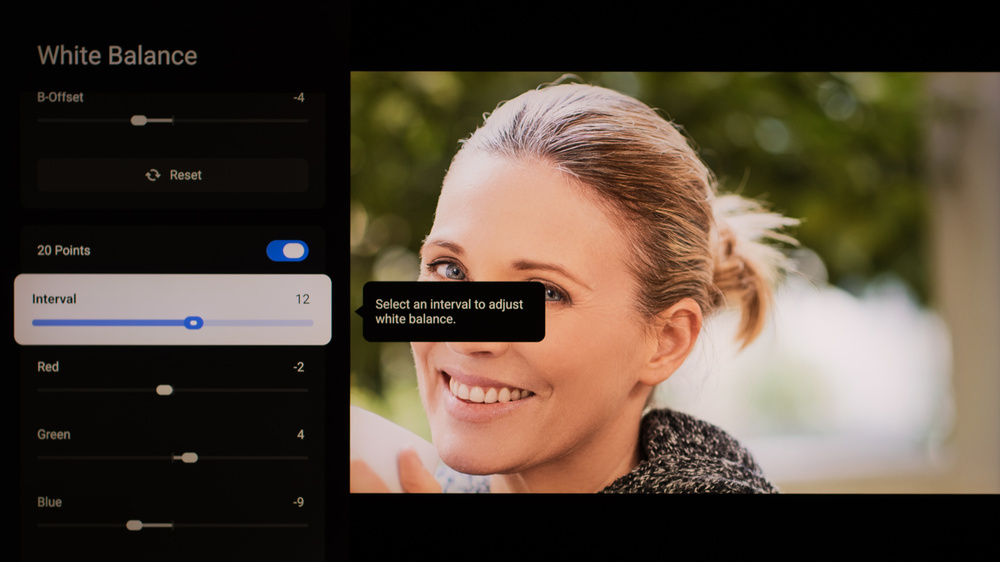
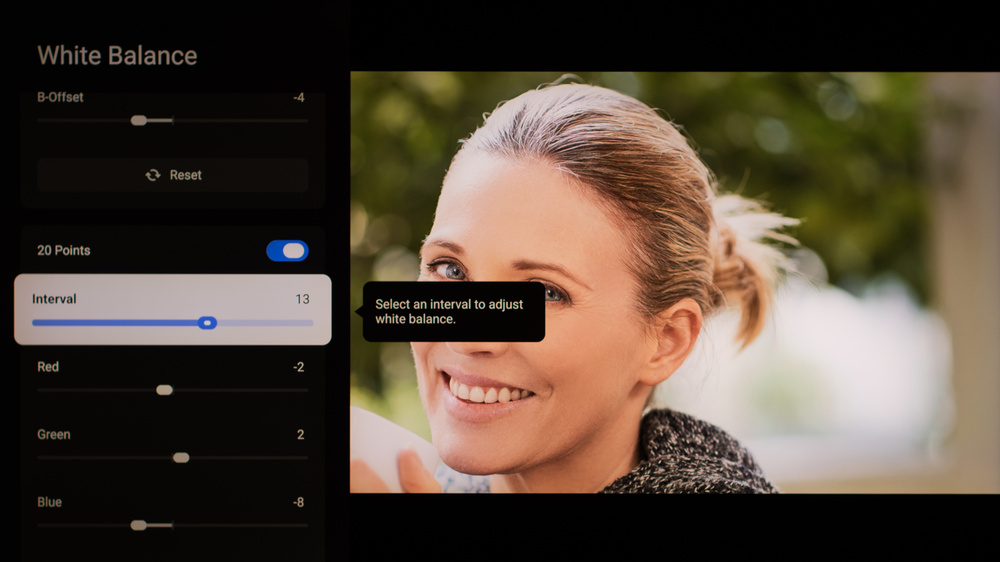
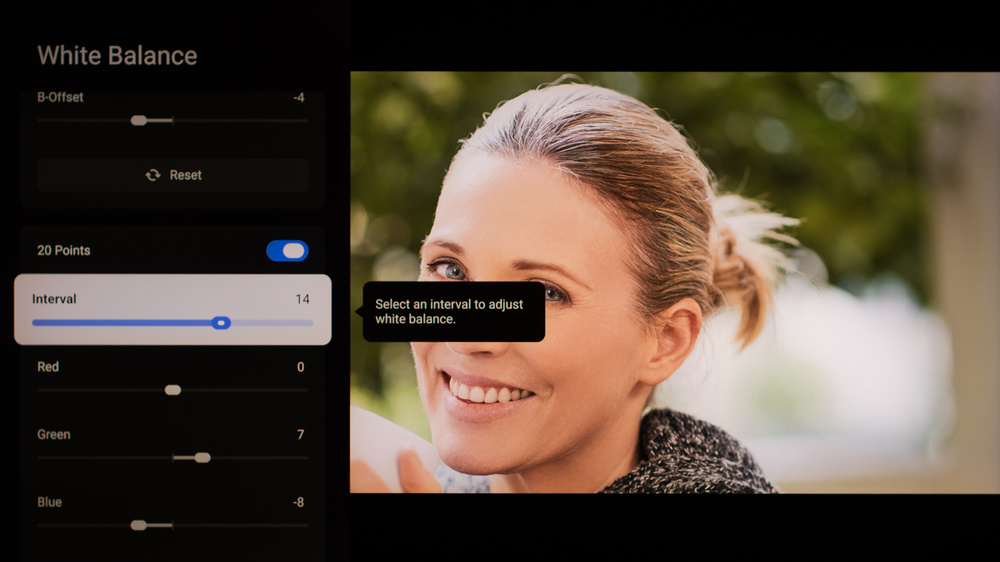
White Balance Settings
The following are the results of the white balance and colorspace calibration in SDR on our unit. They are provided for reference and should not be copied, as the calibration values vary per individual unit, even for the same model and size as the TV we reviewed, due to manufacturing tolerances. If you want to try them, you will need to enter all the values shown, as all of them are active at the same time. If you end up with worse picture quality, simply reset them to the default values.