Logitech MX Master 4  Mouse Review

Reviewed Oct 29, 2025 at 09:05am
Writing modified Oct 31, 2025 at 05:02pm
Tested using Methodology v1.5.1 
Logitech MX Master 4
9.1
Work 
7.4
Video Games (FPS) 
7.7
Video Games (MMO) 
6.7
Raw Performance 
 6

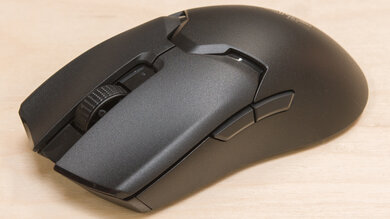
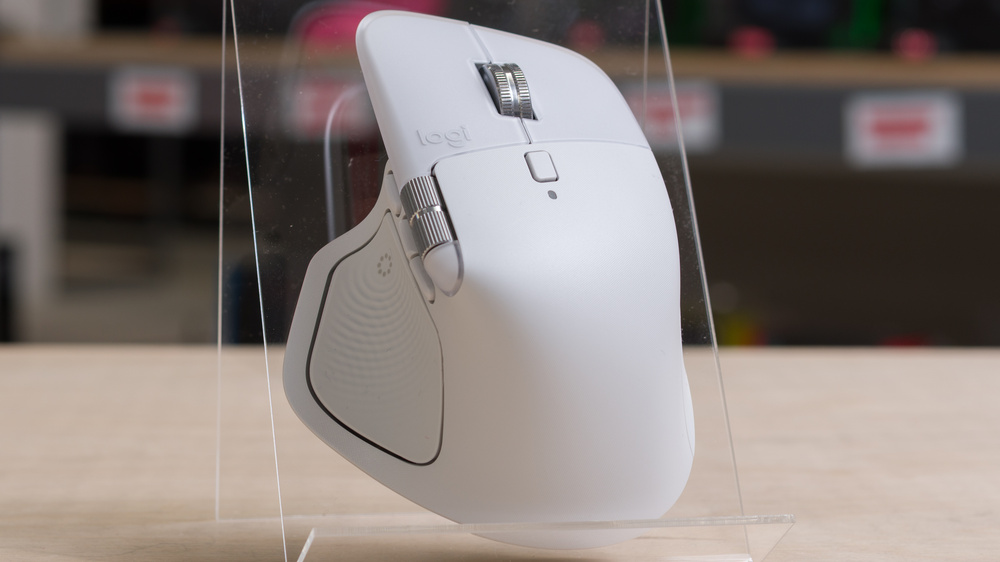
The Logitech MX Master 4 is a wireless productivity mouse that continues Logitech's MX Master series. This model introduces small shape refinements and new hard plastic and dense silicone rubber finishes that replace the soft-touch rubberized coating, which was prone to wear over time, used on much of the previous Logitech MX Master 3S. Additional updates include a new side button for gesture controls and a new haptic button on the thumb rest. The haptic button opens a context overlay menu that you can customize in the software with various productivity shortcuts, including app-specific options for supported third-party programs.

Our Verdict

9.1
Work 

The Logitech MX Master 4 is an outstanding work mouse with superb build quality. It has a comfortable right-handed shape and connects wirelessly using the included USB-C receiver or via Bluetooth with up to three devices simultaneously. One of its standout features is its pair of dedicated scroll wheels made from premium-feeling aluminum. The top wheel can switch manually or automatically between a precise notched mode and a much faster free-scrolling mode. New to this version is an additional side button for customizable gestures and a new haptic button that opens a context menu, which you can also customize in software with helpful shortcuts, including app-specific options.

Pros
  • Superb build quality.

  • Dedicated productivity features, including dual scroll wheels, gesture button, and haptic button.

  • Primary wheel switches automatically or manually between notched and free scroll.

  • Connects wirelessly with an included USB-C receiver or Bluetooth.

  • Very quiet right- and left-click buttons.

Cons
  • Isn't well-suited for smaller hands.

  • Many features, including gesture and haptic buttons require background software running to work.

  • No onboard memory; software required to use customized settings.

7.4
Video Games (FPS) 

The Logitech MX Master 4 is satisfactory for casual gaming, but it isn't designed with FPS titles in mind. It's significantly heavier than dedicated FPS models, and both its sensor performance and click latency are too high for competitive play. Its sensor is also locked to a low polling rate to conserve battery life, which affects overall smoothness and consistency, especially if you're using a high-refresh-rate monitor, making it unsuitable for fast-paced or competitive shooters.

Pros
  • Superb build quality.

Cons
  • Extremely heavy compared to dedicated FPS models.

  • Click and sensor latency performance is only adequate for casual gaming.

  • Locked to a 125Hz polling rate.

7.7
Video Games (MMO) 

The Logitech MX Master 4 is a reasonably good mouse for playing MMOs or MOBAs, although it's not designed for gaming. That said, it has a comfortable right-handed shape, excellent build quality, and a high number of customizable buttons. However, its sensor and click latency performance are only adequate for casual play, and it's locked to a low polling rate, so cursor movements don't look or feel as smooth or consistent as with a dedicated MMO gaming mouse.

Pros
  • Superb build quality.

Cons
  • Click and sensor latency performance is only adequate for casual gaming.

  • Locked to a 125Hz polling rate.

6.7
Raw Performance 

The raw performance of the Logitech MX Master 4 is more than adequate for heavy productivity tasks and general desktop use, which is exactly what it's designed for. However, its click latency and sensor performance are only satisfactory for casual gaming. Its polling rate is also intentionally locked to 125Hz, which helps extend battery life compared to dedicated gaming mice but negatively affects overall consistency, particularly in motion and click latency. This is most noticeable when using a high-refresh-rate or high-resolution monitor, making the mouse unsuitable for competitive play.

Pros
None
Cons
  • Click and sensor latency performance is only adequate for casual gaming.

  • Locked to a 125Hz polling rate.

  • 9.1
    Work
  • 7.4
    Video Games (FPS)
  • 7.7
    Video Games (MMO)
  • 6.7
    Raw Performance
  • Changelog

    1.  Updated Oct 31, 2025: 

      We've updated the Additional Buttons and Configuration Software section to note that some features and buttons only work with Logi Options+ running in the background. We've also added to the Wireless Versatility section that, while there's no official storage compartment, some users have noted you can store the USB-C receiver in the mouse's charging port.

    2.  Updated Oct 29, 2025: Review published.
    3.  Updated Oct 27, 2025: Early access published.
    4.  Updated Oct 20, 2025: Our testers have started testing this product.

    Check Price

    Space Black for Mac
    SEE PRICE
    Amazon.com
    White Silver for Mac
    SEE PRICE
    Amazon.com

    Differences Between Sizes And Variants

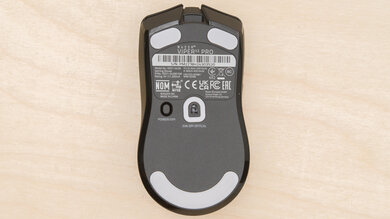
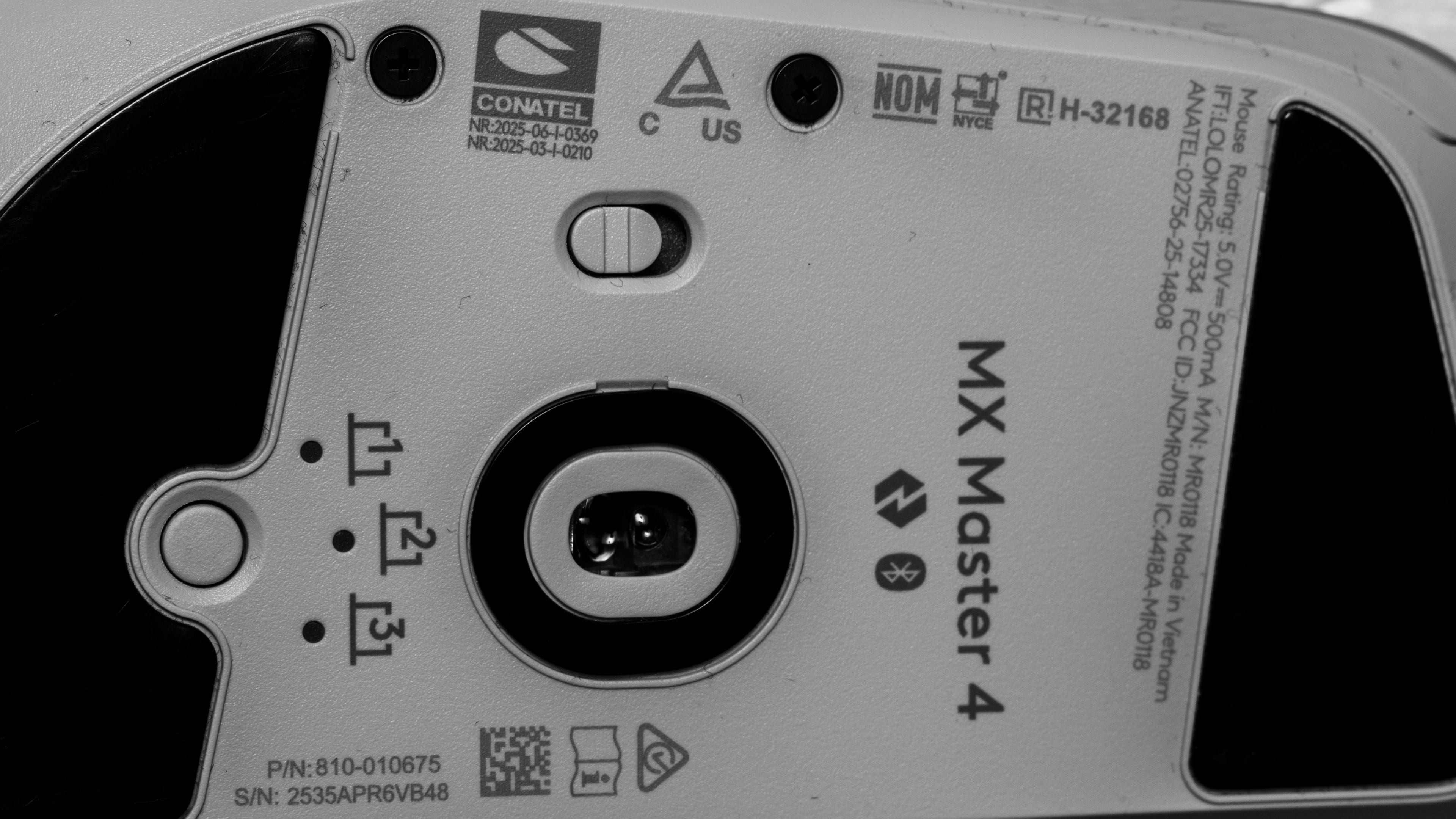
    The Logitech MX Master 4 is available in Graphite, Black, and Pale Gray color options. We bought a Pale Gray model, and you can see our unit's label here.

    Logitech also offers a MX Master 4 for Mac variant, which is available in a Space Black or White Silver colorway. This variant has the same compatibility with Windows and macOS; the only difference is that it doesn't include a Logi BOLT USB-C receiver (though it is compatible with one).

    Popular Mouse Comparisons

    The Logitech MX Master 4 continues Logitech's longstanding MX Master productivity lineup. These mice are built for heavy office use, and their dual scroll wheels and ergonomic design have made them favorites for many. This version introduces subtle shape refinements and material updates: the soft-touch rubber finish from the previous Logitech MX Master 3S has been replaced with textured plastic across most of the body and silicone rubber grips on the thumb rest and right side. These changes should improve long-term durability, as the soft-touch coating on the 3S tended to degrade over time. Logitech has also added a new haptic button that opens a customizable shortcut menu called Actions Ring. On the downside, there aren't any notable performance improvements, particularly if you're hoping for higher polling rates to provide smoother, more consistent cursor movement on high-refresh-rate or high-resolution displays. It's also worth noting that many of the mouse's advanced features depend on Logitech's Options+ software, and there's no onboard memory to save settings. This may be a dealbreaker if you work in a locked-down environment with restrictions on installing third-party apps.

    Despite these minor drawbacks, the MX Master 4 refines an already excellent design and remains the best productivity mouse for most users. If you're more budget-conscious, alternatives like the Keychron M6 or older Logitech models such as the Logitech M720 Triathlon offer similar comfort and features, including free-scrolling at a much lower price.

    For more recommendations, see our picks for the best mouse for work, the best wireless mouse, and the best ergonomic mouse.

    Logitech MX Master 3S

    The Logitech MX Master 4 is the successor to the Logitech MX Master 3S. The MX Master 4 introduces subtle shape refinements, including larger click buttons and an expanded palm rest area. It also adds a new side button for gesture controls and a haptic button on the thumb rest, which you can customize in the software to display productivity shortcuts, including supported app-specific options. Also, the soft-touch rubber coating on the older MX Master 3S is replaced with hard textured plastic and dense silicone grips on the thumb rest and right side of the MX Master 4, which should provide better long-term durability.

    Logitech MX Master 3

    The Logitech MX Master 3 is an older model in the same lineup as the Logitech MX Master 4. Both share a similar overall shape, but the MX Master 4 is slightly more angular, with larger main click buttons and a wider thumb rest. It also adds an extra side button for gesture controls and introduces a customizable haptic button, while the MX Master 3 features a gesture button in the same location. The MX Master 4 also has quieter clicks and a wider CPI range, making it the better choice if you use a high-resolution display.

    Logitech Lift

    The Logitech MX Master 4 and the Logitech Lift are both wireless productivity mice. The MX Master 4 has a more premium-feeling build quality with a pair of metal scroll wheels. The primary wheel can automatically switch between notched and free-scrolling modes. It also features a gesture button and a haptic button that you can customize in software. The Lift is less feature-rich but stands out for its vertical design, which you hold in a handshake-style orientation that can help reduce strain on your wrist, forearm, and shoulder. It's also available in a right- or left-handed version, while the MX Master 4 is only available as a right-handed model.

    Keychron M6

    The Keychron M6 and the Logitech MX Master 4 are wireless mice with similar ergonomic shapes and dual scroll wheels. The Keychron is much better suited for gaming, as it's significantly lighter and offers dramatically better click latency and a much higher maximum polling rate, resulting in smoother and more consistent performance for both competitive gaming and everyday productivity. In contrast, the Logitech is designed specifically for heavy productivity use. It features an additional side button for gesture controls and a haptic button that opens a customizable context action menu. It also has noticeably better build quality, with higher-grade materials.

    Test Results

    perceptual testing image
    Sort:
    RATINGS
    Category:
    All
    Design
    Style
    Type
    Standard
    Coating
    Matte
    Lighting ColorNo Lighting

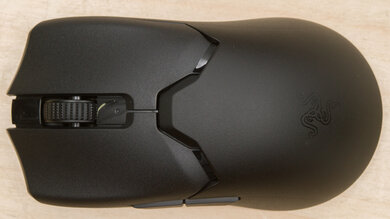
    This mouse has a subdued, professional look similar to previous models in the series. Some new visual refinements include frosted, translucent main buttons, and the LED indicator light has been moved from the side to the top of the mouse, just below the button behind the scroll wheel.

    Shape
    Length5.1" (130 mm)
    Width3.5" (88 mm)
    Height2.0" (51 mm)
    Grip Width
    61 mm
    Ambidextrous
    No
    Left-Handed Friendly
    No
    Finger Rest
    Thumb
    9.0
    Build Quality

    The Logitech MX Master 4 has superb build quality. There are no loose or rattling parts, and all components fit together tightly without visible seams. There's also no popping, creaking, or flexibility, even when you press firmly on the body from different angles.

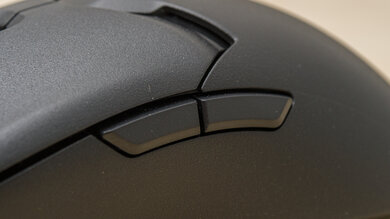
    Altogether, it feels appropriately high-end, with quality materials throughout: both scroll wheels are metal, the main click buttons are made from translucent plastic, and the majority of the body is hard plastic with a slightly textured finish.

    The new haptic button area on the thumb rest and the grip on the right side appear to be made from dense silicone rubber. We expect this material choice to offer better durability than the thin rubberized soft-touch coating used on much of the previous-generation Logitech MX Master 3S. Since the MX Master 4 hasn't been on the market long, it's too early to tell how this material will hold up over time, but we'll monitor for any durability issues and update our review if needed.

    5.0
    Weight
    Lowest Weight
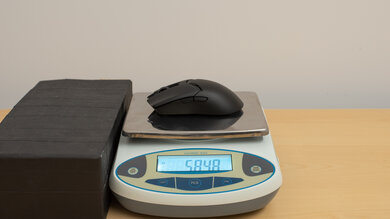
    151.8 g
    Default Weight
    151.8 g
    Weight Distribution
    Centered
    Extra Weights
    No
    Hand Size Recommendation
    Palm Grip Hand Recommendation
    Claw Grip Hand Recommendation
    Fingertip Grip Hand Recommendation

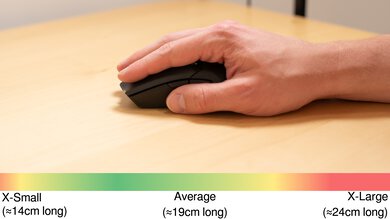
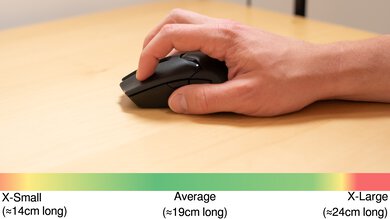
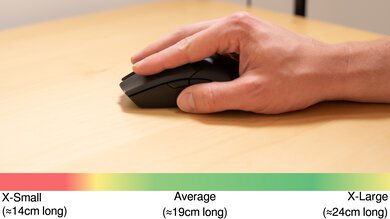
    This mouse has a comfortable right-handed shape best suited for a palm grip across most hand sizes, with well-positioned buttons that are easy to reach for different grips. However, if you have smaller hands, you may find its overall bulk somewhat cumbersome. Visually, it's similar to earlier models in the series but has a few subtle shape revisions: it's slightly more angular, with a larger thumb rest to accommodate the new haptic button, and it has larger left- and right-click buttons. Despite their increased surface area, the main clicks actuate quite consistently regardless of where you press them, which helps if your fingers naturally rest off-center due to their length.

    9.7
    Wireless Versatility
    Maximum Of Paired Devices
    3
    Bluetooth
    Yes
    Receiver
    Yes
    Battery Type
    Rechargeable
    Use When Charging
    Yes
    On/Off Activation
    Auto Off And On/Off Switch
    Receiver Extender
    No
    Receiver Storing
    No
    Battery IndicatorYes

    Logitech indicates a battery capacity of 650 mAh, which is slightly larger than the 500 mAh battery in the previous-generation Logitech MX Master 3S. However, both share the same 70-day advertised battery life, likely due to additional power draw from the new haptic features.

    There's no built-in compartment for storing the USB receiver, though some users online have noted that you can insert the USB-C receiver into the charging port on the front of the mouse. This doesn't seem to be an intentional design choice, and while it doesn't cause any issues, the receiver can be tricky to remove once inserted. We consider it generally safe to store it this way, but we'll continue monitoring for any reports of problems.

    Cable
    ConnectivityWireless
    Cable Length
    N/A
    Cable Type
    N/A
    Permanent Kink
    N/A
    Port Type: Mouse End
    USB-C
    Port Type: PC End
    N/A

    There's no included USB-C cable for charging the mouse, so you'll need to use your own or purchase one separately.

    This mouse only charges via cable and doesn't support a wired data connection. You can continue using it while it charges, but it must remain connected wirelessly through Bluetooth or a Logi BOLT receiver to function.

    8.0
    Mouse Feet
    Gliding Experience
    Good
    Material
    PTFE
    Extra Included
    No

    The feet glide smoothly on both mousepads and desks. Their larger surface area helps them glide more smoothly than previous generations, despite using the same dyed PTFE mixture rather than pure virgin-grade PTFE.

    In The Box

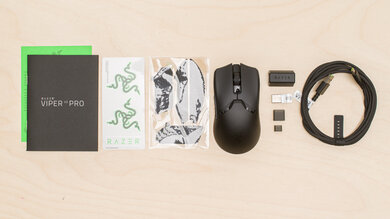
    • USB-C Logi BOLT receiver
    • User documentation

    Note: There’s no included USB-C cable for charging the mouse, so you’ll need to use your own or purchase one separately.

    The included receiver has a USB-C connector, and there's no USB-A adapter in the box, so your computer must have a USB-C port. If it doesn't, you'll need to use an adapter or connect via Bluetooth instead.

    Control
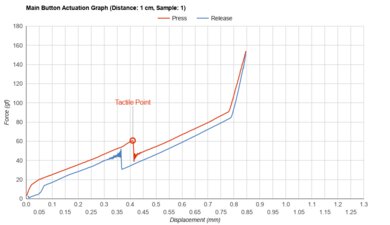
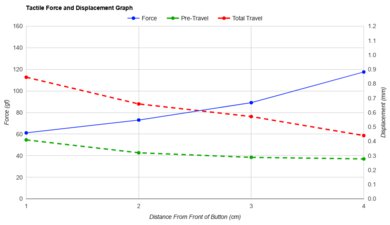
    Main Button
    See details on graph tool
    See details on graph tool
    Switch Type
    Mechanical
    Switch Model
    Not Specified
    7.1
    Additional Buttons
    Total Number Of Buttons
    9
    Number Of Side Buttons
    4
    Number Of Programmable Inputs
    7
    Profile Switching Button
    No
    Gesture Support
    Yes

    Using the configuration software, you can reprogram most inputs on the Logitech MX Master 4, except for the left- and right-clicks, vertical scroll up and down, and the pairing button on the underside.

    You can also create custom gesture controls activated by the front side button and customize the new haptic button on the thumb rest, which opens the Actions Ring shortcuts menu. Within the software, you can adjust the haptic feedback strength, choose when it activates, and select which shortcuts appear in the menu. See the Configuration Software section for more details.

    Note: Many of the additional buttons and features, including the new gesture button and haptic button, require Logitech's Options+ software to be running in the background. These controls have no default functionality out of the box and won't work without the software. Keep this in mind if you work in a locked-down environment where installing third-party software isn't possible.

    7.2
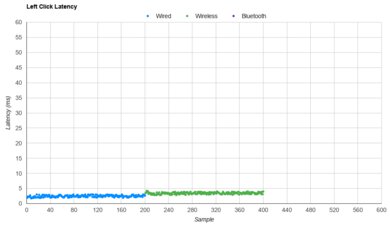
    Click Latency
    See details on graph tool
    Expected Connection
    11.4 ms
    Wired
    N/A
    Receiver
    11.4 ms
    Bluetooth
    11.0 ms

    The Logitech MX Master 4 mouse has decent click latency, which is more than adequate for productivity, everyday browsing, and casual gaming without any noticeable delay. However, it isn't suitable for fast-paced or competitive gaming.

    9.0
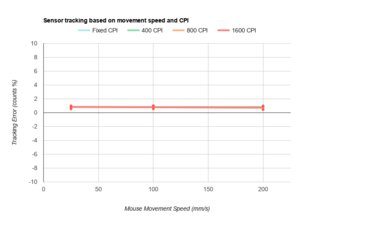
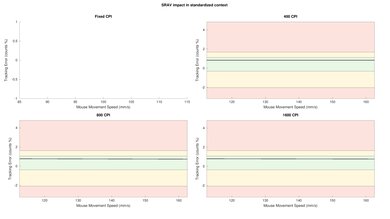
    CPI
    See details on graph tool
    SRAV @ 1600 CPI
    -1.36%
    SRAV @ 800 CPI
    -0.42%
    SRAV @ 400 CPI
    -0.75%
    SRAV @ Fixed CPI
    N/A
    Precision Error Between Speeds
    0.52%
    Precision Error Between CPI
    0.79%
    Worst Tracking Error
    -2.00%
    Minimum CPI
    200 CPI
    Maximum CPI
    8,000 CPI
    CPI Adjustment Steps
    50 CPI

    The Logitech MX Master 4's sensor doesn't exhibit any problematic tracking or accuracy issues.

    6.7
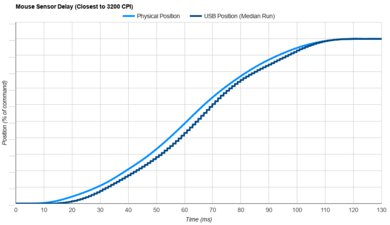
    Sensor Latency
    See details on graph tool
    Delay To Start Of Movement
    34.0 ms
    Delay At Half Movement
    18.7 ms
    Delay To End Of Movement
    17.1 ms

    The Logitech MX Master 4 provides sensor latency performance that's more than adequate for productivity tasks, everyday browsing, and even casual gaming. However, it isn’t suitable for fast-paced or competitive gaming.

    Sensor Specifications
    Sensor Technology
    Laser
    Sensor Model
    Darkfield
    Works On Glass
    Yes
    Minimum Lift Off Distance
    1.2 mm
    Maximum Polling Rate
    125 Hz

    The Logitech MX Master 4's sensor can track on transparent glass surfaces, which is an uncommon but useful feature if you use a glass desk without a mousepad.

    The polling rate on Windows is locked to 125Hz when the mouse is connected using the Logi USB-C BOLT receiver or via Bluetooth.

    When using a Bluetooth connection on macOS, the polling rate is locked at 90Hz, as is the case with the previous-generation Logitech MX Master 3S, but you can achieve a polling rate of 125Hz on macOS using a Logi USB-C BOLT receiver connection.

    Mouse Wheel
    Scroll Wheel Type
    Notched Wheel + Free Wheel
    Scroll Wheel Tilt
    No
    Thumb Wheel Type
    Free Wheel

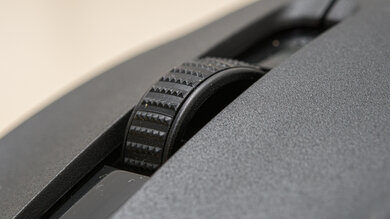
    Both scroll wheels on the Logitech MX Master 4 are made of aluminum. They feel very high-quality and operate quietly. The main wheel on top has a precise, notched scrolling mode and a faster free-spin mode for quickly moving through long documents or webpages. By default, you can switch modes manually using the button behind the wheel. It also switches to the faster free-scrolling mode automatically when you begin to scroll quickly, though you can toggle this behavior using the SmartShift option in the software. You can also adjust settings like scroll force, speed, and default direction within the software.

    Note: Some users reported inconsistent or erratic vertical scroll wheel behavior on the previous generation Logitech MX Master 3S. See an example in a Reddit thread.

    While we were able to reproduce some of these issues on our older Logitech MX Master 3S test unit, we haven't been able to reproduce them on the newer Logitech MX Master 4, suggesting that Logitech may have resolved the issue.

    If you own this mouse and experience slow or unresponsive scrolling, or if the primary wheel occasionally reverses direction, let us know in the comments at the end of this review.

    Noise
    Click Noise
    Very Quiet

    The left- and right-click buttons and both scroll wheels are very quiet and won't bother those around you, even in noise-sensitive environments. Other buttons, including the vertical mouse wheel click button, are louder but still unlikely to bother those nearby.

    Operating System And Software
    Configuration Software
    Software NameLogitech Options+
    Software Windows Compatibility
    Yes
    Software macOS Compatibility
    Yes
    On-Board Memory
    No
    CPI (DPI) Adjustment
    Yes
    Polling Rate Adjustment
    No
    Profile Configuration
    Yes
    Profile Auto-Switching
    Yes
    RGB On/Off
    No RGB

    Logitech's software is straightforward and easy to use, though with the addition of several new features, it can feel a bit cluttered and confusing to navigate.

    You can adjust most expected settings, including button assignments, app-specific profile management, and simplified macros (which Logitech calls Smart Actions).

    Using the Extend Sensor Range to 8K DPI option, you can set a specific CPI value up to 8000 instead of relying on a percentage scale. This is useful if you're coming from another mouse with a known CPI value and want to match your sensitivity.

    You can also fine-tune advanced features like gesture controls or scrolling behavior for both scroll wheels as well as haptic feedback settings and other options related to the Actions Ring shortcuts.

    You can customize which shortcuts appear on the Actions Ring, including plugins for widely used third-party apps such as Final Cut Pro, Figma, DaVinci Resolve, and Photoshop. Note that you need to log in to a Logitech account to link third-party plugins. For more details on this feature, see Logitech's product page.

    Note: If you work in a locked-down environment with restrictions on third-party software or online services, keep in mind that many of this mouse's additional buttons and features require Logitech's Options+ software to be running in the background, and in some cases, an active internet connection, to function.

    Examples include the new gesture and haptic buttons, both of which have no default functionality out of the box. Since this mouse doesn't have onboard memory, you'll also need the software running to use custom settings, such as reversing the scroll direction or adjusting the CPI, and you'll have to reapply these settings each time you use it on a new computer.

    10
    Mouse Compatibility
    Windows CompatibilityFully
    macOS CompatibilityFully

    This mouse is fully compatible with Windows and macOS. Logitech sells a separate variant of this mouse called the Logitech MX Master 4 for Mac, which is also compatible with both Windows and macOS. The only meaningful difference between these two variants is that the "Mac" variant doesn't include a BOLT USB-C receiver in the box (though it is compatible with one).