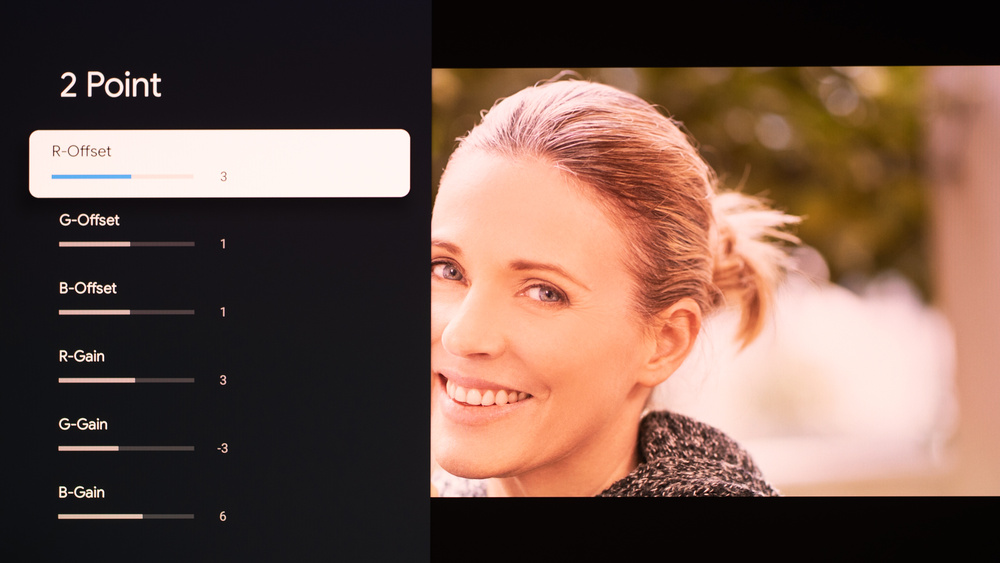
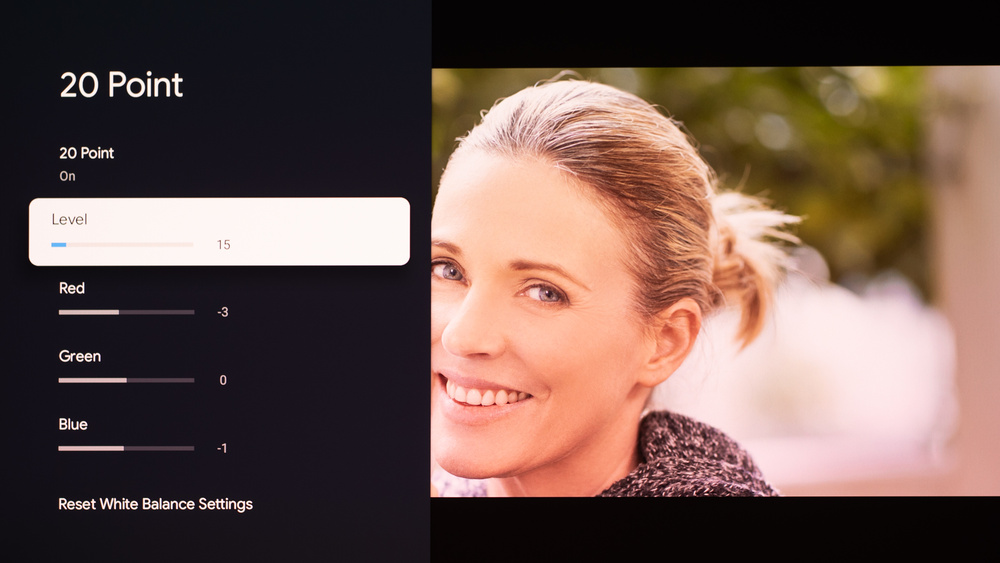
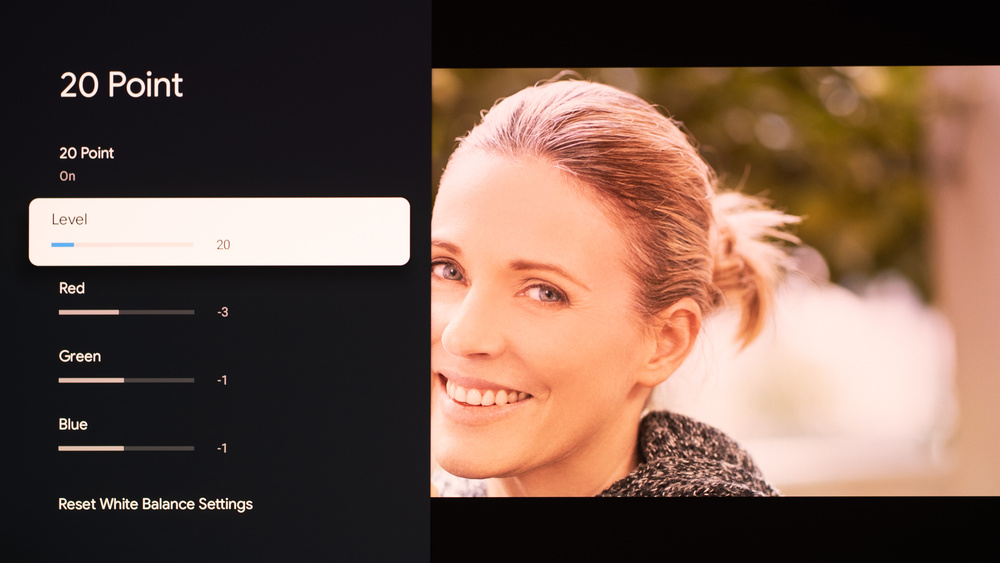
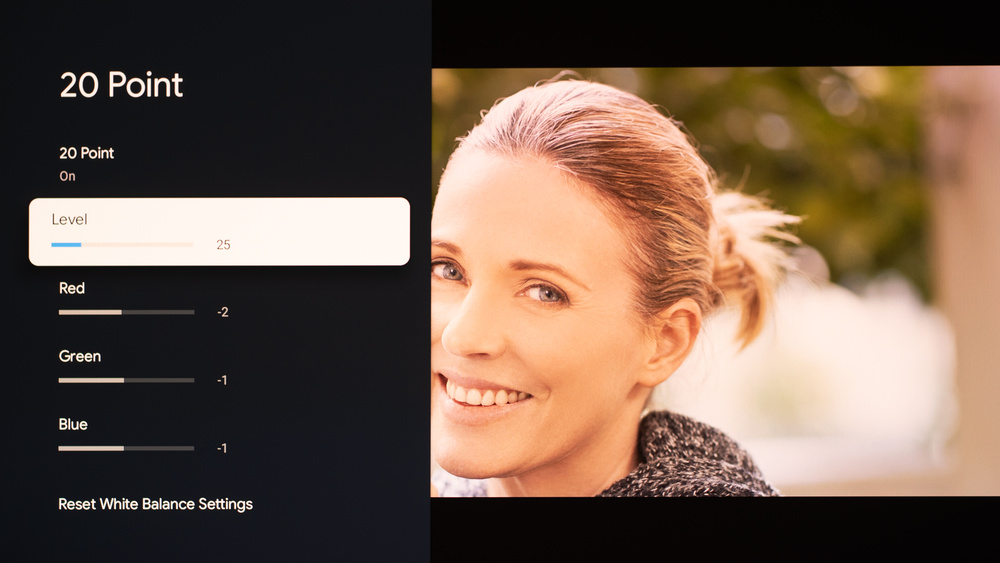
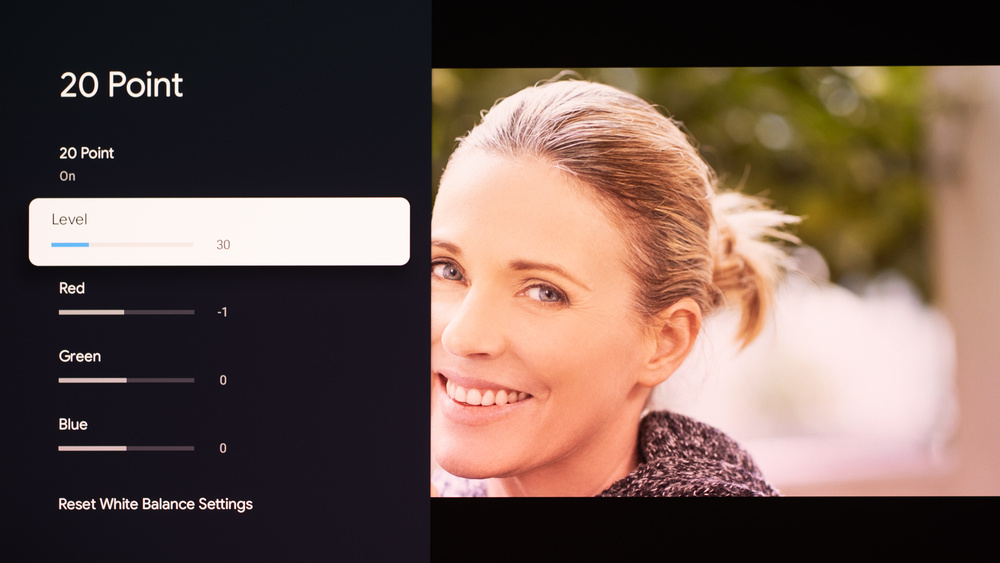
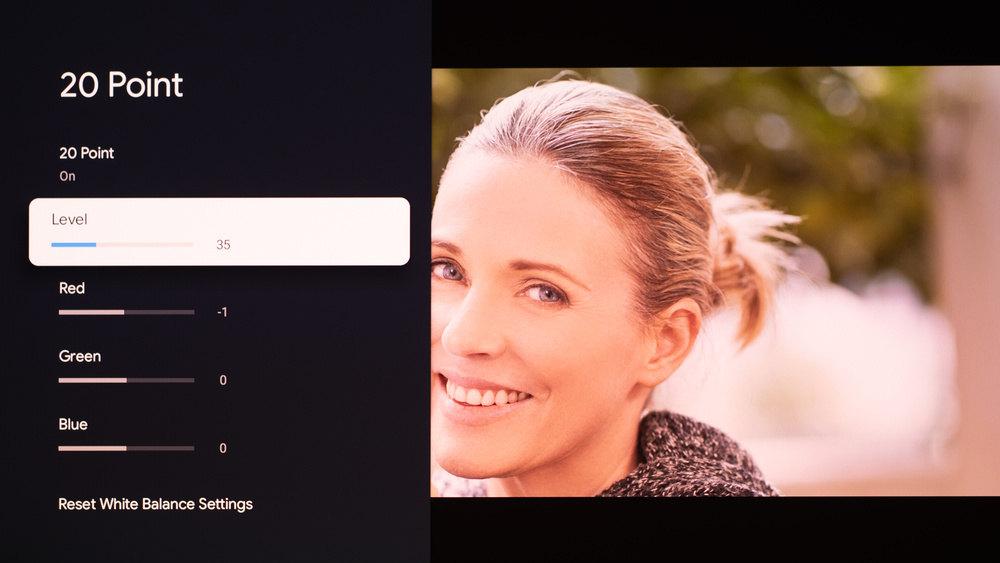
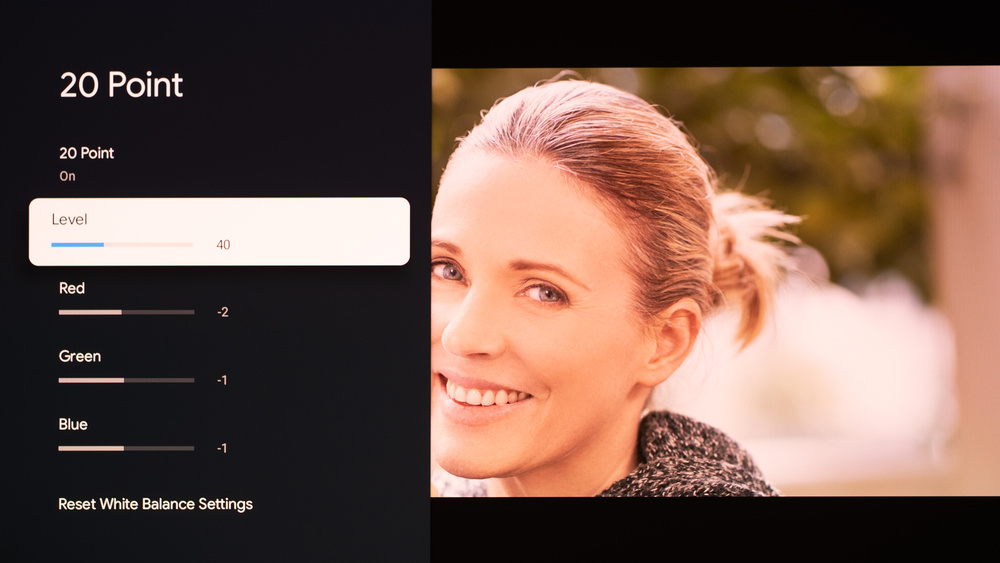
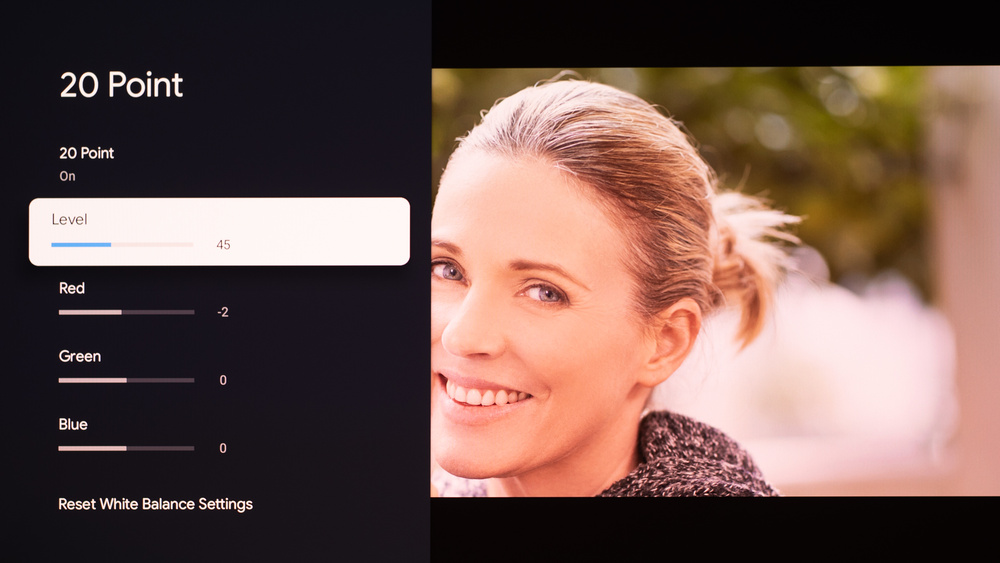
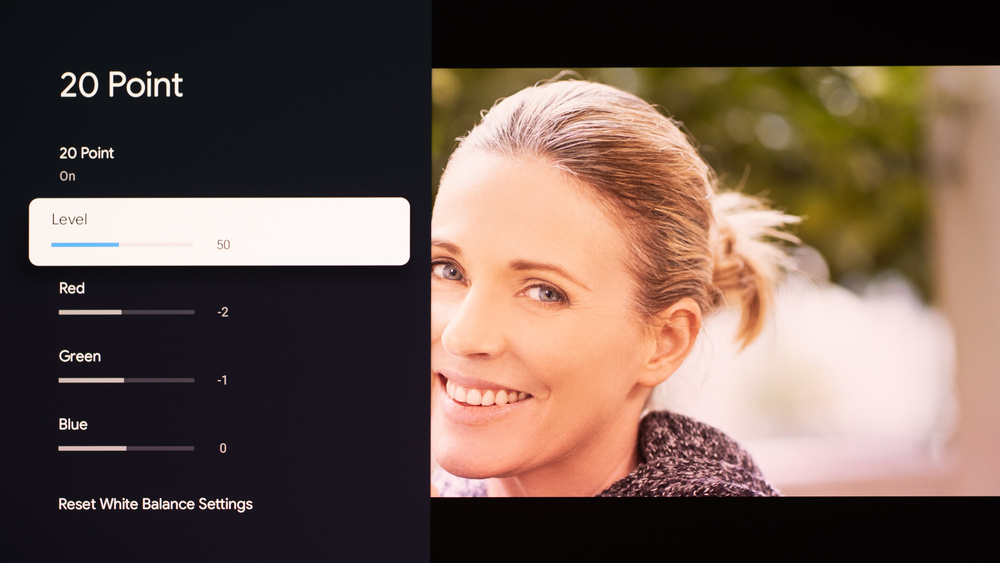
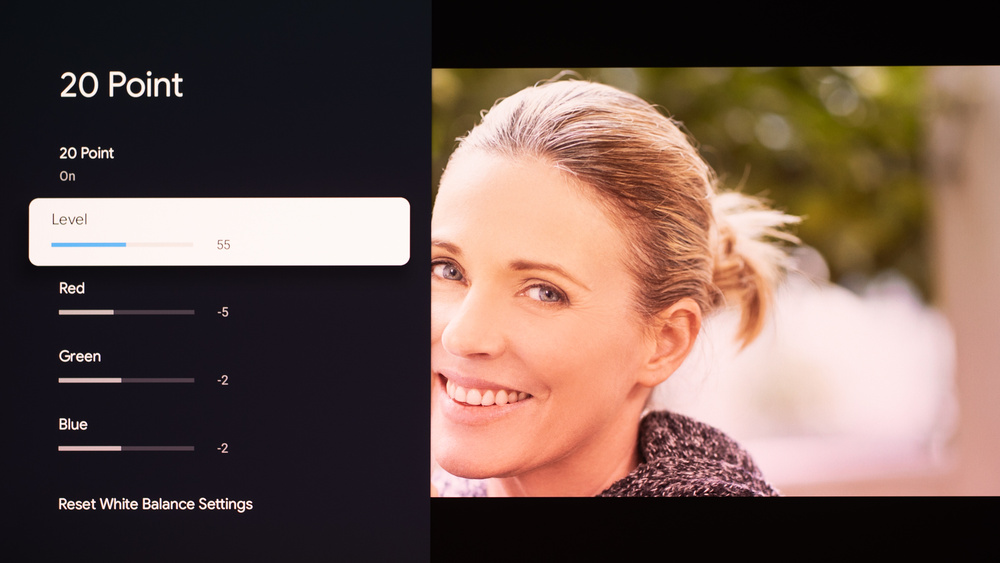
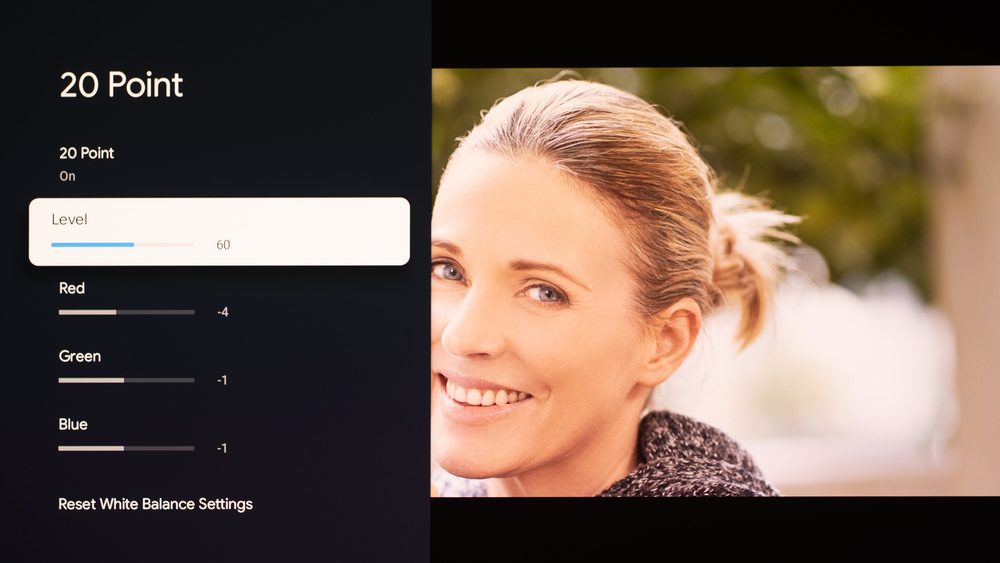
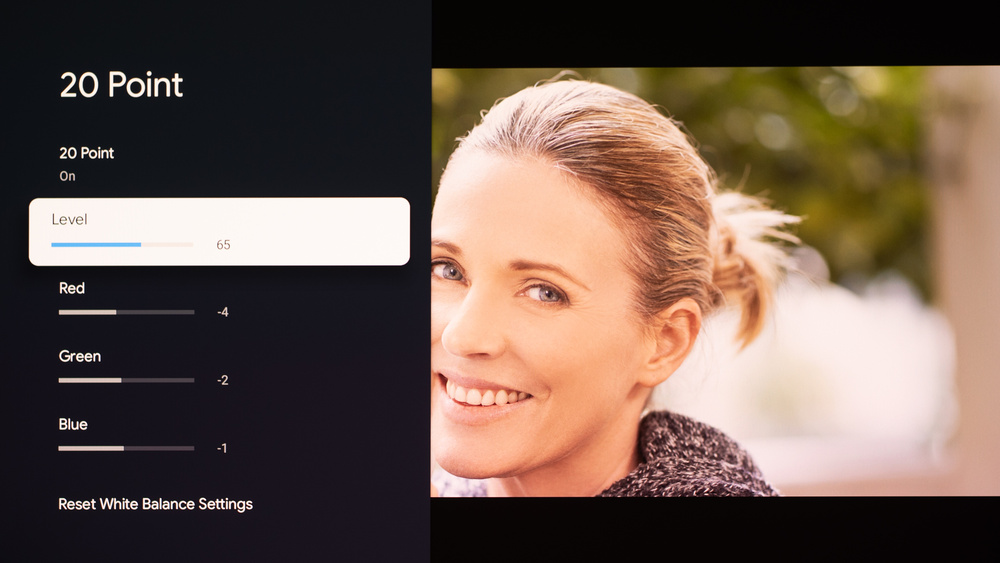
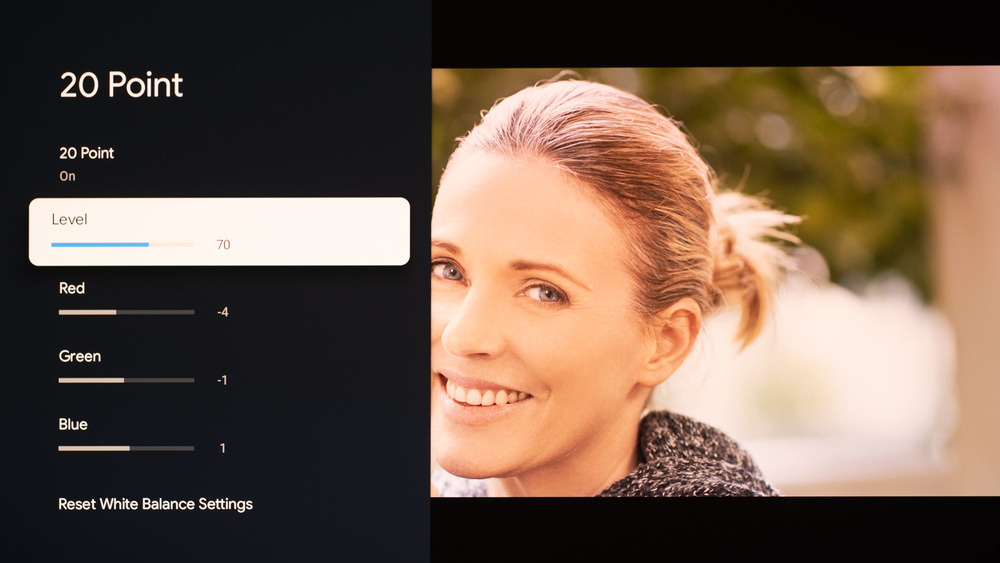
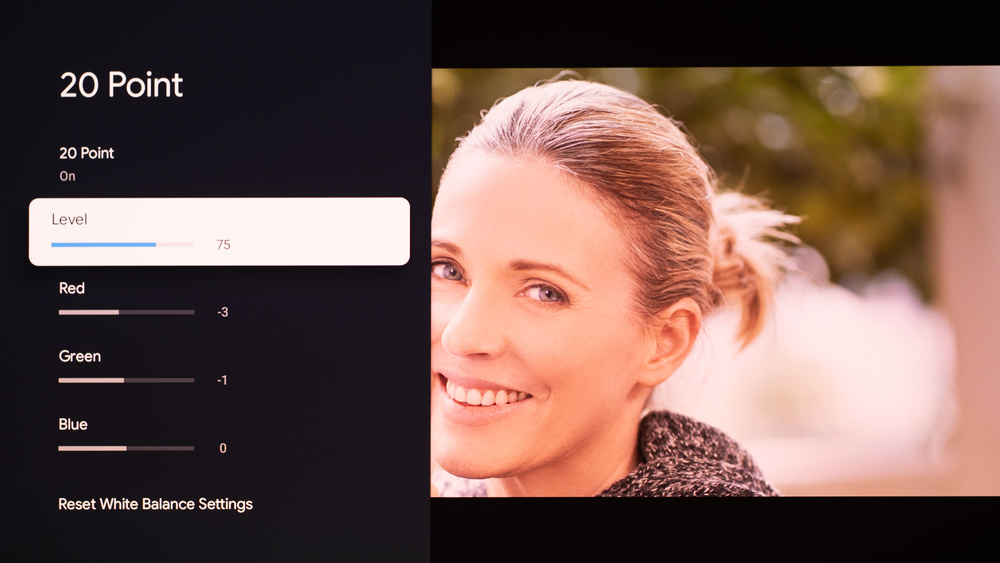
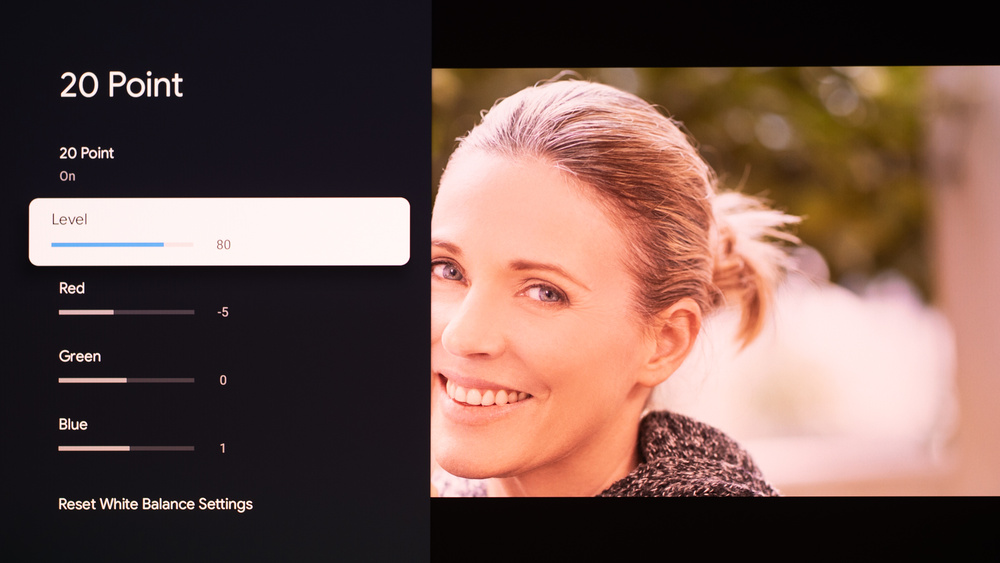
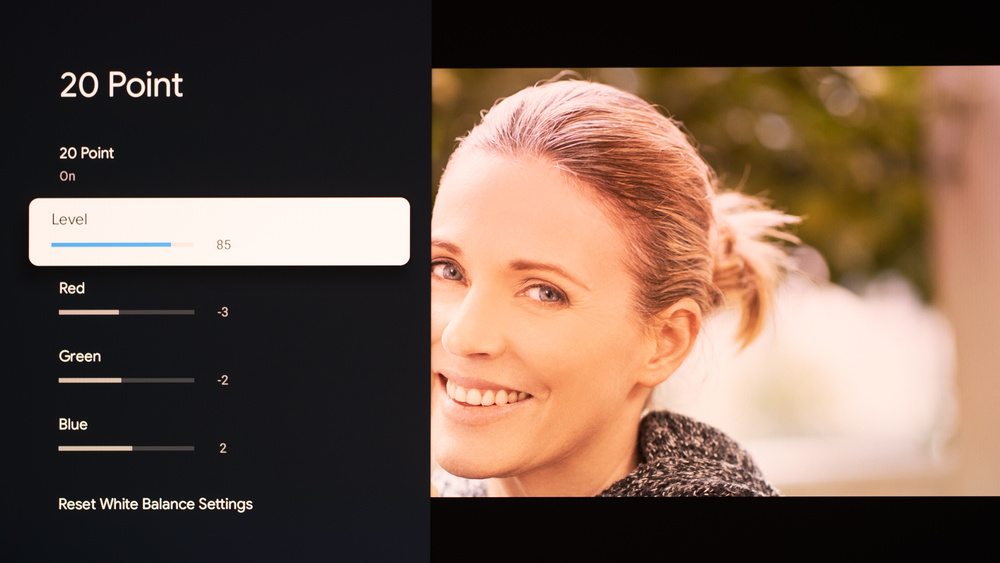
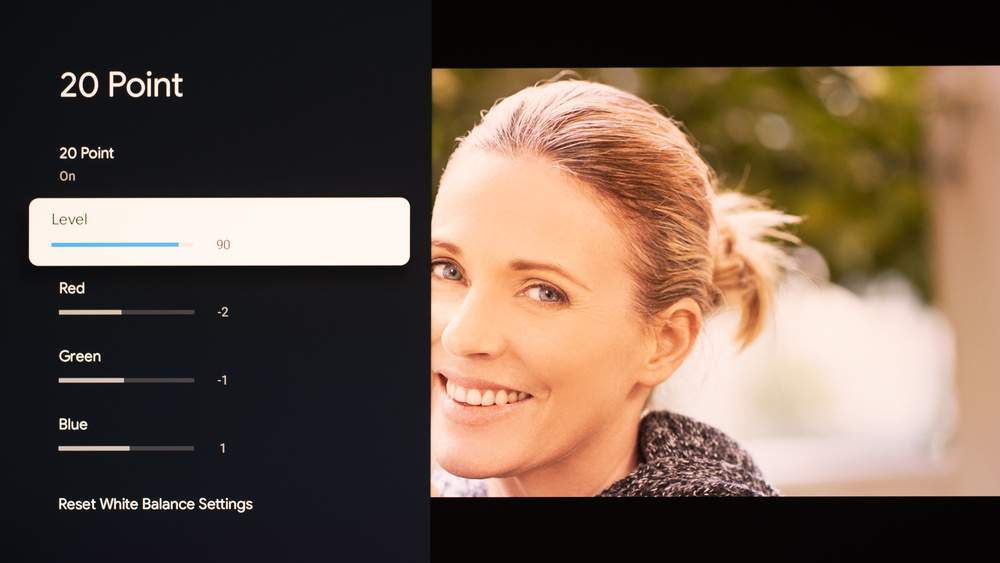
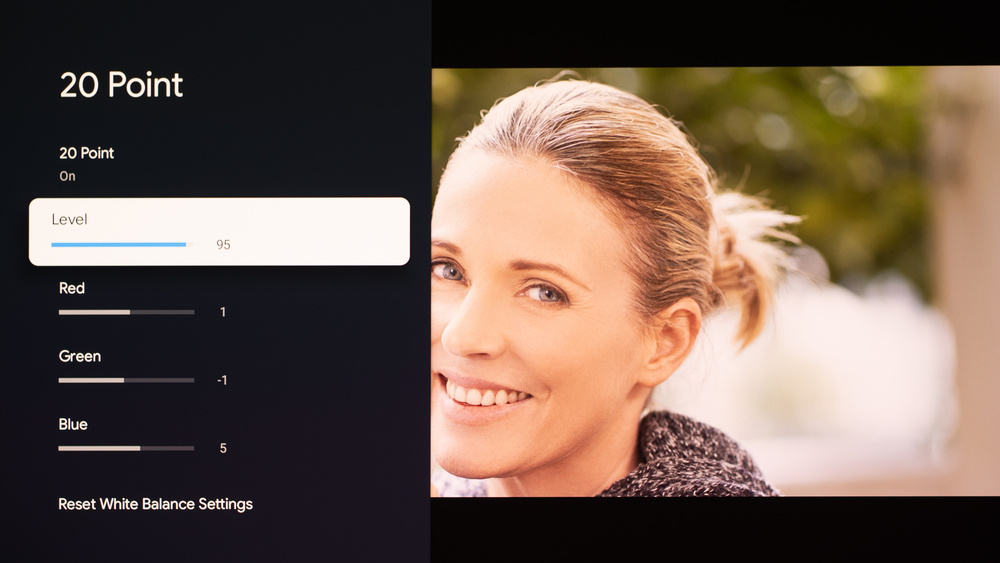
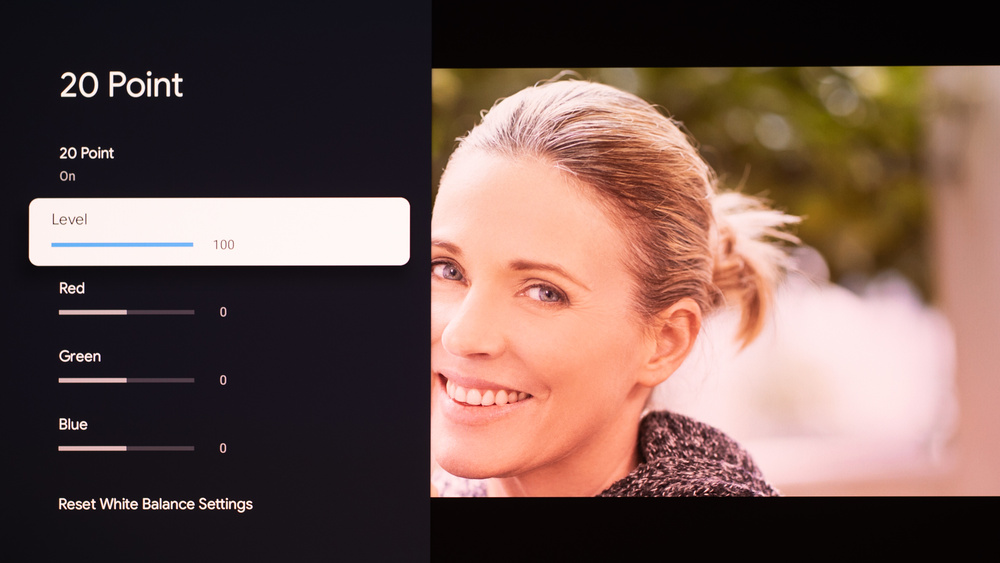
We used the following calibration settings to test the Valerion VisionMaster Plus2. Keep in mind that results can vary slightly between individual units, firmware versions, and picture modes, so you may need small tweaks if your unit looks a bit different.
These settings are meant to provide a solid starting point for accurate SDR playback in a typical living room. They aren't meant to be copied 1:1, and your best results will depend on your screen size, throw distance, room brightness, and wall/screen color. If you're using the projector for gaming, you'll likely want a few additional changes for lower input lag and clearer text, which are listed below.
SDR Picture Settings
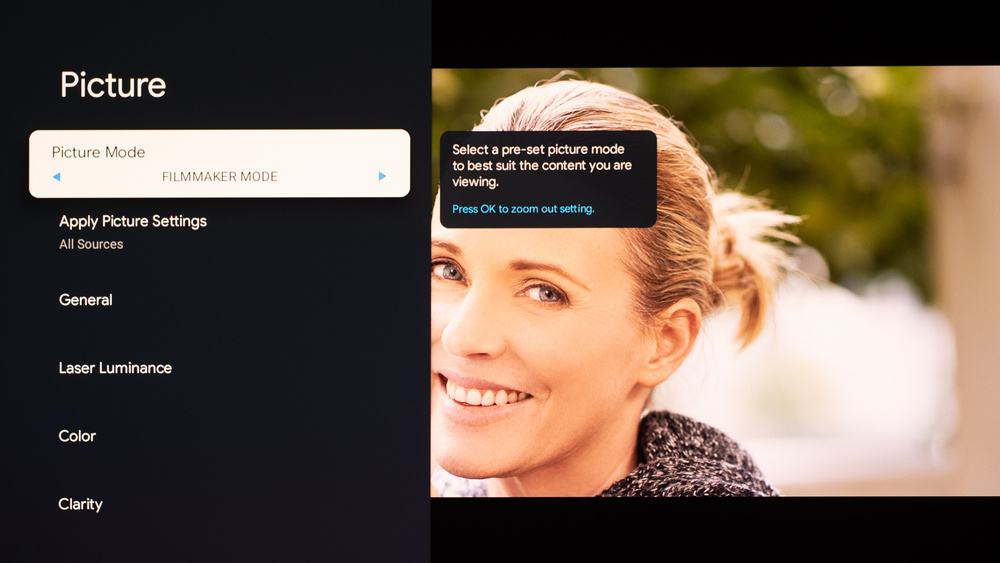
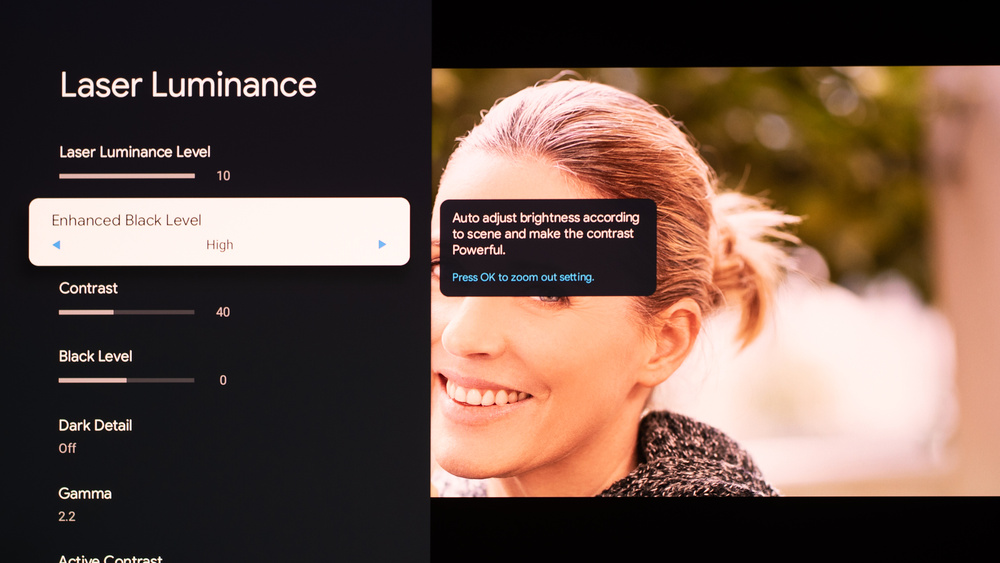
For SDR content, you can choose a few different preset picture modes. We used the Filmmaker Mode because it allows for the most customization. Below are a few settings we used for SDR. All other settings were either left to default, disabled, or left off:
- Picture Mode: Filmmaker
- Enhanced Black Level: High
Gaming Settings
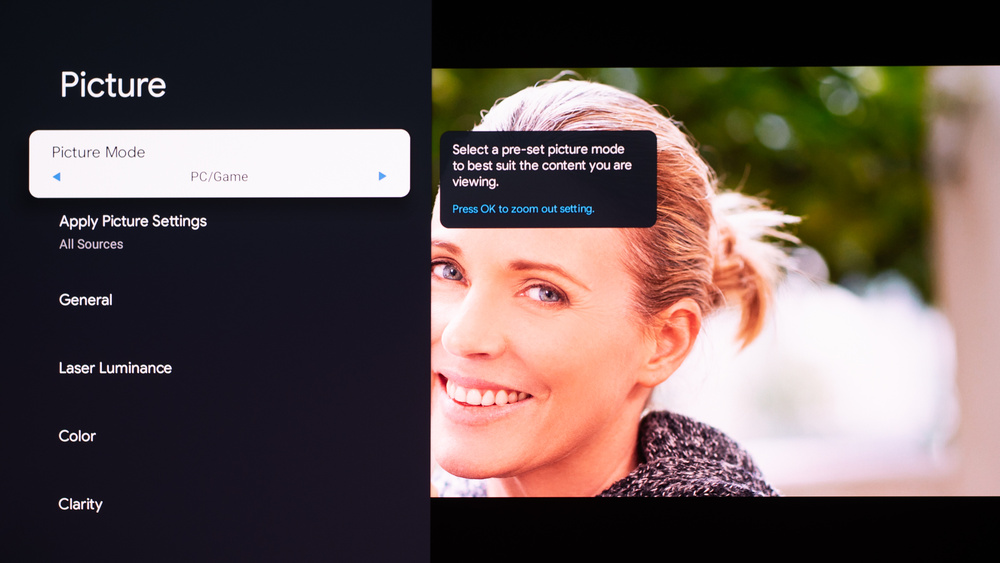
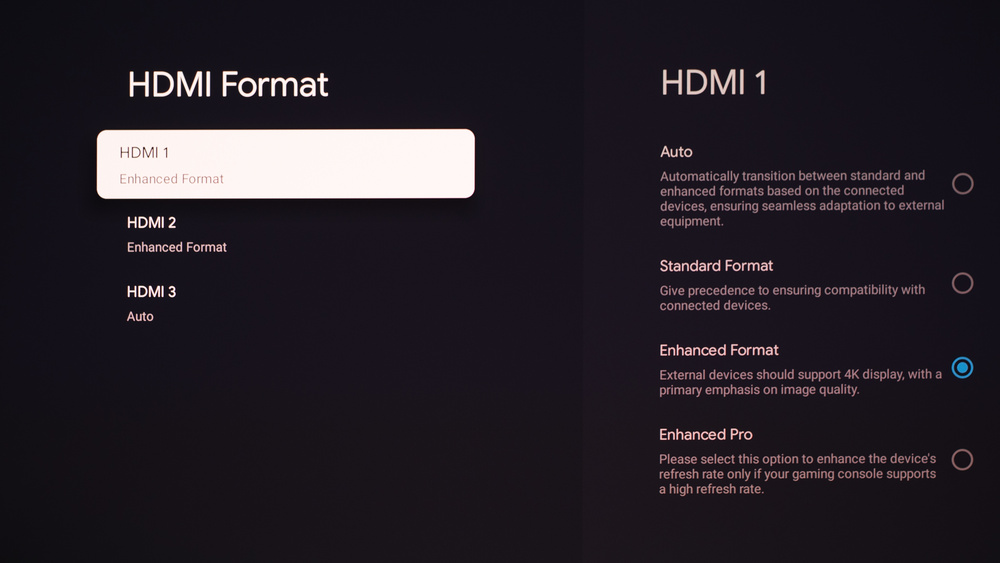
From the base SDR settings, very few changes are required for the best gaming experience. For the best input lag, it's best to enable Game Mode and ensure that DLP Turbo Mode, Instant Game Response, and High Refresh Rate Mode are enabled in the projector's Game Bar menu. Additional settings for gaming at different refresh rates are also shared below:
- Picture Mode: Filmmaker
- Game Mode: Enabled
- Instant Game Response: Enabled
- DLP Turbo Mode: Enabled
- For 4k@60Hz gaming: Enable Ultra Sharp Mode
- For 4k@120Hz gaming: Set HDMI 1 or 2 to Enhanced Format
- For 1080p@240Hz gaming: Set HDMI 1 or 2 to Enhanced Pro
Firmware
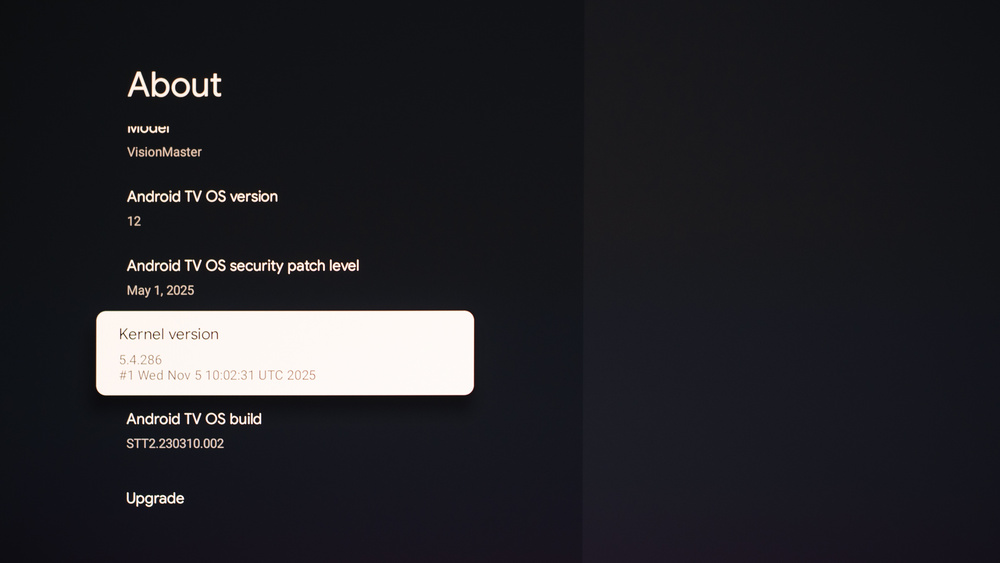
The unit we bought and tested was calibrated on software version STT2.230310.002.
Other Settings
For information on any other settings or features that fall outside of the scope of our testing, please refer to the Help Center on the Valerion website.
White Balance Settings
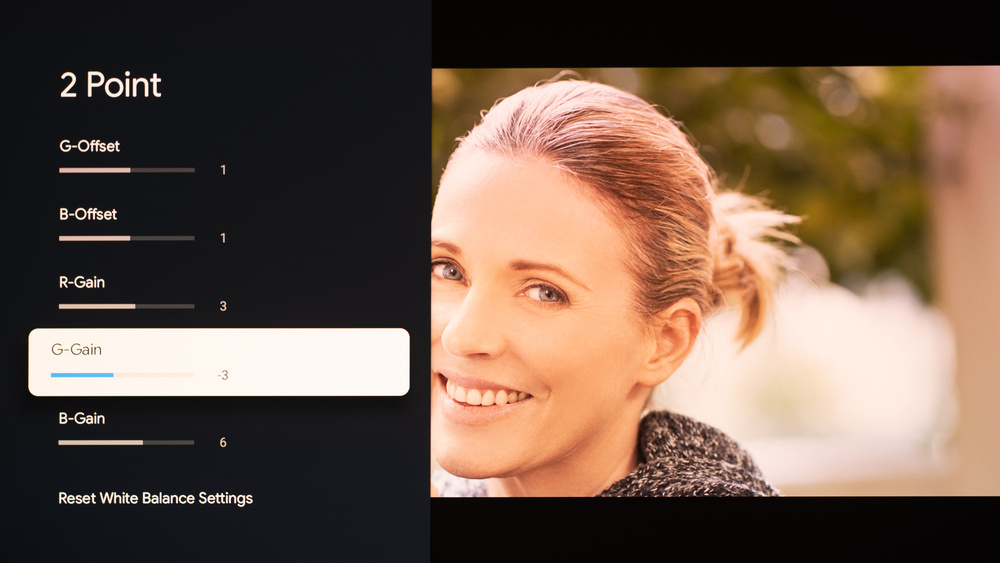
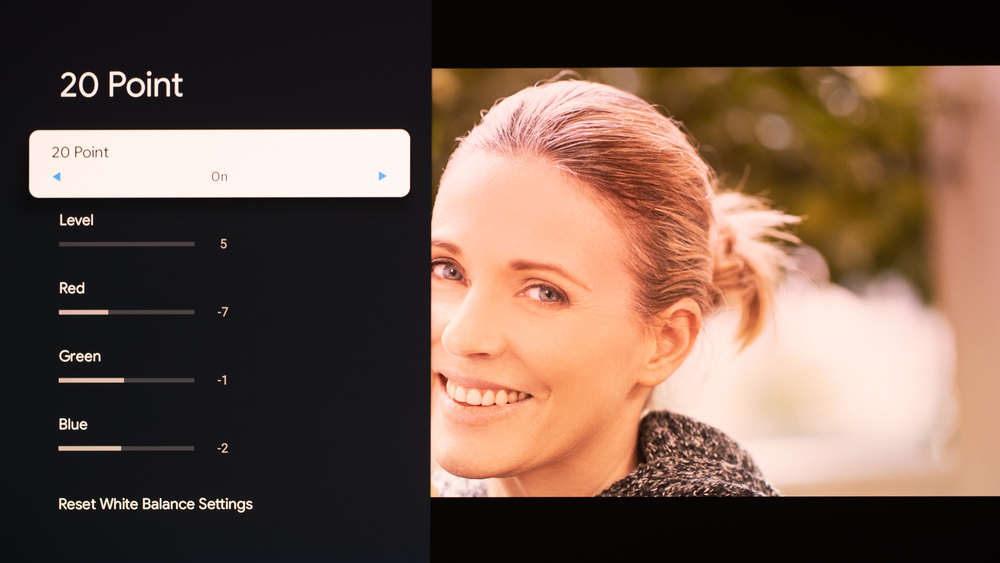
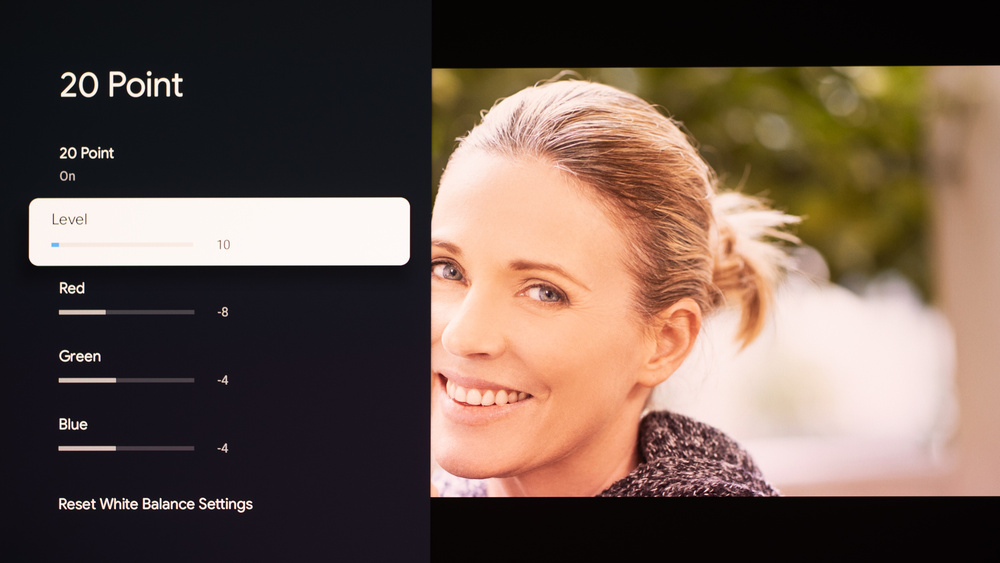
The following are the results of our unit's white balance and colorspace calibration. They're provided for reference and shouldn't be copied, as the calibration values vary per individual unit due to manufacturing tolerances. If you want to try them, you'll need to enter all the values shown, as all of them are active at the same time. If you end up with worse picture quality, simply reset them to the default values.