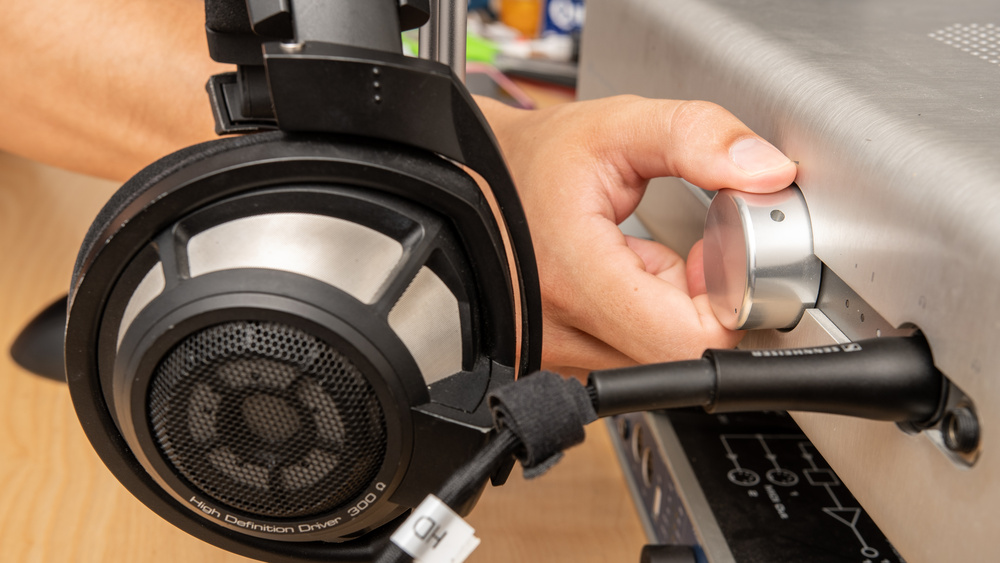
Sometimes, the volume dials are cranked all the way up to 10, and that still isn't enough. But what are you to do if you can't build a bespoke amp that's one louder? How else can you get that little push over the cliff?
In this guide, we'll explain how to make your headphones louder using both hardware and software solutions. We'll explain why your headphones might sound a touch quiet, why certain headphones tend to sound quieter than others, and what you can do about it. We'll also discuss the importance of things like headphone design and fit.
Be Safe!
While making your headphones louder can be fun and exciting, it's important to protect your hearing. Prolonged exposure to sound levels above 85 dB SPL can lead to permanent hearing damage or tinnitus. If you're using amps or boosting volume through software, be mindful of how loud you're listening, especially over long sessions. A couple of good rules of thumb are if others can hear your music leaking out, or if your ears feel fatigued after listening, it's probably too loud.
While most hearing damage these days probably comes from prolonged listening to loud sounds, it's worth also being aware of acoustic shock. This is caused by exposure to sudden, unexpected loud sounds, like a pop, a feedback spike, or accidental max volume. These sharp bursts can cause immediate discomfort and even lasting damage, especially when using high-sensitivity headphones or external amps. To reduce your risk of exposure, avoid sudden volume changes, use volume limiters if available, and be cautious when switching devices or plugging in cables mid-playback.
First Things First: Is Everything Working, Clean, and a Good Fit?
Before you start chasing your tail in search of extra volume, make sure nothing simple is holding your headphones back. You'd be surprised how often a simple check and clean resolves your issues. Are all the plugs fully seated, cables intact, and any in-line volume controls turned up? You'll want to clean the ports and drivers, as dirt, lint, or earwax can muffle sound. This is especially important if you're wondering how to make earbuds louder, but for more information, you can read our guide on how to clean earbuds.
It's also worth taking the time to seat the headphones on your head correctly. The sound you hear can vary a lot with fit, as the headphones interact with your anatomy (like head size and ear size) or accessories (such as glasses). Do over-ears feel comfortable and sit flush against your head? Do earbuds and in-ears nuzzle snugly inside your ears? Covering the basics means you don't waste time on hardware or software fixes that aren't necessary.
How to Get to Eleven: A Step-By-Step Primer on Troubleshooting Low Volume
-
Inspect Connections and Cables
Confirm your headphones' plug is fully inserted (some jacks need to click in twice). Check detachable cables and in-line volume controls. Look for cable damage or fraying, and try swapping cables if possible. -
Clean Headphones and Ports
Earwax or lint can block sound, especially with in-ear models. Clean ear tips, headphone grilles, and the audio jack gently using a soft brush. -
Check Fit
Headphone sound varies significantly with fit. If you have earbuds, try out different-sized ear tips. Some in-ears, like the Sony WF-1000XM5 Truly Wireless, even come with fit tests in their companion apps. If you have over- or on-ears, experiment with their placement on your head and see how the sound changes. Pay special attention to the seal they form around your ears. If you wear glasses, try adjusting their position. -
Check Software Volume Settings
Make sure system and app-specific volumes are maxed. Is volume normalization engaged or set fairly low? On Windows, check the Volume Mixer; on Android/iOS, ensure you're adjusting media volume, not call volume. Disable any headphone volume limiters in settings. -
Test with Another Device or Headphones
Try your headphones on a different device. Ideally, this will be a different type of device, too (a dedicated amp instead of a phone, for instance). If they're still quiet, the issue may be with the headphones. If they sound fine elsewhere, your original playback device might be underpowered or misconfigured. Remember, a dedicated headphone amp or DAC is the best way to isolate problems. -
Check Headphone Specs
If your headphones have high impedance or low sensitivity, a phone or laptop may not drive them properly. Look up the specs and consider using a headphone amplifier. Similarly, if you're using open-backs, consider switching to closed-backs if volume is a priority for you. -
Check Audio Enhancements or EQ
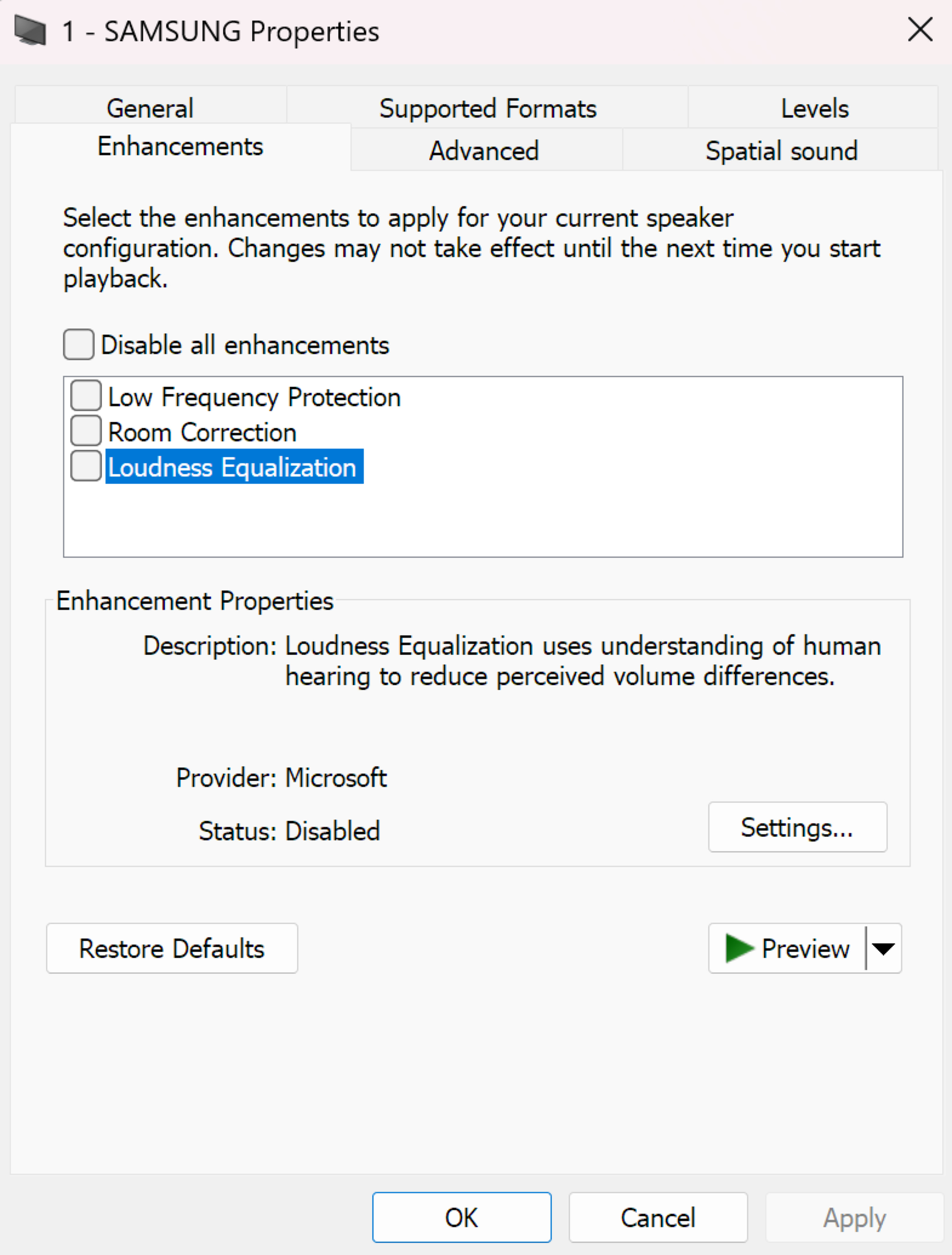
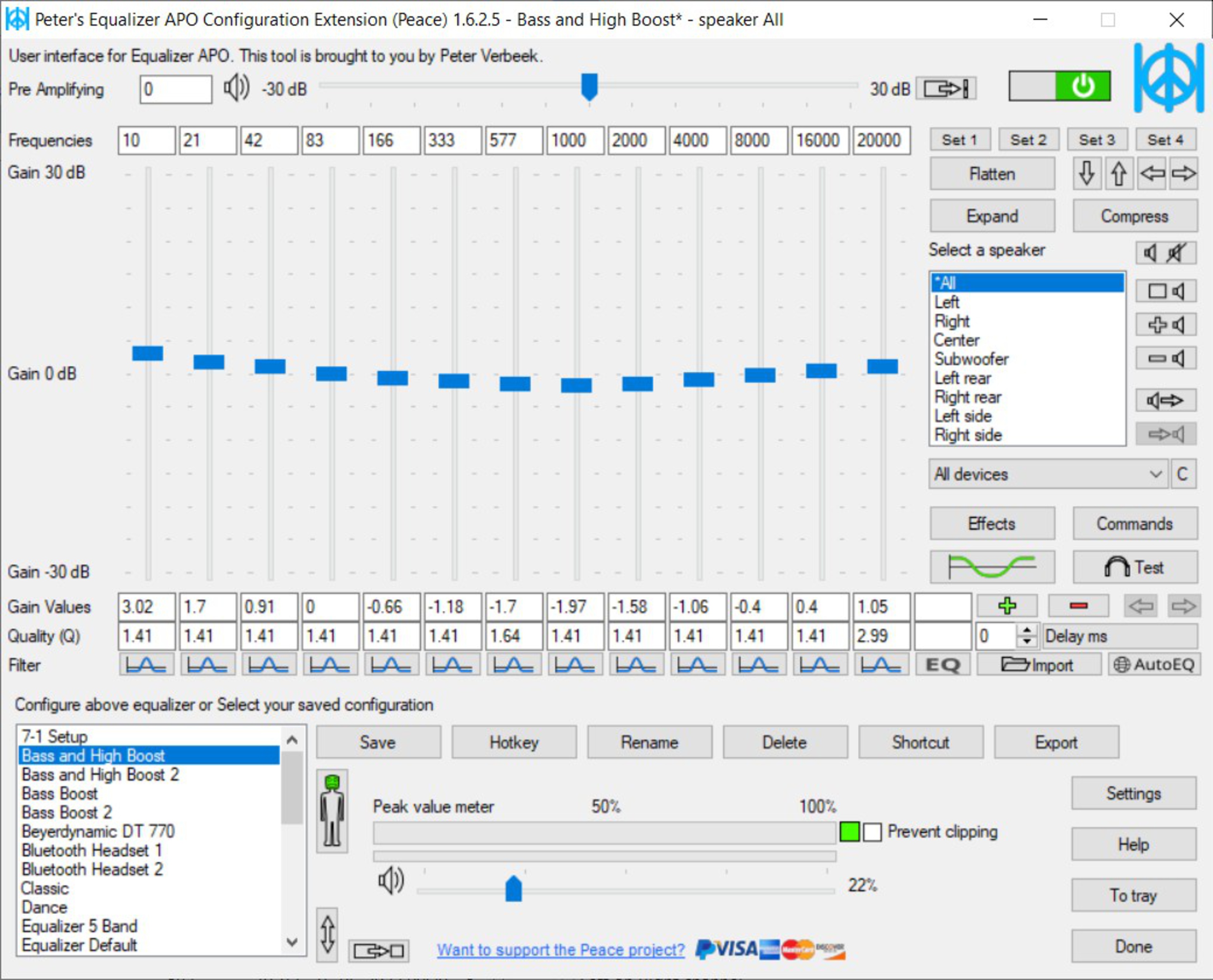
Disable any DSP effects, like Dolby or surround modes. Flatten your EQ settings and ensure no negative preamp is applied. On Windows, check the Enhancements tab under Playback device settings. -
Ensure the Correct Output Device Is Selected
On PCs, make sure the output is set to the correct headphone jack. Some drivers have 'headphone' and 'line-out' modes: choose the former for proper amplification. -
Look for Mono/Stereo or Phase Issues
Improper adapters or miswired cables can cause phase cancellation, making your audio sound hollow or quiet. Use a mono audio file to test your cans: if the sound nearly disappears, the wiring may be incorrect. -
Check Battery or Wireless Settings
If you're using battery-powered cans, a low battery can lead to a reduced max volume. Make sure both your device and headset volumes are up. Check the headphones' app for firmware updates or sound mode options. -
Disable Sound Limiters or Safety Features
On iOS, turn off 'Reduce Loud Sounds.' On Android, disable absolute volume if needed. On Windows, check the 'Communications' tab and set it to 'Do nothing' to prevent automatic volume reduction. -
Check Active Noise Cancelling (ANC)
On some models, ANC may slightly reduce max volume. Try toggling it off in quiet environments to compare. In noisy settings, ANC may actually improve perceived loudness by reducing background noise. -
Try a Wired Connection
If your wireless headphones support it, try using a 3.5 mm cable. Bluetooth often has lower output than wired mode, and EQ profiles may differ between the two. -
Evaluate the Audio Source
Some media is simply recorded at lower levels. Check app settings for volume normalization or dynamic range modes. Inconsistent volume may be tied to the content itself, not your hardware. -
Consider Loudness Boosting Hardware or Software
Try out third-party preamps or loudness-boosting software like limiters. -
Suspect Faulty Hardware
If nothing helps, the issue may be a blown driver, a bad cable, or a weak internal amp. Try to test with a dedicated amp or DAC to isolate the fault. Contact support if under warranty.
Acoustic Considerations: How Headphone Design Affects Loudness
Headphone design plays a major role in how loud audio feels, even when the measured output is the same. This is mostly because different styles of headphones block out different amounts of noise around you, which in turn impacts your ability to hear your audio. The more of your environment you hear, the greater the temptation to boost your audio will be. In fact, manufacturers are aware of this, and so brands like Apple are increasingly rolling out adaptive audio features that dynamically adjust your audio based on the noise around you. But even if you don't have headphones with those features, physical design plays a huge role here.
Earbuds that rest in the outer ear typically offer little to no seal. As a result, they leak both ambient noise and bass, often sounding quieter and thinner in noisy environments. In-ears insert deeper into the ear canal, creating a much better seal that can improve isolation and perceived loudness. In the world of headphones, on-ear headphones press against the outer ear, so they generally provide weaker isolation than over-ears, which fully enclose the ear.
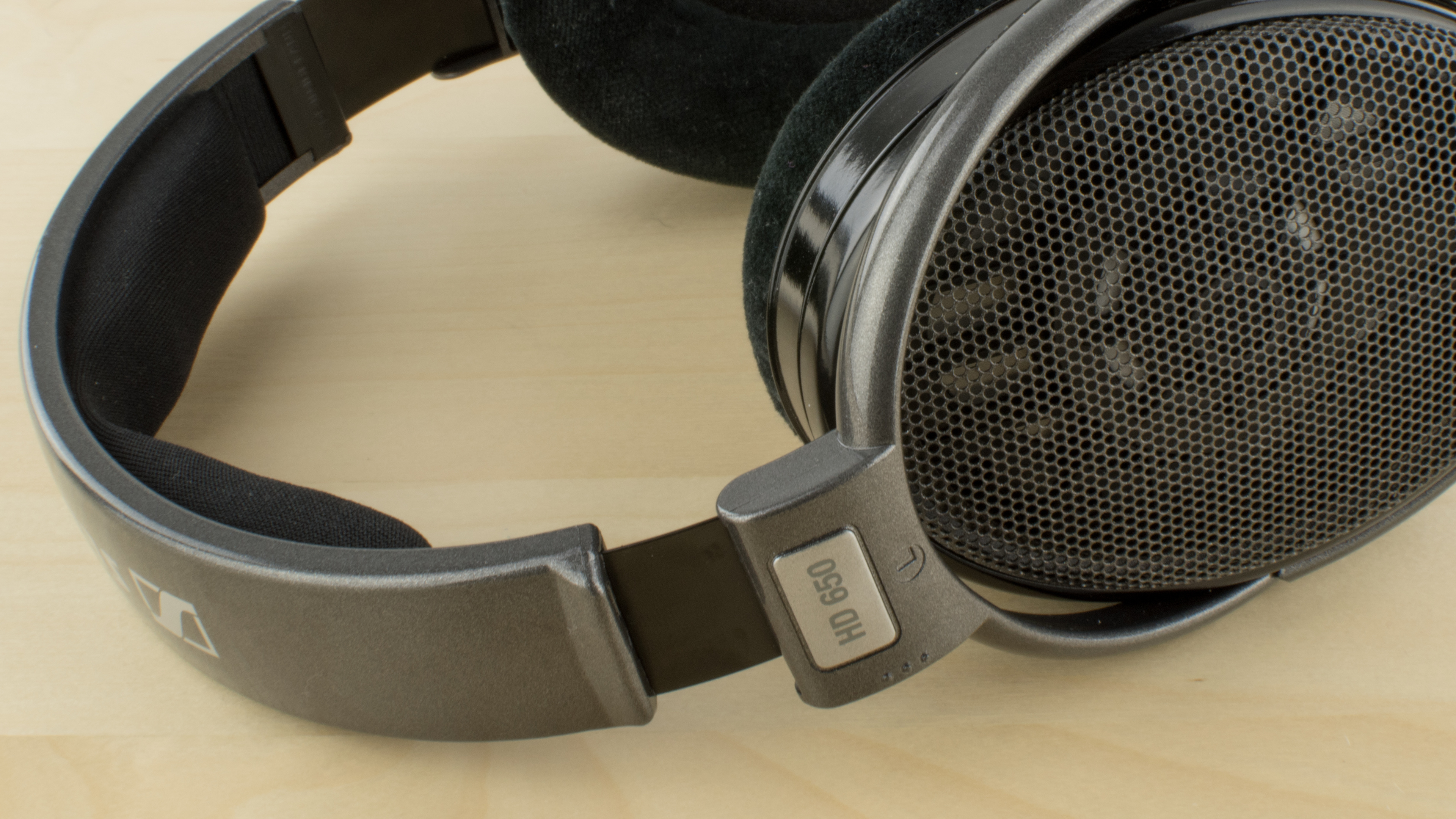
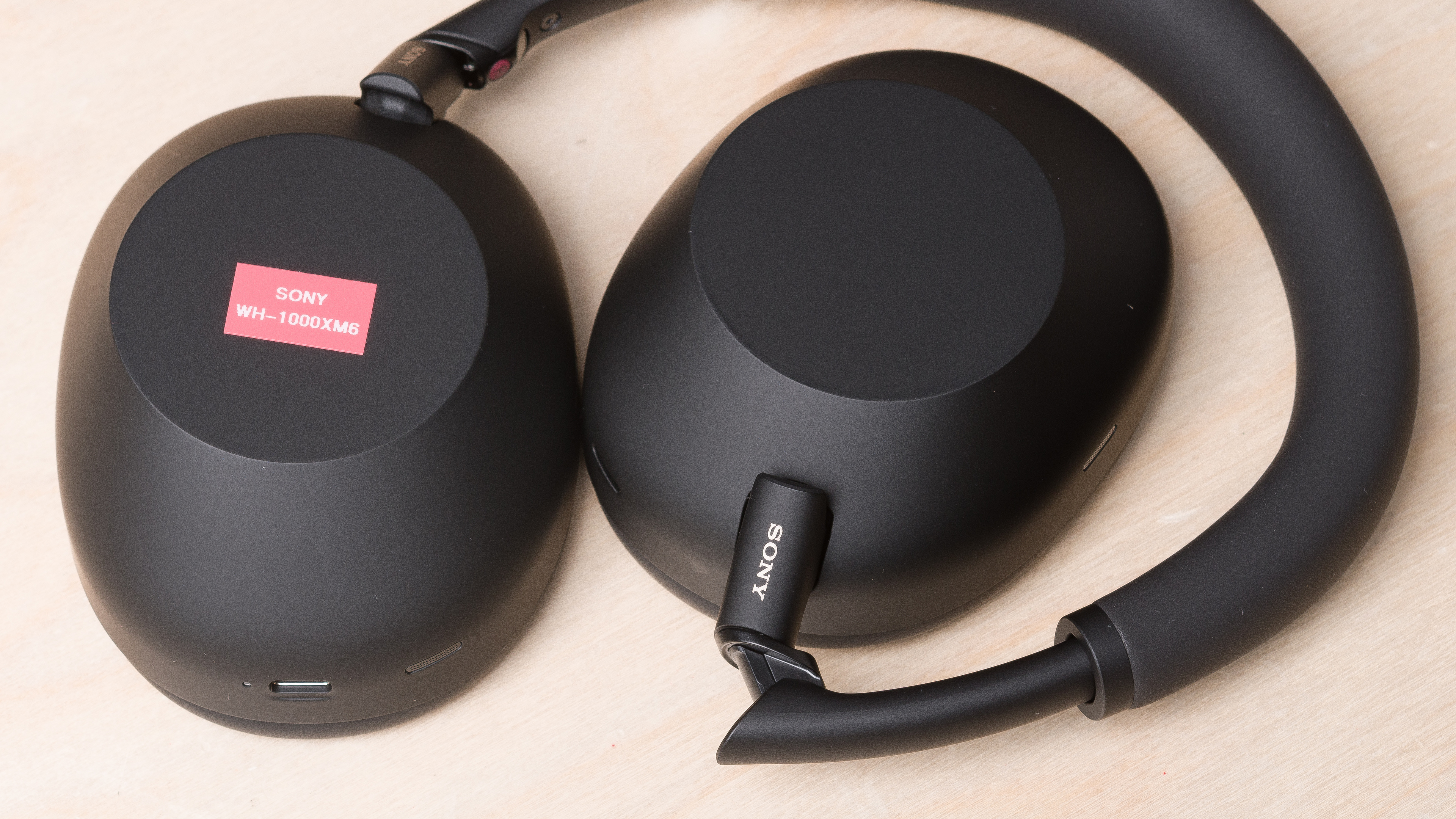
When it comes to enclosure type, open-back headphones allow sound to pass in and out freely, so they offer little isolation and may require higher volume to compensate in busy spaces. Closed-back headphones, on the other hand, create a sealed chamber around the ear that naturally blocks more external noise, making audio seem louder and more immersive. ANC models go even further by using microphones and signal processing to actively reduce ambient sound, helping you hear more detail at lower volumes.
Beyond enclosure and design, ensuring your cans form a proper physical seal with your ears and/or head can help keep your audio sounding loud and present (especially in the bass range). For over-ear headphones, gaps caused by glasses, hair, or worn earpads can weaken the seal and reduce bass response dramatically. In-ears are even more sensitive to fit: without a tight seal, nearly all low-end vanishes, making the headphones sound quiet and hollow. Our Frequency Response Consistency (FRC) tests evaluate how well headphones maintain their sound across different wears and wearers, helping you get a sense for how sensitive a pair of headphones is to fit.
 |
 |
Hardware Methods: A Primer on Amplifiers, Impedance, and Sensitivity
With that brief explanation on loudness out of the way, it's time to dive into the practical considerations you'll run into when trying to pump up your audio.
When it comes to headphones, the cable has long been the standard method of connection. Before Bluetooth existed, in the years when wireless audio connectivity was but a dream, a copper cable with a couple of connectors at either end was your gateway to the world of headphone audio. And to this day, sometimes the best way to get a louder sound is to change the equipment those connectors plug into.
Historically, headphones were designed to be plugged into powerful home stereo systems, studio gear, or dedicated headphone amplifiers. Typically, all of these provided ample voltage and current to drive the headphones properly. The idea was simple: the audio source supplied the signal, and the amplifier gave it enough strength to move the headphone drivers and produce audible sound. Today, we commonly plug headphones into phones, laptops, or game controllers, which often include only basic, low-power headphone amps. That works fine for more efficient models, but some headphones still need more power than these everyday devices can supply.
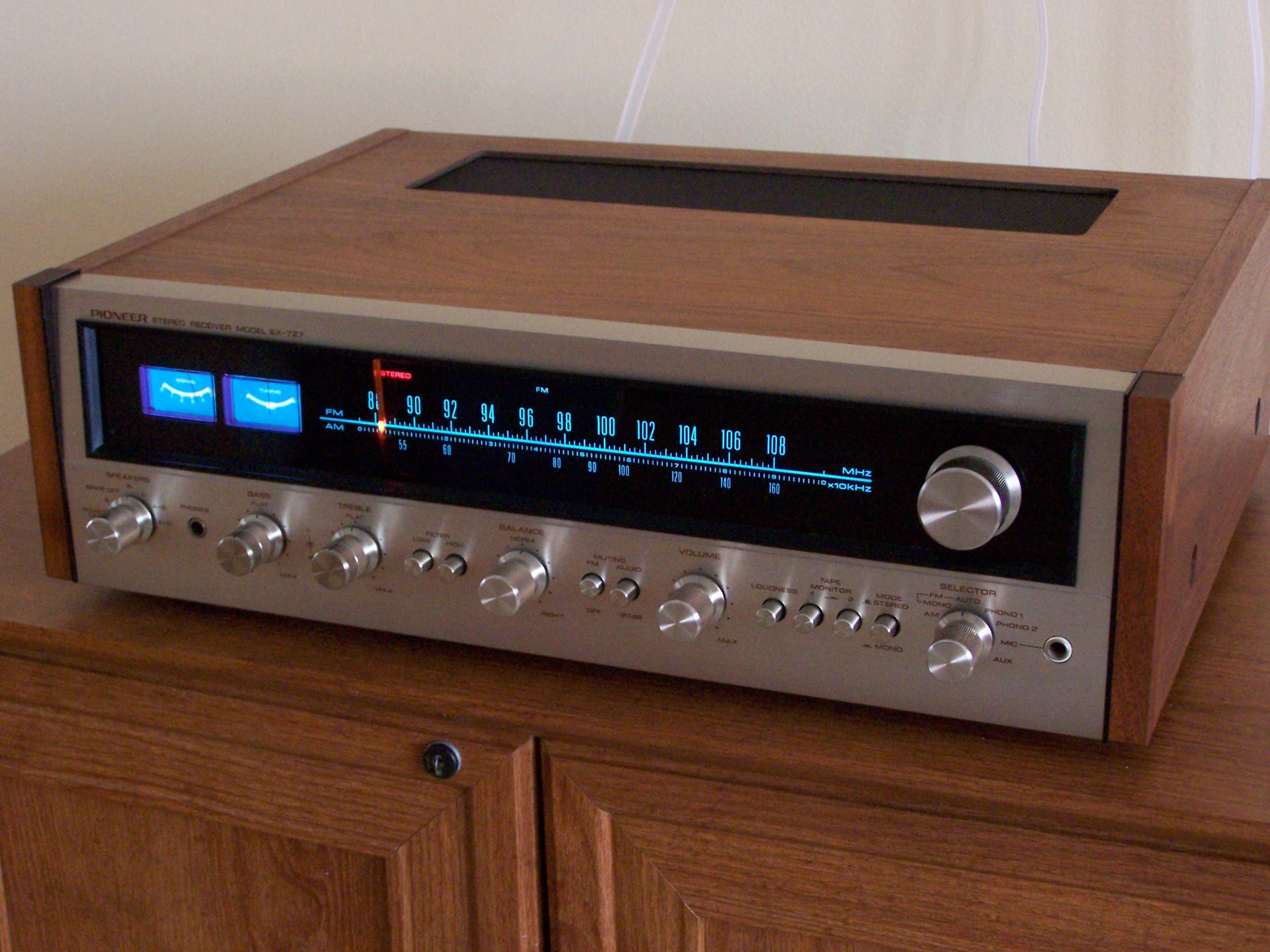
However, you're likely here because you want to blow past the limits of your current system. The volume knobs are maxed out, and you still want more. So, where next to turn (pun intended)? Sometimes, the best (or only) way to get a louder sound is to use additional hardware, which is where headphone amplifiers come in.
What Are Headphone Amplifiers?
A headphone amplifier is a device that boosts the audio signal from your source, providing higher voltage to drive your headphones. Every phone or computer has a basic headphone amp built in, but it has limited power output. A dedicated headphone amp takes the audio and amplifies it with its own power source. You only need an external amp if your current source cannot reach the volume level you want with your headphones.
What Kind Of Headphones Benefit From An Amplifier?
Using a headphone amplifier won't magically make every pair of headphones sound better. If your headphones already get loud at, say, 50% volume on your laptop or phone, adding an amp likely won't help much. But if you're regularly hitting 100% volume and still wish it were louder, an amp can give you the extra headroom you need. This is especially true for headphones that are considered hard to drive, which typically depend on two main factors: impedance and sensitivity.
- Impedance (measured in ohms, Ω) indicates how much the pair of headphones resists electrical current. Higher impedance models require more voltage to reach the same loudness as lower-impedance ones.
- Sensitivity (often given in dB SPL per milliwatt or per volt) tells you how efficiently the pair of headphones converts electrical power into sound. At RTINGS, we measure the dB SPL that a pair of headphones generates when a 1kHz stimulus is applied at an amplitude of 1V RMS. All other things being equal, a lower sensitivity means you need more power to achieve the same loudness.
These two factors work together. A pair of headphones with high impedance and low sensitivity will need significantly more voltage and power, while a low-impedance but low-sensitivity pair may demand more current than a small device can deliver.
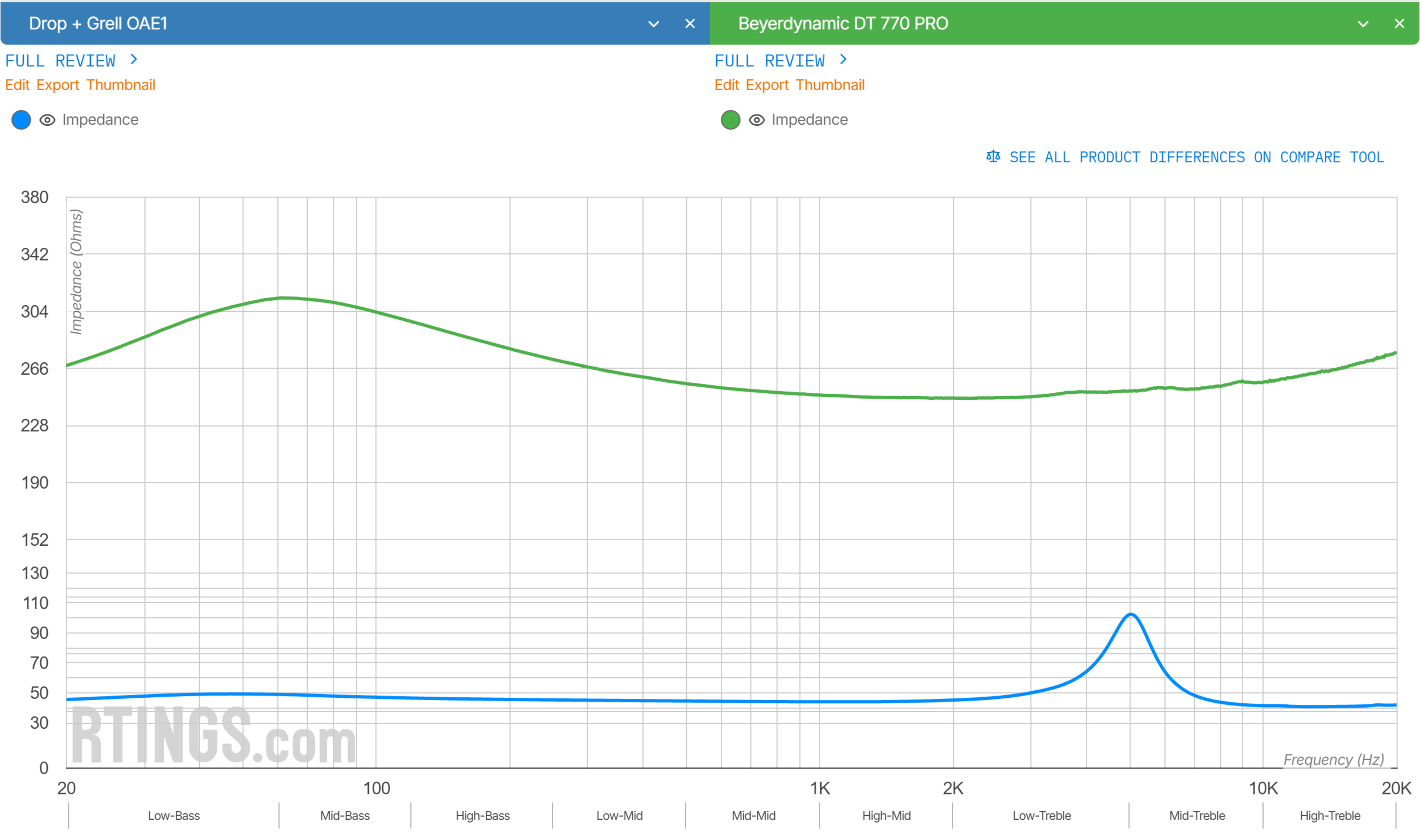
For example, the Sennheiser HD 6XX have a 300 Ω impedance and moderate sensitivity, so many phones and laptops can't supply enough voltage to get them loud, meaning they benefit from a dedicated amp. Similarly, the Beyerdynamic DT 770 PRO come in 32 Ω, 80 Ω, and 250 Ω versions: the 32 Ω is meant for mobile use, so it can be driven by a phone, while the 250 Ω needs an amp to reach high volumes. On the other hand, the Drop + Grell OAE1 have one of the lowest sensitivities we've measured, but their low impedance of 38 Ω means you don't need an amp to drive them.
Impedance graphs, like those in our Electrical Aspects test, show how a headphone's electrical resistance changes across the frequency spectrum. While many headphones have a simplified, nominal impedance value (like 32 Ω or 300 Ω), the actual impedance often varies by frequency. Amplifier designers sometimes intentionally adjust the amplifier's output impedance to shape a headphone's frequency response, leveraging how it interacts with the headphone's impedance curve. This can be used to subtly boost or reduce certain frequency ranges, effectively becoming part of the headphones' tuning.
Hardware Methods: Practical Solutions
An amplifier boosts the audio signal using external power to deliver more voltage and current to your headphones. Since power scales with the square of voltage, even small voltage increases can result in a big jump in loudness. For example, going from 1V to 2V into a 32 Ω load increases power from ~30mW to ~125mW, which translates to about a 6 dB increase in amplitude. Higher-end amps use larger internal voltage rails or boost converters to deliver more current, which is especially useful for low-impedance or hard-to-drive headphones.
Hardware Solution 1: Desktop Headphone Amps AND Audio Interfaces
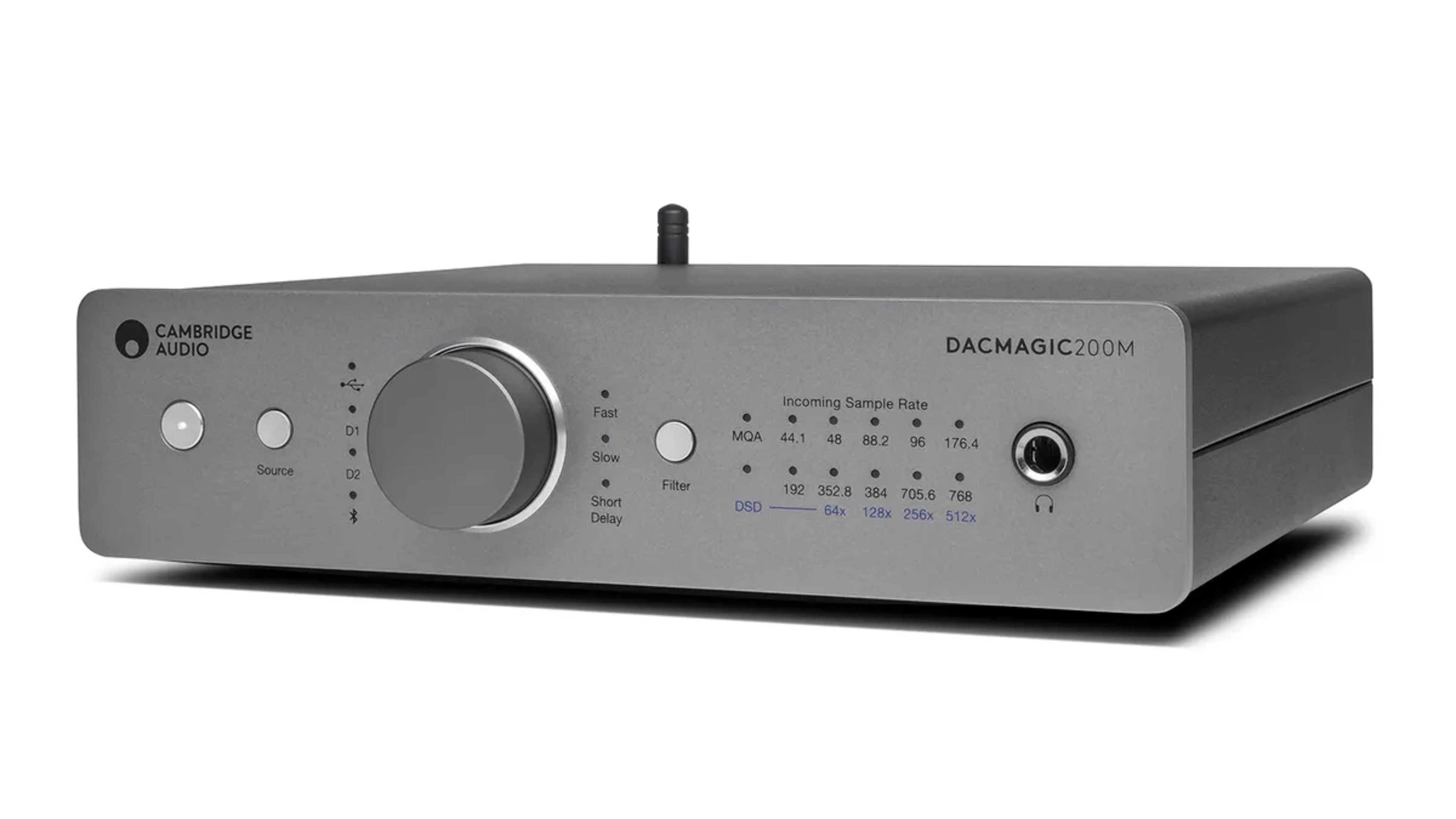
For stationary setups, a dedicated headphone amp or USB audio interface can drive difficult headphones far more effectively than a typical PC headphone jack. Audio interfaces (external sound cards used for music production, streaming, or podcasting) include built-in headphone amps that are often much stronger than those in laptops, since they're meant for pro audio work. Many can comfortably drive high-impedance headphones, especially when powered via USB or an external adapter. Audio interfaces also include digital-to-analog converters (DACs). Some dedicated headphone amps also come with DACs built in, and premium amps will offer higher voltage and current output for the most picky headphones, making them ideal for very high-impedance or low-sensitivity models.
There are countless models on the market. We don't currently review any, but our colleagues in the audio review space over at What Hi-Fi? and Headphones.com offer both reviews and recommendations of popular models.
Hardware Solution 2: Portable Headphone Amplifiers
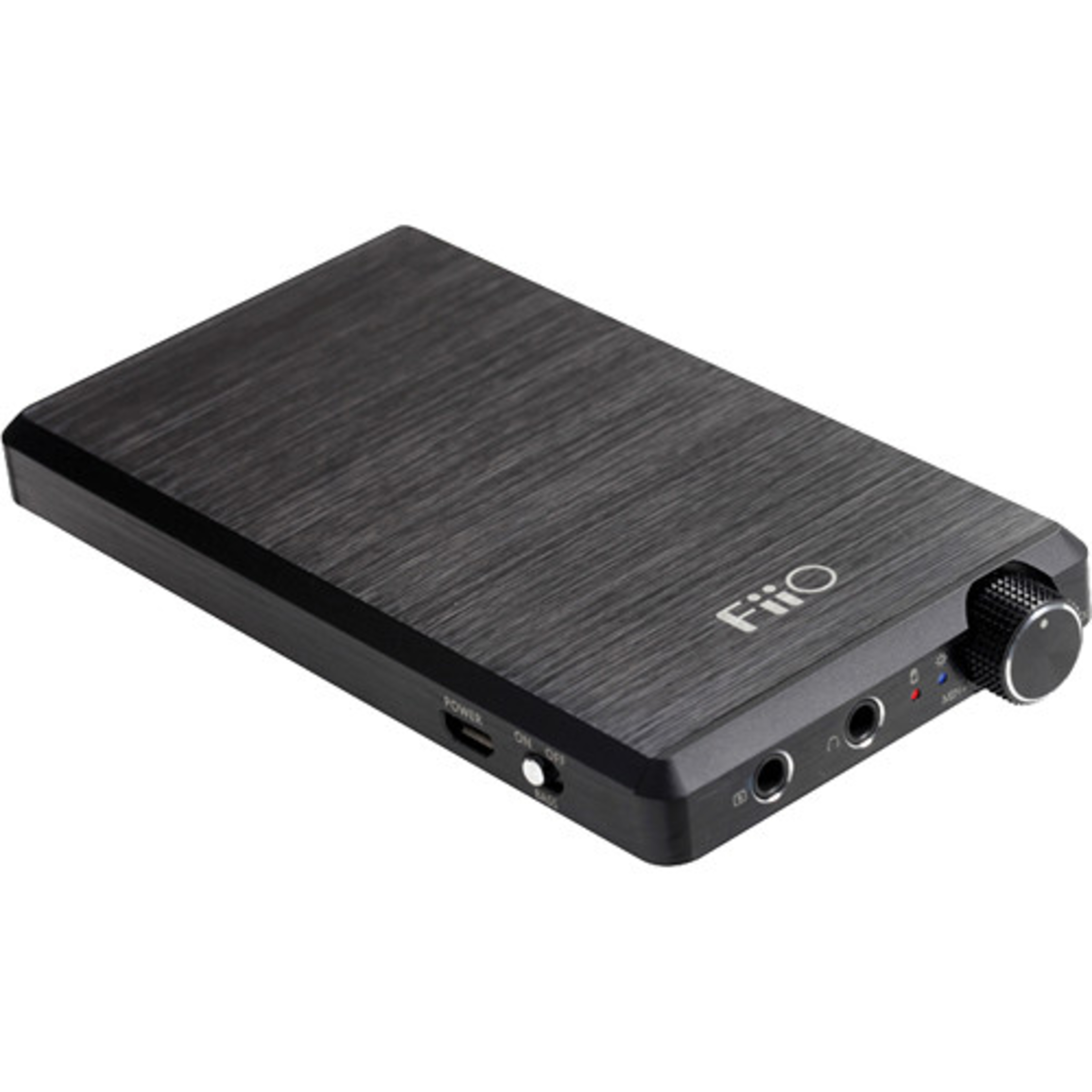
Portable headphone amps are small, battery-powered devices designed to pair with your phone or music player, typically connecting via a 3.5 mm line-out. Basic analog models amplify the signal coming from your device's headphone jack, which is fine enough while out and about, though it does mean amplifying an already-amplified signal, which can add noise to your signal.
Hardware Solution 3: DAC/Amp Combos (USB Dongles)
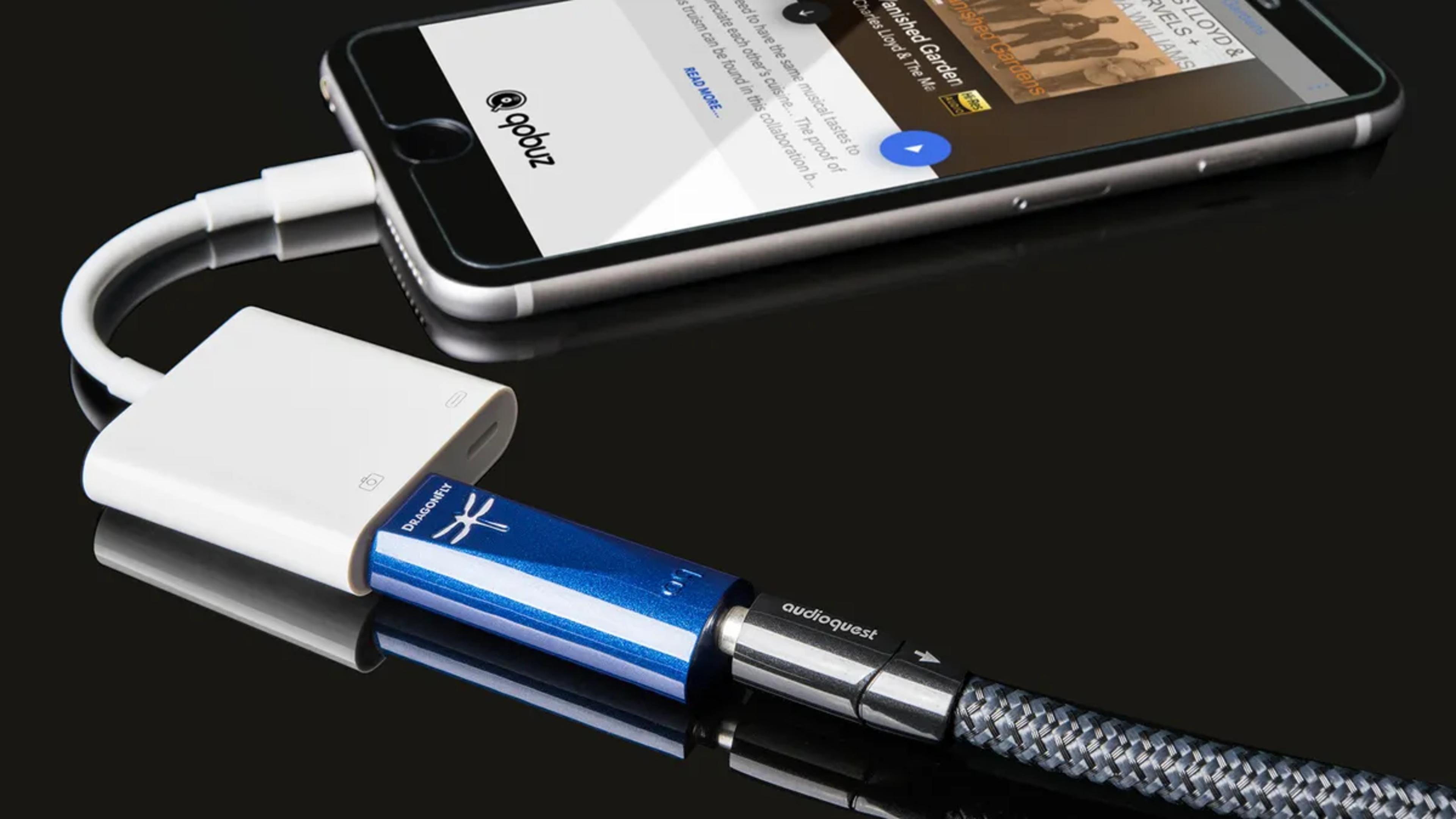
USB DAC/amp dongles combine a digital-to-analog converter (DAC) and amplifier in one compact unit. They connect to your device via USB and output amplified analog audio directly to your headphones, fully replacing your device's internal DAC and amp. (In fact, many modern portable amps also include a USB input and function as full DAC/amps). This setup is especially useful for phones without headphone jacks, since they can work via USB-C.
Software Methods: Practical Solutions
But what if you're using Bluetooth headphones rather than cables? Every device has a maximum volume limit, which we measure. How to increase headphone volume when you reach that maximum? While you can't exceed that absolute hardware limit without distortion, don't give up hope! You can use software tricks to make audio perceptually louder. Most of these tricks are variations on a couple of core principles. So before we dig into specifics, let's cover the basics.
What is EQ?
Equalizers (EQs) are like volume knobs for different frequency bands: think of the bass and treble knobs on a stereo system. We have a dedicated article that explains how to EQ your headphones and why you might want to, along with another explaining why it's safe to EQ your favorite pair. For now, it's enough to note that you can make your headphones sound louder via EQ by taking advantage of the equal loudness contour in a couple of different ways. Boosting the frequencies where our ears are most sensitive (around 2–5kHz) increases clarity and makes sounds easier to perceive at the same volume setting. Alternatively, boosting frequencies where our hearing is weakest, like the low bass, can give you the impression of greater loudness because we often associate stronger bass with more powerful sound, even if the actual sound pressure level hasn't increased as much. In fact, some headphones, like the Google Pixel Buds Pro 2, have settings in their companion apps designed to accomplish just this task. If you see something like a 'Volume EQ' toggle in your headphones' companion app, try it out. It might give you what you feel you're missing!

What is an Audio Compressor?
A compressor is an audio tool that controls dynamic range: the difference between the quietest and loudest parts of a sound. When a sound gets too loud, the compressor reduces its level. This lets you raise the overall volume without causing peaks to clip or distort. In practice, it makes quiet sounds more audible and loud sounds less overwhelming. Many of the 'loudness booster' apps you'll come across are versions of compressors. Tuning these to sound good on a wide variety of audio takes skill, which is one reason some compressors and loudness maximizer apps cost money to buy, but the basic principles underlying each are often quite similar.
Limiters are a subset of compressors. Think of them like strict compressors that clamp down hard on peaks to prevent distortion. A limiter set at -1 dBFS (remember, you can't exceed 0 dBFS in digital audio) will prevent your signal from clipping, even if you drive the gain of the signal going into the limiter. This can make your audio sound louder, although you might hear tradeoffs from the reduced dynamic range, such as drums lacking punch or added distortion. In practice, limiters are often much easier to set up than compressors when it comes to maximising loudness, especially if you don't have a background in audio engineering.
What is Audio Normalization?
Audio normalization automatically adjusts audio playback levels so everything sounds equally loud, reducing the need to constantly change volume between tracks or shows. It's common in different audio playback apps, such as Spotify. For example, when Audio Normalization is enabled in Spotify's settings, the app adjusts each track to hit a consistent loudness target, so quieter songs are boosted and louder ones are slightly reduced. Some apps let you set the target level for volume normalization. It's worth checking the settings of your audio playback software to ensure you're not inadvertently targeting a very low playback volume.
Windows
On Windows, first make sure all volume sliders (both system and app-specific ones) are set to 100%. If the audio is still too quiet, you can enable Loudness Equalization (found under Playback device enhancements in the Sound Control Panel). This feature acts like a compressor, boosting quiet sounds and softening loud peaks, resulting in a more consistent and often louder output. For more advanced control, tools like Equalizer APO (with the Peace GUI) let you apply a preamp gain or add a compressor plugin like the popular LoudMax. There are many free and paid compressor plugins for Windows on the market, and we can't list them all. But if you're happy to experiment, the Melda Productions MFreeFXBundle (free) includes a very functional compressor, while commercial options like Boom 3D promise to do most of the legwork for you.
Some sound drivers (e.g., Realtek) also offer built-in volume leveling features. Apps like VLC can also boost volume beyond 100%, but this often introduces distortion, so make sure to use your ears. A compressor may be a better option.
 |
 |
MacOS
MacOS doesn't offer a built-in system-wide loudness enhancer like Windows, so boosting beyond Apple's maximum volume often requires third-party apps. Still, it's worth opening Audio MIDI Setup to ensure your output volume is at its max, and be aware that EU-region Macs may have optional volume limits enabled. Beyond that, EQ-based boosters or third-party utilities can push macOS audio beyond its standard output. Tools like eqMac (free) apply system-wide gain and EQ, making audio seem louder by emphasizing certain frequencies. While apps like Boom 3D (paid) offer various ways of making your audio seem louder.
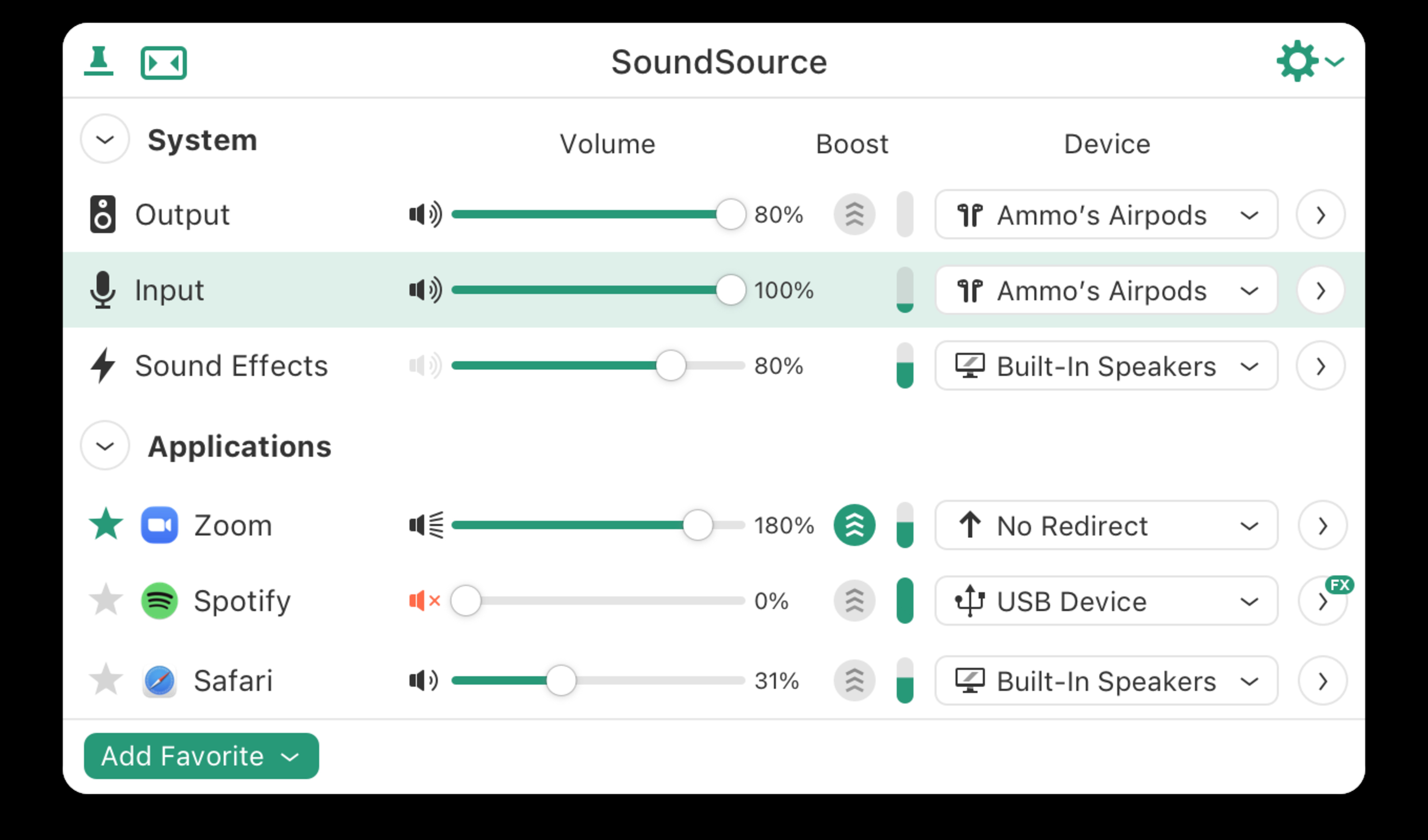
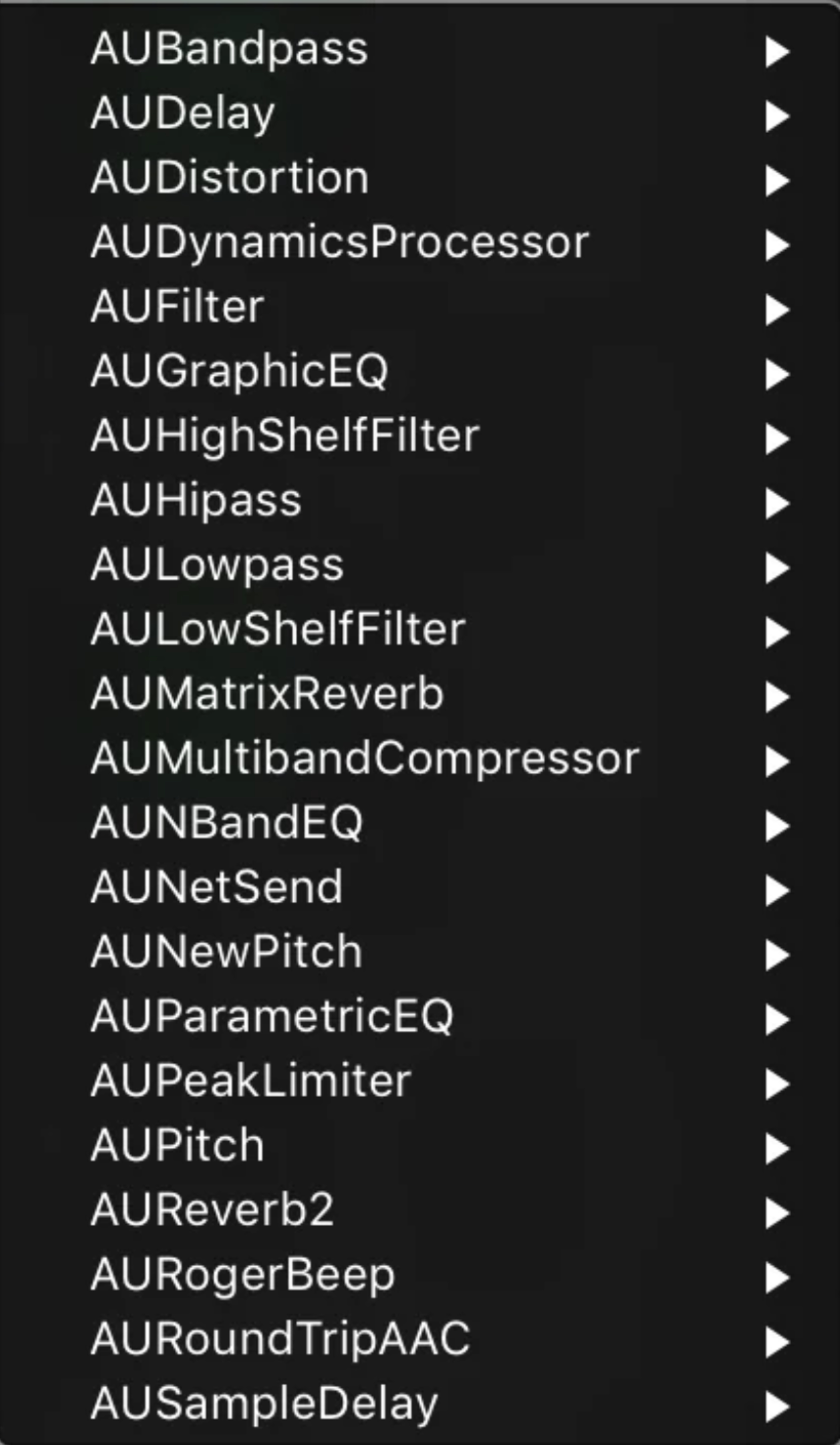
Rogue Amoeba's SoundSource (paid) continues to be extremely popular. This app lets you apply Audio Unit effects (including Apple's built-in AUDynamicsProcessor, AUPeakLimiter, or third-party compressor plugins) to your system output or per application. It also includes Magic Boost 2, which acts like a compressor, boosting the quiet parts while controlling the louder sections.
If you prefer not to install new software, the Music app's 'Late Night' EQ preset compresses dynamic range to bring up quieter sounds, but this only affects playback in the Music app. For true system-wide control, eqMac offers a basic 10-band EQ with a preamp slider.
 |
 |
Linux
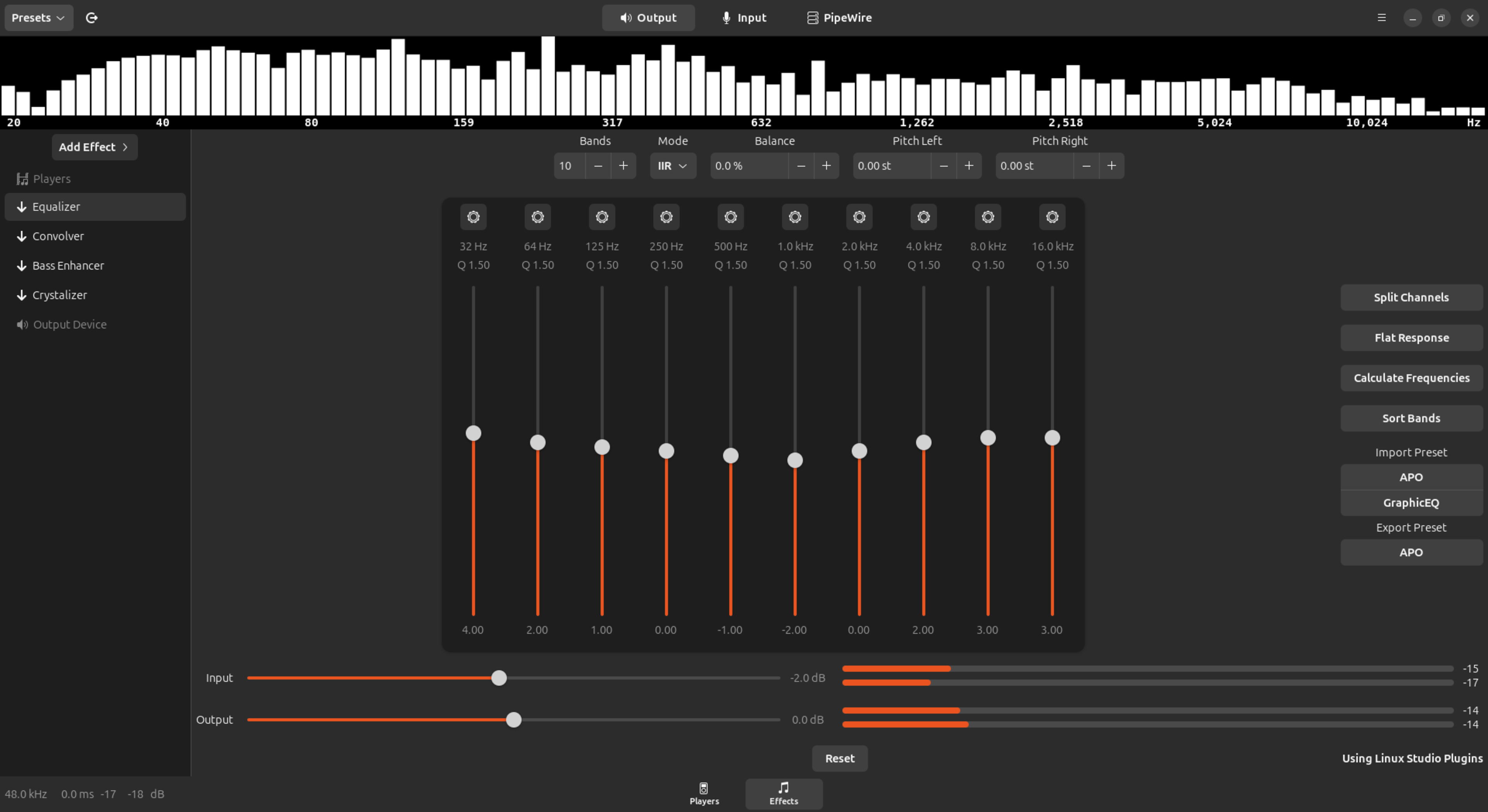
Most Linux systems let you push volume past 100%, but this is pure software gain and can easily cause clipping or distortion as it drives your audio beyond 0 dBFS. A better approach is using EasyEffects (formerly PulseEffects, now part of PipeWire), which offers a GUI for system-wide compression, limiting, and EQ. Enabling the limiter can lift quiet sounds while controlling peaks, similar to Windows' Loudness Equalization. You can also find various free compressors available in the LV2 plugin format, which works on Linux. Some users have had success using commands like 'pactl set-sink-volume' to push their system's volume beyond 200%, but doing so risks damaging your speakers or headphones. Once again, compression is your best friend here.
Android
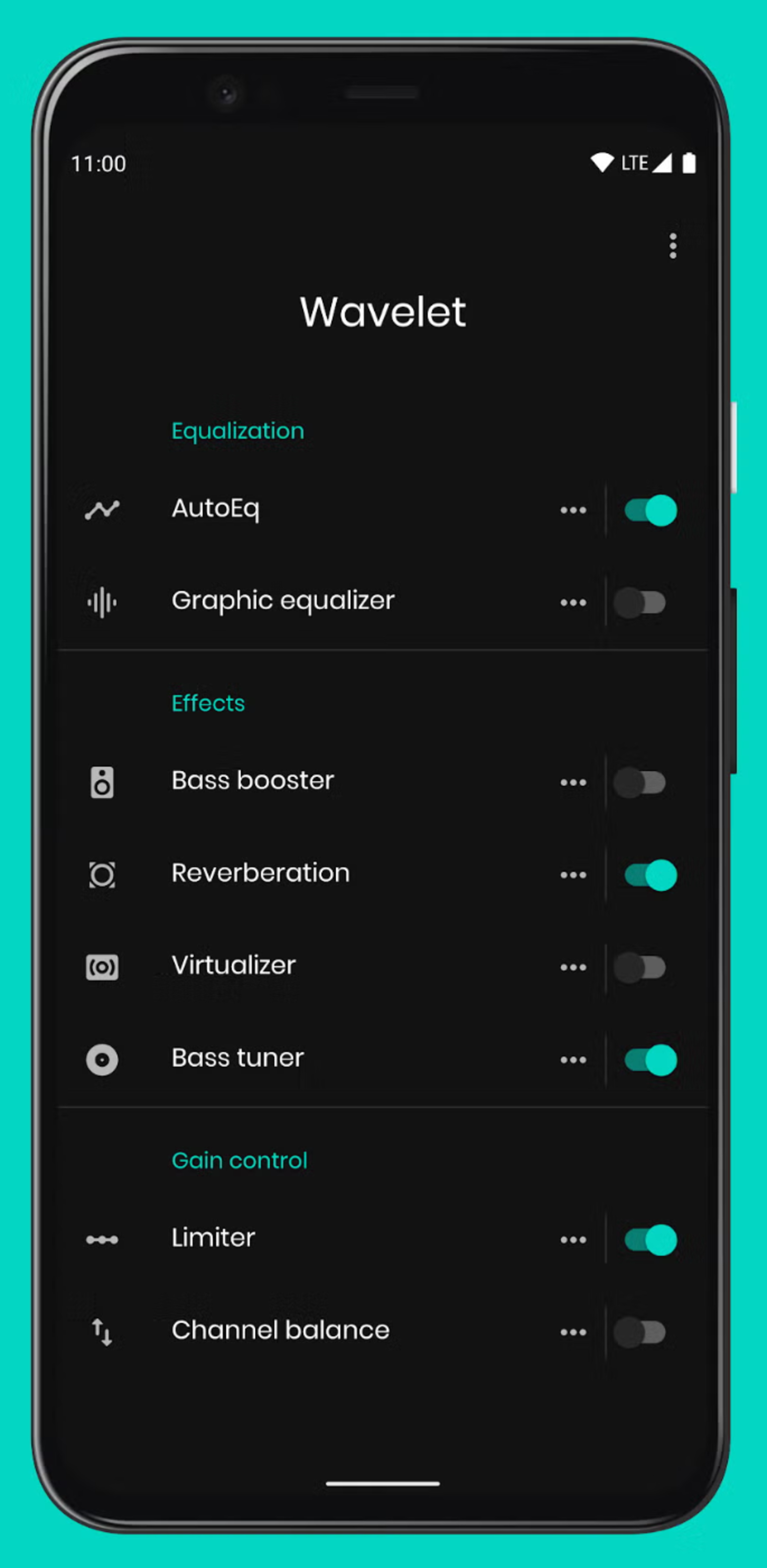
Android devices have a fixed maximum volume determined by the internal amp and OS, but there are several other ways to increase loudness. First, check your phone's sound settings to ensure that any built-in volume limiters (like Samsung's 'Media Volume Limit') are disabled. For Bluetooth headphones, disabling Absolute Bluetooth Volume in Developer Options can allow your phone and the headphones to control volume independently, which might be helpful if your phone's internal gain is too low. For system-wide enhancements, apps like Wavelet and Poweramp EQ offer tools like EQs and limiters to help improve perceived loudness without excessive distortion. Wavelet's 'Equal Loudness' preset even takes advantage of the equal loudness contour to help make your audio feel more detailed at lower listening levels.
A quick search for 'volume booster' on the Android Play Store reveals dozens of compressor-style apps that promise to make your audio louder. Just like on Windows, you can also use media players like VLC to boost beyond 100% at the risk of introducing clipping. Many audio apps also include their own compressors (often labelled as a 'Night Mode'). More advanced users can try rooting their devices, which unlocks powerful tools like ViPER4Android, but this path risks breaking your device's warranty.
iOS
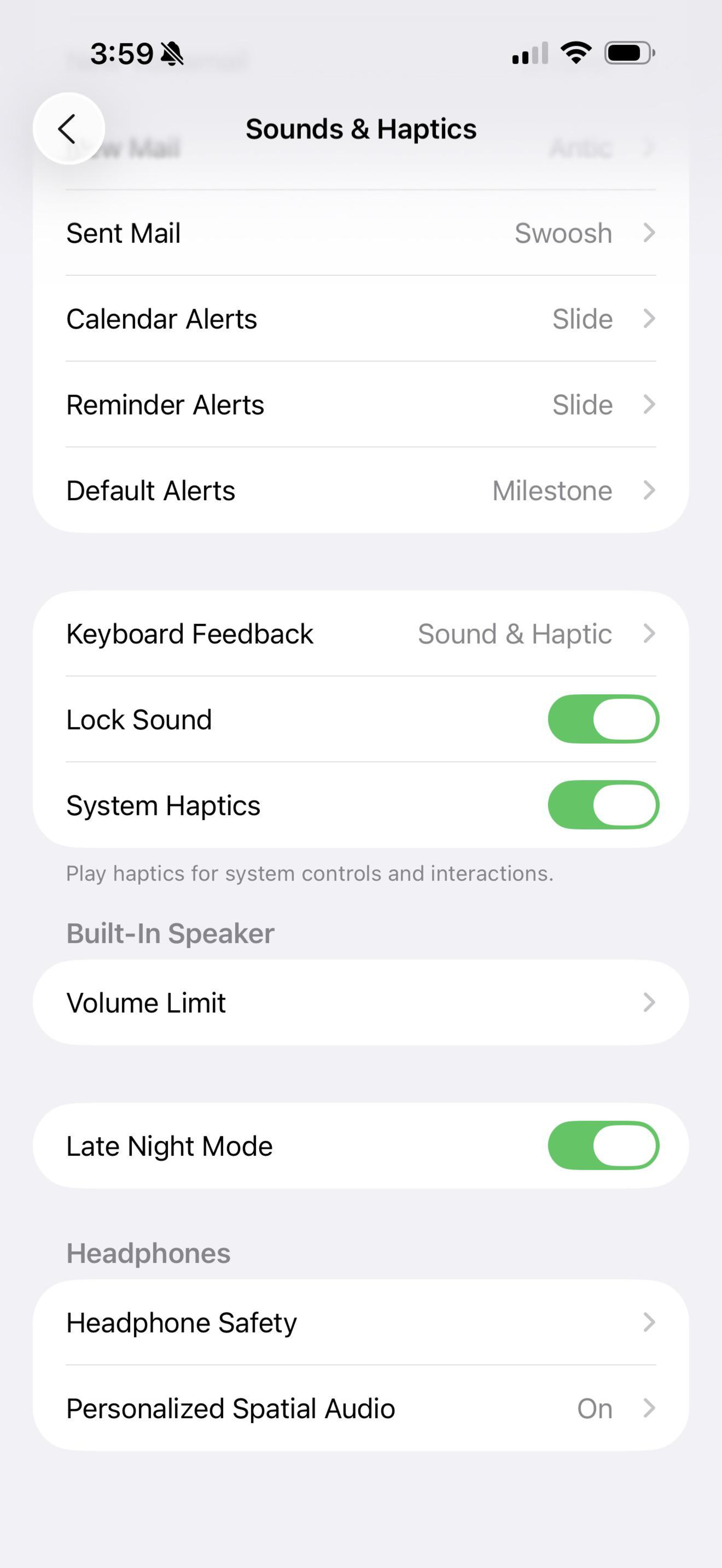
iPhones and iPads have tightly controlled volume ceilings set by Apple to protect hearing, but there are still a few ways to boost loudness. Start by checking Settings > Sounds & Haptics > Headphone Safety and disabling or adjusting the 'Reduce Loud Sounds' feature. In Settings > Music > EQ, select the 'Late Night' preset: this introduces a compressor, making quieter audio elements louder while slightly reducing peaks. Unlike other EQ options, 'Late Night' works system-wide, not just in the Music app. iOS does not allow true system-wide volume booster apps, but some music players offer limited gain control for locally stored files, and some third-party apps on the App Store will let you boost certain audio files. Once again, VLC will let you boost away until you just can't stand the clipping distortion it introduces.
It's worth noting here that if you have Apple AirPods Pro (2nd generation) or the Apple AirPods 4 with Active Noise Cancellation headphones and enable Adaptive Audio, Apple already adjusts the EQ and volume of your audio based on noise around you. Whether this is desirable or not is a matter of taste.
Conclusion
Learning how to make headphones louder isn't always as simple as cranking the volume knob. When all the knobs are maxed out and you still want more, it helps to understand the full signal chain, from software settings and EQ to amplifier power, headphone design, and physical fit. Whether you're running into hardware limits or struggling with noisy environments, figuring out ways to get a little extra juice from your favourite pair of cans can be a fun and rewarding journey. But, as always, remember to keep your hearing health in mind: louder might usually sound better in the short term, but it's not always the smartest in the long term.