- 55.0%4k @ 60Hz
- 2.5%4k @ 120Hz
- 20.0%1080p @ 60Hz
- 20.0%1080p @ 120Hz
- 2.5%1080p @ Max Refresh Rate
Input lag determines how long it takes a projector to show the result of an action after your device sends the frame. For movies and TV, you rarely notice it, but for gaming, it can be the difference between a quick dodge and a frustrating miss. This article explains how we measure projector input lag and what each tested format means in practice. You can also learn how we measure input lag on TVs and monitors.
Test results
Test Methodology Coverage
The Input Lag test is part of the current projector 0.10 test bench. Earlier test benches didn't include a dedicated version of this test. Learn how our test benches and scoring system work.
| New Tests | 0.9 | 0.10 |
|---|---|---|
| 4k @ 60Hz, 60Hz outside Game Mode, and at 120Hz | ❌ | ✅ |
| 1080p @ 60Hz, 60Hz outside Game Mode, 120Hz, and at Maximum Refresh Rate | ❌ | ✅ |
When It Matters
Low input lag is most important for gaming. Console players will care about 1080p at 60Hz and 120Hz, as well as 4k at 60Hz or 120Hz on newer systems. PC gamers may also use 1080p at very high refresh rates when seeking maximum responsiveness. Outside Game or Fast modes, many projectors add extra processing that increases delay, so we document both Game Mode and "outside Game Mode" behavior where it matters. For desktop use, input lag is far less critical than text clarity, but some people will notice cursor or UI sluggishness at very high delays.
Our Tests
We measure input lag with our dedicated photodiode tool and in-house software. The photodiodes are placed at the center of the screen, so the timing is taken halfway through the refresh cycle. Our PC sends the chosen resolution/refresh with GPU scaling disabled for the entire test and Windows display scaling off, the screen flashes a white square, and the tool records the time until the pixels begin to change, so we're not adding pixel response time. We take multiple measurements and average the results while ignoring outliers. Unless otherwise noted, we use the projector's Game/Fast (low-latency) mode and turn off extra processing.
Because the sensor sits in the middle of the screen, there's a floor to what we can measure: on a 60Hz signal, the theoretical minimum is 8.33 ms, and on 120Hz it's 4.17 ms (half a refresh period). If you see results close to those values, the projector is essentially as fast as our method can report for that timing.
We repeat this across the formats in our bench: 4k @ 60Hz, 4k @ 60Hz outside Game mode, 4k @ 120Hz (accepted but downscaled on current projectors), 1080p @ 60Hz, 1080p @ 60Hz outside Game mode, 1080p @ 120Hz, and 1080p @ Max Refresh Rate.
4k @ 60Hz
This test captures input lag when the projector accepts a 3840×2160 (4k) signal at 60Hz. It is the default format for UHD streamers and for many PS5 and Xbox Series games that target 60fps. Pixel-shift projectors still render a 4k image on screen even if the native imager is lower resolution; what matters here is the delay from the 4k60 input to the picture appearing.
4k @ 60Hz Outside Game Mode
Many people watch and even game in non-Game picture modes because they prefer the extra processing or a different color preset. For this check, we switch to our pre-cal SDR picture mode outside Game/Fast, leave the mode's default processing path active (for example, cadence correction/de-judder, dynamic contrast/tone mapping, and noise reduction), and measure latency with a 4k60 input, but we do not enable motion interpolation, which we don't recommend for gaming. This shows the real-world latency penalty you can expect when gaming without a low-latency mode; on some models, it adds tens or even hundreds of milliseconds compared to Game/Fast mode. We confirm the incoming timing on the projector's information banner before recording the measurement.
4k @ 120Hz
Most current projectors can't draw 4k at 120Hz, even if they accept a 4k120 input over HDMI 2.1. In practice, the imaging path (for example, single-chip DLP DMDs and similar pipelines) can't process 120Hz at a true 3840×2160 timing. When a projector handshakes 4k120, it downscales the signal to a lower resolution or refresh rate.
For input-lag reporting, we feed a 4k120 signal where applicable, confirm acceptance on the information banner, and measure the latency of what the projector actually displays. If a projector we test truly displays 4k @ 120 Hz, we'll note it explicitly.
1080p @ 60Hz
This is the baseline gaming format for older consoles, including many Nintendo Switch and even some Switch 2 titles. We measure the delay in the projector's Game or Fast mode and verify that the incoming timing is 1920×1080 (1080p) at 60Hz or 59.94Hz. Many projectors achieve their lowest lag here, and this result is a good indicator of how responsive the projector feels in most cross-platform games.
1080p @ 60Hz Outside Game Mode
Some users prefer picture modes that enable extra processing or frame interpolation. We measure 1080p60 outside Game Mode to show the impact of those features on latency. On many projectors, leaving Game Mode can add tens of milliseconds and make UI interactions feel sluggish.
1080p @ 120Hz
Modern consoles and PCs support 120Hz at 1080p. We measure input lag with the projector accepting 1080p120 and confirm the timing on the information banner. This format often delivers a noticeable improvement in responsiveness and motion clarity when the projector truly accepts and displays 120Hz.
1080p @ Maximum Refresh Rate
Some gaming-focused projectors accept very high refresh rates at 1080p. We step through the refresh modes exposed by the GPU, confirm acceptance on the info banner, and report the highest refresh rate at which we can obtain a stable image without frame skipping and a valid measurement. This tells high-frame-rate PC gamers whether their preferred timing will actually work and how responsive it will be.
Additional Information
Why There's Input Lag On Projectors
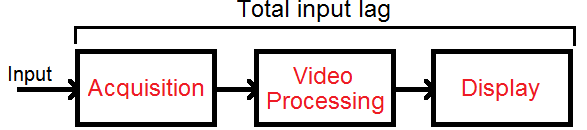
Input lag is the sum of three stages: getting the image in, processing it, and putting it on screen.
Acquisition Of The Image
With digital HDMI sources, this part is quick, as the signal arrives almost instantly. Cabling and handshake don't meaningfully add delay once the link is up.
Video Processing
This is where most of the delay happens. The projector's video pipeline may:
- Scale the picture to the imager's native resolution (e.g., 1080p → pixel-shifted 4k on DLP/3LCD/LCoS).
- Match the refresh rate (frame rate conversion to 60Hz; 120Hz acceptance that's displayed at 60Hz).
- Apply tone mapping, dynamic contrast, noise reduction, or de-judder/interpolation (the biggest latency offenders).
- Perform geometry fixes like keystone or warping (also adds latency).
- Sequence pixel-shift phases before drawing the frame.
Using Game/Fast mode trims or bypasses most of this work, which is why it measures so much faster.
Displaying The Image
After processing, the projector drives the imager (DLP micromirrors, 3LCD panels, or LCoS). The time it takes for pixels/mirrors to start changing is the response time, which we don't include because our tool stops timing the moment the change begins. What can still vary is how the frame is updated internally and any buffering required by pixel-shift or color-wheel sequencing, which contributes to the measured lag.
When You'll Notice It
Most people only feel a delay when gaming outside Game/Fast mode. Competitive players are more sensitive, especially in shooters and rhythm games. For the smoothest feel, use 1080p @ 120Hz (or the projector's highest 1080p refresh rate). At 4k, current projectors either top out at 4k60 or accept 4k120 while downscaling the signal to a lower resolution and/or refresh rate (we mark these Downscaled in Supported Resolutions).
Check out this input lag simulator to know how much lag you're sensitive to.
Other Notes And Related Settings
ALLM (Auto low latency mode)
We don't score ALLM in the input-lag tests. ALLM lets a console or PC switch the projector into its Game/low-latency mode automatically, which helps prevent accidental extra lag from using a non-Game picture mode. Availability and behavior vary by brand and model.
Placement And Processing Notes
Input lag is sensitive to processing. For our measurements, we keep keystone and geometric correction off, and disable frame interpolation and noise reduction. PC/Computer mode may change the processing path slightly; if it affects latency, we note it in the review.
Tips For The Best Results
- Turn on Game or Fast mode and turn off keystone/auto-keystone, digital geometry tools, frame interpolation, and heavy image processing.
- Match your output to what the projector truly draws: prioritize 1080p @ 120Hz (or up to the projector's max 1080p refresh) for responsiveness; use 4k @ 60Hz if the model downscales 4k @ 120Hz, to limit any additional processing from the downscaling.
- On PC, use PC/Computer input mode for sharp text and set the GPU to RGB Full or YCbCr 4:4:4; check if this mode changes latency on your unit.
- Keep firmware up to date and verify the active timing on the projector's information banner before testing or gaming.
Conclusion
Our projector input-lag tests determine how long it takes a projector to show the result of an action after your device sends the frame. For most gamers, 1080p @ 120Hz (or whatever the projector's maximum 1080p refresh is) delivers the best balance of responsiveness and compatibility. At 4k, projectors we've tested either top out at 4k @ 60Hz or accept 4k @ 120Hz while downscaling the signal to a lower resolution and/or refresh rate. Stay in Game/Fast mode, avoid extra processing, enable enhanced HDMI bandwidth, and match your console/PC output to the formats the projector truly draws to keep latency low.