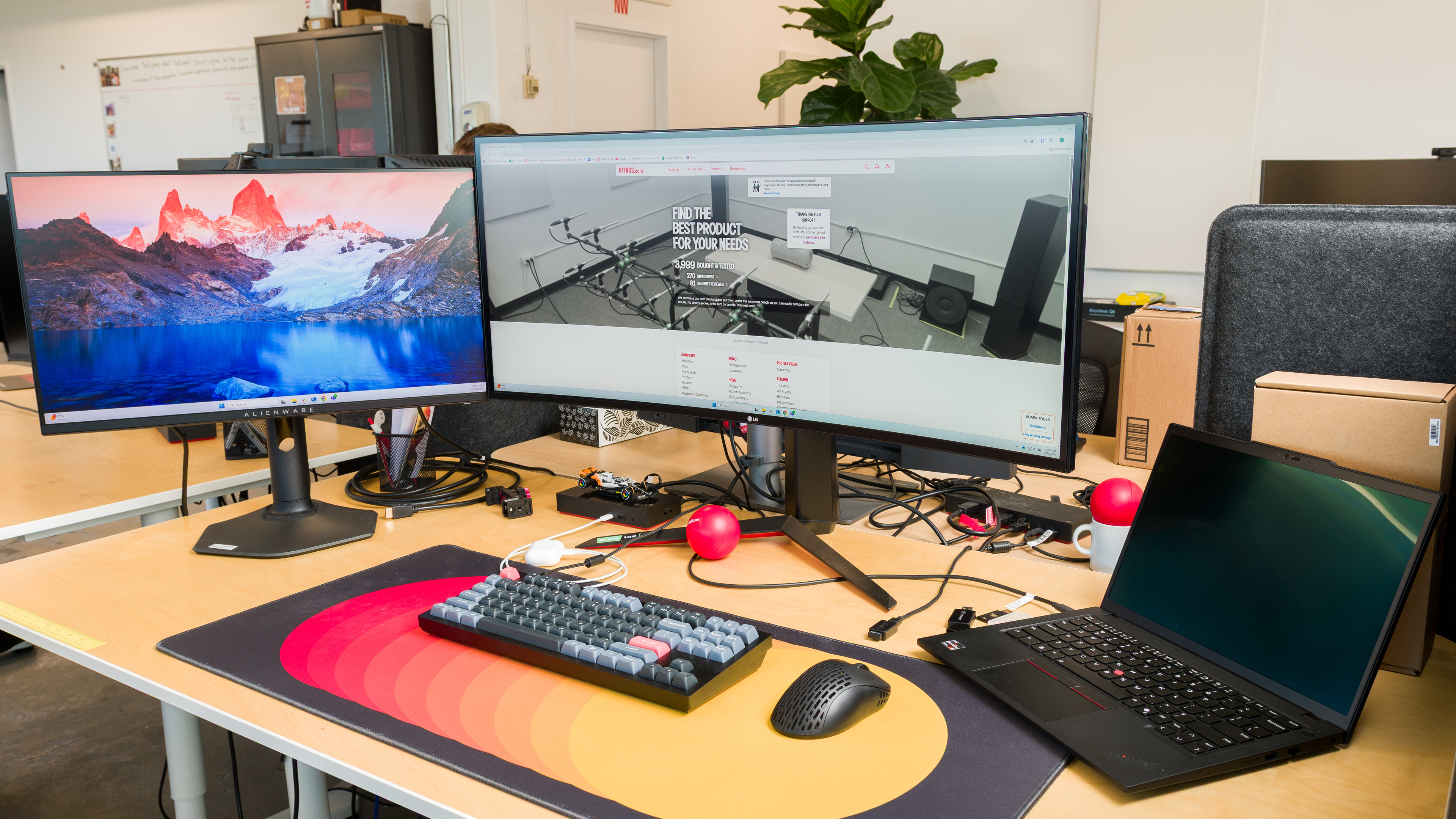
You may be wondering how to set up dual monitors if you're looking for ways to expand your workspace or gaming setup by adding a second monitor. It's a relatively straightforward process, and it's likely easier than you think. However, you also need to consider the video outputs that your desktop computer or laptop supports. If it supports two video outputs, then you just need one connection to each monitor in your setup. However, things become more complicated if your laptop has only one video output, as you'll either need to obtain an adapter or a docking station or use a monitor that supports daisy chaining to a second screen.
In this article, we'll break down the different ways to configure dual monitors, including the specific settings you need to adjust on your PC. If you have a laptop and want to connect two monitors to it, you can also check out our guide on that.
If you're looking for more specific recommendations on which monitors to buy for a dual setup, check out the best monitors for dual setup.
Understanding Video Ports On Your PC
Before connecting a second screen to your laptop or desktop PC, or even before buying a second monitor, it's important to understand the video ports you have at your disposal. Ultimately, how you connect two monitors to your computer depends on these video ports.
There are three different types of video ports on modern computers and monitors, which are listed below. Other video outputs, like VGA, were more common, but they're obsolete now.
- HDMI: The most common video connection on displays.
- DisplayPort: Most common on desktop PCs and monitors. However, it's very rare for laptops to have it.
- USB-C: This is a physical connection on most laptops and some monitors. It may support different video interfaces, like DisplayPort Alt Mode and Thunderbolt, but not all USB-C ports on monitors and laptops support video.
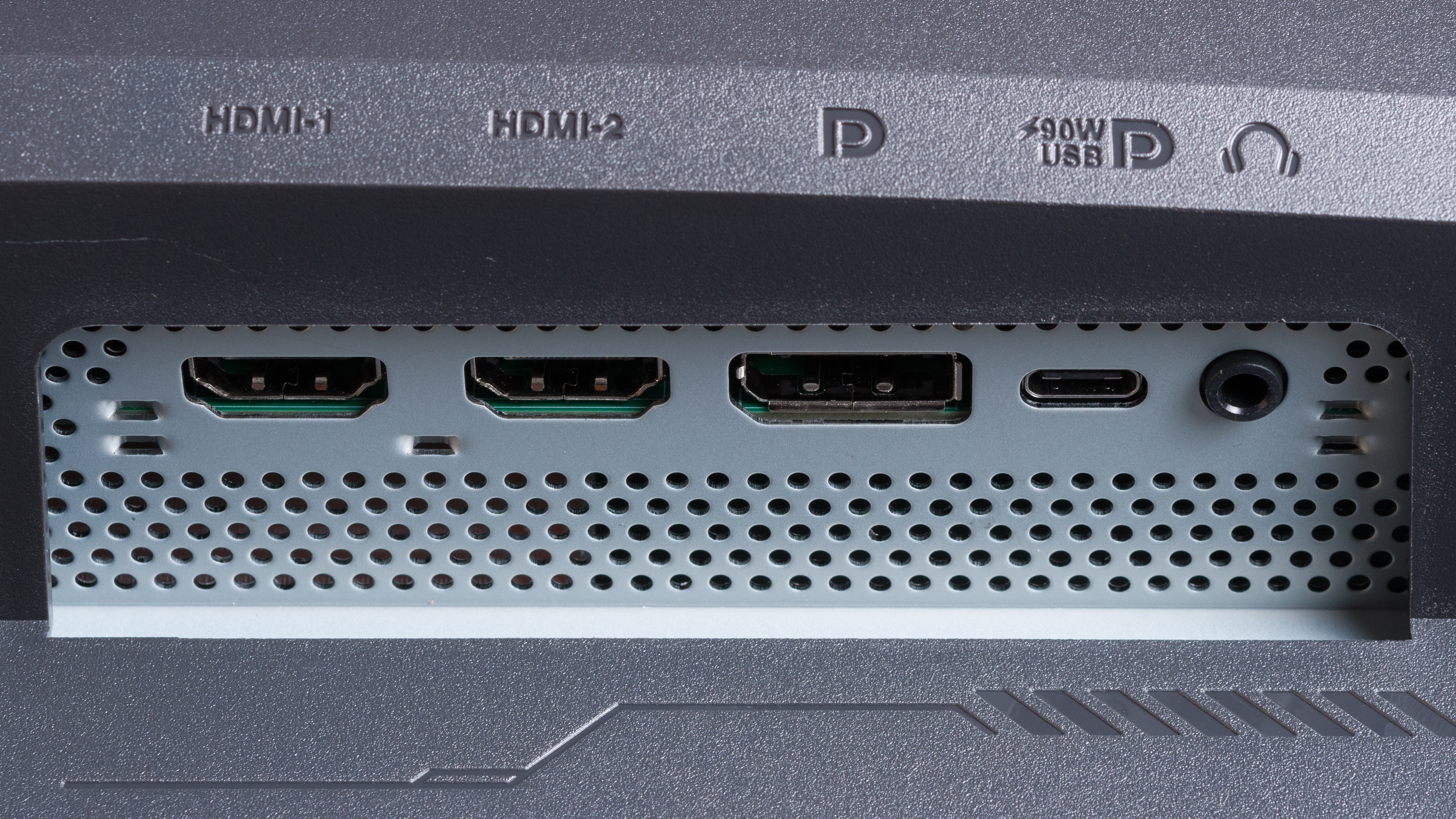
Below you can see these different types of video ports on the Dell U2725QE. You can compare these inputs to those on your computer to verify which inputs you have available to you. If you don't have all these connections available, you can also use adapters or cables that convert any of these connections to each other.
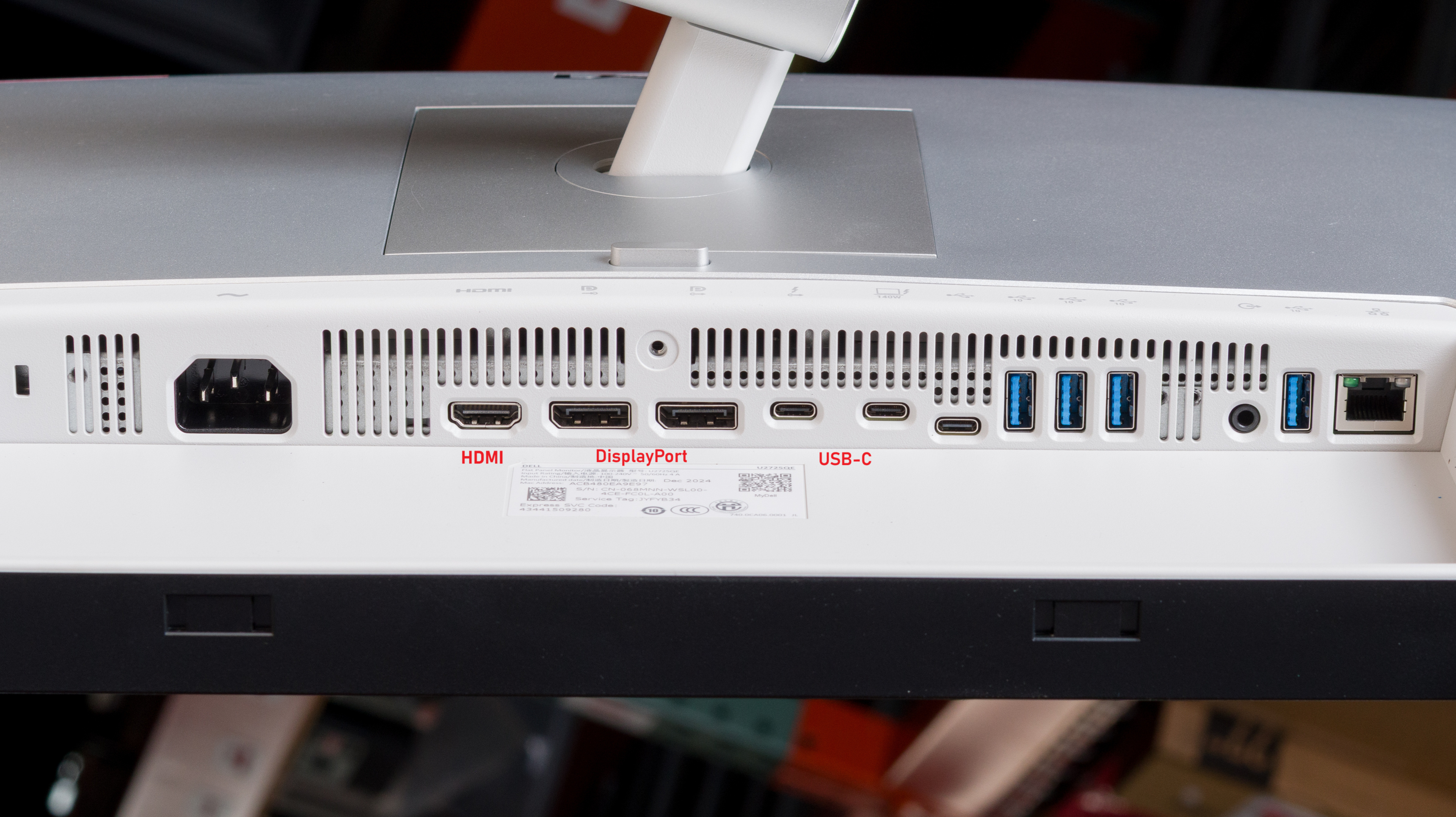
It's important to keep in mind that you may not be able to use all USB-C ports on your computer or laptop for video. These ports often have symbols to signify what they support. Those with Thunderbolt have a lightning symbol, like with the monitor above, and those with DisplayPort Alt Mode either have the DisplayPort logo or something else to make it clear that it supports video. However, most USB-C ports that don't support video, and only support data transfer, just have the USB logo, which you can see below.
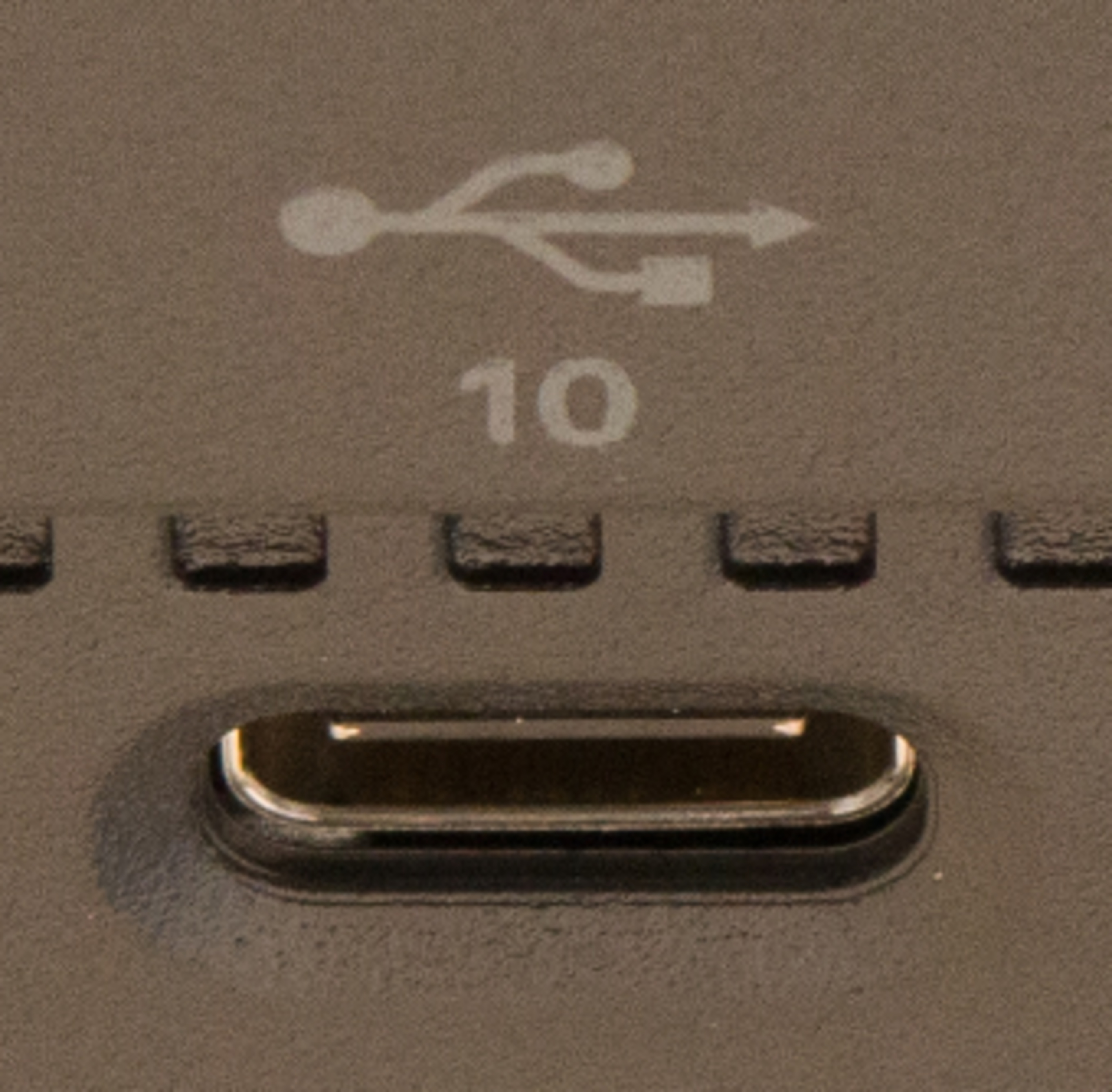
Essentially, you just need to make sure the USB-C ports on both your computer and monitor support video, whether it's with Thunderbolt or DisplayPort Alt Mode, if you want to use this connection for your dual-monitor setup. If your monitor has ports that your computer doesn't, and vice versa, you may have to use adapters instead.
Learn more about HDMI vs DisplayPort and USB ports.
Knowing Your Computer's Limitations
Most modern computers don't have any issues outputting two video signals at once, but there are some limitations. For example, macOS devices may not work properly with multi-monitor setups. Because of this, it's best to check your computer's user manual to make sure it supports dual-monitor setups.
Besides that, you may be limited by its bandwidth. You may have to lower the resolution or refresh rate of each display if your computer doesn't have the bandwidth for it. You should consult your computer's manual or spec sheet to understand if there are any limitations for multi-monitor setups, like if you have to lower the refresh rate with a 4k signal from 60Hz to 30Hz.
Learn more about 1080p vs 1440p and 1440p vs 4k.
How To Set Up Dual Monitors
Once you know which connection(s) you have available to use and you have the appropriate cables, it's time to learn how to connect dual monitors to your PC.
If Your PC Has Two or More Video Outputs
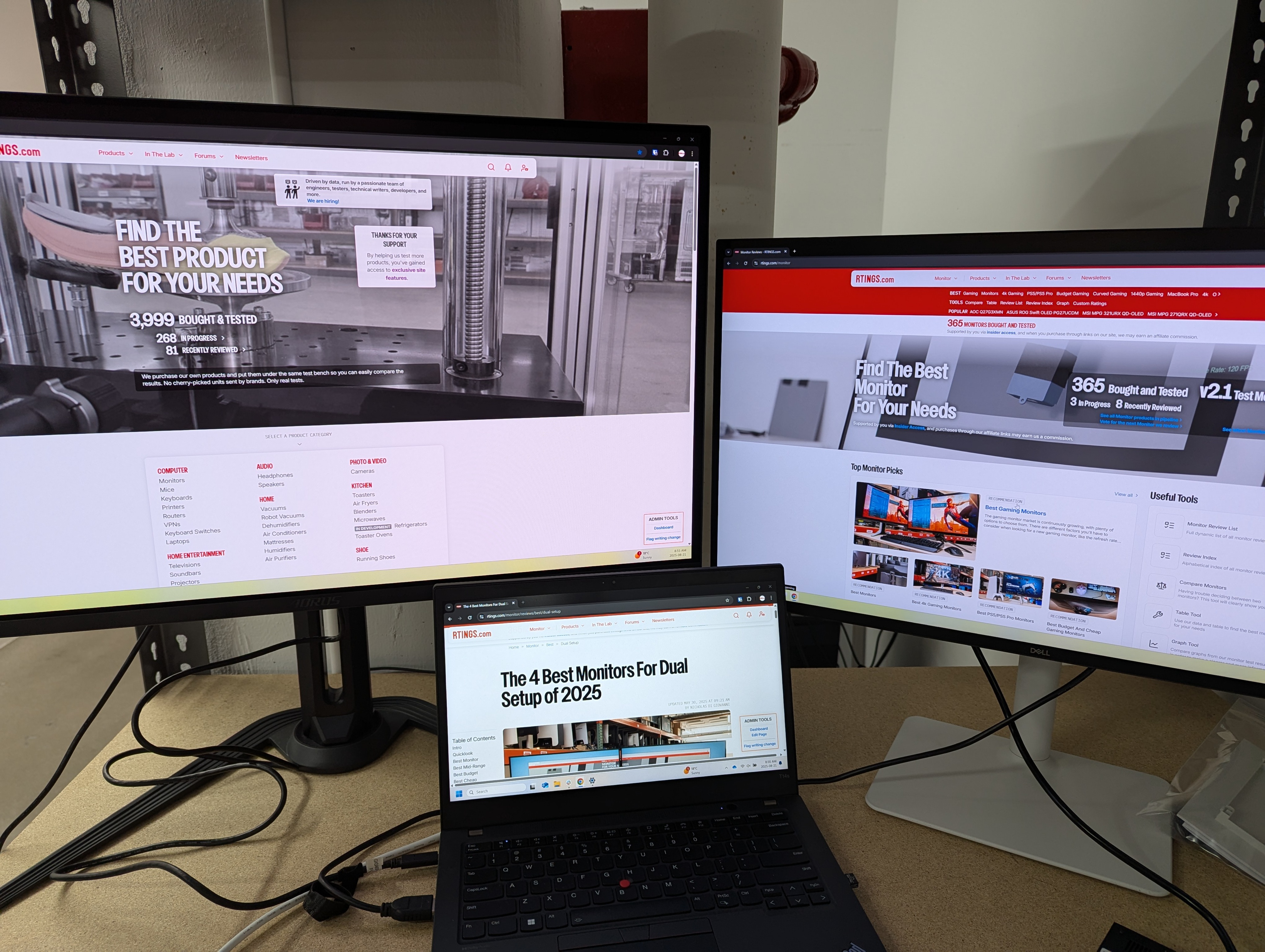
The easiest and best dual monitor setup is if your computer has two or more video outputs. You just need to connect each port on your computer to each monitor in your setup with the appropriate cable. You can also use any combination of video outputs, meaning you can use both HDMI and USB-C connections if your laptop has them.
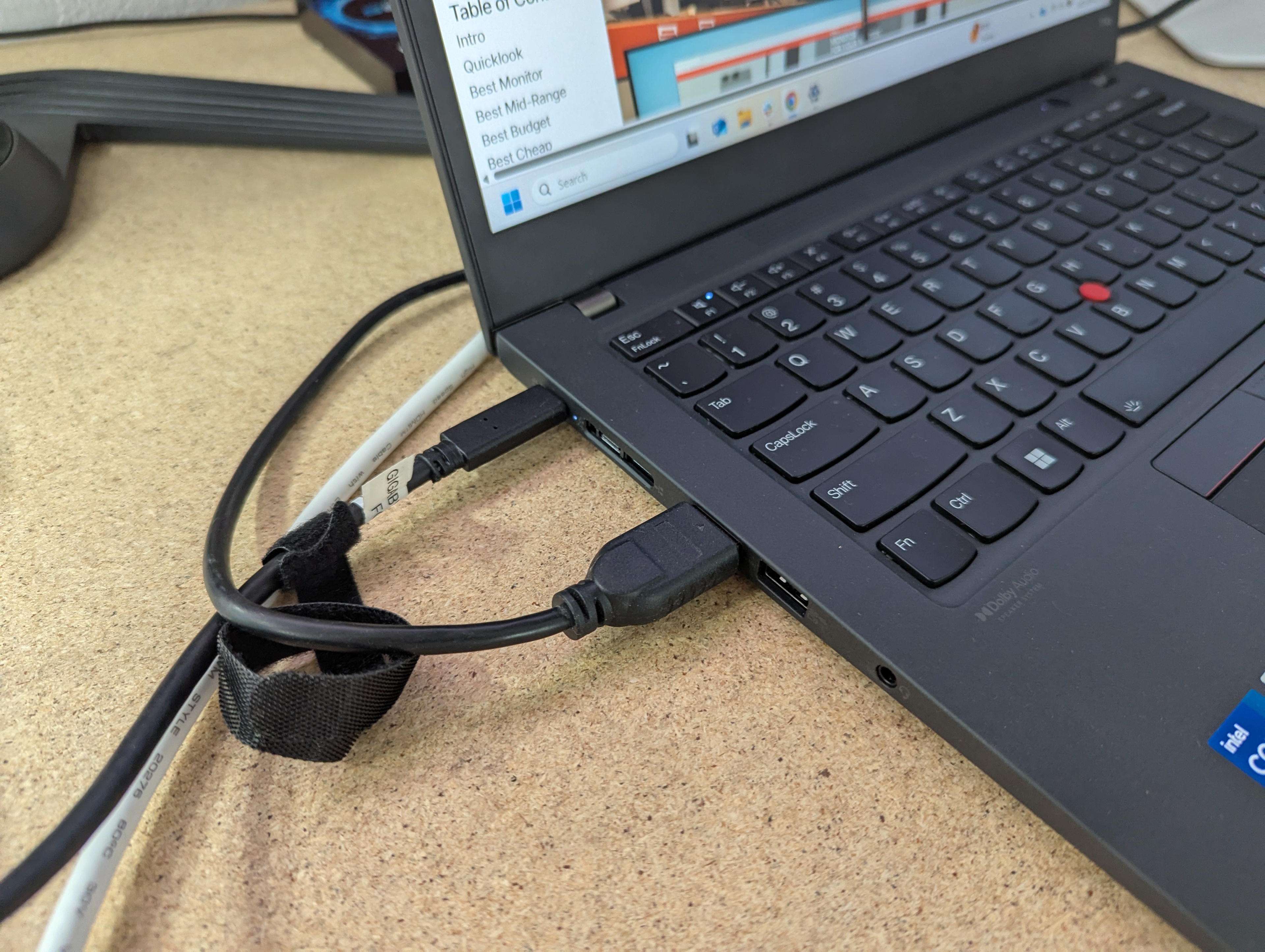
If Your PC Has One Video Output
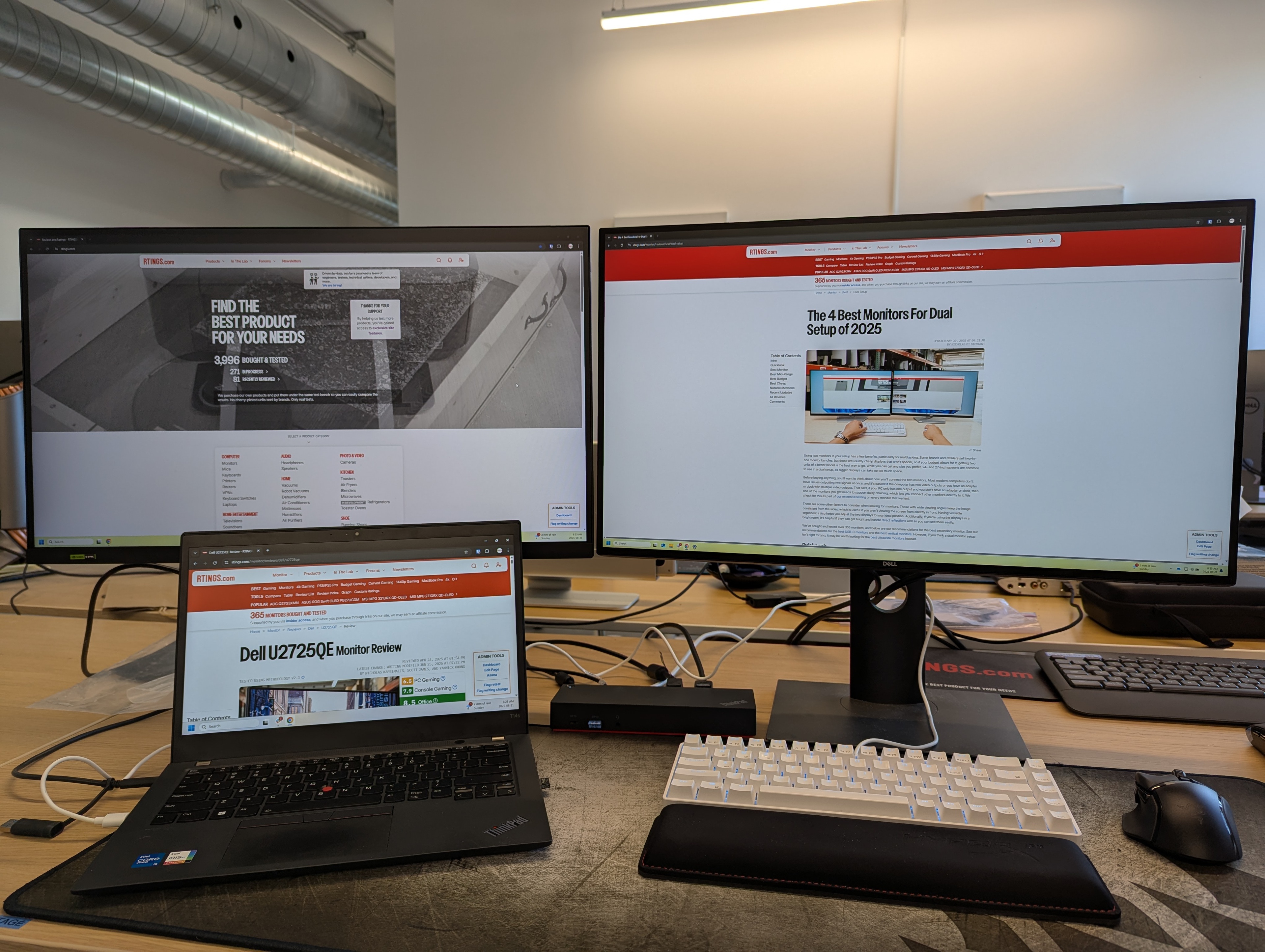
Things get more complicated if your computer only has one video output, like an entry-level laptop. There are different workarounds for this if you want a dual-monitor setup.
Using A Dock Or Adapter
A common way to get two video signals from one output on your computer is with a dock, but they can be expensive. This splits one video output from your computer into multiple video ports. There are docks that support multiple monitors at once, too, and many come with USB ports to connect other devices. Docks also offer power to charge your laptop at the same time, provided it delivers enough power to charge your laptop. Essentially, docks are all-in-one solutions to which you can connect all your displays and devices, with only one cable connected to your computer. That said, the concept of connecting two monitors to a dock is simple: just plug in a cable between each monitor and the dock.
Keep in mind that not all docks work with MacBooks, though, so you have to do research before buying one.
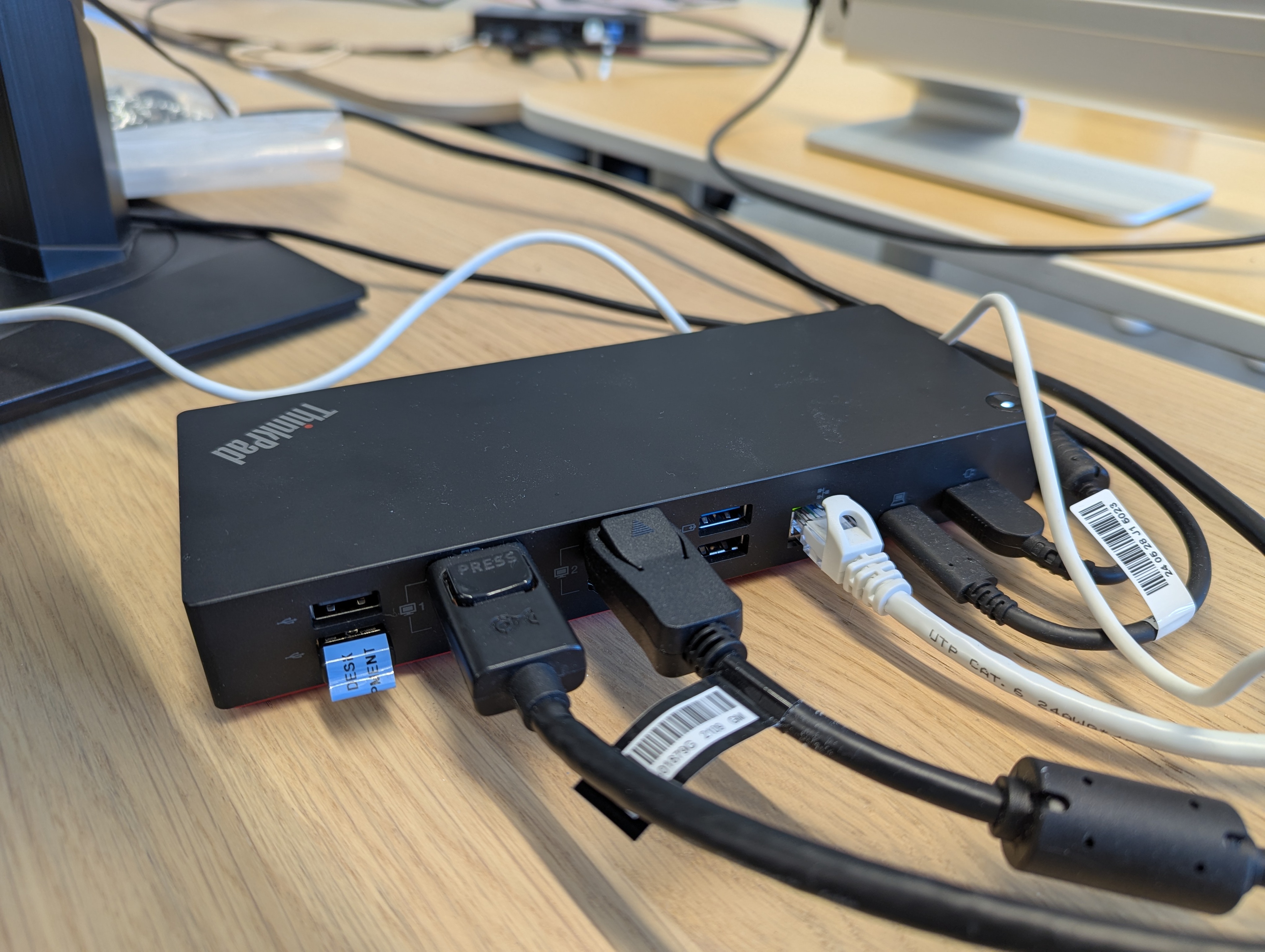
If you find that a dock is too expensive, there are alternatives. DisplayLink adapters convert USB ports into video, even if the video port doesn't support DisplayPort Alt Mode. These are useful for entry-level laptops that only have USB-C ports. You may also want to use an HDMI splitter, but this only mirrors the image on both screens and generally doesn't work with macOS.
Using A Monitor With Daisy Chaining
Another solution is to get a monitor that supports daisy chaining to connect a secondary monitor directly to it, with only one cable going back to your computer. Monitors that support daisy chaining are rare, though, so this limits you to a handful of displays that support it, and they tend to be expensive. For example, at the time of writing this article, only 12 of the 365 monitors we've ever tested support daisy chaining.
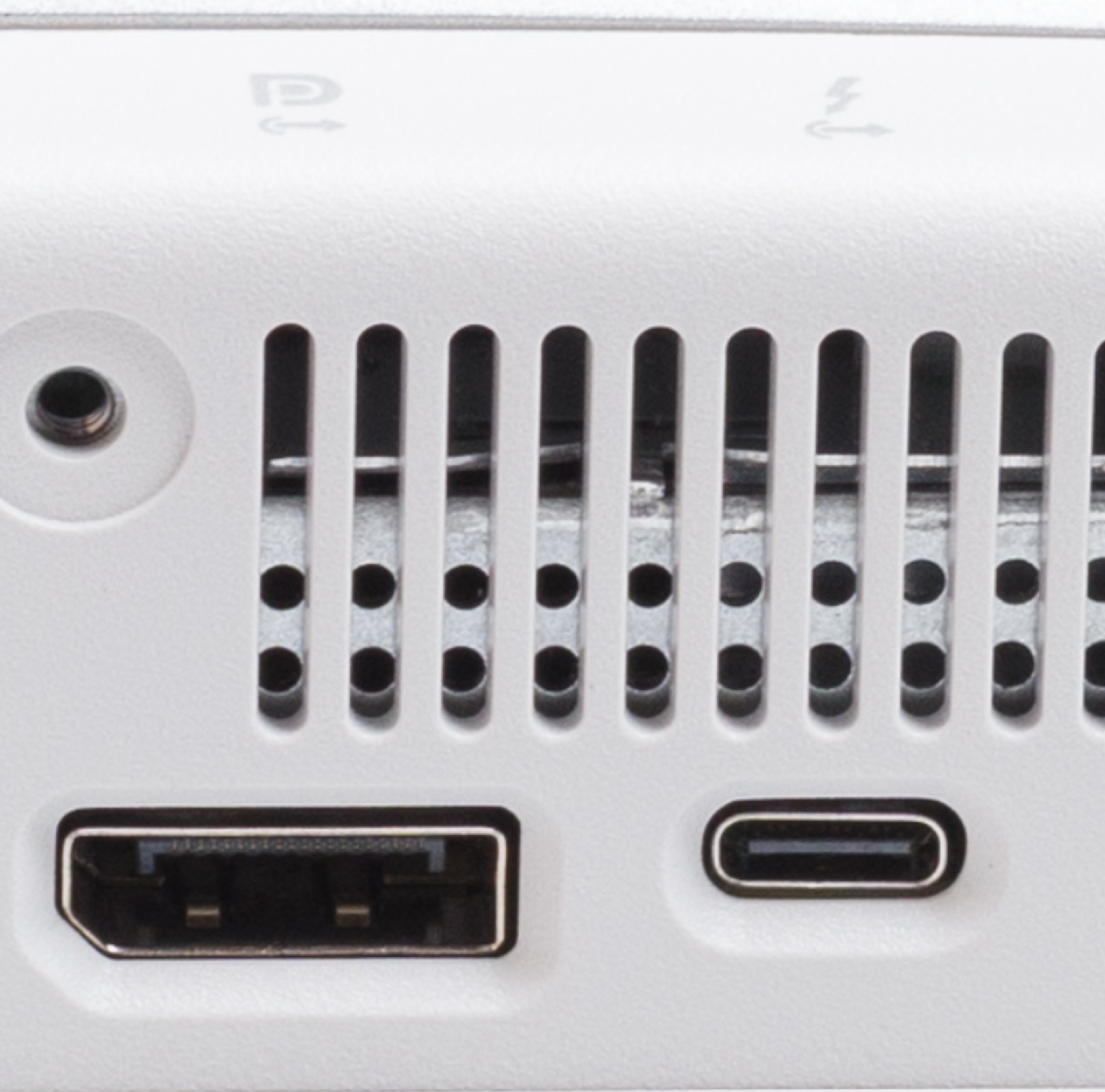
If you aren't sure whether or not your monitor supports daisy chaining, you can look for any symbols with the inputs or read the user manual. The Dell U3225QE, which you can see below, has arrows pointing out alongside the DisplayPort and Thunderbolt logos to indicate it supports DisplayPort and Thunderbolt out.
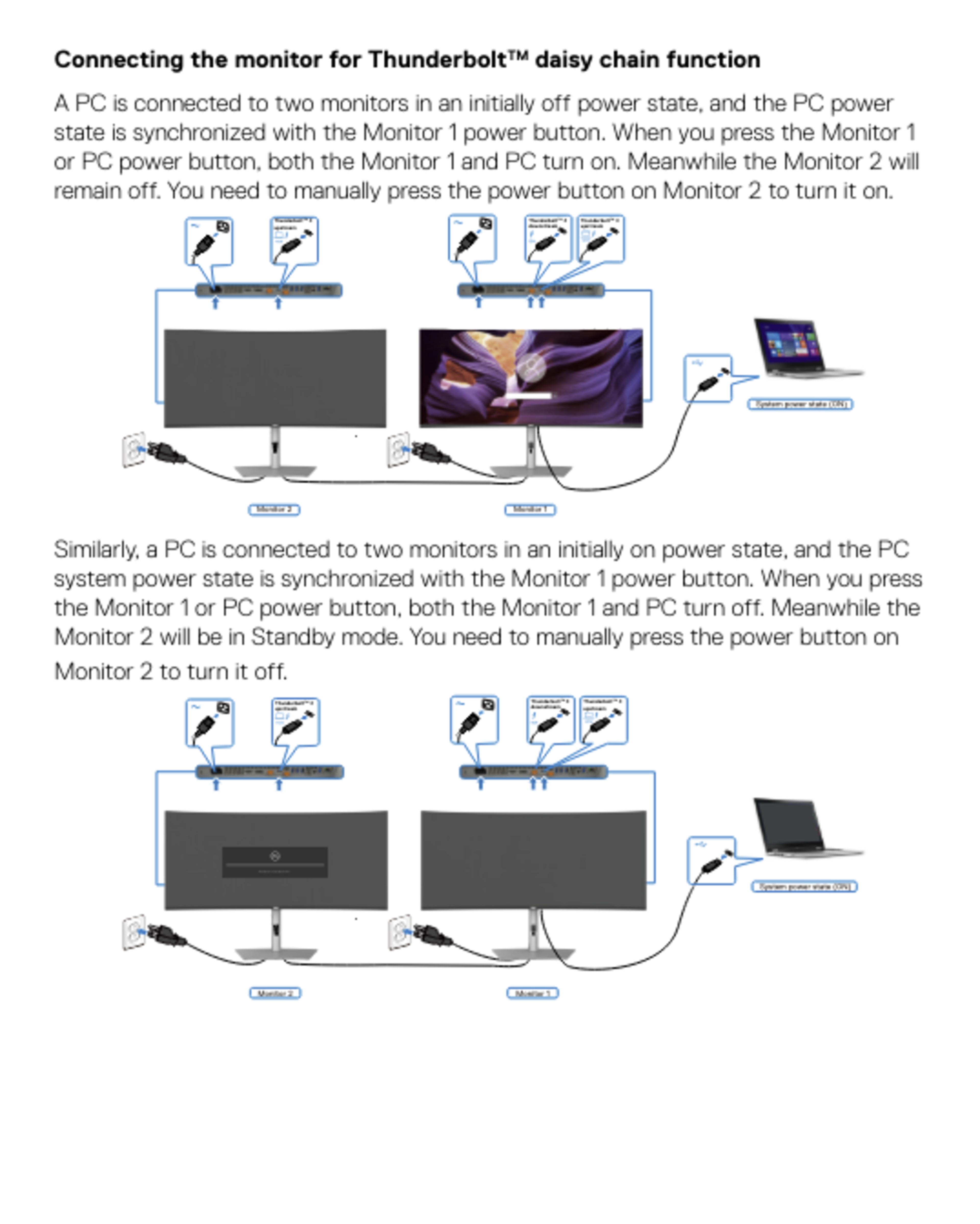
This setup involves one video cable between the computer and the monitor that supports daisy chaining. It's important to plug the cable from your computer into one of the video inputs on the monitor, leaving the video output free. Then, you connect another cable from the video output on the first monitor to the video input on another. You can continue going from out to in ports as long as each monitor in the setup supports daisy chaining multiple screens, and your computer supports all those displays at once. If you're having connection issues, you may have to change settings in the monitor's OSD to enable daisy chaining, but it's best to read the monitor's user manual first. You also have to consider whether your laptop supports daisy chaining and on which ports. For example, MacBooks only support daisy chaining over Thunderbolt.
How To Use Dual Monitors: Changing Settings On Your PC
Once both monitors are successfully connected, you can change the settings on your computer to ensure that you have the setup you like.
Windows
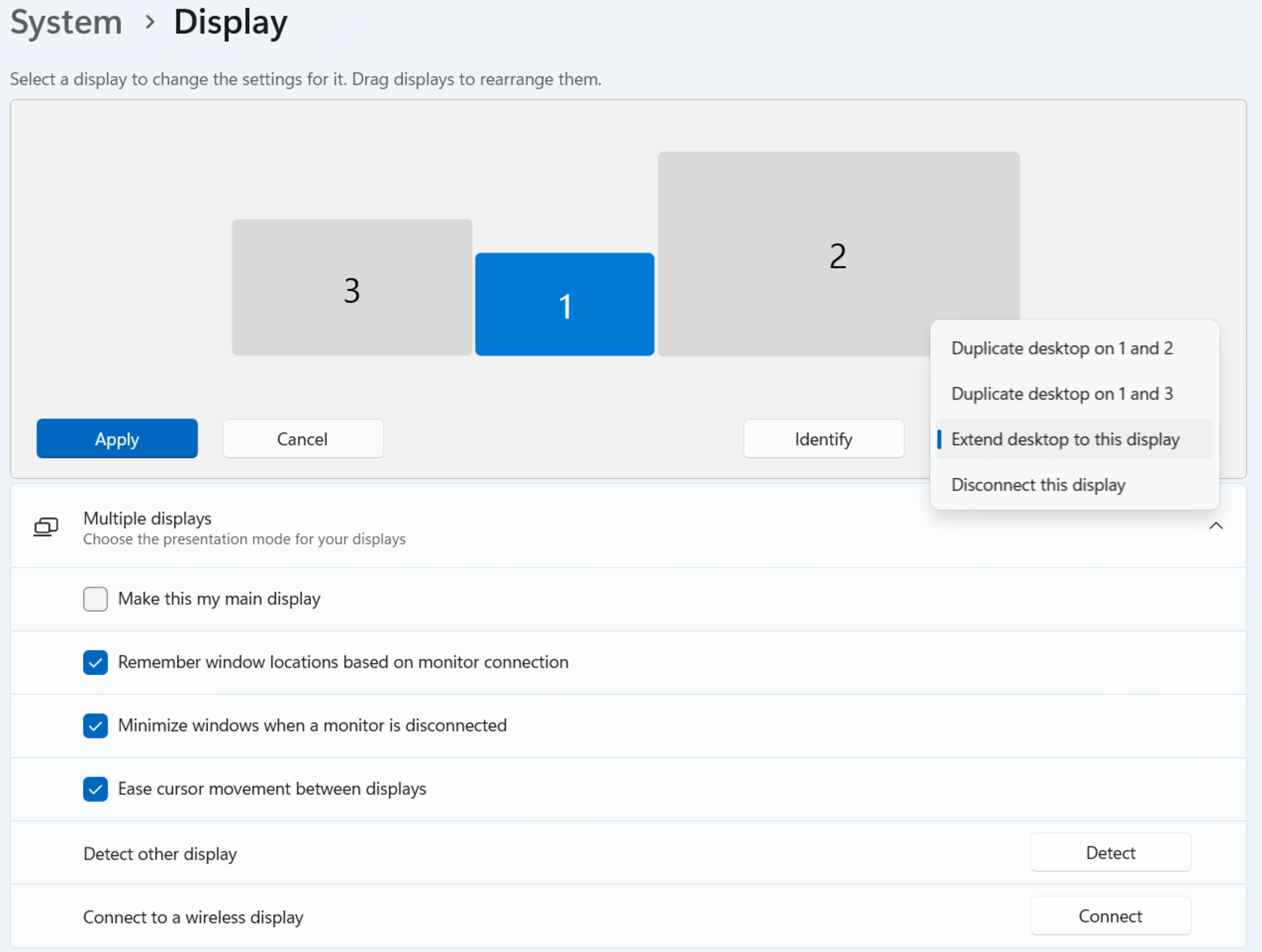
If you have a Windows PC, you need to select the Display option from the System settings. From there, you can select to duplicate the displays, meaning the same image will appear on both screens, or extend the displays if you want each screen to show its own image. You can also reposition the displays in the system's settings to copy their real-world positioning so that you can seamlessly move your mouse and windows between both.
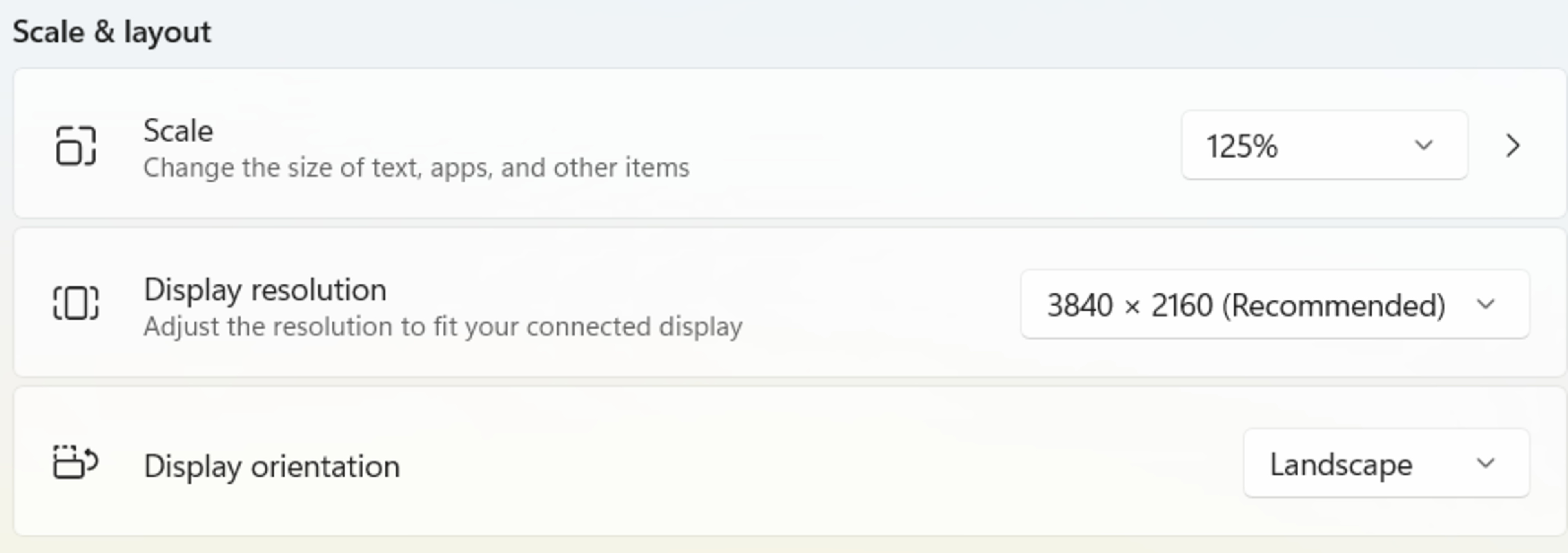
You can also change display settings directly from this page, like if you want to change the resolution, scaling, and orientation. Keep in mind that computers can display different resolutions on various displays, so you don't need to use the same resolution on multiple screens.
MacOS
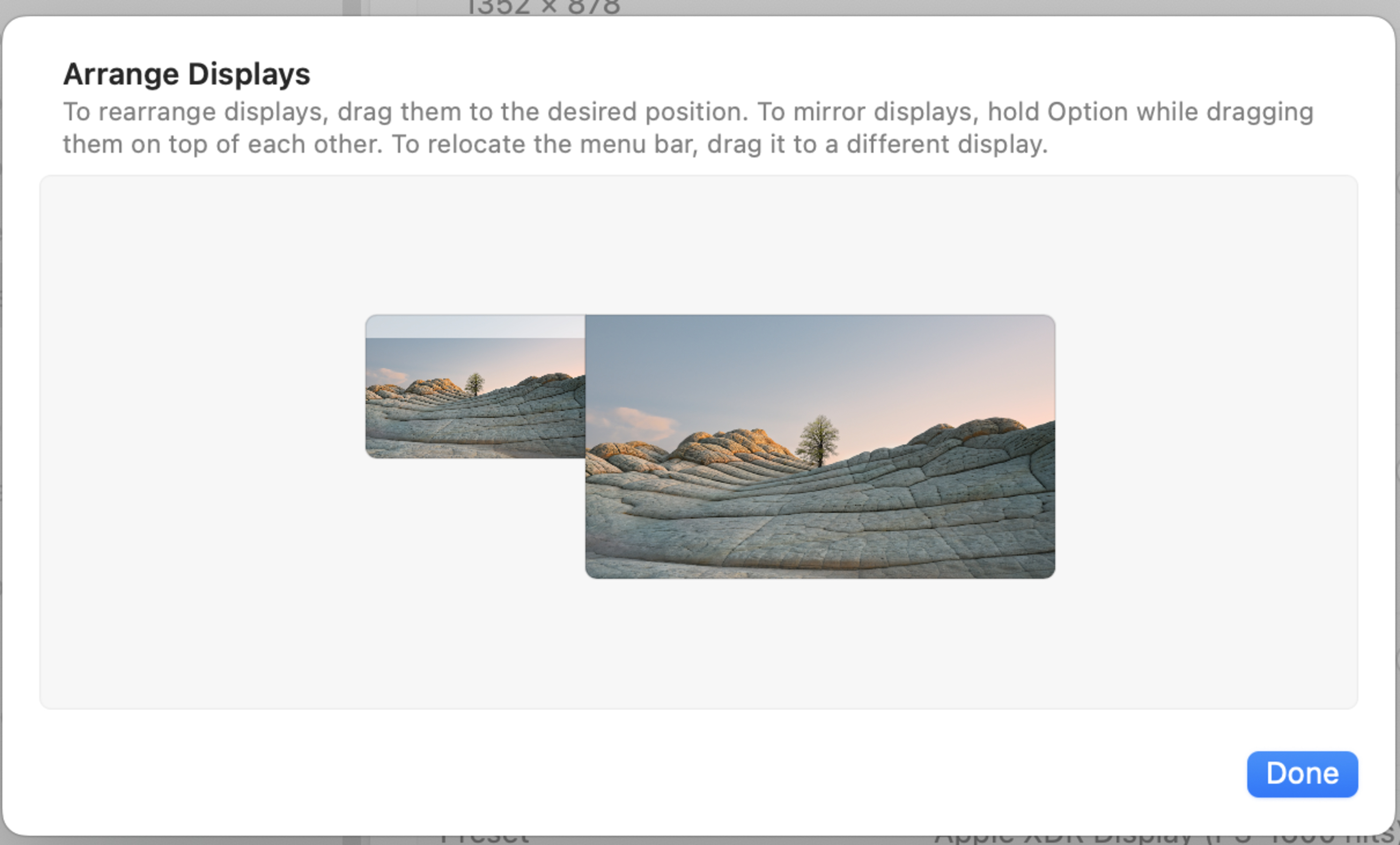
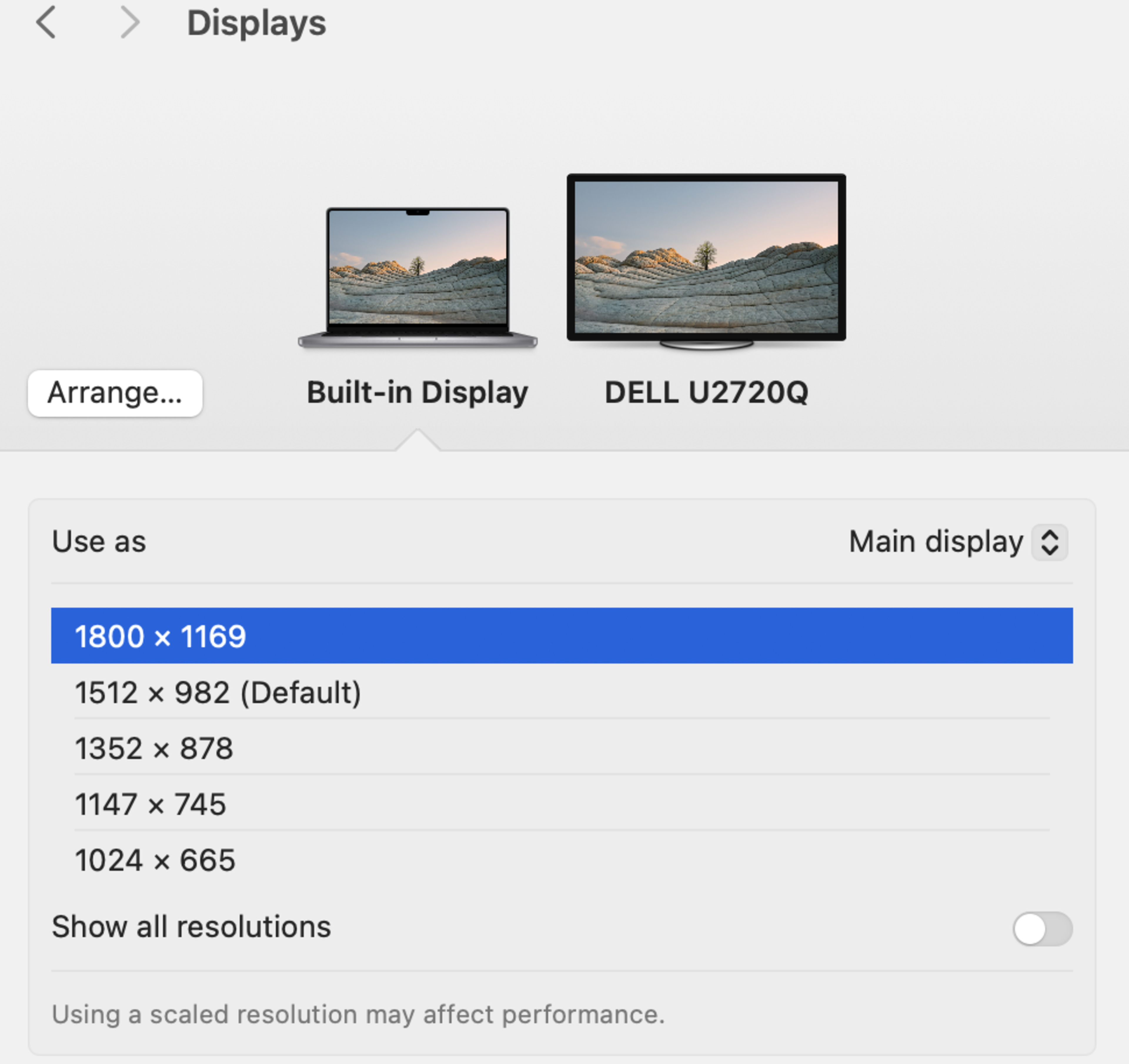
The process is similar with a Mac. In the Settings, you go to the Displays tab to change settings and configurations for each monitor. Similar to Windows, you can arrange the screens to reflect how they're set up so your mouse moves properly between them. Like on Windows, you can also select to have all the screens display their own thing or mirror one another.