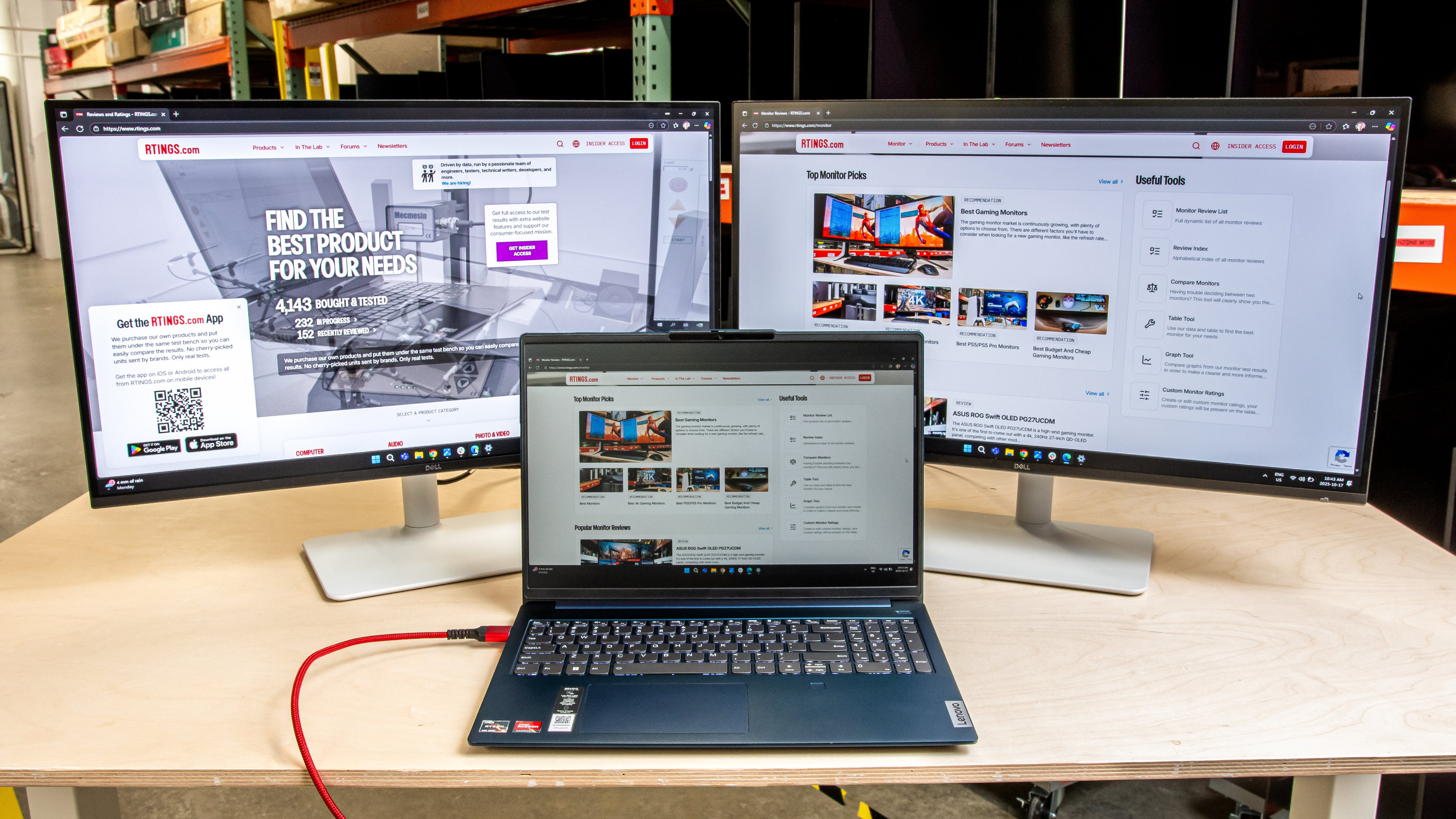
If you have a laptop and find that its screen isn't big enough to work with, you'd benefit from getting extra monitors for additional screen space. If that's what you're interested in, it's also important to understand how to connect dual monitors with a laptop to make full use of these extra screens. Connecting these monitors to your laptop is a fairly straightforward process, and most modern laptops don't have issues displaying images on two additional screens at once. That said, you need to consider what video ports are available on your laptop before setting everything up.
If you want to learn more, you can also check out our article on setting up dual monitors. For specific buying recommendations, look into the best monitors for dual setup.
Understanding Video Ports On Laptops
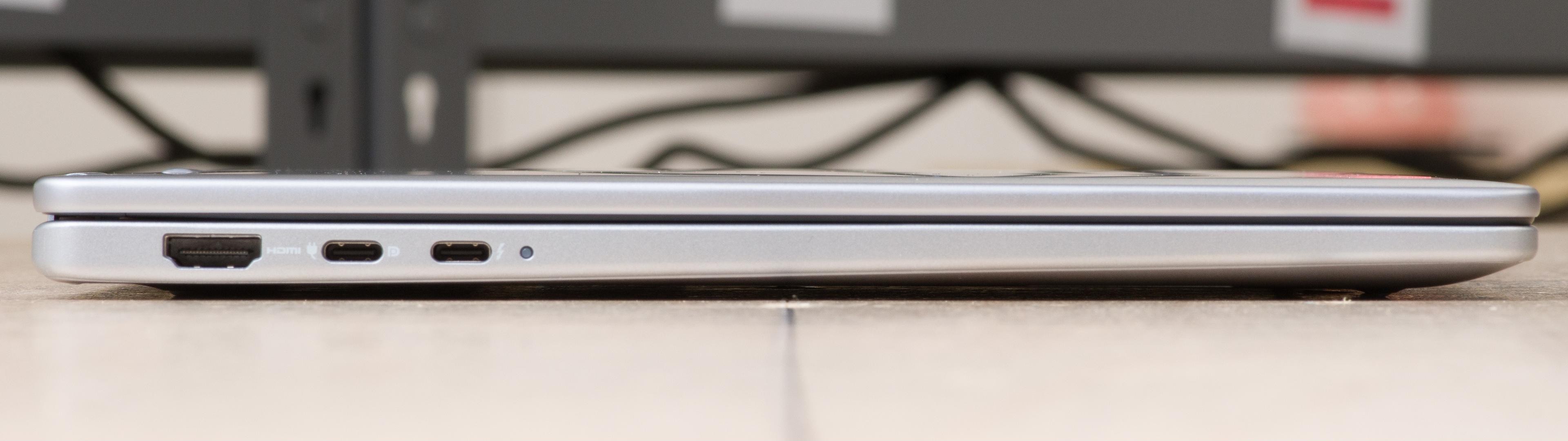
Before connecting all the necessary cables, the first thing you need to think about is the video ports on your laptop that you can use for this multi-monitor setup. There are two types of video connections that a modern laptop may have: USB-C and HDMI. HDMI is straightforward: all HDMI ports on a laptop support video transfer, but that's not the case with all USB-C ports. A USB-C port on a laptop can support video transfer interfaces, like DisplayPort or Thunderbolt, or it may not support video at all and may be limited to data transfer only. This is the case with some cheaper monitors, like the HP Chromebook 14 (2021), which has two USB-C ports, but only one supports video transfer, while the other is for data only.
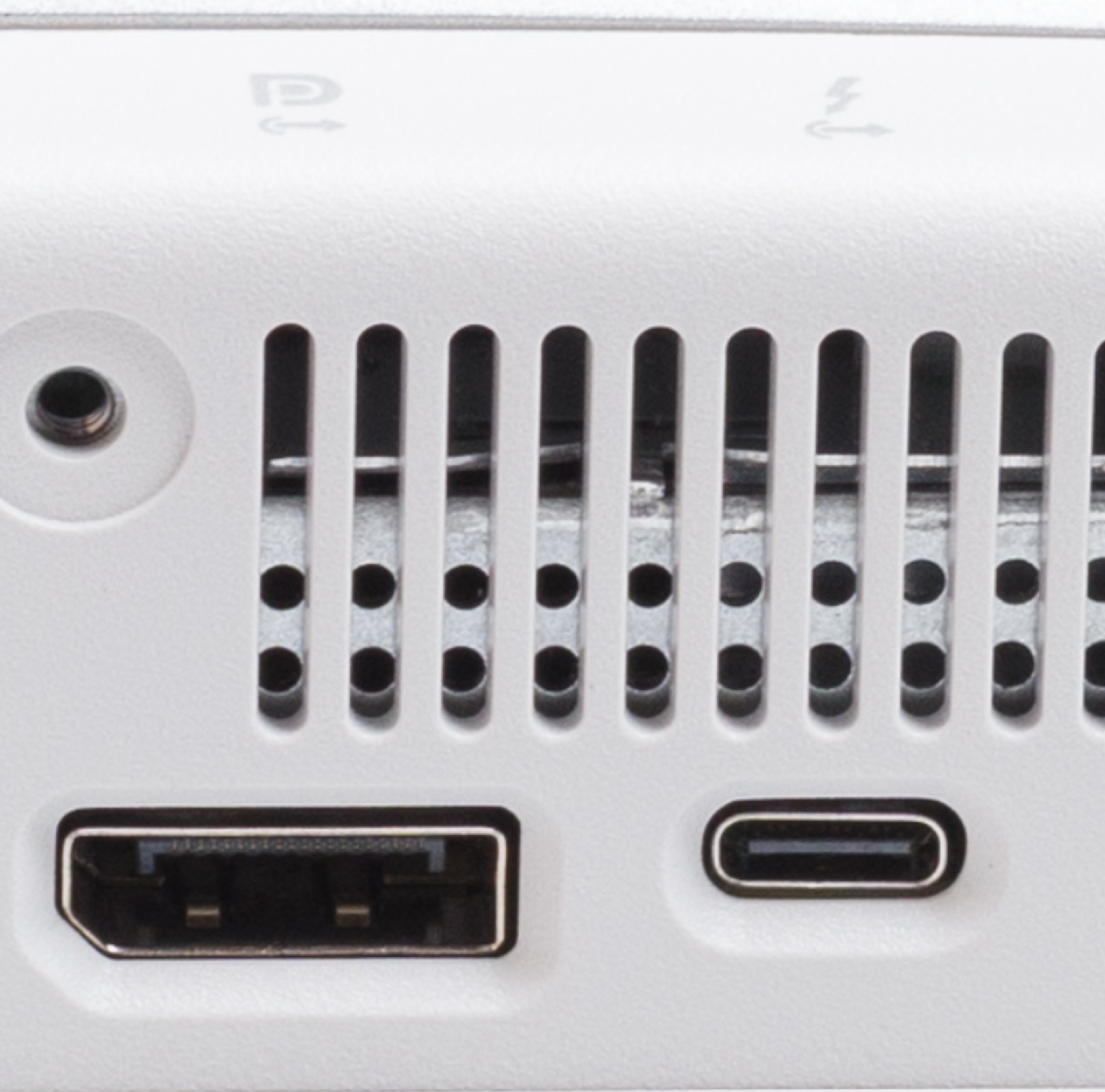
What the USB-C supports is often indicated with symbols, as shown below with the Dell 14 Plus 2-in-1 (2025). The USB-C port closest to the HDMI port supports DisplayPort Alt Mode, as indicated by the DisplayPort logo. The one on the right supports Thunderbolt, as indicated by the lightning symbol. These various interfaces support different video bandwidths, but this is only important to know if you have a monitor with a high resolution and refresh rate that requires high-bandwidth ports. In the case of the Dell, the Thunderbolt port supports higher bandwidth than DisplayPort.
An advantage of using a USB-C port over HDMI is that most USB-C ports provide power to your laptop, eliminating the need for an additional power source. As long as it offers enough power to charge your laptop, this means you can charge it and display an image with just one cable, eliminating the need to worry about running out of battery while working.
If Your Laptop Has Two or More Video Outputs
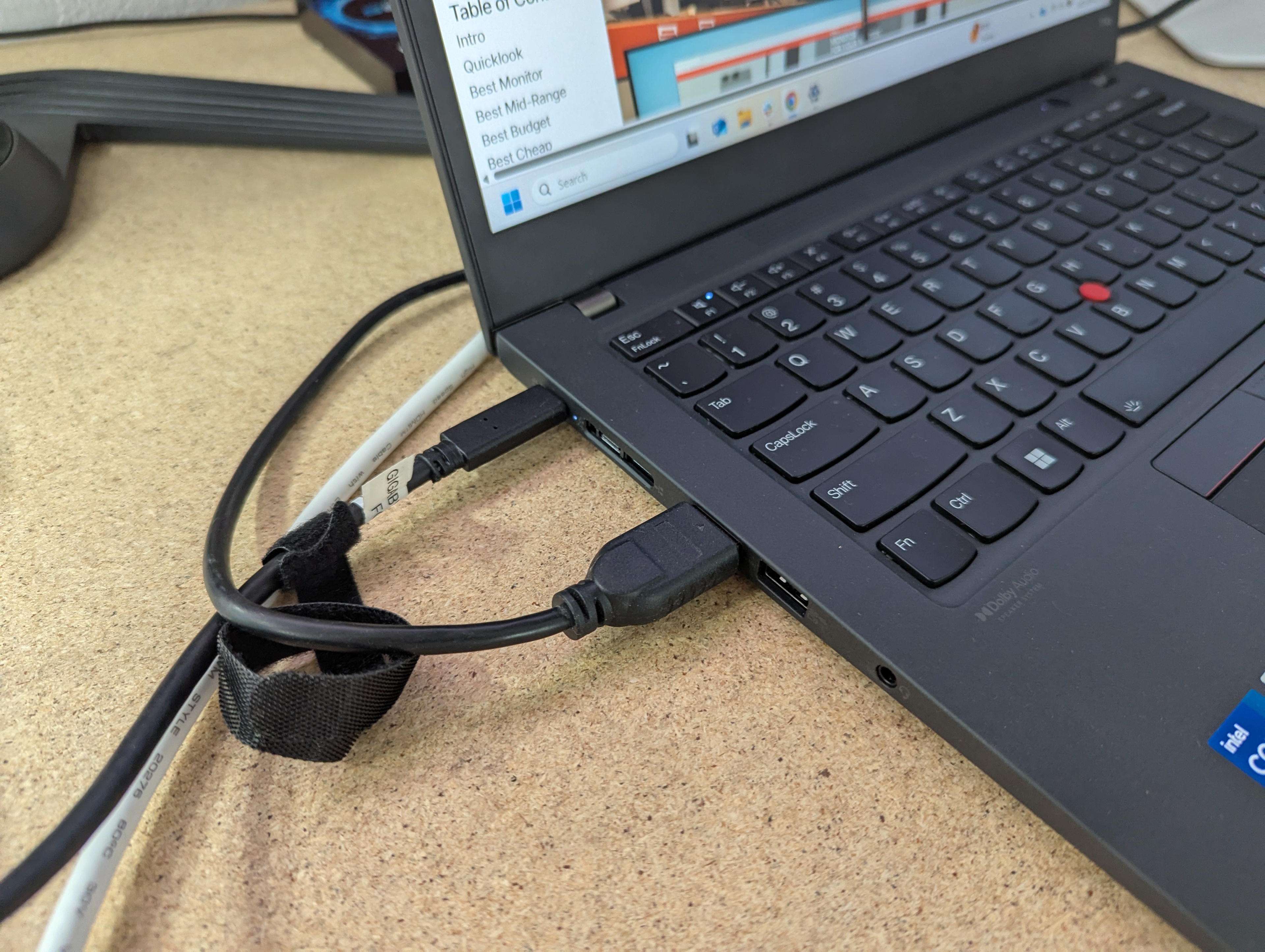
The easiest way to connect two monitors is if your laptop has two or more video outputs. You simply need to connect each port on your laptop to the corresponding monitor in your setup using the appropriate cable. You can also use any combination of video outputs, allowing you to connect with two USB-C ports or one USB-C and one HDMI port.
If Your Laptop Has One Video Output
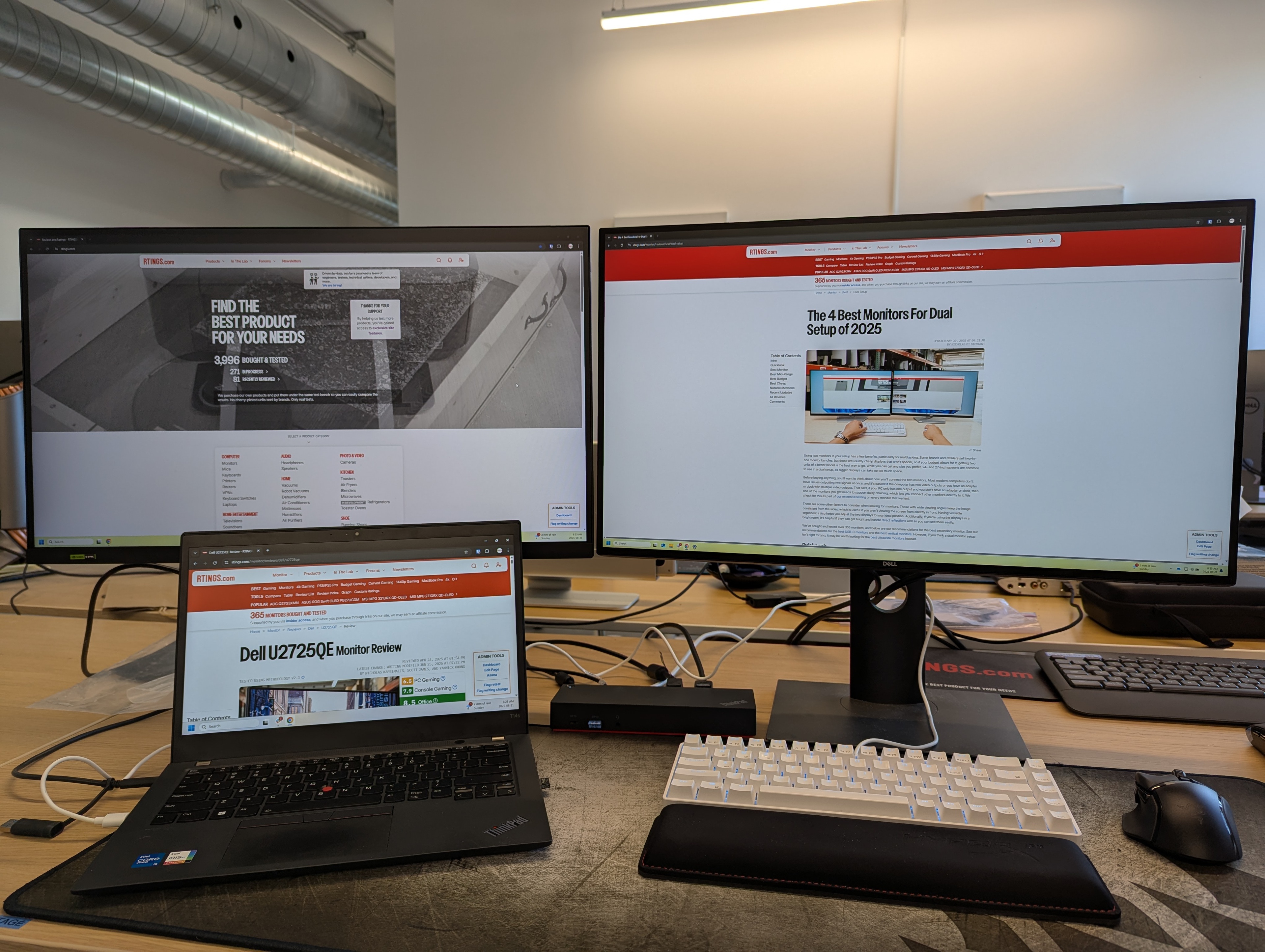
Things get more complicated if your computer only has one video output, which is the case with some entry-level laptops, like the HP ENVY x360 x13 (2020). There are different workarounds for this if you want a dual-monitor setup.
Using A Dock Or Adapter
A common way to obtain two video signals from a single output on your laptop is with a dock, which splits the video output from your laptop into multiple video ports. Docks also feature USB ports and provide power delivery to charge your laptop simultaneously. Essentially, docks are all-in-one solutions that allow you to connect all your displays and devices with just one cable, connected to your laptop. That said, the concept of connecting two monitors to a dock is straightforward: simply plug a cable between each monitor and the dock.
Keep in mind, though, that some docks are expensive, and not all of them work with MacBooks, so you need to do research before purchasing one.
Using A Monitor With Daisy Chaining
Another solution is to get a monitor that supports daisy chaining, allowing you to connect a secondary monitor directly to it with only one cable returning to your laptop. Monitors that support daisy chaining are rare, though, so this limits you to a handful of displays that support it, and they tend to be expensive.
If you're unsure whether your monitor supports daisy chaining, look for symbols indicating the inputs or refer to the user manual. The Dell U3225QE, which you can see below, has arrows pointing out alongside the DisplayPort and Thunderbolt logos to indicate it supports DisplayPort and Thunderbolt out.
This setup involves a single video cable connecting the laptop to the monitor, which supports daisy chaining. It's essential to connect the cable from your laptop to one of the video inputs on the monitor, leaving the video output free. Then, connect another cable from the video output on the first monitor to the video input on the second. You can continue connecting video outputs to inputs as long as each monitor in the setup supports daisy chaining multiple screens, and your laptop supports all those displays at once.
If you're experiencing connection issues, you may need to adjust the settings in the monitor's OSD to enable daisy chaining. However, it's best to consult the monitor's user manual first. You also have to consider whether your laptop supports daisy chaining and on which ports. For example, MacBooks only support daisy chaining over Thunderbolt.
Getting The Max Resolution And Refresh Rate
Although most modern laptops don't have issues displaying two external video signals at once, adding additional screens to your setup limits the resolution and refresh rate of each display. This is related to the maximum bandwidth of your laptop's video ports. USB-C ports with DisplayPort 1.4 Alt Mode have a max bandwidth of 32.4 Gbps, whereas Thunderbolt 4 and Thunderbolt 5 ports can go up to 40 Gbps and 120 Gbps, respectively. With this in mind, you may have to lower your monitors' refresh rate and resolution, depending on the max bandwidth of your laptop. For example, if your laptop only supports one display at 4k @ 120Hz, you'd either have to lower the refresh rate for two 4k @ 60Hz signals or the resolution for two 1080p @ 120Hz signals in a multi-monitor setup.
Powerful laptops support the highest resolutions or refresh rates on multiple monitors, like the Apple MacBook Pro 14 (M4, 2024), which supports two monitors with 6k @ 60Hz signals over its Thunderbolt ports.
If you're unsure of the max external resolution and refresh rate that your laptop supports, it's something that we test for as part of our laptop reviews.
Configuring Your Laptop's Settings
Once both monitors are successfully connected, you can adjust the settings on your laptop to achieve the desired setup.
Windows
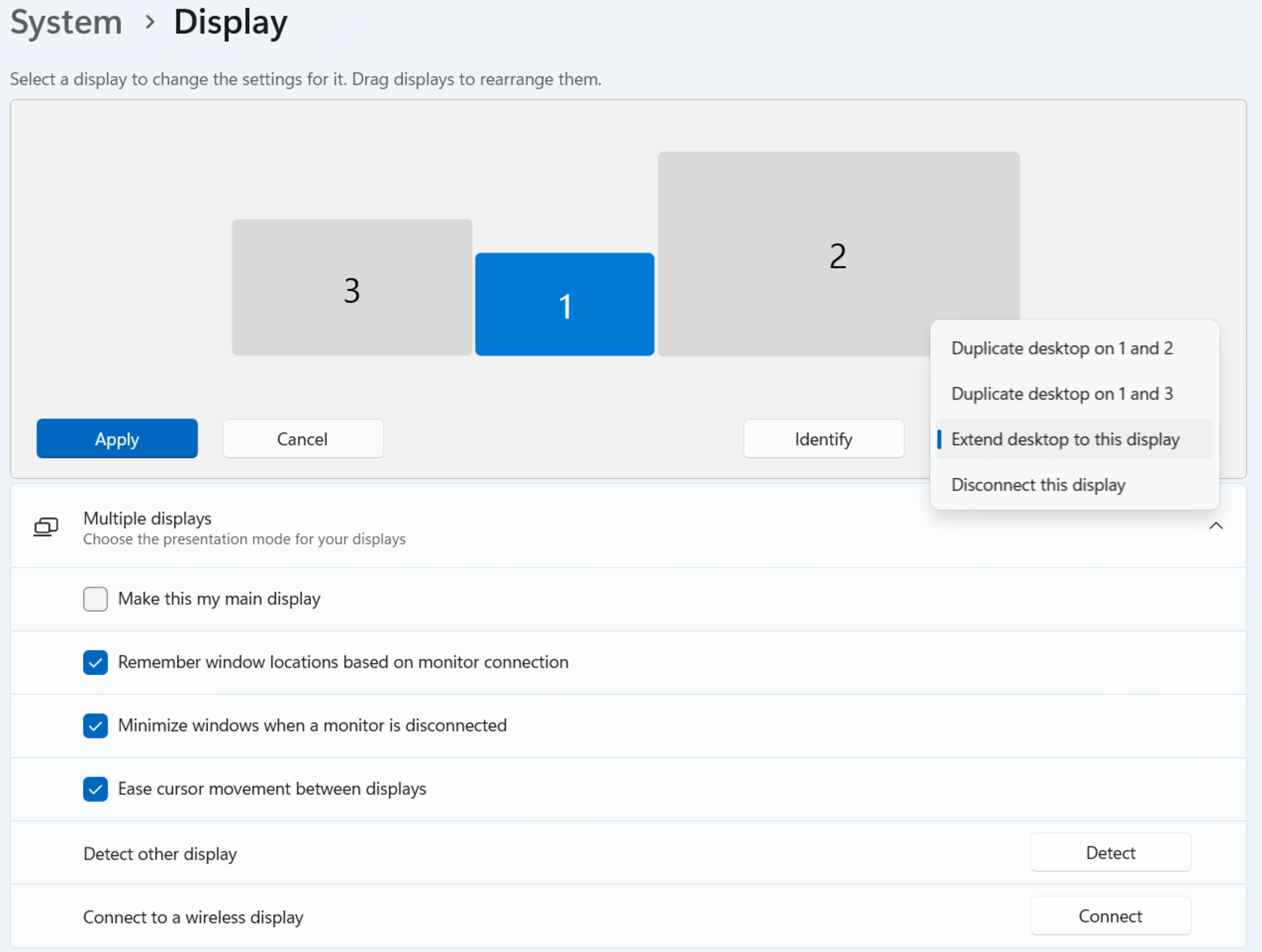
If you have a laptop with Windows as its operating system, you need to select the Display option from the System settings. From there, you can select to duplicate the displays, meaning the same image will appear on both screens, or extend the displays if you want each screen to show its own image. You can also reposition the displays in the system's settings to copy their real-world positioning so that you can seamlessly move your mouse and windows between them.
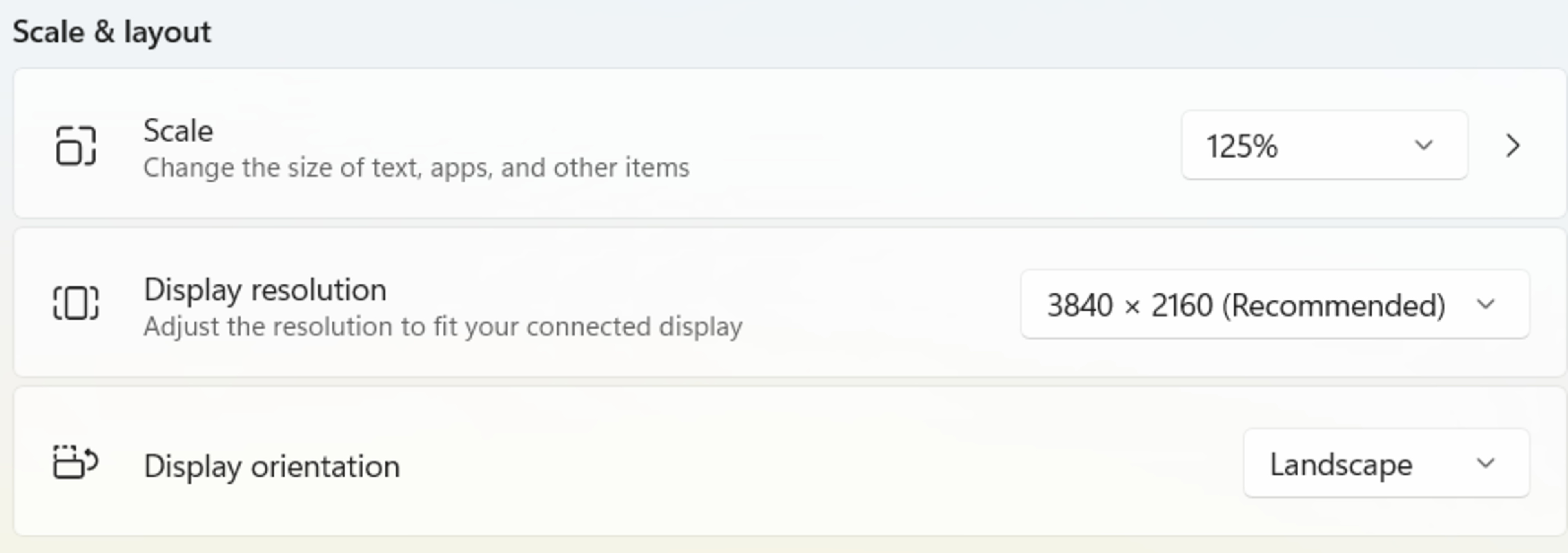
You can also change display settings directly from this page, like if you want to change the resolution, scaling, and orientation. Keep in mind that laptops can display different resolutions on various displays, so you don't need to use the same resolution on multiple screens.
MacOS
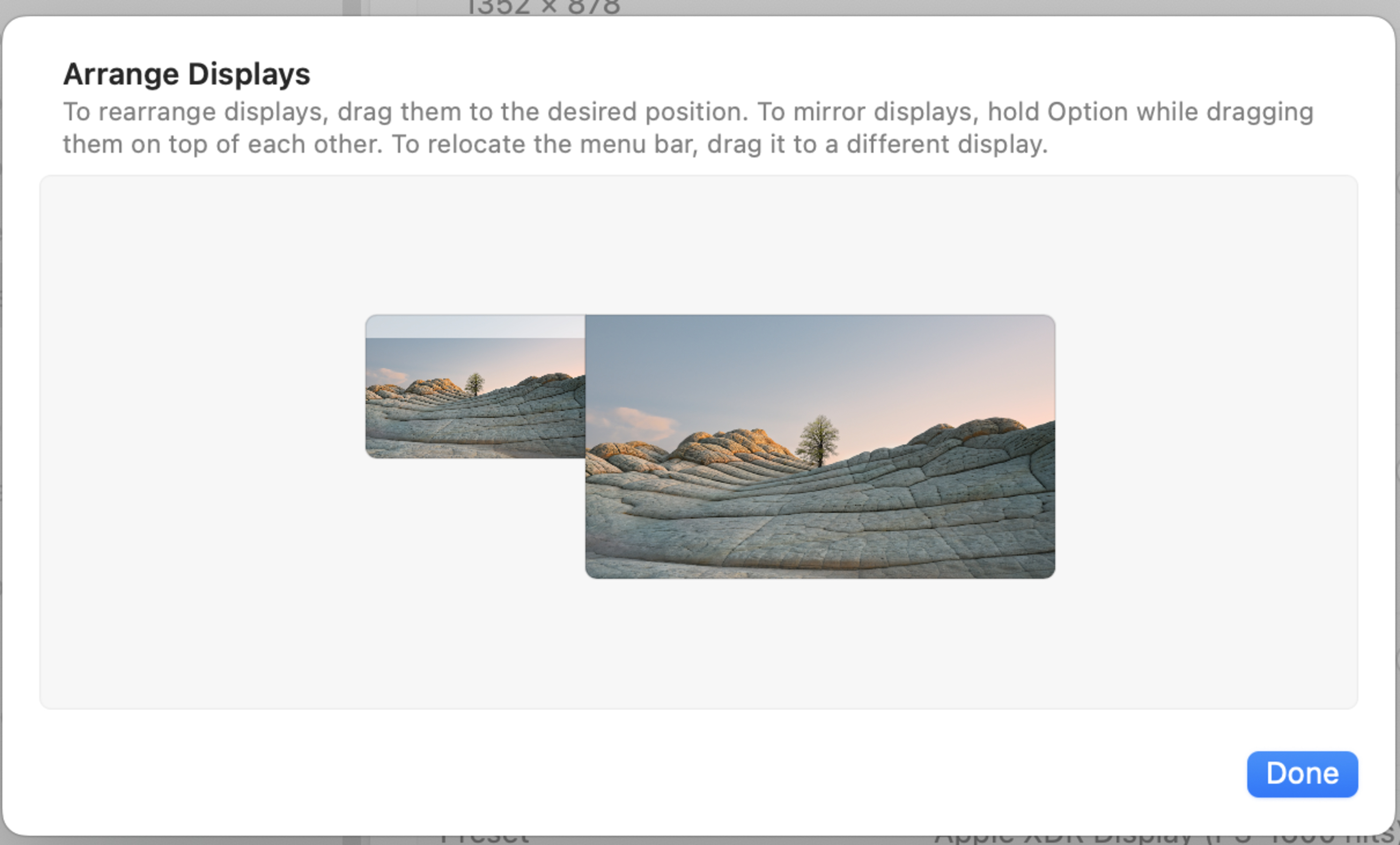
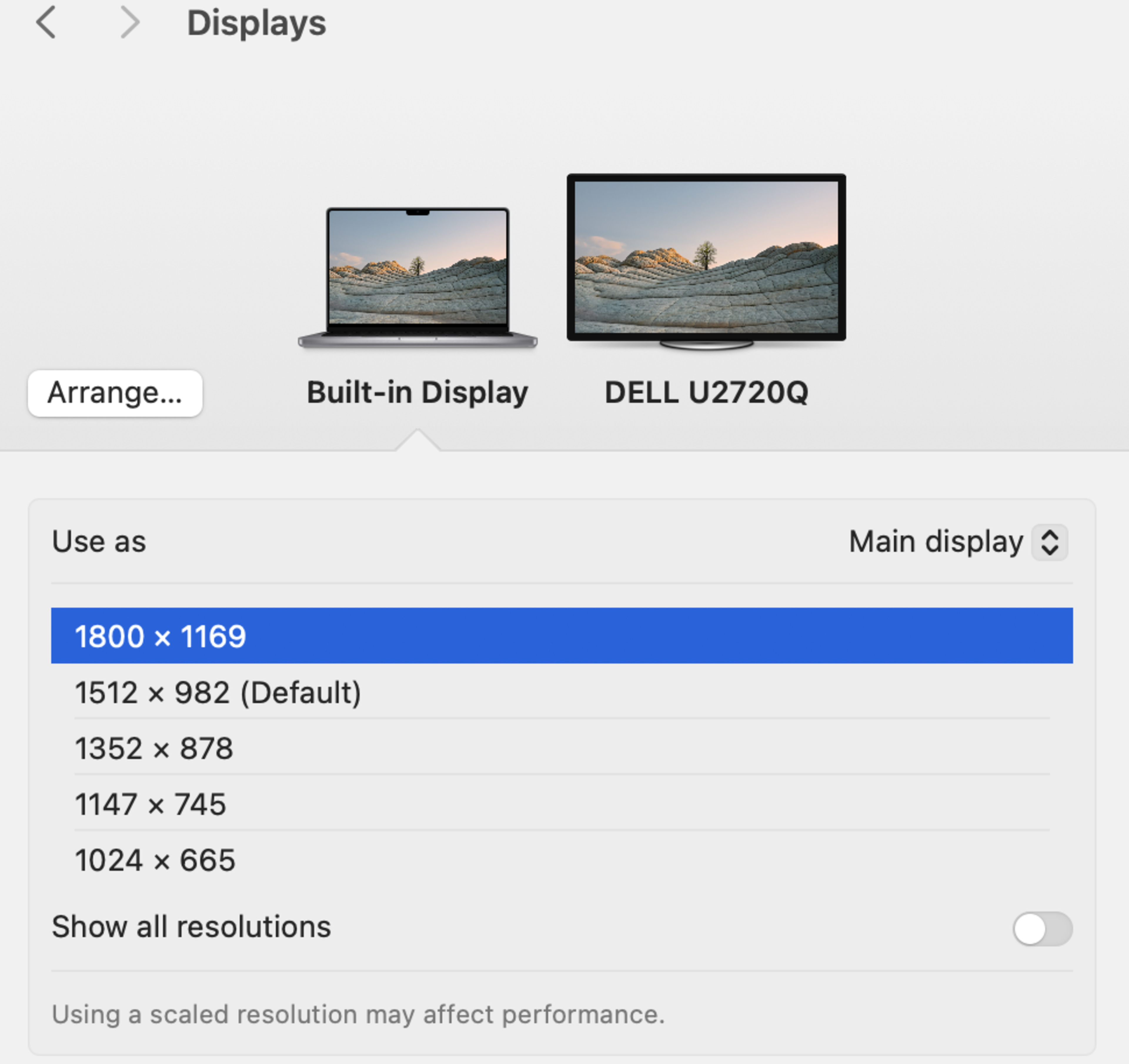
The process is similar with a Mac. In the Settings, you go to the Displays tab to change settings and configurations for each monitor. Similar to Windows, you can arrange the screens to reflect how they're set up so your mouse moves properly between them. Like on Windows, you can also select to have all the screens display their own thing or mirror one another.
Conclusion
Connecting two monitors to your laptop is a straightforward process, but the most important thing to know before setting everything up is what ports you have available on your laptop and if it has any limitations. It's easy to connect multiple monitors when the laptop has more than one video port, but things get complicated when you only have one video port available. In that case, you'd have to get a dock or use a monitor that supports daisy chaining if you want to connect your laptop to multiple screens. Luckily, though, most modern laptops have more than one video output.