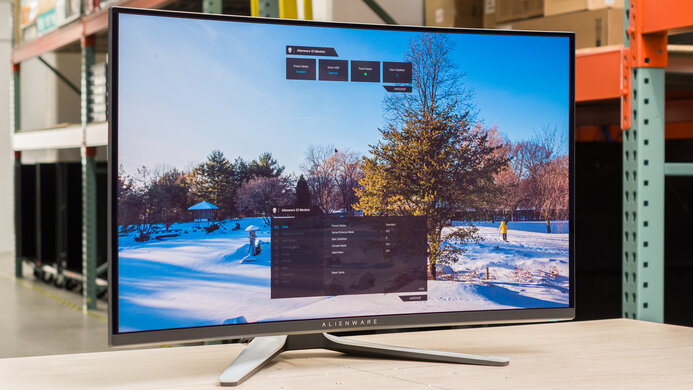
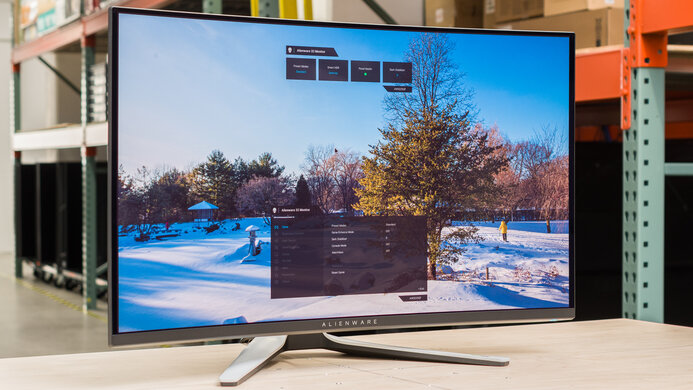
The AOC Q27G40XMN is a budget-friendly 27-inch, 1440p Mini LED gaming monitor. It's a Best Buy-exclusive model in North America that's newer than the popular AOC Q27G3XMN. It carries over many of the same specs and features as the older model, like the 180Hz refresh rate, VRR support, and VA panel. However, it also includes 1,152 dimming zones, which is even more than the Q27G3XMN. It competes with other Mini LED monitors, like the Xiaomi G Pro 27i and the Acer Nitro XV275U P3biipx. It's limited in extra features otherwise, and comes with a less ergonomic stand than the older Q27G3XMN.
Our Verdict
The AOC Q27G40XMN is great for PC gaming. It has low input lag for a responsive feel, and motion looks sharp for the most part, but there's still smearing and inverse ghosting behind fast-moving objects. It supports FreeSync VRR and G-SYNC compatibility to reduce screen tearing, and it has a max refresh rate of 180Hz, but it has DisplayPort 1.2 bandwidth that prevents it from reaching that refresh rate with NVIDIA graphics cards. On the plus side, it has great picture quality with deep blacks and bright highlights, but it struggles with properly displaying vivid colors.
Consistently fast response time.
Low input lag.
High contrast ratio with deep blacks.
Highlights pop in HDR.
Great Mini LED local dimming.
Smearing and inverse ghosting with fast objects.
Limited to DisplayPort 1.2 bandwidth.
Noticeable VRR flicker with changing frame rates.
Can't properly display bright colors in HDR.
The AOC Q27G40XMN is decent for console gaming. Gaming feels responsive thanks to its low input lag, and fast-moving objects look sharp, but there's still inverse ghosting and smearing in fast-paced games. Although it supports most signals with the PS5, PS5 Pro, and Xbox Series X|S, it lacks HDMI 2.1 bandwidth to take full advantage of consoles with 4k @ 120Hz signals. At least it has great picture quality thanks to its high contrast ratio and great local dimming feature that further deepens blacks and makes highlights pop. However, while it also displays a wide range of colors in HDR, it doesn't display bright colors properly.
Consistently fast response time.
Low input lag.
High contrast ratio with deep blacks.
Highlights pop in HDR.
Smearing and inverse ghosting with fast objects.
Can't properly display bright colors in HDR.
Doesn't support all signals from consoles.
The AOC Q27G40XMN is decent for office use. The text clarity is good, and it's a great choice to use in a well-lit room because it gets bright enough to fight glare and has decent reflection handling. However, it's a bad choice for sharing your screen with others because it has terrible ergonomics, and its narrow viewing angles mean that the image washes out from the sides. It also lacks any dedicated office features, as it doesn't even have a USB hub.
Bright enough to fight glare.
Sharp text clarity.
Decent reflection handling.
Terrible ergonomics.
Narrow viewing angles.
No extra productivity features.
The AOC Q27G40XMN is great for editing. The main advantage of using it for content creation is that it comes with an accurate sRGB mode, and you'll only need to calibrate it if you need perfect white balance. It also delivers great picture quality with deep blacks and bright highlights thanks to its great local dimming feature, so it's a good choice to use in both bright and dark rooms. However, because it has terrible ergonomics and narrow viewing angles, it's a bad choice if you need to share the screen with a coworker or client.
High contrast ratio with deep blacks.
Bright enough to fight glare.
Sharp text clarity.
Accurate sRGB mode.
Terrible ergonomics.
Narrow viewing angles.
Needs calibration to fix white balance issues.
The AOC Q27G40XMN has amazing brightness. It easily gets bright enough to fight glare, and highlights pop in HDR.
Highlights pop in HDR.
Bright enough to fight glare.
The AOC Q27G40XMN has a great response time. It remains consistently fast across its refresh rate, but there's some smearing and inverse ghosting with fast-moving objects.
Consistently fast response time.
Smearing and inverse ghosting with fast objects.
The AOC Q27G40XMN is great for HDR. It has a high contrast ratio that gets even better thanks to its Mini LED local dimming feature. It displays deep blacks next to bright highlights with local dimming enabled. While it also displays a wide range of colors, it struggles properly displaying bright colors.
High contrast ratio with deep blacks.
Great Mini LED local dimming.
Can't properly display bright colors in HDR.
The AOC Q27G40XMN has very good SDR picture quality. It displays deep blacks even without its local dimming feature, but it has uniformity issues with clouding throughout.
High contrast ratio with deep blacks.
Clouding issues without local dimming.
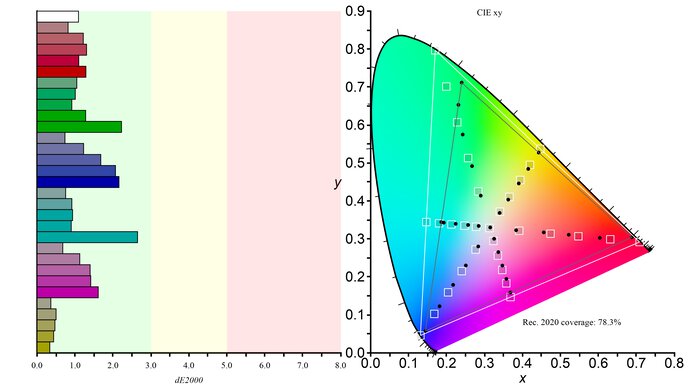
The AOC Q27G40XMN has fantastic color accuracy. Its dedicated sRGB mode locks colors well to the sRGB color space, but it still needs a full calibration to fix white balance issues.
Accurate sRGB mode.
Needs calibration to fix white balance issues.
Performance Usages
Changelog
- Updated Nov 10, 2025: We've converted this review to Test Bench 2.1.1. We removed the Vertical Viewing Angle test.
-
Updated Aug 08, 2025:
We clarified the height to the top of the screen on its stand.
-
Updated Jul 21, 2025:
Added that the Dell Alienware AW3225DM has a larger display.
-
Updated Jun 26, 2025:
We clarified that the Local Dimming bug only happens with Local Dimming on 'Strong' and HDR Mode on 'DisplayHDR,' as it doesn't happen with any of the other HDR Modes. We also updated text throughout to match the new and updated tests with Test Bench 2.1.
Check Price
Differences Between Sizes And Variants
We tested the 27-inch AOC Q27G40XMN, which is the only size available. Although it's newer than the AOC Q27G3XMN and has the same screen specs, it doesn't replace it because both models are sold at different retailers, as the Q27G40XMN is only sold at Best Buy in North America, and you can see the differences between them below. There are also regional variants sold outside North America, but the results are only valid for the Q27G40XMN model sold in North America.
| Model | Dimming Zones | Stand Adjustments | Availability |
|---|---|---|---|
| Q27G40XMN | 1,152 | Tilt only | Best Buy - North America |
| Q27G3XMN | 336 | Tilt, Height, Swivel | Amazon - International |
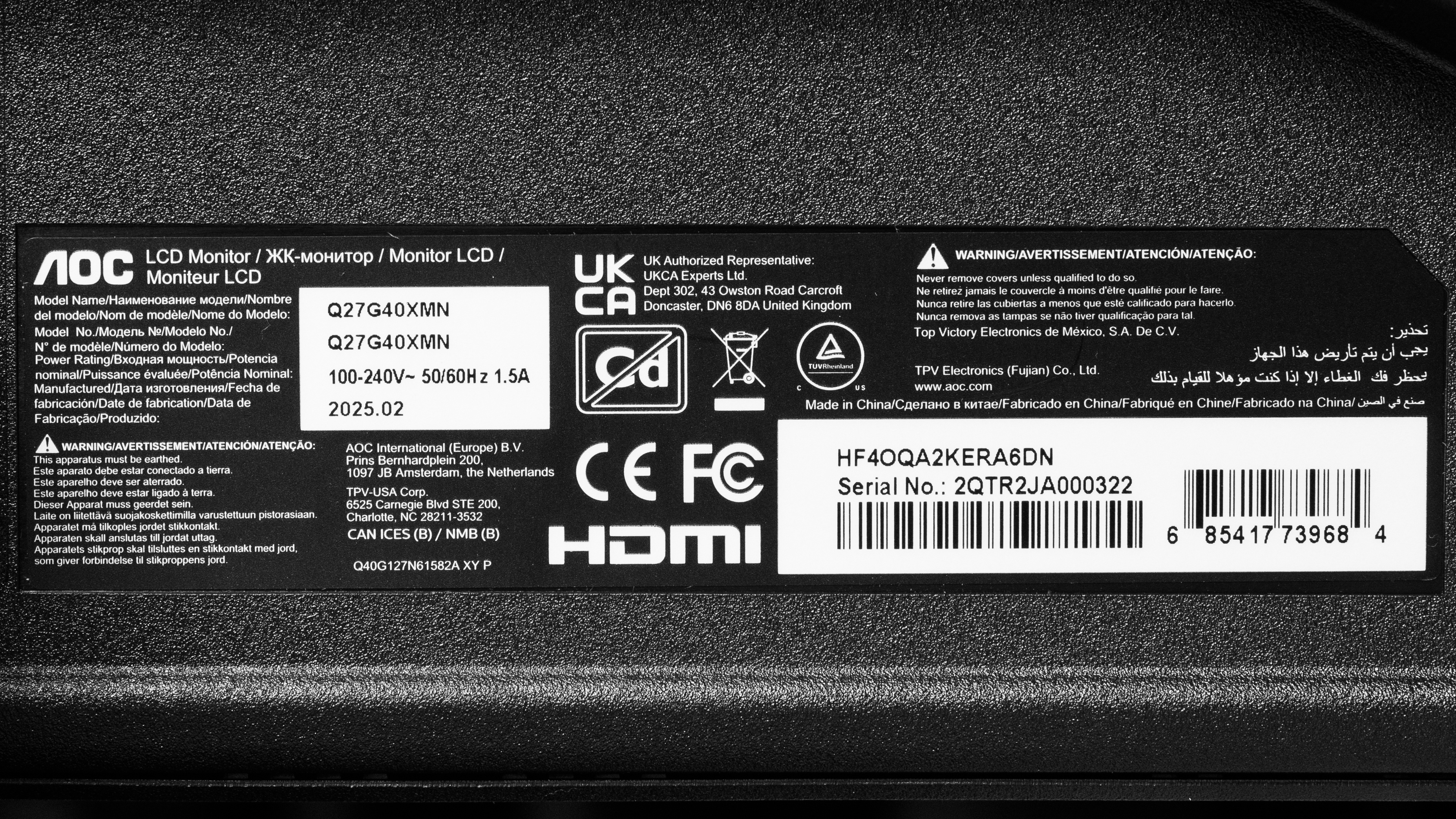
Our unit's label indicates it was manufactured in February 2025. We tested it with firmware 1.4, but there's no way to update the firmware.
There are reports that units manufactured as of March 2025 don't have the same overbrightness bug with the 'Strong' Local Dimming setting that our unit has. If you have this model and experience the same issues, you can share your unit's label in the Comments.
Popular Monitor Comparisons
The AOC Q27G40XMN is a budget-friendly 1440p gaming monitor. Featuring 1,152 Mini LED dimming zones, it's meant for people who are on a budget and still want great picture quality. It's also an alternative to spending a lot more on an OLED, as you won't be worried about the risk of burn-in. It delivers great picture quality, especially for a budget monitor, as it has a great local dimming feature that helps it display deep blacks next to bright highlights, ideal for watching content in a dark room. It also gets very bright, which is fantastic if you want to use it in a well-lit room.
Although it's a newer model than the AOC Q27G3XMN, it doesn't replace it, as both monitors are available at different retailers. While the Q27G40XMN improves in a few areas, like with local dimming and brightness, it also has worse ergonomics than the Q27G3XMN. Plus, the Q27G40XMN has some bugs with certain settings in HDR, and it's limited to DisplayPort 1.2 bandwidth, preventing it from supporting full range RGB, 8-bit signals at its max 180Hz refresh rate with NVIDIA graphics cards. This is something you may want to consider, but the Q27G40XMN is still one of the best budget monitors you can get, and it's worth getting if you can find it for cheaper than the Q27G3XMN.
Also see our recommendations for the best gaming monitors under $300, the best Mini LED monitors, and the best budget and cheap gaming monitors.
The AOC Q27G40XMN is newer than the AOC Q27G3XMN, but doesn't replace the older model. Instead, each monitor is sold at different retailers, with the Q27G40XMN being a Best Buy-exclusive model in North America, and the Q27G3XMN available on Amazon internationally. They have most of the same specs, but still have some differences. The Q27G40XMN has more dimming zones, and the local dimming feature has less blooming. The Q27G40XMN also gets brighter, so it's the better choice to use in a well-lit room. On the other hand, the Q27G3XMN comes with a more ergonomic stand, and it has higher DisplayPort bandwidth, allowing it to reach 180Hz with an NVIDIA graphics card, and a higher refresh rate in HDR.
The AOC Q27G40XMN and the Xiaomi G Pro 27i are both 1440p gaming monitors with Mini LED backlighting. They each have 1,152 dimming zones and get very bright, but the local dimming feature on the AOC results in less blooming. Plus, the AOC has a VA panel with a higher native contrast ratio if you aren't going to use local dimming. The Xiaomi has advantages in other ways, though, as it has wider viewing angles and better ergonomics, making it easier to share the screen with others. The Xiaomi also has less smearing and inverse ghosting with fast-moving objects.
The Acer Nitro XV275K P3biipruzx and the AOC Q27G40XMN are both gaming monitors with Mini LED backlighting. There are a few differences between them, though, as the Acer is versatile for more uses. It has a higher 4k resolution, resulting in sharper text and more detailed images, ideal for work or content creation. On top of that, the Acer's better ergonomics and wider viewing angles make it a superior choice for sharing your screen with others. The Acer also supports HDMI 2.1 bandwidth to take advantage of gaming consoles, which the AOC doesn't support. The AOC does have a few advantages, though, as it has a higher native contrast ratio and better local dimming feature, making it the better choice for watching content in dark rooms.
The AOC Q27G40XMN and the Acer Nitro XV275K P5biipruzx are both Mini LED monitors. The Acer is higher-end with a higher 4k resolution for sharper text and HDMI 2.1 bandwidth to take full advantage of gaming consoles. The Acer also has a few extra gaming features, like a dual mode that switches it from 4k, 160Hz to 1080p, 320Hz for better versatility with different types of games. However, the AOC has much better picture quality. It has a VA panel with a higher native contrast ratio, and its local dimming feature is much more effective at improving the picture quality with deeper blacks and less haloing around bright objects. Plus, you can only use the local dimming feature on the Acer in HDR, so the picture quality is much worse in SDR with blacks that look gray.
We buy and test more than 30 monitors each year, with units that we buy completely on our own, without any cherry-picked units or samples. We put a lot into each unbiased, straight-to-the-point review, and there's a whole process from purchasing to publishing, involving multiple teams and people. We do more than just use the monitor for a week; we use specialized and custom tools to measure various aspects with objective data-based results. We also consider multiple factors before making any recommendations, including the monitor's cost, its performance against the competition, and whether or not it's easy to find.
Test Results
The AOC Q27G40XMN has a straightforward design, with an all-black plastic body and some red accents on the back. Its appearance does not truly stand out, and it fits well into any environment.
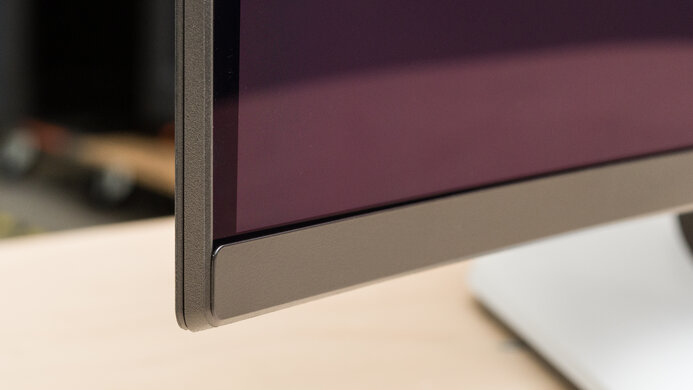
The build quality is okay. The plastic materials feel solid without a lot of flex or creaking, but the bottom bezel feels cheap and flexes without much pressure. However, the biggest downside is that the monitor wobbles a lot on its stand and takes some time to recover. It's also very hard to adjust the screen on the stand, as it requires a good amount of force.
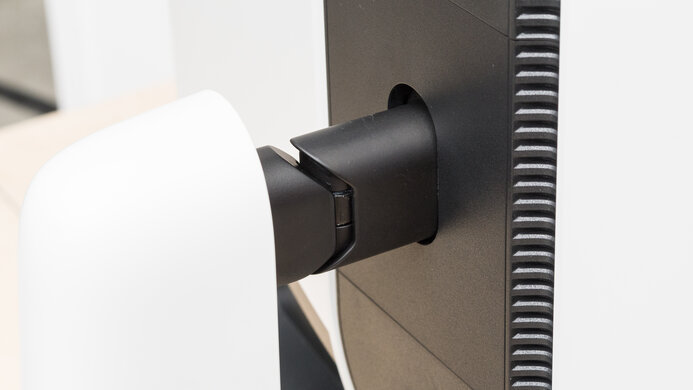
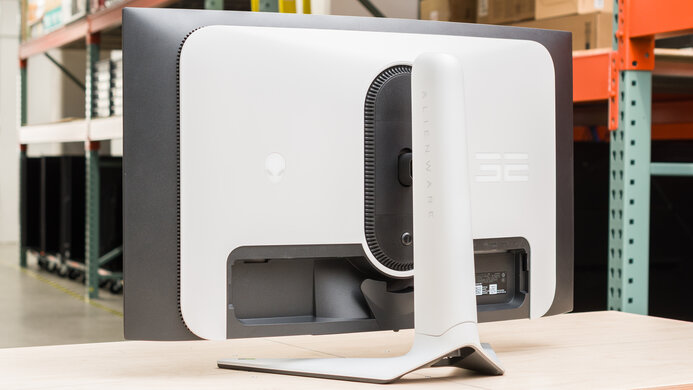
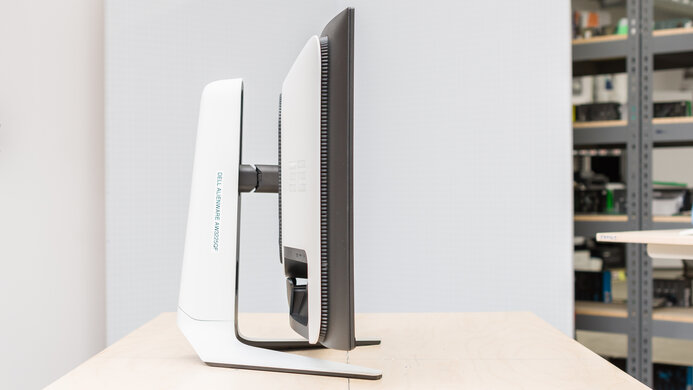
The AOC Q27G40XMN has poor ergonomics. You can only tilt it, but even at that, it's very hard to do so and you need some force to adjust it. The stand doesn't offer anything for cable management either.
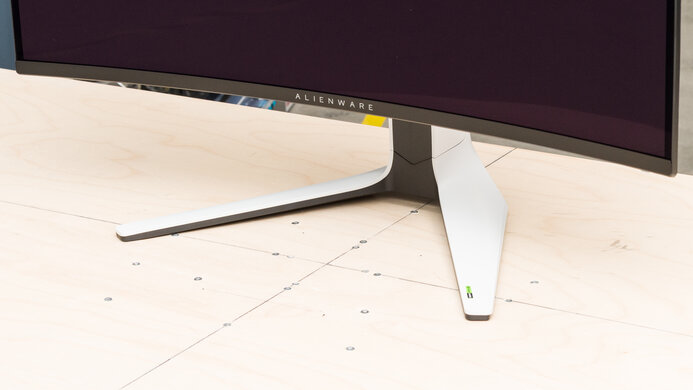
The stand takes up minimal space, but it doesn't hold the screen well, as it wobbles easily.
If you want an even larger display, take a look at the Dell Alienware AW3225DM.
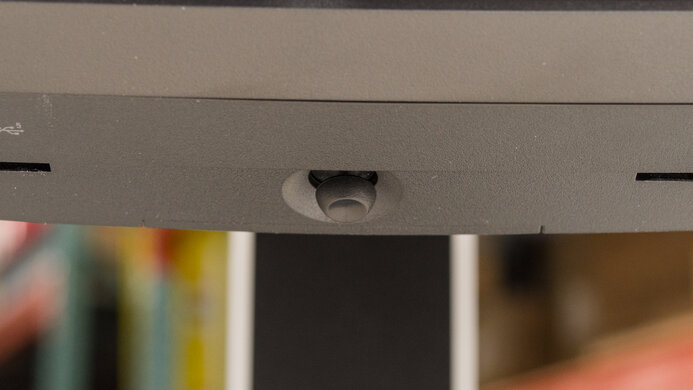
There are four buttons to control the on-screen display, act as shortcuts, and change inputs, and there's a power button. They feel solid and are easy to learn how to use.
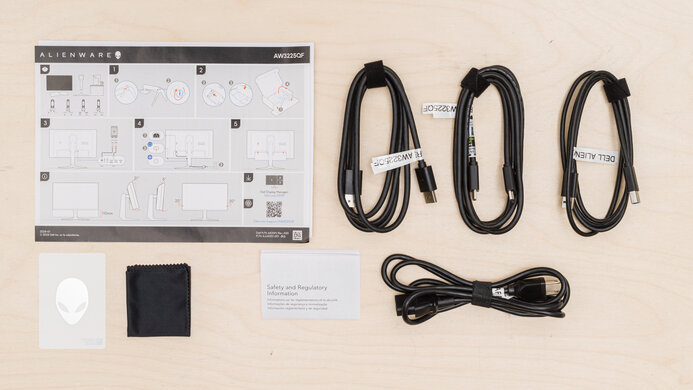
- DisplayPort cable
- HDMI cable
- Power cable
- User documentation, including calibration report
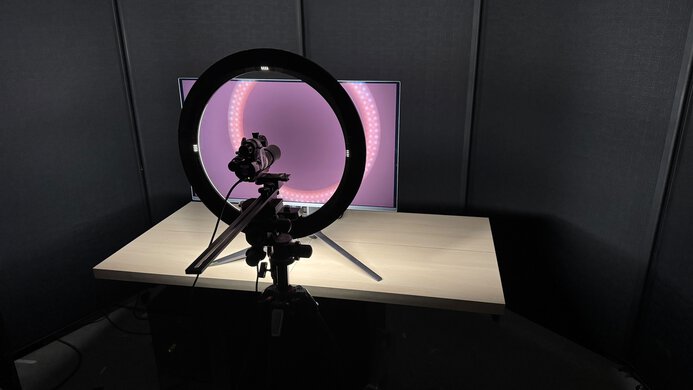
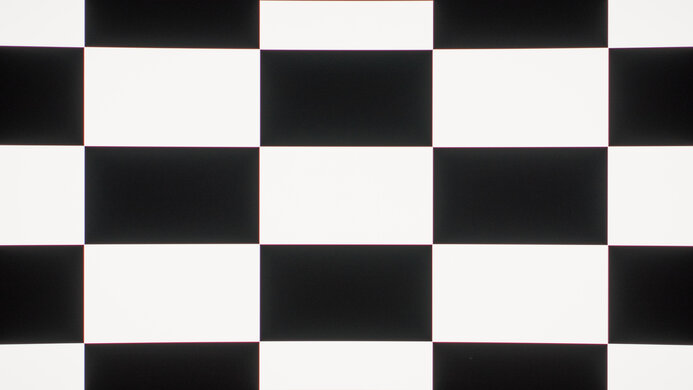
The contrast ratio is excellent. Even without local dimming, it displays deep blacks against bright highlights. Using local dimming greatly improves the contrast, but because it locks the brightness to the max, we couldn't measure the contrast ratio with a screen brightness of 100 cd/m² like we do with other monitors. As it maintains a low black level even with this high brightness, this is why the contrast is so high.
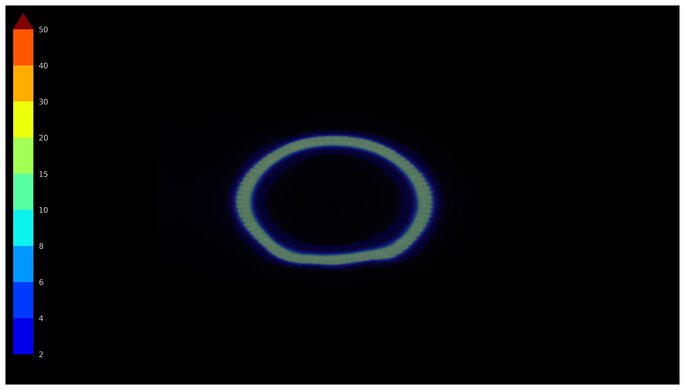
The local dimming feature has 1,152 dimming zones and performs very well. The 'Strong' setting really improves the contrast ratio by helping the monitor display deep blacks against bright objects. It keeps details well, like in scenes with a star field, and there isn't much blooming in real content, like subtitles, although the test video has more blooming. Fast-moving objects also transition between the dimming zones smoothly, and there isn't any noticeable flicker.
As using Local Dimming locks the brightness to the max, bright scenes are really bright, reaching around 500 nits in SDR and 900 nits in HDR. There's no way to lower the brightness.
The 'Strong' Local Dimming setting performs best for watching content in SDR, but not for browsing the web. This is because some desktop icons on a black background look oversaturated compared to them on a bright background, which doesn't happen with it set to 'Medium.' That said, you may prefer not using Local Dimming when browsing the web, as it locks the brightness to the max.
There's also a bug when using the 'Strong' Local Dimming setting in the 'DisplayHDR' HDR Mode. Content looks overbrightened and desaturated, and it stays like this even when switching back to SDR or turning the monitor on and off again. The only way to stop the issue is by resetting the monitor. We don't recommend using the 'Strong' Local Dimming setting with the 'DisplayHDR' HDR Mode, and it's better to use 'Medium' instead because it doesn't have this bug. That said, this issue doesn't happen in any of the other HDR Modes.
Our unit was manufactured in February 2025, but there are reports that units manufactured in March 2025 and later don't have this same bug. You can share your unit's label in the Comments section whether you're experiencing the same bug or not.
Settings
- Gaming Mode: Standard (after calibration)
- Brightness: 100 (locked with Local Dimming enabled)
- Eco Mode: Standard
- Local Dimming: Strong
The AOC Q27G40XMN has excellent SDR brightness. It easily gets bright enough to fight glare in a well-lit room. Using Local Dimming locks the brightness to its max, but there's a variation in brightness between different content. If that bothers you, disabling Local Dimming results in a more consistent brightness, and it still gets bright at around 450 cd/m². You also need to disable Local Dimming if you want the lowest minimum brightness.
Settings
- HDR Mode: DisplayHDR
- Local Dimming: Medium
- Brightness: Max (locked)
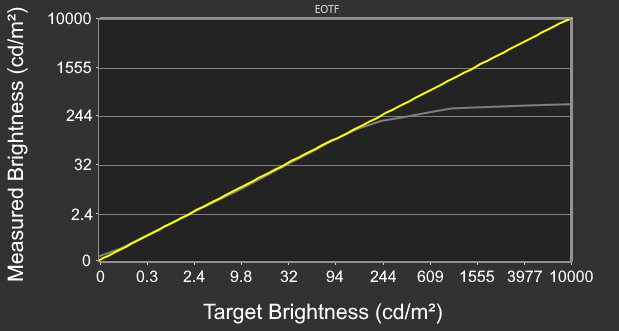
The HDR brightness is incredible. It makes small highlights pop, and even though it doesn't sustain this brightness with larger highlights, it still gets bright enough to fight glare in a well-lit room. However, it has terrible PQ EOTF tracking, as most content is darker than intended, and it has a very slow roll-off at the peak brightness, so it doesn't let all highlights get the brightest possible. Setting Local Dimming to 'Strong' results in better PQ EOTF tracking, but as explained in Local Dimming, the 'Strong' setting has a bug with the 'DisplayHDR' HDR Mode that makes content look washed out.
The 'DisplayHDR' HDR Mode is only available when the monitor receives an HDR signal, which locks all picture settings except for Local Dimming. 'DisplayHDR' has a similar PQ EOTF to the other HDR Modes, but 'DisplayHDR' has the best colors.
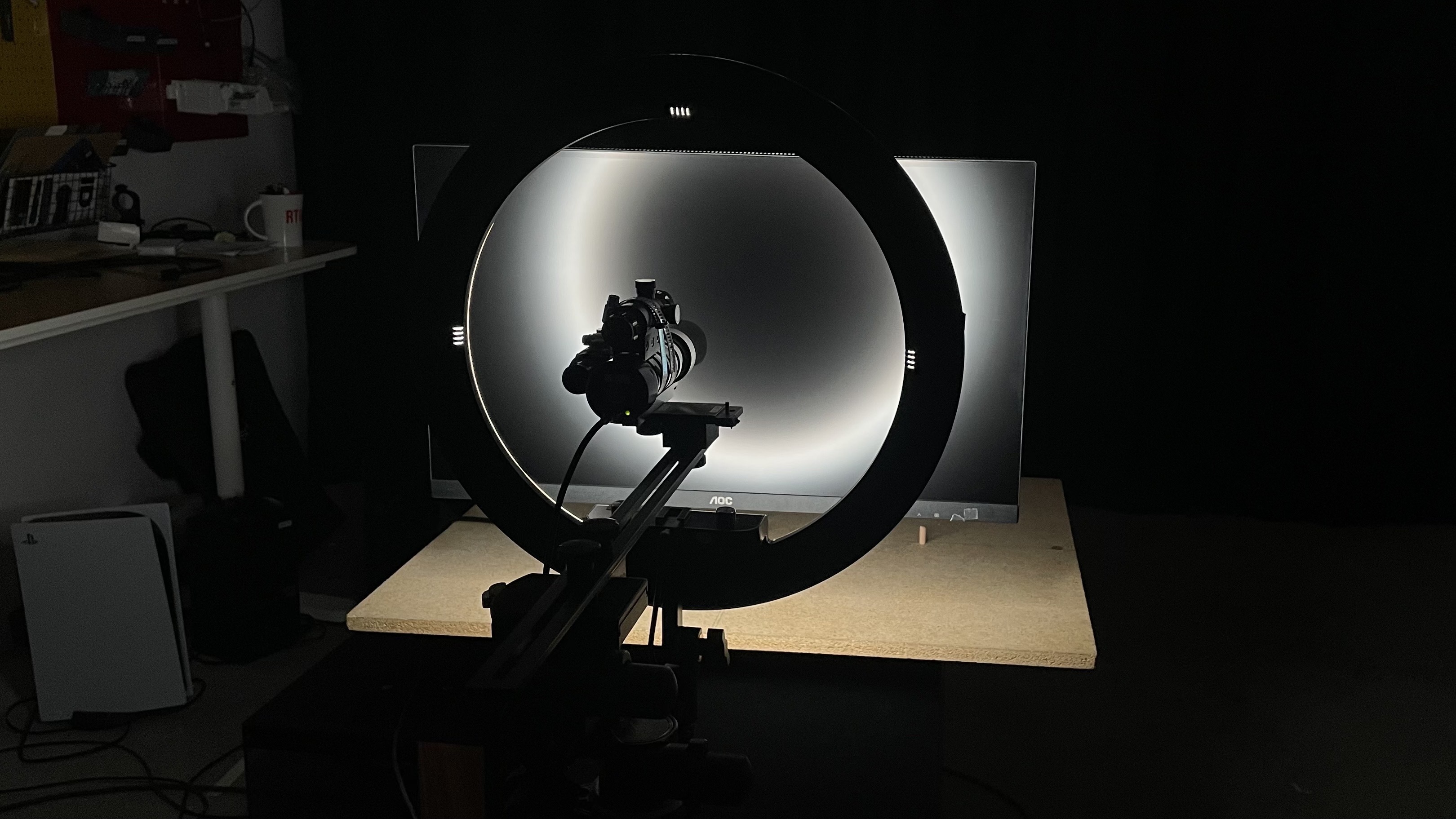
The gray uniformity is impressive. Although the edges are darker, the rest of the screen displays colors uniformly, and it has minimal dirty screen effect in the center. It also has great 5% gray uniformity.
The black uniformity with Local Dimming disabled is disappointing. There's cloudiness throughout, and even though it looks worse in the picture than in person, it's still noticeable. Using Local Dimming greatly improves the uniformity by removing these issues, and it displays an even black level throughout.
Settings
- Color Space: sRGB
- Gaming Mode: Standard
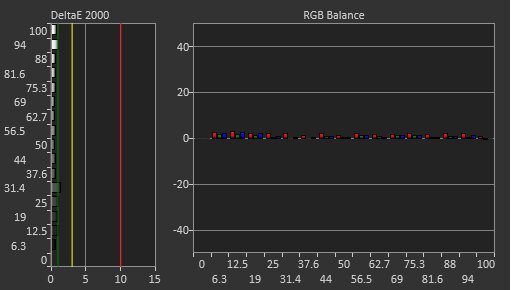
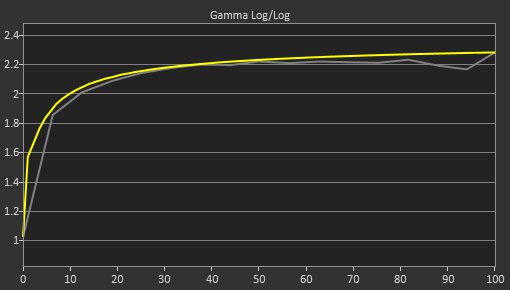
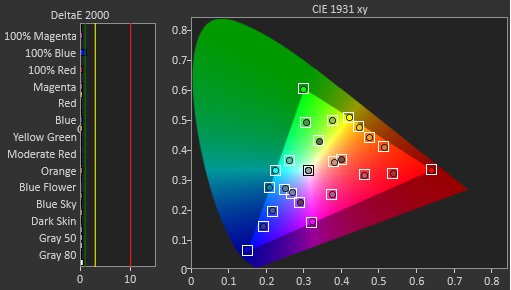
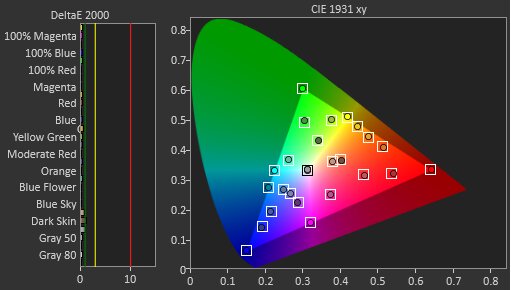
The accuracy before calibration in the sRGB mode is fantastic. It locks colors well to the sRGB color space, though some are undersaturated and inaccurate. It also has some white balance issues, particularly with brighter shades, but it's still great overall. The color temperature is close to the 6,500K target, and gamma is good overall, but dark scenes are too dark, and other scenes are too bright.
There are different picture modes available, depending on the combination of settings you choose. The regular picture mode setting is called Gaming Mode, of which the 'RTS,' 'Racing,' and 'Gamer' modes all perform nearly the same and lock the Eco Adjustment, HDR Mode, and Color Space settings. By selecting the 'Standard' Gaming Mode, you can change these settings, like selecting the 'sRGB' Color Space.
You can also use any of the Eco Adjustment picture modes with Gaming Mode on 'Standard,' Local Dimming disabled, and Color Space on 'Panel Native.' These Eco Adjustment modes perform the same with varying levels of brightness, except for 'Reading,' which is a grayscale mode. Besides 'Standard,' these Eco Adjustment modes lock the Brightness and Contrast settings.
Using the sRGB mode locks the listed settings below. You'd have to use a less accurate mode to get access to these settings.
- Shadow Control
- Game Color
- Contrast
- Gamma
- Eco Adjustment
- Color Temp.
- Red, Green, Blue
- HDR Mode
- LowBlue Mode
Settings
- Color Space: Panel Native
- Gaming Mode: Standard
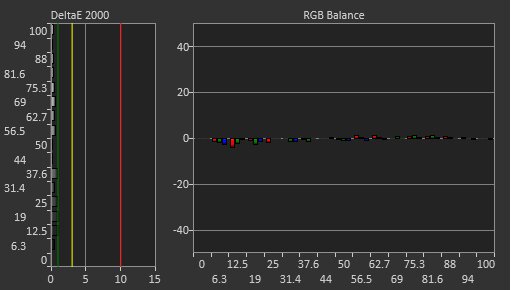
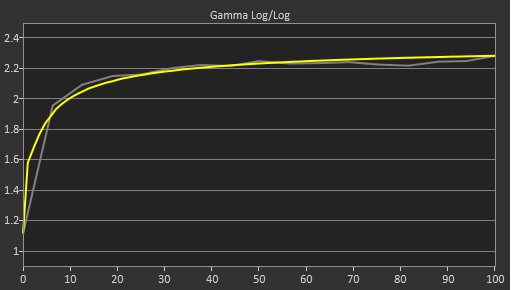
The AOC Q27G40XMN's accuracy after calibration is remarkable. Calibrating it fixes most issues, and any remaining inaccuracies are hard to notice. Using the 'Standard' Gaming Mode unlocks all OSD settings, including HDR Mode and Color Space.
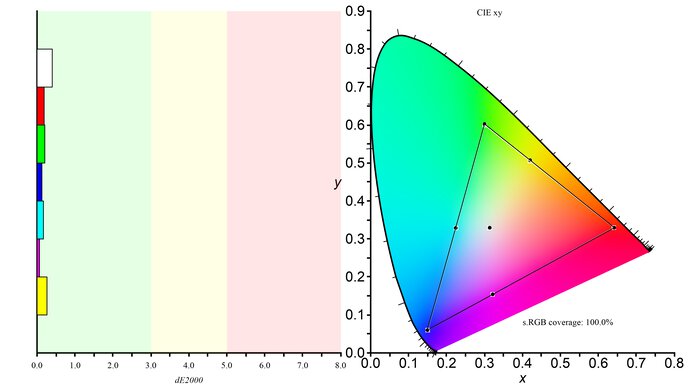
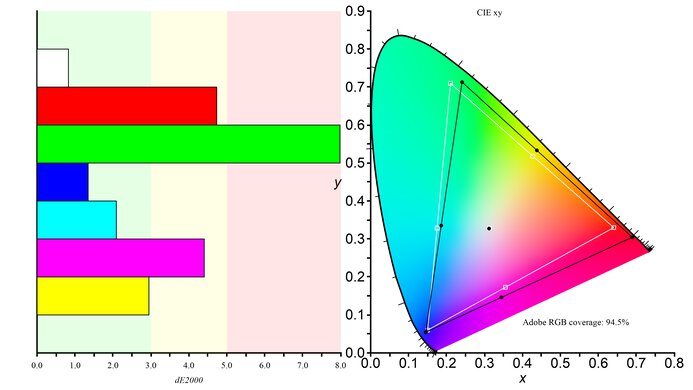
The SDR color gamut is remarkable. It displays a wide range of colors in the sRGB and Adobe RGB color spaces. Although some colors, like red and blue, are oversaturated in Adobe RGB, you may be able to avoid this issue with a color-managed app.
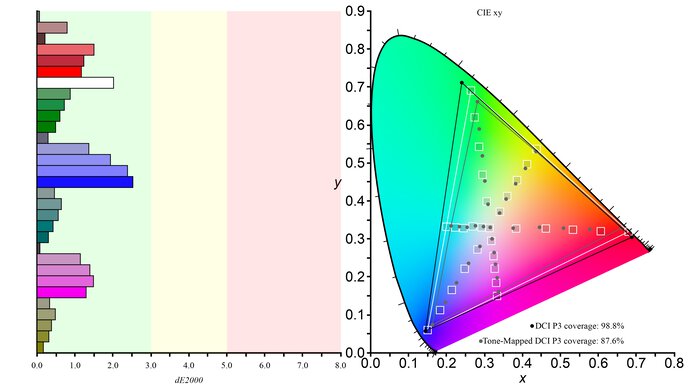
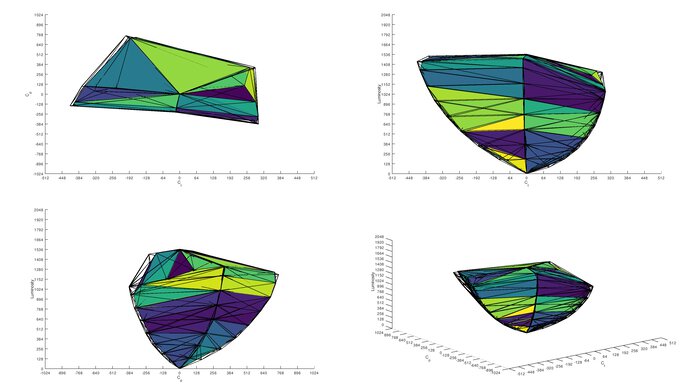
The HDR color gamut is great. It displays a wide range of colors in DCI-P3 and Rec. 2020, with minimal inaccuracies in each.
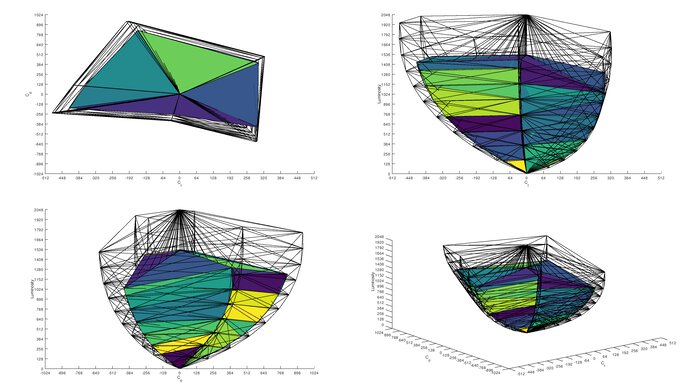
The HDR color volume is excellent. If you set Local Dimming to 'Medium,' it displays dark colors well, but really struggles with bright colors. We test this with a bright 75% stimulus, but it displays better colors with a 50% stimulus, which represents darker colors.
Using the 'Strong' Local Dimming setting in the 'DisplayHDR' HDR Mode results in a better tested color volume, but as explained in Local Dimming, the image looks washed out with the combination of these settings.
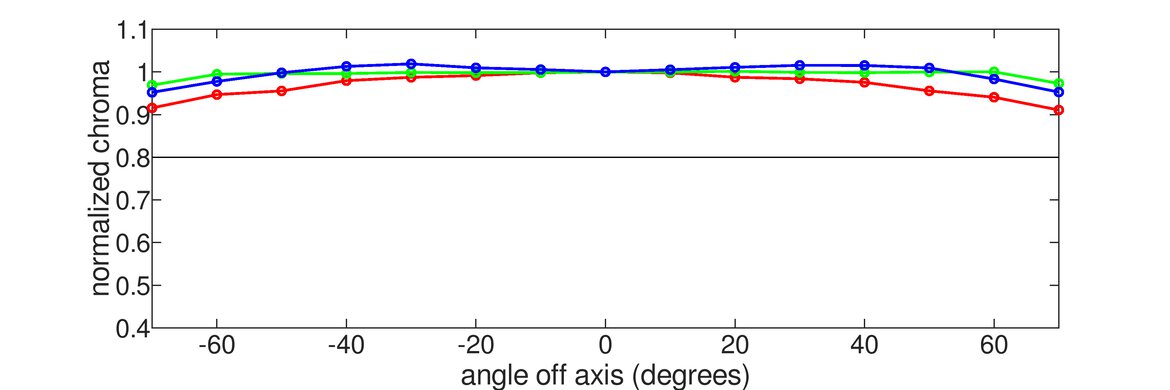
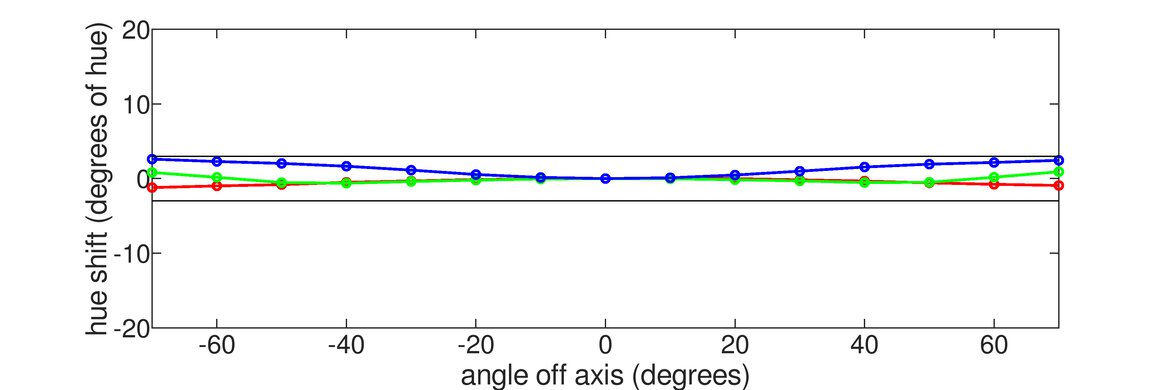
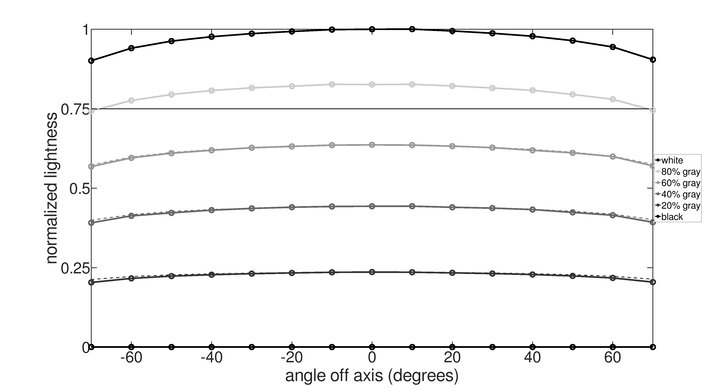
The AOC Q27G40XMN's horizontal viewing angle is disappointing. The image quickly washes out from the sides, making it a bad choice if you want to share your screen with someone next to you.
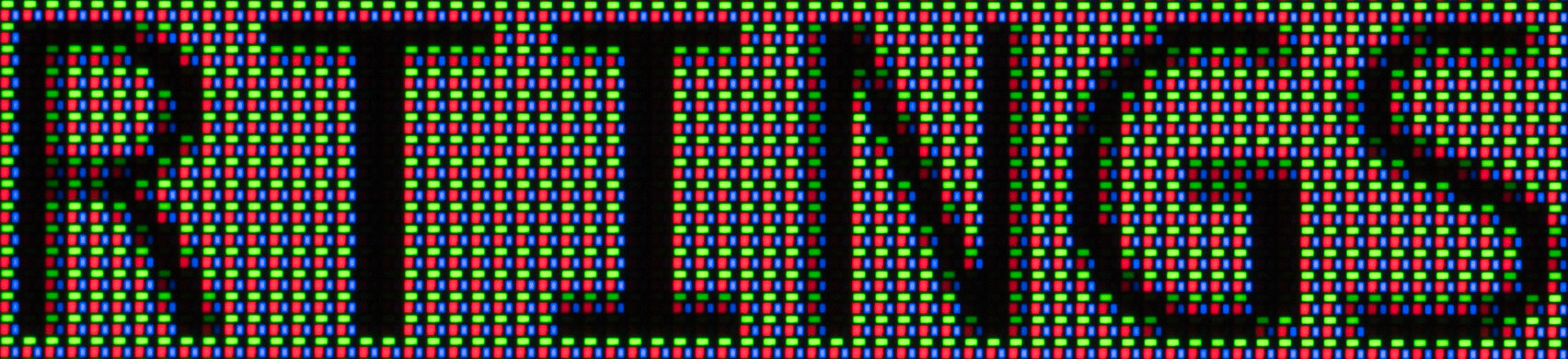
The text clarity is good. Using Windows ClearType (top photo) helps make letters look bolder. These photos are in Windows 10, and you can also see them in Windows 11 with ClearType on and with ClearType off.
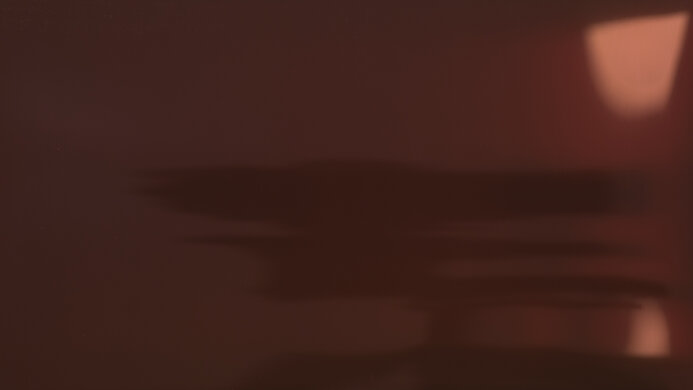
The direct reflection handling is decent. It spreads light out and makes some images look warped, but it doesn't have strong mirror-like reflections, either.
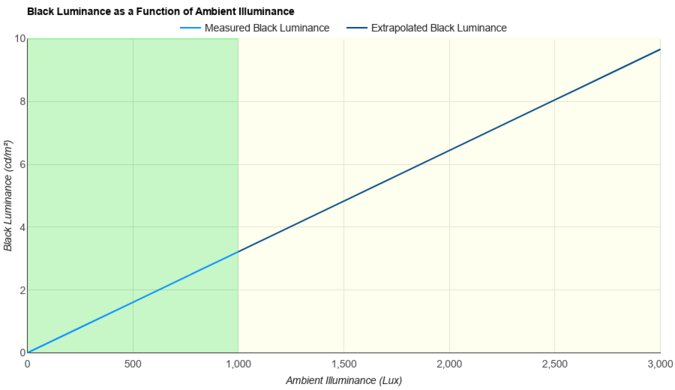
This monitor has minimal black level raise in bright rooms. Although the black levels aren't as good as they are in a dark room, they still look fairly deep.
This monitor has distracting reflections in really bright rooms. Although it spreads light out, a lot is still reflected back, creating distracting glare.
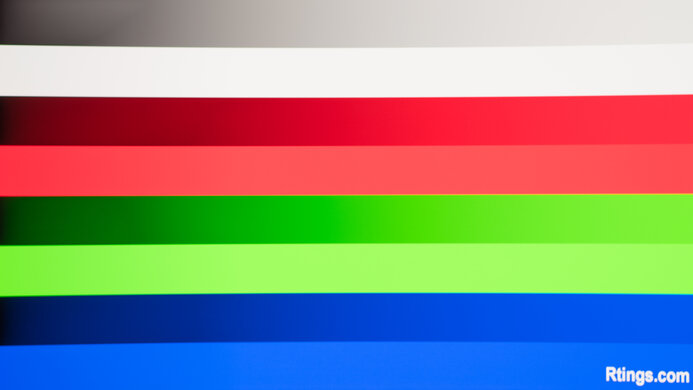
The gradient handling is remarkable. There's minimal banding between shades of similar colors.
There are reports online that people can't reach a 180Hz refresh rate with 8-bit color depth and full dynamic range RGB 4:4:4 over DisplayPort. We experienced the same issue with our NVIDIA GeForce RTX 5070 Ti graphics card as we had to use 4:2:2 subsampling to get the 180Hz refresh rate, or drop down to 170Hz to get RGB 4:4:4. This means the input is limited to DisplayPort 1.2 bandwidth. However, we didn't experience the same thing with our AMD Radeon RX 7800 XT graphics card, as we were able to get a 1440p @ 180Hz 8-bit full range RGB signal, despite its bandwidth limitations.
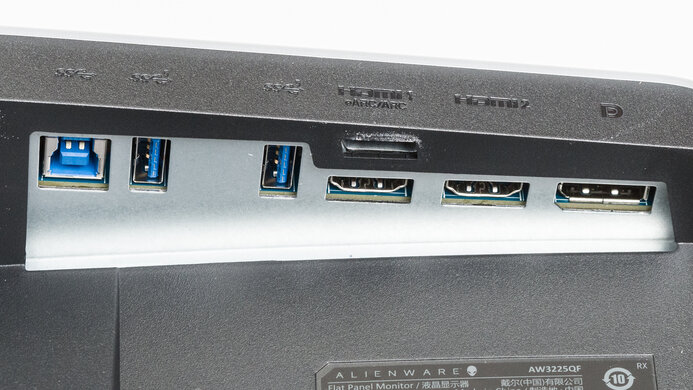
Due to other bandwidth limitations, the max refresh rate is lower with 10-bit signals.
NVIDIA - G-SYNC Compatibility
Connection
VRR Min
VRR Max
DisplayPort
<20Hz
180Hz
HDMI
N/A
N/A
AMD - FreeSync
Connection
VRR Min
VRR Max
DisplayPort
<20Hz
180Hz
HDMI
<20Hz
144Hz
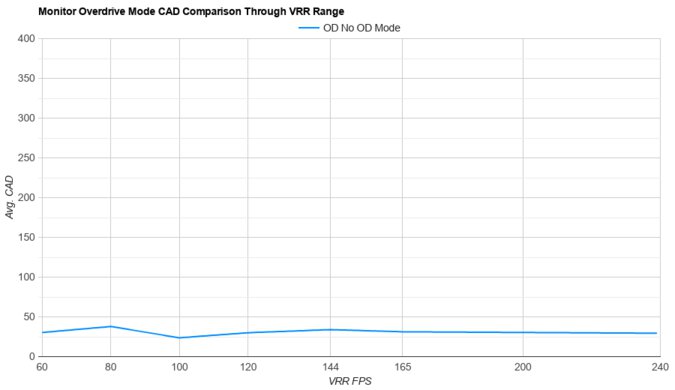
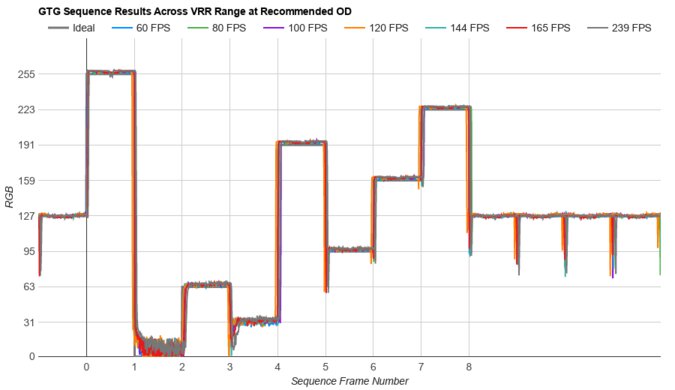
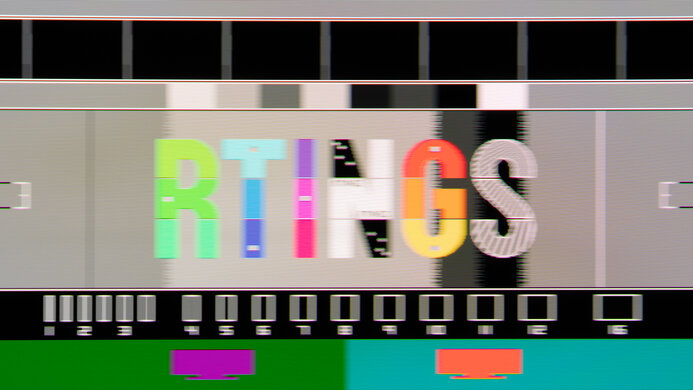
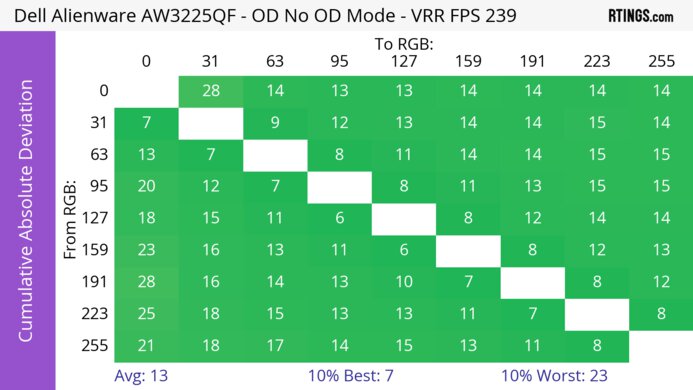
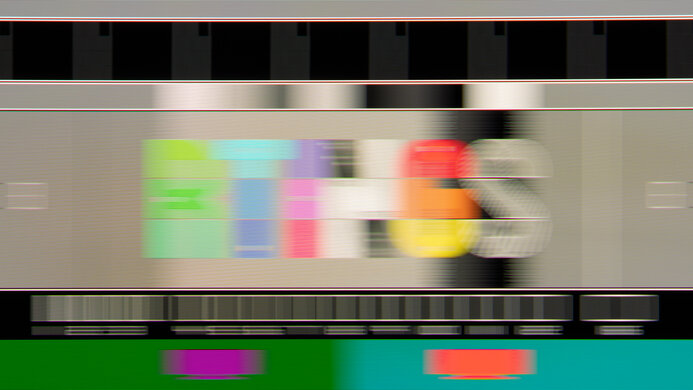
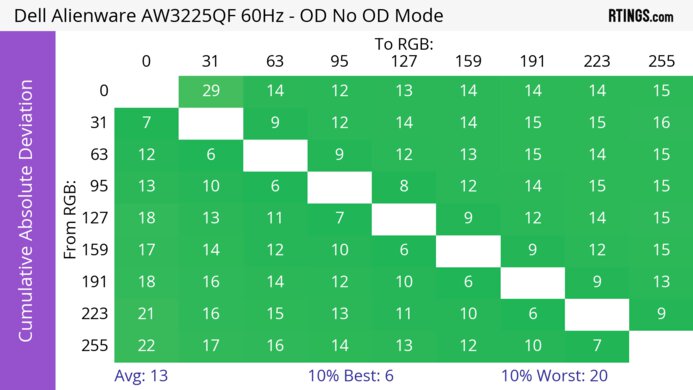
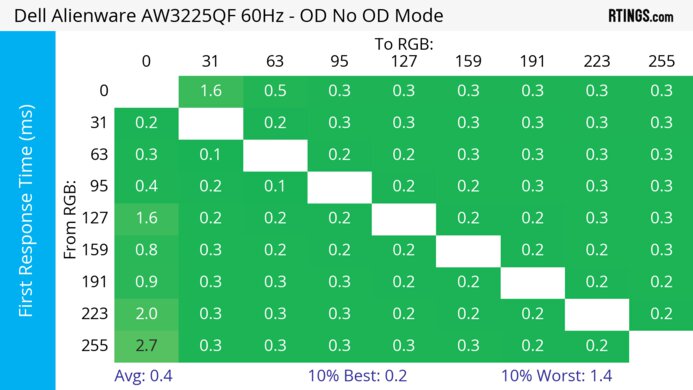
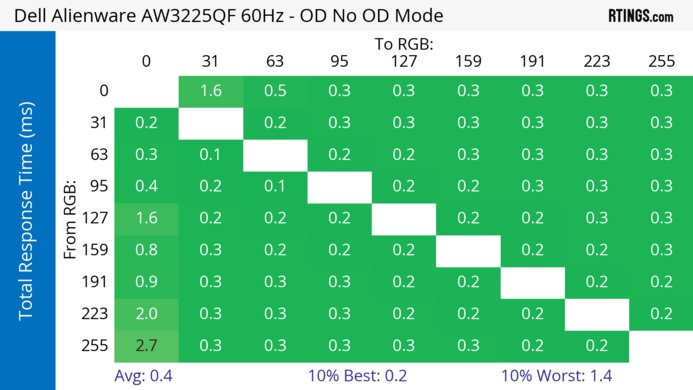
The AOC Q27G40XMN has great motion handling across its VRR range. The 'Faster' Overdrive setting has minimal blur, but there's still smearing and inverse ghosting as the refresh rate drops. The 'Fastest' Overdrive has such high CAD that it passes the limits of the graph, which you can see with an alternative graph using a different scale.
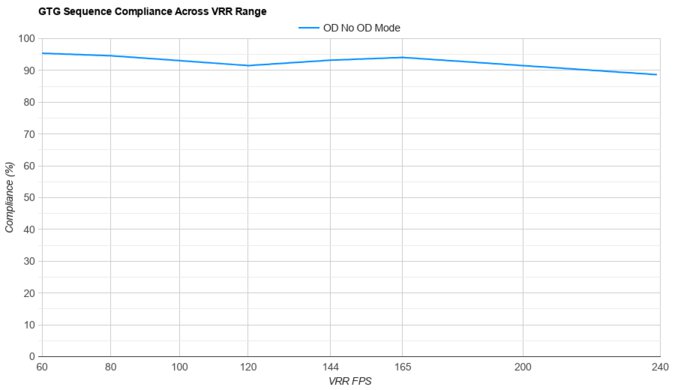
The refresh rate compliance is great. Its response time isn't fast enough to make most full color transitions before the monitor draws the next frame with high frame rates.
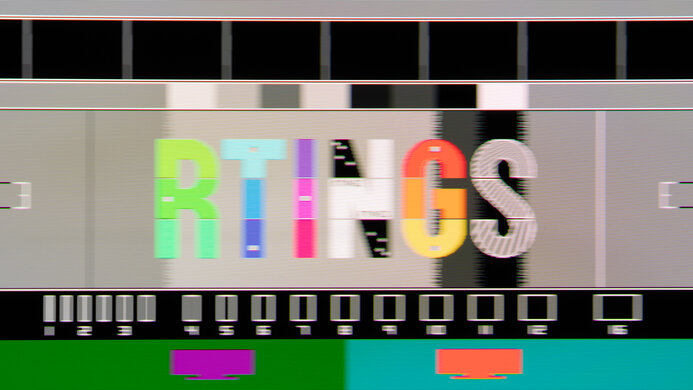
The CAD at the max refresh rate of 180Hz is great. Although there isn't too much noticeable blur, it still has black smearing with dark objects, which is typical of VA panels. The 'Faster' Overdrive performs the best overall, but 'Fast' has less inverse ghosting, at the cost of added blur.
The CAD at 120Hz is great. Like at the max refresh rate, there isn't much blur with fast-moving objects, but it still has some inverse ghosting and smearing with the 'Faster' Overdrive setting. You can use the 'Fast' Overdrive setting if you want less inverse ghosting, but it has more overall blur.
The CAD at 60Hz is decent. There's more smearing and blur than at higher refresh rates, but the 'Faster' Overdrive setting still performs the best.
The AOC Q27G40XMN doesn't have a backlight strobing feature to reduce persistence blur.
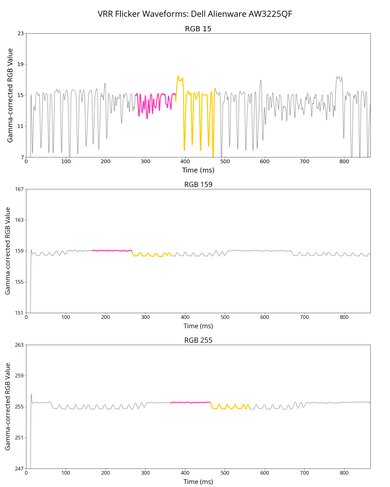
The AOC Q27G40XMN has noticeable VRR flicker with changing frame rates. It looks worse in person than in the video or what the score presents. There's flicker throughout the entire image, including in bright areas, which can be distracting when there's a big change in the frame rate.
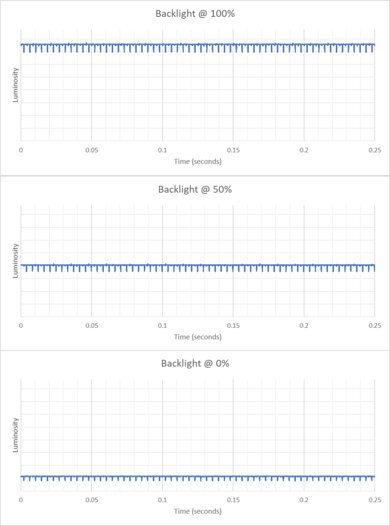
The AOC Q27G40XMN's backlight is flicker-free as it doesn't use pulse width modulation to dim its backlight.
The AOC Q27G40XMN has very low input lag for a responsive feel. You need to enable Adaptive-Sync or Low Input Lag to get the lowest input lag, as it's higher with Low Input Lag off:
- 180Hz: 15.0 ms
- 120Hz: 13.5 ms
- 60Hz: 22.1 ms
Although you can't use Low Input Lag with VRR enabled, the input lag remains equally low even with Adaptive-Sync enabled on the monitor.
As we test input lag over DisplayPort with our PC that has an NVIDIA graphics card, we had to use chroma 4:2:2 to get a 180Hz signal. However, when testing the 120Hz input lag, we noticed there's no difference in performance between 4:4:4 and 4:2:2.
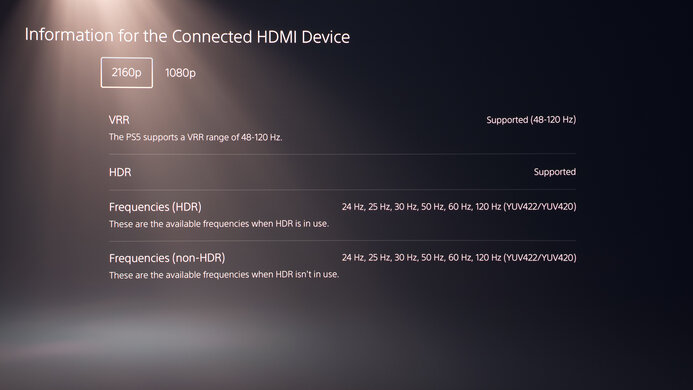
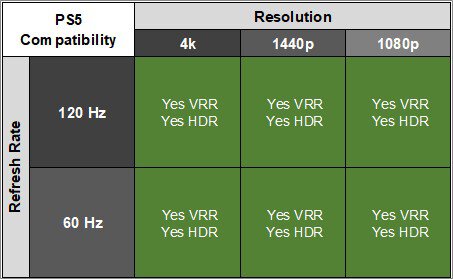
As this monitor lacks HDMI 2.1 bandwidth, it can't take full advantage of the PS5 or PS5 Pro.
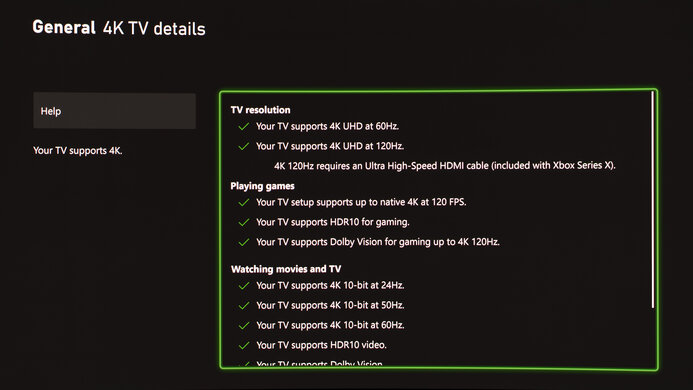
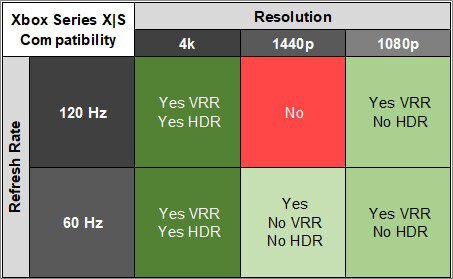
As the AOC Q27G40XMN lacks HDMI 2.1 bandwidth, it can't take full advantage of the Xbox Series X|S. It at least downscales a 4k @ 60Hz signal, which allows you to use HDR, as the Xbox doesn't support HDR with 1440p or 1080p signals. We did experience some issues when changing settings on the Xbox, as it would become unresponsive, but this shouldn't be an issue if you don't play around with the settings.
Despite being advertised as DisplayPort 1.4, the AOC Q27G40XMN supports HBR2 (5.4 Gbps per lane) over DisplayPort, which is the bandwidth of DisplayPort 1.2. This is despite the fact that it still supports 1440p @ 180Hz 8-bit RGB signals over DisplayPort with an AMD PC, which is theoretically not possible with DisplayPort 1.2. We confirmed this using CRU; by changing the Timing to 'Exact reduced,' the pixel clock is 709MHz, which is under the max clock speed of 720MHz of HBR2. We even opened up the monitor to see if any part numbers confirmed which DisplayPort version it has, but that did not give us this info.
Tested with: M2 MacBook Pro (Sequoia 15.4.1)
| Connection | HDMI 2.0 | DP to USB-C |
|---|---|---|
| Max Refresh Rate | 144Hz | 180Hz |
| VRR Range | N/A | 48-170Hz |
| HDR | Yes | Yes |
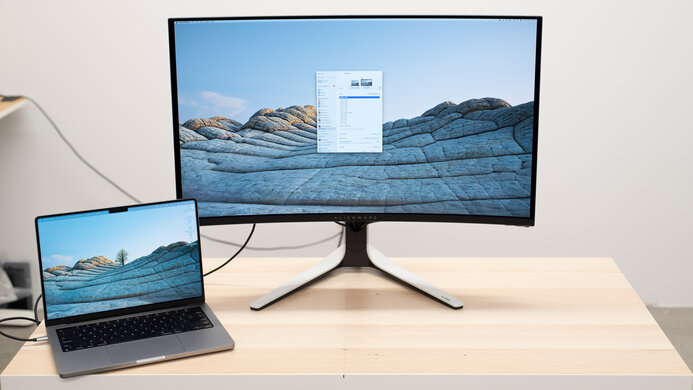
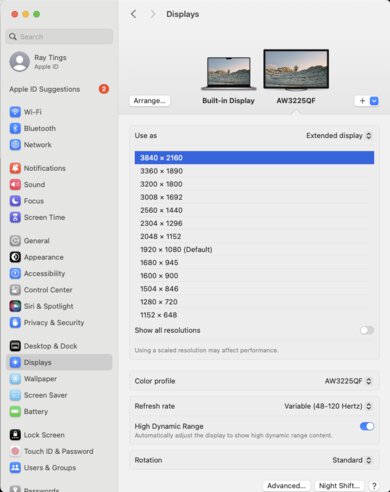
This monitor works well with macOS. Colors look oversaturated in SDR, but colors are more accurate in the 'DisplayHDR' HDR Mode once you enable HDR. VRR works well over DisplayPort, but only up to 170Hz, and it isn't available over HDMI. If you're using a MacBook without any power plugged into the laptop and close the lid, the monitor goes to sleep. However, plugging the laptop into power allows the monitor to stay on, and you can continue using the MacBook with any peripherals plugged in. When reopening the lid or waking the laptop up from sleep, windows return to their original positions.
The AOC Q27G40XMN has a few extra features in the OSD, including:
- Shadow Control: Adjusts the black levels so that it's easier to see opponents in dark scenes.
- Game Color: Controls the saturation of colors.
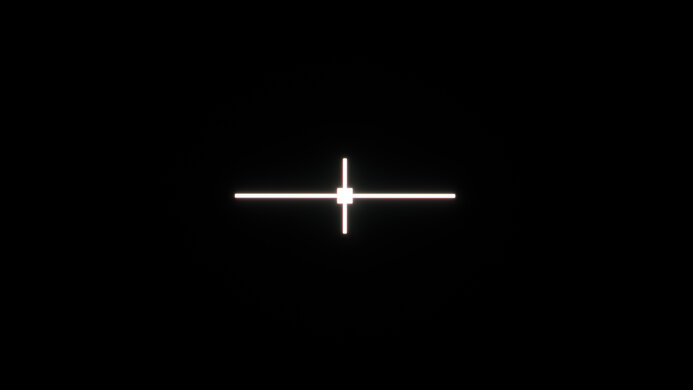
- Dial Point: Adds a virtual crosshair on the screen that your game's anti-cheat tool won't detect.
- Sniper Scope: Zooms in on the center of the screen.
- Frame Counter: Displays the current frame rate of your source.
- LowBlue Mode: Lowers the blue light output to help reduce eye strain.