ASUS ROG Strix OLED XG32UCWMG  Monitor Review

Reviewed Oct 30, 2025 at 01:49pm
Writing modified Nov 19, 2025 at 03:14pm
Tested using Methodology v2.1.1 
ASUS ROG Strix OLED XG32UCWMG
9.2
PC Gaming 
9.2
Console Gaming 
7.9
Office 
9.0
Editing 
7.2
Brightness 
9.8
Response Time 
8.9
HDR Picture 
9.9
SDR Picture 
 64
  1. Recommended in:
  2. Monitors

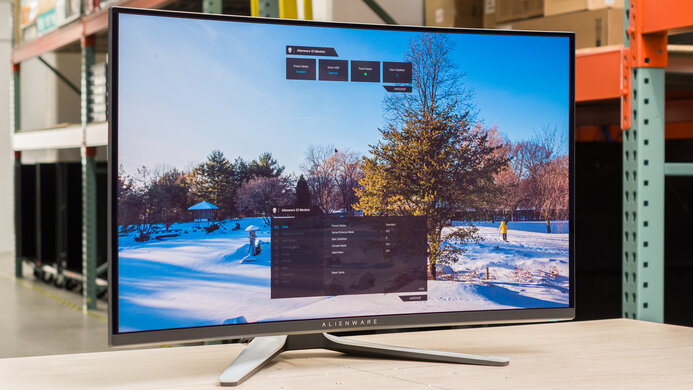
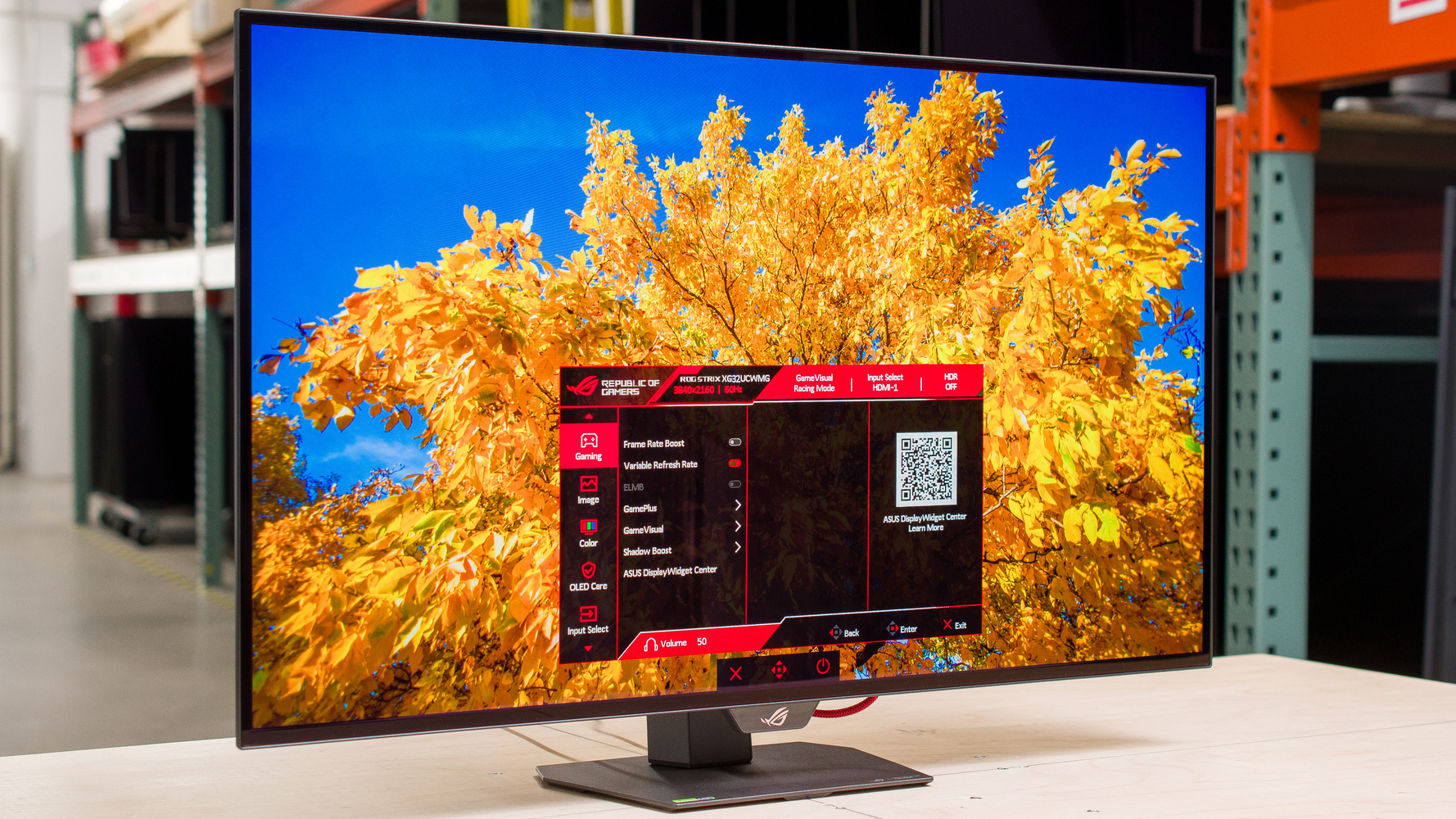
The ASUS ROG Strix OLED XG32UCWMG is a high-end 32-inch OLED gaming monitor. Using the same third-generation WOLED panel as competing models, like the LG 32GS95UE-B and the ASUS ROG Swift OLED PG32UCDP, it's the first of its kind with a TrueBlack Glossy screen coating, similar to counterpart QD-OLEDs, like the ASUS ROG Swift OLED PG32UCDM. It has a native 4k resolution and a 240Hz refresh rate that you can change to 1080p @ 480Hz in its Frame Rate Boost mode. It sits alongside the similar ASUS ROG Strix OLED XG32UCWG, which is another glossy WOLED monitor, but has a lower refresh rate. This monitor has typical gaming features, like HDMI 2.1 bandwidth and VRR support, but unlike other high-end monitors, it lacks DisplayPort 2.1 bandwidth. It even comes with a small USB hub that includes a KVM switch, and it has a few perks to help reduce the risk of OLED burn-in, including a Neo Proximity Sensor to turn the screen off when you're away from it and a custom heatsink.

How We Test Monitors

We buy and test more than 30 monitors each year, with units that we buy completely on our own, without any cherry-picked units or samples. We put a lot into each unbiased, straight-to-the-point review, and there's a whole process from purchasing to publishing, involving multiple teams and people. We do more than just use the monitor for a week; we use specialized and custom tools to measure various aspects with objective data-based results. We also consider multiple factors before making any recommendations, including the monitor's cost, its performance against the competition, and whether or not it's easy to find.

Our Verdict

9.2
PC Gaming 

The ASUS XG32UCWMG is incredible for PC gaming. You can use it in 4k @ 240Hz or 1080p @ 480Hz, so it offers a smooth feel in either mode, and motion looks sharp thanks to its near-instantaneous response time. It also has low input lag for a responsive feel, and it supports all common VRR formats to reduce screen tearing. Unfortunately, it has distracting VRR flicker with changing frame rates. On the plus side, its OLED panel delivers deep and inky blacks, and it maintains these low black levels in bright rooms. Plus, its glossy coating helps images look clear. While it also displays a wide range of colors in HDR, bright colors are somewhat muted.

Pros
  • 4k, 240Hz and 1080p, 480Hz modes.

  • Near-instantaneous response time at any refresh rate.

  • Low input lag for responsive feel.

  • Deep and inky blacks in any environment.

  • Bright highlights in HDR.

Cons
  • Distracting VRR flicker.

  • Not bright enough to fight intense glare.

  • Limited to DisplayPort 1.4 bandwidth.

9.2
Console Gaming 

The ASUS XG32UCWMG is remarkable for console gaming, as long as you're using its 4k mode. It has HDMI 2.1 bandwidth to make full use of the PS5, PS5 Pro, and Xbox Series X|S, including 4k signals up to 120Hz. Fast-moving content looks sharp thanks to its near-instantaneous response time, and it has low input lag for a responsive feel. It even delivers fantastic picture quality with deep blacks in any environment, and a glossy coating that makes images look clear. It also makes highlights pop in HDR and displays a wide range of colors, but the brightest colors aren't the most vivid.

Pros
  • Near-instantaneous response time at any refresh rate.

  • Low input lag for responsive feel.

  • Deep and inky blacks in any environment.

  • Bright highlights in HDR.

  • Supports 4k up to 120Hz with gaming consoles.

Cons
  • Not bright enough to fight intense glare.

7.9
Office 

The ASUS XG32UCWMG is very good for work, with some limitations. It has a large 32-inch screen that helps with multitasking, and text looks sharp thanks to its high pixel density and glossy screen coating, but there's more fringing around letters than on LCD monitors. It's fine if you want to use it in a room with a few lights around, as it gets bright enough to fight some glare, but it has distracting reflections with strong light sources facing the screen. It also risks permanent burn-in with constant exposure to the same static elements over time, which is a problem if you only use the display for work without varying your usage.

Pros
  • Sharp text and clarity.

  • Ergonomic stand.

  • Includes a USB hub.

  • Wide viewing angles.

Cons
  • Not bright enough to fight intense glare.

  • USB-C port is limited to 15W of power delivery.

  • Risk of burn-in.

9.0
Editing 

The ASUS XG32UCWMG is fantastic for content creation. It has good picture quality with deep blacks in any environment and no haloing around bright objects. It also displays a wide range of colors and is accurate before calibration, but you still need to calibrate it to fix white balance and gamma issues. It gets bright enough to make highlights stand out when editing HDR content or fight glare in a well-lit room, but reflections are distracting in sunny environments. Unfortunately, it risks burn-in if you always have the same static elements on the screen.

Pros
  • Deep and inky blacks in any environment.

  • Bright highlights in HDR.

  • Sharp text and clarity.

  • Accurate before calibration.

  • Wide viewing angles.

Cons
  • Not bright enough to fight intense glare.

  • Risk of burn-in.

  • Needs calibration to fix white balance and gamma.

7.2
Brightness 

The ASUS ROG Strix XG32UCWMG has decent brightness. It makes highlights stand out in HDR and fights glare well in moderately lit rooms, but it doesn't get bright enough to fight intense glare.

Pros
  • Bright highlights in HDR.

Cons
  • Not bright enough to fight intense glare.

9.8
Response Time 

The ASUS XG32UCWMG has a near-instantaneous response time, resulting in incredibly sharp motion.

Pros
  • Near-instantaneous response time at any refresh rate.

Cons
None
8.9
HDR Picture 

The ASUS ROG Strix XG32UCWMG is remarkable for HDR. It has a high native contrast ratio in dark and bright rooms, without any haloing around bright objects. It also displays a wide range of colors, but bright colors are somewhat muted.

Pros
  • Deep and inky blacks in any environment.

  • No haloing around bright objects.

Cons
  • Bright colors are somewhat muted.

9.9
SDR Picture 

The ASUS ROG Strix OLED XG32UCWMG has outstanding SDR picture quality. It displays deep and inky blacks with good uniformity and a wide range of colors.

Pros
  • Deep and inky blacks in any environment.

Cons
None
8.5
Color Accuracy 

The ASUS XG32UCWMG has excellent color accuracy. It's accurate before any sort of calibration, but there are gamma and white balance issues that need fixing with a full calibration.

Pros
  • Accurate before calibration.

Cons
  • Needs calibration to fix white balance and gamma.

  • 9.2
    PC Gaming
  • 9.2
    Console Gaming
  • 7.9
    Office
  • 9.0
    Editing

  • Performance Usages

  • 7.2
    Brightness
  • 9.8
    Response Time
  • 8.9
    HDR Picture
  • 9.9
    SDR Picture
  • 8.5
    Color Accuracy
  • Changelog

    1.  Updated Nov 19, 2025: 

      We added that the LG 27GX700A-B is another monitor that gets brighter.

    2.  Updated Nov 10, 2025: We've converted this review to Test Bench 2.1.1. We removed the Vertical Viewing Angle test.
    3.  Updated Oct 30, 2025: Review published.
    4.  Updated Oct 27, 2025: Early access published.

    Check Price

    32"ROG Strix OLED XG32UCWMG
    SEE PRICE
    Walmart.com
    32"ROG Strix OLED XG32UCWMG
    Amazon.com
    32"ROG Strix OLED XG32UCWMG
    SEE PRICE
    B&H
    32"ROG Strix OLED XG32UCWMG
    BestBuy.com

    Differences Between Sizes And Variants

    We bought and tested the 32-inch ASUS XG32UCWMG, which is the only size available for this model. There are similar monitors in the ROG lineup, which you can see below, but they perform differently, so the results are only valid for this model.

    Model Size Panel Type Resolution & Refresh Rate Coating USB-C Power Delivery
    ROG Strix XG27UCDMG 27" QD-OLED 4k, 240Hz Glossy 90W
    ROG Strix XG32UCWMG 32" WOLED 4k, 240Hz & 1080p, 480Hz Glossy 15W
    ROG Strix XG32UCWG 32" WOLED 4k, 165Hz & 1080p, 330Hz Glossy 15W
    ROG Swift PG32UCDP 32" WOLED 4k, 240Hz & 1080p, 480Hz Matte 90W

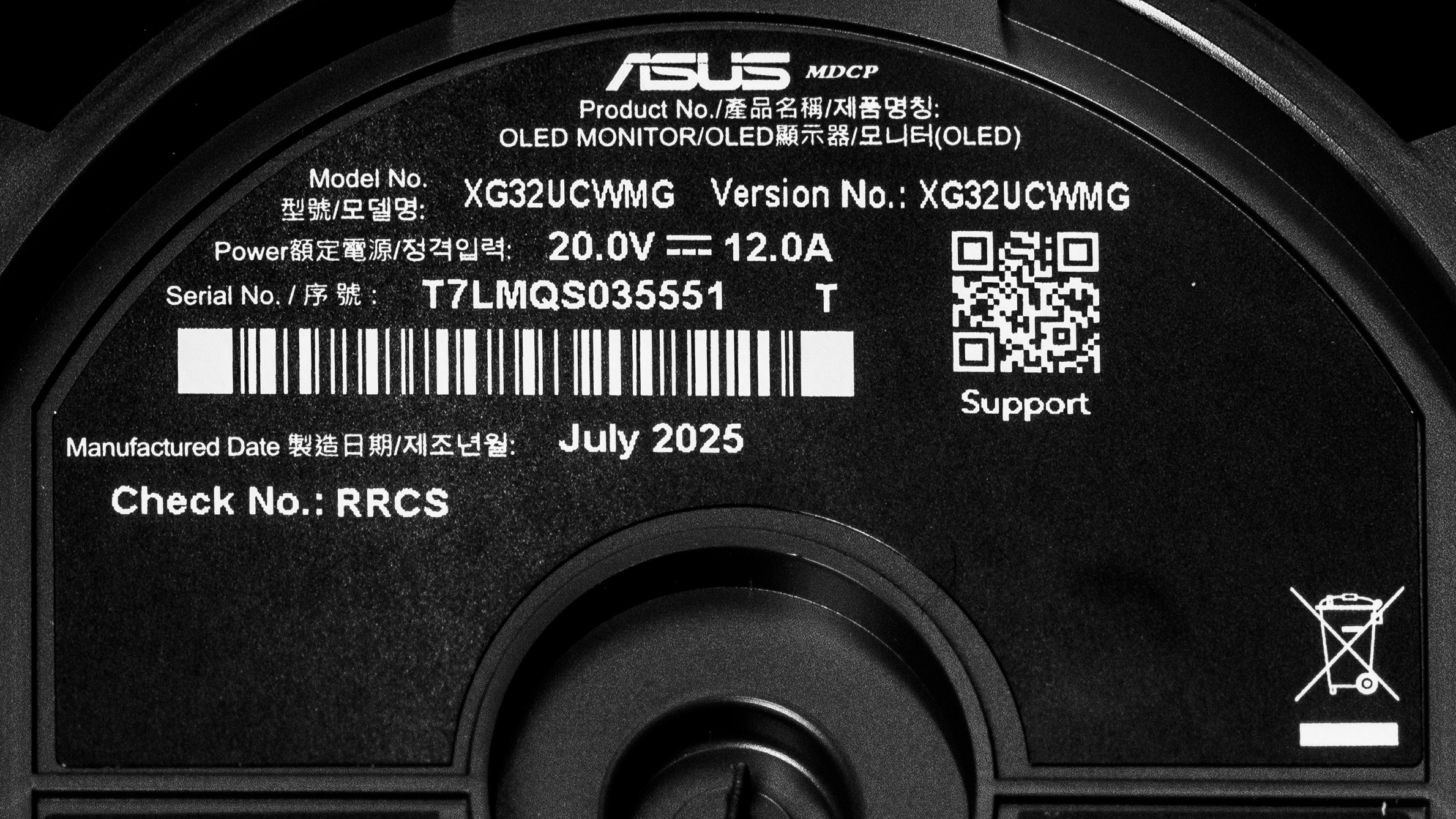
    Our unit's label indicates it was manufactured in July 2025. We tested it with MCM103.

    Popular Monitor Comparisons

    The ASUS ROG Strix XG32UCWMG is a high-end OLED gaming monitor with a native 4k resolution and a 240Hz refresh rate. It has what you'd expect in a modern gaming monitor, like support for all common VRR formats, a near-instantaneous response time, and HDMI 2.1 bandwidth, but it lacks DisplayPort 2.1 bandwidth like on other high-end models. Its Frame Rate Boost mode feature is useful for playing different types of games, as its 480Hz refresh rate offers a smoother feel with a lower 1080p resolution, similar to other dual-mode OLEDs, like the LG 32GS95UE-B and the ASUS ROG Swift OLED PG32UCDP.

    What sets it apart from other OLEDs is that it's the first 4k WOLED monitor with a TrueBlack glossy coating, giving it clearer and sharper images than similar displays with matte coatings. This also means it's an alternative to getting a glossy QD-OLED monitor, like the ASUS ROG Swift OLED PG32UCDM, if you want to place it in a bright room. It retains its low black levels much better than on a QD-OLED, as they don't look purple. The main trade-off of getting it versus a QD-OLED is that colors aren't as vivid, but its deep blacks, bright highlights, and wide range of colors still help deliver fantastic overall picture quality.

    Also see our recommendations for the best multimedia monitors, the best ASUS monitors, and the best monitors for Xbox Series S.

    ASUS ROG Swift OLED PG32UCDM

    The ASUS ROG Strix OLED XG32UCWMG and the ASUS ROG Swift OLED PG32UCDM are both 32-inch OLED gaming monitors with native 4k resolutions and 240Hz refresh rates. There are some differences, though, as the XG32UCWMG has a Frame Rate Boost mode feature that raises its refresh rate to 480Hz, with a lower 1080p resolution. However, the PG32UCDM has features that the XG32UCWMG doesn't have, like Dolby Vision support. The QD-OLED panel of the PG32UCDM has more vivid colors, too, but the WOLED panel of the XG32UCWMG retains its low black levels much better in bright rooms, as they don't look purple like on the PG32UCDM.

    ASUS ROG Swift OLED PG32UCDP

    The ASUS ROG Strix OLED XG32UCWMG and the ASUS ROG Swift OLED PG32UCDP are both high-end OLED gaming monitors. They're fairly similar for the most part, as they use the same WOLED panel with a native 4k resolution and 240Hz refresh rate, as well as a Frame Rate Boost mode that allows you to use it with 1080p @ 480Hz signals. The main difference between them is their screen coatings. The glossy coating on the XG32UCWMG allows images to appear clearer, and it does a better job at maintaining low black levels in bright rooms. On the other hand, the matte coating of the PG32UCDP has fewer distracting reflections, so choosing one over the other really comes down to personal preference. The PG32UCDP also has higher power delivery over USB-C, which is something to consider if you want to connect a laptop.

    ASUS ROG Swift OLED PG27UCDM

    The ASUS ROG Strix OLED XG32UCWMG and the ASUS ROG Swift OLED PG27UCDM are both 4k, 240Hz OLED gaming monitors, with a few differences. The XG32UCWMG has a Frame Rate Boost mode feature that raises its refresh rate to 480Hz for a smoother feel, with a lower resolution. On the other hand, the PG27UCDM has different features, like DisplayPort Alt Mode, Dolby Vision support, and higher power delivery over USB-C. The QD-OLED panel of the PG27UCDM has more vivid colors, too, but the WOLED panel of the XG32UCWMG retains its low black levels much better in bright rooms, as they don't look purple like on the PG27UCDM. The PG27UCDM also has higher pixel density, but the XG32UCWMG offers more screen real estate.
    LG 32GS95UE-B

    The ASUS ROG Strix OLED XG32UCWMG and the LG 32GS95UE-B are both high-end OLED gaming monitors. They use the same WOLED panel with a native 4k resolution and 240Hz refresh rate, as well as a dual mode that allows you to use it with 1080p @ 480Hz signals. The main difference between them is their screen coatings. The glossy coating on the ASUS allows images to appear clearer, and it does a better job at maintaining low black levels in bright rooms. On the other hand, the matte coating of the LG has fewer distracting reflections, so choosing one over the other really comes down to personal preference. There are some other minor differences, like the fact that the ASUS gets brighter in SDR and has more accurate colors.

    Show more 

    Test Results

    perceptual testing image
    Sort:
    RATINGS
    Category:
    All
    Design
    Style
    Curved
    No
    Curve Radius
    Not Curved

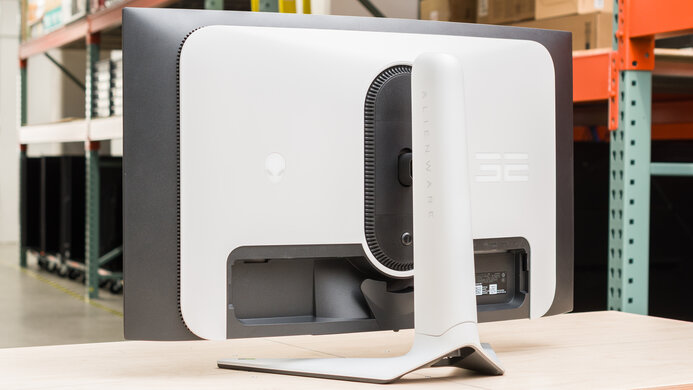
    The ASUS XG32UCWMG has a simple, yet gaming-focused design. It's mainly black and dark gray, with some branding and RGB lighting on the back. The panel itself is thin, which is typical of OLED monitors, but the housing for the inputs is thicker.

    8.5
    Build Quality

    The build quality is excellent. It's well-made with premium materials, without any noticeable issues. The base of the stand and the housing for the panel are metal, while everything else is plastic that doesn't bend easily, but still flexes a bit when you put pressure on it. There's no audible fan noise or coil whine either, even after long periods of use.

    7.1
    Ergonomics
    Min Height To Top Of Panel
    17.7" (45.0 cm)
    Height Adjustment
    4.4" (11.1 cm)
    Tilt Range
    -17.5° to 5°
    Rotate Portrait/Landscape
    No
    Swivel Range
    -20° to 20°
    Wall Mount
    VESA 100x100

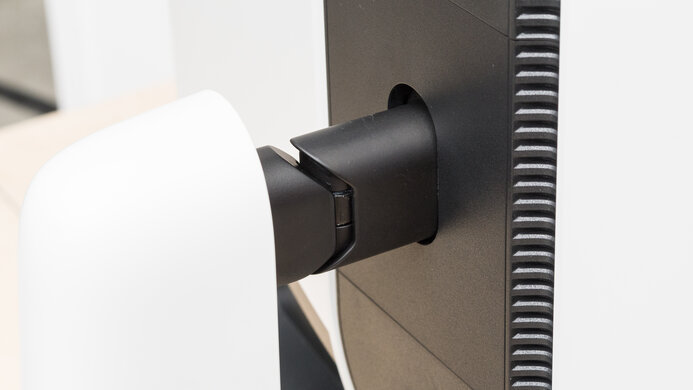
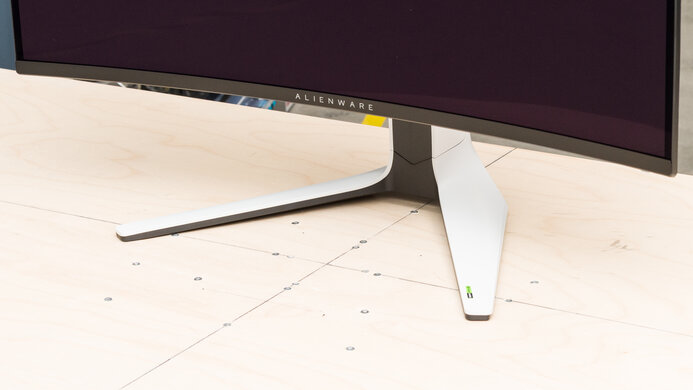
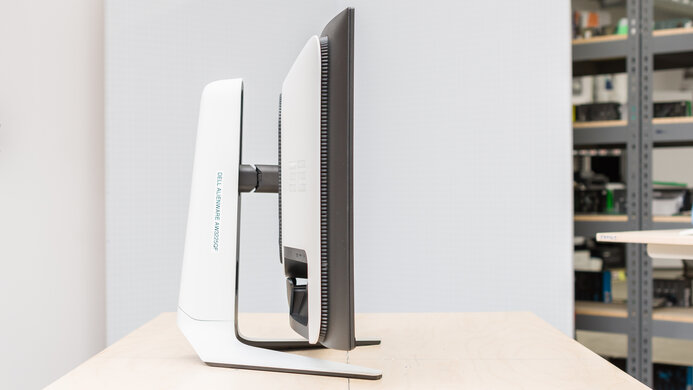
    The ergonomics are decent. Besides not being able to rotate it into portrait mode, you can adjust the screen in a number of ways, which helps if you have someone sitting next to you. The ergonomic adjustments feel smooth on the stand, too. The stand also has a cutout for basic cable management.

    Stand
    Base Width
    9.3" (23.5 cm)
    Base Depth
    6.7" (17.0 cm)
    Thickness (With Display)
    6.3" (16.0 cm)
    Weight (With Display)
    14.3 lbs (6.5 kg)

    The stand holds the screen well with minimal wobble, and it quickly stabilizes itself even if it shakes a bit. Since the stand has a tilt, the total thickness from the screen to the back of the stand depends on the height you set it at. The measurement in the review is with the screen at its minimum height, but the total thickness at its max height is 5.7" (14.5 cm).

    Display
    Size
    32"
    Housing Width
    28.1" (71.5 cm)
    Housing Height
    17.1" (43.4 cm)
    Thickness (Without Stand)
    2.8" (7.0 cm)
    Weight (Without Stand)
    9.7 lbs (4.4 kg)
    Borders Size (Bezels)
    0.3" (0.8 cm)

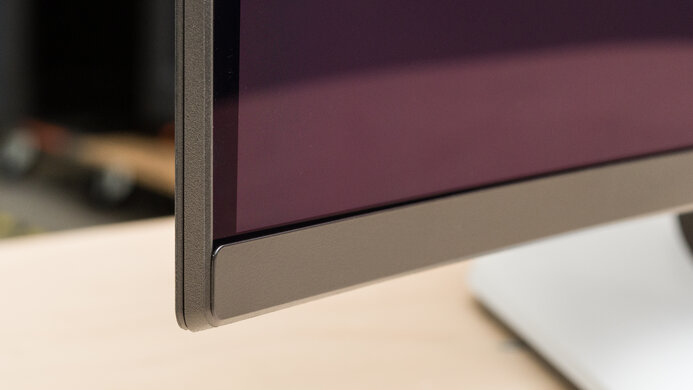
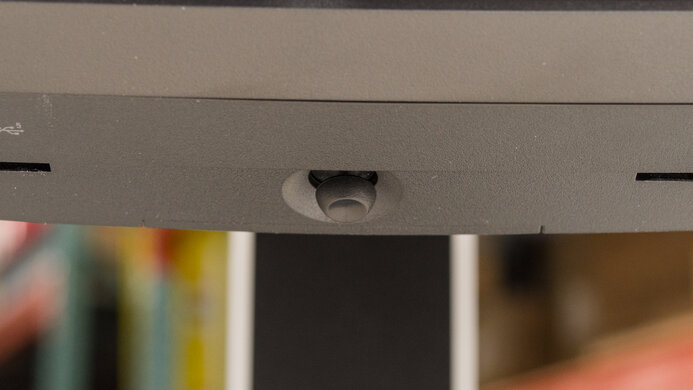
    The housing height includes the sensor below the bottom bezel, which measures 0.9" (2.2 cm). The bottom bezel is also a bit thicker than the others, measuring 0.6" (1.3 cm).

    Controls

    The controls include two buttons and a joystick, and they're easy to use.

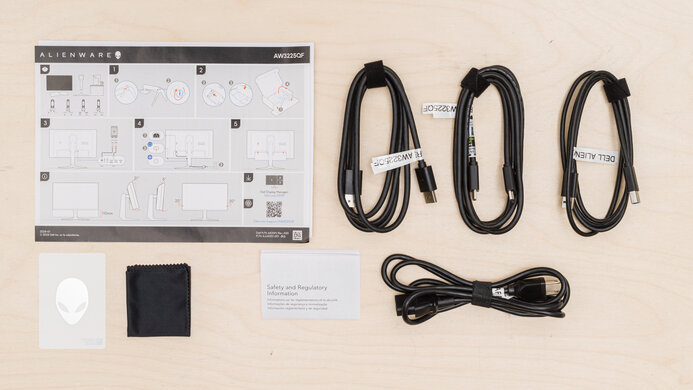
    In The Box
    Power Supply
    External Brick

    • HDMI cable
    • USB-A to USB-B cable
    • Power cable and brick
    • VESA mounting bracket
    • ROG stickers
    • Cleaning cloth
    • Accessories bag
    • User guides
    Picture Quality
    10
    Contrast
    Native Contrast
    Inf : 1
    Contrast With Local Dimming
    Inf : 1

    The ASUS XG32UCWMG has a near-infinite contrast ratio for perfect blacks against bright highlights in dark rooms.

    However, the black levels change depending on the refresh rate it's using, which is a typical issue with WOLEDs. The gamma rises at low refresh rates, causing the black levels to appear brighter, which you can see between 240Hz, 120Hz, and 60Hz.

    10
    Local Dimming
    Local Dimming
    No
    Backlight
    No Backlight

    The ASUS ROG Strix XG32UCWMG doesn't have a backlight, so it doesn't require a local dimming feature. However, with a near-infinite contrast ratio, there isn't any haloing around bright objects, and it's the equivalent of a perfect local dimming feature. We still film these videos on the monitor so you can see how the screen performs and compare it with a monitor that has local dimming.

    7.3
    SDR Brightness
    Real Scene
    269 cd/m²
    Peak 2% Window
    420 cd/m²
    Peak 10% Window
    415 cd/m²
    Peak 25% Window
    324 cd/m²
    Peak 50% Window
    276 cd/m²
    Peak 100% Window
    255 cd/m²
    Sustained 2% Window
    416 cd/m²
    Sustained 10% Window
    410 cd/m²
    Sustained 25% Window
    322 cd/m²
    Sustained 50% Window
    275 cd/m²
    Sustained 100% Window
    254 cd/m²
    Automatic Brightness Limiting (ABL)
    0.034
    Minimum Brightness
    28 cd/m²

    Settings

    • GameVisual: User Mode (after calibration)
    • Brightness: 100
    • Uniform Brightness: Off
    • OLED Care: All settings off

    The SDR brightness is decent. It fights some glare well, but it struggles if you have it in a really bright environment. There are also some changes in brightness that you might notice when minimizing and maximizing windows, but it isn't overly distracting either. If it bothers you, you can enable the Uniform Brightness setting to get more consistent brightness, as it's around 245 cd/m² across different content. Using this setting also results in the dimmest image, as the minimum brightness with Uniform Brightness off is 57 cd/m².
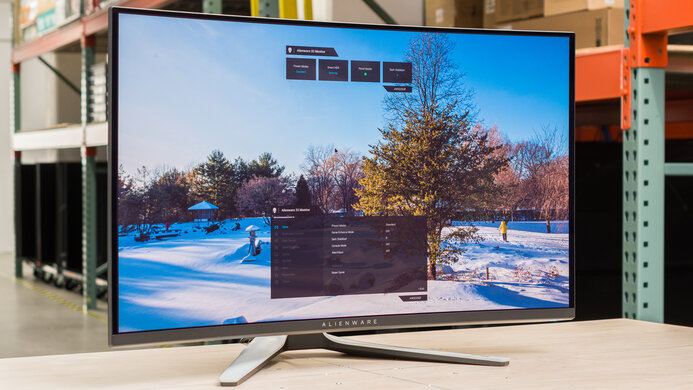
    If SDR brightness is important to you, check out a monitor with the newer RGB Tandem OLED panel, like the LG 27GX700A-B, as it gets brighter.

    7.2
    HDR Brightness
    VESA DisplayHDR Certification
    DisplayHDR TRUE BLACK 400
    Real Scene
    536 cd/m²
    Peak 2% Window
    1,053 cd/m²
    Peak 10% Window
    674 cd/m²
    Peak 25% Window
    341 cd/m²
    Peak 50% Window
    273 cd/m²
    Peak 100% Window
    252 cd/m²
    Sustained 2% Window
    1,013 cd/m²
    Sustained 10% Window
    659 cd/m²
    Sustained 25% Window
    340 cd/m²
    Sustained 50% Window
    272 cd/m²
    Sustained 100% Window
    252 cd/m²
    Automatic Brightness Limiting (ABL)
    0.088

    Settings

    • HDR Setting: Console HDR
    • Adjustable HDR: On
    • Brightness: 100
    • Uniform Brightness: Off
    • OLED Care: All settings off

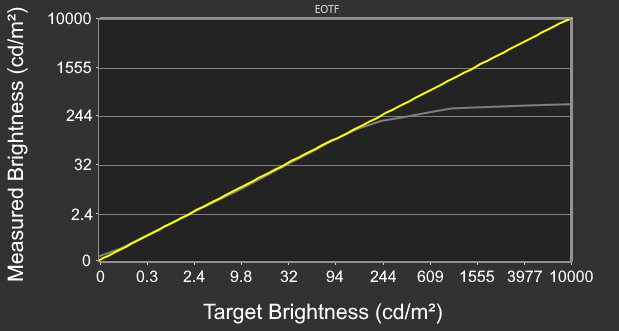
    The HDR brightness is decent. It gets bright for the most part and small highlights stand out, but it can't maintain this high brightness with larger bright areas. It has inaccurate PQ EOTF tracking, though, as most content is brighter than intended. It at least has a sharp cut-off at its peak brightness, letting highlights get the brightest possible before your source tone maps. You can disable Adjustable HDR if you want more accurate PQ EOTF tracking, but that limits the brightness, so there are trade-offs.

    Interestingly, using the 'DisplayHDR 400 True Black' HDR Setting with Adjustable HDR enabled results in a brighter and more accurate colors. However, this is unexpected behavior, as the 'DisplayHDR 400 True Black' setting isn't meant to get this bright. Disabling Adjustable HDR lowers the brightness of 'DisplayHDR 400 True Black' back to what's expected, and the PQ EOTF is most accurate like this. You can see the results for this in the 'DisplayHDR 400 True Black' mode below.
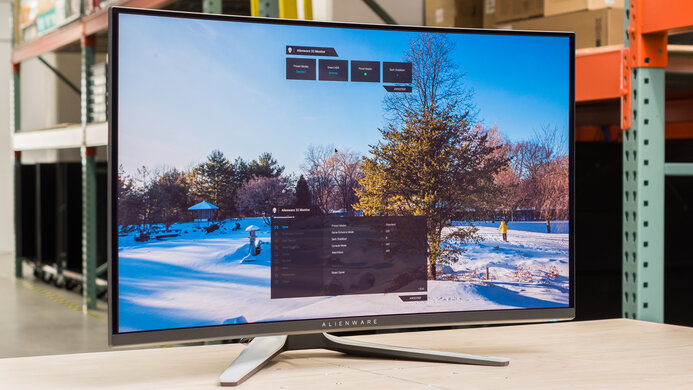
    Window Size Adjustable HDR: On Adjustable HDR: Off
    Peak 2% Window 1,118 cd/m² 438 cd/m²
    Peak 10% Window 698 cd/m² 434 cd/m²
    Peak 25% Window 345 cd/m² 314 cd/m²
    Peak 50% Window 273 cd/m² 269 cd/m²
    Peak 100% Window 252 cd/m² 250 cd/m²
    Sustained 2% Window 1,078 cd/m² 432 cd/m²
    Sustained 10% Window 684 cd/m² 428 cd/m²
    Sustained 25% Window 345 cd/m² 313 cd/m²
    Sustained 50% Window 272 cd/m² 268 cd/m²
    Sustained 100% Window 251 cd/m² 249 cd/m²
    PQ EOTF Graph Graph
    8.6
    Gray Uniformity
    50% Std. Dev.
    1.239%
    50% DSE
    0.132%

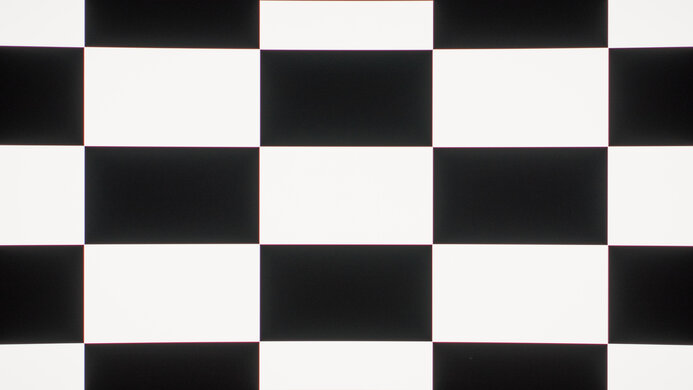
    The gray uniformity is excellent. There's minimal dirty screen effect in the center, but the corners are slightly darker. Unfortunately, the uniformity is worse in dark scenes, with thin, vertical lines. However, these are hard to see with most content.

    10
    Black Uniformity
    Native Std. Dev.
    0.291%
    Std. Dev. w/ L.D.
    N/A

    The black uniformity is perfect as it maintains a uniform black level across the screen.

    8.1
    Color Accuracy (Pre-Calibration)
    Picture Mode
    User (sRGB)
    sRGB Gamut Area xy
    106.9%
    White Balance dE (Avg.)
    2.87
    Color Temperature (Avg.)
    6,315 K
    Gamma (Avg.)
    2.27
    Color dE (Avg.)
    2.13
    Contrast Setting
    80
    RGB Settings
    100-100-100
    Gamma Setting
    2.2
    Brightness Setting
    80
    Measured Brightness
    210 cd/m²
    Brightness Locked
    No

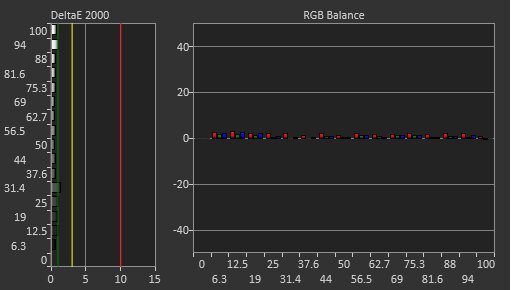
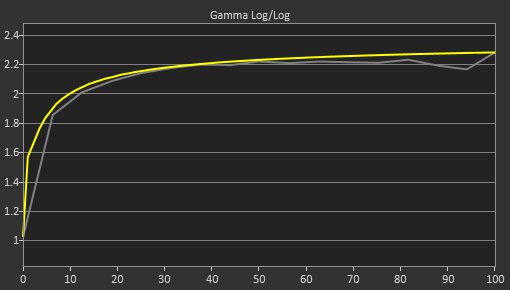
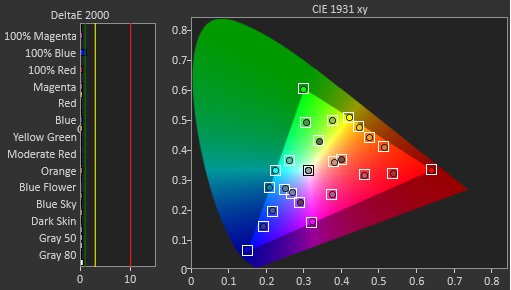
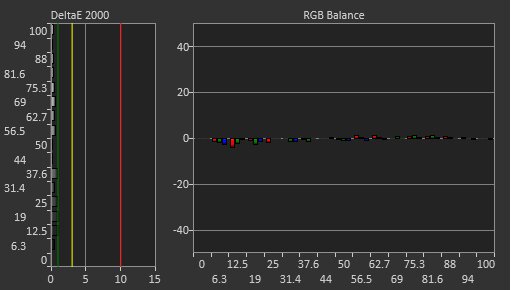
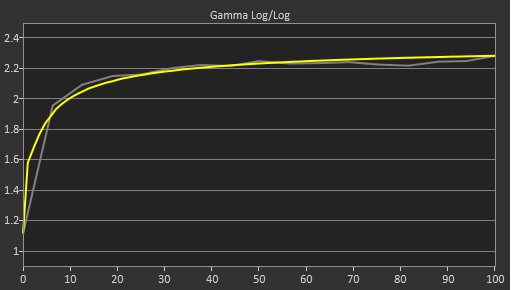
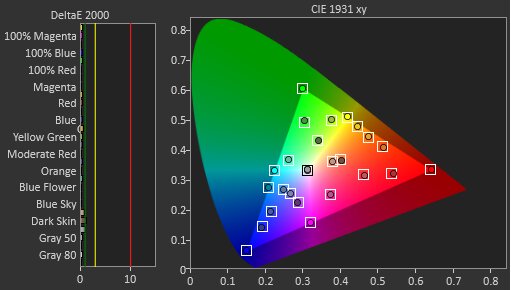
    The ASUS XG32UCWMG has great accuracy before calibration. While it has a dedicated 'sRGB Cal Mode' GameVisual, it has bad gamma tracking, and using the 'User Mode' GameVisual with Display Color Space set to 'sRGB' results in better accuracy and gives you access to all picture settings. It locks colors well to the sRGB color space and has an accurate color temperature. The white balance is also good, but it's far from perfect, and most scenes are a bit too dark.
    9.2
    Color Accuracy (Post-Calibration)
    Picture Mode
    User Mode
    sRGB Gamut Area xy
    104.8%
    White Balance dE (Avg.)
    0.71
    Color Temperature (Avg.)
    6,526 K
    Gamma (Avg.)
    2.18
    Color dE (Avg.)
    0.96
    Contrast Setting
    80
    RGB Settings
    100-100-99
    Gamma Setting
    2.2
    Brightness Setting
    27
    Measured Brightness
    99 cd/m²
    ICC Profile
    Download

    The accuracy after calibration is remarkable. Calibrating it fixes most issues, and any remaining inaccuracies are hard to see. We calibrated it with Display Color Space set to 'Wide Gamut.'

    The monitor includes a Six-axis Saturation setting to adjust RGBCMY during calibration.

    9.7
    SDR Color Gamut
    sRGB Coverage xy
    100.0%
    sRGB Picture Mode
    User Mode
    Adobe RGB Coverage xy
    91.0%
    Adobe RGB Picture Mode
    User Mode

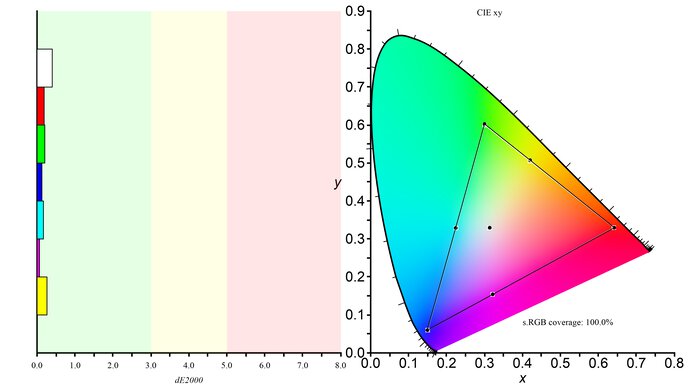
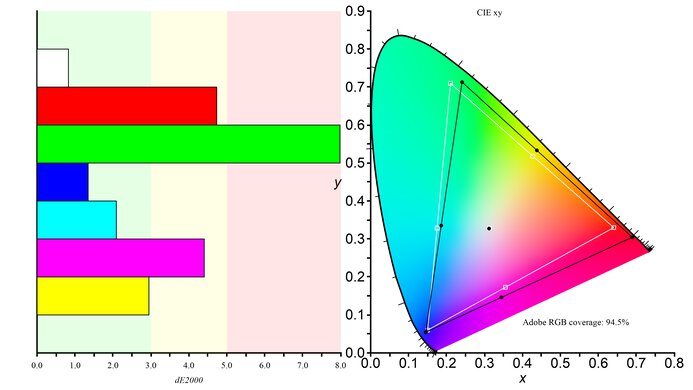
    The SDR color gamut is incredible. It covers the sRGB color space used in most web content, but it slightly oversaturates some colors. It also has wide coverage of the Adobe RGB color space, but greens are undersaturated and reds and magentas are oversaturated.

    8.9
    HDR Color Gamut
    Wide Color Gamut
    Yes
    DCI-P3 Coverage xy
    96.2%
    DCI-P3 Picture Mode
    Console HDR
    Rec. 2020 Coverage xy
    69.7%
    Rec. 2020 Picture Mode
    Console HDR

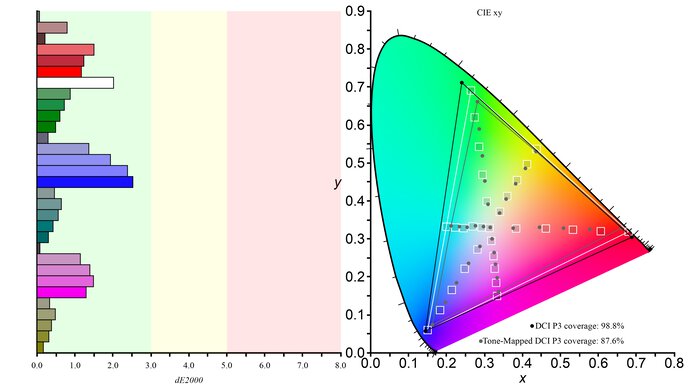
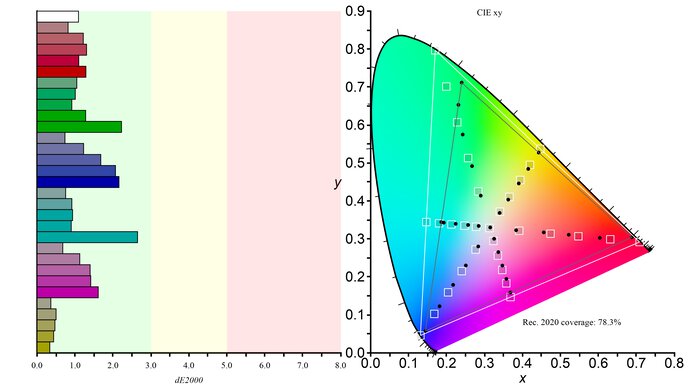
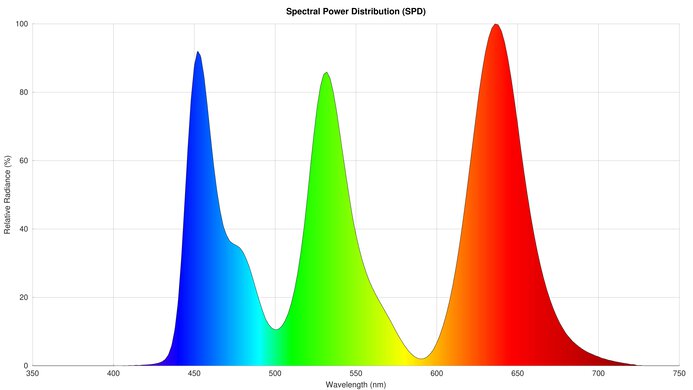
    The HDR color gamut is fantastic. It has good coverage of the DCI-P3 and Rec. 2020 color spaces, but there are some inaccuracies in each, particularly with whites. Colors are more accurate in the 'DisplayHDR 400 True Black' HDR Setting mode, as you can see in DCI-P3 and Rec. 2020, but that mode isn't as bright.

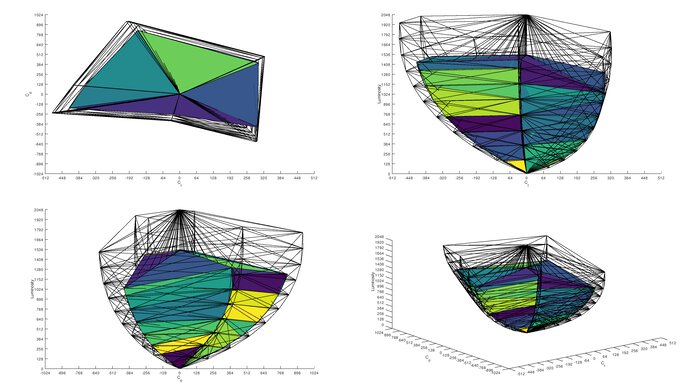
    7.9
    HDR Color Volume
    1,000 cd/m² DCI-P3 Coverage ICtCp
    80.2%
    DCI-P3 Picture Mode
    Console HDR
    10,000 cd/m² Rec. 2020 Coverage ICtCp
    34.0%
    Rec. 2020 Picture Mode
    Console HDR

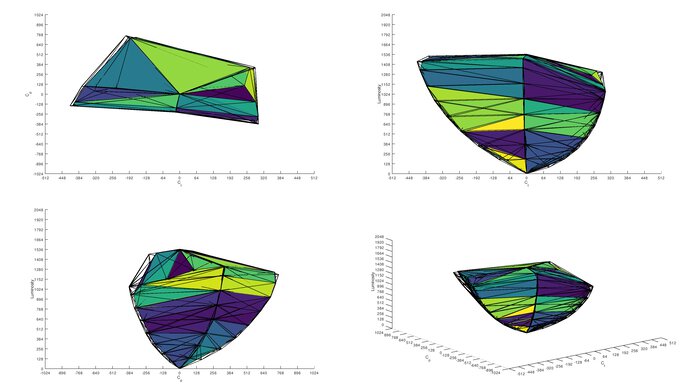
    The ASUS XG32UCWMG has very good color volume. It displays dark colors very well, but bright colors aren't as vivid as on a QD-OLED.

    10
    Viewing Angle
    Color Washout From Left
    70°
    Color Washout From Right
    70°
    Color Shift From Left
    70°
    Color Shift From Right
    68°
    Brightness Loss From Left
    70°
    Brightness Loss From Right
    70°
    Black Level Raise From Left
    70°
    Black Level Raise From Right
    70°
    Gamma Shift From Left
    70°
    Gamma Shift From Right
    70°

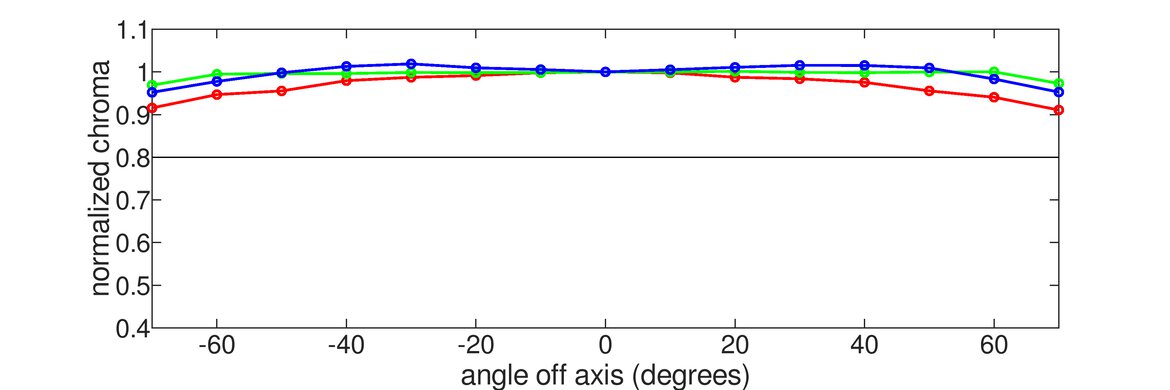
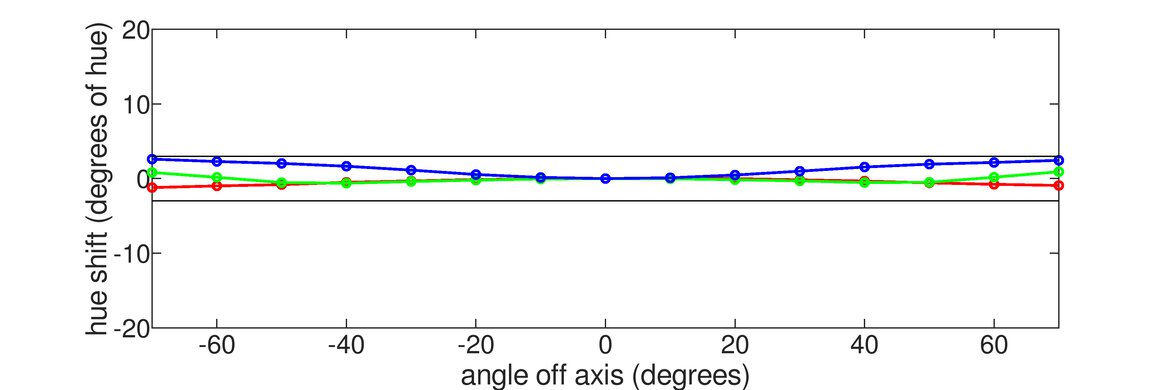
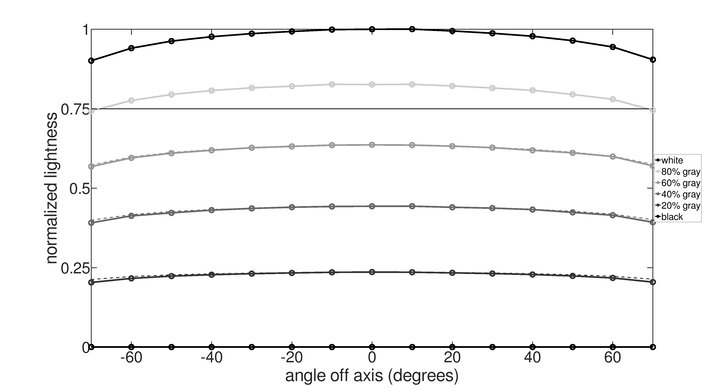
    The horizontal viewing angle is outstanding. Although it technically isn't perfect, you visually won't see any inconsistencies when viewing from the sides or if you sit close to the screen.

    9.0
    Text Clarity
    Pixel Type
    OLED
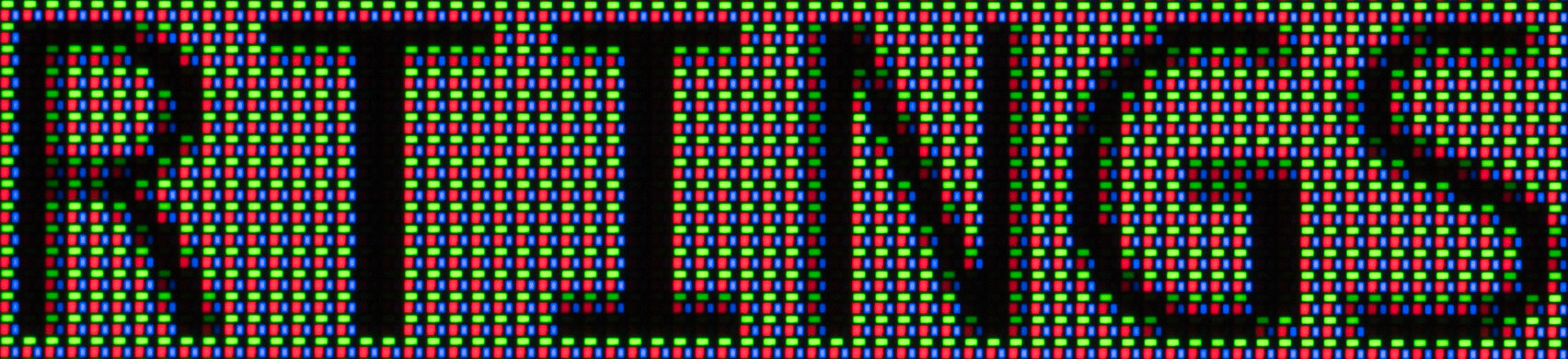
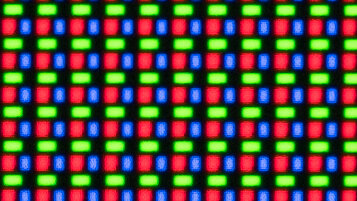
    Subpixel Layout
    RGWB

    The text clarity in the 4k mode is fantastic. Thanks to the glossy coating, text looks sharper, and images are clearer than on matte 32-inch, 4k WOLEDs. That said, there's more fringing than an LCD monitor with the same pixel density, but it's hard to see unless you're looking for it or sit close.

    These photos are in Windows 10, and you can also see them in Windows 11 with ClearType on and with ClearType off.

    The text clarity is a lot worse in the 1080p mode, as the monitor needs to scale the resolution. It looks similar to other 32-inch, 4k dual-mode OLEDs, like the LG 32GS95UE-B, and it's not suggested to use the 1080p mode when browsing the web or reading text. Text is even more blurry when you change the Aspect Ratio setting to '27" Simulation' or '24.5" Simulation.'

    5.6
    Direct Reflections
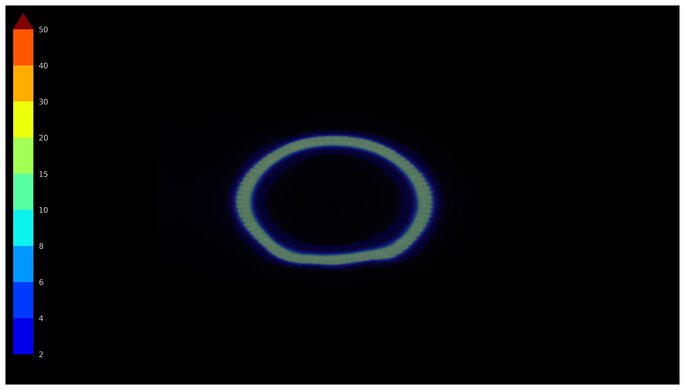
    See details on graph tool
    Peak Direct Reflection Intensity
    44.8%
    Screen Finish
    Glossy

    The direct reflection handling is disappointing. Light reflects back like a mirror due to the glossy coating. As the screen isn't perfectly flat, some reflections can look warped. Whether or not you notice this depends on the positioning of the light source, though.

    8.6
    Ambient Black Level Raise
    See details on graph tool
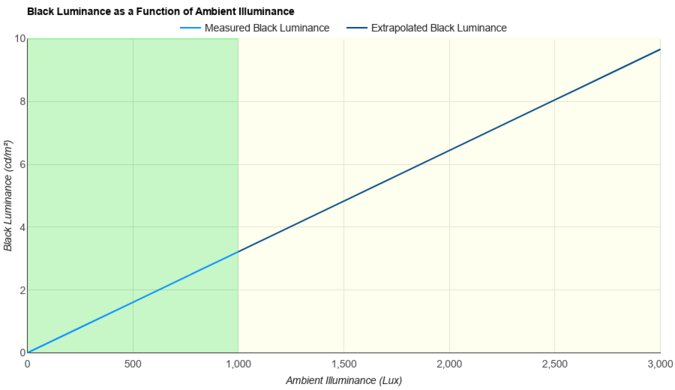
    Black Luminance @ 0 lx
    0.00 cd/m²
    Black Luminance @ 1000 lx
    0.62 cd/m²

    The ASUS ROG Strix OLED XG32UCWMG does an excellent job at maintaining low black levels in a bright room. The glossy coating is better for this than matte counterparts, like the ASUS ROG Swift OLED PG32UCDP, too. This also gives the monitor an advantage over glossy QD-OLEDs, whose black levels rise and look purple in bright rooms.

    9.0
    Total Reflected Light
    Total Reflected Light Intensity
    5,118% ⋅ pixel
    Diffraction Artifacts
    No

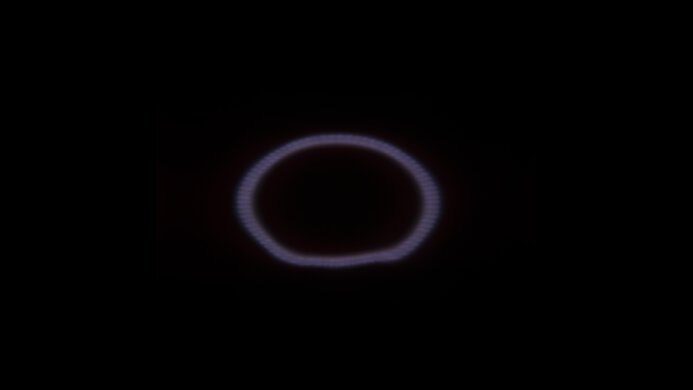
    There isn't too much distracting light reflecting off this monitor's screen. The glossy coating doesn't spread light out, but reflections can still be distracting if you place it opposite a sunny window. That said, it's fine if you have it in a room with a few lights around.

    9.6
    Gradient
    Color Depth
    10 Bit

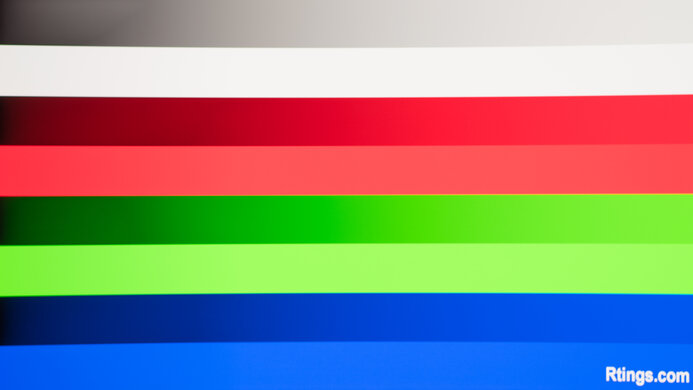
    The gradient handling is remarkable. There's minimal banding between shades of different colors. It performs the same between different refresh rates, as you can see at 240Hz, 120Hz, and 60Hz.

    Motion
    8.8
    Refresh Rate
    Native Refresh Rate
    240 Hz
    Max Refresh Rate
    480 Hz
    Max Refresh Rate Over DP
    240 Hz
    Max Refresh Rate Over HDMI
    240 Hz
    Max Refresh Rate Over DP @ 10-bit
    240 Hz
    Max Refresh Rate Over HDMI @ 10-Bit
    240 Hz
    DSC Toggle
    Yes
    DSC Off Max Refresh Rate Over DP
    144 Hz
    DSC Off Max Refresh Rate Over HDMI
    144 Hz

    Your graphics card needs to use Display Stream Compression (DSC) to reach 4k @ 240Hz over both DisplayPort and HDMI. There's a DSC Support setting to turn off DSC if you prefer not using it, but that limits the refresh rate.

    The Frame Rate Boost setting changes the refresh rate to 480Hz with a lower 1080p resolution. As the monitor's actual DisplayPort bandwidth is 32.4Gbps, your graphics card doesn't need to use DSC to reach 1080p @ 480Hz with 8-bit signals, but it does with 10-bit signals.

    Variable Refresh Rate (VRR)
    Variable Refresh Rate
    Yes
    FreeSync
    Yes
    G-SYNC
    Compatible (NVIDIA Certified)
    VRR Maximum
    480 Hz
    VRR Minimum
    < 20 Hz
    VRR Supported Connectors
    DisplayPort, HDMI

    NVIDIA - G-SYNC Compatibility
    Connection VRR Min VRR Max
    DisplayPort <20Hz 4k @ 240Hz
    1080p @ 480Hz
    HDMI <20Hz 4k @ 240Hz
    1080p @ 480Hz
    AMD - FreeSync
    Connection VRR Min VRR Max
    DisplayPort <20Hz 4k @ 240Hz
    1080p @ 480Hz
    HDMI <20Hz 4k @ 240Hz
    1080p @ 480Hz

    The ASUS XG32UCWMG also supports HDMI Forum VRR.

    9.8
    VRR Motion Performance
    See details on graph tool
    Recommended VRR OD Setting
    No OD Mode
    Variable Overdrive Advertised
    No
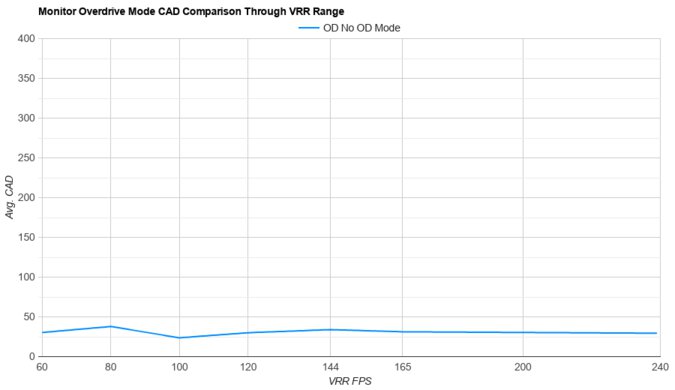
    Avg. CAD
    21
    Best CAD
    21
    Worst CAD
    22

    Frame Rate CAD Heatmap RT Chart Pursuit Photo
    476 Heatmap Chart Photo
    360 Heatmap Chart Photo
    240 Heatmap Chart Photo
    165 Heatmap Chart Photo
    144 Heatmap Chart Photo
    120 Heatmap Chart Photo
    100 Heatmap Chart Photo
    80 Heatmap Chart Photo
    60 Heatmap Chart Photo

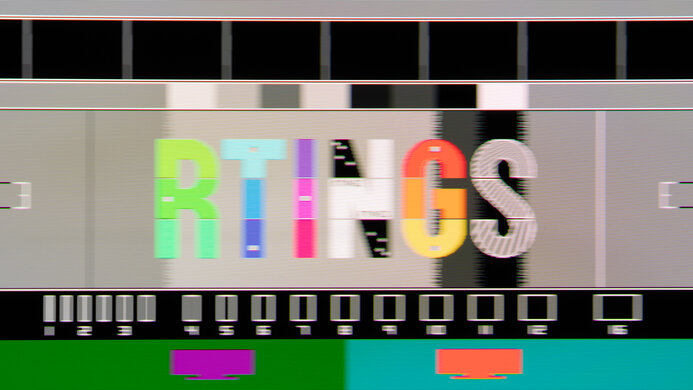
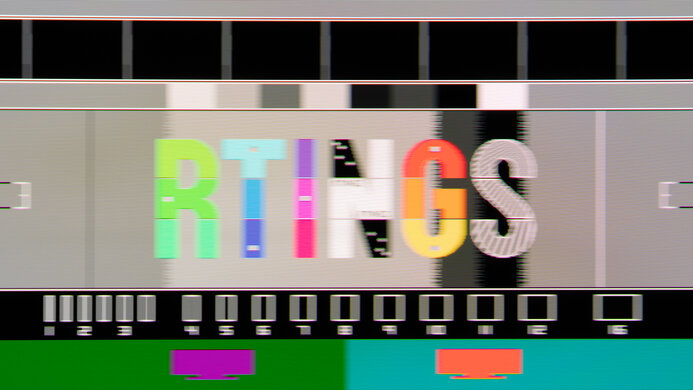
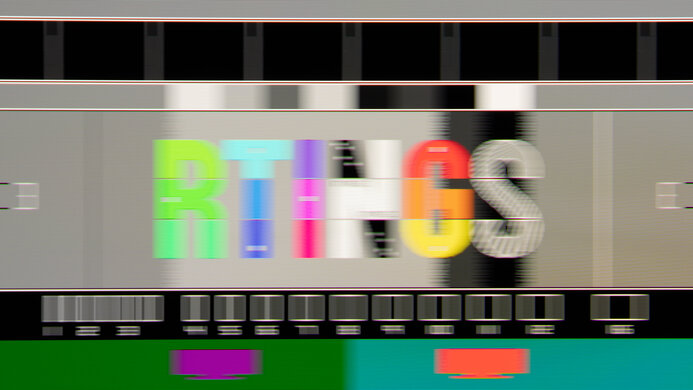
    The ASUS XG32UCWMG has remarkable motion handling across its refresh rate range. It has a near-instantaneous response time at any refresh rate in both the 4k @ 240Hz and 1080p @ 480Hz modes. Because of this, we only took measurements and photos of the Frame Rate Boost mode at 480Hz and 360Hz, whereas the results from 240Hz and lower are in the 4k mode.
    Low Framerate Compensation starts at different points in the 4k and 1080p modes. In 4k, it kicks in at around 59 fps, whereas it starts at around 64 fps in the 1080p mode.

    9.6
    Refresh Rate Compliance
    See details on graph tool
    See details on graph tool
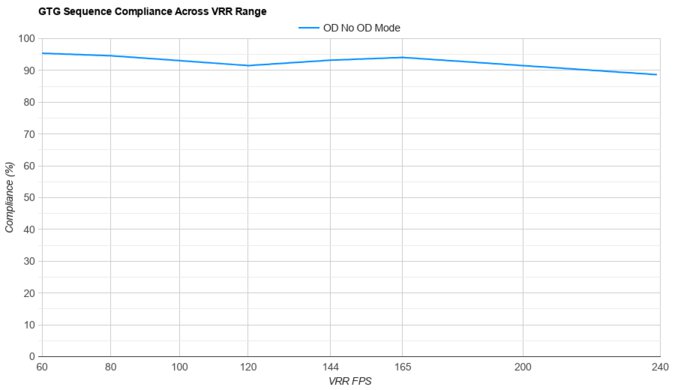
    Compliance @ Max Hz
    78%
    Compliance @ 120 FPS
    93%
    Compliance @ 60 FPS
    95%

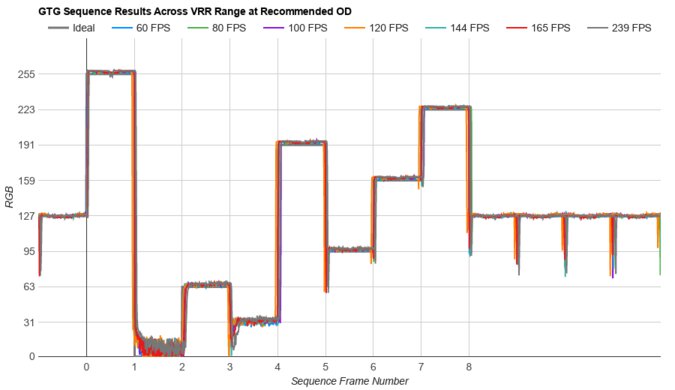
    The ASUS ROG Strix XG32UCWMG has superb refresh rate compliance. Thanks to its near-instantaneous response time, it makes full-color transitions before the monitor draws the next frame at most frame rates.

    9.9
    CAD @ Max Refresh Rate
    OD Transition Max Refresh Rate
    od-transition-max-refresh-rate-dualmode-0-31
    OD dualmode
    0 to 31
    Recommended Overdrive Setting
    No OD Mode
    Avg. CAD
    20
    Best 10% CAD
    5
    Worst 10% CAD
    31

    Frame Rate Boost: Off
    4k @ 240Hz
    Overdrive Mode CAD Heatmap RT Chart Pursuit Photo
    No Overdrive Heatmap Chart Photo
    Frame Rate Boost: On
    1080p @ 480Hz
    Overdrive Mode CAD Heatmap RT Chart Pursuit Photo
    No Overdrive Heatmap Chart Photo

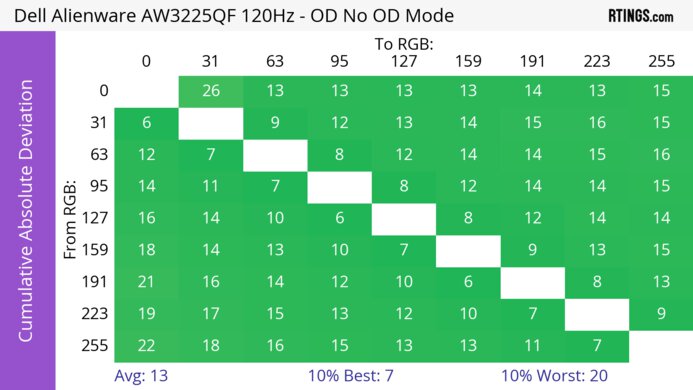
    The CAD at 240Hz is remarkable. Motion looks incredibly sharp thanks to its near-instantaneous response time. It looks even smoother at 480Hz when you enable Frame Rate Boost, but it performs the same in either mode at 240Hz.

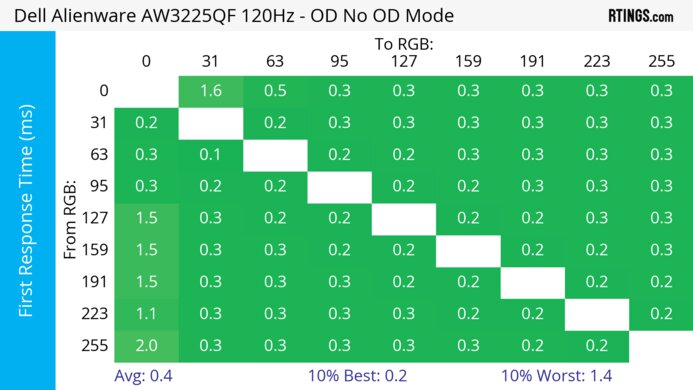
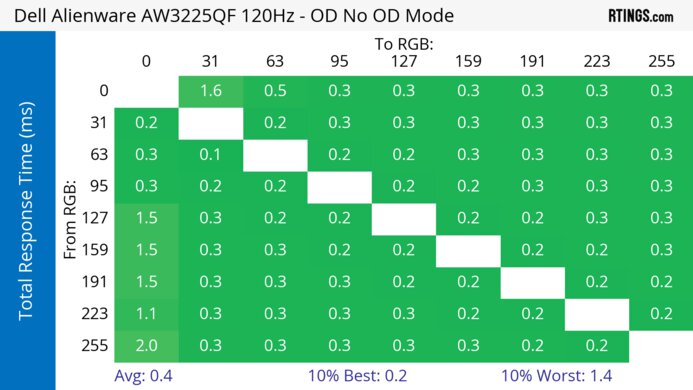
    Response Time @ Max Refresh Rate
    Recommended Overdrive Setting
    No OD Mode
    First Response Time
    0.4 ms
    Total Response Time
    0.4 ms
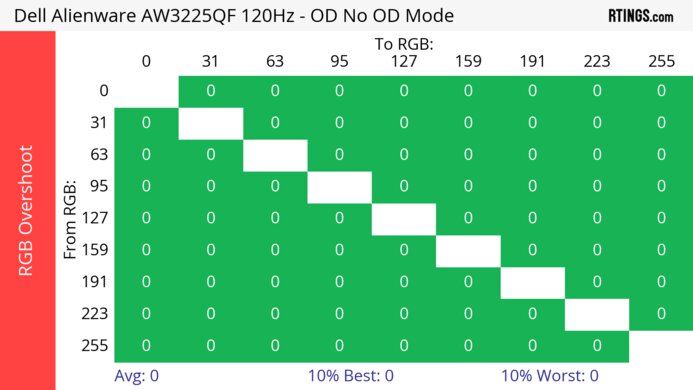
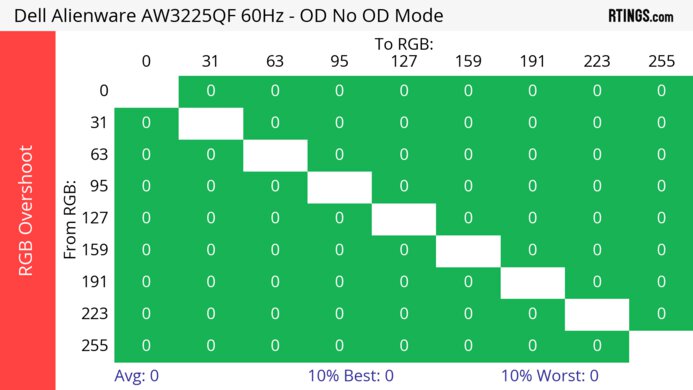
    RGB Overshoot
    0 RGB
    Worst 10% First Response Time
    0.5 ms
    Worst 10% Total Response Time
    0.5 ms
    Worst 10% RGB Overshoot
    0 RGB

    Frame Rate Boost: Off
    4k @ 240Hz
    Overdrive Mode First Response Heatmap Total Response Heatmap RGB Overshoot Heatmap
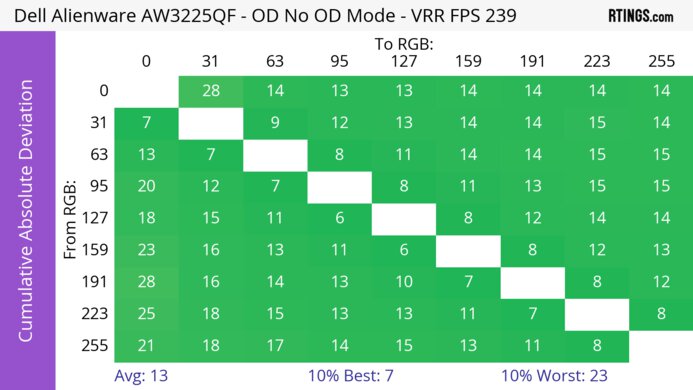
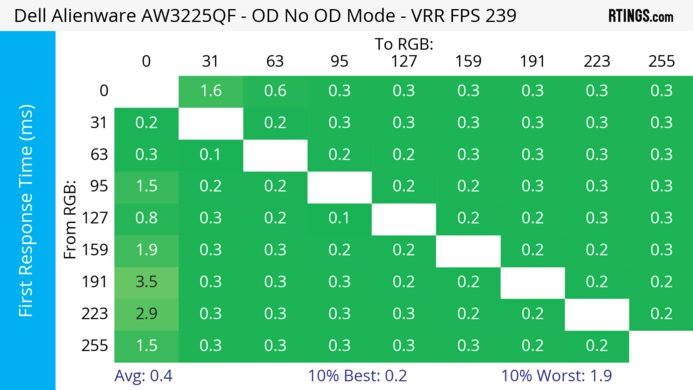
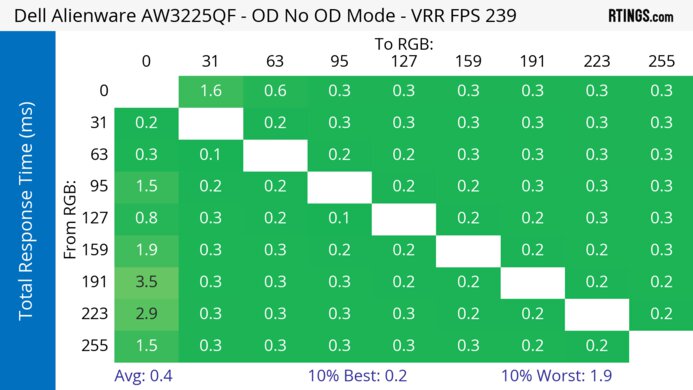
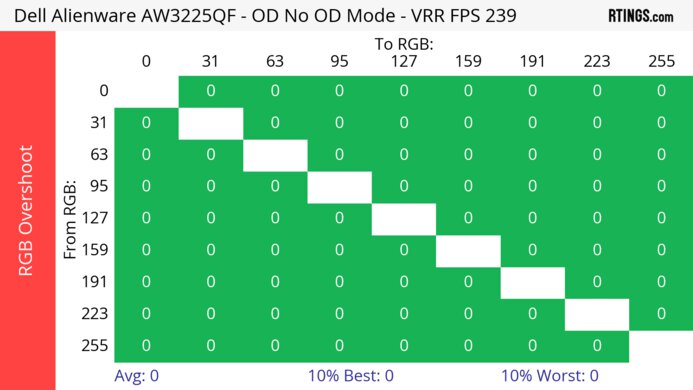
    No Overdrive Heatmap Heatmap Heatmap
    Frame Rate Boost: On
    1080p @ 480Hz
    Overdrive Mode First Response Heatmap Total Response Heatmap RGB Overshoot Heatmap
    No Overdrive Heatmap Heatmap Heatmap

    9.8
    CAD @ 120Hz
    OD Transition 120Hz
    od-transition-120-dualmode-0-31
    OD dualmode
    0 to 31
    Recommended Overdrive Setting
    No OD Mode
    Avg. CAD
    22
    Best 10% CAD
    14
    Worst 10% CAD
    32

    Frame Rate Boost: Off
    4k @ 120Hz
    Overdrive Mode CAD Heatmap RT Chart Pursuit Photo
    No Overdrive Heatmap Chart Photo
    Frame Rate Boost: On
    1080p @ 120Hz
    Overdrive Mode CAD Heatmap RT Chart
    No Overdrive Heatmap Chart

    The CAD at 120Hz is remarkable. Motion is crisp both in and out of the Frame Rate Boost mode, but there's more persistence blur than at higher refresh rates.

    Response Time @ 120Hz
    Recommended Overdrive Setting
    No OD Mode
    First Response Time
    0.5 ms
    Total Response Time
    0.5 ms
    RGB Overshoot
    0 RGB
    Worst 10% First Response Time
    0.5 ms
    Worst 10% Total Response Time
    0.5 ms
    Worst 10% RGB Overshoot
    0 RGB

    Frame Rate Boost: Off
    4k @ 120Hz
    Overdrive Mode First Response Heatmap Total Response Heatmap RGB Overshoot Heatmap
    No Overdrive Heatmap Heatmap Heatmap
    Frame Rate Boost: On
    1080p @ 120Hz
    Overdrive Mode First Response Heatmap Total Response Heatmap RGB Overshoot Heatmap
    No Overdrive Heatmap Heatmap Heatmap

    9.8
    CAD @ 60Hz
    OD Transition 60Hz
    od-transition-60-dualmode-0-31
    OD dualmode
    0 to 31
    Recommended Overdrive Setting
    No OD Mode
    Avg. CAD
    24
    Best 10% CAD
    15
    Worst 10% CAD
    35

    Frame Rate Boost: Off
    4k @ 60Hz
    Overdrive Mode CAD Heatmap RT Chart Pursuit Photo
    No Overdrive Heatmap Chart Photo
    Frame Rate Boost: On
    1080p @ 60Hz
    Overdrive Mode CAD Heatmap RT Chart
    No Overdrive Heatmap Chart

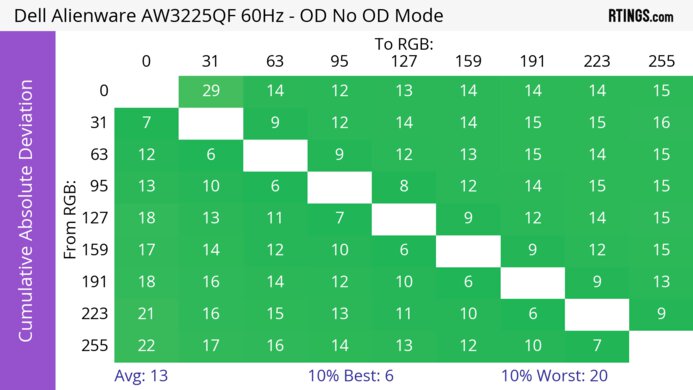
    The CAD at 60Hz is fantastic with Frame Rate Boost mode both enabled and disabled. However, there's more persistence blur than at higher refresh rates, which is normal.

    Response Time @ 60Hz
    Recommended Overdrive Setting
    No OD Mode
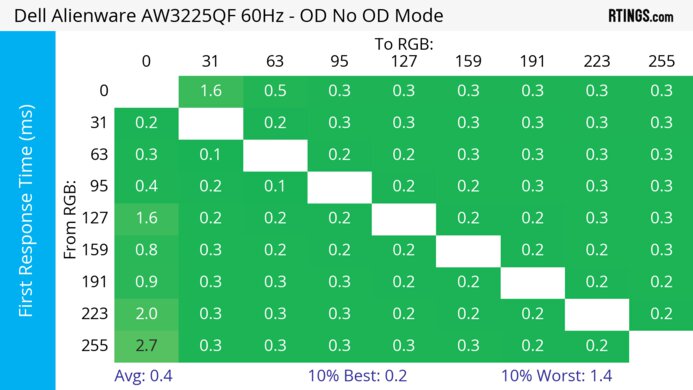
    First Response Time
    0.5 ms
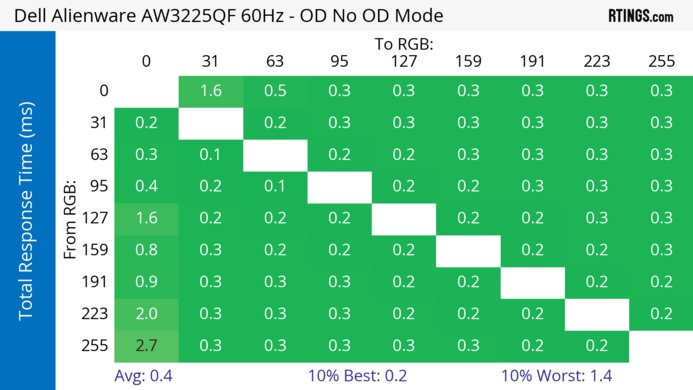
    Total Response Time
    0.5 ms
    RGB Overshoot
    0 RGB
    Worst 10% First Response Time
    0.6 ms
    Worst 10% Total Response Time
    0.6 ms
    Worst 10% RGB Overshoot
    0 RGB

    Frame Rate Boost: Off
    4k @ 60Hz
    Overdrive Mode First Response Heatmap Total Response Heatmap RGB Overshoot Heatmap
    No Overdrive Heatmap Heatmap Heatmap
    Frame Rate Boost: On
    1080p @ 60Hz
    Overdrive Mode First Response Heatmap Total Response Heatmap RGB Overshoot Heatmap
    No Overdrive Heatmap Heatmap Heatmap

    Backlight Strobing (BFI)
    Backlight Strobing (BFI)
    Yes
    Maximum Frequency
    120 Hz
    Minimum Frequency
    120 Hz
    Longest Pulse Width Brightness
    136 cd/m²
    Shortest Pulse Width Brightness
    136 cd/m²
    Pulse Width Control
    No
    Pulse Phase Control
    No
    Pulse Amplitude Control
    Yes
    VRR At The Same Time
    No

    The ASUS XG32UCWMG has an optional black frame insertion (BFI) feature that you can enable with the ELMB setting. You can only use it at 120Hz in the 4k mode, or 240Hz in the 1080p mode, and it disables many features, like VRR and HDR.

    5.1
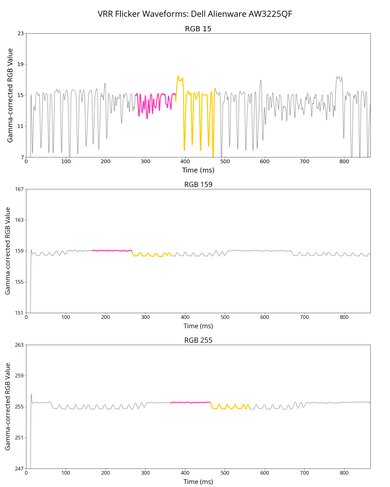
    VRR Flicker
    Dark Gray Flicker
    6.7 RGB
    Middle Gray Flicker
    1.1 RGB
    Light Gray Flicker
    1.8 RGB

    The ASUS ROG Strix XG32UCWMG has distracting VRR flicker with changing frame rates. It happens in the 240Hz and 480Hz modes, and it occurs in any content, including bright scenes.

    There's an OLED Anti-Flicker setting that's meant to reduce the flicker, but it just limits the refresh rate range you can use. In the 240Hz mode, the minimum refresh rate is 100Hz with the 'Middle' setting and 170Hz on 'High.' In the 480Hz mode, the 'Middle' setting limits the minimum refresh rate to 200Hz, and 'High' limits it to 250Hz.

    You can see the results of the OLED Anti-Flicker setting below, with Frame Rate Boost on.
    OLED Anti-Flicker: Middle
    Overall Score: 6.6
    Dark Gray Flicker 3.2 RGB
    Middle Gray Flicker 0.3 RGB
    Light Gray Flicker 0.8 RGB
    Graph Video
    OLED Anti-Flicker: High
    Overall Score: 8.7
    Dark Gray Flicker 1.1 RGB
    Middle Gray Flicker 0.3 RGB
    Light Gray Flicker 0.5 RGB
    Graph Video
    10
    Image Flicker
    Flicker-Free
    No
    PWM Dimming Frequency
    0 Hz

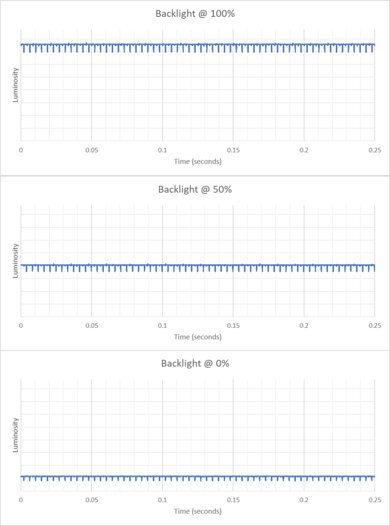
    The backlight isn't technically flicker-free because it has a slight dip in brightness that corresponds to the monitor's refresh rate.

    Inputs
    9.0
    Input Lag
    Native Resolution @ Max Hz
    2.6 ms
    Native Resolution @ 120Hz
    4.9 ms
    Native Resolution @ 60Hz
    9.4 ms
    Backlight Strobing (BFI)
    14.8 ms

    The ASUS XG32UCWMG has very low input lag at any refresh rate for a responsive feel. These results are with Frame Rate Boost off, and you can see them with it on below:

    • 1080p @ 480Hz: 1.7 ms
    • 1080p @ 120Hz: 8.0 ms
    • 1080p @ 60Hz: 16.2 ms
    8.5
    Resolution
    Native Resolution
    3840 x 2160
    Aspect Ratio
    16:9
    Megapixels
    8.3 MP
    Pixel Density
    140 PPI
    10
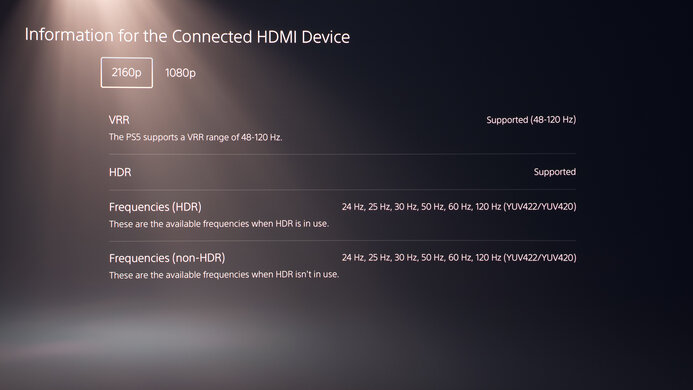
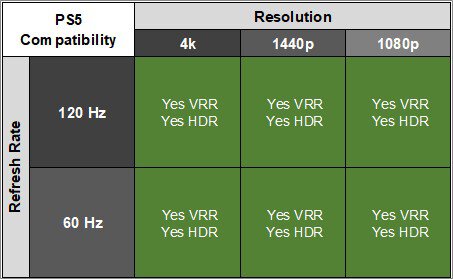
    PS5 Compatibility
    4k @ 120Hz
    Yes
    4k @ 60Hz
    Yes
    1440p @ 120Hz
    Yes
    1440p @ 60Hz
    Yes
    1080p @ 120Hz
    Yes
    1080p @ 60Hz
    Yes

    The ASUS ROG Strix OLED XG32UCWMG supports any signal from a PS5, as long as you have Frame Rate Boost disabled.

    9.7
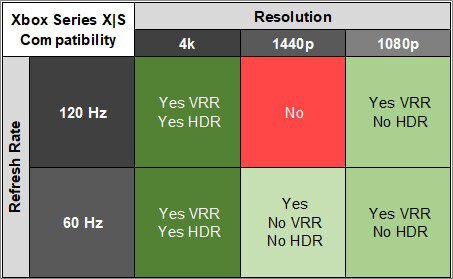
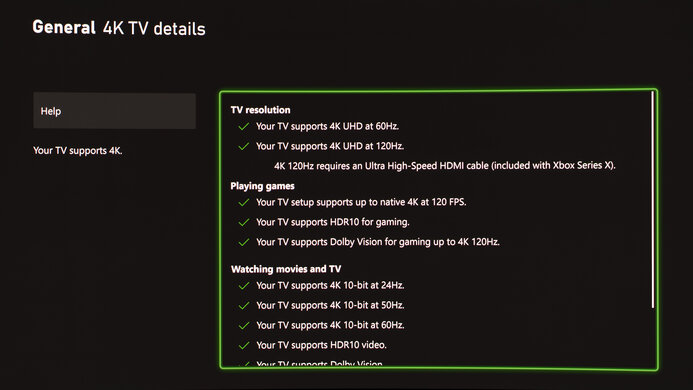
    Xbox Series X|S Compatibility
    4k @ 120Hz
    Yes
    4k @ 60Hz
    Yes
    1440p @ 120Hz
    Yes
    1440p @ 60Hz
    Yes
    1080p @ 120Hz
    Yes
    1080p @ 60Hz
    Yes

    The ASUS ROG Strix XG32UCWMG works for the most part with an Xbox Series X|S, as long as you have Frame Rate Boost disabled. You need to enable the console's HDMI override setting to get 1440p @ 60Hz, though, which disables VRR. As the Xbox only supports HDR with 4k signals, this isn't a limitation of the monitor.

    Inputs
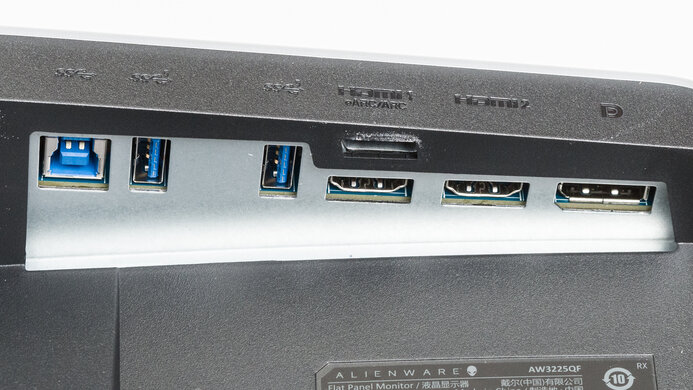
    DisplayPort
    1 (DP 1.4)
    DisplayPort Transmission Bandwidth
    No DisplayPort 2.1
    Mini DisplayPort
    No
    HDMI
    2 (HDMI 2.1)
    HDMI 2.1 Bandwidth
    48Gbps (FRL 12x4)
    Daisy Chaining
    No
    3.5mm Audio Out
    Yes
    Ethernet
    No
    HDR10
    Yes
    Dolby Vision
    No

    The DisplayPort port supports 32.4Gbps of bandwidth.

    USB
    USB-A Ports
    3
    USB-A Rated Speed
    5Gbps (USB 3.2 Gen 1)
    USB-B Upstream Port
    Yes
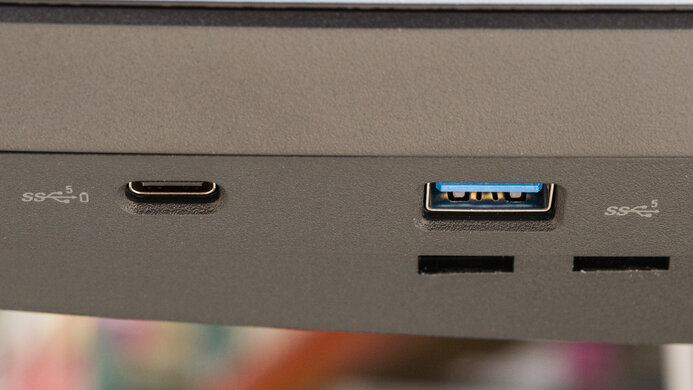
    USB-C Ports
    1
    USB-C Upstream
    Yes
    USB-C Rated Speed
    5Gbps (USB 3.2 Gen 1)
    USB-C Power Delivery
    15W
    USB-C DisplayPort Alt Mode
    Yes
    Thunderbolt
    No

    As the USB-C port is limited to 15W of power delivery, you'll need a separate charging cable for your laptop.

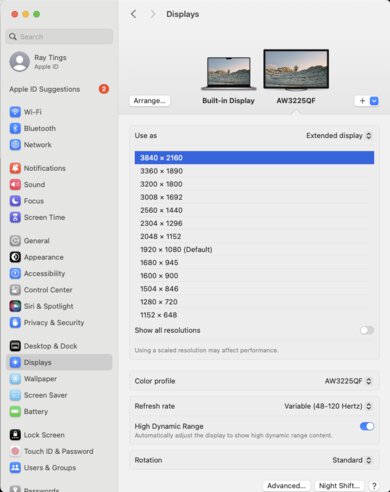
    macOS Compatibility

    Tested with: M2 MacBook Pro and M4 Max MacBook Pro (Sequoia 15.7.1)

    Connection HDMI 2.1 USB-C
    Frame Rate Boost Off On Off On
    Max Refresh Rate 240Hz 480Hz 240Hz 480Hz
    VRR Range 48–240Hz 48–240Hz 48–144Hz 48–280Hz
    HDR Yes Yes Yes Yes

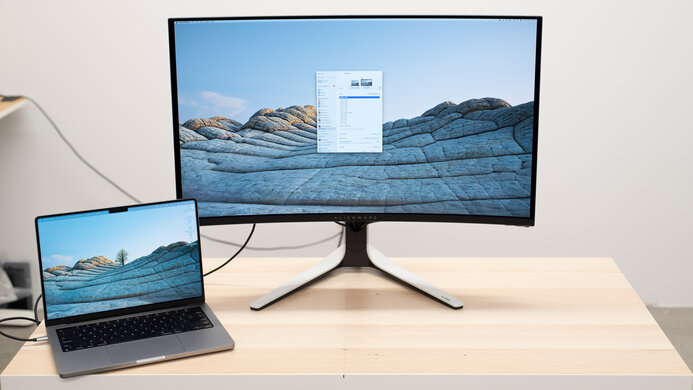
    The ASUS ROG Strix OLED XG32UCWMG works well with macOS, and there aren't any obvious issues. If you're using a MacBook, the 'DisplayHDR 400 True Black' mode looks the most accurate compared to the laptop's screen. If you close the laptop's lid without having it plugged into power, it goes to sleep. However, you can continue working on the monitor if you have the laptop plugged into power. When you reopen the lid or wake the laptop up from sleep, windows return to their original positions.

    Features
    Additional Features
    Speakers
    No
    RGB Illumination
    Controllable
    Multiple Input Display
    PIP + PBP
    KVM Switch
    Yes
    Smart OS
    No

    The ASUS ROG Strix OLED XG32UCWMG has a ton of additional features, including a KVM switch that you can set to automatically switch when you change inputs. Other perks include:

    • Aspect Control: You can change the displayable screen area to simulate 24.5 and 27-inch screen sizes.
    • Blue Light Filter: Reduces blue light to help with eye strain.
    • GamePlus: Has gaming features, like FPS Counter, Crosshair, Sniper, and Timer modes.
    • Frame Rate Boost: Increases the refresh rate to 480Hz with a lower 1080p resolution.
    • Lighting Effect: Includes Aura Sync and Aura RGB settings to control the RGB lighting.
    • Shadow Boost: Elevates the black levels so that it's easier to see opponents in dark scenes.
    • Type-C Bandwidth: You can choose between USB 2.0 and 3.2 USB speeds to prioritize faster USB transfer speeds or higher video bandwidth.

    It also has features meant to reduce the risk of OLED burn-in in the OLED Care section of the OSD:

    • Screen Saver: Decreases the screen brightness when there's a static image displayed for too long.
    • Pixel Cleaning: Performs a pixel cleaning cycle that runs for about six minutes and starts when you turn the screen off. There's also a Pixel Cleaning Reminder setting for you to run it.
    • Screen Move: Slowly shifts the image by a few pixels so that the same pixels aren't always displaying the same thing. You can turn it off completely if you prefer.
    • Auto Logo Brightness: Dims static logos on-screen, like when watching broadcast TV.
    • Neo Proximity Sensor: Turns the screen off when you step away from it, and turns it back on when you're in front of it again. We didn't have any issues with it during testing.
    On-Screen Display (OSD)

    You can learn more about the OSD in the user manual.