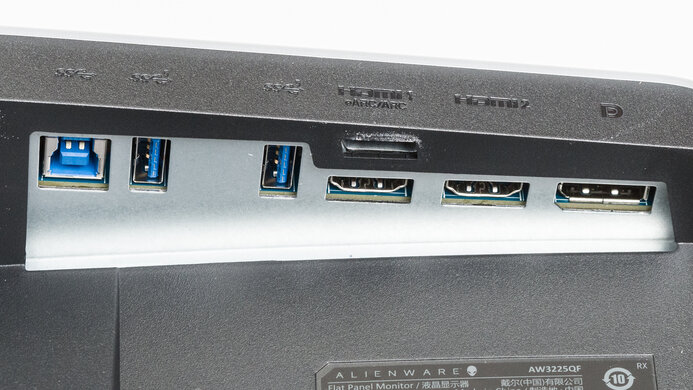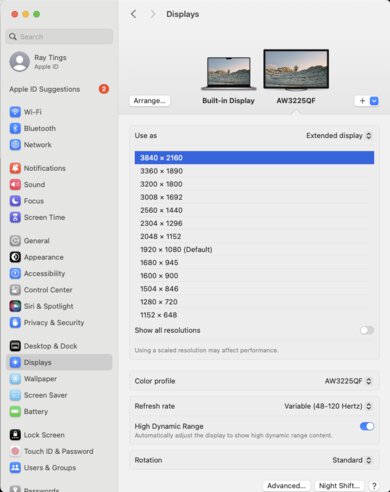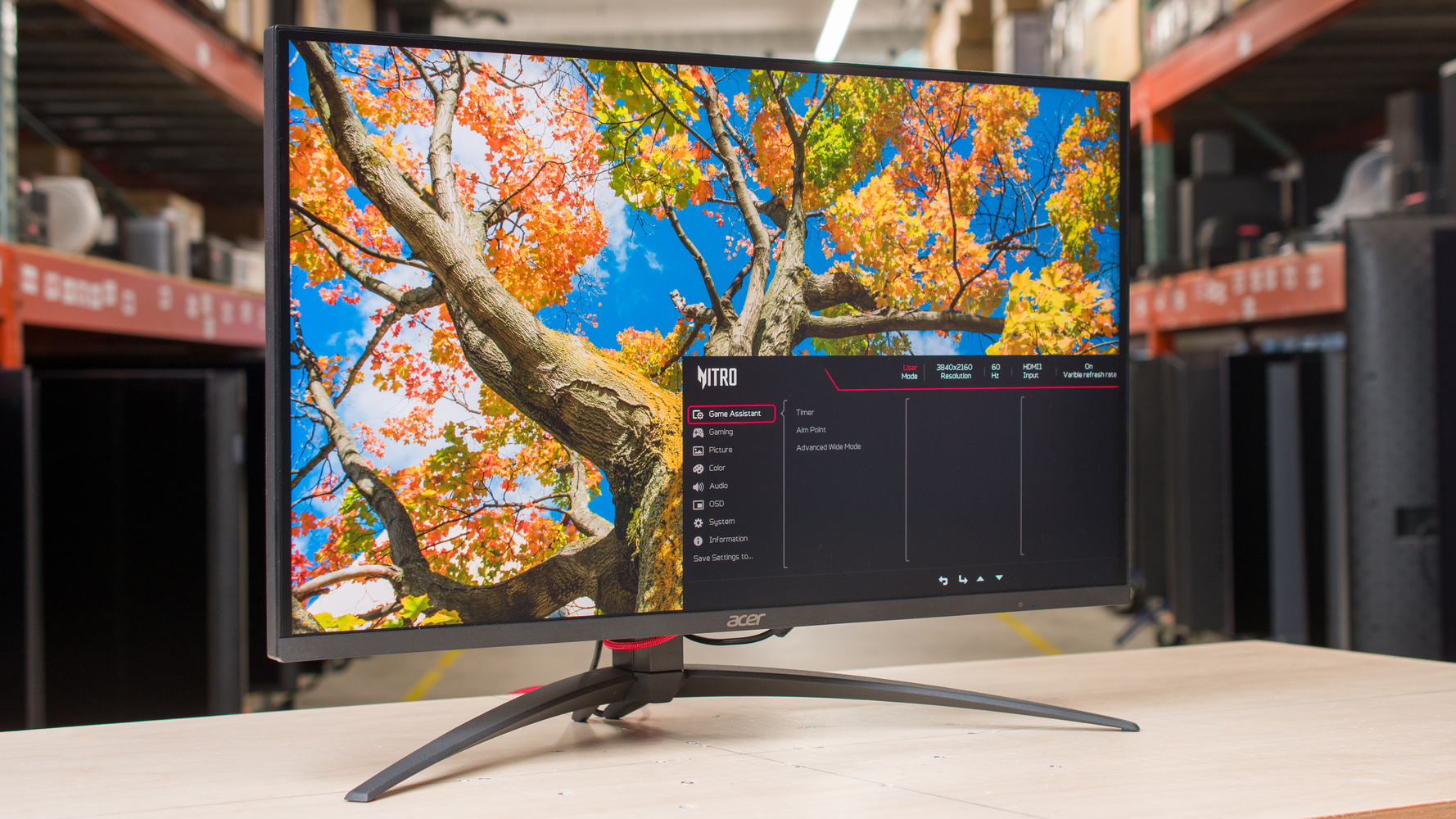
The Acer Nitro XV275K P5biipruzx is a mid-range, 27-inch Mini LED gaming monitor. Competing with other Mini LED options, like the INNOCN 27M2V and the MSI MPG 274URDFW E16M, it replaces the popular Acer Nitro XV275K P3biipruzx and is higher-end than the Acer Nitro XV275U P3biipx. It has a few new perks, including a dual mode that switches its native 4k resolution and 160Hz refresh rate to 1080p, 320Hz for a smoother feel. It also has more dimming zones than the previous model, with 1,152 zones. It comes with a similar selection of ports as the older model, including a small USB hub that features a USB-C port with DisplayPort Alt Mode, a KVM switch, and HDMI 2.1 bandwidth.
Our Verdict
The Acer Nitro XV275K P5 is good for PC gaming. It has a native 4k resolution and 160Hz refresh rate that you can change to 1080p, 320Hz with its dual mode for a smoother feel. Motion also looks sharp for the most part, but there's still inverse ghosting behind fast-moving objects. It at least has low input lag for a responsive feel at any refresh rate. It delivers good picture quality in HDR thanks to its high brightness and Mini LED local dimming feature that helps it improve the black levels, but there's haloing around bright objects and black crush in dark scenes. There's also a bug with local dimming that raises the black levels when you first enable HDR. Though you can't use this local dimming feature in SDR, so blacks look gray, and the picture quality is worse.
Consistently fast response time at any refresh rate.
Native 4k, 160Hz and 1080p, 320Hz dual mode.
Low input lag for responsive feel.
Good black levels with local dimming in HDR.
Very bright in HDR with highlights that pop.
Inverse ghosting behind fast-moving objects.
Haloing and black crush in HDR.
Low contrast ratio in SDR and no local dimming.
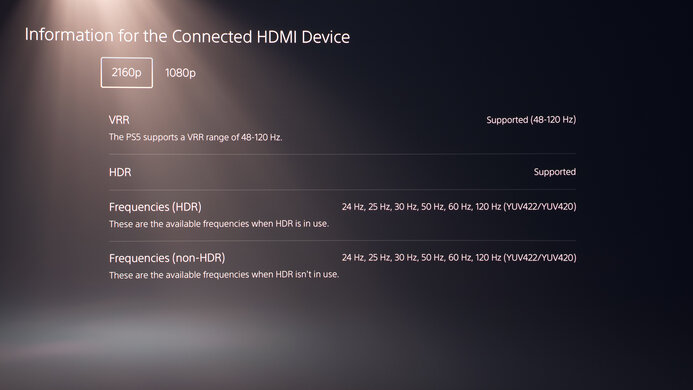
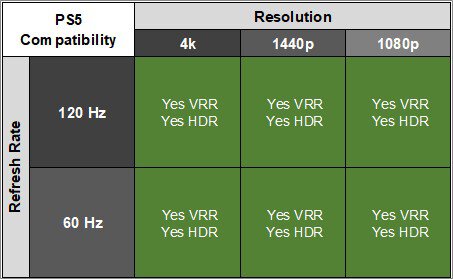
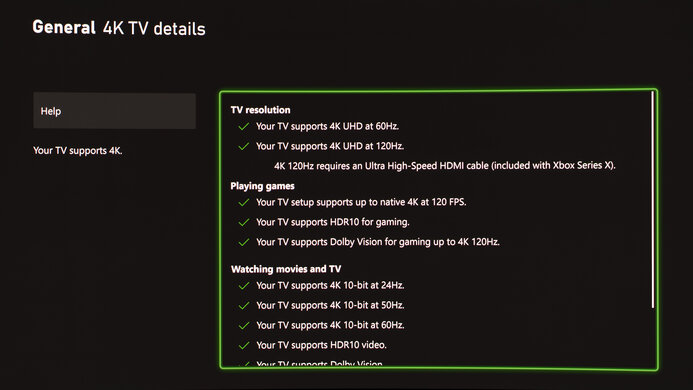
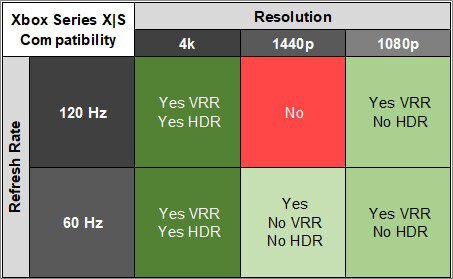
The Acer XV275K P5 is excellent for console gaming. It has HDMI 2.1 bandwidth to take full advantage of modern gaming consoles with 4k signals up to 120Hz, and it supports VRR with a PS5 and Xbox Series X|S. Gaming feels responsive on these consoles thanks to its low input lag, and it has a fast response time for fairly sharp motion, but there's inverse ghosting in fast-moving content. It's good for HDR gaming as it has a Mini LED local dimming feature that improves black levels and helps make highlights pop, but there's haloing around bright objects and black crush. Unfortunately, the picture quality is worse in SDR because you can't use local dimming, and blacks look gray.
Consistently fast response time at any refresh rate.
Low input lag for responsive feel.
Good black levels with local dimming in HDR.
HDMI 2.1 bandwidth to take advantage of gaming consoles.
Very bright in HDR with highlights that pop.
Inverse ghosting behind fast-moving objects.
Haloing and black crush in HDR.
Low contrast ratio in SDR and no local dimming.
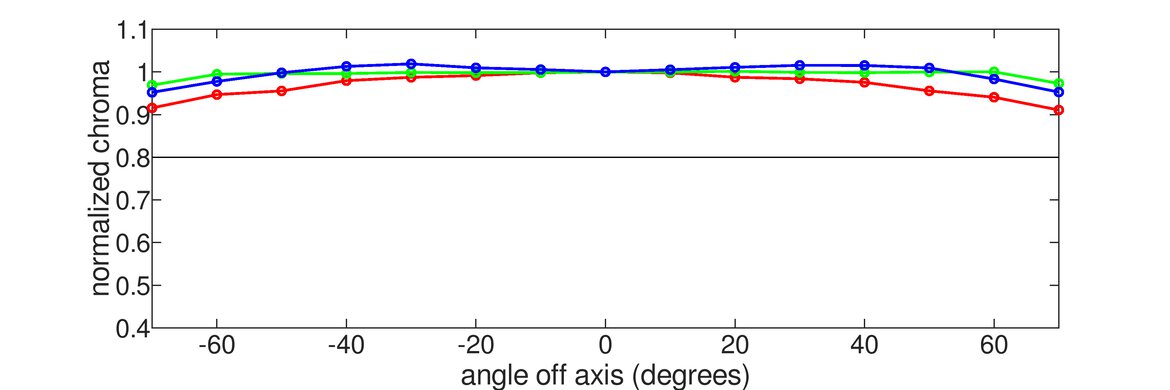
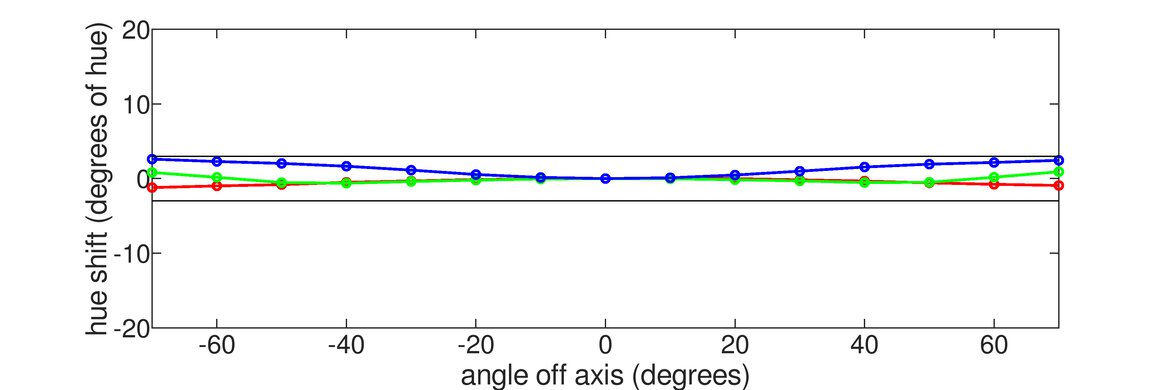
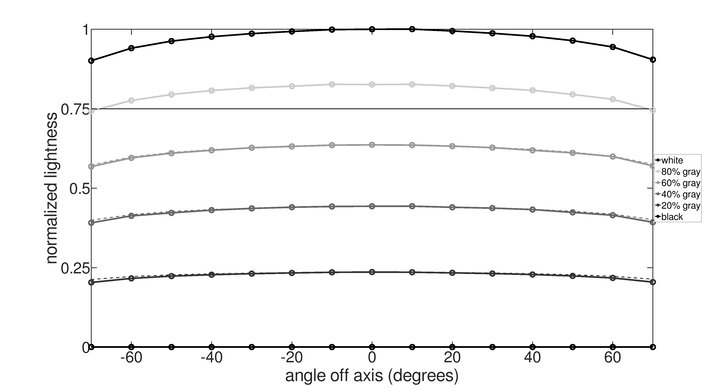
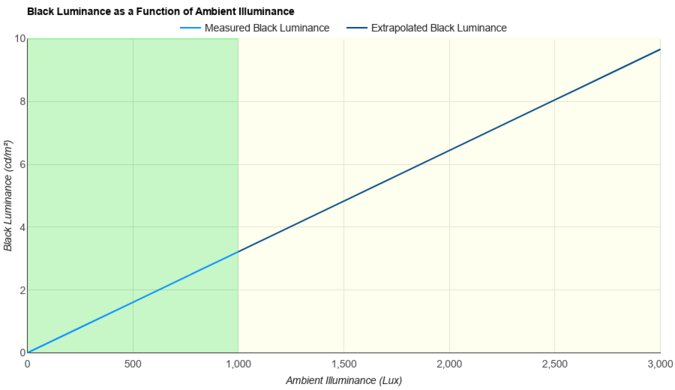
The Acer Nitro XV275K P5 is impressive for work. It delivers sharp text clarity thanks to its 4k resolution, and its 27-inch screen is big enough to put two windows side by side. It also has an ergonomic stand and fairly wide viewing angles, which help if you need to share your screen with someone next to you. It even comes with a small USB hub that includes DisplayPort Alt Mode and 90W of power to charge a laptop, and there's a KVM switch that's ideal for multitasking. Lastly, it gets bright enough to fight glare in moderately lit rooms or offices, but reflections are distracting if you place the monitor opposite a sunny window.
Sharp text clarity.
Bright enough in SDR to fight some glare.
USB hub with DisplayPort Alt Mode and 90W of power delivery.
Has an ergonomic stand.
Reflections are distracting in sunny rooms.
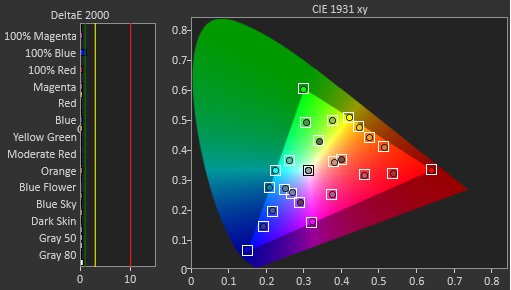
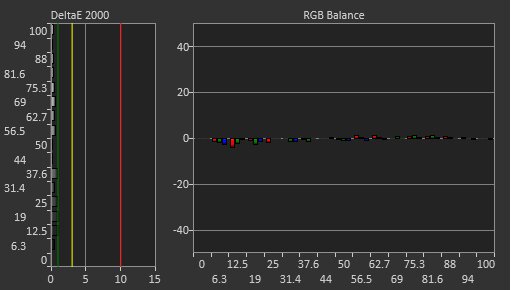
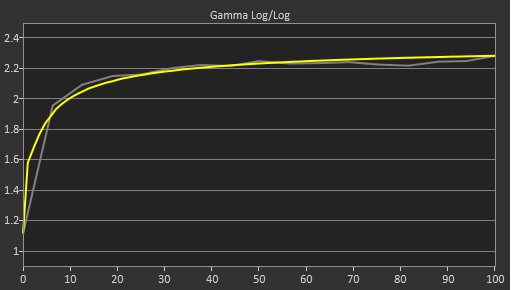
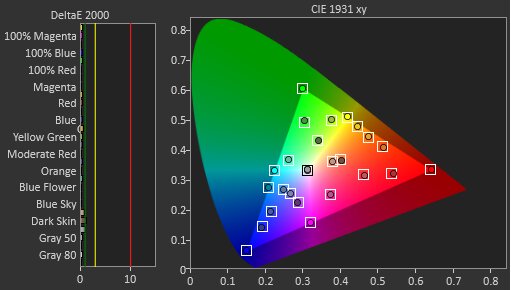
The Acer Nitro XV275K P5 is very good for editing. It comes with an sRGB mode, which limits colors well to the sRGB color space, but there are still white balance, gamma, and color temperature issues that you need to fix with a full calibration. It offers good picture quality in HDR with deep blacks and bright highlights, but its local dimming feature causes black crush and haloing around bright objects. However, you can't use local dimming in SDR, so blacks look gray, and the picture quality is much worse. On the plus side, it has a high 4k resolution that helps deliver detailed images and sharp text. It also has a handful of productivity features, including an ergonomic stand, USB hub, and DisplayPort Alt Mode to connect a laptop over USB-C.
Good black levels with local dimming in HDR.
Sharp text clarity.
Bright enough in SDR to fight some glare.
sRGB mode clamps colors well to sRGB color space.
Has an ergonomic stand.
Haloing and black crush in HDR.
Low contrast ratio in SDR and no local dimming.
Reflections are distracting in sunny rooms.
Has inaccuracies that need full calibration to fix.
The Acer XV275K P5 has excellent brightness. It fights glare in moderately lit rooms in SDR, but you can't enable its local dimming feature to help it get brighter. However, it gets much brighter in HDR as it uses its local dimming feature, and highlights pop.
Bright enough in SDR to fight some glare.
Very bright in HDR with highlights that pop.
Can't use local dimming in SDR to make it brighter.
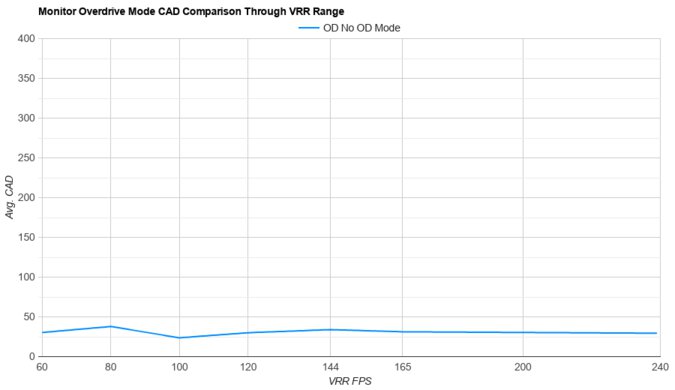
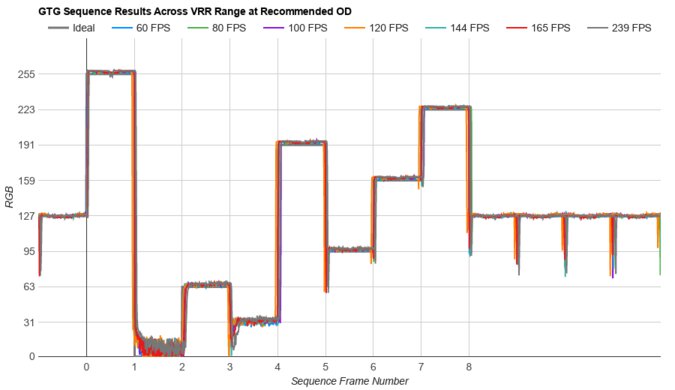
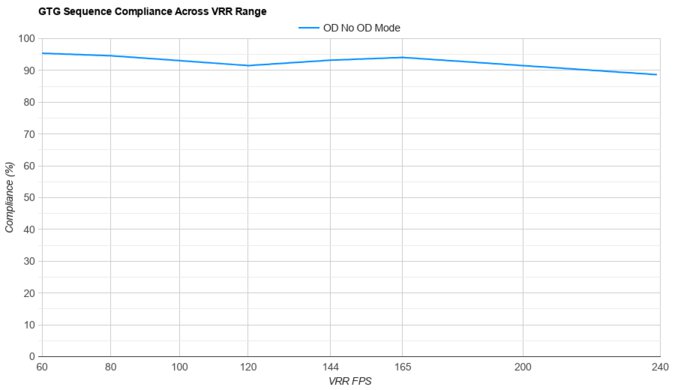
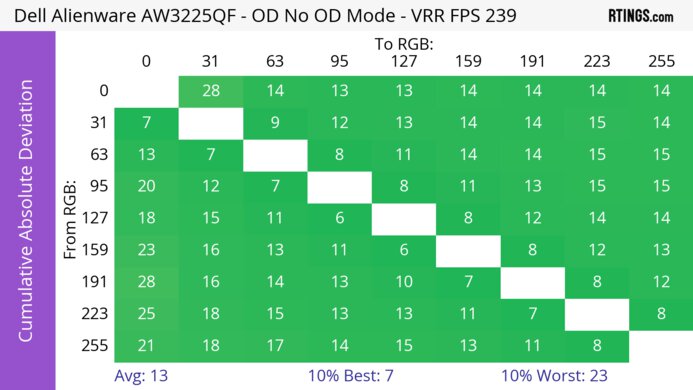
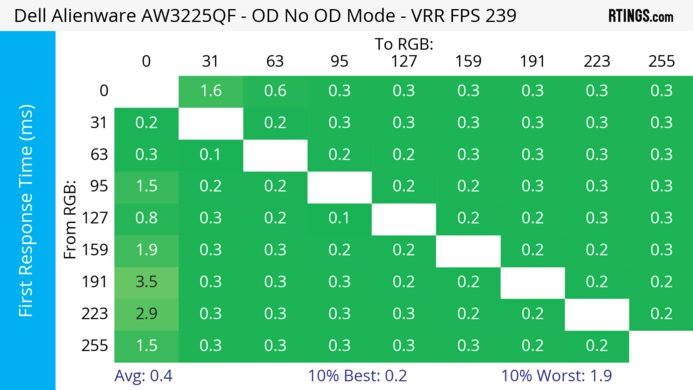
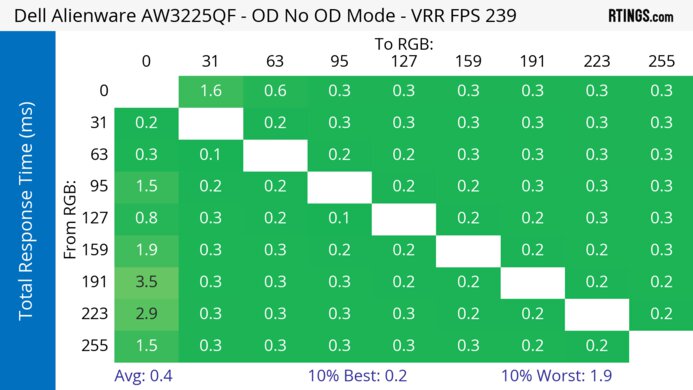
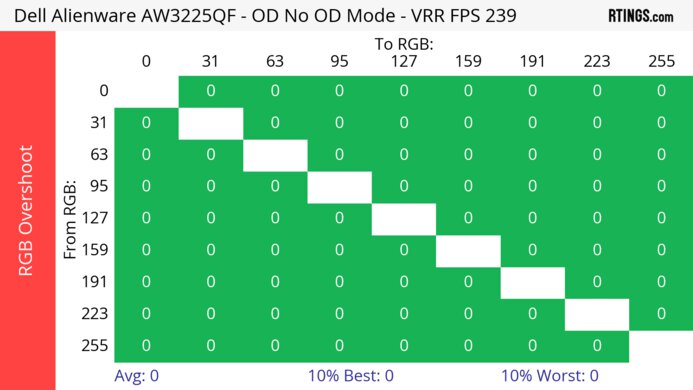
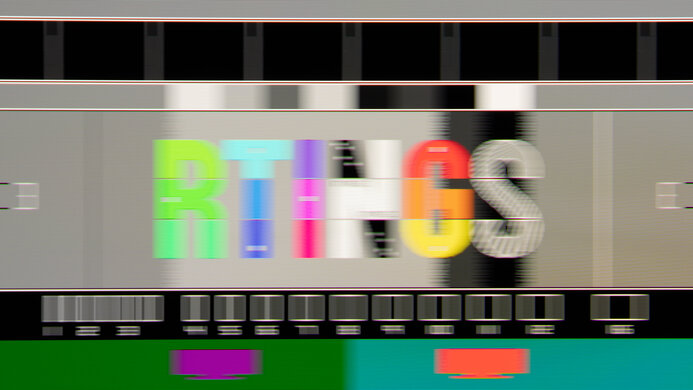
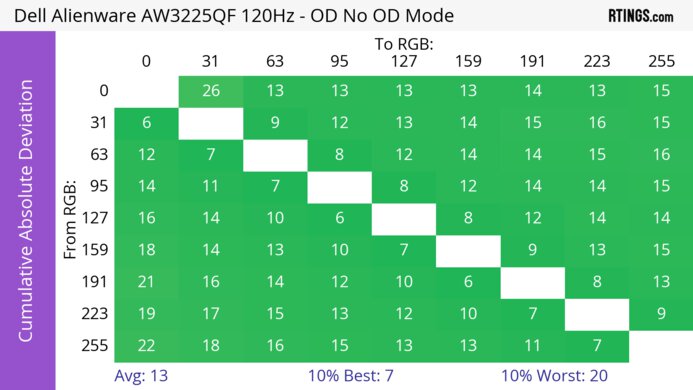
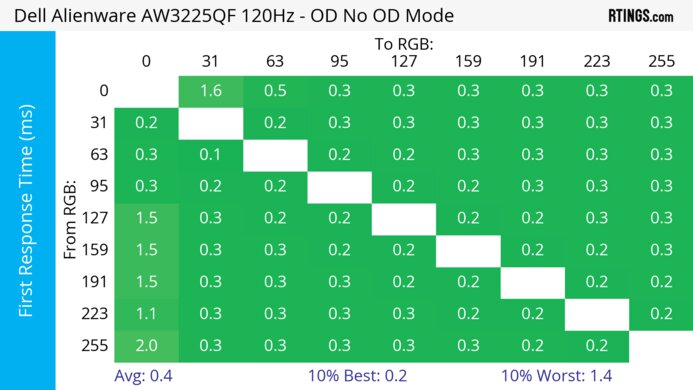
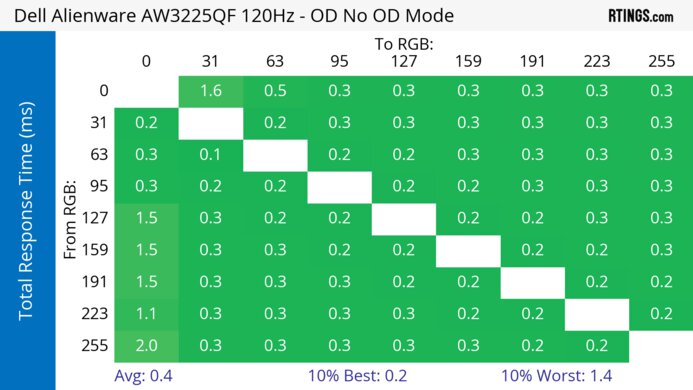
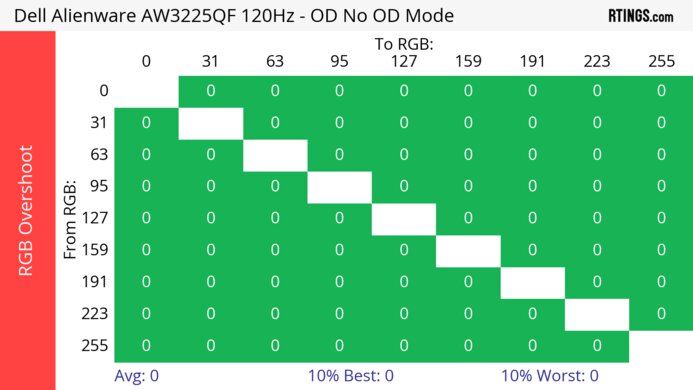
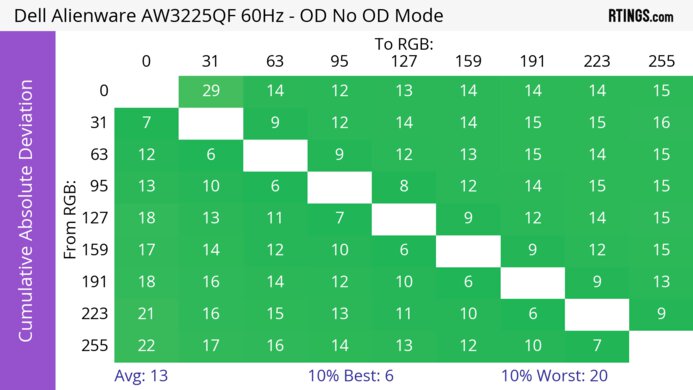
The Acer Nitro XV275K P5 has a good response time. It's consistent across its refresh rate range with minimal blur, but there's still inverse ghosting between fast-moving objects.
Consistently fast response time at any refresh rate.
Inverse ghosting behind fast-moving objects.
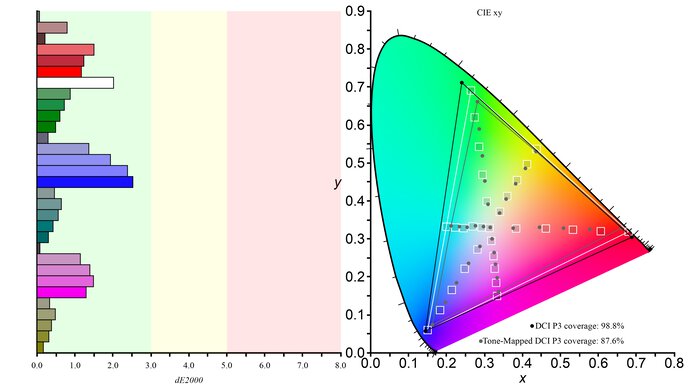
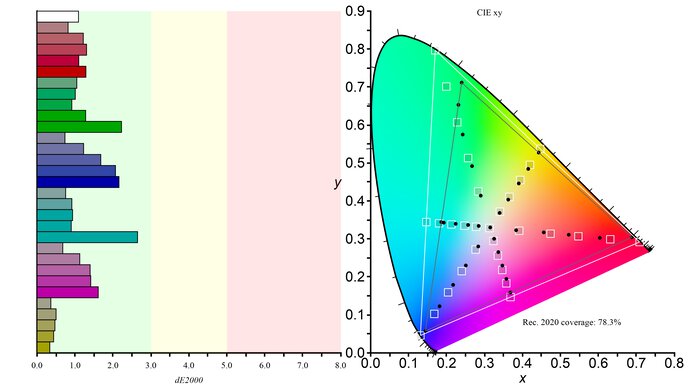
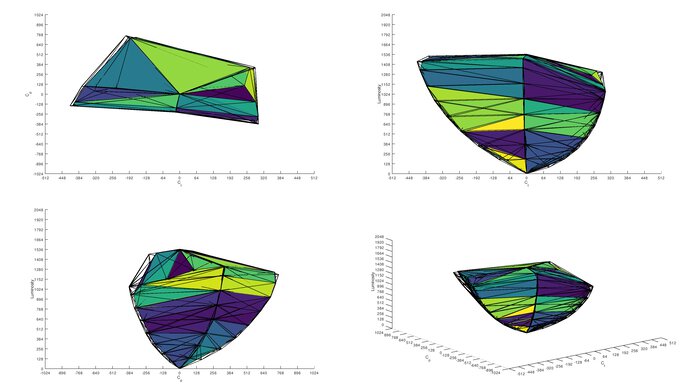
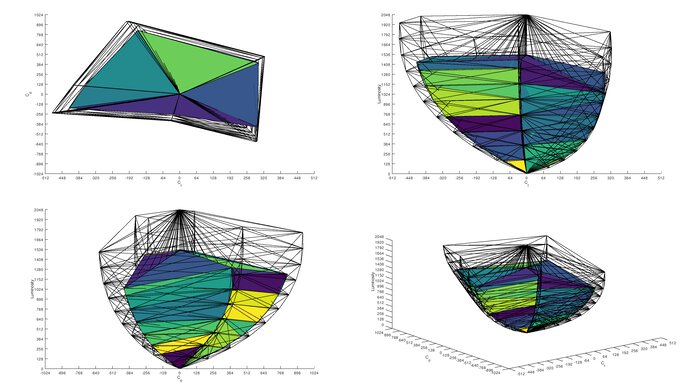
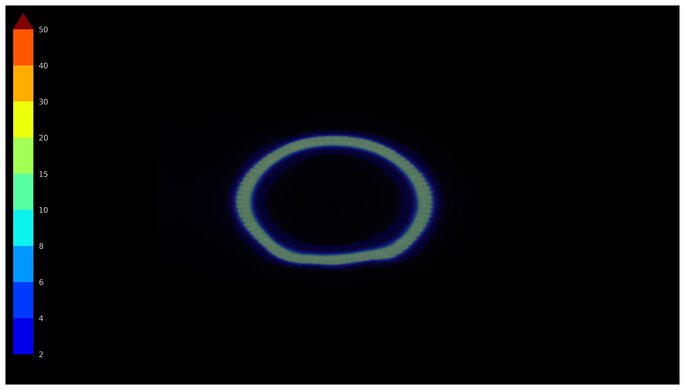
The Acer XV275K P5 has decent picture quality in HDR. It displays a wide range of colors, and using HDR enables its local dimming feature, which improves the black levels in content, but it has haloing around bright objects and black crush in dark scenes. Unfortunately, its local dimming feature has a bug that raises its black levels when you first enable HDR.
Good black levels with local dimming in HDR.
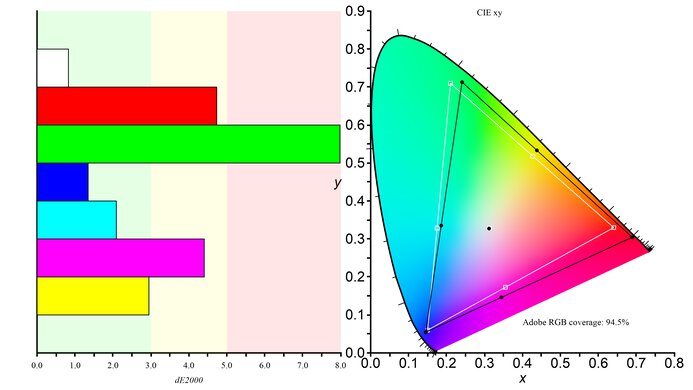
Covers most common color spaces in SDR and HDR.
Haloing and black crush in HDR.
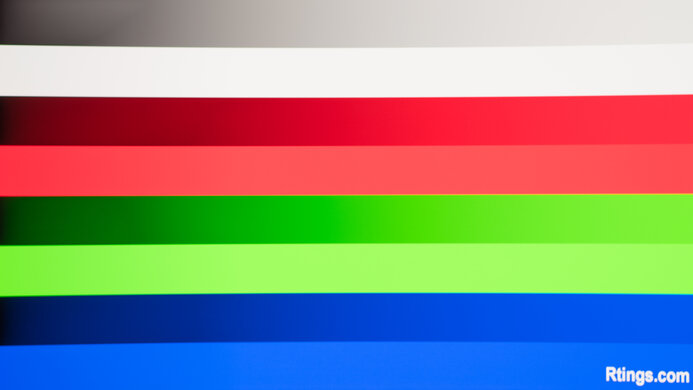
The Acer Nitro XV275K P5 has okay picture quality in SDR. While it displays a wide range of colors, you can't use the local dimming feature in SDR. It has a low contrast ratio without local dimming, and blacks look gray.
Covers most common color spaces in SDR and HDR.
Low contrast ratio in SDR and no local dimming.
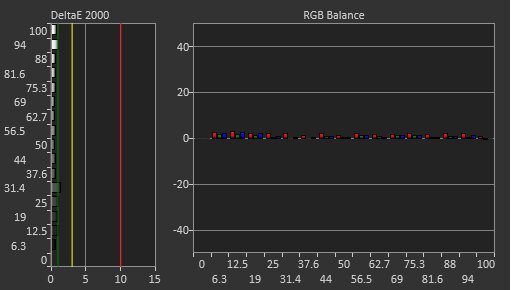
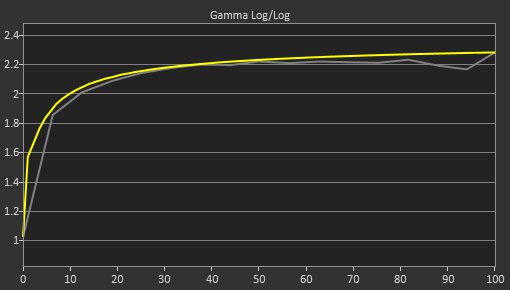
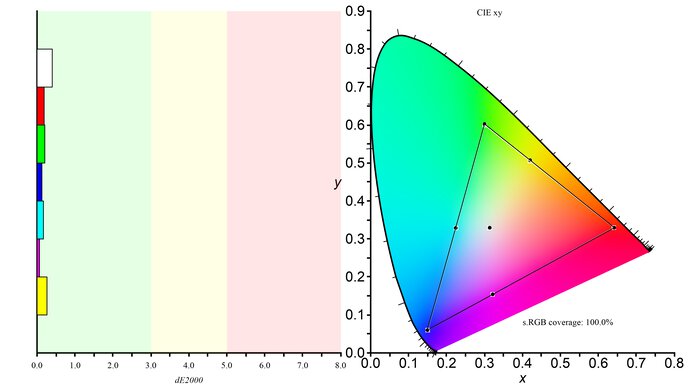
The Acer Nitro XV275K P5 has excellent color accuracy. It has a dedicated sRGB mode that locks colors to the sRGB color space. However, there are issues with the white balance, color temperature, and gamma that you can only fix with a full calibration.
sRGB mode clamps colors well to sRGB color space.
Has inaccuracies that need full calibration to fix.
Performance Usages
Changelog
-
Updated Apr 17, 2026:
We clarified that the KOORUI S2741LM is an alternative whose local dimming works in SDR.
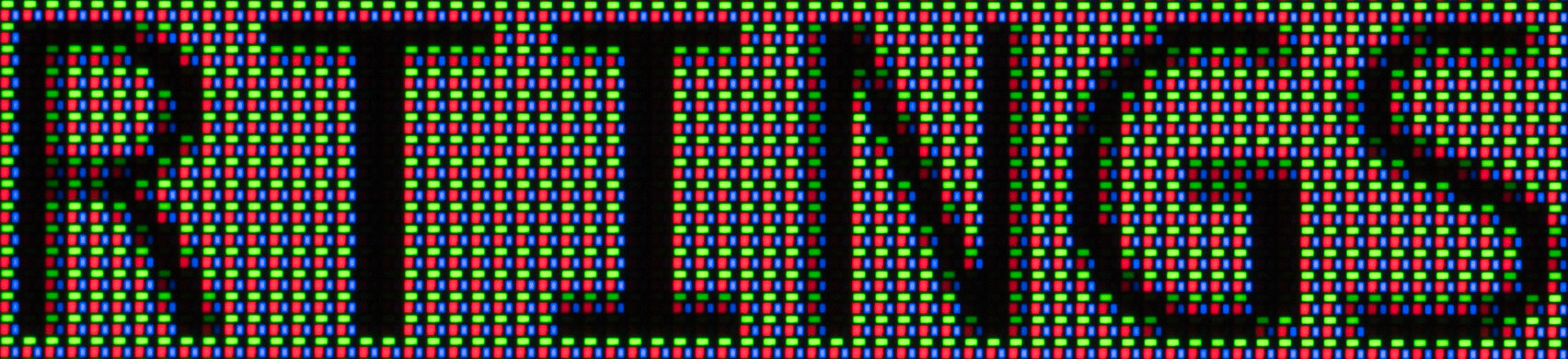
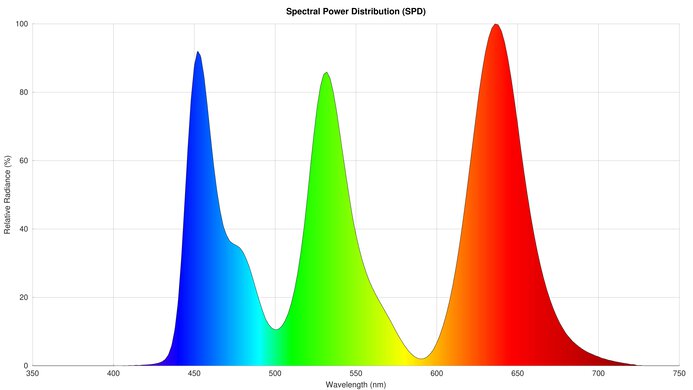
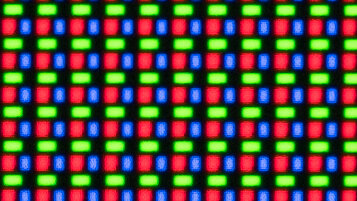
- Updated Mar 17, 2026: We've converted this review to Test Bench 2.1.2. We added a new Panel Technology box, including the Spectral Power Distribution (SPD) graph.
-
Updated Jan 29, 2026:
We clarified that it supports 4k @ 160Hz 8-bit signals with chroma 4:2:2 with DSC disabled.
-
Updated Dec 15, 2025:
We clarified in the Intro that it competes against the MSI MPG 274URDFW E16M.
Check Price
Differences Between Sizes And Variants
We bought and tested the 27-inch Acer Nitro XV275K P5biipruzx, which is the only size available, so the results are only valid for this model with this exact model code. You can see below how it differs from the previous model, the Acer Nitro XV275K P3biipruzx, and the lower-end Acer Nitro XV275U P3biipx.
| Model | Panel Type | Native Resolution | Native Refresh Rate | Dual Mode | Dimming Zones | Connectivity |
|---|---|---|---|---|---|---|
| XV275U P3biipx | VA | 1440p | 170Hz | No | 384 | 1x DP 1.2 2x HDMI 2.0 |
| XV275K P3biipruzx | IPS | 4k | 160Hz | No | 576 | 1x DP 1.4 2x HDMI 2.1 2x USB-A 1x USB-B 1x USB-C |
| XV275K P5biipruzx | IPS | 4k | 160Hz |
Yes 1080p, 320Hz |
1,152 |
1x DP 1.4 2x HDMI 2.1 2x USB-A 1x USB-B 1x USB-C |
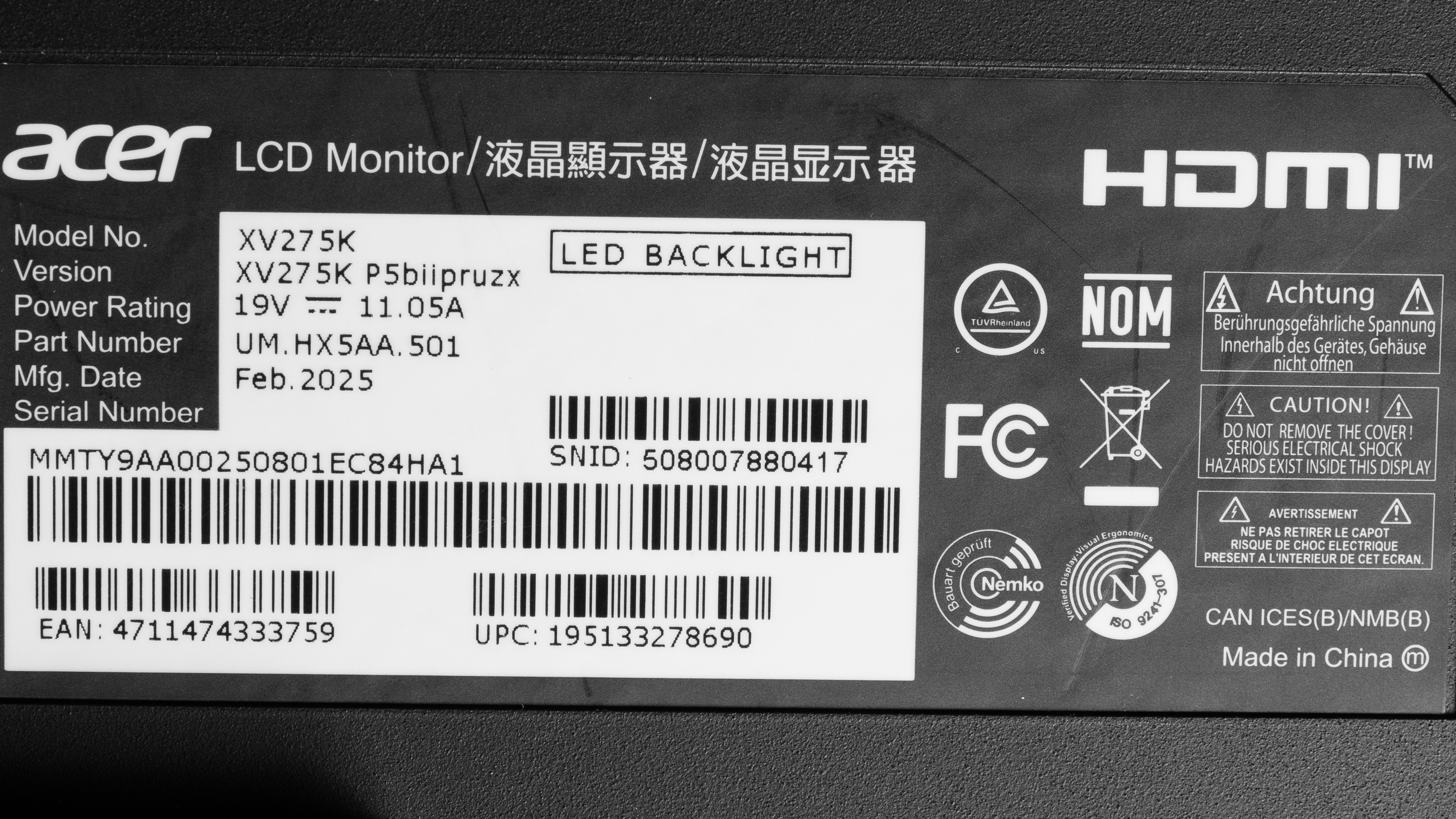
Our unit's label indicates it was manufactured in February 2025 in China.
Popular Monitor Comparisons
The Acer Nitro XV275K P5 is a mid-range 4k gaming monitor with Mini LED backlighting. It replaces the popular Acer Nitro XV275K P3biipruzx, with the main difference being that it has a dual mode that boosts its native 160Hz refresh rate to 320Hz for a smoother feel with a lower 1080p resolution. Compared to competing models, like the INNOCN 27M2V, this makes it more versatile for playing different types of games, like if you want detailed images in one game and higher frame rates for another. Its high resolution also makes it a better choice for both work and play compared to lower-end Mini LED displays, like the AOC Q27G3XMN.
While its local dimming feature helps improve its black levels and makes highlights bright, there are some things holding this monitor back from being a fantastic monitor. Its local dimming causes black crush in dark scenes and haloing around bright objects, and you can only use it in HDR, so the picture quality is much worse in SDR, with blacks that look gray. If you want a 4k Mini LED monitor with better picture quality in SDR and HDR, you'd have to spend more on the higher-end BenQ MOBIUZ EX321UX. That said, the Acer is still a solid option at its price point, especially if you want a 4k Mini LED model for HDR gaming without breaking the bank.
Also see our recommendations for the best HDR gaming monitors, the best Mini LED monitors, and the best 4k monitors.
The Acer Nitro XV275K P5biipruzx and the KOORUI S2741LM are competing Mini LED monitors. They share many of the same specs, including the number of dimming zones, dual-mode features, and USB ports. The KOORUI has a few advantages as you can use its local dimming in SDR, which isn't the case with the Acer. The KOORUI also has less haloing in HDR. The KOORUI even gets brighter, making it the better choice to use in well-lit rooms. Plus, the KOORUI has better motion handling with less blur behind fast-moving objects.
The AOC Q27G3XMN and the Acer Nitro XV275K P5biipruzx are both Mini LED monitors. The Acer is higher-end with a higher 4k resolution for sharper text, and it has more productivity features, like a USB hub. The Acer also has a few extra gaming features, like HDMI 2.1 bandwidth and a dual mode that switches it from 4k, 160Hz to 1080p, 320Hz for better versatility with different types of games. However, the AOC has much better picture quality in dark rooms. Despite the Acer having many more dimming zones, its local dimming feature is worse with more haloing around bright objects. The AOC also has a higher native contrast ratio, so blacks are deeper whether you use local dimming or not. Plus, you can only use the local dimming feature on the Acer in HDR, so the picture quality is much worse in SDR with blacks that look gray.
The MSI MPG 274URDFW E16M and the Acer Nitro XV275K P5biipruzx are competing Mini LED monitors. They share many of the same specs, including 4k, 160Hz and 1080p, 320Hz dual modes, USB-C ports with DisplayPort Alt Mode, and KVM switches. As they both have 1,152 dimming zones, their local dimming features perform similarly, with black crush and haloing around bright objects. However, you can't use local dimming in SDR on the Acer, but certain local dimming settings on the MSI cause an overbrightened image in SDR, so you may prefer not using it anyways. Besides that, the MSI has better motion handling across its VRR range, but they're very similar otherwise.
The Acer Nitro XV275K P5biipruzx is a newer version of the Acer Nitro XV275K P3biipruzx, with many of the same specs, but a few differences. The P5 has more dimming zones, with 1,152 zones compared to 576 on the P3. However, this doesn't come with an upgrade in performance, as the P5 has more haloing around bright objects, and the local dimming feature only turns on in HDR, whereas you can use it on the P3 in SDR, too. The P3 is a bit more polished when it comes to picture quality, as it's more accurate before calibration and has better reflection handling. However, the P5 is an improvement when it comes to gaming. It has a dual mode that boosts its refresh rate to 320Hz with a lower 1080p resolution for a smoother feel. The P5 also has lower input lag at low refresh rates, which helps if you're gaming with a console.
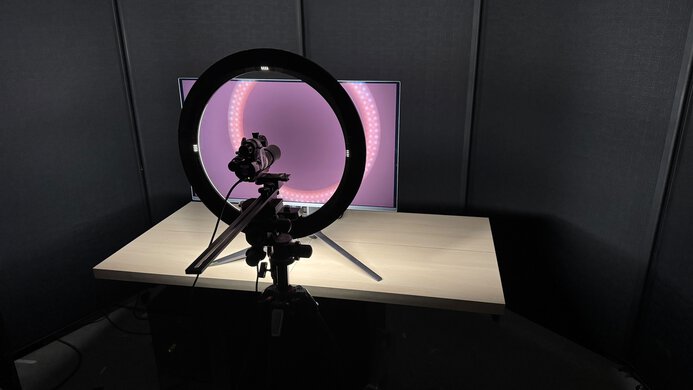
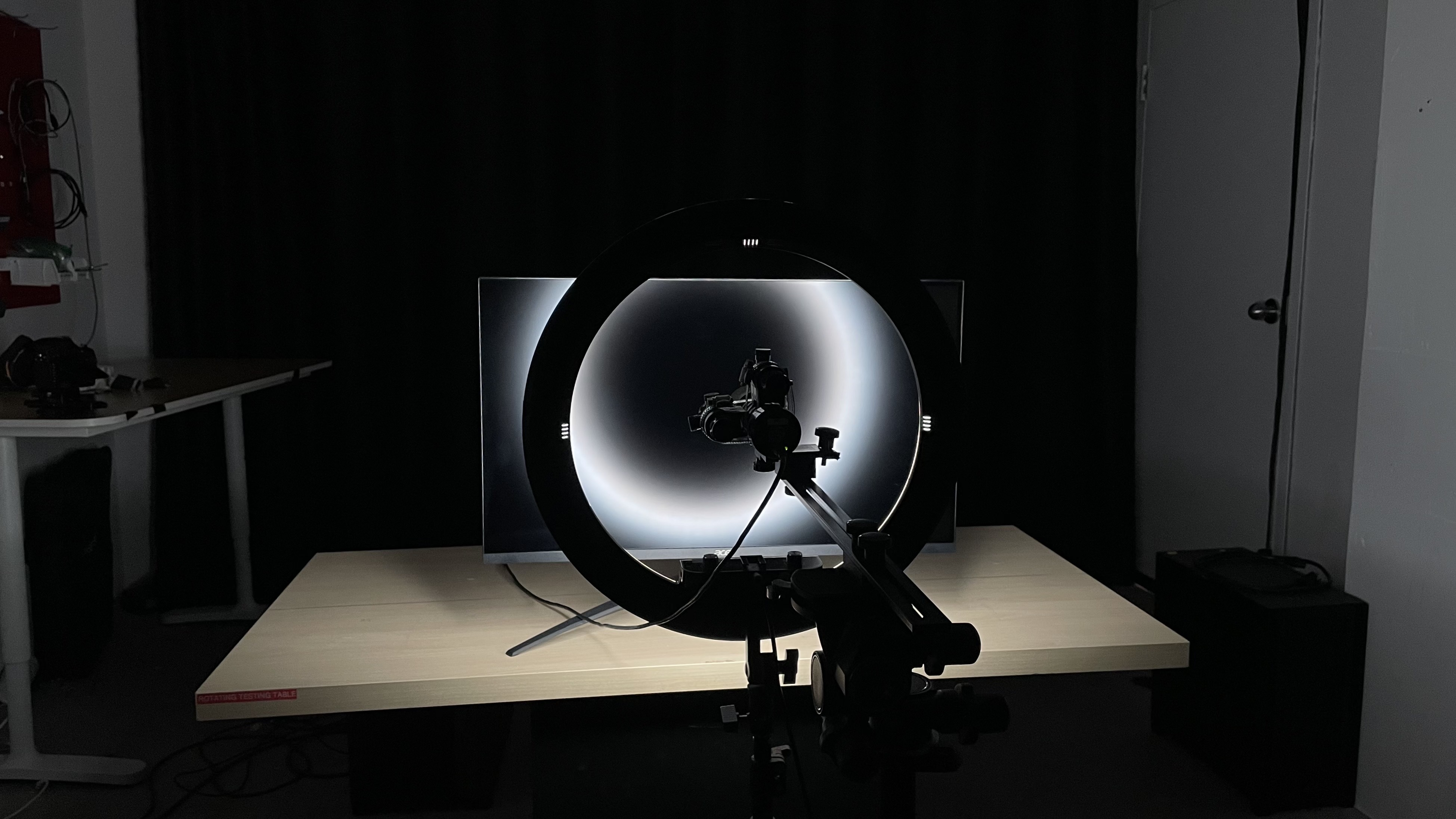
We buy and test more than 30 monitors each year, all of which we purchase ourselves, without cherry-picked units or samples. We put a lot into each unbiased, straight-to-the-point review, and there's a whole process from purchasing to publishing, involving multiple teams and people. We do more than just use the monitor for a week; we use specialized, custom tools to measure various aspects and deliver objective, data-driven results. We also consider multiple factors before making any recommendations, including the monitor's cost, its performance compared to the competition, and whether it's easy to find.
Test Results
for pictures & test results


for pictures & test results

for pictures & test results
for pictures & test results
for pictures & test results
for pictures & test results
for pictures & test results
for pictures & test results
for videos & test results

for pictures & test results
for pictures & test results
for pictures & test results









for pictures & test results