BenQ MOBIUZ EX321UX  Monitor Review

Reviewed Jun 23, 2025 at 09:49am
Test bench update Nov 10, 2025 at 09:01am
Tested using Methodology v2.1.1 
BenQ MOBIUZ EX321UX
7.9
PC Gaming 
8.5
Console Gaming 
8.4
Office 
8.2
Editing 
9.3
Brightness 
8.3
Response Time 
7.6
HDR Picture 
7.4
SDR Picture 
 69

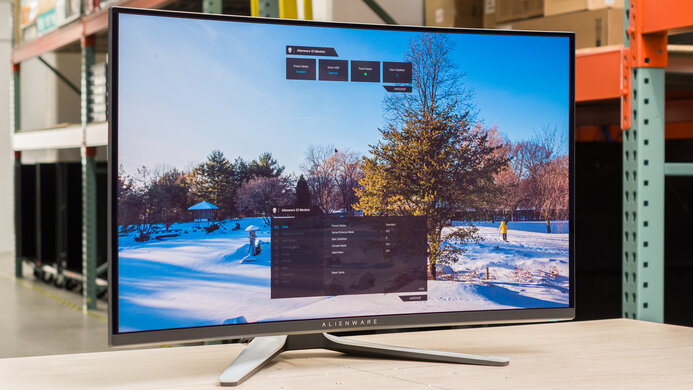
The BenQ MOBIUZ EX321UX is a 32-inch 4k Mini LED gaming monitor. It competes with other 32-inch Mini LED monitors like the ASUS ROG Swift PG32UQX, the Acer Predator X32 FP, and the ViewSonic Elite XG321UG. It's a significant improvement over its predecessor, the EX3210U, which has just 16 local dimming zones. The newer EX321UX has 1,152 zones and has several additional features, such as DisplayPort 2.1 support, USB-C connectivity with 65W of power delivery, and a KVM switch. It also comes with a wireless remote to control the monitor's settings, an ARC/eARC port to connect to soundbars or receivers, and a light tuner setting to increase the brightness of dark shadows.

How We Test Monitors

We buy and test more than 30 monitors each year, with units that we buy completely on our own, without any cherry-picked units or samples. We put a lot into each unbiased, straight-to-the-point review, and there's a whole process from purchasing to publishing, involving multiple teams and people. We do more than just use the monitor for a week; we use specialized and custom tools to measure various aspects with objective data-based results. We also consider multiple factors before making any recommendations, including the monitor's cost, its performance against the competition, and whether or not it's easy to find.

Our Verdict

7.9
PC Gaming 

The BenQ MOBIUZ EX321UX is good for PC gaming. Its 144Hz refresh rate and low input lag create a fairly responsive feel, and its great motion handling makes fast-moving objects look crisp. Additionally, if you enable local dimming its contrast is excellent, though deep blacks appear gray when it's off. Additionally, it gets extremely bright, and easily overcomes glare and makes highlights pop. It also displays a wide range of colors quite vividly.

Pros
  • Fast-moving objects look quite crisp.

  • Alright local dimming system.

  • Highlights pop in HDR.

  • Displays a very wide range of colors in HDR.

  • Supports all VRR formats.

Cons
  • Mediocre native contrast.

  • Local dimming causes a bit of blooming.

8.5
Console Gaming 

The BenQ MOBIUZ EX321UX is amazing for console gaming. It supports all features of the PS5, PS5 Pro, and Xbox Series X|S. Additionally, highlights pop in HDR and it displays a wide range of colors very vividly. It also has low input lag for a responsive feel, and great motion handling, so fast-moving objects look crisp. It also has great contrast when its local dimming is enabled, though it causes a bit of blooming.

Pros
  • Fast-moving objects look quite crisp.

  • Alright local dimming system.

  • Highlights pop in HDR.

  • Displays a very wide range of colors in HDR.

  • Supports VRR with PS5, PS5 Pro, and Xbox Series X|S.

Cons
  • Local dimming causes a bit of blooming.

8.4
Office 

The BenQ MOBIUZ EX321UX is impressive for office work. It has superb text clarity and image sharpness. Additionally, it has adequate reflection handling and exceptional brightness, so it works extremely well in a bright environment. However, while it has good height adjustment, it doesn't swivel very much, so it's not ideal if you plan to share your screen with others.

Pros
  • Extremely bright in SDR.

  • Good viewing angles.

  • Good height adjustment.

  • Very sharp text and images.

Cons
  • Limited swivel range.

8.2
Editing 

The BenQ EX321UX is great for editing. Because of its 4k resolution images and text look quite sharp. It also displays a wide range of colors in SDR and HDR quite vividly. And while deep blacks appear gray without local dimming, it has excellent contrast when local dimming is on, though it causes a bit of blooming. It also gets bright enough to pop in HDR and has very little ambient black level rise in a bright room, so it's great for editing dark parts of scenes in bright environments. However, it doesn't swivel very much, so it's not great for sharing work with a colleague.

Pros
  • Extremely bright in SDR.

  • Good viewing angles.

  • Good height adjustment.

  • Displays a very wide range of colors in HDR.

  • Excellent contrast with local dimming enabled.

  • Very sharp text and images.

Cons
  • Limited swivel range.

  • Mediocre native contrast.

  • Local dimming causes a bit of blooming.

9.3
Brightness 

The BenQ EX321UX has superb brightness. It gets exceptionally bright in SDR, and highlights pop in HDR.

Pros
  • Extremely bright in SDR.

  • Highlights pop in HDR.

Cons
None
8.3
Response Time 

The BenQ EX321UX has an impressive response time. Fast-moving objects look quite crisp across its VRR range, and there isn't much inverse ghosting.

Pros
  • Fast-moving objects look quite crisp.

Cons
None
7.6
HDR Picture 

The BenQ MOBIUZ EX321UX has good HDR picture quality. It displays a wide range of colors quite vividly. Additionally, its local dimming system significantly improves contrast, though it does cause some blooming.

Pros
  • Alright local dimming system.

  • Displays a very wide range of colors in HDR.

Cons
  • Local dimming causes a bit of blooming.

7.4
SDR Picture 

The BenQ EX321UX has decent SDR picture quality. It has good black uniformity and displays the SDR gamut well. However, unless you enable local dimming its contrast is mediocre.

Pros
  • Good black uniformity.

  • Excellent contrast with local dimming enabled.

Cons
  • Mediocre native contrast.

8.8
Color Accuracy 

The BenQ EX321UX has amazing color accuracy. It has excellent accuracy before calibration, and all parts of scenes are the correct brightness. It also has great gray uniformity.

Pros
  • Amazing accuracy before calibration.

  • Great gray uniformity.

  • All parts of scenes are the correct brightness.

Cons
None
  • 7.9
    PC Gaming
  • 8.5
    Console Gaming
  • 8.4
    Office
  • 8.2
    Editing

  • Performance Usages

  • 9.3
    Brightness
  • 8.3
    Response Time
  • 7.6
    HDR Picture
  • 7.4
    SDR Picture
  • 8.8
    Color Accuracy
  • Changelog

    1.  Updated Nov 10, 2025: We've converted this review to Test Bench 2.1.1. We removed the Vertical Viewing Angle test.
    2.  Updated Sep 24, 2025: 

      We corrected a test result to clarify that it doesn't have built-in speakers.

    3.  Updated Sep 18, 2025: 

      We clarified the text in Local Dimming for accuracy and to specify the number of dimming zones it has.

    4.  Updated Sep 08, 2025: 

      We clarified in the Variants section that we used firmware V5 for testing.

    Check Price

    32"MOBIUZ EX321UX
    SEE PRICE
    Amazon.com
    32"MOBIUZ EX321UX
    SEE PRICE
    B&H
    32"MOBIUZ EX321UX
    SEE PRICE
    Walmart.com
    32"MOBIUZ EX321UX
    BestBuy.com

    Differences Between Sizes And Variants

    We tested the BenQ MOBIUZ EX321UX, the first BenQ model to offer Mini LED dimming. As you can see below, BenQ has two similar models without Mini LED dimming. However, the non-mini LED models are different monitors, and the results are only valid for the MOBIUZ EX321UX.

    Model Size Resolution Max Refresh Rate Local Dimming System
    MOBIUZ EX321UX 32" 4k 144Hz Mini LED Full-Array
    MOBIUZ EX3210U 32" 4k 144Hz Edge-Lit
    MOBIUZ EX2710U 27" 4k 144Hz Edge-Lit

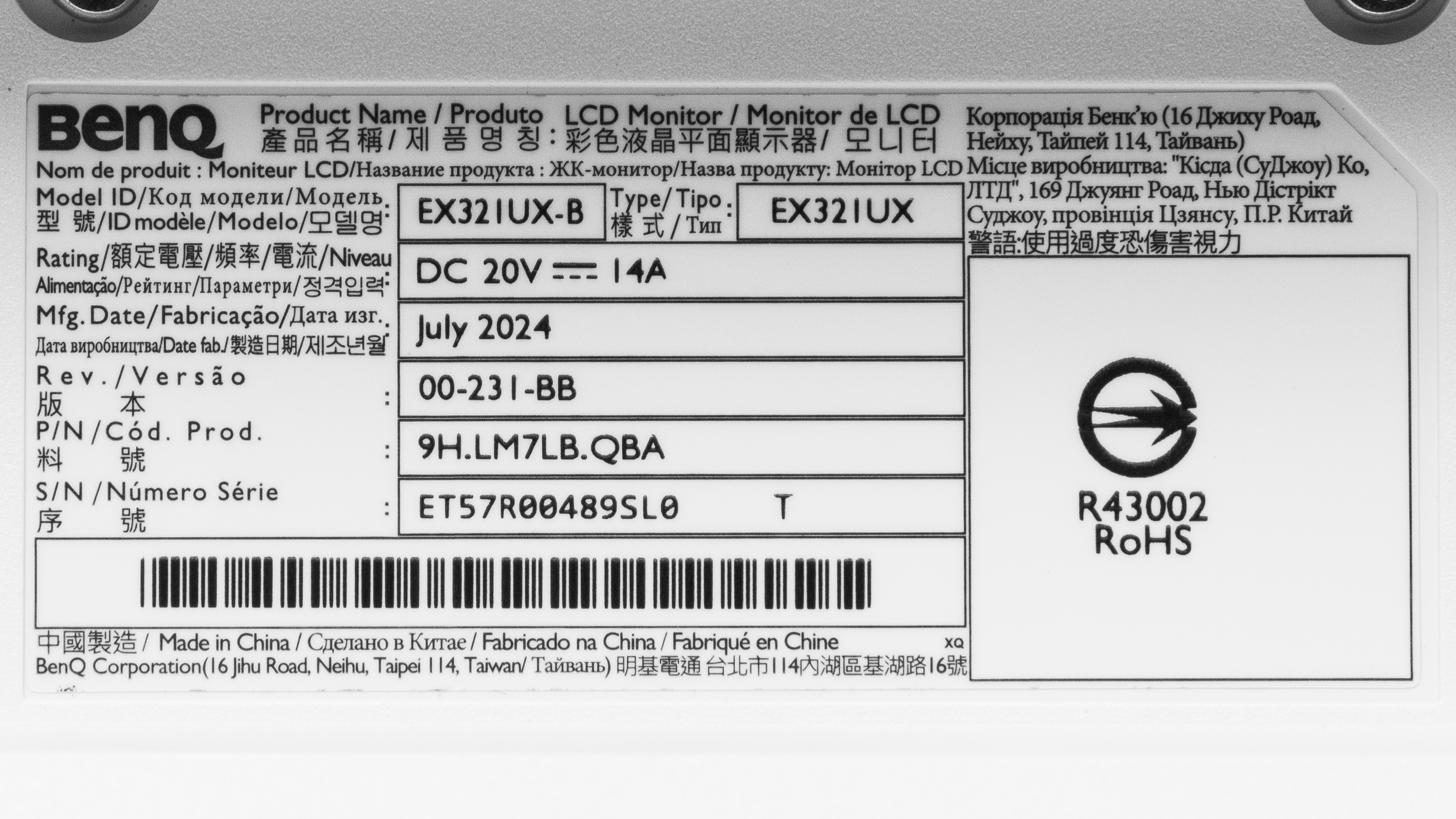
    Our unit's label indicates it was manufactured in July 2024. You can see a photo of its label here. It was tested with firmware V5.

    Popular Monitor Comparisons

    The BenQ MOBIUZ EX321UX is a 32-inch 4k Mini LED gaming monitor. It's an outstanding choice for someone who wants a 32-inch monitor for work and gaming, and doesn't want to worry about the risk of burn-in that can come with OLEDs when used for work. It's extremely versatile, as it displays fairly deep blacks if you use its local dimming system, has great motion handling, and displays a wide range of colors quite vividly. It also has excellent connectivity. However, its standout feature is its performance in bright environments. It gets bright enough to easily overcome any glare and make highlights pop, and it has very little ambient black level rise in bright environments.

    That said, these capabilities come with a premium price, and the Acer Nitro XV275K P3biipruzx also offers very similar gaming and work performance in a 27-inch size for considerably less money. Additionally, if you only plan to use your monitor for gaming, you can find 32-inch OLEDs with better motion handling and deeper blacks for a similar price, such as the MSI MPG 321URX QD-OLED. However, if you're looking for a 32-inch monitor that works equally well for productivity, editing, and gaming, the BenQ MOBIUZ EX321UX is a fantastic option.

    See our recommendations for the best 4k gaming monitors, the best Mini LED monitors, and the best 4k HDR monitors.

    Samsung Odyssey Neo G8 S32BG85

    The Samsung Odyssey Neo G8 S32BG85 and the BenQ MOBIUZ EX321UX are 32-inch 4k Mini LED gaming monitors. The BenQ is the better option for most people, as it has more vivid colors, very little VRR flicker, wider viewing angles, and much better connectivity. However, you may prefer the Samsung if you game in a dark room, as it has much better contrast. It also feels more responsive because of its higher 240Hz refresh rate.

    ASUS ROG Swift OLED PG32UCDP

    The ASUS ROG Swift OLED PG32UCDP and the BenQ MOBIUZ EX321UX are both 32-inch 4k gaming monitors. The ASUS is a better option if you're planning to use your monitor mainly for gaming, as it has a higher refresh rate, much better contrast in a dark room, and far better motion handling. However, the BenQ is a better option if you plan on using your monitor for work as well as gaming, as it has no risk of burn-in, and is far better at overcoming glare.
    Acer Nitro XV275K P3biipruzx

    The Acer Nitro XV275K P3biipruzx and the BenQ MOBIUZ EX321UX are both 4k Mini LED gaming monitors. Both monitors have largely similar motion handling, HDR brightness, and color vividness, and are excellent options if you plan on gaming and working on the same monitor. The biggest difference between them is their size. The Acer is a better choice if you prefer a 27-inch display or are looking for a monitor in a lower price category. However, the BenQ is a better choice if you want a 32-inch display.

    MSI MPG 321URX QD-OLED

    The MSI MPG 321URX QD-OLED and the BenQ MOBIUZ EX321UX are 32-inch 4k gaming monitors. The MSI is a better option if you plan to mostly game on your monitor, as it has a higher refresh rate, much better contrast in a dark room, and far better motion handling. However, the BenQ is a better option if you plan to use your monitor for work, as it has sharper text, is far better at overcoming glare, and has no risk of burn-in.

    Show more 

    Test Results
    perceptual testing image
    Sort:
    RATINGS
    Category:
    All
    Design
    Style
    Curved
    No
    Curve Radius
    Not Curved

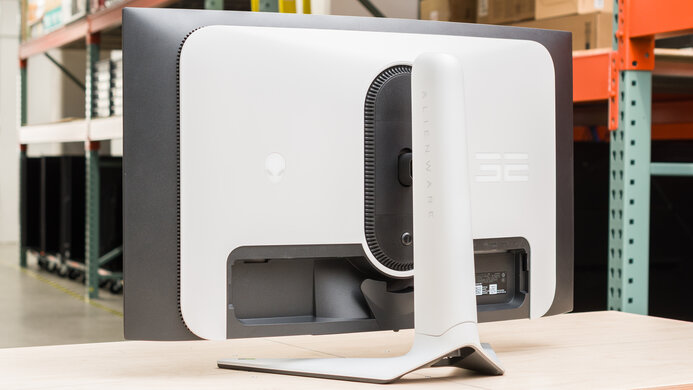
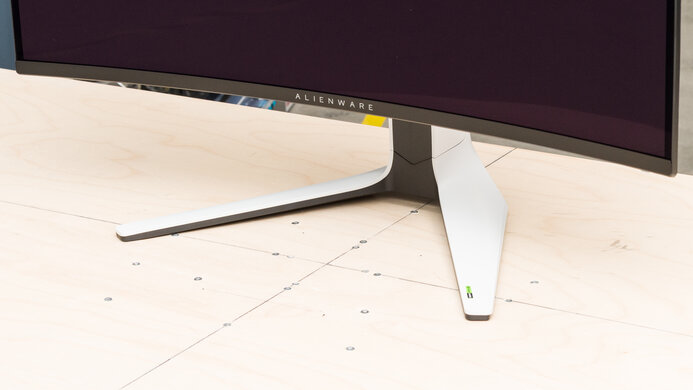
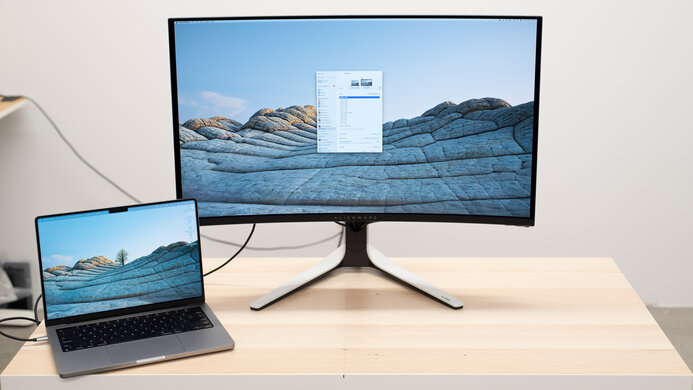
    The BenQ EX321UX has an understated appearance that works well in both an office and a gaming environment. However, the tripod legs supporting the monitor stick out considerably in front of it and take up a lot of desk space.

    8.0
    Build Quality

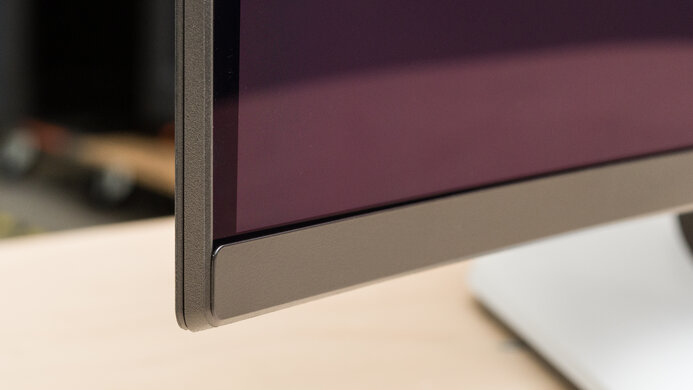
    The build quality is great. The plastics have a nice finish, and there's no creaking in the plastic housing, though the back of the monitor does flex a bit. There are no defects in the bezels.
    There are vents all around the top and bottom of the monitor to help it cool, and there seems to be a lot of empty space inside the monitor's housing for cooling. Additionally, while the remote is lightweight, it feels solid.
    6.3
    Ergonomics
    Min Height To Top Of Panel
    18.8" (47.8 cm)
    Height Adjustment
    3.9" (10.0 cm)
    Tilt Range
    -5° to 12.5°
    Rotate Portrait/Landscape
    No
    Swivel Range
    -15° to 15°
    Wall Mount
    VESA 100x100

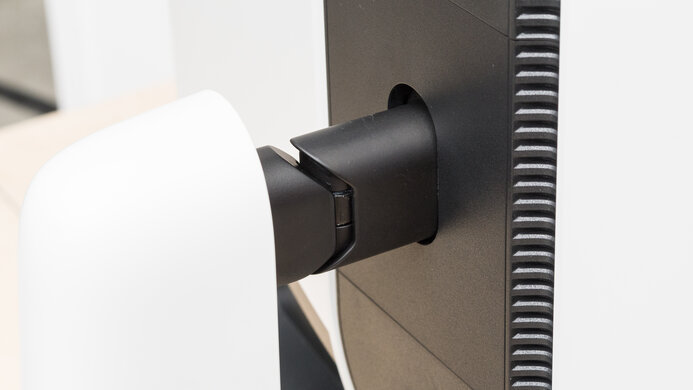
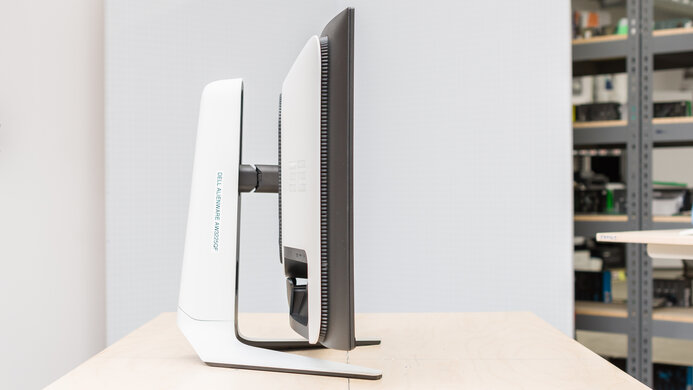
    The ergonomics are mediocre. While it has good height adjustment and a mediocre tilt range, it doesn't swivel very much, so it's not ideal if you want to share your screen with others. Additionally, while it rotates three degrees in either direction for leveling, it doesn't rotate into portrait.

    Stand
    Base Width
    24.2" (61.5 cm)
    Base Depth
    12.2" (31.0 cm)
    Thickness (With Display)
    8.9" (22.5 cm)
    Weight (With Display)
    21.2 lbs (9.6 kg)

    The stand is very large and takes up a lot of room in front of the monitor. However, it holds the monitor well, as it has very little wobble when bumped and recovers quickly afterward. The monitor feet aren't height-adjustable.

    The thickness measurement is from the back of the monitor's support foot.

    Display
    Size
    32"
    Housing Width
    28.1" (71.5 cm)
    Housing Height
    16.9" (43.0 cm)
    Thickness (Without Stand)
    3.5" (9.0 cm)
    Weight (Without Stand)
    17.0 lbs (7.7 kg)
    Borders Size (Bezels)
    0.3" (0.8 cm)
    Controls

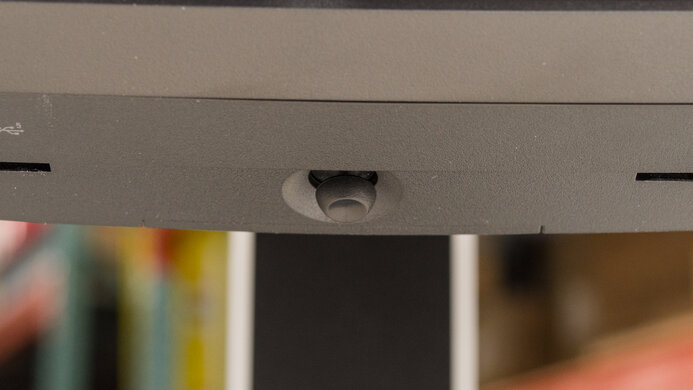
    This BenQ MOBIUZ EX321UX has a remote you can use to adjust the on-screen settings. If you prefer to adjust the monitor's settings without the remote, you can also use the monitor's integrated buttons, which include an input selector key, a joystick to control the on-screen display, and a power button.

    In The Box
    Power Supply
    External Brick

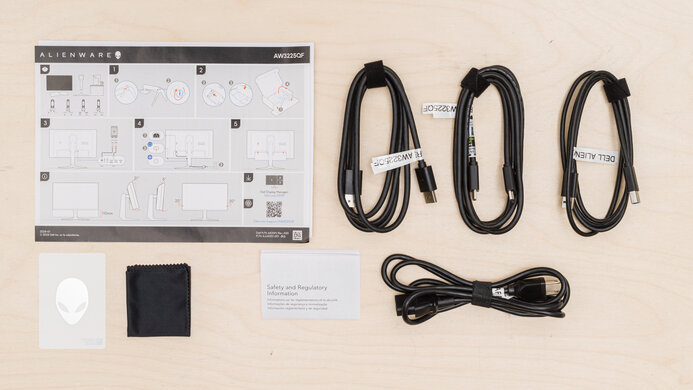
    • HDMI cable
    • USB-C to USB-A cable
    • USB-C to USB-C cable
    • Remote
    • Power cable and supply
    • Documentation and calibration report
    Picture Quality
    7.0
    Contrast
    Native Contrast
    1,272 : 1
    Contrast With Local Dimming
    4,489 : 1

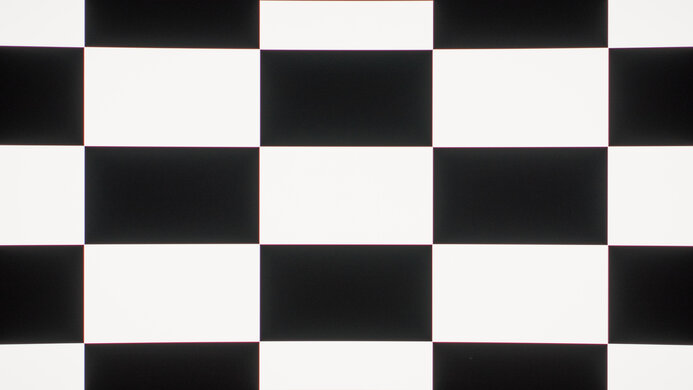
    The contrast is decent. When local dimming is off, deep blacks appear gray, but when local dimming is on, the contrast is excellent, and you can see fairly deep blacks next to bright highlights.

    6.5
    Local Dimming
    Local Dimming
    Yes
    Backlight
    Full-Array

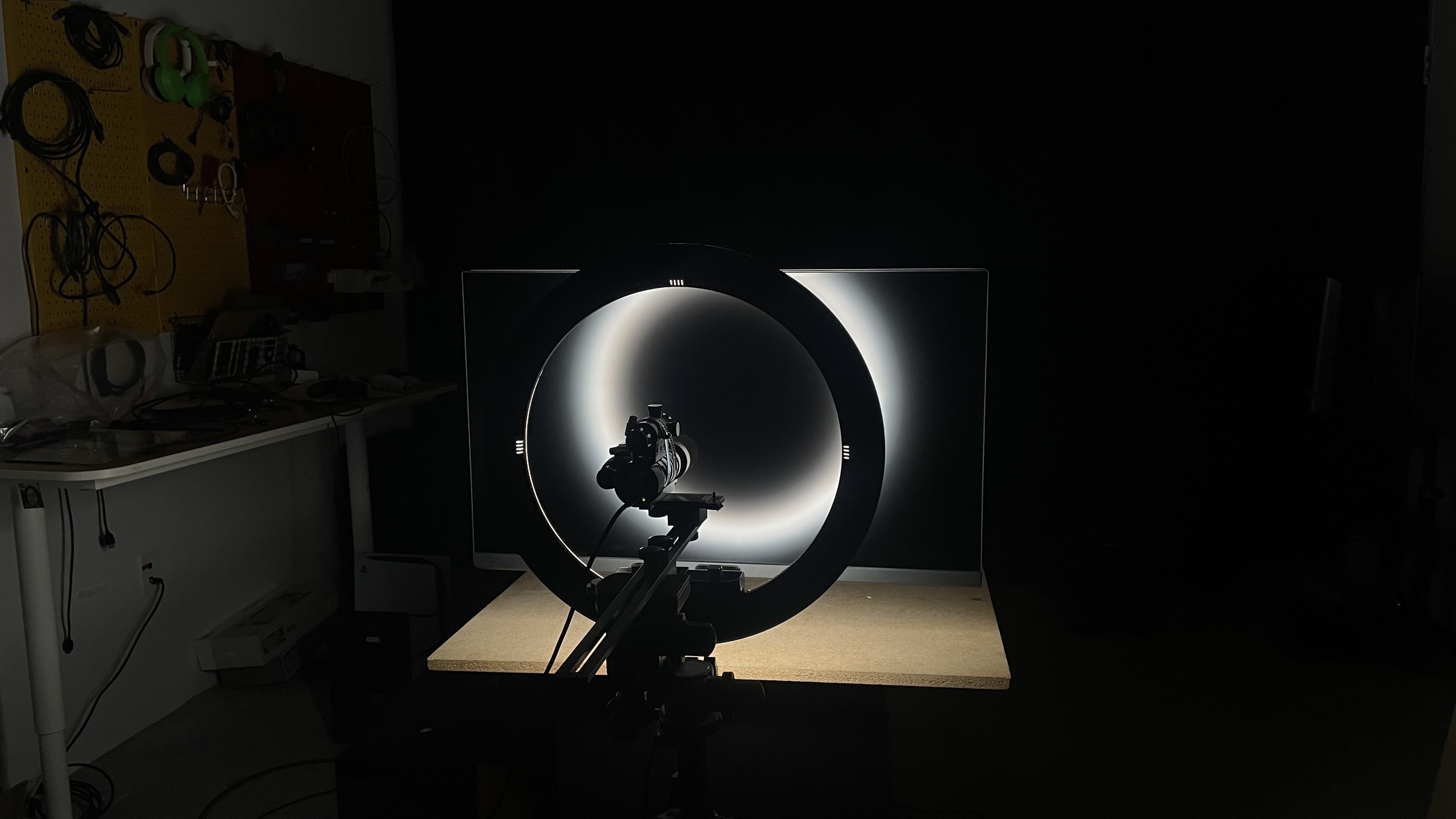
    The local dimming is alright. It uses Mini LED backlighting with 1,152 dimming zones, and there's a Local Dimming setting to turn it on and off. It really improves the black levels and contrast for an impactful HDR experience, but there are some issues. There's some blooming around bright objects, like subtitles, but it's not overly distracting with most content. That said, it's more noticeable when browsing the web, so you may prefer disabling local dimming when you aren't gaming or watching content.

    Using local dimming doesn't make small highlights against dark backgrounds pop more compared to not using the feature, like in a scene with a starfield. Some details are also lost in very dark scenes. However, it still improves the picture quality compared to SDR, so it's worth using local dimming in HDR.

    Unfortunately, the algorithm doesn't keep up well when fast-moving objects move between the dimming zones. Transitions are choppy, and there's pulsing/flicker with small and medium-sized objects. This is distracting with fast-moving content.

    Another downside is that using the OSD with local dimming enabled doesn't trigger any of the zones, so the menu is hard to see if there's a dark background on-screen.

    9.5
    SDR Brightness
    Real Scene
    1,435 cd/m²
    Peak 2% Window
    979 cd/m²
    Peak 10% Window
    1,333 cd/m²
    Peak 25% Window
    1,464 cd/m²
    Peak 50% Window
    1,507 cd/m²
    Peak 100% Window
    1,539 cd/m²
    Sustained 2% Window
    975 cd/m²
    Sustained 10% Window
    1,322 cd/m²
    Sustained 25% Window
    1,451 cd/m²
    Sustained 50% Window
    1,498 cd/m²
    Sustained 100% Window
    1,534 cd/m²
    Automatic Brightness Limiting (ABL)
    0.023
    Minimum Brightness
    36 cd/m²

    Settings

    • Color Mode: Custom (after calibration)
    • Brightness: Max
    • Local Dimming: On

    The SDR brightness is outstanding. It easily overcomes extremely bright glare, and the brightness level remains fairly consistent with all but the smallest window sizes. The minimum brightness measurement is with Local Dimming 'Off'. If you turn it 'On', the minimum brightness is 50 cd/m².

    If you turn Local Dimming 'Off', brightness decreases, as you can see below:

    Test Peak Sustained
    2% Window 646 cd/m² 644 cd/m²
    10% Window 650 cd/m² 649 cd/m²
    25% Window 652 cd/m² 651 cd/m²
    50% Window 654 cd/m² 652 cd/m²
    100% Window 655 cd/m² 653 cd/m²
    9.2
    HDR Brightness
    VESA DisplayHDR Certification
    DisplayHDR 1000
    Real Scene
    1,232 cd/m²
    Peak 2% Window
    1,051 cd/m²
    Peak 10% Window
    1,447 cd/m²
    Peak 25% Window
    1,583 cd/m²
    Peak 50% Window
    1,623 cd/m²
    Peak 100% Window
    1,454 cd/m²
    Sustained 2% Window
    1,046 cd/m²
    Sustained 10% Window
    1,432 cd/m²
    Sustained 25% Window
    1,563 cd/m²
    Sustained 50% Window
    1,608 cd/m²
    Sustained 100% Window
    1,448 cd/m²
    Automatic Brightness Limiting (ABL)
    0.021

    Settings

    • Color Mode: Display HDR
    • Brightness: Max
    • Local Dimming: On

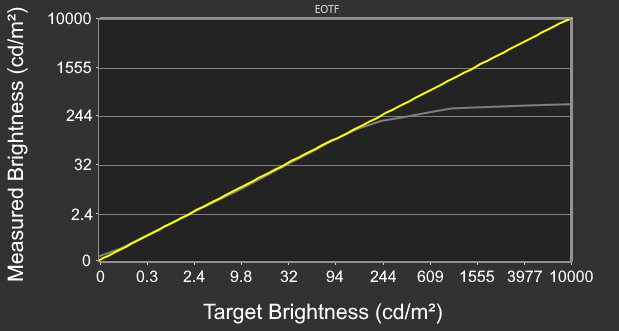
    The HDR brightness is outstanding, and all highlights really pop. However, it doesn't follow the PQ EOTF very well, as most parts of scenes are too dark, and it has a slow roll-off near peak brightness. This prevents highlights from getting as bright as possible, but helps preserve bright details.

    The 'Sci-Fi', 'Realistic', 'Fantasy', and 'Cinema' Color Mode settings don't lock out any picture settings and allow a lot of customization. However, their EOTF tracking and color accuracy were worse than 'DisplayHDR', which locks out the following settings:

    • Light Tuner
    • Color Vibrance
    • Shadow Phage
    • B.I.+
    • Gamma
    • Contrast
    • Color Temperature
    8.0
    Gray Uniformity
    50% Std. Dev.
    3.289%
    50% DSE
    0.142%

    The gray uniformity is great. Though the edges of the monitor are a bit darker, it's quite uniform in the middle. You can also see the monitor's 5% gray uniformity.

    7.5
    Black Uniformity
    Native Std. Dev.
    1.169%
    Std. Dev. w/ L.D.
    0.623%

    The black uniformity is good. While there's a fair amount of cloudiness with Local Dimming 'Off', the black uniformity is fantastic with it 'On'.

    8.8
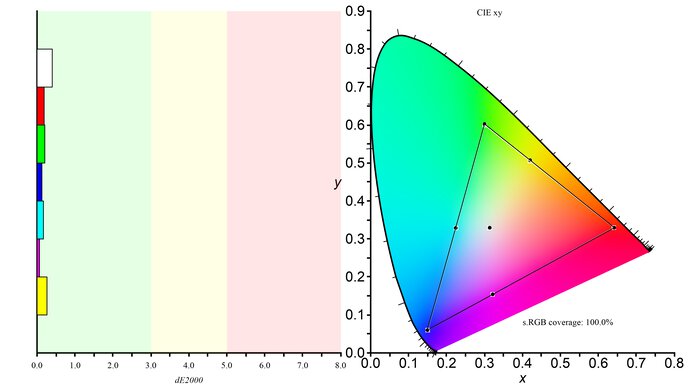
    Color Accuracy (Pre-Calibration)
    Picture Mode
    sRGB
    sRGB Gamut Area xy
    100.9%
    White Balance dE (Avg.)
    3.02
    Color Temperature (Avg.)
    6,185 K
    Gamma (Avg.)
    2.19
    Color dE (Avg.)
    1.71
    Contrast Setting
    50
    RGB Settings
    100-100-100
    Gamma Setting
    No Gamma Setting
    Brightness Setting
    57
    Measured Brightness
    412 cd/m²
    Brightness Locked
    No

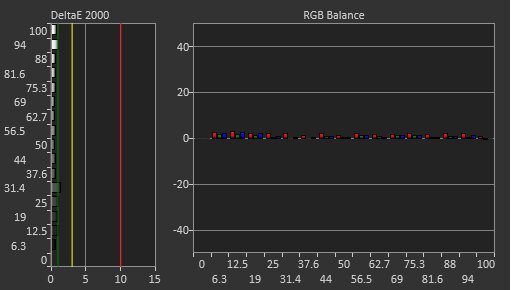
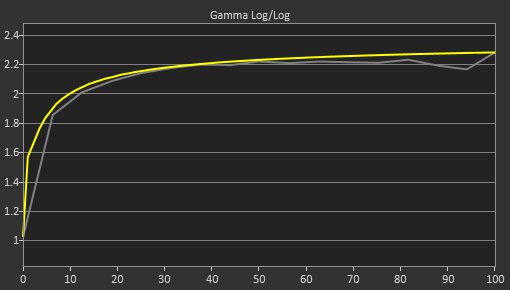
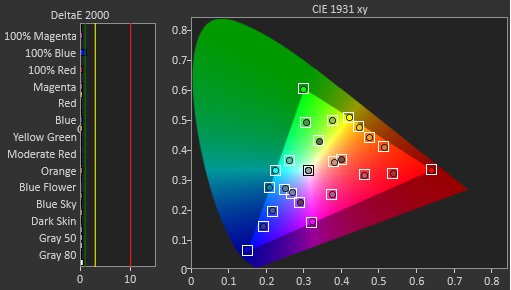
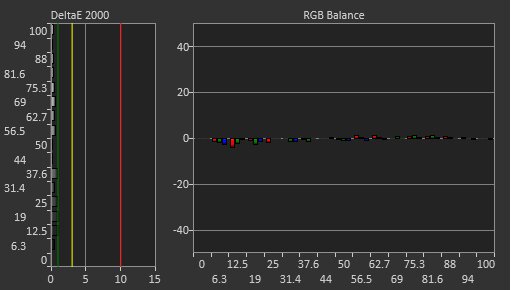
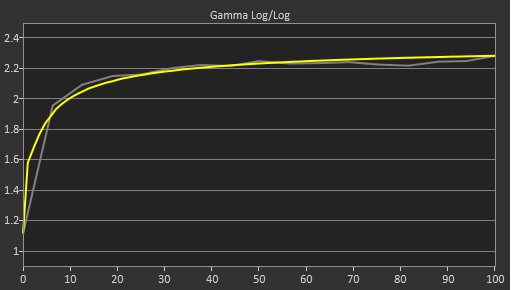
    The accuracy before calibration in the 'sRGB' Color Mode is amazing. It locks colors extremely well to the sRGB color space, and has great color accuracy. Gamma also follows the sRGB curve very closely. However, despite having good white balance, brighter colors are too warm.

    Using the sRGB mode locks the following settings.

    • Color Mode
      • Light Tuner
      • Color Vibrance
      • Shadow Phage
      • B.I +
      • Gamma
      • Color Temperature
      • Local Dimming
    • Eye Care
      • Low Blue Light
      • Color Weakness

    You have to use a less accurate mode to get access to these settings.

    9.2
    Color Accuracy (Post-Calibration)
    Picture Mode
    Custom
    sRGB Gamut Area xy
    99.7%
    White Balance dE (Avg.)
    0.60
    Color Temperature (Avg.)
    6,464 K
    Gamma (Avg.)
    2.18
    Color dE (Avg.)
    2.56
    Contrast Setting
    50
    RGB Settings
    92-96-97
    Gamma Setting
    Mode 3
    Brightness Setting
    10
    Measured Brightness
    100 cd/m²
    ICC Profile
    Download

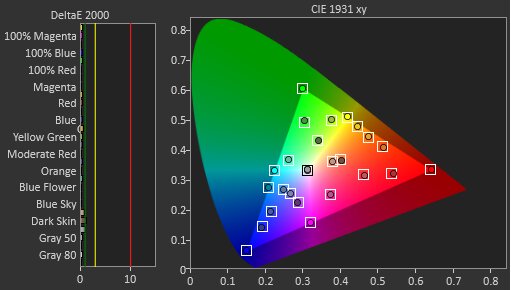
    The accuracy after calibration is fantastic. However, some colors, such as orange, are less accurate than before calibration. The monitor only lets you improve the picture by adjusting Color Temperature and Color Vibrance, and there are no more detailed adjustments available on the monitor.

    9.4
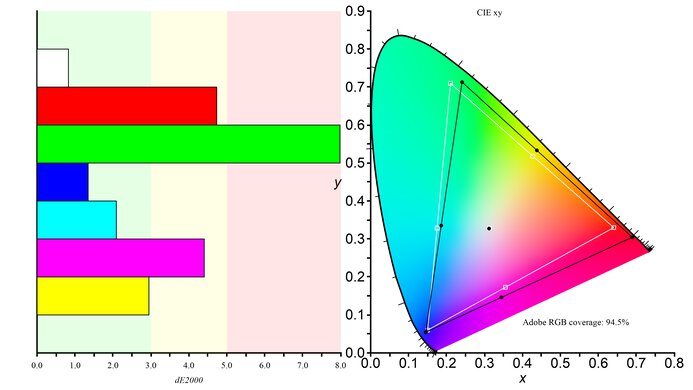
    SDR Color Gamut
    sRGB Coverage xy
    95.7%
    sRGB Picture Mode
    Custom
    Adobe RGB Coverage xy
    99.9%
    Adobe RGB Picture Mode
    Custom

    The SDR color gamut is superb. It displays most colors in sRGB and nearly all colors in Adobe RGB. Although some colors, such as red, blue, and magenta, are inaccurate in Adobe RGB, you may be able to avoid this issue with a color-managed app.

    9.7
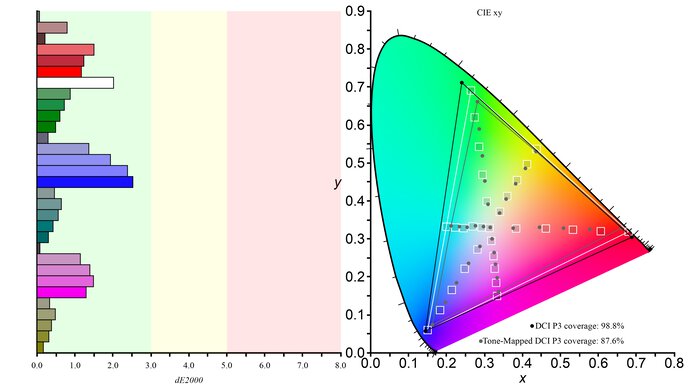
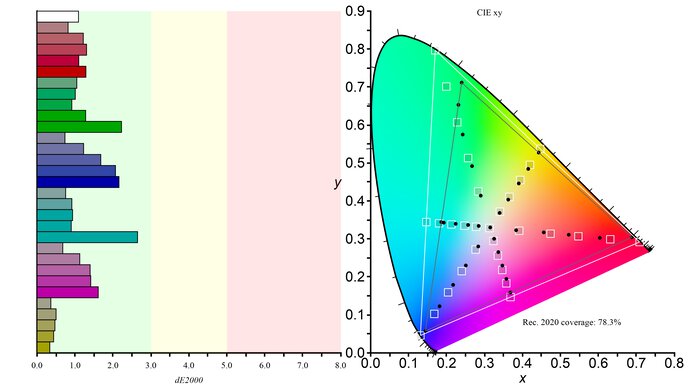
    HDR Color Gamut
    Wide Color Gamut
    Yes
    DCI-P3 Coverage xy
    99.6%
    DCI-P3 Picture Mode
    Display HDR
    Rec. 2020 Coverage xy
    86.3%
    Rec. 2020 Picture Mode
    Display HDR

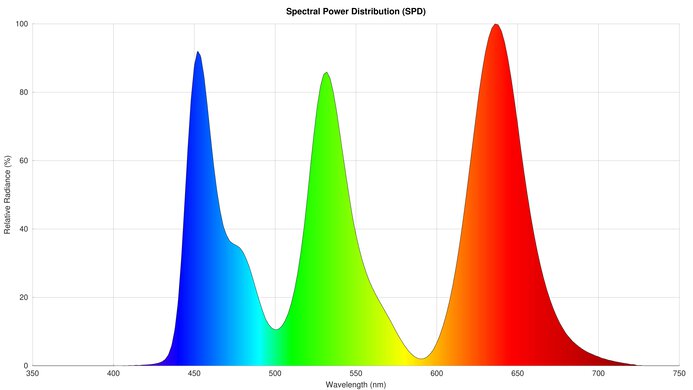
    The HDR color gamut is outstanding. It displays nearly all colors in the commonly used DCI-P3 color space and a wide range of colors in Rec. 2020, and it does so quite accurately.

    9.0
    HDR Color Volume
    1,000 cd/m² DCI-P3 Coverage ICtCp
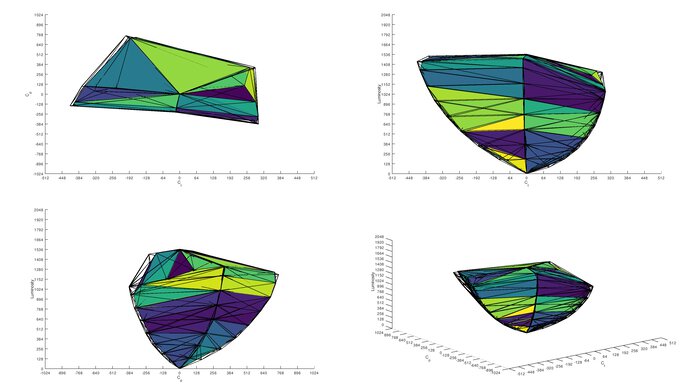
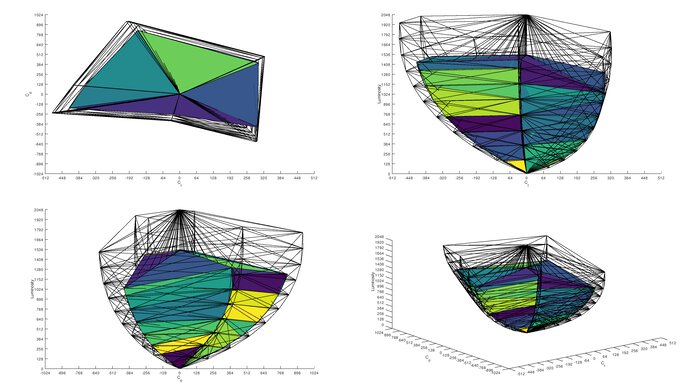
    91.3%
    DCI-P3 Picture Mode
    Display HDR
    10,000 cd/m² Rec. 2020 Coverage ICtCp
    50.9%
    Rec. 2020 Picture Mode
    Display HDR

    The HDR color volume is fantastic. It displays bright colors extremely well, though darker colors look more muted.

    7.1
    Viewing Angle
    Color Washout From Left
    30°
    Color Washout From Right
    30°
    Color Shift From Left
    40°
    Color Shift From Right
    47°
    Brightness Loss From Left
    34°
    Brightness Loss From Right
    35°
    Black Level Raise From Left
    70°
    Black Level Raise From Right
    70°
    Gamma Shift From Left
    37°
    Gamma Shift From Right
    35°

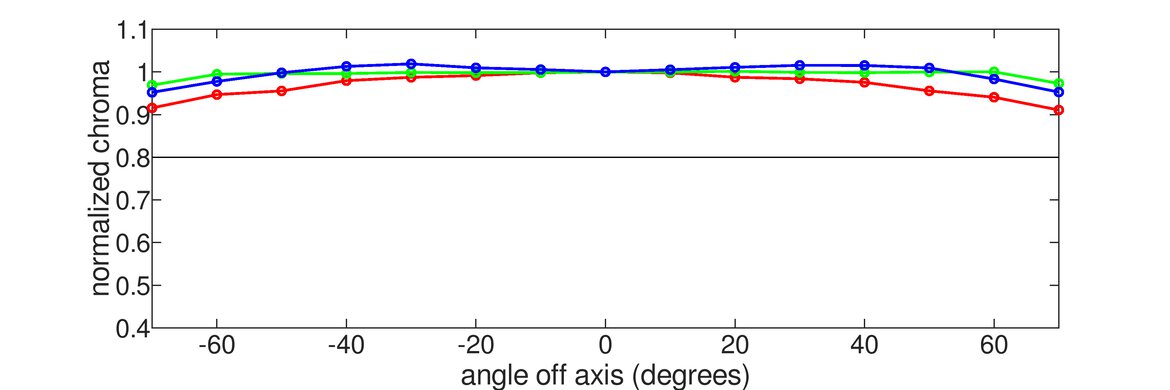
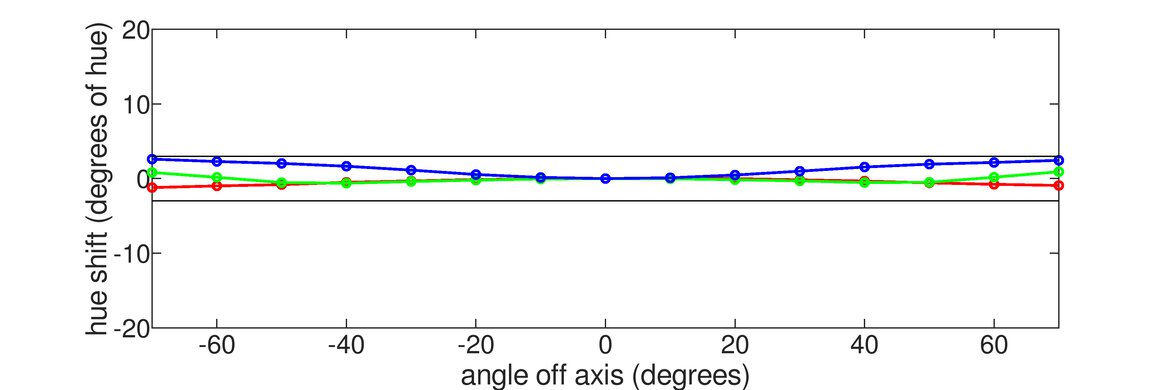
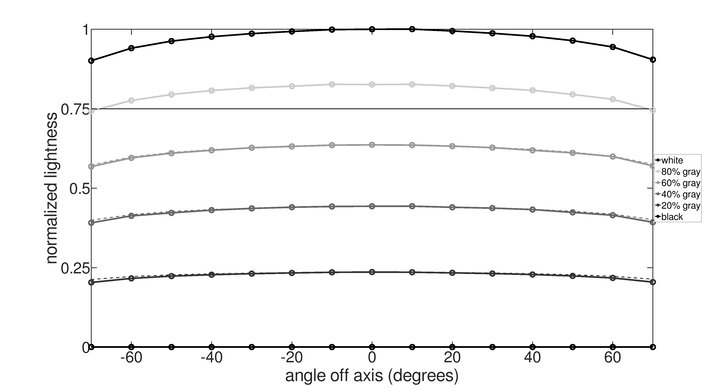
    The horizontal viewing angle is decent. It works well if you're sharing your screen with someone who's just off-center next to you, but it washes out at wider angles.

    9.0
    Text Clarity
    Pixel Type
    IPS
    Subpixel Layout
    RGB

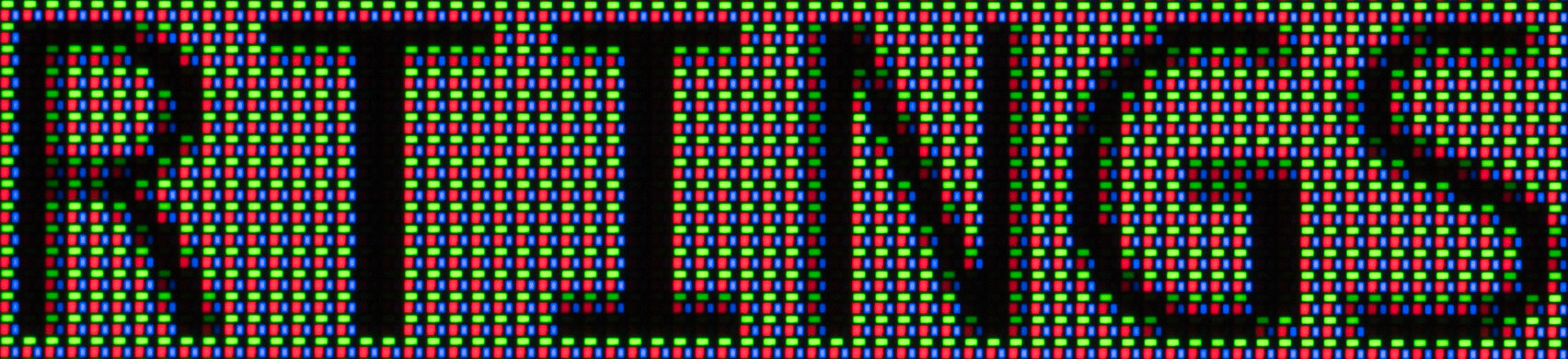
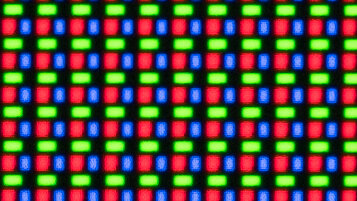
    The text clarity is superb. Enabling Windows ClearType (top photo) improves the boldness of letters. These photos are in Windows 10, and you can also see them in Windows 11 with ClearType on or off.

    6.8
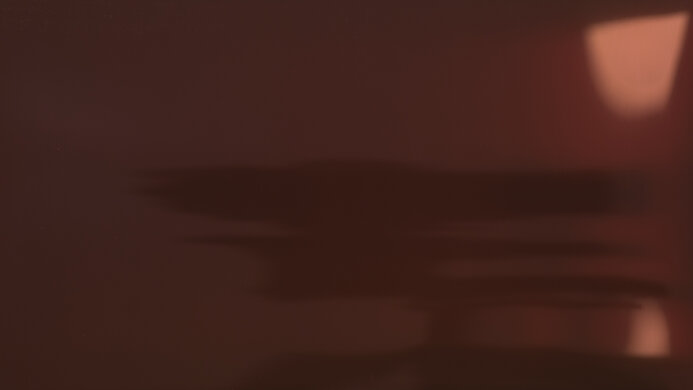
    Direct Reflections
    See details on graph tool
    Peak Direct Reflection Intensity
    27.3%
    Screen Finish
    Matte

    The direct reflection handling is okay. Bright objects don't look very distinct, as the matte screen spreads light out.

    9.0
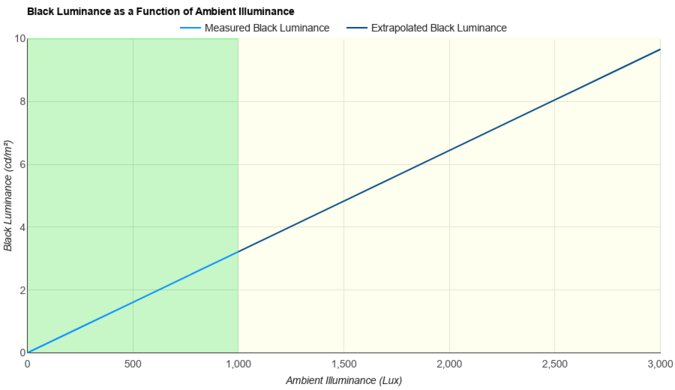
    Ambient Black Level Raise
    See details on graph tool
    Black Luminance @ 0 lx
    0.00 cd/m²
    Black Luminance @ 1000 lx
    0.39 cd/m²

    The black levels remain superbly low in bright environments.

    6.1
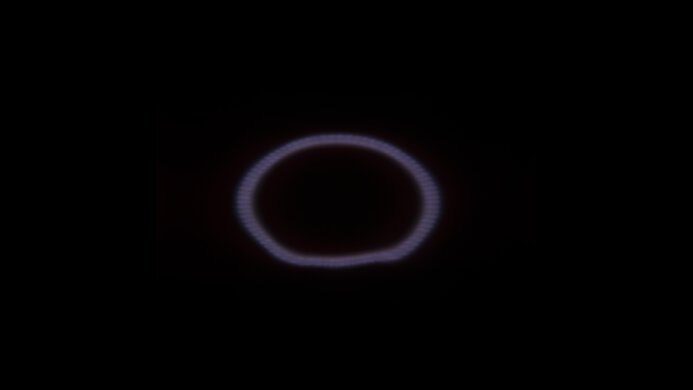
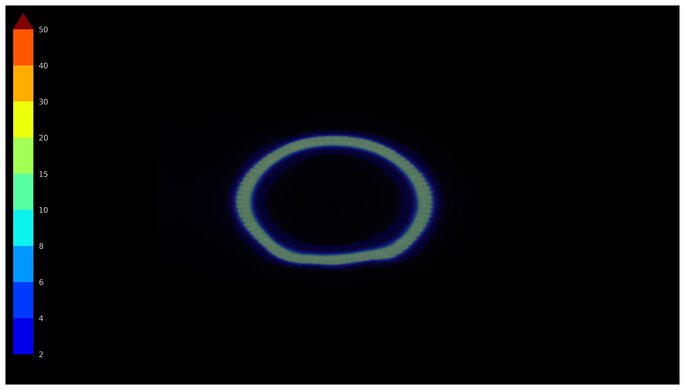
    Total Reflected Light
    Total Reflected Light Intensity
    30,252% ⋅ pixel
    Diffraction Artifacts
    No

    The monitor is mediocre at absorbing light. Because light spreads across the screen, glare can still be an issue in brighter rooms.

    9.8
    Gradient
    Color Depth
    10 Bit

    The gradient handling is remarkable. There's minimal banding between shades of similar colors.

    Motion
    7.4
    Refresh Rate
    Native Refresh Rate
    144 Hz
    Max Refresh Rate
    144 Hz
    Max Refresh Rate Over DP
    144 Hz
    Max Refresh Rate Over HDMI
    144 Hz
    Max Refresh Rate Over DP @ 10-bit
    144 Hz
    Max Refresh Rate Over HDMI @ 10-Bit
    144 Hz
    DSC Toggle
    Yes
    DSC Off Max Refresh Rate Over DP
    144 Hz
    DSC Off Max Refresh Rate Over HDMI
    144 Hz

    You don't need to use DSC to reach the monitor's max refresh rate of 144Hz over DisplayPort if your graphics card supports DisplayPort 2.1 (40Gbps or higher). Additionally, you don't need to use DSC with HDMI to reach the max refresh rate, provided your graphics card supports HDMI 2.1 (40Gbps or higher).

    If your graphics card only supports DisplayPort 1.4 bandwidth (HBR3), then you need to use DSC to reach the max refresh rate.

    Variable Refresh Rate (VRR)
    Variable Refresh Rate
    Yes
    FreeSync
    Yes
    G-SYNC
    Compatible (Tested)
    VRR Maximum
    144 Hz
    VRR Minimum
    < 20 Hz
    VRR Supported Connectors
    DisplayPort, HDMI

    NVIDIA - G-SYNC Compatibility
    Connection VRR Min VRR Max
    DisplayPort <20Hz 144Hz
    HDMI <20Hz 144Hz
    AMD - FreeSync Compatibility
    Connection VRR Min VRR Max
    DisplayPort <20Hz 144Hz
    HDMI <20Hz 144Hz

    In addition to FreeSync and G-SYNC compatibility, this monitor also supports HDMI Forum VRR.

    8.3
    VRR Motion Performance
    See details on graph tool
    Recommended VRR OD Setting
    1
    Variable Overdrive Advertised
    No
    Avg. CAD
    135
    Best CAD
    123
    Worst CAD
    154

    Frame Rate CAD Heatmap RT Chart Pursuit Photo
    143 Heatmap Chart Photo
    120 Heatmap Chart Photo
    100 Heatmap Chart Photo
    80 Heatmap Chart Photo
    60 Heatmap Chart Photo

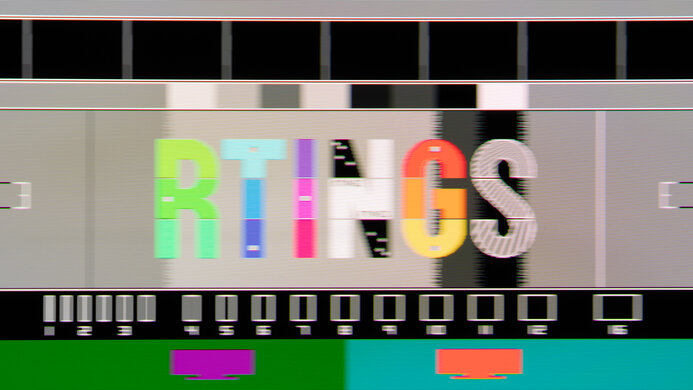
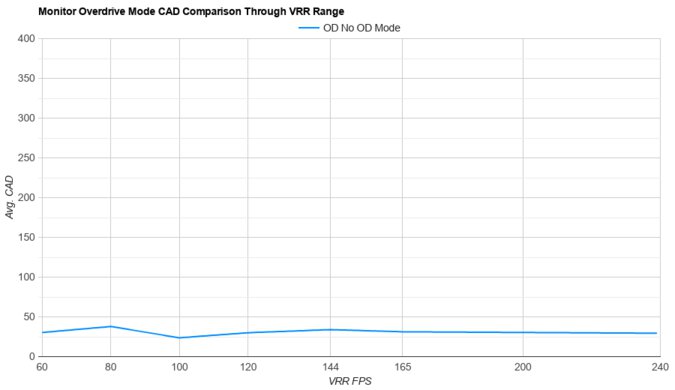
    The BenQ EX321UX has great motion handling across its VRR range. The 'OD 1' AMA has minimal blur and is fairly consistent at different refresh rates. The 'OD 3' setting has such a high CAD that it passes the limits of the chart, though you can see an alternate chart with a larger scale.

    8.1
    Refresh Rate Compliance
    See details on graph tool
    See details on graph tool
    Compliance @ Max Hz
    63%
    Compliance @ 120 FPS
    68%
    Compliance @ 60 FPS
    80%

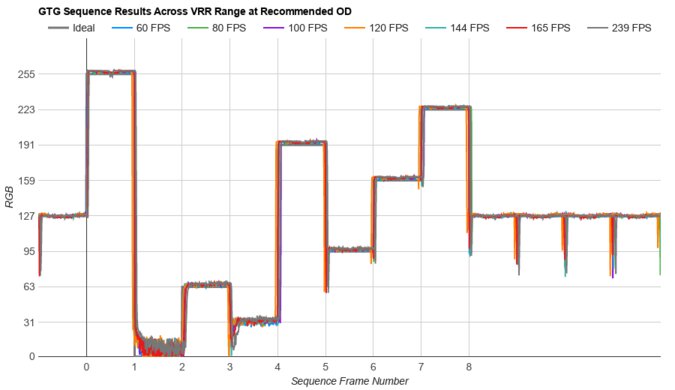
    The refresh rate compliance is great. However, it's not fast enough to make full color transitions between some frames.

    8.4
    CAD @ Max Refresh Rate
    OD Transition Max Refresh Rate
    od-transition-max-refresh-rate-0-0-31
    OD 0
    0 to 31
    Recommended Overdrive Setting
    1
    Avg. CAD
    120
    Best 10% CAD
    73
    Worst 10% CAD
    179

    Overdrive Mode CAD Heatmap RT Chart Pursuit Photo
    1 Heatmap Chart Photo
    0 Heatmap Chart Photo
    2 Heatmap Chart Photo
    3 Heatmap Chart Photo

    The CAD at the max refresh rate is impressive, and fast-moving objects look quite crisp. The '1' AMA setting has the lowest total response time and only a bit more inverse ghosting than '0'.

    Response Time @ Max Refresh Rate
    Recommended Overdrive Setting
    1
    First Response Time
    4.1 ms
    Total Response Time
    5.5 ms
    RGB Overshoot
    3 RGB
    Worst 10% First Response Time
    5.3 ms
    Worst 10% Total Response Time
    10.4 ms
    Worst 10% RGB Overshoot
    11 RGB

    Overdrive Mode First Response Heatmap Total Response Heatmap RGB Overshoot Heatmap
    1 Heatmap Heatmap Heatmap
    0 Heatmap Heatmap Heatmap
    2 Heatmap Heatmap Heatmap
    3 Heatmap Heatmap Heatmap

    8.4
    CAD @ 120Hz
    OD Transition 120Hz
    od-transition-120-0-0-31
    OD 0
    0 to 31
    Recommended Overdrive Setting
    1
    Avg. CAD
    123
    Best 10% CAD
    65
    Worst 10% CAD
    185

    Overdrive Mode CAD Heatmap RT Chart Pursuit Photo
    1 Heatmap Chart Photo
    0 Heatmap Chart Photo
    2 Heatmap Chart Photo
    3 Heatmap Chart Photo

    The CAD at 120Hz is impressive, and fast-moving objects look quite crisp. The '1' AMA setting has a lower first response time than '0' and less inverse ghosting than '2' or '3'.

    Response Time @ 120Hz
    Recommended Overdrive Setting
    1
    First Response Time
    4.2 ms
    Total Response Time
    6.8 ms
    RGB Overshoot
    5 RGB
    Worst 10% First Response Time
    5.8 ms
    Worst 10% Total Response Time
    10.9 ms
    Worst 10% RGB Overshoot
    14 RGB

    Overdrive Mode First Response Heatmap Total Response Heatmap RGB Overshoot Heatmap
    1 Heatmap Heatmap Heatmap
    0 Heatmap Heatmap Heatmap
    2 Heatmap Heatmap Heatmap
    3 Heatmap Heatmap Heatmap

    8.0
    CAD @ 60Hz
    OD Transition 60Hz
    od-transition-60-0-0-31
    OD 0
    0 to 31
    Recommended Overdrive Setting
    0
    Avg. CAD
    141
    Best 10% CAD
    71
    Worst 10% CAD
    214

    Overdrive Mode CAD Heatmap RT Chart Pursuit Photo
    0 Heatmap Chart Photo
    1 Heatmap Chart Photo
    2 Heatmap Chart Photo
    3 Heatmap Chart Photo

    The CAD at 60Hz is great, and fast-moving objects look fairly crisp. The '0' AMA setting has a lower total response time and less inverse ghosting than '1', '2', or '3'.

    Response Time @ 60Hz
    Recommended Overdrive Setting
    0
    First Response Time
    6.0 ms
    Total Response Time
    6.1 ms
    RGB Overshoot
    0 RGB
    Worst 10% First Response Time
    9.9 ms
    Worst 10% Total Response Time
    10.0 ms
    Worst 10% RGB Overshoot
    1 RGB

    Overdrive Mode First Response Heatmap Total Response Heatmap RGB Overshoot Heatmap
    0 Heatmap Heatmap Heatmap
    1 Heatmap Heatmap Heatmap
    2 Heatmap Heatmap Heatmap
    3 Heatmap Heatmap Heatmap

    Backlight Strobing (BFI)
    Backlight Strobing (BFI)
    No BFI
    Maximum Frequency
    N/A
    Minimum Frequency
    N/A
    Longest Pulse Width Brightness
    N/A
    Shortest Pulse Width Brightness
    N/A
    Pulse Width Control
    No BFI
    Pulse Phase Control
    No BFI
    Pulse Amplitude Control
    No BFI
    VRR At The Same Time
    No BFI

    This BenQ MOBIUZ EX321UX doesn't have a backlight strobing feature to reduce persistence blur.

    8.0
    VRR Flicker
    Dark Gray Flicker
    1.8 RGB
    Middle Gray Flicker
    0.2 RGB
    Light Gray Flicker
    0.4 RGB

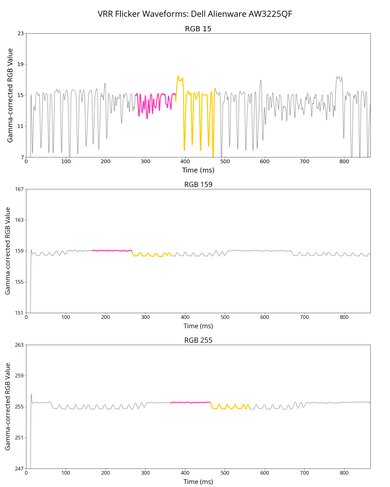
    The monitor has minimal VRR flicker, and most people won't notice it, even with changing frame rates.

    10
    Image Flicker
    Flicker-Free
    Yes
    PWM Dimming Frequency
    >1000 Hz

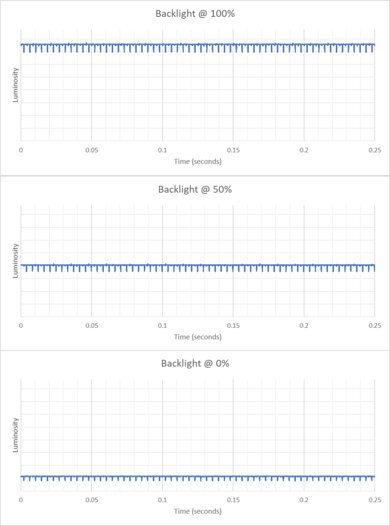
    This monitor uses pulse width modulation (PWM) at all brightness levels, though it's at such a high frequency that you don't notice it.

    This monitor has two layers of oscillation: a 4,000Hz PWM frequency nested within a 200Hz backlight partial-dimming frequency. The slower 200Hz frequency doesn't dim very much each cycle, as you can see in our partial-dimming oscilloscope graph. The full PWM flicker itself happens at 4,000Hz, as you can see in our PWM flicker oscilloscope graph. So while it technically flickers, the effect is unnoticeable, which is why we term it "Flicker-Free".

    Inputs
    8.9
    Input Lag
    Native Resolution @ Max Hz
    4.3 ms
    Native Resolution @ 120Hz
    4.7 ms
    Native Resolution @ 60Hz
    10.1 ms
    Backlight Strobing (BFI)
    N/A

    The BenQ EX321UX has low input lag for a responsive feel.

    8.5
    Resolution
    Native Resolution
    3840 x 2160
    Aspect Ratio
    16:9
    Megapixels
    8.3 MP
    Pixel Density
    140 PPI
    10
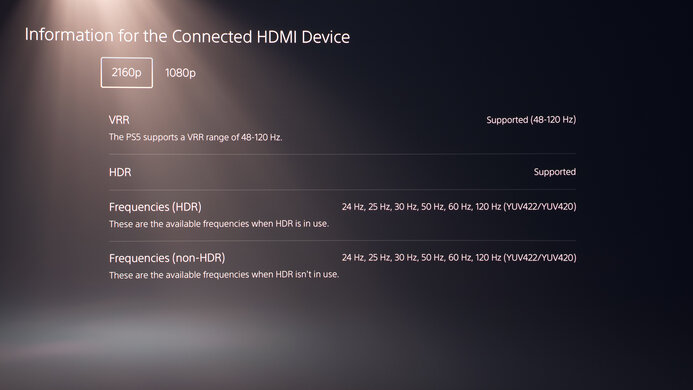
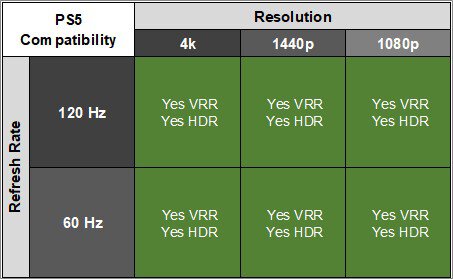
    PS5 Compatibility
    4k @ 120Hz
    Yes
    4k @ 60Hz
    Yes
    1440p @ 120Hz
    Yes
    1440p @ 60Hz
    Yes
    1080p @ 120Hz
    Yes
    1080p @ 60Hz
    Yes
    8.2
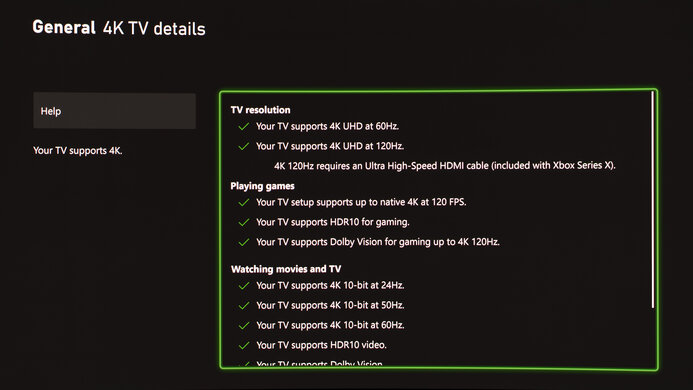
    Xbox Series X|S Compatibility
    4k @ 120Hz
    Yes
    4k @ 60Hz
    Yes
    1440p @ 120Hz
    No
    1440p @ 60Hz
    Yes
    1080p @ 120Hz
    Yes
    1080p @ 60Hz
    Yes

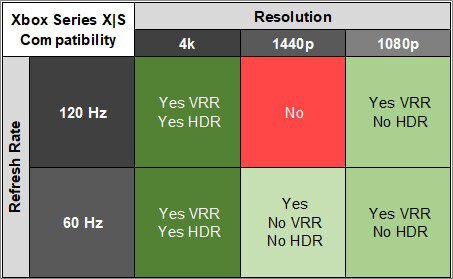
    This monitor doesn't display a 1440p @ 120Hz signal from the Xbox Series X|S, even using the console's override function. However, while 1440p @ 60Hz required the override function, it did work.

    The Xbox Series X|S only supports HDR with 4k signals, so this isn't a limitation of the monitor.

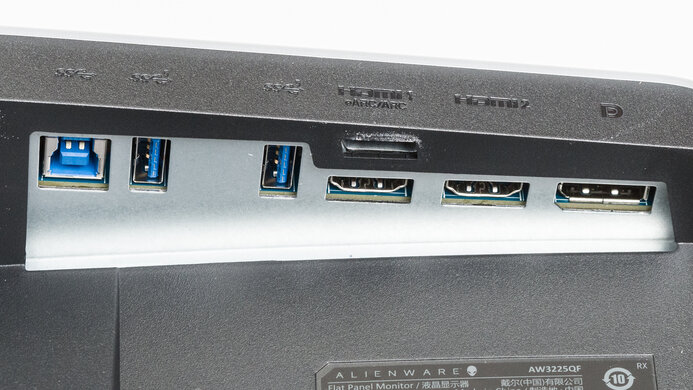
    Inputs
    DisplayPort
    1 (DP 2.1)
    DisplayPort Transmission Bandwidth
    UHBR10 (40.00 Gbps)
    Mini DisplayPort
    No
    HDMI
    3 (HDMI 2.1)
    HDMI 2.1 Bandwidth
    48Gbps (FRL 12x4)
    Daisy Chaining
    No
    3.5mm Audio Out
    Yes
    Ethernet
    No
    HDR10
    Yes
    Dolby Vision
    No

    The HDMI3 port doubles as an ARC/eARC port, allowing digital audio passthrough to compatible devices such as soundbars and receivers. The included remote can be used to adjust the audio device's volume.

    USB
    USB-A Ports
    3
    USB-A Rated Speed
    5Gbps (USB 3.2 Gen 1)
    USB-B Upstream Port
    No
    USB-C Ports
    3
    USB-C Upstream
    Yes
    USB-C Rated Speed
    5Gbps (USB 3.2 Gen 1)
    USB-C Power Delivery
    65W
    USB-C DisplayPort Alt Mode
    Yes
    Thunderbolt
    No

    The USB-C port on the underside of the monitor provides up to 6.9W of power.

    macOS Compatibility

    Connection HDMI 2.1 USB-C
    Max Refresh Rate 144Hz 144Hz
    VRR Range 48-120Hz 48-120Hz
    HDR Yes Yes

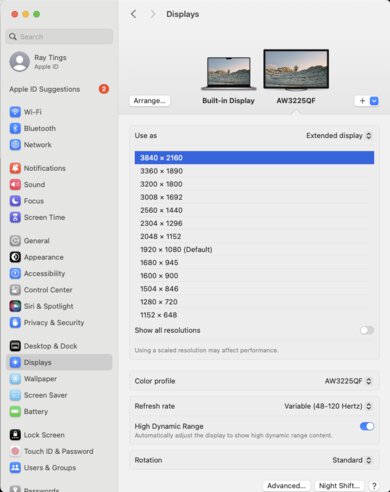
    The BenQ MOBIUZ EX321UX works well with macOS. VRR works well, and HDR looks good with certain Color Mode settings. 'Sci-fi' looks most accurate over USB-C, though 'Cinema' also looks good despite being too dark. Additionally, the default 'Fantasy' Color Mode looks less accurate over HDMI, and 'Display HDR' looks much better.

    If you connect the monitor to a MacBook with an HDMI or USB-C cable and the MacBook is plugged in, windows migrate to the monitor when you close the lid. Additionally, they return to their previous position if the MacBook is reopened. This also happens if you connect via USB-C and the MacBook isn't plugged in. 

    However, if you connect over HDMI and the MacBook isn't plugged in, the MacBook and monitor go to sleep. When you reopen the MacBook windows resume in their previous position.

    Additionally, the KVM works well with macOS.

    Features
    Additional Features
    Speakers
    No
    RGB Illumination
    No
    Multiple Input Display
    No
    KVM Switch
    Yes
    Smart OS
    No

    The BenQ MOBIUZ EX321UX has several extra features, including a KVM switch, which allows you to switch between two computers while using the same peripherals. It takes about five seconds to switch between devices, which you can do using the input button on the monitor or the remote. It also has several extra features, including:

    • Low Blue Light: Decreases the blue light from the display. You can learn more about this in our blue light filters article.
    • Shadow Phage: Adjusts contrast in real-time to optimize detail presentation.
    • Brightness Intelligence: Uses an integrated light sensor to adjust brightness and contrast.
    • Light Tuner: Increases the brightness of dark shadows for better visibility.
    On-Screen Display (OSD)

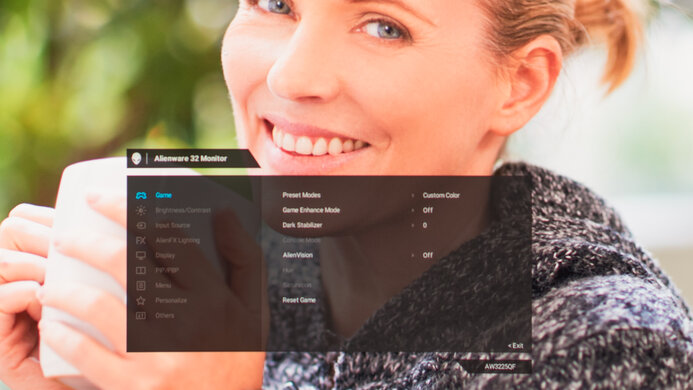
    You can learn more about the monitor's settings in the user manual.