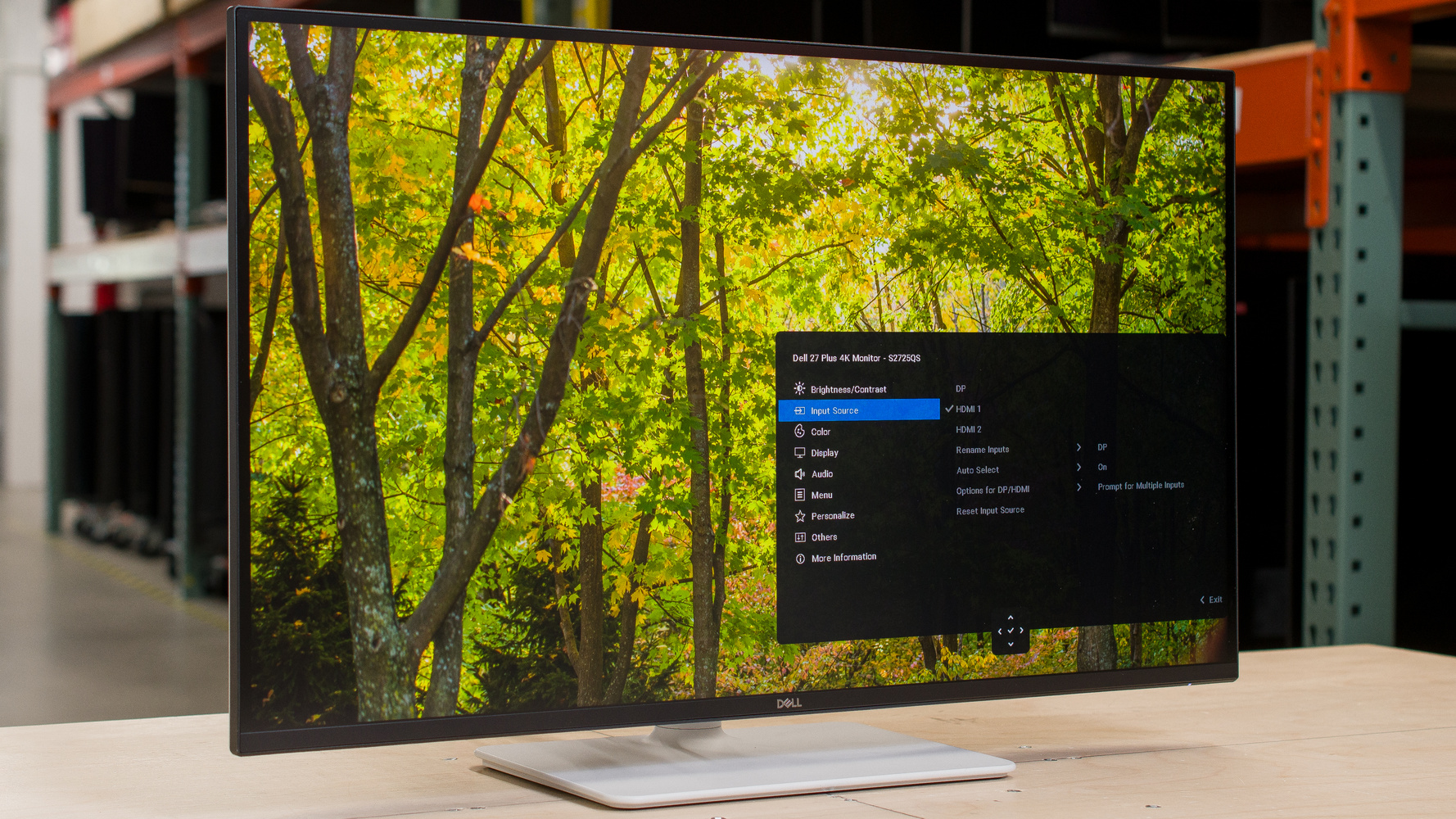
The Dell S2725QS is a budget-friendly work monitor. It has a 27-inch, 4k IPS screen, and it's part of the Dell Plus Series lineup, sitting alongside the Dell S3225QS and behind the Dell S2725QC, which has a USB hub that this monitor doesn't have. It upgrades in a few ways from the older Dell S2721QS, like its 120Hz refresh rate and HDMI 2.1 bandwidth, giving it some gaming features for when you aren't working. Besides that, it comes with an ergonomic stand and built-in speakers, but like many entry-level monitors, it's limited in extra perks otherwise.
Our Verdict
The Dell S2725QS is mediocre for PC gaming. While it has some gaming features, like a 120Hz refresh rate and HDMI 2.1 bandwidth, it has limited gaming performance because it has blurry motion with fast-moving objects. It also has disappointing picture quality as blacks look gray, it doesn't display a very wide color gamut in HDR, and highlights don't pop. On the plus side, it has low input lag for a responsive feel at any refresh rate while gaming.
Low input lag.
120Hz refresh rate.
4k resolution for detailed and sharp images.
Motion is blurry at any refresh rate.
Blacks look gray due to low contrast.
HDR looks
muted without highlights that pop.
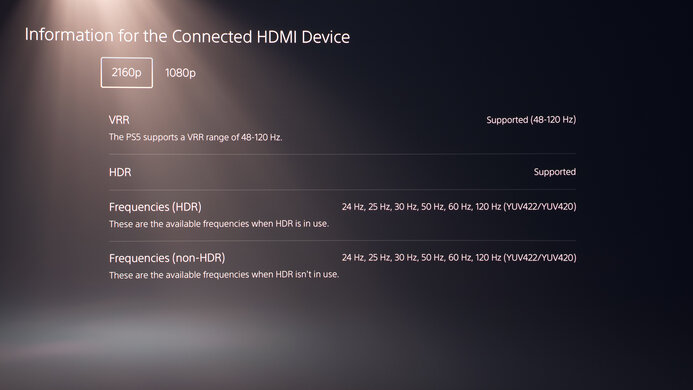
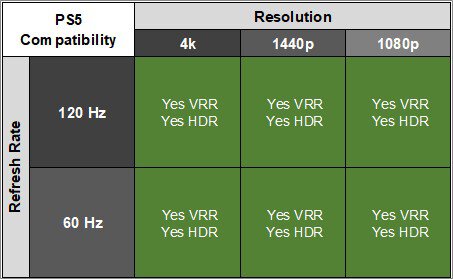
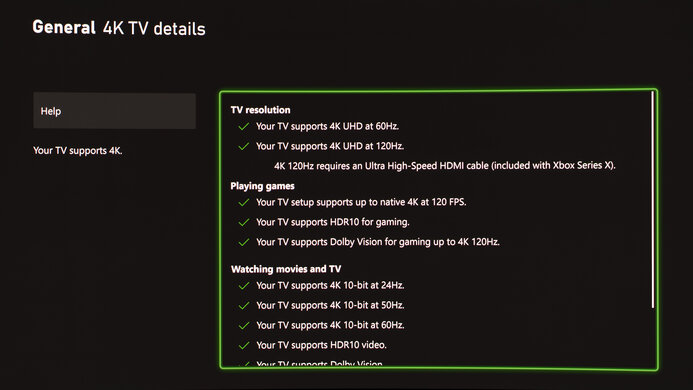
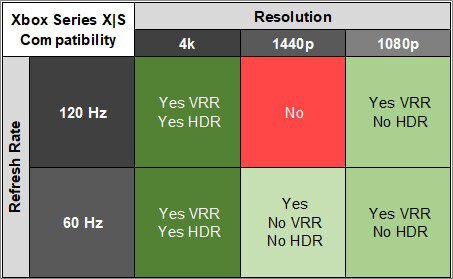
The Dell S2725QS is decent for console gaming. It supports most signals with a PS5, PS5 Pro, or Xbox Series X|S, including 4k @ 120Hz, thanks to its HDMI 2.1 bandwidth. It has low input lag for a responsive feel, too, but with a slow response time, there's distracting blur in fast-moving games. It also fails to deliver an impactful HDR experience because of its low contrast ratio, which makes blacks look gray, and highlights don't pop, either.
Low input lag.
120Hz refresh rate.
4k resolution for detailed and sharp images.
Supports most signals from consoles.
Motion is blurry at any refresh rate.
Blacks look gray due to low contrast.
HDR looks
muted without highlights that pop.
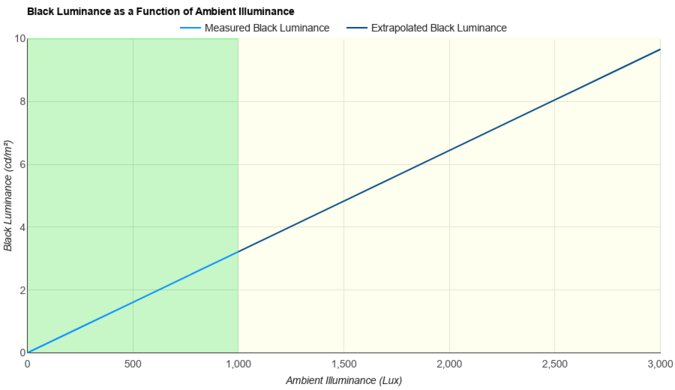
The Dell S2725QS is impressive for office use. Its 4k resolution helps deliver sharp text, and its 27-inch screen is big enough for multitasking with two windows next to each other. It comes with an ergonomic stand that's easy to adjust, but the stand doesn't keep the screen stable, so it has some wobble. It has limited extra features, too, as it lacks a USB hub. While it gets bright enough to fight glare in most well-lit rooms, reflections are distracting in sunny environments.
4k resolution for detailed and sharp images.
Ergonomic stand.
Bright enough to fight some glare.
No USB hub.
Wobbles easily on stand.
Reflections are distracting in sunny rooms.
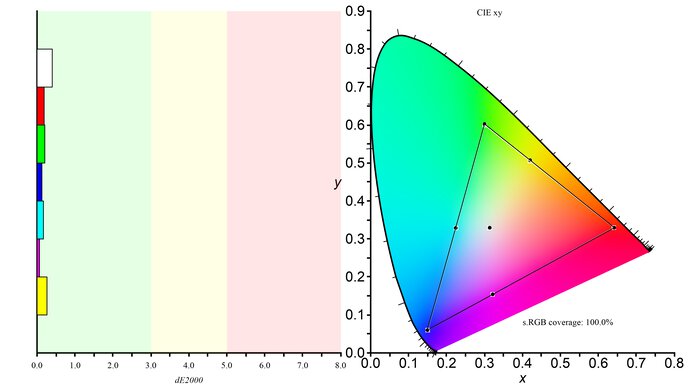
The Dell S2725QS is very good for editing. It comes with a very accurate sRGB mode, and calibrating it only fine-tunes some minor issues. However, it has limited picture quality otherwise, as blacks look gray, highlights don't pop, and it fails to display a very wide range of colors in HDR. It doesn't have many productivity features, either, as it lacks a USB hub, but it comes with an ergonomic stand, and its 4k resolution helps deliver detailed images.
4k resolution for detailed and sharp images.
Bright enough to fight some glare.
Very accurate sRGB mode that needs minimal calibration.
Blacks look gray due to low contrast.
HDR looks
muted without highlights that pop.
No USB hub.
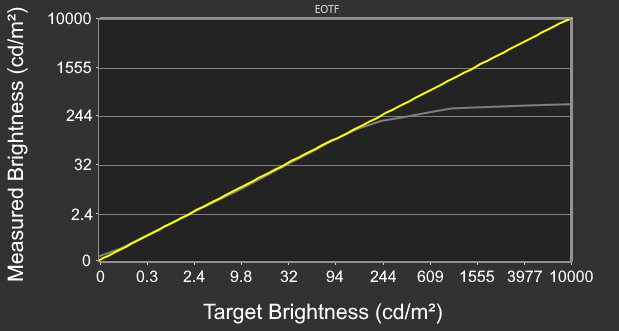
The Dell S2725QS has decent brightness. It gets bright enough to fight glare in most well-lit rooms, but visibility is an issue in sunny environments. It also fails to make highlights pop in HDR.
Bright enough to fight some glare.
HDR looks
muted without highlights that pop.
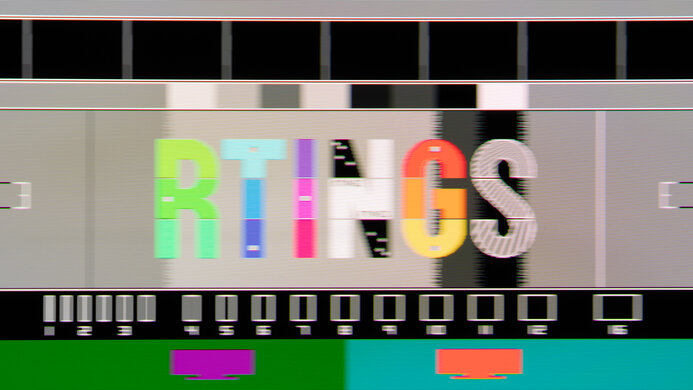
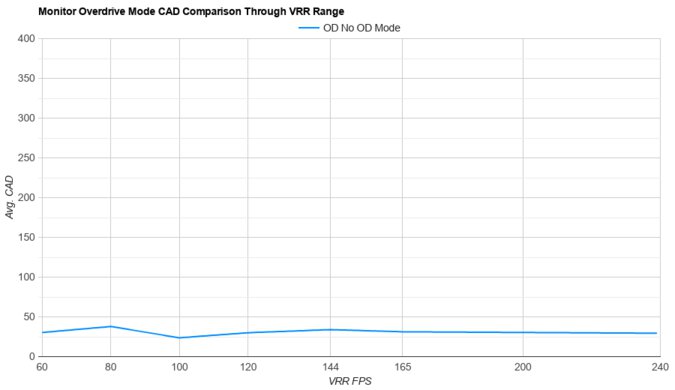
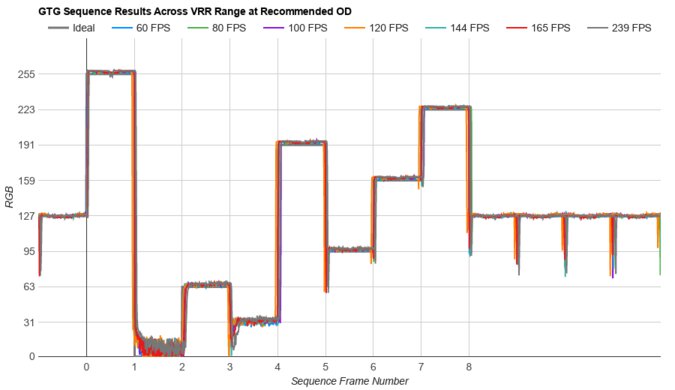
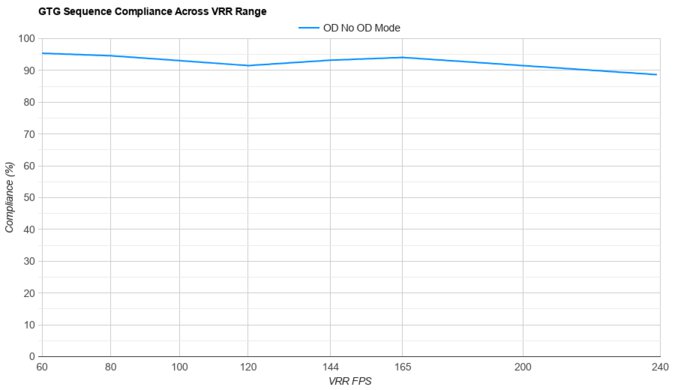
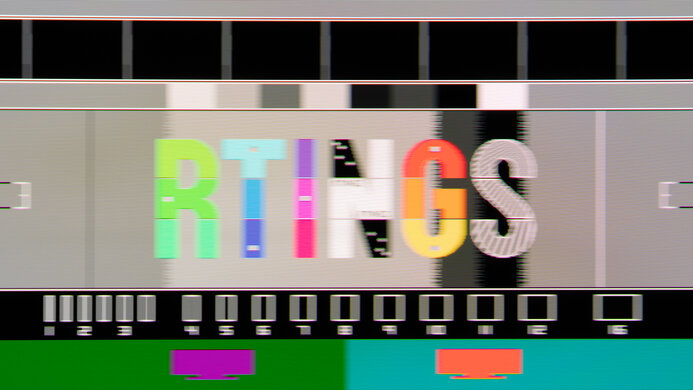
The Dell S2725QS has a poor response time, as motion looks blurry at any refresh rate.
Motion is blurry at any refresh rate.
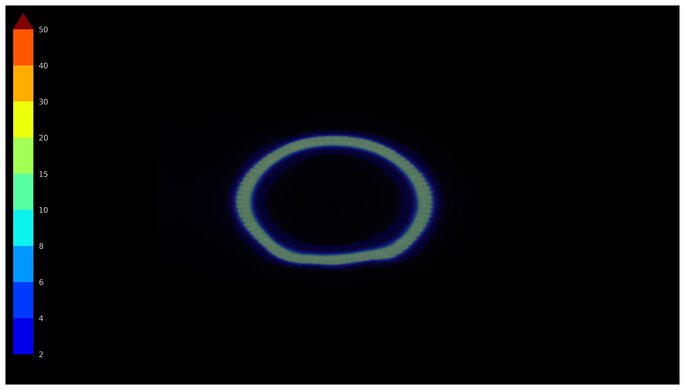
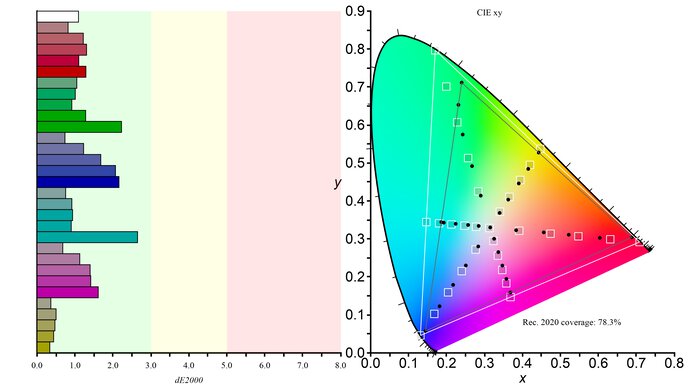
The Dell S2725QS has poor HDR picture quality. It has a low contrast ratio that makes blacks look gray, and it lacks a local dimming feature to further improve the contrast ratio. It also has a limited color gamut in HDR, so content looks dull.
Blacks look gray due to low contrast.
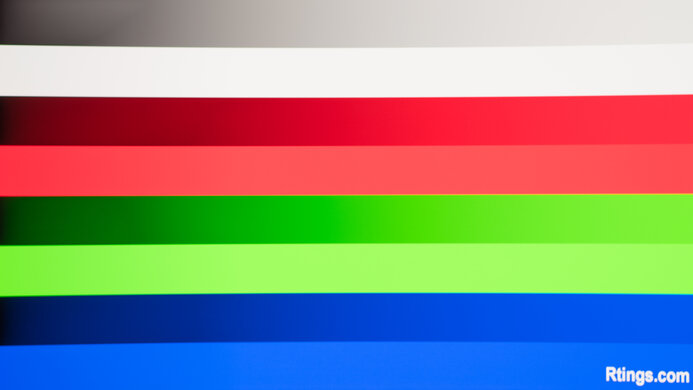
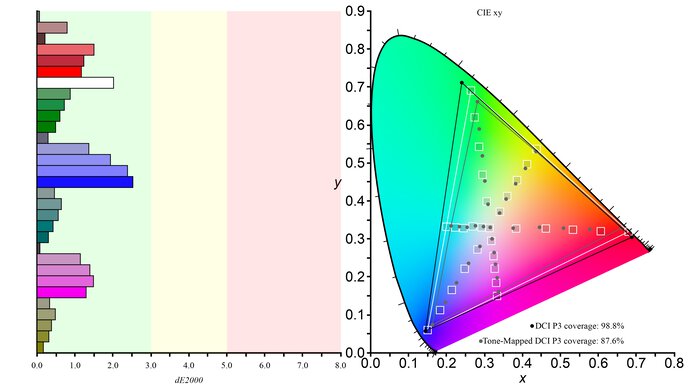
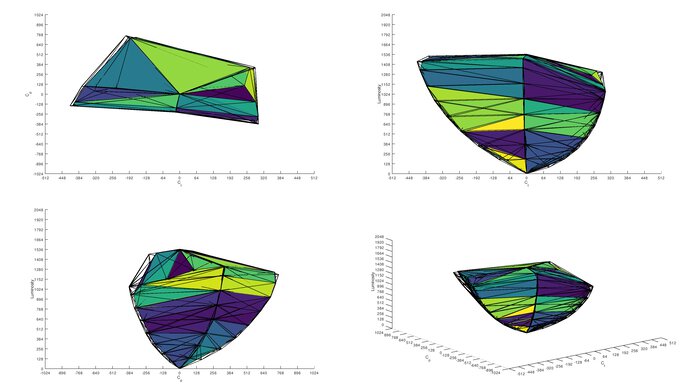
The Dell S2725QS has decent SDR picture quality. It displays a wide range of colors, but its biggest downside is that blacks look gray due to its low contrast ratio.
Displays wide range of colors.
Blacks look gray due to low contrast.
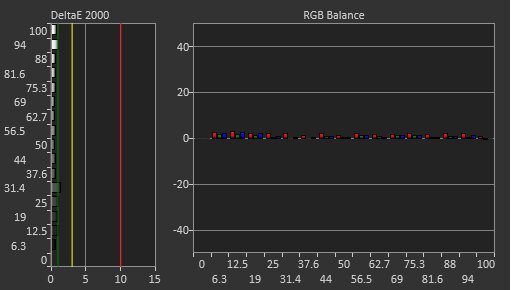
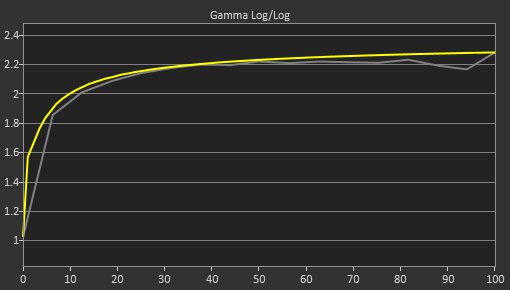
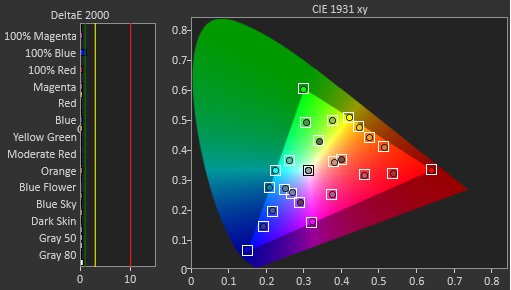
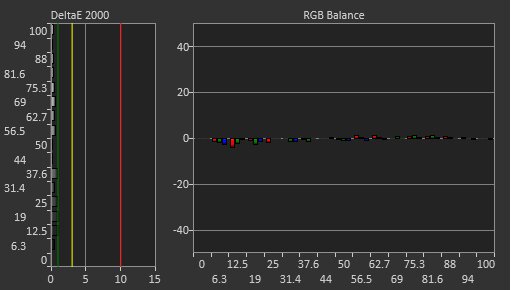
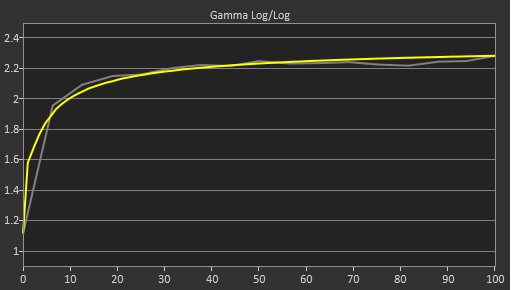
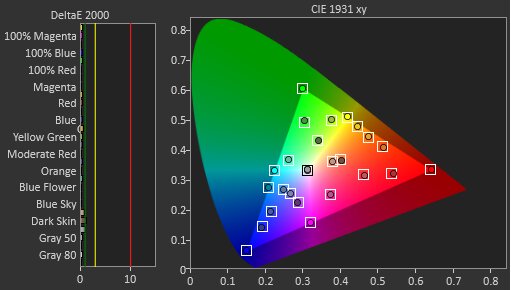
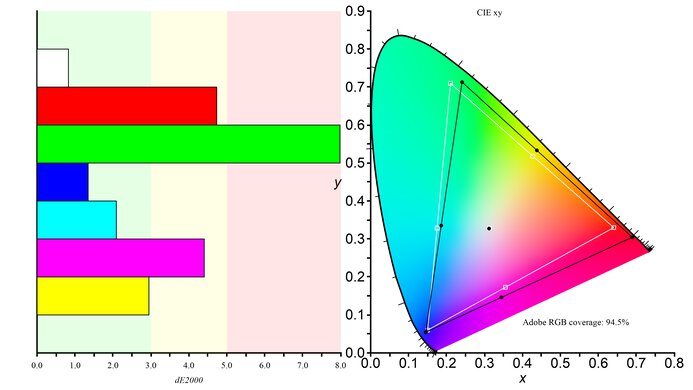
The Dell S2725QS has amazing color accuracy. It comes with a very accurate sRGB mode, but you still need to calibrate it for the best accuracy because it has gamma and white balance issues.
Very accurate sRGB mode that needs minimal calibration.
Performance Usages
Changelog
-
Updated Mar 23, 2026:
We corrected an error and clarified that it has an LCD panel type.
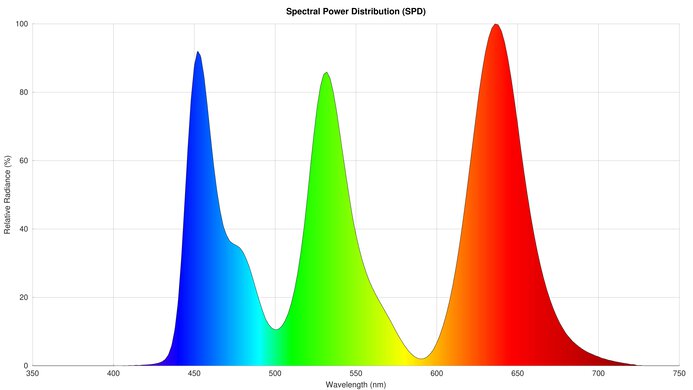
- Updated Mar 17, 2026: We've converted this review to Test Bench 2.1.2. We added a new Panel Technology box, including the Spectral Power Distribution (SPD) graph.
-
Updated Feb 02, 2026:
We clarified that this monitor sits above the Dell S2725DC, which has a lower resolution.
- Updated Nov 10, 2025: We've converted this review to Test Bench 2.1.1. We removed the Vertical Viewing Angle test.
Check Price
Differences Between Sizes And Variants
We bought and tested the 27-inch Dell S2725QS, which is the only size available, and the results are only valid for this model. You can see differences with other Dell Plus 4k monitors below, but these are different monitors that perform differently.
| Model | Size | Panel Type | Connectivity |
|---|---|---|---|
| S2725QS | 27" | IPS |
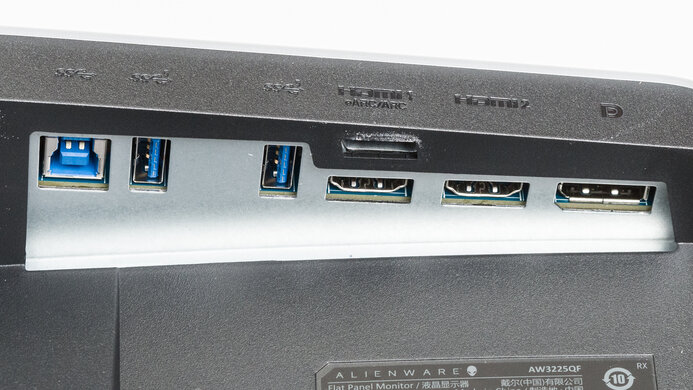
2x HDMI 2.1 1x DP 1.4 |
| S2725QC | 27" | IPS | 2x HDMI 2.1 1x USB-C DP Alt Mode 1x USB-C, 2x USB-A Downstream |
| S3225QS | 32" | VA | 2x HDMI 2.1 1x DP 1.4 |
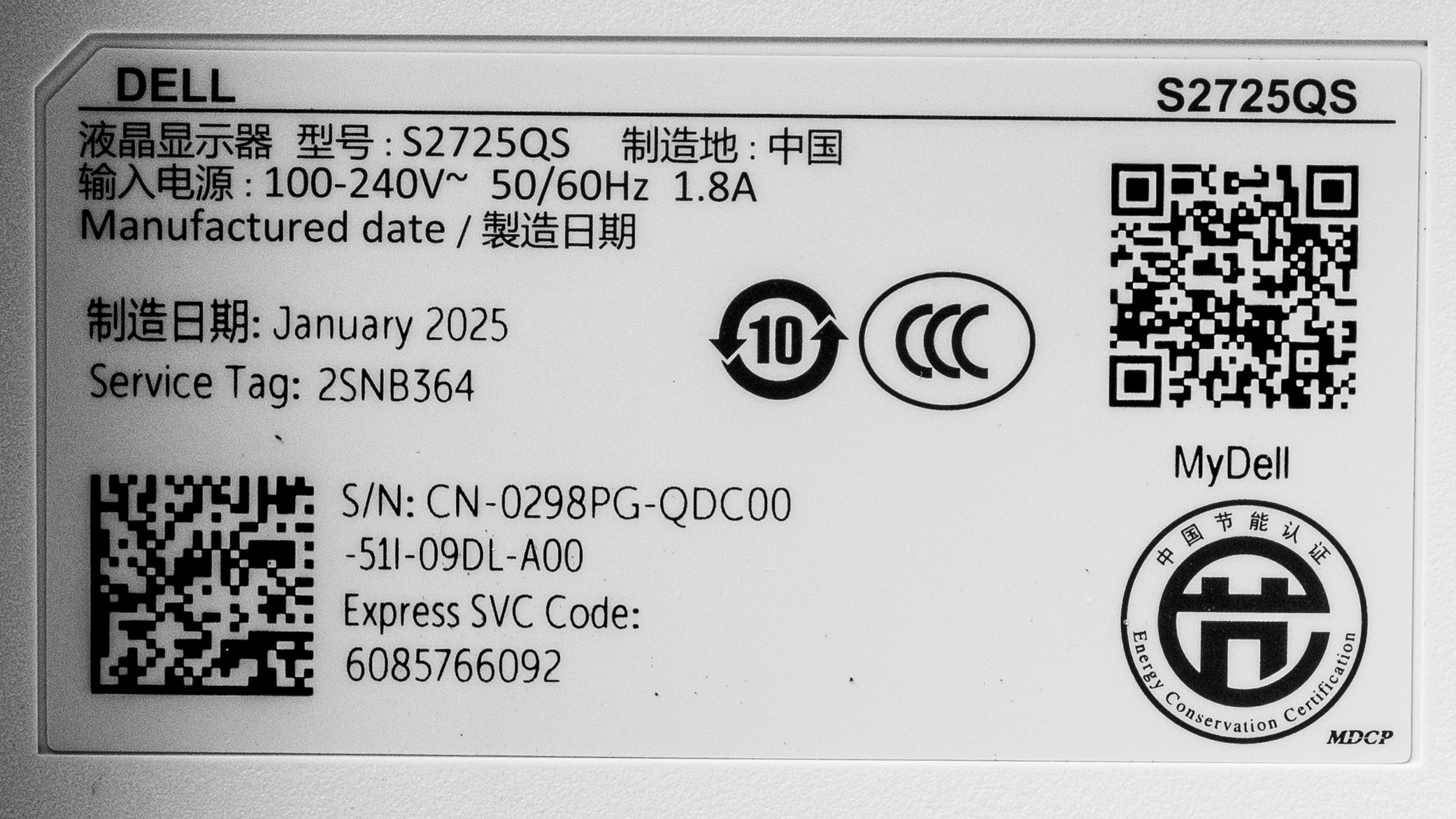
Our unit's label indicates it was manufactured in January 2025. We tested it with firmware M3B101.
Popular Monitor Comparisons
The Dell S2725QS is a budget-friendly 27-inch monitor geared towards productivity. As the entry-level 4k model in Dell's Plus Series lineup, it's rather barebones in terms of features, as it doesn't have a USB hub like the higher-end Dell S2725QC. That said, it's a nice upgrade over the older Dell S2721QS as it includes perks for gaming, like its 120Hz refresh rate and HDMI 2.1 bandwidth, so it's versatile enough for gaming when you aren't working. It even performs well for a low-cost monitor with accurate colors and great brightness, but naturally, it doesn't have the same premium HDR picture quality as higher-end models. It also costs less than the bigger Dell S3225QS, so if you want a 27-inch, 4k monitor for work without many features and you're on a budget, you can't go wrong with this monitor.
Also see our recommendations for the best work monitors, the best 27-inch monitors, and the best budget and cheap monitors.
The Dell S2725QC sits above the Dell S2725QS in the Dell Plus Series lineup. They're both 4k, 27-inch monitors that are very similar, but the main difference is that the S2725QC comes with a USB hub, which the S2725QS doesn't have. There are some differences in performance, though, as the S2725QS gets a bit brighter, displays a slightly wider range of colors, and is a bit more accurate out-of-the-box, but these differences are hard to tell in person.
The Dell U2725QE is a higher-end monitor than the Dell S2725QS. The U2725QE has a ton more features because of this, including a massive USB hub that includes a KVM switch and Thunderbolt 4 support, while the S2725QS doesn't have any USB ports. The U2725QE also gets brighter and has a better contrast ratio because of its IPS Black panel, but blacks still look gray. While the U2725QE displays a wider color gamut, the S2725QS is still more accurate out of the box, so it's easier to properly calibrate it.
The Dell S2725QS is an updated version of the Dell S2721QS, and upgrades in a few areas. The main difference is that the S2725QS has a higher 120Hz refresh rate and HDMI 2.1 bandwidth that makes it a better choice for gaming. The S2725QS also comes with a dedicated sRGB mode, which the S2721QS doesn't have, so colors are more accurate out of the box on the S2725QS.
The KOORUI S2721PM is much better than the Dell S2725QS for gaming, but the Dell is better for office use. The KOORUI has much better motion handling, with significantly less blur behind fast-moving objects when gaming. The Dell is better for office use, though, as its higher resolution screen results in much sharper text and a more detailed image.
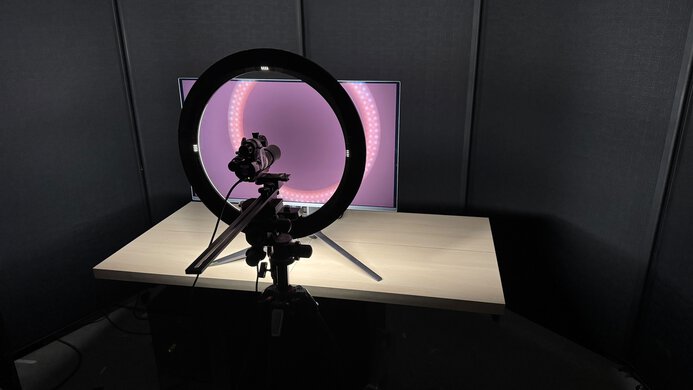
We buy and test more than 30 monitors each year, all of which we purchase ourselves, without cherry-picked units or samples. We put a lot into each unbiased, straight-to-the-point review, and there's a whole process from purchasing to publishing, involving multiple teams and people. We do more than just use the monitor for a week; we use specialized, custom tools to measure various aspects and deliver objective, data-driven results. We also consider multiple factors before making any recommendations, including the monitor's cost, its performance compared to the competition, and whether it's easy to find.
Test Results
for pictures & test results


for pictures & test results


for pictures & test results
for pictures & test results
for pictures & test results
for pictures & test results
for pictures & test results
for pictures & test results
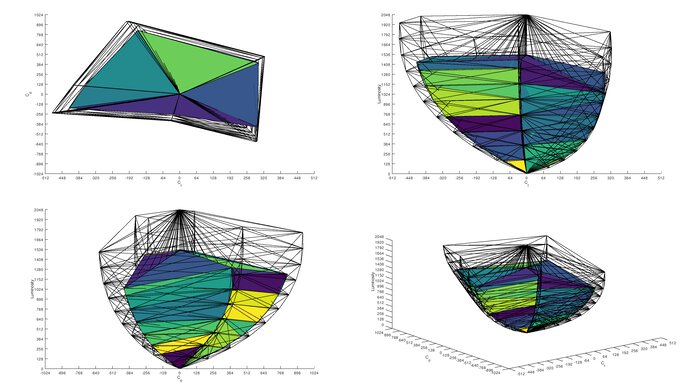
for videos & test results

for pictures & test results
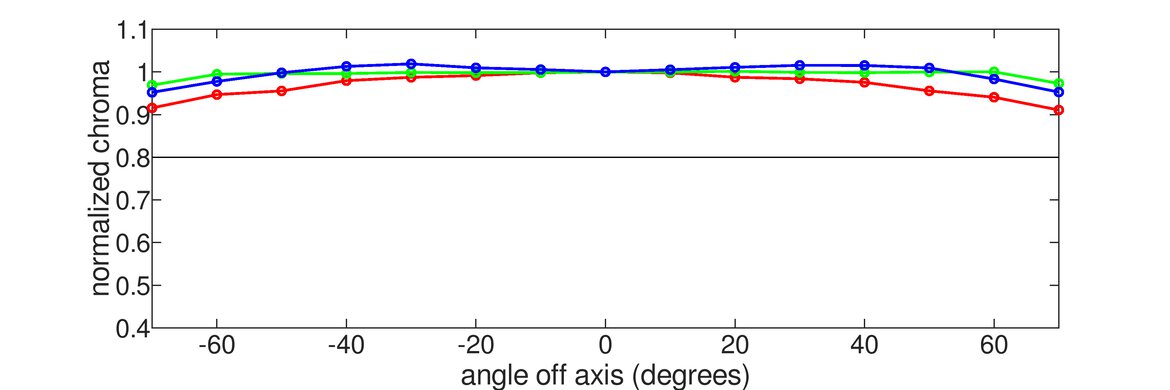
for pictures & test results
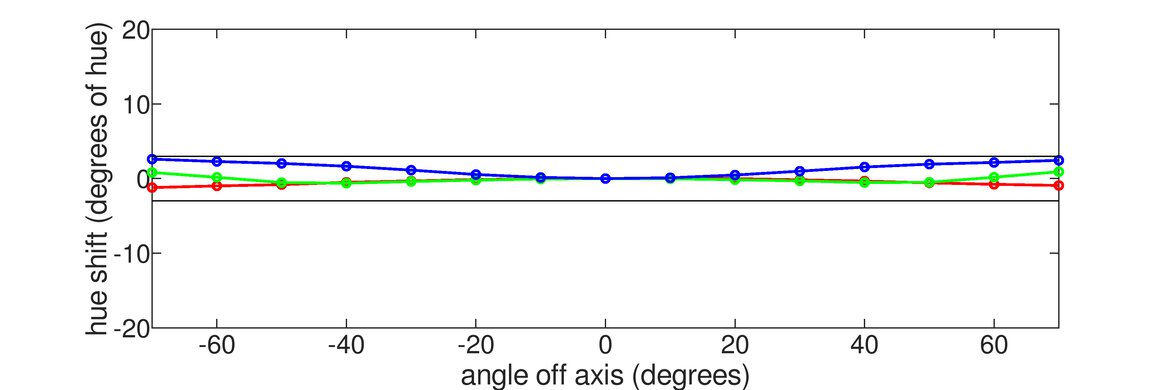
for pictures & test results