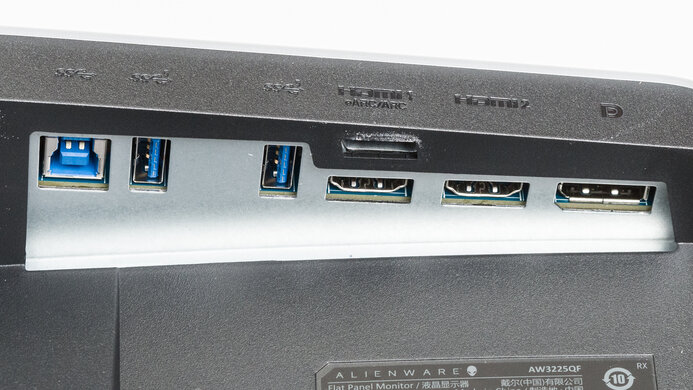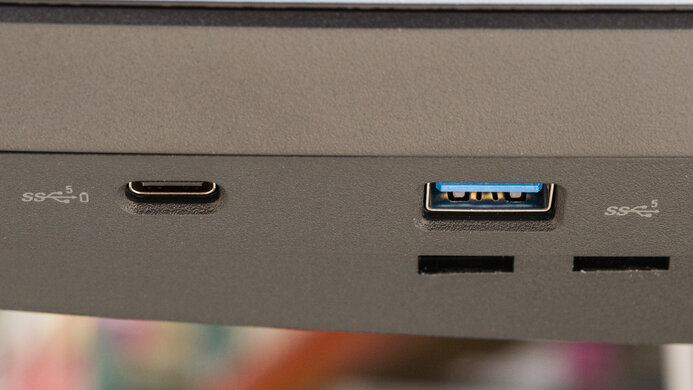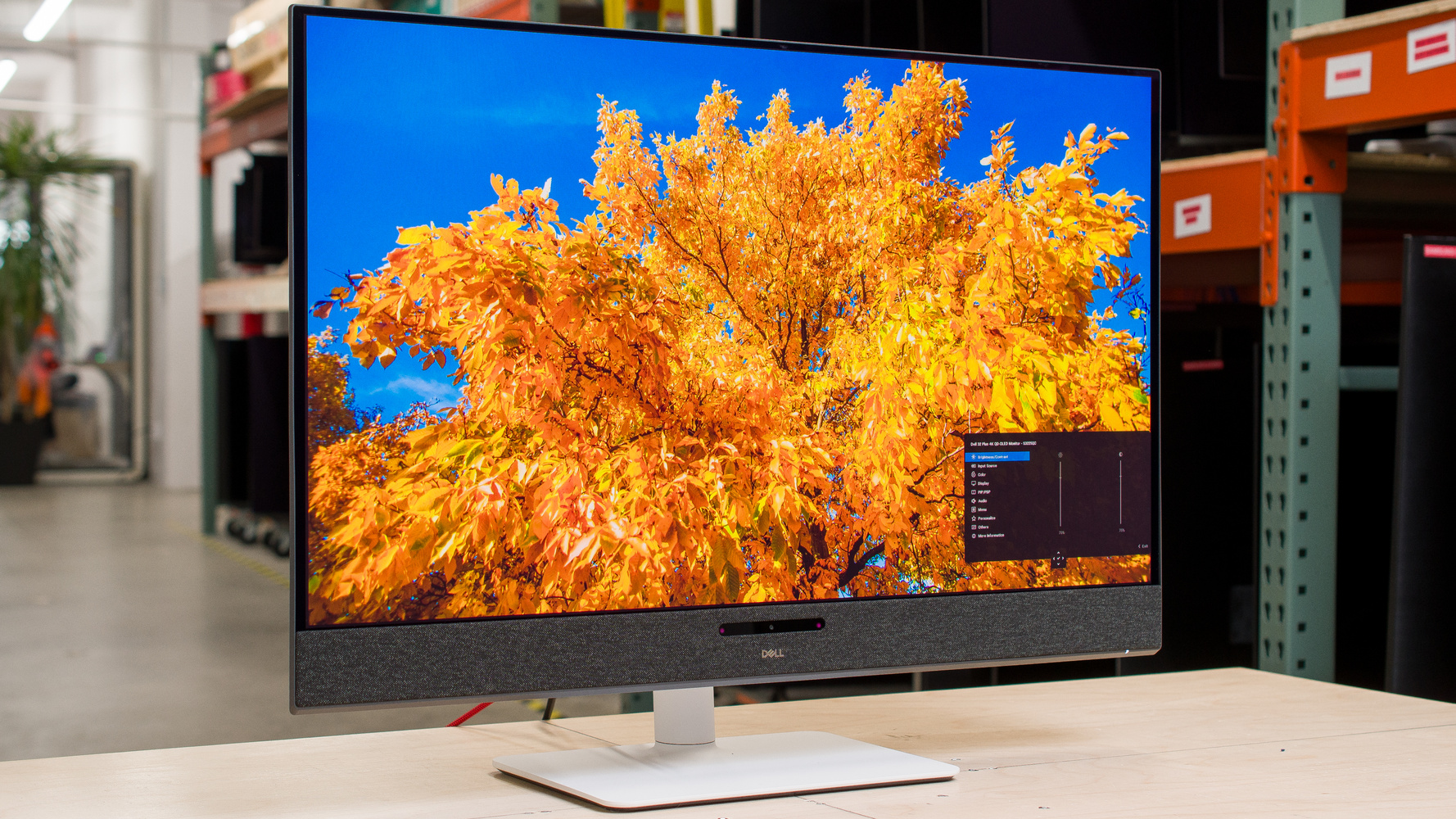
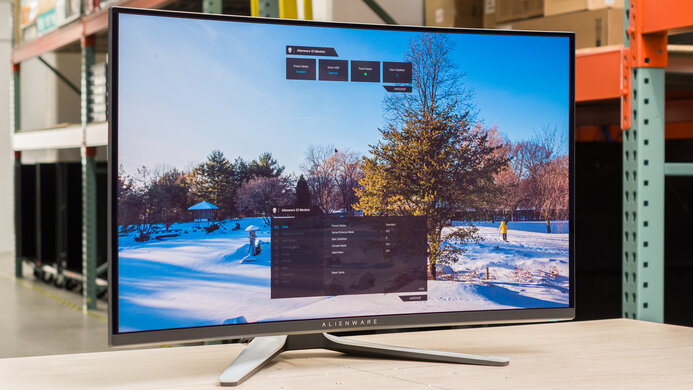
The Dell S3225QC is a 32-inch, 4k QD-OLED monitor. It's the flagship model of the Dell Plus Series lineup, and it's the only one with an OLED panel, sitting above the Dell S2725QC and the Dell S3225QS. As it's a productivity monitor with three USB-C ports, including DisplayPort Alt Mode, it's different than other premium 4k QD-OLED monitors, like the Dell Alienware AW3225QF, as it has a lower 120Hz refresh rate and lacks a DisplayPort input. That said, it still has a few gaming perks, like HDMI 2.1 bandwidth, VRR support, and Dolby Vision. It also has five 5W speakers with spatial audio that tracks your position in front of the monitor for an optimal listening experience.
Our Verdict
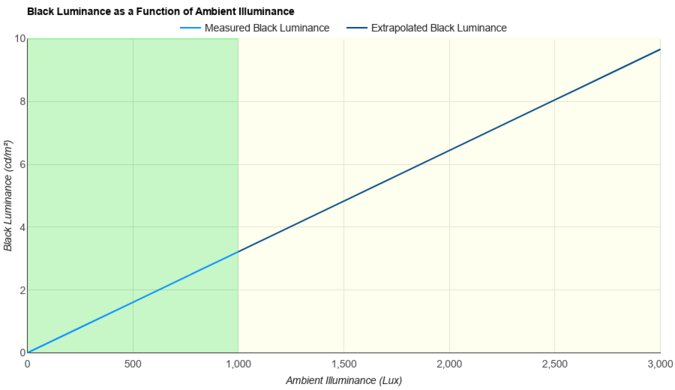
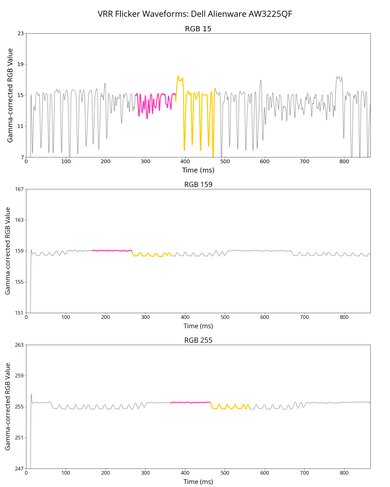
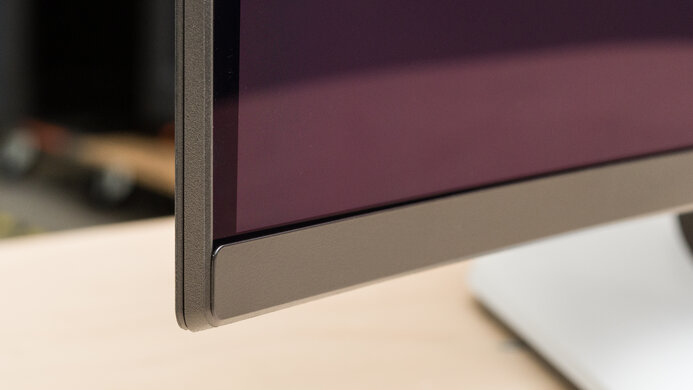
The Dell S3225QC is excellent for PC gaming. Although its 120Hz refresh rate isn't high enough for competitive gaming, the monitor at least has a fast response time for sharp motion and low input lag for a responsive feel. It also features HDMI 2.1 bandwidth and VRR support to minimize screen tearing; however, it exhibits some VRR flicker when changing frame rates. It even delivers fantastic picture quality, thanks to its near-infinite contrast ratio in dark rooms, bright highlights, and vivid colors. However, blacks appear purple, and colors desaturate in bright rooms.
Deep blacks in dark rooms.
Bright, vivid colors.
Small highlights pop in HDR.
Incredibly sharp motion.
Low input lag for responsive feel.
Picture quality is worse in bright rooms.
Limited to 120Hz refresh rate.
Has some VRR flicker.
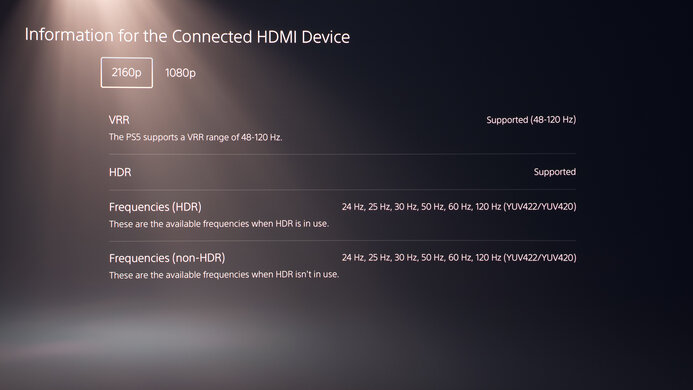
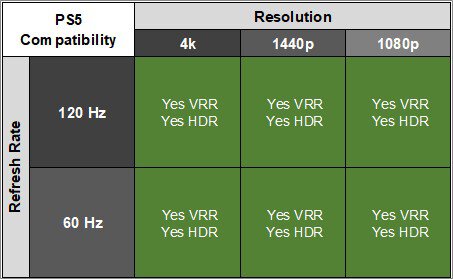
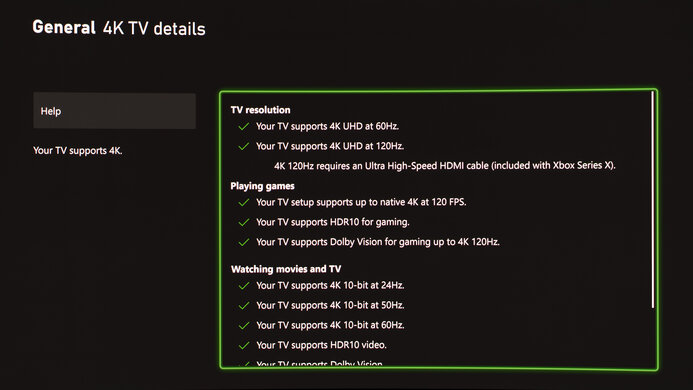
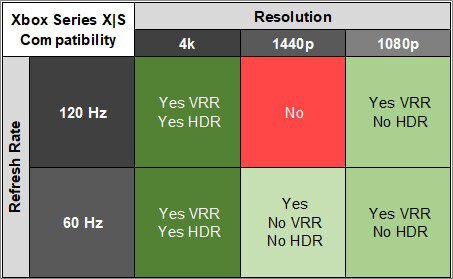
The Dell S3225QC is remarkable for console gaming. Its HDMI 2.1 bandwidth allows you to play games in 4k up to 120Hz from modern gaming consoles, and it has VRR and Dolby Vision support. Gaming feels responsive due to its low input lag, and motion looks incredibly sharp thanks to its fast response time. HDR games also look incredible as it has a high contrast ratio for deep blacks in dark rooms, highlights that pop, and vivid colors. However, blacks look purple in bright rooms, which is a downside of its QD-OLED panel.
Deep blacks in dark rooms.
Bright, vivid colors.
Small highlights pop in HDR.
Incredibly sharp motion.
Low input lag for responsive feel.
HDMI 2.1 bandwidth takes advantage of consoles.
Picture quality is worse in bright rooms.
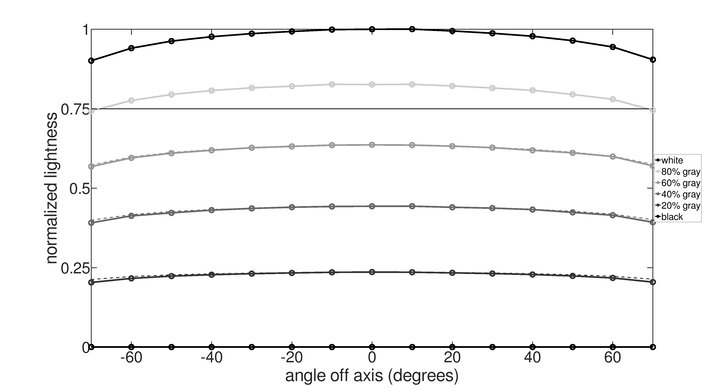
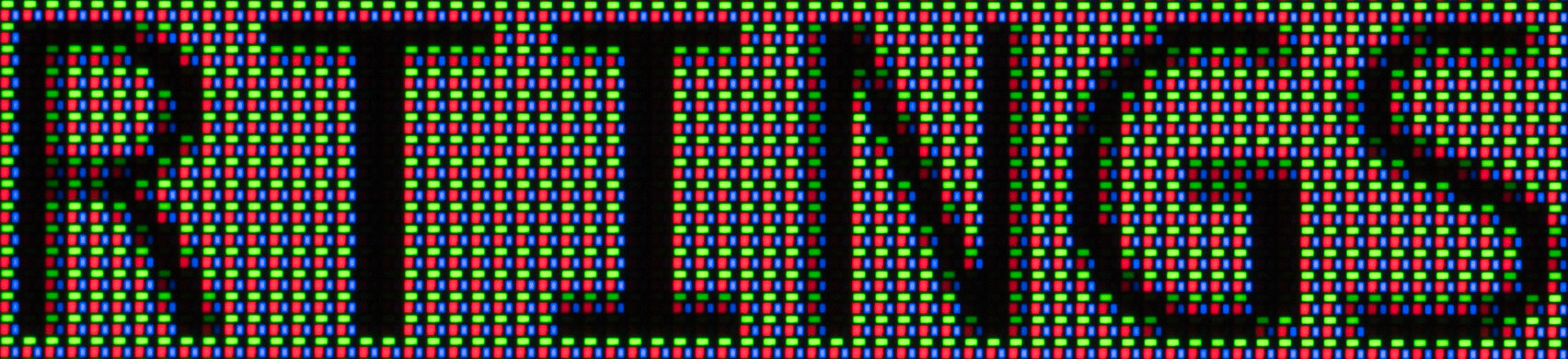
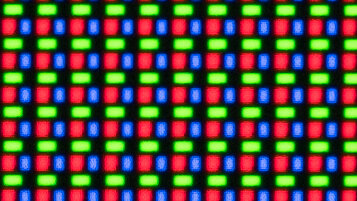
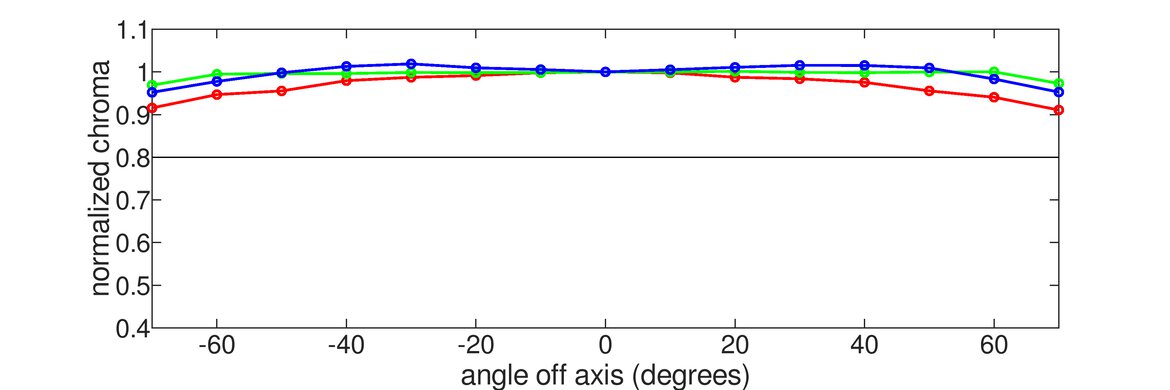
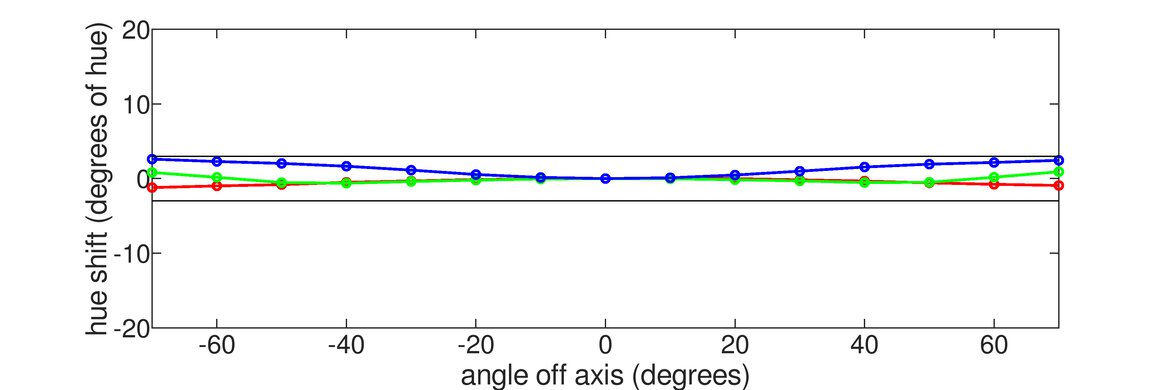
The Dell S3225QC is good for work, with some limitations. Its 32-inch screen offers enough screen space to comfortably multitask, and it has sharp text thanks to its 4k resolution. However, there's some fringing around the text due to its triangular subpixel layout. It comes with an ergonomic stand and features wide viewing angles, making it ideal for sharing your screen with others. It's also fine if you want to use it in a room with a few lights around, as it handles glare well; however, it doesn't get bright enough to combat intense glare. Unfortunately, despite being an office monitor, the biggest downside to working with it is that it risks permanent burn-in due to constant exposure to the same static elements over time, without varying usage.
High 4k resolution.
Coating reduces glare well.
Includes USB hub.
Ergonomic stand.
Fringing around text and windows.
Risk of burn-in.
Not bright enough to fight intense glare.
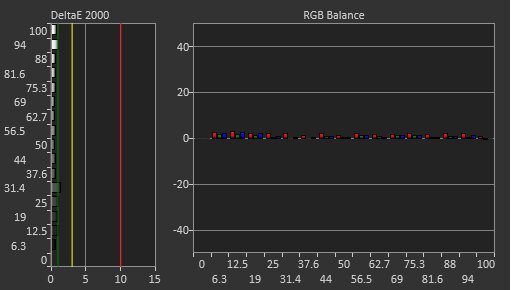
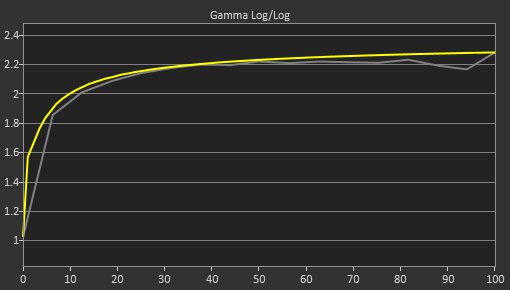
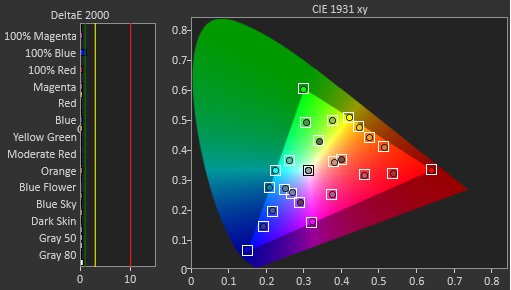
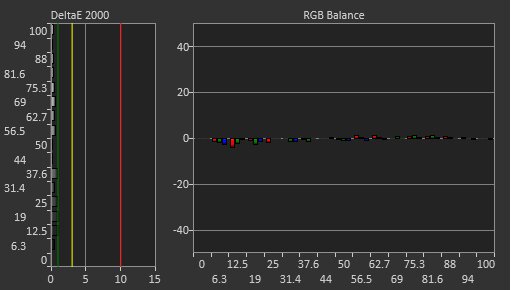
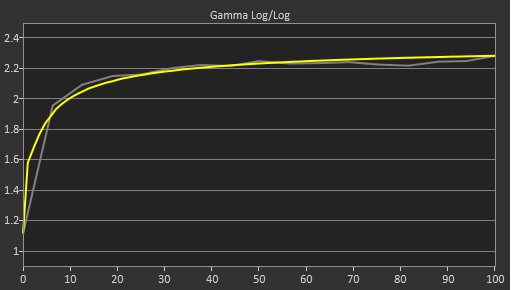
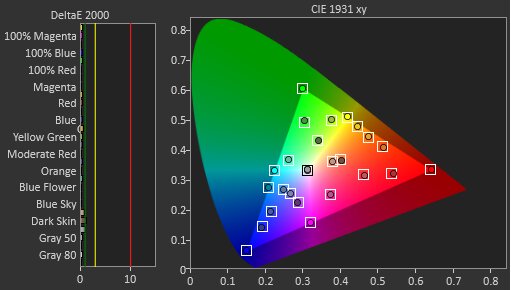
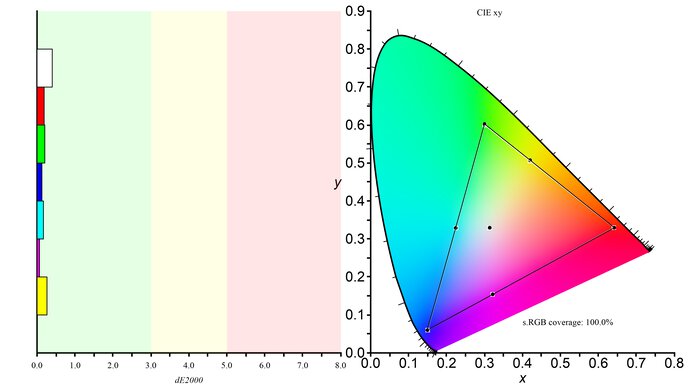
The Dell S3225QC is fantastic for editing. It has incredible picture quality, especially in dark rooms, as it displays deep, inky blacks with vivid colors and bright highlights. However, those blacks look purple, and colors desaturate in bright rooms due to its QD-OLED panel. It doesn't get bright enough to fight intense glare in bright rooms either, but its coating absorbs light well. Additionally, it features a dedicated sRGB mode with good accuracy; however, calibration is required to address issues with gamma, white balance, and color temperature. Its biggest downside for content creation is that it risks burn-in with constant exposure to the same static elements over time, such as when your editing program is open all day.
Deep blacks in dark rooms.
Bright, vivid colors.
Small highlights pop in HDR.
High 4k resolution.
Coating reduces glare well.
Dedicated sRGB mode.
Picture quality is worse in bright rooms.
Fringing around text and windows.
Risk of burn-in.
Not bright enough to fight intense glare.
White balance and gamma issues before calibration.
The Dell S3225QC has okay brightness. It makes highlights pop in HDR, and it's fine if you want to use it in a room with a few lights, but it doesn't get bright enough to combat intense glare.
Small highlights pop in HDR.
Not bright enough to fight intense glare.
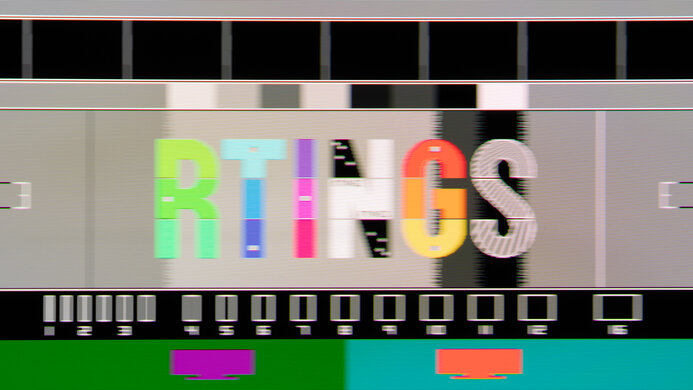
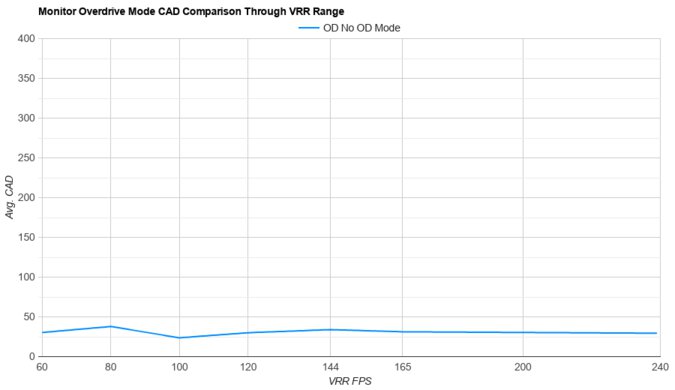
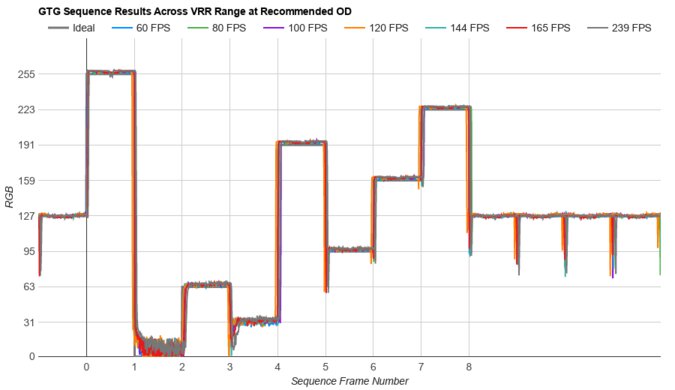
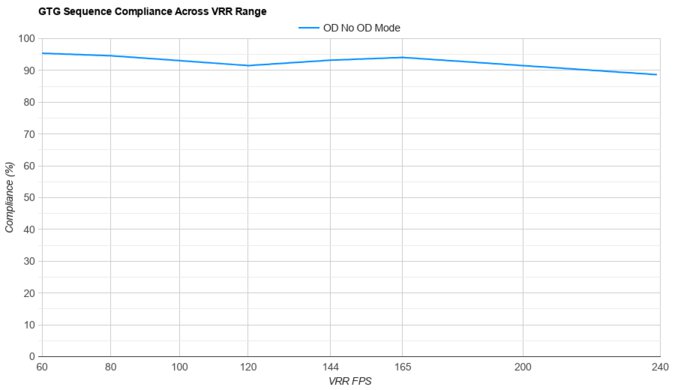
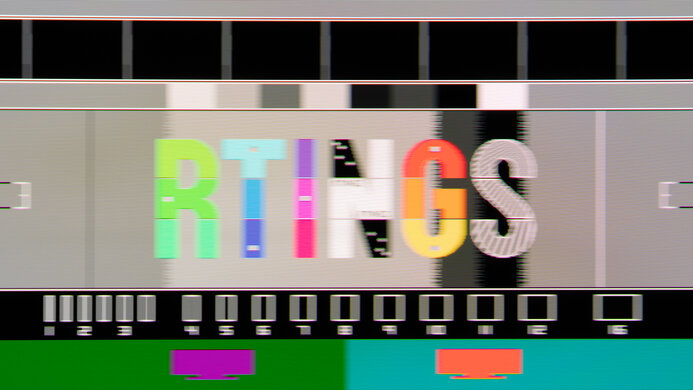
The Dell S3225QC has a near-instantaneous response time for sharp motion at any refresh rate.
Incredibly sharp motion.
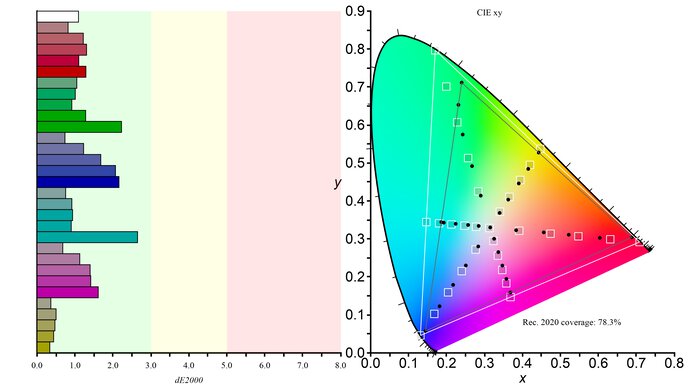
The Dell S3225QC has incredible HDR picture quality. It displays deep and inky blacks in dark rooms, and it covers a wide color gamut with vivid colors. However, the picture quality is worse in bright rooms as blacks look purple and colors desaturate.
Deep blacks in dark rooms.
Bright, vivid colors.
Picture quality is worse in bright rooms.
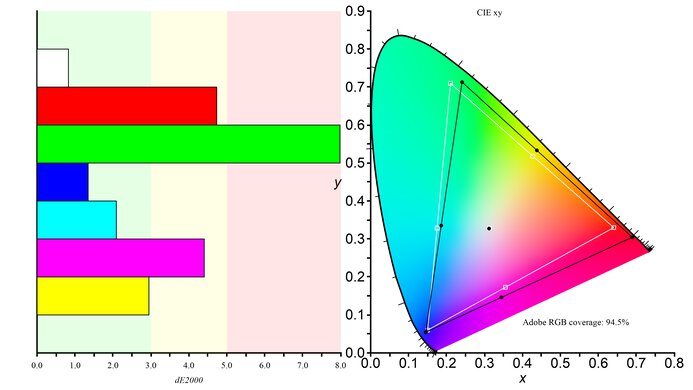
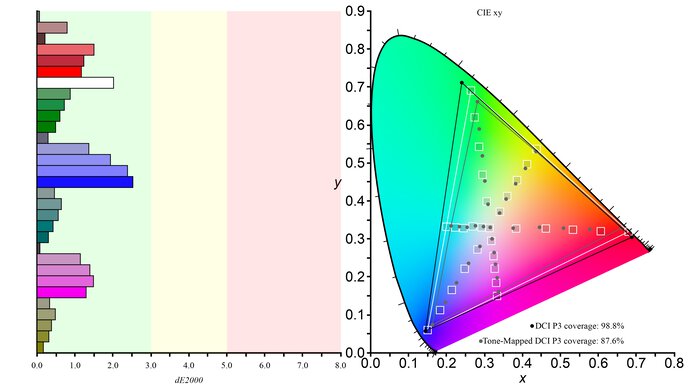
The Dell S3225QC has outstanding SDR picture quality. It displays a wide range of colors with deep and inky blacks in dark rooms.
Deep blacks in dark rooms.
Displays wide range of colors.
Picture quality is worse in bright rooms.
The Dell S3225QC has impressive accuracy. Its sRGB mode is accurate before any sort of calibration, but you still need to calibrate it to improve the white balance, color temperature, and gamma.
Dedicated sRGB mode.
White balance and gamma issues before calibration.
Performance Usages
Changelog
-
Updated May 05, 2026:
We corrected the VRR Supported Connectors box to clarify that VRR works over USB-C.
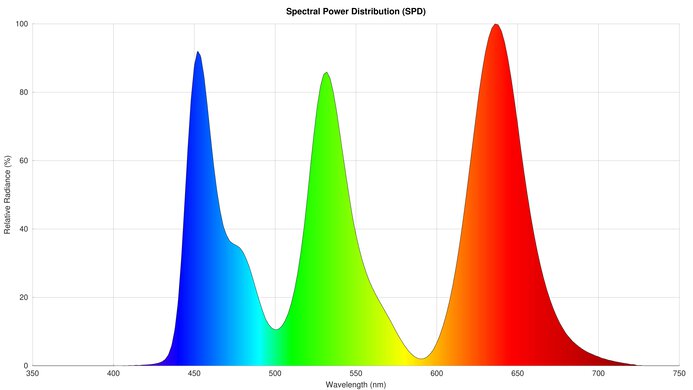
- Updated Mar 17, 2026: We've converted this review to Test Bench 2.1.2. We added a new Panel Technology box, including the Spectral Power Distribution (SPD) graph.
- Updated Nov 10, 2025: We've converted this review to Test Bench 2.1.1. We removed the Vertical Viewing Angle test.
- Updated Nov 03, 2025: Review published.
Check Price
Differences Between Sizes And Variants
We bought and tested the 32-inch Dell S3225QC, which is the only size available, so the results are only valid for this model. You can see how it compares to other 4k, 120Hz models in Dell's Plus Series lineup:
| Model | Size | Panel Type | USB Ports | Speakers |
|---|---|---|---|---|
| S3225QC | 32" | QD-OLED | 3x USB-C | 5x 5W |
| S2725QC | 27" | IPS | 2x USB-C 2x USB-A |
2x 5W |
| S3225QS | 32" | VA | None | 2x 5W |
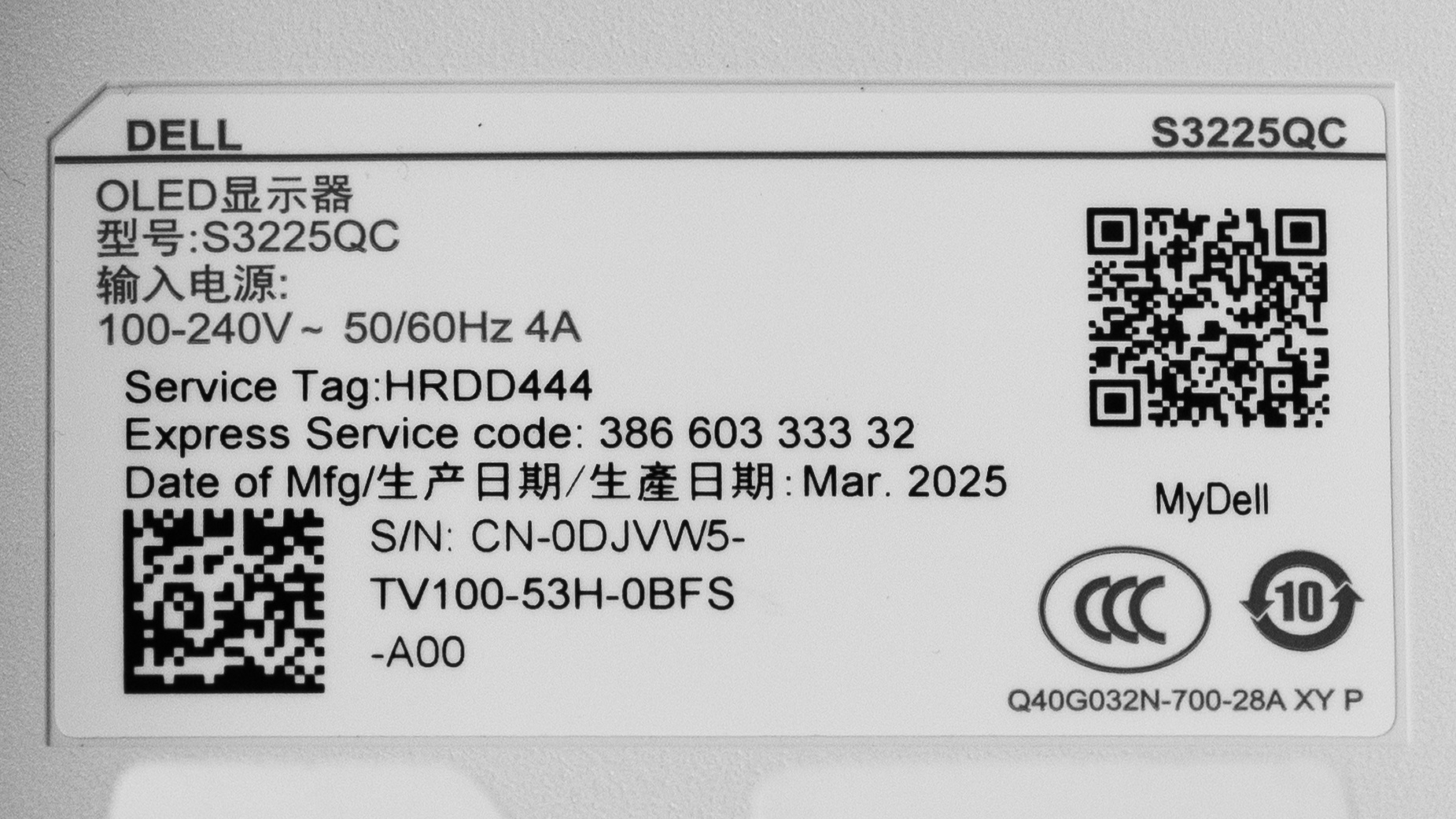
Our unit's label indicates it was manufactured in March 2025. We tested it with firmware M3C104
Popular Monitor Comparisons
The Dell S3225QC is a 32-inch, 4k QD-OLED that's the only model in the Dell Plus Series lineup to have an OLED panel. It holds a unique position in the market because it lacks the same premium gaming features as other high-end QD-OLEDs, such as the Dell Alienware AW3225QF. Despite being focused on productivity with its USB hub, which includes DisplayPort Alt Mode and 90W of power delivery, it still offers some useful gaming features, such as HDMI 2.1 bandwidth and Dolby Vision support. Additionally, motion appears sharp due to its near-instantaneous response time, and it features low input lag for a responsive feel. Essentially, it offers the benefits of an OLED, featuring fantastic picture quality and overall performance, without the premium gaming perks.
Considering it costs less than other QD-OLEDs, if you're in the market for a QD-OLED for both work and play and you don't need the highest refresh rates, this monitor is a solid choice. However, it's not recommended to purchase it if you're only going to use it for work, as it risks burn-in. LCD monitors, such as the Dell U3225QE, would be better choices.
Also see our recommendations for the best 120Hz monitors, the best 32-inch monitors, and the best monitors for the PS5/PS5 Pro.
The Dell S3225QC is higher-end and better overall than the Dell S3225QS. The main advantage of the S3225QC is its superior picture quality, thanks to its QD-OLED panel, which delivers deep blacks, bright highlights, and vivid colors. The S3225QC also offers better motion handling and features that the S3225QS lacks, such as a USB hub. That said, the main benefit of the S3225QS is that it doesn't risk burn-in with constant exposure to the same static elements over time, like with the S3225QC.
The Dell U3225QE and the Dell S3225QC are 32-inch, 4k, 120Hz monitors from different lineups. The U3225QE is part of the high-end UltraSharp lineup, and it's equipped with additional features, including a larger USB hub, Thunderbolt 4 support, and a KVM switch. This makes it the better choice if you need an all-in-one monitor for connecting different devices. Despite being a lower-end model, the S3225QC boasts better picture quality thanks to its QD-OLED panel, which displays deep blacks, bright colors, and vivid highlights. The S3225QC is also better suited for gaming, as it offers superior motion handling.
The Dell S3225QC is a higher-end model than the Dell S2725QC. While they're each 4k, 120Hz monitors, they have different panel types. The QD-OLED panel of the S3225QC offers significantly improved picture quality, featuring deeper blacks and enhanced motion, making it the better choice for HDR gaming. However, the IPS panel of the S2725QC doesn't risk burn-in like the S3225QC, and it offers better text clarity, as it doesn't exhibit fringing around letters. They have similar productivity features, but the S3225QC delivers more power over USB-C.
The Dell Alienware AW3225QF and the Dell S3225QC are both 4k, 32-inch QD-OLED monitors, with a few differences. The AW3225QF is more focused on gaming, as it features a higher 240Hz refresh rate for a smoother experience and a few additional gaming-oriented settings, such as Console Mode. On the other hand, the S3225QC offers more productivity features, including DisplayPort Alt Mode, 90W of power delivery to charge a laptop while in use, and built-in speakers. The S3225QC also features a flat screen, which may be preferable to the curved screen of the AW3225QF if you prefer it for content creation.
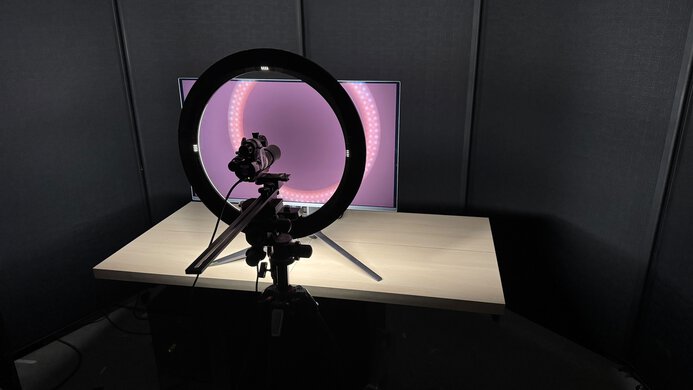
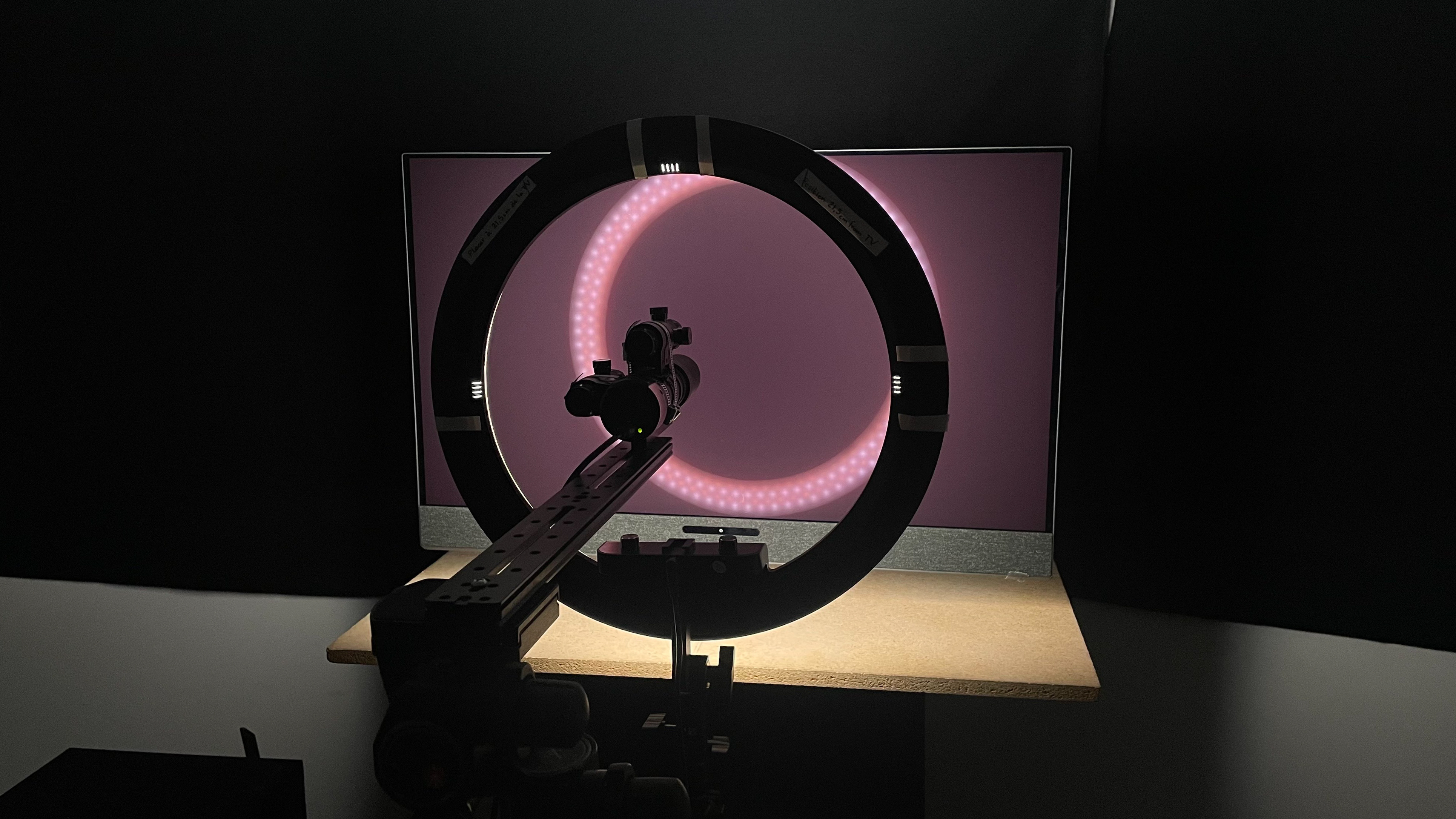
We buy and test more than 30 monitors each year, all of which we purchase ourselves, without cherry-picked units or samples. We put a lot into each unbiased, straight-to-the-point review, and there's a whole process from purchasing to publishing, involving multiple teams and people. We do more than just use the monitor for a week; we use specialized, custom tools to measure various aspects and deliver objective, data-driven results. We also consider multiple factors before making any recommendations, including the monitor's cost, its performance compared to the competition, and whether it's easy to find.
Test Results
for pictures & test results
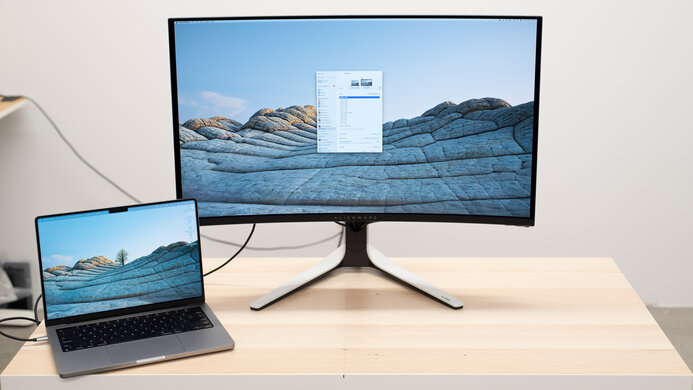
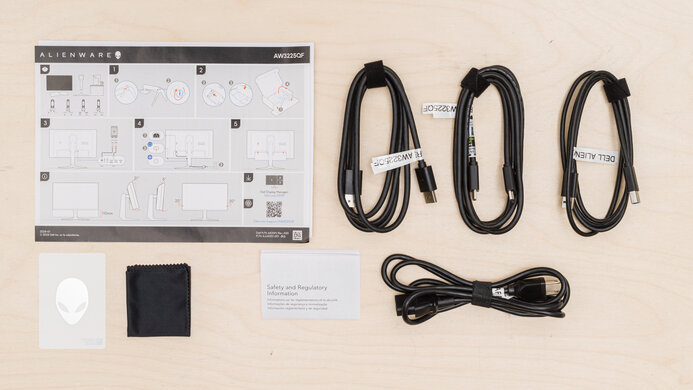


for pictures & test results
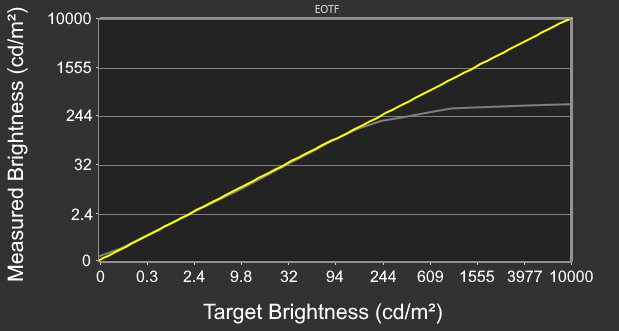


for pictures & test results
for pictures & test results
for pictures & test results
for pictures & test results
for pictures & test results
for pictures & test results


for videos & test results

for pictures & test results
for pictures & test results
for pictures & test results