ASUS ROG Strix OLED XG27ACDNG  Monitor Review

Reviewed Jan 27, 2025 at 09:48am
Tested using Methodology v2.1.1 
ASUS ROG Strix OLED XG27ACDNG
9.2
PC Gaming 
9.1
Console Gaming 
7.3
Office 
8.9
Editing 
7.2
Brightness 
9.8
Response Time 
9.5
HDR Picture 
10
SDR Picture 
 65

The ASUS ROG Strix OLED XG27ACDNG is a premium 27-inch, 1440p gaming monitor with a QD-OLED panel. Featuring a 360Hz refresh rate, it competes against other monitors that have the same specs, like the Gigabyte AORUS FO27Q3, MSI MPG 271QRX QD-OLED, and the Dell Alienware AW2725DF, and it sits above the ASUS ROG Strix OLED XG27AQDMG in the ROG Strix gaming lineup. It has typical gaming features, like VRR support, DP 1.4 and HDMI 2.1 bandwidth, and Extreme Low Motion Blur (ELMB). It also includes a heatsink and OLED Care+ settings to reduce the risk of burn-in. On top of that, it has some productivity features, like a USB hub that includes a USB-C port with 90W of power delivery and a KVM switch.

How We Test Monitors

We buy and test more than 30 monitors each year, with units that we buy completely on our own, without any cherry-picked units or samples. We put a lot into each unbiased, straight-to-the-point review, and there's a whole process from purchasing to publishing, involving multiple teams and people. We do more than just use the monitor for a week; we use specialized and custom tools to measure various aspects with objective data-based results. We also consider multiple factors before making any recommendations, including the monitor's cost, its performance against the competition, and whether or not it's easy to find.

Our Verdict

9.2
PC Gaming 

The ASUS XG27ACDNG is remarkable for PC gaming. Its 360Hz refresh rate is ideal for most gamers, and gaming feels responsive and smooth thanks to its low input lag and extremely sharp motion handling. Plus, it delivers outstanding picture quality, especially for gaming in dark rooms, as blacks are deep and inky, and small highlights pop against the rest of the image. However, there are some downsides, as the black levels rise in bright rooms, so they look purple. It also has distracting VRR flicker with changing frame rates, which you can mostly notice in dark scenes.

Pros
  • Small highlights pop in HDR.

  • Motion looks extremely sharp.

  • Deep and inky blacks in dark rooms.

  • 360Hz refresh rate and VRR support.

  • Low input lag.

Cons
  • Larger highlights are dimmer.

  • Distracting VRR flicker.

  • Ambient light causes black levels to rise.

9.1
Console Gaming 

The ASUS XG27ACDNG is fantastic for console gaming. Although it has to downscale 4k signals, it doesn't have any compatibility issues with the PS5, PS5 Pro, and Xbox Series X|S. Gaming feels responsive thanks to its low input lag, and motion looks incredibly sharp. On top of that, its picture quality is outstanding, particularly in HDR, as it displays deep blacks next to bright highlights and a wide range of vivid colors. However, it performs best in a dark room, as using it in a bright room causes the black levels to rise, making them look purple.

Pros
  • Small highlights pop in HDR.

  • Motion looks extremely sharp.

  • Deep and inky blacks in dark rooms.

  • Low input lag.

  • HDMI 2.1 bandwidth.

Cons
  • Larger highlights are dimmer.

  • Ambient light causes black levels to rise.

  • Needs to downscale 4k signals.

7.3
Office 

The ASUS XG27ACDNG is decent for office use, but it has some limitations. It gets bright enough to fight glare in most well-lit offices and has decent reflection handling. It also comes with an ergonomic stand and has wide viewing angles, making it easy to share your screen with someone next to you. It also has a few useful productivity features, like a KVM switch and USB hub that makes it easier to connect different devices. However, OLEDs like this risk burn-in with constant exposure to the same static elements over time, like if you always have the taskbar open. Also, while its text clarity is decent, it has some fringing around letters, and text isn't as sharp as on a 27-inch, 1440p IPS display.

Pros
  • Bright enough to fight glare.

  • USB hub and KVM switch.

  • Versatile ergonomics.

Cons
  • Risk of burn-in.

  • Some fringing around text.

8.9
Editing 

The ASUS XG27ACDNG is amazing for content creation. It displays accurate colors before calibration in its dedicated sRGB mode, but calibrating it still results in the best accuracy. It also delivers outstanding picture quality thanks to its deep blacks in dark rooms, bright highlights, and vivid colors, so your content looks life-like. It even has some neat features to help with productivity, like a USB hub to which you can connect various devices, and a KVM switch. However, the main downside is that it risks burn-in with constant exposure to the same static elements over time, which can be problematic if you always have your editing program open.

Pros
  • Bright enough to fight glare.

  • Deep and inky blacks in dark rooms.

  • Accurate sRGB mode.

  • USB hub and KVM switch.

  • Versatile ergonomics.

Cons
  • Needs calibration for best accuracy.

  • Ambient light causes black levels to rise.

  • Risk of burn-in.

7.2
Brightness 

The ASUS XG27ACDNG has decent brightness. It gets bright enough to fight glare in well-lit rooms, and small highlights pop in HDR. However, it can't maintain this high brightness with large highlights in HDR.

Pros
  • Bright enough to fight glare.

  • Small highlights pop in HDR.

Cons
  • Larger highlights are dimmer.

9.8
Response Time 

The ASUS XG27ACDNG has a near-instantaneous response time for extremely sharp motion.

Pros
  • Motion looks extremely sharp.

Cons
None
9.5
HDR Picture 

The ASUS XG27ACDNG has remarkable HDR picture quality. It displays deep and inky blacks in dark rooms next to bright colors, and colors are vibrant and life-like.

Pros
  • Deep and inky blacks in dark rooms.

  • Bright and vivid colors.

Cons
None
10
SDR Picture 

The ASUS XG27ACDNG has outstanding SDR picture quality. It has a near-infinite contrast ratio in dark rooms and displays a wide range of colors.

Pros
  • Deep and inky blacks in dark rooms.

  • Bright and vivid colors.

Cons
None
8.9
Color Accuracy 

The ASUS XG27ACDNG has amazing color accuracy. It's accurate before any sort of calibration in its dedicated sRGB mode, but calibrating it still improves accuracy.

Pros
  • Accurate sRGB mode.

Cons
  • Needs calibration for best accuracy.

  • 9.2
    PC Gaming
  • 9.1
    Console Gaming
  • 7.3
    Office
  • 8.9
    Editing

  • Performance Usages

  • 7.2
    Brightness
  • 9.8
    Response Time
  • 9.5
    HDR Picture
  • 10
    SDR Picture
  • 8.9
    Color Accuracy
  • Changelog

    1.  Updated Nov 10, 2025: We've converted this review to Test Bench 2.1.1. We removed the Vertical Viewing Angle test.
    2.  Updated Jul 11, 2025: 

      Added that the Samsung Odyssey OLED G81SF S27FG810S doesn't have mirror-like reflections.

    3.  Updated Jun 13, 2025: 

      We updated text throughout to match the new and updated tests with Test Bench 2.1, including in the Verdict section.

    4.  Updated Jun 13, 2025: We've converted this review to Test Bench 2.1. This includes new tests for Direct Reflections, Ambient Black Level Raise, and Total Reflected Light. You can see all the changes in the changelog.

    Check Price

    27"ROG Strix OLED XG27ACDNG
    SEE PRICE
    Amazon.com
    27"ROG Strix OLED XG27ACDNG
    SEE PRICE
    Walmart.com
    27"ROG Strix OLED XG27ACDNG
    B&H
    27"ROG Strix OLED XG27ACDNG
    BestBuy.com

    Differences Between Sizes And Variants

    We bought and tested the 27-inch ASUS XG27ACDNG, which is the only size available, and the results are only valid for this model. ASUS has other 27-inch OLEDs, like the ASUS ROG Swift OLED PG27UCDM and the ASUS ROG Strix OLED XG27AQDMG, but they're different monitors with different specs.

    Name Size Resolution Refresh Rate Panel Type
    XG27ACDNG 27" 1440p 360Hz QD-OLED

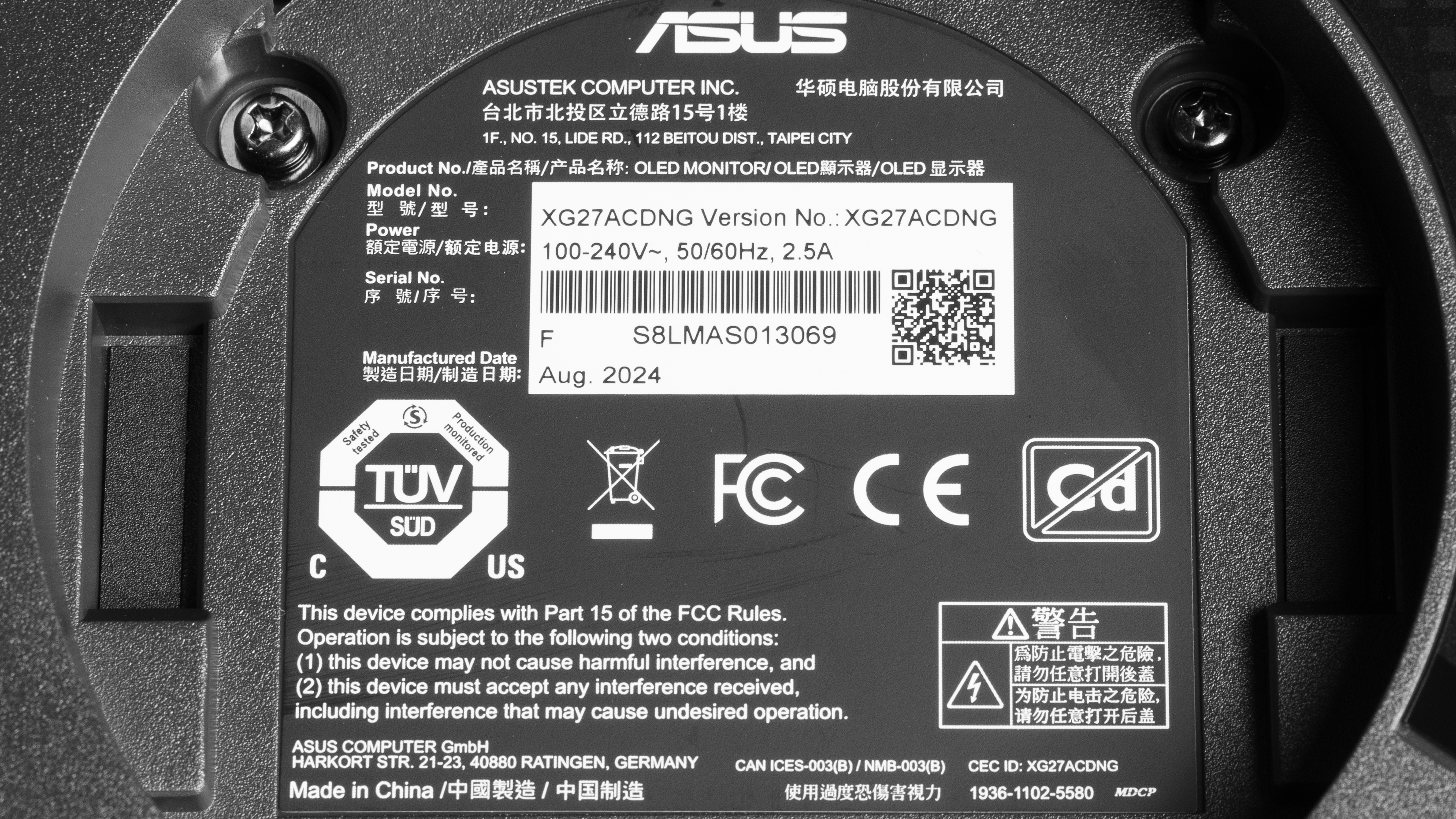
    Our unit's label indicates it was manufactured in August 2024. We tested it on firmware MCM102.

    Popular Monitor Comparisons

    The ASUS XG27ACDNG is a premium gaming monitor with a 1440p resolution, 360Hz refresh rate, and QD-OLED panel. It competes against other monitors with the same specs, like the MSI MPG 271QRX QD-OLED, Gigabyte AORUS FO27Q3, and the Dell Alienware AW2725DF. It performs as expected for a high-end monitor, with sharp motion handling, low input lag, and outstanding picture quality, and it even gets brighter than its competition. Plus, it has a few handy features to connect various devices, like a USB hub with a USB-C port and a KVM switch. If you're looking for a QD-OLED monitor with these specs, it's worth getting if you can find it for less than the competition.

    Also, see our recommendations for the best high refresh rate monitors, the best ASUS monitors, and the best HDR gaming monitors.

    ASUS ROG Strix OLED XG27AQDMG

    The ASUS ROG Strix OLED XG27ACDNG is a higher-end model than the ASUS ROG Strix OLED XG27AQDMG. There are a few differences, mainly due to their specs and panel types. The XG27ACDNG has a higher 360Hz refresh rate and a few extra features, like HDMI 2.1 bandwidth, a KVM switch, and a USB-C port. The XG27ACDNG also uses a QD-OLED panel with more vivid colors. On the other hand, the XG27AQDMG gets a bit brighter in HDR, and its WOLED panel is better to use in bright rooms, as blacks don't look as purple as on the XG27ACDNG.

    MSI MPG 271QRX QD-OLED

    The MSI MPG 271QRX QD-OLED and the ASUS ROG Strix OLED XG27ACDNG are competing monitors with similar specs as they each have a 1440p, 360Hz QD-OLED screen. The main advantage of the ASUS is that it gets brighter in SDR, so it's the better choice if you need something to use in a bright room. Besides that, the MSI has slightly better motion handling, but the difference is hard to tell.

    Dell Alienware AW2725DF

    The Dell Alienware AW2725DF and the ASUS ROG Strix OLED XG27ACDNG are competing 1440p, 360Hz monitors with QD-OLED panels. They're similar in terms of performance, but the ASUS has a few advantages when it comes to features. The ASUS has HDMI 2.1 bandwidth that lets you take full advantage of modern graphics cards and gaming consoles. It also has a KVM switch that makes it easy to multitask, and its USB-C port supports DisplayPort Alt Mode, so you can display an image from your laptop. On top of that, the ASUS' higher brightness makes it a better choice to use in bright rooms.

    ASUS ROG Swift OLED PG27UCDM

    The ASUS ROG Strix OLED XG27ACDNG and the ASUS ROG Swift OLED PG27UCDM are both QD-OLED gaming monitors. They're different in a few ways, though, as the PG27UCDM has a higher 4k resolution for sharper images and text, while the higher 360Hz refresh rate on the XG27ACDNG delivers a smoother feel. While they have many of the same features, the PG27UCDM has a few extra perks, like a DisplayPort 2.1 input and Dolby Vision support, so choosing between the two also depends on if you want these features.

    Show more 

    Video

    Test Results

    perceptual testing image
    Sort:
    RATINGS
    Category:
    All
    Design
    Style
    Curved
    No
    Curve Radius
    Not Curved

    The ASUS XG27ACDNG has a gamer-oriented but rather simple design. It's made of plastic that's mainly black throughout, with some red accents. There are also vents and branding elements that feature RGB lighting on the back.

    8.5
    Build Quality

    The build quality is excellent. There aren't any obvious issues, and the plastic materials don't flex easily. It feels smooth to adjust on the stand and stays in place once you do so, but rotating it into portrait mode takes a bit of force.

    9.0
    Ergonomics
    Min Height To Top Of Panel
    15.1" (38.3 cm)
    Height Adjustment
    4.7" (12.0 cm)
    Tilt Range
    -17.5° to 5°
    Rotate Portrait/Landscape
    Yes, Both Ways
    Swivel Range
    -45° to 45°
    Wall Mount
    VESA 100x100

    The ergonomics are fantastic. You can easily adjust it in a number of ways, and there's a cutout in the stand for basic cable management.

    Stand
    Base Width
    10.4" (26.5 cm)
    Base Depth
    8.7" (22.0 cm)
    Thickness (With Display)
    6.9" (17.5 cm)
    Weight (With Display)
    16.1 lbs (7.3 kg)

    The stand holds the screen well, with minimal wobble, and there's a cutout to put a phone. Due to the slant of the stand, the thickness depends on the height you adjust it, as it's 6.5 inches (16.5 cm) thick with the screen at the maximum height.

    Display
    Size
    27"
    Housing Width
    24.1" (61.1 cm)
    Housing Height
    14.5" (36.9 cm)
    Thickness (Without Stand)
    2.6" (6.6 cm)
    Weight (Without Stand)
    10.8 lbs (4.9 kg)
    Borders Size (Bezels)
    0.4" (0.9 cm)
    Controls

    There's a joystick and two controls to navigate the on-screen display and turn the monitor on and off. They're easy to use, and navigating through the menu is straightforward.

    In The Box
    Power Supply
    Internal

    • HDMI cable
    • DisplayPort cable
    • USB-B to USB-A cable
    • USB-C cable
    • Power cable
    • User guides
    • VESA mounting bracket
    • Cleaning cloth
    • Accessory bag
    • Stickers
    Picture Quality
    10
    Contrast
    Native Contrast
    Inf : 1
    Contrast With Local Dimming
    Inf : 1

    The ASUS XG27ACDNG has a near-infinite contrast ratio, as its OLED panel can turn individual pixels on and off. This means it displays deep blacks next to bright highlights in dark rooms.

    10
    Local Dimming
    Local Dimming
    No
    Backlight
    No Backlight

    This monitor doesn't have a backlight, so it doesn't require a local dimming feature. However, with a near-infinite contrast ratio, there isn't any blooming around bright objects, and it's the equivalent of a perfect local dimming feature. We still film these videos on the monitor so you can see how the screen performs and compare it with a monitor that has local dimming.

    7.7
    SDR Brightness
    Real Scene
    322 cd/m²
    Peak 2% Window
    411 cd/m²
    Peak 10% Window
    414 cd/m²
    Peak 25% Window
    344 cd/m²
    Peak 50% Window
    292 cd/m²
    Peak 100% Window
    245 cd/m²
    Sustained 2% Window
    410 cd/m²
    Sustained 10% Window
    411 cd/m²
    Sustained 25% Window
    341 cd/m²
    Sustained 50% Window
    290 cd/m²
    Sustained 100% Window
    244 cd/m²
    Automatic Brightness Limiting (ABL)
    0.034
    Minimum Brightness
    13 cd/m²

    Settings:

    • Game Visual: User Mode (after calibration)
    • Brightness: 100
    • Uniform Brightness: Off
    • Auto Logo Detection: Off
    • VividPixel: 50

    The SDR brightness is good. It gets bright enough to fight glare in most well-lit rooms. It gets a bit brighter with VividPixel on its max of '100', but it also introduces some artifacts. With Uniform Brightness off, there's some variation in brightness between different content, but it isn't enough to be distracting. However, if that bothers you, it's better to enable Uniform Brightness, for which you can see the results below:

    • Real Scene: 254 cd/m²
    Window Size Peak Sustained
    2% 256 cd/m² 254 cd/m²
    10% 252 cd/m² 251 cd/m²
    25% 254 cd/m² 253 cd/m²
    50% 256 cd/m² 255 cd/m²
    100% 255 cd/m² 252 cd/m²
    6.8
    HDR Brightness
    VESA DisplayHDR Certification
    DisplayHDR TRUE BLACK 400
    Real Scene
    413 cd/m²
    Peak 2% Window
    992 cd/m²
    Peak 10% Window
    454 cd/m²
    Peak 25% Window
    359 cd/m²
    Peak 50% Window
    301 cd/m²
    Peak 100% Window
    252 cd/m²
    Sustained 2% Window
    982 cd/m²
    Sustained 10% Window
    448 cd/m²
    Sustained 25% Window
    354 cd/m²
    Sustained 50% Window
    298 cd/m²
    Sustained 100% Window
    250 cd/m²
    Automatic Brightness Limiting (ABL)
    0.078

    Settings:

    • HDR Setting: Console HDR
    • Adjustable HDR: On
    • Brightness: 100
    • Uniform Brightness: Off
    • VividPixel: 50

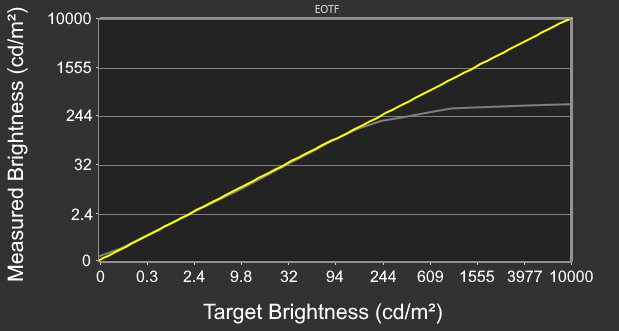
    The HDR brightness is okay. While small highlights really pop against the rest of the image, it can't sustain this brightness with larger highlights, as they don't pop as much. It also has some issues with PQ EOTF tracking, as there's a slow roll-off before the peak brightness, so it doesn't let highlights get as bright as possible.

    You can also see the results with Uniform Brightness on below:

    • Real Scene: 255 cd/m²
    Window Size Peak Sustained
    2% 255 cd/m² 254 cd/m²
    10% 252 cd/m² 251 cd/m²
    25% 254 cd/m² 253 cd/m²
    50% 254 cd/m² 255 cd/m²
    100% 255 cd/m² 252 cd/m²
    9.3
    Gray Uniformity
    50% Std. Dev.
    0.602%
    50% DSE
    0.100%

    The gray uniformity is fantastic. There aren't any noticeable issues.

    10
    Black Uniformity
    Native Std. Dev.
    0.293%
    Std. Dev. w/ L.D.
    N/A

    The black uniformity is remarkable, with a uniform black level across the screen.

    8.5
    Color Accuracy (Pre-Calibration)
    Picture Mode
    sRGB Cal Mode
    sRGB Gamut Area xy
    107.0%
    White Balance dE (Avg.)
    1.74
    Color Temperature (Avg.)
    6,411 K
    Gamma (Avg.)
    2.27
    Color dE (Avg.)
    1.49
    Contrast Setting
    N/A
    RGB Settings
    Default
    Gamma Setting
    Default
    Brightness Setting
    44
    Measured Brightness
    119 cd/m²
    Brightness Locked
    No

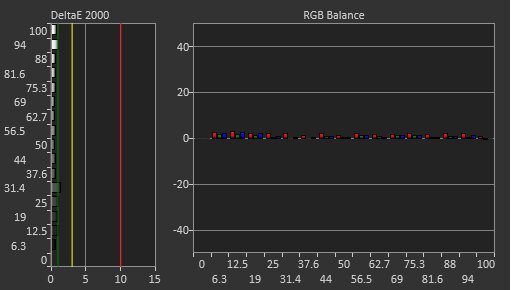
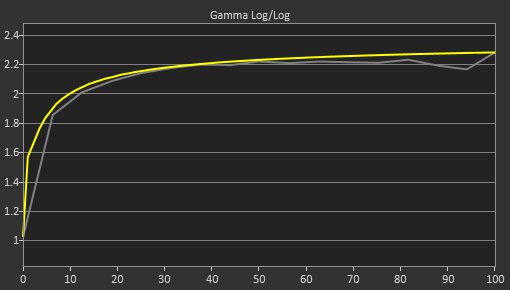
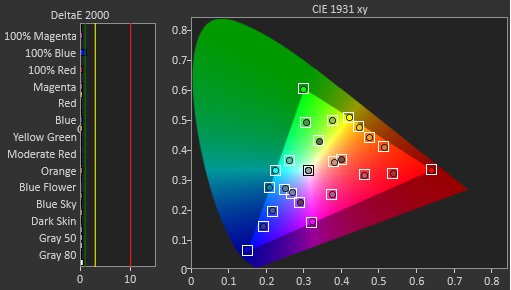
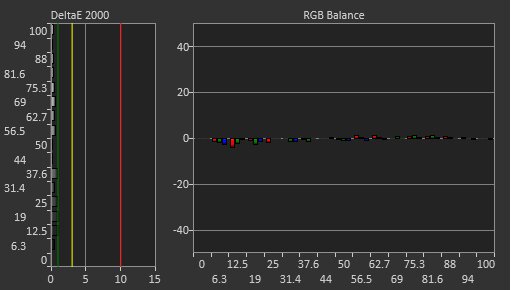
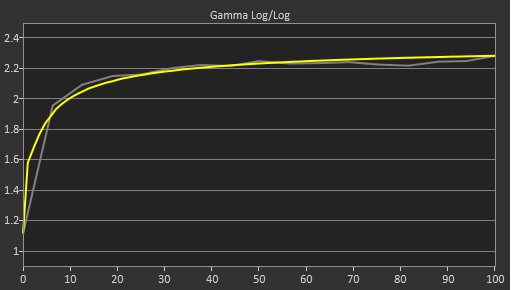
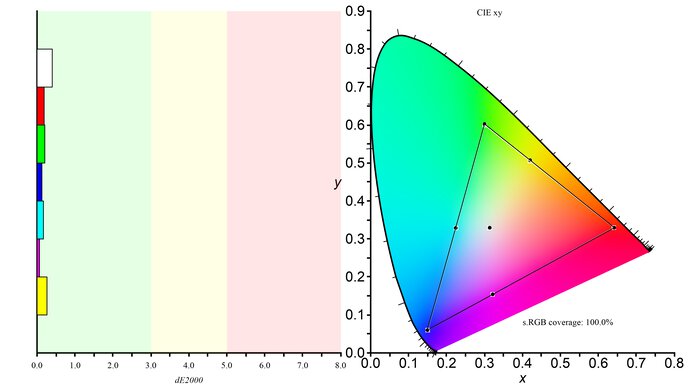
    The accuracy before calibration in the sRGB color space is excellent. It locks colors fairly well to the sRGB color space, and although some primary colors are still slightly oversaturated, you likely won't notice this. On top of that, most colors, the color temperature, and the white balance are still accurate, but gamma tracking is a bit darker than intended.

    Using the 'sRGB Cal Mode' GameVisual locks a few settings, which are listed below. That said, if you want to use another mode that gives you more access to these settings, then colors are more oversaturated.

    • Shadow Boost
    • Uniform Brightness
    • Contrast
    • Blue Light Filter
    • Display Color Space
    • Color Temp.
    • Saturation
    • Six-axis Saturation
    • Gamma
    9.8
    Color Accuracy (Post-Calibration)
    Picture Mode
    User Mode
    sRGB Gamut Area xy
    100.4%
    White Balance dE (Avg.)
    0.43
    Color Temperature (Avg.)
    6,500 K
    Gamma (Avg.)
    2.19
    Color dE (Avg.)
    0.44
    Contrast Setting
    75
    RGB Settings
    97-98-97
    Gamma Setting
    2.2
    Brightness Setting
    25
    Measured Brightness
    100 cd/m²
    ICC Profile
    Download

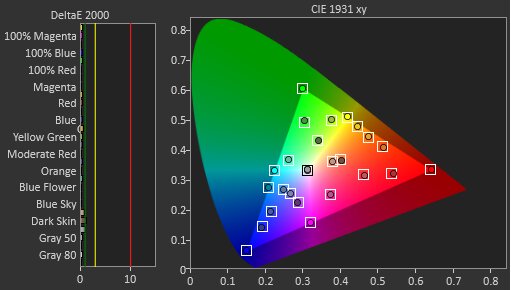
    The accuracy after calibration is outstanding. There aren't any visible issues, and the main advantage of calibrating it is that you have access to settings that are locked out in the sRGB mode.

    9.8
    SDR Color Gamut
    sRGB Coverage xy
    100.0%
    sRGB Picture Mode
    User Mode
    Adobe RGB Coverage xy
    95.2%
    Adobe RGB Picture Mode
    User Mode

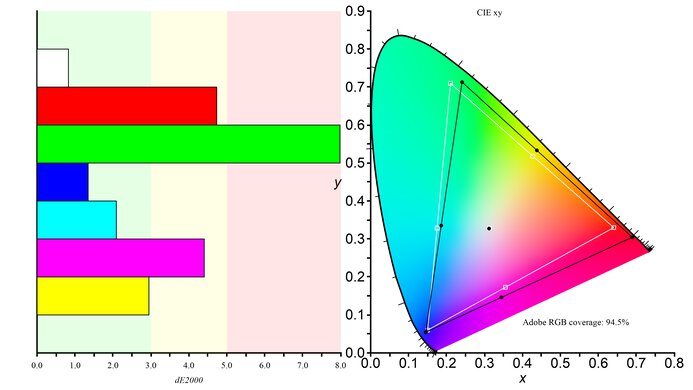
    The SDR color gamut is remarkable. It displays the sRGB color space used in most web content almost perfectly, and it also displays a wide range of colors in the Adobe RGB color space, but they're oversaturated.

    9.6
    HDR Color Gamut
    Wide Color Gamut
    Yes
    DCI-P3 Coverage xy
    99.3%
    DCI-P3 Picture Mode
    Console HDR
    Rec. 2020 Coverage xy
    79.8%
    Rec. 2020 Picture Mode
    Console HDR

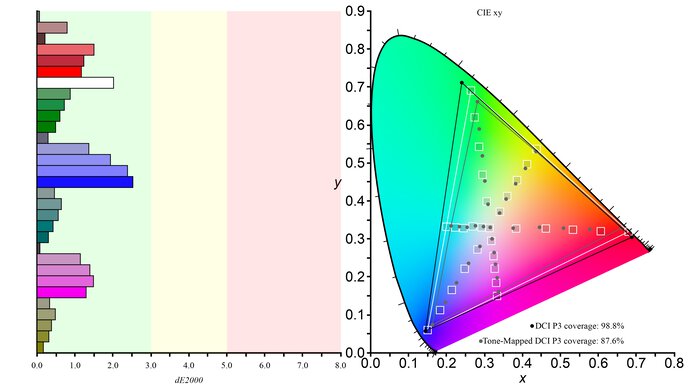
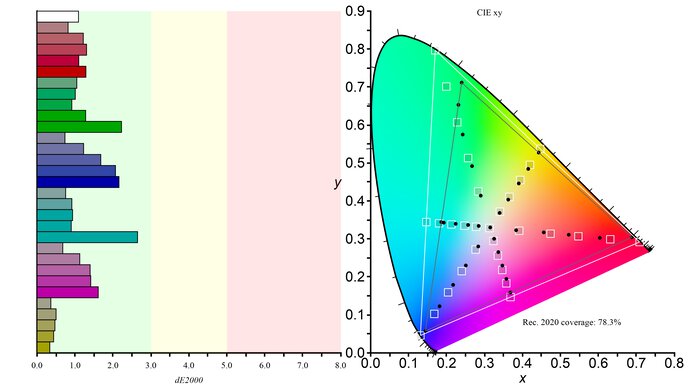
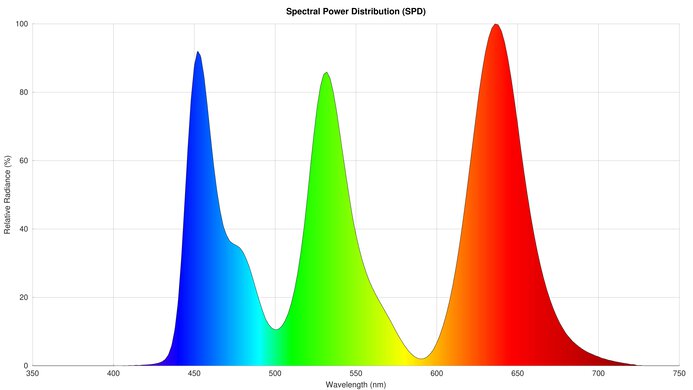
    The HDR color gamut is exceptional. It displays a wide range of colors in both the commonly-used DCI-P3 and wider Rec. 2020 color spaces, and there are minimal tone mapping issues with either.

    8.9
    HDR Color Volume
    1,000 cd/m² DCI-P3 Coverage ICtCp
    97.0%
    DCI-P3 Picture Mode
    Console HDR
    10,000 cd/m² Rec. 2020 Coverage ICtCp
    47.6%
    Rec. 2020 Picture Mode
    Console HDR

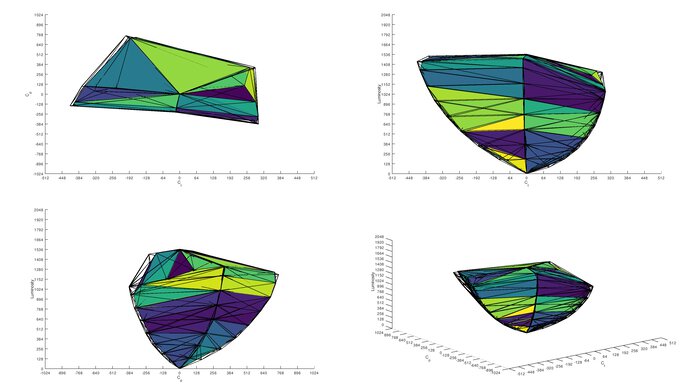
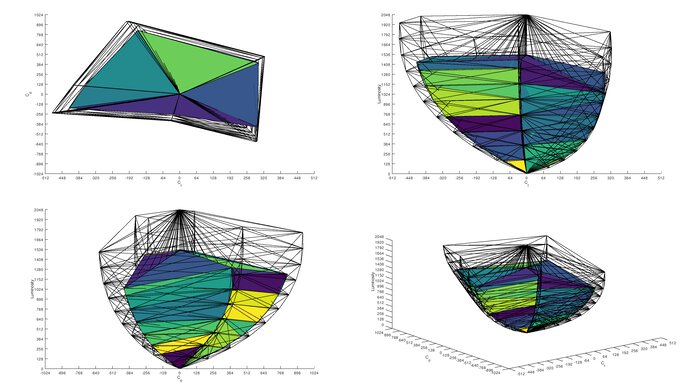
    The ASUS ROG Strix OLED XG27ACDNG has an amazing HDR color volume. It displays dark and bright colors very well.

    10
    Viewing Angle
    Color Washout From Left
    70°
    Color Washout From Right
    70°
    Color Shift From Left
    70°
    Color Shift From Right
    70°
    Brightness Loss From Left
    70°
    Brightness Loss From Right
    70°
    Black Level Raise From Left
    70°
    Black Level Raise From Right
    70°
    Gamma Shift From Left
    70°
    Gamma Shift From Right
    70°

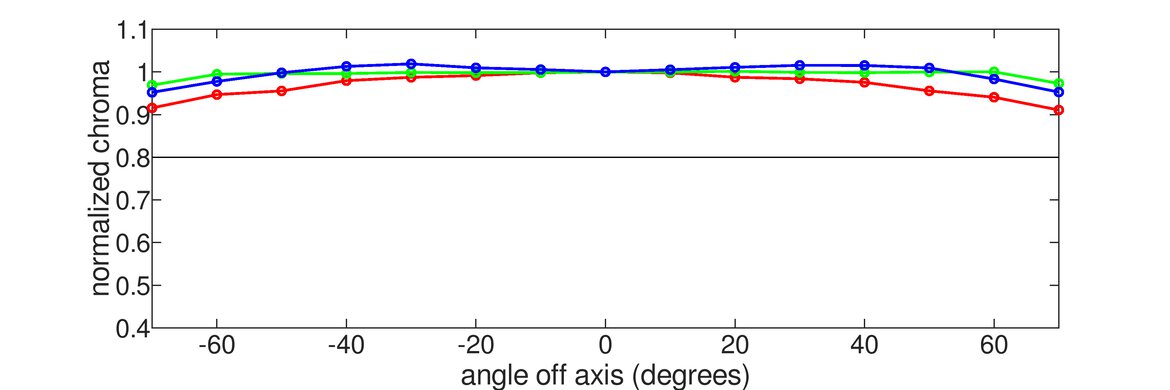
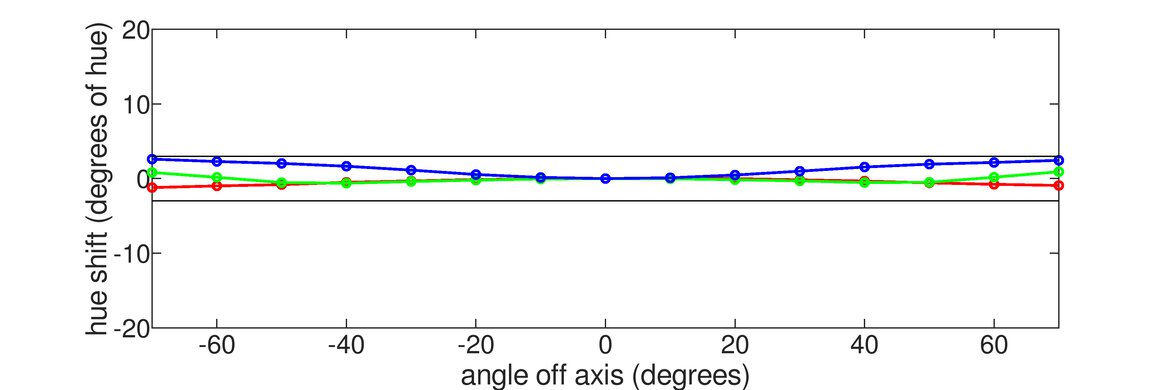
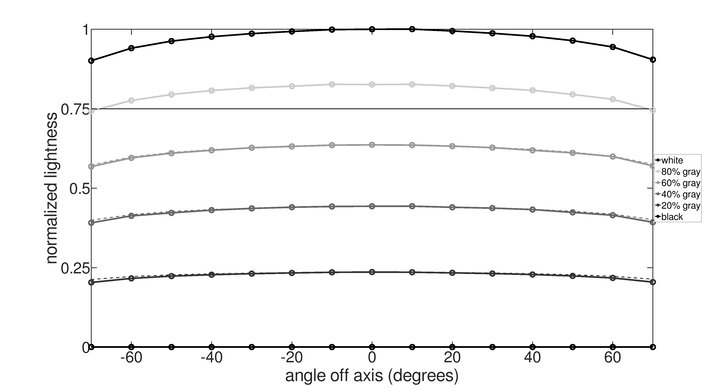
    The horizontal viewing angle is fantastic. Although it technically isn't perfect, you visually won't see any inconsistencies when viewing from the sides or if you sit close to the screen.

    7.0
    Text Clarity
    Pixel Type
    QD-OLED
    Subpixel Layout
    Triangular RGB

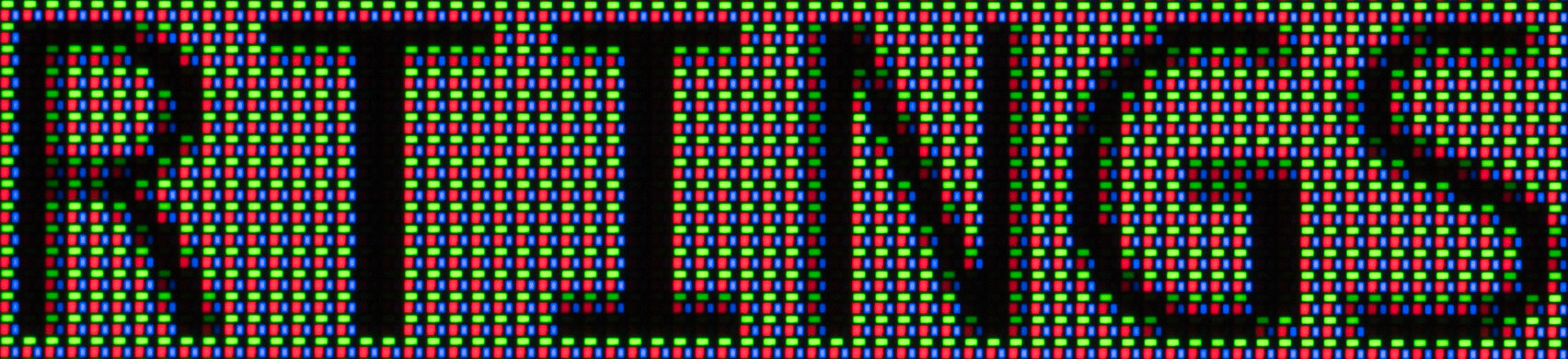
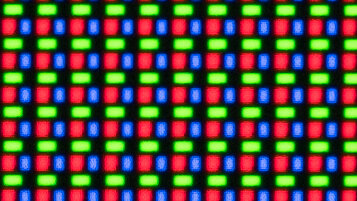
    The text clarity is decent. It isn't as good as 27-inch, 1440p monitors with IPS panels due to the fact that programs don't render text well with the triangular subpixel layout. Enabling Windows ClearType (top photo) makes text sharper, though. These photos are in Windows 10, and you can also see them in Windows 11 with ClearType on and with ClearType off.

    Due to the triangular subpixel layout, there's some color fringing around letters and at the edge of windows, though it's hard to see unless you look closely at the monitor. Whether or not you notice it or it bothers you changes from person to person, and it depends on how sensitive you are to this subpixel layout.

    If you want a QD-OLED with higher pixel density for less fringing and better text clarity, you can also check out the ASUS ROG Swift OLED PG27UCDM.

    7.0
    Direct Reflections
    See details on graph tool
    Peak Direct Reflection Intensity
    25.4%
    Screen Finish
    Glossy

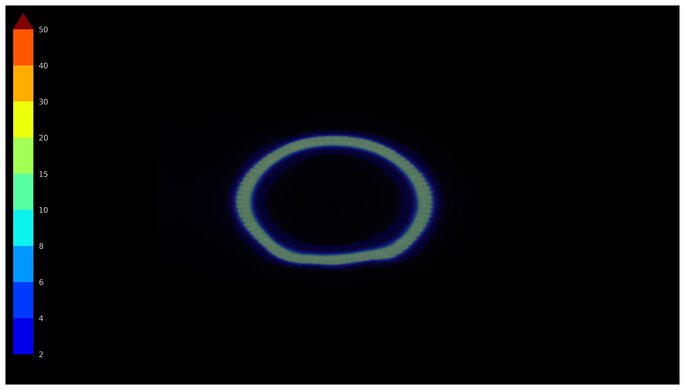
    The direct reflection handling is decent. Light bounces off like a mirror, but glare isn't too strong either. However, the screen isn't perfectly flat, so some bright objects look warped on the screen. That said, how much you notice this depends on the light source itself and its positioning in front of the monitor. If you're looking for a monitor with no mirror-like reflections, take a look at the Samsung Odyssey OLED G81SF S27FG810S.

    4.1
    Ambient Black Level Raise
    See details on graph tool
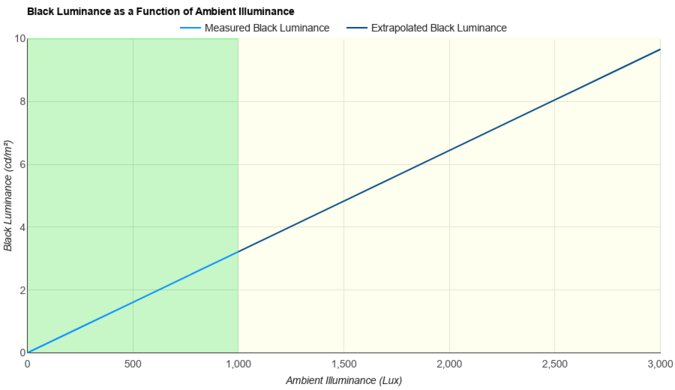
    Black Luminance @ 0 lx
    0.00 cd/m²
    Black Luminance @ 1000 lx
    3.53 cd/m²

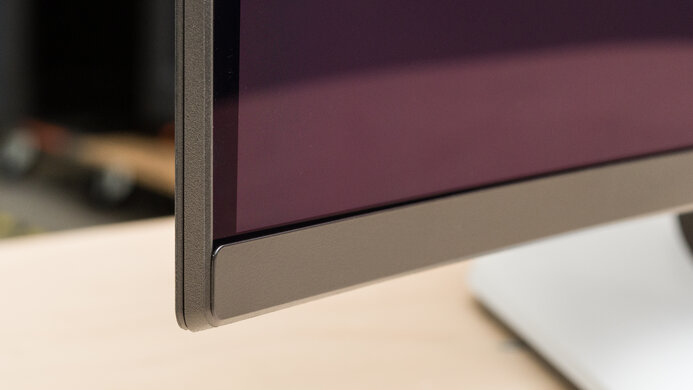
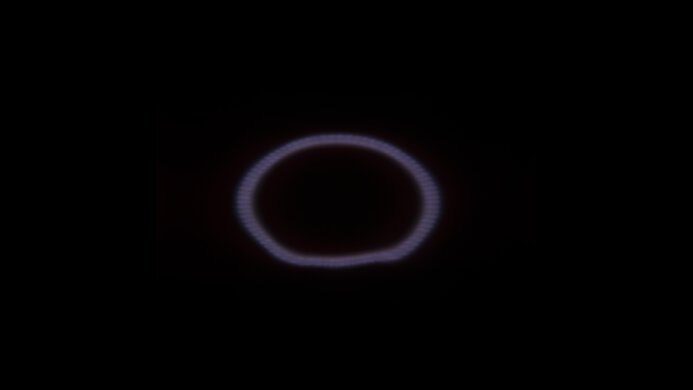
    This monitor has noticeable black level raise in bright rooms. Mainly due to the fact that it lacks a polarizer, blacks look purple in bright rooms, which is a typical issue with QD-OLEDs. This means you need to use it in a dark room to get the best black levels.

    9.0
    Total Reflected Light
    Total Reflected Light Intensity
    4,720% ⋅ pixel
    Diffraction Artifacts
    No

    There's minimal total reflected light on this monitor. Even strong light sources aren't distracting, so visibility isn't an issue in bright rooms.

    9.6
    Gradient
    Color Depth
    10 Bit

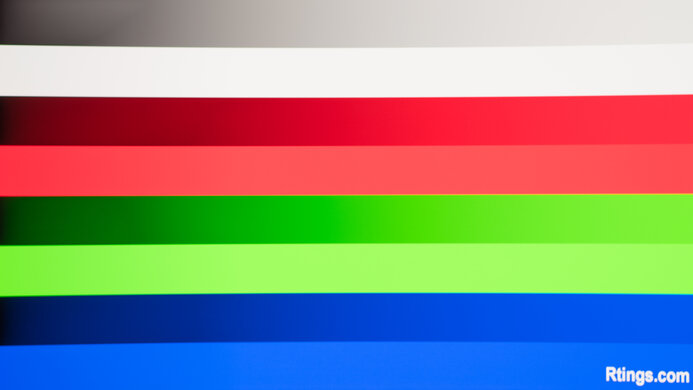
    The gradient handling is fantastic, and it's hard to notice any banding between shades of similar colors.

    Motion
    8.4
    Refresh Rate
    Native Refresh Rate
    360 Hz
    Max Refresh Rate
    360 Hz
    Max Refresh Rate Over DP
    360 Hz
    Max Refresh Rate Over HDMI
    360 Hz
    Max Refresh Rate Over DP @ 10-bit
    360 Hz
    Max Refresh Rate Over HDMI @ 10-Bit
    360 Hz
    DSC Toggle
    Yes
    DSC Off Max Refresh Rate Over DP
    180 Hz
    DSC Off Max Refresh Rate Over HDMI
    180 Hz

    You need to enable DSC Support in the monitor's OSD to reach the max refresh rate over DisplayPort and HDMI connections. Disabling it results in a lower refresh rate. If you want a monitor with an even higher refresh rate, take a look at the LG 27GX790A-B.
    Variable Refresh Rate (VRR)
    Variable Refresh Rate
    Yes
    FreeSync
    Yes
    G-SYNC
    Compatible (NVIDIA Certified)
    VRR Maximum
    360 Hz
    VRR Minimum
    < 20 Hz
    VRR Supported Connectors
    DisplayPort, HDMI

    NVIDIA - G-SYNC Compatibility
    Connection VRR Min VRR Max
    DisplayPort <20Hz 360Hz
    HDMI <20Hz 360Hz
    AMD - FreeSync
    Connection VRR Min VRR Max
    DisplayPort <20Hz 360Hz
    HDMI <20Hz 360Hz

    The ASUS ROG Strix XG27ACDNG supports FreeSync VRR and G-SYNC compatibility, as well as HDMI Forum VRR.
    9.8
    VRR Motion Performance
    See details on graph tool
    Recommended VRR OD Setting
    No OD Mode
    Variable Overdrive Advertised
    No
    Avg. CAD
    22
    Best CAD
    22
    Worst CAD
    23

    Frame Rate CAD Heatmap RT Chart Pursuit Photo
    358 Heatmap Chart Photo
    240 Heatmap Chart Photo
    165 Heatmap Chart Photo
    144 Heatmap Chart Photo
    120 Heatmap Chart Photo
    100 Heatmap Chart Photo
    80 Heatmap Chart Photo
    60 Heatmap Chart Photo

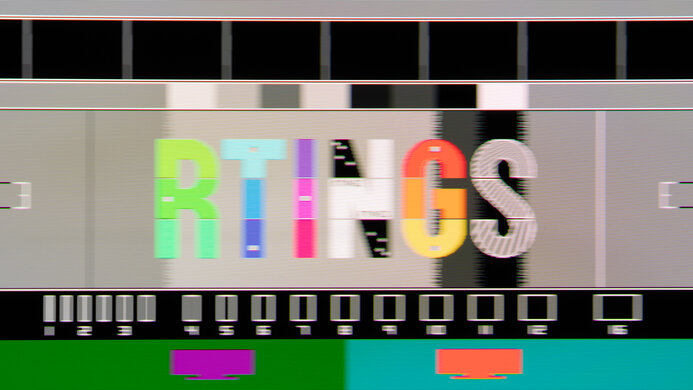
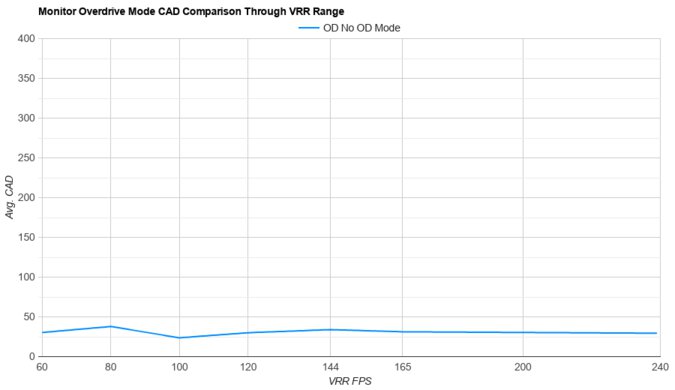
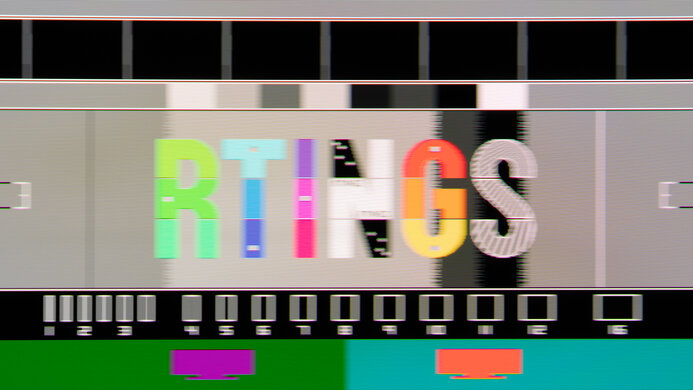
    The ASUS ROG Strix XG27ACDNG has outstanding motion handling across its entire refresh rate range with VRR enabled. There's minimal blur with fast-moving objects at any refresh rate.

    9.7
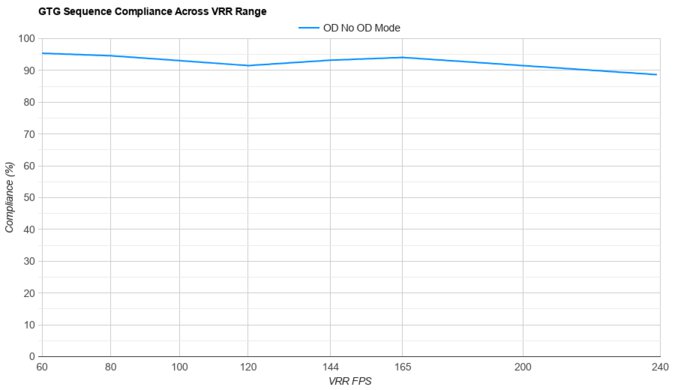
    Refresh Rate Compliance
    See details on graph tool
    See details on graph tool
    Compliance @ Max Hz
    85%
    Compliance @ 120 FPS
    94%
    Compliance @ 60 FPS
    96%

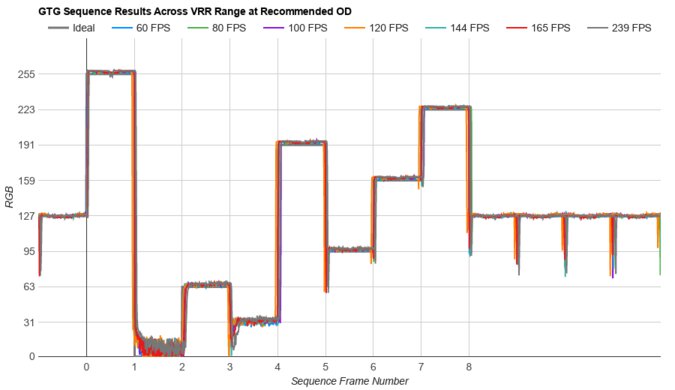
    The refresh rate compliance is incredible. With a near-instantaneous response time, it makes full color transitions before the monitor draws the next frame.

    9.8
    CAD @ Max Refresh Rate
    OD Transition Max Refresh Rate
    od-transition-max-refresh-rate-nomode-0-31
    OD nomode
    0 to 31
    Recommended Overdrive Setting
    No OD Mode
    Avg. CAD
    22
    Best 10% CAD
    14
    Worst 10% CAD
    36

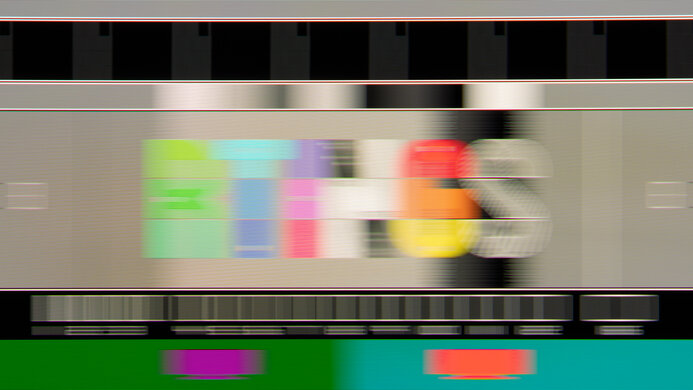
    Overdrive Mode CAD Heatmap RT Chart Pursuit Photo
    No Overdrive Heatmap Chart Photo

    The CAD at the maximum refresh rate is remarkable. It displays fast-moving objects as intended, and motion is extremely sharp.

    Response Time @ Max Refresh Rate
    Recommended Overdrive Setting
    No OD Mode
    First Response Time
    0.6 ms
    Total Response Time
    0.6 ms
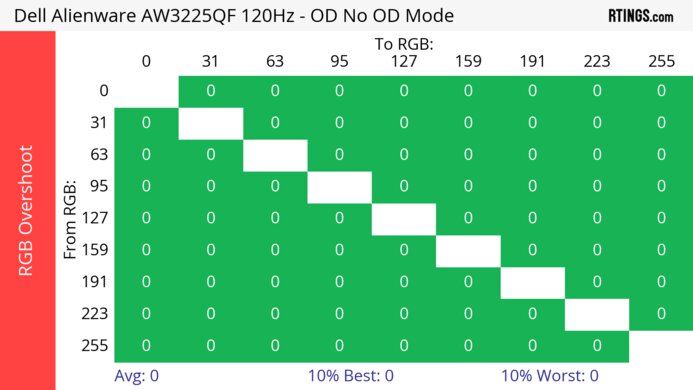
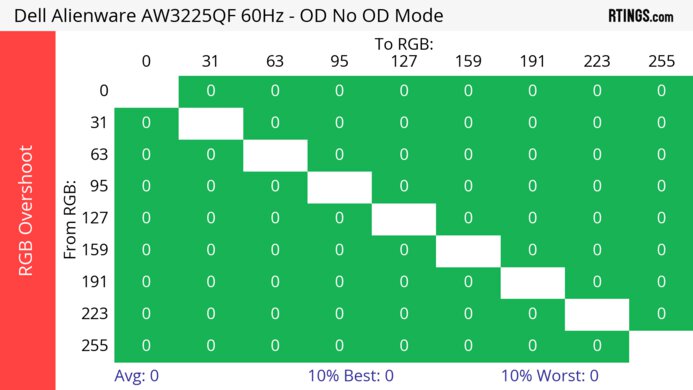
    RGB Overshoot
    0 RGB
    Worst 10% First Response Time
    2.4 ms
    Worst 10% Total Response Time
    2.4 ms
    Worst 10% RGB Overshoot
    0 RGB

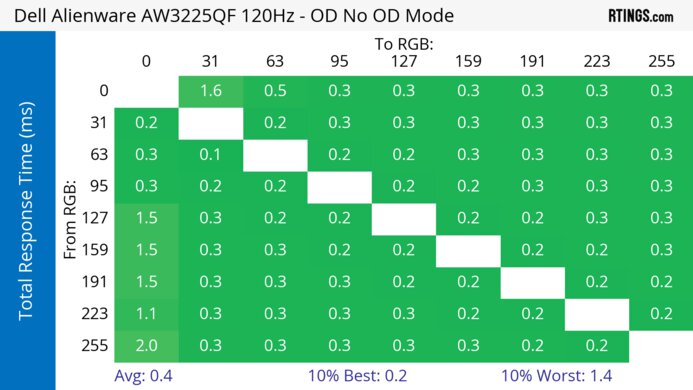
    Overdrive Mode First Response Heatmap Total Response Heatmap RGB Overshoot Heatmap
    No Overdrive Heatmap Heatmap Heatmap

    9.8
    CAD @ 120Hz
    OD Transition 120Hz
    od-transition-120-noodmode-0-31
    OD noodmode
    0 to 31
    Recommended Overdrive Setting
    No OD Mode
    Avg. CAD
    22
    Best 10% CAD
    12
    Worst 10% CAD
    33

    Overdrive Mode CAD Heatmap RT Chart Pursuit Photo
    No Overdrive Heatmap Chart Photo

    The CAD at 120Hz is outstanding. Pixels transition to their target RGB level almost instantly, so there isn't any visible blur or inverse ghosting.

    Response Time @ 120Hz
    Recommended Overdrive Setting
    No OD Mode
    First Response Time
    0.6 ms
    Total Response Time
    0.7 ms
    RGB Overshoot
    0 RGB
    Worst 10% First Response Time
    2.3 ms
    Worst 10% Total Response Time
    3.1 ms
    Worst 10% RGB Overshoot
    1 RGB

    Overdrive Mode First Response Heatmap Total Response Heatmap RGB Overshoot Heatmap
    No Overdrive Heatmap Heatmap Heatmap

    9.8
    CAD @ 60Hz
    OD Transition 60Hz
    od-transition-60-noodmode-0-31
    OD noodmode
    0 to 31
    Recommended Overdrive Setting
    No OD Mode
    Avg. CAD
    23
    Best 10% CAD
    12
    Worst 10% CAD
    38

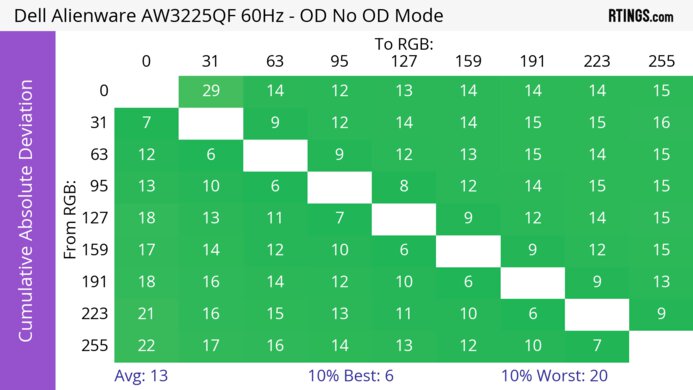
    Overdrive Mode CAD Heatmap RT Chart Pursuit Photo
    No Overdrive Heatmap Chart Photo

    The CAD at 60Hz is fantastic. Although some transitions are a bit slower than other OLEDs, it's hard to see any difference, and any noticeable blur is persistence blur.

    Response Time @ 60Hz
    Recommended Overdrive Setting
    No OD Mode
    First Response Time
    0.7 ms
    Total Response Time
    1.0 ms
    RGB Overshoot
    0 RGB
    Worst 10% First Response Time
    3.1 ms
    Worst 10% Total Response Time
    5.6 ms
    Worst 10% RGB Overshoot
    1 RGB

    Overdrive Mode First Response Heatmap Total Response Heatmap RGB Overshoot Heatmap
    No Overdrive Heatmap Heatmap Heatmap

    Backlight Strobing (BFI)
    Backlight Strobing (BFI)
    Yes
    Maximum Frequency
    180 Hz
    Minimum Frequency
    120 Hz
    Longest Pulse Width Brightness
    146 cd/m²
    Shortest Pulse Width Brightness
    146 cd/m²
    Pulse Width Control
    No
    Pulse Phase Control
    No
    Pulse Amplitude Control
    No
    VRR At The Same Time
    No

    Refresh Rate Pursuit Photo
    180Hz Photo
    120Hz Photo

    The ASUS XG27ACDNG has a black frame insertion feature to reduce persistence blur. However, it's limited in how you can use it as it only works with fixed 120Hz or 180Hz refresh rates, and the flicker isn't properly working as it should. It doesn't stay off long enough to get dark and doesn't impact motion, meaning there's still some persistence blur with fast-moving objects. It also locks the Brightness to '70.'

    5.2
    VRR Flicker
    Dark Gray Flicker
    5.7 RGB
    Middle Gray Flicker
    0.9 RGB
    Light Gray Flicker
    2.3 RGB

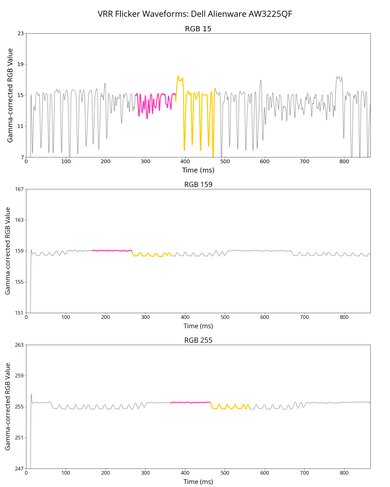
    The ASUS XG27ACDNG has noticeable VRR flicker with changing frame rates, which is most distracting in dark scenes. You can avoid this issue by setting a frame rate cap or if your PC can maintain consistent frame rates.

    There's an OLED Anti-Flicker setting that's meant to reduce flicker, but it only works over DisplayPort and actually disables VRR. It only works with fixed 360Hz, 120Hz, 100Hz, and 60Hz signals. Instead of having VRR flicker, it introduces stuttering and screen tearing.

    OLED Anti-Flicker Middle High
    Dark Gray Flicker 1.12 RGB 2.24 RGB
    Middle Gray Flicker 0.35 RGB 0.4 RGB
    Light Gray Flicker 0.87 RGB 0.2 RGB
    Flicker Graph Graph Graph
    10
    Image Flicker
    Flicker-Free
    No
    PWM Dimming Frequency
    0 Hz

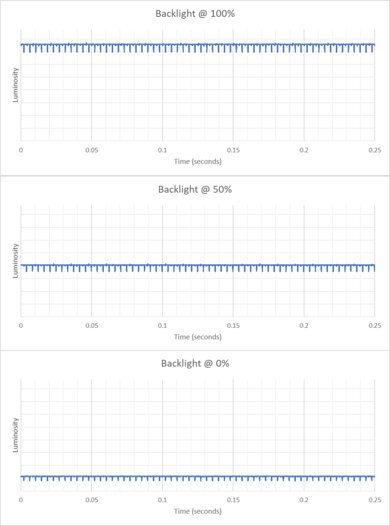
    The backlight isn't technically flicker-free because it has a slight dip in brightness that corresponds to the 360Hz refresh rate.

    Inputs
    9.1
    Input Lag
    Native Resolution @ Max Hz
    2.0 ms
    Native Resolution @ 120Hz
    5.5 ms
    Native Resolution @ 60Hz
    14.2 ms
    Backlight Strobing (BFI)
    6.8 ms

    The monitor has low input lag for a responsive feel, and it remains low even if you use OLED Anti-Flicker. If you're looking for a monitor with even lower input lag, check out the Sony INZONE M10S.

    7.5
    Resolution
    Native Resolution
    2560 x 1440
    Aspect Ratio
    16:9
    Megapixels
    3.7 MP
    Pixel Density
    109 PPI

    If you want a monitor with the same fantastic image quality but prefer a sharper, more detailed image, check out the 4k MSI MPG 322URX QD-OLED.

    9.3
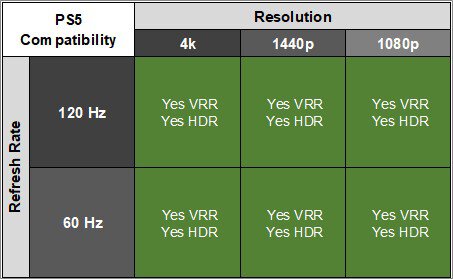
    PS5 Compatibility
    4k @ 120Hz
    Yes
    4k @ 60Hz
    Yes
    1440p @ 120Hz
    Yes
    1440p @ 60Hz
    Yes
    1080p @ 120Hz
    Yes
    1080p @ 60Hz
    Yes

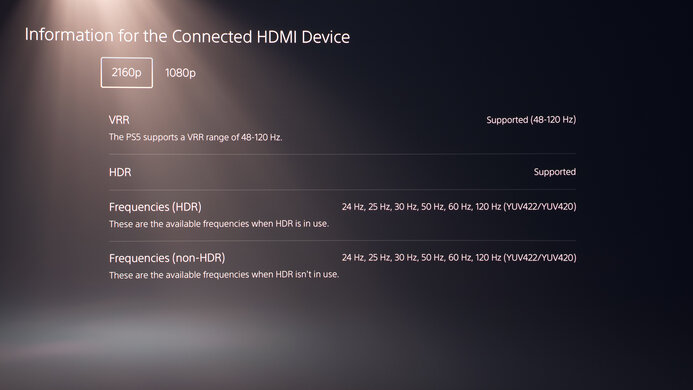
    Besides the fact that it needs to downscale 4k signals, there aren't any compatibility issues with the PS5 or PS5 Pro.

    9.3
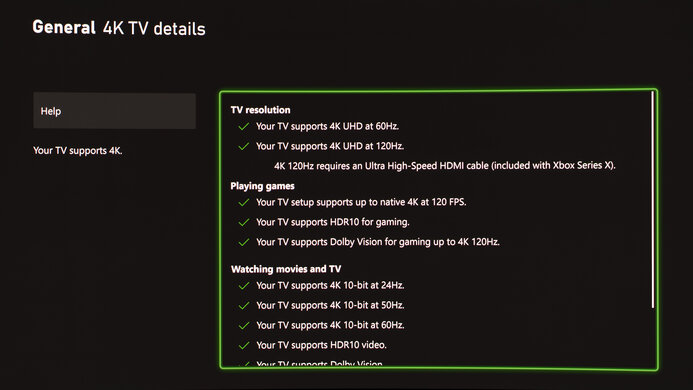
    Xbox Series X|S Compatibility
    4k @ 120Hz
    Yes
    4k @ 60Hz
    Yes
    1440p @ 120Hz
    Yes
    1440p @ 60Hz
    Yes
    1080p @ 120Hz
    Yes
    1080p @ 60Hz
    Yes

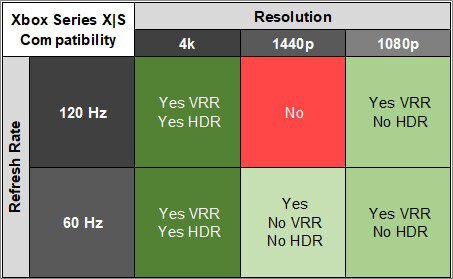
    As the Xbox only supports HDR with 4k signals, you can only get HDR with downscaled 4k signals with this monitor.

    Inputs
    DisplayPort
    1 (DP 1.4)
    DisplayPort Transmission Bandwidth
    No DisplayPort 2.1
    Mini DisplayPort
    No
    HDMI
    2 (HDMI 2.1)
    HDMI 2.1 Bandwidth
    48Gbps (FRL 12x4)
    Daisy Chaining
    No
    3.5mm Audio Out
    Yes
    Ethernet
    No
    HDR10
    Yes
    Dolby Vision
    No
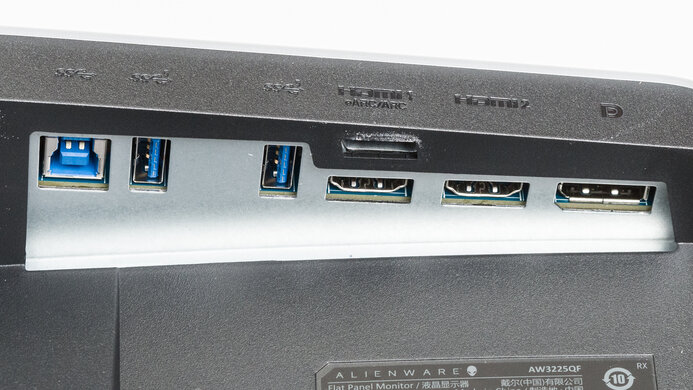
    USB
    USB-A Ports
    3
    USB-A Rated Speed
    5Gbps (USB 3.2 Gen 1)
    USB-B Upstream Port
    Yes
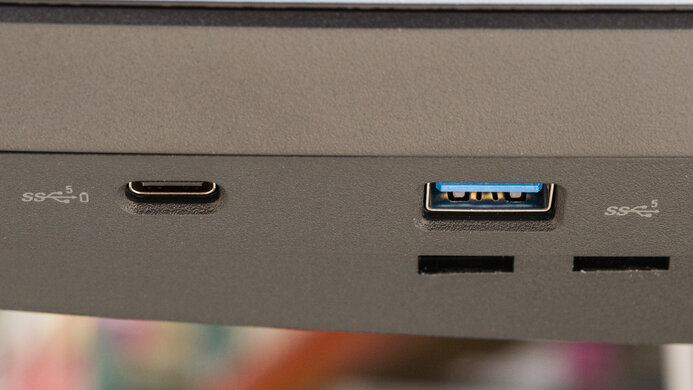
    USB-C Ports
    1
    USB-C Upstream
    Yes
    USB-C Rated Speed
    5Gbps (USB 3.2 Gen 1)
    USB-C Power Delivery
    90W
    USB-C DisplayPort Alt Mode
    Yes
    Thunderbolt
    No

    The USB-C port allows you to display an image from a compatible device, and the 90W of power delivery is enough to charge most laptops.

    macOS Compatibility

    Connection HDMI 2.0 HDMI 2.1 USB-C or DP
    Max Refresh Rate 144Hz 360Hz 360Hz
    VRR Range N/A 48-360Hz 48-360Hz
    HDR Yes Yes Yes

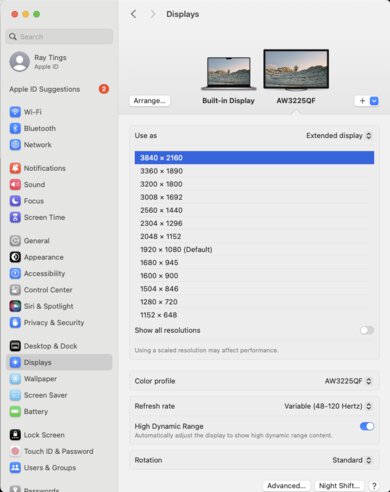
    The ASUS XG27ACDNG works well with macOS, and there aren't any issues with HDR or VRR. If you're using a MacBook with an HDMI connection, closing the lid puts the monitor to sleep, and when you open it again, windows return to their original position. That said, you can continue working on the monitor with a USB-C connection when you close the lid.

    Features
    Additional Features
    Speakers
    No
    RGB Illumination
    Controllable
    Multiple Input Display
    PIP + PBP
    KVM Switch
    Yes
    Smart OS
    No

    This monitor has a ton of extra features to improve your gaming experience, including:

    • Aspect Control: You can change the display area to simulate a 24.5-inch image or a 4:3 aspect ratio.
    • Blue Light Filter: Reduces blue light to help reduce eye strain.
    • GamePlus: Includes the following gaming features: FPS Counter, Crosshair, Sniper, Timer, Stopwatch, and Display Alignment.
    • Lighting Effect: Offers settings to control the monitor's RGB lighting, like Aura Sync and Aura RGB.
    • PIP/PBP: Has settings to adjust the picture-in-picture and picture-by-picture modes.

    It also includes a few settings to reduce the risk of burn-in associated with OLEDs. They're all under the OLED Care section:

    • Screen Saver: Dims the screen when there's no movement on the screen after a certain period.
    • Pixel Cleaning: This feature fixes any burn-in issues, and it runs when you turn the screen off. It takes about six minutes to complete, and there's a reminder that pops up when to start it. It also has an OLED Usage Info setting to show how many times the cleaning cycle has been performed.
    • Screen Move: Moves the image by a few pixels at a time so that pixels aren't always displaying the same thing.
    • Auto Logo Brightness: Dims static logos on the screen.
    On-Screen Display (OSD)

    You can read more about the OSD in the user manual.