Samsung Odyssey OLED G81SF S27FG810S  Monitor Review

Reviewed Jul 11, 2025 at 09:18am
Test bench update Nov 10, 2025 at 09:01am
Tested using Methodology v2.1.1 
Samsung Odyssey OLED G81SF S27FG810S
9.1
PC Gaming 
9.4
Console Gaming 
8.4
Office 
9.2
Editing 
6.8
Brightness 
9.8
Response Time 
9.4
HDR Picture 
9.9
SDR Picture 
 55

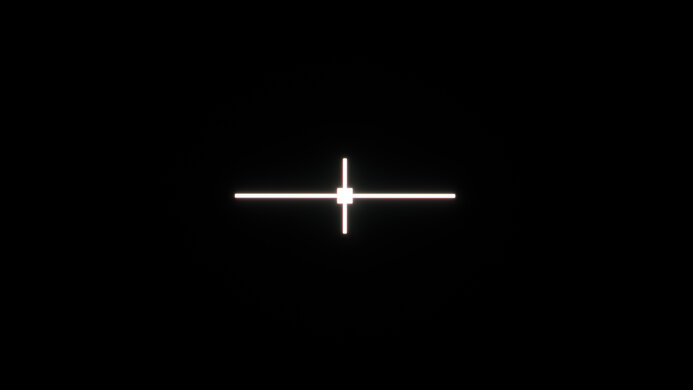
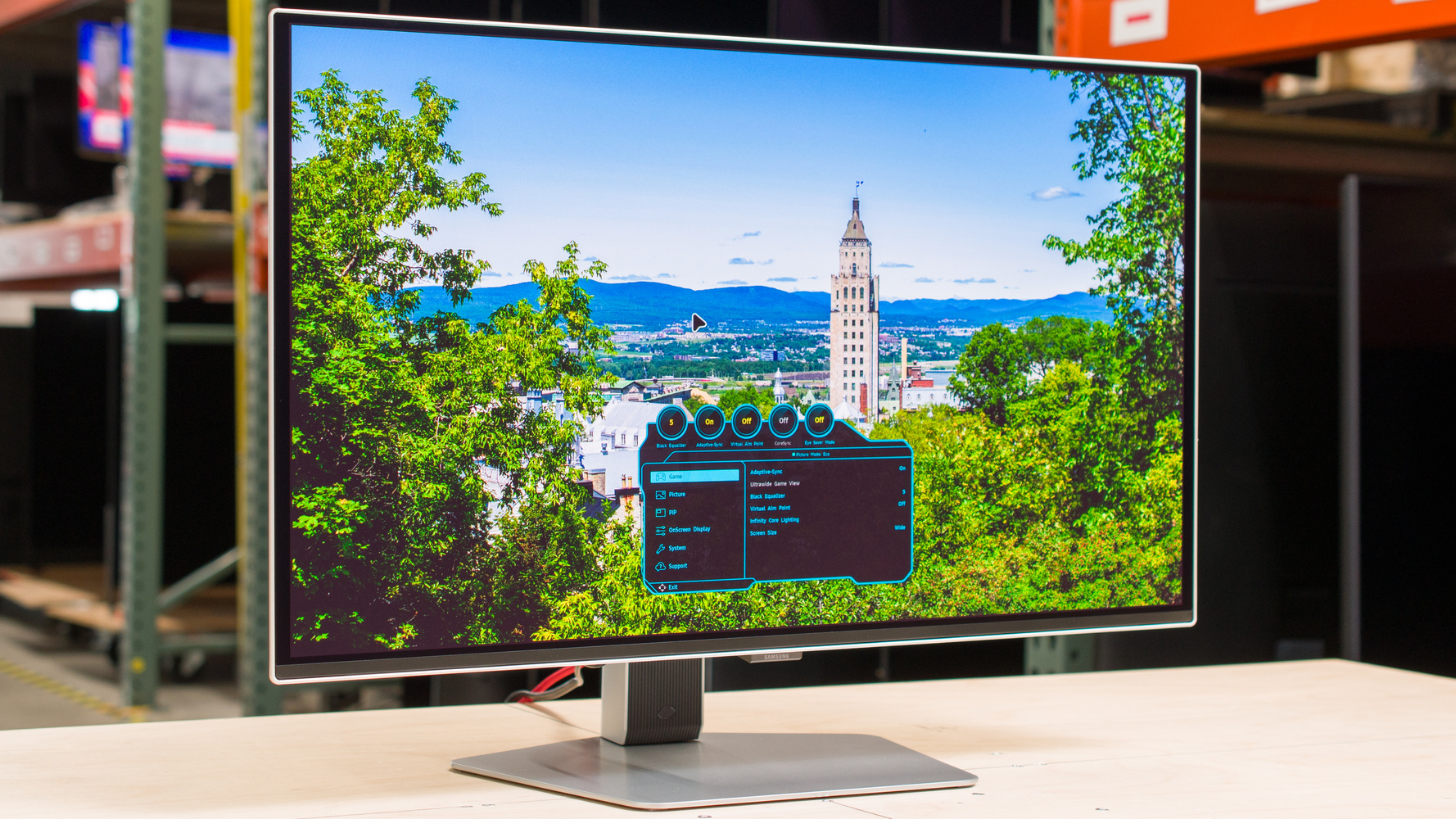
The Samsung G81SF is a premium 4k, 240Hz QD-OLED gaming monitor. It competes against several other 27-inch 4k QD-OLEDs, such as the ASUS ROG Swift OLED PG27UCDM, the Dell Alienware AW2725Q, and the MSI MPG 272URX QD-OLED. It's quite similar to the larger 32-inch G81SF version of this monitor, though it lacks the Tizen OS and remote found in the older Samsung Odyssey OLED G80SD S32DG80. Like other Samsung QD-OLED monitors, it has a matte screen and features you'd expect to see on a gaming monitor, like HDMI 2.1 bandwidth and VRR support, including a 'VRR Control' function to reduce VRR flicker. It also has gaming features such as a virtual crosshair overlay and adjustable LED lighting.

Our Verdict

9.1
PC Gaming 

The Samsung G81SF is superb for gaming. Its 240Hz refresh rate and very low input lag create a responsive feel. Games also look very sharp with its 4k resolution, and its superb response time makes fast-moving objects look crisp. Additionally, it has outstanding image quality, as it displays deep blacks in a dark room, vivid colors, and small highlights that pop. However, it has distracting VRR flicker if VRR Control is off, and deep blacks appear purple in bright rooms.

Pros
  • Very crisp motion.

  • 240Hz refresh rate with VRR support.

  • Low input lag at any refresh rate.

  • Deep and inky blacks in dark rooms.

  • Displays a wide range of vivid colors.

  • Detailed Image.

Cons
  • Deep blacks look purple in a bright room.

  • Distracting VRR flicker with changing frame rates.

9.4
Console Gaming 

The Samsung G81SF is outstanding for console gaming. It supports all console features, including VRR, and it has a 4k resolution for sharp images. It also has crisp motion handling and very low input lag for a responsive feel. Additionally, it has fantastic picture quality, with small highlights that pop, vivid colors, and deep blacks in a dark room. However, in bright rooms deep blacks look purple.

Pros
  • Very crisp motion.

  • Low input lag at any refresh rate.

  • Deep and inky blacks in dark rooms.

  • Displays a wide range of vivid colors.

  • Works well with the PS5, PS5 Pro, and Xbox Series X|S consoles.

  • Detailed Image.

Cons
  • Deep blacks look purple in a bright room.

8.4
Office 

The Samsung G81SF is impressive for work, with a few caveats. It displays sharp text because of its 4k resolution, and it's easy to adjust because of its fantastic ergonomics. However, despite having amazing reflection handling, it doesn't get bright enough to overcome strong glare. Additionally, there's a risk of permanent burn-in if you always display static elements like taskbars in the same place on your screen.

Pros
  • Very sharp text.

  • Fantastic ergonomics.

  • Amazing reflection handling.

Cons
  • Not bright enough to fight strong glare.

  • Risk of burn-in.

9.2
Editing 

The Samsung G81SF is fantastic for editing. It's particularly good for editing HDR content, as it displays deep blacks in a dark room, has vivid colors, and makes small highlights pop. Its 4k resolution also ensures sharp text and detailed images. Additionally, it's quite accurate before calibration, though most parts of scenes aren't as bright as they should be. Finally, there's a risk of burn-in if the same static elements are always in the same place on your screen.

Pros
  • Deep and inky blacks in dark rooms.

  • Displays a wide range of vivid colors.

  • Very sharp text.

  • Accurate before calibration.

  • Small highlights pop in HDR.

  • Detailed Image.

  • Amazing reflection handling.

Cons
  • Deep blacks look purple in a bright room.

  • Not bright enough to fight strong glare.

  • Risk of burn-in.

  • Most parts of scenes are dimmer than they should be.

6.8
Brightness 

The Samsung G81SF is bright enough for you to easily see it in a well-lit room, though it's not bright enough to overcome glare in bright rooms. Additionally, while small highlights pop, larger highlights are more muted.

Pros
  • Small highlights pop in HDR.

Cons
  • Not bright enough to fight strong glare.

  • Larger highlights more muted.

9.8
Response Time 

The Samsung G81SF has a near-instantaneous response time for extremely sharp motion.

Pros
  • Very crisp motion.

Cons
None
9.4
HDR Picture 

The Samsung G81SF has superb picture quality. It displays a wide range of colors quite vividly, as well as deep blacks in a dark room. However, in a bright room, black levels rise and deep blacks appear purple.

Pros
  • Deep and inky blacks in dark rooms.

  • Displays a wide range of vivid colors.

Cons
  • Deep blacks look purple in a bright room.

9.9
SDR Picture 

The Samsung G81SF has incredible SDR picture quality. It displays a wide range of colors and displays deep blacks in dark rooms.

Pros
  • Deep and inky blacks in dark rooms.

  • Displays a wide range of vivid colors.

Cons
None
9.0
Color Accuracy 

The Samsung G81SF has superb color accuracy. It has excellent accuracy before calibration and amazing gray uniformity, and it's exceptionally accurate after calibration. However, most parts of scenes aren't as bright as they should be in SDR.

Pros
  • Accurate before calibration.

  • Uniform screen.

Cons
  • Most parts of scenes are dimmer than they should be.

  • 9.1
    PC Gaming
  • 9.4
    Console Gaming
  • 8.4
    Office
  • 9.2
    Editing

  • Performance Usages

  • 6.8
    Brightness
  • 9.8
    Response Time
  • 9.4
    HDR Picture
  • 9.9
    SDR Picture
  • 9.0
    Color Accuracy
  • Changelog

    1.  Updated Nov 10, 2025: We've converted this review to Test Bench 2.1.1. We removed the Vertical Viewing Angle test.
    2.  Updated Sep 18, 2025: 

      We clarified that the monitor's matte coating is aggressive and a bit more hazy than other matte displays.

    3.  Updated Sep 05, 2025: 

      Clarified that this monitor competes with the MSI MPG 272URX QD-OLED.

    4.  Updated Jul 11, 2025: Review published.

    Check Price

    27"S27FG810S
    SEE PRICE
    Amazon.com
    27"S27FG810S
    SEE PRICE
    BestBuy.com
    27"S27FG810S
    SEE PRICE
    Samsung.com
    27"S27FG810S
    SEE PRICE
    B&H
    27"S27FG810S
    Walmart.com

    Differences Between Sizes And Variants

    We tested the Samsung G81SF, though the full model code may vary between regions. It's also available in a larger 32-inch size at Best Buy in the US, though that model has a different panel, so the results are only valid for this monitor. You can see how this monitor compares to some of the other QD-OLEDs in Samsung's Odyssey gaming lineup.

    Name Size Max Refresh Rate Native Resolution Matte Finish Tizen OS
    G81SF (27") 27" 240Hz 4k Yes No
    G81SF (32") 32" 240Hz 4k Yes No
    G60SF 27" 500Hz 1440p Yes No
    G60SD 27" 360Hz 1440p Yes No
    G80SD 32" 240Hz 4k Yes Yes

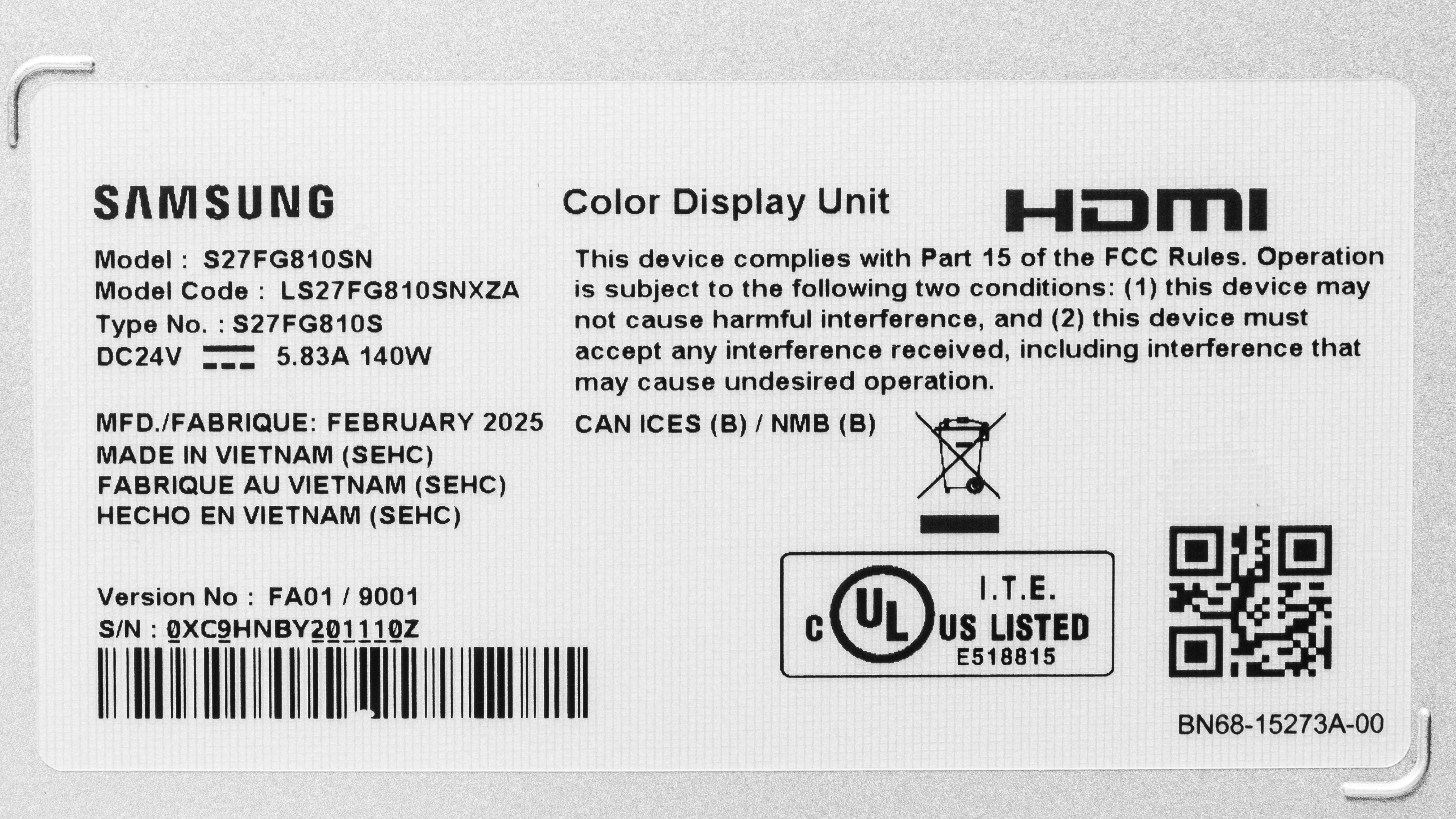
    Our unit's label indicates it was manufactured in February 2025. We tested it with firmware M-F8100GCAA-1000.1.

    Popular Monitor Comparisons

    The Samsung G81SF is a premium 4k, 240Hz QD-OLED gaming monitor. It's ideally suited to those who prefer something smaller than a 32-inch monitor, have a very powerful graphics card, and play a lot of immersive games. It's very similar in performance to its 27-inch 4k QD-OLED peers, like the Dell Alienware AW2725Q and the ASUS ROG Swift OLED PG27UCDM, with vivid colors and outstanding motion handling.

    The Samsung has a matte screen, so it's an ideal choice if you prefer this type of screen coating. That said, if you prefer a glossy screen, another QD-OLED like the Dell or the ASUS is a better choice for you. If you don't have a strong preference on screen finish, then you may want to get whichever 4k QD-OLED is cheapest, given how similarly they all perform. Also, if you don't need the high detail of a 4k monitor, you can save some money and experience a higher frame rate by choosing a 1440p QD-OLED, like the 360Hz ASUS ROG Strix OLED XG27ACDNG.

    See our recommendations for the best OLED monitors, the best HDR gaming monitors, and the best 27-inch gaming monitors.

    Samsung Odyssey OLED G80SD S32DG80

    The Samsung Odyssey OLED G80SD S32DG80 and the Samsung Odyssey OLED G81SF S27FG810S are 4k QD-OLED gaming monitors. The biggest difference between the two is their size, as the G81SF has a smaller 27-inch display, and the G80SD has a larger 32-inch screen. Otherwise, they both have very similar performance, though the G80SD does have an integrated smart OS and remote, which you may prefer if you plan to use your monitor like a TV.

    ASUS ROG Swift OLED PG27UCDM

    The ASUS ROG Swift OLED PG27UCDM and the Samsung Odyssey OLED G81SF S27FG810S are 27-inch 4k QD-OLED gaming monitors. Unlike the ASUS the Samsung has a matte screen finish, so you may want to choose based on your preferred screen finish. That said, the ASUS is a better option if you plan to use it for productivity as well as work, as it has a KVM switch and delivers 90W of power over USB-C.

    Dell Alienware AW2725Q

    The Dell Alienware AW2725Q and the Samsung Odyssey OLED G81SF S27FG810S are 27-inch 4k QD-OLED gaming monitors. Both models are extremely similar, apart from their screen finish. The Samsung has a matte screen, while the Dell has a glossy screen, so you may want to choose between them based on whichever type of finish you prefer. Otherwise, given their similarities, you may want to get whichever costs less.

    Samsung Odyssey OLED G60SD S27DG602S

    The Samsung Odyssey OLED G60SD S27DG602S and the Samsung Odyssey OLED G81SF S27FG810S are both 27-inch QD-OLED gaming monitors. The G81SF is a better option for immersive gamers, as it has a higher resolution and displays a more detailed image. However, the G60SD is a better option for competitive gamers, as its lower resolution allows it to maintain a higher frame rate, and it has a higher maximum refresh rate.

    Show more 
    How We Test Monitors
    How We Test Monitors

    We buy and test more than 30 monitors each year, with units that we buy completely on our own, without any cherry-picked units or samples. We put a lot into each unbiased, straight-to-the-point review, and there's a whole process from purchasing to publishing, involving multiple teams and people. We do more than just use the monitor for a week; we use specialized and custom tools to measure various aspects with objective data-based results. We also consider multiple factors before making any recommendations, including the monitor's cost, its performance against the competition, and whether or not it's easy to find.

    Test Results
    perceptual testing image
    Sort:
    RATINGS
    Category:
    All
    Design
    Style
    Curved
    No
    Curve Radius
    Not Curved

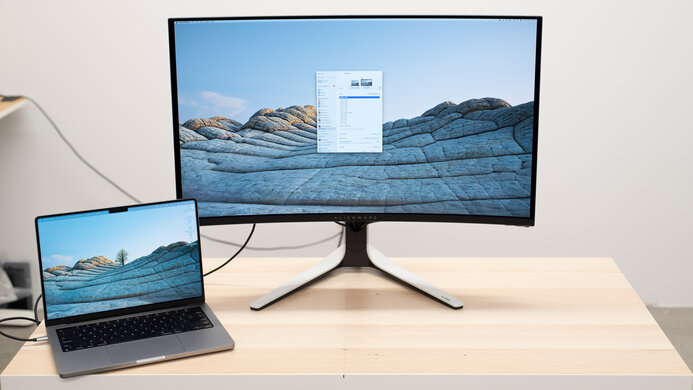
    The Samsung Odyssey OLED G8 G81SF has a straightforward appearance, with black and silver plastic and a metal base. It fits in well to both a gaming and office environment, though its LED lighting on the back shows its gamer focus.
    8.5
    Build Quality

    The build quality is excellent. The plastics don't have much flex, though there's a slight creak when swiveling the monitor. The vertical part of the stand and the monitor housing feel solid and have a smooth finish, while the base of the monitor is slightly more textured.

    9.1
    Ergonomics
    Min Height To Top Of Panel
    16.6" (42.1 cm)
    Height Adjustment
    4.7" (12.0 cm)
    Tilt Range
    -22.5° to 2.5°
    Rotate Portrait/Landscape
    Yes, Both Ways
    Swivel Range
    -30° to 30°
    Wall Mount
    VESA 100x100

    The ergonomics are fantastic. You can make any common adjustment with it, and most adjustments offer a very wide range of movement. However, it doesn't offer as wide a swivel range as some monitors. It also has a loop in the stand for cable management.

    Stand
    Base Width
    11.6" (29.5 cm)
    Base Depth
    9.9" (25.1 cm)
    Thickness (With Display)
    7.6" (19.4 cm)
    Weight (With Display)
    15.7 lbs (7.1 kg)

    The stand holds the monitor well. The monitor doesn't wobble much when bumped, and afterward it recovers quickly.

    Display
    Size
    27"
    Housing Width
    24.1" (61.2 cm)
    Housing Height
    13.9" (35.4 cm)
    Thickness (Without Stand)
    1.9" (4.8 cm)
    Weight (Without Stand)
    8.8 lbs (4.0 kg)
    Borders Size (Bezels)
    0.5" (1.2 cm)

    The 0.5-inch (1.2 cm) bezel measurement includes the monitor's physical bezels, which are 1.1 cm, as well as 0.1 cm of extra pixels that allow the monitor to move the image to help prevent burn-in.

    Controls

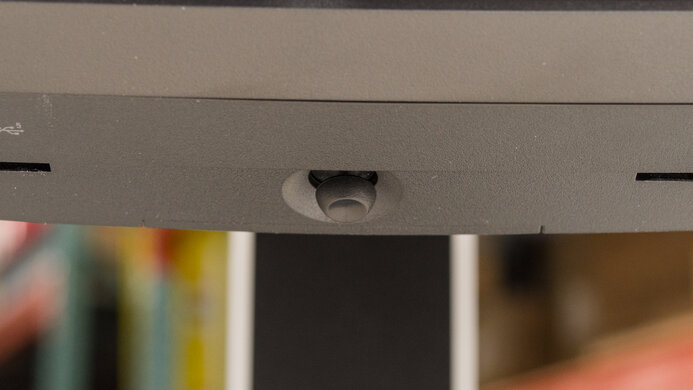
    The Samsung Odyssey OLED G81SF has a joystick on the back of the monitor to adjust the on-screen settings and turn the monitor on and off.

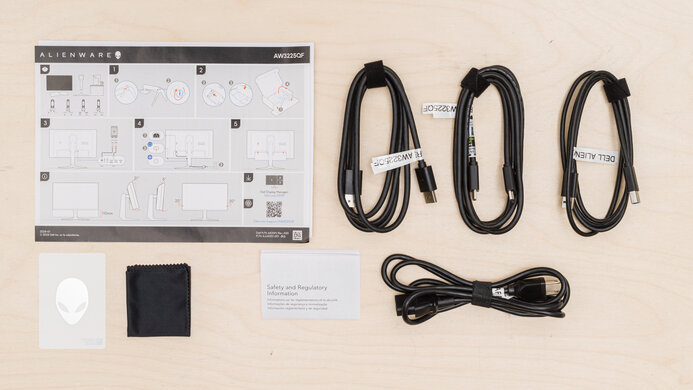
    In The Box
    Power Supply
    External Brick

    • HDMI cable
    • DisplayPort cable
    • Power cable and supply
    • Documentation
    Picture Quality
    10
    Contrast
    Native Contrast
    Inf : 1
    Contrast With Local Dimming
    Inf : 1

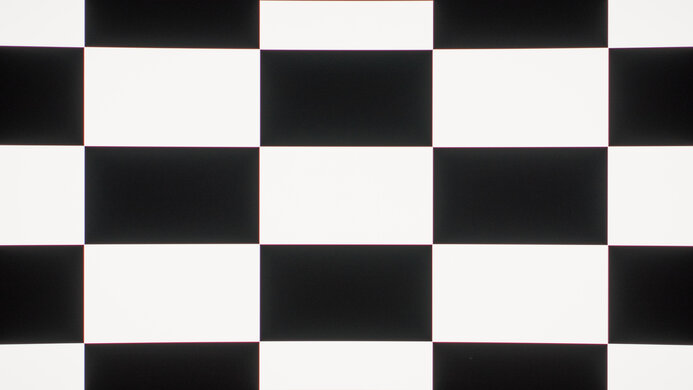
    The Samsung Odyssey G81SF has near-infinite contrast in dark rooms, resulting in deep, inky blacks next to bright highlights.

    10
    Local Dimming
    Local Dimming
    No
    Backlight
    No Backlight

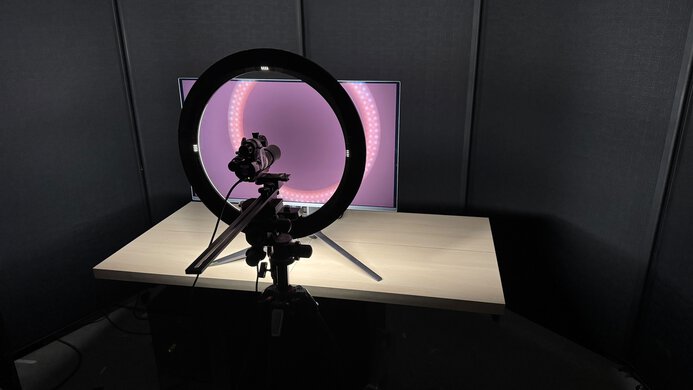
    The Samsung G81SF doesn't have a backlight, so it doesn't require a local dimming feature. However, with a near-infinite contrast ratio, there isn't any blooming around bright objects, and it's the equivalent of a perfect local dimming feature. We still film these videos on the monitor so you can see how the screen performs and compare it with a monitor that has local dimming.

    6.9
    SDR Brightness
    Real Scene
    252 cd/m²
    Peak 2% Window
    264 cd/m²
    Peak 10% Window
    264 cd/m²
    Peak 25% Window
    263 cd/m²
    Peak 50% Window
    261 cd/m²
    Peak 100% Window
    235 cd/m²
    Sustained 2% Window
    262 cd/m²
    Sustained 10% Window
    263 cd/m²
    Sustained 25% Window
    262 cd/m²
    Sustained 50% Window
    260 cd/m²
    Sustained 100% Window
    192 cd/m²
    Automatic Brightness Limiting (ABL)
    0.008
    Minimum Brightness
    67 cd/m²

    Settings

    • Picture Mode: Graphic (after calibration)
    • Brightness: Max
    • Color Space: Native
    • Color Tone: Warm1

    The SDR brightness is fair. At most window sizes, it maintains its brightness well, though if most of your screen is displaying very bright content, the whole screen dims. While it's bright enough to be easily seen in a well-lit room, it isn't bright enough to overcome glare in bright environments. Additionally, this monitor has a high minimum brightness, which you might find distracting if you're using it in a very dark room.

    6.7
    HDR Brightness
    VESA DisplayHDR Certification
    DisplayHDR TRUE BLACK 400
    Real Scene
    427 cd/m²
    Peak 2% Window
    1,021 cd/m²
    Peak 10% Window
    467 cd/m²
    Peak 25% Window
    359 cd/m²
    Peak 50% Window
    252 cd/m²
    Peak 100% Window
    196 cd/m²
    Sustained 2% Window
    970 cd/m²
    Sustained 10% Window
    465 cd/m²
    Sustained 25% Window
    347 cd/m²
    Sustained 50% Window
    249 cd/m²
    Sustained 100% Window
    195 cd/m²
    Automatic Brightness Limiting (ABL)
    0.092

    Settings

    • Picture Mode: Graphic
    • Brightness: Max
    • Peak Brightness: High
    • Contrast Enhancer: Off
    • HDR Tone Mapping: Static

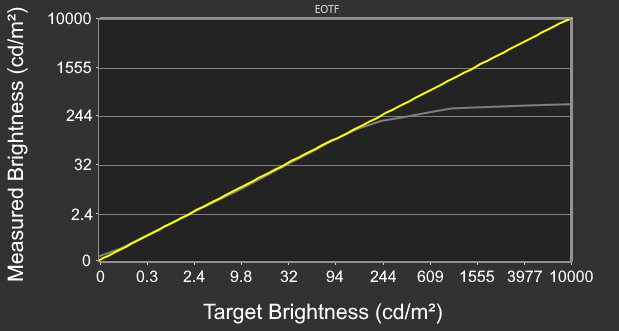
    The HDR brightness is adequate. While it gets bright enough for small highlights to pop, larger highlights don't. It follows the PQ EOTF curve well until it gets near peak brightness, where it has a slow roll-off. This prevents highlights from getting as bright as possible, but it helps preserve bright details.

    It has several different HDR picture modes. The 'Graphic', 'Eco', and 'Original' modes all have the same EOTF performance and color accuracy. These modes use the 'Warm 1' Color Tone, while other HDR modes use the 'Cool' or 'Standard' settings.

    The peak brightness is much higher when Peak Brightness is set to 'High', which is why we chose it over 'Medium', despite 'Medium' having better EOTF tracking. You can see the monitor's brightness when it's set to 'Medium' or 'Off' below:

    Test Peak Brightness: Medium Peak Brightness: Off
    Real Scene 394 cd/m² 378 cd/m²
    Peak 2% Window 529 cd/m² 462 cd/m²
    Peak 10% Window 466 cd/m² 461 cd/m²
    Peak 25% Window 365 cd/m² 370 cd/m²
    Peak 50% Window 263 cd/m² 286 cd/m²
    Peak 100% Window 197 cd/m² 196 cd/m²
    Sustained 2% Window 525 cd/m² 460 cd/m²
    Sustained 10% Window 465 cd/m² 460 cd/m²
    Sustained 25% Window 353 cd/m² 366 cd/m²
    Sustained 50% Window 255 cd/m² 272 cd/m²
    Sustained 100% Window 195 cd/m² 195 cd/m²
    8.7
    Gray Uniformity
    50% Std. Dev.
    0.886%
    50% DSE
    0.131%

    The gray uniformity is excellent, and the entire screen has quite uniform brightness. This monitor also has good 5% gray uniformity.

    10
    Black Uniformity
    Native Std. Dev.
    0.247%
    Std. Dev. w/ L.D.
    N/A

    The monitor has perfect black uniformity and displays an even black level throughout.

    8.8
    Color Accuracy (Pre-Calibration)
    Picture Mode
    Graphic
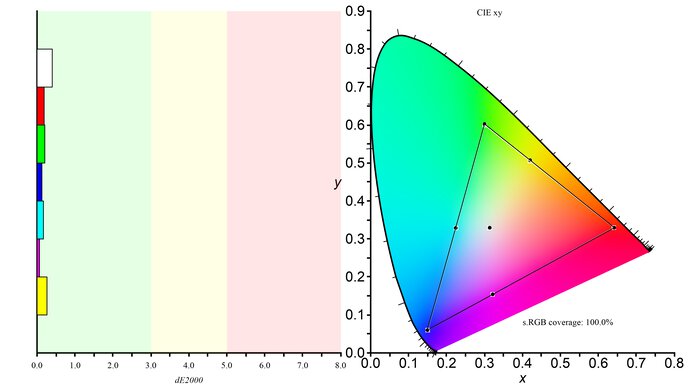
    sRGB Gamut Area xy
    98.2%
    White Balance dE (Avg.)
    2.16
    Color Temperature (Avg.)
    6,580 K
    Gamma (Avg.)
    2.07
    Color dE (Avg.)
    2.12
    Contrast Setting
    50
    RGB Settings
    0-0-0
    Gamma Setting
    0
    Brightness Setting
    48
    Measured Brightness
    244 cd/m²
    Brightness Locked
    No

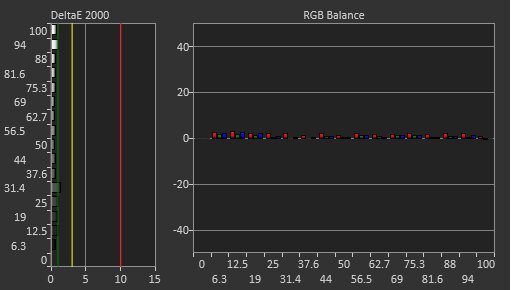
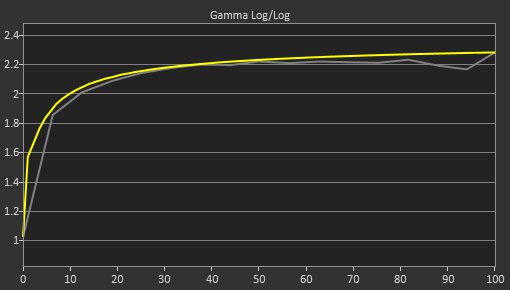
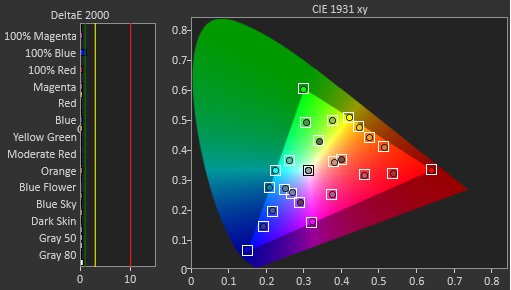
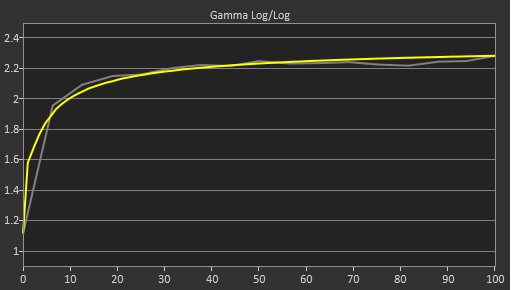
    The accuracy before calibration is excellent when Color Space Settings is set to 'Auto'. While this isn't a dedicated sRGB mode, the setting clamps the gamut to the sRGB space quite effectively, and the monitor has great white balance, color accuracy, and color temperature. However, gamma doesn't follow the sRGB curve very well, as dark parts of scenes are too dark, and the other parts of scenes are too bright. No settings are locked out when using Color Space Settings in 'Auto.'

    9.6
    Color Accuracy (Post-Calibration)
    Picture Mode
    Graphic
    sRGB Gamut Area xy
    102.5%
    White Balance dE (Avg.)
    0.74
    Color Temperature (Avg.)
    6,478 K
    Gamma (Avg.)
    2.18
    Color dE (Avg.)
    0.46
    Contrast Setting
    50
    RGB Settings
    5, -1, 1
    Gamma Setting
    0
    Brightness Setting
    9
    Measured Brightness
    101 cd/m²
    ICC Profile
    Download

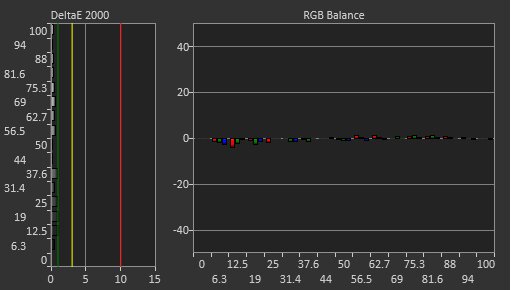
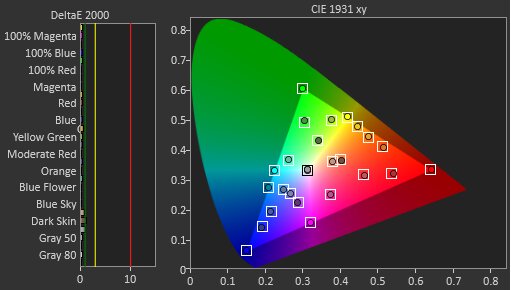
    The accuracy after calibration is superb, and you won't notice any inaccuracies.

    9.7
    SDR Color Gamut
    sRGB Coverage xy
    100.0%
    sRGB Picture Mode
    Graphic
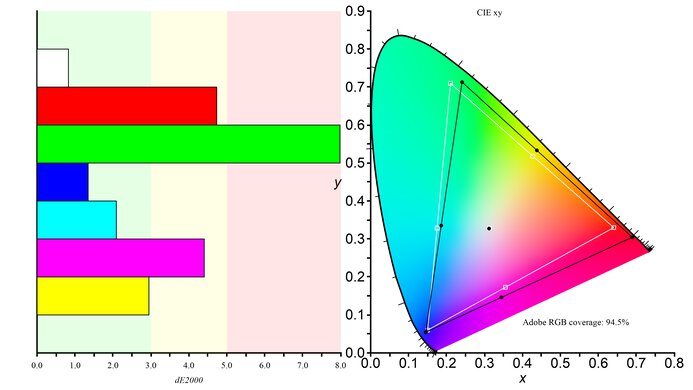
    Adobe RGB Coverage xy
    92.6%
    Adobe RGB Picture Mode
    Graphic

    The SDR color gamut is superb. It displays all colors in sRGB and most colors in Adobe RGB. While some colors are inaccurate in Adobe RGB, you may be able to avoid this issue with a color-managed app.

    9.6
    HDR Color Gamut
    Wide Color Gamut
    Yes
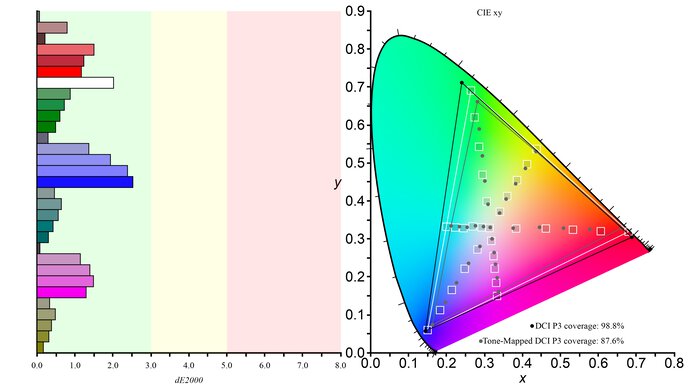
    DCI-P3 Coverage xy
    99.4%
    DCI-P3 Picture Mode
    HDR Graphic
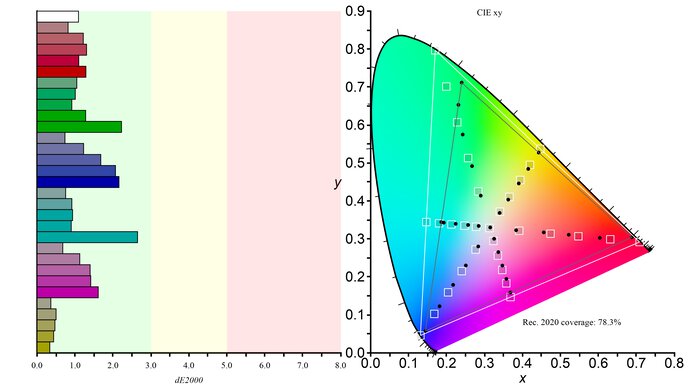
    Rec. 2020 Coverage xy
    77.6%
    Rec. 2020 Picture Mode
    HDR Graphic

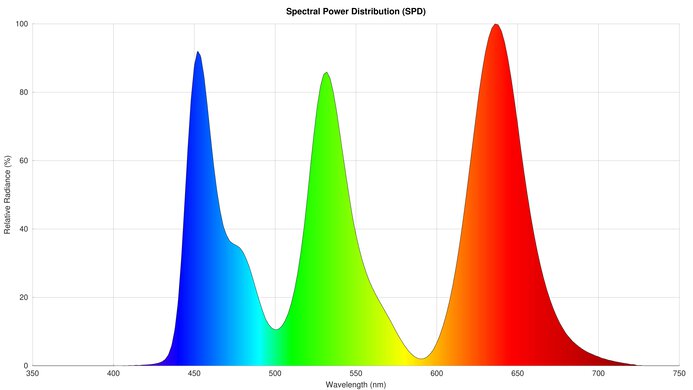
    The HDR color gamut is incredible. It displays the full range of colors in DCI-P3 and a wide range of colors in Rec. 2020 and does so accurately.

    8.8
    HDR Color Volume
    1,000 cd/m² DCI-P3 Coverage ICtCp
    93.4%
    DCI-P3 Picture Mode
    HDR Graphic
    10,000 cd/m² Rec. 2020 Coverage ICtCp
    45.9%
    Rec. 2020 Picture Mode
    HDR Graphic

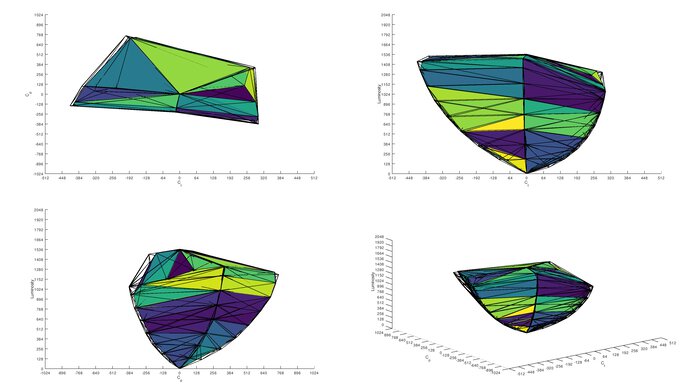
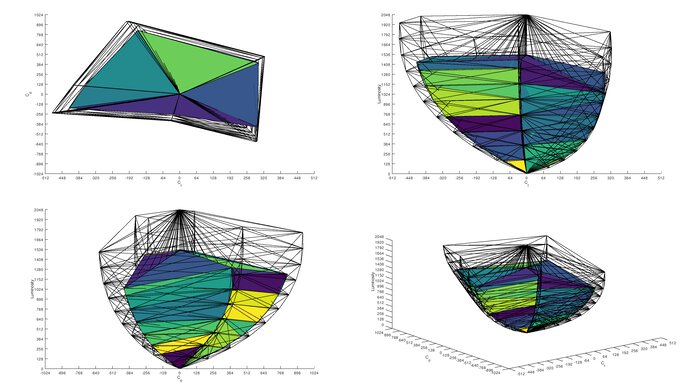
    The HDR color volume is amazing. It displays bright and dark colors very well in dark rooms, resulting in vivid images. However, dark colors desaturate fairly quickly in bright rooms.

    10
    Viewing Angle
    Color Washout From Left
    70°
    Color Washout From Right
    70°
    Color Shift From Left
    70°
    Color Shift From Right
    70°
    Brightness Loss From Left
    70°
    Brightness Loss From Right
    70°
    Black Level Raise From Left
    70°
    Black Level Raise From Right
    70°
    Gamma Shift From Left
    70°
    Gamma Shift From Right
    70°

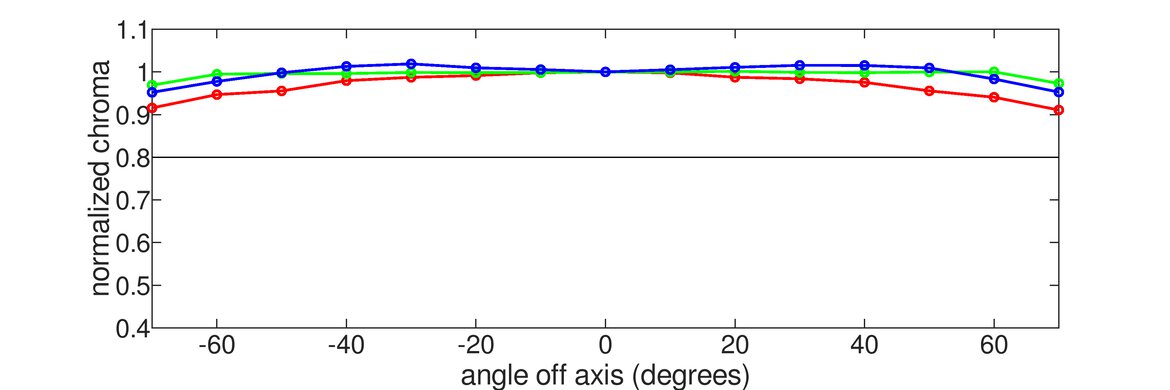
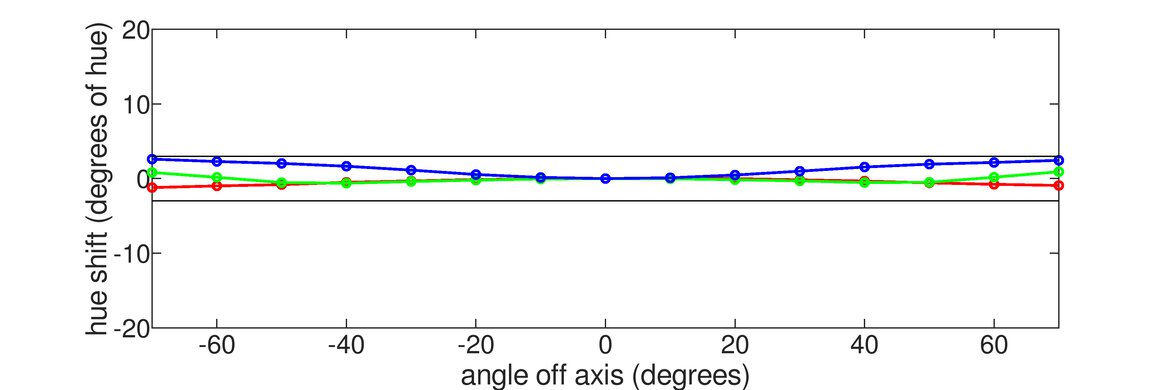
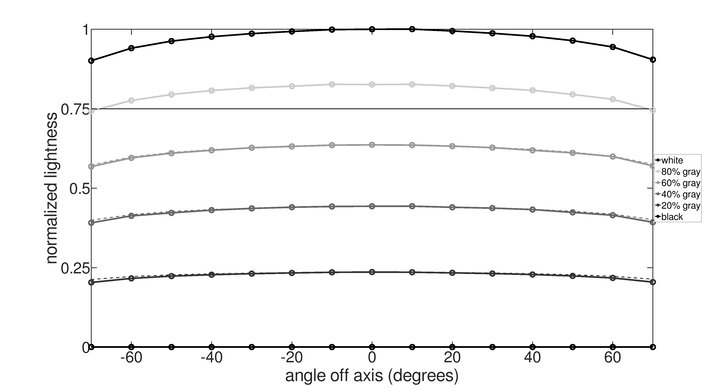
    The horizontal viewing angle is remarkable. Although it technically isn't perfect, you won't see any inconsistencies when viewing at a wide angle.

    9.0
    Text Clarity
    Pixel Type
    QD-OLED
    Subpixel Layout
    Triangular RGB

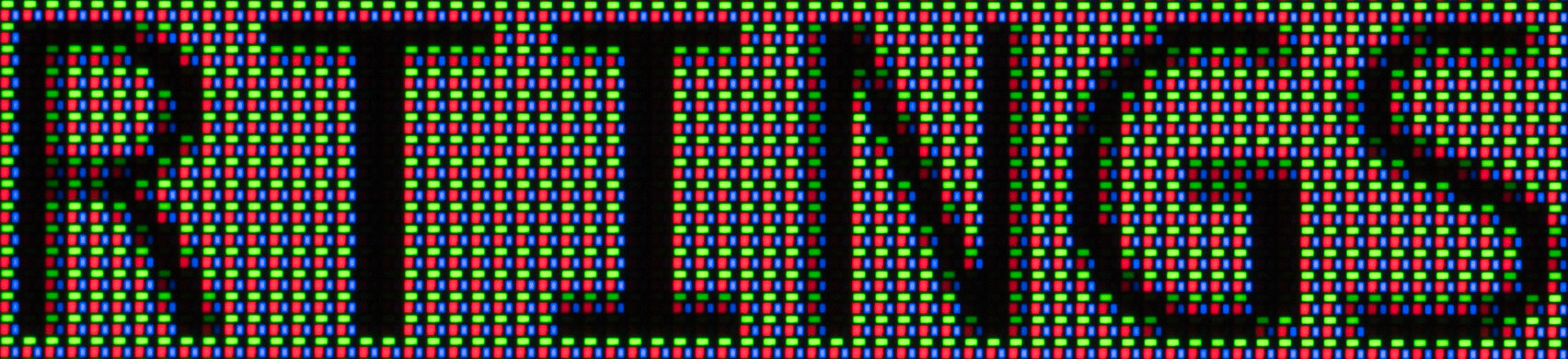
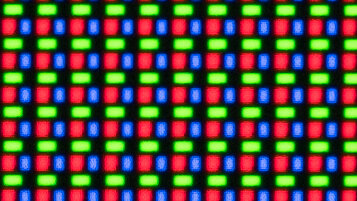
    The text clarity is superb. Although it has a small amount of fringing around edges or letters with ClearType on (top photo), it's very hard to see in person, and text looks as sharp as a 27-inch, 4k LCD display. It also has an aggressive matte coating, so there's a bit more haziness with text than other matte monitors. These photos are in Windows 10, and you can also see them in Windows 11 with ClearType on and with ClearType off.

    9.6
    Direct Reflections
    See details on graph tool
    Peak Direct Reflection Intensity
    6.0%
    Screen Finish
    Matte

    The reflection handling is incredible. The matte coating absorbs light extremely well, so there aren't any mirror-like reflections.

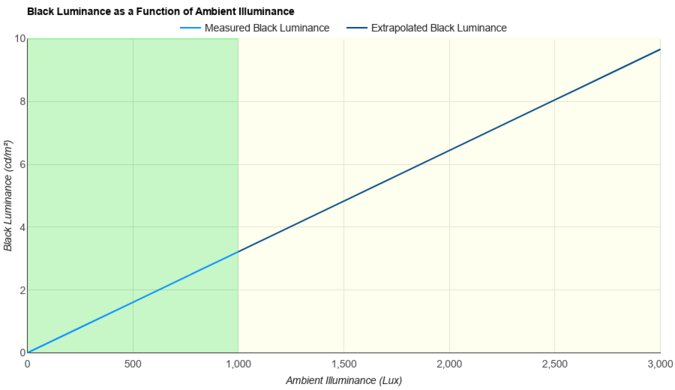
    4.9
    Ambient Black Level Raise
    See details on graph tool
    Black Luminance @ 0 lx
    0.00 cd/m²
    Black Luminance @ 1000 lx
    2.91 cd/m²

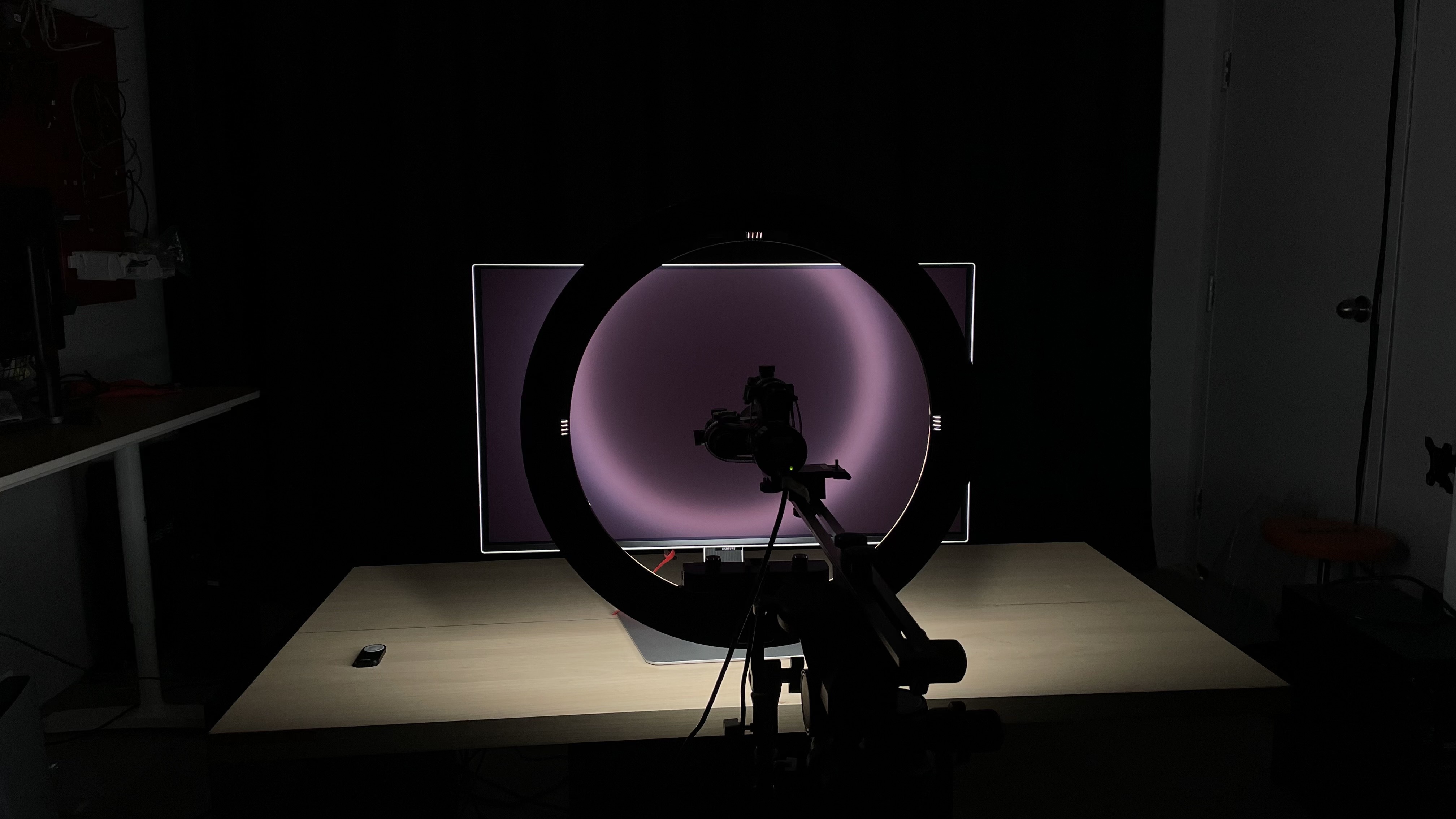
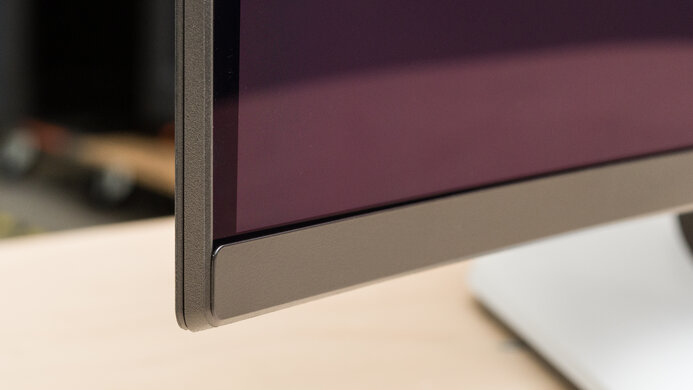
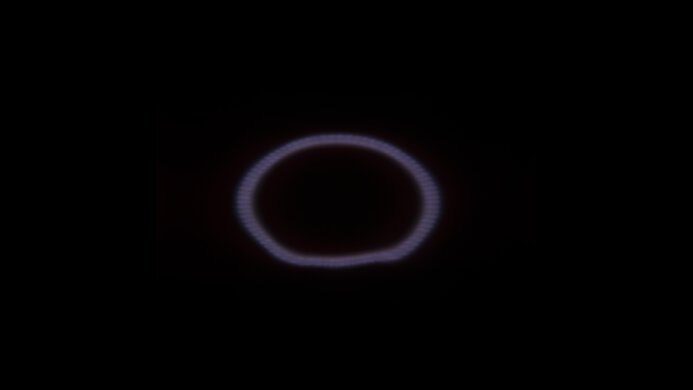
    The black levels are poor in a bright room. While it's better than some QD-OLEDs, the lack of a polarizer means that blacks still look purple in bright rooms. You need to use it in a dark room to get perfect black levels.

    8.9
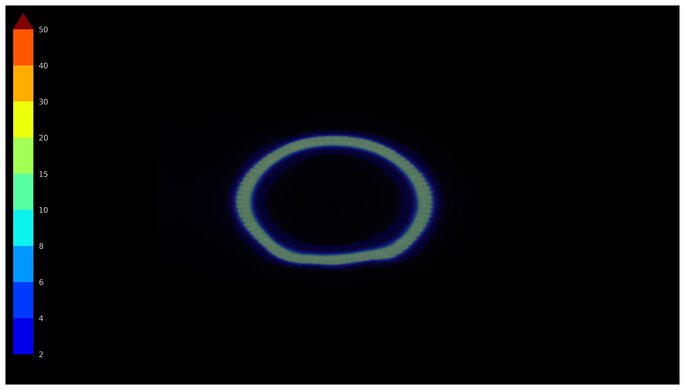
    Total Reflected Light
    Total Reflected Light Intensity
    7,255% ⋅ pixel
    Diffraction Artifacts
    No

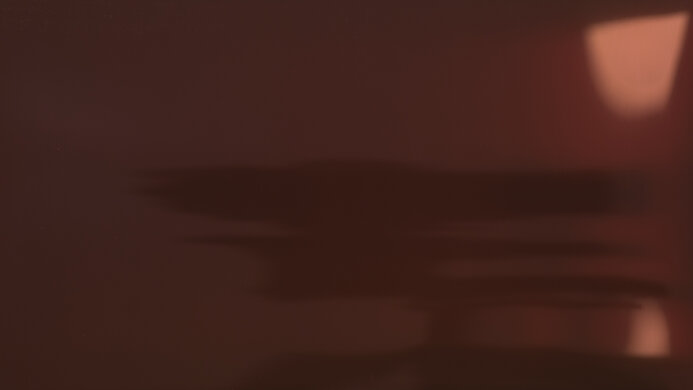
    This monitor has minimal reflected light and reduces glare well. Even glare from strong light sources isn't distracting. The matte coating is more aggressive than other matte displays, like the Samsung Odyssey OLED G80SD S32DG80, but that means images are a bit hazier.

    9.7
    Gradient
    Color Depth
    10 Bit

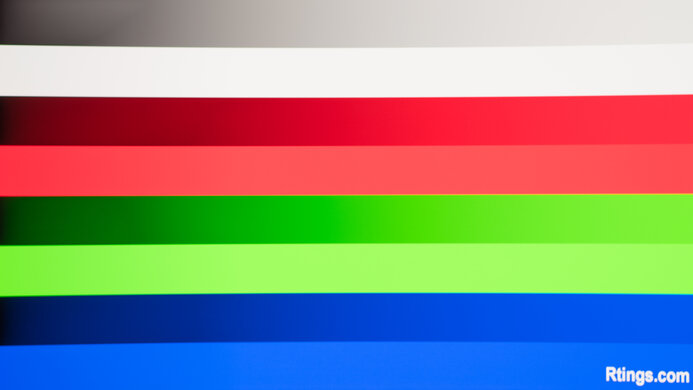
    The gradient handling is remarkable, and there's minimal banding between shades of similar colors.

    Motion
    8.0
    Refresh Rate
    Native Refresh Rate
    240 Hz
    Max Refresh Rate
    240 Hz
    Max Refresh Rate Over DP
    240 Hz
    Max Refresh Rate Over HDMI
    240 Hz
    Max Refresh Rate Over DP @ 10-bit
    240 Hz
    Max Refresh Rate Over HDMI @ 10-Bit
    240 Hz
    DSC Toggle
    No
    DSC Off Max Refresh Rate Over DP
    N/A
    DSC Off Max Refresh Rate Over HDMI
    N/A

    Your graphics card needs to use Display Stream Compression (DSC) to reach the max refresh over HDMI and DisplayPort.

    Variable Refresh Rate (VRR)
    Variable Refresh Rate
    Yes
    FreeSync
    Yes
    G-SYNC
    Compatible (NVIDIA Certified)
    VRR Maximum
    240 Hz
    VRR Minimum
    < 20 Hz
    VRR Supported Connectors
    DisplayPort, HDMI

    NVIDIA - G-SYNC Compatibility
    Connection VRR Min VRR Max
    DisplayPort <20Hz 240Hz
    HDMI <20Hz 240Hz
    AMD - FreeSync
    Connection VRR Min VRR Max
    DisplayPort <20Hz 240Hz
    HDMI <20Hz 240Hz

    The Samsung G81SF supports FreeSync VRR and HDMI Forum VRR, and it has G-SYNC compatibility.

    9.8
    VRR Motion Performance
    See details on graph tool
    Recommended VRR OD Setting
    No OD Mode
    Variable Overdrive Advertised
    No
    Avg. CAD
    14
    Best CAD
    13
    Worst CAD
    14

    Frame Rate CAD Heatmap RT Chart Pursuit Photo
    239 Heatmap Chart Photo
    165 Heatmap Chart Photo
    144 Heatmap Chart Photo
    120 Heatmap Chart Photo
    100 Heatmap Chart Photo
    80 Heatmap Chart Photo
    60 Heatmap Chart Photo

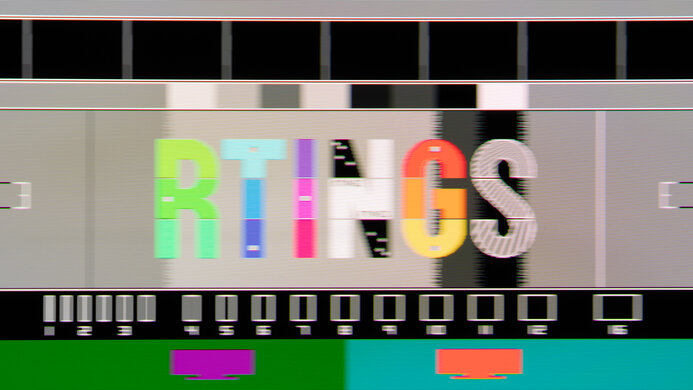
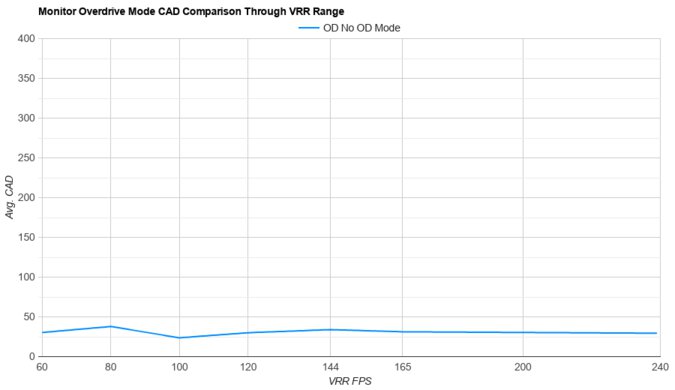
    The Samsung Odyssey G81SF has fantastic motion handling across its VRR range. CAD remains low throughout, and the only blur you see is persistence.

    9.6
    Refresh Rate Compliance
    See details on graph tool
    See details on graph tool
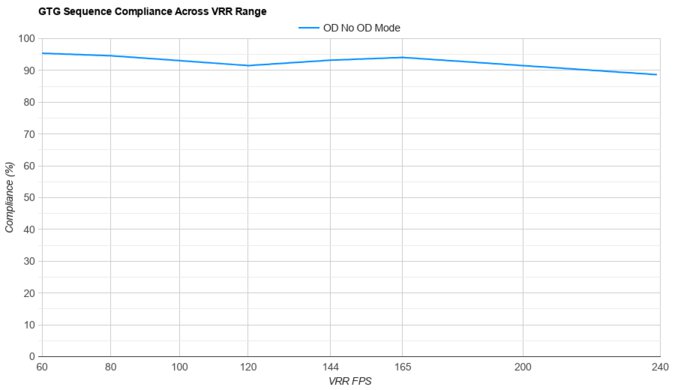
    Compliance @ Max Hz
    92%
    Compliance @ 120 FPS
    93%
    Compliance @ 60 FPS
    96%

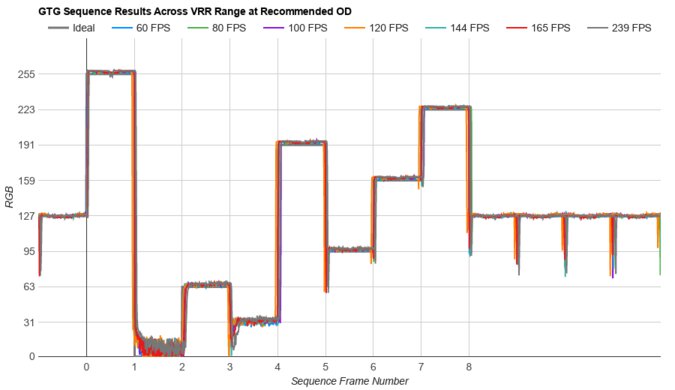
    The refresh rate compliance is incredible. Its response time is fast enough to make full-color transitions before the monitor draws the next frame.

    At framerates of 120 FPS and lower, the monitor doesn't display darker content at a consistent brightness, as you can see in the graph above. This creates a pulsing effect in darker parts of scenes that's very similar to VRR flicker. The effect is worse at lower frame rates.

    9.9
    CAD @ Max Refresh Rate
    OD Transition Max Refresh Rate
    od-transition-max-refresh-rate-noodmode-0-31
    OD noodmode
    0 to 31
    Recommended Overdrive Setting
    No OD Mode
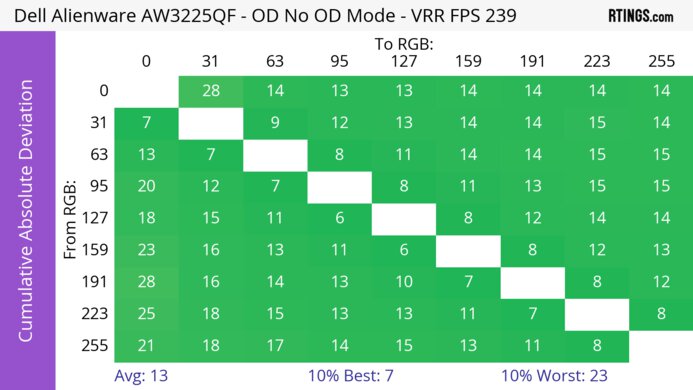
    Avg. CAD
    13
    Best 10% CAD
    6
    Worst 10% CAD
    28

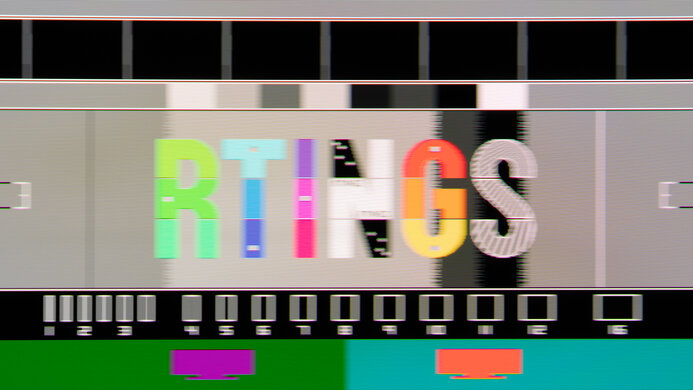
    Overdrive Mode CAD Heatmap RT Chart Pursuit Photo
    No Overdrive Heatmap Chart Photo

    The CAD at the max refresh rate of 240Hz is remarkable. Motion looks extremely sharp, and there isn't any noticeable blur.

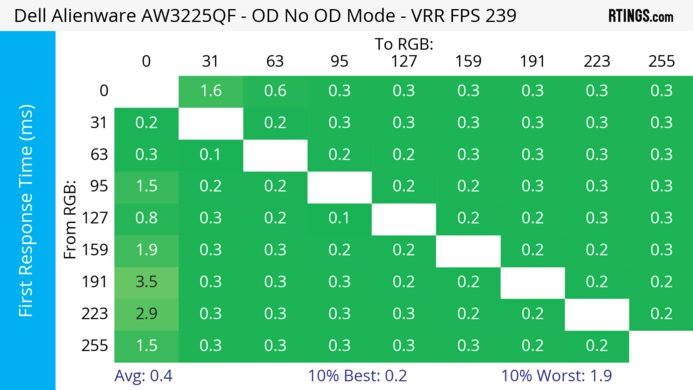
    Response Time @ Max Refresh Rate
    Recommended Overdrive Setting
    No OD Mode
    First Response Time
    0.4 ms
    Total Response Time
    0.6 ms
    RGB Overshoot
    1 RGB
    Worst 10% First Response Time
    2.5 ms
    Worst 10% Total Response Time
    2.8 ms
    Worst 10% RGB Overshoot
    11 RGB

    Overdrive Mode First Response Heatmap Total Response Heatmap RGB Overshoot Heatmap
    No Overdrive Heatmap Heatmap Heatmap

    9.9
    CAD @ 120Hz
    OD Transition 120Hz
    od-transition-120-noodmode-0-31
    OD noodmode
    0 to 31
    Recommended Overdrive Setting
    No OD Mode
    Avg. CAD
    14
    Best 10% CAD
    6
    Worst 10% CAD
    30

    Overdrive Mode CAD Heatmap RT Chart Pursuit Photo
    No Overdrive Heatmap Chart Photo

    The CAD at 120Hz is fantastic. Motion looks very sharp, though there's a bit of persistence blur.

    Response Time @ 120Hz
    Recommended Overdrive Setting
    No OD Mode
    First Response Time
    0.4 ms
    Total Response Time
    0.5 ms
    RGB Overshoot
    1 RGB
    Worst 10% First Response Time
    1.5 ms
    Worst 10% Total Response Time
    1.8 ms
    Worst 10% RGB Overshoot
    12 RGB

    Overdrive Mode First Response Heatmap Total Response Heatmap RGB Overshoot Heatmap
    No Overdrive Heatmap Heatmap Heatmap

    9.9
    CAD @ 60Hz
    OD Transition 60Hz
    od-transition-60-noodmode-0-31
    OD noodmode
    0 to 31
    Recommended Overdrive Setting
    No OD Mode
    Avg. CAD
    19
    Best 10% CAD
    9
    Worst 10% CAD
    36

    Overdrive Mode CAD Heatmap RT Chart Pursuit Photo
    No Overdrive Heatmap Chart Photo

    The CAD at 60Hz is fantastic. Motion looks very sharp, and any blur you see is persistence.

    Response Time @ 60Hz
    Recommended Overdrive Setting
    No OD Mode
    First Response Time
    0.5 ms
    Total Response Time
    0.6 ms
    RGB Overshoot
    1 RGB
    Worst 10% First Response Time
    2.0 ms
    Worst 10% Total Response Time
    2.2 ms
    Worst 10% RGB Overshoot
    10 RGB

    Overdrive Mode First Response Heatmap Total Response Heatmap RGB Overshoot Heatmap
    No Overdrive Heatmap Heatmap Heatmap

    Backlight Strobing (BFI)
    Backlight Strobing (BFI)
    No BFI
    Maximum Frequency
    N/A
    Minimum Frequency
    N/A
    Longest Pulse Width Brightness
    N/A
    Shortest Pulse Width Brightness
    N/A
    Pulse Width Control
    No BFI
    Pulse Phase Control
    No BFI
    Pulse Amplitude Control
    No BFI
    VRR At The Same Time
    No BFI

    This monitor doesn't have a black frame insertion feature to reduce persistence blur.

    5.4
    VRR Flicker
    Dark Gray Flicker
    5.1 RGB
    Middle Gray Flicker
    1.9 RGB
    Light Gray Flicker
    0.2 RGB

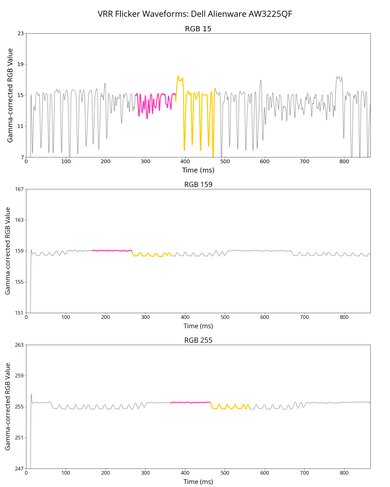
    This monitor has noticeable VRR flicker with changing frame rates if VRR Control is 'Off', particularly in darker parts of scenes. However, if VRR Control is 'On', then there's almost no VRR flicker, as you can see in the VRR flicker graph and VRR flicker video. However, enabling it adds a full frame of input lag and causes some stutter.

    10
    Image Flicker
    Flicker-Free
    No
    PWM Dimming Frequency
    0 Hz

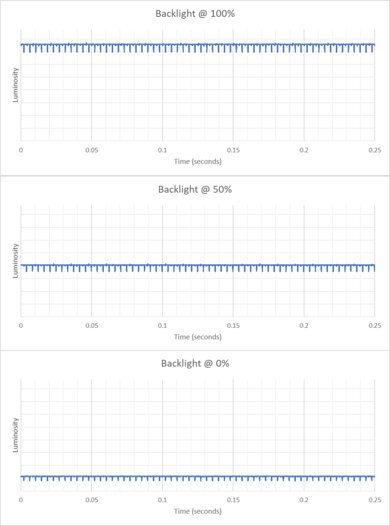
    The backlight isn't technically flicker-free because it has a slight dip in brightness that corresponds to the monitor's refresh rate.

    Inputs
    9.1
    Input Lag
    Native Resolution @ Max Hz
    2.7 ms
    Native Resolution @ 120Hz
    5.2 ms
    Native Resolution @ 60Hz
    9.8 ms
    Backlight Strobing (BFI)
    N/A

    The Samsung Odyssey OLED G81SF has very low input lag for a responsive feel. However, input lag is much higher if VRR Control is 'On', as you can see below:

    Refresh Rate Input Lag
    240Hz 9.0 ms
    120Hz 12.5 ms
    60Hz 21.8 ms
    8.8
    Resolution
    Native Resolution
    3840 x 2160
    Aspect Ratio
    16:9
    Megapixels
    8.3 MP
    Pixel Density
    166 PPI
    10
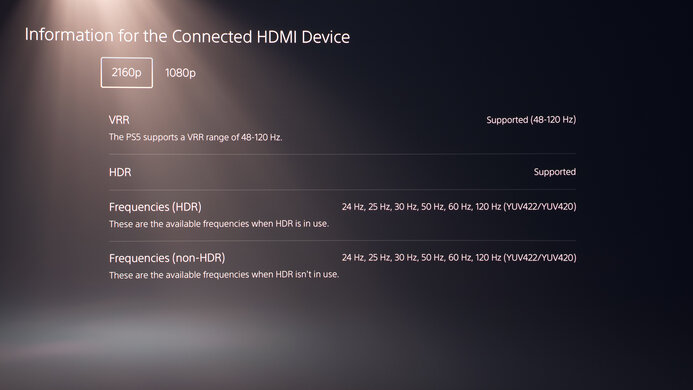
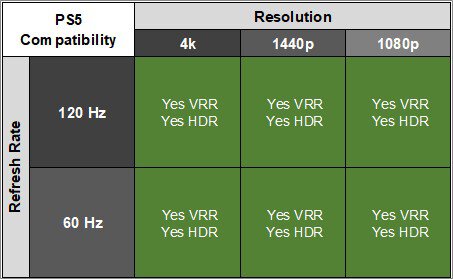
    PS5 Compatibility
    4k @ 120Hz
    Yes
    4k @ 60Hz
    Yes
    1440p @ 120Hz
    Yes
    1440p @ 60Hz
    Yes
    1080p @ 120Hz
    Yes
    1080p @ 60Hz
    Yes
    10
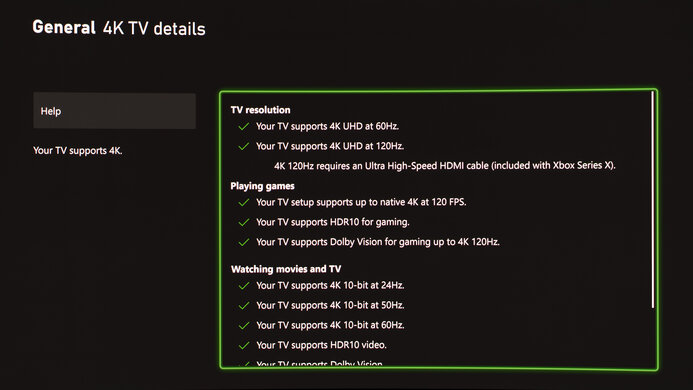
    Xbox Series X|S Compatibility
    4k @ 120Hz
    Yes
    4k @ 60Hz
    Yes
    1440p @ 120Hz
    Yes
    1440p @ 60Hz
    Yes
    1080p @ 120Hz
    Yes
    1080p @ 60Hz
    Yes

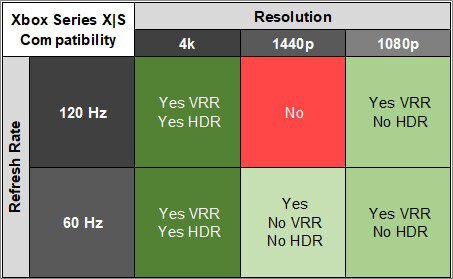
    The Xbox Series X|S only supports HDR with 4k signals, so this isn't a limitation of the monitor.

    Inputs
    DisplayPort
    1 (DP 1.4)
    DisplayPort Transmission Bandwidth
    No DisplayPort 2.1
    Mini DisplayPort
    No
    HDMI
    2 (HDMI 2.1)
    HDMI 2.1 Bandwidth
    48Gbps (FRL 12x4)
    Daisy Chaining
    No
    3.5mm Audio Out
    Yes
    Ethernet
    No
    HDR10
    Yes
    Dolby Vision
    No

    We encountered an unusual issue when first using the monitor with either HDMI port. The monitor would detect that the HDMI cable was connected, but no image appeared on-screen. We tried using four different cables, including the one that came with the monitor, but they didn't work. We also tried power cycling the monitor, factory resetting it, changing the PC/AV Mode setting, and the Input Port Ver. settings, and none of these settings resolved the issue. This issue occurred with multiple different PCs, including desktops, a laptop, and a MacBook.

    However, on an older MacBook with HDMI 2.0 it did display an image on screen. After this we toggled the Input Port Ver. setting a few times, and the monitor has since worked over HDMI with all devices.

    USB
    USB-A Ports
    2
    USB-A Rated Speed
    5Gbps (USB 3.2 Gen 1)
    USB-B Upstream Port
    Yes
    USB-C Ports
    0
    USB-C Upstream
    No USB-C Ports
    USB-C Rated Speed
    No USB-C Ports
    USB-C Power Delivery
    No USB-C Ports
    USB-C DisplayPort Alt Mode
    No USB-C Ports
    Thunderbolt
    No
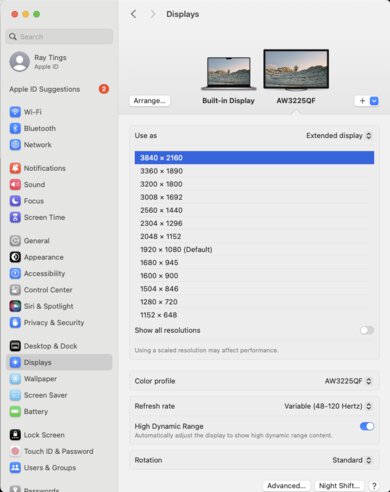
    macOS Compatibility

    Tested With: Sequoia 15.5

    Connection HDMI 2.1 USB-C to DP
    Max Refresh Rate 240Hz 240Hz
    VRR Range 48-240Hz 48-240Hz
    HDR Yes Yes

    The monitor works well with macOS. VRR works well, and HDR looks good in most cases. Over USB-C to DisplayPort, the 'Game Standard' Picture Mode looks most accurate, though its color temperature is a bit cool if you don't change any settings. Over HDMI, HDR doesn't look quite as accurate as over DisplayPort. The 'Eco' and 'Game Standard' modes look best, though 'Eco' is too warm, and 'Game Standard' is too cool.

    If you connect the monitor to a MacBook with an HDMI or USB-C cable and the MacBook is plugged into power, windows migrate to the monitor when you close the lid. Additionally, they return to their previous position if the MacBook is reopened.

    However, if the MacBook isn't plugged into power and you close the lid, the MacBook and monitor go to sleep. When you reopen the MacBook windows resume in their previous position.

    Features
    Additional Features
    Speakers
    No
    RGB Illumination
    Presets
    Multiple Input Display
    PIP
    KVM Switch
    No
    Smart OS
    No

    This monitor has several extra features, including:

    • Eye Saver Mode: Decreases blue light output to help reduce eye strain.
    • PIP: Allows you to display images from two inputs at once and adjust the size and position of the second input.
    • SeeColors Mode: Adjusts the image for those with color blindness.
    • Panel Care: Features to reduce the risk of burn-in associated with OLEDs, including:
      • Pixel Refresh: Adjusts pixels to provide a clearer screen.
      • Adjust Logo Brightness: Automatically dims the brightness of fixed images when it detects one on the screen.
    On-Screen Display (OSD)