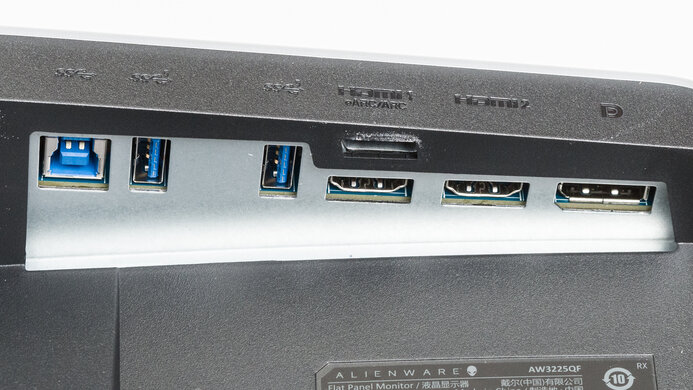
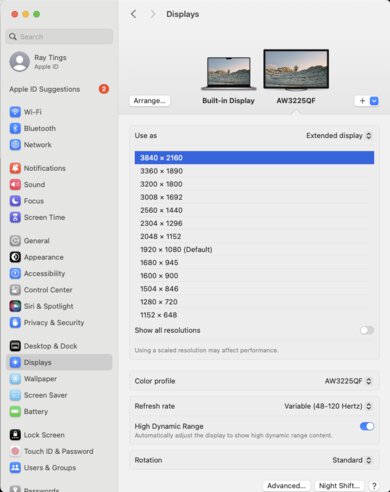
The ASUS ROG Swift OLED PG27UCDM is a high-end gaming monitor. It's one of the first to come out with a 4k, 240Hz 27-inch QD-OLED panel, competing with other models that use the same panel, like the MSI MPG 272URX QD-OLED, the Dell Alienware AW2725Q, and the Samsung Odyssey OLED G81SF S27FG810S. It's a higher-end model than the ASUS ROG Strix OLED XG27UCDMG, which lacks some features that the PG27UCDM has, like DisplayPort 2.1 with 80Gbps bandwidth, and it's smaller than the ASUS ROG Swift OLED PG32UCDM. This monitor has other gaming features, like support for all common VRR formats, and different crosshairs and vision modes. Plus, it has a few customizable settings in HDR, Dolby Vision support, a USB hub that includes a KVM switch, and a Neo Proximity Sensor that detects when you're away from the screen to turn it off, reducing the risk of burn-in.
Our Verdict
The ASUS PG27UCDM is fantastic for PC gaming. Motion looks sharp at any refresh rate, it has low input lag for a responsive feel, and it supports all common VRR formats. Plus, you can reach its max 240Hz refresh rate without using compression thanks to its DisplayPort 2.1 bandwidth. One downside is that it has noticeable VRR flicker with changing frame rates, and its anti-flicker feature doesn't fix this. On the plus side, it delivers remarkable picture quality with deep blacks in dark rooms, bright highlights, and vivid colors.
240Hz refresh rate with VRR support.
HDMI and DisplayPort 2.1 bandwidth.
Incredibly sharp motion.
Low input lag.
Deep and inky blacks in dark rooms.
Displays wide range of vivid colors.
Noticeable VRR flicker.
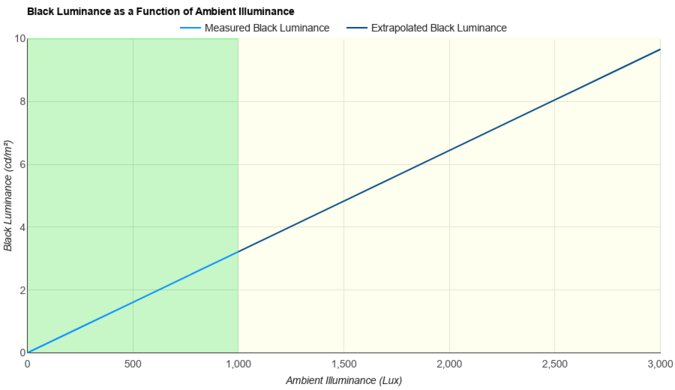
Ambient light raises the black levels and desaturates dark colors.
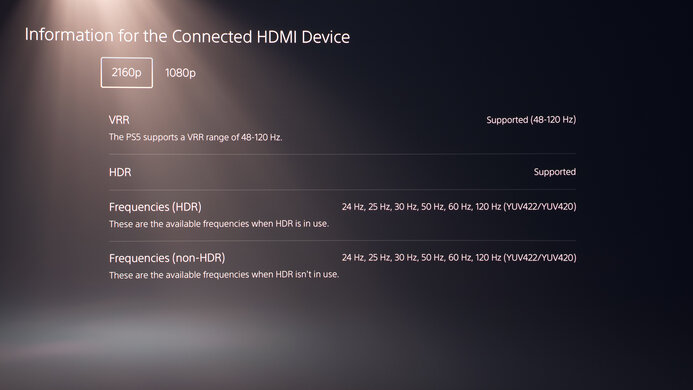
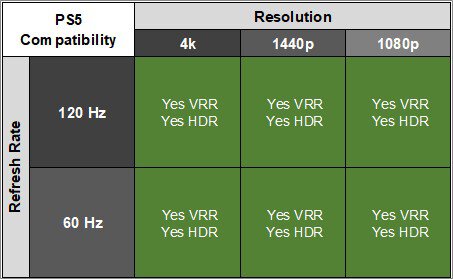
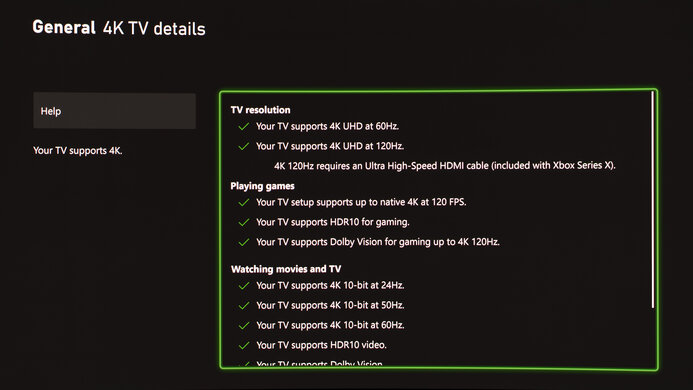
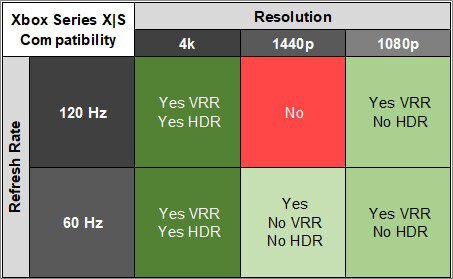
The ASUS PG27UCDM is incredible for console gaming. It supports any signal up to 4k @ 120Hz with the PS5, PS5 Pro, and Xbox Series X|S thanks to its HDMI 2.1 bandwidth, and it supports VRR with any console. Motion looks sharp, and even though its input lag at 60Hz is slightly higher than other monitors, gaming still feels responsive. Colors also look vivid thanks to its amazing color volume, and blacks are deep and inky in dark rooms. Plus, its high pixel density delivers sharp and detailed images.
Incredibly sharp motion.
Low input lag.
Deep and inky blacks in dark rooms.
Displays wide range of vivid colors.
Supports 4k up to 120Hz on consoles.
Ambient light raises the black levels and desaturates dark colors.
The ASUS PG27UCDM is great for work, with some limitations. With a 4k, 27-inch screen, it has high pixel density with fantastic text clarity, and it has minimal fringing. It also gets bright enough to fight glare in most well-lit rooms and has great reflection handling, so visibility isn't an issue, but the black levels rise in bright rooms. It even has some useful productivity features, like a USB hub with a KVM switch and an ergonomic stand. However, OLEDs like this risk burn-in with constant exposure to the same static elements over time. So if you want to use it for work, it's better to vary your content when you aren't working to reduce this risk.
Incredibly sharp text.
Bright enough to fight glare in most rooms.
USB hub with KVM switch.
Great reflection handling.
Some fringing around windows.
Risk of burn-in.
Ambient light raises the black levels and desaturates dark colors.
The ASUS PG27UCDM is remarkable for content editing. It delivers incredible picture quality with deep and inky blacks in dark rooms and no blooming around bright objects. It also displays a wide range of vivid colors and comes with a very accurate sRGB mode. Even calibrating it doesn't offer much difference from the sRGB mode. The monitor's 4k resolution also makes text and images look sharp, and it gets bright enough to fight glare for use in most well-lit rooms, but the black levels rise in bright rooms. However, the biggest drawback is the risk of burn-in with constant exposure to the same static elements over time, but this is less of a concern if you vary the content on the screen.
Deep and inky blacks in dark rooms.
Displays wide range of vivid colors.
Bright enough to fight glare in most rooms.
USB hub with KVM switch.
Fantastic accuracy in sRGB mode.
Small highlights stand out in HDR.
Some fringing around windows.
Risk of burn-in.
Calibrating doesn't provide much.
Ambient light raises the black levels and desaturates dark colors.
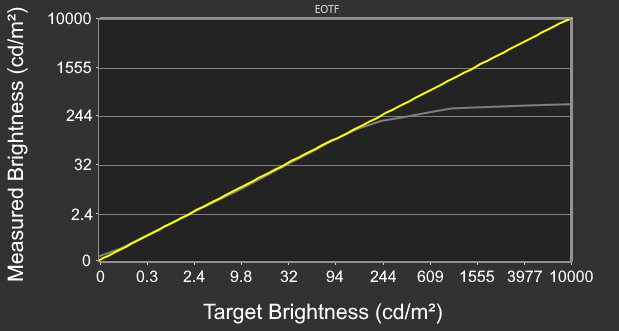
The ASUS PG27UCDM has decent brightness. It gets bright enough to fight glare in most well-lit rooms, and small highlights pop in HDR. However, it can't sustain this high brightness with larger highlights.
Bright enough to fight glare in most rooms.
Small highlights stand out in HDR.
Larger highlights are dimmer.
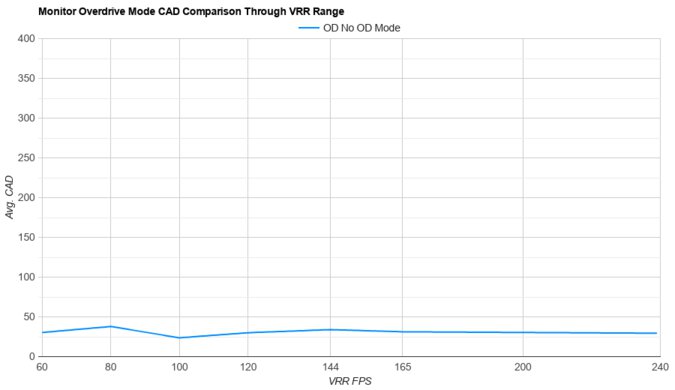
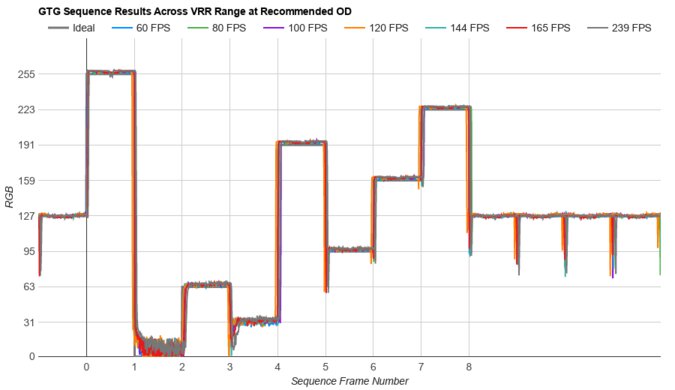
The ASUS PG27UCDM has a near-instant response time for extremely sharp motion.
Incredibly sharp motion.
The ASUS PG27UCDM has remarkable HDR picture quality. It displays deep and inky blacks in dark rooms without any blooming, and colors are vivid.
Deep and inky blacks in dark rooms.
Displays wide range of vivid colors.
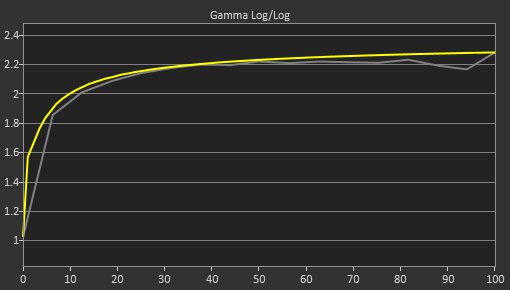
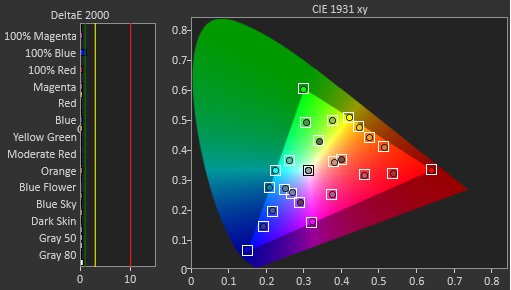
The ASUS PG27UCDM has outstanding SDR picture quality. It has a near-infinite contrast ratio with deep blacks in dark rooms, and it displays a wide range of colors.
Deep and inky blacks in dark rooms.
Displays wide range of vivid colors.
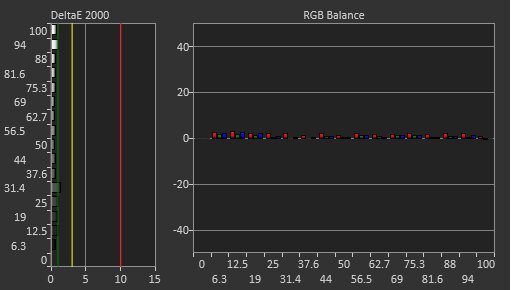
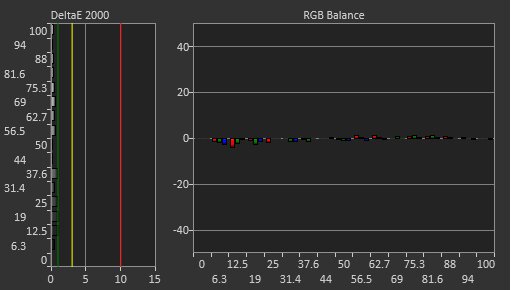
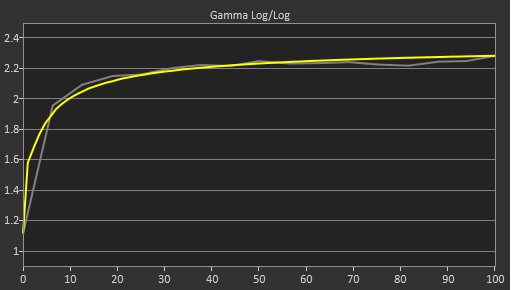
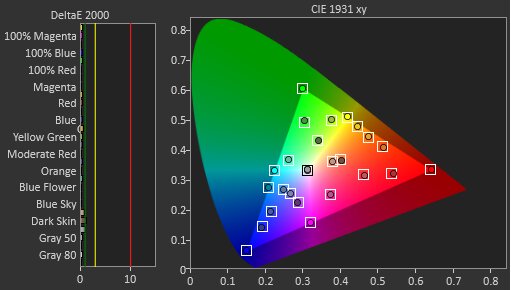
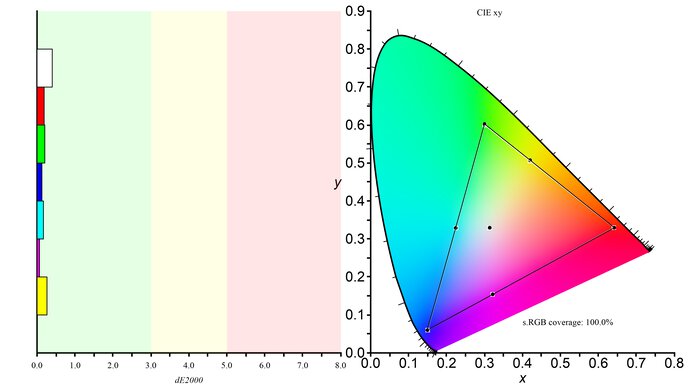
The ASUS PG27UCDM has fantastic color accuracy. Its dedicated sRGB mode is very accurate before calibration, and calibrating it doesn't benefit much unless you want access to settings that are locked out in the sRGB mode.
Fantastic accuracy in sRGB mode.
Calibrating doesn't provide much.
Performance Usages
Changelog
-
Updated Jul 07, 2026:
In the Popular Monitor Comparisons section, we clarified that the ASUS ROG Swift OLED PG32UCDM Gen3 is a larger alternative that performs similarly.
- Updated Mar 17, 2026: We've converted this review to Test Bench 2.1.2. We added a new Panel Technology box, including the Spectral Power Distribution (SPD) graph.
- Updated Nov 10, 2025: We've converted this review to Test Bench 2.1.1. We removed the Vertical Viewing Angle test.
-
Updated Sep 05, 2025:
Clarified that this monitor competes with the MSI MPG 272URX QD-OLED.
Check Price
Differences Between Sizes And Variants
We tested the 27-inch ASUS ROG Swift OLED PG27UCDM, which is the only size available, and the results are only valid for this model. Although the ASUS ROG Swift OLED PG32UCDM is a larger QD-OLED with many of the same specs, it's a different monitor. The ASUS ROG Strix OLED XG27UCDMG is also a similar QD-OLED, but it's lower-end in the ASUS gaming lineup and a different model.
| Name | Size | Pixel Type | Max Refresh Rate | Native Resolution | Inputs |
|---|---|---|---|---|---|
| ROG Swift PG27UCDM | 27" | QD-OLED | 240Hz | 4k |
1x DP 2.1 2x HDMI 2.1 1x USB-C |
| ROG Strix XG27UCDMG | 27" | QD-OLED | 240Hz | 4k | 1x DP 1.4 2x HDMI 2.1 1x USB-C |
Our unit's label indicates it was manufactured in January 2025. We tested it with firmware MCM101.
Popular Monitor Comparisons
The ASUS ROG Swift OLED PG27UCDM is a premium gaming monitor. It's one of the first 4k, 240Hz QD-OLEDs to come out with a 27-inch screen, directly competing with other models with the same screen specs, like the Dell Alienware AW2725Q and the Samsung Odyssey G81SF. It's part of a saturated market of high-refresh-rate QD-OLED gaming monitors that perform similarly, competing against larger models, like the Gigabyte AORUS FO32U2P, and 27-inch, 1440p monitors with a 360Hz refresh rate, like the ASUS ROG Strix OLED XG27ACDNG.
However, there are a few things that set it apart, like its Dolby Vision support and the fact that it has the highest pixel density amongst these QD-OLEDs, resulting in very sharp text and detailed images. Its DisplayPort 2.1 bandwidth port is also useful as it doesn't need compression to reach its max refresh rate with compatible graphics cards. That said, deciding whether or not to buy depends on your size preference, as you may also prefer the larger ASUS ROG Swift OLED PG32UCDM Gen3 if you want something similar with a 32-inch screen. You can also find competing models for cheaper, like the Dell Alienware AW2725Q, if you find the PG27UCDM too expensive.
See our recommendations for the best OLED monitors, the best HDR gaming monitors, and the best ASUS monitors.
The ASUS ROG Swift OLED PG27UCDM and the Samsung Odyssey OLED G81SF S27FG810S are 27-inch 4k QD-OLED gaming monitors. Unlike the ASUS the Samsung has a matte screen finish, so you may want to choose based on your preferred screen finish. That said, the ASUS is a better option if you plan to use it for productivity as well as work, as it has a KVM switch and delivers 90W of power over USB-C.
The ASUS ROG Swift OLED PG32UCDM and the ASUS ROG Swift OLED PG27UCDM are both 4k, 240Hz QD-OLED gaming monitors. They're very similar, with one difference being their size, and while that's a personal preference, the higher pixel density on the PG27UCDM results in sharper text clarity. Another advantage of the P27UCDM is that it supports DisplayPort 2.1 bandwidth, so you can reach the max refresh rate without compression with compatible graphics cards. The PG27UCDM also has slightly lower input lag for a more responsive feel.
The ASUS ROG Swift OLED PG27UCDM and the ASUS ROG Swift OLED PG27AQDM are both 240Hz OLED gaming monitors, with a few differences. The PG27UCDM has a higher 4k resolution for sharper and more detailed images, and it supports higher bandwidth over HDMI and DisplayPort so you can easily reach the max resolution. The PG27UCDM also has a few extra features, like a USB-C port, KVM switch, and Dolby Vision support. The PG27UCDM even displays more vivid colors, and while it gets brighter in SDR, the PG27AQDM is much brighter in HDR.
The ASUS ROG Swift OLED PG27UCDM and the MSI MPG 272URX QD-OLED are competing 4k, 240Hz QD-OLED monitors. While they perform similarly for the most part, the ASUS has a few advantages in terms of features. The ASUS supports Dolby Vision, which is useful if you have a source that uses Dolby Vision, like an Xbox. The ASUS also does a better job at minimizing glare and gets brighter, so it's the better choice for a well-lit room.
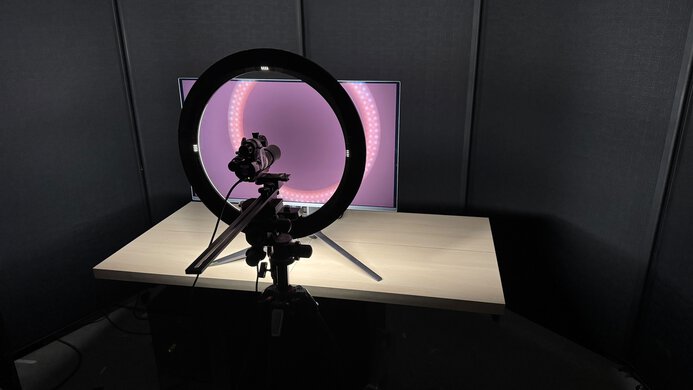
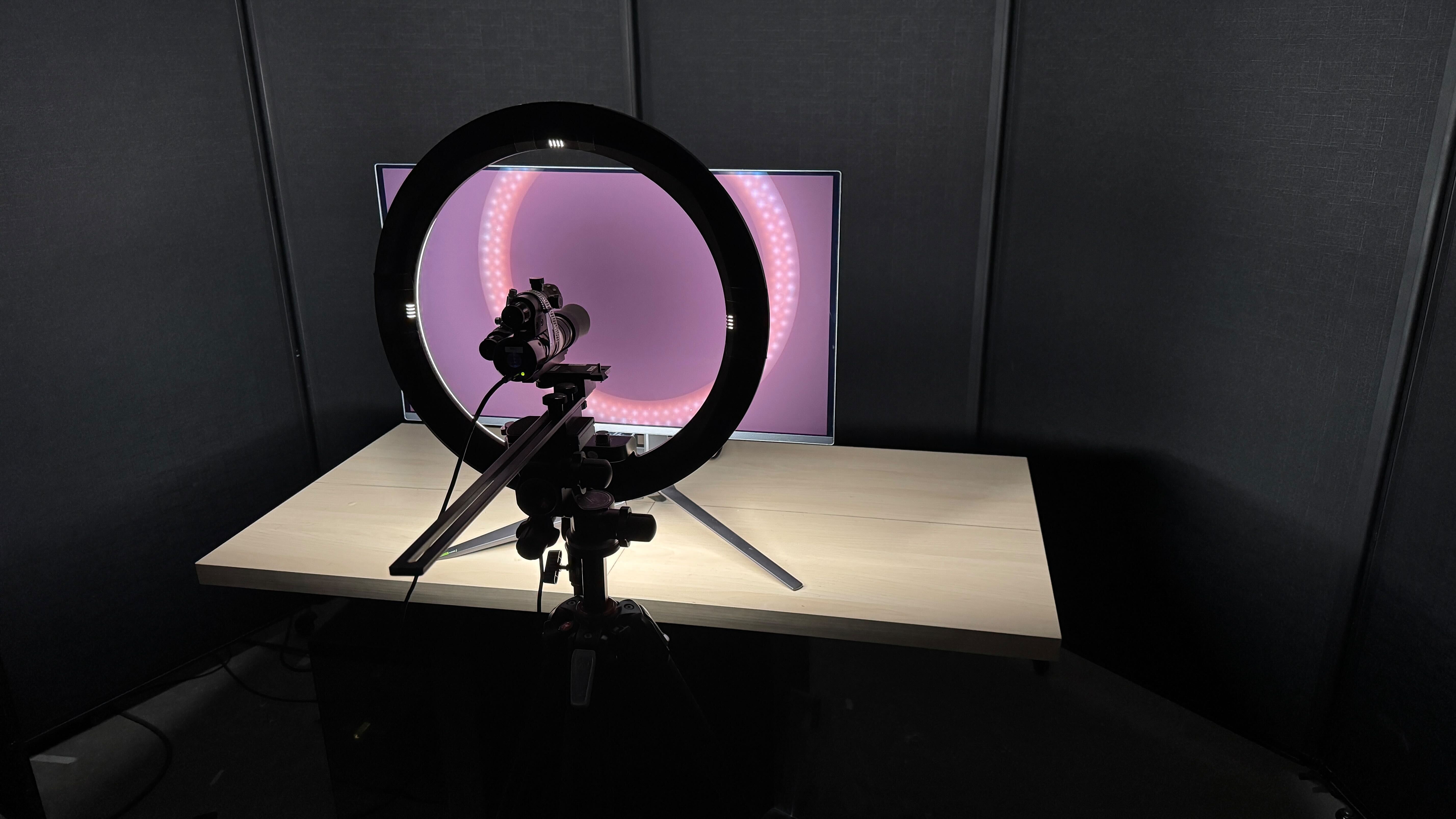
We buy and test more than 30 monitors each year, all of which we purchase ourselves, without cherry-picked units or samples. We put a lot into each unbiased, straight-to-the-point review, and there's a whole process from purchasing to publishing, involving multiple teams and people. We do more than just use the monitor for a week; we use specialized, custom tools to measure various aspects and deliver objective, data-driven results. We also consider multiple factors before making any recommendations, including the monitor's cost, its performance compared to the competition, and whether it's easy to find.
Test Results

for pictures & test results


for pictures & test results


for pictures & test results
for pictures & test results
for pictures & test results
for pictures & test results
for pictures & test results
for pictures & test results
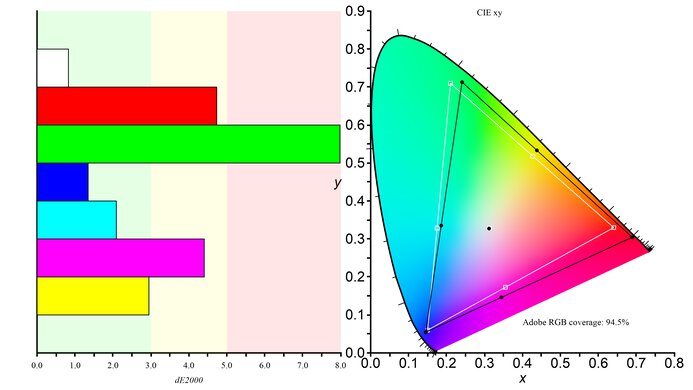
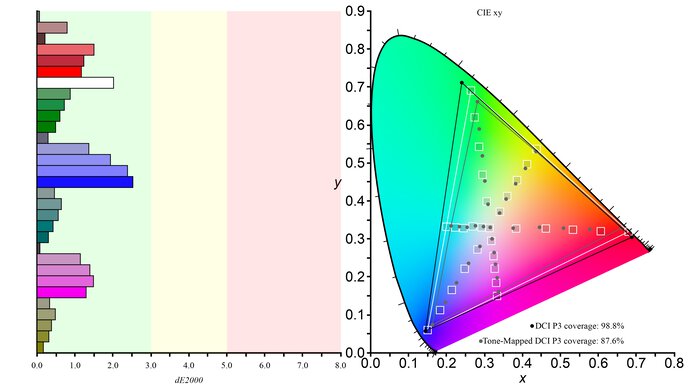
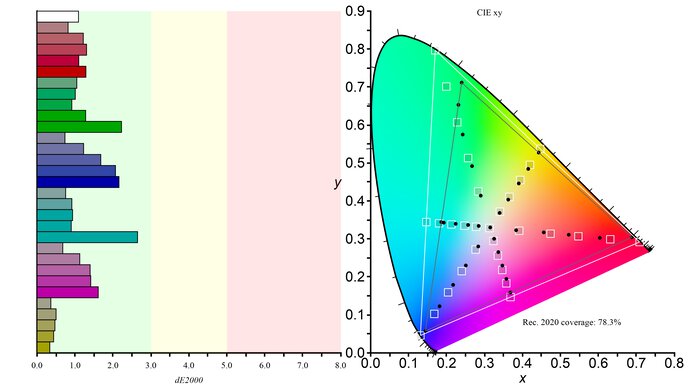


for videos & test results

for pictures & test results
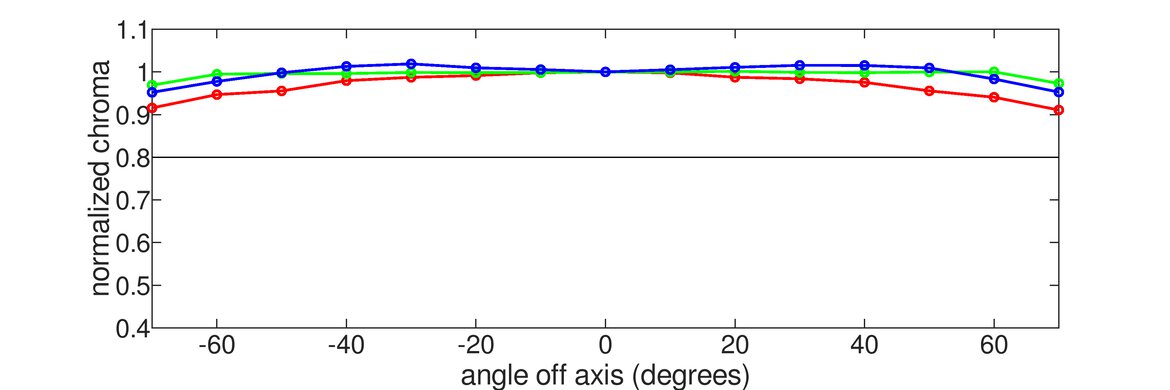
for pictures & test results
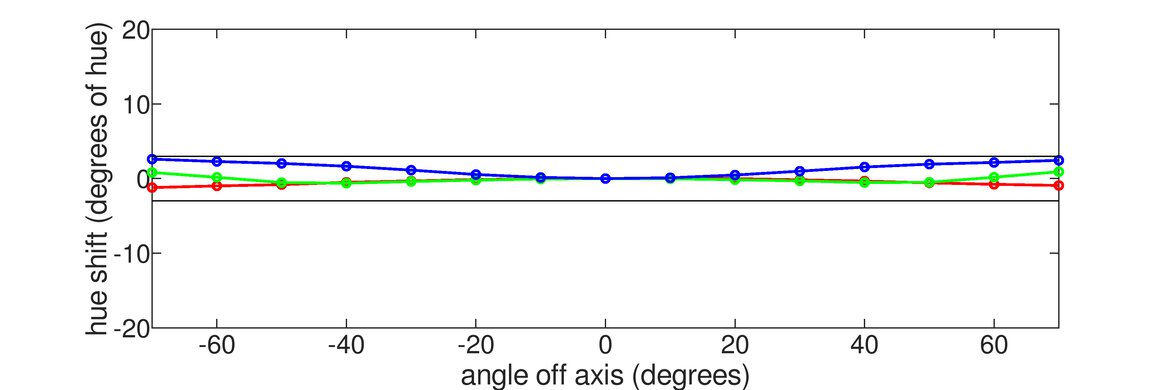
for pictures & test results
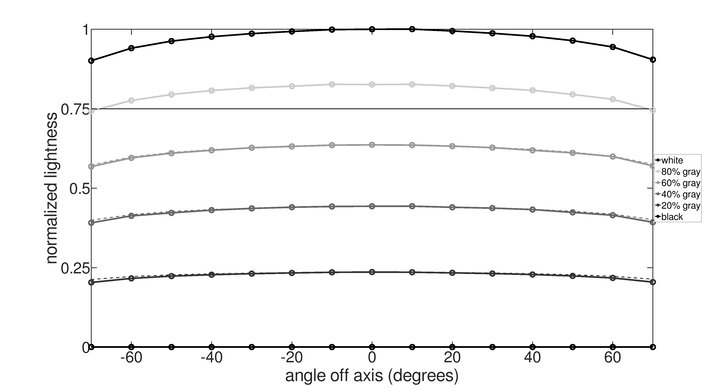

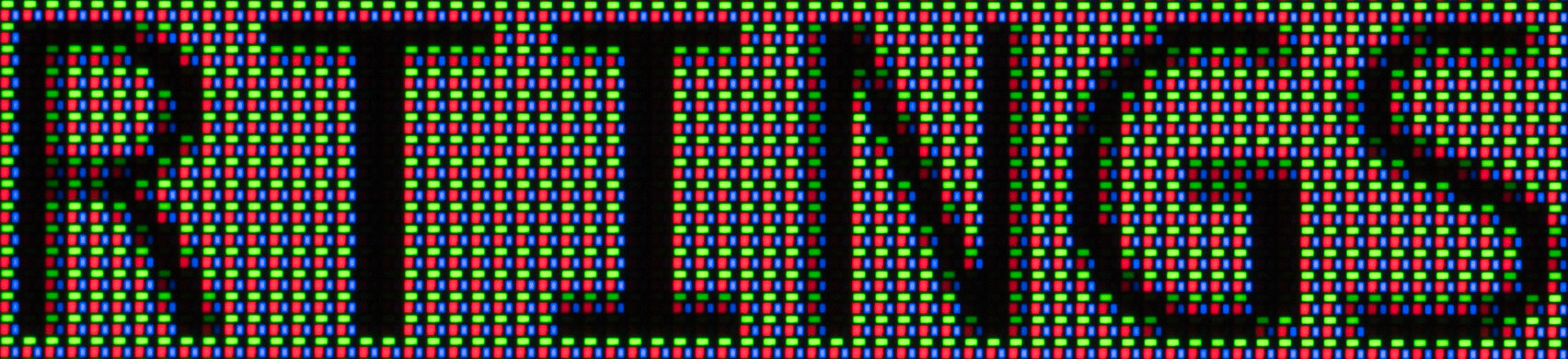
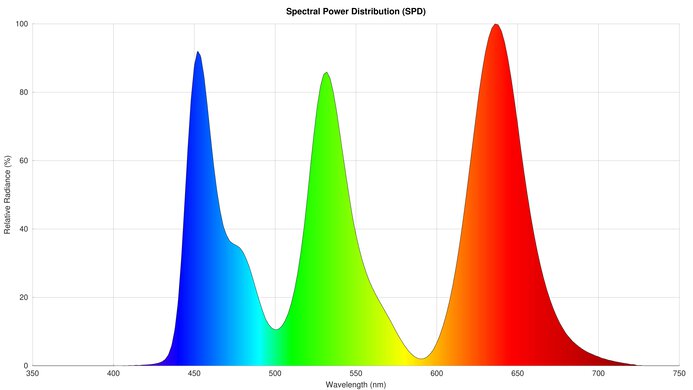











for pictures & test results