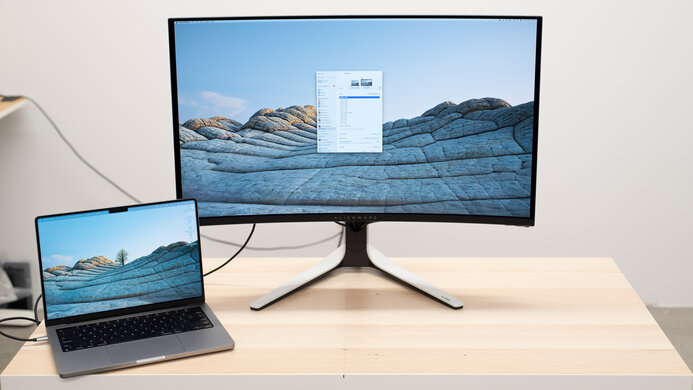
The ASUS ROG Swift OLED PG32UCDP is a 32-inch, 4k gaming monitor with a 240Hz refresh rate. However, it also has a special mode that increases its refresh rate to 480Hz with a reduced 1080p resolution. It uses Micro Lens Array+ (MLA+) technology that lets it get brighter than other OLEDs. Additionally, it has extra productivity perks like a USB-C port with up to 90W of power delivery and a KVM switch that makes it easy to multitask with different computers. As a part of the Republic of Gamers (ROG) lineup, it competes against a number of other 32-inch OLED displays. This includes other 32-inch 240Hz WOLED monitors, like the LG 32GS95UE-B, as well as 32-inch QD-OLEDs like the Samsung Odyssey OLED G8/G80SD S32DG80 and the Dell Alienware AW3225QF. This monitor has features to help prevent burn-in, like a custom heatsink and OLED Care settings.

We buy and test more than 30 monitors each year, with units that we buy completely on our own, without any cherry-picked units or samples. We put a lot into each unbiased, straight-to-the-point review, and there's a whole process from purchasing to publishing, involving multiple teams and people. We do more than just use the monitor for a week; we use specialized and custom tools to measure various aspects with objective data-based results. We also consider multiple factors before making any recommendations, including the monitor's cost, its performance against the competition, and whether or not it's easy to find.
Our Verdict
The ASUS ROG Swift OLED PG32UCDP is outstanding for PC gaming. It has a near-instantaneous response time that results in crisp motion and low input lag for a responsive feel. Its near-infinite contrast ratio and perfect black uniformity are ideal for dark room gaming, and blacks look deep and inky. It also has a 240Hz refresh rate, so motion looks extremely crisp, and it feels very responsive. Additionally, this monitor has a 1080p @ 480Hz mode, which is outstanding for esports and competitive gaming. One downside is its noticeable VRR flicker in dark scenes with changing frame rates, though it has a VRR flicker reduction system that reduces flicker at the expense of added stuttering.
- Deep and inky blacks.
- Perfect black uniformity.
- 240Hz refresh rate and VRR support.
- Near-instantaneous response time.
- 480Hz Frame Rate Boost mode.
- Flicker reduction system.
- Low input lag.
- Noticeable VRR flicker with changing frame rates.
The ASUS ROG Swift OLED PG32UCDP is fantastic for console gaming. It has HDMI 2.1 bandwidth and perfect compatibility with the PS5 and the Xbox Series X|S. Because of its near-instantaneous response time, it delivers a very crisp image, and its low input lag creates a responsive feel. It also displays deep blacks in a dark room, so it's great if you're gaming in a darker environment.
- Deep and inky blacks.
- Near-instantaneous response time.
- HDMI 2.1 bandwidth.
- Low input lag.
Although the ASUS ROG Swift OLED PG32UCDP is great for office work, it has some limitations. Its wide viewing angles make sharing your screen with someone else easy. Additionally, it has fantastic text clarity. However, while it works well with a few lights, it doesn't get bright enough to fight strong glare. Additionally, it has the risk of permanent burn-in with constant exposure to the same static elements over time, which is a problem if you're only using it for office work.
Great reflection handling.
- Wide viewing angles.
- Superb text clarity.
- Risk of burn-in.
The ASUS ROG Swift OLED PG32UCDP is fantastic for content creation. Its large 4k screen provides a detailed workspace for editing content, and you can easily have multiple windows open at the same time. It's also great for editing content in HDR, as small highlights get bright enough to pop, and it displays a wide range of colors. Additionally, its sRGB mode is fairly accurate even before calibration. However, you need to calibrate it for the best accuracy, and all parts of scenes are a bit too dark before calibration. Finally, OLEDs like this can be prone to burn-in with constant exposure to the same static elements over time.
Great reflection handling.
- Wide viewing angles.
- Superb text clarity.
- Deep and inky blacks.
- Risk of burn-in.
The ASUS ROG Swift OLED PG32UCDP has decent brightness. It's bright enough to fight glare in most well-lit rooms, but not if you have it opposite a sunny window. It also gets bright enough in HDR to make small highlights pop, but larger highlights are dimmer.
- Small highlights stand out.
- Not bright enough to fight really intense glare.
The ASUS ROG Swift OLED PG32UCDP has a near-instantaneous response time, resulting in exceptionally sharp motion.
- Near-instantaneous response time.
- Outstanding refresh rate compliance.
The ASUS ROG Swift OLED PG32UCDP is amazing for HDR. Thanks to its near-infinite contrast ratio and perfect black uniformity, it displays deep and inky blacks without any blooming around bright objects. It also displays a wide range of colors and makes them look vivid.
- Deep and inky blacks.
- Perfect black uniformity.
- Displays a wide range of vivid colors.
The ASUS ROG Swift OLED PG32UCDP has outstanding SDR picture quality, displaying deep, inky blacks and a wide range of colors.
- Deep and inky blacks.
- Displays a wide range of vivid colors.
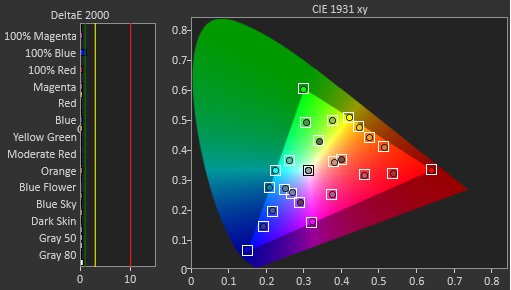
The ASUS ROG Swift OLED PG32UCDP has excellent color accuracy. While it has an accurate sRGB mode, you still need to calibrate it for the best accuracy.
- Fantastic gray uniformity.
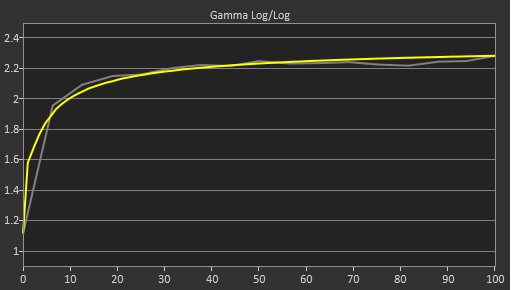
- Gamma doesn't follow the target curve.
Performance Usages
Changelog
- Updated Nov 10, 2025: We've converted this review to Test Bench 2.1.1. We removed the Vertical Viewing Angle test.
-
Updated Oct 30, 2025:
Clarified that the ASUS ROG Strix OLED XG32UCWMG is an alternative OLED that has a glossy coating.
-
Updated Oct 28, 2025:
We updated the Max Refresh Rate over HDMI and DP to reflect the max refresh rate at its native resolution, for consistency with other reviews.
-
Updated Aug 11, 2025:
We changed the Screen Finish from 'Semi-Gloss' to 'Matte' to better reflect how its coating interacts with light.
Check Price
Differences Between Sizes And Variants
We tested the 32-inch ASUS ROG Swift OLED PG32UCDP, which is the only size available for this monitor. It's one of many monitors in ASUS's 2024 lineup with an OLED panel, including the ASUS ROG Swift OLED PG27AQDP and the ASUS ROG Swift OLED PG32UCDM. However, the PG32UCDM is a different monitor with a QD-OLED display. The results are only valid for this model.
| Model | Size | Resolution | Panel Type | Refresh Rate |
|---|---|---|---|---|
| PG32UCDP | 32" | 4k/1080p | WOLED | 240Hz/480Hz |
| PG32UCDM | 32" | 4k | QD-OLED | 240Hz |
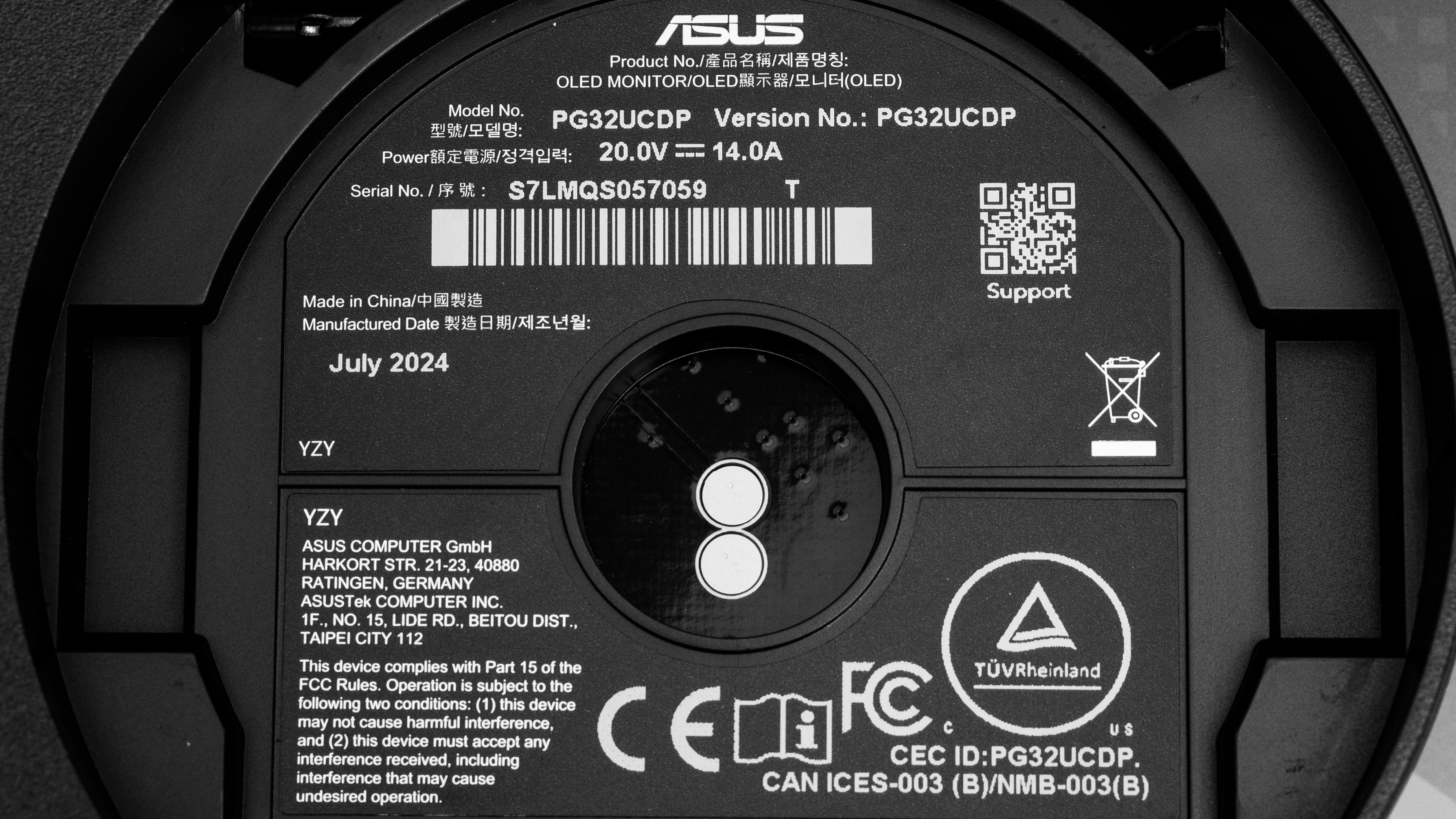
Our unit's label indicates it was manufactured in July 2024. We tested it with firmware MCM103.
Popular Monitor Comparisons
The ASUS ROG Swift OLED PG32UCDP is a high-end gaming monitor for those who want the most responsive gaming experience. While it has a very impressive 4k @ 240Hz mode with vivid colors and bright highlights, its standout feature is its 1080p @ 480Hz Frame Rate Boost mode. This monitor has extraordinarily low input lag and response time, so it's an exceptional choice if you plan to play both immersive games in 4k and are an esports enthusiast. It's also better than some 32-inch OLEDs for productivity, as it has a KVM switch and delivers up to 90W of power over USB-C. However, if you want the most vivid colors, other 32-inch monitors with a QD-OLED display, like the Samsung Odyssey OLED G8/G80SD S32DG80, deliver more vibrant colors and cost less.
See our recommendations for the best 4k gaming monitors, the best high refresh rate monitors, and the best OLED monitors.
The ASUS ROG Swift OLED PG32UCDM and the ASUS ROG Swift OLED PG32UCDP are 32-inch 4k OLED monitors. The PG32UCDP is a better choice if you want the most responsive feel, as it has a 1080p @ 480Hz mode that the PG32UCDM lacks. It also works better in a room with a fair amount of ambient light, as deep blacks won't appear slightly purple, as would on the PG32UCDM. Finally, the PG32UCDP has better text clarity, so it's a better option if you plan to use it for productivity work. However, if vivid colors are important to you then the PG32UCDM is the better choice, as it has more vivid colors in HDR.
The LG 32GS95UE-B and the ASUS ROG Swift OLED PG32UCDP are 32-inch 4k WOLED monitors. Both have very similar performance, including a special 1080p @ 480Hz mode for esports and other fast-paced games. The ASUS has a flicker reduction system, so you may prefer it if you're bothered by VRR flicker, as well as a KVM switch and 90W of power delivery, so it's a better choice if you plan to use it for some office work. However, if these things aren't important to you then the LG is a great option.
The ASUS ROG Strix OLED XG32UCWMG and the ASUS ROG Swift OLED PG32UCDP are both high-end OLED gaming monitors. They're fairly similar for the most part, as they use the same WOLED panel with a native 4k resolution and 240Hz refresh rate, as well as a Frame Rate Boost mode that allows you to use it with 1080p @ 480Hz signals. The main difference between them is their screen coatings. The glossy coating on the XG32UCWMG allows images to appear clearer, and it does a better job at maintaining low black levels in bright rooms. On the other hand, the matte coating of the PG32UCDP has fewer distracting reflections, so choosing one over the other really comes down to personal preference. The PG32UCDP also has higher power delivery over USB-C, which is something to consider if you want to connect a laptop.
The ASUS ROG Swift OLED PG27UCDM and the ASUS ROG Swift OLED PG32UCDP are different types of 4k, 240Hz OLED gaming monitors. The PG27UCDM is a QD-OLED that displays more vivid colors, and it has a glossy coating that offers clearer images. The PG27UCDM also has DisplayPort 2.1 bandwidth that lets you reach the max refresh rate without compression, as long as your graphics card also supports DisplayPort 2.1. While the PG32UCDP is also a native 4k, 240Hz monitor, the main thing that sets it apart is the fact that it has a 1080p, 480Hz dual mode that allows you to achieve a higher refresh rate. The PG32UCDP also has a WOLED panel whose black levels don't rise as much in bright rooms.
Test Results

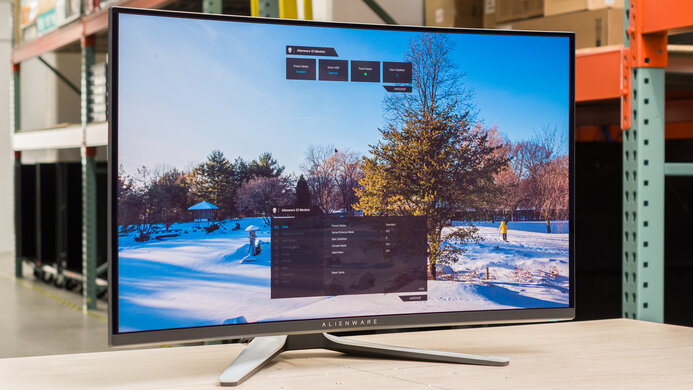
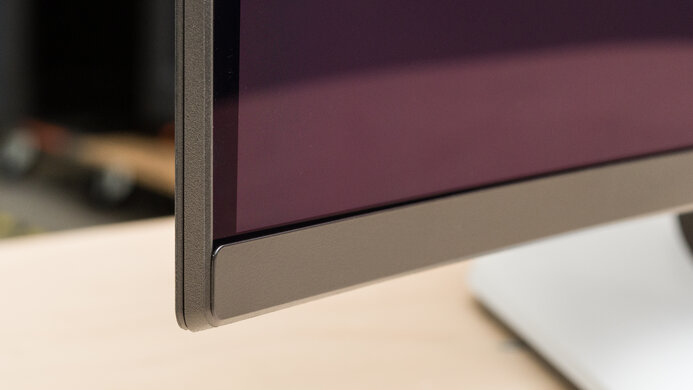
The ASUS ROG Swift OLED PG32UCDP has a sleek design with a gamer-oriented look. It's mainly gray and silver, with some black accents throughout. It has various RGB lighting zones, including on the back and below the stand. The stand has pins that attach to the monitor to transfer power for the lighting, and you can detach the cover at the bottom of the stand. You can also see the bottom of the stand without the cover.
The ergonomics are mediocre. While it offers the most common ergonomic adjustments, the range for each is limited. It's fine if you need to adjust it for yourself, but it can be more difficult to share your screen with someone sitting next to you. The stand features a cutout for cable management.
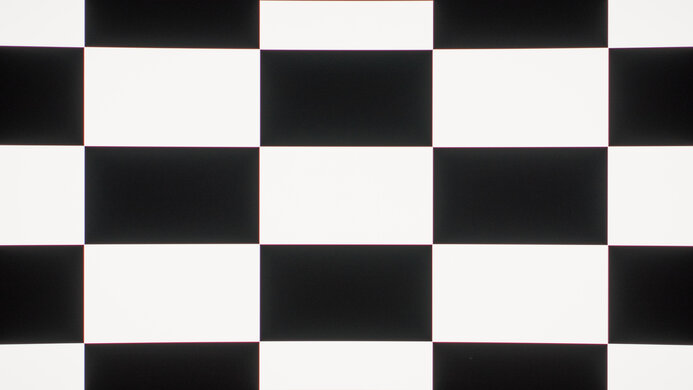
The ASUS ROG Swift OLED PG32UCDP doesn't have a backlight, so it doesn't require a local dimming feature. However, with a near-infinite contrast ratio, there isn't any blooming around bright objects, and it's the equivalent of a perfect local dimming feature. We still film these videos on the monitor so you can see how the screen performs and compare it with a monitor that has local dimming.
Settings
- Game Visual: User Mode (after calibration)
- Uniform Brightness: Off
- Brightness: 100
- Auto Logo Brightness: Off
- Screen Saver: Off
- Screen Move: Off
The SDR brightness is decent. While it doesn't get bright enough to fight intense glare, it's fine if you have a few lights around. You can also check out the LG 27G850A-B if you want a 4k, 240Hz Dual-Mode monitor that gets brighter.
If you turn Uniform Brightness 'On,' then the brightness is lower but more even, as you can see below:
- Real Scene: 265 cd/m²
- ABL: 0.001
| Percent Window | Peak | Sustained |
|---|---|---|
| 2% Window | 268 cd/m² | 267 cd/m² |
| 10% Window | 266 cd/m² | 265 cd/m² |
| 25% Window | 267 cd/m² | 266 cd/m² |
| 50% Window | 268 cd/m² | 267 cd/m² |
| 100% Window | 268 cd/m² | 267 cd/m² |
Settings
- HDR Setting: Console HDR
- Adjustable HDR: On
- Brightness: 100
- Uniform Brightness: Off
- Auto Logo Brightness: Off
- Screen Saver: Off
- Screen Move: Off
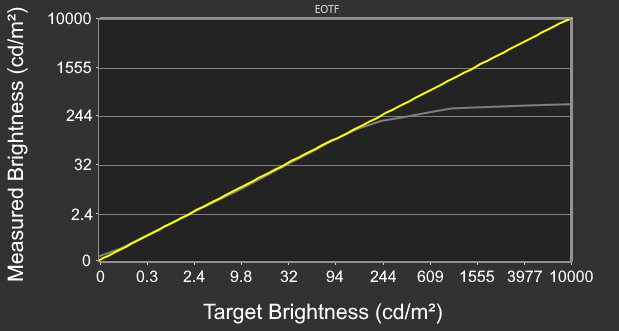
The HDR brightness is decent. It gets bright enough to make smaller highlights pop, but it can't sustain this brightness with larger highlights, so they don't stand out as much. It follows the PQ EOTF curve well, and there's a sharp roll-off at peak brightness, so highlights get as bright as possible.
You can also see the results in the 'Console' mode with Uniform Brightness on and off, as well as 'DisplayHDR True Black 400' below:
| HDR Setting | Console (Uniform Brightness On) | Console (Uniform Brightness Off) | True Black 400 |
|---|---|---|---|
| Real Scene | 449 cd/m² | 451 cd/m² | 455 cd/m² |
| ABL | 0.071 | 0.089 | 0.038 |
| Peak 2% | 728 cd/m² | 1,080 cd/m² | 446 cd/m² |
| Peak 10% | 694 cd/m² | 694 cd/m² | 445 cd/m² |
| Peak 25% | 352 cd/m² | 352 cd/m² | 326 cd/m² |
| Peak 50% | 278 cd/m² | 279 cd/m² | 279 cd/m² |
| Peak 100% | 258 cd/m² | 258 cd/m² | 257 cd/m² |
| Sustained 2% | 713 cd/m² | 1,051 cd/m² | 441 cd/m² |
| Sustained 10% | 678 cd/m² | 681 cd/m² | 440 cd/m² |
| Sustained 25% | 352 cd/m² | 351 cd/m² | 324 cd/m² |
| Sustained 50% | 278 cd/m² | 278 cd/m² | 278 cd/m² |
| Sustained 100% | 257 cd/m² | 258 cd/m² | 257 cd/m² |
Additionally, you can see how similar the PQ EOTF graphs of 'Console' and 'True Black 400' HDR Setting are with Uniform Brightness 'Off' below:
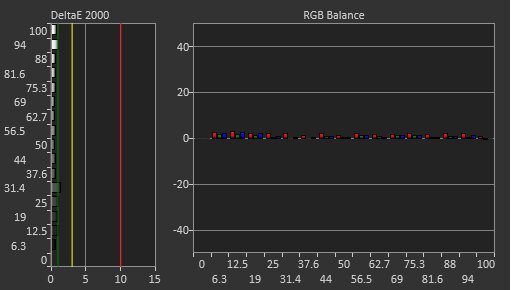
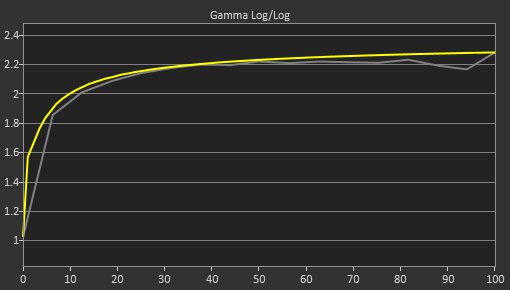
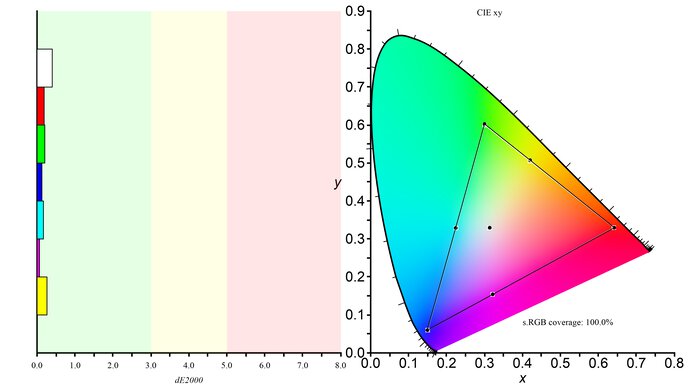
The accuracy before calibration in the 'sRGB Cal Mode' is great. The color temperature is warm but still close to the 6500K target. The white balance is decent, and while the colors are a bit oversaturated, they're quite accurate. Gamma doesn't follow the target curve well, as most sections of scenes are too dark.
The following settings are locked out in 'sRGB Cal Mode':
Locked-out Settings
- Shadow Boost
- Uniform Brightness
- Contrast
- All Color Settings
- ELMB
- Aspect Control
- Blue Light Filter
If you want to access these settings, then you need to use another mode with worse color accuracy, like 'User.'
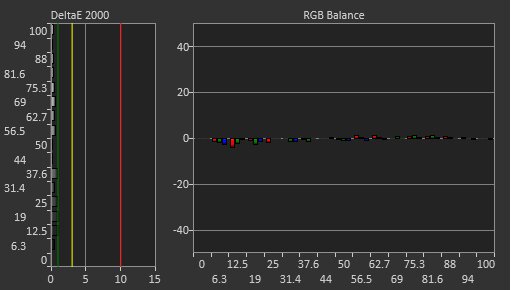
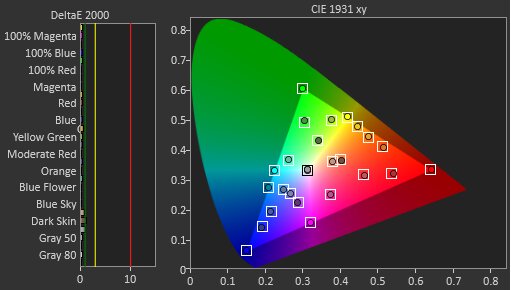
The accuracy after calibration is fantastic, and you won't notice any issues. The 'User' picture mode is equally accurate in the standard 4k @ 240Hz mode and the 1080p @ 480Hz Frame Rate Boost mode.
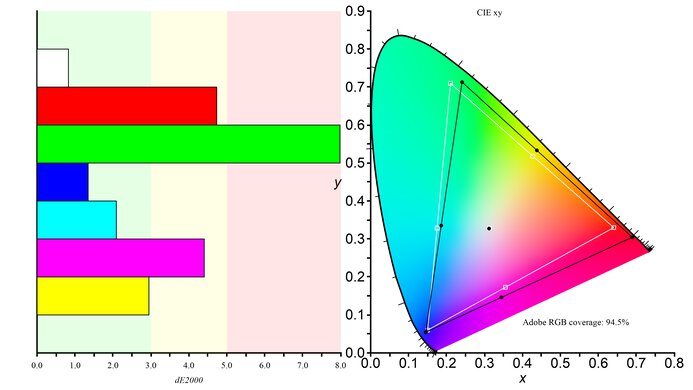
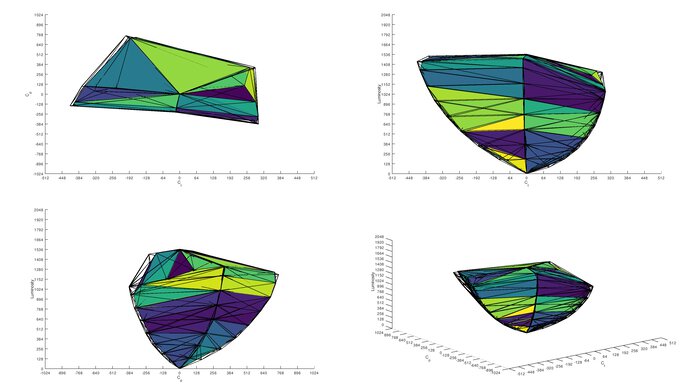
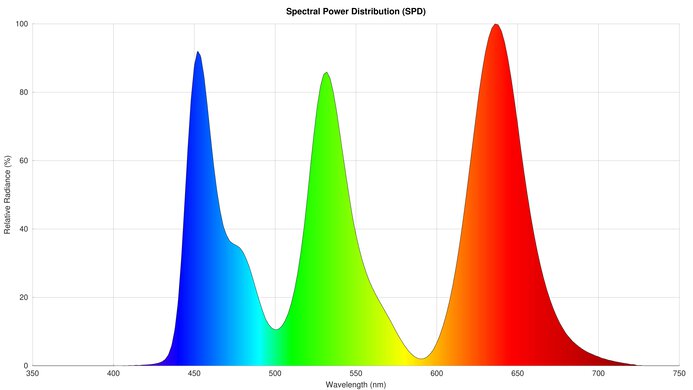
The SDR color gamut is superb. It displays all colors in the common sRGB color space and a wide range of colors in Adobe RGB. That said, some colors are off in Adobe RGB, as it oversaturates reds, and greens are inaccurate.
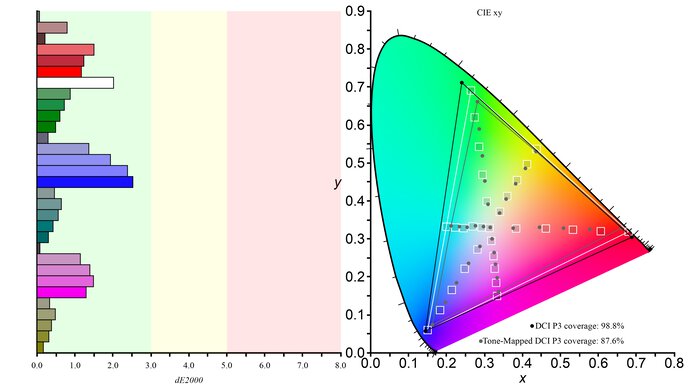
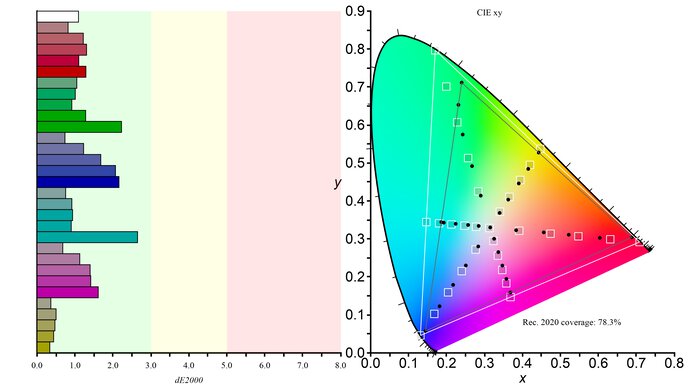
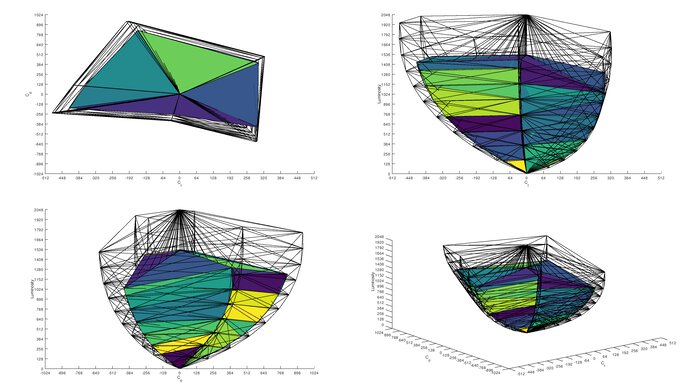
The HDR color gamut is fantastic. It displays most colors in the common DCI-P3 color space, though a more limited range in Rec. 2020, and colors other than white are fairly accurate.
If you're running the latest firmware, you can calibrate the monitor in HDR with settings such as color temperature, brightness, saturation, contrast, 6-axis saturation, and VividPixel.
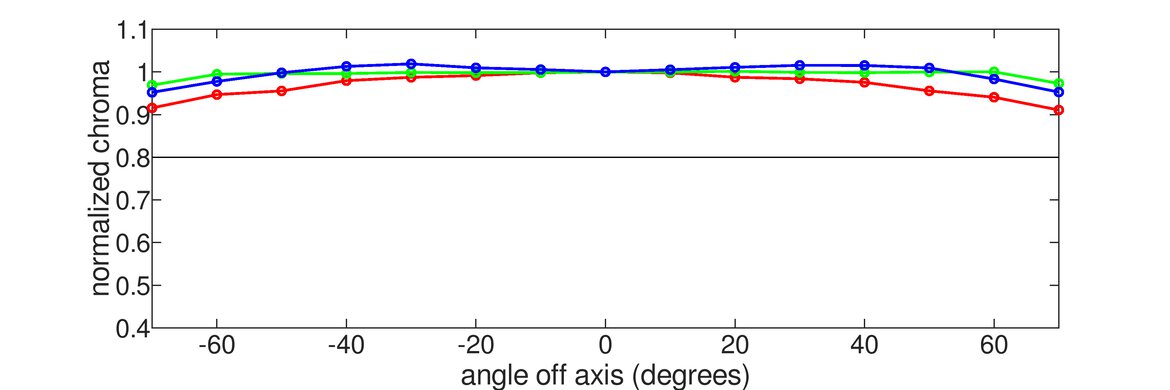
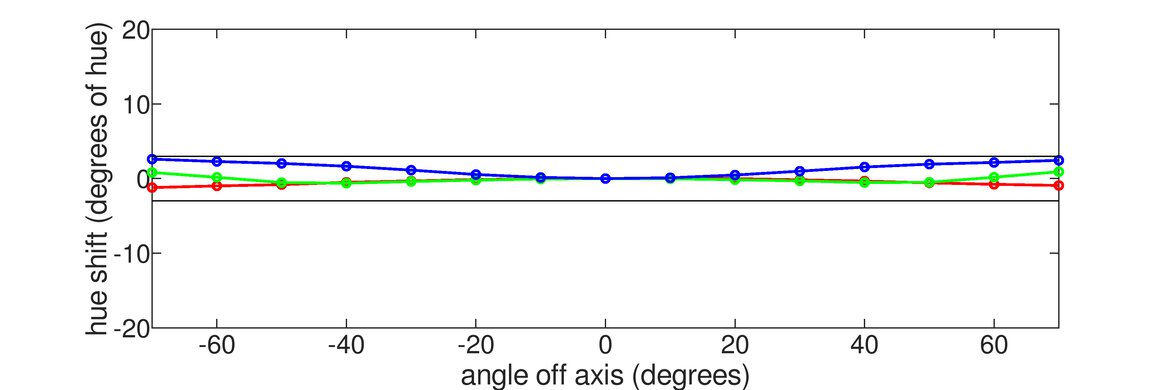
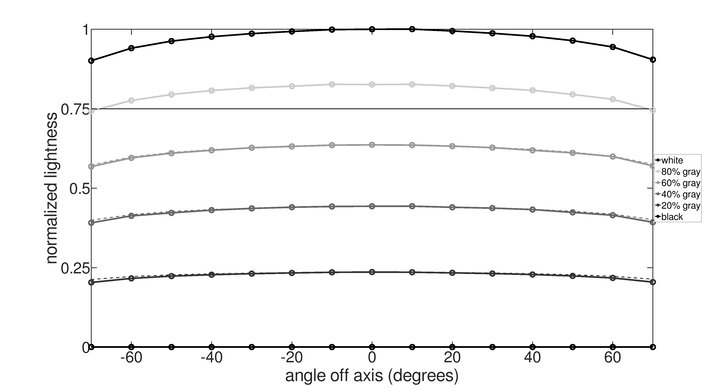
The horizontal viewing angle is outstanding. Although it technically isn't perfect, you visually won't see any inconsistencies when viewing from the sides or if you sit close to the screen.
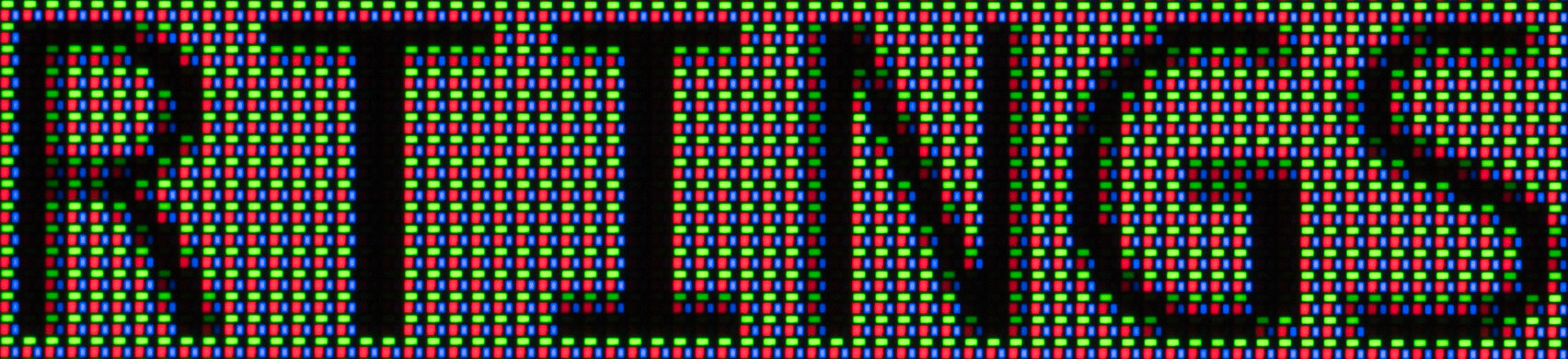
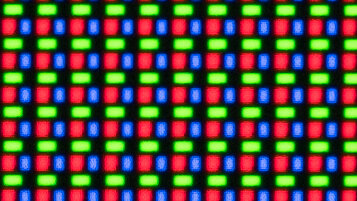
The text clarity is fantastic. Fringing is very minimal and isn't visible to some. This is at least partly due to the monitor's RGWB subpixel layout. These photos are in Windows 10, and you can also see them in Windows 11 with ClearType on and with ClearType off.
1080p @ 480Hz Frame Rate Boost
The text clarity looks worse when Frame Rate Boost is on, as this mode has a 1080p resolution. The text looks clearer in the 'Fill Up' mode than in the '27" Simulation' or '24.5" Simulation' modes.
The direct reflection handling is good. It absorbs and spreads light out like a typical matte coating, while having mirror-like reflections. That said, if you prefer a WOLED monitor with a glossy coating for a clearer image, check out the ASUS ROG Strix OLED XG32UCWMG instead.
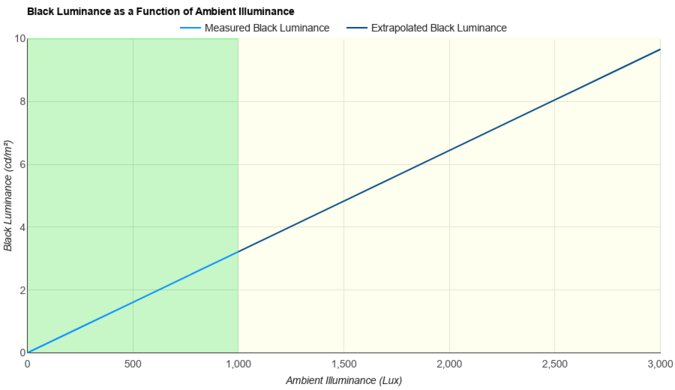
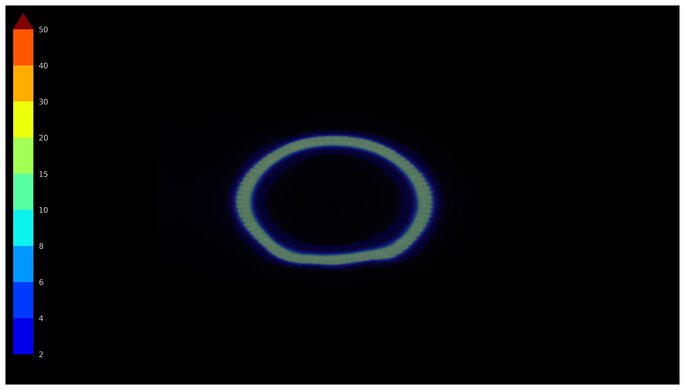
The monitor does a good job at retaining low black levels in a bright room. They don't rise much, but you still need to use it in a dark room to get perfect black levels.
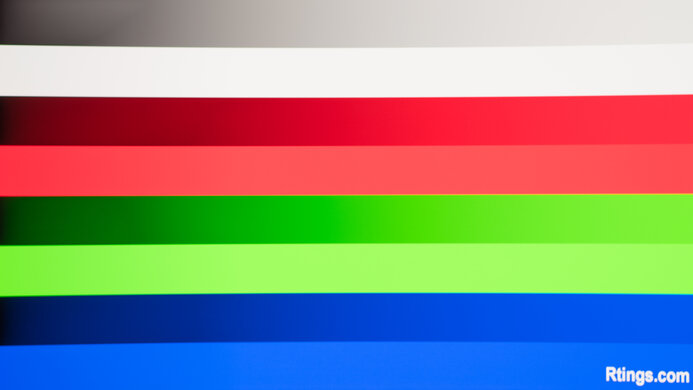
While the ASUS ROG Swift OLED PG32UCDP has superb gradient handling, it causes very dark grays to appear black below a certain threshold level. It is possible to fix this by changing the Shadow Boost setting, though doing so causes bright grays to appear white. You can see how different Shadow Boost settings affect the black levels below:
This monitor has two distinct operating modes: a standard 4k @ 240Hz mode and a 1080p @ 480Hz Frame Rate Boost mode. Both modes support 10-bit color at their maximum refresh rate with Display Stream Compression (DSC) over DisplayPort, but it has a DSC Support setting that you can use to disable DSC if you prefer not to use it.
The max refresh rate with DSC off depends on the connection and the mode that you're in. Below you can see the max refresh rate with 8-bit, RGB signals with each connection type and mode.
| Resolution | HDMI | DisplayPort |
|---|---|---|
| 4k | 120Hz | 60Hz |
| 1080p | 480Hz | 240Hz |
4k @ 240Hz Standard Mode
| NVIDIA | VRR Min | VRR Max |
|---|---|---|
| DisplayPort | <20Hz | 240Hz |
| HDMI | <20Hz | 240Hz |
| AMD | VRR Min | VRR Max |
|---|---|---|
| DisplayPort | <20Hz | 240Hz |
| HDMI | <20Hz | 240Hz |
On top of FreeSync and G-SYNC compatibility, the ASUS ROG Swift OLED PG32UCDP also supports HDMI Forum VRR. You can also see the results with Frame Rate Boost 'On':
| NVIDIA | VRR Min | VRR Max |
|---|---|---|
| DisplayPort | <20Hz | 480Hz |
| HDMI | <20Hz | 480Hz |
| AMD | VRR Min | VRR Max |
|---|---|---|
| DisplayPort | <20Hz | 480Hz |
| HDMI | <20Hz | 480Hz |
4k @ 240Hz Standard Mode
| Frame Rate | CAD Heatmap | RT Chart | Pursuit Photo |
|---|---|---|---|
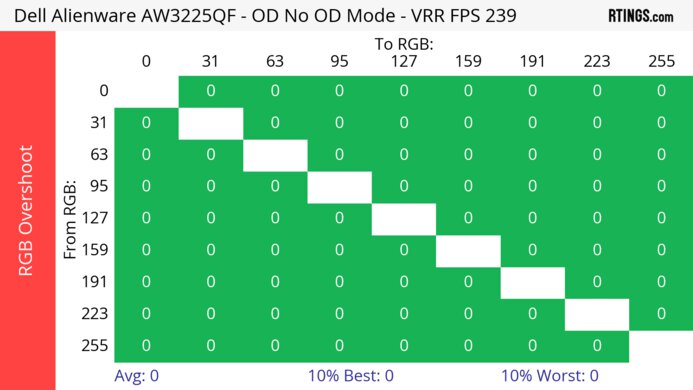
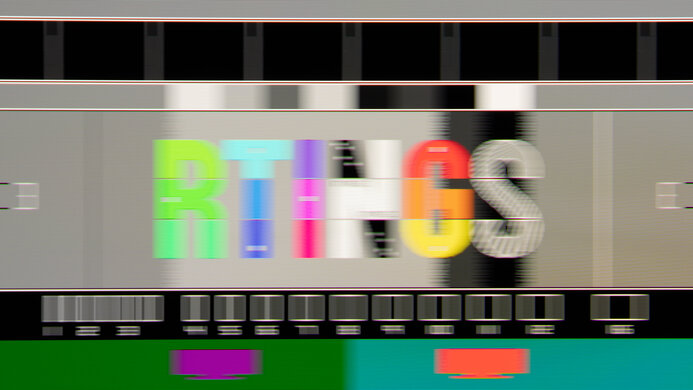
| 239Hz | Heatmap | Chart | Photo |
| 165Hz | Heatmap | Chart | Photo |
| 144Hz | Heatmap | Chart | Photo |
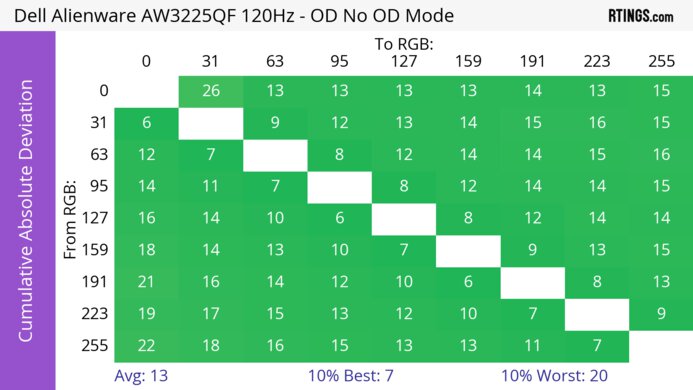
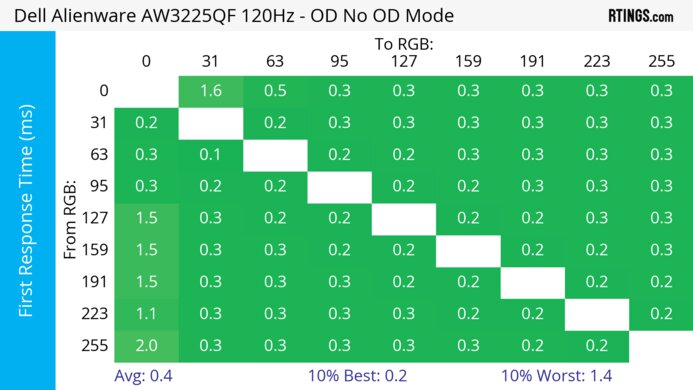
| 120Hz | Heatmap | Chart | Photo |
| 100Hz | Heatmap | Chart | Photo |
| 80Hz | Heatmap | Chart | Photo |
| 60Hz | Heatmap | Chart | Photo |
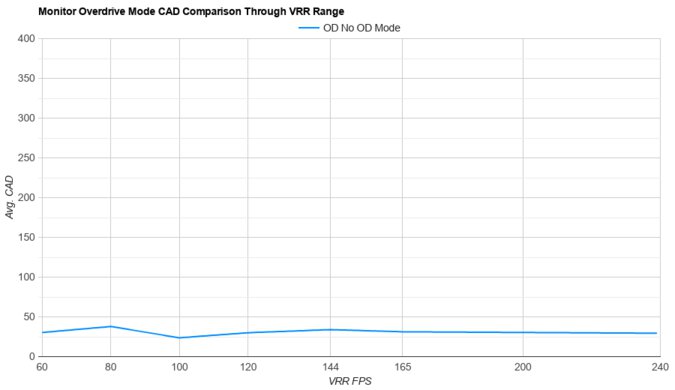
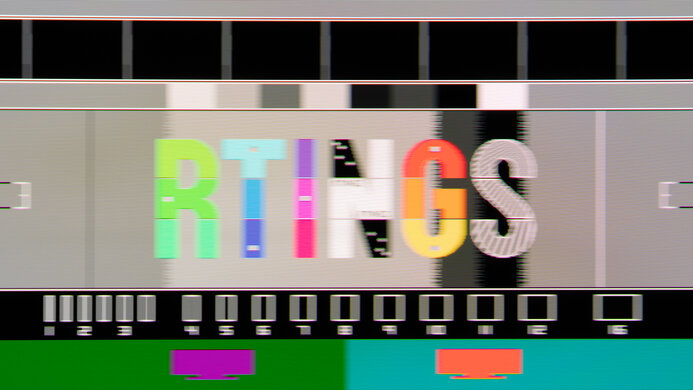
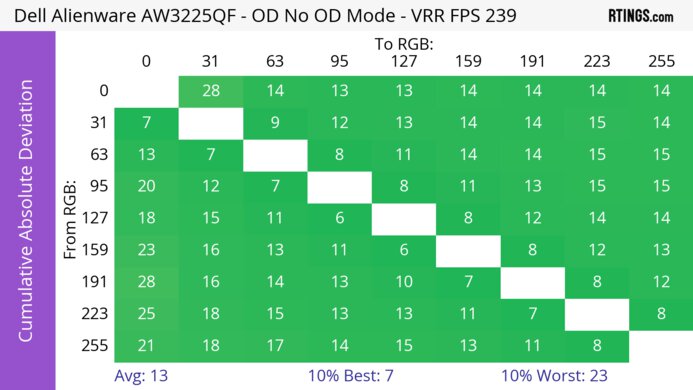
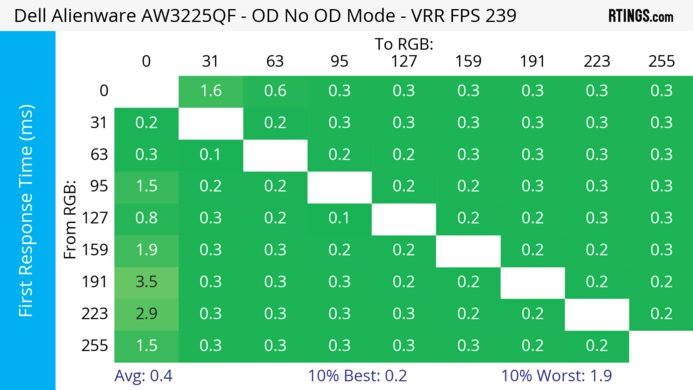
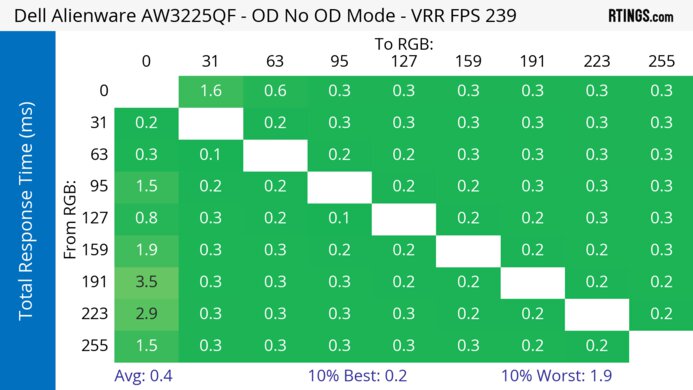
The ASUS ROG Swift OLED PG32UCDP has outstanding motion handling across its entire refresh rate range with VRR enabled in both standard mode and Frame Rate Boost mode. CAD remains low throughout, and there's minimal blur with fast-moving objects.
1080p @ 480Hz Frame Rate Boost Mode
| Frame Rate | CAD Heatmap | RT Chart | Sequence | Pursuit Photo |
|---|---|---|---|---|
| 476Hz | Heatmap | Chart | Sequence | Photo |
| 360Hz | Heatmap | Chart | Sequence | Photo |
| 240Hz | Heatmap | Chart | Sequence | N/A |
| 165Hz | Heatmap | Chart | Sequence | N/A |
| 144Hz | Heatmap | Chart | Sequence | N/A |
| 120Hz | Heatmap | Chart | Sequence | N/A |
| 100Hz | Heatmap | Chart | Sequence | N/A |
| 80Hz | Heatmap | Chart | Sequence | N/A |
| 60Hz | Heatmap | Chart | Sequence | N/A |
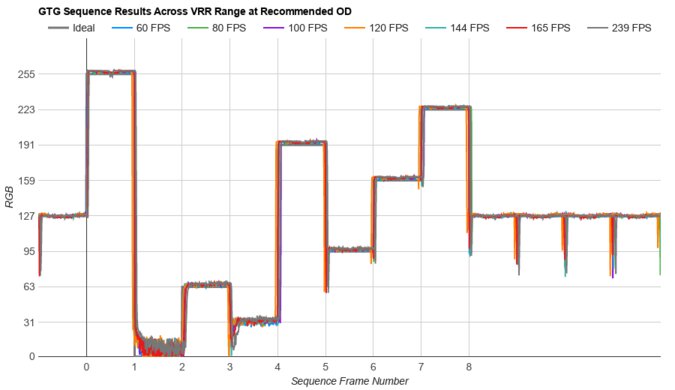
We've included sequence graphs above, so you can see more about how quickly the monitor transitions to the next frame at different refresh rates.
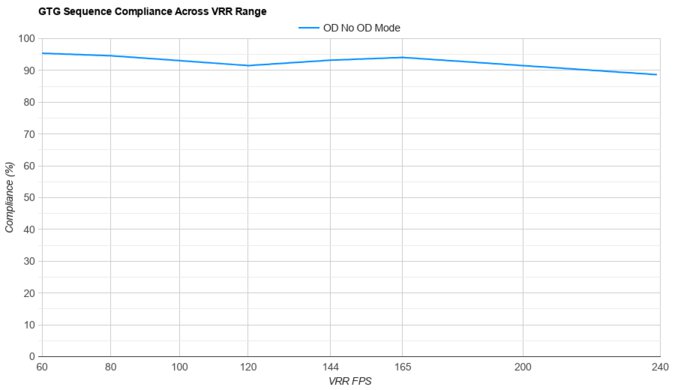
The refresh rate compliance is outstanding. Its near-instantaneous response time means it makes full-color transitions before drawing the next frame.
4k @ 240Hz Standard Mode
The CAD at the maximum refresh rate in both standard and Frame Rate Boost modes is outstanding. It displays fast-moving objects as intended, and motion is extremely sharp.
1080p @ 480Hz Frame Rate Boost Mode
4k @ 240Hz Standard Mode
The CAD at 120Hz is incredible in both standard and Frame Rate Boost modes. Pixels transition to their target RGB level almost instantly, so there isn't any blur trail or noticeable inverse ghosting.
1080p @ 480Hz Frame Rate Boost Mode
4k @ 240Hz Standard Mode
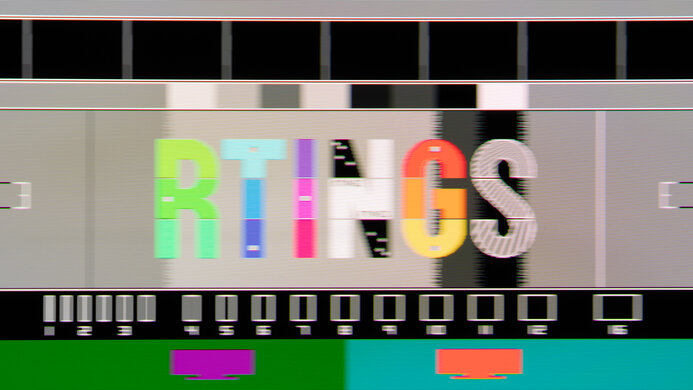
The CAD at 60Hz is incredible in both standard and Frame Rate Boost modes. Pixels transition colors almost perfectly, and any noticeable blur is persistence.
1080p @ 480Hz Frame Rate Boost Mode
The ASUS ROG Swift OLED PG32UCDP has an optional black frame insertion feature to reduce persistence blur, but it only works with fixed 120Hz signals. You can adjust the brightness with it on, but if you set USB-C Charging to '90 W,' it has a maximum brightness of 62 cd/m².
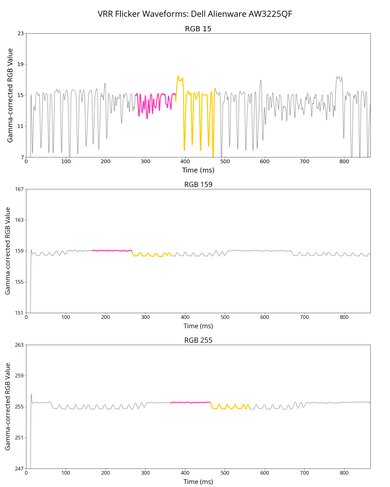
Unfortunately, the ASUS ROG Swift OLED PG32UCDP has distracting VRR flicker with changing frame rates when OLED Anti-Flicker is off. It's most noticeable in dark scenes, and while it isn't so bad in brighter scenes, you can still see it in dark shadows. This doesn't happen if your PC can maintain fairly consistent frame rates.
The monitor's OLED Anti-Flicker minimizes VRR flicker by reducing the refresh rate range at which VRR operates. While this introduces some stuttering, it significantly reduces VRR flicker on 'High,' as you can see in the table below:
| Anti-Flicker Setting | 4K | 1080p |
|---|---|---|
| Off - Overall Score | 5.4 | 5.6 |
| Video | Video | Video |
| Dark Gray Flicker | 5.3 RGB | 3.8 RGB |
| Middle Gray Flicker | 1.7 RGB | 2.2 RGB |
| Light Gray Flicker | 0.9 RGB | 1.7 RGB |
| Middle - Overall Score | 5.5 | 8.8 |
| Video | Video | Video |
| Dark Gray Flicker | 5.0 RGB | 0.9 RGB |
| Middle Gray Flicker | 1.7 RGB | 0.8 RGB |
| Light Gray Flicker | 0.9 RGB | 0.7 RGB |
| High - Overall Score | 8.0 | 9.1 |
| Video | Video | Video |
| Dark Gray Flicker | 1.7 RGB | 0.6 RGB |
| Middle Gray Flicker | 0.9 RGB | 0.9 RGB |
| Light Gray Flicker | 0.5 RGB | 0.8 RGB |
The ASUS ROG Swift OLED PG32UCDP has very low input lag for a responsive feel. Additionally, its OLED Anti-Flicker feature doesn't increase input lag.
This monitor has even lower input lag at its highest refresh rate of 480Hz in Frame Rate Boost mode, though input lag increases substantially at 120Hz and 60Hz. BFI doesn't work when you select the '24.5" Simulation' mode. You can see the input lag below in the monitor's three Frame Rate Boost modes:
| Refresh Rate | Fill Up | 27" Simulation | 24.5" Simulation |
|---|---|---|---|
| 480Hz | 1.7 ms | 4.5 ms | 4.6 ms |
| 120Hz | 7.1 ms | 12.8 ms | 13.3 ms |
| 60Hz | 15.9 ms | 22.7 ms | 22.6 ms |
| BFI 120Hz | 13.9 ms | 17.5 ms | N/A |
This monitor's native resolution is 4k. However, when used in Frame Rate Boost mode, its maximum resolution is 1080p. You can use this mode in three views: 'Fill Up,' 27" Simulation,' and '24.5" Simulation.' The 'Fill Up' mode has the sharpest image, with the other modes looking worse.
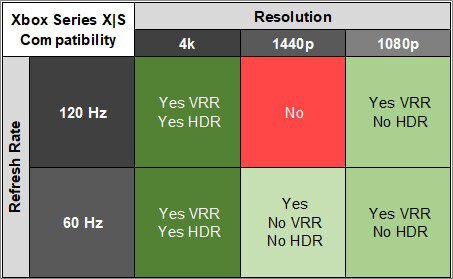
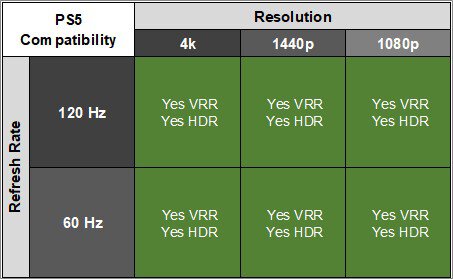
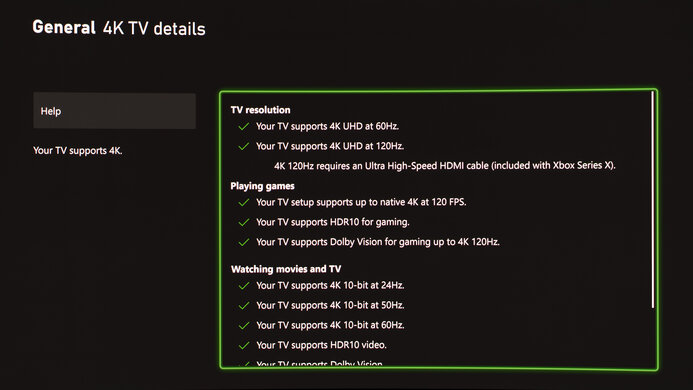
The ASUS ROG Swift OLED PG32UCDP works well with the Xbox Series X|S, except you need to use the console's HDMI override setting for 1440p @ 60Hz to work, which disables VRR. The Xbox doesn't support HDR with 1080p or 1440p signals, so that isn't an issue with the monitor. These results are with Frame Rate Boost turned off.
The ASUS ROG Swift PG32UCDP has an optical audio output. This means you can connect a compatible audio source and send digital audio signals to it, producing higher quality audio than if you were to use the 3.5 mm analog audio output.
The DisplayPort Alt Mode on the USB-C port allows you to connect a compatible laptop to display an image from it and charge it at the same time. There's a USB-C Charging setting where you can choose between 65W and 90W of power delivery.
Connection
HDMI 2.0
HDMI 2.1
USB-C to DP
Max Refresh Rate
60Hz (4K) / 144Hz (1080p)
240Hz (4K) / 480Hz (1080p)
VRR Range
N/A
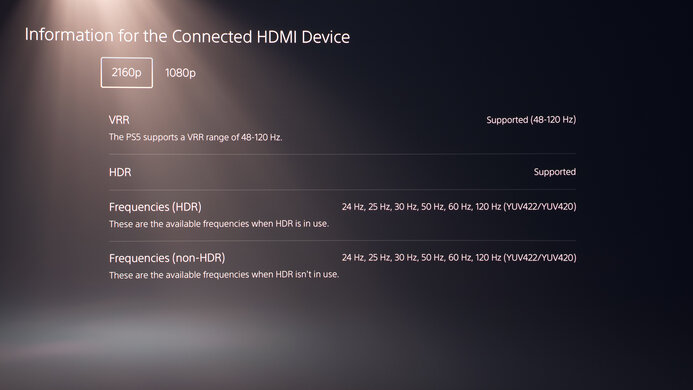
48-120Hz (4K) / 48-240Hz (1080p)
HDR
Yes
Yes
Yes
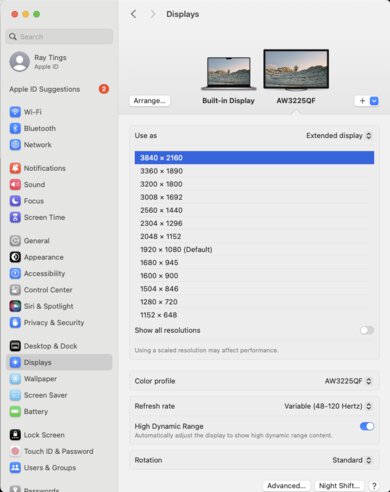
This monitor works well with macOS. When using a MacBook, windows return to their original position when reopening the lid or waking the laptop up from sleep except with HDMI 2.0, where closing the lid doesn't always migrate windows. HDR colors don't look washed out, and VRR works well. Additionally, the maximum resolution/refresh rate is only available over USB-C if you set Type-C Bandwidth to 'USB 2.0.'
The ASUS PG32UCDP has several features, including a custom heatsink and a KVM switch. The KVM switch allows you to use the same keyboard and mouse with two different sources, and it works well as it automatically switches when you change inputs. It has other extra perks, some of which you can read about below:
- Aspect Control: You can use this setting to change the aspect ratio, including decreasing the image size to simulate a 24.5 or 27-inch screen size.
- Shadow Boost: Adjusts gamma so that you can see opponents better in dark scenes.
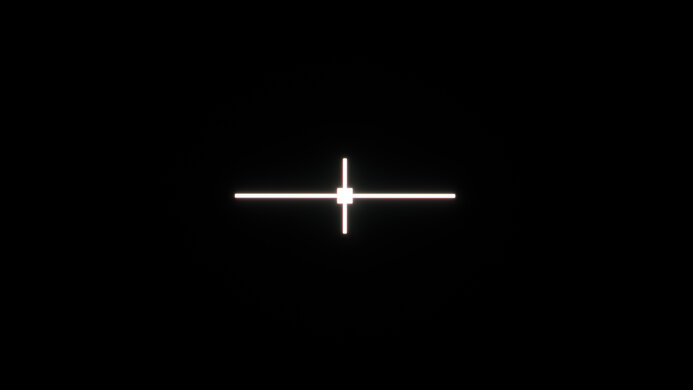
- GamePlus: Includes different gaming features like an FPS counter, crosshairs, sniper mode, stopwatch, and timer.
- Lighting Effect: Controls the RGB lighting on the back of the monitor and the stand. You can also download Armoury Crate to control this.
- Low Blue Light Filter: Removes blue light to help reduce eye strain.
- Proximity Sensor: Turns the display off if it detects you're away from the monitor for longer than the preset time and resumes normal brightness if it detects activity again.
Like most OLED displays, there are also a few settings to help reduce the risk of burn-in, which you can find in the Screen Protection section of the OSD.
- Auto Logo Brightness: Dims static logos that are on the screen, like if you're watching TV.
- Pixel Cleaning: This feature calibrates burn-in issues that may occur. It happens after you turn off the screen and takes about six minutes to finish. There's also a setting to remind you to turn off the monitor so it can perform the cycle.
- Screen Move: Moves the image by a few pixels to one side to help reduce the risk of burn-in.
- Screen Saver: Automatically dims the screen when there's inactivity.