Thunderbolt and USB-C ports on monitors make it easy to quickly connect a laptop to charge and transfer data with one cable. However, comparing Thunderbolt vs USB-C on monitors isn't a straightforward process because Thunderbolt is a multimedia interface, whereas USB-C is a physical port. In fact, Thunderbolt monitors use USB-C ports as the connector.
Essentially, all modern Thunderbolt monitors use USB-C ports, but not all USB-C ports support Thunderbolt. When looking for a USB-C monitor, you should consider the features you need from your laptop. For example, if you have a Thunderbolt laptop, you should get a USB-C monitor with Thunderbolt support. That said, you don't need a Thunderbolt monitor if your laptop doesn't support it or if you want to connect devices like a mouse or keyboard over USB-C.
In this article, we'll break down the main differences between USB-C vs. Thunderbolt, and which to buy based on your needs.
If you want to learn more, also check out our article explaining USB-C vs. USB-A.
What Is USB-C?
USB-C is a reversible 24-pin port that you mainly find on phones and laptops, and a good number of monitors also have them. Having a USB-C port doesn't guarantee any type of feature, as it just describes the shape of the port.
There are USB-C ports on monitors that only support data transfer. You can only use these to connect your devices, like a mouse, keyboard, or hard drive, and send data to your computer through an upstream port (which may also be USB-C).
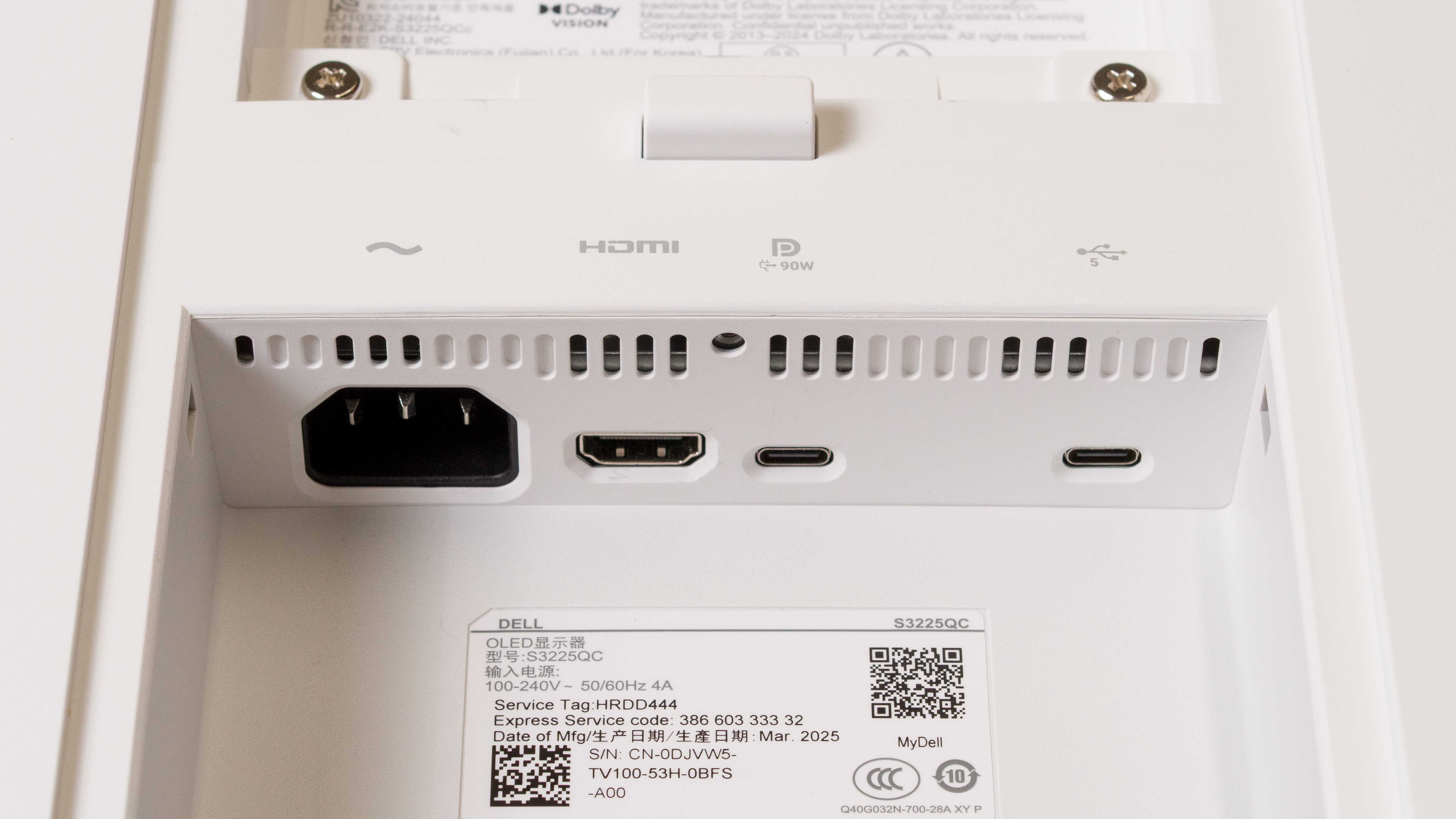
Not all USB-C ports support the same transfer speeds, as there are different USB standards. Many modern monitors support 5Gbps speed, as shown in the example below (on the right), which is USB 3.2 Gen 1. Others support the faster USB 3.2 Gen 2 standard of 10Gbps. While newer USB versions exist, like USB4, only a handful of monitors have them so far, like the Lenovo Yoga Pro 27UD-10. The main advantage of this newer USB standard on monitors is that it supports much faster transfer speeds, up to 40Gbps. This helps if you often need to transfer large files from a hard drive connected to the monitor.
DisplayPort Alt Mode
Some USB-C monitors support multimedia interfaces, like Thunderbolt or DisplayPort Alt Mode. These are more versatile, as you can connect your compatible laptop to display a video signal while also transferring data from other USB ports with a single cable. Most of the time, these USB-C ports even provide enough power to keep your laptop fully charged while you're using it.
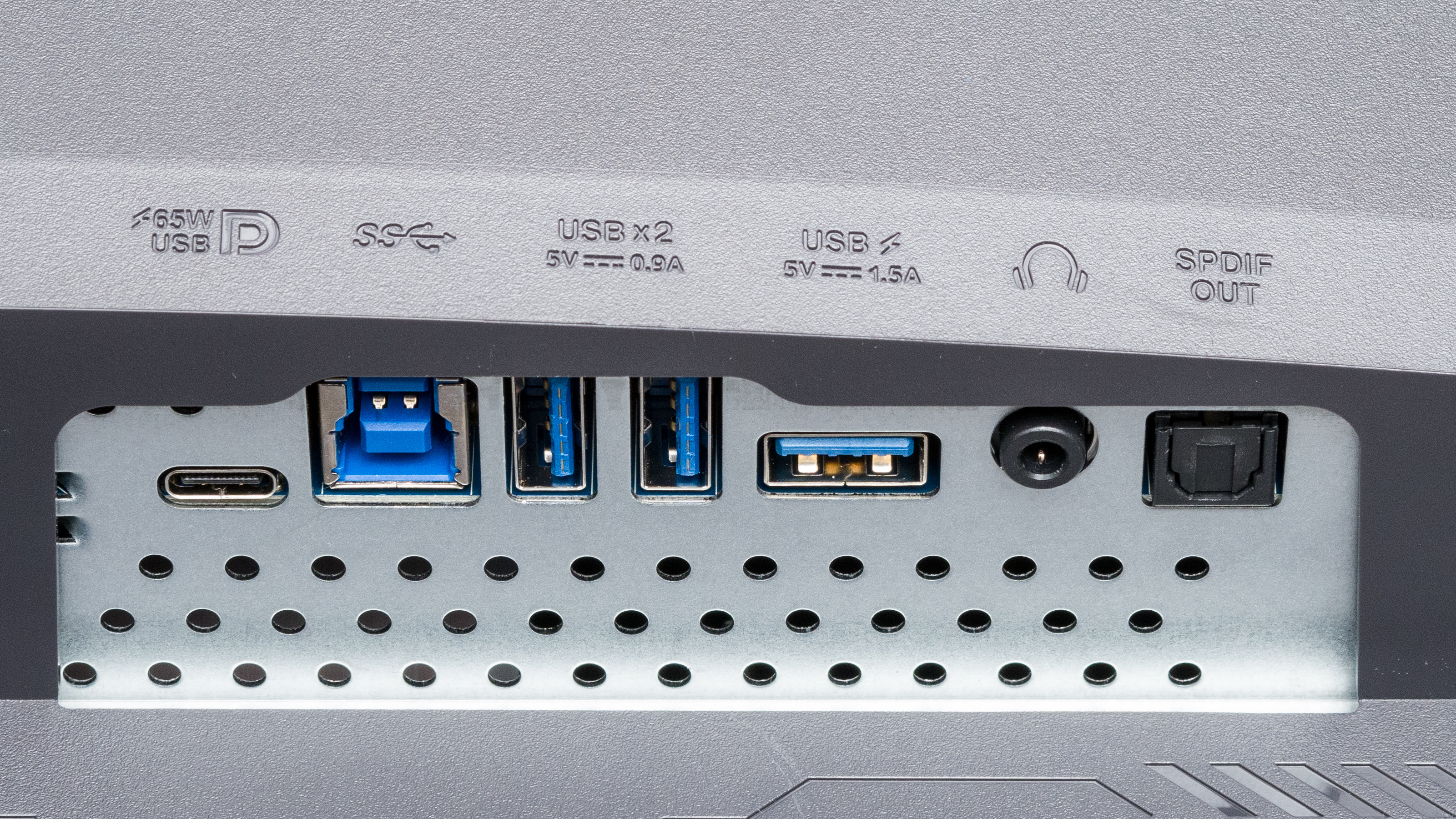
Monitors that support DisplayPort Alt Mode have the DisplayPort logo alongside the USB-C port, which you can see below.
What Is Thunderbolt?
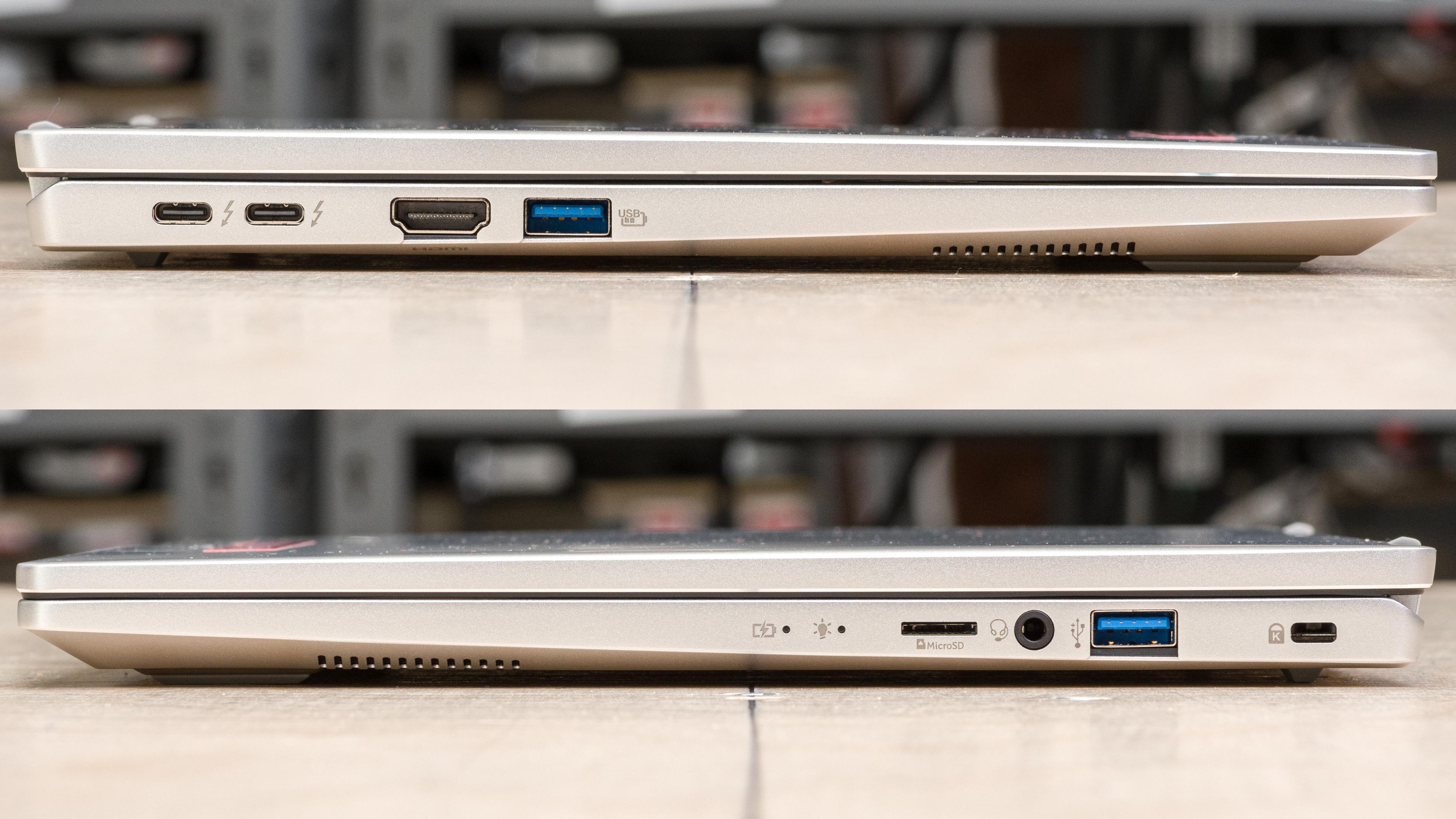
Thunderbolt is different from USB-C because it doesn't describe a physical port; instead, it's a multimedia interface. While older Thunderbolt interfaces used its own connector, newer versions, starting with Thunderbolt 3, use a USB-C connector. Modern Thunderbolt laptops, like the Apple MacBook Pro 16 (M4, 2024) or some Intel-based models, have USB-C Thunderbolt ports. These are sometimes labelled with the Thunderbolt logo, as you can see below.
Thunderbolt allows for high-speed data transfer and video bandwidth between the monitor and the laptop. For example, Thunderbolt 3 and 4 support 40Gbps, while the newer Thunderbolt 5 doubles that to 80Gbps bidirectional or 120Gbps unidirectional to a display. This allows you to reach high frame rates and/or high resolutions with a connected monitor.
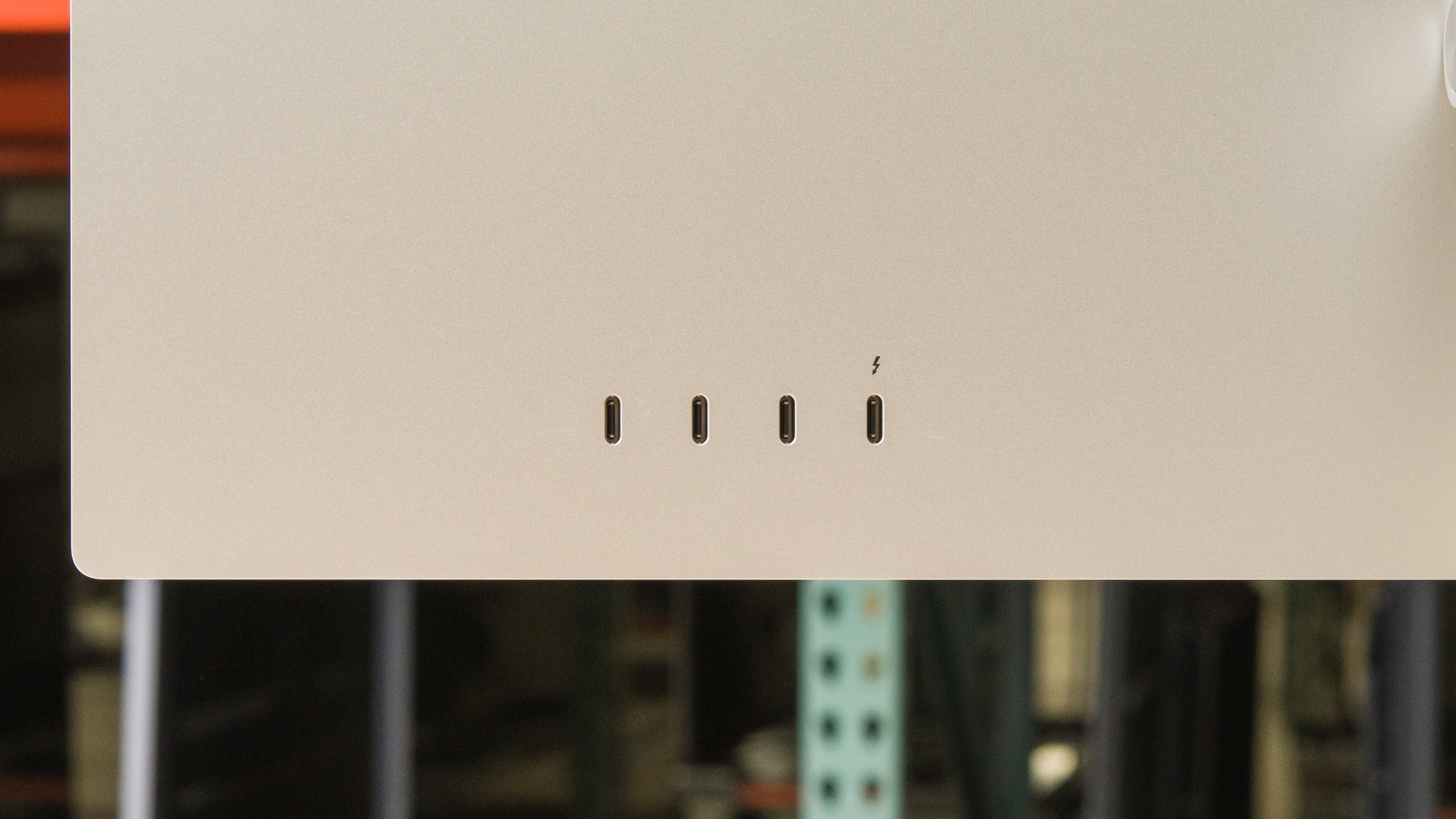
That said, not all USB-C monitors support Thunderbolt. Those that do have the Thunderbolt lightning symbol. In the example below, the Apple Studio Display 2022 has four USB-C ports, but only one supports Thunderbolt. It's easy to identify which one because it has the lightning symbol.
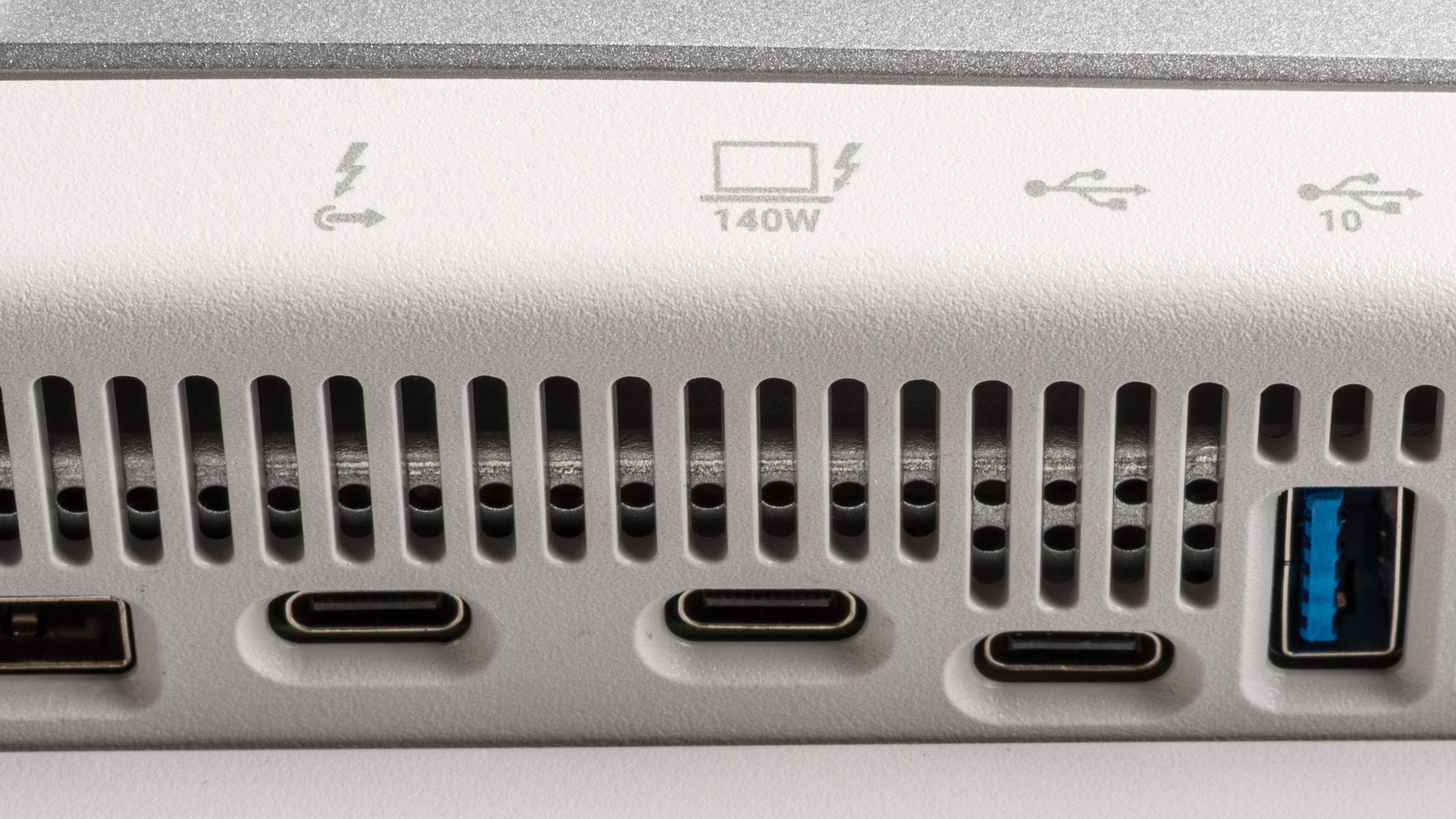
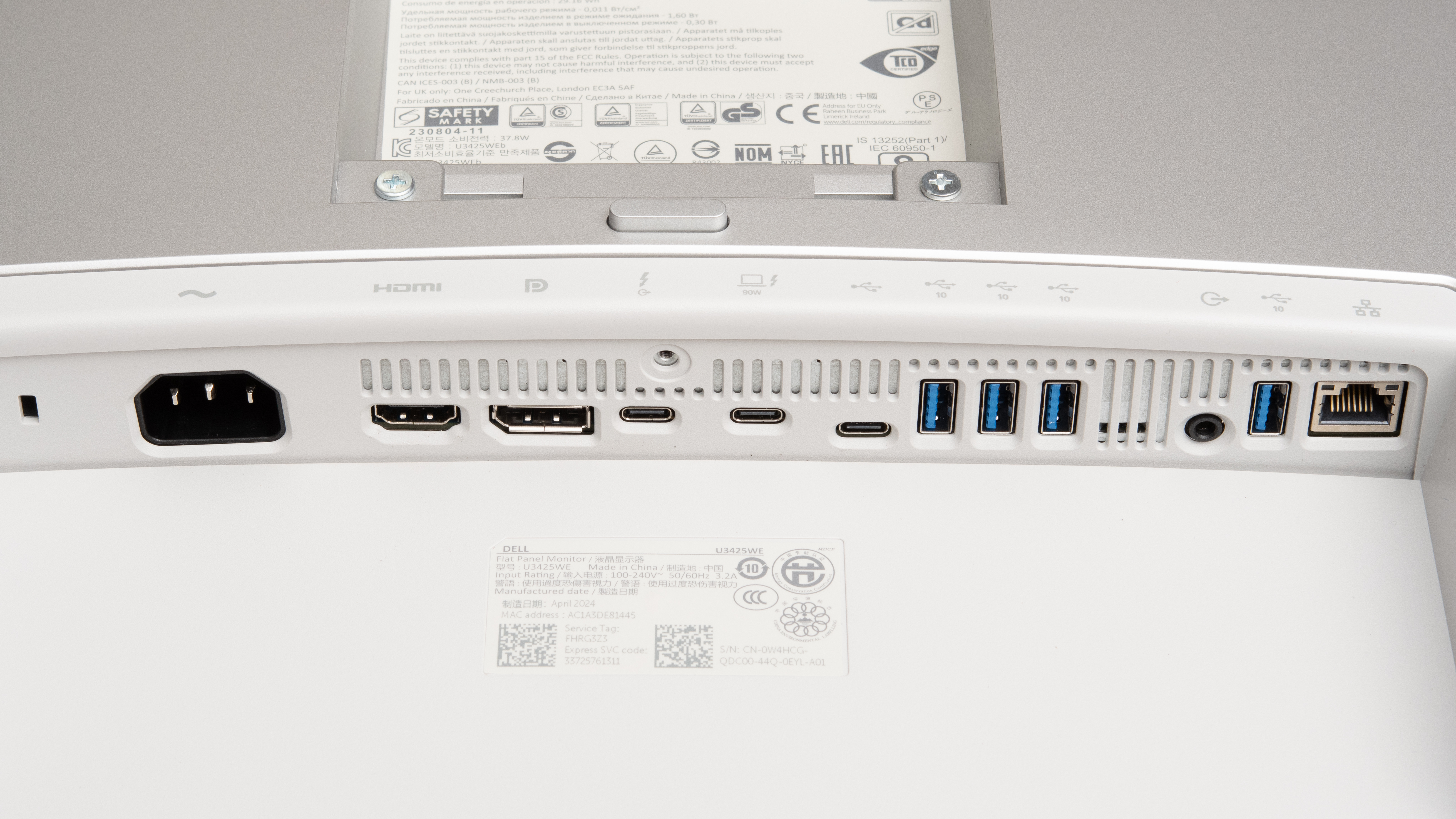
Other monitors have clear symbols to identify what each USB-C port does. The Dell U3425WE has three USB-Cs, two of which support Thunderbolt. The one on the left is Thunderbolt out for daisy chaining a second screen, and this is identified with the lightning symbol and arrow pointing outwards. The USB-C port in the middle has the lightning symbol alongside a laptop and a marker for 90W of power, meaning this is the Thunderbolt port to which you can connect your laptop. The one on the right has the USB logo and is for data transfer only.
Thunderbolt VS. DisplayPort Alt Mode
Thunderbolt is similar to DisplayPort Alt Mode as they're both multimedia interfaces that use USB-C ports. However, Thunderbolt is higher-end as it tends to support higher bandwidth and faster data transfer speeds. Thunderbolt and DisplayPort Alt Mode are compatible, though: if you connect your Thunderbolt laptop to a monitor with DisplayPort Alt Mode, you'll be limited to the DisplayPort Alt Mode's capabilities. This means you need a Thunderbolt laptop and monitor to take full advantage of this interface.
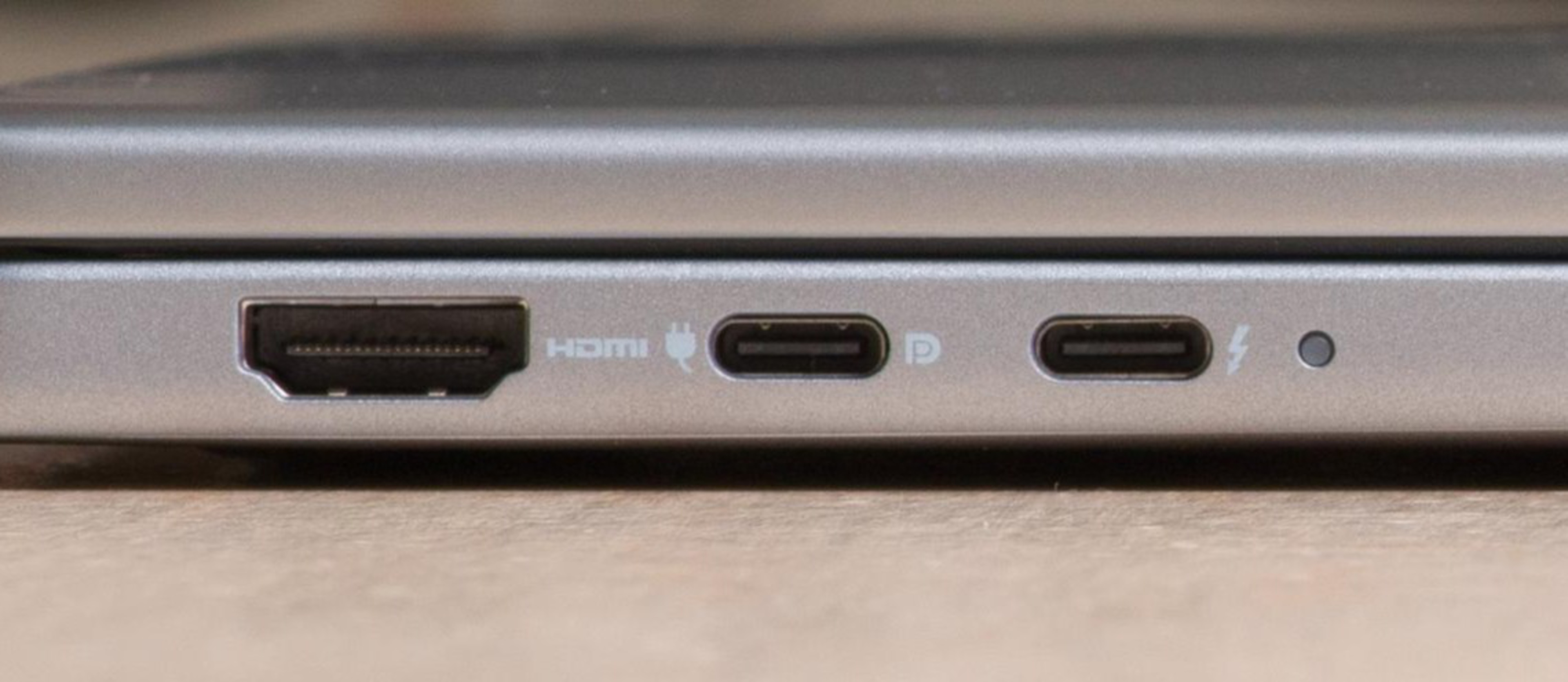
Some laptops have separate DisplayPort Alt Mode and Thunderbolt USB-C ports, which you can see below, but monitors are usually labelled as one or the other.
When comparing Thunderbolt 3 vs USB-C DisplayPort Mode, or Thunderbolt 4 vs USB-C DisplayPort Alt Mode, you need to think about the video bandwidth of each interface. As DisplayPort Alt Mode relies on DisplayPort bandwidth, most monitors support DisplayPort 1.4 bandwidth over USB-C, which is 32.4Gbps. This is less than the 40Gbps bandwidth that Thunderbolt 3 and 4 support, and much less than the 80Gbps bandwidth of Thunderbolt 5. The higher bandwidth allows for higher resolutions with faster refresh rates on monitors, especially if you want a daisy chain with multiple displays. There are some monitors, like the MSI MPG 322URX QD-OLED, that support DisplayPort 2.1 bandwidth of 80Gbps, putting it more in line with Thunderbolt 5's capabilities.
Thunderbolt vs. USB-C: Which To Use?
Comparing Thunderbolt vs USB-C is difficult because they're not the same thing, and in fact, you need a USB-C port to use Thunderbolt. However, when looking for a monitor with USB-C ports, you should think about your devices and what features you need.
Essentially, you should get a monitor with Thunderbolt support if you have a Thunderbolt laptop. This allows you to take full advantage of your laptop with fast data transfer and high bandwidth.
If your laptop doesn't support Thunderbolt but you still want to get a video signal and data transfer over USB-C, then you need a monitor with DisplayPort Alt Mode. You get many of the same benefits of Thunderbolt, but at slower data speeds.
If you need a USB-C port for connecting your devices, like a mouse or keyboard, then you just need a monitor with any number of USB-C ports. However, some USB-C ports are upstream only, meaning these are what you need to connect to your PC to use the other USB ports on the monitor. If you connect your mouse or keyboard to an upstream-only USB-C port, it won't connect with your computer.
If you're looking for a monitor, check out our recommendations for the best USB-C monitors.
Conclusion
Thunderbolt and USB-C ports on monitors aren't mutually exclusive because Thunderbolt is a multimedia interface that uses physical USB-C ports. When buying a monitor with USB-C ports, consider the features you need for your devices or computers. If you have a Thunderbolt laptop, you should get a monitor with Thunderbolt support to take full advantage of it. However, you don't need a Thunderbolt monitor if your laptop doesn't support it or if you just want to connect devices, like a keyboard or mouse.
