If you have an NVIDIA graphics card, you may be wondering how to enable G-SYNC on your monitor to get a nearly tear-free gaming experience. It's a rather straightforward process that's enabled on its own most of time, but you also need to make sure your monitor supports G-SYNC for it to work properly. Without G-SYNC support on your monitor, you won't be able to use it, even if you have an NVIDIA graphics card.
For specific monitor recommendations, you can also check out the best G-SYNC monitors.
What Is G-SYNC And How To Know If Your Monitor Supports It?
G-SYNC is a variable refresh rate (VRR) format that dynamically matches the monitor's refresh rate to the source's frame rate, even when the frame rate fluctuates a lot. This helps reduce screen tearing while gaming, so you won't see horizontal lines like what would happen on a monitor without any VRR support. For G-SYNC to work properly, you need an NVIDIA graphics card that also supports G-SYNC, as graphics cards from other brands don't support it.
Besides knowing whether or not you have an NVIDIA graphics card, you may not be sure if your monitor supports G-SYNC. We do test for G-SYNC support on every monitor we buy and test, but if you have a monitor we haven't tested, there are ways to find out if it supports G-SYNC.
NVIDIA has a list of certified G-SYNC compatible monitors directly on their website. They test these monitors themselves, which have to pass certain benchmarks to receive certification. There are three different tiers a monitor may receive:
- G-SYNC Ultimate: This is the premium tier that includes built-in NVIDIA chips, and NVIDIA certifies their HDR performance, with high brightness and contrast levels. They may include features like variable overdrive and NVIDIA Reflex Latency Analyzer, which measures the latency of each source in your setup.
- G-SYNC: Like G-SYNC Ultimate, these monitors have built-in chips and may support the same proprietary features, but aren't certified for their HDR performance.
- G-SYNC Compatible: These monitors don't have built-in chips, but NVIDIA still validates them to work with G-SYNC. The majority of G-SYNC-certified monitors are in this certification tier.
If a monitor doesn't have this certification, it doesn't mean that G-SYNC won't work. In fact, most monitors we test work with G-SYNC, even without the certification. You would need to check our reviews to see if G-SYNC works on a monitor without the certification.
If you want to learn more, check out the differences between G-SYNC and FreeSync.
How To Enable G-SYNC On Your Monitor
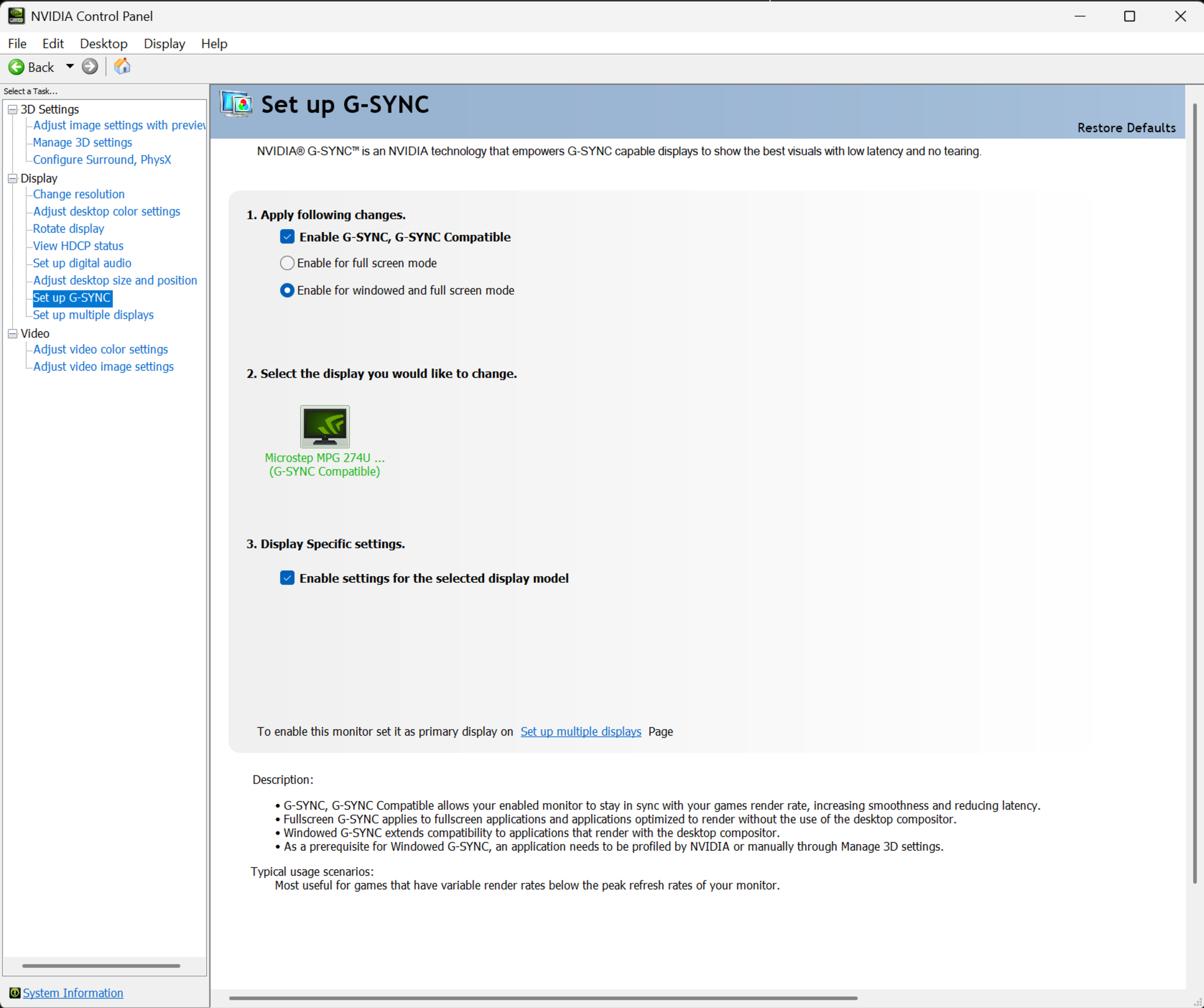
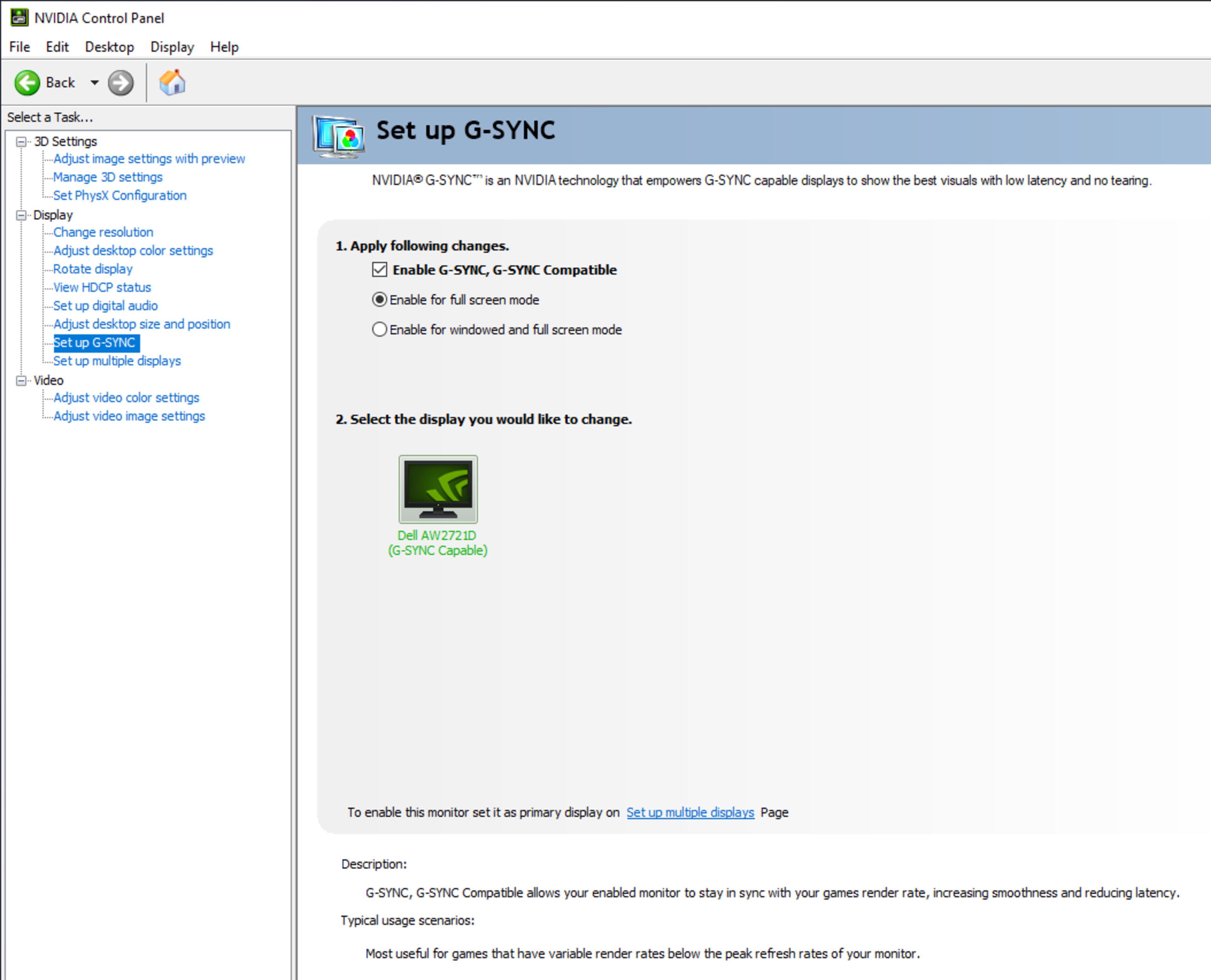
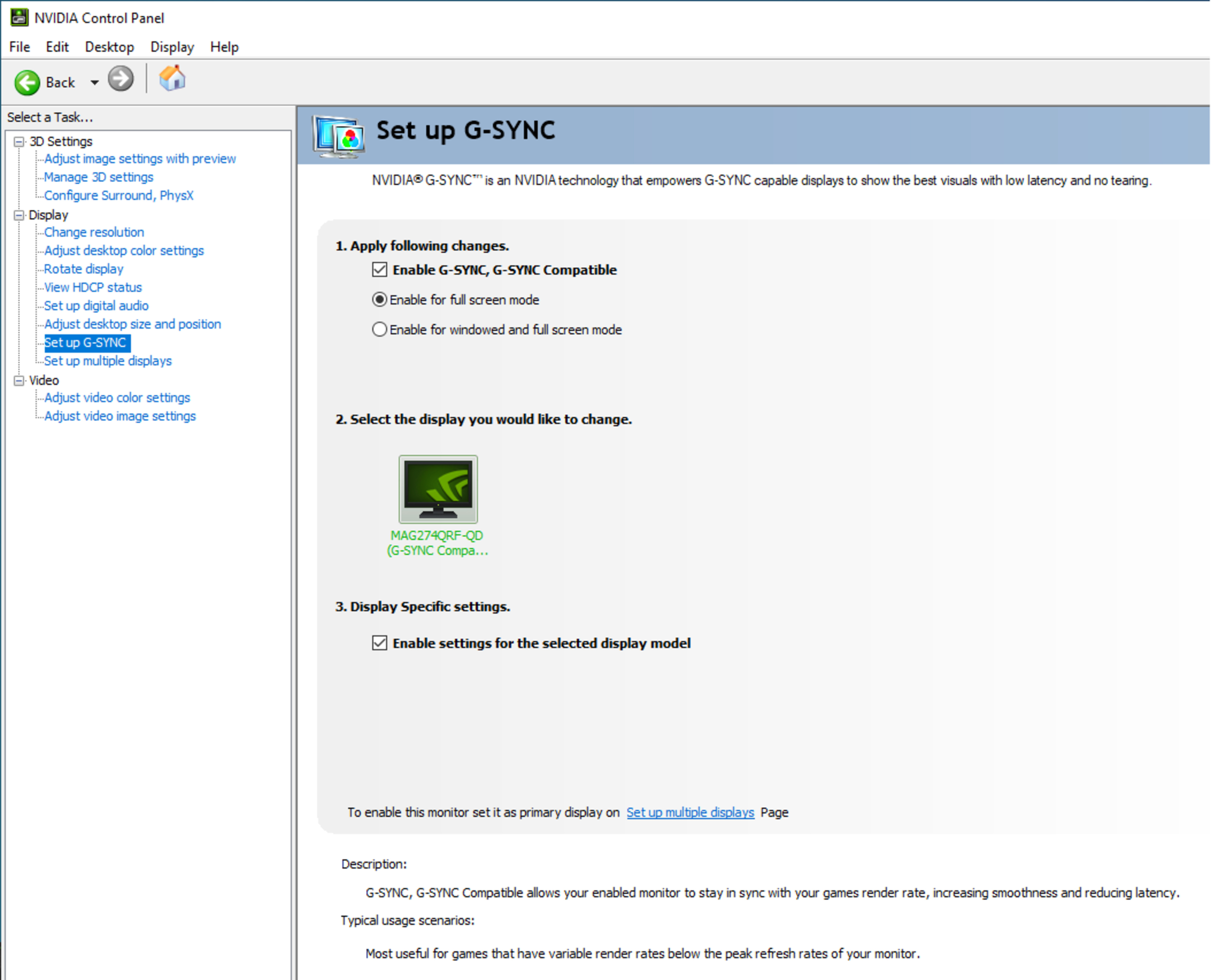
G-SYNC is automatically enabled on monitors with certified G-SYNC support, so there's nothing for you to do if you're wondering how to enable G-SYNC. However, there are steps to follow if you want to check for this or enable G-SYNC on monitors without certification.
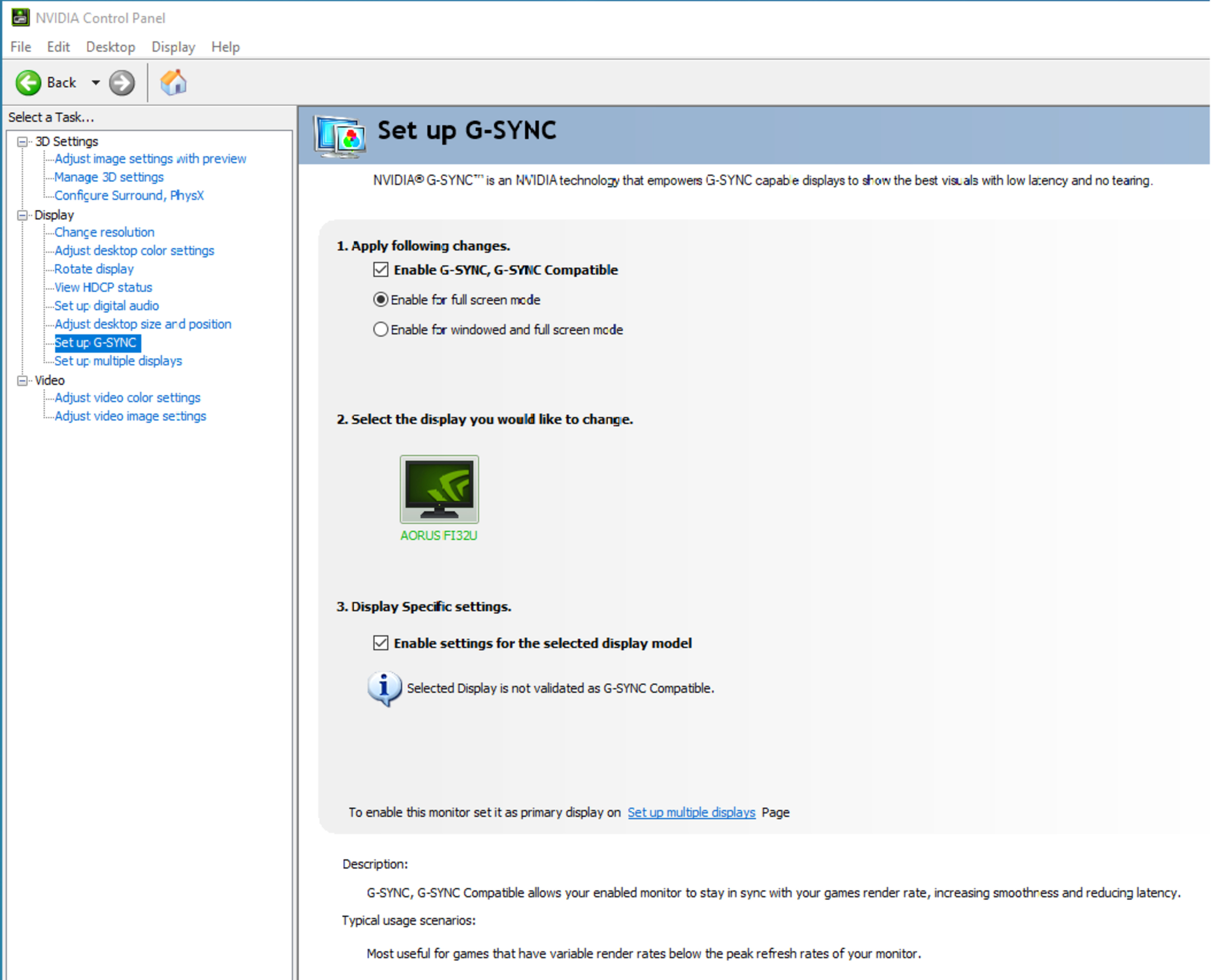
- In the NVIDIA Control Panel app, under the Display section of the tab, click on 'Set up G-SYNC.'
- To enable G-SYNC, click Enable G-SYNC, G-SYNC Compatible. You can select whether you want to use it in full-screen mode or both full-screen and windowed modes.
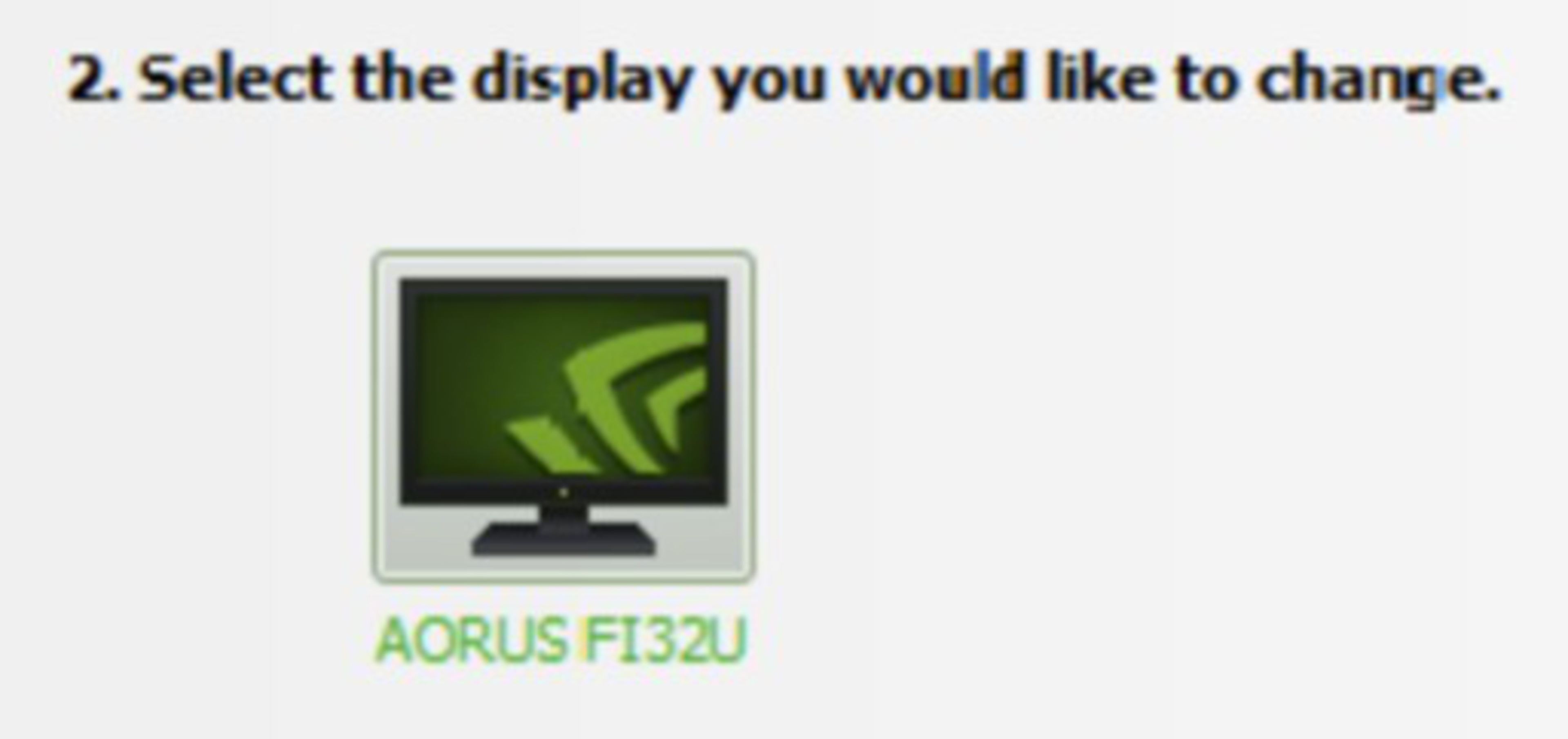
- You need to select the monitor you want to use G-SYNC with. Here, you'll see which certification tier it belongs to. G-SYNC Ultimate and G-SYNC monitors say 'G-SYNC Capable', while G-SYNC Compatible monitors have that labelled next to their name. Monitors without certification don't have anything written next to their name, and there's a warning that NVIDIA hasn't validated the display. In this case, you'll have to click Enable G-SYNC, G-SYNC Compatible, and select the monitor you want to use with G-SYNC.
You may also want to make sure any monitor settings from its on-screen display (OSD) regarding VRR are enabled. This setting may be labelled as VRR, Adaptive-Sync, or G-SYNC, depending on the model. Other than that, it's a rather straightforward process to enable G-SYNC.
Which Connection To Use: HDMI or DisplayPort
As part of the certification, NVIDIA also validates which video input supports G-SYNC. On most monitors, only DisplayPort is certified for support, but some also support it over HDMI. G-SYNC Ultimate and G-SYNC certified monitors support it over HDMI, as well as monitors that have HDMI 2.1 bandwidth. However, not all HDMI 2.1 displays support G-SYNC over HDMI, and not all monitors that work with G-SYNC over HDMI support HDMI 2.1 bandwidth. This is the case with the Dell G2724D, which supports G-SYNC over HDMI, but doesn't have the extra bandwidth. It's still a mixed bag, so you may have to check our review to see if the monitor supports this VRR format over HDMI. You also need a graphics card that supports HDMI 2.1 bandwidth, which RTX 30 Series and newer models support.
All things considered, it's better to connect over DisplayPort to make sure G-SYNC works on any monitor.
How To Know If G-SYNC Is Working Properly
Once you have everything set up, you may be wondering if it's working properly. Besides verifying your in-game experience to make sure there's no screen tearing, you can also use NVIDIA's Pendulum Demo to check for screen tearing. If you still see it, try turning your monitor and computer on and off again, using different video connections, and verifying that all the necessary settings from your computer and monitor are enabled. If you're still experiencing issues, it's likely that your monitor doesn't support G-SYNC.
Conclusion
Enabling G-SYNC on your monitor is a straightforward process, provided your monitor supports G-SYNC and you have an NVIDIA graphics card. For monitors that NVIDIA has validated and certified to support G-SYNC, it's automatically enabled. Even without certification, a monitor may work without issue with this VRR format, which you need to enable from the NVIDIA Control Panel. It's best to use a DisplayPort connection, but many modern monitors support G-SYNC over HDMI.