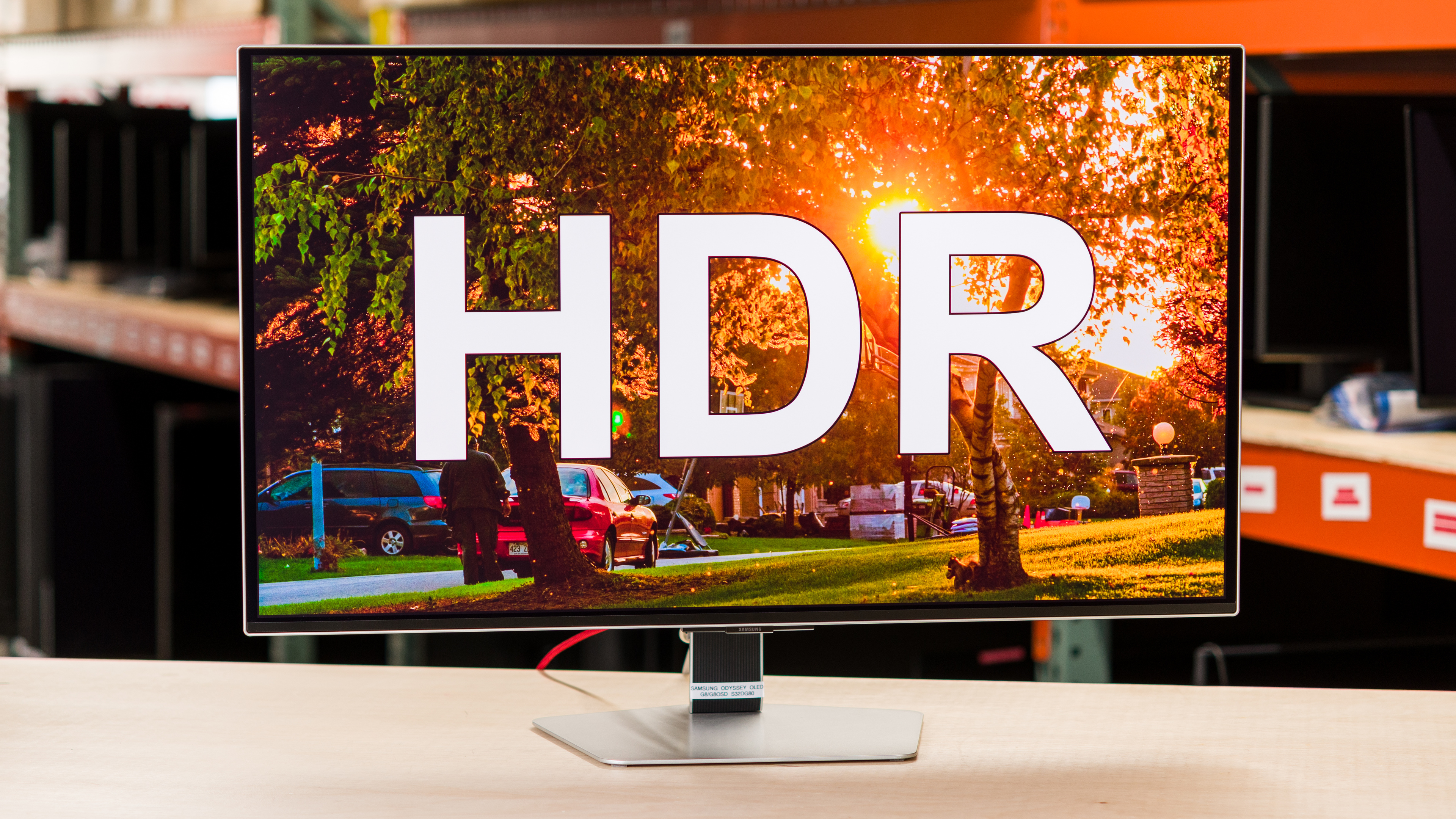
High dynamic range (HDR) is a display signal format that most modern monitors support, and its use has grown in recent years. It enhances the picture quality compared to standard dynamic range (SDR) signals by displaying a wider range of colors with deeper blacks and higher brightness for a more punchy and vivid image.
If you're wondering, "What is HDR on a monitor?", there are a few things to learn. Both your monitor and source need to support HDR in order for it to work. However, having HDR support doesn't mean much because many monitors struggle to properly display HDR content, making images look washed out and dull when it's not implemented properly. There are some factors that make HDR content look good, though, like a high contrast ratio, high brightness, and a wide color gamut, which some high-end monitors have.
In this article, we'll break down what HDR is on a monitor and how to get it to work, and we'll explain whether or not it's necessary to use HDR at all. If you're looking for specific model recommendations, you can also check out the best HDR monitors.
What Is HDR?
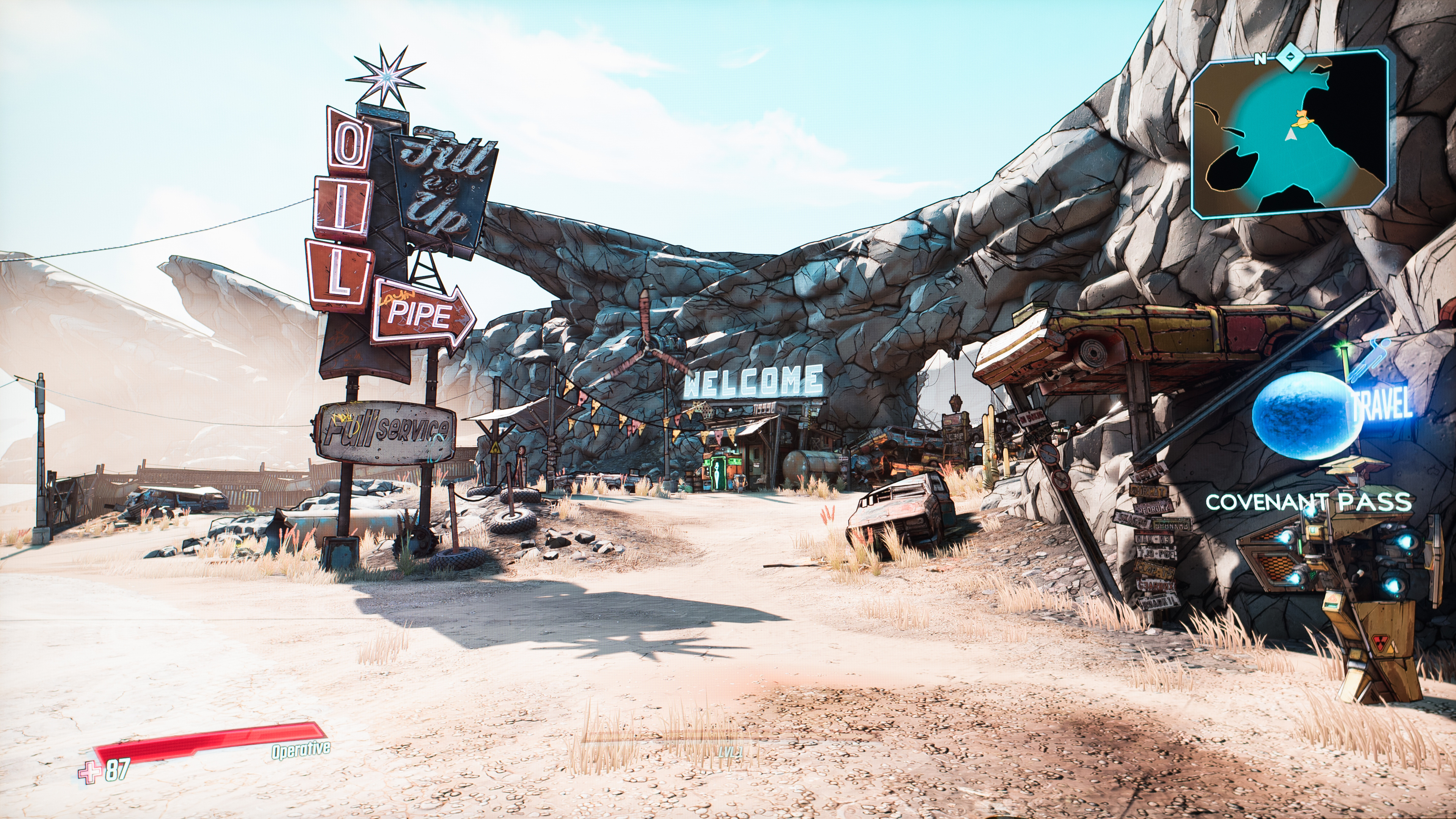
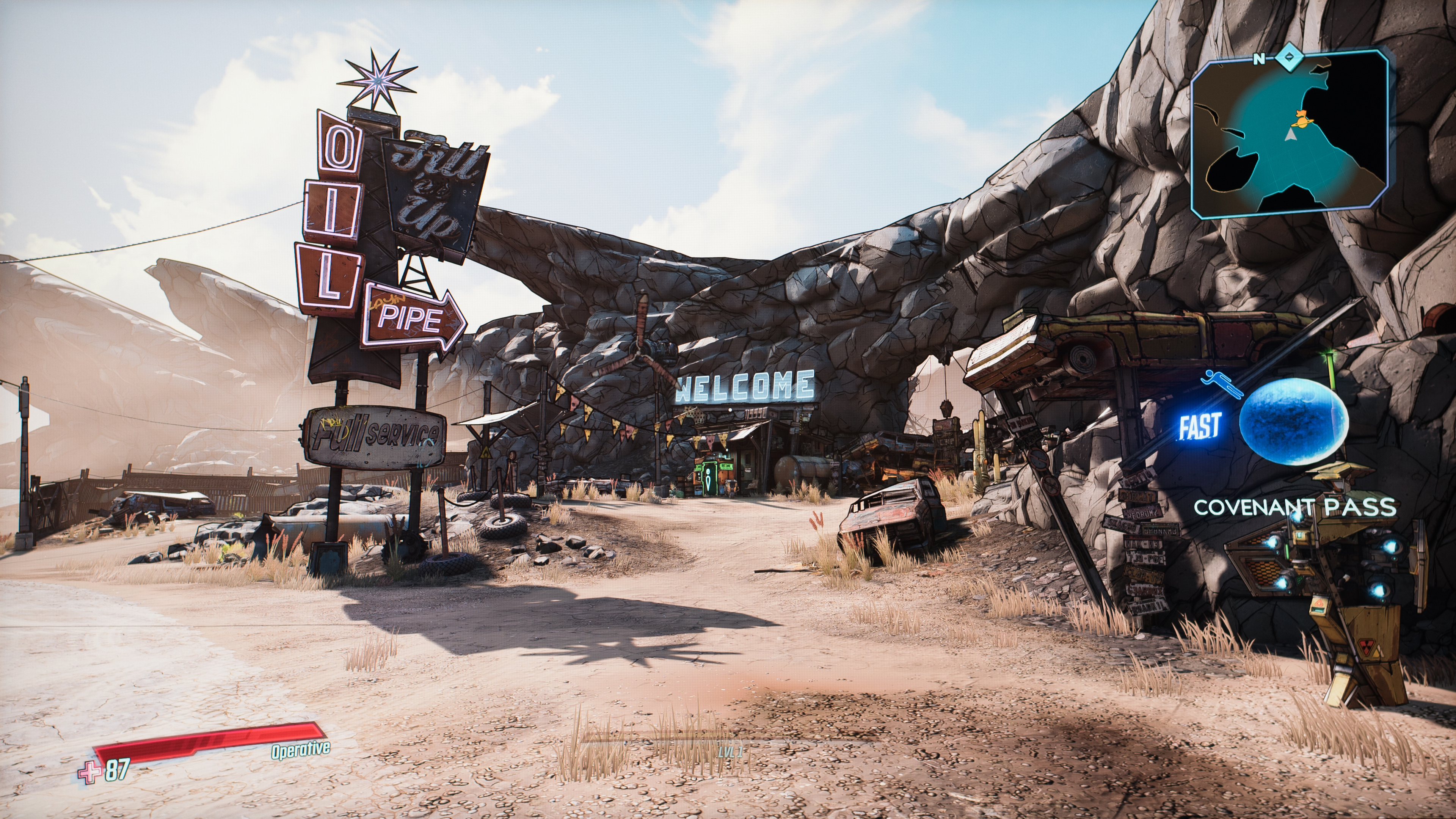
HDR, which stands for high dynamic range, allows for more colors and higher brightness levels compared to SDR signals. In turn, properly implemented HDR content looks more realistic compared to SDR, as you're able to see finer details in the darker and brightest parts of scenes. Looking at the images below, you can see more details in the shadows in HDR, as well as better-defined clouds in the sky.
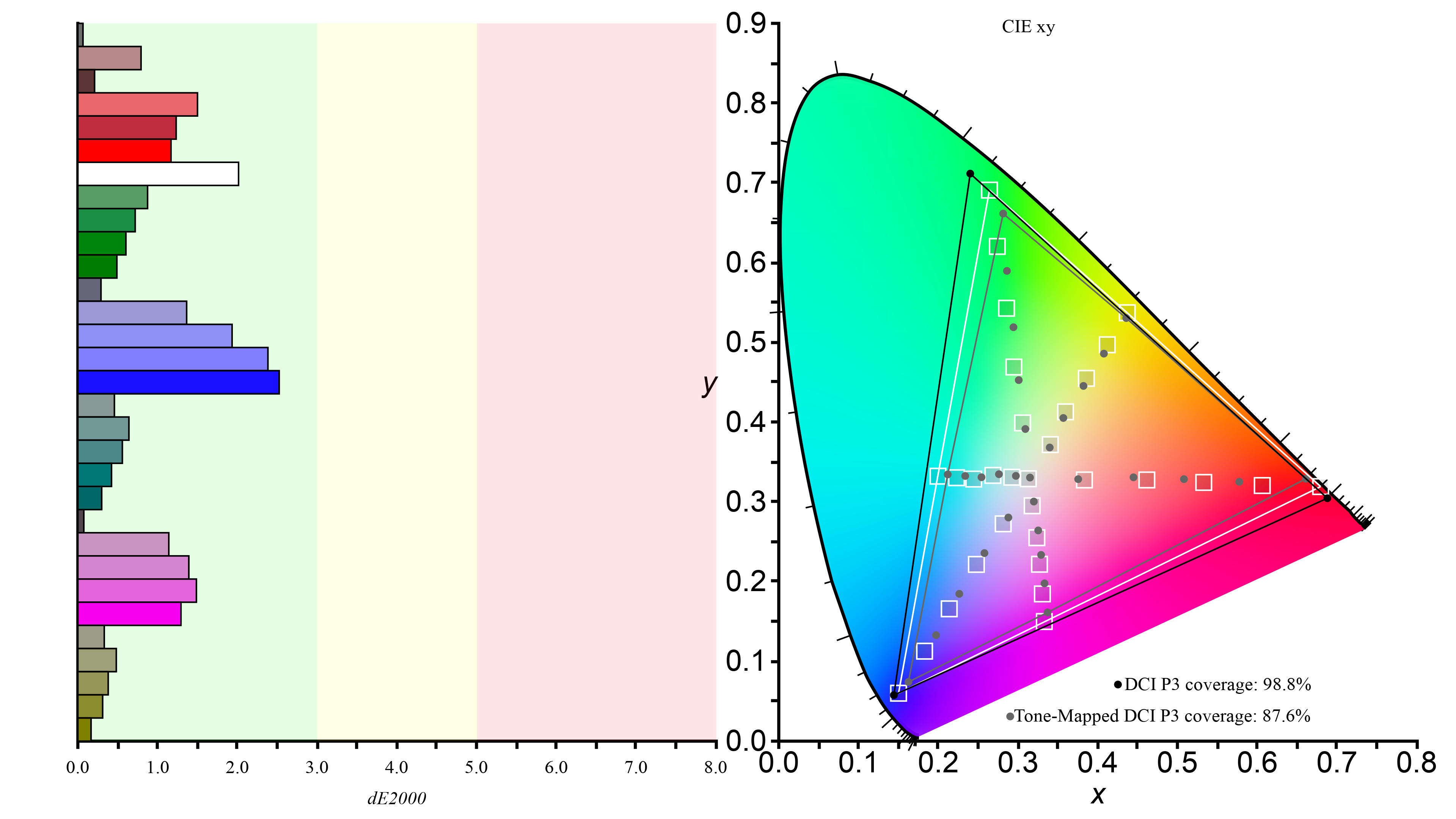
The use of wider color spaces in HDR also allows for content to look more lifelike, with a wider range of colors than those used in SDR. For example, the sRGB color space is used in most basic SDR content, like webpages. It doesn't cover nearly as many colors as wider color spaces used in HDR content, like DCI-P3, which you can see below. Besides that, HDR content also uses at least 10-bit color depth, allowing for 1.07 billion colors, compared to 16.7 million colors with 8-bit content.
 |
 |
How to Get HDR on Your Monitor
Actually getting HDR with your monitor is rather simple: you need to make sure both your monitor and your source support it. Some graphics cards may offer built-in HDR software as well. No matter your source, you need to make sure it's enabled, as well as being enabled on the monitor, for it to work. Various monitors handle this differently, so make sure to read the user manual to get a better understanding. Some monitors have modes that simulate HDR, but you shouldn't use these, as they often negatively impact the image quality without using HDR metadata.
An example of this is the LG 27GR93U-B, which has an 'HDR Effect' mode available in SDR, but it doesn't actually enable HDR on the monitor. You can see below how the content is too bright in this mode compared to a regular SDR picture mode.
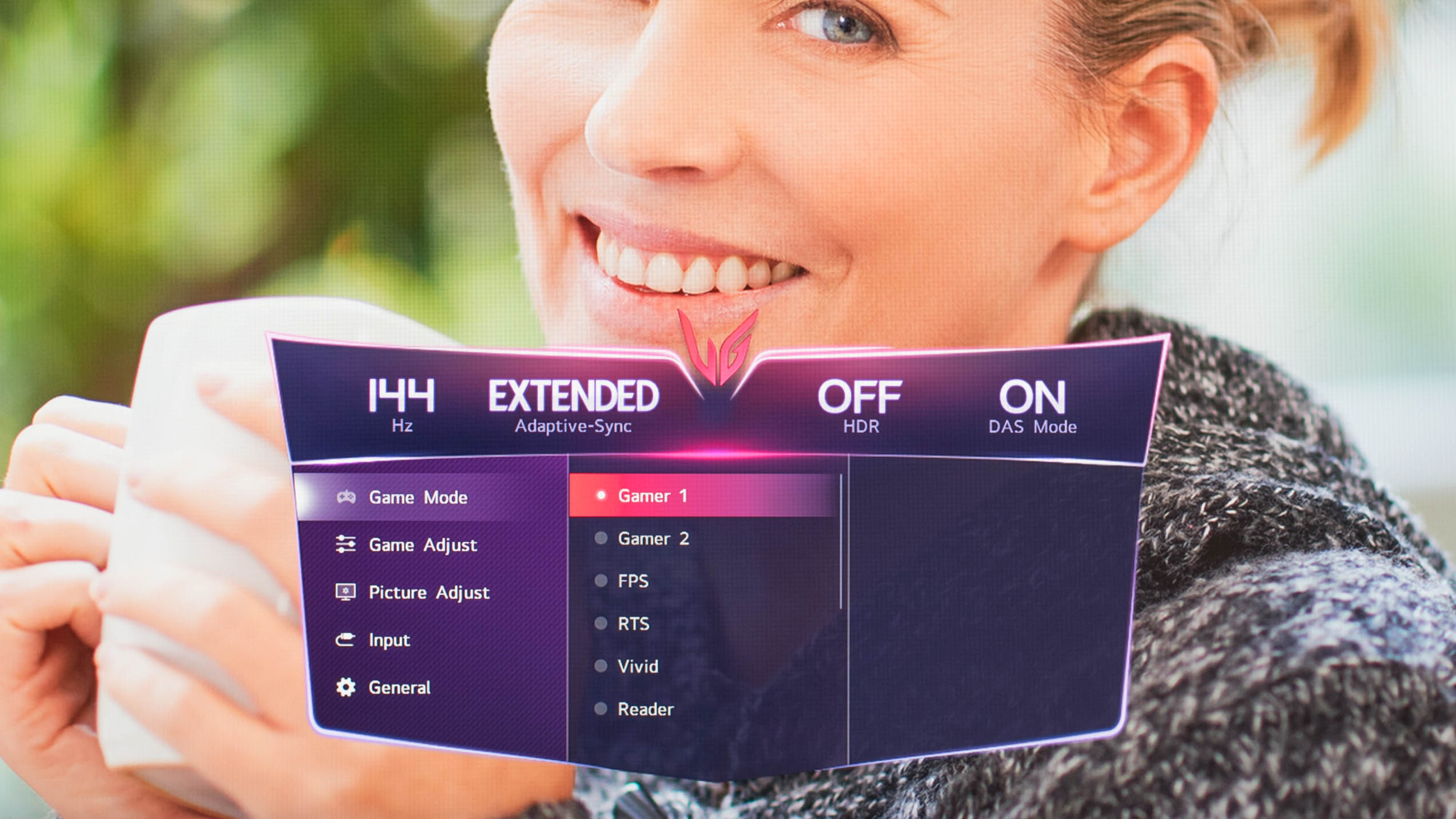 |
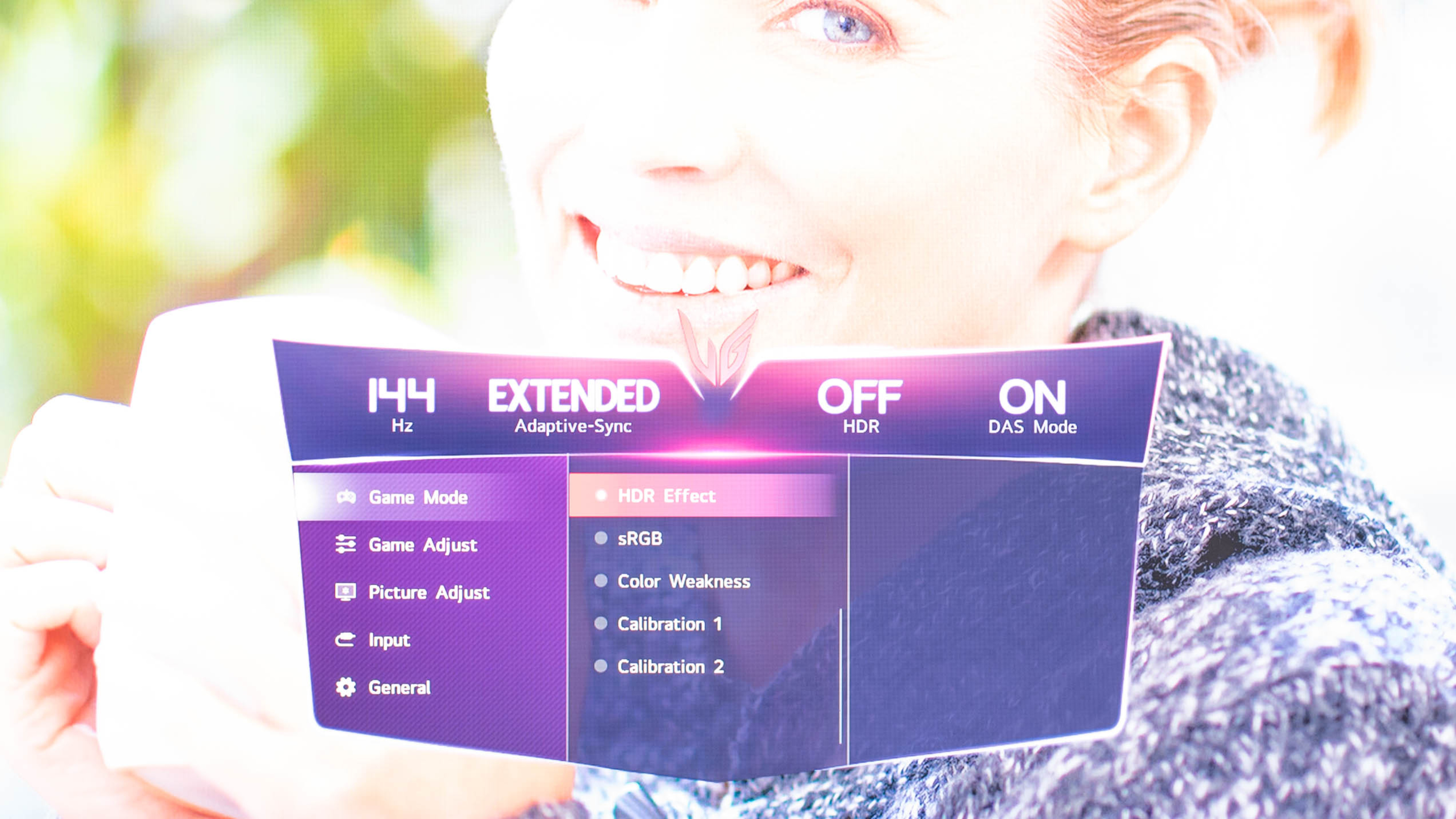 |
How a Monitor Receives HDR
The way the monitor displays HDR depends on your source. With a media device, it needs to receive a signal from the source that comes with a set of instructions on what the monitor should display. This is called metadata, and it includes information like the brightness and color space at which the content is mastered at. It also has the Maximum Content Light Level (MaxCLL), which is the brightest any single pixel can get, and the Maximum Frame Average Light Level (MaxFALL), which is the average of the brightest full-screen frame in the content.
With this metadata, the monitor uses processing to tone map its brightness and colors to the content so that details aren't lost in the darkest and brightest scenes. For example, if there's an HDR movie mastered at 1,000 cd/m², but the monitor can only reach a max of 600 cd/m², tone mapping allows the monitor to display the brightest highlights in the movie at its own max brightness. In other words, tone mapping is the process of scaling the content's brightness and colors to match the display's abilities. Without this, the monitor would struggle to display content to the creator's intent.
This process is different when using HDR from a PC. As games are rendered, you want the PC to do any tone mapping to render frames to the capabilities of the display, and not the other way around like when using a media device. By using apps like Windows HDR Calibration, or in-game picture sliders, the display tells the game what it can do, which then renders the frames within the capabilities of the display. For example, if the max brightness is 600 cd/m², the game won't be rendered at 1,000 cd/m². Not all monitors do this properly, as some monitors also tone map alongside your source, which results in overdarkened scenes.
HDR Formats: Static vs Dynamic Metadata
There are different HDR formats, with HDR10 being the most common on monitors. This format is the base of HDR content as it uses static metadata to tell the monitor what to display on a per-content basis, meaning the metadata of the signal doesn't change while you're gaming or watching a movie. For example, if the content is mastered at 1,000 cd/m², it's going to remain mastered at 1,000 cd/m² for the entirety of the content. Dynamic metadata formats, like Dolby Vision, change the signal metadata on a per-scene basis, so some scenes are mastered darker or brighter than others. This gives dynamic formats the advantage for watching movies, especially those with really dark scenes, but only a handful of monitors support Dolby Vision. Most sources that you're going to use with your monitor are limited to HDR10 as well.
Configuring Windows HDR
When using a Windows PC, there's a setting to enable HDR in the Display settings. Turning this on enables the HDR system-wide, even for content that's not natively in HDR. We only suggest enabling this setting when you're going to use an HDR source, like when gaming. Windows has a shortcut to enable and disable HDR (Windows key + Alt + B), so you can quickly turn it off without even opening your settings. However, when using Windows HDR with SDR content, like when browsing the web, the monitor won't display colors properly in the intended color space, negatively impacting the overall picture quality. Because of this, it's better to disable Windows HDR entirely with non-HDR content, like for general desktop use or browsing the web.
When gaming, you also need to make sure you have HDR enabled both in the game and in your monitor's OSD to get the best HDR experience. As an example, the AOC Q27G40XMN has an HDR Mode setting that you can turn off or choose from three separate picture modes. Using Windows HDR at the same time as one of those HDR Modes makes content look good without any issues. However, when disabling HDR from the monitor's OSD and keeping Windows HDR enabled, content looks washed out and dull, which isn't what you should expect, even if you have it in SDR:

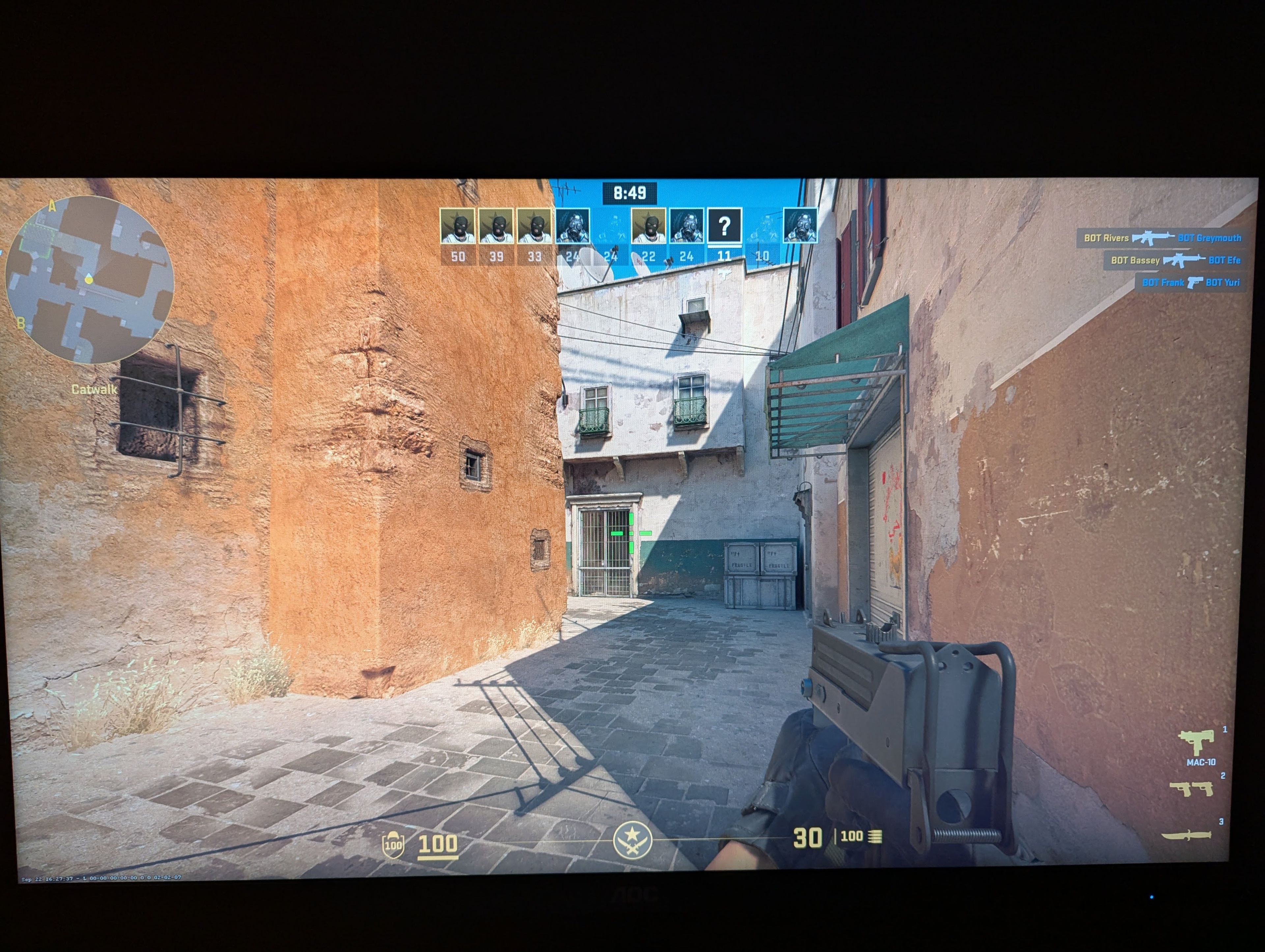 |
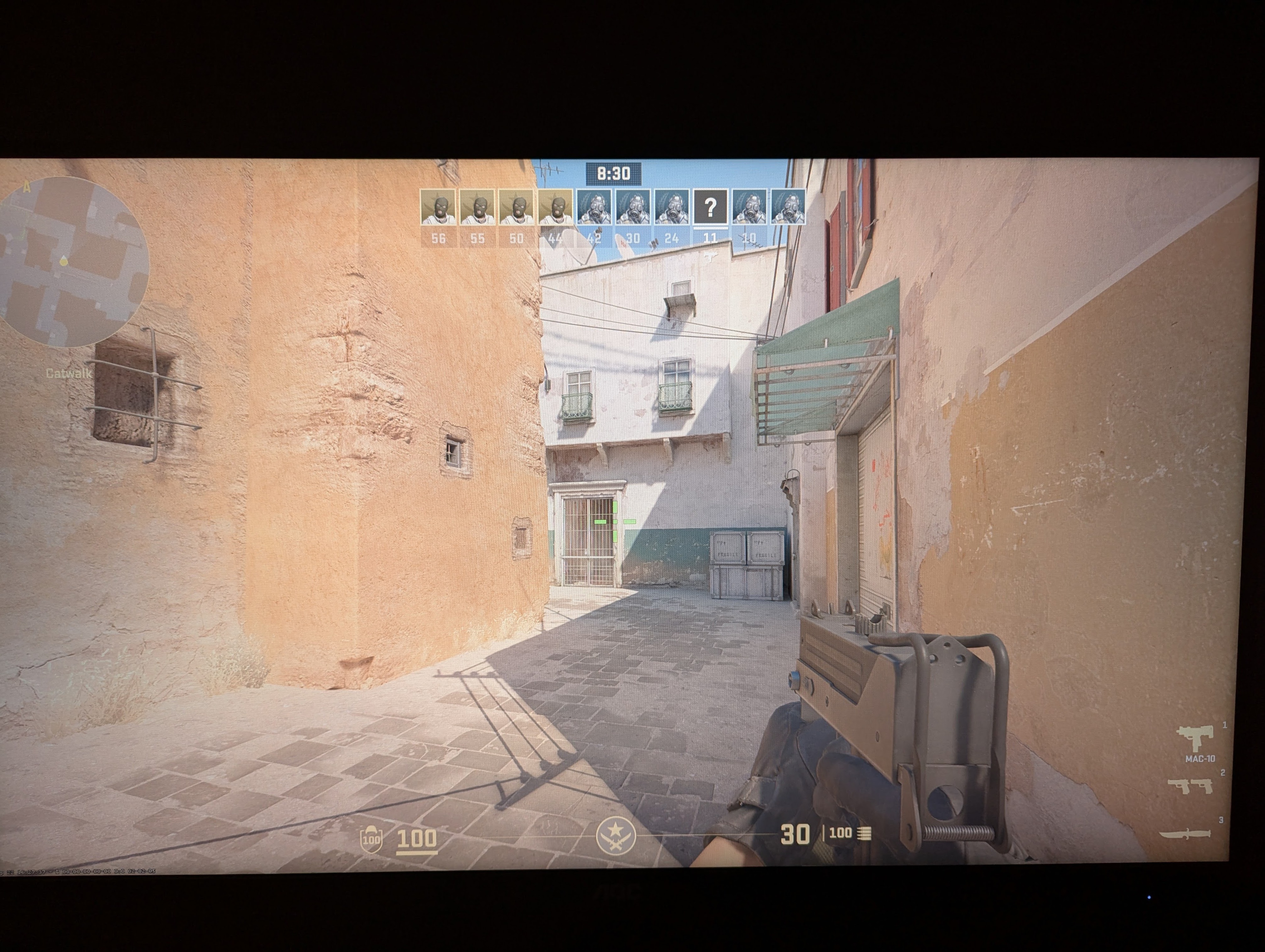 |
For the best HDR experience, you should game in full-screen mode so that your PC and monitor handshake when entering the game, establishing the HDR metadata needed. Using a windowed game or alt-tabbing out of your full-screen window may cause Windows HDR to not work properly with your game.
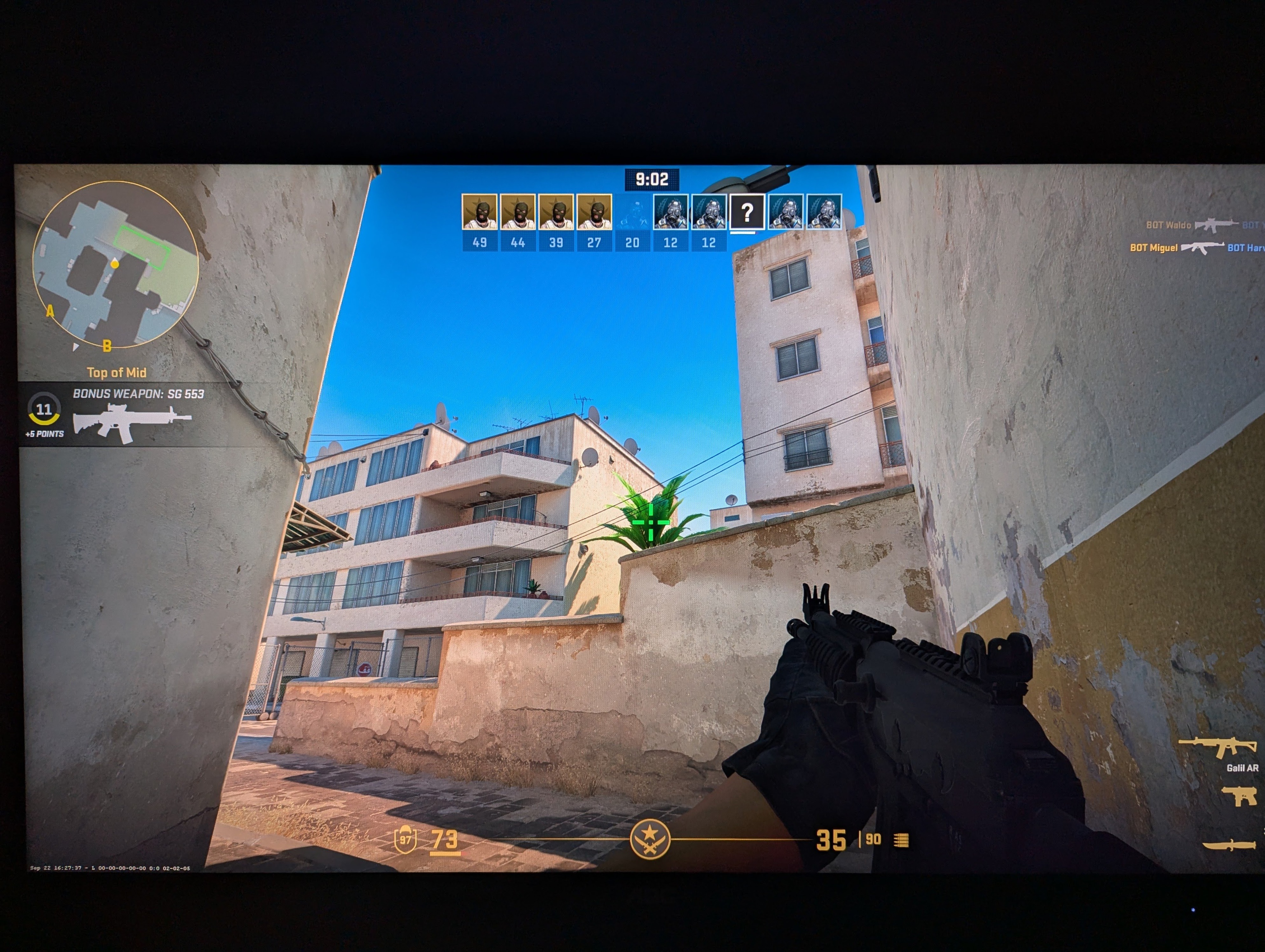
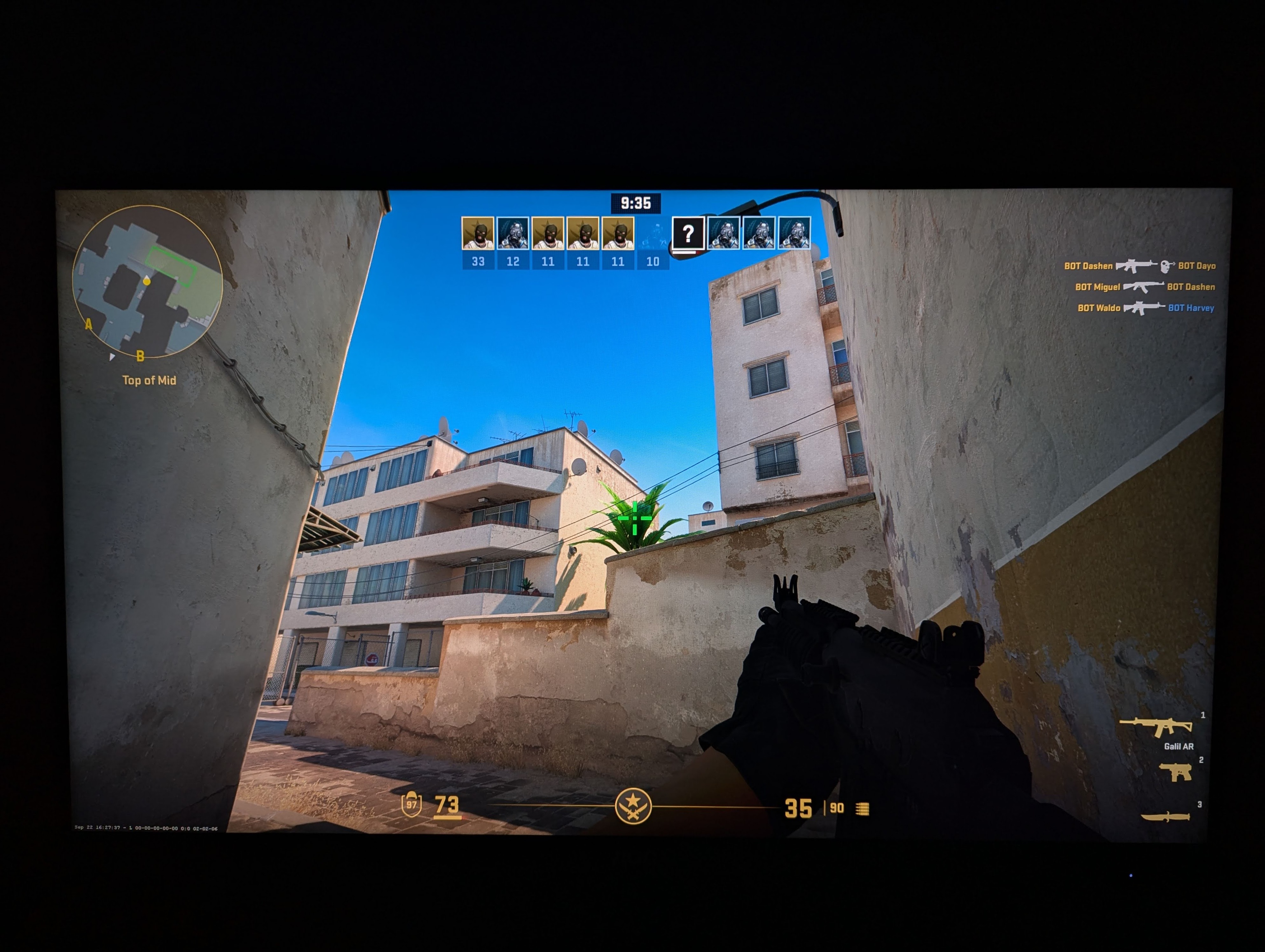
Some games may use their own implementation of HDR without needing Windows HDR enabled, while others require Windows HDR enabled. Make sure to check this in your game when you want to use HDR. However, enabling/disabling HDR is mainly done on the computer side, whether it's with Windows HDR or in-game, and it's not something you can fully enable through your monitor's settings. Even if some monitors have settings to turn HDR on or off, enabling these won't turn on Windows HDR or HDR in your game. If you enable the HDR setting in your monitor's OSD without enabling Windows HDR, the monitor will try to emulate HDR without it being true HDR. You can see this with the Q27G40XMN below: enabling HDR Mode isn't using true HDR metadata and crushes blacks in dark areas of the image.
 |
 |
Windows HDR Calibration
In order to get the best HDR picture quality, you should also use the Windows HDR Calibration app to get proper tone mapping. Doing so lets your computer know what the minimum black and maximum white levels are, so it can tone map accordingly to avoid any crushed blacks or overbrightened highlights that result in a loss of details. It seems like a straightforward process that includes instructions, but it's a bit more complicated than that, as you also need to know about your monitor's performance.
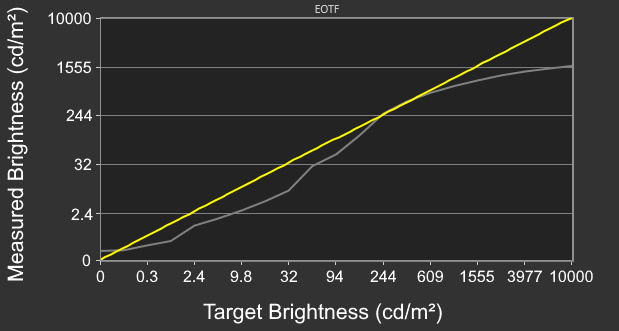
If your monitor doesn't tone map on its own, which happens when it has a sharp cut-off at its peak brightness in the PQ EOTF graph, then you can adjust the sliders accordingly. However, when the monitor performs tone mapping and its PQ EOTF graph has a slow roll-off, then you shouldn't adjust the sliders until you don't see the details anymore, as the app instructs. In that case, you may adjust the sliders too high, making your PC think the monitor gets brighter than it actually does. This causes the entire image to be darker than intended, as there's tone mapping from both your computer and source. Instead, you should adjust the sliders according to our Peak 10% Window and Peak 100% Window results for Maximum Luminance and Max Full Frame Luminance, respectively. When adjusting the sliders, you'll see numbers above them, which correlate to this max brightness.
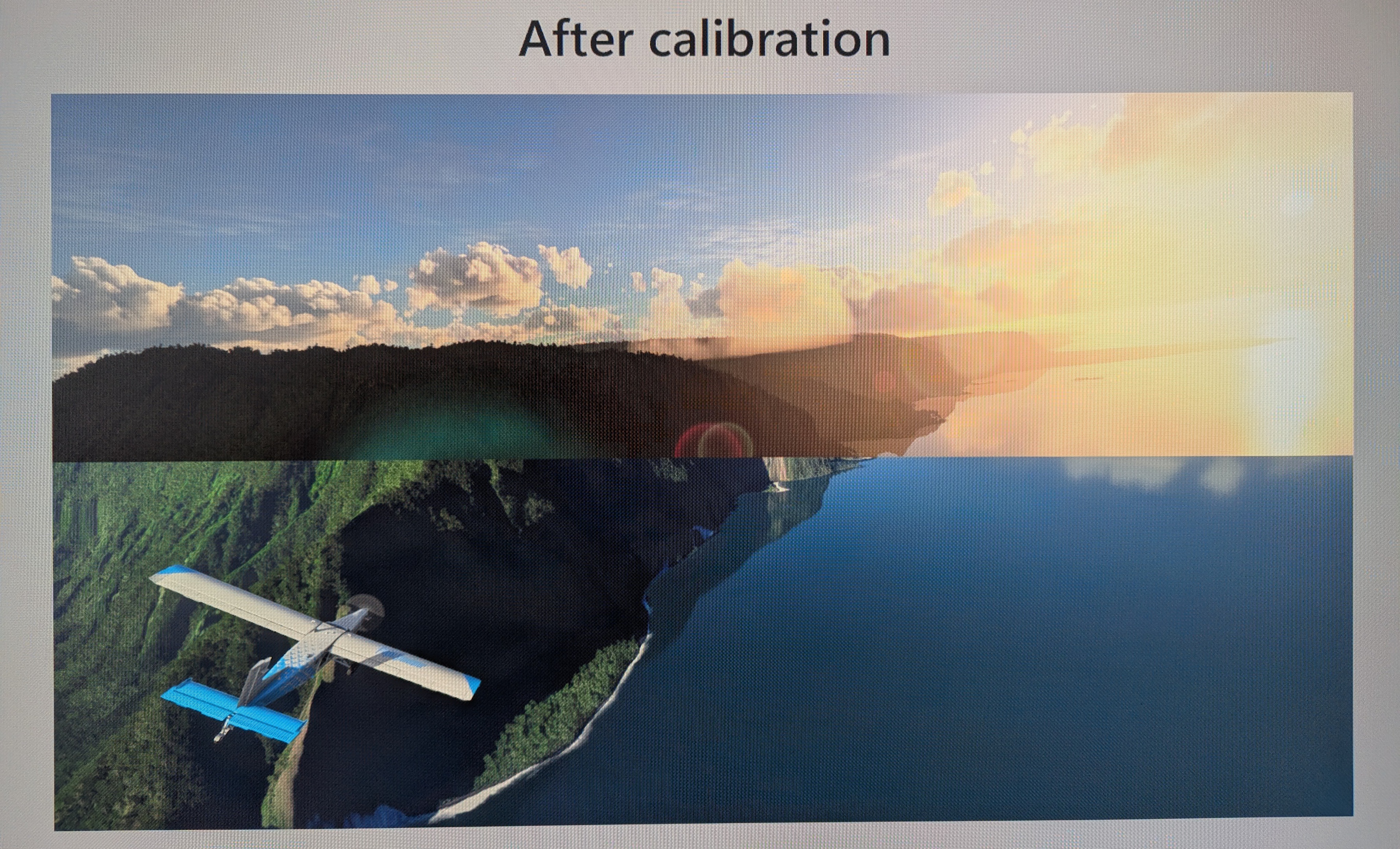
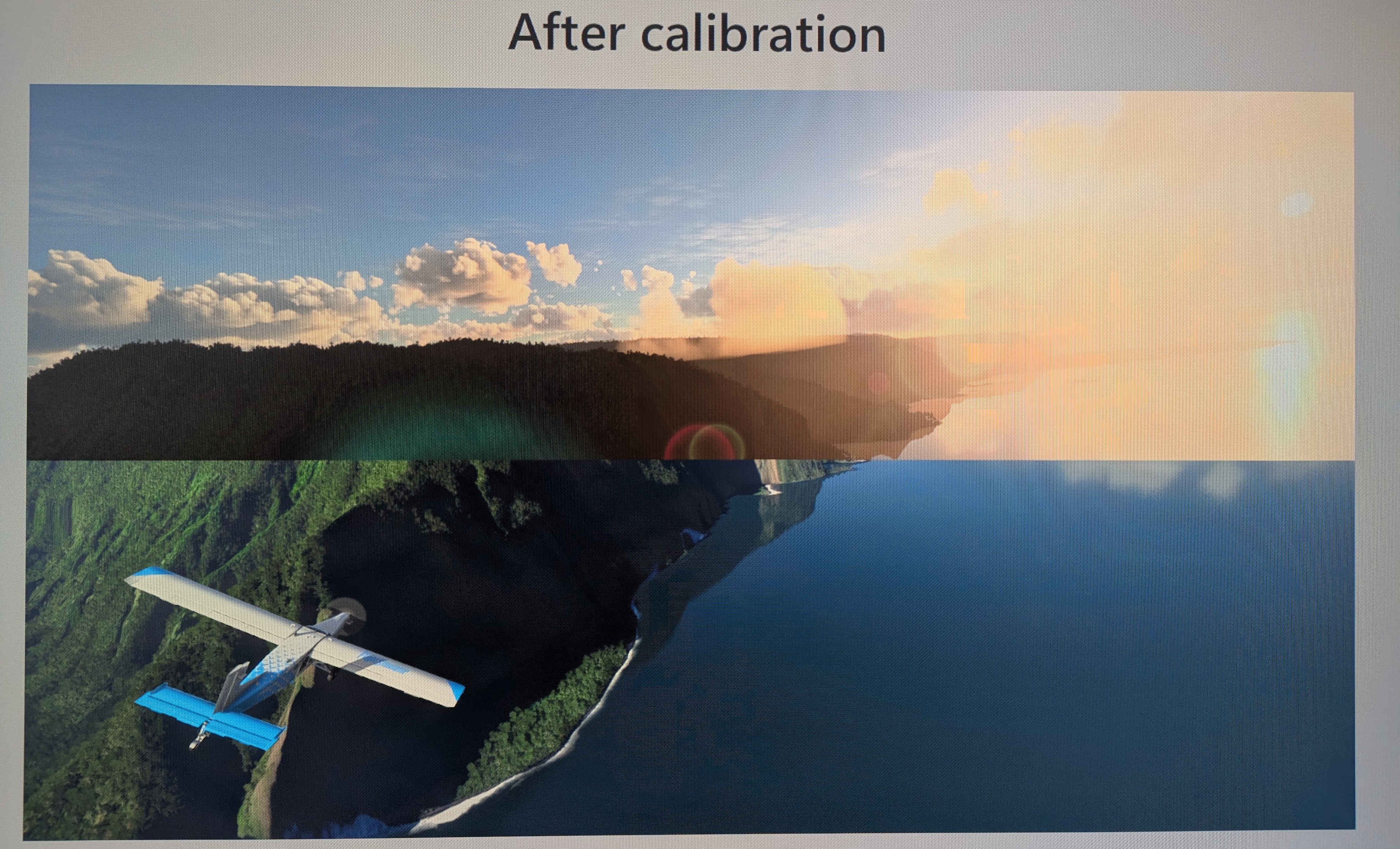
You can see this with an example below showing what bad versus good calibration is like. When a display is poorly calibrated, highlights are brighter than intended, which you can see with the overbrightened sun in the image. That's not the case when it's properly calibrated, as you can see the details between the sun and its reflection in the ocean. Note that the moire in the photos is caused by the camera.
 |
 |
Some games have similar sliders in order to tone map properly, so you should adjust these in the game's settings when possible. In terms of what monitor settings are available, you should check this to see which picture mode(s) you prefer. It's also recommended to leave other picture settings at their default, but you should adjust any setting according to your preferences.
HDR on Gaming Consoles
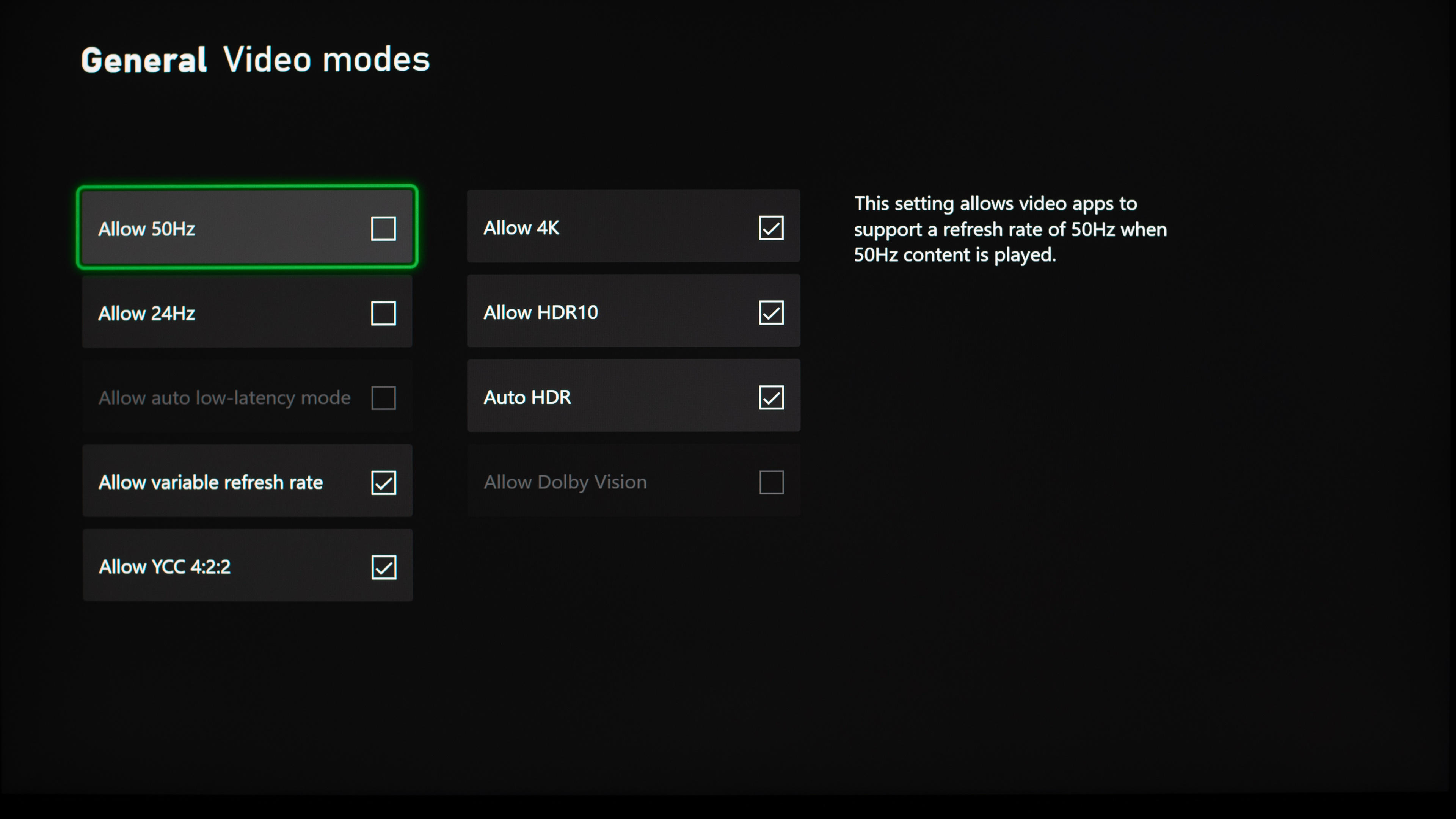
Using HDR with gaming consoles is a lot simpler, as you just need to enable it from the system settings. With a PS5 or PS5 Pro, you need to go to the Screen and Video tab and enable HDR from there. You can either have it always on or only turn on with supported apps and games. As for an Xbox Series X|S, you can enable or disable HDR10 from the Video modes tab, and if the monitor supports it, you can also enable Dolby Vision. However, HDR only works with 4k signals with an Xbox. With either console, there are options to calibrate HDR so that the minimum and maximum luminance levels are correct, similar to Windows HDR.
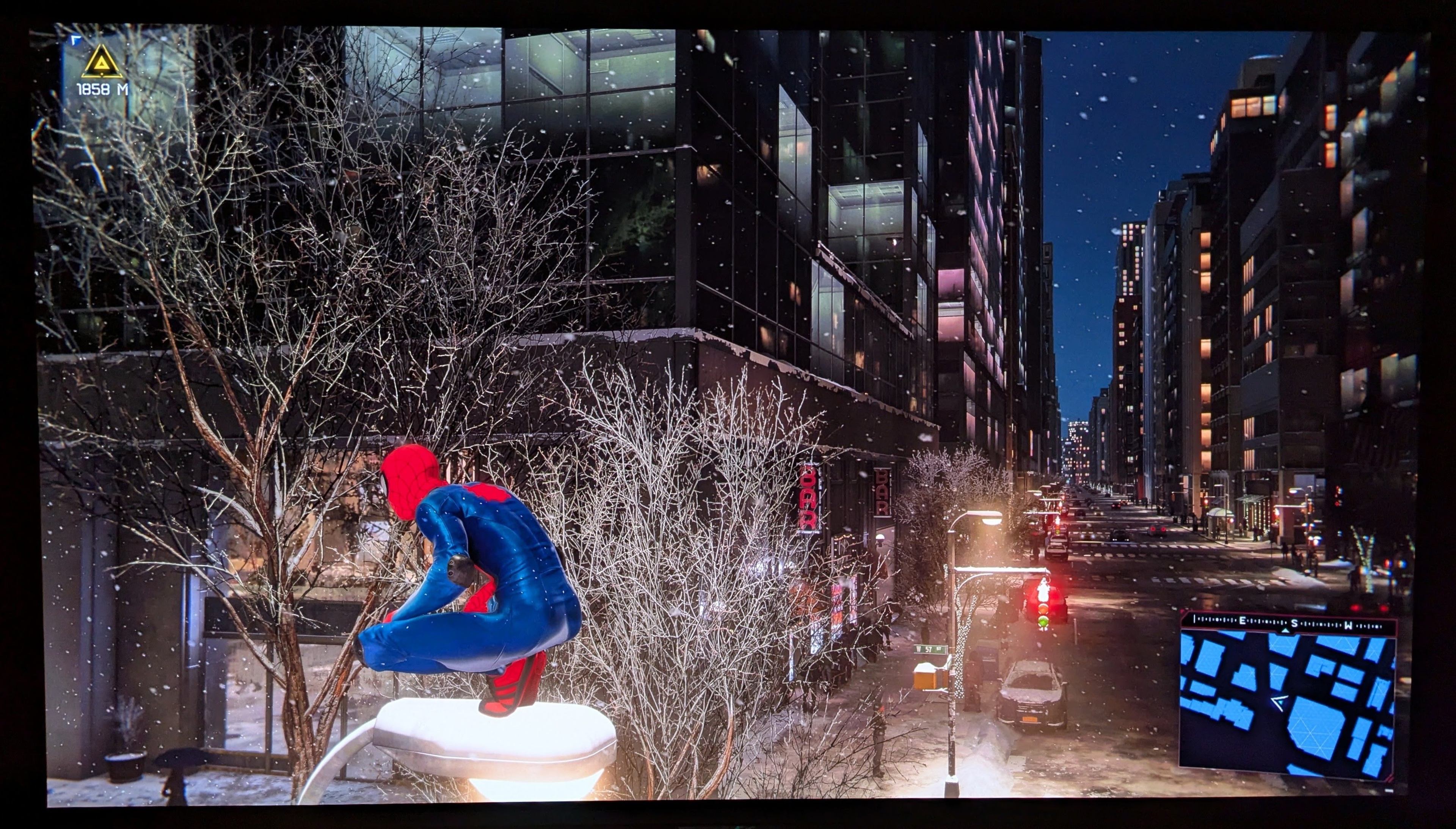
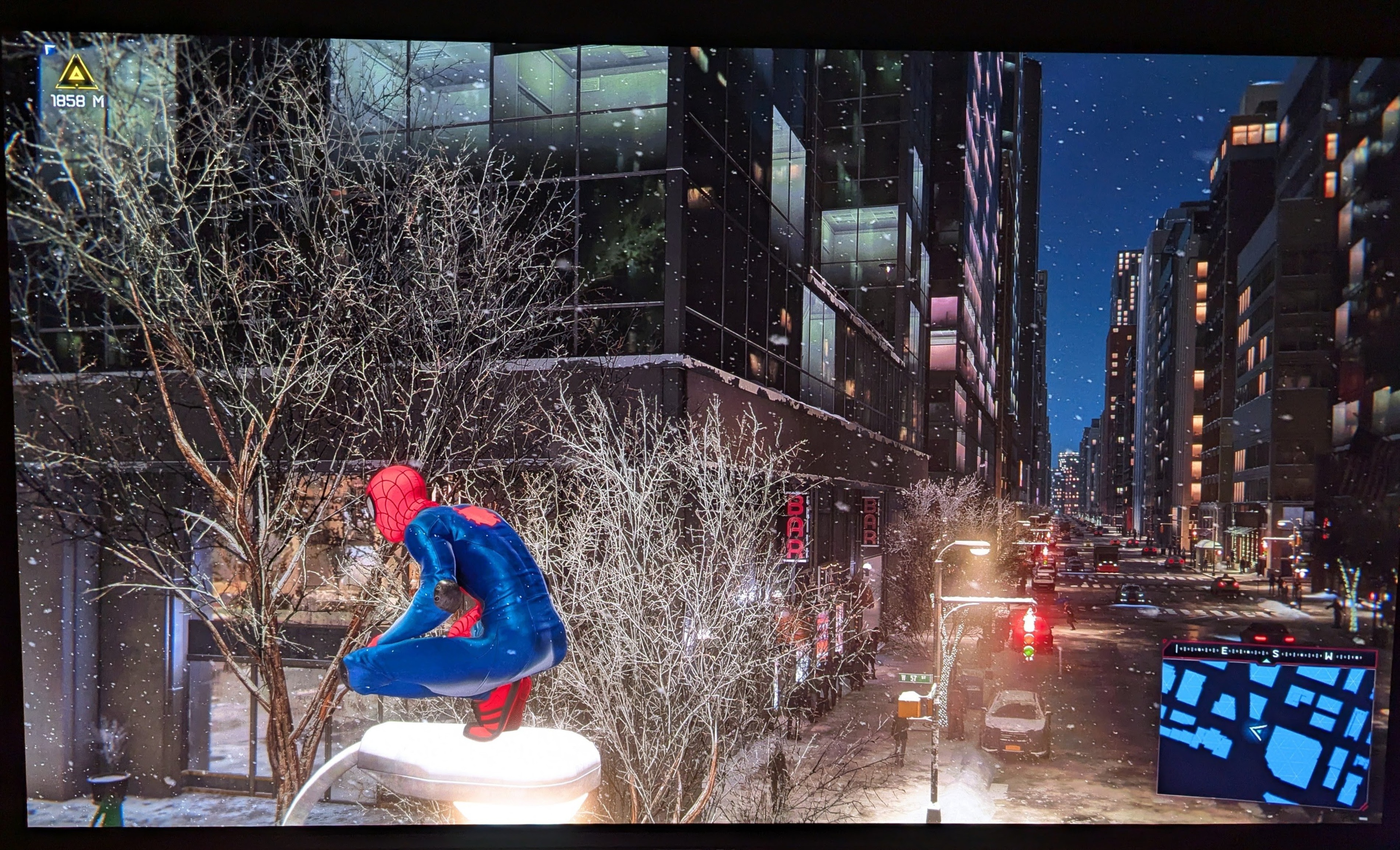
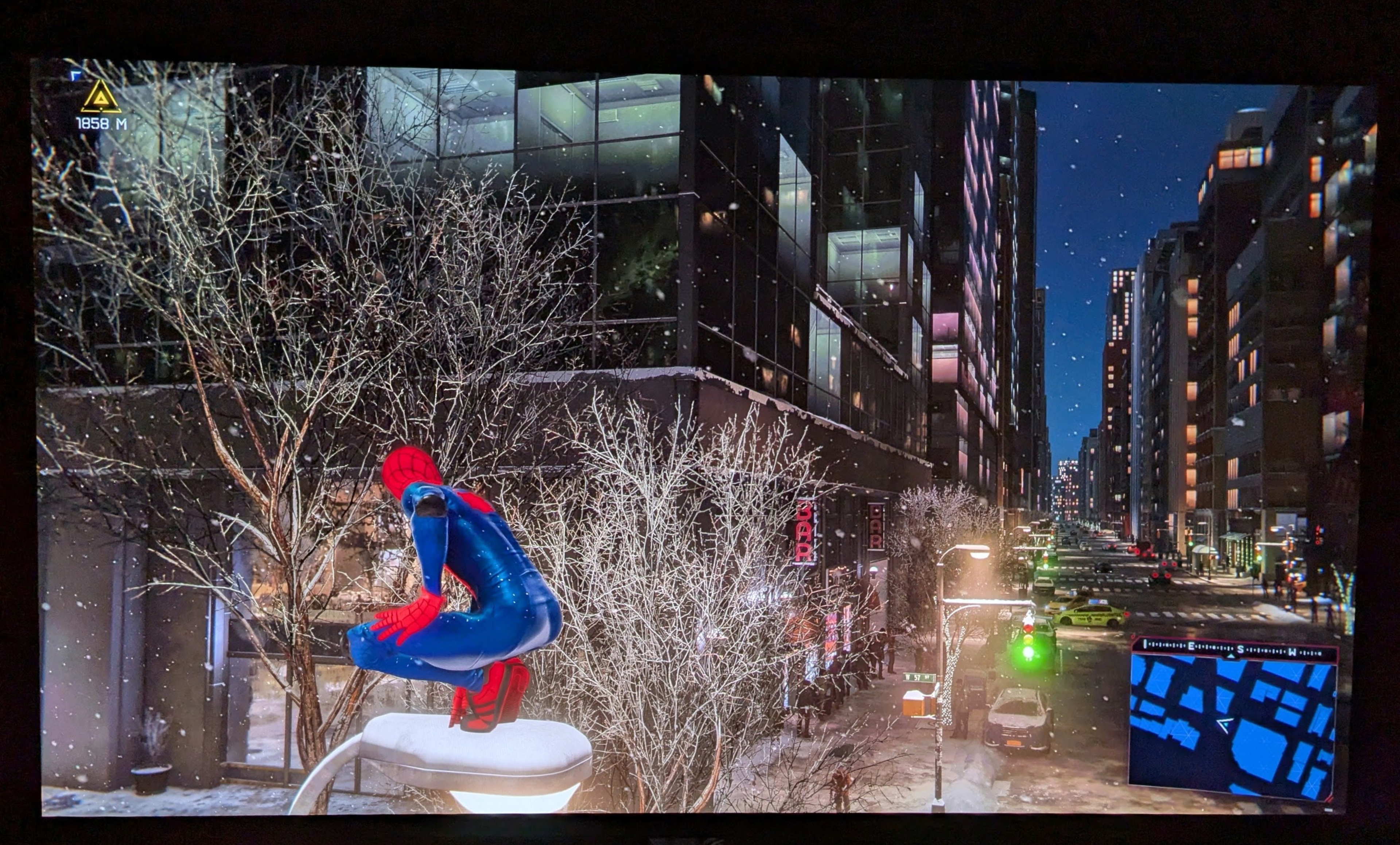
Below, you can see examples of what SDR looks like compared to properly and poorly calibrated HDR on a PS5 with the ASUS ROG Swift OLED PG32UCDM. Although the differences between good and bad HDR are subtle, you can see that highlights (like with the lamp post or the snow on the street) don't pop as much when the system is set to the wrong white and black level settings.
 |
 |
 |
What Makes Good HDR?
Knowing whether your monitor supports HDR and setting it up properly is one step, but it doesn't guarantee that the HDR picture quality is any good. There are a few main factors that impact HDR picture quality: contrast ratio/black levels and uniformity, brightness, and colors. Monitors that are good in each of these areas generally have the best HDR.
Contrast and Black Levels
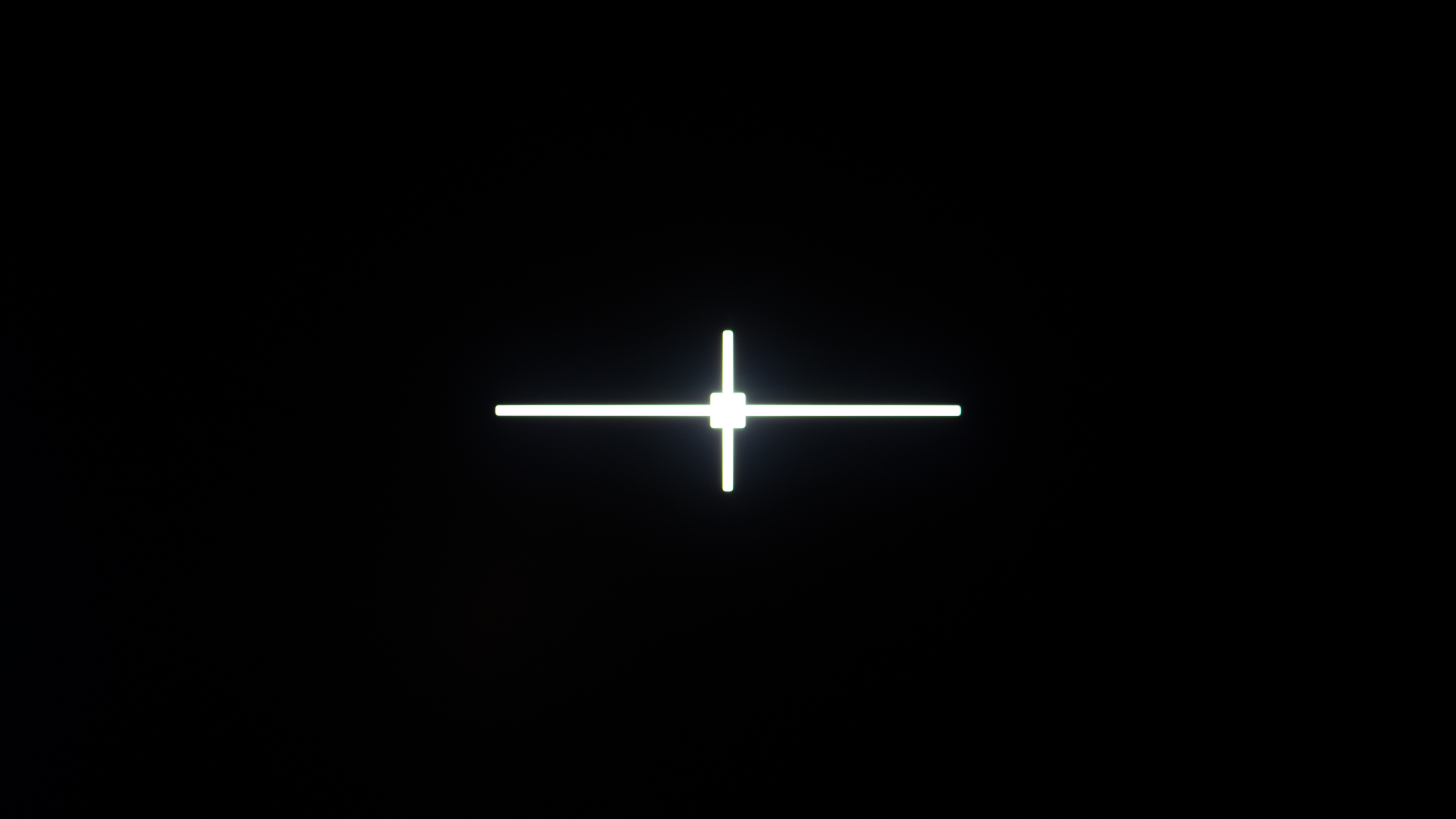
The monitor's black levels are one of the more important factors for HDR, especially if you're using it in a dark room. The last thing you want is for blacks to look gray, which also causes a loss of details in dark scenes. It's also important for the monitor to minimize any haloing around these bright highlights; otherwise, scenes like a starfield won't look as detailed as intended.
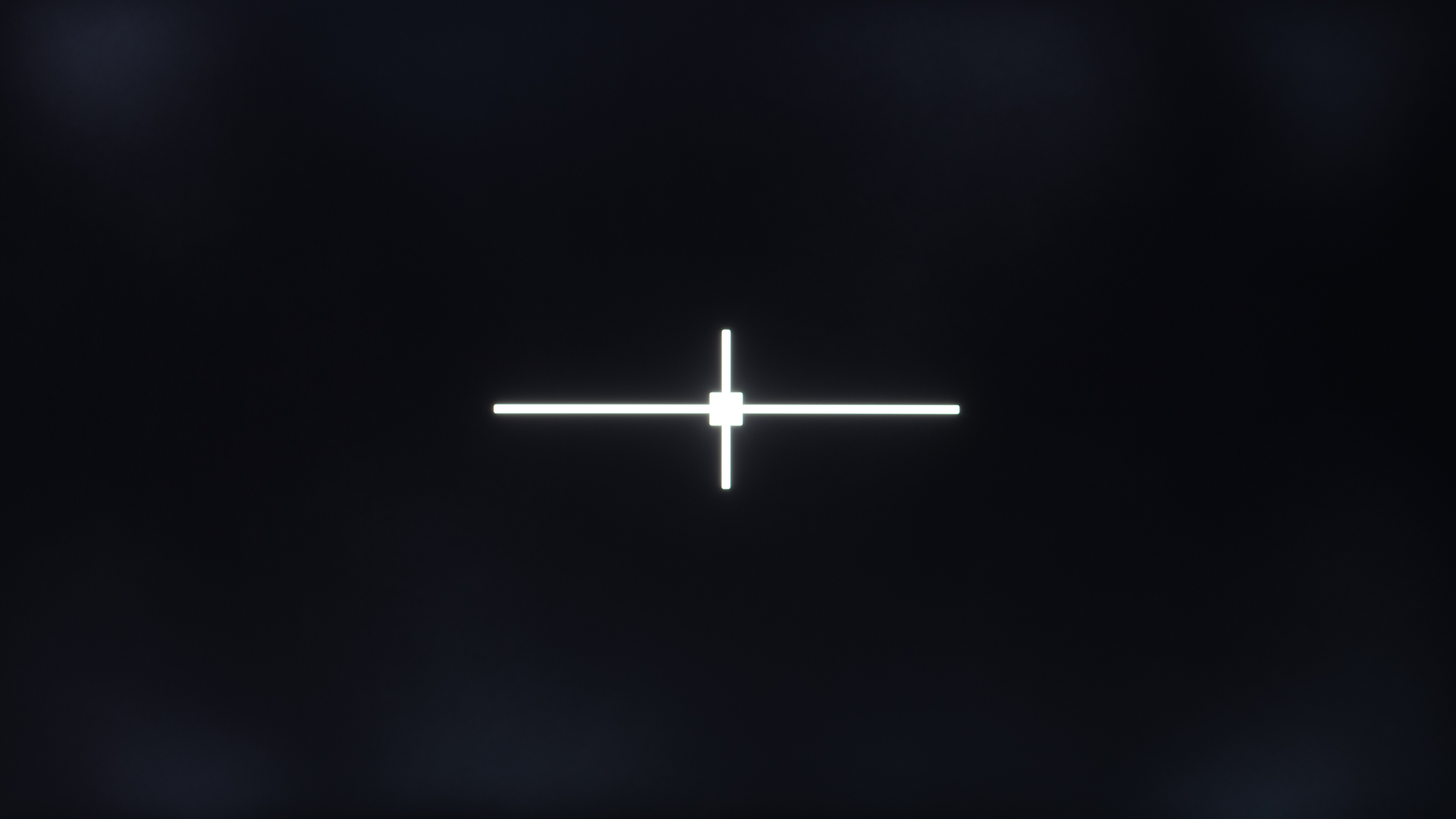
Certain panel types have better black levels than others, with OLEDs having near-infinite contrast ratios. This means OLEDs have deep and inky blacks in dark rooms, and they don't have any haloing around bright objects, either. However, OLEDs look best in dark rooms as the black levels rise a lot in bright rooms on QD-OLED panels, making them look purple. Besides OLEDs, the next best panel technology for black levels is Mini LED monitors with effective local dimming features that greatly improve the contrast ratio for deep blacks. While some Mini LED monitors challenge OLEDs for their black levels, they generally have some haloing around bright objects.
Unfortunately, monitors without local dimming usually can't deliver the deep and inky blacks needed for HDR content. Even VA panels, which have higher contrast ratios than IPS panels, fail to offer an impactful HDR experience without a local dimming feature.
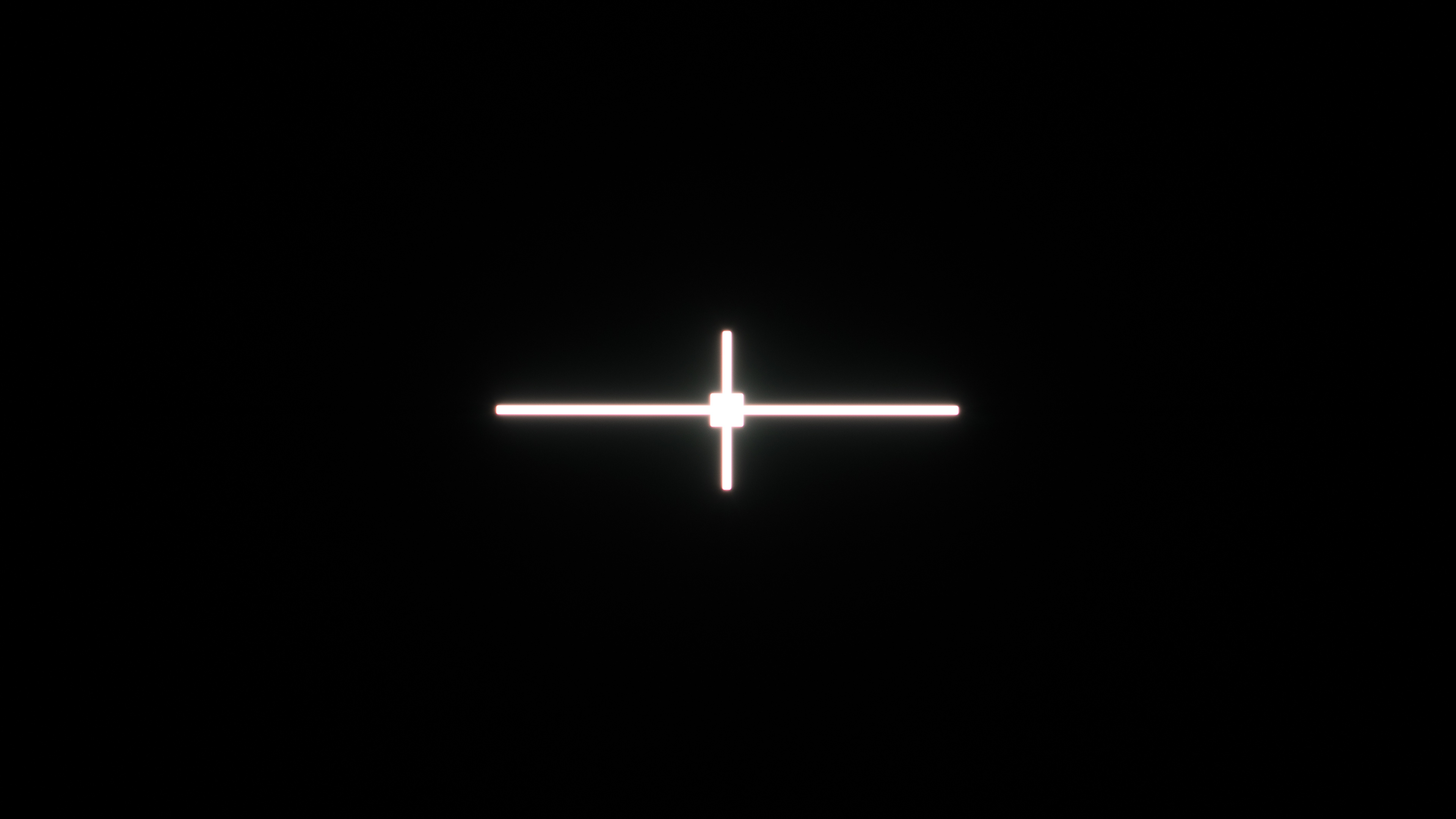
Below, you can see the contrast ratio and black uniformity images of various panel technologies. You can see how the black levels are the best with OLEDs, which don't have any haloing around bright objects or uniformity issues, either.
| Panel Type | Contrast Ratio | Contrast Photo | Black Uniformity Photo |
|---|---|---|---|
| OLED | Inf:1 | 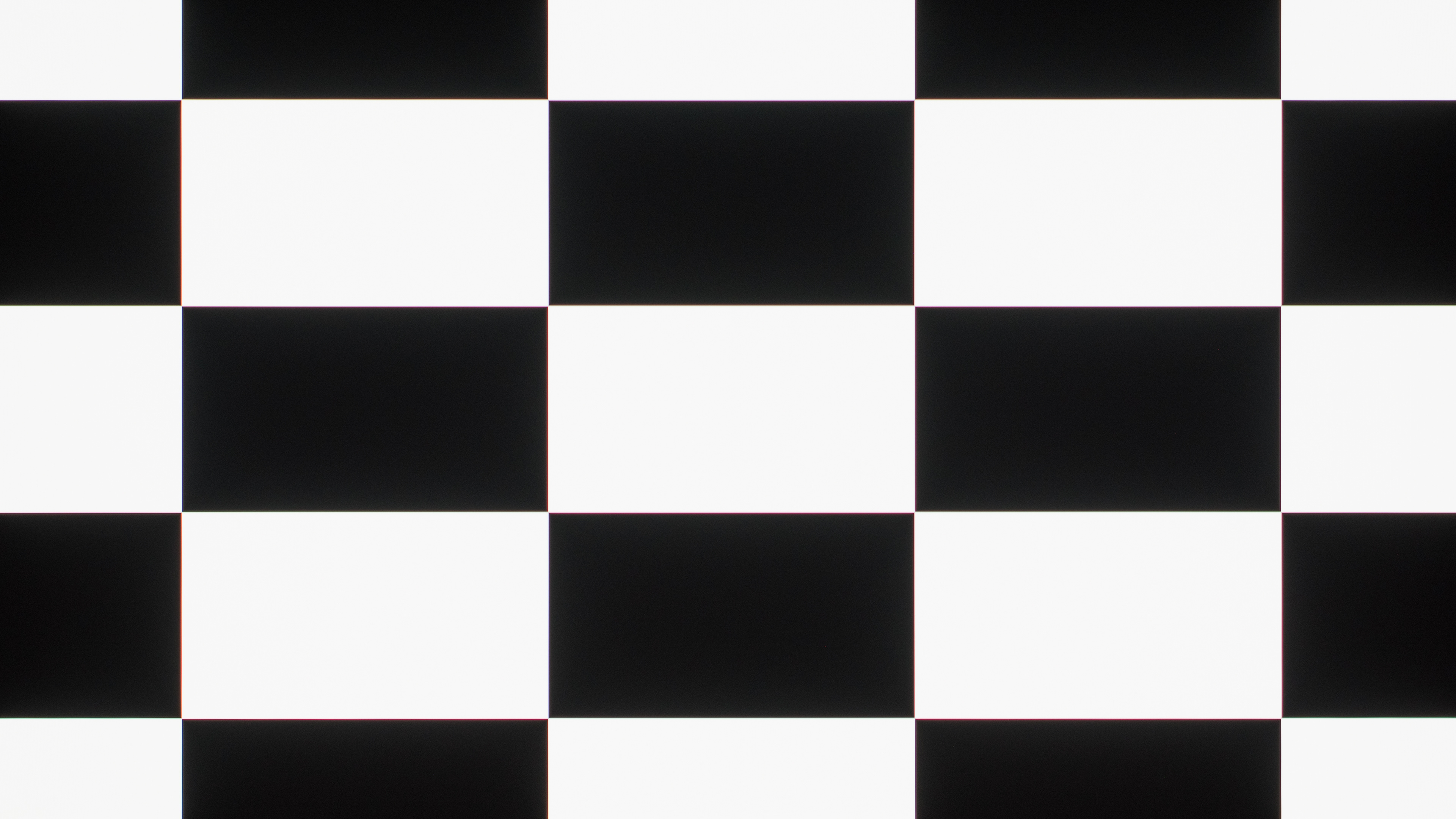 |
 |
| Mini LED | 21,609:1 | 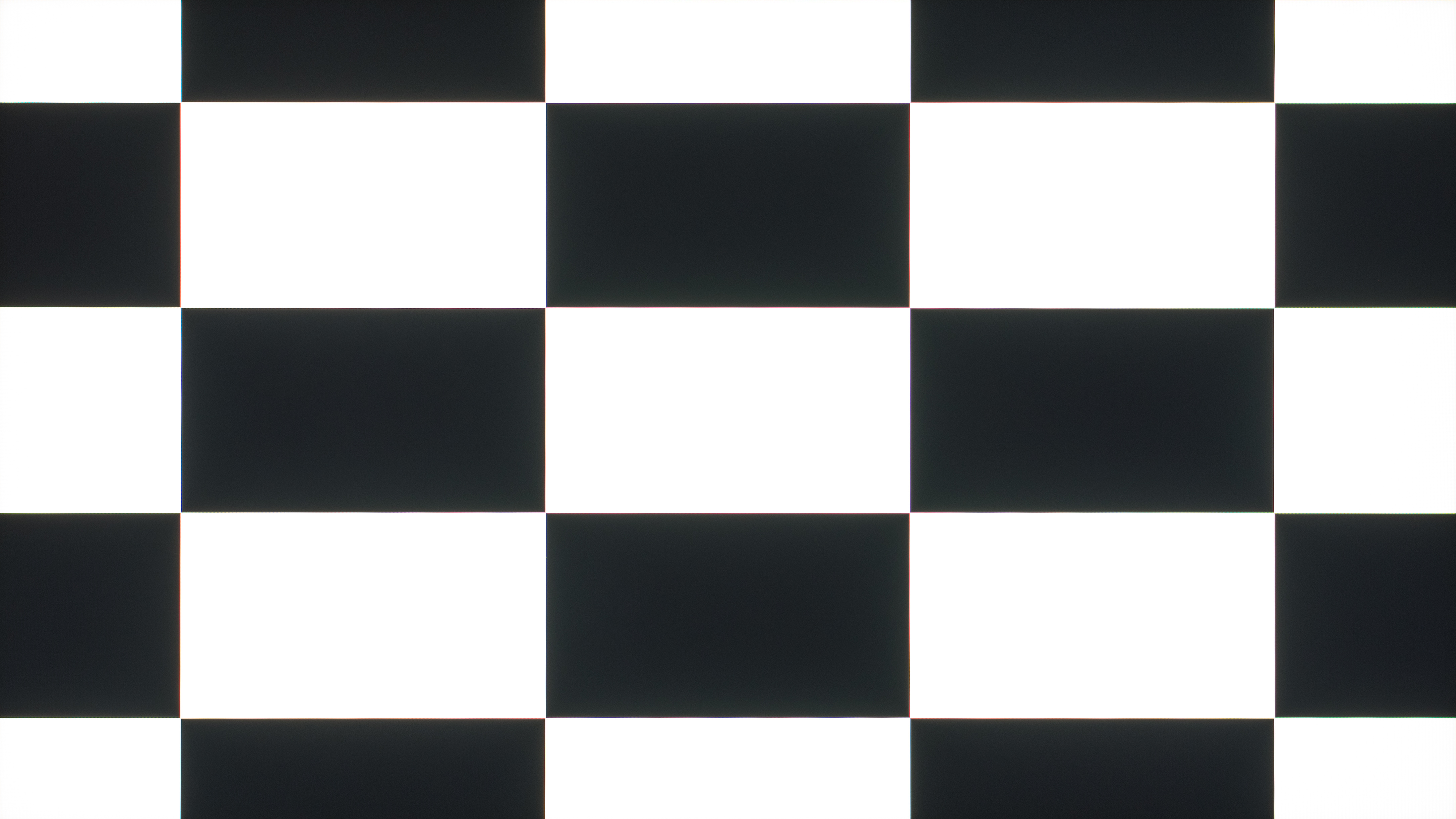 |
 |
| VA | 4,961:1 | 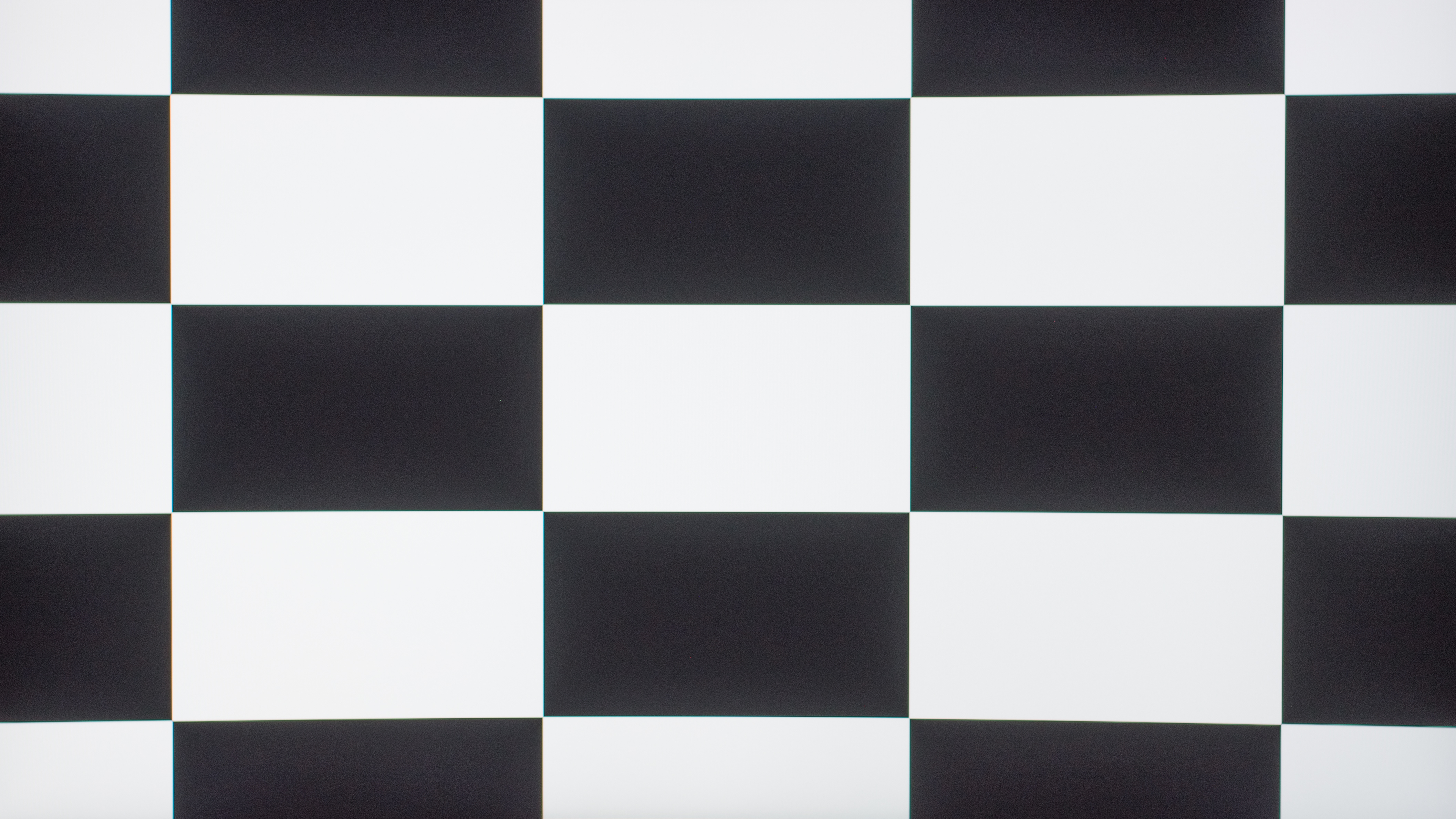 |
 |
| IPS | 1,445:1 | 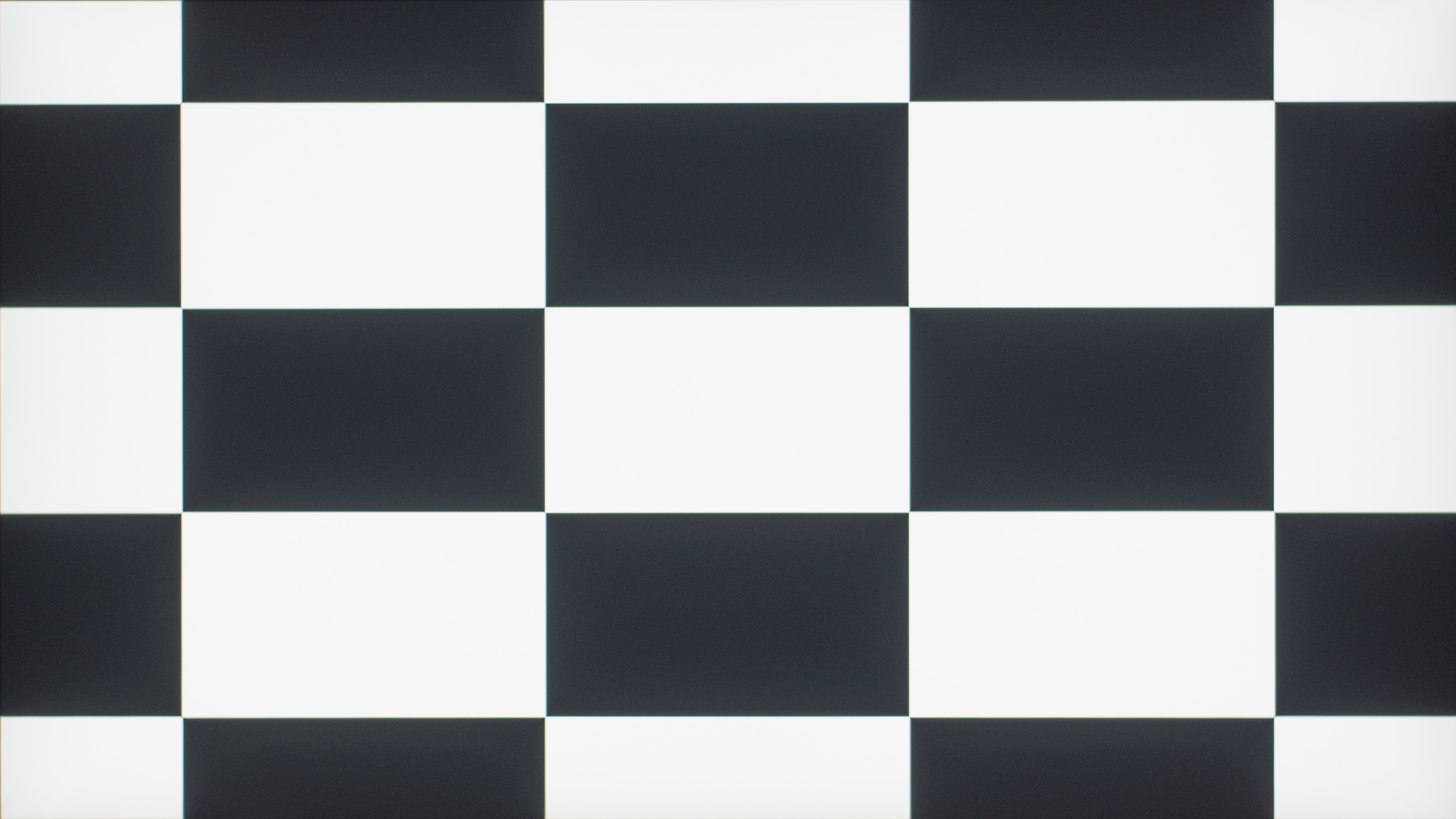 |
 |
Brightness
The contrast ratio is also an important factor in making highlights pop against the rest of the image. While the monitor needs to get bright for an impactful HDR experience, small specular objects won't pop out if there's little contrast between bright and dark objects. If highlights don't pop, the image will look dull and muted. OLEDs are the best at making these highlights stand out because of their near-infinite contrast ratio. For example, the LG 27GX790A-B reaches 1,255 cd/m² with the small highlights. However, OLEDs can't maintain this brightness with larger highlights, as the LG is limited to 269 cd/m² with full-screen windows. Mini LED monitors are much brighter than OLEDs, as the LG 27GR95UM-B is a very bright Mini LED display that reaches 1,408 cd/m² with peak full-screen windows. However, when testing it, we found that its local dimming feature muted small highlights, so they don't pop as much despite the monitor's high brightness and good contrast, and this is unfortunately the case with other monitors that have ineffective or no local dimming. This means that for highlights to pop, the monitor needs to have a high contrast ratio, effective local dimming, and be bright.
Often, monitors are advertised for how bright they get, and some are certified for a certain brightness level with the VESA DisplayHDR Certification. This doesn't mean much, though, as many modern monitors easily meet the requirements for the basic DisplayHDR 400 level, which includes a minimum brightness of 400 cd/m². However, this doesn't take into consideration whether or not small highlights get brighter than the rest of the image.
PQ EOTF
Related to brightness, it's also important for the monitor to have accurate PQ EOTF tracking. This is a measure of how well it displays content compared to the intended brightness. HDR content is mastered at a certain brightness, so if the monitor displays that content brighter or darker than it's supposed to, it doesn't match the creator's intent.
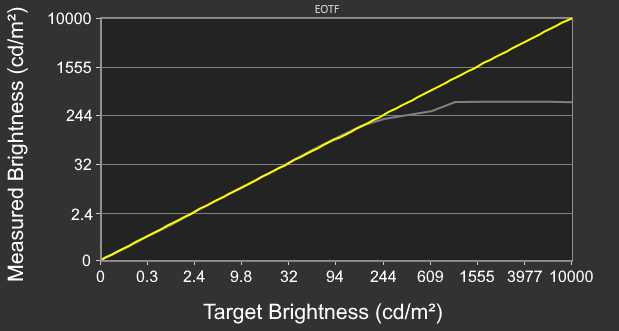
Below you can see examples of two QD-OLEDs that have different PQ EOTF tracking: the ASUS ROG Swift OLED PG32UCDM (left), which accurately tracks the target level until there's a sharp cut-off at its peak brightness, and the Dell Alienware AW2725Q (right), which overbrightens content until it tone maps before the source does. Many monitors tone map on their own to avoid clipping, but this is something to keep in mind if you're going to use Windows HDR Calibration, as you want to avoid your source and monitor both tone mapping.
 |
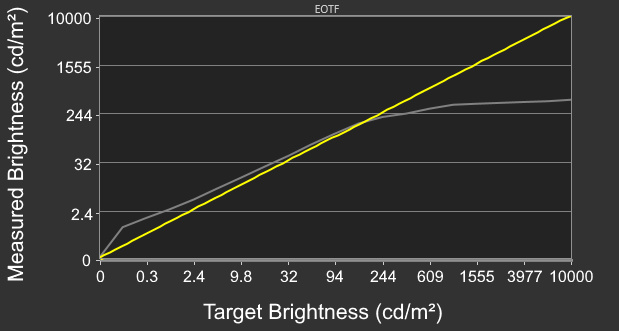 |
As EOTF tracking is related to the monitor's processing, you can get two monitors with the exact same panel but different tracking.
Color Gamut and Volume
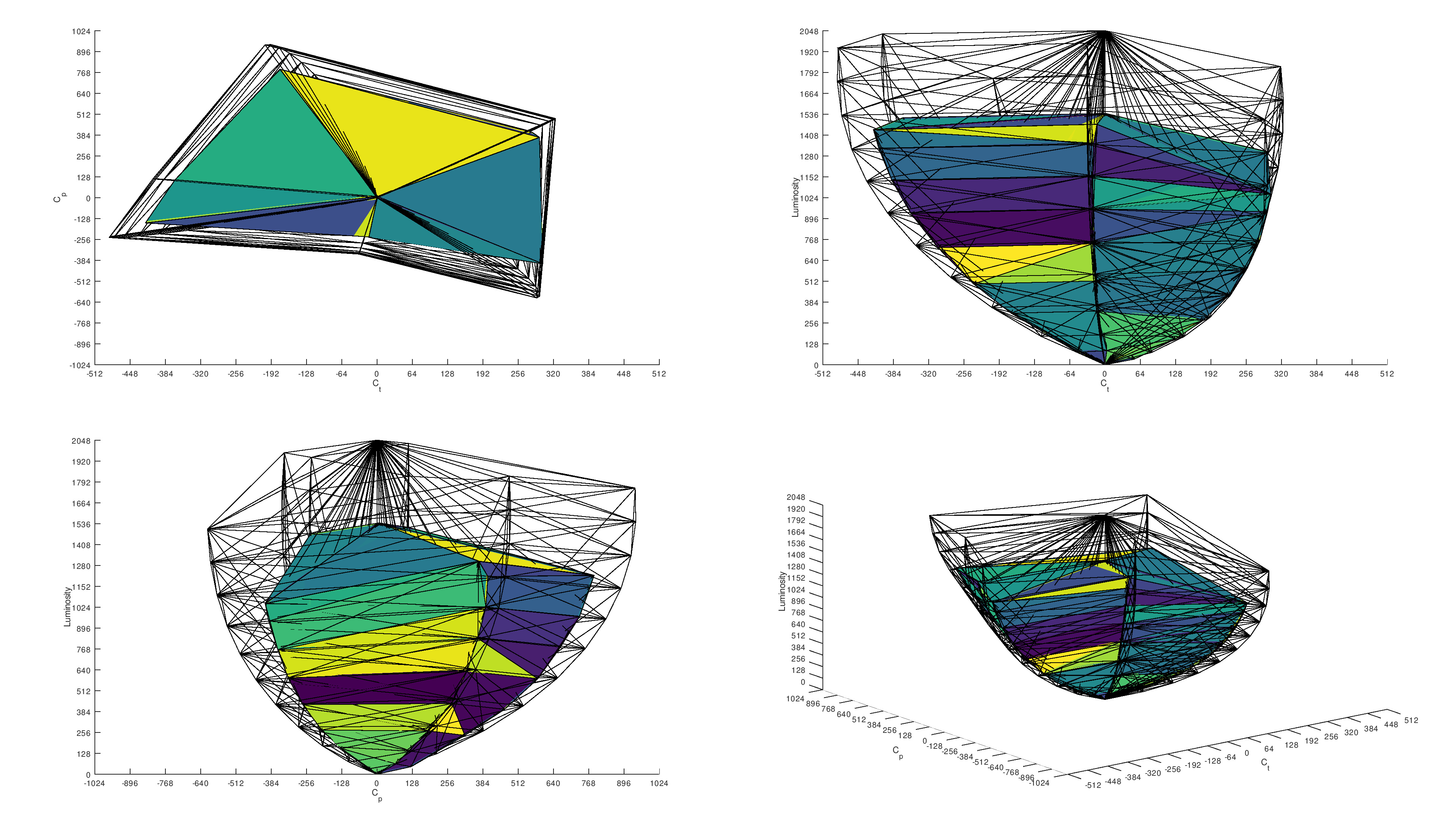
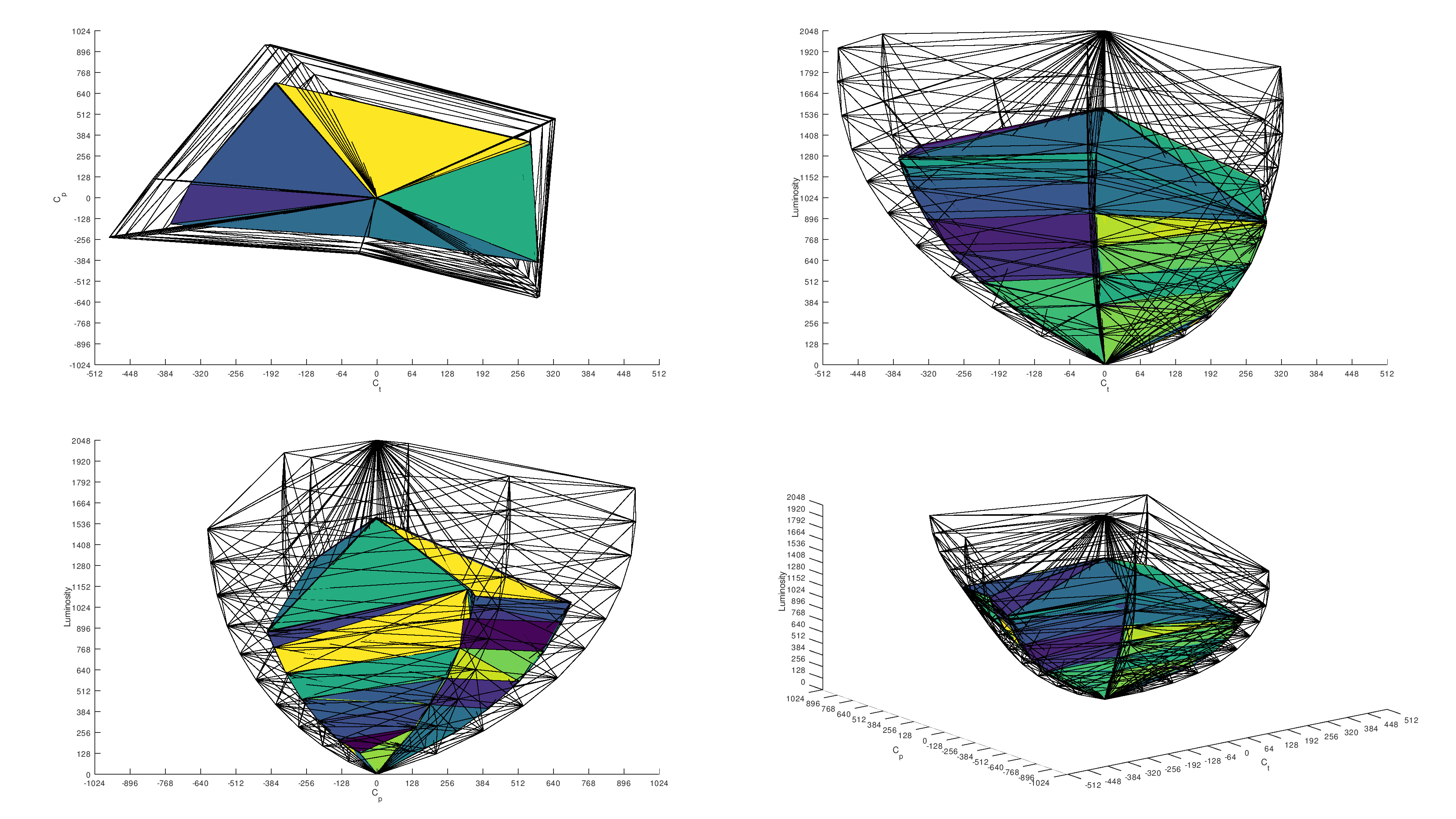
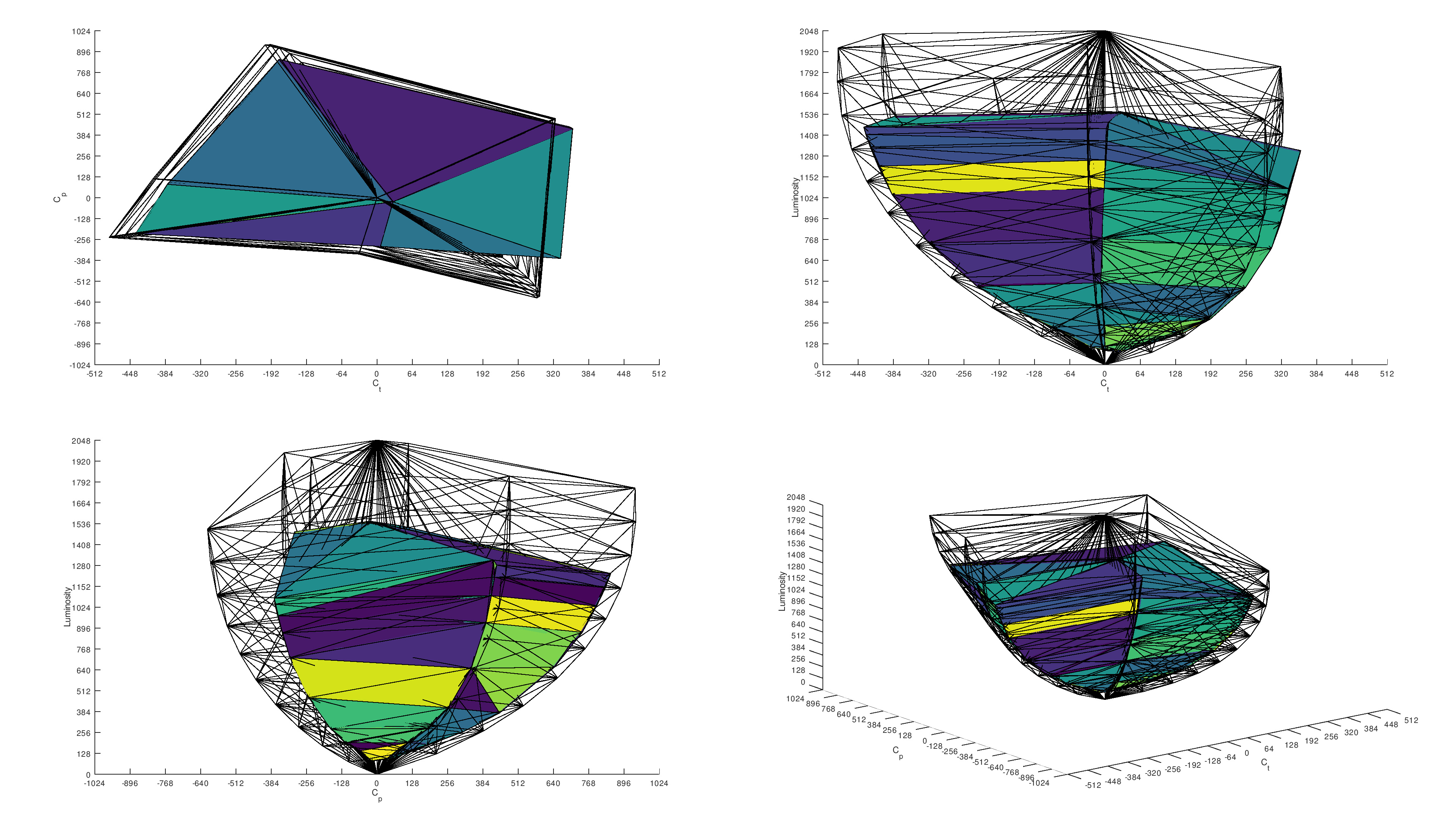
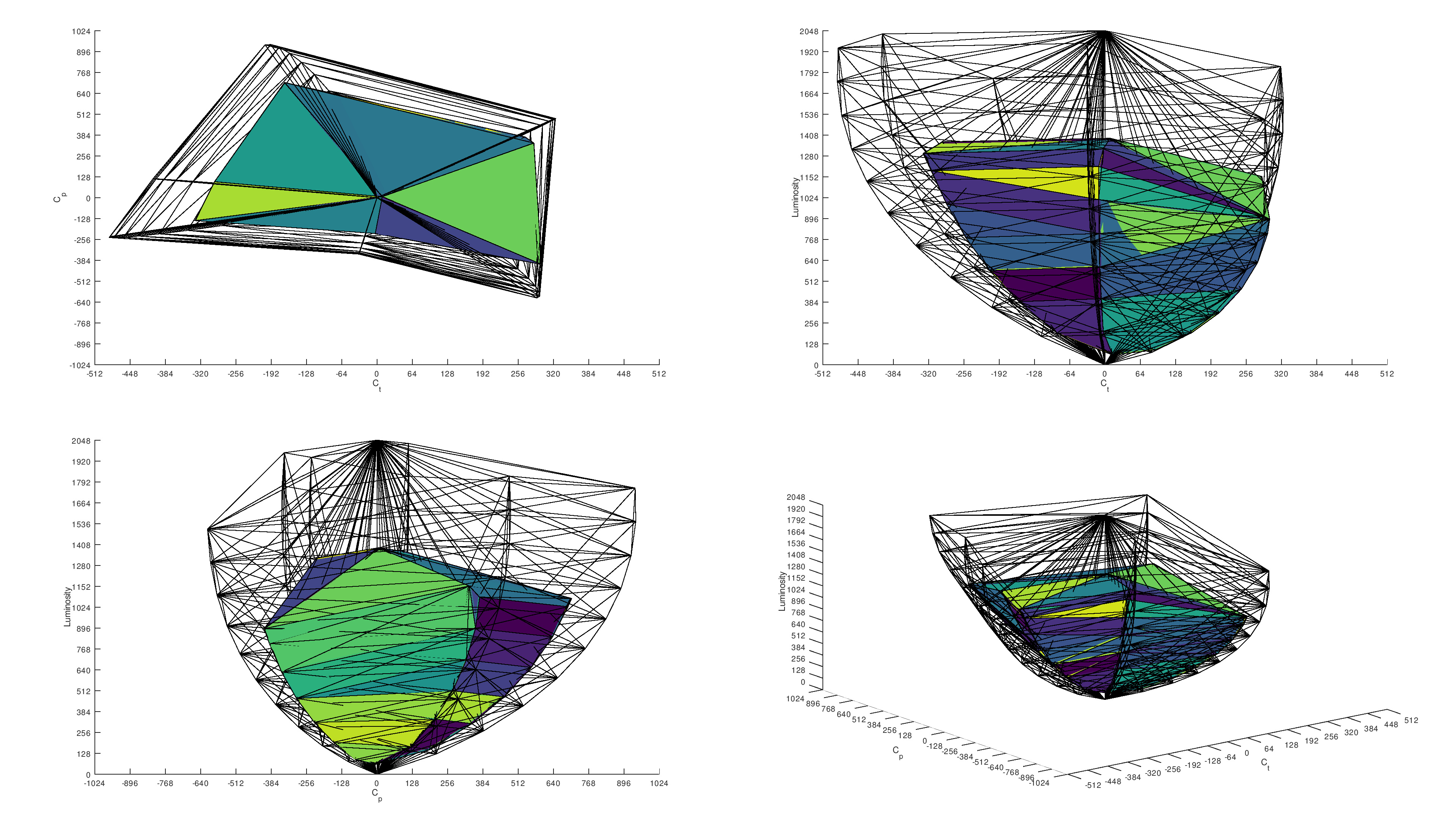
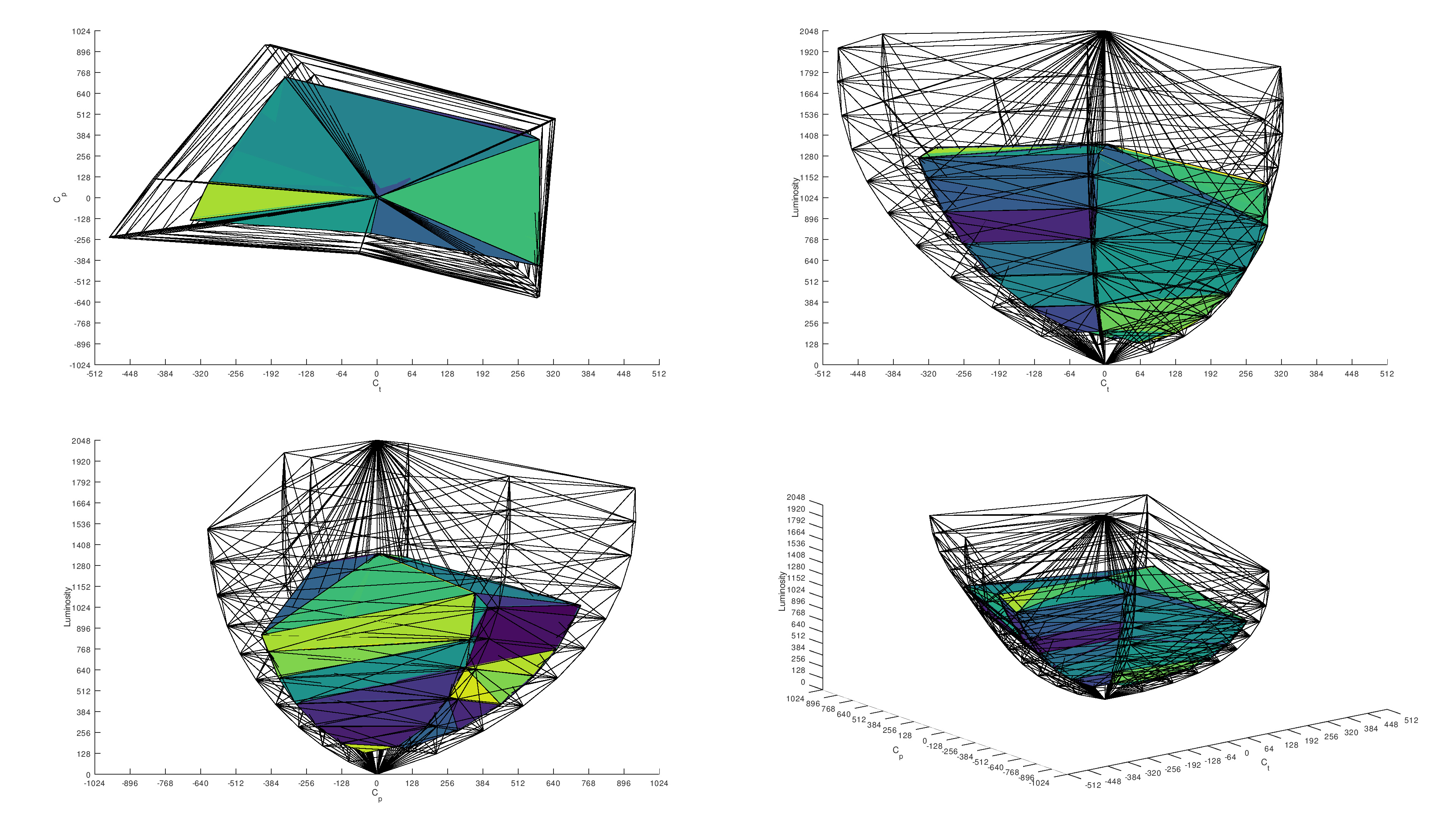
Besides the brightness and contrast ratio, another important factor for an impactful HDR experience is for the monitor to cover wide color gamuts. Most HDR content uses the DCI-P3 color space, with some content using the wider Rec. 2020 color space instead. We measure both of these color spaces as part of our color gamut testing, alongside measuring the color volume. While the color gamut is the range of colors the monitor displays at a certain luminance level, the color volume defines the range of colors at any luminance. For the best HDR performance, you'll want the monitor to have good color volume by displaying bright and dark colors without issues. Colors look muted on monitors with limited color volume.
In terms of panel types, QD-OLEDs have the best colors because they display bright and vivid colors well. WOLEDs tend to display dark colors well, but bright colors aren't nearly as vivid as QD-OLEDs. Some Mini LEDs challenge QD-OLEDs in terms of color volume as they display bright colors really well, but still aren't as good overall. There's usually a correlation between the contrast, brightness, and color volume: monitors that have a low contrast ratio and don't get bright generally struggle to display bright and dark colors well.
Below you can see examples of the color volume in DCI-P3 and Rec. 2020 with different panel types. Notice how the QD-OLED fills the target bubbles the most, while the IPS monitor fails to fill up the bottom part of the bubbles, meaning it can't display dark colors well. Of course, these are just examples, and ultimately, the exact color volume varies between units, but these are generally how each of these panel types performs.
| Panel Type | DCI-P3 | Rec. 2020 |
|---|---|---|
| QD-OLED | 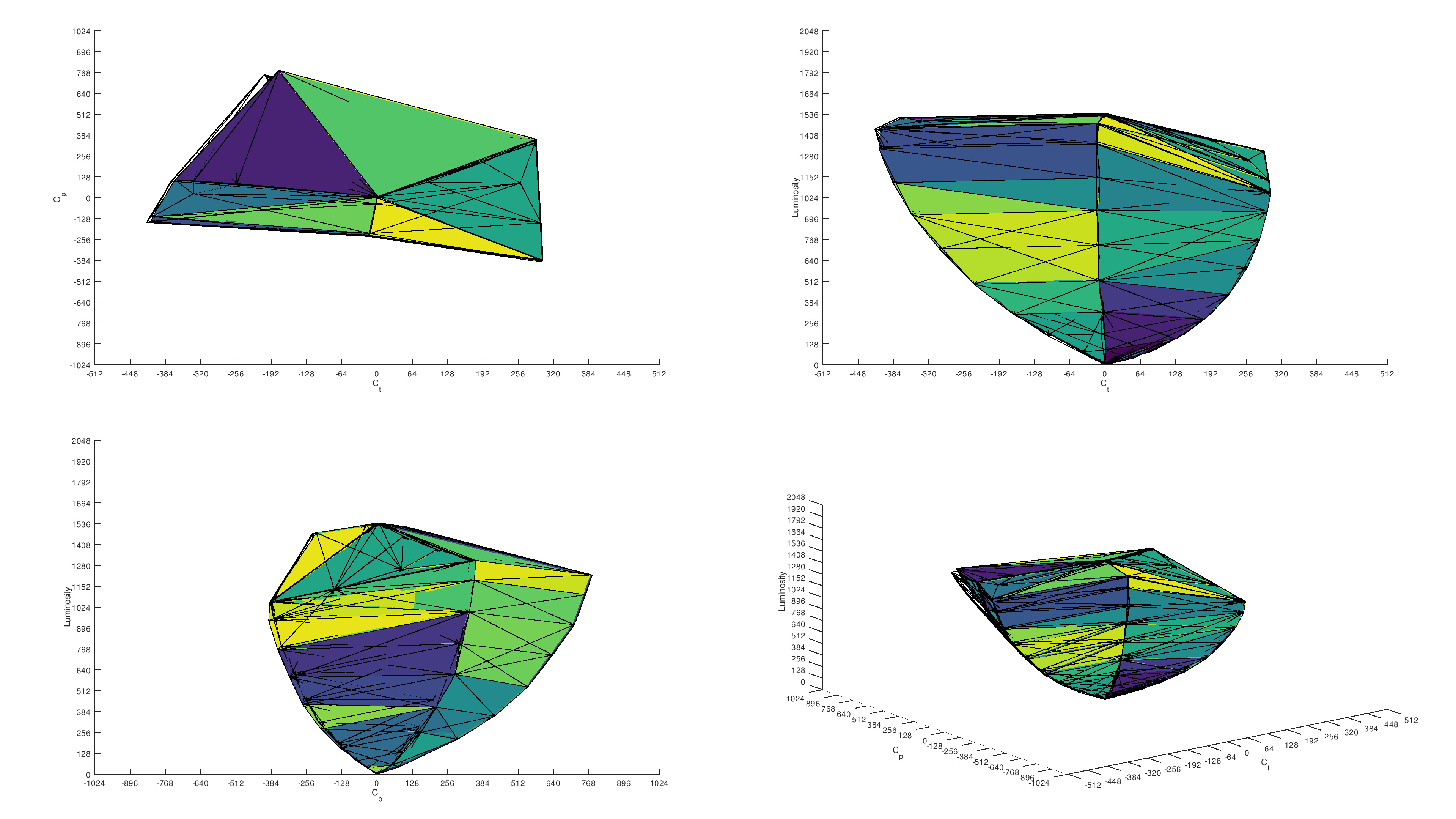 |
 |
| WOLED | 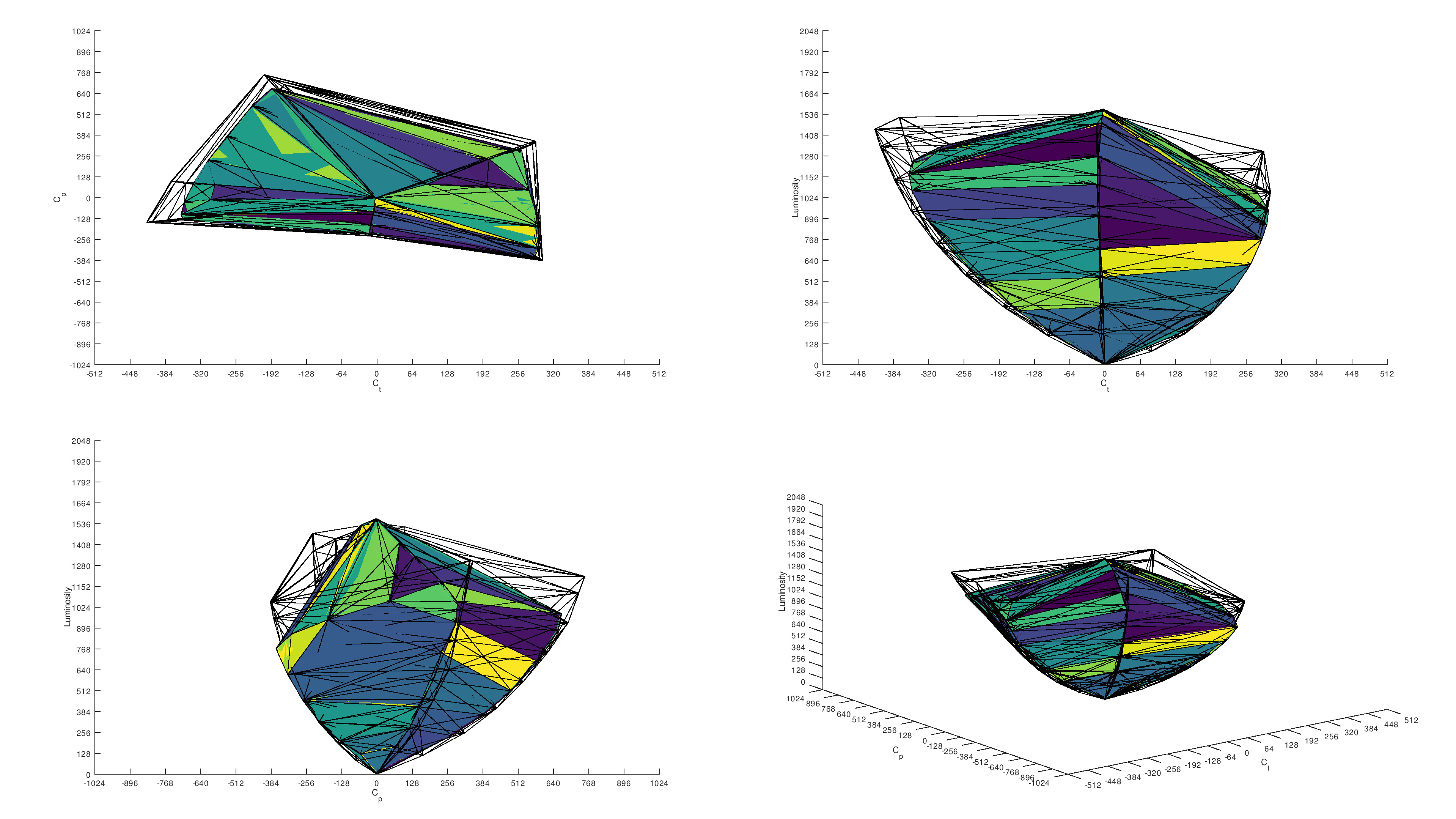 |
 |
| Mini LED | 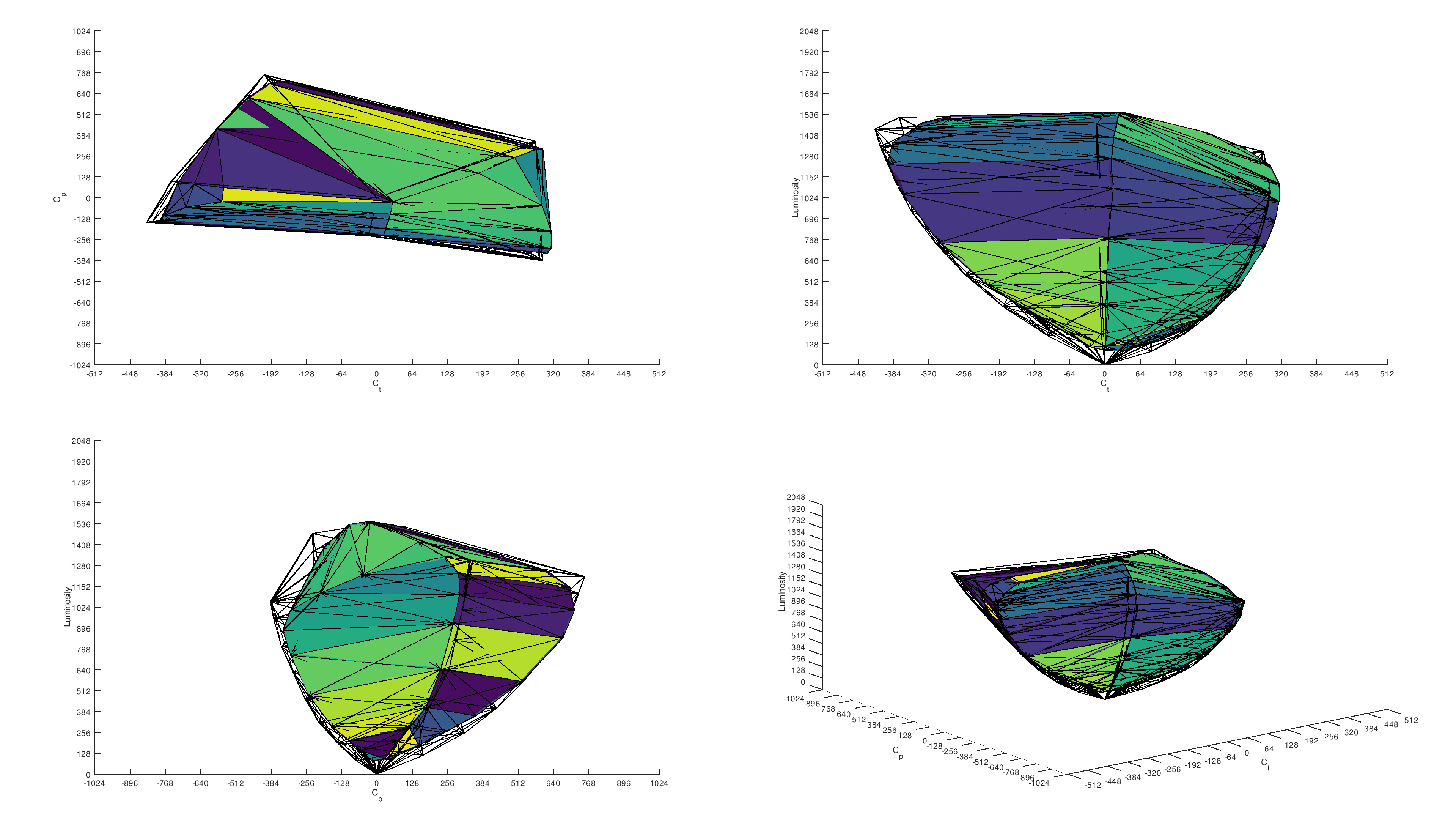 |
 |
| VA | 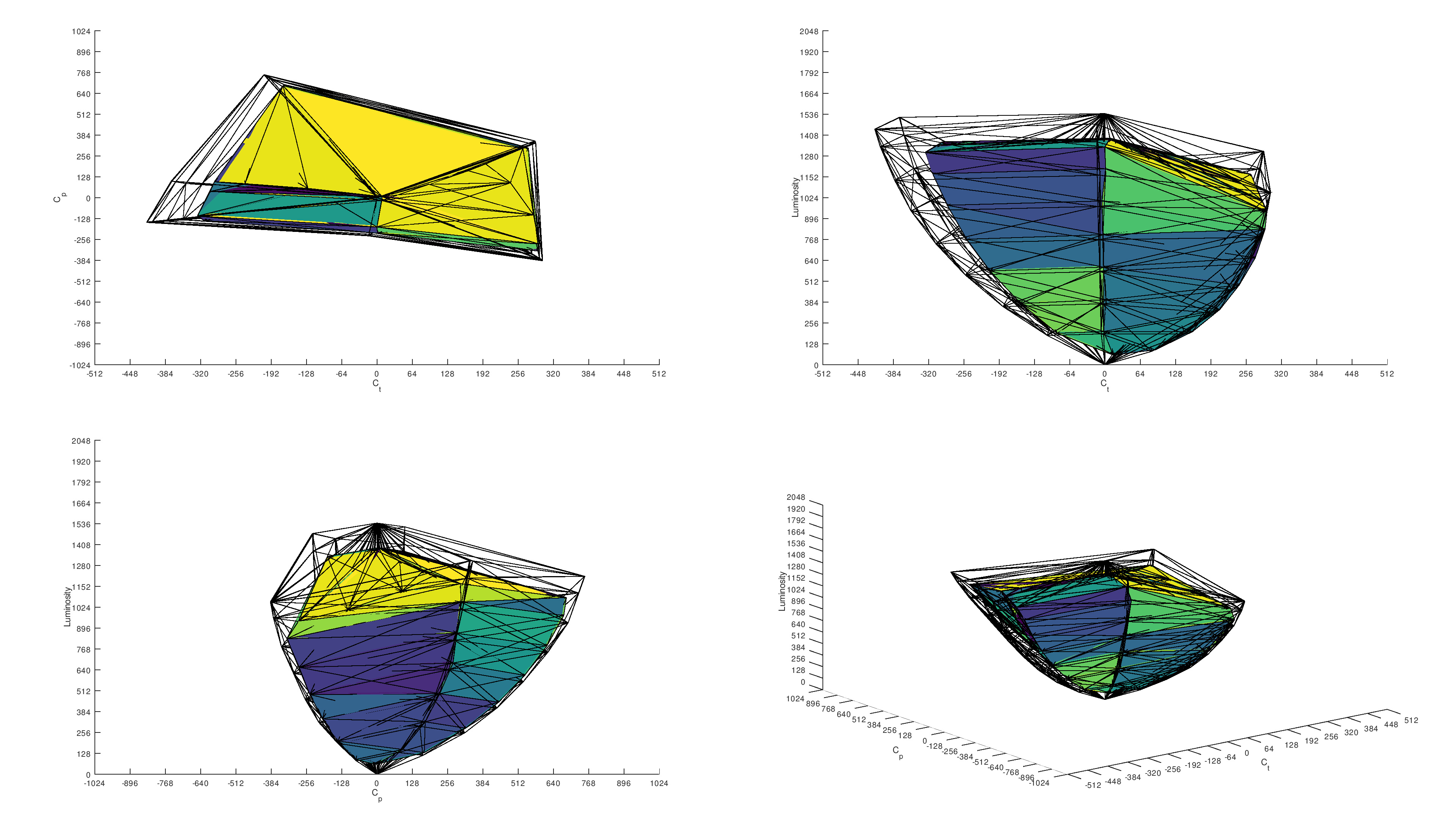 |
 |
| IPS | 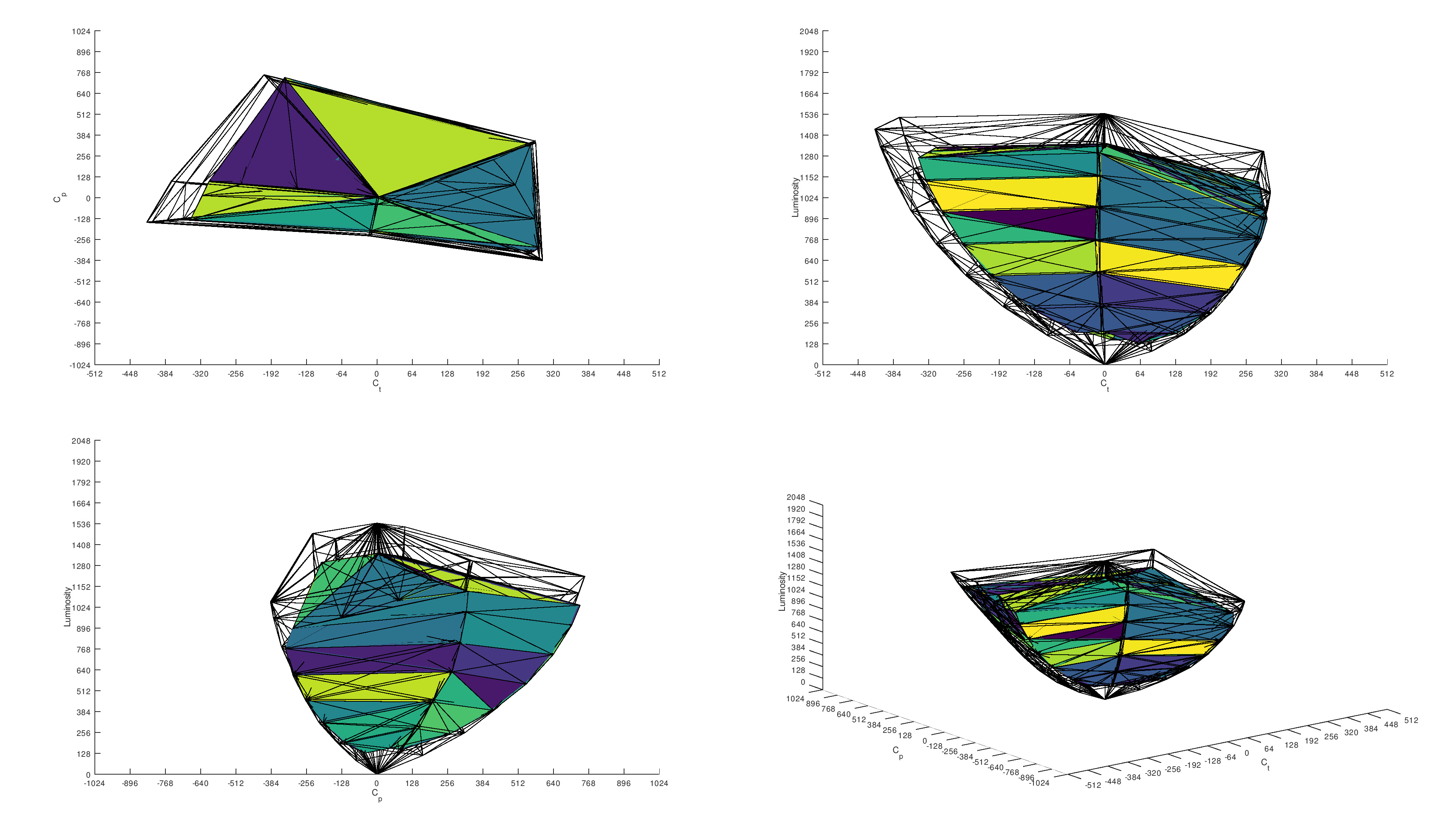 |
 |
Is Using HDR Necessary?
While there's a greater push from game developers and monitor manufacturers to use HDR, many monitors simply aren't good enough to deliver an impactful HDR experience. You need to get an OLED or a Mini LED monitor to get the best HDR experience, which can get costly. If you don't have a good HDR monitor, it's better to not use it all.
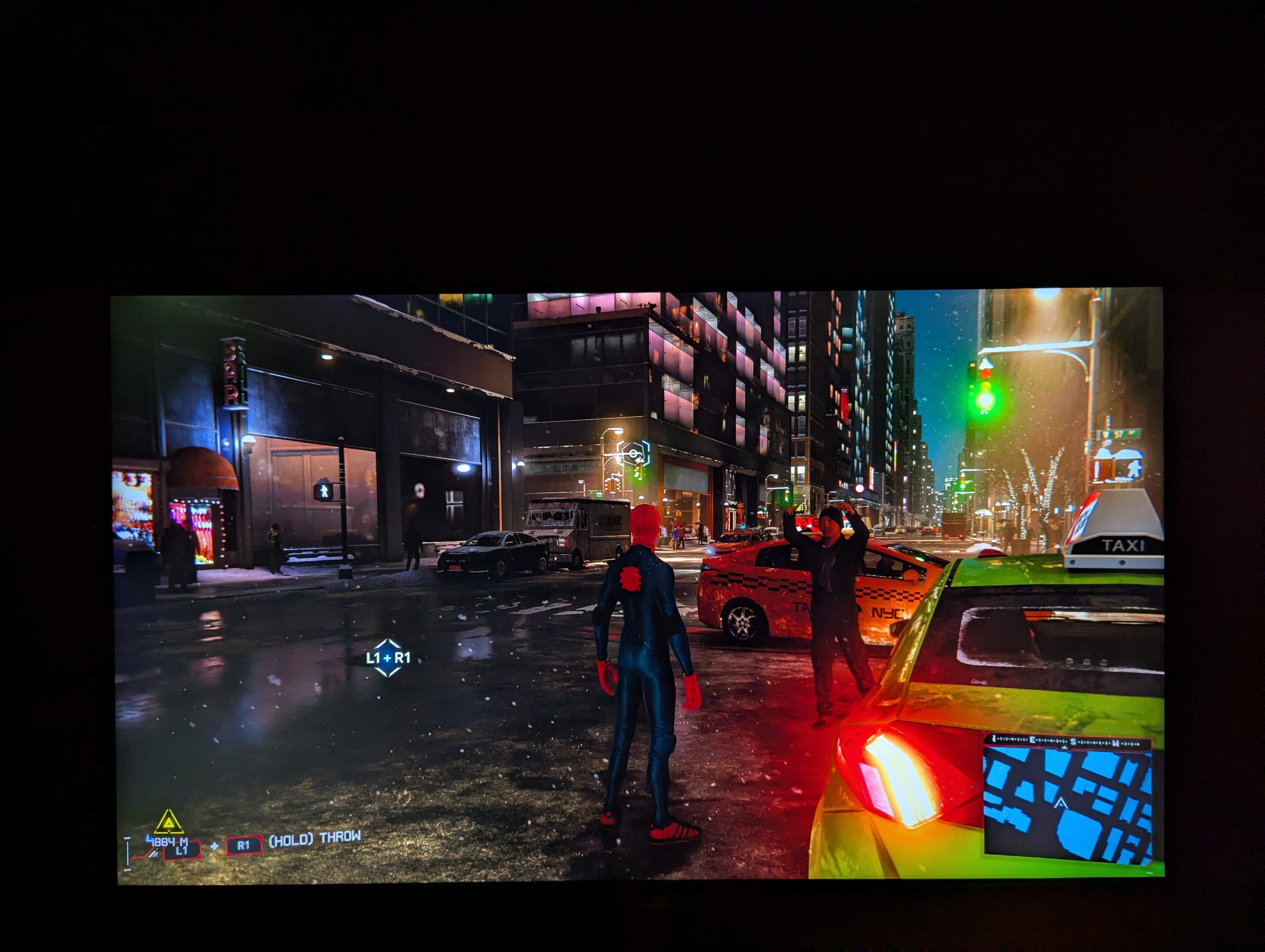
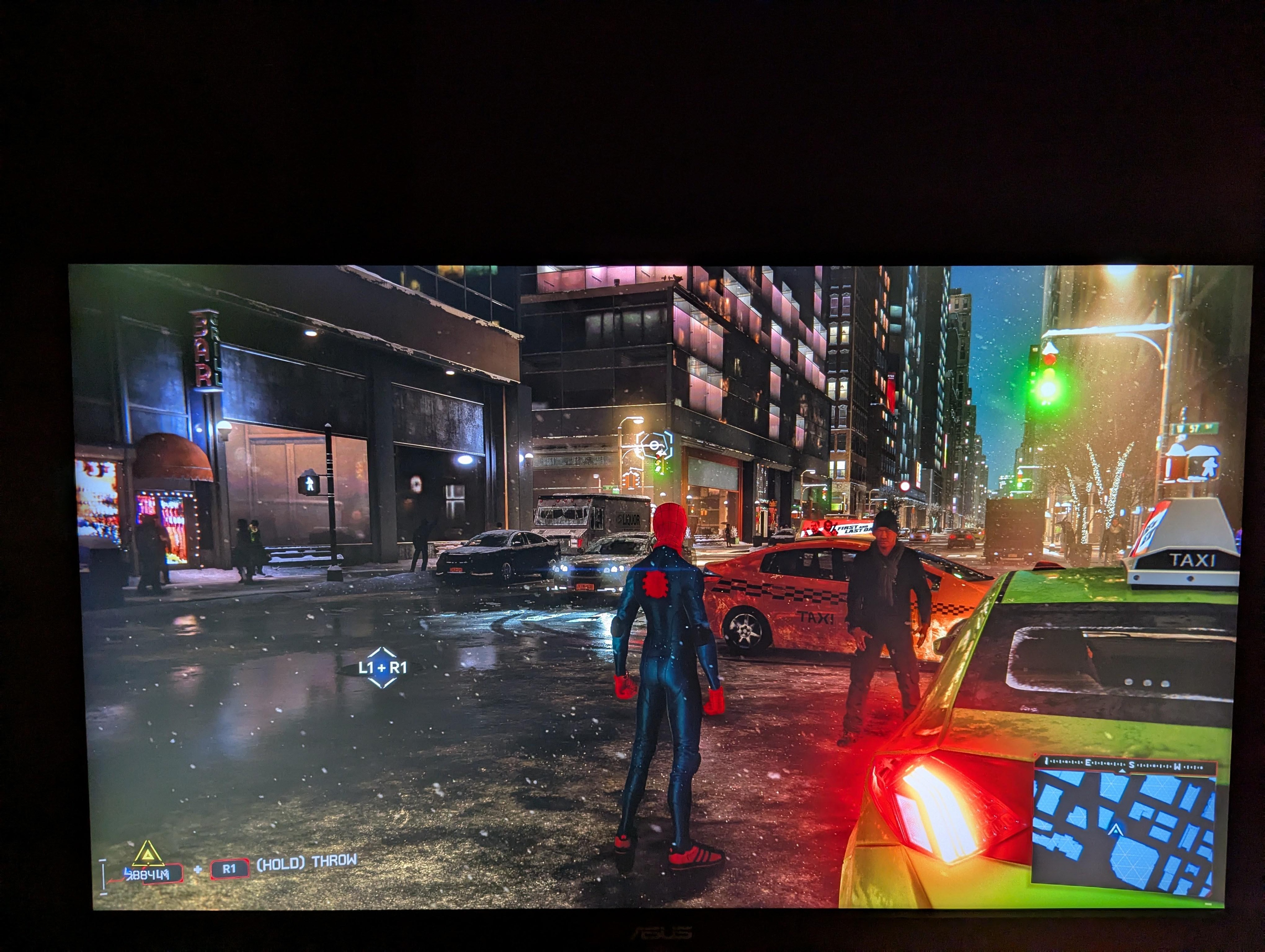
You may even find that SDR content looks better on your monitor than HDR, especially if it has limited HDR performance. As with the monitor in the example below, the ASUS ProArt Display PA27JCV, the image in HDR is washed out and overbrightened because it fails to properly display HDR. In this case, you might find it's better to just game in SDR.
 |
 |
You may prefer not using HDR because of how it can be difficult to get the proper settings in Windows HDR or you're worried about content not looking as it should. Besides that, many monitors don't support Dolby Vision, which is where they're still behind TVs for HDR. So, if you want to watch HDR content, particularly in Dolby Vision, it's better to go for a TV. For more information about the differences between TVs and monitors, check out our PC monitor vs TV article.
Ultimately, choosing to game in SDR or HDR is a personal preference, but you need the proper equipment to take full advantage of the latest HDR games.
See our recommendations for the best HDR gaming monitors.
Conclusion
HDR is a display signal format that enhances the picture quality with deeper blacks, more colors, and brighter highlights compared to SDR content. Both your monitor and source need to support HDR for it to work, and when implemented properly, gaming or watching content in HDR looks fantastic. A monitor should have deep blacks, high brightness, and good color volume for the best HDR experience. However, mainly high-end OLEDs or Mini LED displays have good HDR picture quality, whereas many mid-range and entry-level monitors have very limited HDR performance. Another thing to consider is that HDR on PCs can sometimes be buggy, like when using Windows HDR, and you need to know how to properly configure HDR with your PC or in-game. Because of this, you may prefer using the monitor in SDR to avoid any issues. Overall, having HDR on monitors does provide an opportunity for better picture quality, but you need the proper hardware and software to make full use of it.