ASUS ProArt Display PA27JCV  Monitor Review

Reviewed May 29, 2025 at 08:51am
Writing modified Nov 27, 2025 at 03:40pm
Tested using Methodology v2.1.1 
ASUS ProArt Display PA27JCV
6.1
PC Gaming 
5.4
Console Gaming 
9.0
Office 
7.8
Editing 
8.0
Brightness 
4.7
Response Time 
6.2
HDR Picture 
6.7
SDR Picture 
 28
  1. Recommended in:
  2. 5k

The ASUS ProArt PA27JCV is a premium 27-inch 5k editing monitor. It competes with other 27-inch 5k displays like the Apple Studio Display, the LG UltraFine 27MD5KLB-B, and the HP Z27q. It's higher-end than the 4k ASUS ProArt Display PA279CRV and lower-end than the 6k ASUS ProArt Display 6K PA32QCV. It adds several notable features over the PA279CRV, as the PA27JCV has a LuxPixel screen to help reduce reflections. It also features several additional benefits, including a KVM switch and power delivery over USB-C, as well as Calman Verified certification for color accuracy.

Black Friday 2025 Deals

Looking to save on your next monitor? We've got you covered! Check out our Early Black Friday 2025 Deals article to see what's worthwhile this year.

Our Verdict

6.1
PC Gaming 

The ASUS PA27JCV is passable for gaming. It displays a wide range of colors, though it's not very vivid in HDR. Additionally, while it gets fairly bright in HDR, highlights don't pop. It has bad motion handling, so fast-moving objects look blurry. Finally, it doesn't feel very responsive because of its 60Hz refresh rate. However, while this means it's not well-suited to fast-paced games, it's a satisfactory choice for slower-paced games, like turn-based strategy games and text-heavy RPGs, where there's less fast motion.

Pros
  • Displays a wide range of colors in HDR.

Cons
  • Fast-moving objects look blurry.

  • Awful local dimming.

  • Highlights don't pop in HDR.

5.4
Console Gaming 

The ASUS ProArt PA27JCV is disappointing for console gaming. While it supports VRR, it only works at 48-60Hz with consoles. Additionally, its bad motion handling causes fast-moving objects to look blurry. It also can't display 120Hz signals, so it doesn't feel very responsive. However, it does display a wide range of colors in HDR, even if they're not very vivid.

Pros
  • Displays a wide range of colors in HDR.

Cons
  • Fast-moving objects look blurry.

  • Awful local dimming.

  • Highlights don't pop in HDR.

  • Doesn't support 120Hz with consoles.

9.0
Office 

The ASUS ProArt PA27JCV is remarkable for office work. It has superb ergonomics and fantastic text clarity, though its strong matte coating means it's not as sharp as many other 5k displays. Additionally, it easily overcomes even the brightest glare with its amazing brightness and incredible reflection handling. It also has some extra productivity features, like a KVM switch and up to 86W of power delivery.

Pros
  • Overcomes bright glare.

  • Fairly wide viewing angles.

  • Superb ergonomics.

  • Fantastic text and image clarity.

  • KVM switch and 86W power delivery over USB-C.

Cons
None
7.8
Editing 

The ASUS ProArt PA27JCV is very good for editing. It's quite accurate before calibration and displays a wide range of colors. Its 5k resolution also delivers detailed images. However, it has considerable backlight bleed, and deep blacks look uneven in a dark room. It's also not ideal for editing HDR content, as highlights don't pop, and its HDR colors aren't very vivid.

Pros
  • Overcomes bright glare.

  • Fairly wide viewing angles.

  • Superb ergonomics.

  • Fantastic text and image clarity.

  • Displays a wide range of colors in HDR.

  • Great accuracy before calibration.

Cons
  • Awful local dimming.

  • Considerable backlight bleed.

8.0
Brightness 

The ASUS ProArt Display PA27JCV has impressive brightness. It easily overcomes glare in a bright room, though highlights don't pop in HDR.

Pros
  • Overcomes bright glare.

Cons
  • Highlights don't pop in HDR.

4.7
Response Time 

The ASUS ProArt Display 5k PA27JCV has a bad response time. It's not well-suited to editing videos with lots of motion or playing fast-moving games, as fast-moving objects look quite blurry.

Pros
None
Cons
  • Fast-moving objects look blurry.

6.2
HDR Picture 

The ASUS ProArt Display 5k PA27JCV has mediocre HDR picture quality. It has awful local dimming, and though it displays a wide range of colors, they aren't too vivid.

Pros
  • Displays a wide range of colors in HDR.

Cons
  • Awful local dimming.

6.7
SDR Picture 

The ASUS ProArt Display PA27JCV has alright SDR picture quality. It displays a wide range of colors in SDR. However, deep blacks appear somewhat gray in a dark room, and it has considerable backlight bleed.

Pros
  • Displays a wide range of colors.

Cons
  • Bad black uniformity.

8.6
Color Accuracy 

The ASUS ProArt PA27JCV has amazing color accuracy, and it's quite accurate even before calibration.

Pros
  • Great accuracy before calibration.

  • Good gray uniformity.

Cons
None
  • 6.1
    PC Gaming
  • 5.4
    Console Gaming
  • 9.0
    Office
  • 7.8
    Editing

  • Performance Usages

  • 8.0
    Brightness
  • 4.7
    Response Time
  • 6.2
    HDR Picture
  • 6.7
    SDR Picture
  • 8.6
    Color Accuracy
  • Changelog

    1.  Updated Nov 27, 2025: 

      We clarified in the Intro that this monitor is lower-end than the ASUS ProArt Display 6K PA32QCV.

    2.  Updated Nov 10, 2025: We've converted this review to Test Bench 2.1.1. We removed the Vertical Viewing Angle test.
    3.  Updated Jun 25, 2025: 

      We updated text throughout to match the new and updated tests with Test Bench 2.1, including in the Verdict section.

    4.  Updated Jun 25, 2025: We've converted this review to Test Bench 2.1. This includes new tests for Direct Reflections, Ambient Black Level Raise, and Total Reflected Light. You can see all the changes in the changelog.

    Check Price

    27"ProArt Display PA27JCV
    SEE PRICE
    Amazon.com
    27"ProArt Display PA27JCV
    SEE PRICE
    BestBuy.com
    27"ProArt Display PA27JCV
    SEE PRICE
    Walmart.com
    27"ProArt Display PA27JCV
    SEE PRICE
    B&H

    Differences Between Sizes And Variants

    We tested the 27-inch ASUS ProArt PA27JCV, which is one of several similar models ASUS offers in their ProArt series. You can see the major differences between some of these monitors below. These results are only valid for this model.

    Model Size Resolution Local Dimming Power Delivery
    PA27JCV 27" 5k Edge-lit 86W
    PA279CRV 27" 4k Edge-lit 90W
    PA27UCX 27" 4k 576 Zone Mini LED 90W (reported)

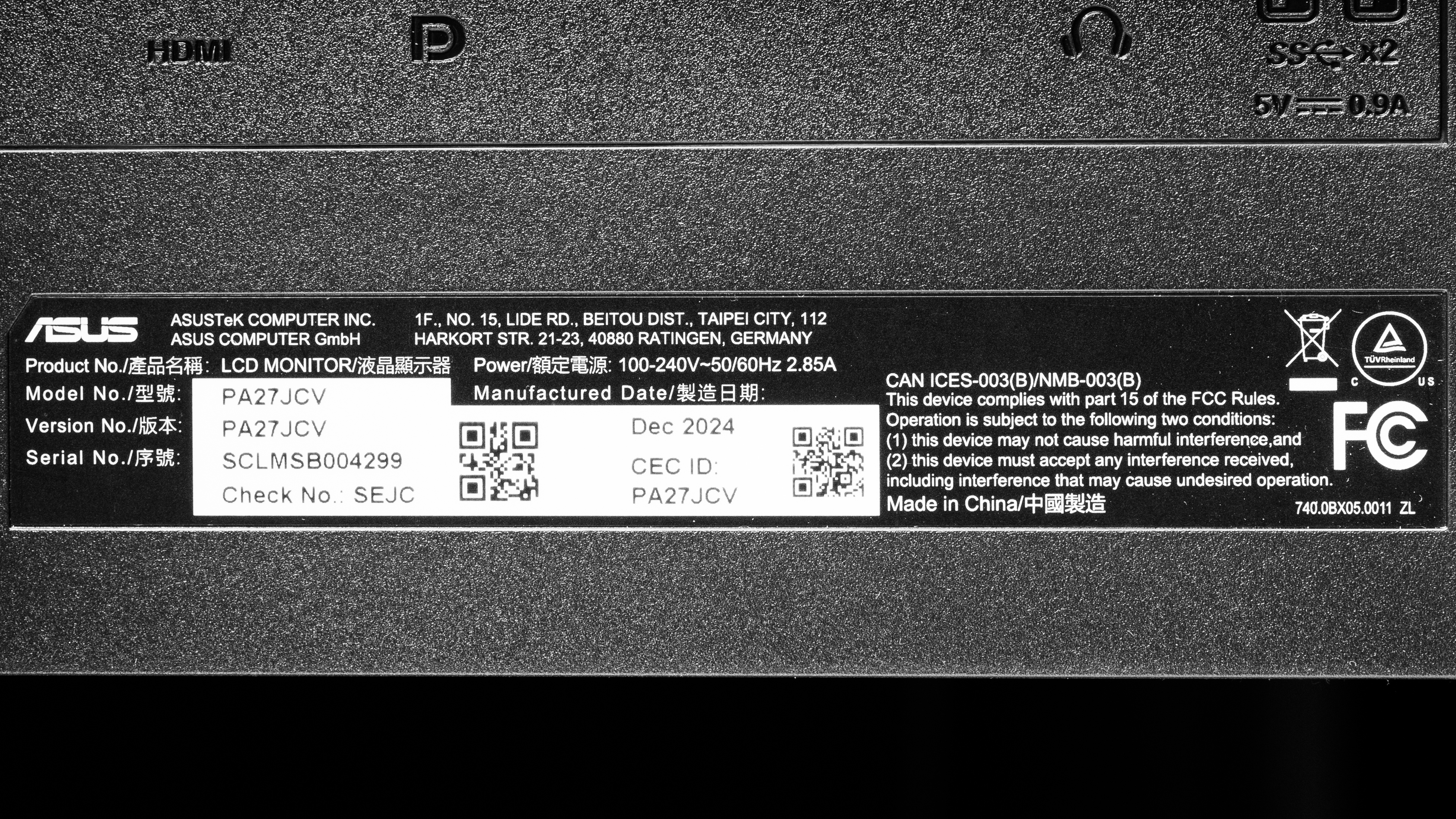
    Our unit's label indicates it was manufactured in December 2024. It was tested with firmware MCM101.

    Popular Monitor Comparisons

    The ASUS ProArt PA27JCV is a premium 27-inch 5k editing monitor. It's unique in having both a very detailed 5k display and much better contrast than most IPS displays, making it a fantastic choice if you're looking for this combination of features. It also gets extremely bright and has outstanding reflection handling, so it's a superb choice if you're working in a brighter environment. 

    However, the matte coating that provides such fantastic bright room performance also causes the screen to look less clear than other 5k monitors of the same size, like the Apple Studio Display. This means its text clarity is only slightly better than a 4k display like the Dell U2725QE. As a result, if you don't need that slightly better clarity, 4k monitors like the Dell U2725QE are a fantastic option. Additionally, if you don't mind a lower contrast ratio, the ASUS ProArt Display PA279CRV offers performance that's otherwise very similar, but at a far lower cost.

    See our recommendations for the best 5k monitors, the best work monitors, and the best 27-inch monitors.

    Dell U2725QE

    The Dell U2725QE and the ASUS ProArt Display PA27JCV are both 27-inch editing monitors. The ASUS is the better option if you need an accurate display and don't plan to calibrate it. Also, in addition to having slightly sharper text, it gets much brighter and has far better reflection handling, so it's a better choice for bright environments. However, the Dell is a better choice if you want a more responsive display, as it has a higher refresh rate. It's also a better choice if connectivity is important to you, as it delivers much more power and has more USB ports.

    Apple Studio Display

    The Apple Studio Display and the ASUS ProArt Display PA27JCV are both 27-inch 5k editing monitors. The ASUS is the better option for most people, as it's far better suited to PCs, has better contrast, and supports HDR. However, if you have a Mac, you may prefer the Apple Studio Display, as it's more accurate before calibration, has sharper text, and performs equally well in bright rooms. 

    ASUS ProArt Display PA279CRV

    The ASUS ProArt Display PA279CRV and the ASUS ProArt Display PA27JCV are both 27-inch editing monitors. The PA27JCV is the better option if you're working in a bright room, as it gets much brighter and has considerably better reflection handling. It also has better contrast and slightly sharper text. However, if you don't need these added capabilities the PA279CRV may be a better choice, as it offers otherwise similar performance at a far lower cost.

    Dell U2723QE

    The Dell U2723QE and the ASUS ProArt Display PA27JCV are 27-inch monitors. The ASUS is a better option if you plan to work in a brighter environment, as it gets much brighter and has far better reflection handling. However, the Dell is far less expensive and has better connectivity, similar contrast, and only slightly worse text clarity; if it has the features you're looking for, you may prefer its lower price.
    Show more 

    Test Results
    perceptual testing image
    Sort:
    RATINGS
    Category:
    All
    Design
    Style
    Curved
    No
    Curve Radius
    Not Curved

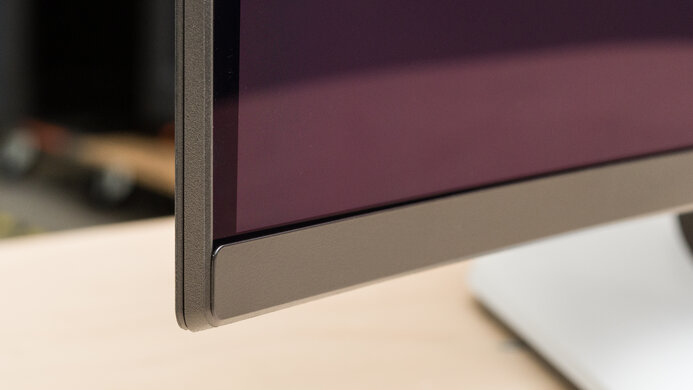
    The ASUS ProArt PA27JCV has a straightforward, office-oriented aesthetic. While it has a silver stand and lower front bezel, it has a black plastic body at the back. It fits in well for an office environment.
    7.5
    Build Quality

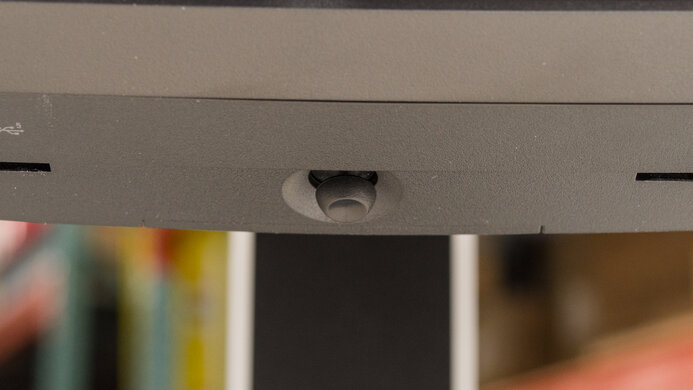
    The build quality is good. While the monitor's plastics feel sturdy, they have some creak and a small amount of flex. The front buttons feel decent, and the front control joystick works well, though it has a cheaper feel. Additionally, the bezels don't have any defects.

    9.6
    Ergonomics
    Min Height To Top Of Panel
    15.8" (40.1 cm)
    Height Adjustment
    5.0" (12.6 cm)
    Tilt Range
    -25° to 5°
    Rotate Portrait/Landscape
    Yes, Both Ways
    Swivel Range
    -30° to 30°
    Wall Mount
    VESA 100x100

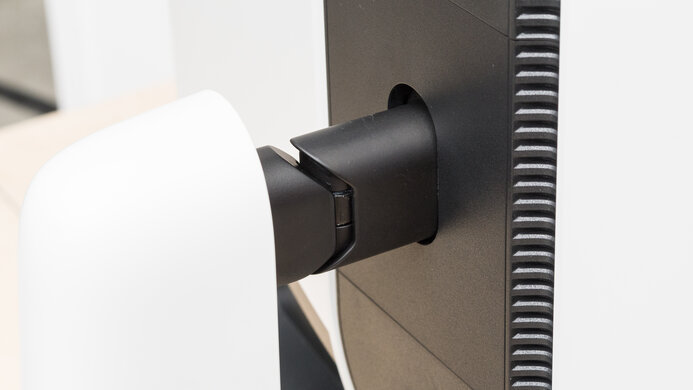
    The ergonomics are superb. You can make any common adjustment with it, and most adjustments offer a wide range of movement, though its swivel range isn't quite as extensive. The stand features a cutout for cable management.

    Stand
    Base Width
    9.0" (22.9 cm)
    Base Depth
    7.5" (19.1 cm)
    Thickness (With Display)
    5.2" (13.2 cm)
    Weight (With Display)
    11.4 lbs (5.2 kg)

    The ASUS ProArt PA27JCV is very light, and the base allows the display to move around the desk fairly easily if you push the unit. However, it wobbles a fair bit when bumped and doesn't recover very quickly.

    The thickness measurement is taken with the monitor at its lowest height. At its highest height, it's 4.8 inches (12.3 cm) thick.

    Display
    Size
    27"
    Housing Width
    24.1" (61.2 cm)
    Housing Height
    14.3" (36.2 cm)
    Thickness (Without Stand)
    1.4" (3.6 cm)
    Weight (Without Stand)
    9.2 lbs (4.2 kg)
    Borders Size (Bezels)
    0.4" (0.9 cm)
    Controls

    The ASUS PA27JCV has a power button, five control and shortcut buttons, and a joystick on the front of the monitor to control the on-screen display. It also has a mechanical power switch on the back.

    In The Box
    Power Supply
    Internal

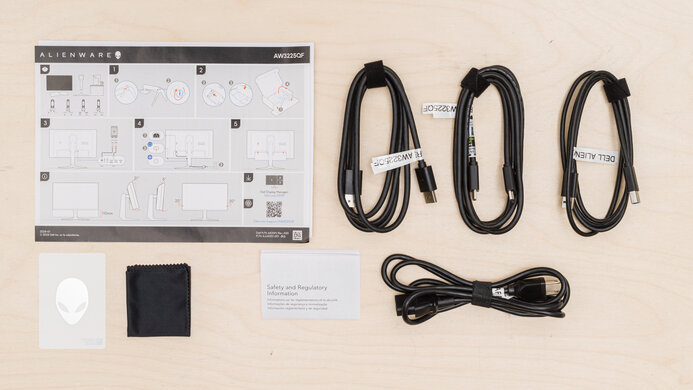
    • HDMI cable
    • USB-C cable
    • Power cable
    • Microfiber cloth
    • Calibration report
    • Documentation
    Picture Quality
    7.2
    Contrast
    Native Contrast
    2,019 : 1
    Contrast With Local Dimming
    2,046 : 1

    The ASUS PA27JCV has satisfactory contrast. It has better contrast than most IPS monitors, though deep blacks are still somewhat gray in a dark room. The contrast doesn't improve much if you enable local dimming.

    2.5
    Local Dimming
    Local Dimming
    Yes
    Backlight
    Edge

    Settings

    • Backlight: Deep
    • Dynamic Dimming (Local Dimming): On

    The local dimming is awful. There's extensive blooming with bright content, as there are only 16 zones, and bright objects cause large areas to light up. There's not very much blooming with darker scenes, though many of the details are lost.

    Zones that should light up do so, though adjacent zones also light up with larger objects, even if those zones aren't needed for the content. Additionally, objects transition between zones smoothly. However, zones activating at the edge of the display cause hotspots in the other corners to be visible.

    There's minimal flicker/pulsing with larger objects. Smaller objects cause distracting backlight pulsing as they transition between zones, but it's not noticeable with regular content. Additionally, subtitles light up the center column of the monitor. This is noticeable with back-and-forth dialogue, but it's not too distracting.

    If you set Backlight to 'Normal,' it looks almost the same as if local dimming is off.

    8.6
    SDR Brightness
    Real Scene
    552 cd/m²
    Peak 2% Window
    463 cd/m²
    Peak 10% Window
    610 cd/m²
    Peak 25% Window
    612 cd/m²
    Peak 50% Window
    613 cd/m²
    Peak 100% Window
    614 cd/m²
    Sustained 2% Window
    462 cd/m²
    Sustained 10% Window
    609 cd/m²
    Sustained 25% Window
    610 cd/m²
    Sustained 50% Window
    612 cd/m²
    Sustained 100% Window
    611 cd/m²
    Automatic Brightness Limiting (ABL)
    0.017
    Minimum Brightness
    23 cd/m²

    Settings

    • Preset: Native (after calibration)
    • Brightness: Max
    • Dynamic Dimming: Enabled
    • Backlight: Deep

    The SDR brightness is amazing. It easily overcomes bright glare and maintains a consistent brightness with all but the smallest bright content. You can have all content display at a consistent brightness by turning Dynamic Dimming off. The minimum brightness is the same no matter what setting you choose for Dynamic Dimming.

    7.6
    HDR Brightness
    VESA DisplayHDR Certification
    DisplayHDR 500
    Real Scene
    552 cd/m²
    Peak 2% Window
    350 cd/m²
    Peak 10% Window
    632 cd/m²
    Peak 25% Window
    641 cd/m²
    Peak 50% Window
    643 cd/m²
    Peak 100% Window
    644 cd/m²
    Sustained 2% Window
    350 cd/m²
    Sustained 10% Window
    630 cd/m²
    Sustained 25% Window
    638 cd/m²
    Sustained 50% Window
    640 cd/m²
    Sustained 100% Window
    641 cd/m²
    Automatic Brightness Limiting (ABL)
    0.037

    Settings

    • HDR: PQ Clip
    • Dynamic Dimming: On
    • Backlight: Deep
    • Brightness: Max

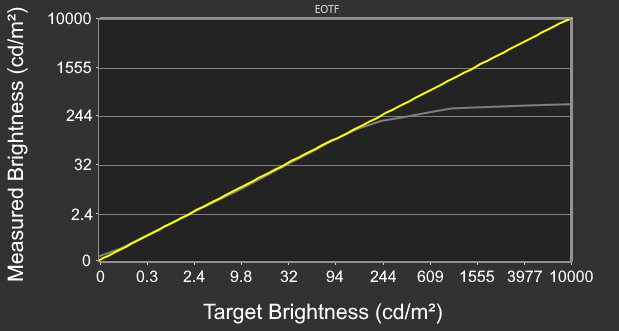
    The HDR brightness is good. While highlights don't pop and small highlights are more muted, the monitor easily overcomes glare from bright light sources. It follows the PQ EOTF curve extremely well, with a sharp cut-off at peak brightness, so highlights get as bright as possible.

    7.7
    Gray Uniformity
    50% Std. Dev.
    3.830%
    50% DSE
    0.149%

    The gray uniformity is good. It gets notably darker at the left and right edges of the screen, but it's quite uniform in the middle. Additionally, you can see this monitor's 5% gray uniformity.

    4.7
    Black Uniformity
    Native Std. Dev.
    3.030%
    Std. Dev. w/ L.D.
    1.971%

    The black uniformity is bad, and backlight bleed is quite visible at the four corners of the screen.

    If you have local dimming on, there's almost no backlight bleed when the only content is in the center of the screen. However, if there's bright content in any of the corners, there are hotspots in the other corners of the screen.

    8.5
    Color Accuracy (Pre-Calibration)
    Picture Mode
    sRGB
    sRGB Gamut Area xy
    102.6%
    White Balance dE (Avg.)
    3.24
    Color Temperature (Avg.)
    6,683 K
    Gamma (Avg.)
    2.21
    Color dE (Avg.)
    2.18
    Contrast Setting
    80
    RGB Settings
    Default
    Gamma Setting
    Default
    Brightness Setting
    N/A
    Measured Brightness
    89 cd/m²
    Brightness Locked
    Yes

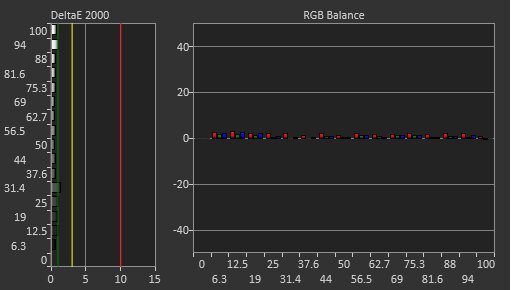
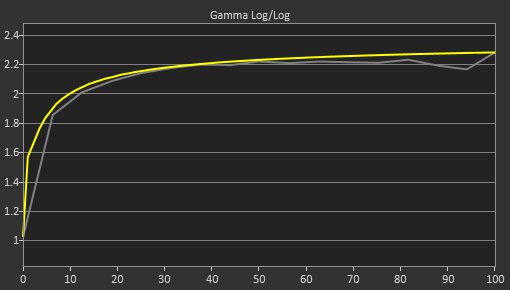
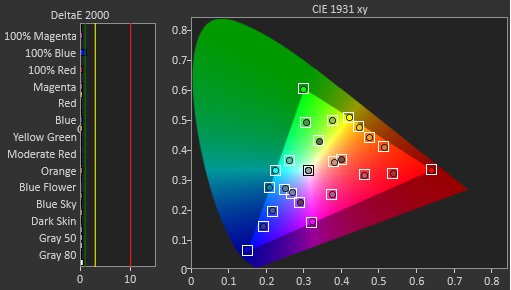
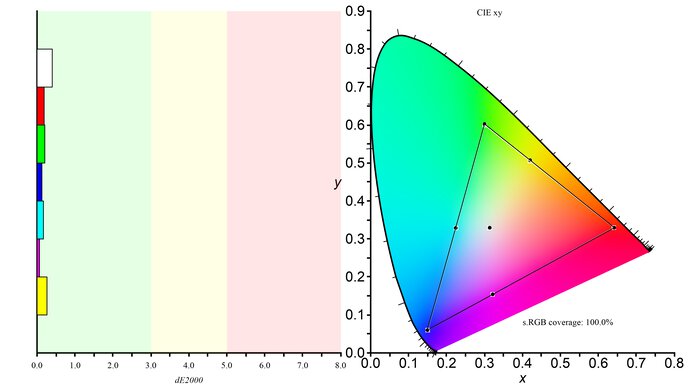
    The accuracy before calibration in the 'sRGB' Preset is amazing. Color accuracy is impressive, its color temperature is quite close to the 6500K target, and it has decent white balance. Additionally, most parts of scenes have the correct brightness, though dark parts of scenes are a bit too dark. Brightness is locked at 89 cd/m² in this mode.

    Locked-Out Settings

    The 'sRGB' Preset mode locks out the following settings:

    • Brightness
    • Saturation
    • Hue
    • Color temp
    • Gamma
    • RGB tuning

    If you want to access these settings, you need to use another mode like 'Native,' though it's less accurate and has very oversaturated colors.

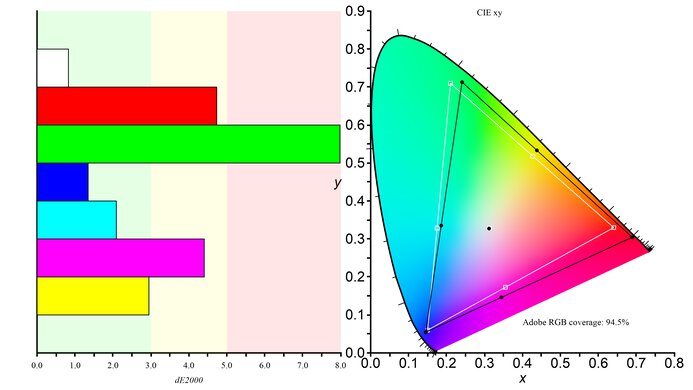
    This monitor has additional Preset modes for different color gamuts, such as Adobe RGB and DCI-P3. You can see how each of these modes performs below. Note that the graphs use the sRGB gamut as the target and don't show the accuracy of each mode in its own color space.

    Picture Mode Color Temperature Graphs
    Adobe RGB 6682K Graph
    Rec. 2020 6705K Graph
    DCI-P3 6473K Graph
    DICOM 6727K Graph
    Rec. 709 6705K Graph
    9.8
    Color Accuracy (Post-Calibration)
    Picture Mode
    Native
    sRGB Gamut Area xy
    100.8%
    White Balance dE (Avg.)
    0.64
    Color Temperature (Avg.)
    6,561 K
    Gamma (Avg.)
    2.19
    Color dE (Avg.)
    0.40
    Contrast Setting
    80
    RGB Settings
    Gain (200-211-194)
    Gamma Setting
    2.2
    Brightness Setting
    14
    Measured Brightness
    102 cd/m²
    ICC Profile
    Download

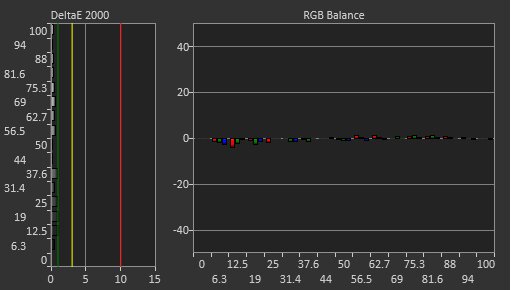
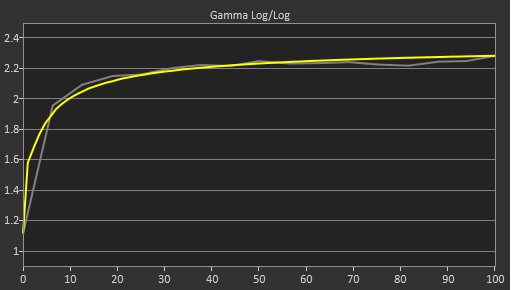
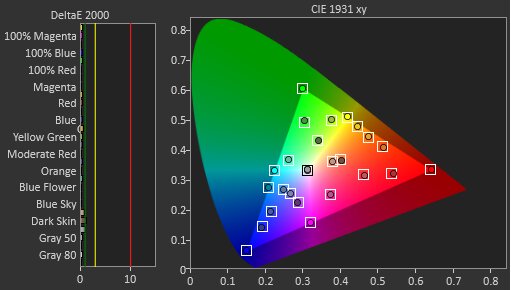
    The accuracy after calibration is superb, and you won't notice any inaccuracies. The 'Native' and 'User' Preset options provide nearly identical results, but 'Native' lets you adjust Gamma, Color Temp, and Offset, so we used 'Native.'

    9.7
    SDR Color Gamut
    sRGB Coverage xy
    100.0%
    sRGB Picture Mode
    Native
    Adobe RGB Coverage xy
    92.5%
    Adobe RGB Picture Mode
    Native

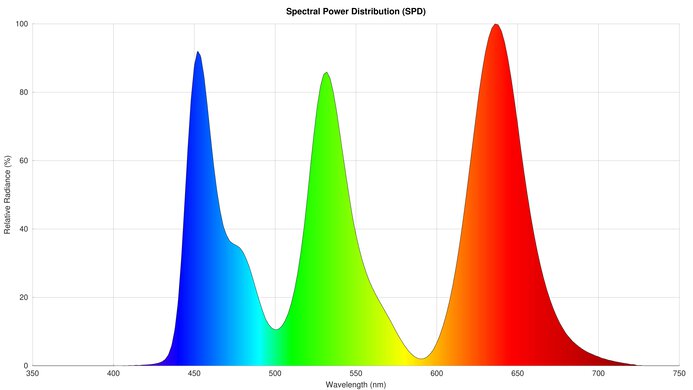
    The SDR color gamut is fantastic. It displays all colors in the sRGB color space and has amazing coverage of Adobe RGB. However, in Adobe RGB, green and red are inaccurate.

    9.5
    HDR Color Gamut
    Wide Color Gamut
    Yes
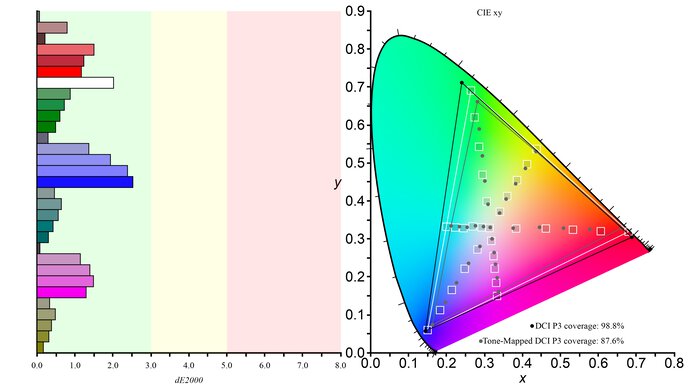
    DCI-P3 Coverage xy
    99.5%
    DCI-P3 Picture Mode
    PQ Clip
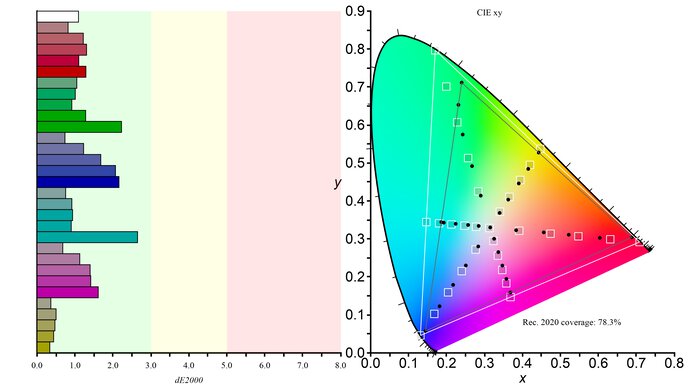
    Rec. 2020 Coverage xy
    75.6%
    Rec. 2020 Picture Mode
    PQ Clip

    The HDR color gamut is fantastic. It displays nearly all colors in the commonly used DCI-P3 color space, as well as a wide range of colors in Rec. 2020. However, white is fairly inaccurate in both DCI-P3 and Rec. 2020.

    7.7
    HDR Color Volume
    1,000 cd/m² DCI-P3 Coverage ICtCp
    71.3%
    DCI-P3 Picture Mode
    PQ Clip
    10,000 cd/m² Rec. 2020 Coverage ICtCp
    32.0%
    Rec. 2020 Picture Mode
    PQ Clip

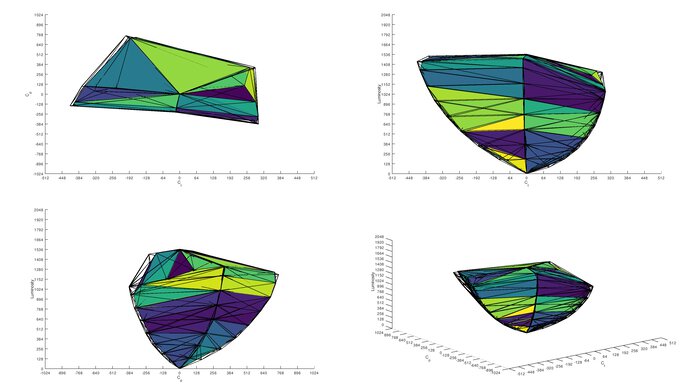
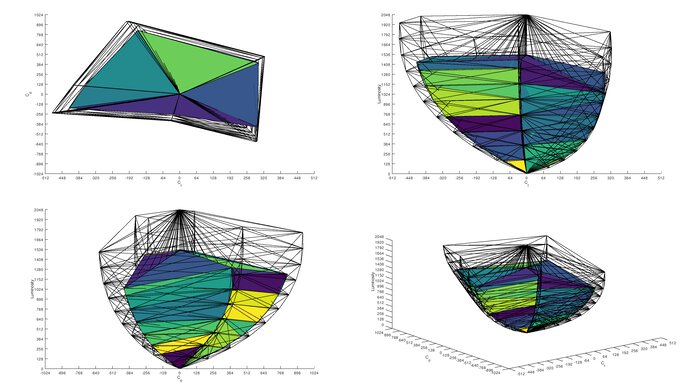
    The HDR color volume is good. While it displays dark colors fairly well, bright colors aren't as vivid.

    6.9
    Viewing Angle
    Color Washout From Left
    28°
    Color Washout From Right
    29°
    Color Shift From Left
    33°
    Color Shift From Right
    41°
    Brightness Loss From Left
    31°
    Brightness Loss From Right
    33°
    Black Level Raise From Left
    70°
    Black Level Raise From Right
    70°
    Gamma Shift From Left
    33°
    Gamma Shift From Right
    35°

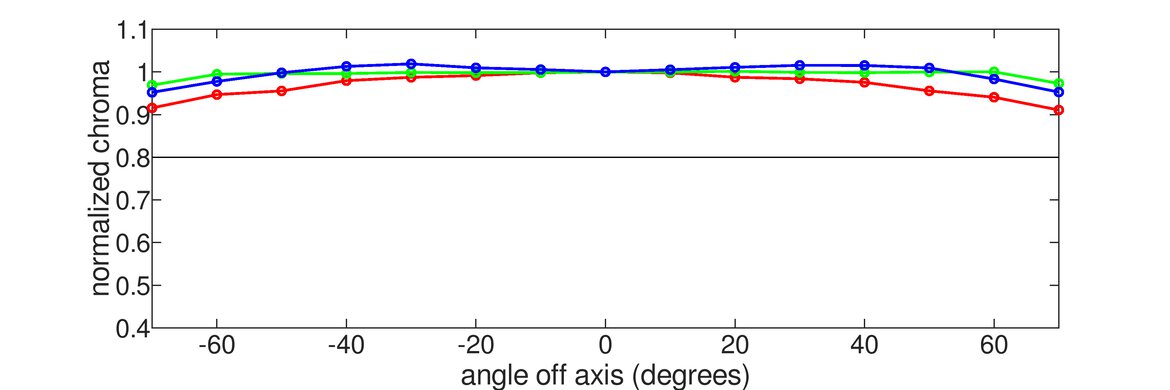
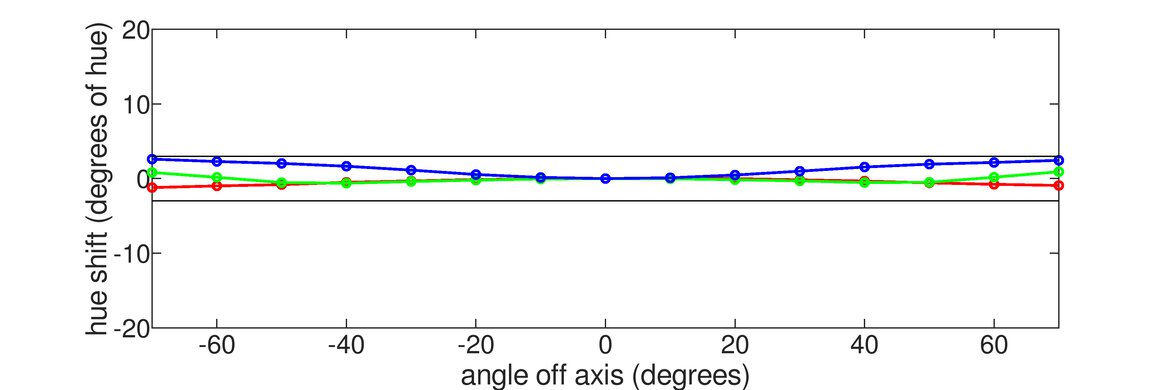
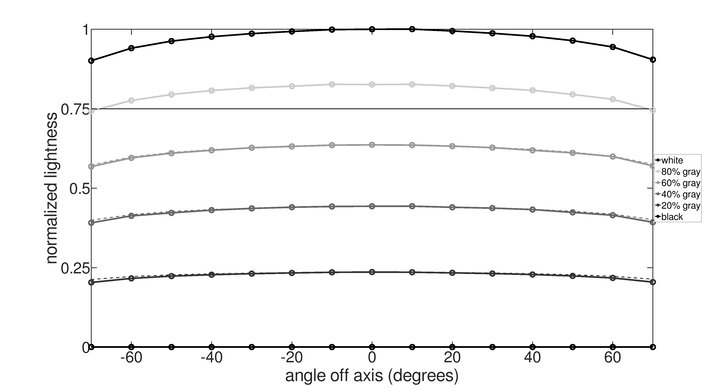
    The horizontal viewing angle is adequate. While it works fairly well if you're sharing your screen with someone else who's just off-center, it washes out at wider angles.

    9.0
    Text Clarity
    Pixel Type
    IPS
    Subpixel Layout
    RGB

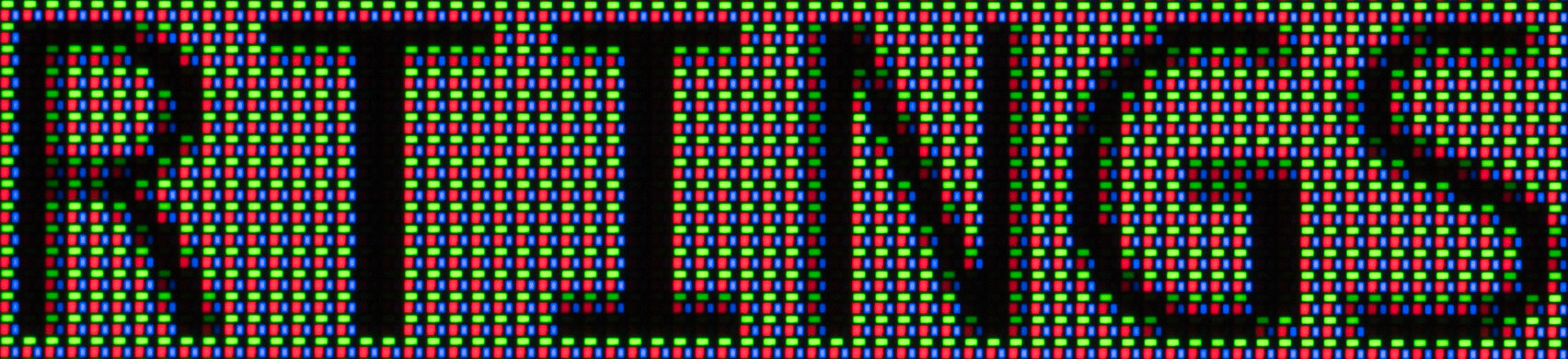
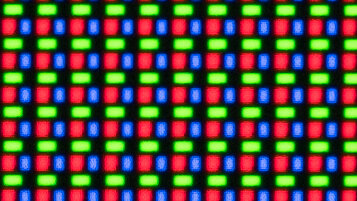
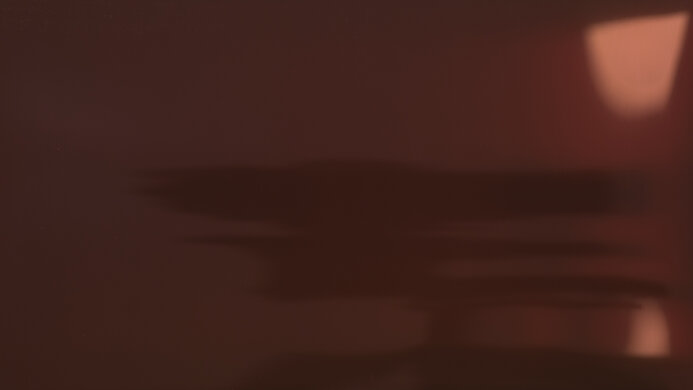
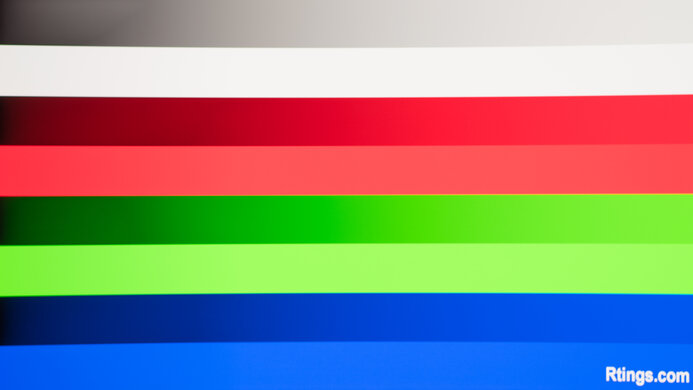
    The text clarity is fantastic. However, it's not as clear as we expected given its pixel density. As you can see in the detailed "Subpixel Layout" photo, the screen's matte coating causes subpixels to look less distinct and sharp than other 27-inch 5k displays. The "Subpixel Layout" photo is slightly out of focus, so the pixel layout is easier to see. You can also see a picture of the subpixels that are fully in focus.

    As a result, this monitor's text clarity is a bit worse than a 27-inch 5k display like the Apple Studio Display. However, it's slightly better than a 4k 27-inch display with a regular matte coating.

    Additionally, at certain angles, the monitor's matte coating causes a sparkle effect. This occurs primarily when viewing bright solid colors, particularly white.

    These photos are in Windows 10, and you can also see them in Windows 11 with ClearType on or off.

    9.3
    Direct Reflections
    See details on graph tool
    Peak Direct Reflection Intensity
    7.4%
    Screen Finish
    Matte

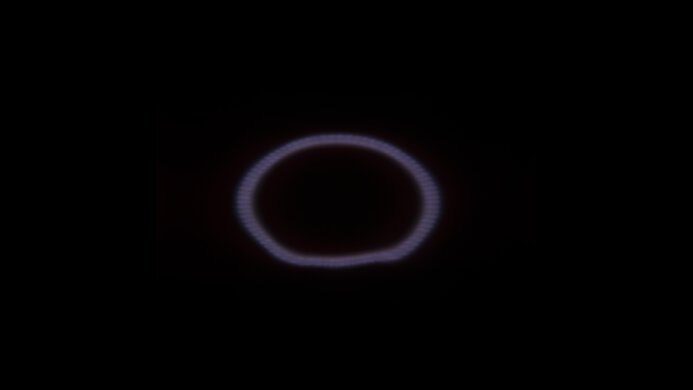
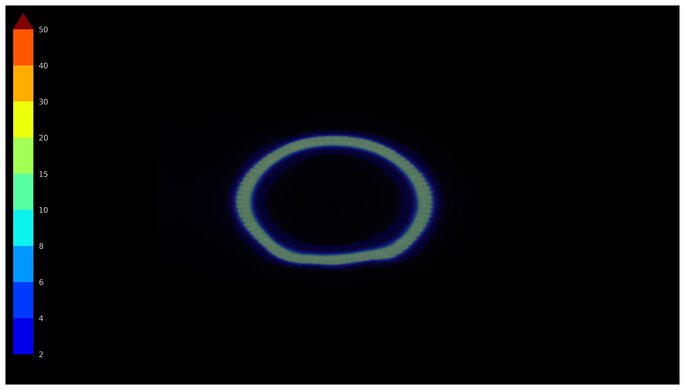
    The direct reflection handling is incredible. This monitor has an aggressive matte coating that reduces glare really well, and it has minimal reflections.

    6.4
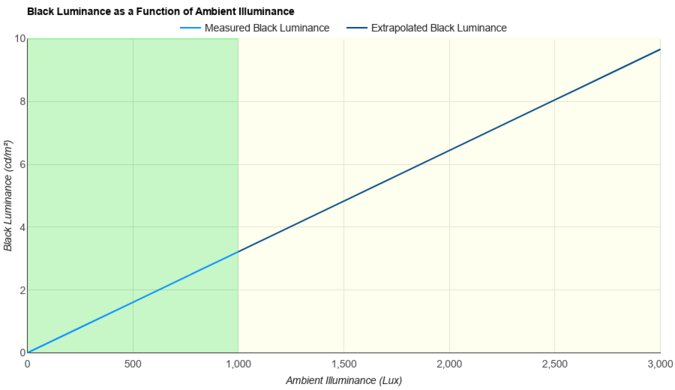
    Ambient Black Level Raise
    See details on graph tool
    Black Luminance @ 0 lx
    0.14 cd/m²
    Black Luminance @ 1000 lx
    1.93 cd/m²

    The black levels raise a bit in bright rooms, and blacks look gray.

    8.6
    Total Reflected Light
    Total Reflected Light Intensity
    10,161% ⋅ pixel
    Diffraction Artifacts
    No

    This monitor has minimal reflections coming off the screen. Even glare from strong light sources isn't distracting.

    9.8
    Gradient
    Color Depth
    10 Bit

    The gradient handling is incredible, and you won't see any banding between shades of similar colors.

    Motion
    6.0
    Refresh Rate
    Native Refresh Rate
    60 Hz
    Max Refresh Rate
    60 Hz
    Max Refresh Rate Over DP
    60 Hz
    Max Refresh Rate Over HDMI
    60 Hz
    Max Refresh Rate Over DP @ 10-bit
    60 Hz
    Max Refresh Rate Over HDMI @ 10-Bit
    60 Hz
    DSC Toggle
    No
    DSC Off Max Refresh Rate Over DP
    N/A
    DSC Off Max Refresh Rate Over HDMI
    N/A

    Your computer needs HDMI 2.1 support to reach 60Hz over HDMI.

    Variable Refresh Rate (VRR)
    Variable Refresh Rate
    Yes
    FreeSync
    Compatible (Tested)
    G-SYNC
    Compatible (Tested)
    VRR Maximum
    60 Hz
    VRR Minimum
    40 Hz
    VRR Supported Connectors
    DisplayPort, HDMI

    NVIDIA - G-SYNC Compatibility
    Connection VRR Min VRR Max
    DisplayPort 40Hz 60Hz
    HDMI 40Hz 60Hz
    AMD - FreeSync
    Connection VRR Min VRR Max
    DisplayPort 40Hz 60Hz
    HDMI 40Hz 60Hz

    In addition to FreeSync and G-SYNC compatibility, this monitor also supports HDMI Forum VRR.

    However, sometimes VRR doesn't work properly. If you're using DisplayPort and have VRR enabled, the screen splits if you set the monitor to native resolution at 60Hz and use the default color depth.

    Additionally, the setting name to turn VRR on and off changes depending on your connection type. If you're using DisplayPort, the VRR setting is MediaSync, and if you're using HDMI, it's VRR. However, both do the same thing.

    Finally, the following settings are locked out when VRR is enabled:

    • PIP/PBP
    • Aspect Control
    • Mirror Mode
    • Trace Free

    Trace Free is the overdrive control, so it's not possible to adjust it so long as you're using VRR, though it remains in effect when VRR is on.

    5.4
    VRR Motion Performance
    See details on graph tool
    Recommended VRR OD Setting
    40
    Variable Overdrive Advertised
    No
    Avg. CAD
    366
    Best CAD
    366
    Worst CAD
    366

    Frame Rate CAD Heatmap RT Chart Pursuit Photo
    59 Heatmap Chart Photo

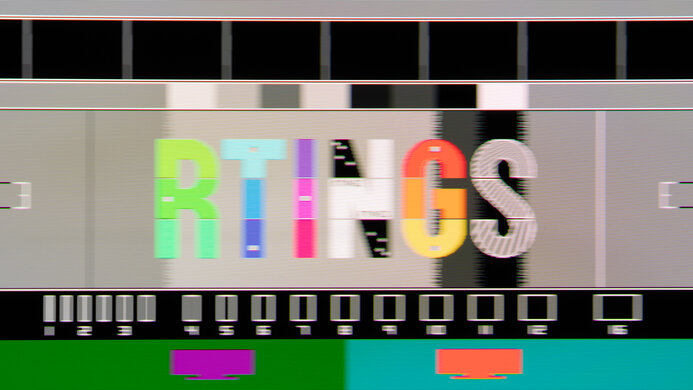
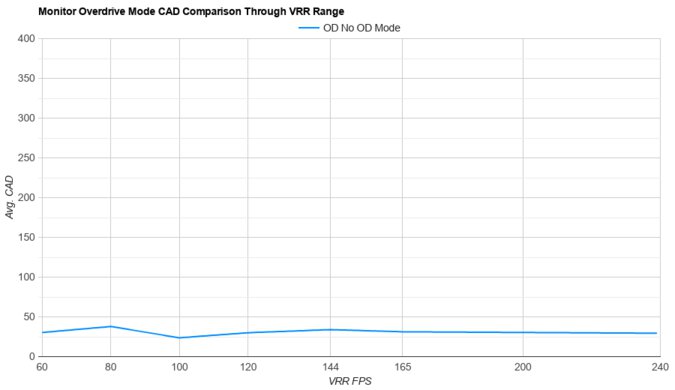
    The ASUS PA27JCV has disappointing motion handling across its VRR range. Motion is blurry no matter what Trace Free setting you choose. In fact, the CAD of '80' and '100' are so high that they exceed the limits of the graph. We've created an alternate graph at a different scale to illustrate how high the CAD gets.

    3.7
    Refresh Rate Compliance
    See details on graph tool
    See details on graph tool
    Compliance @ Max Hz
    57%
    Compliance @ 120 FPS
    N/A
    Compliance @ 60 FPS
    57%

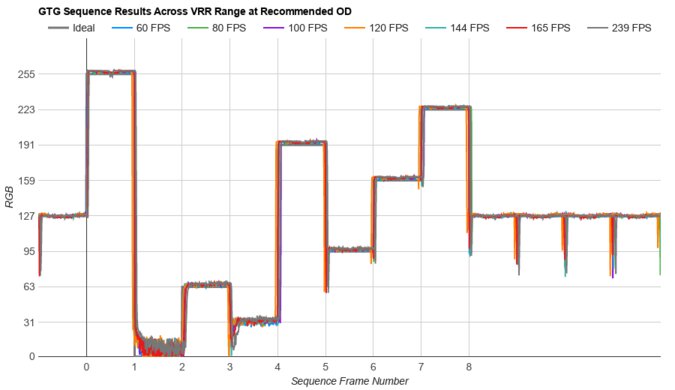
    The refresh rate compliance is bad. Its slow response time means that it can't make full color transitions between some frames, so motion looks blurry.

    4.8
    CAD @ Max Refresh Rate
    OD Transition Max Refresh Rate
    od-transition-max-refresh-rate-0-0-31
    OD 0
    0 to 31
    Recommended Overdrive Setting
    40
    Avg. CAD
    368
    Best 10% CAD
    179
    Worst 10% CAD
    603

    Overdrive Mode CAD Heatmap RT Chart Pursuit Photo
    0 Heatmap Chart Photo
    20 Heatmap Chart Photo
    40 Heatmap Chart Photo
    60 Heatmap Chart Photo
    80 Heatmap Chart Photo
    100 Heatmap Chart Photo

    The CAD at the maximum refresh rate of 60Hz is bad, and blur is visible even if you're quickly scrolling through documents and web pages. The '40' Trace Free setting has the lowest CAD overall. However, you can use '60' if you want a faster first response time and don't mind a bit more inverse ghosting.

    Response Time @ Max Refresh Rate
    Recommended Overdrive Setting
    40
    First Response Time
    12.2 ms
    Total Response Time
    16.5 ms
    RGB Overshoot
    3 RGB
    Worst 10% First Response Time
    23.0 ms
    Worst 10% Total Response Time
    25.1 ms
    Worst 10% RGB Overshoot
    11 RGB

    Overdrive Mode First Response Heatmap Total Response Heatmap RGB Overshoot Heatmap
    0 Heatmap Heatmap Heatmap
    20 Heatmap Heatmap Heatmap
    40 Heatmap Heatmap Heatmap
    60 Heatmap Heatmap Heatmap
    80 Heatmap Heatmap Heatmap
    100 Heatmap Heatmap Heatmap

    0.0
    CAD @ 120Hz
    OD Transition 120Hz
    N/A
    Recommended Overdrive Setting
    No 120Hz Refresh Rate
    Avg. CAD
    N/A
    Best 10% CAD
    N/A
    Worst 10% CAD
    N/A

    This monitor doesn't support a 120Hz signal.

    Response Time @ 120Hz
    Recommended Overdrive Setting
    No 120Hz Refresh Rate
    First Response Time
    N/A
    Total Response Time
    N/A
    RGB Overshoot
    N/A
    Worst 10% First Response Time
    N/A
    Worst 10% Total Response Time
    N/A
    Worst 10% RGB Overshoot
    N/A
    4.8
    CAD @ 60Hz
    OD Transition 60Hz
    od-transition-60-0-0-31
    OD 0
    0 to 31
    Recommended Overdrive Setting
    40
    Avg. CAD
    368
    Best 10% CAD
    179
    Worst 10% CAD
    603

    Overdrive Mode CAD Heatmap RT Chart Pursuit Photo
    0 Heatmap Chart Photo
    20 Heatmap Chart Photo
    40 Heatmap Chart Photo
    60 Heatmap Chart Photo
    80 Heatmap Chart Photo
    100 Heatmap Chart Photo

    The CAD at 60Hz is bad, and blur is visible even if you're quickly scrolling through documents and web pages. The '40' Trace Free setting has the lowest CAD overall. However, you can use '60' if you want a faster first response time and don't mind a bit more inverse ghosting.

    Response Time @ 60Hz
    Recommended Overdrive Setting
    40
    First Response Time
    12.2 ms
    Total Response Time
    16.5 ms
    RGB Overshoot
    3 RGB
    Worst 10% First Response Time
    23.0 ms
    Worst 10% Total Response Time
    25.1 ms
    Worst 10% RGB Overshoot
    11 RGB

    Overdrive Mode First Response Heatmap Total Response Heatmap RGB Overshoot Heatmap
    0 Heatmap Heatmap Heatmap
    20 Heatmap Heatmap Heatmap
    40 Heatmap Heatmap Heatmap
    60 Heatmap Heatmap Heatmap
    80 Heatmap Heatmap Heatmap
    100 Heatmap Heatmap Heatmap

    Backlight Strobing (BFI)
    Backlight Strobing (BFI)
    No BFI
    Maximum Frequency
    N/A
    Minimum Frequency
    N/A
    Longest Pulse Width Brightness
    N/A
    Shortest Pulse Width Brightness
    N/A
    Pulse Width Control
    No BFI
    Pulse Phase Control
    No BFI
    Pulse Amplitude Control
    No BFI
    VRR At The Same Time
    No BFI

    This monitor doesn't have a backlight strobing feature to reduce persistence blur.

    8.4
    VRR Flicker
    Dark Gray Flicker
    1.6 RGB
    Middle Gray Flicker
    0.2 RGB
    Light Gray Flicker
    0.2 RGB

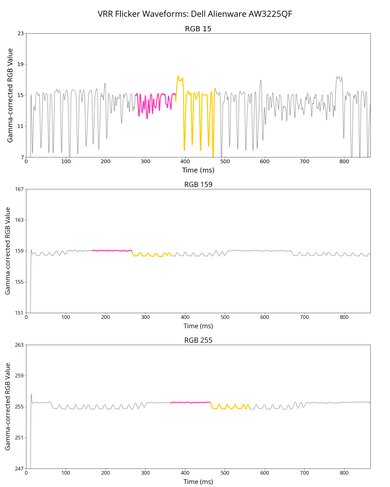
    The ASUS PA27JCV has no visible VRR flicker, and all parts of the scenes remain consistent, even with changing frame rates.

    10
    Image Flicker
    Flicker-Free
    Yes
    PWM Dimming Frequency
    0 Hz

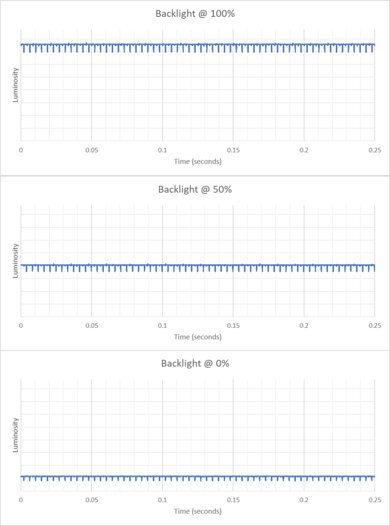
    The backlight is completely flicker-free, as it doesn't use pulse-width modulation for dimming.

    Inputs
    8.2
    Input Lag
    Native Resolution @ Max Hz
    9.3 ms
    Native Resolution @ 120Hz
    N/A
    Native Resolution @ 60Hz
    9.3 ms
    Backlight Strobing (BFI)
    N/A

    The monitor has low input lag for a responsive feel.

    9.5
    Resolution
    Native Resolution
    5120 x 2880
    Aspect Ratio
    16:9
    Megapixels
    14.7 MP
    Pixel Density
    218 PPI
    4.5
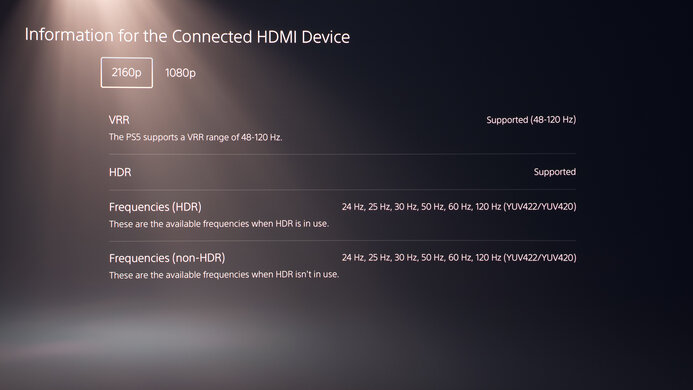
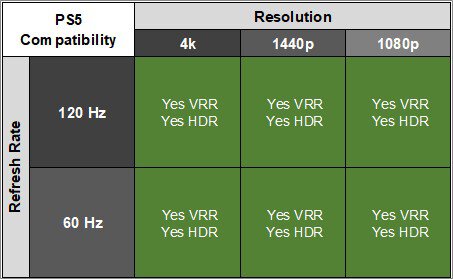
    PS5 Compatibility
    4k @ 120Hz
    No
    4k @ 60Hz
    Yes
    1440p @ 120Hz
    No
    1440p @ 60Hz
    Yes
    1080p @ 120Hz
    No
    1080p @ 60Hz
    Yes
    4.5
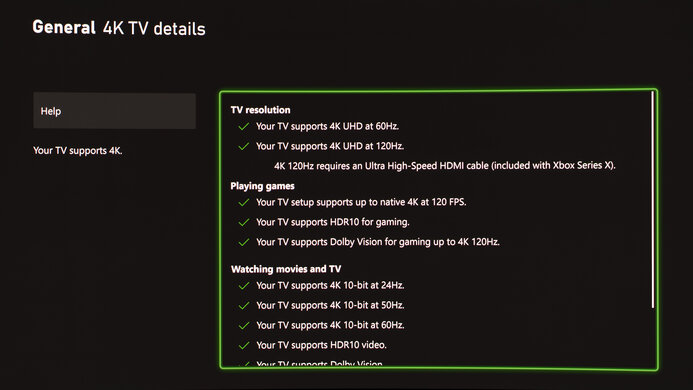
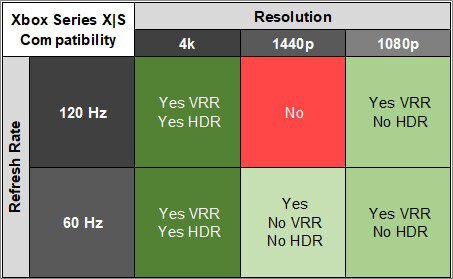
    Xbox Series X|S Compatibility
    4k @ 120Hz
    No
    4k @ 60Hz
    Yes
    1440p @ 120Hz
    No
    1440p @ 60Hz
    Yes
    1080p @ 120Hz
    No
    1080p @ 60Hz
    Yes

    The Xbox Series X|S only supports HDR with 4k signals, so this isn't a limitation of the monitor. However, the VRR range only goes from 48Hz to 60Hz.

    Inputs
    DisplayPort
    1 (DP 1.4)
    DisplayPort Transmission Bandwidth
    No DisplayPort 2.1
    Mini DisplayPort
    No
    HDMI
    1 (HDMI 2.1)
    HDMI 2.1 Bandwidth
    48Gbps (FRL 12x4)
    Daisy Chaining
    No
    3.5mm Audio Out
    Yes
    Ethernet
    No
    HDR10
    Yes
    Dolby Vision
    No
    USB
    USB-A Ports
    3
    USB-A Rated Speed
    5Gbps (USB 3.2 Gen 1)
    USB-B Upstream Port
    No
    USB-C Ports
    2
    USB-C Upstream
    Yes
    USB-C Rated Speed
    5Gbps (USB 3.2 Gen 1)
    USB-C Power Delivery
    85W
    USB-C DisplayPort Alt Mode
    Yes
    Thunderbolt
    No

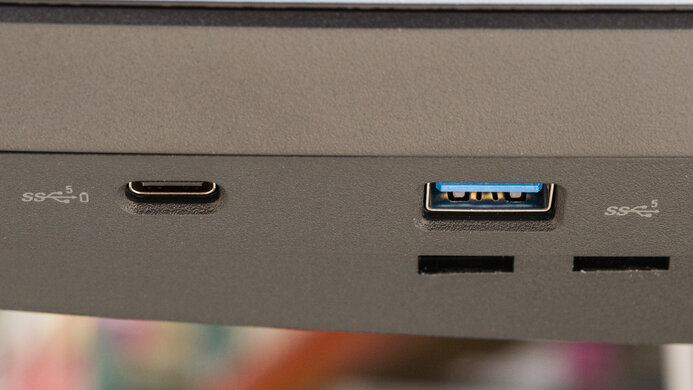
    This monitor has several USB ports, and its KVM switch allows you to connect multiple devices to the monitor and switch them between two different computers. The monitor is rated to provide 96W of power over USB-C, though we could only draw 86W of power during testing.

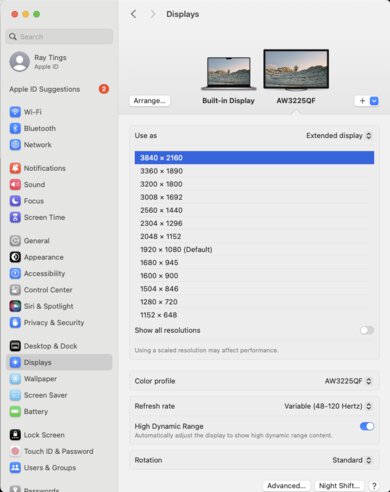
    macOS Compatibility

    Connection HDMI 2.1 USB-C
    Max Refresh Rate 60Hz 60Hz
    VRR Range 40-60Hz 40-60Hz
    HDR Yes Yes

    The ASUS PA27JCV works well with macOS. Both VRR and HDR work as expected, though HDR looks slightly less saturated than the 'Native' SDR picture mode. Additionally, the KVM switch works well with macOS.

    If you're using a MacBook and close the lid, windows shift to the ASUS's screen. Opening the lid or waking the laptop up from sleep moves the windows back to their original position.

    However, if you're using HDMI and close the MacBook's lid without having it plugged into power, the monitor and MacBook go to sleep. Plugging the power back in again, even if the MacBook lid is closed, causes windows to shift to the ASUS's screen, though it takes a few seconds for the desktop to reappear on the ASUS.

    We found the 5k resolution scaling on the MacBook made everything very small. Using a scaled resolution fixed this.

    Features
    Additional Features
    Speakers
    Yes
    RGB Illumination
    No
    Multiple Input Display
    PIP + PBP
    KVM Switch
    Yes
    Smart OS
    No

    The ASUS PA27JCV has several extra features, including a KVM switch, which lets you switch between two different computers while using the same devices. It also has several other features, such as:

    • Power Sync: Lets HDMI-connected devices turn on or off at the same time with supported devices.
    • Blue Light Filter: Adjustable blue light filter to decrease blue light output. You can learn more about this in our blue light filters article.
    • LuxPixel: Anti-glare coating helps to reduce reflections in bright environments.
    • Light Sync: Detects both monitor and room brightness to help provide a more accurate image.

    It also has ASUS's QuickFit Plus features, including:

    • Safe Area: Lets you organize content on one page for a consistent look and feel.
    • Center Marker: Displays a crosshair in the center of the screen, similar to gaming monitors.
    • Mirror Mode: Flips the image horizontally.
    • Customization: Lets you adjust the frame size on the screen.
    • Ruler: Displays a ruler on the top and left side, and you can switch between metric and imperial.
    On-Screen Display (OSD)

    You can learn more about the monitor's settings in the User Guide, accessible on this monitor's Manual and Document page.