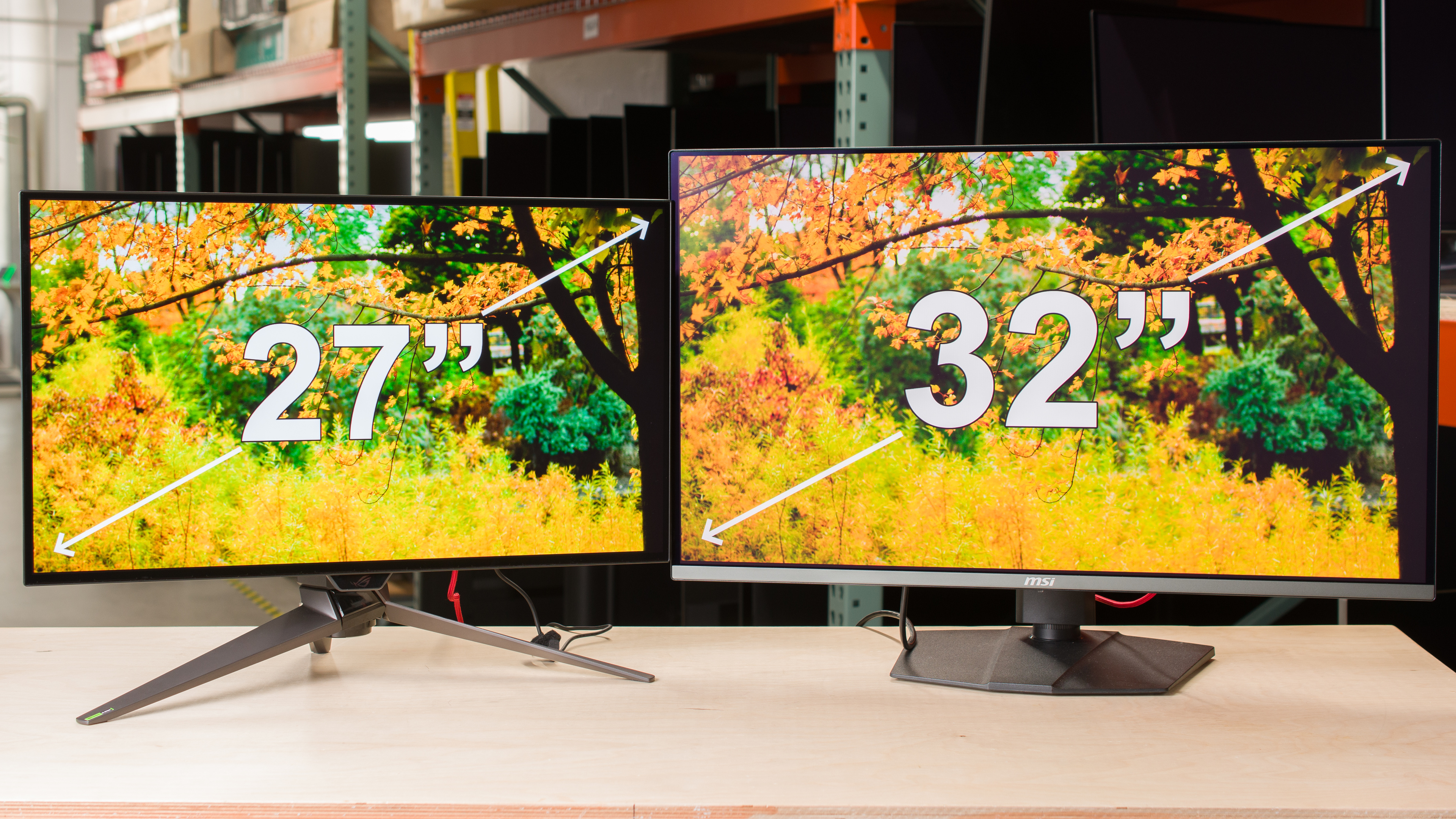
Two of the most common monitor sizes are 27 and 32 inches. The market for either size is big, with all kinds of models available in various resolutions, refresh rates, and panel types. It's difficult to crown a real winner in the battle of a 27-inch vs a 32-inch monitor, but the screen size affects you in a few ways, like with image clarity and multitasking, so it's something to think about before buying a monitor. However, the monitor's size doesn't guarantee any performance, as other factors have a bigger impact, and choosing between a 27-inch vs a 32-inch monitor really comes down to personal preference and needs.
If you're curious about other sizes to learn which is the right one for you, you can also check out our monitor sizing guide or our article comparing 24- and 27-inch monitors. For more specific model recommendations, see the best 27-inch monitors and the best 32-inch monitors.
Difference in Screen Area
As monitors are measured diagonally, the difference between 27-inch and 32-inch monitors is more than just five inches. Not counting the bezels, the height of a 27-inch screen is 13.2" and the width is 23.5". As for a 32-inch screen, the height is 15.7", with the width being 28". The actual width and height of these 27-inch and 32-inch monitors depend on the size of their bezels and housing, with most monitors adding about 0.5" on either side of the screen. Keep in mind that some 32-inch monitors are actually 31.5" diagonally, so their exact height and width are a bit smaller, but they're still marketed as 32-inch monitors.
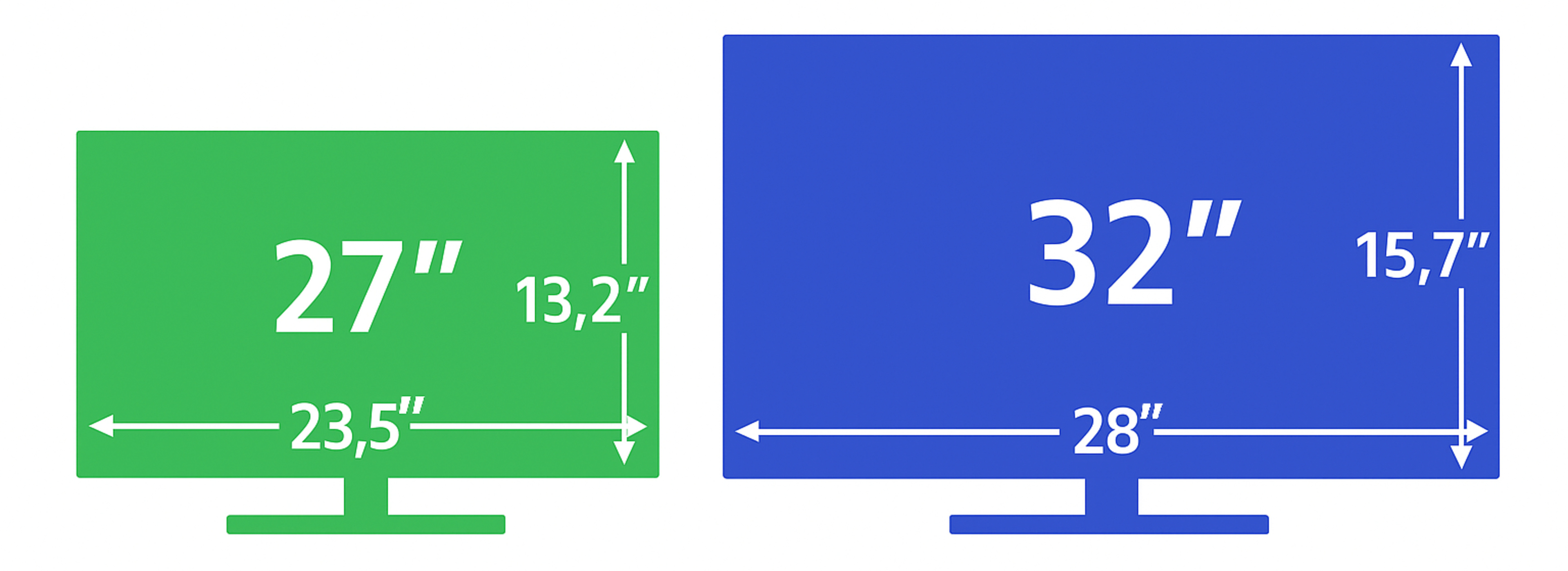
In terms of actual screen area, a 32-inch monitor is 437 in² big (425 in² for 31.5-inch monitors), while a 27-inch monitor is 310 in². This means that a 32-inch monitor has 40% more screen space than a 27-inch monitor. This makes a big difference for multitasking with different windows open, as everything feels less cramped.
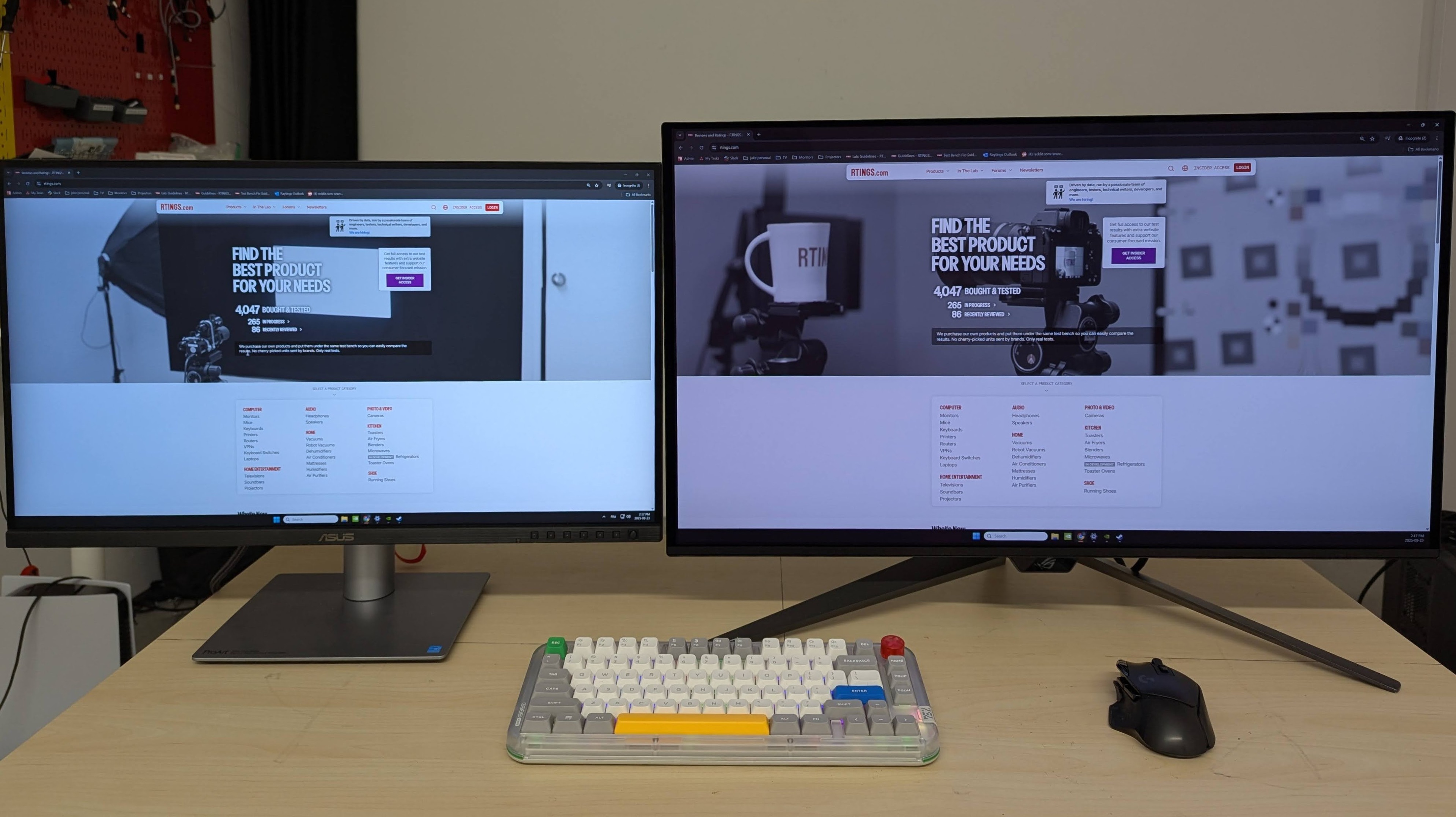
However, when comparing 27-inch and 32-inch monitors that use the same resolution and scaling settings in the computer's operating system, you won't actually see more lines of text. Instead, everything on the bigger screen looks bigger, which you can see below. Note that the PA27JCV pictured below is a native 5k monitor, but it's using a 4k resolution in the photo.
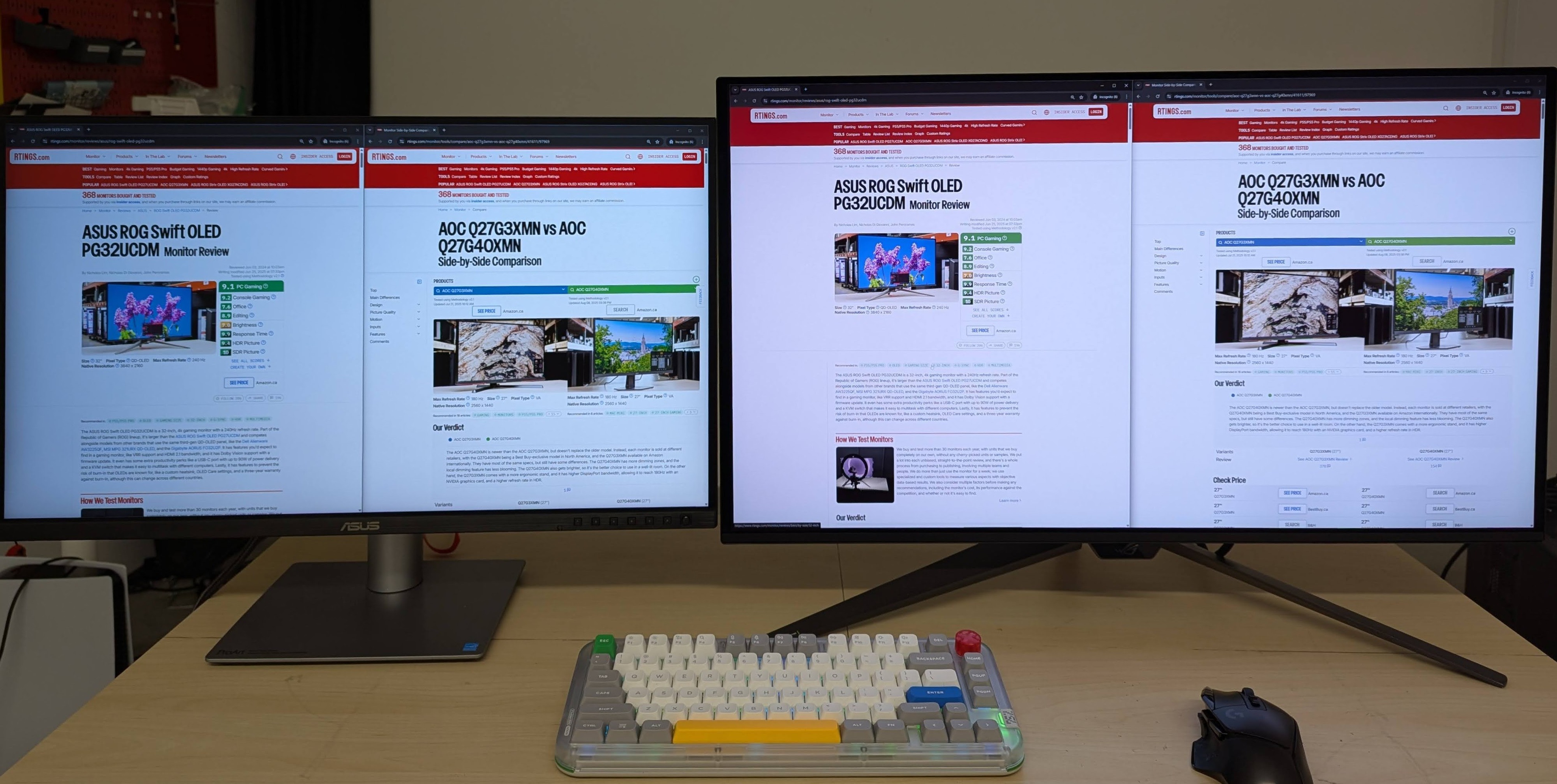
If you want to take advantage of the larger display with more lines of text at once, you'd either have to lower the scaling or use a higher resolution. As you can see below, when setting a 32-inch, 4k monitor to a scaling of 125% on Windows, you see more of a webpage than a 27-inch, 4k monitor with the default scaling of 150%.
Impact On Gaming
Due to this difference in screen size, this also impacts your gaming experience. The larger 32-inch screen offers a more immersive gaming experience as everything will appear bigger in front of you. You may still prefer a 27-inch monitor if you find that the 32-inch screen is too big and your eyes have to move around too much. However, because both 27-inch and 32-inch monitors have the same 16:9 aspect ratio, you won't actually see more of your game on a 32-inch screen, unless you use smaller scaling. If that's what you're looking for, you'll have to get an ultrawide display with a 21:9 aspect ratio instead, which offers more horizontal screen space.
Viewing Distance
Another consideration when deciding between 27-inch and 32-inch monitors is how far away you sit from the screen. Ideally, you want the display to fill up between 30 to 45 degrees of your field of vision, which means you can't sit too close or too far away from it.
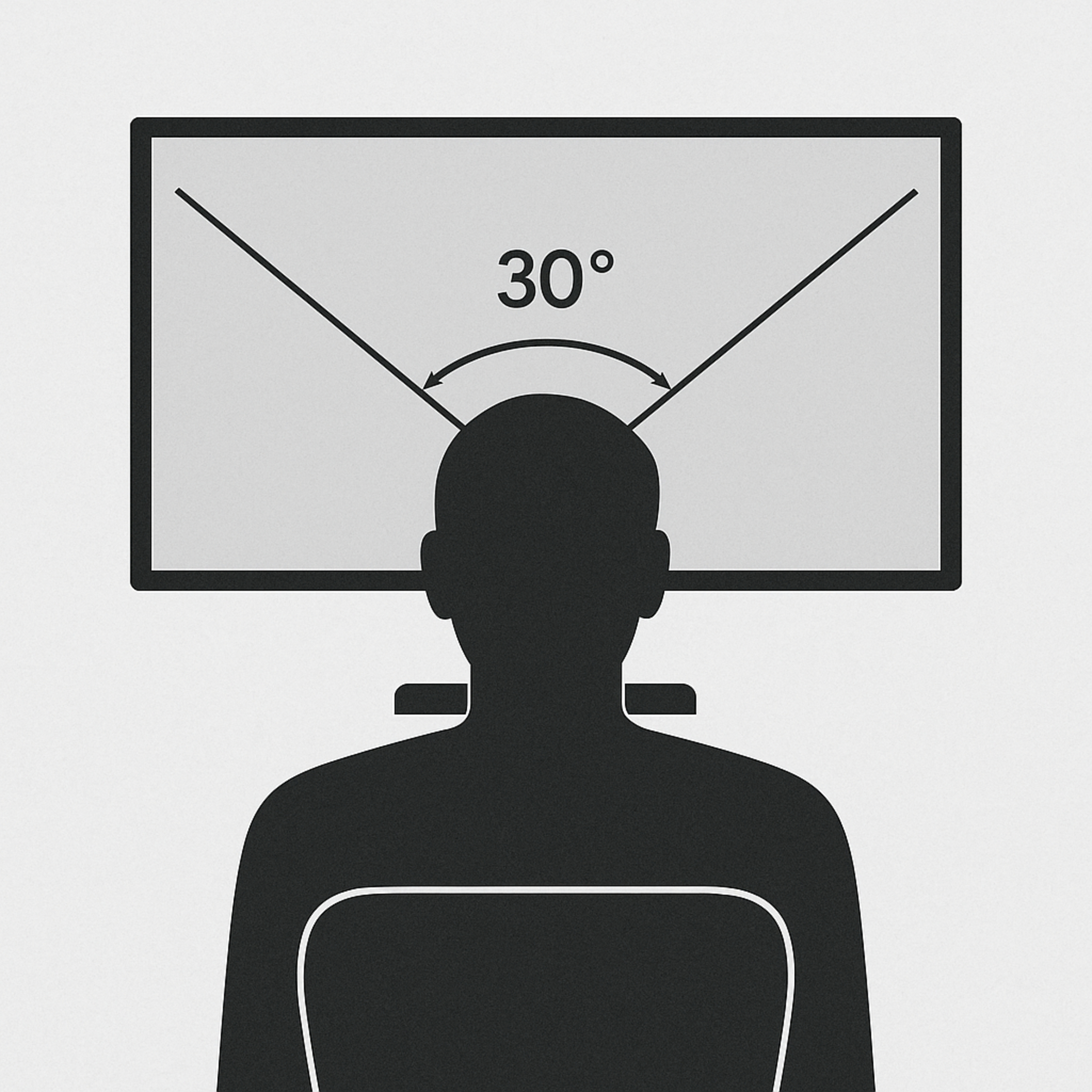
The Occupational Safety and Health Administration recommends sitting between 20 to 40 inches (50 to 100 cm) away from your monitor. That said, a good recommendation is to get a 27-inch monitor if you sit between 24 to 36" (60 to 90 cm) away, and a 32-inch monitor if you sit between 28 to 42" (70 to 105 cm) away from the screen. If you sit around 30" away from the screen, you can go with either size. This is just a general guideline, and there are other factors that impact the size you get, like your personal preference and eyesight. The monitor's resolution also impacts the size and your viewing distance, as you'll notice the differences between 1440p and 4k monitors the closer you sit, but you won't notice these differences as much from further away.
Impact On Pixel Density and Image Clarity
Although the screen size doesn't impact factors like gaming performance and overall picture quality, it does have an effect on the monitor's pixel density, and in turn, its image and text clarity. The pixel density is a measurement of the number of pixels per square inch, so with the resolution being equal, the pixel density is higher on a 27-inch monitor than on a 32-inch monitor. This has a direct impact on how sharp letters and objects look on the screen, as the higher pixel density helps define sharp edges better. That said, there are other factors that impact text clarity, like the screen coating and subpixel layout, so the pixel density isn't the only deciding factor.
You can see examples below of text clarity on 27-inch and 32-inch monitors with various resolutions. The differences between 27-inch and 32-inch monitors of the same resolution are subtle, but if you look closely, you'll notice that curved and diagonal lines are more defined on the 27-inch monitors. We also included photos of 4k QD-OLEDs because there's more of a noticeable difference on a 27-inch QD-OLED versus a 32-inch display with the same resolution. This is because QD-OLEDs have fringing around letters, which is noticeable on 32-inch monitors, but the fringing is much less visible on 27-inch screens.
| Resolution | Size | Pixel Density | Text Clarity Photo |
|---|---|---|---|
| 1080p | 27" | 82 PPI | 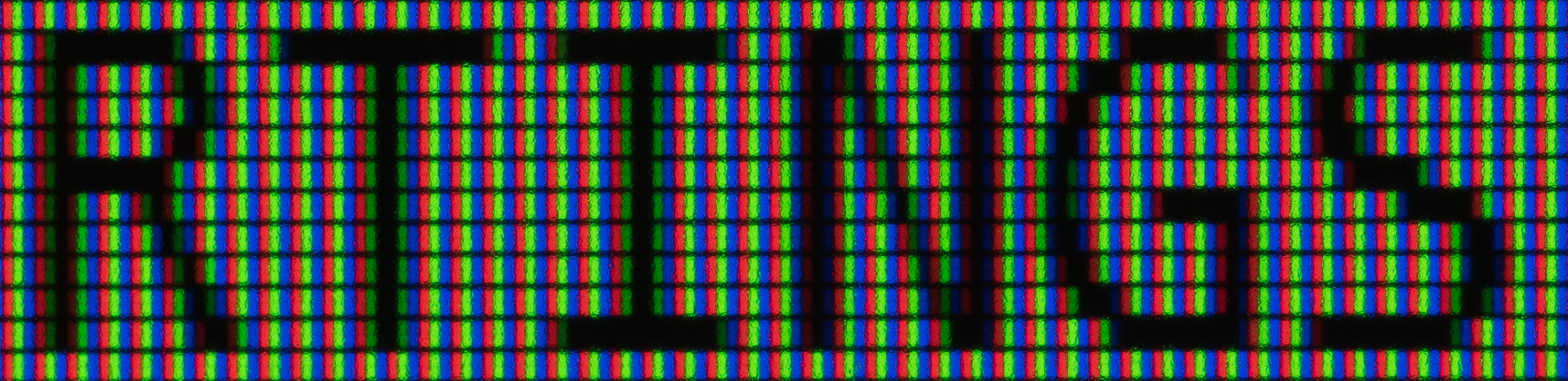 |
| 32" | 69 PPI |  |
|
| 1440p | 27" | 109 PPI | 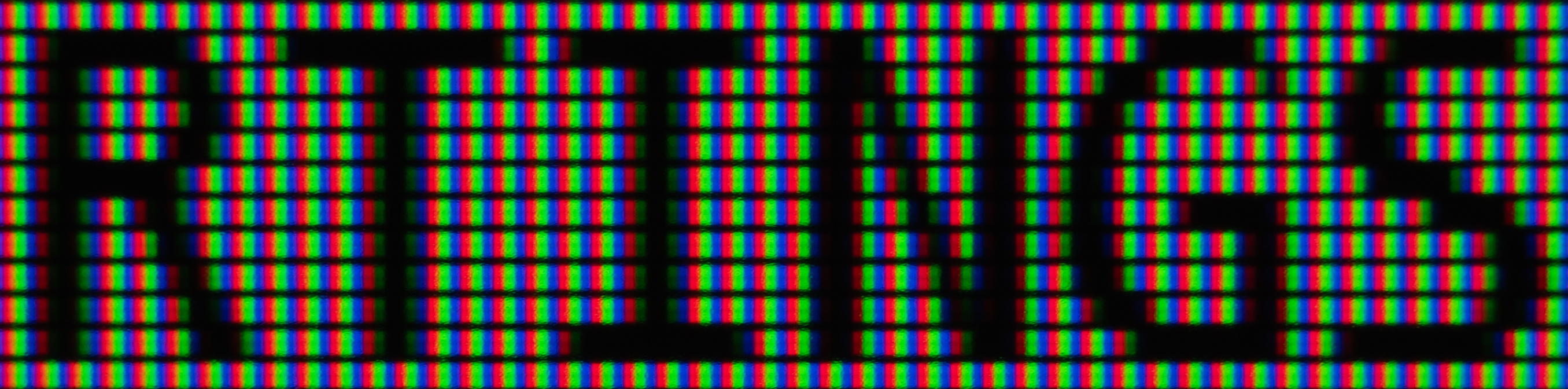 |
| 32" | 93 PPI |  |
|
| 4k LCD |
27" | 163 PPI | 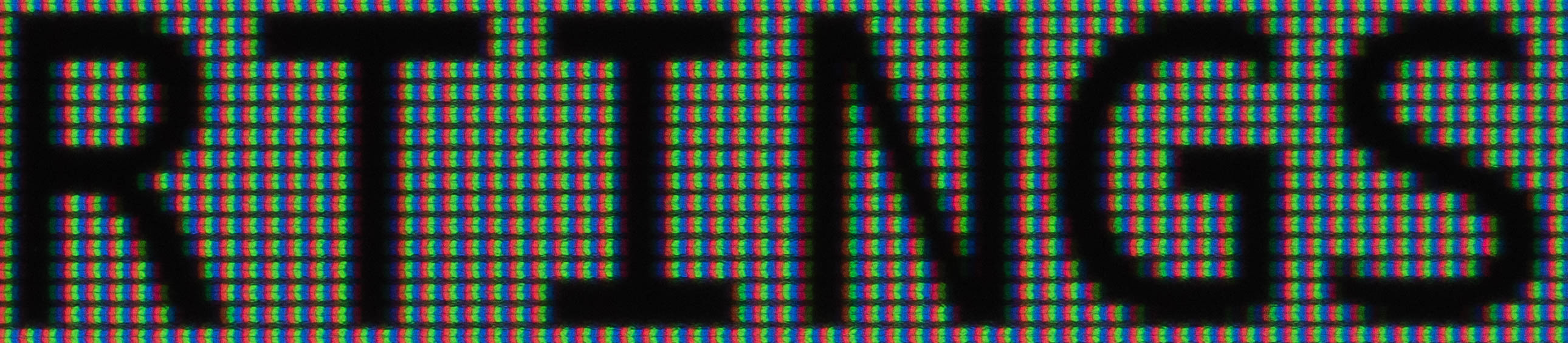 |
| 32" | 138 PPI |  |
|
| 4k QD-OLED |
27" | 166 PPI | 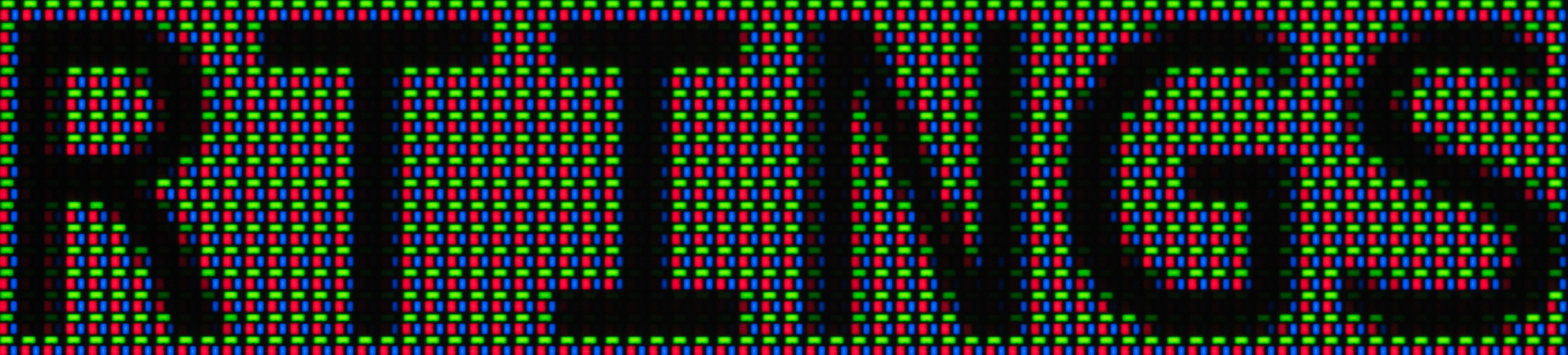 |
| 32" | 140 PPI |  |
Market of 27-Inch and 32-Inch Monitors
The market for 27-inch and 32-inch monitors is expansive, from entry-level monitors with basic performance and features to high-end, premium models. This means you'll likely find anything you need with whichever screen size you choose. However, many entry-level 32-inch monitors cost more than 27-inch counterparts.
Generally speaking, there are more 27-inch models available, with resolutions from 1080p to 5k, while 32-inch monitors are mostly available in 1440p and 4k resolutions. We have the data to back this up: out of 152 27-inch monitors we've tested from 2017 to the time of writing this article, 28 are 1080p, 95 are 1440p, 27 are 4k, and two are 5k. On the other hand, out of 63 32-inch monitors we've tested, only five are older 1080p models, with the rest being 1440p (20 monitors) and 4k (38 monitors).
Although there's a clear difference in the resolutions available with 27-inch and 32-inch monitors, there's less of a difference in the panel types you can get. This means there are many IPS and VA monitors available in 27-inch and 32-inch screen sizes, as well as OLEDs. Plus, each size is available in various refresh rates, from entry-level 144Hz models to high-end 240Hz displays. There are more high-refresh-rate options with 27-inch screens, but there are some 32-inch OLEDs available with dual modes that go up to 480Hz, like the LG 32GS95UE-B.
Some models even have similar variants in each 27-inch and 32-inch screen size. For example, the MSI MPG 272URX QD-OLED and the MSI MPG 322URX QD-OLED are both 4k, 240Hz QD-OLEDs, with the main difference being their screen size. Although they're technically different models, choosing between them really comes down to which size you prefer.
Conclusion
Deciding between a 27-inch vs a 32-inch monitor isn't easy, as the size has little to no impact on the overall performance. There are other factors you'll have to consider before buying a monitor, like its resolution, refresh rate, and panel type, but knowing which monitor size you want to get is a good place to start. Generally speaking, the main advantage of going for the bigger screen of a 32-inch monitor is if you want extra space to work with for multitasking or if you want the screen to fill up more of your field of vision while gaming. That said, 27-inch monitors have higher pixel density, which helps for text and image clarity, and there are more 27-inch monitors to choose from. Ultimately, choosing between a 27-inch and 32-inch monitor is a personal preference, but knowing these small differences can help you make that decision.