Dell Alienware AW3225DM  Monitor Review

Reviewed Jul 21, 2025 at 10:12am
Test bench update Nov 10, 2025 at 09:01am
Tested using Methodology v2.1.1 
Dell Alienware AW3225DM
7.6
PC Gaming 
7.3
Console Gaming 
7.4
Office 
7.4
Editing 
7.7
Brightness 
7.8
Response Time 
6.4
HDR Picture 
7.6
SDR Picture 
 5

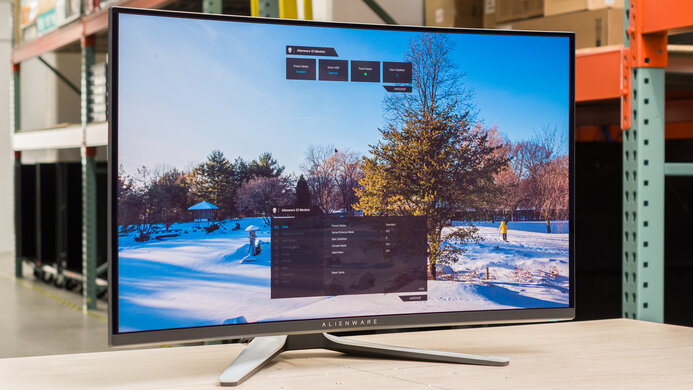
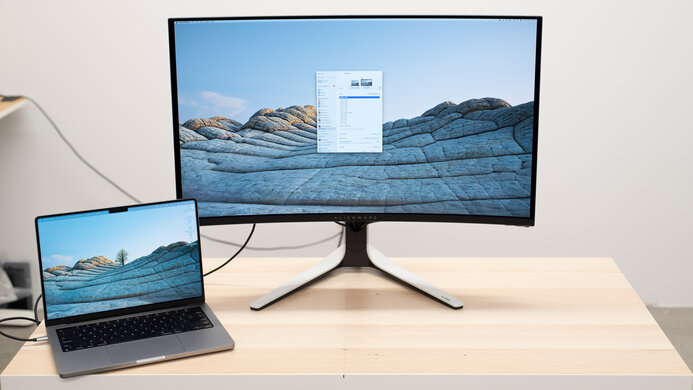
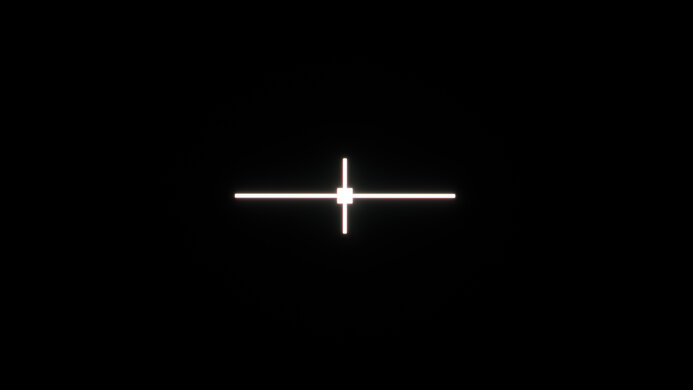
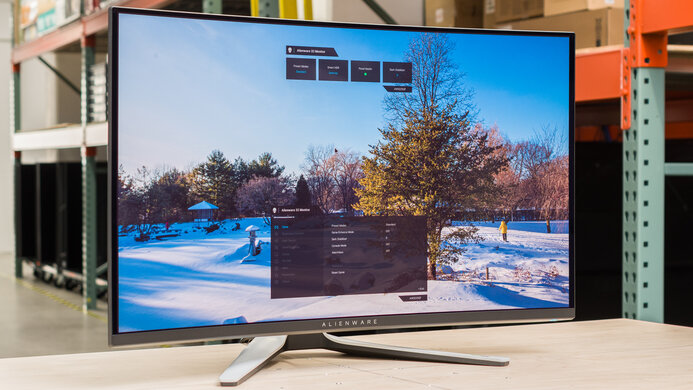
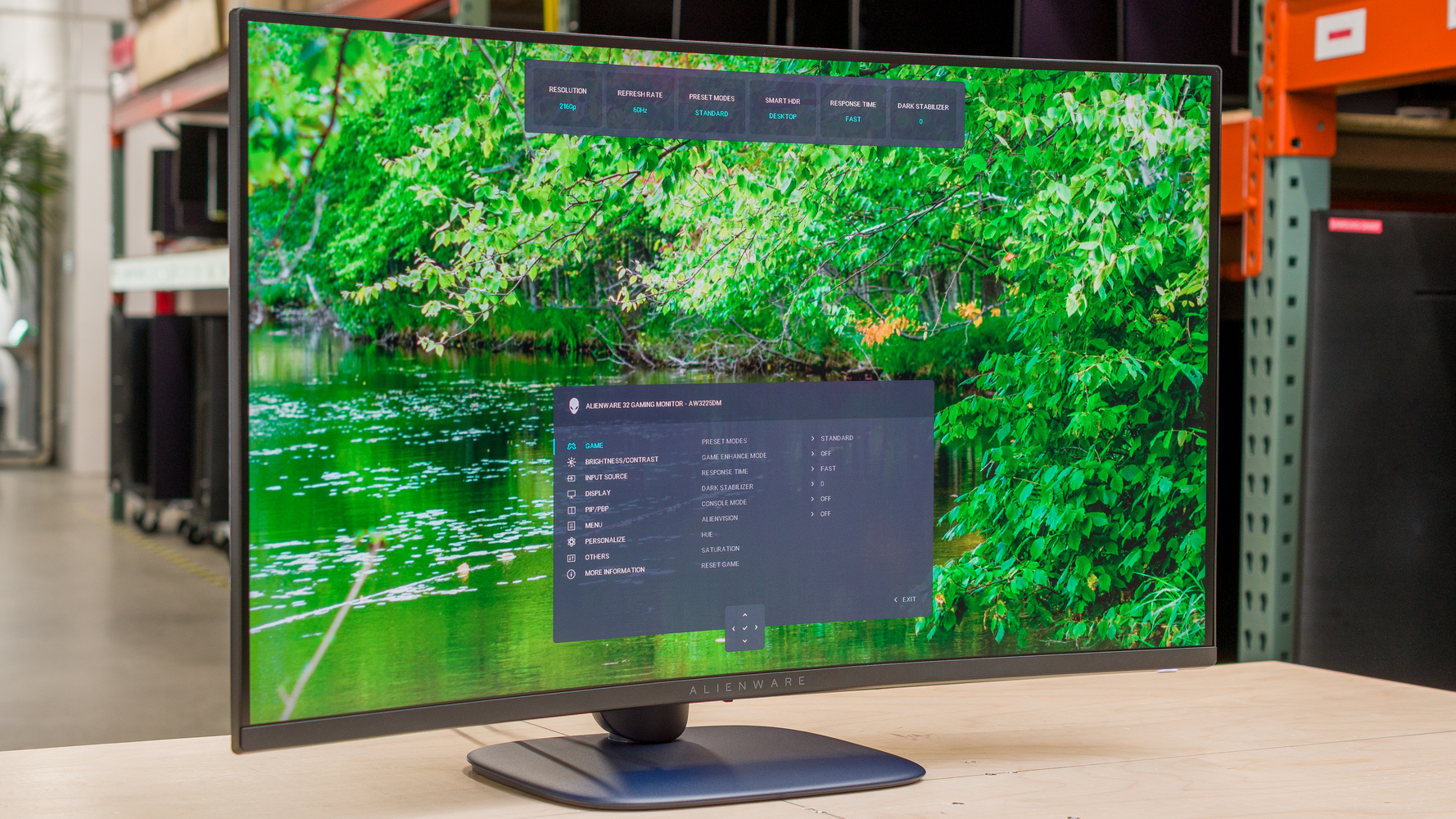
The Dell Alienware AW3225DM is a budget 1440p curved gaming monitor. As part of Dell's 2025 Alienware gaming lineup, it shares its rounded, blue aesthetic with other recent models like the Dell Alienware AW3425DWM and the Dell Alienware AW2725DM. It competes with a number of other budget curved 32-inch 1440p VA gaming monitors, such as the Acer Nitro XZ322QU V3bmiiphx, the AOC CQ32G4VE, and the Gigabyte M32QC. In addition to a 180Hz refresh rate and VRR support, it has other gaming features, like Dark Stabilizer to increase the visibility of dark parts of scenes, customizable crosshairs, and a frame rate display.

Our Verdict

7.6
PC Gaming 

The Dell AW3225DM is good for PC gaming. Fast-moving objects look fairly crisp, though there's a bit of smearing, and they look less crisp with VRR enabled. Additionally, its 180Hz refresh rate and very low input lag create a responsive feel. Its great contrast also makes deep blacks visible in a dark room in SDR. However, it has mediocre HDR performance, with a terrible local dimming system that doesn't make highlights pop, and you can't turn it off in HDR.

Pros
  • Consistent response time across all refresh rates.

  • 180Hz refresh rate and VRR support.

  • Very low input lag for a responsive feel.

  • High native contrast ratio.

Cons
  • Terrible local dimming feature that can't be turned off in HDR.

  • Highlights don't pop in HDR.

  • A bit of smearing with fast-moving objects.

7.3
Console Gaming 

The Dell AW3225DM is satisfactory for console gaming. It supports all features and nearly all resolutions of the PS5, PS5 Pro, and Xbox Series X|S, though it doesn't support 4k @ 120Hz. It has very good motion handling, so fast-moving objects look crisp, though it has a bit of smearing, and it also has low input lag for a responsive feel. Additionally, it displays deep blacks in SDR. However, it isn't as good for HDR gaming, as it has a terrible local dimming system that you can't turn off in HDR. Additionally, it doesn't have an audio output, so you can't connect speakers to the monitor.

Pros
  • Consistent response time across all refresh rates.

  • Very low input lag for a responsive feel.

  • High native contrast ratio.

  • Supports most signals from consoles.

Cons
  • Doesn't support 4k @ 120Hz.

  • No audio output.

  • A bit of smearing with fast-moving objects.

7.4
Office 

The Dell AW3225DM is decent for office work. It has good text clarity and is large enough to let you see several windows at the same time for multitasking. It's also bright enough that you can see it in bright environments, though it has somewhat distracting reflections with bright objects. Additionally, it has narrow viewing angles, a curved screen, and it doesn't swivel, so it doesn't work well if you're trying to share your screen with a colleague.

Pros
  • Bright enough for you to easily see it in bright environments.

  • Good text clarity.

  • Large 32-inch display.

Cons
  • Narrow viewing angles.

  • Limited ergonomics.

  • Somewhat distracting reflections.

7.4
Editing 

The Dell AW3225DM is satisfactory for editing. Its sRGB mode is quite accurate even before calibration, and you can see deep blacks in SDR, even in a brighter room. It also gets bright enough for you to see it in any environment. However, it's not good for editing HDR content, as it has a terrible local dimming system that you can't turn off in HDR. It also doesn't work well for sharing content with a colleague, as it has very limited viewing angles, it doesn't swivel, and it has a curved screen.

Pros
  • High native contrast ratio.

  • Bright enough for you to easily see it in bright environments.

  • Great accuracy before calibration.

Cons
  • Terrible local dimming feature that can't be turned off in HDR.

  • Narrow viewing angles.

7.7
Brightness 

The Dell AW3225DM has good brightness. While it's bright enough to see in bright rooms, highlights don't pop in HDR.

Pros
  • Bright enough for you to easily see it in bright environments.

Cons
  • Highlights don't pop in HDR.

7.8
Response Time 

The Dell AW3225DM has a very good response time. There isn't very much blur with fast-moving objects, though there is a bit of smearing. Additionally, it has consistent motion handling at any refresh rate, though if you enable VRR, the motion handling is slightly worse.

Pros
  • Consistent response time across all refresh rates.

Cons
  • A bit of smearing with fast-moving objects.

6.4
HDR Picture 

The Dell AW3225DM has passable HDR picture quality. While it has a great native contrast ratio, its contrast with local dimming on is much worse. Its local dimming feature is terrible, and you can't turn local dimming off or adjust the brightness when the monitor is receiving an HDR signal.

Pros
None
Cons
  • Terrible local dimming feature that can't be turned off in HDR.

7.6
SDR Picture 

The Dell AW3225DM has good SDR picture quality. Its great native contrast ratio allows it to display deep blacks. It also displays a wide range of colors.

Pros
  • High native contrast ratio.

Cons
None
8.5
Color Accuracy 

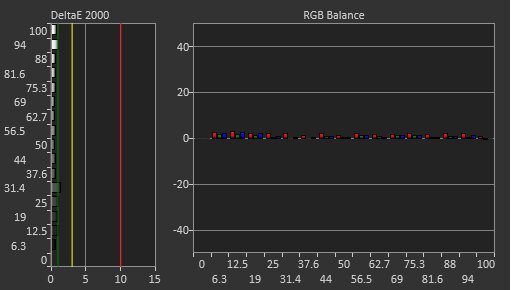
The Dell AW3225DM has amazing color accuracy. It has great white balance and very good gray uniformity, though it slightly over-clamps colors before calibration. After calibration, it has outstanding accuracy.

Pros
  • Great accuracy before calibration.

Cons
None
  • 7.6
    PC Gaming
  • 7.3
    Console Gaming
  • 7.4
    Office
  • 7.4
    Editing

  • Performance Usages

  • 7.7
    Brightness
  • 7.8
    Response Time
  • 6.4
    HDR Picture
  • 7.6
    SDR Picture
  • 8.5
    Color Accuracy
  • Changelog

    1.  Updated Nov 10, 2025: We've converted this review to Test Bench 2.1.1. We removed the Vertical Viewing Angle test.
    2.  Updated Oct 14, 2025: 

      We confirmed that G-SYNC Compatibility works over HDMI.

    3.  Updated Jul 21, 2025: Review published.
    4.  Updated Jul 16, 2025: Early access published.

    Check Price

    32"Alienware AW3225DM
    SEE PRICE
    BestBuy.com
    32"Alienware AW3225DM
    SEE PRICE
    Amazon.com
    32"Alienware AW3225DM
    SEE PRICE
    Walmart.com
    32"Alienware AW3225DM
    B&H
    32"Alienware AW3225DM
    Dell

    Differences Between Sizes And Variants

    We bought and tested the 32-inch Dell Alienware AW3225DM, which is the only size available. Dell has several similar models in its lineup, such as the 34-inch Dell Alienware AW3425DWM and the 27-inch Dell Alienware AW2725DM. However, these are different monitors, and the results here are only valid for this model.

    Model Size Panel Type Max Refresh Rate Native Resolution
    AW3225DM 32" VA 180Hz 2560x1440

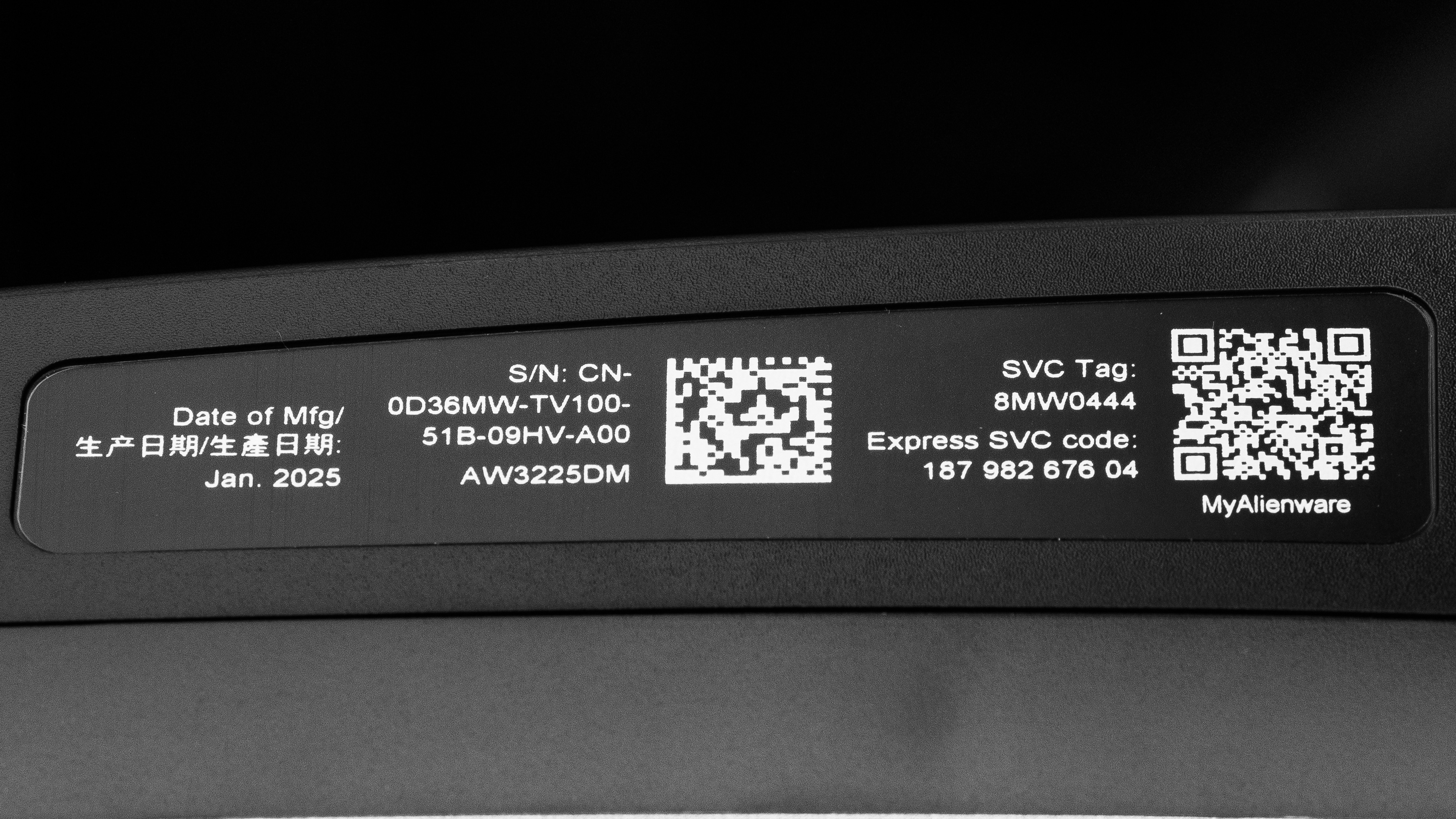
    Our unit's label indicates it was manufactured in January 2025. We tested it with firmware M2C101.

    Popular Monitor Comparisons

    The Dell AW3225DM is a budget 32-inch 1440p curved gaming monitor. It's a great choice for someone on a limited budget who wants an immersive gaming experience and likes how a curved screen improves image consistency from a centered seating position. It's a particularly good choice for a bright room, as it gets bright enough for you to see it in any environment, and black levels don't rise very much in a bright room. Additionally, it works well for all gaming genres, as it has very good motion handling, though it has a bit of smearing, and fast-moving objects look slightly less crisp if you enable VRR.

    However, there are usually trade-offs in the budget category, and this monitor has significantly worse HDR performance than you'll find with some other 1440p gaming monitors, like the AOC Q27G3XMN. The Dell's terrible local dimming system can't be turned off in HDR, so we don't recommend this monitor if you plan on using HDR. That said, if you don't mind using the monitor in SDR, it's one of the best choices for someone looking for a large, immersive gaming experience on a budget.

    Also see our recommendations for the best 32-inch monitors, the best 1440p gaming monitors, and the best curved gaming monitors.

    AOC Q27G3XMN

    The AOC Q27G3XMN and the Dell Alienware AW3225DM are both 1440p gaming monitors. The AOC is the better option for most people, as it has more vivid colors, better motion handling, and an effective HDR system that makes highlights pop. However, if you really want a big monitor, the Dell is a better choice given its larger 32-inch size.

    Samsung Odyssey G65D S32BG65D

    The Samsung Odyssey G65D S32BG65D and the Dell Alienware AW3225DM are both curved 32-inch 1440p gaming monitors. The Samsung is the better choice if you can afford it, as it has better VRR motion handling, a higher refresh rate, displays a wider range of more vivid colors, and gets brighter. However, the Dell is in a lower price category and has performance that's only a bit behind the Samsung, so it's a great choice if you're looking for a value option.

    Dell S3222DGM

    The Dell S3222DGM and the Dell Alienware AW3225DM are 32-inch 1440p curved gaming monitors. The AW3225DM is the better monitor for gamers, as it gets much brighter, has better motion handling, better compatibility with game consoles, and several extra features.

    LG 32GP850-B/32GP83B-B

    The LG 32GP850-B/32GP83B-B and the Dell Alienware AW3225DM are 32-inch 1440p gaming monitors. The Dell is a better option for most, as it displays deeper blacks in a dark room, and it also gets much brighter. However, the LG is a better option if you plan to share your screen with others, as it has much better viewing angles, and it doesn't have smearing with fast-moving objects like the Dell.

    Show more 
    How We Test Monitors
    How We Test Monitors

    We buy and test more than 30 monitors each year, with units that we buy completely on our own, without any cherry-picked units or samples. We put a lot into each unbiased, straight-to-the-point review, and there's a whole process from purchasing to publishing, involving multiple teams and people. We do more than just use the monitor for a week; we use specialized and custom tools to measure various aspects with objective data-based results. We also consider multiple factors before making any recommendations, including the monitor's cost, its performance against the competition, and whether or not it's easy to find.

    Test Results
    perceptual testing image
    Sort:
    RATINGS
    Category:
    All
    Design
    Style
    Curved
    Yes
    Curve Radius
    1500R

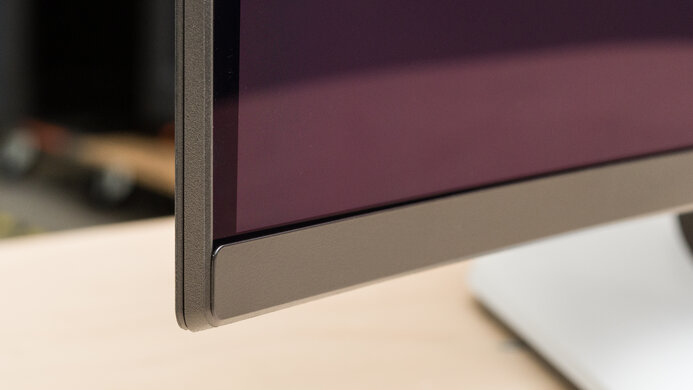
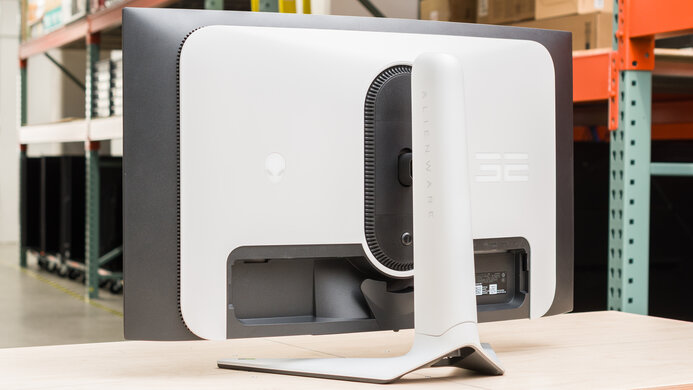
    Like many other models in Dell's 2025 Alienware lineup, the Dell AW3225DM has a smooth, rounded appearance with a blue finish. Its etched graphics on the back of the housing indicate it's a gaming monitor, but its understated appearance also fits in well with an office environment.
    8.5
    Build Quality

    The build quality is excellent. Overall, it has a solid, high-quality feel, though the back of the monitor and some of the other plastics have a bit of flex. Additionally, while the blue finish has a premium feel, it smudges very easily.

    6.6
    Ergonomics
    Min Height To Top Of Panel
    18.4" (46.8 cm)
    Height Adjustment
    4.2" (10.7 cm)
    Tilt Range
    -20° to 5°
    Rotate Portrait/Landscape
    No
    Swivel Range
    No swivel
    Wall Mount
    VESA 100x100

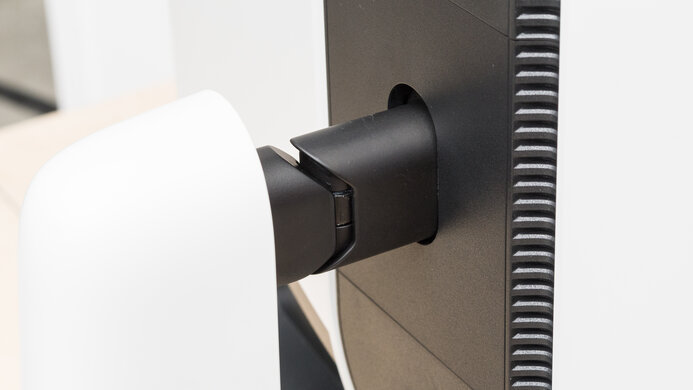
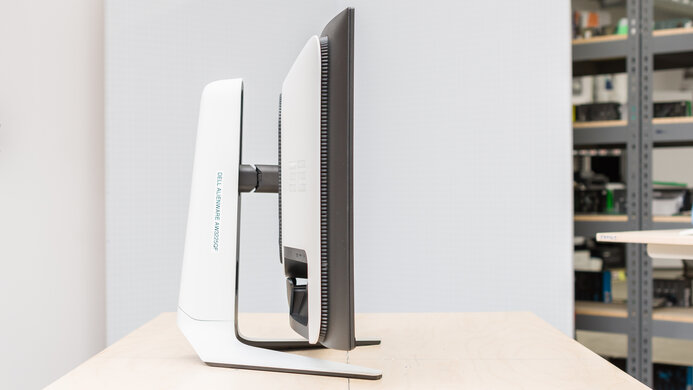
    The ergonomics are alright. It has a great height adjustment and tilt range, so it works well for individual use. However, it doesn't rotate or swivel, so it doesn't work well if you want to share your screen with a colleague or another gamer. Unlike the similar Dell Alienware AW3425DWM, it doesn't let you rotate it a few degrees in either direction to help level the display with an uneven desk. The stand has a cutout for cable management.

    Stand
    Base Width
    10.6" (27.0 cm)
    Base Depth
    9.2" (23.3 cm)
    Thickness (With Display)
    6.4" (16.2 cm)
    Weight (With Display)
    20.2 lbs (9.2 kg)

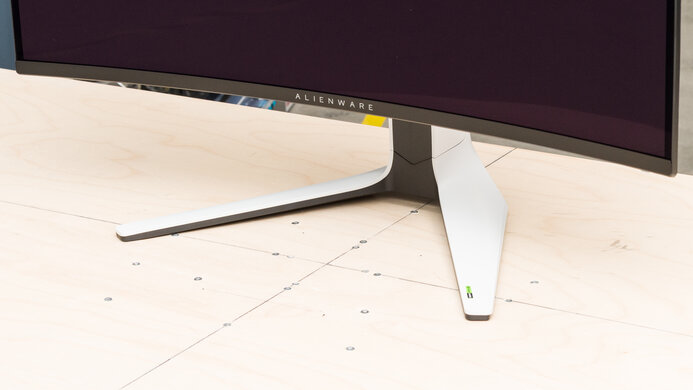
    The stand is compact and doesn't take up much room on your desk. Additionally, the screen doesn't wobble much if you bump it, and the display recovers quickly.

    Display
    Size
    32"
    Housing Width
    27.8" (70.7 cm)
    Housing Height
    16.4" (41.6 cm)
    Thickness (Without Stand)
    2.9" (7.3 cm)
    Weight (Without Stand)
    14.5 lbs (6.6 kg)
    Borders Size (Bezels)
    0.3" (0.8 cm)
    Controls

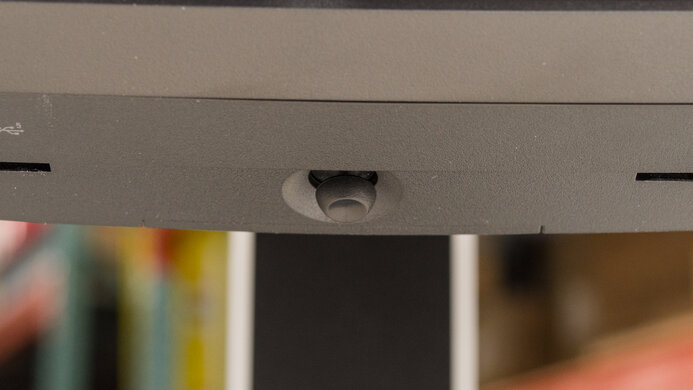
    This monitor has a power button underneath the right side of the display. Additionally, it has a joystick to control the on-screen display, which is tactile and easy to use.

    In The Box
    Power Supply
    Internal

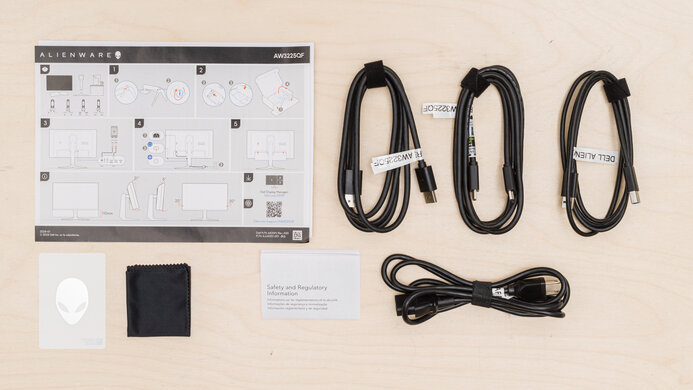
    • DisplayPort cable
    • HDMI cable
    • USB-A to USB-B cable
    • Power cable
    • Alienware sticker
    • Documentation
    Picture Quality
    8.2
    Contrast
    Native Contrast
    4,073 : 1
    Contrast With Local Dimming
    2,281 : 1

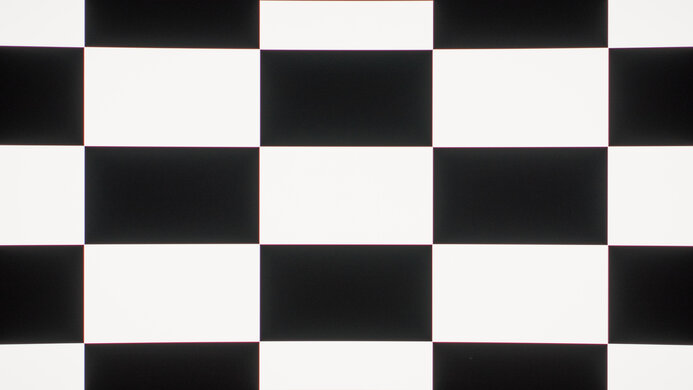
    The contrast is impressive. With local dimming off, it displays deep blacks next to bright highlights. However, when local dimming is on, the contrast is much worse, and the blacks don't look as deep.

    Note: Because brightness is locked when local dimming is on, we had to test contrast with local dimming at 221.3 cd/m² instead of our usual 100 cd/m².

    2.0
    Local Dimming
    Local Dimming
    Yes
    Backlight
    Edge

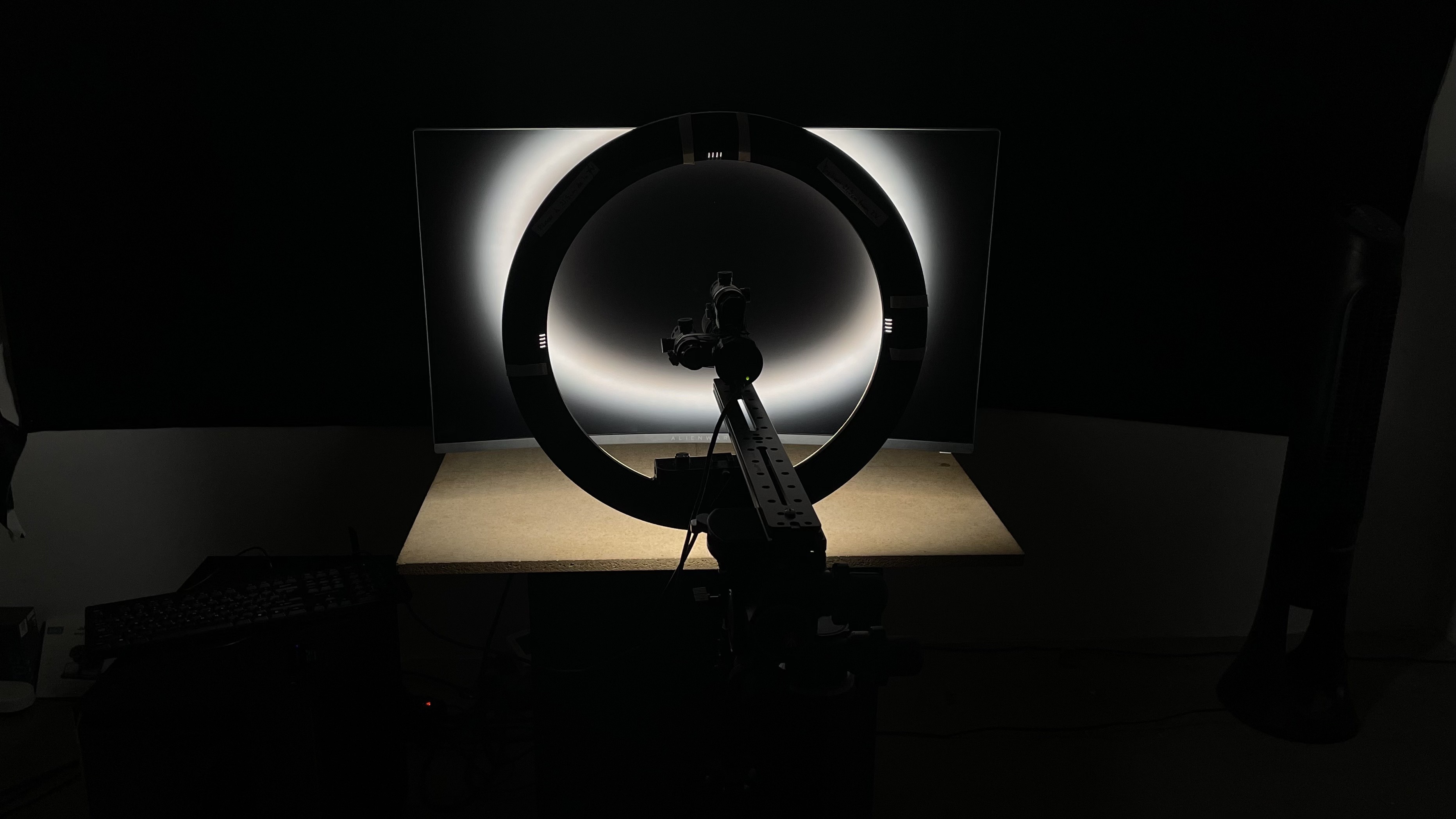
    The Dell AW3225DM has terrible local dimming. While its eight zones get quite dark when there's no content in that part of the screen, zones are very bright when they're lit up. And with real content, the zones don't get dark enough for an improvement in contrast. As a result, details are lost in dark parts of scenes, and you can see deeper blacks in SDR with dimming off than with it on in HDR.

    When objects transition between zones, the backlight transition is choppy, and when small or medium objects transition between zones, there's backlight pulsing across the entire display.

    With regular content, subtitles don't cause a noticeable lack of uniformity across the screen. This is because the zones don't get dark enough for you to see a significant difference between the zones with most content.

    Note: The local dimming feature is always on when the monitor receives an HDR signal, and it can't be turned on without HDR. When it's on, the monitor's brightness can't be adjusted, which is why the video looks brighter than usual.

    8.5
    SDR Brightness
    Real Scene
    510 cd/m²
    Peak 2% Window
    532 cd/m²
    Peak 10% Window
    531 cd/m²
    Peak 25% Window
    530 cd/m²
    Peak 50% Window
    529 cd/m²
    Peak 100% Window
    527 cd/m²
    Sustained 2% Window
    531 cd/m²
    Sustained 10% Window
    530 cd/m²
    Sustained 25% Window
    529 cd/m²
    Sustained 50% Window
    527 cd/m²
    Sustained 100% Window
    526 cd/m²
    Automatic Brightness Limiting (ABL)
    0.001
    Minimum Brightness
    35 cd/m²

    Settings

    • Preset Mode: Custom Color (after calibration)
    • Brightness: Max

    The SDR brightness is amazing. It gets bright enough for you to easily see it in bright environments, and it maintains a consistent brightness level across different content.

    7.1
    HDR Brightness
    VESA DisplayHDR Certification
    DisplayHDR 400 - 1.2
    Real Scene
    468 cd/m²
    Peak 2% Window
    320 cd/m²
    Peak 10% Window
    504 cd/m²
    Peak 25% Window
    505 cd/m²
    Peak 50% Window
    504 cd/m²
    Peak 100% Window
    503 cd/m²
    Sustained 2% Window
    319 cd/m²
    Sustained 10% Window
    502 cd/m²
    Sustained 25% Window
    503 cd/m²
    Sustained 50% Window
    503 cd/m²
    Sustained 100% Window
    502 cd/m²
    Automatic Brightness Limiting (ABL)
    0.029

    Settings

    • Smart HDR: Custom Color HDR
    • Brightness: Locked
    • Local Dimming: On (locked on in HDR)

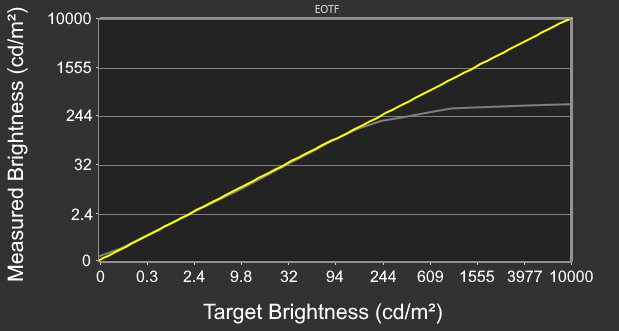
    The HDR brightness is decent. While it gets bright enough for you to see it in a bright room, highlights don't pop. However, it follows the PQ EOTF well and has a slow roll-off near peak brightness. This helps preserve bright details, but prevents highlights from getting as bright as possible. Very small highlights are dimmer, but otherwise brightness remains consistent across different scenes.

    The 'Desktop', 'Custom Color HDR', and 'DisplayHDR 400' Smart HDR settings perform the same, though 'Movie' doesn't follow the PQ EOTF as closely.

    7.9
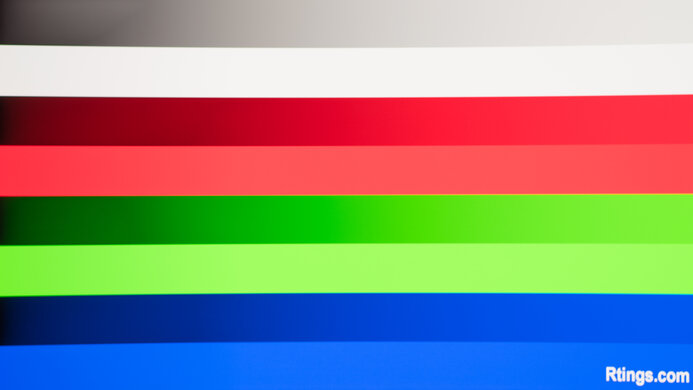
    Gray Uniformity
    50% Std. Dev.
    3.536%
    50% DSE
    0.144%

    The gray uniformity is very good. While the right edge of the screen is considerably darker than the center or the left, it has very little dirty screen effect in the center. However, as you can see with the 5% gray uniformity image, the right and left sides of the screen are much darker than the center when displaying darker content.

    6.0
    Black Uniformity
    Native Std. Dev.
    1.931%
    Std. Dev. w/ L.D.
    2.295%

    The black uniformity is mediocre, and there's backlight bleed along the top and bottom of the monitor. Additionally, while there's less backlight bleed when local dimming is on, there's also more variation between the zones that have backlight bleed and those that don't.

    8.3
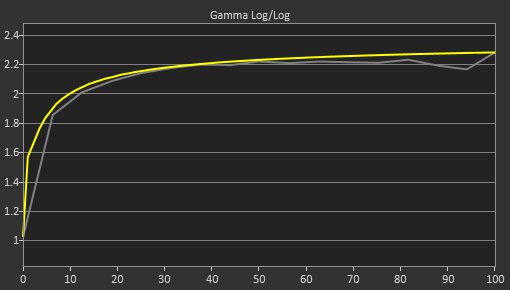
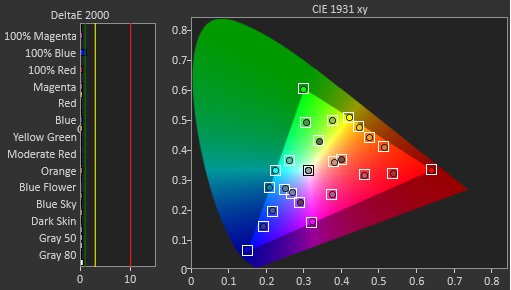
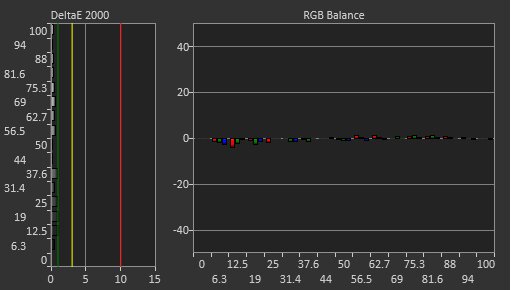
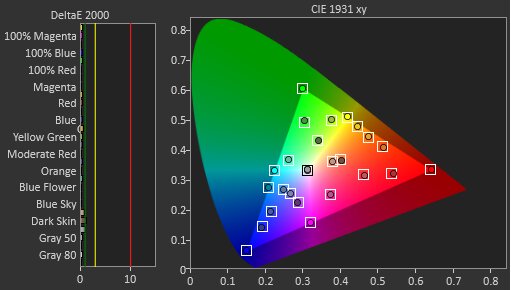
    Color Accuracy (Pre-Calibration)
    Picture Mode
    Color Mode (sRGB)
    sRGB Gamut Area xy
    93.2%
    White Balance dE (Avg.)
    2.37
    Color Temperature (Avg.)
    6,849 K
    Gamma (Avg.)
    2.15
    Color dE (Avg.)
    1.72
    Contrast Setting
    75
    RGB Settings
    Default
    Gamma Setting
    Default
    Brightness Setting
    75
    Measured Brightness
    250 cd/m²
    Brightness Locked
    No

    The accuracy before calibration is impressive. It has amazing color accuracy, though it slightly over-clamps the gamut in the 'sRGB' Preset Mode. Additionally, it has great white balance, though bright whites look a bit blue. Also, the color temperature is reasonably close to the 6500K target, though it's a bit cold.

    The 'sRGB' Preset Mode locks the Gain, Offset, Hue, and Saturation settings. If you want to change these settings, you'll need to use another mode like 'Custom Color', though it's much less accurate, and most parts of scenes are too bright.

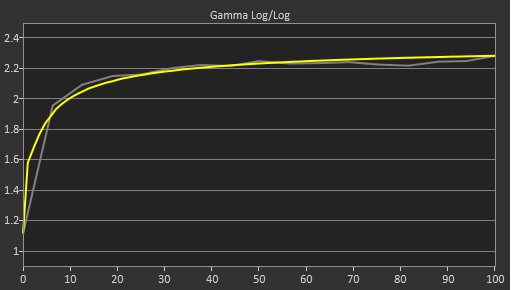
    9.6
    Color Accuracy (Post-Calibration)
    Picture Mode
    Custom Color
    sRGB Gamut Area xy
    97.5%
    White Balance dE (Avg.)
    0.49
    Color Temperature (Avg.)
    6,497 K
    Gamma (Avg.)
    2.20
    Color dE (Avg.)
    0.45
    Contrast Setting
    75
    RGB Settings
    Gain (97-98-92), Offset (50-50-49)
    Gamma Setting
    No Gamma Setting
    Brightness Setting
    23
    Measured Brightness
    99 cd/m²
    ICC Profile
    Download

    The accuracy after calibration in the 'Custom Color' mode is fantastic, and apart from the brightest parts of scenes being slightly too dark, you won't notice any inaccuracies.

    9.2
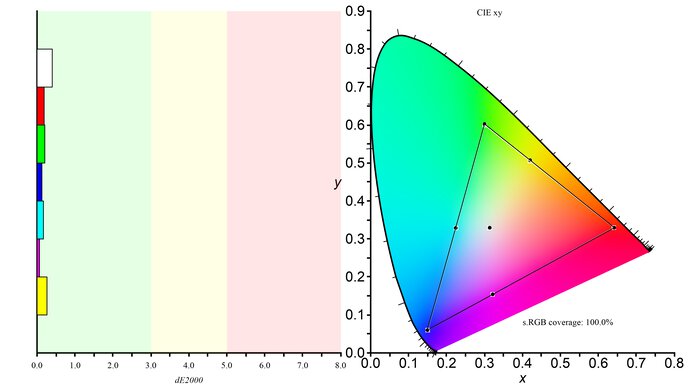
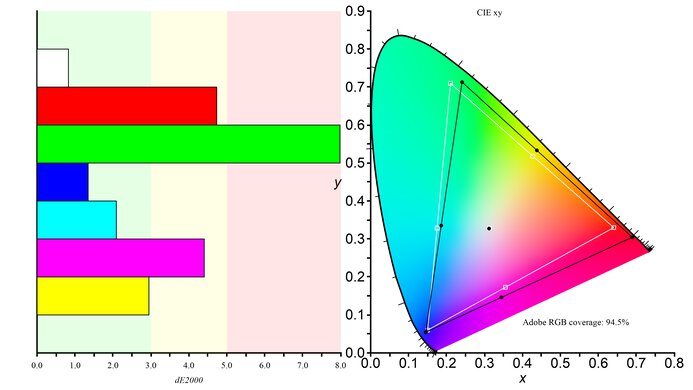
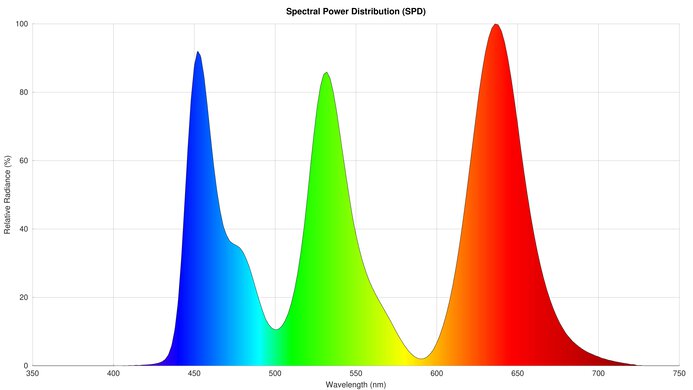
    SDR Color Gamut
    sRGB Coverage xy
    98.2%
    sRGB Picture Mode
    Custom Color
    Adobe RGB Coverage xy
    83.5%
    Adobe RGB Picture Mode
    Custom Color

    The SDR color gamut is superb. It displays nearly all colors in the sRGB color space, and a wide range of colors in Adobe RGB. Some colors are inaccurate in Adobe RGB, but you may be able to fix this by using a color-managed application.

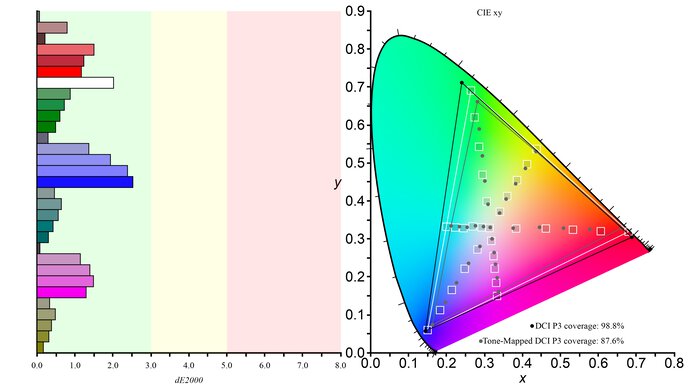
    7.7
    HDR Color Gamut
    Wide Color Gamut
    Yes
    DCI-P3 Coverage xy
    88.0%
    DCI-P3 Picture Mode
    Custom Color HDR
    Rec. 2020 Coverage xy
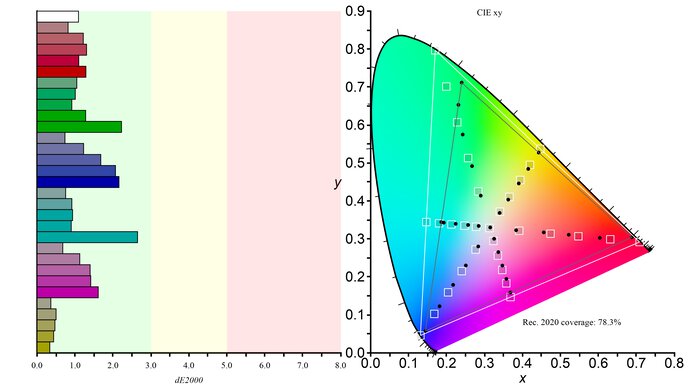
    65.9%
    Rec. 2020 Picture Mode
    Custom Color HDR

    The HDR color gamut is good. It displays a wide range of colors in the DCI-P3 color space, and a fairly wide range in Rec. 2020. Additionally, it's fairly accurate in both spaces, though white is inaccurate in Rec. 2020. The 'Game' and 'Movie' Smart HDR modes are less accurate in Rec. 2020.

    7.6
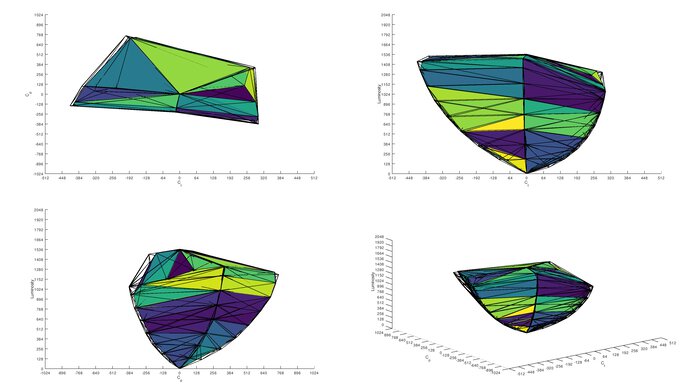
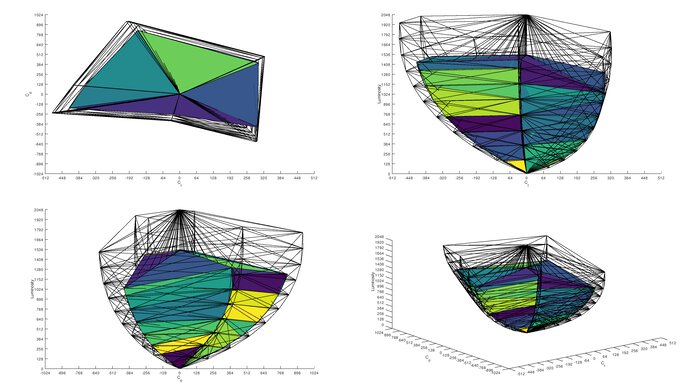
    HDR Color Volume
    1,000 cd/m² DCI-P3 Coverage ICtCp
    68.8%
    DCI-P3 Picture Mode
    Custom Color HDR
    10,000 cd/m² Rec. 2020 Coverage ICtCp
    30.7%
    Rec. 2020 Picture Mode
    Custom Color HDR

    The HDR color volume is decent. It displays dark colors well, but brighter colors don't look too vivid.

    5.4
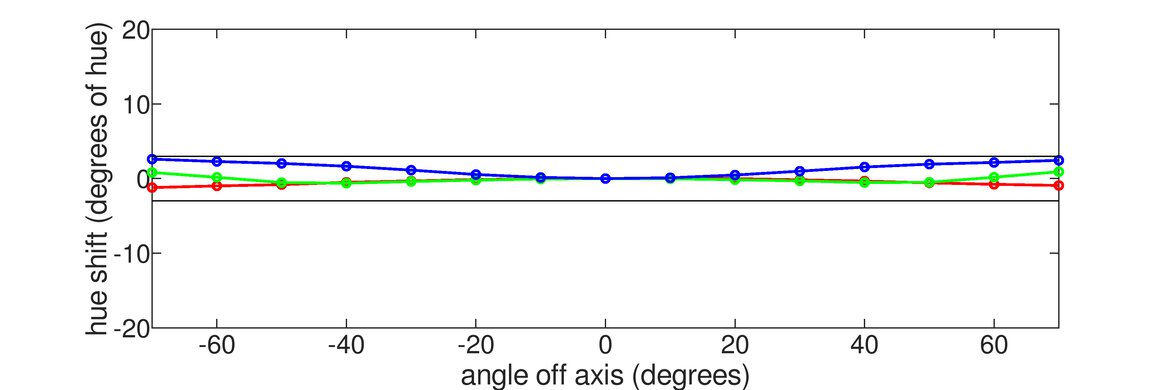
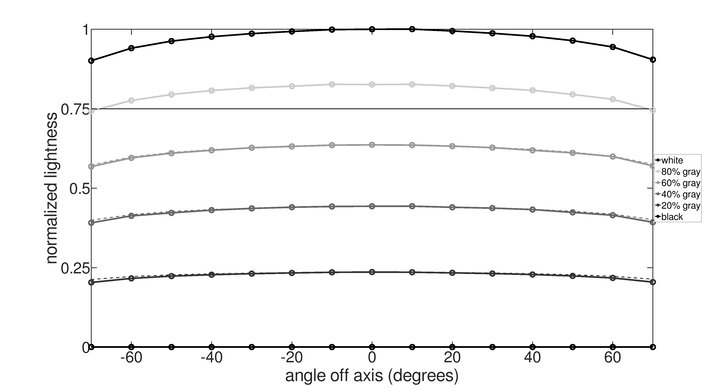
    Viewing Angle
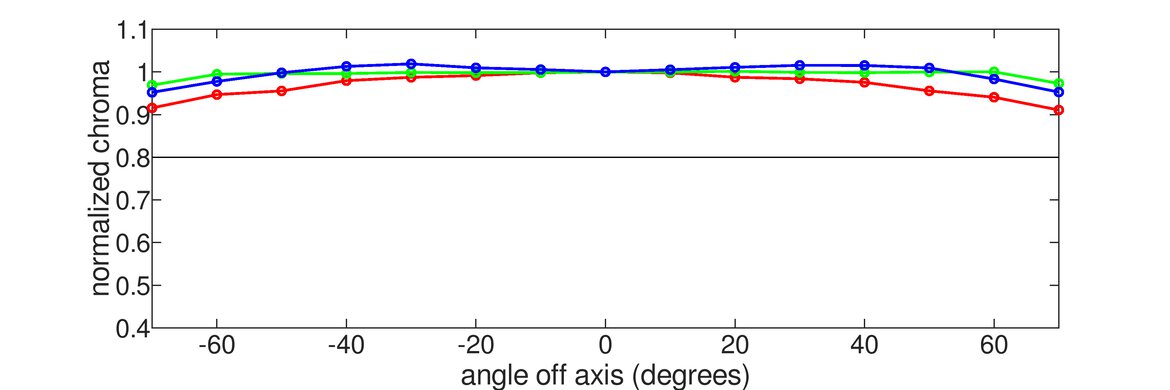
    Color Washout From Left
    32°
    Color Washout From Right
    31°
    Color Shift From Left
    34°
    Color Shift From Right
    37°
    Brightness Loss From Left
    32°
    Brightness Loss From Right
    33°
    Black Level Raise From Left
    11°
    Black Level Raise From Right
    11°
    Gamma Shift From Left
    15°
    Gamma Shift From Right
    12°

    The horizontal viewing angle is disappointing. The image quickly washes out when you view it from the sides, and the curved screen makes it more difficult to see when you're not directly in front of the screen. However, if you're sitting in front of the center of the monitor, the curved display helps the edges wash out less.

    7.5
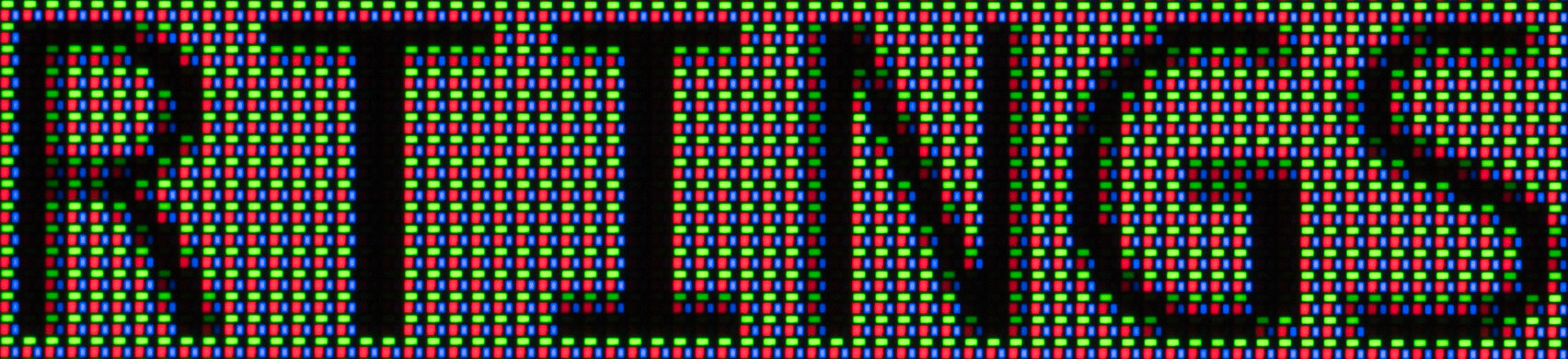
    Text Clarity
    Pixel Type
    VA
    Subpixel Layout
    RGB

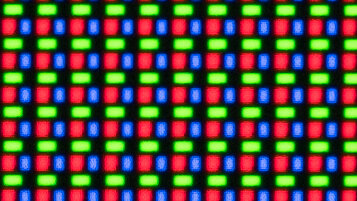
    The text clarity is good. Using Windows ClearType (top photo) helps make text look bolder and easier to read. These photos are in Windows 10, and you can also see them in Windows 11 with ClearType on and with ClearType off.

    6.3
    Direct Reflections
    See details on graph tool
    Peak Direct Reflection Intensity
    33.4%
    Screen Finish
    Matte

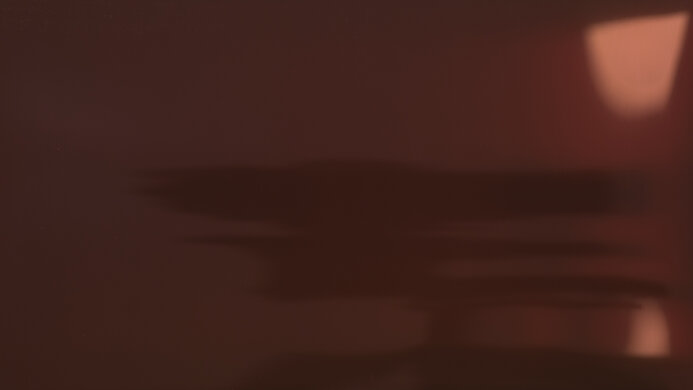
    The direct reflection handling is passable. Though its matte screen coating spreads light out, it still has some mirror-like reflections. Also, because of the curved screen, there are additional reflections at the right and left edges of the display.

    8.5
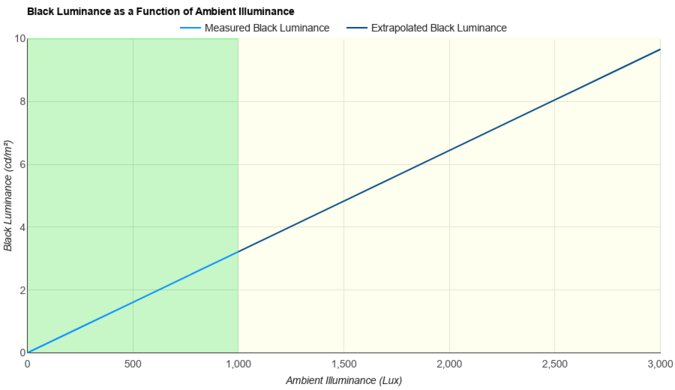
    Ambient Black Level Raise
    See details on graph tool
    Black Luminance @ 0 lx
    0.00 cd/m²
    Black Luminance @ 1000 lx
    0.65 cd/m²

    The Dell AW3225DM is amazing at maintaining its black levels in a bright room. While they aren't quite as low as in a dark room, blacks are still quite deep.

    5.1
    Total Reflected Light
    Total Reflected Light Intensity
    41,037% ⋅ pixel
    Diffraction Artifacts
    No

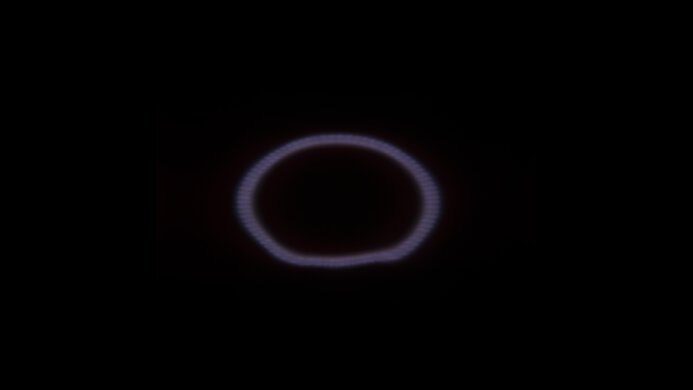
    This monitor is poor at absorbing light. It spreads light out, and glare from very bright light sources is distracting.

    9.8
    Gradient
    Color Depth
    10 Bit

    The gradient handling is fantastic, and there's minimal banding between shades of similar colors.

    Motion
    7.7
    Refresh Rate
    Native Refresh Rate
    180 Hz
    Max Refresh Rate
    180 Hz
    Max Refresh Rate Over DP
    180 Hz
    Max Refresh Rate Over HDMI
    144 Hz
    Max Refresh Rate Over DP @ 10-bit
    180 Hz
    Max Refresh Rate Over HDMI @ 10-Bit
    60 Hz
    DSC Toggle
    No
    DSC Off Max Refresh Rate Over DP
    N/A
    DSC Off Max Refresh Rate Over HDMI
    N/A

    You don't need to use Display Stream Compression (DSC) to reach the max refresh rate with 10-bit signals over DisplayPort.

    Variable Refresh Rate (VRR)
    Variable Refresh Rate
    Yes
    FreeSync
    Yes
    G-SYNC
    Compatible (Tested)
    VRR Maximum
    180 Hz
    VRR Minimum
    < 20 Hz
    VRR Supported Connectors
    DisplayPort, HDMI

    NVIDIA - G-SYNC Compatibility
    Connection VRR Min VRR Max
    DisplayPort <20Hz 180Hz
    HDMI <20Hz 144Hz
    AMD - FreeSync
    Connection VRR Min VRR Max
    DisplayPort <20Hz 180Hz
    HDMI <20Hz 144Hz

    The Dell AW3225DM also supports HDMI Forum VRR.

    7.7
    VRR Motion Performance
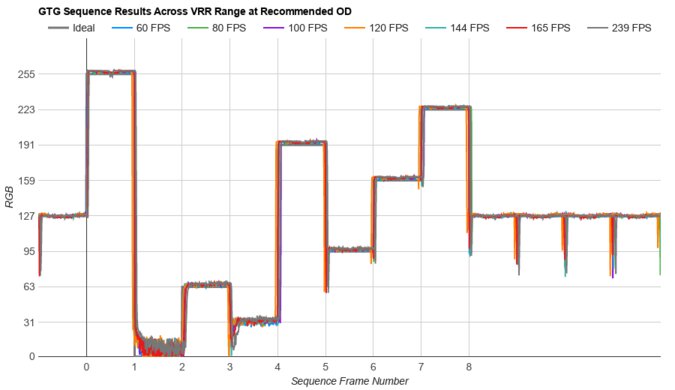
    See details on graph tool
    Recommended VRR OD Setting
    Fast
    Variable Overdrive Advertised
    No
    Avg. CAD
    183
    Best CAD
    180
    Worst CAD
    187

    Frame Rate CAD Heatmap RT Chart Pursuit Photo
    179 Heatmap Chart Photo
    165 Heatmap Chart Photo
    144 Heatmap Chart Photo
    120 Heatmap Chart Photo
    100 Heatmap Chart Photo
    80 Heatmap Chart Photo
    60 Heatmap Chart Photo

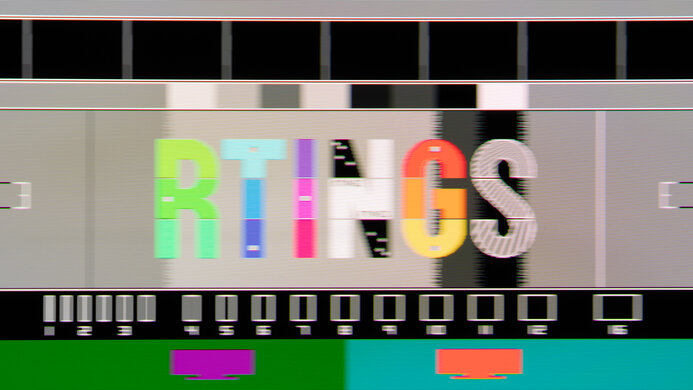
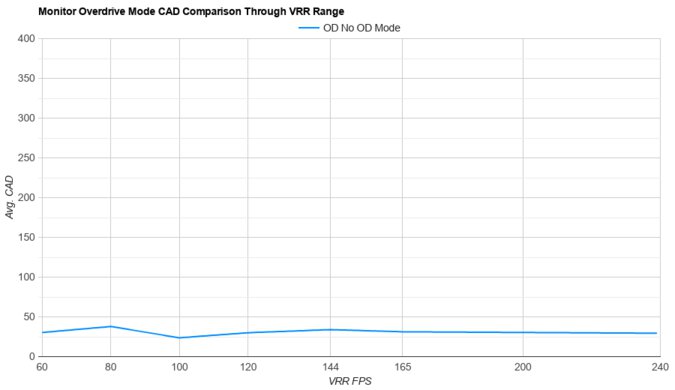
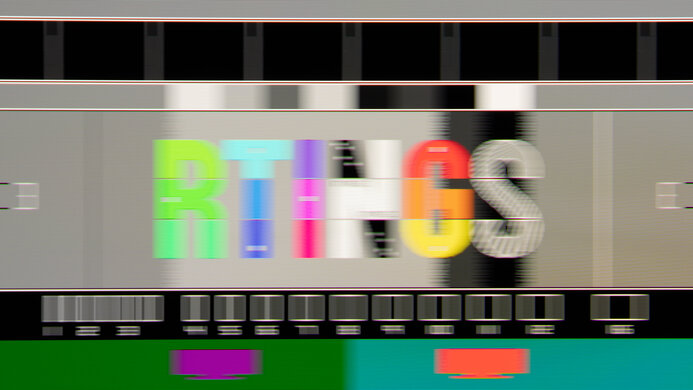
    The Dell AW3225DM has good motion handling across its VRR range. The 'Fast' Response Time setting is very consistent as the frame rate drops. However, it has a bit of smear, and there are dark trails behind fast-moving objects if a given part of the screen changes color or transitions from black to something moderately bright.

    7.7
    Refresh Rate Compliance
    See details on graph tool
    See details on graph tool
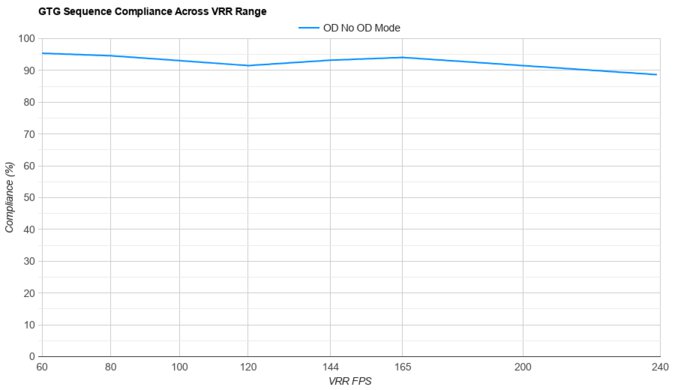
    Compliance @ Max Hz
    50%
    Compliance @ 120 FPS
    62%
    Compliance @ 60 FPS
    79%

    The refresh rate compliance is good. However, it's not fast enough to make full color transitions between some frames.

    8.2
    CAD @ Max Refresh Rate
    OD Transition Max Refresh Rate
    od-transition-max-refresh-rate-extreme-0-31
    OD extreme
    0 to 31
    Recommended Overdrive Setting
    Super Fast VRR Off
    Avg. CAD
    128
    Best 10% CAD
    50
    Worst 10% CAD
    210

    Overdrive Mode VRR CAD Heatmap RT Chart Pursuit Photo
    Fast On Heatmap Chart Photo
    Super Fast On Heatmap Chart Photo
    Extreme On Heatmap Chart Photo
    Fast Off Heatmap Chart Photo
    Super Fast Off Heatmap Chart Photo
    Extreme Off Heatmap Chart Photo

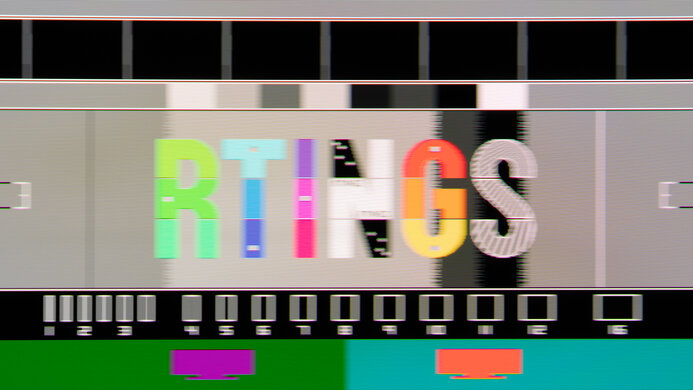
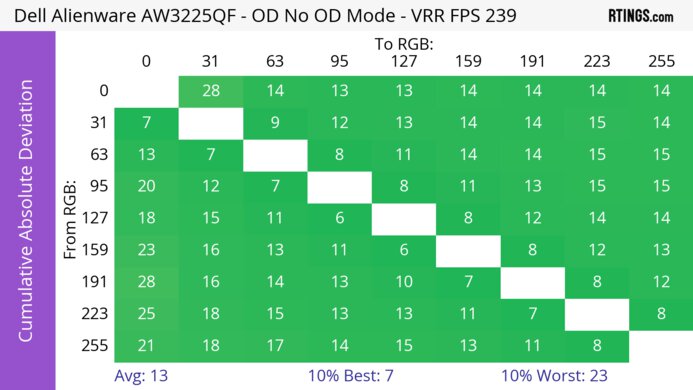
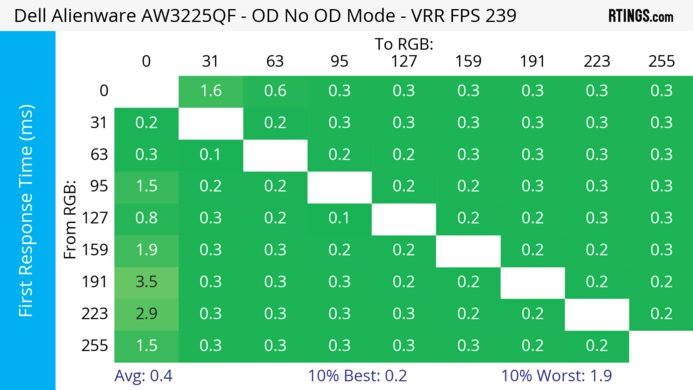
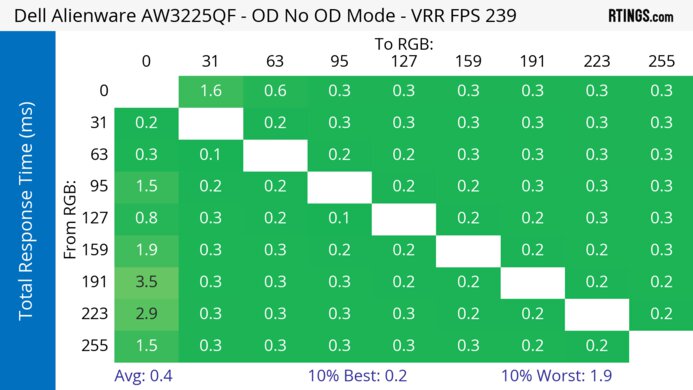
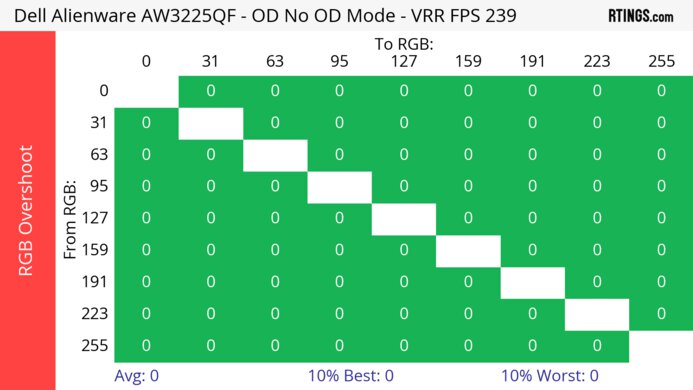
    The CAD at the max refresh rate is impressive. As is often the case with Dell monitors, motion handling differs depending on whether VRR is enabled. The 'Super Fast' Response Time setting with VRR off has the best motion handling, as it has a faster response time than 'Fast' and much less overshoot than 'Extreme'. Also, motion handling is worse if VRR is on.

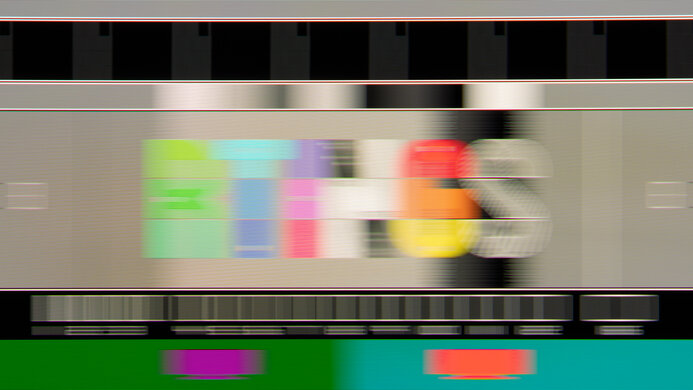
    This monitor has a bit of smear, so if a given part of the screen changes color or transitions from black to something moderately bright, there are dark trails behind fast-moving objects.

    Response Time @ Max Refresh Rate
    Recommended Overdrive Setting
    Super Fast VRR Off
    First Response Time
    4.1 ms
    Total Response Time
    4.8 ms
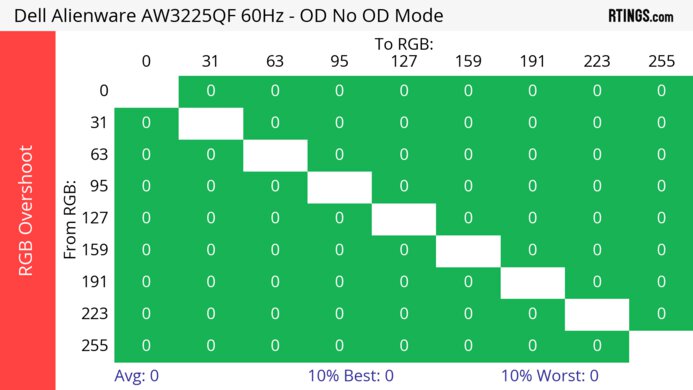
    RGB Overshoot
    1 RGB
    Worst 10% First Response Time
    7.3 ms
    Worst 10% Total Response Time
    7.6 ms
    Worst 10% RGB Overshoot
    6 RGB

    Overdrive Mode VRR First Response Heatmap Total Response Heatmap RGB Overshoot Heatmap
    Fast On Heatmap Heatmap Heatmap
    Super Fast On Heatmap Heatmap Heatmap
    Extreme On Heatmap Heatmap Heatmap
    Fast Off Heatmap Heatmap Heatmap
    Super Fast Off Heatmap Heatmap Heatmap
    Extreme Off Heatmap Heatmap Heatmap

    7.8
    CAD @ 120Hz
    OD Transition 120Hz
    od-transition-120-extreme-0-31
    OD extreme
    0 to 31
    Recommended Overdrive Setting
    Super Fast VRR Off
    Avg. CAD
    150
    Best 10% CAD
    53
    Worst 10% CAD
    266

    Overdrive Mode VRR CAD Heatmap RT Chart Pursuit Photo
    Fast On Heatmap Chart Photo
    Super Fast On Heatmap Chart Photo
    Extreme On Heatmap Chart Photo
    Fast Off Heatmap Chart Photo
    Super Fast Off Heatmap Chart Photo
    Extreme Off Heatmap Chart Photo

    The CAD at 120Hz is very good. Motion handling performance differs depending on whether you have VRR enabled. The 'Super Fast' Response Time setting with VRR off has the best motion handling, as it has a faster first response time than 'Fast' and less overshoot than 'Extreme'. Also, motion handling is worse if you enable VRR with 'Super Fast' and 'Extreme', but not with 'Fast'.

    This monitor has a bit of smear, so if a given part of the screen changes color or transitions from black to something moderately bright, there are dark trails behind fast-moving objects.

    Response Time @ 120Hz
    Recommended Overdrive Setting
    Super Fast VRR Off
    First Response Time
    4.8 ms
    Total Response Time
    6.7 ms
    RGB Overshoot
    2 RGB
    Worst 10% First Response Time
    8.0 ms
    Worst 10% Total Response Time
    9.4 ms
    Worst 10% RGB Overshoot
    7 RGB

    Overdrive Mode VRR First Response Heatmap Total Response Heatmap RGB Overshoot Heatmap
    Fast On Heatmap Heatmap Heatmap
    Super Fast On Heatmap Heatmap Heatmap
    Extreme On Heatmap Heatmap Heatmap
    Fast Off Heatmap Heatmap Heatmap
    Super Fast Off Heatmap Heatmap Heatmap
    Extreme Off Heatmap Heatmap Heatmap

    7.4
    CAD @ 60Hz
    OD Transition 60Hz
    od-transition-60-extreme-0-31
    OD extreme
    0 to 31
    Recommended Overdrive Setting
    Fast VRR Off
    Avg. CAD
    177
    Best 10% CAD
    57
    Worst 10% CAD
    340

    Overdrive Mode VRR CAD Heatmap RT Chart Pursuit Photo
    Fast On Heatmap Chart Photo
    Super Fast On Heatmap Chart Photo
    Extreme On Heatmap Chart Photo
    Fast Off Heatmap Chart Photo
    Super Fast Off Heatmap Chart Photo
    Extreme Off Heatmap Chart Photo

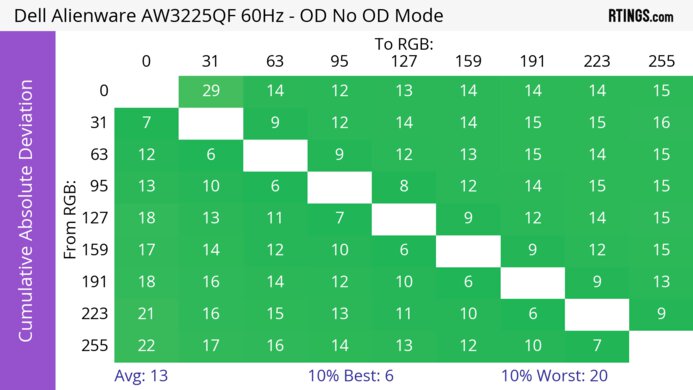
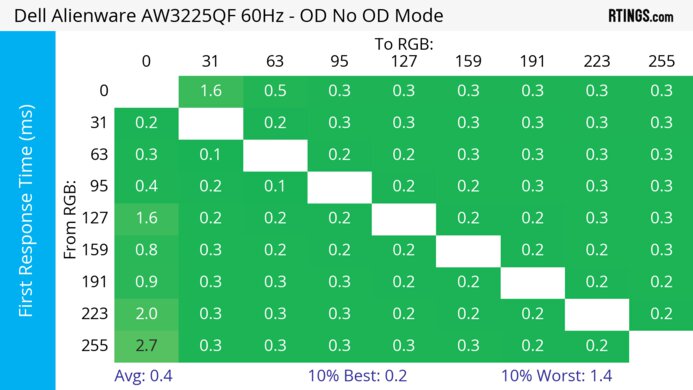
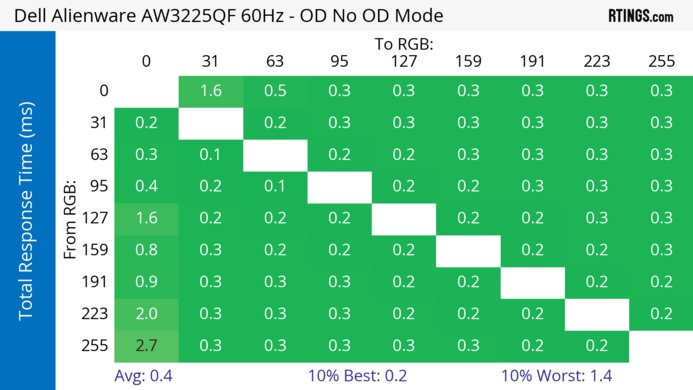
    The CAD at 60Hz is decent. Motion handling performance differs depending on whether you have VRR enabled. The 'Fast' Response Time setting with VRR off has the best motion handling, as it has the fastest response time and the least overshoot. Additionally, motion handling is worse if VRR is on.

    This monitor has a bit of smear, so if a given part of the screen changes color or transitions from black to something moderately bright, there are dark trails behind fast-moving objects.

    Response Time @ 60Hz
    Recommended Overdrive Setting
    Fast VRR Off
    First Response Time
    7.1 ms
    Total Response Time
    7.1 ms
    RGB Overshoot
    0 RGB
    Worst 10% First Response Time
    14.0 ms
    Worst 10% Total Response Time
    14.0 ms
    Worst 10% RGB Overshoot
    0 RGB

    Overdrive Mode VRR First Response Heatmap Total Response Heatmap RGB Overshoot Heatmap
    Fast On Heatmap Heatmap Heatmap
    Super Fast On Heatmap Heatmap Heatmap
    Extreme On Heatmap Heatmap Heatmap
    Fast Off Heatmap Heatmap Heatmap
    Super Fast Off Heatmap Heatmap Heatmap
    Extreme Off Heatmap Heatmap Heatmap

    Backlight Strobing (BFI)
    Backlight Strobing (BFI)
    No BFI
    Maximum Frequency
    N/A
    Minimum Frequency
    N/A
    Longest Pulse Width Brightness
    N/A
    Shortest Pulse Width Brightness
    N/A
    Pulse Width Control
    No BFI
    Pulse Phase Control
    No BFI
    Pulse Amplitude Control
    No BFI
    VRR At The Same Time
    No BFI

    The Dell AW3225DM doesn't have a backlight strobing feature to reduce persistence blur.

    7.8
    VRR Flicker
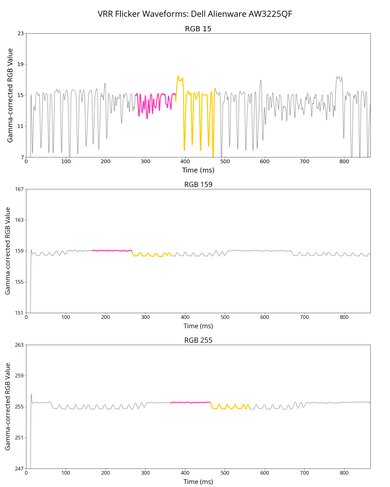
    Dark Gray Flicker
    1.8 RGB
    Middle Gray Flicker
    1.4 RGB
    Light Gray Flicker
    0.9 RGB

    The Dell AW3225DM has noticeable VRR flicker in dark scenes, and it's distracting in the darkest parts. You can see this most clearly at the bottom of the screen in the VRR flicker video. While the video is reflective of what you see in person with periodic frame rate changes, it looks better than in the video when there are random variations of the frame rate.

    In lighter scenes, there's minimal VRR flicker even in darker areas, and it's not very distracting. Additionally, with random frame rate variations, it looks even better and is less noticeable than with periodic frame rate changes. That said, there's a bit more flickering in real life than what the video shows in the light scene.

    10
    Image Flicker
    Flicker-Free
    Yes
    PWM Dimming Frequency
    0 Hz

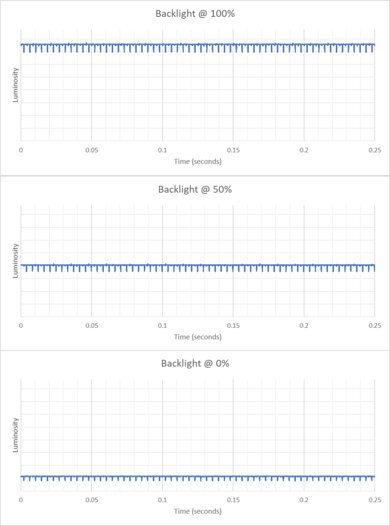
    The Dell AW3225DM doesn't use pulse-width modulation to dim its backlight and is flicker-free.

    Inputs
    8.9
    Input Lag
    Native Resolution @ Max Hz
    3.9 ms
    Native Resolution @ 120Hz
    5.3 ms
    Native Resolution @ 60Hz
    9.6 ms
    Backlight Strobing (BFI)
    N/A

    The input lag is very low, and the monitor feels responsive at any refresh rate.

    6.9
    Resolution
    Native Resolution
    2560 x 1440
    Aspect Ratio
    16:9
    Megapixels
    3.7 MP
    Pixel Density
    93 PPI
    7.1
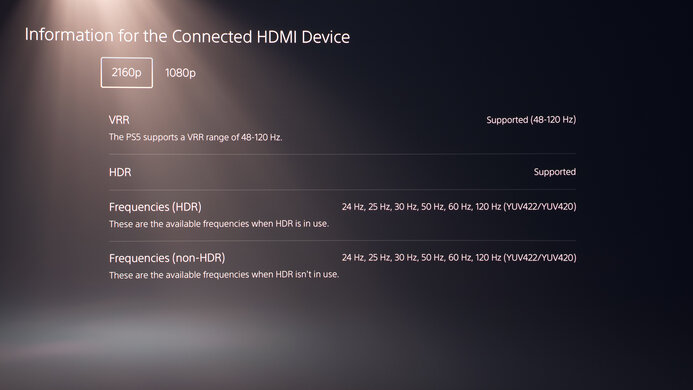
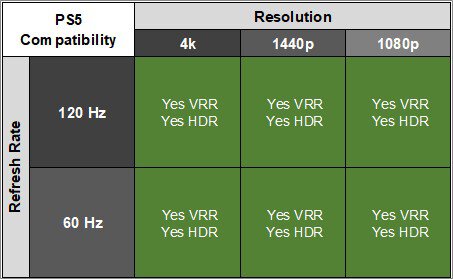
    PS5 Compatibility
    4k @ 120Hz
    No
    4k @ 60Hz
    Yes
    1440p @ 120Hz
    Yes
    1440p @ 60Hz
    Yes
    1080p @ 120Hz
    Yes
    1080p @ 60Hz
    Yes
    7.1
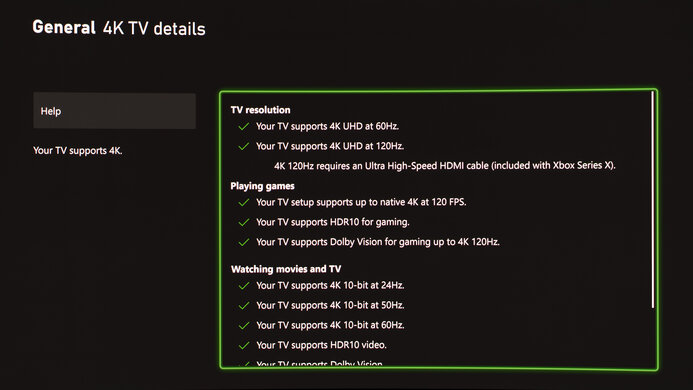
    Xbox Series X|S Compatibility
    4k @ 120Hz
    No
    4k @ 60Hz
    Yes
    1440p @ 120Hz
    Yes
    1440p @ 60Hz
    Yes
    1080p @ 120Hz
    Yes
    1080p @ 60Hz
    Yes

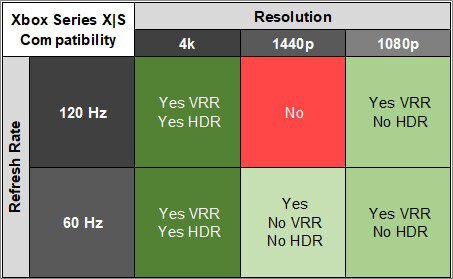
    The Xbox Series X|S only supports HDR with 4k signals, so this isn't a limitation of the monitor.

    Inputs
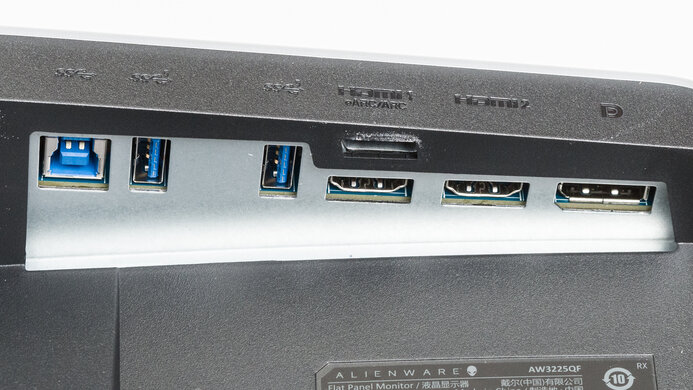
    DisplayPort
    1 (DP 1.4)
    DisplayPort Transmission Bandwidth
    No DisplayPort 2.1
    Mini DisplayPort
    No
    HDMI
    2 (HDMI 2.0)
    HDMI 2.1 Bandwidth
    No HDMI 2.1
    Daisy Chaining
    No
    3.5mm Audio Out
    No
    Ethernet
    No
    HDR10
    Yes
    Dolby Vision
    No

    While this monitor is limited to HDMI 2.0 bandwidth, it supports HDMI 2.1 features like HDMI Forum VRR.

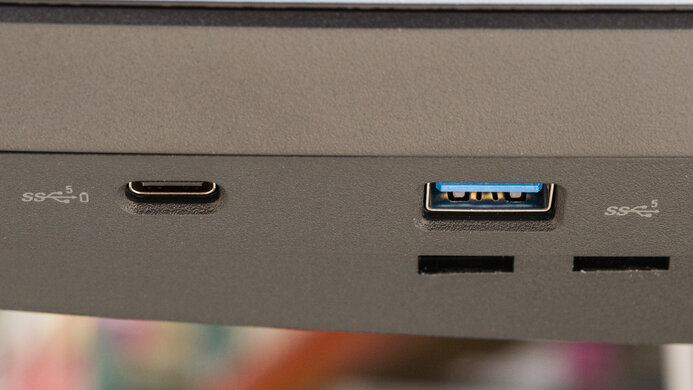
    USB
    USB-A Ports
    2
    USB-A Rated Speed
    5Gbps (USB 3.2 Gen 1)
    USB-B Upstream Port
    Yes
    USB-C Ports
    0
    USB-C Upstream
    No USB-C Ports
    USB-C Rated Speed
    No USB-C Ports
    USB-C Power Delivery
    No USB-C Ports
    USB-C DisplayPort Alt Mode
    No USB-C Ports
    Thunderbolt
    No
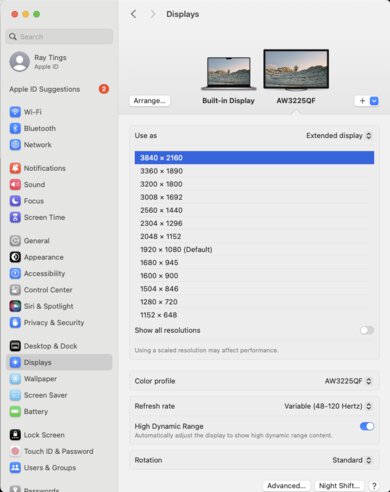
    macOS Compatibility

    Tested With: M2 MacBook Pro (Sequoia 15.5)

    Connection HDMI 2.1 DP/USB-C
    Max Refresh Rate 144Hz 180Hz
    VRR Range 48-144Hz 48-180Hz
    HDR Yes Yes

    The Dell AW3225DM works well with macOS. VRR works well and HDR looks good, though it looks slightly less saturated than the 'Standard' SDR Preset Mode. The 'Desktop', 'DisplayHDR', and 'Custom Color' Smart HDR modes look nearly identical. The image looks the same whether you're using DisplayPort or HDMI.

    If you're using a MacBook that's connected to power, closing the lid causes windows to migrate to the monitor over HDMI or DisplayPort. Additionally, they return to their previous position if you reopen the MacBook. 

    However, if you close the MacBook lid and power isn't connected, the MacBook goes to sleep. When you reopen the MacBook windows resume in their previous position.

    Features
    Additional Features
    Speakers
    No
    RGB Illumination
    No
    Multiple Input Display
    PIP + PBP
    KVM Switch
    No
    Smart OS
    No

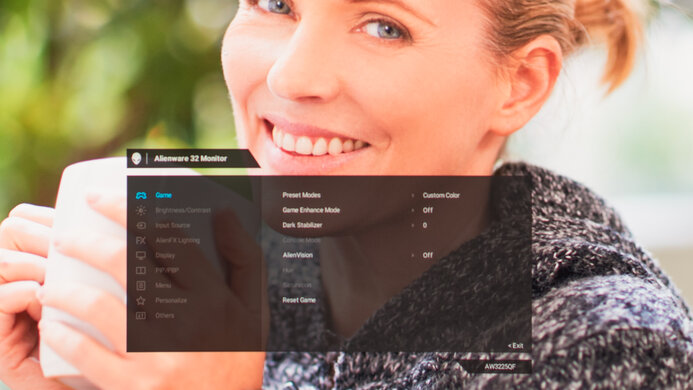
    This monitor has additional features, including:

    • PIP/PBP: Numerous placement and position options for viewing two input signals at the same time.
    • Game Enhance Mode: Includes gaming-specific options such as Timer, Frame Rate, and Display Alignment.
    • Dark Stabilizer: Increases the visibility of dark parts of scenes so it's easier to see opponents.
    • AlienVision: Allows for customizable crosshairs.
    • Aspect Ratio: Lets you change the aspect ratio, including to 4:3.
    On-Screen Display (OSD)