BenQ PD3225U  Monitor Review

Reviewed May 16, 2025 at 01:01pm
Test bench update Nov 10, 2025 at 09:02am
Tested using Methodology v2.1.1 
BenQ PD3225U
6.0
PC Gaming 
4.6
Console Gaming 
8.1
Office 
7.8
Editing 
7.3
Brightness 
4.7
Response Time 
5.4
HDR Picture 
7.6
SDR Picture 
 6

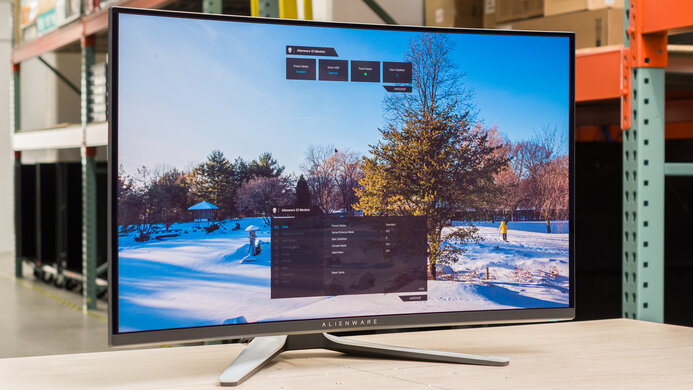
The BenQ PD3225U is a premium 32-inch 4k productivity monitor. It competes with other high-end 32-inch monitors like the Dell U3225QE and the ASUS ProArt PA329CRV. It's a newer version of the BenQ PD3220U, adding features such as an IPS Black display for deeper blacks. It's also available in a 27-inch version, the PD2725U, though it performs differently. The PD3225U has several unique features, such as a HotKey Puck for easily changing settings, the ability to display two color modes side-by-side, and close integration with macOS. It also comes with features commonly found on high-end office monitors like Thunderbolt 3 support, a KVM switch, and 85W of power delivery.

How We Test Monitors

We buy and test more than 30 monitors each year, with units that we buy completely on our own, without any cherry-picked units or samples. We put a lot into each unbiased, straight-to-the-point review, and there's a whole process from purchasing to publishing, involving multiple teams and people. We do more than just use the monitor for a week; we use specialized and custom tools to measure various aspects with objective data-based results. We also consider multiple factors before making any recommendations, including the monitor's cost, its performance against the competition, and whether or not it's easy to find.

Our Verdict

6.0
PC Gaming 

The BenQ PD3225U is passable for PC gaming. It displays a wide range of fairly accurate colors. However, its colors aren't very vivid in HDR, and it doesn't get bright enough for highlights to pop. It also has bad motion handling, and its 60Hz refresh rate means it doesn't feel responsive, despite its low input lag. That said, while this means it's not well suited to fast-paced games, it's a decent choice for slower-paced games such as text-heavy RPGs and turn-based strategy games where there's less fast motion.

Pros
  • Displays a wide range of colors in HDR.

Cons
  • Fast-moving objects look blurry.

  • No local dimming feature.

  • Highlights don't pop in HDR.

  • Doesn't support VRR.

  • Maximum 60Hz refresh rate.

4.6
Console Gaming 

The BenQ PD3225U is bad for console gaming. It can't display 120Hz signals, and it doesn't support VRR. Additionally, while it displays a wide range of colors in HDR, they aren't very vivid, and it doesn't get bright enough for highlights to pop. Finally, it has bad motion handling, so it doesn't work well for playing fast-paced games.

Pros
  • Displays a wide range of colors in HDR.

Cons
  • Fast-moving objects look blurry.

  • No local dimming feature.

  • Highlights don't pop in HDR.

  • Doesn't support VRR.

  • Maximum 60Hz refresh rate.

8.1
Office 

The BenQ PD3225U is great for office work. It has excellent ergonomics and fantastic text clarity. It's also bright enough for most environments, though bright glare can make it more difficult to see because of its disappointing reflection handling. It also has good connectivity, with up to 85W of power delivery and a KVM switch, allowing you to switch between two different computers while using the same devices. Additionally, it has Thunderbolt 3 and daisy chaining support, so you can connect another monitor directly to the BenQ.

Pros
  • Bright enough for most environments.

  • Wide viewing angles.

  • Excellent ergonomics.

  • Fantastic text and image clarity.

  • KVM switch and 85W power delivery over USB-C.

Cons
  • Reflections from bright glare is distracting.

7.8
Editing 

The BenQ PD3225U is very good for editing. It's fairly accurate before calibration, though you need to calibrate it for the most accurate image. It also displays a wide range of colors. Finally, it has a number of unique features for editors, such as Display Pilot 2 and Palette Master Ultimate software to assist with monitor configuration and color tuning. However, it's not a good choice for editing HDR content, as it doesn't get bright enough for highlights to pop. It also doesn't work well for editing fast-moving content, as it has bad motion handling.

Pros
  • Bright enough for most environments.

  • Wide viewing angles.

  • Excellent ergonomics.

  • Fantastic text and image clarity.

  • KVM switch and 85W power delivery over USB-C.

  • Displays a wide range of colors in HDR.

  • Fairly accurate before calibration.

Cons
  • Reflections from bright glare is distracting.

  • No local dimming feature.

  • Highlights don't pop in HDR.

  • Very cold color temperature before calibration.

7.3
Brightness 

The BenQ PD3225U has decent brightness, though it doesn't overcome bright glare. It also doesn't get bright enough for highlights to pop in HDR.

Pros
  • Bright enough for most environments.

Cons
  • Reflections from bright glare is distracting.

  • Highlights don't pop in HDR.

4.7
Response Time 

The BenQ PD3225U has a bad response time. Fast-moving objects look quite blurry, and it's not well suited to editing videos with lots of motion or playing fast-moving games.

Pros
None
Cons
  • Fast-moving objects look blurry.

5.4
HDR Picture 

The BenQ PD3225U has disappointing HDR picture quality. While it displays a wide range of colors they aren't very vivid. Additionally, it has no local dimming system to help display deeper blacks.

Pros
  • Displays a wide range of colors in HDR.

Cons
  • No local dimming feature.

7.6
SDR Picture 

The BenQ PD3225U has good SDR picture quality. It displays a wide range of colors in SDR. However, you can see some backlight bleed and deep blacks appear somewhat gray in a dark room.

Pros
  • Decent black uniformity.

  • Displays a wide range of colors.

Cons
  • Deep blacks look somewhat gray.

8.4
Color Accuracy 

The BenQ PD3225U has great color accuracy. It's extremely accurate after calibration, though it has some issues with color temperature and color accuracy before calibration.

Pros
  • Fairly accurate before calibration.

  • Good gray uniformity.

Cons
  • Very cold color temperature before calibration.

  • 6.0
    PC Gaming
  • 4.6
    Console Gaming
  • 8.1
    Office
  • 7.8
    Editing

  • Performance Usages

  • 7.3
    Brightness
  • 4.7
    Response Time
  • 5.4
    HDR Picture
  • 7.6
    SDR Picture
  • 8.4
    Color Accuracy
  • Changelog

    1.  Updated Nov 10, 2025: We've converted this review to Test Bench 2.1.1. We removed the Vertical Viewing Angle test.
    2.  Updated Aug 11, 2025: 

      We changed the Screen Finish from 'Semi-Gloss' to 'Matte' to better reflect how its coating interacts with light.

    3.  Updated Jun 25, 2025: 

      We updated text throughout to match the new and updated tests with Test Bench 2.1, including in the Verdict section.

    4.  Updated Jun 25, 2025: We've converted this review to Test Bench 2.1. This includes new tests for Direct Reflections, Ambient Black Level Raise, and Total Reflected Light. You can see all the changes in the changelog.

    Check Price

    Differences Between Sizes And Variants

    We tested the 32-inch BenQ PD3225U, which is similar to several other monitors in BenQ's DesignVue series. You can also get it in a smaller 27-inch size, though that version performs differently. You can see the major differences between these monitors below. These results are only valid for this model.

    Model Size Resolution Panel Type Connectivity Power Delivery Refresh Rate
    PD3225U 32" 4k IPS Black Thunderbolt 3 85W 60Hz
    PD3205U 32" 4k IPS USB-C 90W 60Hz
    PD3226G 32" 4k IPS Thunderbolt 4 90W 144Hz
    PD2725U 27" 4k IPS Thunderbolt 3 65W 60Hz

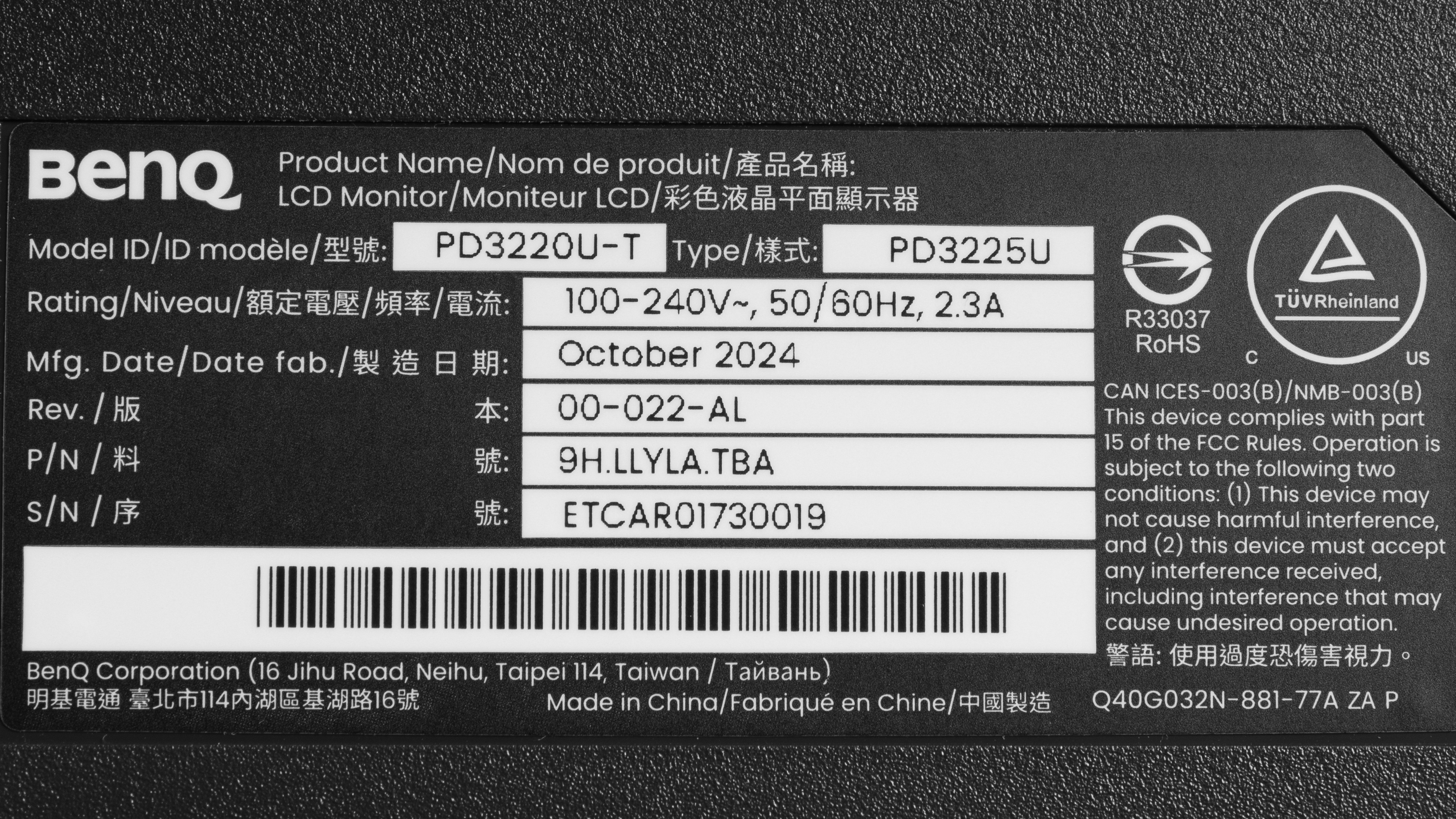
    Our unit's label indicates it was manufactured in October 2024. It was tested with firmware V025.

    Popular Monitor Comparisons

    The BenQ PD3225U is a premium 32-inch 4k productivity monitor. It has a number of unique features, such as the ability to display two color modes side-by-side and a HotKey Puck to change settings with a connected remote. It also has some additional software features for editors, such as Display Pilot 2 for monitor tuning. If these features are important to you, then the BenQ can be a good, if expensive, choice. That said, it lacks some of the features and performance of one of its primary premium competitors, the Dell U3225QE. The Dell has a more responsive 120Hz refresh rate, provides more power delivery, has Thunderbolt 4 support, gets much brighter, and displays colors more vividly and accurately, for a similar cost. As a result, the Dell is generally a better choice unless you want the BenQ's unique features.

    See our recommendations for the best 4k monitors, the best work monitors, and the best 32-inch monitors.

    Dell U3225QE

    The Dell U3225QE and the BenQ PD3225U are both 32-inch 4k productivity and editing monitors. The Dell is the better option for most people, as it has a higher, more responsive refresh rate, gets much brighter, displays colors more vividly and accurately, and has better connectivity. However, the BenQ has some unique features. If you want to use its HotKey Puck for quick settings adjustments or its dedicated software for editors, you may prefer it.

    Apple Studio Display

    The Apple Studio Display and the BenQ PD3225U are both productivity and editing monitors. The Apple Studio Display isn't well-suited to Windows PCs. However, if you have a macOS device, the Studio Display is a better choice for bright rooms, as it gets much brighter and has better reflection handling. It's also a better choice if you don't plan to calibrate the display, as it's more accurate before calibration. However, the BenQ is a better choice for PCs, and for those in dark rooms, as it displays deeper blacks.

    Dell U3223QE

    The Dell U3223QE and the BenQ PD3225U are both 32-inch, 4k productivity monitors. Both monitors perform similarly, and unless you're looking for special features, for most people the best option is whichever you can find for less. That said, the BenQ does have some unique features, such as a HotKey Puck for easier monitor control as well as some added software features.

    ASUS ProArt Display PA279CRV

    The ASUS ProArt Display PA279CRV and the BenQ PD3225U are 4k productivity and editing monitors. The BenQ has unique features such as a HotKey Puck and an IPS Black display for deeper blacks in a dark room. It also has a larger screen than the ASUS. However, the ASUS is in a lower price category and offers similar performance, apart from its worse contrast. As a result, if it offers everything you want, you may find it a better value.
    Test Results

    perceptual testing image
    Sort:
    RATINGS
    Category:
    All
    Design
    Style
    Curved
    No
    Curve Radius
    Not Curved

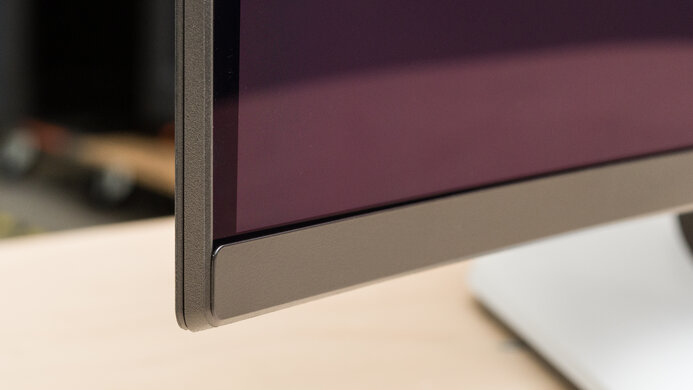
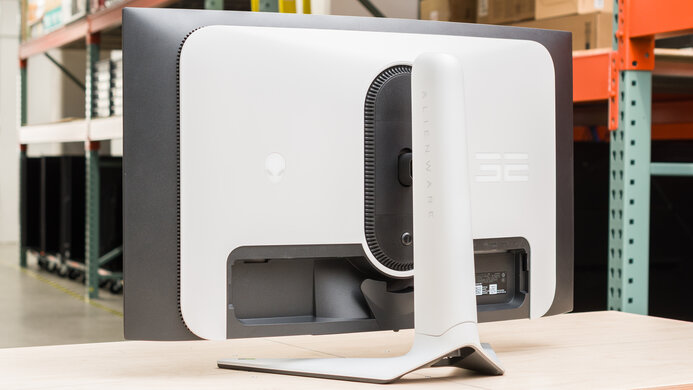
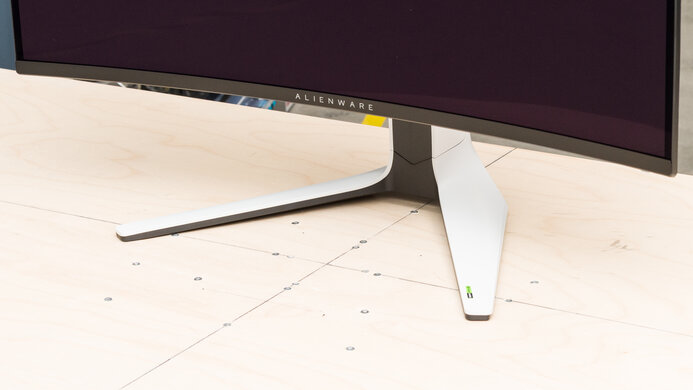
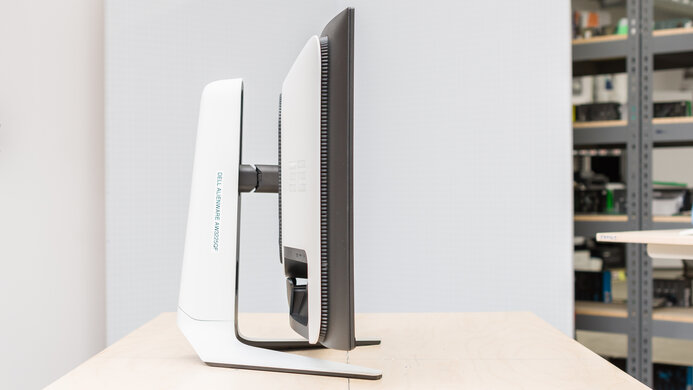
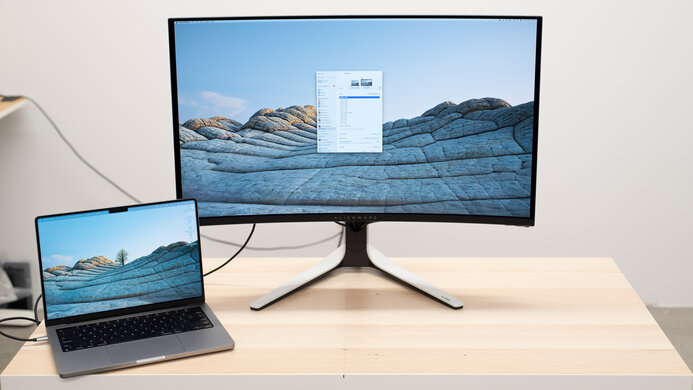
    The BenQ PD3225U has a square, straightforward look that works well in an office environment. While the monitor is black, the stand is a gray-bronze.

    8.0
    Build Quality

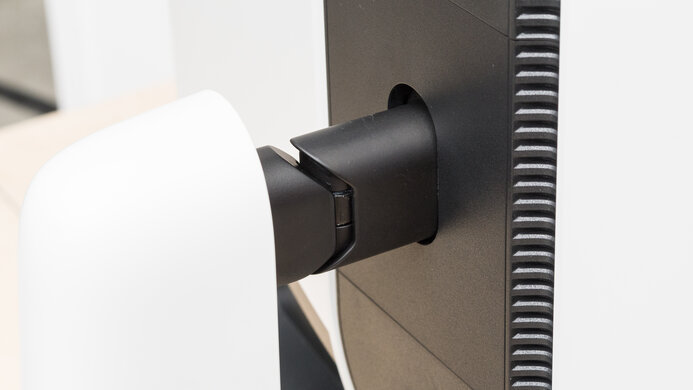
    The build quality is great. The monitor's back and sides are sturdy, with almost no flex. The base of the stand is a solid metal plate, and adjustments are smooth and accurate. Additionally, the HotKey puck is very solid, and the adjustment dial has a good, tactile response.

    8.5
    Ergonomics
    Min Height To Top Of Panel
    18.6" (47.2 cm)
    Height Adjustment
    5.7" (14.4 cm)
    Tilt Range
    -17.5° to 2.5°
    Rotate Portrait/Landscape
    Yes, Clockwise
    Swivel Range
    -30° to 30°
    Wall Mount
    VESA 100x100

    The ergonomics are excellent. You can make any common adjustment with it, and the monitor adjusts easily. The stand features a loop for cable management.

    Stand
    Base Width
    13.5" (34.3 cm)
    Base Depth
    10.0" (25.5 cm)
    Thickness (With Display)
    6.7" (17.0 cm)
    Weight (With Display)
    21.3 lbs (9.7 kg)

    The monitor has very little wobble, and recovers quickly when bumped. The large metal stand base provides a lot of stability, and its rubber feet ensure the monitor doesn't move around unless it's lifted. The weight measurement doesn't include the optional plastic I/O cover, which adds 0.4 lbs (0.2 kg).

    Display
    Size
    32"
    Housing Width
    28.2" (71.6 cm)
    Housing Height
    16.3" (41.3 cm)
    Thickness (Without Stand)
    2.8" (7.0 cm)
    Weight (Without Stand)
    14.2 lbs (6.4 kg)
    Borders Size (Bezels)
    0.4" (1.1 cm)
    Controls

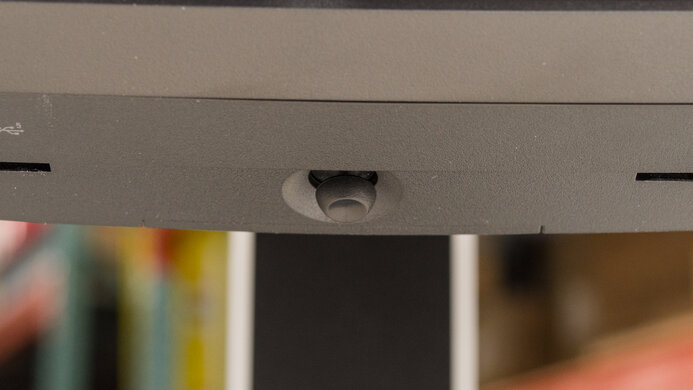
    The rear of the monitor has a power button, a joystick to control the on-screen display, as well as two configurable hotkey buttons.

    This monitor also has the external Hotkey Puck G2. You can use the dial to adjust brightness, contrast, volume, and you can assign shortcuts to the three function keys.

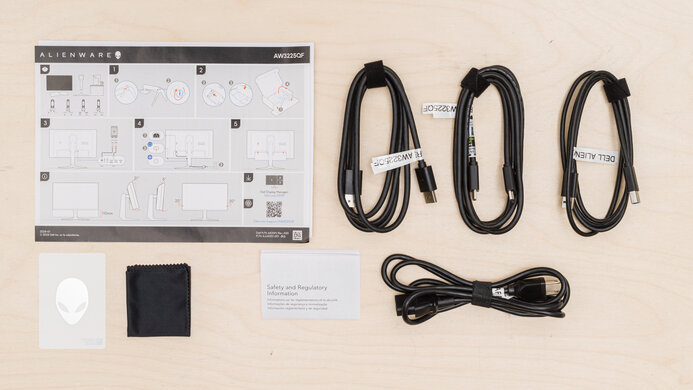
    In The Box
    Power Supply
    Internal

    • Hotkey Puck G2
    • HDMI cable
    • DisplayPort cable
    • USB-C to USB-C cable
    • USB-A to USB-B cable
    • I/O cover (not pictured here)
    • Power cable
    • Documentation
    Picture Quality
    7.2
    Contrast
    Native Contrast
    2,072 : 1
    Contrast With Local Dimming
    N/A

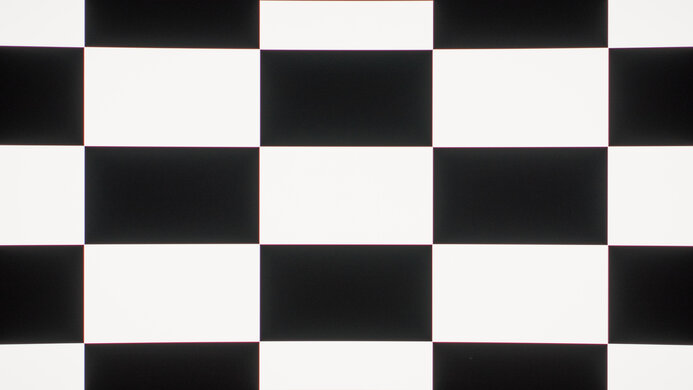
    The contrast ratio is decent. It has an IPS Black display, so it gets darker than most IPS monitors. However, deep blacks still look somewhat gray in a dark room. It doesn't have a local dimming feature to improve contrast further.

    We measured contrast with Uniformity 'Off'. With Uniformity 'On' the contrast is reduced to 1268:1. However, despite it making the display much more uniform edge-to-edge, it also decreased the brightness of the center square from 334 cd/m² to 216 cd/m². Because of this significant brightness drop we left Uniformity 'Off' throughout testing unless otherwise noted.

    0.0
    Local Dimming
    Local Dimming
    No
    Backlight
    Edge

    Though the BenQ PD3225U doesn't have local dimming, we still film these videos so you can compare the backlight performance with a monitor that has local dimming.

    7.9
    SDR Brightness
    Real Scene
    334 cd/m²
    Peak 2% Window
    346 cd/m²
    Peak 10% Window
    346 cd/m²
    Peak 25% Window
    346 cd/m²
    Peak 50% Window
    347 cd/m²
    Peak 100% Window
    347 cd/m²
    Sustained 2% Window
    346 cd/m²
    Sustained 10% Window
    346 cd/m²
    Sustained 25% Window
    346 cd/m²
    Sustained 50% Window
    347 cd/m²
    Sustained 100% Window
    347 cd/m²
    Automatic Brightness Limiting (ABL)
    0.000
    Minimum Brightness
    24 cd/m²

    Settings

    • Color Mode: User (after calibration)
    • Brightness: Max
    • Uniformity: Off

    The SDR brightness is very good. It overcomes all but bright glare, and has a consistent brightness level with changing content.

    The Minimum Brightness measurement is with Uniformity 'On'. When it's 'Off' the Minimum Brightness increases to 40 cd/m².

    6.9
    HDR Brightness
    VESA DisplayHDR Certification
    DisplayHDR 400 - 1.0/1.1
    Real Scene
    422 cd/m²
    Peak 2% Window
    432 cd/m²
    Peak 10% Window
    433 cd/m²
    Peak 25% Window
    433 cd/m²
    Peak 50% Window
    433 cd/m²
    Peak 100% Window
    433 cd/m²
    Sustained 2% Window
    432 cd/m²
    Sustained 10% Window
    432 cd/m²
    Sustained 25% Window
    432 cd/m²
    Sustained 50% Window
    432 cd/m²
    Sustained 100% Window
    432 cd/m²
    Automatic Brightness Limiting (ABL)
    0.000

    Settings

    • Color Mode: HDR
    • Brightness: Max
    • RGB Range: Limited

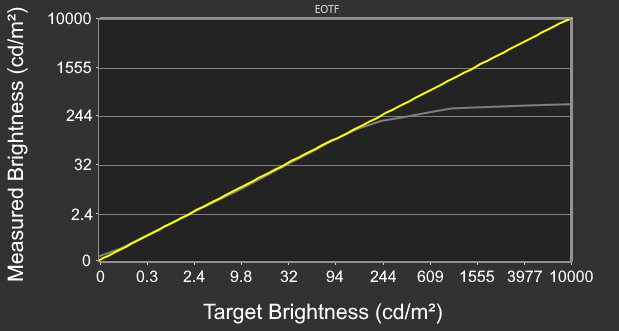
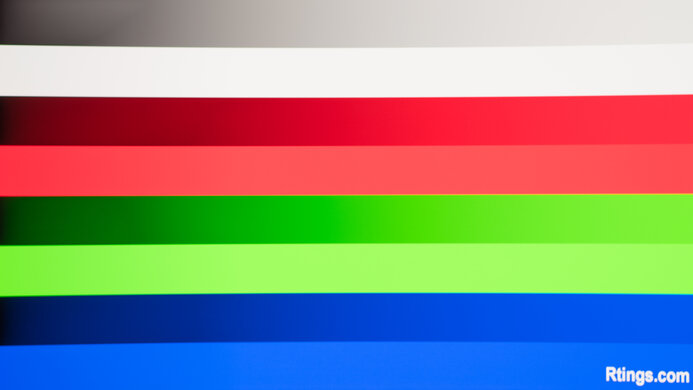
    The HDR brightness is adequate. Though it's bright enough to overcome most glare, highlights don't pop. Additionally, it doesn't follow the PQ EOTF curve well in very dark or bright scenes. Very deep grays appear a lighter shade of gray, and because of the long roll-off in the PQ EOTF above 100 cd/m², highlights don't get as bright as they could. If you set the RGB Range to 'Auto' instead of 'Limited', the results are nearly the same.

    7.7
    Gray Uniformity
    50% Std. Dev.
    2.531%
    50% DSE
    0.168%

    Settings

    Uniformity: Off

    The gray uniformity is good. While it's fairly uniform in the middle, it gets darker at the sides, particularly at the right side. 

    These results are with Uniformity 'Off', as we use this setting throughout the review for the improved contrast and brightness it provides. If you turn Uniformity 'On' the gray uniformity looks far better.

    7.0
    Black Uniformity
    Native Std. Dev.
    1.288%
    Std. Dev. w/ L.D.
    N/A

    Settings

    Uniformity: Off

    The black uniformity is satisfactory, though there's backlight bleed along the top and bottom of the display. If you turn Uniformity 'On' you can see that black levels rise considerably. 

    8.1
    Color Accuracy (Pre-Calibration)
    Picture Mode
    Color Mode (sRGB)
    sRGB Gamut Area xy
    100.6%
    White Balance dE (Avg.)
    4.84
    Color Temperature (Avg.)
    7,618 K
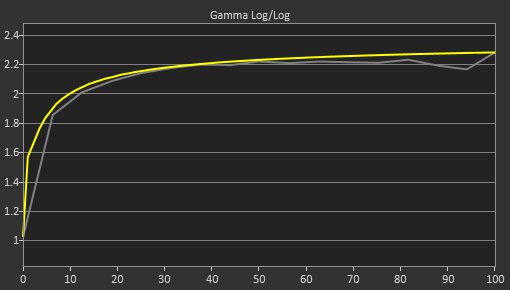
    Gamma (Avg.)
    2.15
    Color dE (Avg.)
    3.18
    Contrast Setting
    50
    RGB Settings
    Default
    Gamma Setting
    Default
    Brightness Setting
    43
    Measured Brightness
    208 cd/m²
    Brightness Locked
    No

    Settings

    • Uniformity: Off

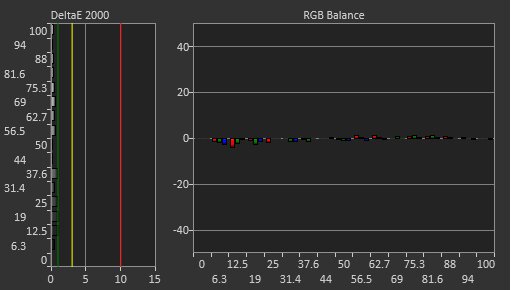
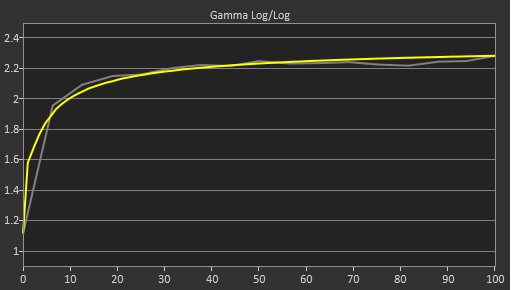
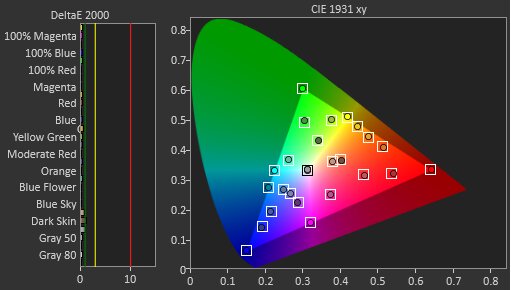
    The accuracy before calibration is very good in the sRGB Color Mode. Colors are almost perfectly locked to the sRGB gamut, and gamma follows the target curve well, though it displays bright parts of scenes a bit too brightly. However, its color accuracy is just decent, and its white balance is mediocre. Its color temperature is also quite cold.

    If you turn Uniformity 'On', the default brightness in 'sRGB' is 77. However, doing so reduces color and gamma accuracy, and the color temperature is even colder at 7789 K.

    Locked-Out Settings

    The 'sRGB' Color Mode locks out the following settings

    • Contrast
    • Color Temperature
    • Gamma
    • Color gamut
    • Hue
    • Saturation

    If you want to access these settings, you need to use another mode like 'User,' though it's less accurate.

    9.8
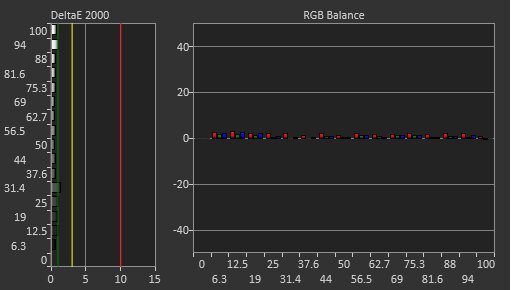
    Color Accuracy (Post-Calibration)
    Picture Mode
    Color Mode (User)
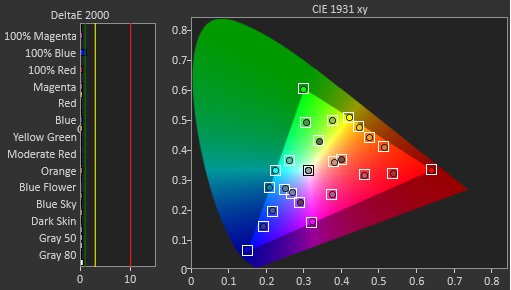
    sRGB Gamut Area xy
    98.7%
    White Balance dE (Avg.)
    0.43
    Color Temperature (Avg.)
    6,524 K
    Gamma (Avg.)
    2.19
    Color dE (Avg.)
    0.32
    Contrast Setting
    50
    RGB Settings
    100-93-89
    Gamma Setting
    2.2
    Brightness Setting
    18
    Measured Brightness
    101 cd/m²
    ICC Profile
    Download

    Settings

    • Color Mode: User
    • Color Temperature: User Define: 100-93-89
    • Uniformity: Off

    The accuracy after calibration is fantastic, and you won't notice any inaccuracies.

    9.4
    SDR Color Gamut
    sRGB Coverage xy
    98.3%
    sRGB Picture Mode
    Color Mode (User)
    Adobe RGB Coverage xy
    89.7%
    Adobe RGB Picture Mode
    Color Mode (User)

    Settings

    • Color Gamut:
      • For sRGB testing: sRGB
      • For aRGB testing: Native

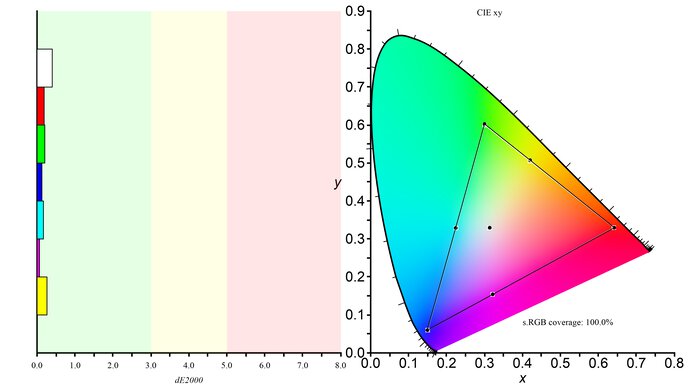
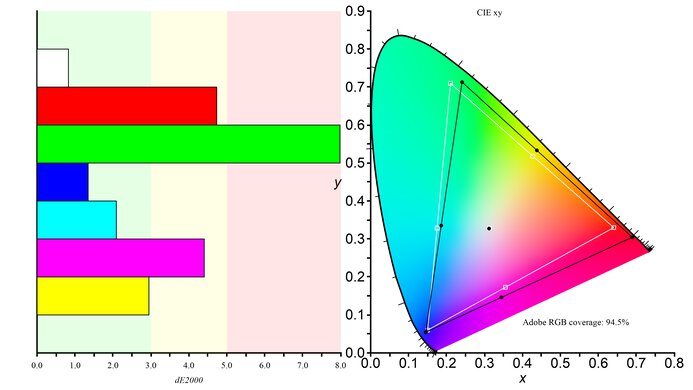
    The SDR color gamut is superb. It displays nearly all colors in the sRGB color space and has great coverage of Adobe RGB. However, green is quite inaccurate in Adobe RGB.

    9.1
    HDR Color Gamut
    Wide Color Gamut
    Yes
    DCI-P3 Coverage xy
    97.2%
    DCI-P3 Picture Mode
    HDR
    Rec. 2020 Coverage xy
    71.8%
    Rec. 2020 Picture Mode
    HDR

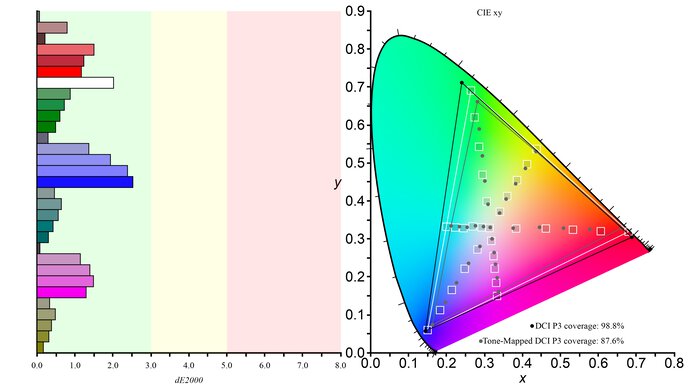
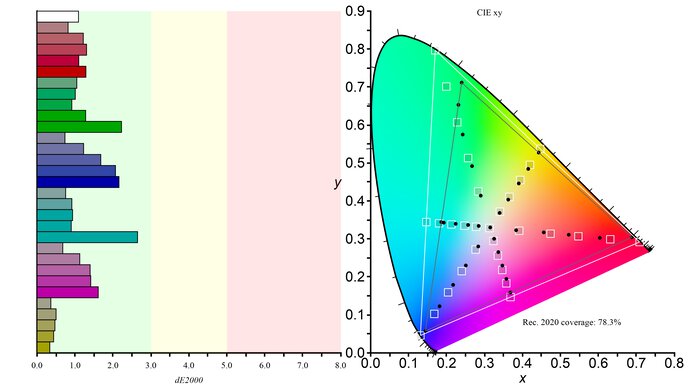
    The HDR color gamut is superb. It displays nearly all colors in the commonly used DCI-P3 color space, though it displays a more reduced range in Rec. 2020. While most colors are accurately displayed in both color spaces, white is inaccurate. 

    This monitor has one HDR picture mode, which it automatically locks into when it receives an HDR signal. The only color settings you can adjust in this mode are Saturation and RGB Range, though you can adjust non-picture settings such as Brightness, Contrast, and Sharpness. The Uniformity option isn't available when receiving an HDR signal.

    7.4
    HDR Color Volume
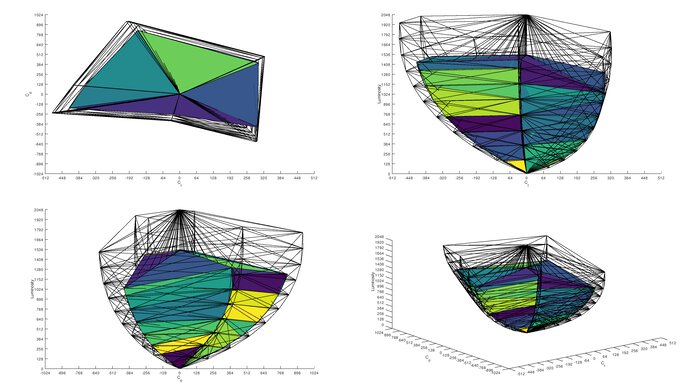
    1,000 cd/m² DCI-P3 Coverage ICtCp
    54.2%
    DCI-P3 Picture Mode
    HDR
    10,000 cd/m² Rec. 2020 Coverage ICtCp
    30.5%
    Rec. 2020 Picture Mode
    HDR

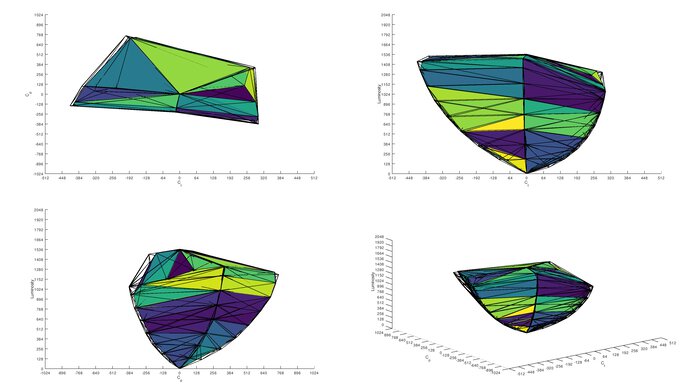
    The HDR color volume is decent. It doesn't display bright colors very vividly, and darker colors don't look good because of its limited contrast and lack of local dimming.

    8.5
    Viewing Angle
    Color Washout From Left
    45°
    Color Washout From Right
    45°
    Color Shift From Left
    67°
    Color Shift From Right
    70°
    Brightness Loss From Left
    46°
    Brightness Loss From Right
    46°
    Black Level Raise From Left
    70°
    Black Level Raise From Right
    70°
    Gamma Shift From Left
    52°
    Gamma Shift From Right
    52°

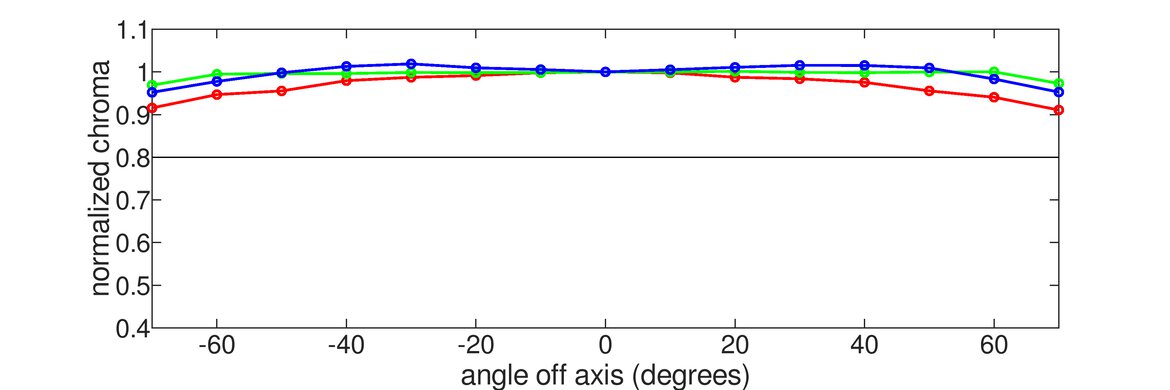
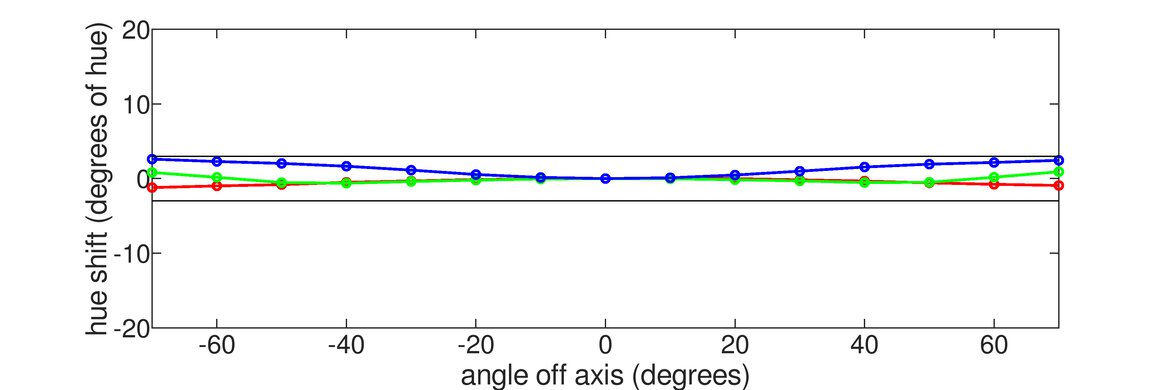
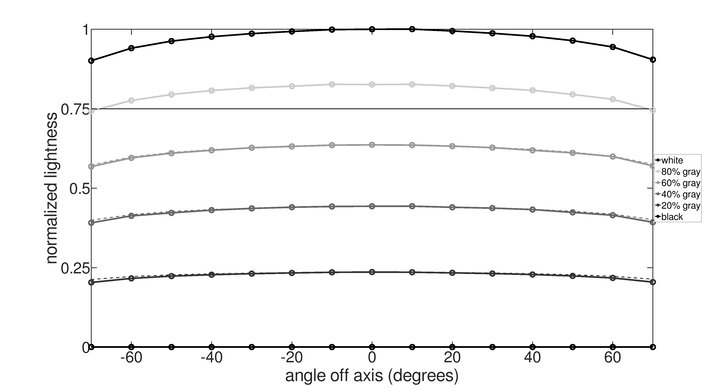
    The horizontal viewing angle is amazing. The image remains quite consistent from the sides, though it begins to wash out at very wide angles.

    9.0
    Text Clarity
    Pixel Type
    IPS
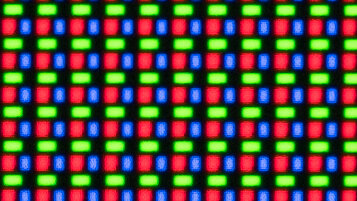
    Subpixel Layout
    RGB

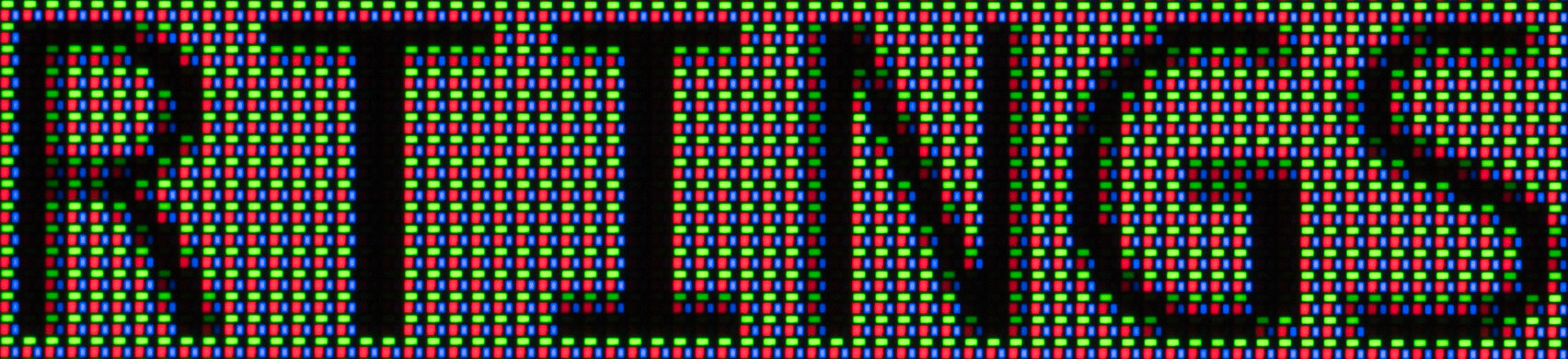
    The text clarity is fantastic. Enabling Windows ClearType (top photo) improves the boldness of letters. These photos are in Windows 10, and you can also see them in Windows 11 with ClearType on or off.

    5.4
    Direct Reflections
    See details on graph tool
    Peak Direct Reflection Intensity
    47.3%
    Screen Finish
    Matte

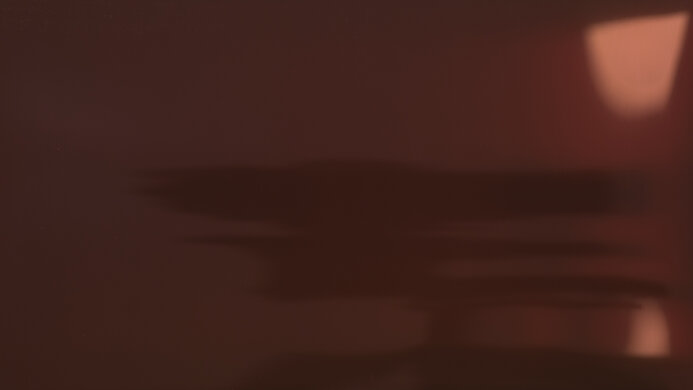
    The direct reflection handling is disappointing. Like most matte coatings, it spreads light out, but it still has mirror-like reflections.

    8.3
    Ambient Black Level Raise
    See details on graph tool
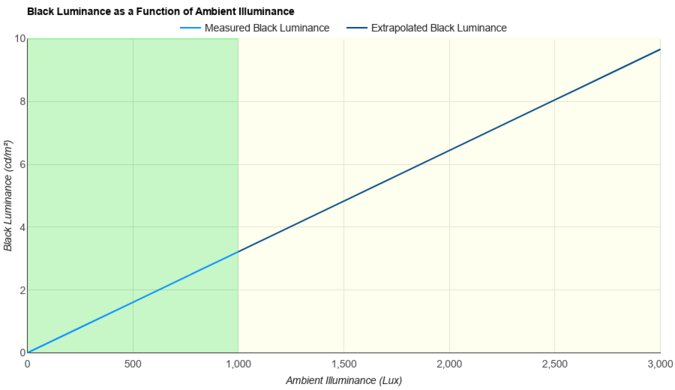
    Black Luminance @ 0 lx
    0.16 cd/m²
    Black Luminance @ 1000 lx
    0.77 cd/m²

    This monitor retains its black levels well in a bright room. However, blacks still look gray even in bright rooms.

    3.1
    Total Reflected Light
    Total Reflected Light Intensity
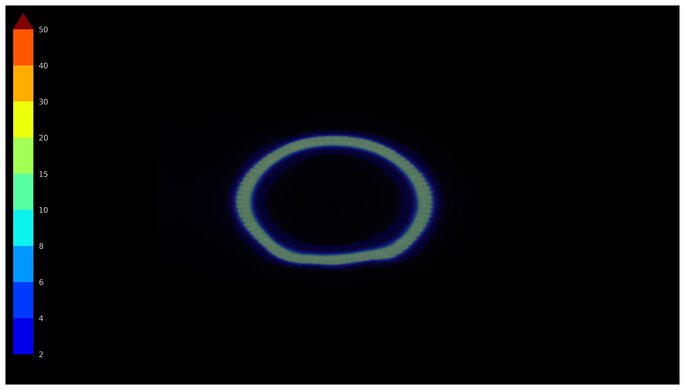
    50,379% ⋅ pixel
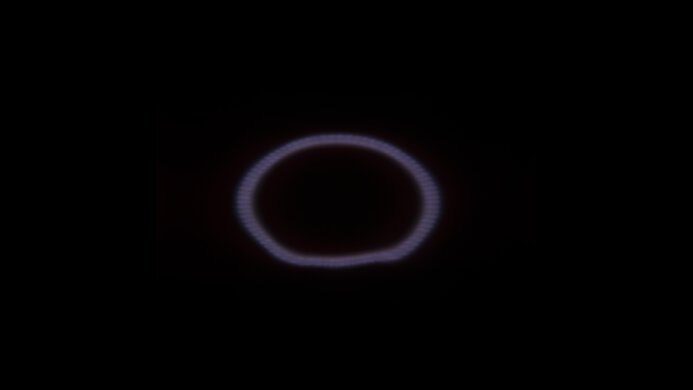
    Diffraction Artifacts
    No

    This monitor has a lot of light reflected off the screen in a bright room. Placing it opposite a sunny window or in front of a bright light results in distracting glare.

    9.8
    Gradient
    Color Depth
    10 Bit

    The gradient handling is fantastic, and you won't see any banding between shades of similar colors.

    Motion
    6.0
    Refresh Rate
    Native Refresh Rate
    60 Hz
    Max Refresh Rate
    60 Hz
    Max Refresh Rate Over DP
    60 Hz
    Max Refresh Rate Over HDMI
    60 Hz
    Max Refresh Rate Over DP @ 10-bit
    60 Hz
    Max Refresh Rate Over HDMI @ 10-Bit
    30 Hz
    DSC Toggle
    No
    DSC Off Max Refresh Rate Over DP
    N/A
    DSC Off Max Refresh Rate Over HDMI
    N/A
    Variable Refresh Rate (VRR)
    Variable Refresh Rate
    No
    FreeSync
    No
    G-SYNC
    No
    VRR Maximum
    N/A
    VRR Minimum
    No VRR
    VRR Supported Connectors
    No VRR

    This monitor doesn't support VRR.

    5.2
    VRR Motion Performance
    See details on graph tool
    Recommended VRR OD Setting
    No VRR
    Variable Overdrive Advertised
    No
    Avg. CAD
    381
    Best CAD
    381
    Worst CAD
    381

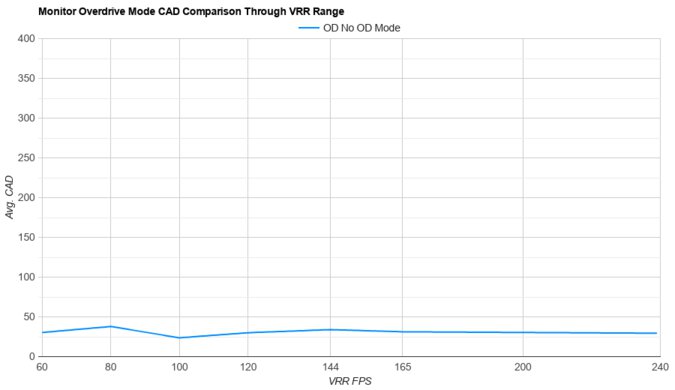
    Although this monitor doesn't support VRR, we still measure the CAD at 60Hz, so you can compare it to a monitor with VRR support. The CAD of the 'Premium' AMA setting is so high that it exceeds the limits of the graph. We've created an alternate graph at a different scale to illustrate how high the CAD gets.

    4.1
    Refresh Rate Compliance
    See details on graph tool
    See details on graph tool
    Compliance @ Max Hz
    61%
    Compliance @ 120 FPS
    N/A
    Compliance @ 60 FPS
    61%

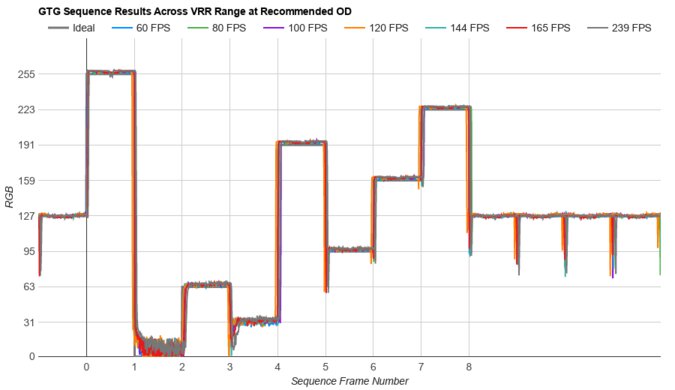
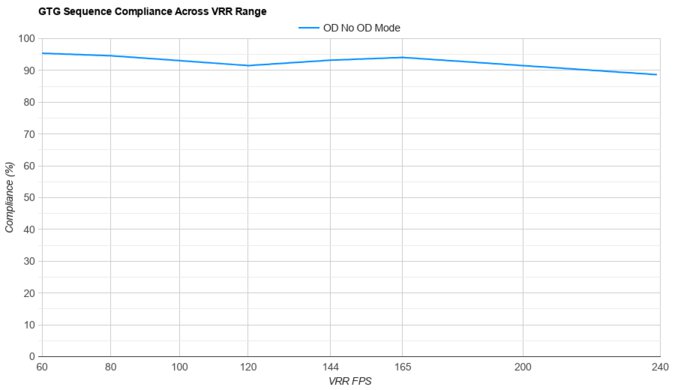
    The refresh rate compliance is bad. Its slow response time means that it can't make full color transitions between some frames, so motion looks blurry.

    4.6
    CAD @ Max Refresh Rate
    OD Transition Max Refresh Rate
    od-transition-max-refresh-rate-high-0-31
    OD high
    0 to 31
    Recommended Overdrive Setting
    High
    Avg. CAD
    381
    Best 10% CAD
    227
    Worst 10% CAD
    638

    Overdrive Mode CAD Heatmap RT Chart Pursuit Photo
    High Heatmap Chart Photo
    Premium Heatmap Chart Photo

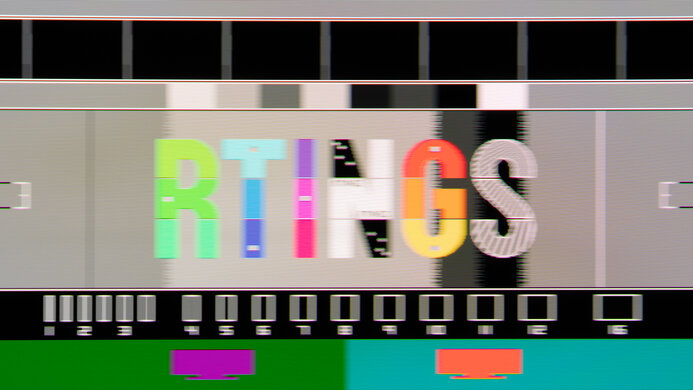
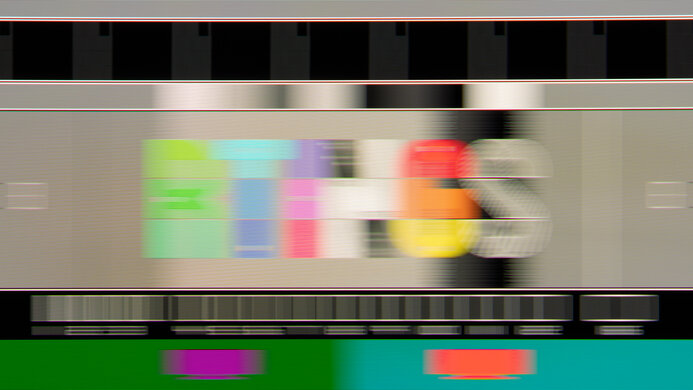
    The CAD at the maximum refresh rate of 60Hz is bad, and blur is visible even when quickly scrolling through documents and web pages. The 'High' AMA setting has both the fastest response total time and the least inverse ghosting.

    Response Time @ Max Refresh Rate
    Recommended Overdrive Setting
    High
    First Response Time
    12.4 ms
    Total Response Time
    16.8 ms
    RGB Overshoot
    3 RGB
    Worst 10% First Response Time
    23.1 ms
    Worst 10% Total Response Time
    28.2 ms
    Worst 10% RGB Overshoot
    16 RGB

    Overdrive Mode First Response Heatmap Total Response Heatmap RGB Overshoot Heatmap
    High Heatmap Heatmap Heatmap
    Premium Heatmap Heatmap Heatmap

    0.0
    CAD @ 120Hz
    OD Transition 120Hz
    N/A
    Recommended Overdrive Setting
    No 120Hz Refresh Rate
    Avg. CAD
    N/A
    Best 10% CAD
    N/A
    Worst 10% CAD
    N/A

    This monitor doesn't support a 120Hz signal.

    Response Time @ 120Hz
    Recommended Overdrive Setting
    No 120Hz Refresh Rate
    First Response Time
    N/A
    Total Response Time
    N/A
    RGB Overshoot
    N/A
    Worst 10% First Response Time
    N/A
    Worst 10% Total Response Time
    N/A
    Worst 10% RGB Overshoot
    N/A
    4.6
    CAD @ 60Hz
    OD Transition 60Hz
    od-transition-60-high-0-31
    OD high
    0 to 31
    Recommended Overdrive Setting
    High
    Avg. CAD
    381
    Best 10% CAD
    227
    Worst 10% CAD
    638

    Overdrive Mode CAD Heatmap RT Chart Pursuit Photo
    High Heatmap Chart Photo
    Premium Heatmap Chart Photo

    The CAD at 60Hz is bad, and blur is visible even when quickly scrolling through documents and web pages. The 'High' AMA setting has both the fastest total response time and the least inverse ghosting.

    Response Time @ 60Hz
    Recommended Overdrive Setting
    High
    First Response Time
    12.4 ms
    Total Response Time
    16.8 ms
    RGB Overshoot
    3 RGB
    Worst 10% First Response Time
    23.1 ms
    Worst 10% Total Response Time
    28.2 ms
    Worst 10% RGB Overshoot
    16 RGB

    Overdrive Mode First Response Heatmap Total Response Heatmap RGB Overshoot Heatmap
    High Heatmap Heatmap Heatmap
    Premium Heatmap Heatmap Heatmap

    Backlight Strobing (BFI)
    Backlight Strobing (BFI)
    No BFI
    Maximum Frequency
    N/A
    Minimum Frequency
    N/A
    Longest Pulse Width Brightness
    N/A
    Shortest Pulse Width Brightness
    N/A
    Pulse Width Control
    No BFI
    Pulse Phase Control
    No BFI
    Pulse Amplitude Control
    No BFI
    VRR At The Same Time
    No BFI

    This monitor doesn't have a backlight strobing feature to reduce persistence blur.

    0.0
    VRR Flicker
    Dark Gray Flicker
    N/A
    Middle Gray Flicker
    N/A
    Light Gray Flicker
    N/A

    This monitor doesn't support VRR, so there's no VRR flicker.

    10
    Image Flicker
    Flicker-Free
    Yes
    PWM Dimming Frequency
    0 Hz

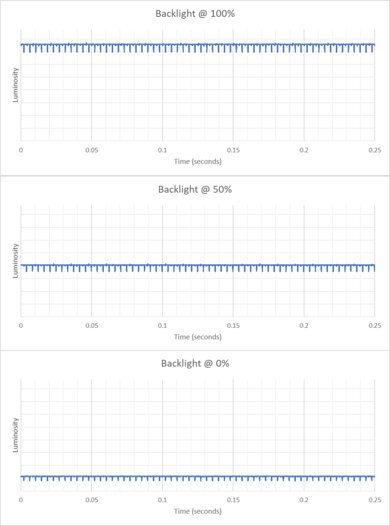
    The backlight is completely flicker-free as it doesn't use pulse-width modulation for dimming.

    Inputs
    8.1
    Input Lag
    Native Resolution @ Max Hz
    9.7 ms
    Native Resolution @ 120Hz
    N/A
    Native Resolution @ 60Hz
    9.7 ms
    Backlight Strobing (BFI)
    N/A

    This monitor has low input lag for a responsive feel.

    8.5
    Resolution
    Native Resolution
    3840 x 2160
    Aspect Ratio
    16:9
    Megapixels
    8.3 MP
    Pixel Density
    140 PPI
    2.9
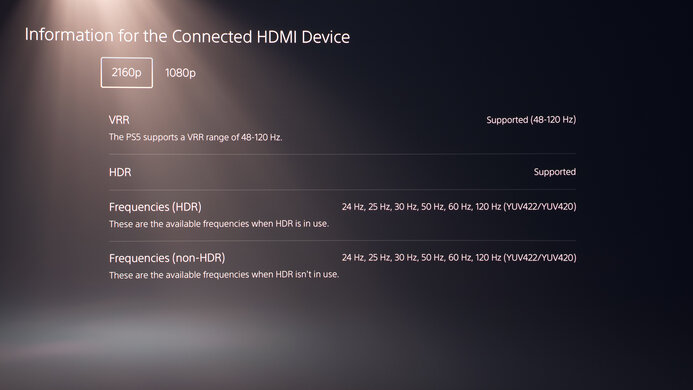
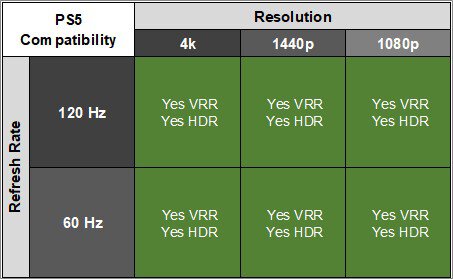
    PS5 Compatibility
    4k @ 120Hz
    No
    4k @ 60Hz
    Yes
    1440p @ 120Hz
    No
    1440p @ 60Hz
    Yes
    1080p @ 120Hz
    No
    1080p @ 60Hz
    Yes
    2.9
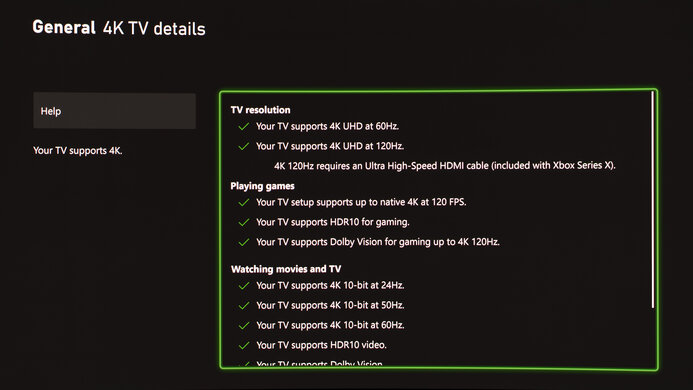
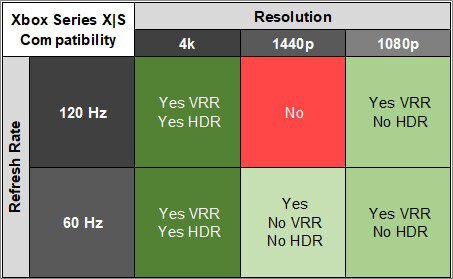
    Xbox Series X|S Compatibility
    4k @ 120Hz
    No
    4k @ 60Hz
    Yes
    1440p @ 120Hz
    No
    1440p @ 60Hz
    Yes
    1080p @ 120Hz
    No
    1080p @ 60Hz
    Yes

    The Xbox doesn't support HDR with 1440p or 1080p signals, so this isn't a limitation of the monitor.

    Inputs
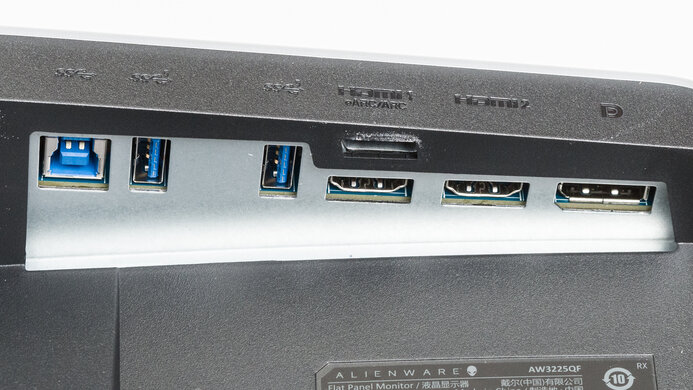
    DisplayPort
    1 (DP 1.4)
    DisplayPort Transmission Bandwidth
    No DisplayPort 2.1
    Mini DisplayPort
    No
    HDMI
    2 (HDMI 2.0)
    HDMI 2.1 Bandwidth
    No HDMI 2.1
    Daisy Chaining
    Thunderbolt
    3.5mm Audio Out
    Yes
    Ethernet
    No
    HDR10
    Yes
    Dolby Vision
    No

    You can connect an additional display to this monitor's Thunderbolt output.

    USB
    USB-A Ports
    3
    USB-A Rated Speed
    10Gbps (USB 3.2 Gen 2)
    USB-B Upstream Port
    Yes
    USB-C Ports
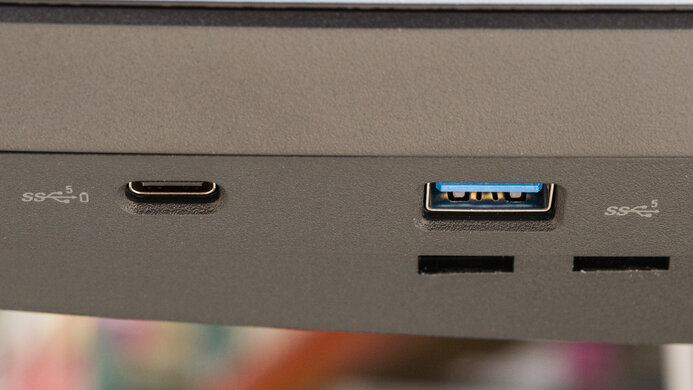
    3
    USB-C Upstream
    Yes
    USB-C Rated Speed
    10Gbps (USB 3.2 Gen 2)
    USB-C Power Delivery
    85W
    USB-C DisplayPort Alt Mode
    Yes
    Thunderbolt
    Thunderbolt 3

    This monitor includes a dedicated mini-USB port for the Hotkey Puck G2. Additionally, you can use the USB-C port to display an image from a laptop and charge it with one cable.

    macOS Compatibility

    Connection HDMI 2.1 USB-C
    Max Refresh Rate 60Hz 60Hz
    VRR Range No VRR No VRR
    HDR Yes Yes

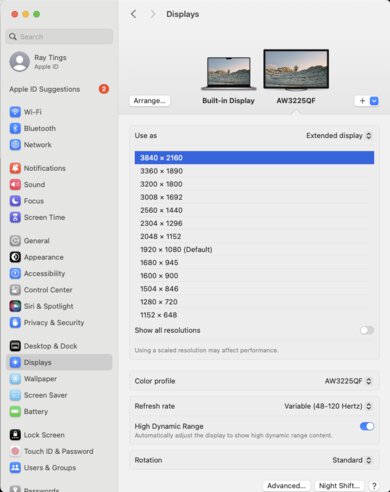
    The BenQ PD3225U works well with macOS. HDR looks good over USB-C, though if you're using HDR over HDMI there's noticeable banding with gradients and with transparency effects on the desktop.

    If you're using a MacBook and close the lid, the windows shift to the BenQ's screen and peripherals continue to function. Opening the lid or waking the laptop up from sleep moves the windows back to their original position. 

    Additionally, the KVM switch works well with macOS. If you have BenQ's Display Pilot 2 software installed you can adjust the PD3225U's brightness using the MacBook's brightness controls. If you select the monitor's 'M-book' Color Mode it tries to more closely match the BenQ's display to the MacBook's.

    Features
    Additional Features
    Speakers
    Yes
    RGB Illumination
    No
    Multiple Input Display
    PIP + PBP
    KVM Switch
    Yes
    Smart OS
    No

    The BenQ PD3225U has some additional features. This includes a KVM switch that allows you to switch between two different computers while using the same devices. It also has a PBPx4 mode that lets you display four inputs beside each other at the same time.

    It has several additional features, including:

    • Display Pilot 2: Software that lets you quickly tune the display and save and use different monitor configurations.
    • Palette Master Ultimate Software: Simplifies calibration and supports certain X-Rite/Calibrite/Datacolor calibrators.
    • DualView: Lets you display two color modes side-by-side.
    • M-Book mode: Designed to minimize visual differences between a MacBook and the BenQ display.
    • Low Blue Light Mode. Decreases the display's blue light output. You can learn more this in our blue light filters article.
    On-Screen Display (OSD)

    You can learn more about the monitor's settings in the user manual. You can also see a number of additional manuals applicable to the BenQ PD3225U at the monitor's main User Manuals page.