ASUS TUF VG32VQ  Monitor Review

Reviewed Oct 03, 2019 at 09:34am
Retest Jan 05, 2022 at 09:33am
Tested using Methodology v1.1 
ASUS TUF VG32VQ
7.6
Mixed Usage 
7.3
Office 
8.2
Gaming 
7.4
Multimedia 
7.5
Media Creation 
6.9
HDR Gaming 
 8
The ASUS VG32VQ is a good 32 inch, 1440p monitor with great gaming performance. Like most VA monitors, it has a good contrast ratio, resulting in deep blacks, but unfortunately, the image degrades when viewed at an angle. It has an excellent response time and flicker-free backlight, and it's one of the only monitors on the market that supports black frame insertion and FreeSync at the same time. Unfortunately, this feature doesn't work very well when the frame rate drops below 40fps, causing noticeable backlight strobing.
How We Test Monitors

We buy and test more than 30 monitors each year, with units that we buy completely on our own, without any cherry-picked units or samples. We put a lot into each unbiased, straight-to-the-point review, and there's a whole process from purchasing to publishing, involving multiple teams and people. We do more than just use the monitor for a week; we use specialized and custom tools to measure various aspects with objective data-based results. We also consider multiple factors before making any recommendations, including the monitor's cost, its performance against the competition, and whether or not it's easy to find.

Our Verdict

7.6
Mixed Usage 

The ASUS TUF Gaming VG32VQ is a good monitor for most uses. It has outstanding low input lag for gaming, and an excellent resolution and size for multitasking or media creation. Unfortunately, the image degrades at an angle, and it has terrible black uniformity.

Pros
  • Deep blacks.
  • Excellent response time.
Cons
  • Image loses accuracy at an angle.
  • Noticeable backlight strobing at low refresh rates.
7.3
Office 

Decent monitor for office use. It has an excellent amount of screen real estate, great for multitasking, and it has good reflection handling and great peak brightness, so glare shouldn't be an issue in a bright room. Unfortunately, the image degrades when viewed at an angle and the stand has limited ergonomics.

8.2
Gaming 

The ASUS TUF VG32VQ is a great monitor for gaming. It has outstanding low input lag, an excellent resolution and size, and an excellent response time. It has an optional black frame insertion feature, which even works with FreeSync enabled, but at low frame rates there is noticeable strobing, which can be distracting.

7.4
Multimedia 

Decent monitor for multimedia. It has an excellent resolution and size, outstanding low input lag, and good reflection handling. Unfortunately, the image degrades when viewed at an angle, so it isn't a good choice for sharing the screen with someone.

7.5
Media Creation 

This is a good monitor for media creation. It has an excellent resolution and size, so you can see more of your work at once. It also has outstanding low input lag, and the stand has decent ergonomics. Unfortunately, the image degrades at an angle, so it isn't great for sharing your screen with clients.

6.9
HDR Gaming 

Decent monitor for HDR gaming, mainly due to its great gaming performance. It has a good contrast ratio, but only decent HDR peak brightness, so small highlights don't stand out the way they should. Unfortunately, it has terrible black uniformity and no local dimming.

  • 7.6
    Mixed Usage
  • 7.3
    Office
  • 8.2
    Gaming
  • 7.4
    Multimedia
  • 7.5
    Media Creation
  • 6.9
    HDR Gaming
  • Changelog

    1.  Updated Jan 05, 2022: Updated the Text Clarity score.
    2.  Updated May 11, 2020: Converted to Test Bench 1.1.
    3.  Updated Oct 03, 2019: Review published.
    4.  Updated Oct 01, 2019: Early access published.

    Check Price

    32"TUF VG32VQ
    SEE PRICE
    Walmart.com
    32"TUF VG32VQ
    SEE PRICE
    Amazon.com
    32"TUF VG32VQ
    SEE PRICE
    BestBuy.com
    32"TUF VG32VQ
    B&H

    Differences Between Sizes And Variants

    We tested the 32" ASUS TUF VG32VQ, which is the only size available for this model. There are other TUF Gaming models available, some of which are listed below. We do not expect our review to be valid for the other models.

    If someone comes across a different type of panel or if their VG32VQ doesn't correspond to our review, let us know and we will update the review. Note that some tests such as gray uniformity may vary between individual units.

    Model Size Resolution Refresh Rate
    TUF VG32VQ 32" 1440p 144Hz
    TUF VG27AQ 27" 1440p 165Hz
    TUF VG27BQ 27" 1440p 165Hz
    TUF VG35VQ 35" 3440x1440p 100Hz
    STRIX XG32VQR 32" 1440p 144Hz

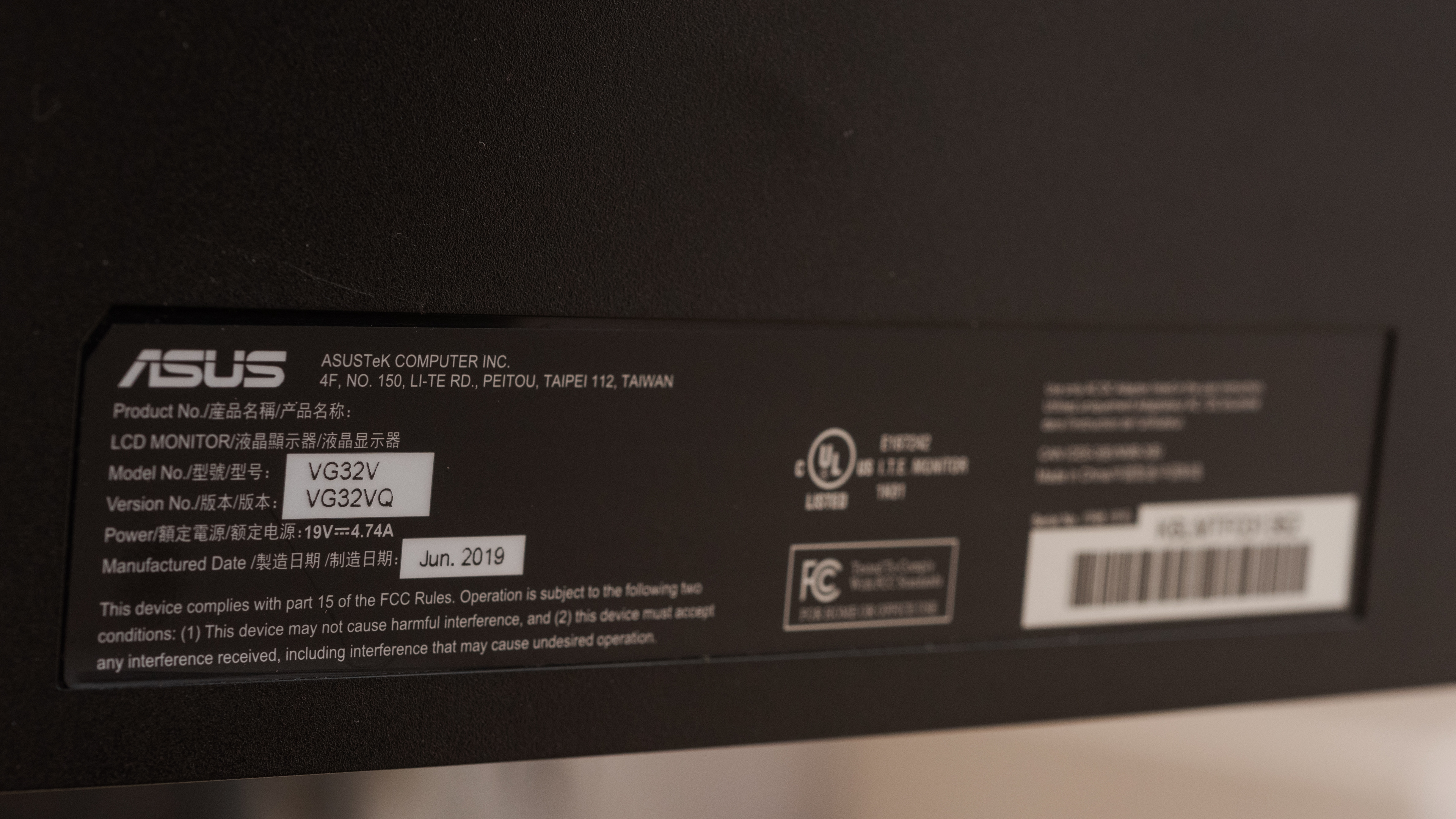
    The TUF VG32VQ we reviewed was manufactured in June 2019.

    Popular Monitor Comparisons

    The ASUS TUF VG32VQ is a great gaming monitor, and it performs similarly to the other 32", 1440p VA monitors we've tested. See also our recommendations for the best gaming monitors and the best 1440p gaming monitors.

    Dell S3220DGF

    The ASUS TUF VG32VQ and the Dell S3220DGF are very much alike, as they both have a 32" screen, a 1440p resolution on a VA panel, and they both support FreeSync. The main difference between them is that the Dell's refresh rate defaults to 165Hz over DisplayPort, it has better black uniformity than the ASUS, and better color accuracy. However, it can't get as bright as the ASUS in SDR content, it has worse reflection handling and doesn't have a black frame insertion feature, which the ASUS does.

    ASUS TUF VG27AQ

    The ASUS TUF VG27AQ is significantly better than the ASUS TUF VG32VQ. Though they share the same design, the VG27AQ has an IPS panel with much better viewing angles, color accuracy, and black uniformity. On the other hand, the VG32VQ's VA panel has a better contrast ratio, can get brighter for bright room viewing, though its motion handling isn't as good.

    ASUS ROG Swift PG348Q

    The ASUS ROG Swift PG348Q and the ASUS TUF VG32VQ use different panel technologies, each with strengths and weaknesses. The PG348Q has much better viewing angles, and the wide aspect ratio is slightly better for multitasking. The VG32VQ supports HDR, and it looks much better in a dark room. The VG32VQ has more advanced gaming features, including a faster refresh rate and an optional black frame insertion feature.

    LG 32GK650F-B

    The ASUS TUF VG32VQ is a bit better than the LG 32GK650F-B. The VG32VQ supports HDR and has much better gradient handling, with significantly less banding in areas of similar color. The LG, on the other hand, has better black uniformity, so it's a slightly better choice for users in a dark room.

    LG 32GK850G-B

    The ASUS TUF Gaming VG32VQ is slightly better than the LG 32GK850G-B for most uses. The ASUS supports HDR and has an optional black frame insertion feature that can improve the appearance of motion. Most people will prefer the LG for gaming though, as it has a much faster response time, resulting in clearer motion with less blur behind fast-moving objects. The LG also has much better black uniformity.

    MSI Optix MPG27CQ

    The ASUS TUF Gaming VG32VQ is slightly better than the MSI Optix MPG27CQ for most uses, but the MSI is slightly better for gaming. The ASUS supports HDR and has much better gradient handling, with almost no noticeable banding in areas of similar color. The MSI has a much faster response time, though, resulting in clearer motion when gaming, with less blur behind fast-moving objects.
    Gigabyte G32QC

    The ASUS TUF VG32VQ is marginally better than the Gigabyte G32QC. The ASUS has better ergonomics, better reflection handling, and faster response time. On the other hand, the Gigabyte has a higher refresh rate, better SDR color gamut, and better color accuracy out-of-the-box.

    Samsung C27RG5

    The ASUS TUF VG32VQ is much better than the Samsung C27RG5. The ASUS has a much faster response time, resulting in clearer motion when gaming, and it has an optional black frame insertion feature. The ASUS also has a larger, higher-resolution screen and better ergonomics, so it's better for multitasking and easier to place in an ideal viewing position.

    Test Results

    perceptual testing image
    Sort:
    RATINGS
    Category:
    All
    Design
    Style
    Size32"
    CurvedYes
    Curve Radius1800R
    Weight (without stand)
    14.6 lbs (6.6 kg)
    Weight (with stand)
    20.3 lbs (9.2 kg)
    Stand
    Width
    11.5" (29.2 cm)
    Depth
    9.2" (23.4 cm)

    The stand is very similar to other ASUS monitors we've tested, including the ASUS ROG Swift PG279QZ. It supports the monitor well, and there is very little wobble.

    7.2
    Ergonomics
    Height Adjustment
    5.5" (14.0 cm)
    Switch Portrait/LandscapeNo
    Swivel Range-60° to 60°
    Tilt Range-20° to 5°

    The stand has a great height adjustment and tilt range, and an excellent swivel range, but it can't rotate to portrait orientation.

    Back
    Wall MountVESA 100x100

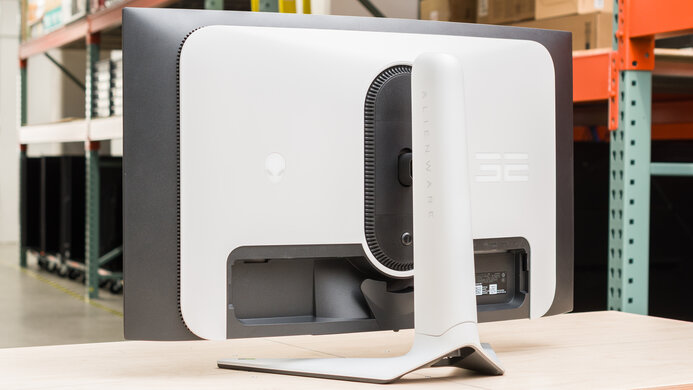
    The back has the same design as most ASUS gaming monitors. There is no RGB bias-lighting feature and no quick-release on the stand. There is a hole in the stand for cable management.

    Borders
    Borders
    0.6" (1.5 cm)

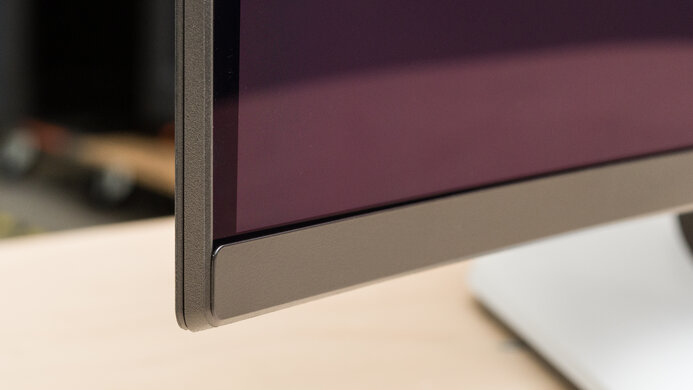
    The borders are very thin on three sides, and even the bottom bezel doesn't stand out much. This is a great monitor for a multi-display setup.

    Thickness
    Thickness (with stand)
    8.2" (20.8 cm)
    Thickness (without stand)
    4.4" (11.2 cm)

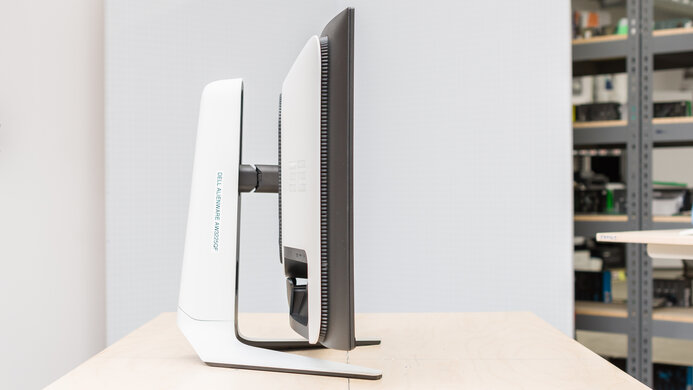
    Due to the curvature of the screen, the VG32VQ is thicker than most similarly-sized displays, even when removed from the stand. Like many ASUS monitors, the stand leans back at a small angle, so the overall thickness varies a bit depending on the height of the screen. The above measurements were taken with the monitor placed at the bottom.

    8.0
    Build Quality

    The ASUS TUF VG32VQ has great build quality. It feels well-built, very similar to the ASUS ROG Swift PG279Q.

    Picture Quality
    7.8
    Contrast
    Native Contrast
    2,880 : 1
    Contrast With Local Dimming
    N/A

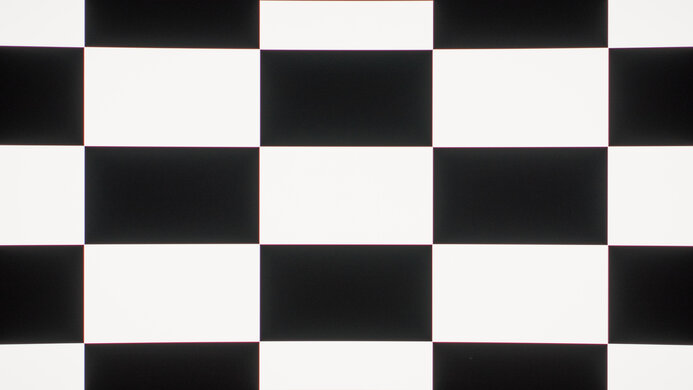
    The ASUS TUF VG32VQ has a good contrast ratio. This results in deep blacks and is especially noticeable in a dark room. This is slightly better than the LG 32GK850G and much better than 32" IPS monitors like the LG 32UL950-W.

    0.0
    Local Dimming
    Local Dimming
    No
    Backlight
    Edge

    The ASUS VG32VQ doesn't have a local dimming feature. The above video is provided for reference only.

    8.2
    SDR Peak Brightness
    SDR Real Scene
    390 cd/m²
    SDR Peak 2% Window
    407 cd/m²
    SDR Peak 10% Window
    407 cd/m²
    SDR Peak 25% Window
    407 cd/m²
    SDR Peak 50% Window
    406 cd/m²
    SDR Peak 100% Window
    406 cd/m²
    SDR Sustained 2% Window
    406 cd/m²
    SDR Sustained 10% Window
    406 cd/m²
    SDR Sustained 25% Window
    406 cd/m²
    SDR Sustained 50% Window
    406 cd/m²
    SDR Sustained 100% Window
    406 cd/m²
    SDR ABL
    0.000

    Great SDR peak brightness; this monitor can easily overcome glare in most rooms. There is no noticeable variation in brightness with different content, which is great.

    6.9
    HDR Peak Brightness
    HDR Real Scene
    423 cd/m²
    HDR Peak 2% Window
    447 cd/m²
    HDR Peak 10% Window
    448 cd/m²
    HDR Peak 25% Window
    448 cd/m²
    HDR Peak 50% Window
    448 cd/m²
    HDR Peak 100% Window
    433 cd/m²
    HDR Sustained 2% Window
    446 cd/m²
    HDR Sustained 10% Window
    447 cd/m²
    HDR Sustained 25% Window
    447 cd/m²
    HDR Sustained 50% Window
    444 cd/m²
    HDR Sustained 100% Window
    394 cd/m²
    HDR ABL
    0.008

    Decent HDR peak brightness, but small highlights in most HDR content don't stand out as much as they should. There is some variation in peak brightness, especially when displaying large, bright screens, but this shouldn't be noticeable.

    5.9
    Horizontal Viewing Angle
    Color Washout From Left
    34°
    Color Washout From Right
    34°
    Color Shift From Left
    42°
    Color Shift From Right
    43°
    Brightness Loss From Left
    34°
    Brightness Loss From Right
    35°
    Black Level Raise From Left
    17°
    Black Level Raise From Right
    17°
    Gamma Shift From Left
    19°
    Gamma Shift From Right
    19°

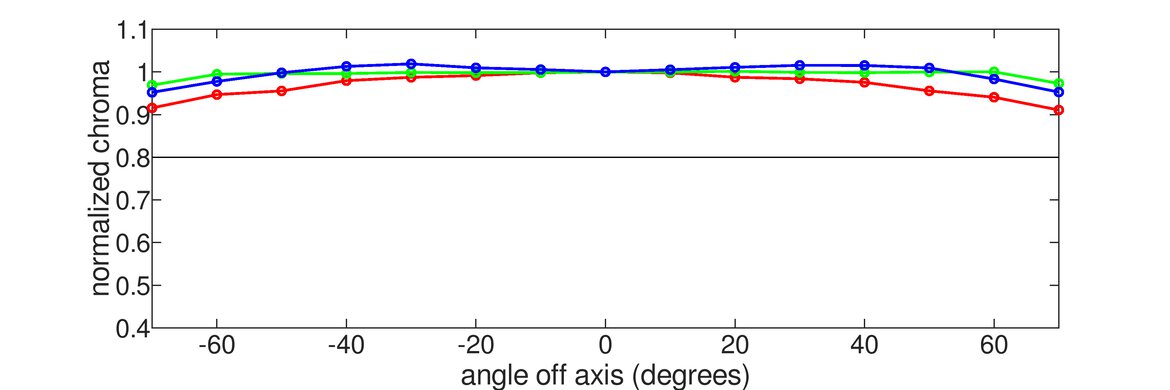
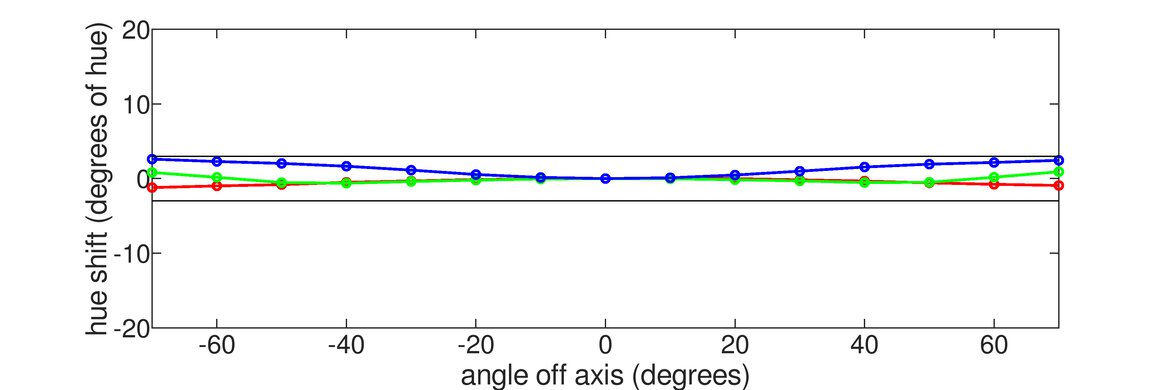
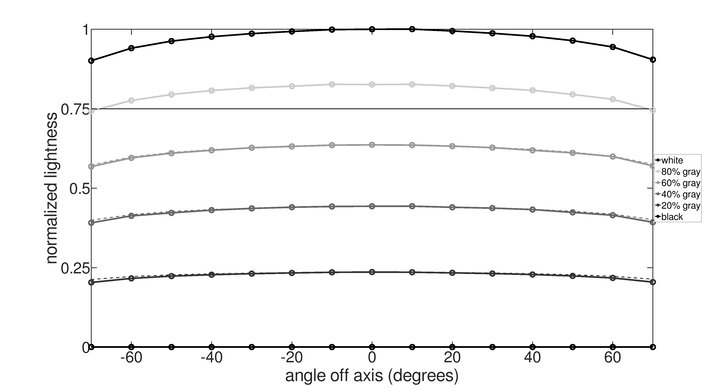
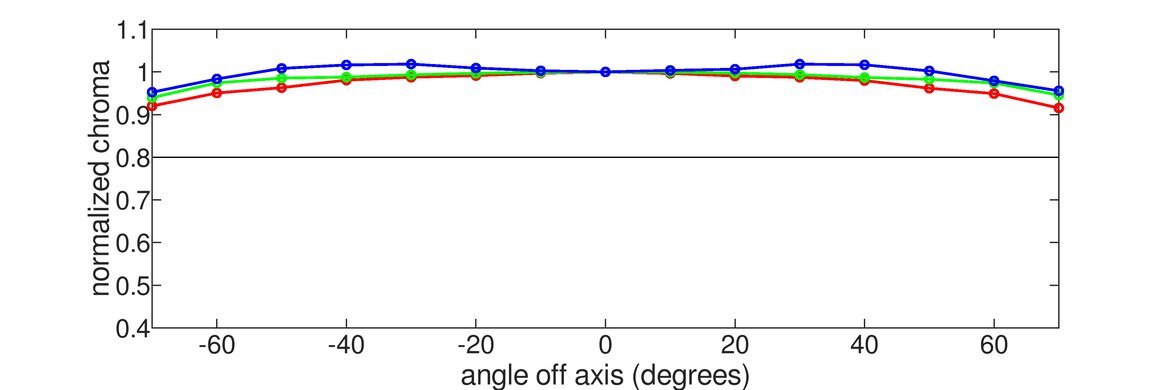
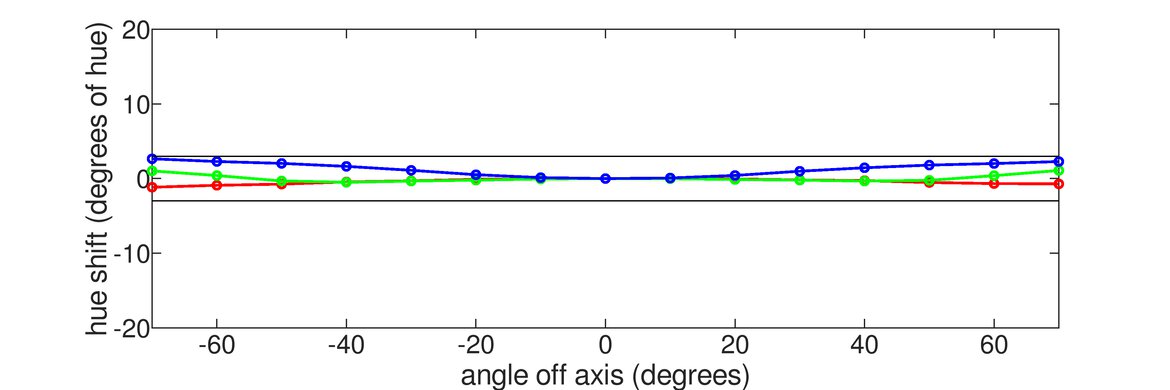
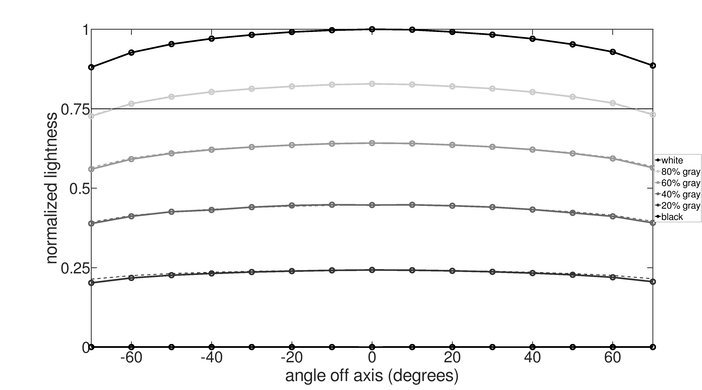
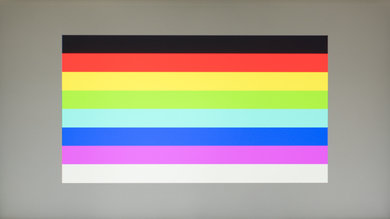
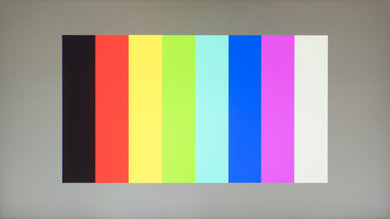
    Unfortunately, like most VA monitors the image degrades when viewed at an angle. This isn't ideal if you like to share your screen with other people.

    5.3
    Vertical Viewing Angle
    Color Washout From Below
    31°
    Color Washout From Above
    31°
    Color Shift From Below
    28°
    Color Shift From Above
    32°
    Brightness Loss From Below
    32°
    Brightness Loss From Above
    33°
    Black Level Raise From Below
    Black Level Raise From Above
    11°
    Gamma Shift From Below
    16°
    Gamma Shift From Above
    13°

    Unfortunately, the image degrades considerably when viewed from above or below. This isn't an issue for most people, but if you're planning on mounting the display above you, this could be an issue.

    8.4
    Gray Uniformity
    50% Std. Dev.
    2.826%
    50% DSE
    0.132%
    5% Std. Dev.
    0.681%
    5% DSE
    0.054%

    The ASUS TUF VG32VQ has great gray accuracy. Some dirty screen effect is noticeable in the center of the screen, which could be an issue with some uses.

    2.1
    Black Uniformity
    Native Std. Dev.
    4.629%
    Std. Dev. w/ L.D.
    N/A

    Unfortunately, the ASUS TUF VG32VQ has terrible black uniformity. There is significant bleed along the top and bottom edges, and this can be distracting in dark scenes in a dark room.

    5.2
    Pre Calibration
    Picture Mode
    Racing Mode
    Luminance
    403 cd/m²
    Luminance Settings
    90
    Contrast Setting
    80
    RGB Controls
    100-100-100
    Gamma Setting
    N/A
    Color Temperature
    7,194 K
    White Balance dE
    5.60
    Color dE
    4.23
    Gamma
    2.22

    Update 05/15/2020: A previous version stated that the best Trace Free setting was '100', but it's actually '80'.

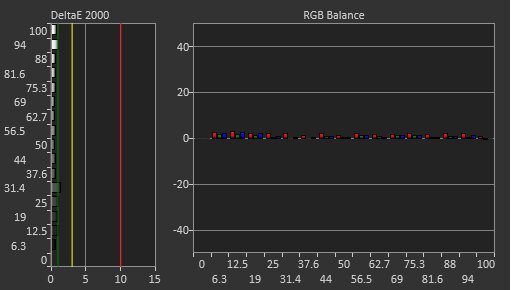
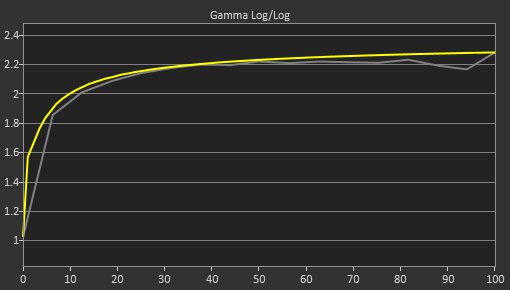
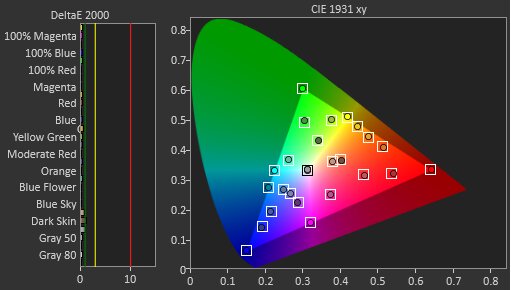
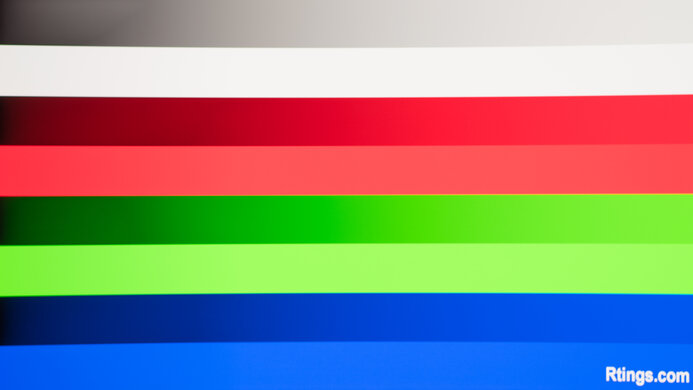
    Out of the box, the TUF VG32VQ has poor accuracy. There are noticeable inaccuracies in many colors and most shades of gray. The color temperature is very cool, resulting in a slightly blueish tint. Gamma is close to the sRGB target curve for the most part, but some dark scenes are over-darkened considerably.

    9.4
    Post Calibration
    Picture Mode
    Racing Mode
    Luminance
    100 cd/m²
    Luminance Settings
    13
    Contrast Setting
    72
    RGB Controls
    99-100-90
    Gamma Setting
    N/A
    Color Temperature
    6,461 K
    White Balance dE
    0.75
    Color dE
    1.03
    Gamma
    2.18

    Update 05/15/2020: A previous version stated that the best Trace Free setting was '100', but it's actually '80'.

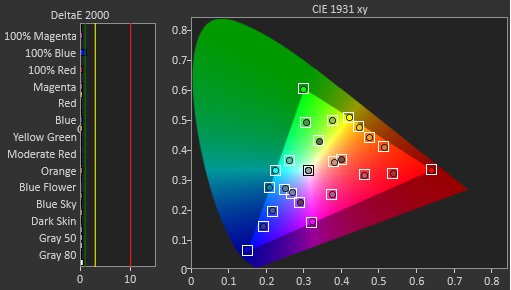
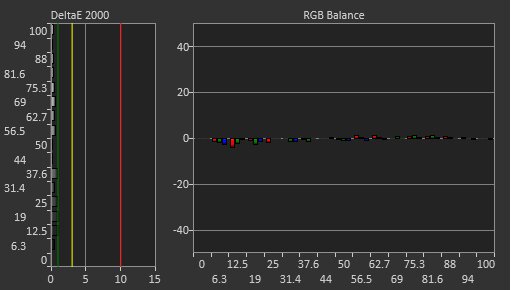
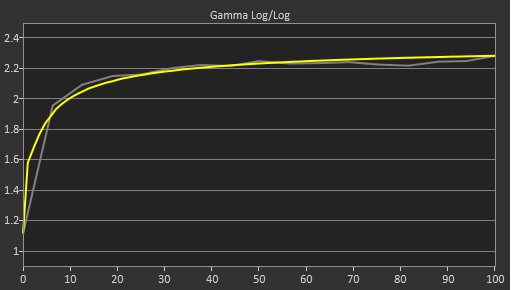
    After calibration, this monitor has much better accuracy. There are still some minor inaccuracies in some colors, but most people won't notice any issues.

    You can download our ICC profile calibration here. This is provided for reference only and should not be used, as the calibration values vary per individual unit even for the same model due to manufacturing tolerances.

    8.2
    SDR Color Gamut
    sRGB xy
    92.0%
    Adobe RGB xy
    72.3%
    sRGB Picture Mode
    Racing
    Adobe RGB Picture Mode
    Racing

    s.RGB Picture Mode: MOBA (calibrated)
    Adobe RGB Picture Mode: MOBA

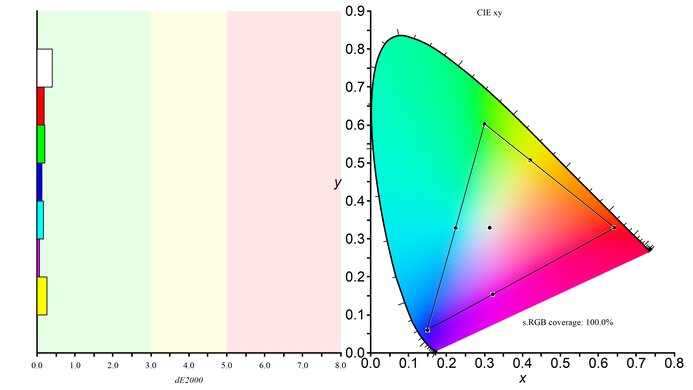
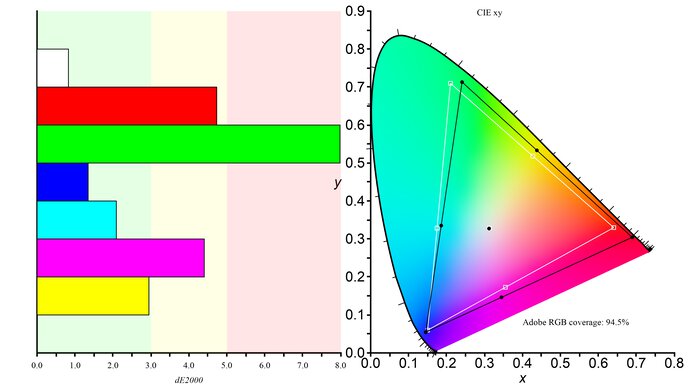
    The TUF VG32VQ has a great SDR color gamut, covering most of the common sRGB color space. Coverage of the wider Adobe RGB color space is too low for most professional photo editing, though.

    If you want a monitor with wider coverage of the sRGB color space, take a look at the Gigabyte G32QC.

    8.9
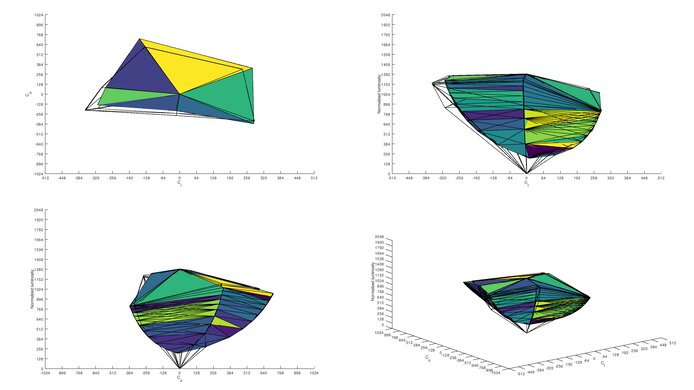
    SDR Color Volume
    sRGB In ICtCp
    97.4%
    Adobe RGB In ICtCp
    81.2%
    sRGB Picture Mode
    Racing
    Adobe RGB Picture Mode
    Racing

    s.RGB Picture Mode: MOBA
    Adobe RGB Picture Mode: MOBA

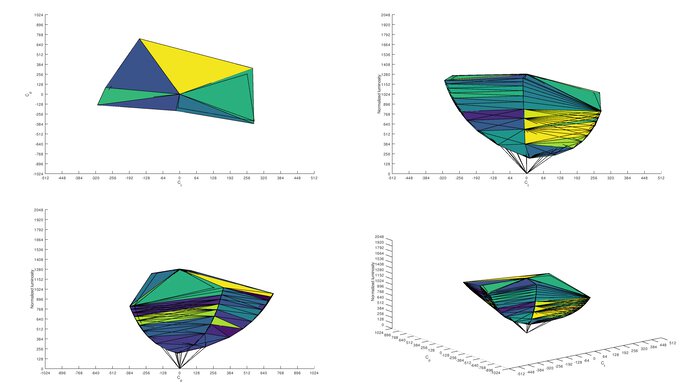
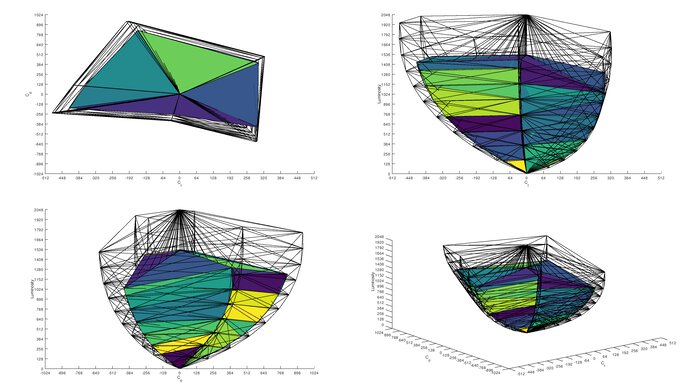
    Excellent SDR color gamut. Thanks to the good contrast ratio, it can display dim saturated colors well. Like most LED displays, it can't display very bright blues, but this shouldn't be very noticeable.

    6.5
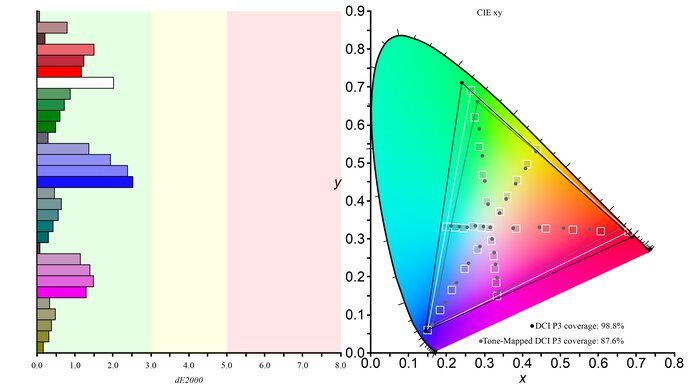
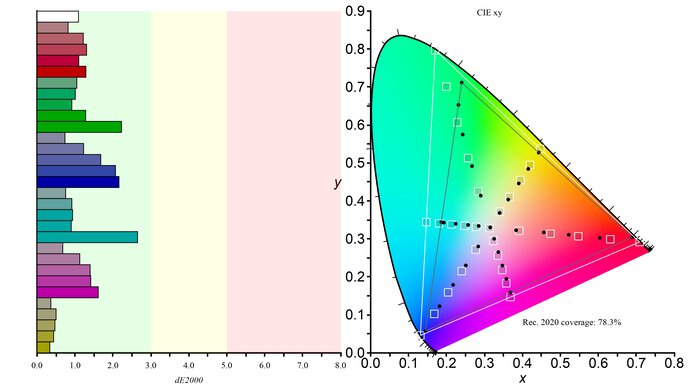
    HDR Color Gamut
    Wide Color Gamut
    No
    DCI P3 xy
    75.1%
    Rec. 2020 xy
    54.0%
    DCI P3 Picture Mode
    HDR Gaming
    Rec. 2020 Picture Mode
    HDR Gaming

    DCI P3 Picture Mode: HDR Gaming
    Rec. 2020 Picture Mode: HDR Gaming

    Decent HDR color gamut, but it can't display a wide color gamut.

    6.1
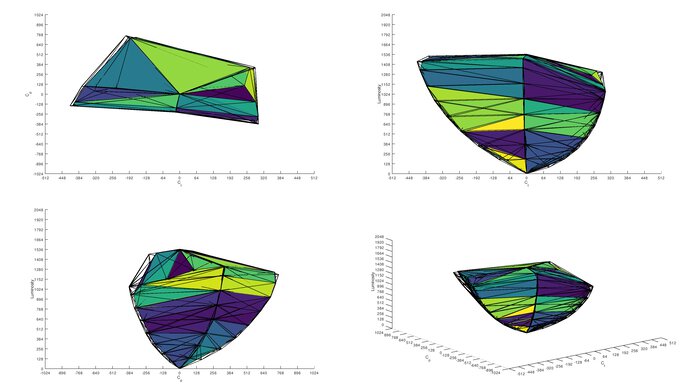
    HDR Color Volume
    DCI-P3 In ICtCp
    70.6%
    Rec. 2020 In ICtCp
    51.0%
    DCI P3 Picture Mode
    HDR Gaming
    Rec. 2020 Picture Mode
    HDR Gaming

    DCI P3 Picture Mode: HDR Gaming
    Rec. 2020 Picture Mode: HDR Gaming

    Unfortunately, this monitor has mediocre HDR color volume. It can't display the entire color gamut, and some colors aren't as bright as pure white.

    10
    Image Retention
    IR After 0 Min Recovery
    0.00%
    IR After 2 Min Recovery
    0.00%
    IR After 4 Min Recovery
    0.00%
    IR After 6 Min Recovery
    0.00%
    IR After 8 Min Recovery
    0.00%
    IR After 10 Min Recovery
    0.00%

    There are no signs of temporary image retention on our ASUS TUF Gaming VG32VQ. This varies between units, though, so let us know if your unit performs worse than ours.

    9.8
    Gradient
    Color Depth
    10 Bit

    Outstanding gradient performance, with no noticeable banding in any shade.

    10
    Color Bleed
    Pixel Row Error
    0.000%
    Pixel Column Error
    0.001%

    There are no noticeable signs of color bleed on this monitor.

    8.0
    Reflections
    Screen Finish
    Matte
    Total Reflections
    5.4%
    Indirect Reflections
    4.8%
    Calculated Direct Reflections
    0.6%

    Good reflection handling, similar to the Samsung CF791. Glare shouldn't be an issue in most rooms.

    6.5
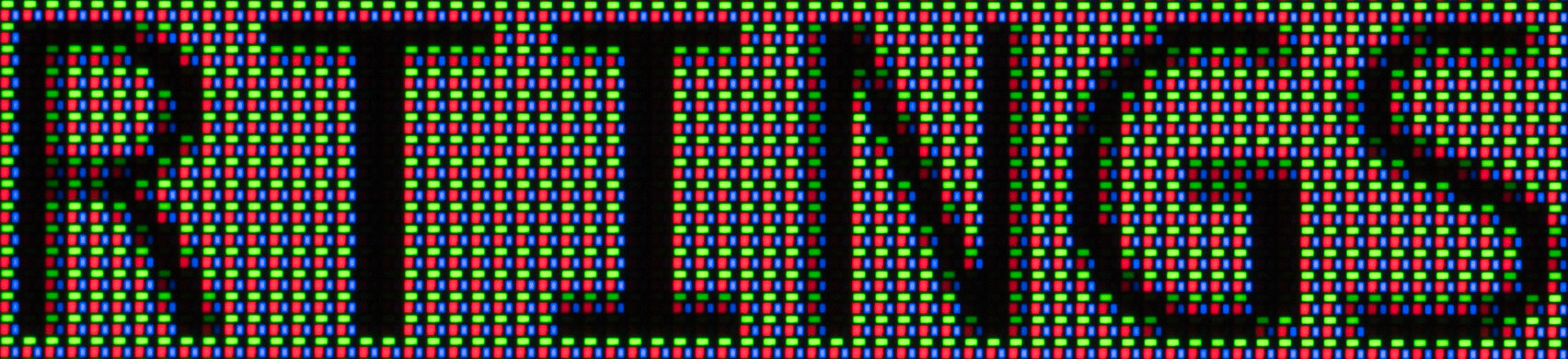
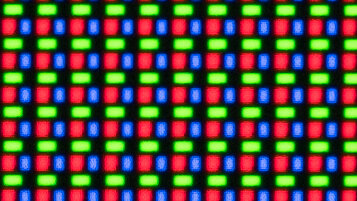
    Text Clarity
    Pixel Type
    VA
    Sub-Pixel Layout
    RGB

    Update 01/05/2022: We updated the text clarity score after comparing it to other 32 inch, 1440p monitors. We lowered the score from 8 to 6.5 because there's sub-pixel fringing that you can see around text, typical of some VA panel monitors. The text clarity is okay, but if you care about text clarity, go for a smaller monitor or one with a higher resolution.

    Motion
    8.7
    Response Time @ Max Refresh Rate
    Best Overdrive Setting
    80
    Rise / Fall Time
    5.0 ms
    Total Response Time
    11.4 ms
    Overshoot Error
    4.6%
    Dark Rise / Fall Time
    6.9 ms
    Dark Total Response Time
    14.6 ms
    Dark Overshoot Error
    2.6%

    Trace Free 0
    Trace Free 20
    Trace Free 40
    Trace Free 60
    Trace Free 80
    Trace Free 100

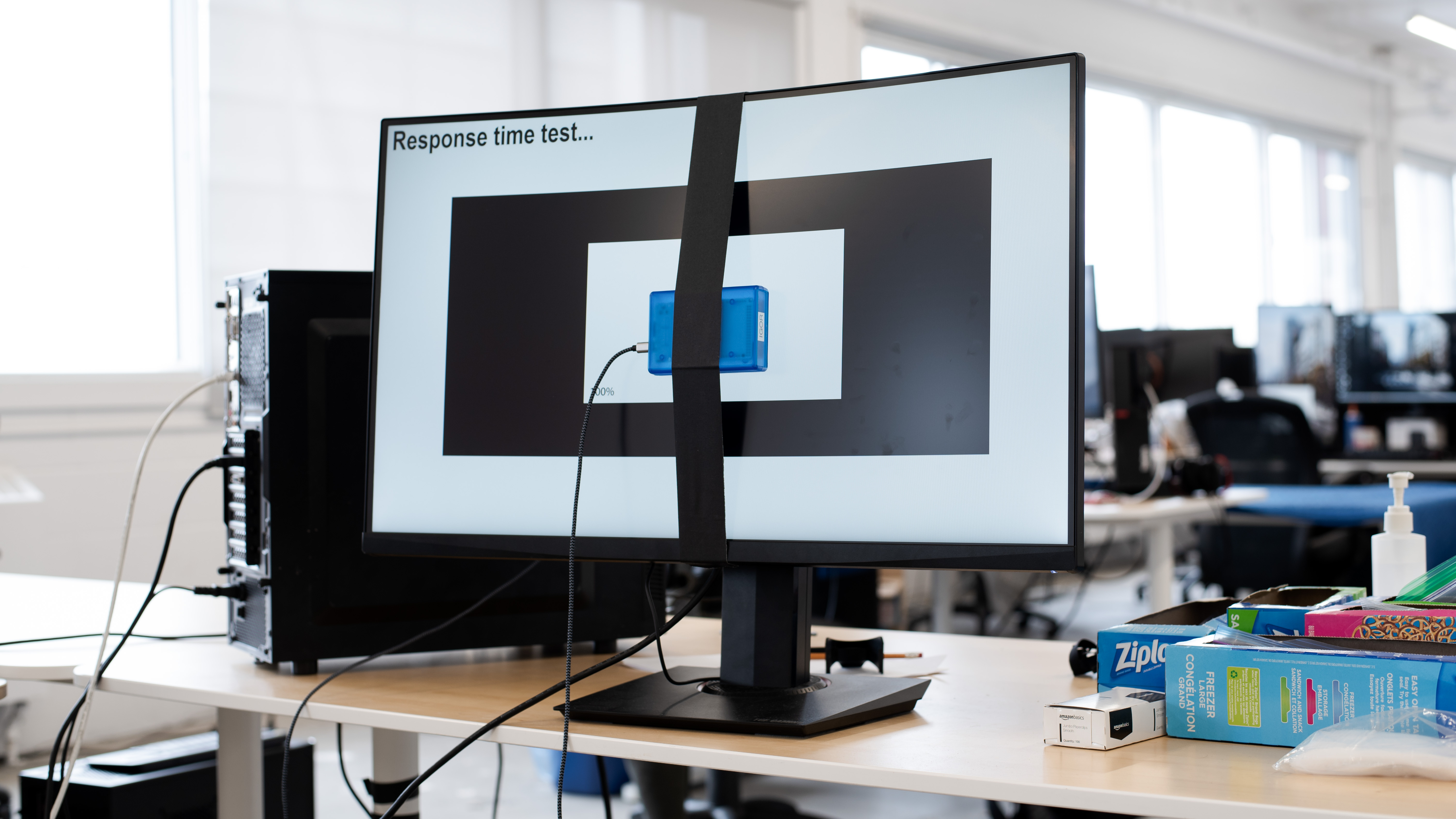
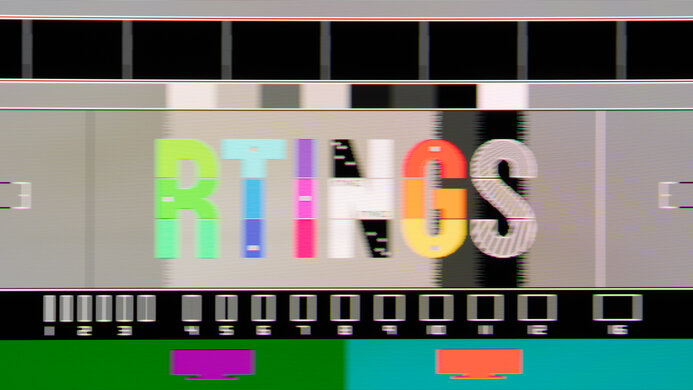
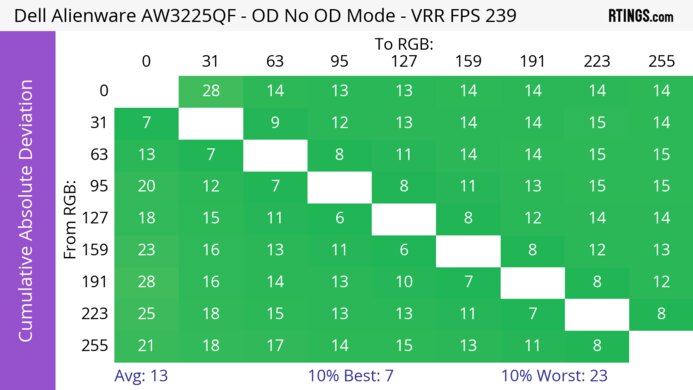
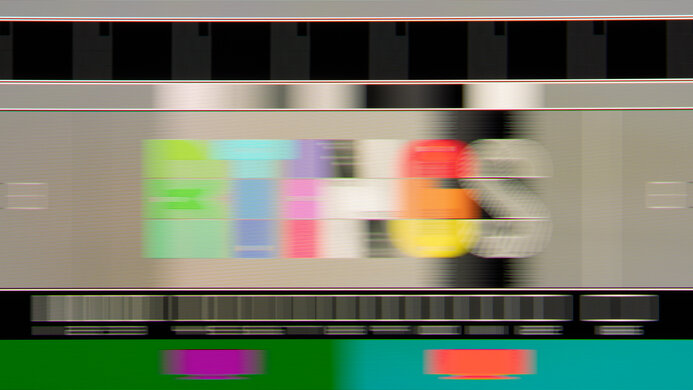
    This monitor has a great response time, resulting in relatively clear motion, with little blur behind fast-moving objects. The level of overdrive can be customized by adjusting the Trace Free setting. There is very little difference between the settings, and we found that the maximum setting of '80' works best, as it offers the fastest response time with little noticeable overshoot.

    When the VG32VQ's BFI setting, 'ELMB SYNC' is enabled, it isn't possible to adjust the response time.

    6.8
    Response Time @ 60Hz
    Best Overdrive Setting
    20
    Rise / Fall Time
    6.6 ms
    Total Response Time
    21.5 ms
    Overshoot Error
    8.2%
    Dark Rise / Fall Time
    7.7 ms
    Dark Total Response Time
    20.4 ms
    Dark Overshoot Error
    7.3%
    10
    Image Flicker
    Flicker-FreeYes
    PWM Dimming Frequency
    0 Hz

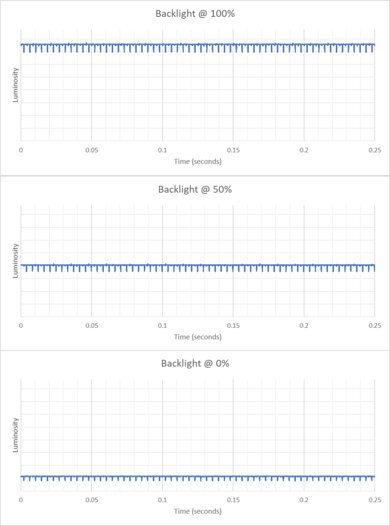
    The ASUS TUF Gaming VG32VQ has a flicker-free backlight, which is great. It also has an optional black frame insertion feature, and unlike almost every monitor our there, this feature is available at the same time as FreeSync. The setting that controls this feature is known as 'ELMB SYNC'.

    9.0
    Black Frame Insertion (BFI)
    Black Frame Insertion (BFI)
    Yes
    BFI Maximum Frequency
    144 Hz
    BFI Minimum Frequency
    60 Hz
    9.0
    Refresh Rate
    Variable Refresh Rate
    FreeSync
    Native
    144 Hz
    Max Refresh Rate
    144 Hz
    Variable Refresh Rate
    Yes
    FreeSync
    Yes
    G-SYNC
    No
    VRR Maximum
    144 Hz
    VRR Minimum
    < 20 Hz
    VRR Supported ConnectorsDisplayPort, HDMI

    The ASUS TUF VG32VQ has a great 144Hz refresh rate and it supports AMD's FreeSync variable refresh rate technology, for a nearly tear-free gaming experience.

    Unfortunately, when low framerate compensation (LFC) kicks in at 48Hz, there is noticeable backlight strobing. As the frame rate decreases, the strobing increases approximately every 10 fps. By the time it reaches 20 fps, the strobing is very distracting. Note that this strobing is noticeable even with the black frame insertion feature disabled.

    Over HDMI, VRR only works up to 85Hz at 1440p, but works up to 144Hz if the resolution is decreased to 1080p.

    Inputs
    9.4
    Input Lag
    Native Resolution
    4.8 ms
    Native Resolution @ 60Hz
    9.6 ms
    Variable Refresh Rate
    6.4 ms
    Variable Refresh Rate @ 60Hz
    9.4 ms
    10 Bit HDR
    9.2 ms
    Black Frame Insertion (BFI)
    6.8 ms

    The ASUS TUF VG32VQ has outstanding low input lag in any supported mode. The 60Hz input lag is a bit higher, but still low enough for most casual gamers, and a bit better than the best TVs.

    If input lag is important to you and you want the best gaming experience possible, check out our recommendations for the best gaming mice.

    8.3
    Resolution And Size
    Native Resolution2560 x 1440
    Aspect Ratio16:9
    Megapixels3.7 MP
    Pixel Density
    92 PPI
    Screen Diagonal32.0"
    Screen Area438 in²

    The 32", 1440p display delivers an excellent amount of screen real estate, making it a great choice for multitasking. This also makes it easier to see more fine details in your favorite games.

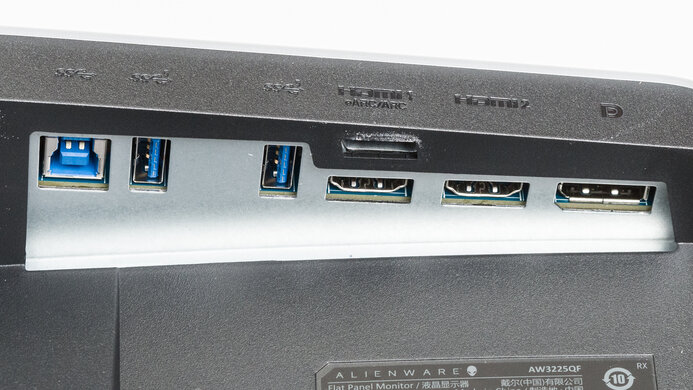
    Inputs
    Total Inputs
    DisplayPort1 (DP 1.2)
    Mini DisplayPortNo
    HDMI2 (HDMI 2.0)
    DVINo
    VGANo
    DisplayPort OutNo
    USBNo
    USB CNo
    Analog Audio Out 3.5mm1
    Microphone In 3.5mmN/A
    Digital Optical Audio OutN/A
    Analog Audio Out RCAN/A
    Power SupplyExternal Brick
    Features
    Additional Features
    RGB Illumination
    No
    Speakers
    Yes
    HDR10Yes
    Multiple Input Display
    No

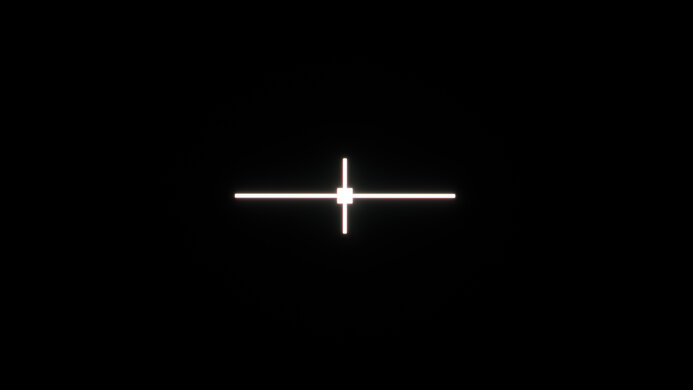
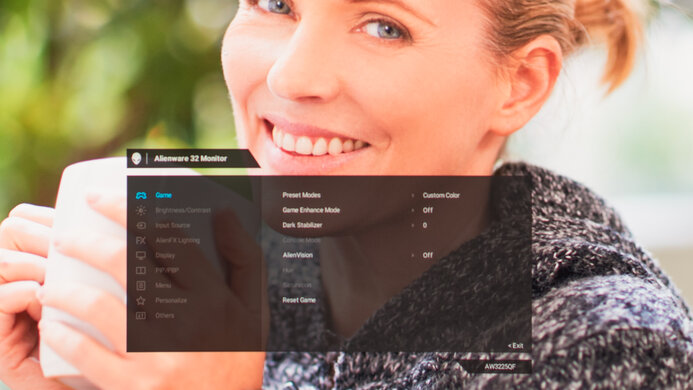
    The ASUS TUF VG32VQ has a few additional gaming features. It can add numerous virtual overlays to the display, including crosshairs, an FPS counter, and a timer.

    On-Screen Display (OSD)
    Controls

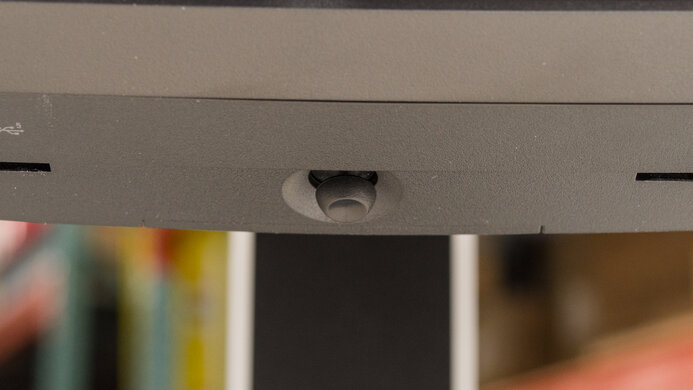
    The controls are located behind the right side of the monitor, and they can be difficult to get used to. They use a combination of fixed buttons and a directional control.

    In The Box

    • Power Cord
    • Power Adapter
    • HDMI Cable
    • DisplayPort Cable
    • Warranty Card