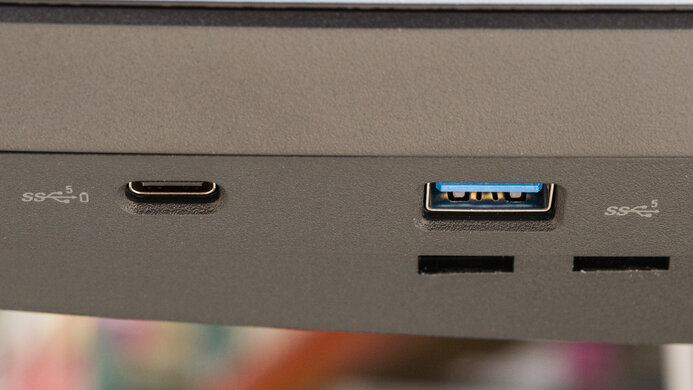
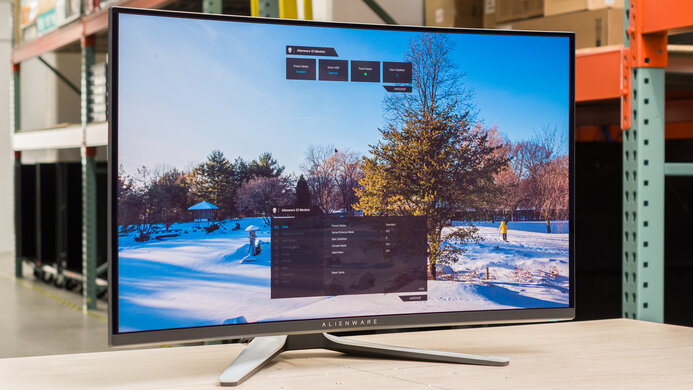
The Dell G2524H is a cheap, entry-level 25-inch, 1080p gaming monitor. Featuring a max 280Hz refresh rate, it's meant for PC gamers who crave high refresh rates without a high resolution. It sits below the Dell G2724D and alongside the Dell SE2426HGS in the Dell gaming lineup and competes against other 1080p gaming monitors with a high refresh rate, like the ViewSonic XG2431 and the ASUS TUF Gaming VG259QM. It has typical gaming features, like FreeSync Premium and G-SYNC Compatibility, and different vision modes, including crosshairs. It also has a Console Mode that's meant to support 1080p signals up to 120Hz on gaming consoles. Besides that, it offers some extra perks you don't normally find on low-cost displays, like a USB hub and an ergonomic stand.
Our Verdict
The Dell G2524H is decent for PC gaming. It has a native 240Hz refresh rate that you can overclock to 280Hz over DisplayPort, which is great if you crave high refresh rates. It also has low input lag for a responsive feel and a consistently fast response time across its refresh rate range, but there's still some blur with fast-moving objects. The biggest downside is that it has limited picture quality as it has a low contrast ratio, and blacks look gray. It also lacks any HDR support, so your games don't look vivid.
Consistently fast response time.
Low input lag.
Native 240Hz refresh rate—overclocking to 280Hz.
Supports VRR, including with consoles.
Doesn't support HDR.
Still has some blur with fast objects.
Low contrast ratio, so blacks look gray.
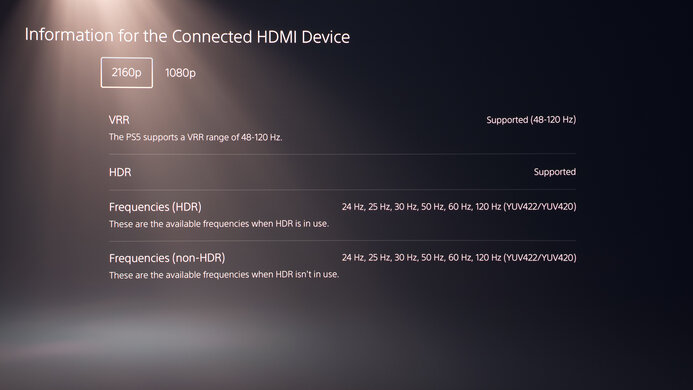
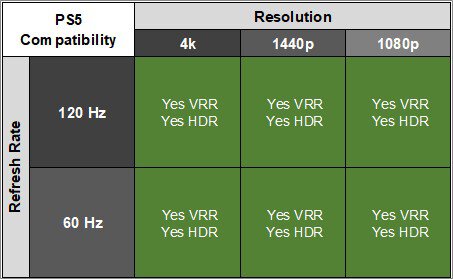
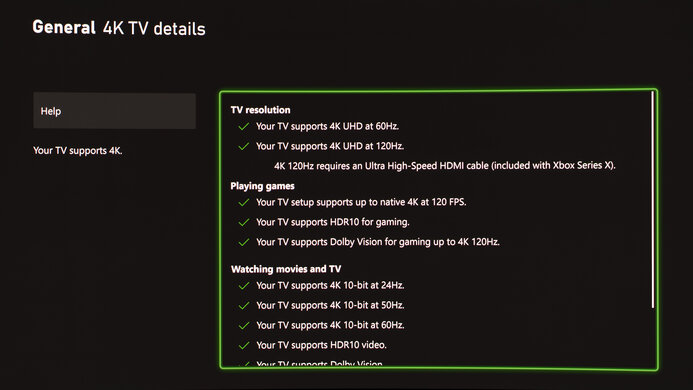
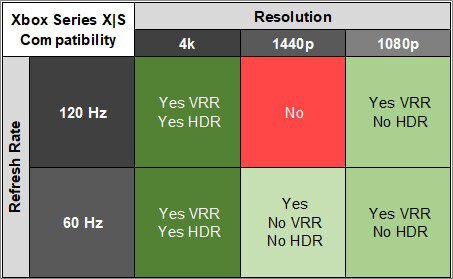
The Dell G2524H is poor for console gaming. It only supports 1080p signals up to 120Hz on the PS5, PS5 Pro, or Xbox Series X|S, and while it supports VRR with them, it doesn't support HDR at all. It also has limited picture quality due to its low native contrast ratio, and blacks look gray. At least it provides a good pure gaming feel with low input lag and a consistently fast response time, but there's still blur behind fast-moving objects.
Consistently fast response time.
Low input lag.
Supports VRR, including with consoles.
Doesn't support HDR.
Still has some blur with fast objects.
Low contrast ratio, so blacks look gray.
Only supports 1080p @ 120Hz signals on consoles.
Lacks an audio jack.
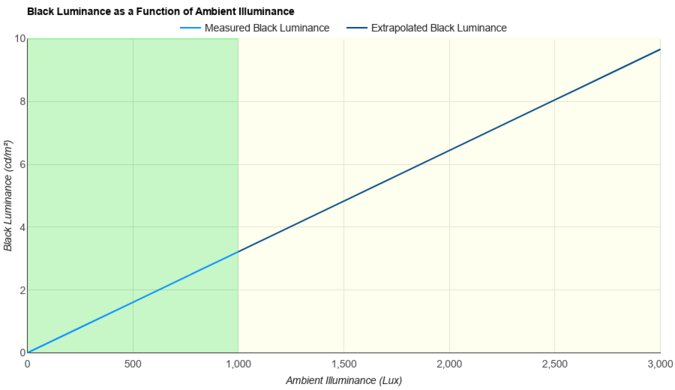
The Dell G2524H is decent for office use. It has decent text clarity, but with a 25-inch display, there isn't a ton of screen space to work with. Luckily, it gets bright enough to fight glare in most well-lit rooms, but visibility is an issue if you place it opposite a sunny window. It also comes with a very ergonomic stand that makes it easy to adjust.
Bright enough to fight glare in most well-lit rooms.
Very ergonomic stand.
Low 1080p resolution.
Visibility is an issue in sunny rooms.
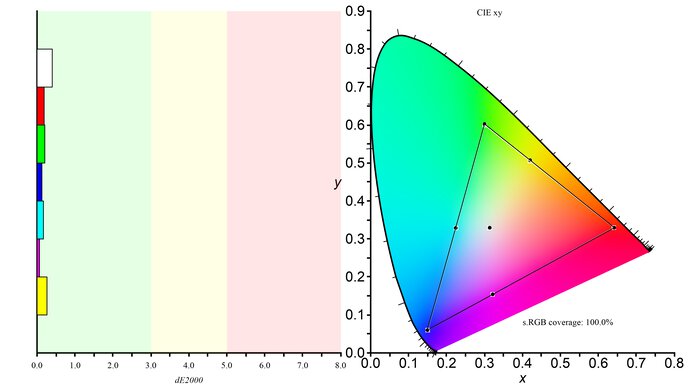
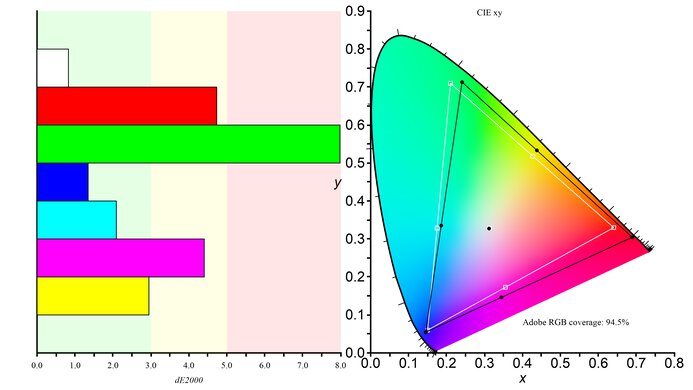
The Dell G2524H is mediocre for editing. Although it has decent color accuracy before calibration, it lacks a dedicated sRGB mode, and you still need a proper calibration for accurate colors. It also doesn't support HDR at all, and it has a low contrast ratio with raised blacks, making them appear gray. While its low 1080p resolution means that your content won't appear full of detail, it still has decent image clarity.
Bright enough to fight glare in most well-lit rooms.
Decent accuracy before calibration.
Doesn't support HDR.
Low contrast ratio, so blacks look gray.
Lacks sRGB mode—needs a full calibration.
Low 1080p resolution.
The Dell G2524H gets bright enough to fight most glare in SDR, but it doesn't support HDR.
Bright enough to fight glare in most well-lit rooms.
Doesn't support HDR.
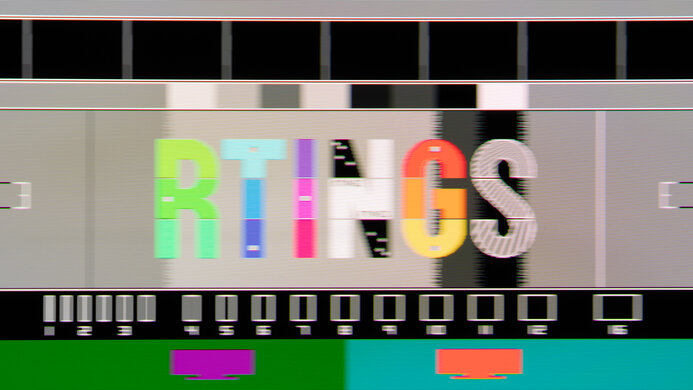
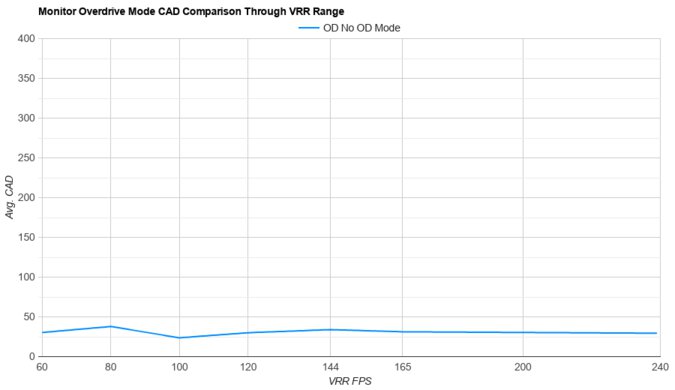
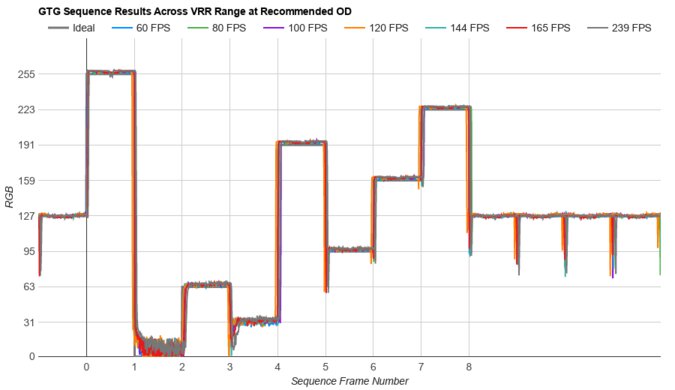
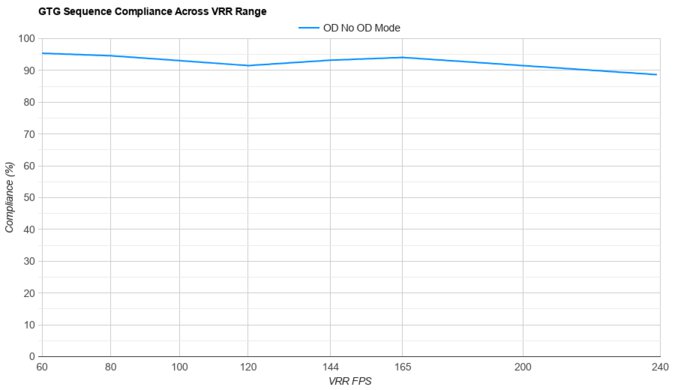
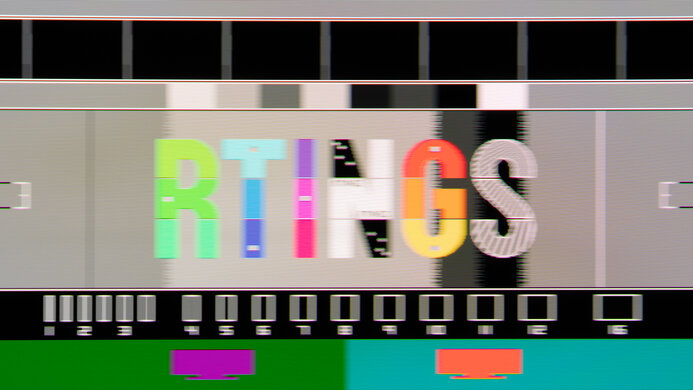
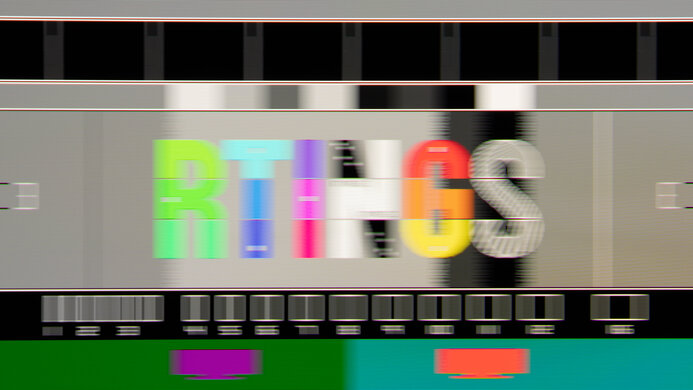
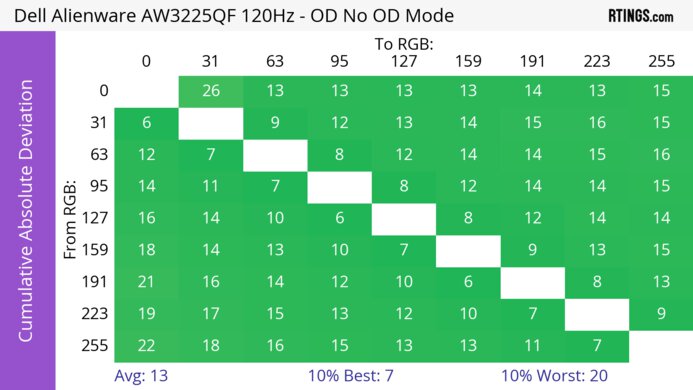
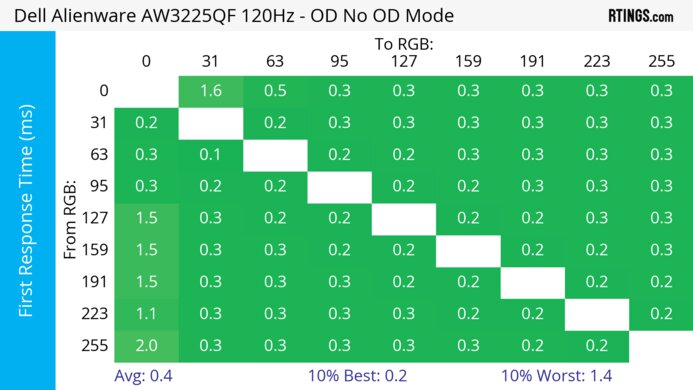
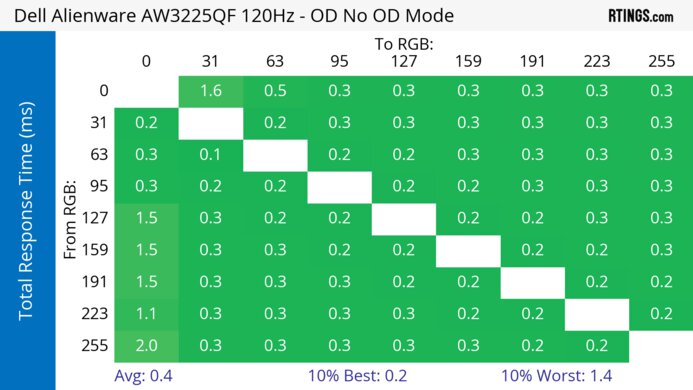
The Dell G2524H has a very good response time. It's consistently fast across its refresh rate range, but there's still some blur with fast-moving objects.
Consistently fast response time.
Still has some blur with fast objects.
The Dell G2524H doesn't support HDR.
The Dell G2524H has mediocre SDR picture quality. While it displays a wide range of colors, blacks look gray due to its low contrast ratio.
Displays wide range of colors.
Low contrast ratio, so blacks look gray.
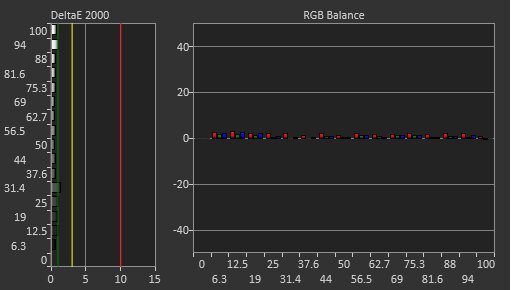
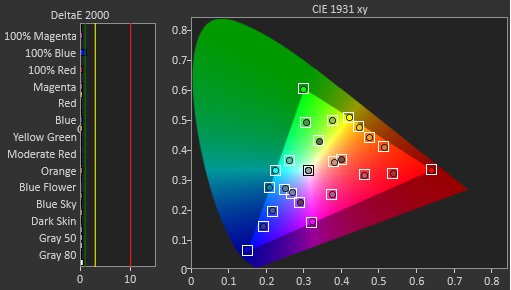
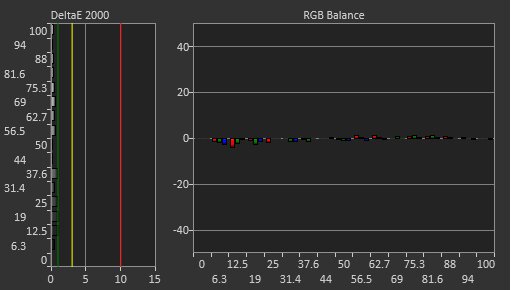
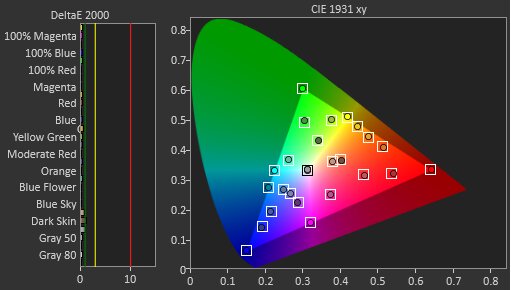
The Dell G2524H has good color accuracy. It has decent accuracy before calibration, but without an sRGB mode, colors are oversaturated. So, you need to calibrate it for the best accuracy.
Decent accuracy before calibration.
Lacks sRGB mode—needs a full calibration.
Performance Usages
Changelog
-
Updated May 07, 2026:
In the Intro, we clarified that this monitor sits alongside the Dell SE2426HGS in Dell's gaming lineup.
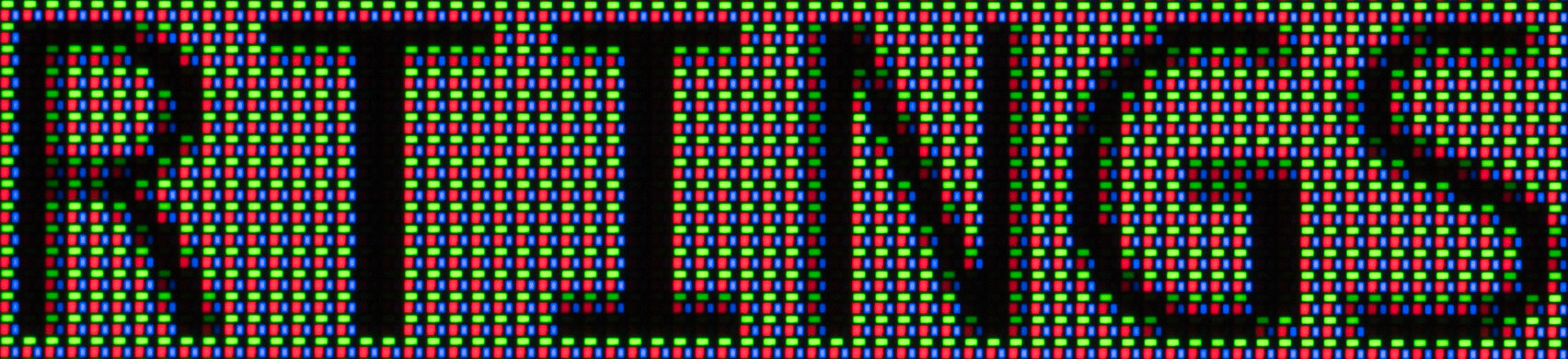
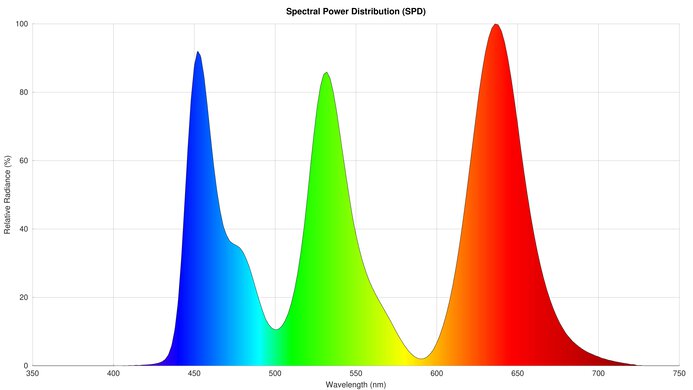
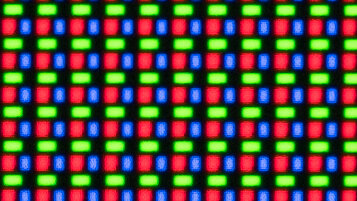
- Updated Mar 30, 2026: We've converted this review to Test Bench 2.1.2. We added a new Panel Technology box, including the Spectral Power Distribution (SPD) graph.
- Updated Nov 10, 2025: We've converted this review to Test Bench 2.1.1. We removed the Vertical Viewing Angle test.
-
Updated Oct 06, 2025:
Added that the LG 24GS65F-B is another entry-level option that has a low refresh rate.
Check Price
Differences Between Sizes And Variants
We tested the 25-inch Dell G2524H, which is the only size available, and the review is only valid for this model.
| Model | Size | Panel Type | Max Refresh Rate | Native Resolution |
|---|---|---|---|---|
| G2524H | 25" | IPS | 280Hz | 1080p |
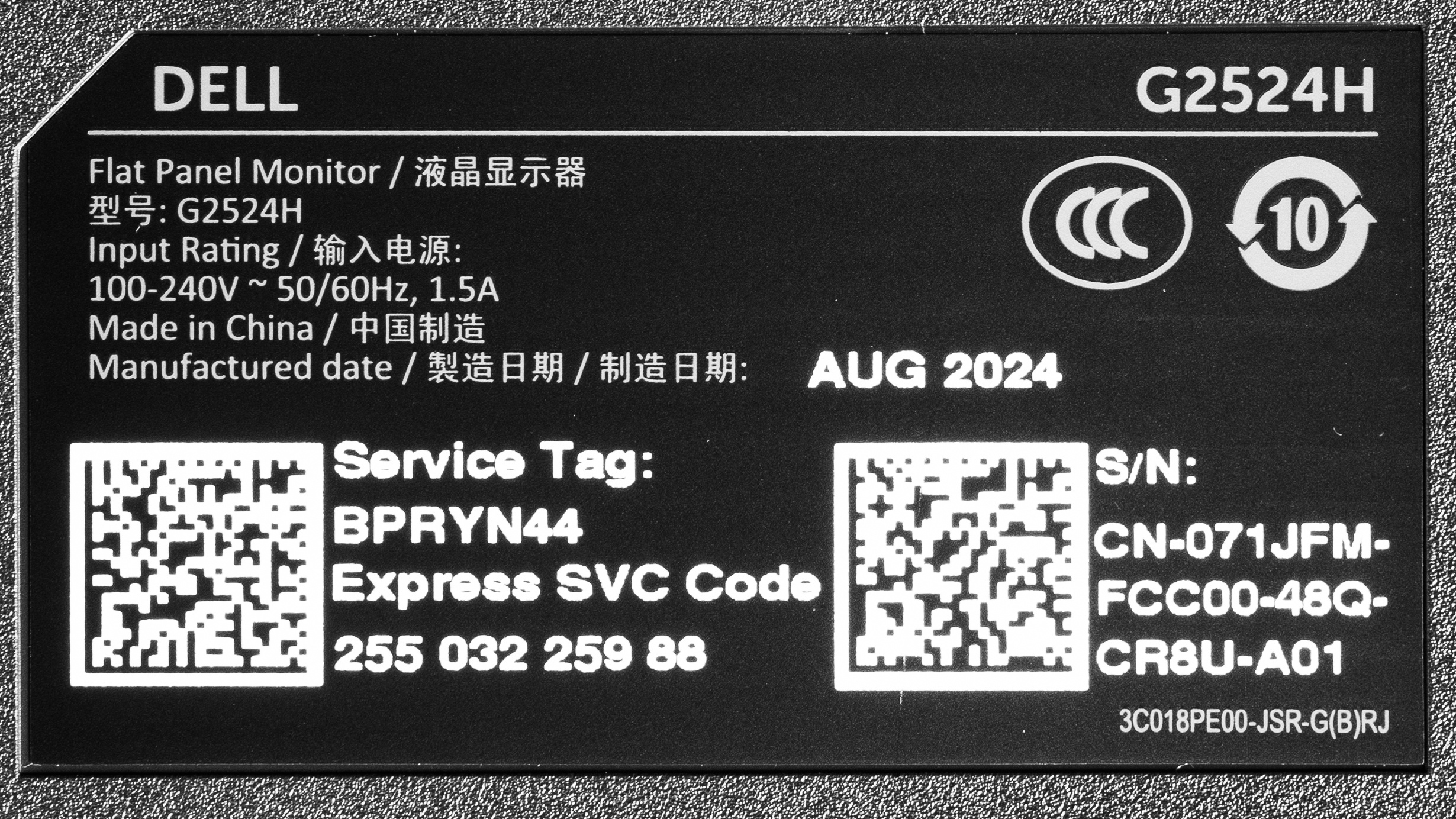
Our unit's label indicates it was manufactured in August 2024. We tested it with firmware M3F101.
Popular Monitor Comparisons
The Dell G2524H is an entry-level 1080p gaming monitor. With a native 240Hz refresh rate that you can overclock to 280Hz, it's a decent choice if you're a PC gamer who craves high refresh rates. Combined with its low input lag and consistently fast response time, it's a reliable gaming option at such a low cost. However, there are trade-offs for getting something so cheap because it has limited picture quality due to its low contrast ratio, doesn't support HDR at all, and only supports 1080p @ 120Hz signals with gaming consoles. This means it isn't versatile for uses other than PC gaming, but you have to spend more if you want better versatility.
Also, see our recommendations for the best 240Hz monitors, the best monitors under $200, and the best 24-25-inch monitors.
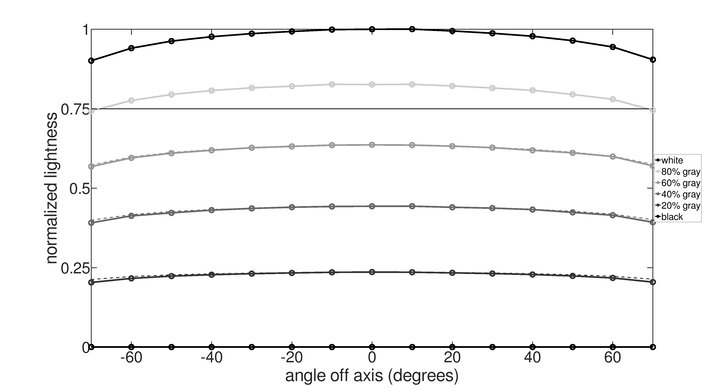
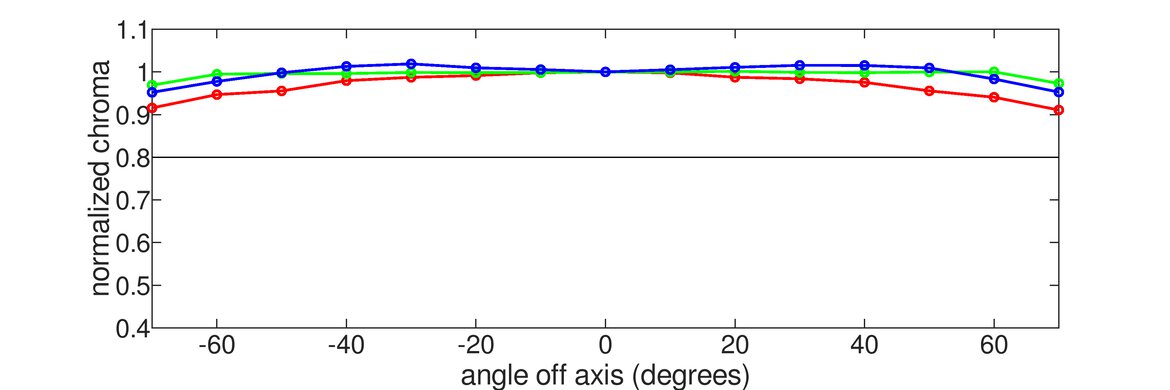
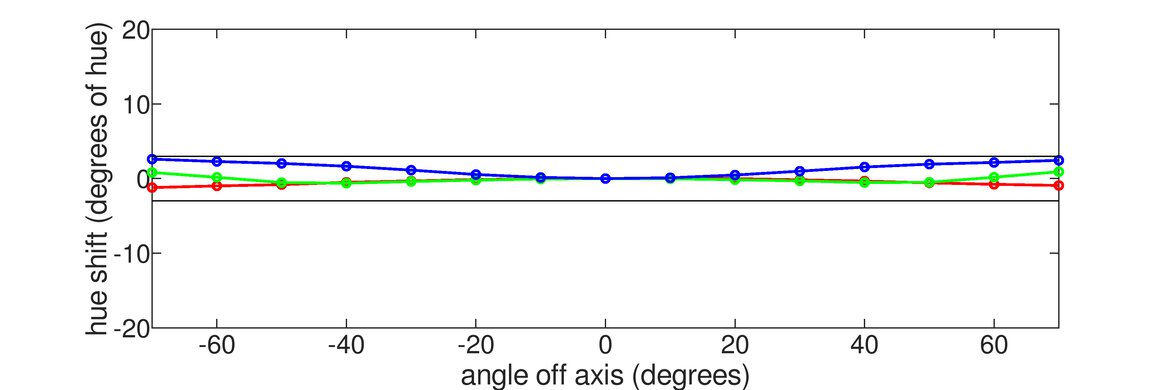
The Dell G2524H and the ASUS TUF Gaming VG258QM are both entry-level 1080p, 280Hz gaming monitors. There are some differences between them, as the Dell has better uniformity and wider viewing angles. On the other hand, the ASUS gets brighter, so it's the better choice to use in well-lit rooms. The ASUS also supports HDR, which the Dell doesn't, but it doesn't add much due to its limited picture quality.
The ViewSonic XG2431 and the Dell G2524H are both budget-friendly 1080p gaming monitors with a native 240Hz refresh rate. However, the Dell also has an overclock to boost it up to 280Hz with a DisplayPort connection. However, the ViewSonic has an advantage when it comes to gaming because it has better motion handling, and it also has a customizable backlight strobing feature to reduce persistence blur, which the Dell doesn't have.
The Samsung Odyssey G4/G40B S27BG40 and the Dell G2524H are both entry-level 1080p, 240Hz gaming monitors. They both perform similarly, but the Dell has an overclock feature to raise the refresh rate to 280Hz. The Dell also has two USB ports, which the Samsung model doesn't have; these are useful if you want to connect your mouse and keyboard directly to the monitor. While the Samsung has HDR, it doesn't add much because of its limited picture quality.
The Dell Alienware AW2523HF is a higher-end 1080p gaming model than the Dell G2524H, so it has some advantages. For example, the AW2523HF has a higher 360Hz refresh rate, which is useful if you're a competitive gamer. The AW2523HF also gets brighter and supports HDR, which the G2524H doesn't, but the AW2523HF has limited picture quality in HDR anyway.
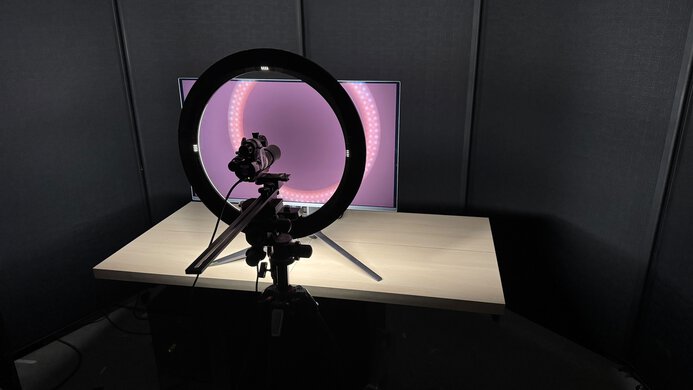
We buy and test more than 30 monitors each year, all of which we purchase ourselves, without cherry-picked units or samples. We put a lot into each unbiased, straight-to-the-point review, and there's a whole process from purchasing to publishing, involving multiple teams and people. We do more than just use the monitor for a week; we use specialized, custom tools to measure various aspects and deliver objective, data-driven results. We also consider multiple factors before making any recommendations, including the monitor's cost, its performance compared to the competition, and whether it's easy to find.
Test Results
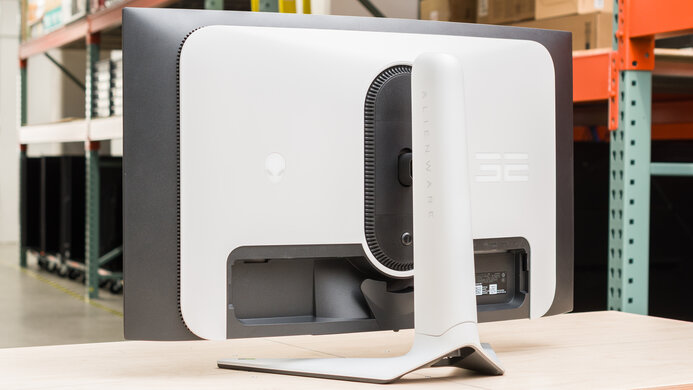
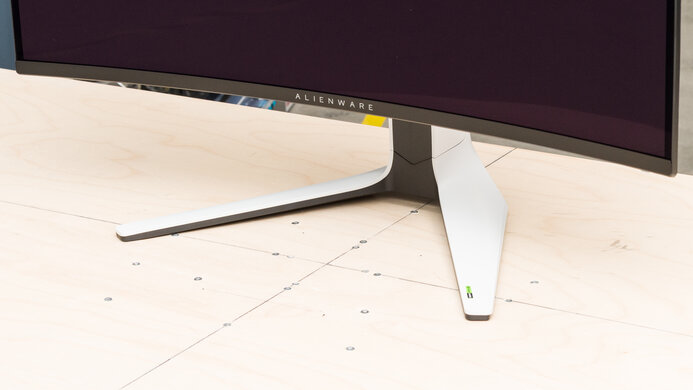
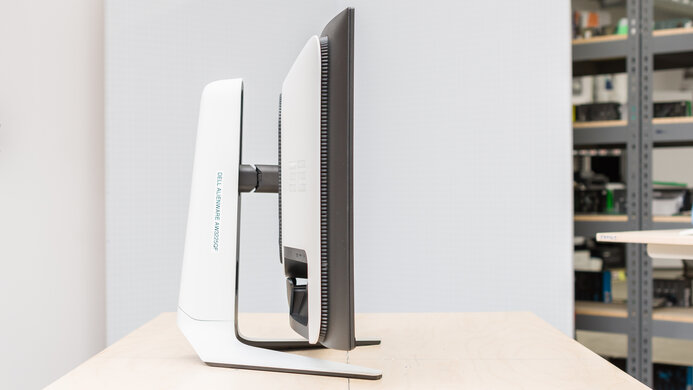
for pictures & test results
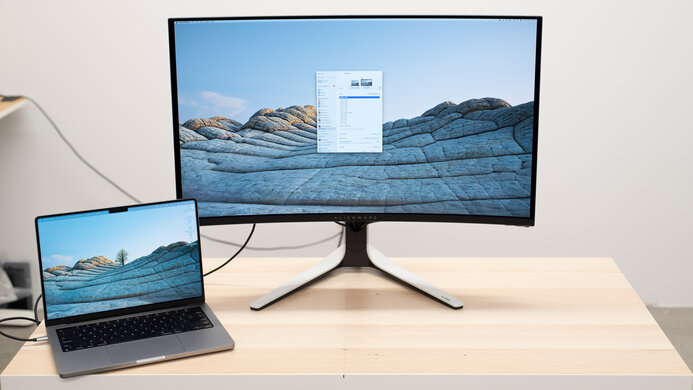




for pictures & test results
for pictures & test results
for pictures & test results
for pictures & test results
for pictures & test results
for pictures & test results
for videos & test results

for pictures & test results
for pictures & test results
for pictures & test results