Samsung Odyssey G3 F27G35T  Monitor Review

Reviewed Apr 29, 2021 at 10:09am
Writing modified Aug 24, 2023 at 12:11pm
Tested using Methodology v1.2 
Samsung Odyssey G3 F27G35T
6.6
Mixed Usage 
7.1
Office 
6.6
Gaming 
7.0
Media Consumption 
7.2
Media Creation 
3.6
HDR 
 0

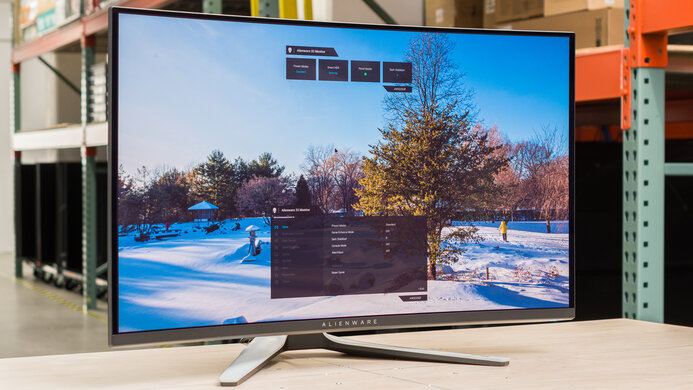
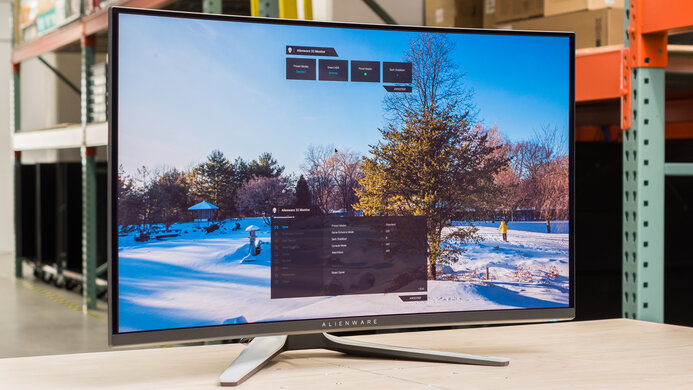
The Samsung Odyssey G3 F27G35T is an alright entry-level gaming monitor. It's the only flat monitor from Samsung's Odyssey lineup, and while it has similar features to the higher-end models, it performs quite differently. It has a 1080p resolution that may be good enough for most gamers, but that means it's not very versatile for other uses, as text looks a bit blurry. It has a 144Hz refresh rate with native FreeSync variable refresh rate (VRR) support for gaming. Sadly, it has a slow response time that makes motion look blurry, and there's noticeable smearing, which can be distracting. It has a VA panel with a high native contrast ratio to display deep blacks, but that means it has narrow viewing angles as the image looks darker when viewing from the side.

How We Test Monitors

We buy and test more than 30 monitors each year, with units that we buy completely on our own, without any cherry-picked units or samples. We put a lot into each unbiased, straight-to-the-point review, and there's a whole process from purchasing to publishing, involving multiple teams and people. We do more than just use the monitor for a week; we use specialized and custom tools to measure various aspects with objective data-based results. We also consider multiple factors before making any recommendations, including the monitor's cost, its performance against the competition, and whether or not it's easy to find.

Our Verdict

6.6
Mixed Usage 

The Samsung Odyssey G3 is alright overall. It delivers okay gaming performance thanks to its 144Hz refresh rate, VRR support, and low input lag. It's also great for dark room gaming due to its high contrast ratio. However, it has a slow response time, so motion looks blurry. It's decent for office use and decent for content creators because it has a large screen and amazing ergonomics, but the 1080p resolution results in blurry text.

Pros
  • Amazing ergonomics.
  • 144Hz refresh rate with VRR support.
  • High native contrast ratio.
Cons
  • Low 1080p resolution; text looks a bit blurry.
  • Narrow viewing angles.
  • Noticeable motion blur and smearing.
7.1
Office 

The Samsung Odyssey G3 is decent for office use. Although its 1080p resolution may be low for some, it has a 27-inch screen that offers enough space to multitask. Its stand has amazing ergonomics, so it should be easy to place in an ideal viewing position. It also gets fairly bright and has decent reflection handling for most office environments, but it doesn't perform well in really bright rooms.

Pros
  • 27 inch screen.
  • Amazing ergonomics.
  • Gets fairly brightness and has decent reflection handling.
Cons
  • Low 1080p resolution; text looks a bit blurry.
  • Narrow viewing angles.
6.6
Gaming 

The Samsung Odyssey G3 is okay for gaming. It has a high 144Hz refresh rate with native FreeSync support and G-SYNC compatibility to reduce screen tearing. It has low input lag, but sadly, the slow response time results in blurry motion with a ton of smearing. If you want to use it for dark room gaming, it has an impressive native contrast ratio, but there's no local dimming feature.

Pros
  • 144Hz refresh rate with VRR support.
  • Very low input lag.
  • High native contrast ratio.
Cons
  • Noticeable motion blur and smearing.
7.0
Media Consumption 

The Samsung Odyssey G3 is decent for watching multimedia content. Its 27 inch screen is big enough to deliver an immersive viewing experience, but its 1080p resolution may be too low for some. It has great ergonomics to make it easy to place in an ideal viewing position, but with narrow viewing angles, it's not suggested for sharing your screen with others.

Pros
  • Amazing ergonomics.
  • High native contrast ratio.
Cons
  • Low 1080p resolution; text looks a bit blurry.
  • Narrow viewing angles.
7.2
Media Creation 

The Samsung Odyssey G3 is decent for content creators. While its screen is large enough to open multiple windows side-by-side, some people may find the 1080p resolution too low to see fine details. It has great ergonomics, but it may not be a great choice for sharing the screen with a client or coworker due to its narrow viewing angles.

Pros
  • Amazing ergonomics.
  • Gets fairly brightness and has decent reflection handling.
Cons
  • Low 1080p resolution; text looks a bit blurry.
  • Narrow viewing angles.
3.6
HDR 

The Samsung Odyssey G3 doesn't support HDR.

  • 6.6
    Mixed Usage
  • 7.1
    Office
  • 6.6
    Gaming
  • 7.0
    Media Consumption
  • 7.2
    Media Creation
  • 3.6
    HDR
  • Changelog

    1.  Updated Aug 24, 2023: Updated text for accuracy with Test Bench 1.2, including in the Response Time and Console Compatibility tests.
    2.  Updated Apr 14, 2023: Tested the 1440p support on this monitor with the PS5, but it doesn't work.
    3.  Updated Dec 16, 2022: Changed the name to the Samsung Odyssey G3 F27G35T to be more consistent with other Samsung monitors.
    4.  Updated Jul 07, 2022: Updated to Test Bench 1.2, resulting in changes to the results and scores with the Response Time and Input Lag. Added tests for Console Compatibility and macOS compatibility and made minor changes to other tests, which you can see in our Changelog.

    Check Price

    27"LF27G35TFWNXZA
    SEE PRICE
    Amazon.com
    27"LF27G35TFWNXZA
    SEE PRICE
    BestBuy.com
    27"LF27G35TFWNXZA
    SEE PRICE
    Walmart.com
    27"LF27G35TFWNXZA
    B&H
    27"LF27G35TFWNXZA
    Samsung.com

    Differences Between Sizes And Variants

    We tested the Samsung Odyssey G3 in a 27-inch size. There's also a 24-inch model available, but it has a lower advertised contrast ratio. It's part of Samsung's Odyssey lineup, which includes the Samsung Odyssey G5 C27G55TSamsung Odyssey G7 C32G75T, and the Samsung Odyssey G9.

    Model Code Size Type Resolution Refresh Rate Advertised Contrast
    LF24G35TFWNXZA 24" VA 1080p 144Hz 3000:1 contrast
    LF27G35TFWNXZA 27" VA 1080p 144Hz 4000:1 contrast

    Our unit was manufactured in December 2020, and you can see the label here.

    Popular Monitor Comparisons

    The Samsung Odyssey G3 is an alright budget gaming monitor. It has better ergonomics than the Samsung Odyssey G5 C27G55T and has features most gamers are looking for. However, it has a slow response time, and the motion blur is noticeable with a ton of smearing. There are other options with much quicker response times, like the Acer Nitro XF243Y Pbmiiprx.

    Also see our recommendations for the best budget monitors, the best 1080p monitors, and the best gaming monitors.

    Samsung Odyssey G3 S24AG30

    The Samsung Odyssey G3 F27G35T and the Samsung Odyssey G3 S24AG30 are very similar monitors that are both part of the same lineup. The F27G35T we tested has a 27 inch screen, while the S24AG30 we tested is 24 inches, but both are available in 24 and 27 inch models. They have many of the same features, but the F27G35T performs better in a few areas. It gets brighter and has better motion handling, but its response time is still mediocre. The S24AG30 has a different design with a worse swivel range, and it has a USB input, but you can't use it for charging.

    Samsung Odyssey G7 C32G75T

    The Samsung Odyssey G7 C32G75T is a higher-end monitor than the Samsung Odyssey G3 F27G35T, so it performs better overall. The G7 has a curved screen with a 1440p resolution and 240Hz refresh, while the G3 is flat and has a 1080p resolution and 144Hz refresh rate. The G7 has much quicker response times, so motion looks smoother in fast-paced games, and it also supports HDR, which the G3 doesn't. However, the G3 has better ergonomics because it has a wider swivel range.

    Samsung Odyssey G4/G40B S27BG40

    The Samsung Odyssey G4/G40B S27BG40 is a higher-end monitor than the Samsung Odyssey G3 F27G35T, and it's better for gaming. The G4 has a higher 240Hz refresh rate, ideal for PC gaming, and has much better motion handling and faster response time. The G4 is also better to use in bright rooms as it gets brighter and has better reflection handling. The G4 supports HDR, which the G3 doesn't, and it has a different panel type with wider viewing angles. However, the G3 has a better contrast, making it a better choice to use in a well-lit room.

    AOC 24G2

    The AOC 24G2 and the Samsung Odyssey G3 F27G35T are both entry-level 1080p gaming monitors, with a few differences. They have different panel types, as the AOC has an IPS panel with wider viewing angles and much better motion handling, thanks to its faster response time. The AOC also gets brighter and has better reflection handling, making it a better choice to use in a well-lit room. However, the Samsung is better for use in dark rooms because it displays deeper blacks.

    ASUS VG279Q

    The ASUS VG279Q is a better gaming monitor than the Samsung Odyssey G3 F27G35T, but they have different panel types. They each have a 1080p resolution with a 144Hz refresh rate, but the ASUS has an IPS panel with wider viewing angles, and the Samsung has a VA panel with better contrast. Motion looks much smoother on the ASUS due to its quick response times. It's also a better choice for use in well-lit rooms because it gets brighter and has a bit better reflection handling.

    Samsung T55

    The Samsung Odyssey G3 F27G35T is better for gaming than the Samsung T55, mainly because the G3 has a higher 144Hz refresh rate than the 75Hz on the T55. They each have a VA panel with a 1080p resolution, and the G3 is flat while the T55 has an aggressive 1000R curve. Despite having a lower refresh rate, the T55 has a quicker response time, but motion looks blurry on either monitor. The T55 is better for well-lit rooms because it gets brighter and has better reflection handling. However, the G3 is better for office use because it has much better ergonomics.

    Samsung Odyssey G55T C27G55T

    The Samsung Odyssey G55T C27G55T and the Samsung Odyssey G3 F27G35T are part of the same monitor lineup, but they have different features and performance. The G5 is a curved monitor with a 1440p resolution, while the G3 is flat and has a 1080p resolution. The G5 is better for gaming mainly because it has a much quicker response time that results in smoother motion. It also supports HDR, which the G3 doesn't, but it doesn't add much because it has low HDR peak brightness and can't display a wide color gamut. On the other hand, the G3 has much better ergonomics because it offers height and swivel adjustments.
    Acer Nitro XF243Y Pbmiiprx

    The Acer Nitro XF243Y Pbmiiprx is much better than the Samsung Odyssey G3 F27G35T. They each have a 1080p resolution, but they have different panel types. The Acer has an IPS panel with wider viewing angles. It also has a significantly faster response time, so motion looks smoother, and you can overclock its 144Hz refresh rate to 165Hz. Although the Acer has a smaller screen, it has a higher pixel density to provide better text clarity. On the other hand, the Samsung has a VA panel with a higher contrast ratio, displaying deeper blacks.

    Dell S2721HGF

    The Dell S2721HGF and the Samsung Odyssey G3 F27G35T are both decent monitors. They share similar characteristics with VA panels, a 1080p resolution, and 144Hz refresh rate, but the Dell is curved while the Samsung is flat. The Dell is a bit better for gaming mainly because of its quick response times, especially at its max refresh rate, so motion looks better. The Dell is also a bit better for use in bright rooms because it has better reflection handling and higher peak brightness. However, the Samsung has a more ergonomic stand as you can swivel it or rotate it into portrait mode.

    MSI Optix G27C6

    The Samsung Odyssey G3 F27G35T and the MSI Optix G27C6 are both good budget-friendly gaming monitors. They each have a VA panel with a 1080p resolution, but the MSI has a higher 165Hz refresh rate than the 144Hz on the Samsung. They're very similar in performance; they have native FreeSync support, G-SYNC compatibility, and low input lag, but their response times are slow. The Samsung is a bit more versatile for other uses because it has much better ergonomics, but the MSI gets brighter if you want to use it in a well-lit room.

    ASUS ZenScreen MB14AC

    The ASUS ZenScreen MB14AC and the Samsung Odyssey G3 F27G35T are very different monitors. The ASUS is a 14" portable monitor with a basic 60Hz refresh rate, while the Samsung is a 27" budget desktop gaming monitor with a 144Hz refresh rate. The ASUS has a very narrow color gamut that makes colors look washed out, so it's not ideal for work that requires image accuracy or media consumption. It's also not a good choice for gaming because it has bad response times and no VRR support.

    Dell S2421H

    The Samsung Odyssey G3 F27G35T is much better than the Dell S2421H, but it uses a different panel type. The Samsung has a VA panel, which delivers much better contrast for dark-room viewing. The Samsung also has much better ergonomics and a faster refresh rate. On the other hand, the Dell has better viewing angles and a faster response time, despite the faster refresh rate on the Samsung.

    Test Results

    perceptual testing image
    Sort:
    RATINGS
    Category:
    All
    Design
    Style
    Curved
    No
    Curve Radius
    Not Curved

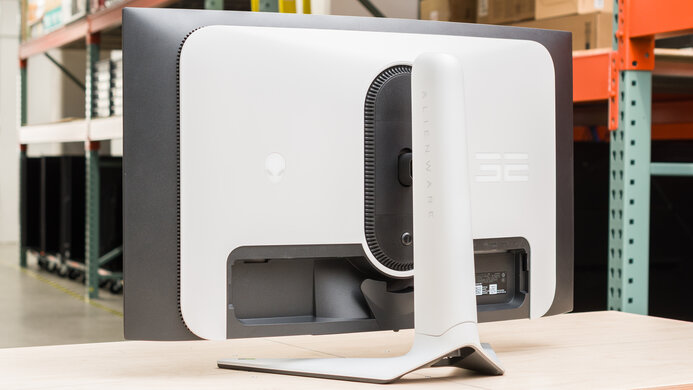
    The Samsung Odyssey G3 looks different from other Samsung Odyssey monitors because it's the only flat model in that lineup. It also has a unique three-legged stand. The all-black plastic body has a few gamer-oriented designs on the back panel, but it doesn't stand out too much if you want to use it in an office environment either.

    Accelerated Longevity Test
    Uniformity PicturesN/A
    7.5
    Build Quality

    The Samsung G3 has good build quality. Although it's made entirely out of plastic and lacks any premium materials, it feels solid, and there aren't any noticeable issues. It even feels better than the higher-end Samsung Odyssey G5 C27G55T. However, there's some flex at the bottom of the back panel, and the screen wobbles a bit on the stand, but it shouldn't be an issue for most people.

    8.9
    Ergonomics
    Height Adjustment
    4.7" (12.0 cm)
    Tilt Range
    -20° to 5°
    Rotate Portrait/Landscape
    Yes, Both Ways
    Swivel Range
    -30° to 30°
    Wall Mount
    VESA 100x100

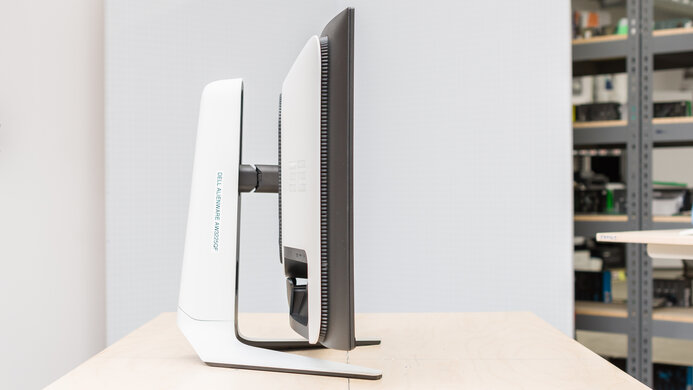
    The Samsung Odyssey G3 has amazing ergonomics, making it easy to place the screen in an ideal viewing position. Unlike the Samsung Odyssey G5 C27G55T, it can even rotate into portrait mode. The back of the monitor is all plastic with a few etched designs. There's a cutout in the stand for cable management.

    Stand
    Base Width
    20.6" (52.3 cm)
    Base Depth
    11.1" (28.1 cm)
    Thickness (With Display)
    10.7" (27.1 cm)
    Weight (With Display)
    14.1 lbs (6.4 kg)

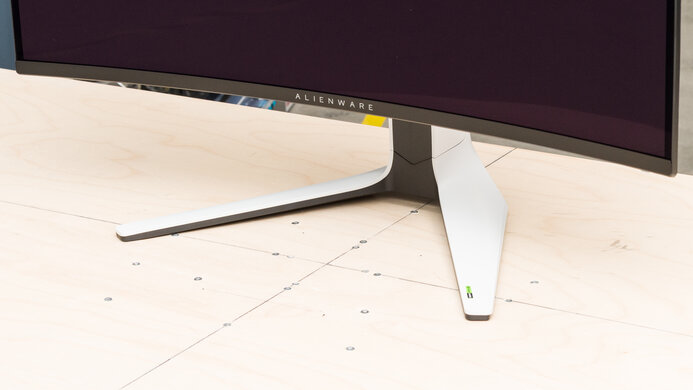
    The tripod stand takes up a good amount of space, but the back leg is shorter than the other two. There's also enough space between the front legs to place stuff in front.

    Display
    Size
    27"
    Housing Width
    24.1" (61.3 cm)
    Housing Height
    14.3" (36.3 cm)
    Thickness (Without Stand)
    2.2" (5.6 cm)
    Weight (Without Stand)
    10.1 lbs (4.6 kg)
    Borders Size (Bezels)
    0.4" (1.0 cm)
    Controls

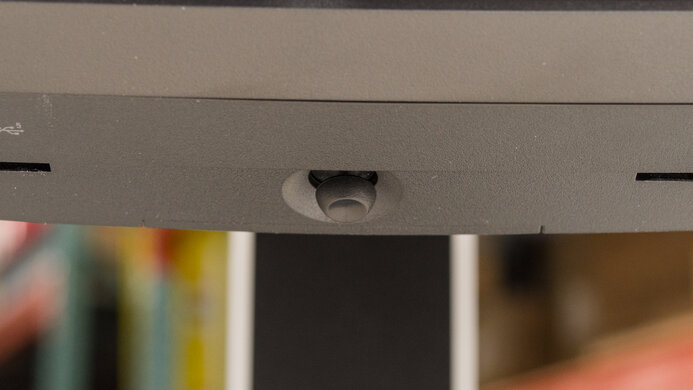
    The controls are located on the back right side, and they control the on-screen menu and power the monitor On/Off.

    In The Box
    Power Supply
    External Brick

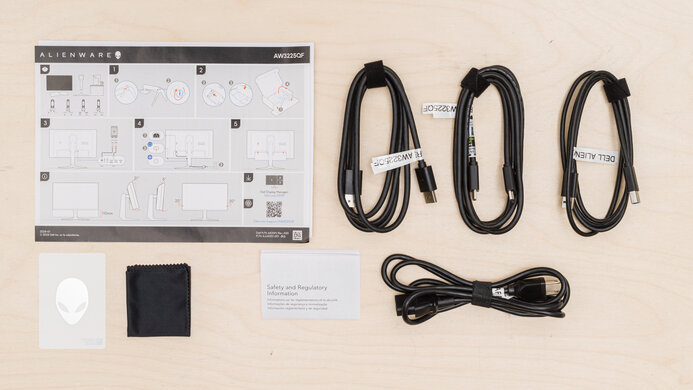
    • HDMI cable
    • Power cable
    • Power supply
    • User guide
    Picture Quality
    8.4
    Contrast
    Native Contrast
    4,173 : 1
    Contrast With Local Dimming
    N/A

    The Samsung Odyssey G3 has an impressive native contrast ratio, which is expected from a VA panel. It's higher than the advertised 4000:1 contrast, but this can change between units. Also, there's no local dimming feature to further improve it.

    0.0
    Local Dimming
    Local Dimming
    No
    Backlight
    Edge

    The Samsung Odyssey G3 doesn't have a local dimming feature. The video above is provided for reference only.

    7.2
    SDR Brightness
    Real Scene
    271 cd/m²
    Peak 2% Window
    277 cd/m²
    Peak 10% Window
    279 cd/m²
    Peak 25% Window
    279 cd/m²
    Peak 50% Window
    279 cd/m²
    Peak 100% Window
    278 cd/m²
    Sustained 2% Window
    276 cd/m²
    Sustained 10% Window
    279 cd/m²
    Sustained 25% Window
    279 cd/m²
    Sustained 50% Window
    279 cd/m²
    Sustained 100% Window
    278 cd/m²
    Automatic Brightness Limiting (ABL)
    0.000
    Minimum Brightness
    95 cd/m²

    The SDR peak brightness is decent. It's higher than the advertised 250 cd/m², and while it should be enough for most environments, it's still not enough to fight intense glare. Luckily, the brightness doesn't vary between content. We tested SDR brightness after calibration in the 'Standard' Picture Mode with Brightness at its max.

    0.0
    HDR Brightness
    VESA DisplayHDR Certification
    No Certification
    Real Scene
    N/A
    Peak 2% Window
    N/A
    Peak 10% Window
    N/A
    Peak 25% Window
    N/A
    Peak 50% Window
    N/A
    Peak 100% Window
    N/A
    Sustained 2% Window
    N/A
    Sustained 10% Window
    N/A
    Sustained 25% Window
    N/A
    Sustained 50% Window
    N/A
    Sustained 100% Window
    N/A
    Automatic Brightness Limiting (ABL)
    N/A

    The Samsung Odyssey G3 doesn't support HDR.

    6.5
    Horizontal Viewing Angle
    Color Washout From Left
    41°
    Color Washout From Right
    37°
    Color Shift From Left
    56°
    Color Shift From Right
    70°
    Brightness Loss From Left
    38°
    Brightness Loss From Right
    38°
    Black Level Raise From Left
    25°
    Black Level Raise From Right
    24°
    Gamma Shift From Left
    18°
    Gamma Shift From Right
    18°

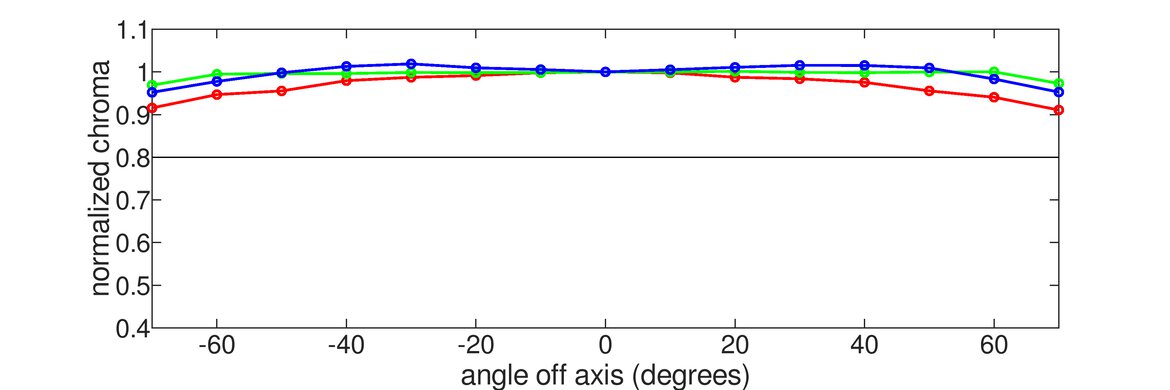
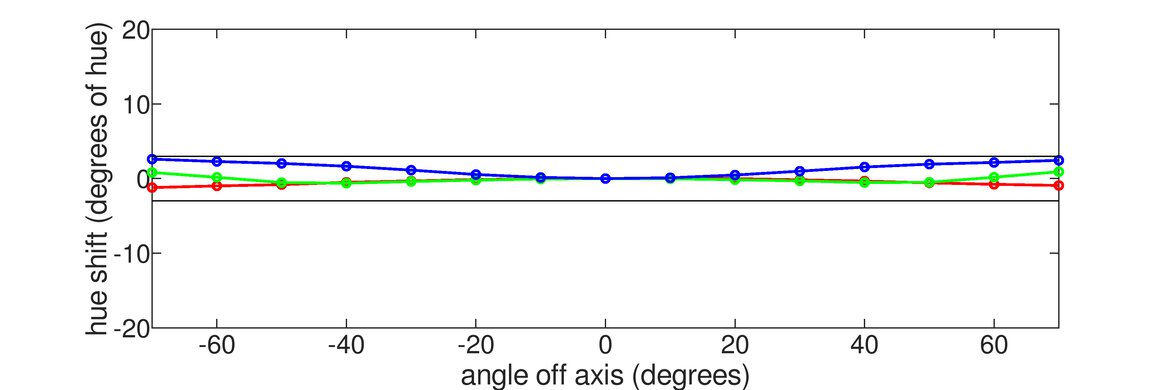
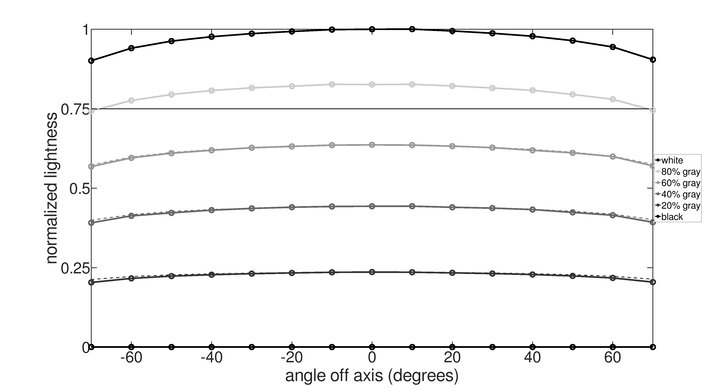
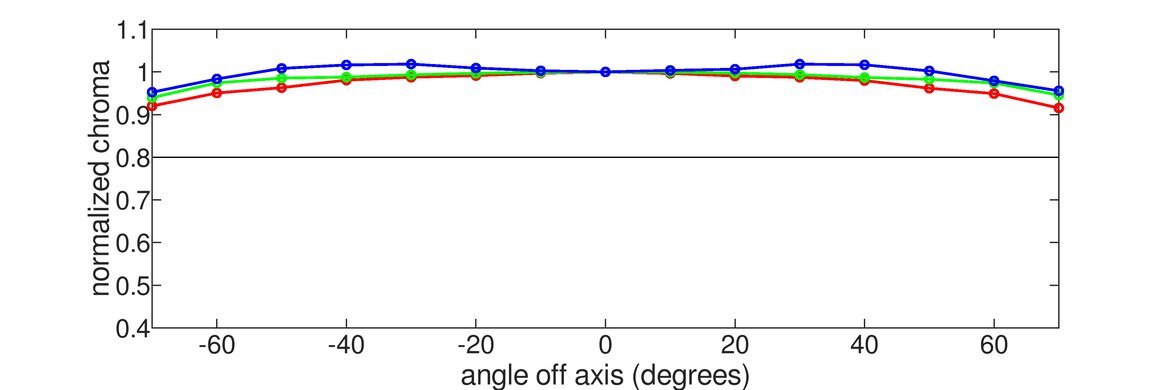
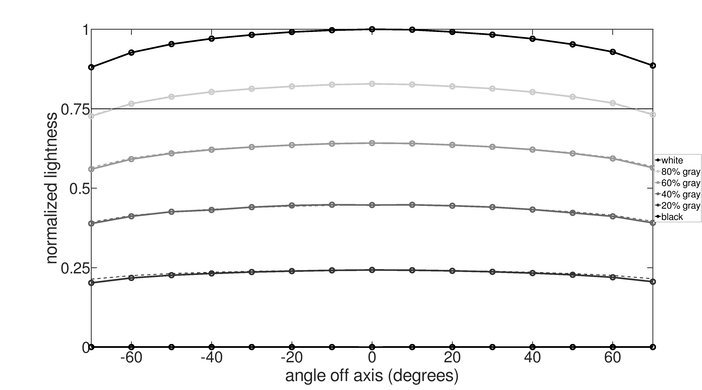
    The Samsung Odyssey G3 has okay horizontal viewing angles. It's better than most VA panel monitors because there isn't too much color washout or shift at wide angles, but the image becomes noticeably darker when viewing from the side. It's not very ideal for sharing your screen with others.

    6.0
    Vertical Viewing Angle
    Color Washout From Below
    37°
    Color Washout From Above
    32°
    Color Shift From Below
    51°
    Color Shift From Above
    70°
    Brightness Loss From Below
    35°
    Brightness Loss From Above
    31°
    Black Level Raise From Below
    15°
    Black Level Raise From Above
    13°
    Gamma Shift From Below
    19°
    Gamma Shift From Above
    15°

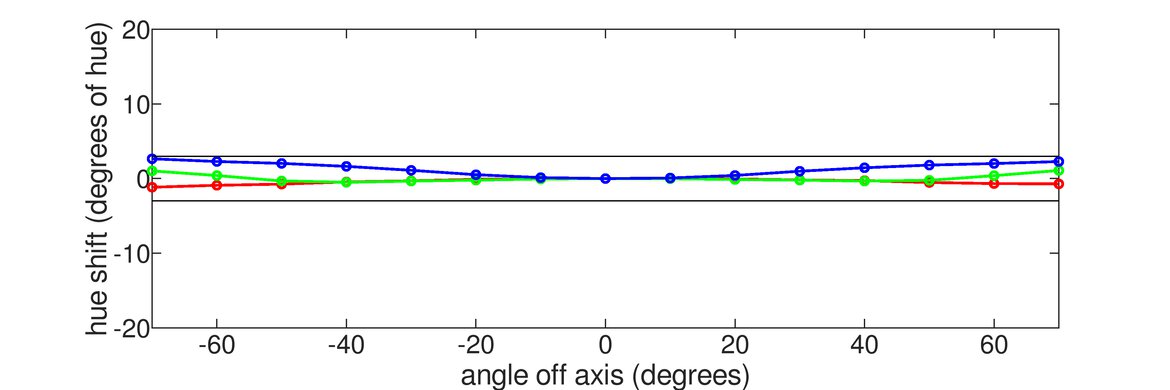
    The vertical viewing angles are mediocre. Once again, the colors remain fairly accurate, but you'll notice that the screen looks darker if you mount it above eye level.

    8.2
    Gray Uniformity
    50% Std. Dev.
    3.034%
    50% DSE
    0.130%

    The gray uniformity is great. The edges are darker, but there's minimal dirty screen effect in the center, which is great.

    6.6
    Black Uniformity
    Native Std. Dev.
    1.582%
    Std. Dev. w/ L.D.
    N/A

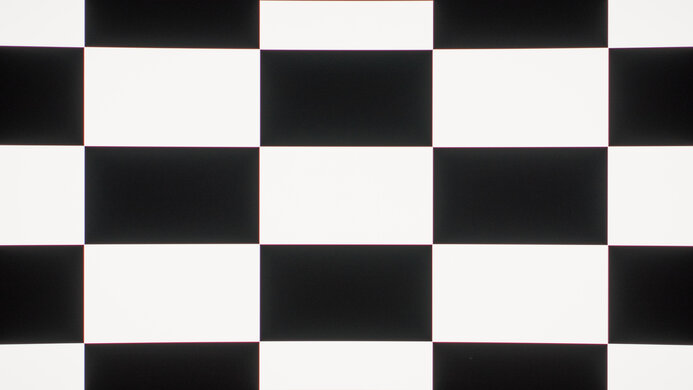
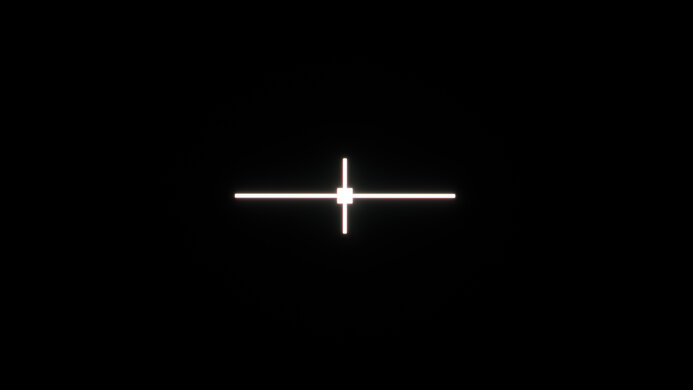
    Our unit has okay black uniformity, but this can vary between units. There's noticeable backlight bleed along the left and right edges, and there's a bit of blooming around the center cross. Sadly, there's no local dimming feature to improve it.

    8.6
    Color Accuracy (Pre-Calibration)
    Picture Mode
    Standard
    sRGB Gamut Area xy
    101.7%
    White Balance dE (Avg.)
    2.43
    Color Temperature (Avg.)
    6,844 K
    Gamma (Avg.)
    2.13
    Color dE (Avg.)
    2.70
    Contrast Setting
    50
    RGB Settings
    Warm
    Gamma Setting
    Mode 1
    Brightness Setting
    50
    Measured Brightness
    182 cd/m²
    Brightness Locked
    No

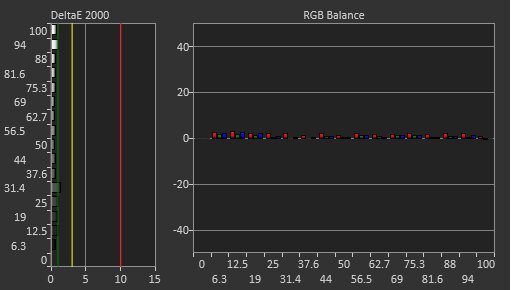
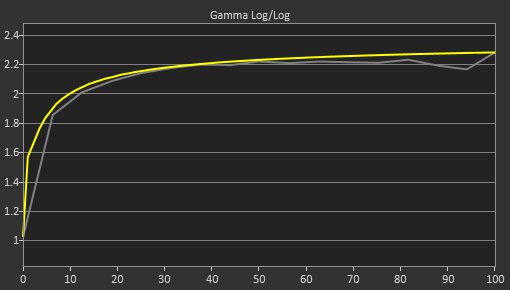
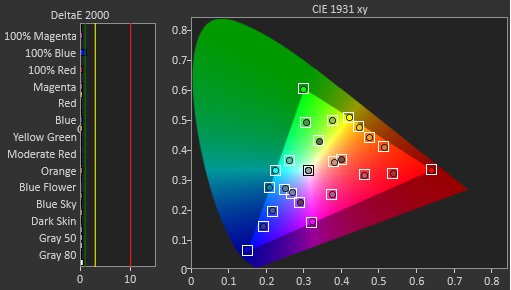
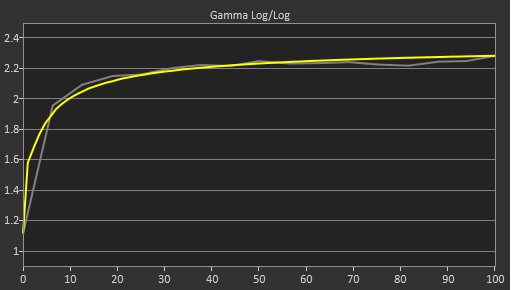
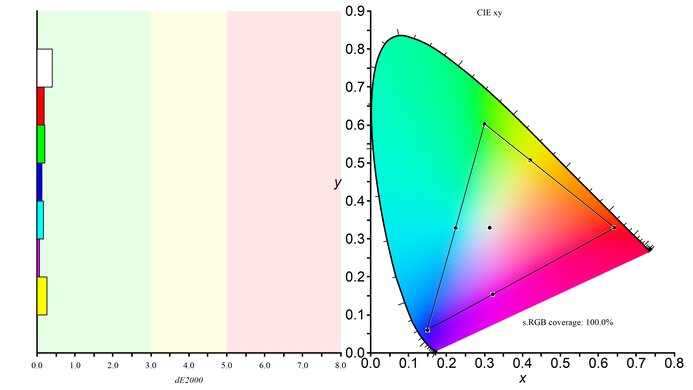
    The accuracy before calibration is excellent. Most colors and the white balance are only slightly inaccurate, and not enough for most people to notice. The color temperature is also close to the 6500K target, but it's slightly on the cold side. Unfortunately, gamma doesn't follow the sRGB target; dark scenes are over-darkened while others are too bright. Also, because it doesn't have a dedicated sRGB mode, some colors are oversaturated.

    9.3
    Color Accuracy (Post-Calibration)
    Picture Mode
    Standard
    sRGB Gamut Area xy
    95.0%
    White Balance dE (Avg.)
    0.51
    Color Temperature (Avg.)
    6,494 K
    Gamma (Avg.)
    2.20
    Color dE (Avg.)
    0.81
    Contrast Setting
    50
    RGB Settings
    48-50-46
    Gamma Setting
    Mode 1
    Brightness Setting
    2
    Measured Brightness
    100 cd/m²
    ICC Profile
    Download

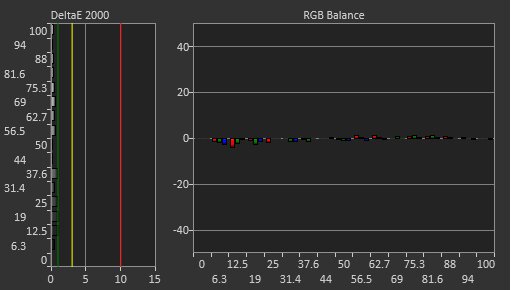
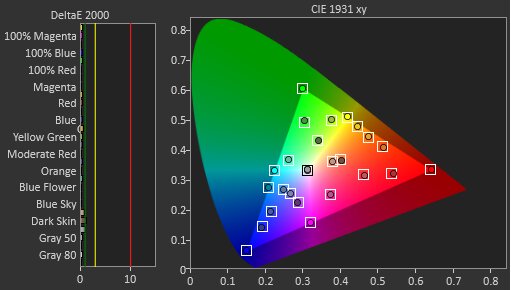
    After calibration, the accuracy is fantastic. You shouldn't be able to spot any remaining inaccuracies without the aid of a colorimeter. Color temperature is even closer to the target, and gamma follows the target much better.

    8.6
    SDR Color Gamut
    sRGB Coverage xy
    95.5%
    sRGB Picture Mode
    Standard
    Adobe RGB Coverage xy
    74.8%
    Adobe RGB Picture Mode
    Standard

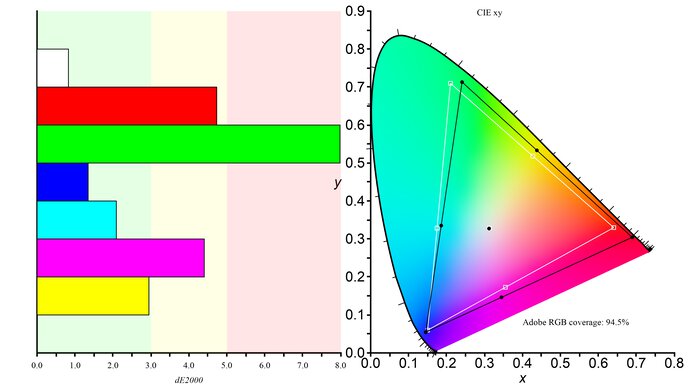
    The Samsung Odyssey G3 has an excellent SDR color gamut. It has fantastic coverage of the sRGB color space used in most web content. Its Adobe RGB coverage is good enough if you want to do some casual photo editing, but it may not be good enough for professionals.

    9.3
    SDR Color Volume
    sRGB In ICtCp
    96.4%
    sRGB Picture Mode
    Standard
    Adobe RGB In ICtCp
    80.6%
    Adobe RGB Picture Mode
    Standard

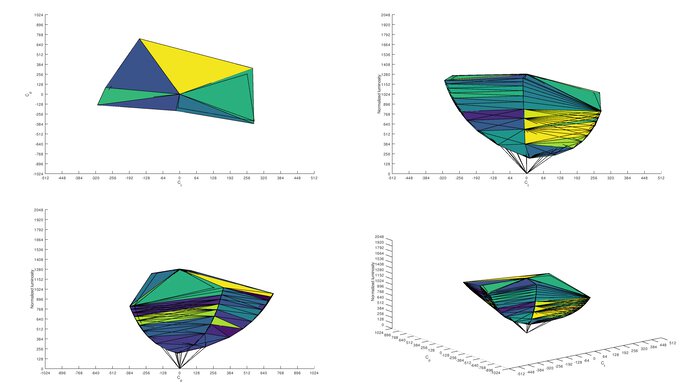
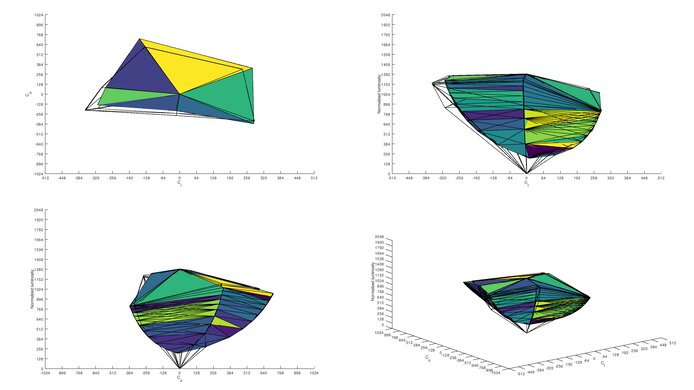
    The Samsung G3 has an amazing SDR color volume. Thanks to its high contrast ratio and decent peak brightness, it can display colors at a wide range of luminance levels.

    0.0
    HDR Color Gamut
    Wide Color Gamut
    N/A
    DCI-P3 Coverage xy
    N/A
    DCI-P3 Picture Mode
    No HDR
    Rec. 2020 Coverage xy
    N/A
    Rec. 2020 Picture Mode
    No HDR

    The Samsung Odyssey G3 doesn't support HDR.

    0.0
    HDR Color Volume
    DCI-P3 In ICtCp
    N/A
    DCI-P3 Picture Mode
    No HDR
    Rec. 2020 In ICtCp
    N/A
    Rec. 2020 Picture Mode
    No HDR

    This monitor doesn't support HDR.

    7.3
    Reflections
    Screen Finish
    Matte
    Total Reflections
    5.3%
    Indirect Reflections
    2.9%
    Calculated Direct Reflections
    2.6%

    The Samsung Odyssey G3 has decent reflection handling. It handles a moderate amount of light well, but even at that, there's a beam of light stretched across the screen that can be distracting. We don't suggest placing this opposite a window with direct sunlight.

    6.5
    Text Clarity
    Pixel Type
    VA
    Subpixel Layout
    RGB

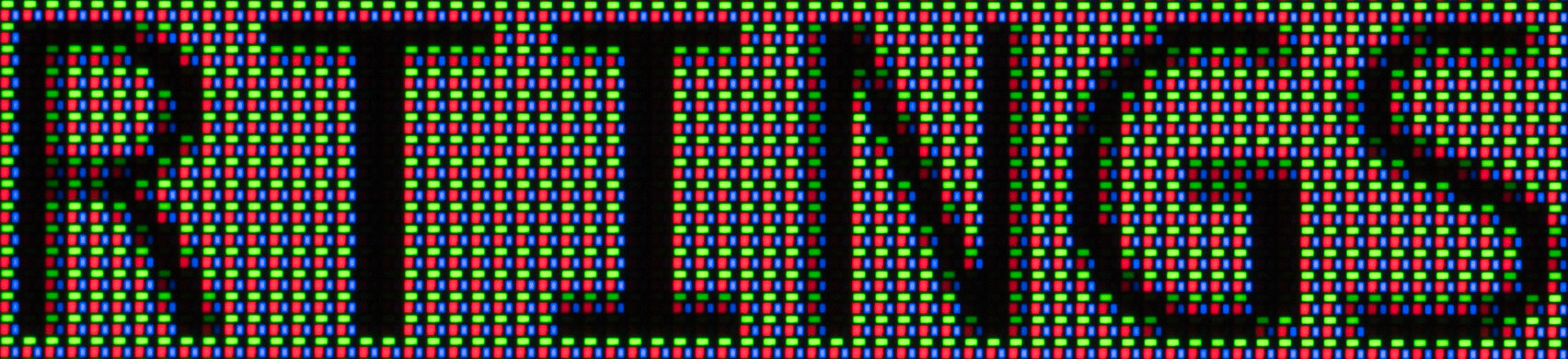
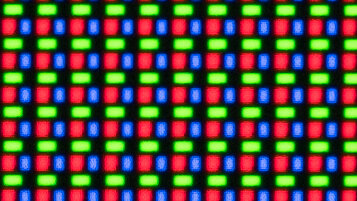
    Due to the lower 1080p resolution, text clarity is just okay. Even after enabling Windows ClearType (top photo), text still looks a bit blurry. The 24 inch version of the Samsung Odyssey G3 has a higher pixel density that should result in better text clarity, but we don't know for sure.

    8.6
    Gradient
    Color Depth
    8 Bit

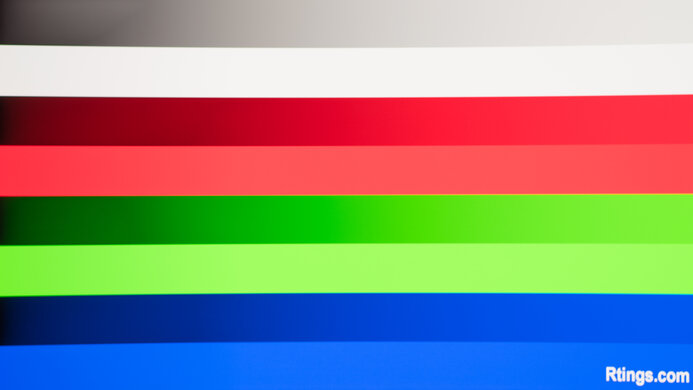
    The Samsung Odyssey G3 has excellent gradient handling. It's fantastic for an 8-bit panel, but you still may notice some banding in darker colors, especially with grays, greens, and a bit of blue.

    Motion
    8.3
    Refresh Rate
    Native Refresh Rate
    144 Hz
    Max Refresh Rate
    144 Hz
    Max Refresh Rate Over DP
    144 Hz
    Max Refresh Rate Over HDMI
    144 Hz
    Max Refresh Rate Over DP @ 10-bit
    N/A
    Max Refresh Rate Over HDMI @ 10-Bit
    N/A
    Variable Refresh Rate (VRR)
    FreeSync
    Yes
    G-SYNC
    Compatible (Tested)
    VRR Maximum
    144 Hz
    VRR Minimum
    < 20 Hz
    VRR Supported Connectors
    DisplayPort, HDMI
    Variable Refresh Rate
    Yes

    The Samsung Odyssey G3 has VRR support to reduce screen tearing. Although it's not officially certified by NVIDIA, G-SYNC still works over a DisplayPort connection. Over HDMI, only FreeSync works. If you want something similar with a higher 165Hz refresh rate, check out the MSI Optix G27C6.

    3.7
    Response Time @ Max Refresh Rate
    Recommended Overdrive Setting
    On
    Rise / Fall Time
    11.3 ms
    Total Response Time
    30.9 ms
    Overshoot Error
    2.1%
    Worst 3 Rise / Fall Time
    32.9 ms
    Worst 3 Total Response Time
    65.8 ms
    Worst 3 Overshoot Error
    19.1%

    Overdrive Setting Response Time Chart Response Time Tables Motion Blur Photo
    Off Chart Table Photo
    On Chart Table Photo

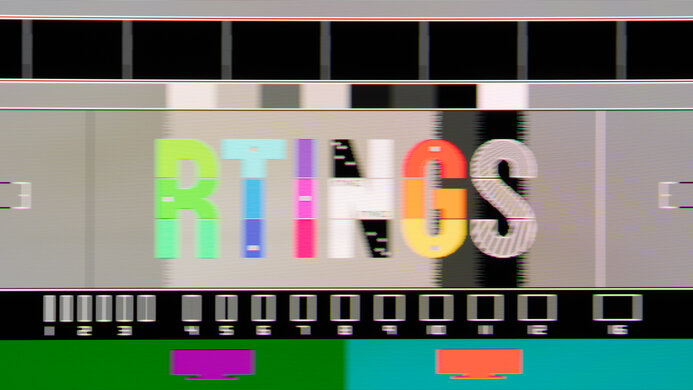
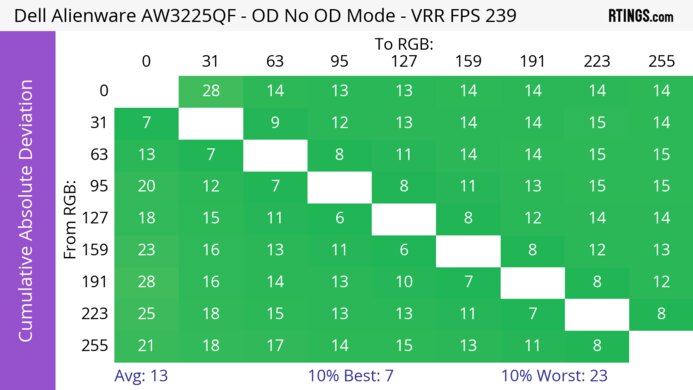
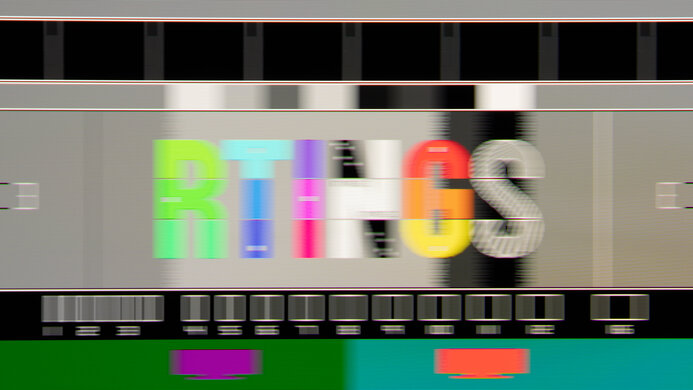
    The response time at the max refresh rate of 144Hz is terrible. Whether you enable the overdrive setting or not, the response time is slow, and there's noticeable smearing with fast-moving objects, which is distracting. There are visible horizontal lines in the photo because of the slow response time and the way the camera captures the pixels. However, this isn't noticeable in person.

    3.7
    Response Time @ 120Hz
    Recommended Overdrive Setting
    On
    Rise / Fall Time
    11.1 ms
    Total Response Time
    29.6 ms
    Overshoot Error
    2.8%
    Worst 3 Rise / Fall Time
    33.2 ms
    Worst 3 Total Response Time
    59.8 ms
    Worst 3 Overshoot Error
    24.7%

    Overdrive Setting Response Time Chart Response Time Tables Motion Blur Photo
    Off Chart Table Photo
    On Chart Table Photo

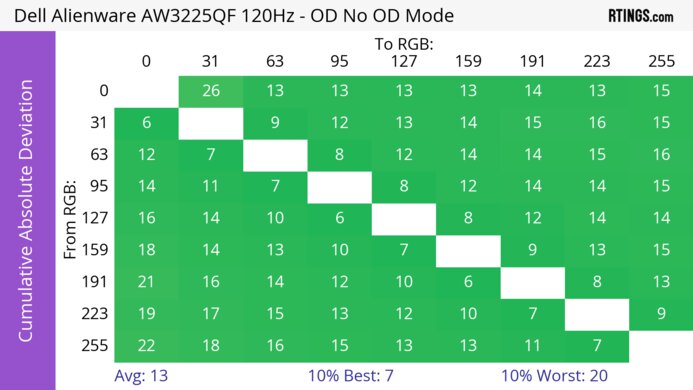
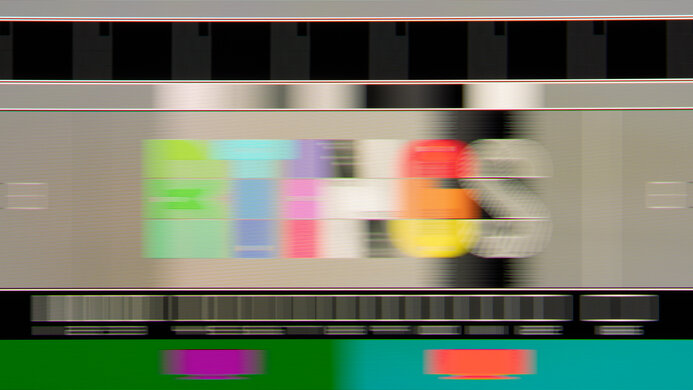
    The response time at 120Hz is also terrible. There's noticeable blur and smearing with fast-moving objects.

    4.5
    Response Time @ 60Hz
    Recommended Overdrive Setting
    On
    Rise / Fall Time
    8.8 ms
    Total Response Time
    24.6 ms
    Overshoot Error
    5.4%
    Worst 3 Rise / Fall Time
    19.3 ms
    Worst 3 Total Response Time
    49.2 ms
    Worst 3 Overshoot Error
    38.0%

    Overdrive Setting Response Time Chart Response Time Tables Motion Blur Photo
    Off Chart Table Photo
    On Chart Table Photo

    The response time at 60Hz is bad. Like at higher refresh rates, the smearing and motion blur remains and is distracting.

    Backlight Strobing (BFI)
    Backlight Strobing (BFI)
    Yes
    Maximum Frequency
    144 Hz
    Minimum Frequency
    120 Hz
    Longest Pulse Width Brightness
    175 cd/m²
    Shortest Pulse Width Brightness
    175 cd/m²
    Pulse Width Control
    No
    Pulse Phase Control
    No
    Pulse Amplitude Control
    No
    VRR At The Same Time
    No

    Refresh Rate Motion Blur Photo
    144Hz Photo
    120Hz Photo

    There's a backlight strobing feature, also known as a black frame insertion feature, to reduce persistence blur. However, it works within a narrow range and creates some image duplication. Also, if you change the brightness setting with BFI on, it completely turns off the BFI.

    10
    Image Flicker
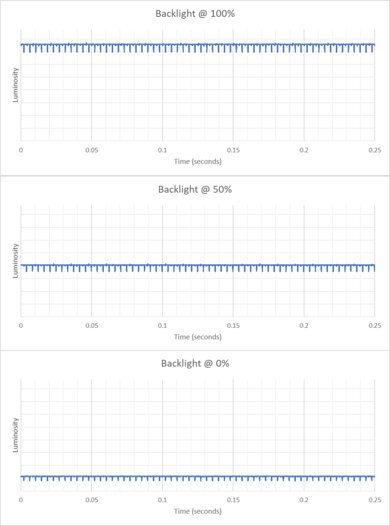
    Flicker-Free
    Yes
    PWM Dimming Frequency
    0 Hz

    The Samsung G3 has a flicker-free backlight, which helps reduce eye strain.

    Inputs
    8.7
    Input Lag
    Native Resolution @ Max Hz
    5.0 ms
    Native Resolution @ 120Hz
    6.3 ms
    Native Resolution @ 60Hz
    10.7 ms
    Backlight Strobing (BFI)
    7.8 ms

    The input lag is extremely low, so you shouldn't notice any delay.

    6.5
    Resolution And Size
    Native Resolution
    1920 x 1080
    Aspect Ratio
    16:9
    Megapixels
    2.1 MP
    Pixel Density
    82 PPI
    Measured Screen Diagonal
    27.0"
    Screen Area
    310 in²

    The 27 inch Samsung G3 has enough screen space for multitasking, but the 1080p resolution results in low pixel density. The smaller 24 inch model would have a higher pixel density, but we didn't test it.

    3.0
    PS5 Compatibility
    4k @ 120Hz
    No
    4k @ 60Hz
    No
    1440p @ 120Hz
    No
    1440p @ 60Hz
    No
    1080p @ 120Hz
    Yes
    1080p @ 60Hz
    Yes
    HDR
    No
    VRR
    No

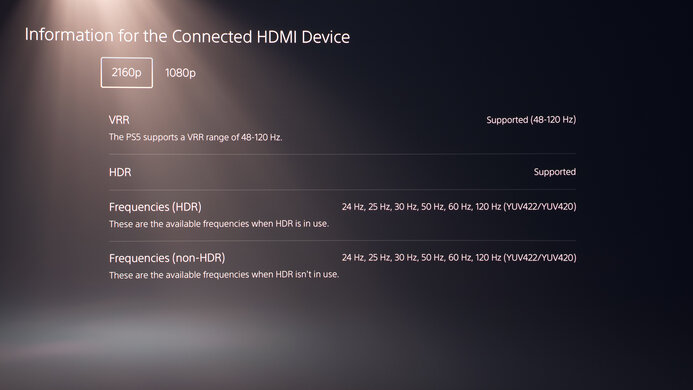
    This monitor has basic compatibility with the PS5 as it only supports 1080p.

    5.0
    Xbox Series X|S Compatibility
    4k @ 120Hz
    No
    4k @ 60Hz
    No
    1440p @ 120Hz
    No
    1440p @ 60Hz
    Yes
    1080p @ 120Hz
    Yes
    1080p @ 60Hz
    Yes
    HDR
    No
    VRR
    Yes

    The compatibility with the Xbox Series X|S is better than with the PS5, as it accepts a 1440p signal when you enable the HDMI override setting from the Xbox. However, this disables VRR, but you can still use VRR with 1080p signals.

    Inputs Photos
    Video And Audio Ports
    DisplayPort
    1 (DP 1.2)
    Mini DisplayPort
    No
    HDMI
    1 (HDMI 2.0)
    HDMI 2.1 Rated Speed
    No HDMI 2.1
    DVI
    No
    VGA
    1
    Daisy Chaining
    No
    3.5mm Audio Out
    1
    HDR10
    No
    3.5mm Audio In
    No
    3.5mm Microphone In
    No

    This monitor doesn't have a USB service port, so you can't install firmware updates on it, but the newer version, the Samsung Odyssey G3 S24AG30, has one.

    USB
    USB-A Ports
    0
    USB-A Rated Speed
    No USB-A Ports
    USB-B Upstream Port
    No
    USB-C Ports
    0
    USB-C Upstream
    No USB-C Ports
    USB-C Rated Speed
    No USB-C Ports
    USB-C Power Delivery
    No USB-C Ports
    USB-C DisplayPort Alt Mode
    No USB-C Ports
    Thunderbolt
    No
    macOS Compatibility

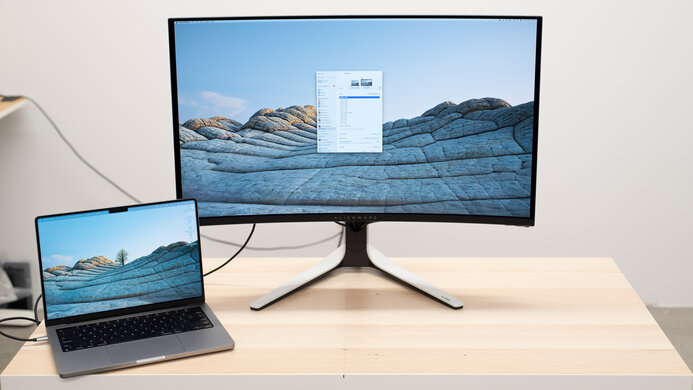
    Unfortunately, there are some issues when using this monitor with recent MacBooks. From the desktop, it works well with a fixed refresh rate, but it flickers at low refresh rates if you set it to use a variable refresh rate. Windows don't return to their original position when you close the lid, and it doesn't always wake the monitor up when waking a MacBook from sleep.

    Features
    Additional Features
    Speakers
    No
    RGB Illumination
    No
    Multiple Input Display
    No
    KVM Switch
    No

    There are limited extra features, but you can display a virtual crosshair or timer. Also, it has an 'Eye Saver Mode' that aims to reduce eye strain.

    On-Screen Display (OSD)