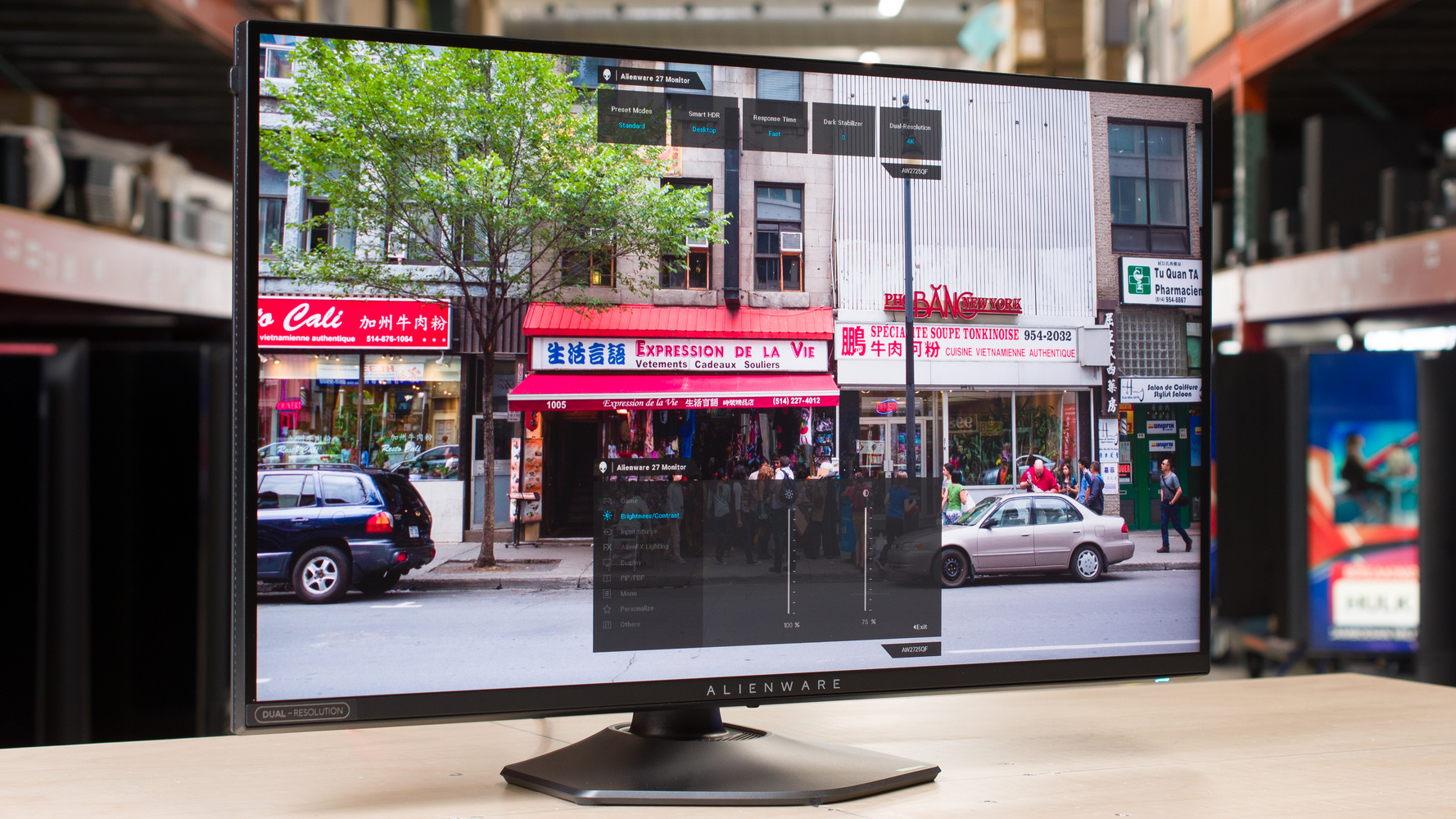
The Dell Alienware AW2725QF is a mid-range 27-inch gaming monitor with an IPS panel. Featuring a native 4k resolution and 180Hz refresh rate, it has a dual-mode feature that increases its refresh rate to 360Hz with a lower 1080p resolution. It competes against other IPS monitors that have the same feature, like the LG 27G850A-B, and it's a lower-end alternative to dual-mode OLEDs. It supports Dolby Vision and has typical gaming perks, like HDMI 2.1 bandwidth, NVIDIA G-SYNC Compatibility, and VESA AdaptiveSync. It also includes other features, like a small USB hub and Console Mode to take advantage of gaming consoles.
Our Verdict
The Dell AW2725QF is good for PC gaming. It has a native 4k resolution and a 180Hz max refresh rate, which are good to use for graphically intense and detailed games. Plus, it has a Dual-Resolution mode that switches it to a 1080p resolution and 360Hz refresh rate for a smoother feel. Gaming feels responsive at any refresh rate thanks to its low input lag, and it has a fast response time at most refresh rates, but there's still blur and inverse ghosting with fast-moving objects. Unfortunately, it has limited picture quality because it has a terrible edge-lit local dimming feature and a low contrast ratio, so blacks look gray, and it fails to make highlights pop in HDR.
Native 4k, 180Hz with 1080p, 360Hz mode.
Consistent motion handling at any refresh rate.
Very low input lag.
4k resolution for detailed images and text.
Bright enough to fight glare in most well-lit rooms.
Blur and inverse ghosting with fast objects.
Low contrast ratio.
Terrible edge-lit local dimming that you can't turn off in HDR.
Highlights don't pop in HDR.
The Dell AW2725QF is great for console gaming. It can take full advantage of modern gaming consoles thanks to its HDMI 2.1 bandwidth, and its 4k resolution delivers detailed images. It has low input lag that's responsive enough even for games that need the quickest reactions, and it has consistently good motion handling at any refresh rate, but there's still blur and inverse ghosting in action games. The downside of using this for console gaming is its limited HDR performance, as blacks look gray and highlights are muted, so it fails to deliver an impactful HDR experience, despite supporting Dolby Vision.
Consistent motion handling at any refresh rate.
Very low input lag.
4k resolution for detailed images and text.
Supports any signal with consoles.
Bright enough to fight glare in most well-lit rooms.
Supports Dolby Vision.
Blur and inverse ghosting with fast objects.
Low contrast ratio.
Terrible edge-lit local dimming that you can't turn off in HDR.
Highlights don't pop in HDR.
No 3.5 mm audio jack.
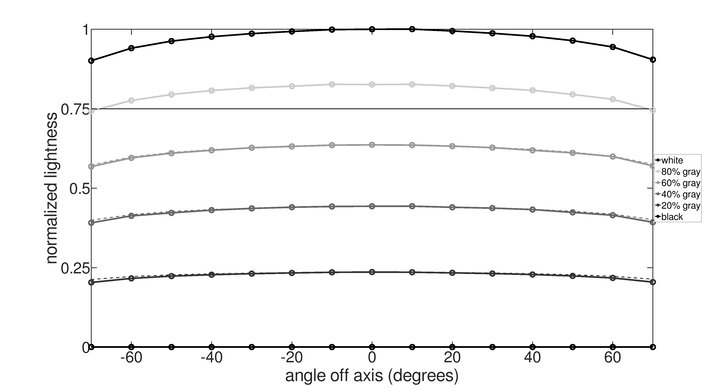
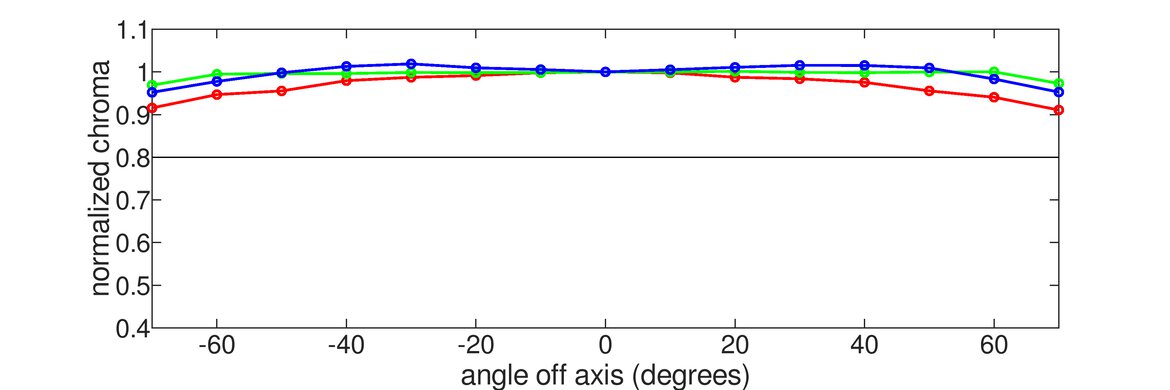
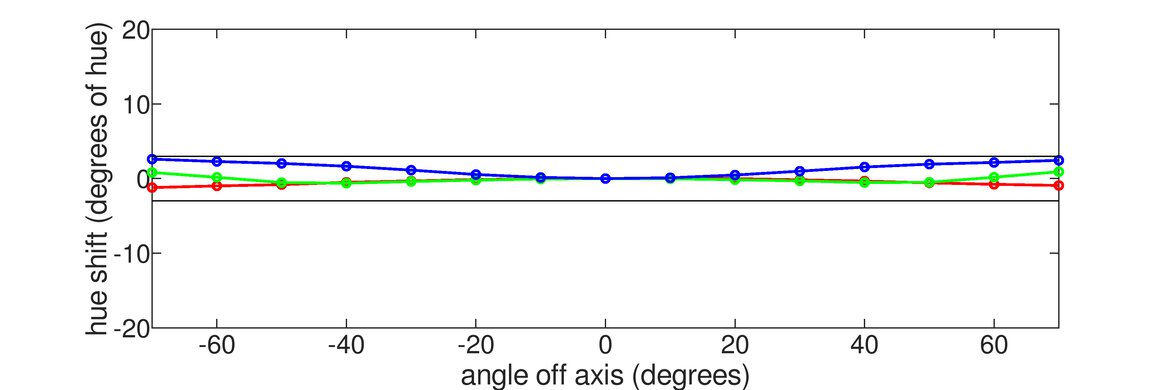
The Dell AW2725QF is impressive for work. It has a high 4k resolution that delivers sharp text, as long as you're in its 4k Dual-Resolution mode. The 27-inch screen is also big enough to open two windows side-by-side. While it has distracting reflections in a bright room, and it's best to avoid placing it opposite a sunny window, it still gets bright enough to fight glare from overhead lights in your office or workspace. It also has versatile ergonomics and wide enough viewing angles for sharing the screen with someone next to you. Although it has some USB ports to connect extra devices, it doesn't support DisplayPort Alt Mode or Thunderbolt to quickly connect a laptop over USB-C.
4k resolution for detailed images and text.
Bright enough to fight glare in most well-lit rooms.
Versatile ergonomics.
Screen is big enough for some multitasking.
Not many extra productivity features.
Reflections are distracting in sunny rooms.
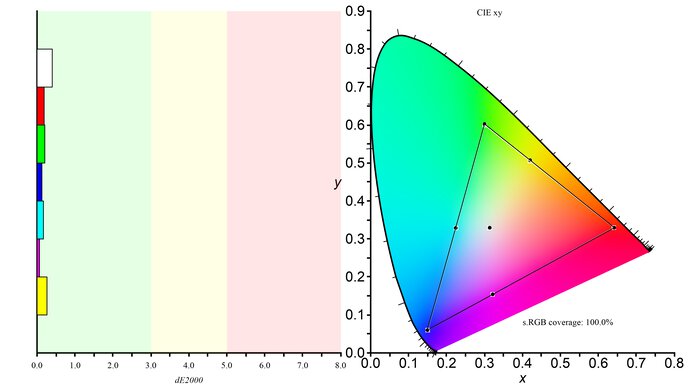
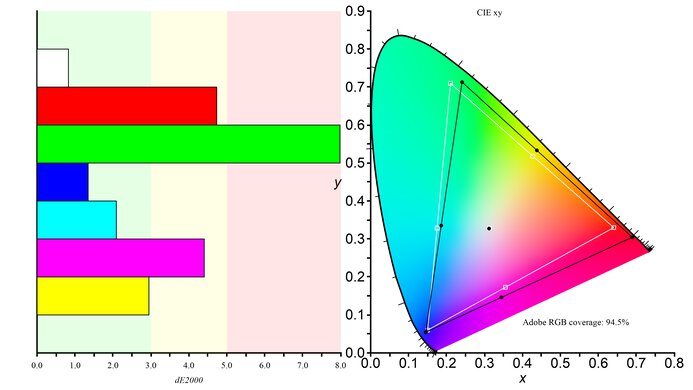
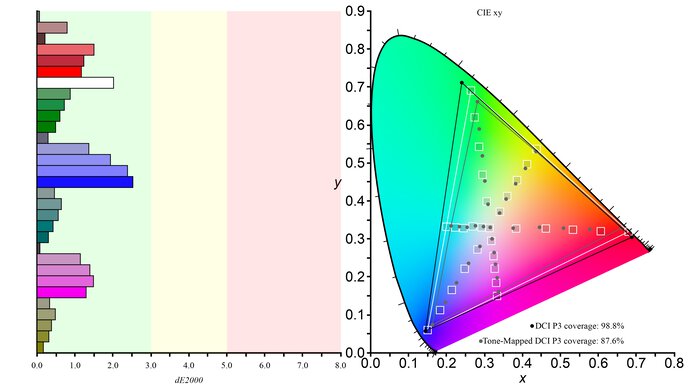
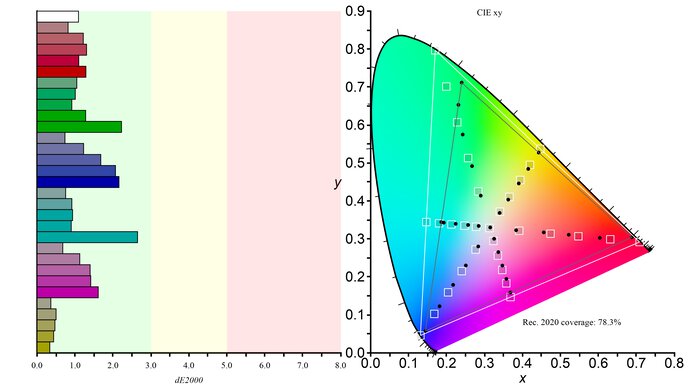
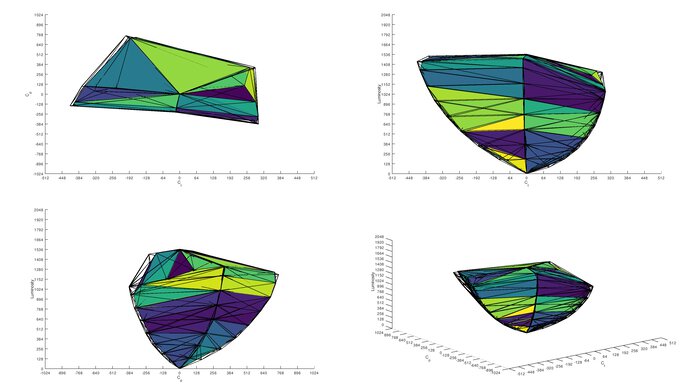
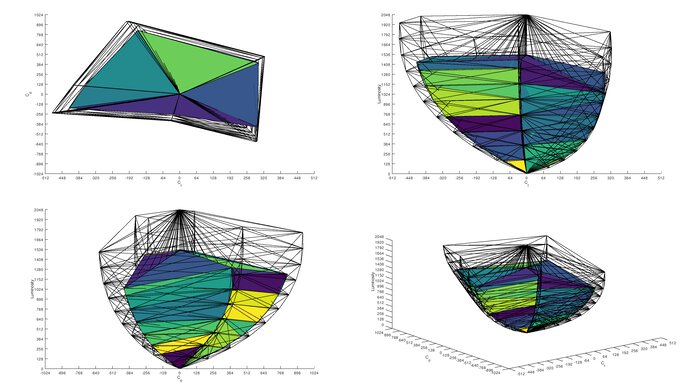
The Dell AW2725QF is good for editing. It comes with an extremely accurate sRGB mode that you'd only need to calibrate if you need perfectly accurate colors for professional content creation. It even displays a wide range of colors in HDR, but fails to make colors look vivid or highlights pop for an impactful HDR experience. It also has a low contrast ratio and a terrible local dimming feature that make blacks look gray, so it's a bad choice for editing content in HDR. It does get bright enough to fight some glare in well-lit rooms, but reflections from strong light sources are distracting. On the plus side, this monitor's 4k resolution helps deliver crisp and detailed images.
4k resolution for detailed images and text.
Bright enough to fight glare in most well-lit rooms.
Extremely accurate sRGB mode.
Displays wide range of colors.
Low contrast ratio.
Terrible edge-lit local dimming that you can't turn off in HDR.
Highlights don't pop in HDR.
Some uniformity issues.
The Dell AW2725QF has very good brightness. It fights glare well in most bright rooms, but not if there's a strong light source facing the screen. Unfortunately, though, it fails to make highlights pop in HDR.
Bright enough to fight glare in most well-lit rooms.
Highlights don't pop in HDR.
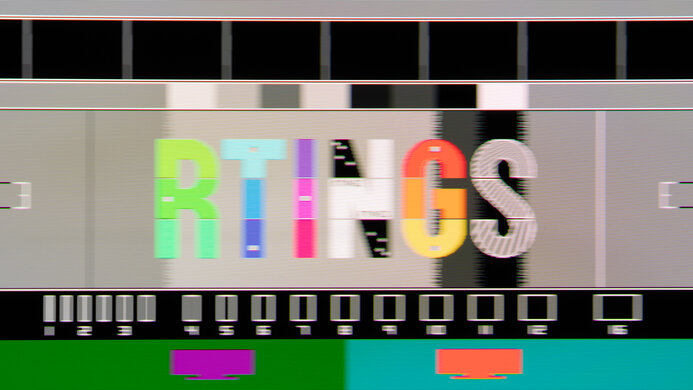
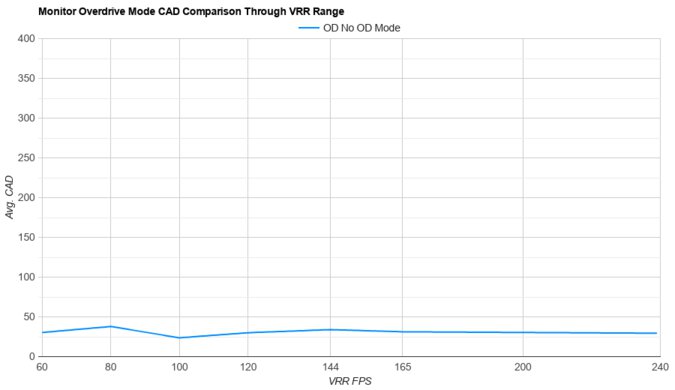
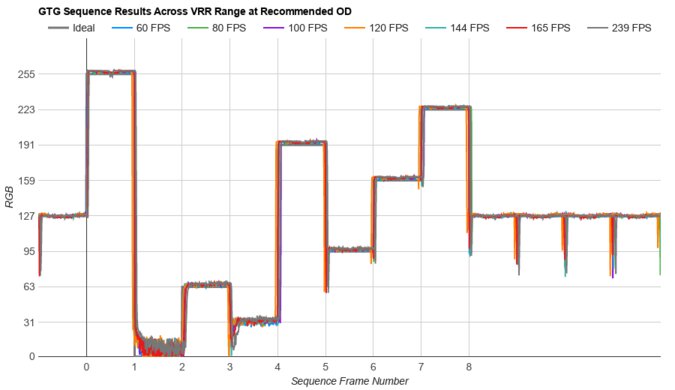
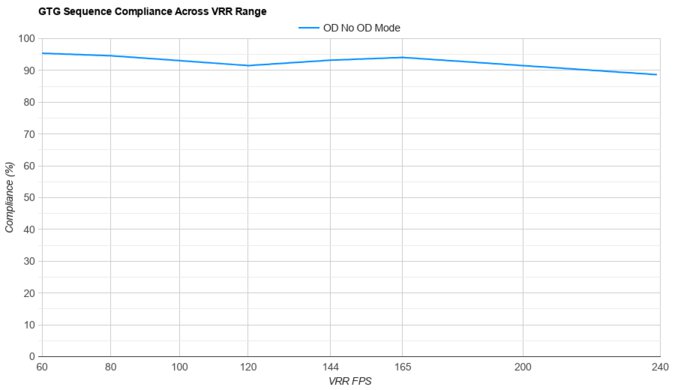
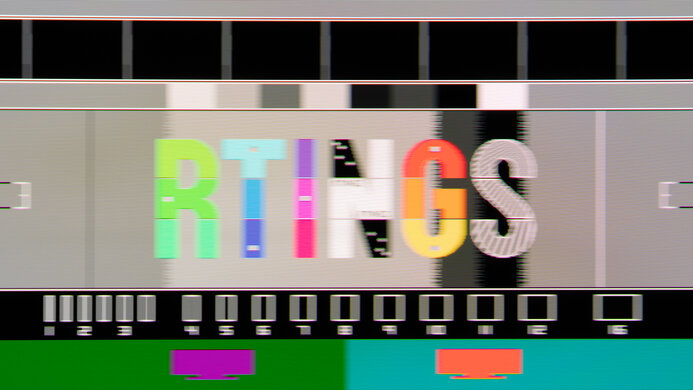
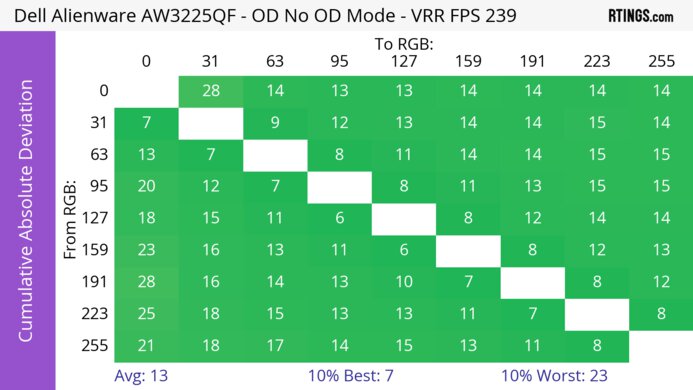
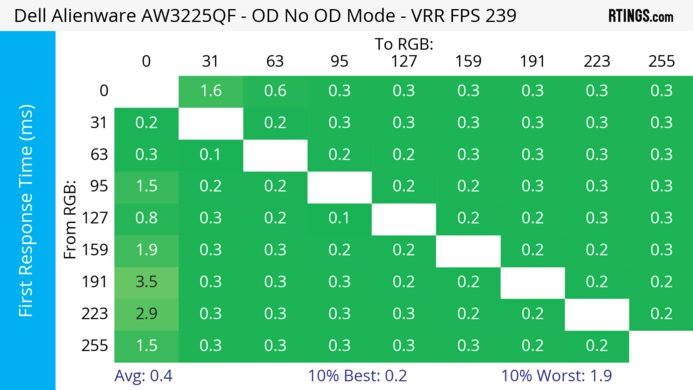
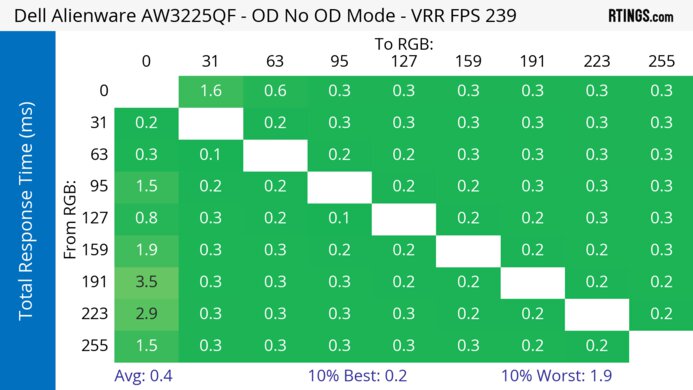
The Dell AW2725QF has a good response time. Its motion handling is consistent at any refresh rate, but there's still blur and inverse ghosting with fast-moving content.
Consistent motion handling at any refresh rate.
Blur and inverse ghosting with fast objects.
The Dell AW2725QF is disappointing for HDR. It has a low contrast ratio that makes blacks look gray and its terrible local dimming feature fails to improve it. You can't turn local dimming off in HDR, either. While it displays a wide range of colors, it struggles to make them look vivid.
Displays wide range of colors.
Low contrast ratio.
Terrible edge-lit local dimming that you can't turn off in HDR.
The Dell AW2725QF is okay for SDR. Its low contrast ratio means that blacks look gray, but at least it displays a wide range of colors.
Displays wide range of colors.
Low contrast ratio.
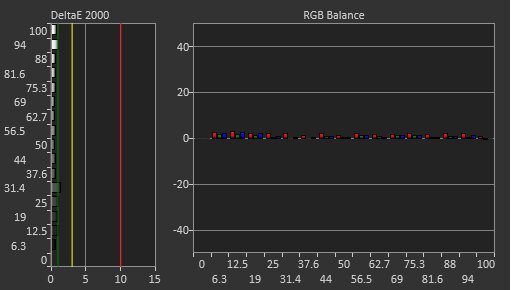
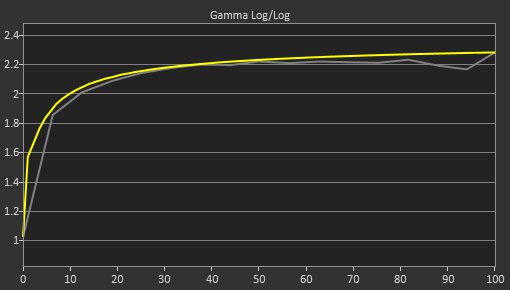
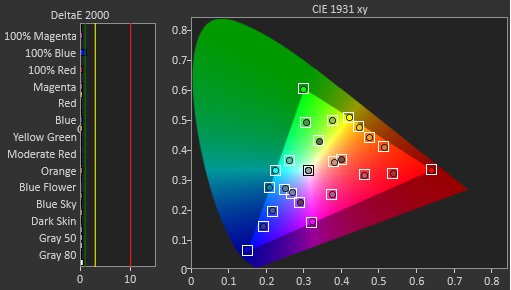
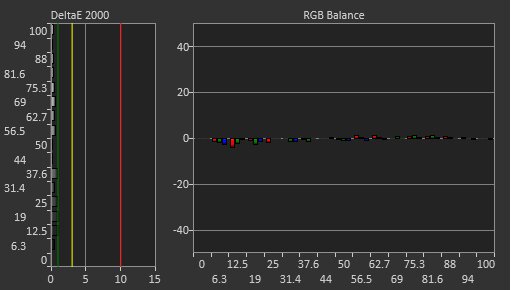
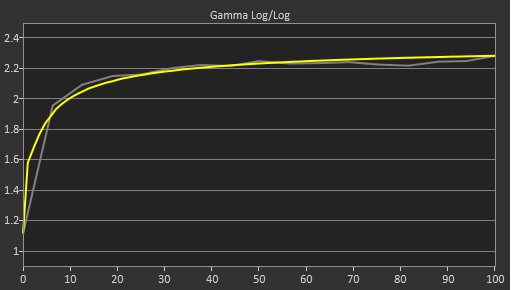
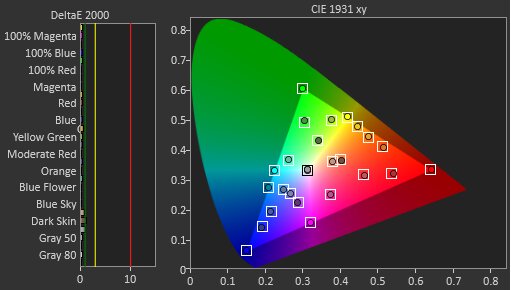
The Dell AW2725QF has fantastic color accuracy. It's extremely accurate before any sort of calibration in the sRGB mode, and calibrating it only fixes minor issues. However, it struggles to maintain this accurate image across the screen as the edges are darker than the rest of the display.
Extremely accurate sRGB mode.
Some uniformity issues.
Performance Usages
Changelog
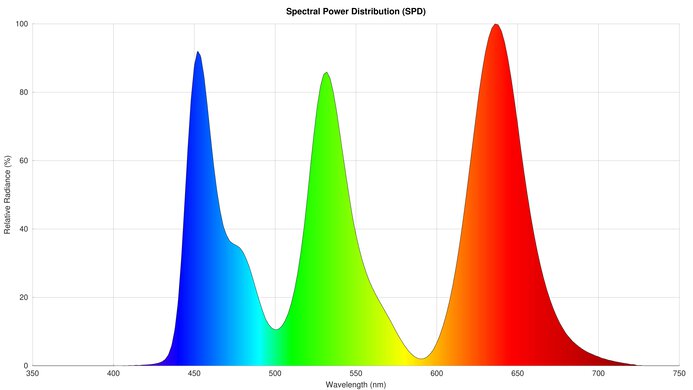
- Updated Mar 17, 2026: We've converted this review to Test Bench 2.1.2. We added a new Panel Technology box, including the Spectral Power Distribution (SPD) graph.
- Updated Nov 10, 2025: We've converted this review to Test Bench 2.1.1. We removed the Vertical Viewing Angle test.
-
Updated Oct 28, 2025:
We updated the Max Refresh Rate over HDMI and DP to reflect the max refresh rate at its native resolution, for consistency with other reviews.
- Updated Aug 26, 2025: Review published.
Check Price
Differences Between Sizes And Variants
We bought and tested the 27-inch Dell AW2725QF, which is the only size available. Dell doesn't have any other similar monitors, and although there are similarly-named models, like the Dell Alienware AW2725Q and the Dell Alienware AW3225QF, they're different models. The results in the review are only valid for the AW2725QF.
| Model | Size | Panel Type | Resolution & Refresh Rate |
|---|---|---|---|
| AW2725QF | 27" | IPS | 4k @ 180Hz |
| 1080p @ 360Hz |
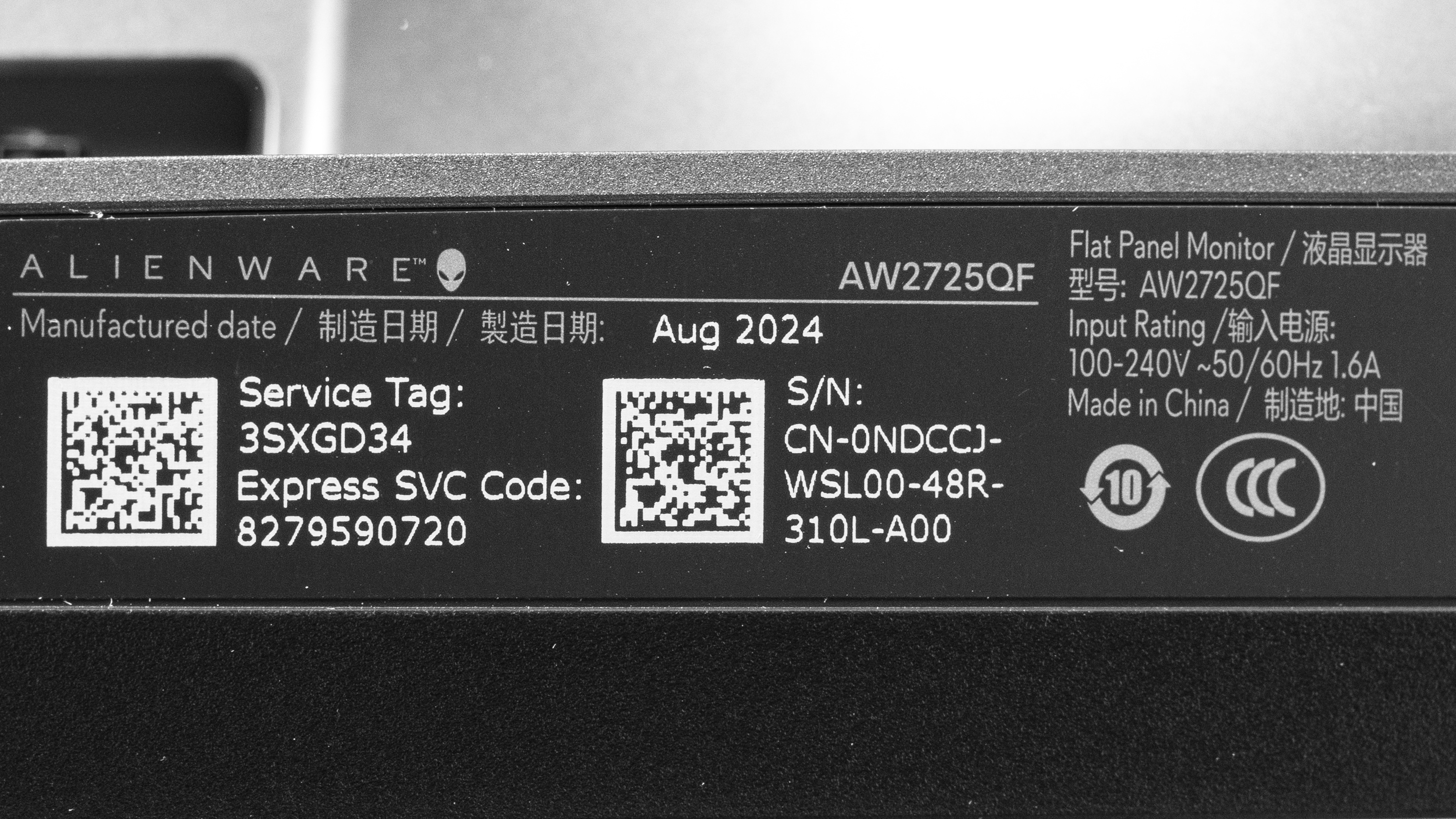
Our unit's label indicates it was manufactured in August 2024. We tested it with firmware M3T101.
Popular Monitor Comparisons
The Dell Alienware AW2725QF is a mid-range 4k gaming monitor with a 180Hz refresh rate. Its main feature is its Dual-Resolution mode, which lowers its resolution to 1080p with a higher 360Hz refresh rate for a smoother feel. This puts it in competition with other dual-mode monitors, and it's a cheaper alternative to those with higher refresh rates and/or OLED panels, like the LG 27G850A-B or the LG 32GS95UE-B. This makes it a great choice if you want the versatility of the Dual-Resolution mode for playing different types of games, but your budget doesn't allow for a premium model. While it has typical gaming features, like HDMI 2.1 bandwidth, there are some trade-offs versus the higher-end models. It has some blur with fast-moving objects, and the motion isn't as crisp as an OLED. Despite supporting Dolby Vision, it has limited picture quality as it fails to make highlights pop in HDR and blacks look gray due to its low contrast ratio and terrible local dimming feature, which you can't turn off in HDR. That said, this is what you should expect for a mid-range gaming monitor, and at least it displays a wide range of accurate colors in SDR.
Also see our recommendations for the best Dell monitors, the best 4k 144Hz monitors, and the best high refresh rate monitors.
The Dell Alienware AW2723DF and the Dell Alienware AW2725QF are different types of IPS gaming monitors. The AW2725QF has a native 4k resolution and 180Hz refresh rate, but it has a Dual-Resolution mode that switches it to a 1080p resolution and 360Hz refresh rate for a smoother feel. The AW2723DF offers more of a sweet spot between those two modes, as it has a 1440p resolution and 280Hz refresh rate. This means choosing one over the other really depends on which combination of refresh rate and resolution you prefer. However, the AW2725QF has some advantages because it gets brighter and supports HDMI 2.1 bandwidth, which the AW2723DF doesn't.
The Dell Alienware AW2725QF and the Dell Alienware AW2725Q are both 4k gaming monitors, but despite sharing similar names, they're very different. The AW2725Q uses a QD-OLED panel that has better picture quality, especially in HDR, and better motion handling than the AW2725QF. The AW2725Q also has a higher 240Hz refresh rate with a 4k signal, but the AW2725QF has a Dual-Resolution mode that boosts its refresh rate to 360Hz with a 1080p resolution. The AW2725QF has some advantages, like the fact that it's more accurate out of the box and that it doesn't risk burn-in with constant exposure to static elements like on the AW2725Q.
The Dell AW2725QF and the LG 27G850A-B are competing dual-mode gaming monitors. While they both have 4k resolutions with dual-mode features that switch them to a lower 1080p resolution, their refresh rates differ. The LG has a higher 240Hz refresh rate in 4k and a 480Hz refresh rate in 1080p, so it offers a smoother feel. However, the Dell still has better overall motion handling and more accurate colors. Although the LG comes with an IPS Black panel and has a better contrast ratio, they both have terrible local dimming features and fail to deliver an impactful HDR experience.
The Dell Alienware AW2725QF and the LG 27GP950-B are both 4k gaming monitors with IPS panels. While they both have similar refresh rates with a 4k resolution, the main difference is that the Dell has a Dual-Resolution mode that switches it to a 1080p resolution and 360Hz refresh rate. This makes the Dell the better choice if you want more versatility for different types of gaming.
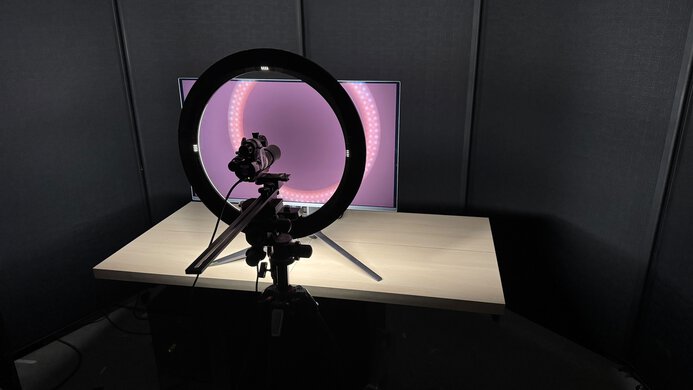
We buy and test more than 30 monitors each year, all of which we purchase ourselves, without cherry-picked units or samples. We put a lot into each unbiased, straight-to-the-point review, and there's a whole process from purchasing to publishing, involving multiple teams and people. We do more than just use the monitor for a week; we use specialized, custom tools to measure various aspects and deliver objective, data-driven results. We also consider multiple factors before making any recommendations, including the monitor's cost, its performance compared to the competition, and whether it's easy to find.
Test Results
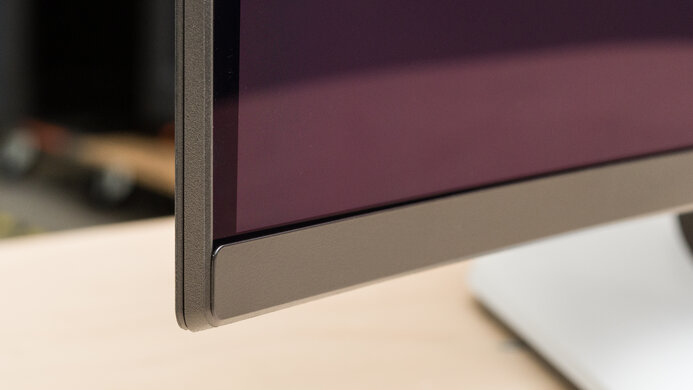
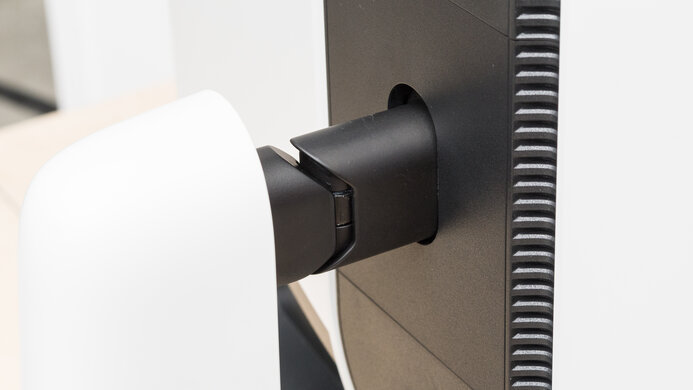
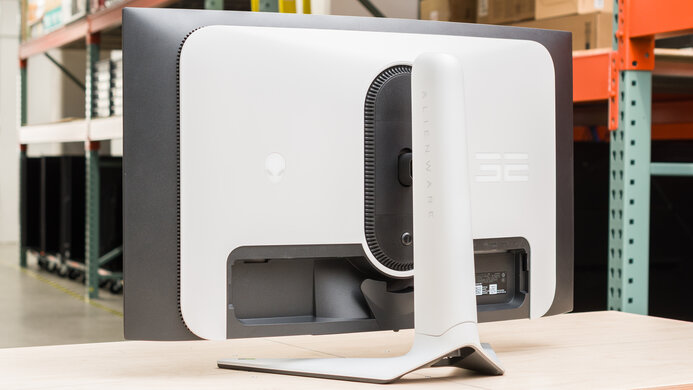
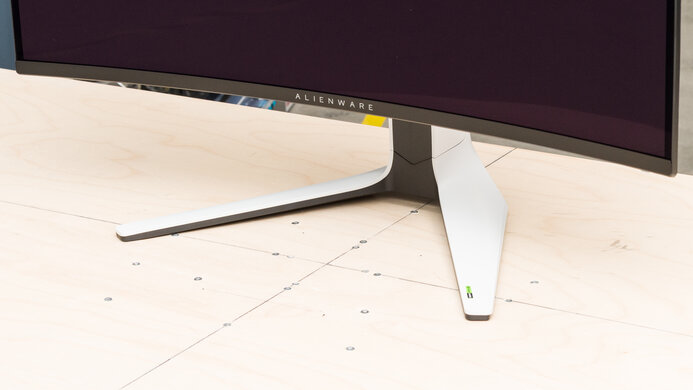
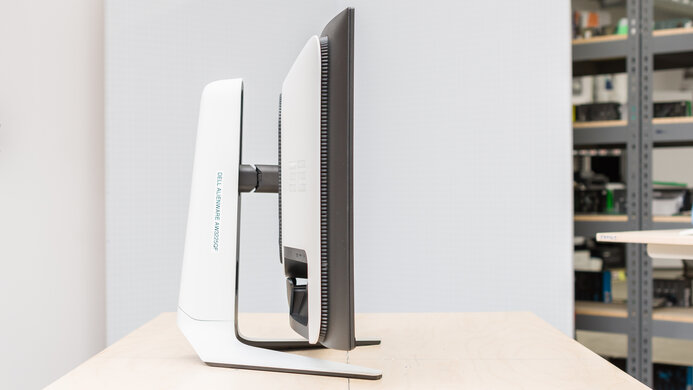
for pictures & test results
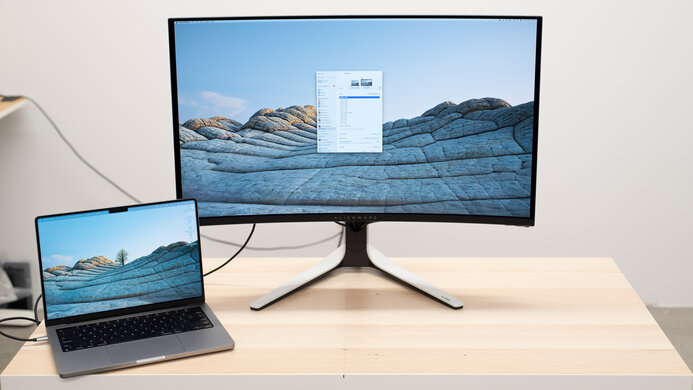
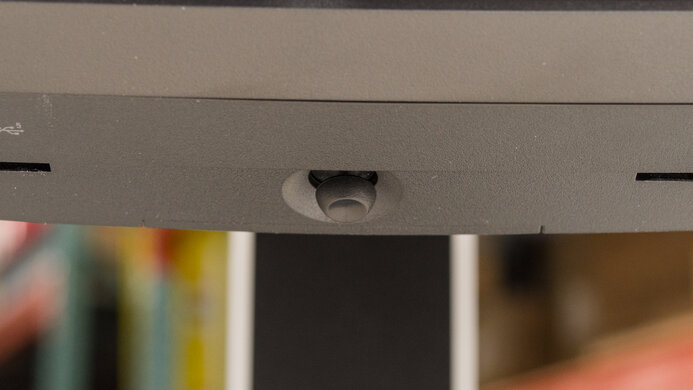
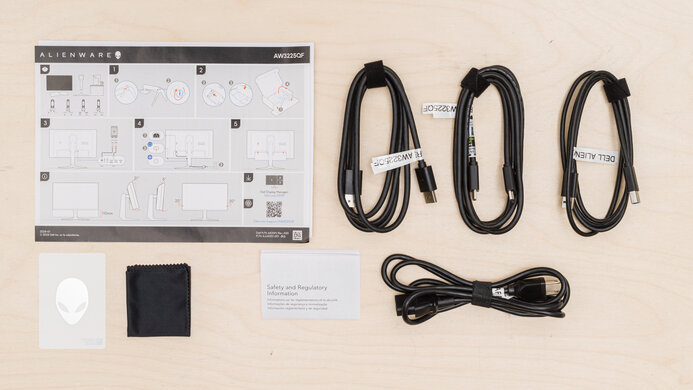

for pictures & test results


for pictures & test results
for pictures & test results
for pictures & test results
for pictures & test results
for pictures & test results
for pictures & test results
for videos & test results

for pictures & test results
for pictures & test results
for pictures & test results