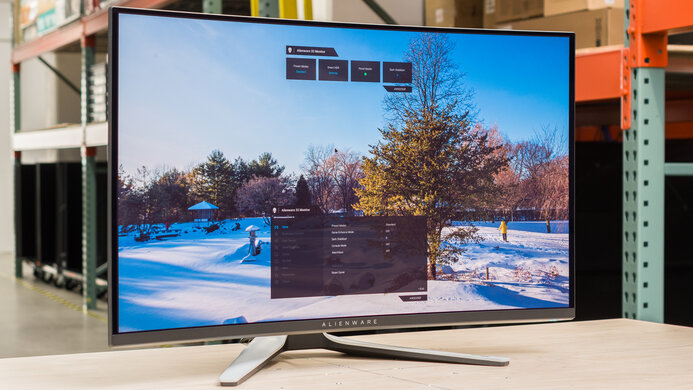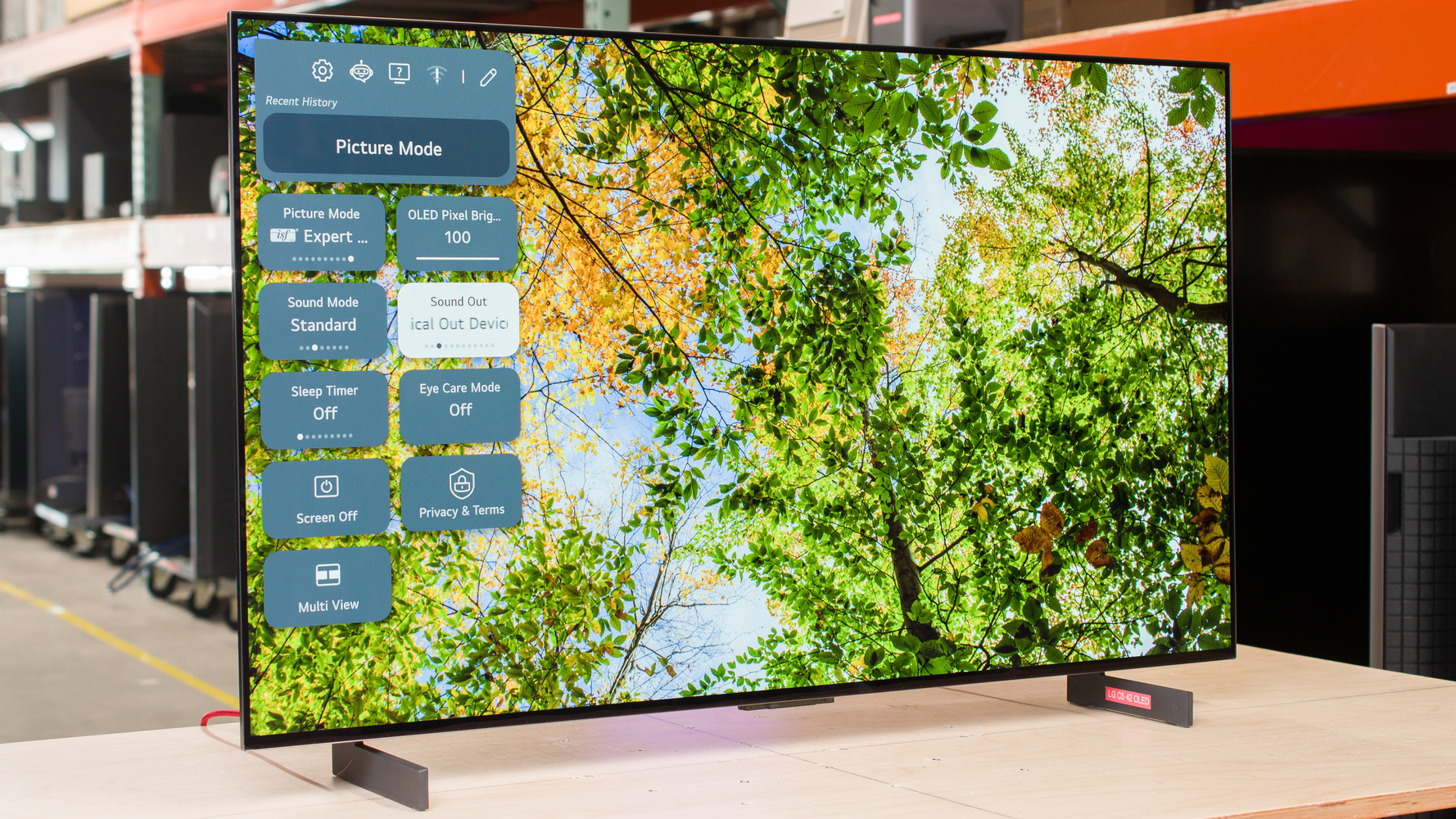
The LG C5 42 OLED is a 42-inch, 4k OLED TV that's popular to use as a PC monitor. It's an updated version of the LG C4 42 OLED, and it's the smallest size of the C5 series models. It's similar to the slightly bigger 48-inch TV, as they don't have the Brightness Booster technology that the 55-inch and larger sizes have, so the smaller models aren't as bright. Besides that, it has many of the same features as the larger sizes, including 4k @ 144Hz support in its Game Mode, HDMI 2.1 bandwidth, and VRR support. It's different from most typical PC monitors because it has a built-in processor, supports eARC/ARC with Dolby Digital passthrough, and has built-in webOS, but it doesn't have a DisplayPort input or an ergonomic stand.
Note: We tested the 65-inch LG C5 OLED as a TV. That said, the results aren't comparable because of the different ways we test monitors and TVs. We also tested it with different settings, as we used the TV's PC mode with low input lag to better represent how someone would use it as a PC monitor.
We buy and test more than 30 monitors each year, with units that we buy completely on our own, without any cherry-picked units or samples. We put a lot into each unbiased, straight-to-the-point review, and there's a whole process from purchasing to publishing, involving multiple teams and people. We do more than just use the monitor for a week; we use specialized and custom tools to measure various aspects with objective data-based results. We also consider multiple factors before making any recommendations, including the monitor's cost, its performance against the competition, and whether or not it's easy to find.
Our Verdict
The LG 42C5 is excellent for PC gaming. Although its 144Hz refresh rate is low by modern monitor standards, it's still fast enough for 4k gaming. It also has incredibly sharp motion thanks to its near-instantaneous response time, and gaming feels responsive with low input lag in its Game Mode. It delivers incredible picture quality with deep blacks in dark rooms, no haloing around bright objects, and a wide color gamut. Its 42-inch screen also delivers an immersive feel if you sit close, but you may find that not all images and text are sharp due to its low pixel density.
Incredibly sharp motion.
Low input lag in Game Mode.
HDMI 2.1 ports and VRR support.
Deep and inky blacks.
Highlights pop in HDR.
Distracting VRR flicker.
Limited to a 144Hz refresh rate.
Bright colors are somewhat muted.
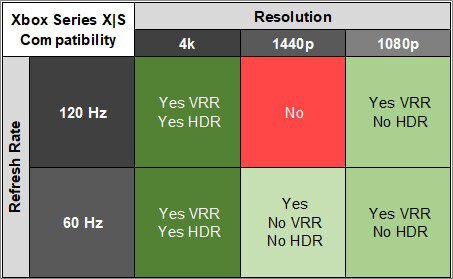
The LG 42C5 is remarkable for console gaming. It has an HDMI 2.1 bandwidth that takes full advantage of gaming consoles, including supporting 4k signals up to 120Hz. It even supports Dolby Vision with an Xbox. Gaming feels responsive thanks to its low input lag in its Game Mode, and fast-moving objects look incredibly sharp. Plus, it's a fantastic choice for playing HDR games as it displays deep and inky blacks, displays a wide color gamut, and has highlights that pop.
Incredibly sharp motion.
Low input lag in Game Mode.
Deep and inky blacks.
Highlights pop in HDR.
Supports all common signals with gaming consoles.
Bright colors are somewhat muted.
The LG 42C5 is mediocre for office use. Despite its 4k resolution, it has low pixel density, and text isn't as sharp as on smaller 4k displays. Regardless, its 42-inch screen offers plenty of space to multitask. It's also fine if you want to use it in a well-lit room, as it reduces glare well, but it doesn't get bright enough to fight intense glare. Unfortunately, because this is a TV, it lacks some productivity features monitors have, including an ergonomic stand and a USB hub that you can use with your PC.
Large 42-inch screen.
Coating reduces glare well.
Wide viewing angles.
Low pixel density results in slightly blurry text.
No ergonomic adjustments.
Not bright enough to fight intense glare.
Can't use USB ports with your PC.
Risk of burn-in.
The LG 42C5 is excellent for editing. It's accurate out of the box, but there are white balance and gamma issues that you need to fix with a full calibration. It even has remarkable HDR picture quality thanks to its near-infinite contrast ratio for deep blacks, a fantastic color gamut, and good brightness that makes highlights pop. It also has a big 42-inch screen that helps with multitasking, but because of its 16:9 aspect ratio, you may still not be able to view your entire video timeline at once. There are some downsides to using it for editing, as it doesn't come with an ergonomic stand like a typical monitor. It also has low pixel density, so despite its 4k resolution, images and text aren't as sharp as on a smaller 4k monitor.
Deep and inky blacks.
Highlights pop in HDR.
Large 42-inch screen.
Coating reduces glare well.
Locks colors well to the sRGB color space.
Bright colors are somewhat muted.
No ergonomic adjustments.
Not bright enough to fight intense glare.
White balance and gamma issues before calibration.
Risk of burn-in.
The LG 42C5 has good brightness. It's fine if you want to use it in a moderately lit room, and it makes highlights pop in HDR, but it doesn't get bright enough to fight strong glare in SDR.
Highlights pop in HDR.
Not bright enough to fight intense glare.
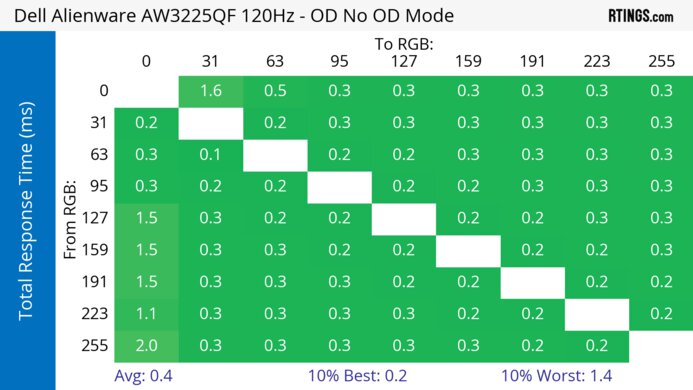
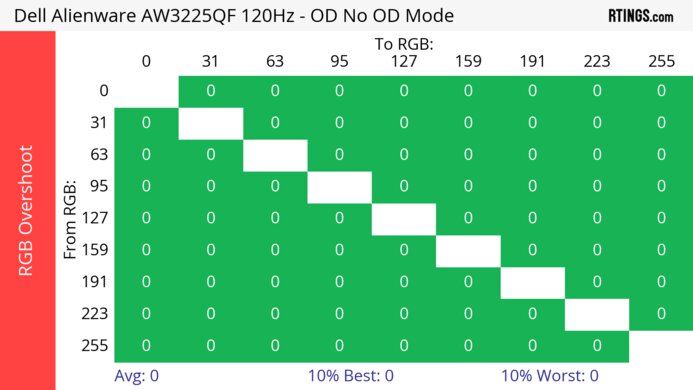
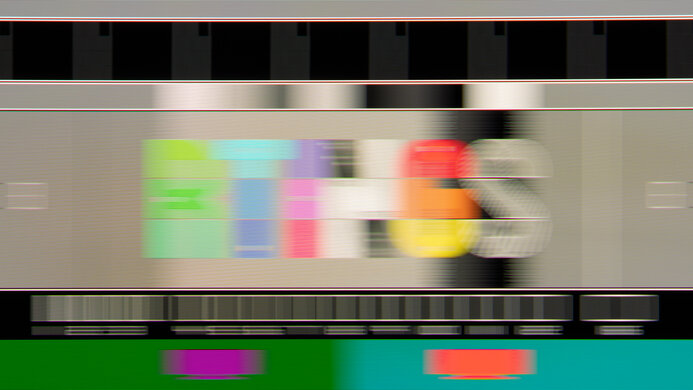
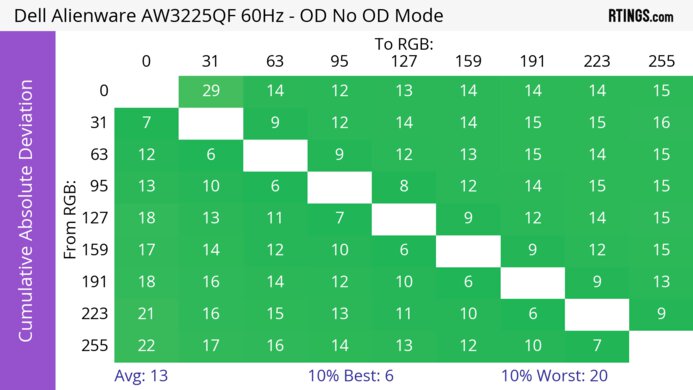
The LG 42C5 has a near-instant response time, resulting in incredibly sharp motion.
Incredibly sharp motion.
The LG 42 C5 amazing HDR picture quality. Blacks are deep and inky without any haloing around bright objects, and it makes highlights pop. It also covers most of the common DCI-P3 color space, but bright colors aren't the most vivid on it.
Deep and inky blacks.
Bright colors are somewhat muted.
The LG 42 C5 is remarkable for SDR. It has a near-infinite contrast ratio for deep and inky blacks, and it displays a wide range of colors.
Deep and inky blacks.
Displays wide range of colors.
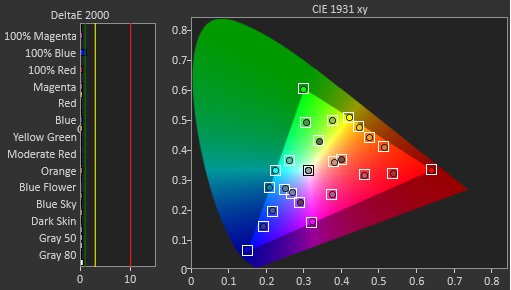
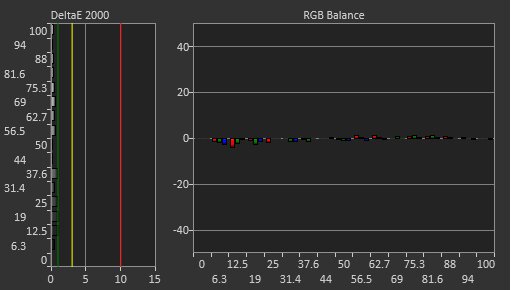
The LG 42C5 has excellent color accuracy. Its accurate even before calibration as it clamps colors well to the sRGB color space. However, there are white balance and gamma issues that improve with a full calibration.
Locks colors well to the sRGB color space.
White balance and gamma issues before calibration.
Performance Usages
Changelog
- Updated Nov 10, 2025: We've converted this review to Test Bench 2.1.1. We removed the Vertical Viewing Angle test.
- Updated Oct 17, 2025: Review published.
- Updated Oct 15, 2025: Early access published.
- Updated Oct 06, 2025: Our testers have started testing this product.
Check Price
Differences Between Sizes And Variants
We bought and tested the 42-inch LG C5, which is the smallest size available. The 48-inch model comes with a different stand and has lower pixel density, but performs like the 42-inch model for the most part, as they each lack the Brightness Booster technology that the 55-inch and larger sizes have. This means the results aren't valid for the 55-inch and larger sizes, including the 65-inch model we tested as a TV. Note that the full model code varies between regions and retailers, including with warehouse stores like Costco or Sam's Club.
| Size | US Model Code | Brightness Booster | Stand |
|---|---|---|---|
| 42" | OLED42C5PUA | No | Two feet |
| 48" | OLED48C5PUA | No | Center-mounted |
| 55" | OLED55C5PUA | Yes | Center-mounted |
| 65" | OLED65C5PUA | Yes | Center-mounted |
| 77" | OLED77C5PUA | Yes | Center-mounted |
| 83" | OLED83C5PUA | Yes | Center-mounted |
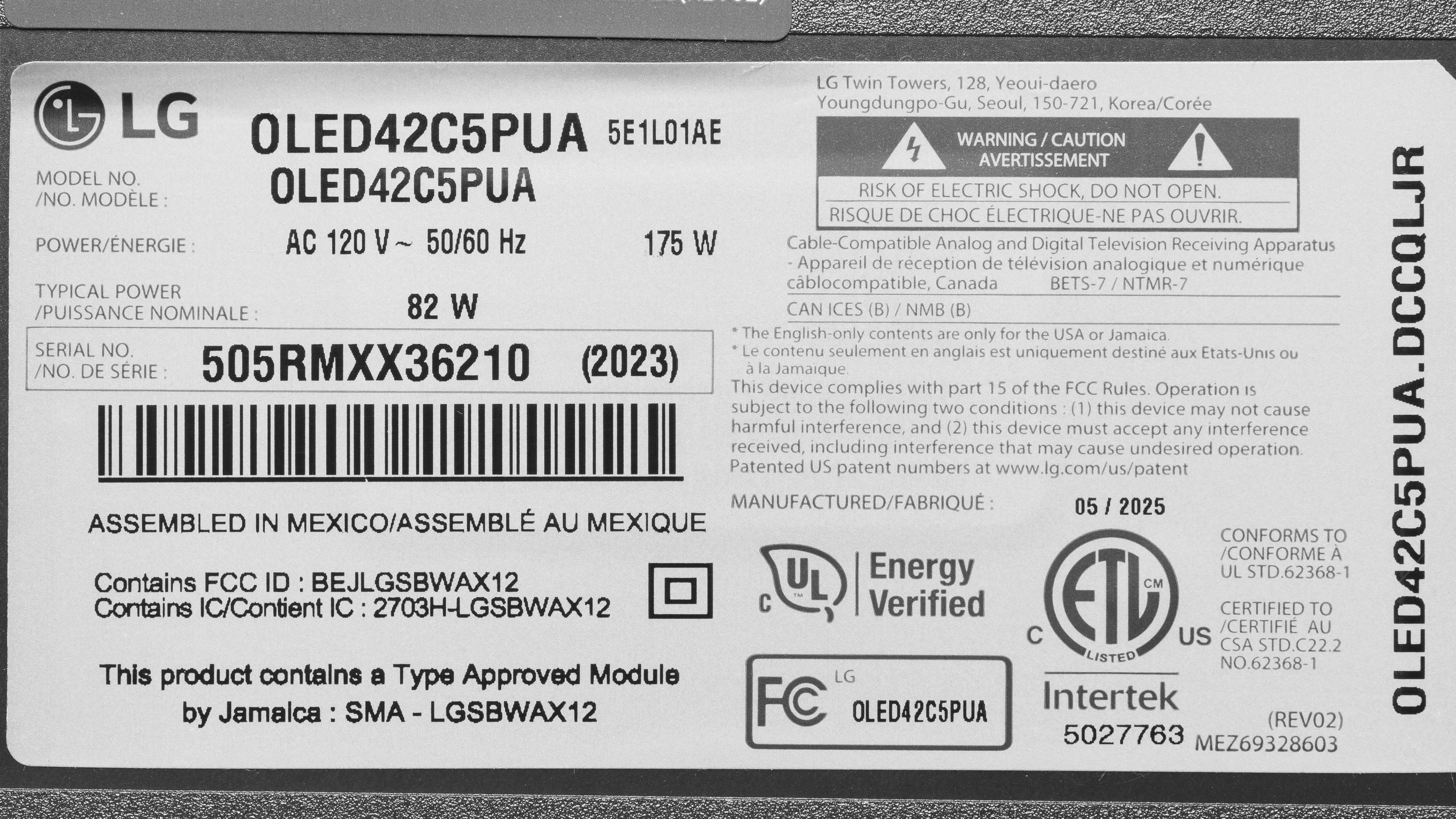
Our unit's label indicates it was manufactured in May 2025 in Mexico. We tested it with firmware 33.21.67.
Popular Monitor Comparisons
The LG 42C5 is a 42-inch, 4k TV that's the smallest size available as part of the C5 series models. Like its predecessor, the LG C4 42 OLED, it's popular to use as a PC monitor, and it offers versatility for someone who wants a small TV for occasional PC or console gaming. It's similar to the previous C4 in many ways, but it gets brighter because you can enable the Peak Brightness setting in PC mode, which helps if you want a brighter screen and low input lag. It performs like almost any OLED display with sharp motion and incredible picture quality, and its HDMI 2.1 bandwidth helps if you have a modern graphics card or a current-gen gaming console. However, there are some downsides to getting it over a dedicated PC monitor, like the LG 32GS95UE-B or the ASUS ROG Swift OLED PG32UCDM. It lacks an ergonomic stand and has a lower refresh rate, and, because of its lower pixel density, images and text aren't as sharp. Ultimately, it offers a niche spot in the display market as something in between a TV and a monitor, so you should get it if it suits your needs. Otherwise, go for a monitor if you don't plan on using it like a TV.
Also see our recommendations for the best 34-49 inch monitors, the best OLED monitors, and the best multimedia monitors. For dedicated TV recommendations, check out the best TVs for PC monitors.
The LG C5 42 OLED is an updated model of the LG C4 42 OLED with minimal differences. That said, the main difference between the two is that you can enable the Peak Brightness setting in PC mode on the C5, which allows it to get brighter than the C4 when you're using it with your PC. There are some other changes, like the new remote and the lack of DTS audio passthrough on the C5, but other than that, they're very similar.
The LG C5 42 OLED and the LG 45GX950A-B are both large OLED displays with a few differences. The C5 is a small TV that's popular to use as a monitor, so it has many features that are typical of TVs, including a built-in smart system, eARC/ARC audio passthrough, and a processor. The 45GX950A-B has more typical monitor features, like a Dual-Mode that switches its native 5k2k resolution and 165Hz refresh rate to a 1080p resolution and 330Hz refresh rate. Although they both have WOLED panels, there are a few differences, as the C5 gets brighter in HDR, while the 45GX950A-B has a dedicated sRGB mode that results in better accuracy before calibration. Overall, the C5 is the better choice if you want a small TV that you can use as a monitor, while the 45GX950A-B is the better choice if you want an ultrawide that you're going to use more like a typical monitor.
The LG C5 42 OLED and the ASUS ROG Swift OLED PG32UCDM are 4k OLED displays with notable differences. The LG has the bigger 42-inch screen because it's a small TV, so it has typical TV perks, like a built-in smart system. It's something you may prefer if you're looking for a TV that you can also use as a monitor for gaming. However, the ASUS still has many advantages if you don't need the extra perks of the LG. The ASUS has a higher pixel density, so images are sharper, and its 240Hz refresh rate offers a smoother feel. Plus, the QD-OLED panel of the ASUS delivers more vivid colors than the WOLED panel of the LG.
The LG 32GS95UE-B and the LG C5 42 OLED are both 4k OLED displays with a few differences. The C5 is a TV that's popular to use as a monitor, so it's something to consider if you want TV features, like a built-in smart system and image processing. The C5 also has the slight advantage in terms of picture quality because it gets brighter in HDR, and you may prefer its glossy coating if you want a clearer image. However, the 32GS95UE-B is the better choice for PC gaming because it has a higher native 240Hz refresh rate that you can boost to 480Hz with a lower resolution. The higher pixel density on the 32GS95UE-B also results in sharper text and images.
Test Results
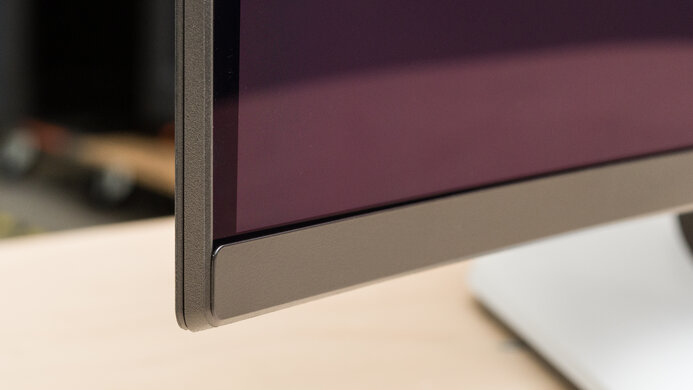
The LG 42 C5 is a TV that looks different from most monitors, as it doesn't come with an ergonomic stand. It takes up a lot of space, so you need to have a wide table, but at least there's space between the feet for your keyboard and mouse. Besides that, it has a simplistic design with dark gray materials used throughout.
The TV comes with two wide-set feet that you can't adjust like on typical PC monitors. You can route wires through the feet for cable management, and there are plastic covers for the feet and inputs to help keep your setup tidy.
The stand holds the screen well with minimal wobble. Even if you have it on an unstable desk, the TV stabilizes itself quickly. The 42-inch model is the only size to come with these feet, as the larger sizes have a center-mounted stand.
The housing height measurement includes the IR receiver that measures 0.5 cm (0.2"), and the bezels include 0.3 cm (0.1") of virtual space that's used for the Pixel Shift feature.
The TV comes with LG's Magic Remote, which was redesigned for their 2025 lineup. It has the same functionality as the older remote, including the point-and-press feature. There's also a power button beneath the bottom bezel.
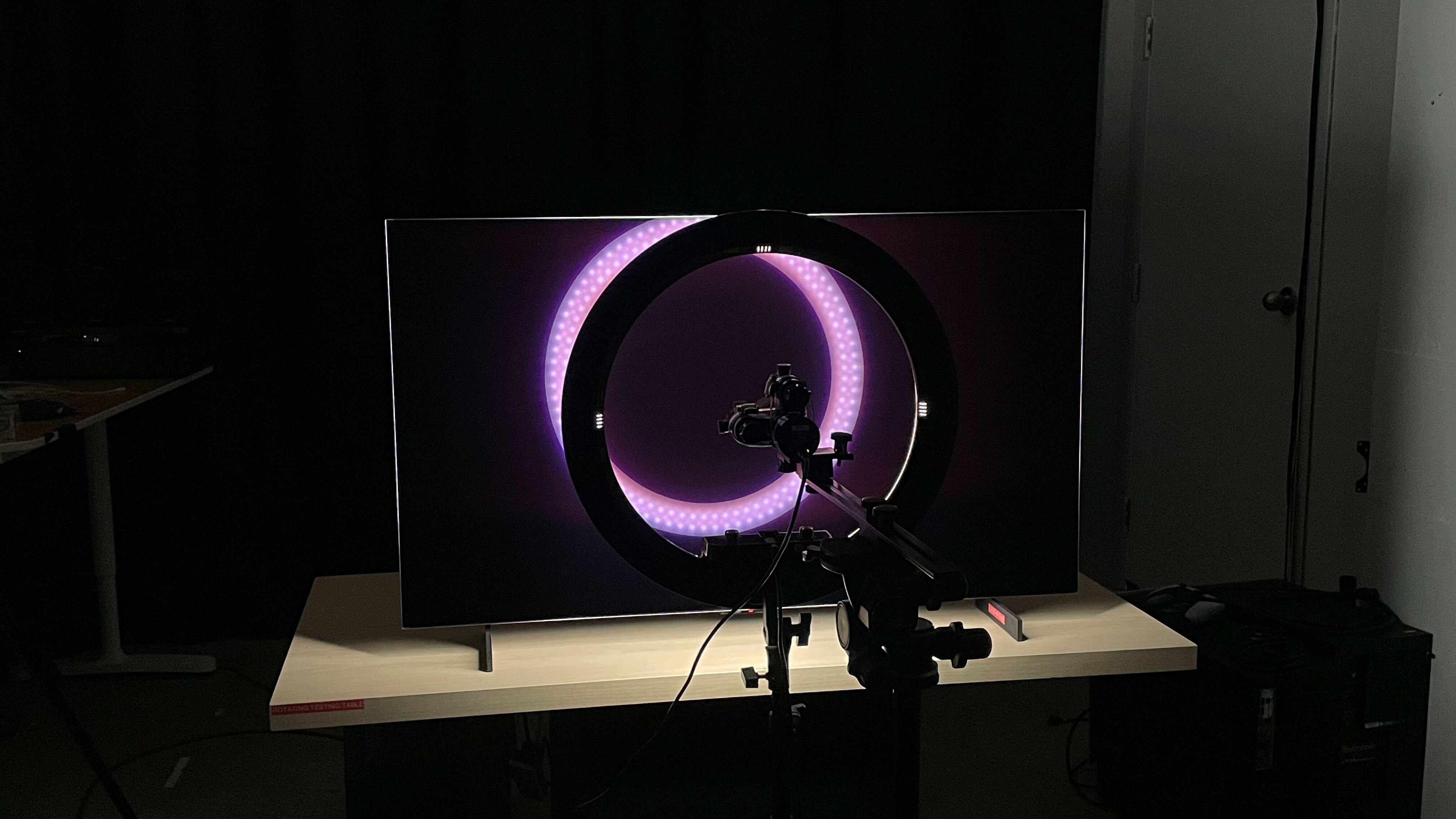
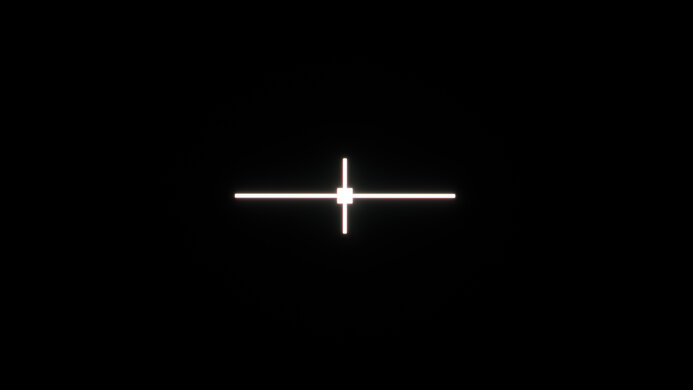
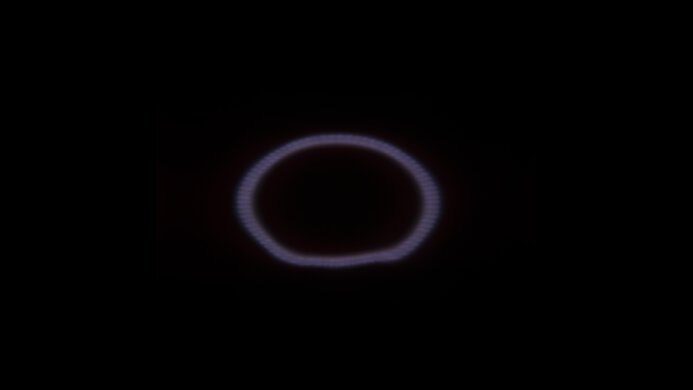
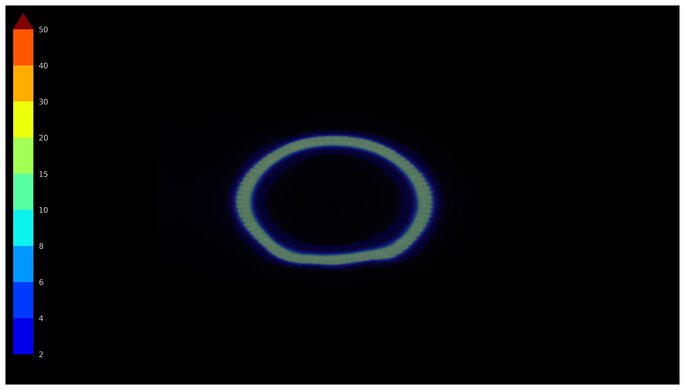
The LG 42 C5 doesn't have a backlight, so it doesn't require a local dimming feature. However, with a near-infinite contrast ratio, there isn't any haloing around bright objects, and it's the equivalent of a perfect local dimming feature. We still film these videos on the TV so you can see how the screen performs and compare it with a monitor that has local dimming.
Settings
- Input Label: PC
- Game Optimizer: On
- Picture Mode: Game Optimizer (after calibration)
- Brightness: Max
- Peak Brightness: High
- AI Brightness Settings: Off
The LG 42 C5 has decent SDR brightness. It doesn't get bright enough to fight very intense glare, but it's still fine if you have some lights around.
Unlike the LG C4 42 OLED, you can enable the Peak Brightness setting with the 'Game Optimizer' Picture Mode and the input label set to 'PC,' regardless whether the Game Optimizer setting is enabled or not. However, if you enable any of the VRR & G-Sync, AMD FreeSync Premium, or 144Hz Mode settings, the Peak Brightness setting is locked to what it was previously set at, and you can't change it back until you disable all three of those settings.
Interestingly, the brightest highlights in the Real Scene test get a bit brighter with Peak Brightness off, which is the result in the review, as they're slightly dimmer at 241 cd/m2 with Peak Brightness on 'High.' While using the Peak Brightness setting has minimal changes in brightness between different content, you may prefer disabling the Peak Brightness setting if you want more consistent brightness with full-screen windows versus other content.
With the input label set to 'PC,' the Peak Brightness setting is locked out with any of the other Picture Modes besides 'Game Optimizer.' You'd have to change the input label to get the Peak Brightness setting with other Picture Modes.
You can also enable 4:4:4 Pass Through to put the TV into PC mode, and it performs the same as setting the input label to 'PC.'
Below you can see the brightness results with various settings combinations.
| Settings | Input Label: PC | Input Label: HDMI | |
|---|---|---|---|
| Game Optimizer: On | Game Optimizer: Off | ||
| Picture Mode: Game Optimizer | Picture Mode: Expert (Bright space, day) | ||
| Peak Brightness | Off | Off | High |
| Peak 2% Window | 248 cd/m2 | 315 cd/m2 | 448 cd/m2 |
| Peak 10% Window | 252 cd/m2 | 317 cd/m2 | 444 cd/m2 |
| Peak 25% Window | 254 cd/m2 | 320 cd/m2 | 430 cd/m2 |
| Peak 50% Window | 253 cd/m2 | 320 cd/m2 | 415 cd/m2 |
| Peak 100% Window | 238 cd/m2 | 203 cd/m2 | 206 cd/m2 |
| Sustained 2% Window | 214 cd/m2 | 311 cd/m2 | 441 cd/m2 |
| Sustained 10% Window | 251 cd/m2 | 314 cd/m2 | 439 cd/m2 |
| Sustained 25% Window | 252 cd/m2 | 317 cd/m2 | 426 cd/m2 |
| Sustained 50% Window | 252 cd/m2 | 318 cd/m2 | 412 cd/m2 |
| Sustained 100% Window | 223 cd/m2 | 202 cd/m2 | 204 cd/m2 |
Settings
- Input Label: PC
- Game Optimizer: On
- Picture Mode: Game Optimizer
- Brightness: Max
- Peak Brightness: High
- Dynamic Tone Mapping: HGIG
- AI Brightness Settings: Off
- OLED Care: All settings off
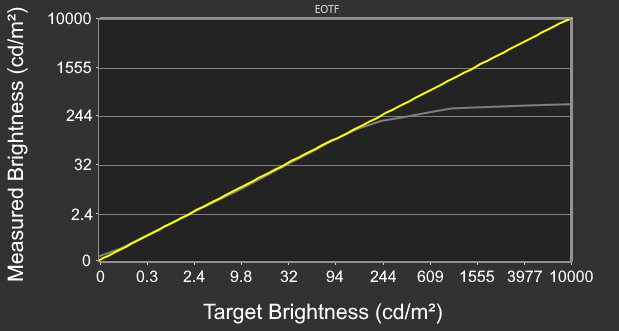
The HDR brightness is good. It gets very bright and small highlights pop against the rest of the image for an impactful HDR experience. However, it can't maintain this high brightness with larger bright areas. It also has very accurate PQ EOTF tracking, so it displays content at the intended brightness until there's a sharp cut-off at its max brightness, so it lets your source perform any tone mapping.
The EOTF is the same with Dynamic Tone Mapping set to 'On' instead of 'HGIG.' However, it's less accurate with Expression Enhancer set to 'Detail,' and it's overbrightened with it set to 'Brightness.'
The HDR brightness is the same, even with the input label set to 'HDMI' with the 'Filmmaker' Picture Mode. This includes the PQ EOTF, which is similar in 'Filmmaker' mode.
Keep in mind that this 42-inch model and the 48-inch unit lack the Brightness Booster technology that the larger sizes have, which makes them brighter than the smaller sizes.
The LG 42 C5 has excellent gray uniformity. It maintains an even color throughout, with minimal vignetting at the edges. However, like most OLEDs, there are thin vertical lines in dark scenes, which are hard to notice unless you're really looking for them.
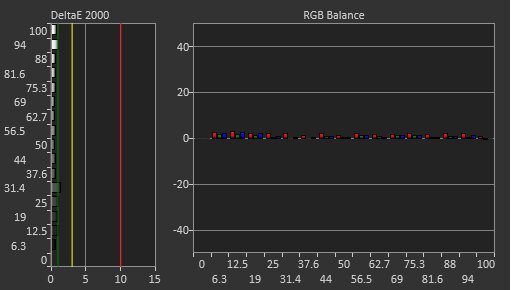
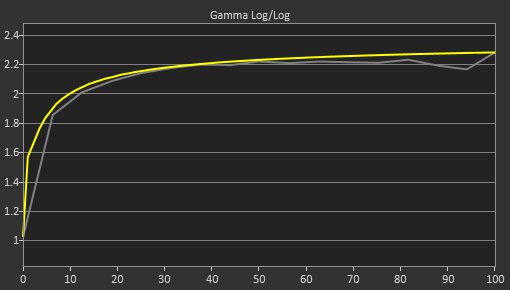
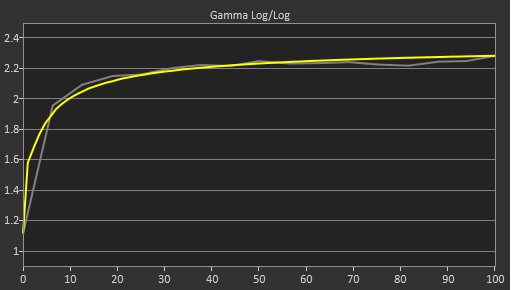
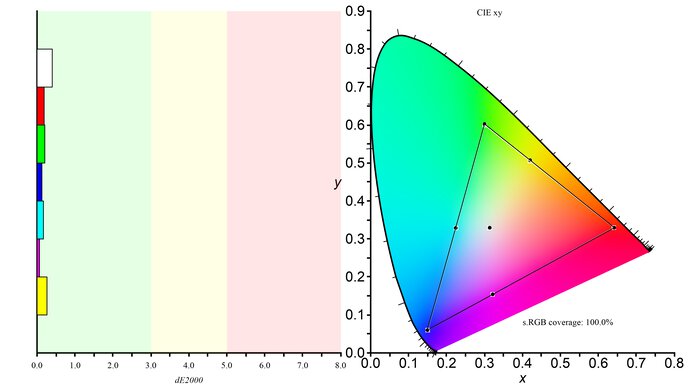
The LG 42 C5 has excellent accuracy before calibration. Although it doesn't have a typical sRGB mode like most PC monitors, setting Color Gamut to 'Auto Detect' locks colors well to the sRGB color space, as long as Color Depth is set to '50.' However, there are still issues with the white balance and gamma, as dark scenes are too dark and bright scenes are too bright.
These results are with the input label set to 'PC' and Game Optimizer enabled. The color temperature is way too cold by default with these settings, so we changed the Color Temperature to 'Warm 40' to get closer to the 6500K target.
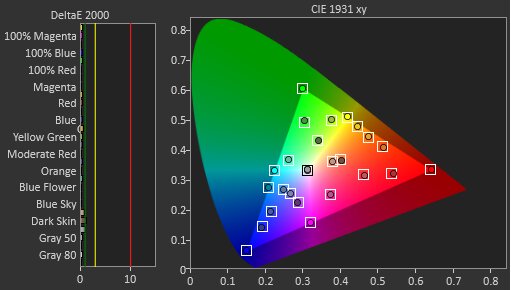
The accuracy after calibration is fantastic. Calibrating it fixes most issues, like with the white balance and gamma.
These results are with the input label set to 'PC' and Game Optimizer enabled. The post-calibration results are nearly the same, even outside of PC mode with the 'Expert (bright space, day)' Picture Mode.
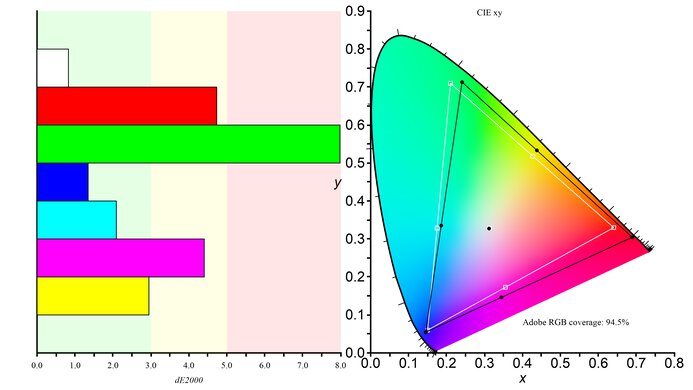
The SDR color gamut is incredible. It covers all of the sRGB color space used in most content. It also has good coverage of the wider Adobe RGB color space, as long as you set Color Gamut to 'Adobe RGB.' Leaving it to 'Auto' limits the coverage to 74.9%.
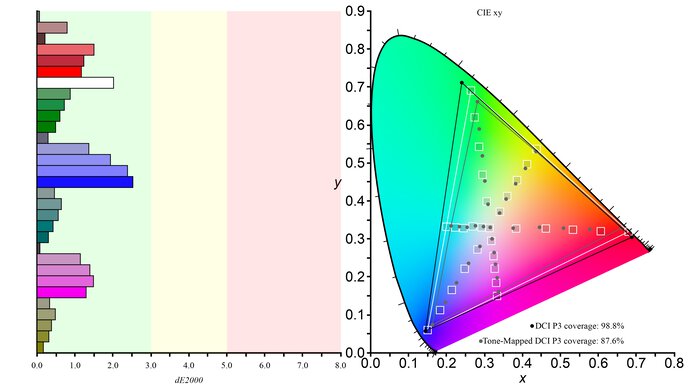
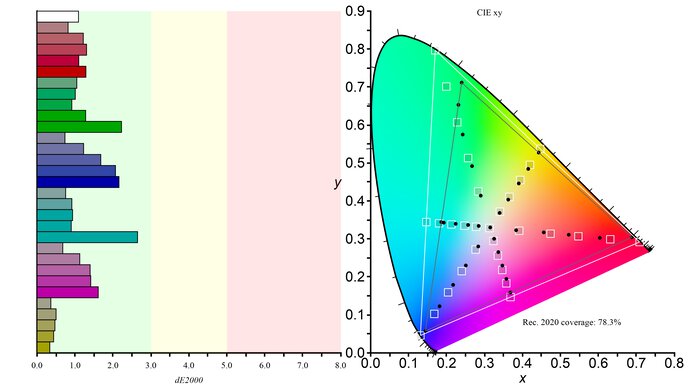
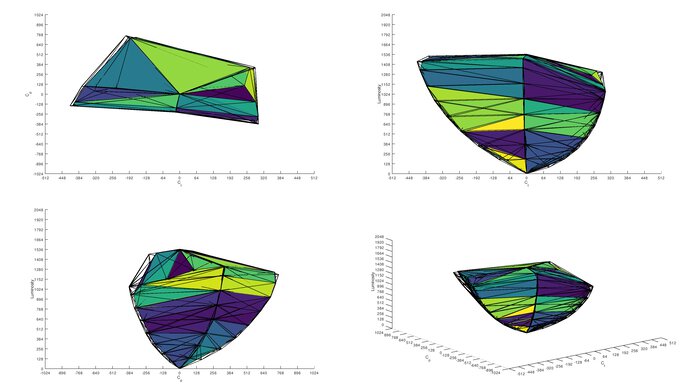
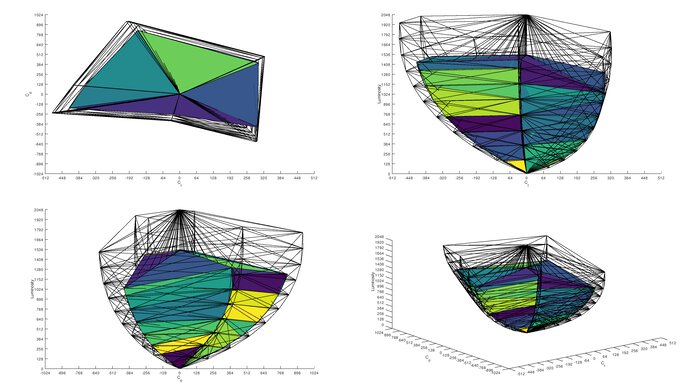
The LG 42 C5 has a fantastic HDR color gamut. It displays most colors in the common DCI-P3 color space, but it's more limited in the Rec. 2020 color space. On the plus side, it's accurate in both spaces, with only some minor inaccuracies.
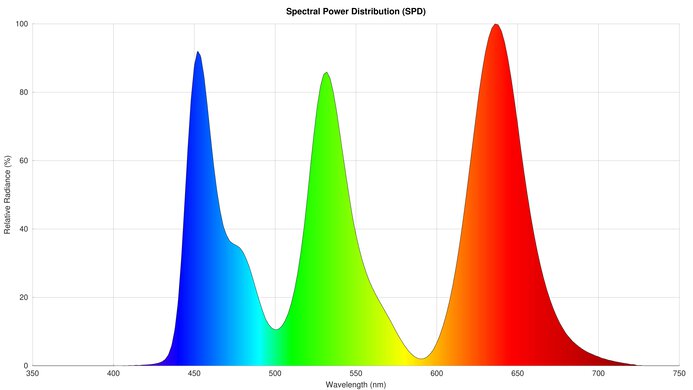
The HDR color volume is good. It displays most colors at different luminance levels well, but bright colors aren't as vivid as on a QD-OLED. The color volume is the same whether you have the TV in or out of PC mode.
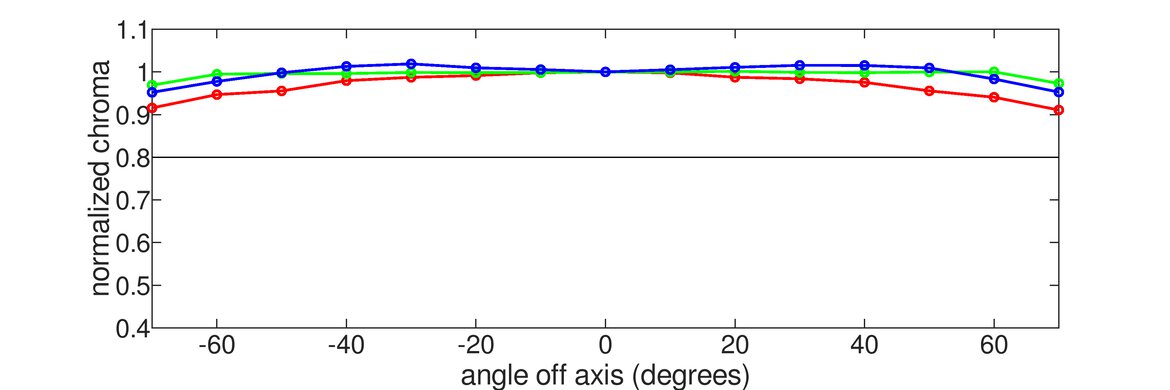
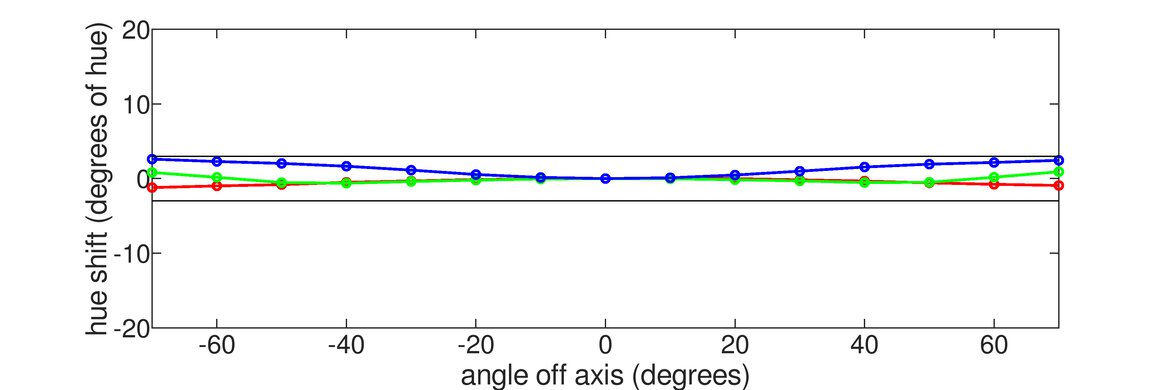
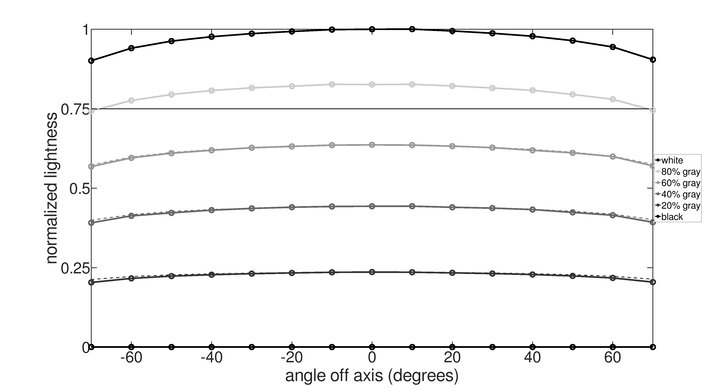
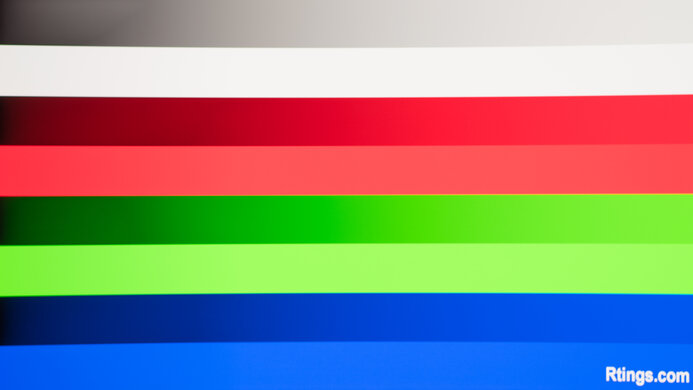
The LG 42 C5 has an excellent horizontal viewing angle. For the most part, the image remains consistent when viewed from the sides or if you're sitting close to the screen and looking at the edges. That said, like many LG WOLED panels, there's a green tint when viewed from the sides. This is a widespread issue, but also varies between units.
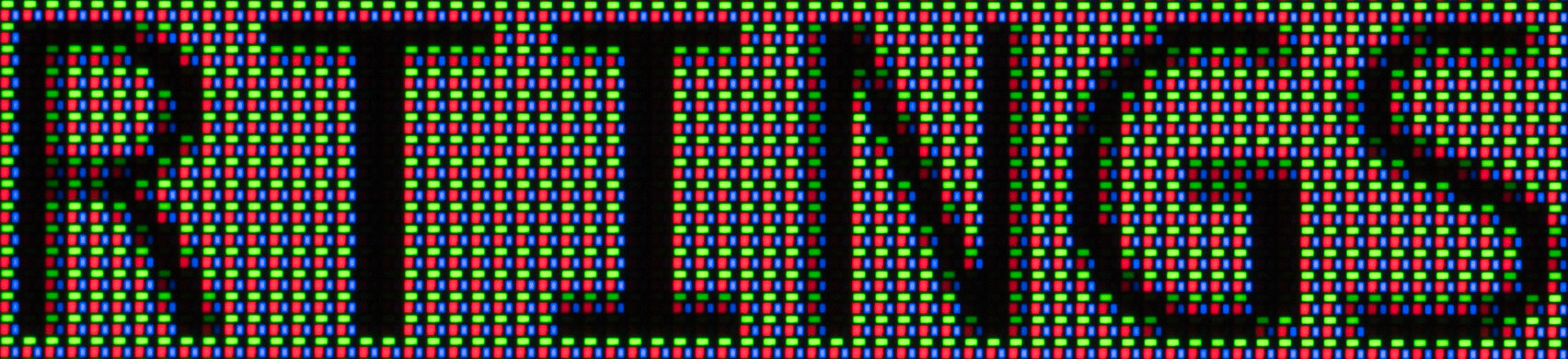
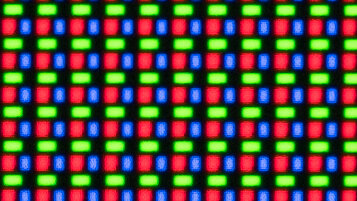
The text clarity is decent. Despite its 4k resolution, text isn't as sharp as on smaller 4k monitors because it has lower pixel density. Programs don't properly render text with its RWBG subpixel layout either, so using ClearType results in some fringing.
The default Windows scaling of 300% is very large, and these photos are at 100% scaling in Windows 10. You can see more photos in Windows 11 and with 125% scaling.
| Scaling | Windows 10 | Windows 11 |
|---|---|---|
| 100% | ClearType On | ClearType On |
| ClearType Off | ClearType Off | |
| 125% | ClearType On | ClearType On |
| ClearType Off | ClearType Off |
Like the LG C5 OLED TV, there are some diagonal lines caused by dithering in dark scenes, but it's hard to notice unless you're looking for it or sitting close to the display. We didn't notice it with most uses, including web browsing, during testing, but how much this bothers you changes from person to person. The dithering is the same across different picture modes, and it's easier to see if you increase the screen brightness.
The direct reflection handling is disappointing. It has a glossy coating that reflects light back like a mirror, which may be distracting if you have it opposite a sunny window. As the screen isn't perfectly flat, some reflections can look warped. Whether or not you notice this depends on the positioning of the light source, though.
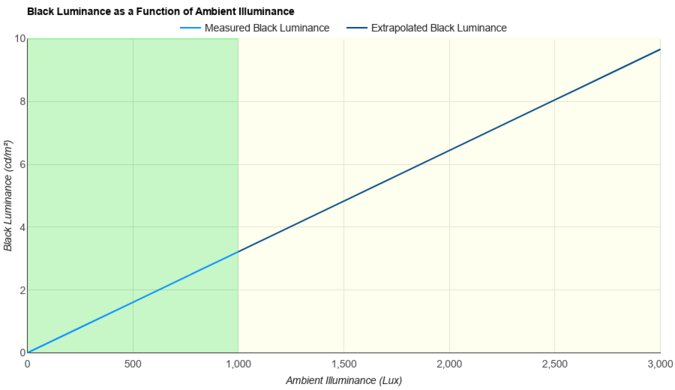
The LG 42 C5 does a fantastic job at maintaining low black levels in bright rooms. Although it doesn't maintain its perfect contrast ratio, blacks still look deep.
The LG 42C5 doesn't have too many distracting reflections in well-lit rooms, as it reduces glare well. However, due to its glossy coating, it still has mirror-like reflections that can make the screen hard to see if you place it opposite a sunny window.
You can reach the TV's max refresh rate by enabling 144Hz Mode within the Game Optimizer settings.
VRR Format
VRR Min
VRR Max
FreeSync
<20Hz
144Hz
G-SYNC Compatibility
<20Hz
144Hz
The monitor also supports HDMI Forum VRR.
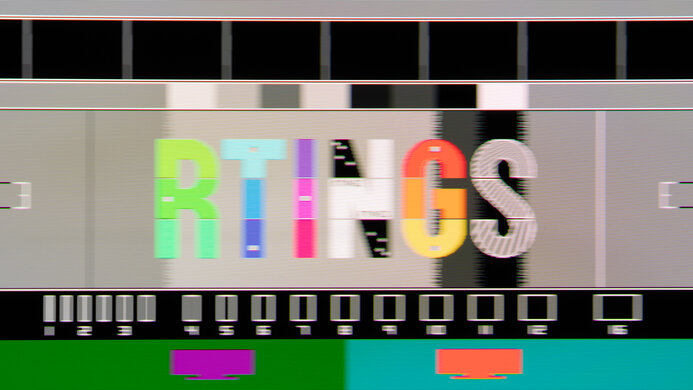
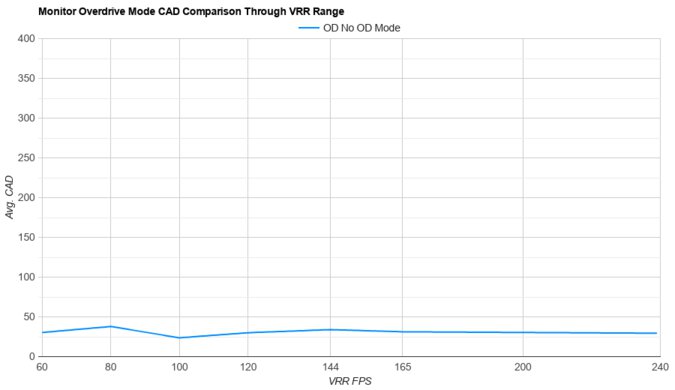
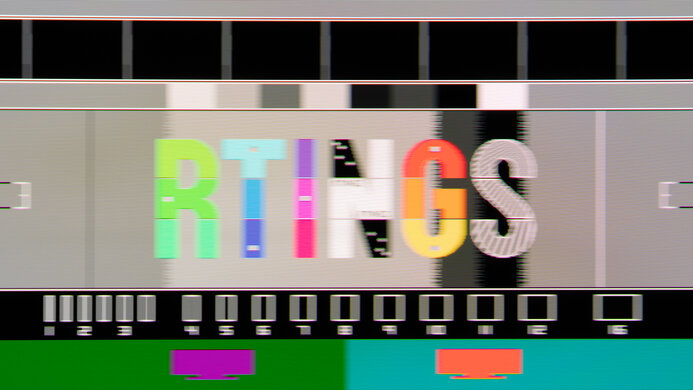
The LG 42 C5 has remarkable motion handling across its VRR range. Motion is sharp, and any blur you see at low refresh rates is persistence blur.
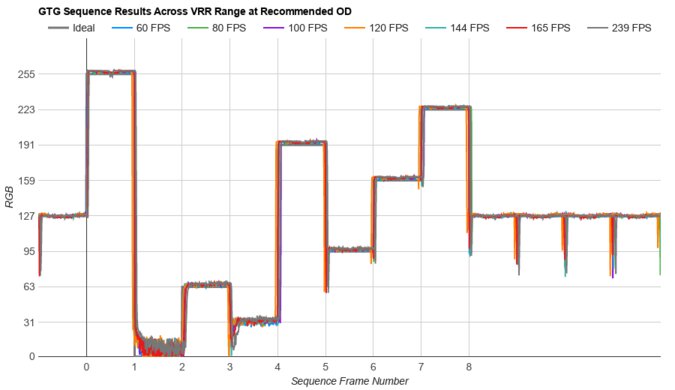
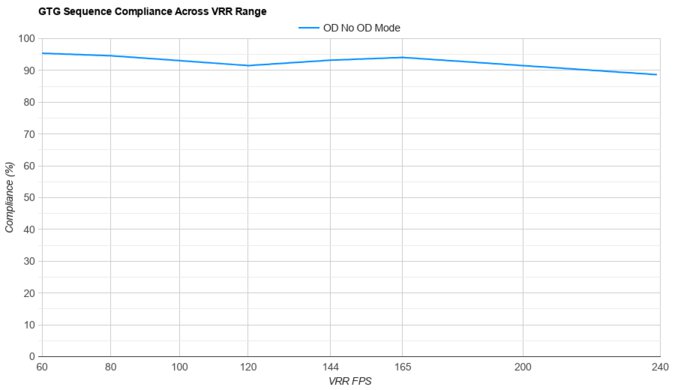
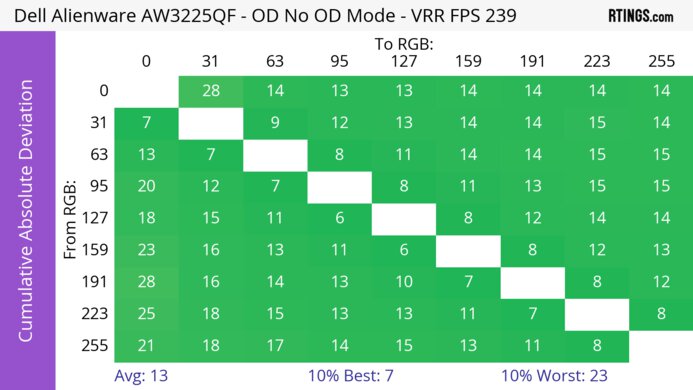
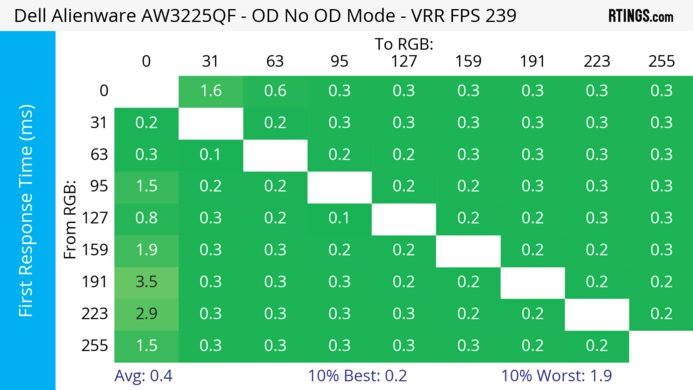
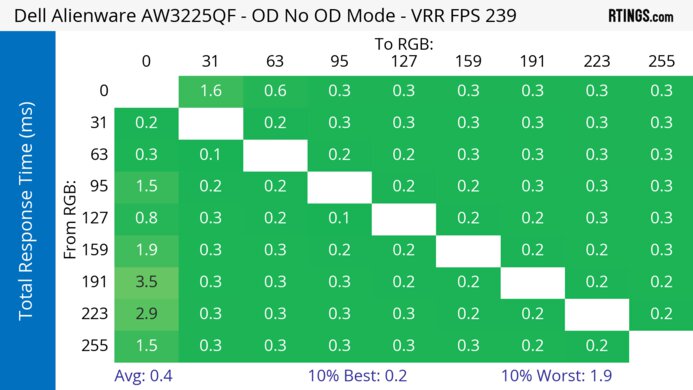
The refresh rate compliance is incredible. Its response time is fast enough to make most full-color transitions before the monitor draws the next frame.
The LG 42C5 has a basic black frame insertion (BFI) feature. It's effective at reducing blur at 60Hz, but because you need to set Prevent Input Delay to 'Standard' to access the OLED Motion setting to enable BFI, using the feature increases the input lag a lot. You also have to disable VRR & G-Sync and 144Hz Mode to use OLED Motion.
The LG 42 C5 has very low input lag, as long as you have the input label set to 'PC' (or you enable 4:4:4 Pass Through) with Game Optimizer enabled and Prevent Input Delay set to 'Boost.' Setting Prevent Input Delay to 'Standard,' which you need to do to enable the BFI feature, increases the input lag.
You can see the input lag results with other settings and Game Optimizer disabled below:
| Refresh Rate | Input Label: PC | Input Label: HDMI |
|---|---|---|
| 144Hz | 11.5 ms | 11.7 ms |
| 120Hz | 13.7 ms | 39.4 ms |
| 60Hz | 22.1 ms | 81.7 ms |
| BFI (60Hz) | 30.4 ms | 106.7 ms |
The LG 42C5 has inputs that PC monitors don't typically have, including a tuner, an RS-232C port, and an optical digital audio output. HDMI 2 also serves as the eARC/ARC port, and it supports audio passthrough with Dolby Digital formats that you can read more about in the TV review.
The USB-A ports are for connecting devices directly to the TV and its smart system. Without an upstream port, you aren't able to use these devices on your computer.
Connection
HDMI 2.1
Max Refresh Rate
144Hz
VRR Range
40-144Hz
HDR
Yes
The TV works well with macOS. There aren't any obvious issues, including with HDR or VRR. If you're using a MacBook, the 'Cinema' and 'Filmmaker' Picture Modes look closest to the MacBook display. If you have the MacBook connected over power, you can close the lid and continue using the TV, but without the laptop being plugged into power, the TV goes into standby mode when you close the lid. When you reopen the lid or wake the laptop up from sleep, windows return to their original positions.
The LG C5 42 OLED comes with features that aren't typical of most PC monitors, including the built-in webOS that you can use to stream content without your PC. You can read more about the smart system in the TV review. The TV also comes with the Alpha 9 AI Processor Gen8, but many processing features are disabled in the PC and Game Modes.
Other features include:
- ALLM: Automatically puts the TV into Game Optimizer when you switch to a gaming console or PC.
- Game Optimizer: Dedicated setting for gaming that includes its own picture settings, like various picture modes, a dashboard, and Black Stabilizer.
- Multi-View: Picture-by-Picture feature that allows you to view images from two sources at once, including two external sources or one external source and an internal app. There's a Picture-in-Picture mode that you can use with an external device and a built-in app, but not two external sources.
-
OLED Care:
- Pixel Cleaning: Runs a 10-minute pixel refresh cycle to help prevent burn-in.
- Screen Move: Slowly adjusts the picture by a few pixels over time so that the same pixels aren't always displaying the same thing.
- Adjust Logo Brightness: Dims static logos, like network logos, when watching TV.
You can learn more about the available settings in our TV settings guide.
During testing, we found that the TV wouldn't switch into PC mode right away when we changed the input label to 'PC.' We had to change the label a few times to get it to work. We noticed something similar when switching out of Game Optimizer during our TV testing.