Dell P2425H  Monitor Review

Reviewed Aug 15, 2024 at 09:06am
Test bench update Feb 20, 2025 at 09:14am
Tested using Methodology v2.0.1 
Dell P2425H
5.2
PC Gaming 
2.4
Console Gaming 
7.1
Office 
6.3
Editing 
2.6
Brightness 
4.2
Response Time 
2.5
HDR Picture 
6.7
SDR Picture 
 1

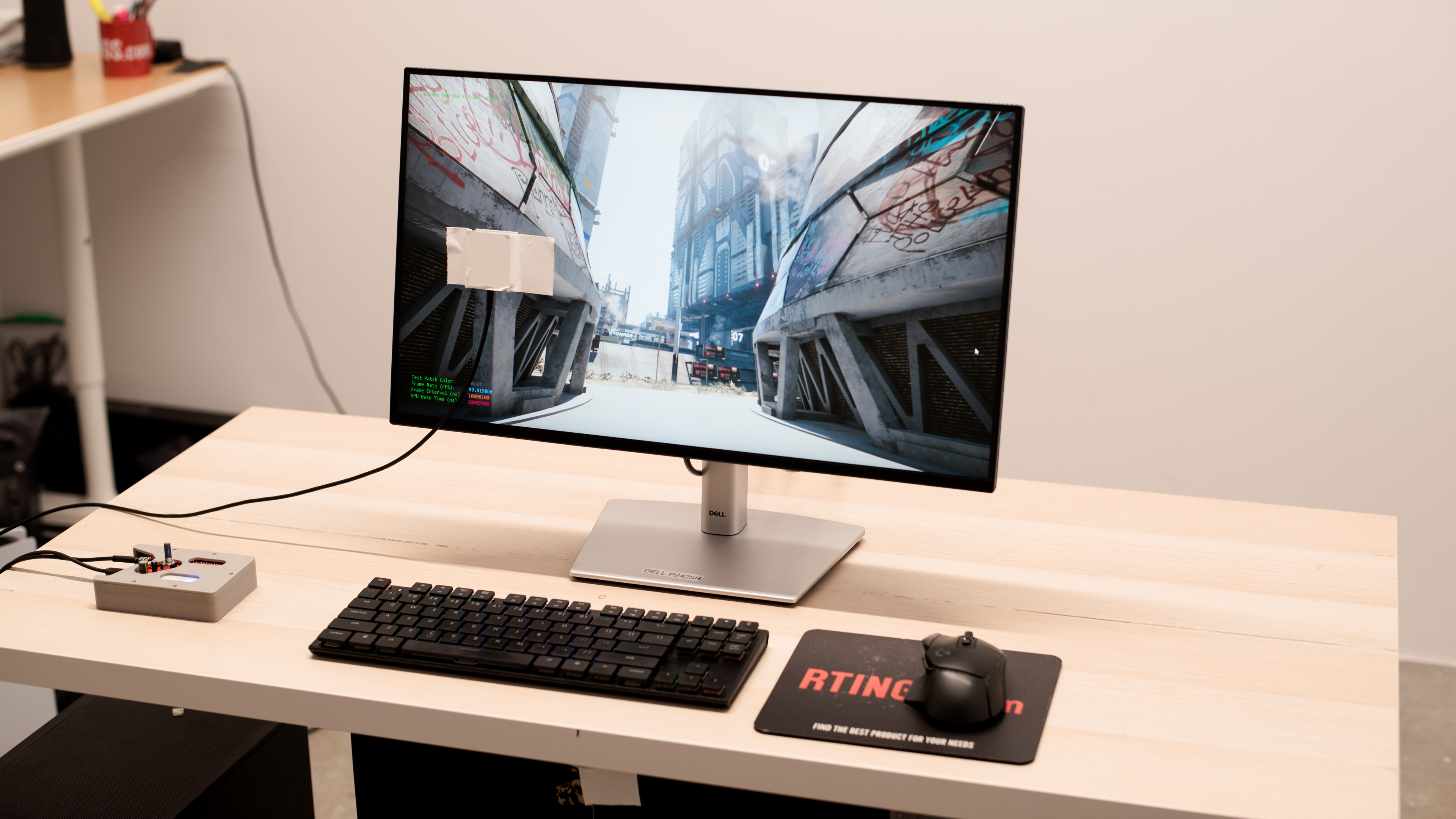
The Dell P2425H is a low-cost 24-inch, 1080p office monitor. It's part of Dell's series of productivity monitors, which includes higher-resolution models like the Dell P2423D and the larger P2723D. It's very similar to related models such as the Dell P2425HE, which delivers far more power over USB-C and has an ethernet port, and the Dell P2425, which has a 16:10 aspect ratio. While the P2425H is a step down from the P2425HE, it still has four USB ports for attaching peripherals, including one USB-C port with 15W of power delivery, as well as a Kensington lock, so you can use this to secure the monitor to a solid object in public places.

How We Test Monitors

We buy and test more than 30 monitors each year, with units that we buy completely on our own, without any cherry-picked units or samples. We put a lot into each unbiased, straight-to-the-point review, and there's a whole process from purchasing to publishing, involving multiple teams and people. We do more than just use the monitor for a week; we use specialized and custom tools to measure various aspects with objective data-based results. We also consider multiple factors before making any recommendations, including the monitor's cost, its performance against the competition, and whether or not it's easy to find.

Our Verdict

5.2
PC Gaming 

The Dell P2425H is bad for PC gaming, but it isn't designed for this. Its 100Hz refresh rate is higher than most office monitors, but it's not responsive enough for games with fast-moving content. Additionally, it doesn't have VRR support to reduce screen tearing. While it has low enough input lag for a responsive feel, motion is very blurry due to its poor response time.

Pros
None
Cons
  • Fast-moving objects look blurry.
  • No local dimming feature.
  • No HDR support.
  • Mediocre contrast.
2.4
Console Gaming 

The Dell P2425H is terrible for console gaming. It can't display a 120Hz, 4k, or even 1440p signal and doesn't support VRR or HDR. Though it has low input lag for a responsive enough feel, fast-moving objects look blurry due to its poor response time.

Pros
None
Cons
  • Fast-moving objects look blurry.
  • No local dimming feature.
  • No HDR support.
  • Mediocre contrast.
7.1
Office 

The Dell P2425H is decent for office use. Its superb ergonomics allow you to adjust the screen to your optimal viewing position, and thanks to its wide viewing angles, you can easily share your work with colleagues. It also has a USB hub and up to 15W of power delivery over USB-C, which is useful if you want to charge devices like your phone. However, while it gets bright enough to overcome glare in some environments, it's harder to see in bright environments.

Pros
  • Bright enough to overcome glare in some environments.
  • Wide viewing angles.
  • Superb ergonomics.
  • Four USB ports.
Cons
  • Harder to see in bright environments
6.3
Editing 

The Dell P2425H is okay for media creation. It has superb ergonomics, so you can easily place it in an ideal working position. It also has wide viewing angles, so sharing your work with others is easy. Additionally, it has decent accuracy before calibration, though you still need to calibrate it for the most accurate image. However, it doesn't support HDR, so you can't use it to edit HDR content. Additionally, deep blacks appear gray in a dark room, making it harder to see shadow details during editing.

Pros
  • Bright enough to overcome glare in some environments.
  • Wide viewing angles.
  • Superb ergonomics.
  • Four USB ports.
Cons
  • No local dimming feature.
  • No HDR support.
  • Harder to see in bright environments
  • Mediocre contrast.
2.6
Brightness 

The Dell P2425H has okay brightness in SDR, enough to overcome glare in some environments, though it's harder to see in bright environments. It also doesn't support HDR.

Pros
  • Bright enough to overcome glare in some environments.
Cons
  • No HDR support.
  • Harder to see in bright environments
4.2
Response Time 

The Dell P2425H has a terrible response time, and fast-moving objects look quite blurry.

Pros
None
Cons
  • Fast-moving objects look blurry.
2.5
HDR Picture 

The Dell 24 Monitor P2425H doesn't support HDR.

6.7
SDR Picture 

The Dell 24 Monitor P2425H has mediocre SDR picture quality. Its mediocre contrast ratio makes blacks look gray next to bright highlights, and the screen looks somewhat cloudy when displaying a dark image.

Pros
None
Cons
  • Screen is somewhat cloudy when displaying a dark image.
  • Mediocre contrast.
7.8
Color Accuracy 

The Dell 24 Monitor P2425H has good color accuracy. However, you need to calibrate it for the best accuracy, as colors are oversaturated before calibration.

Pros
  • Decent color accuracy before calibration.
Cons
None
  • 5.2
    PC Gaming
  • 2.4
    Console Gaming
  • 7.1
    Office
  • 6.3
    Editing

  • Performance Usages

  • 2.6
    Brightness
  • 4.2
    Response Time
  • 2.5
    HDR Picture
  • 6.7
    SDR Picture
  • 7.8
    Color Accuracy
  • Changelog

    1.  Updated Feb 21, 2025: We've converted this review to Test Bench 2.0.1. This includes a new test result for DisplayPort 2.1 Transmission Bandwidth.
    2.  Updated Aug 29, 2024: Added that the AOC 24G15N has a higher Refresh Rate.
    3.  Updated Aug 15, 2024: Review published.
    4.  Updated Aug 12, 2024: Early access published.

    Check Price

    Differences Between Sizes And Variants

    We tested the 24-inch Dell P2425H, which is part of Dell's series of productivity monitors, some of which are listed below. Most of these monitors are similar, but there are some differences as you can see below. The results in this review are only valid for the model we tested and aren't valid for the other monitors.

    Model Code Size Resolution Refresh Rate Aspect Ratio USB-C Power Delivery
    P2425H 24" 1080p 100Hz 16:9 15W
    P2425HE 24" 1080p 100Hz 16:9 90W
    P2425 24" 1080p 100Hz 16:10 15W
    P2423D 24" 1440p 60Hz 16:9 No USB-C

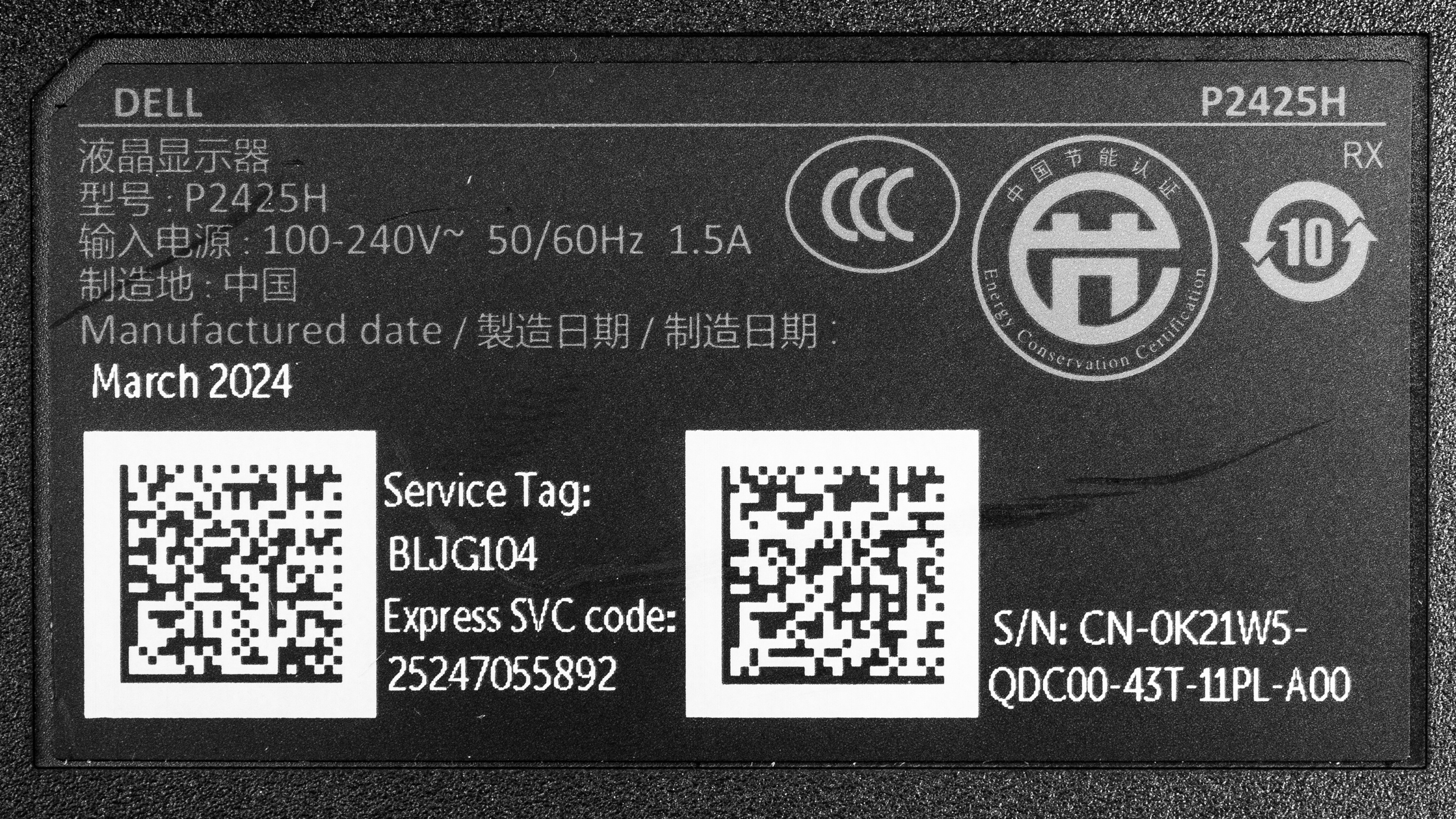
    Our unit was manufactured in March 2024; you can see the label here. It was tested with firmware M2B101.


    Popular Monitor Comparisons

    The Dell P2425H is a cheap 24-inch productivity monitor that works well on its own or in a multi-monitor setup. It's a good option if you're looking for a cheap office monitor and don't mind the lower-resolution screen and blurrier text that comes with it. Additionally, it has great viewing angles, so it's easy to share content from your screen with a coworker. However, it has some significant limitations. While it gets bright enough to overcome glare in some environments, it's harder to see in bright environments. It also doesn't have HDR support. If you can spend a bit more and want a monitor that gets a bit brighter and displays a more detailed image, consider the Dell P2423D. Though it lacks a USB-C port, it still has a USB hub and is otherwise very similar to the P2425H.

    Also, see our recommendations for the best office monitors, the best monitors for dual setup, and the best budget and cheap monitors.

    Dell S2721QS

    The Dell S2721QS and the Dell P2425H are office-oriented monitors. Both are good choices for office work, and if you don't need the added performance of the S2721QS, then the P2425H is a great choice. However, the S2721QS is the better choice if you work in a bright environment, need HDR support, want a much sharper image, or prefer a larger screen.

    Dell P2423D

    The Dell P2423D and the Dell P2425H are both 24-inch productivity monitors. The two monitors are very similar, and the P2425H is a good option if you don't need the higher resolution or brighter screen of the P2423D. The P2425H also has a more responsive-feeling 100Hz refresh rate, though its response time isn't fast enough for games with lots of motion.

    Dell G2724D

    The Dell G2724D is part of Dell's gaming lineup, and the Dell P2425H is part of Dell's productivity series. However, both work well as office monitors. The G2724D is the better monitor for most people, even for office work, as it's much better at overcoming glare, has HDR support, and displays a more detailed image. Additionally, fast-moving objects look more crisp on the G2724D. However, the P2425H is a better choice if you need USB connectivity on your monitor or want a smaller screen 24-inch screen.
    ASUS VG246H

    The ASUS VG246H and the Dell P2425H are 24-inch, 1080p monitors. Both monitors are very similar, and given that these are quite low-cost displays, you may prefer to get whichever is cheaper. The ASUS is a slightly better choice in a brighter room, as it gets a bit brighter. Alternatively, the Dell is a better option if you want a more responsive office monitor, as it has a slightly higher 100Hz refresh rate. However, its response time isn't fast enough for fast-moving games.

    Test Results

    perceptual testing image
    Sort:
    RATINGS
    Category:
    All
    Design
    Style
    Curved
    No
    Curve Radius
    Not Curved

    The Dell P2425H has a straightforward, office-oriented aesthetic. While the monitor is black, the square-based stand is silver.

    8.0
    Build Quality

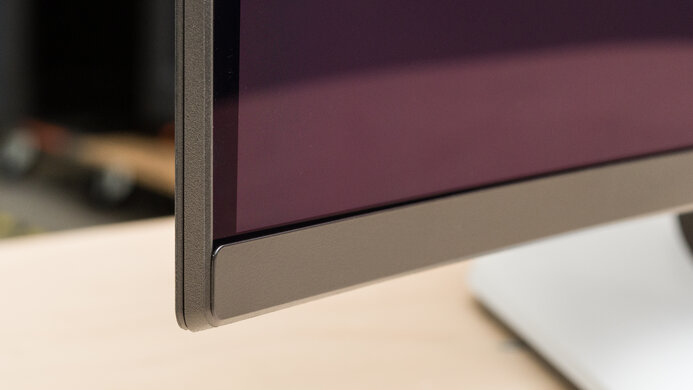
    The build quality is great. While the back of the monitor does flex under pressure, there's no issue with bezel uniformity.

    9.4
    Ergonomics
    Min Height To Top Of Panel
    13.6" (34.5 cm)
    Height Adjustment
    5.7" (14.6 cm)
    Tilt Range
    -21° to 5°
    Rotate Portrait/Landscape
    Yes, Both Ways
    Swivel Range
    -45° to 45°
    Wall Mount
    VESA 100x100

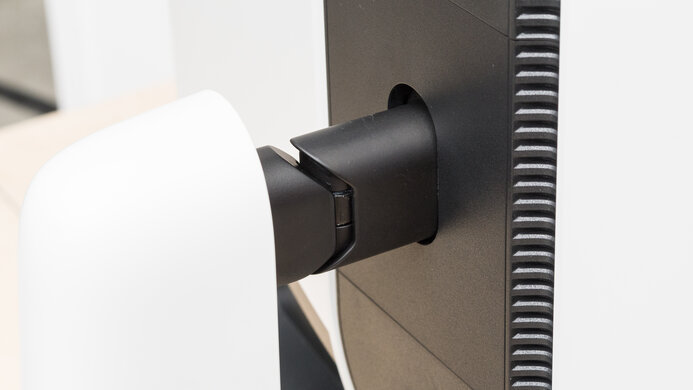
    The ergonomics are superb. You can easily adjust the monitor to your preferred height or share your screen with someone next to you. It also rotates, so you can use it in a horizontal or vertical position. The stand features a cutout for cable management.

    Stand
    Base Width
    9.8" (24.9 cm)
    Base Depth
    6.9" (17.5 cm)
    Thickness (With Display)
    5.5" (14.0 cm)
    Weight (With Display)
    9.6 lbs (4.4 kg)

    The monitor wobbles on its stand if you shake the desk or screen, though the stand holds the monitor in position well when you swivel it or adjust its height or tilt position.

    Display
    Size
    24"
    Housing Width
    21.2" (53.9 cm)
    Housing Height
    12.4" (31.4 cm)
    Thickness (Without Stand)
    2.0" (5.0 cm)
    Weight (Without Stand)
    6.4 lbs (2.9 kg)
    Borders Size (Bezels)
    0.2" (0.5 cm)
    Controls

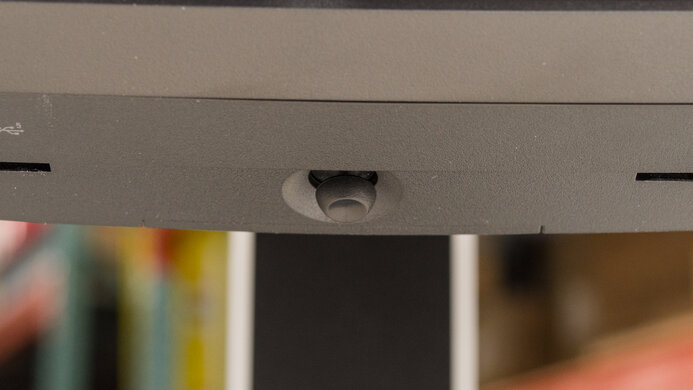
    There's a joystick at the rear of the monitor to control the on-screen display and a power button.

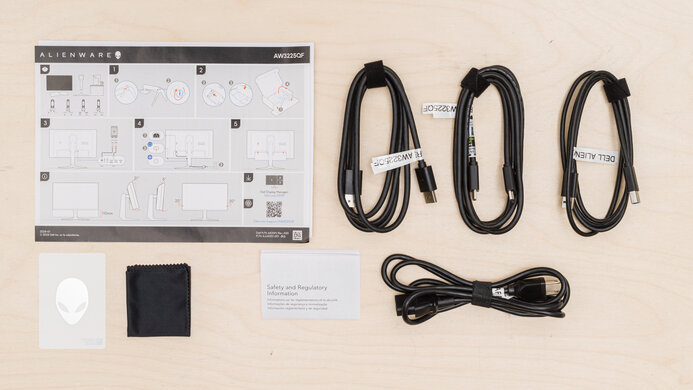
    In The Box
    Power Supply
    Internal

    • DisplayPort cable
    • USB-A to USB-B cable
    • Power cable
    • Documentation
    Picture Quality
    6.3
    Contrast
    Native Contrast
    1,222 : 1
    Contrast With Local Dimming
    N/A

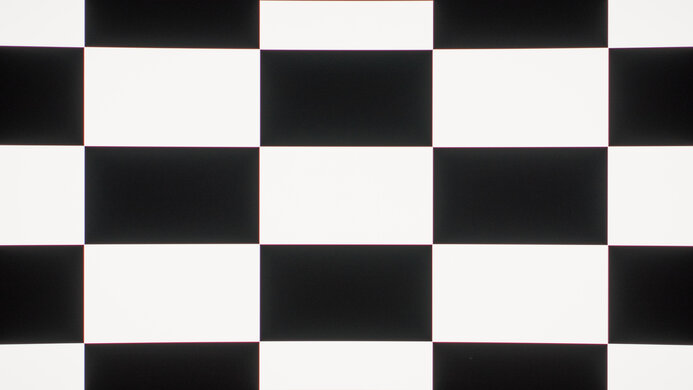
    The monitor has mediocre contrast. As a result, deep blacks appear gray in darker rooms, and the monitor has no local dimming feature to improve the contrast further.

    0.0
    Local Dimming
    Local Dimming
    No
    Backlight
    Edge

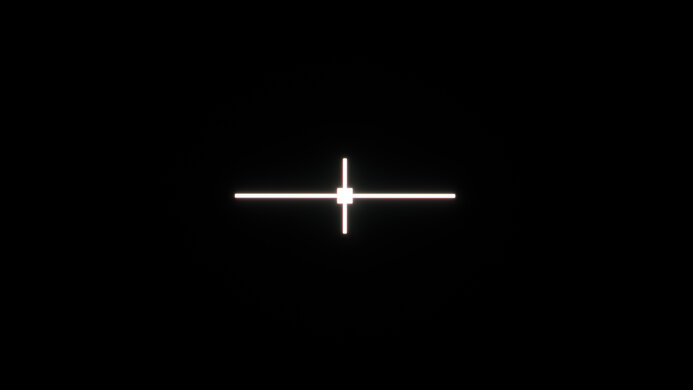
    Though this monitor doesn't have local dimming, we still film these videos so you can compare the backlight performance with a monitor that has local dimming.

    6.6
    SDR Brightness
    Real Scene
    228 cd/m²
    Peak 2% Window
    239 cd/m²
    Peak 10% Window
    239 cd/m²
    Peak 25% Window
    239 cd/m²
    Peak 50% Window
    240 cd/m²
    Peak 100% Window
    240 cd/m²
    Sustained 2% Window
    239 cd/m²
    Sustained 10% Window
    239 cd/m²
    Sustained 25% Window
    239 cd/m²
    Sustained 50% Window
    240 cd/m²
    Sustained 100% Window
    240 cd/m²
    Automatic Brightness Limiting (ABL)
    0.000
    Minimum Brightness
    35 cd/m²

    Settings

    • Preset Modes: Custom Color (Calibrated)
    • Brightness: Max

    The SDR brightness is okay. It gets bright enough to overcome glare in some environments, though it's more difficult to see content if a bright light is shining on the screen.

    0.0
    HDR Brightness
    VESA DisplayHDR Certification
    No Certification
    Real Scene
    N/A
    Peak 2% Window
    N/A
    Peak 10% Window
    N/A
    Peak 25% Window
    N/A
    Peak 50% Window
    N/A
    Peak 100% Window
    N/A
    Sustained 2% Window
    N/A
    Sustained 10% Window
    N/A
    Sustained 25% Window
    N/A
    Sustained 50% Window
    N/A
    Sustained 100% Window
    N/A
    Automatic Brightness Limiting (ABL)
    N/A

    This monitor doesn't support HDR.

    8.3
    Horizontal Viewing Angle
    Color Washout From Left
    44°
    Color Washout From Right
    46°
    Color Shift From Left
    51°
    Color Shift From Right
    59°
    Brightness Loss From Left
    44°
    Brightness Loss From Right
    48°
    Black Level Raise From Left
    70°
    Black Level Raise From Right
    70°
    Gamma Shift From Left
    54°
    Gamma Shift From Right
    56°

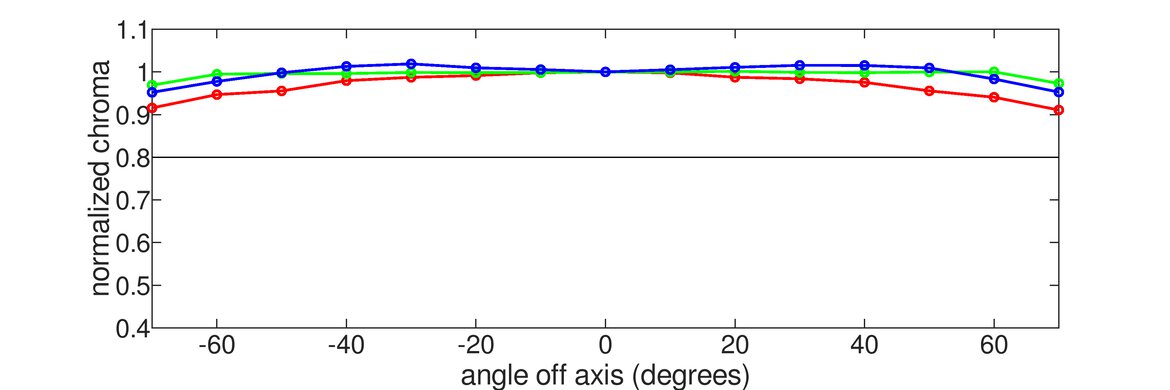
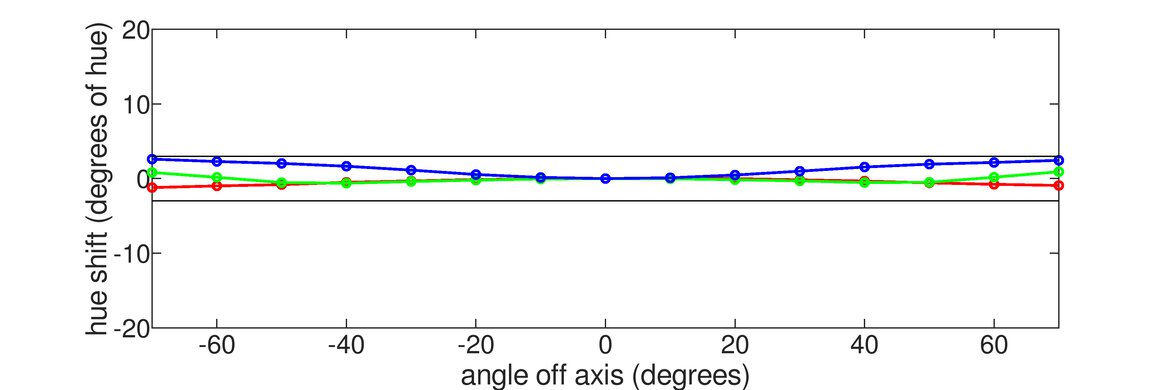
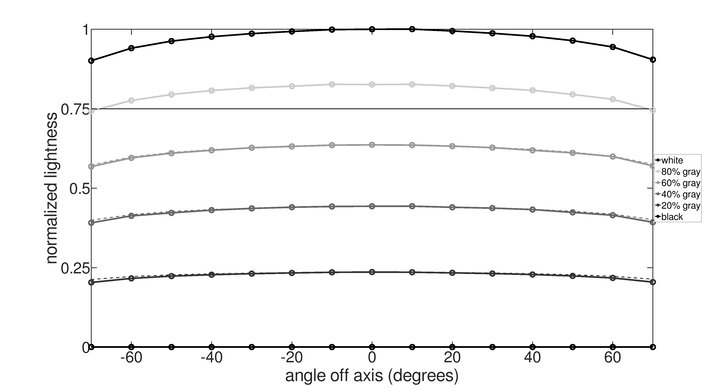
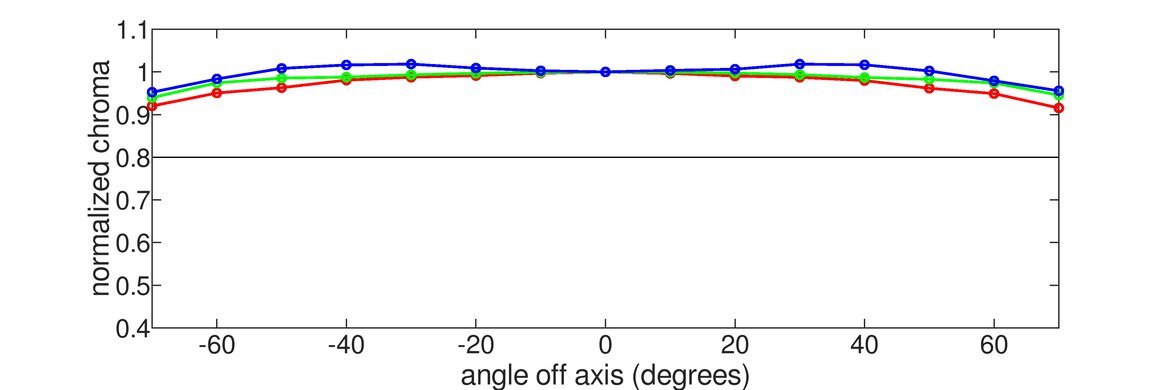
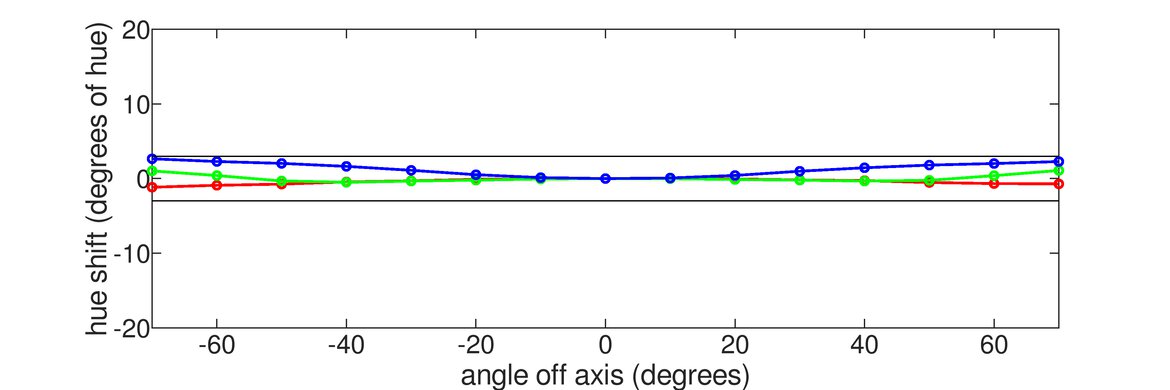
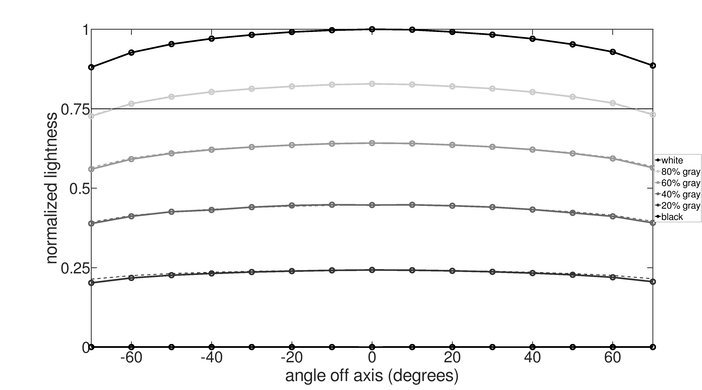
    The horizontal viewing angle is great. The image remains consistent from the sides, and you can easily share your screen with someone else.

    6.4
    Vertical Viewing Angle
    Color Washout From Below
    30°
    Color Washout From Above
    31°
    Color Shift From Below
    33°
    Color Shift From Above
    41°
    Brightness Loss From Below
    33°
    Brightness Loss From Above
    34°
    Black Level Raise From Below
    24°
    Black Level Raise From Above
    55°
    Gamma Shift From Below
    30°
    Gamma Shift From Above
    31°

    The vertical viewing angle is mediocre. While the image gets darker at wide angles, this isn't an issue unless you stand directly above the monitor and look down on it.

    8.1
    Gray Uniformity
    50% Std. Dev.
    2.683%
    50% DSE
    0.144%

    The monitor has great gray uniformity. The outside of the screen is a bit darker, but there's very little dirty screen effect in the center of the screen.

    5.9
    Black Uniformity
    Native Std. Dev.
    2.044%
    Std. Dev. w/ L.D.
    N/A

    The monitor has sub-par black uniformity. There's backlight bleed along the edges of the screen, and some cloudiness throughout the screen. Unfortunately, there's no local dimming feature to improve black uniformity.

    7.3
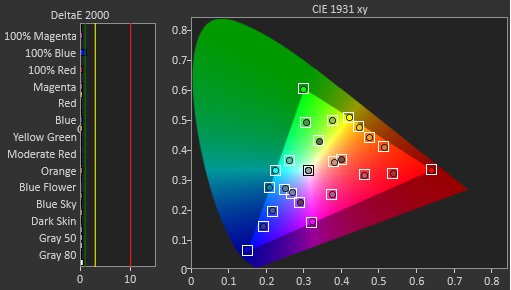
    Color Accuracy (Pre-Calibration)
    Picture Mode
    Custom Color
    sRGB Gamut Area xy
    114.9%
    White Balance dE (Avg.)
    2.74
    Color Temperature (Avg.)
    6,808 K
    Gamma (Avg.)
    2.28
    Color dE (Avg.)
    2.89
    Contrast Setting
    75
    RGB Settings
    100-100-100
    Gamma Setting
    No Gamma Setting
    Brightness Setting
    75
    Measured Brightness
    184 cd/m²
    Brightness Locked
    No

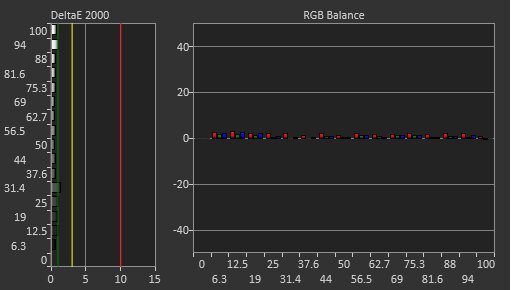
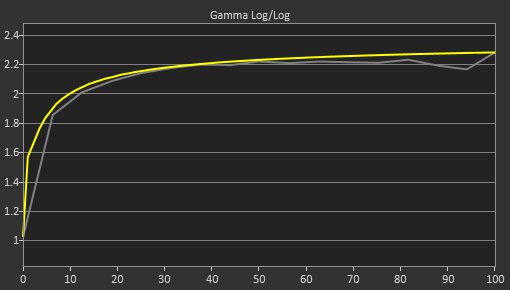
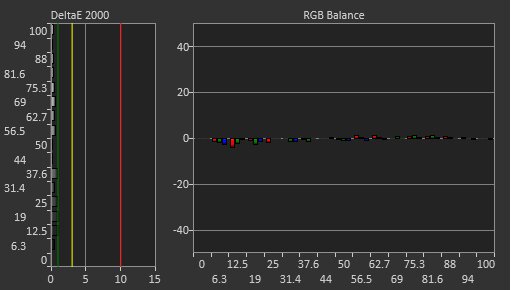
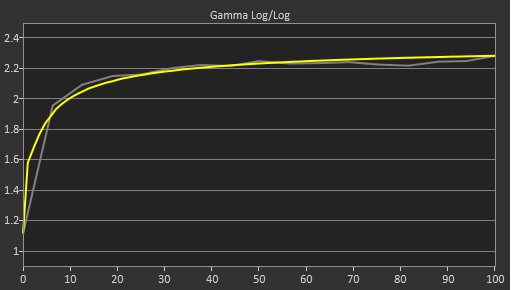
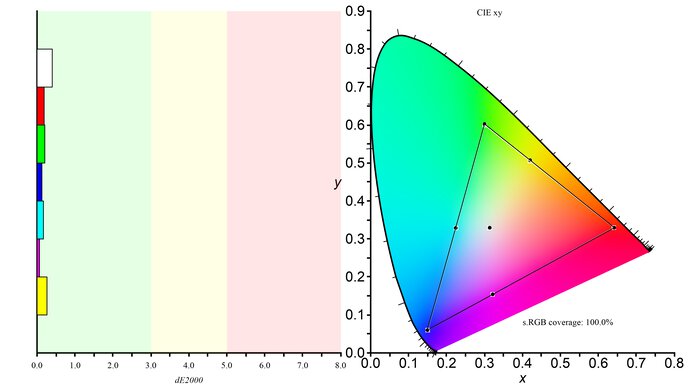
    The monitor has decent accuracy before calibration. It doesn't have a dedicated sRGB mode, and colors are oversaturated. However, the white balance is good, and the color temperature is fairly close to the 6500K target. Gamma follows the target somewhat well, though darker parts of scenes are a bit too dark.

    9.6
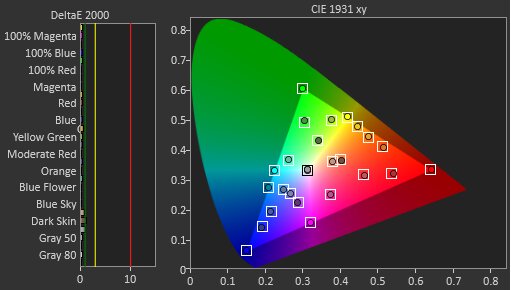
    Color Accuracy (Post-Calibration)
    Picture Mode
    Custom Color
    sRGB Gamut Area xy
    100.0%
    White Balance dE (Avg.)
    0.55
    Color Temperature (Avg.)
    6,495 K
    Gamma (Avg.)
    2.18
    Color dE (Avg.)
    0.90
    Contrast Setting
    75
    RGB Settings
    99-96-95
    Gamma Setting
    No Gamma Setting
    Brightness Setting
    35
    Measured Brightness
    99 cd/m²
    ICC Profile
    Download

    The accuracy after calibration is fantastic, and you won't notice any inaccuracies.

    9.3
    SDR Color Gamut
    sRGB Coverage xy
    99.9%
    sRGB Picture Mode
    Custom Color
    Adobe RGB Coverage xy
    78.7%
    Adobe RGB Picture Mode
    Custom Color

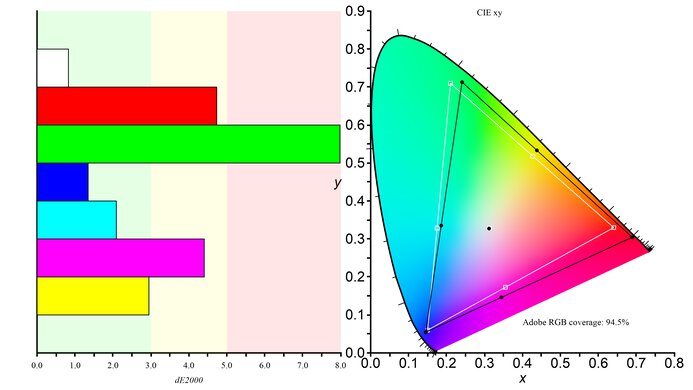
    The SDR color gamut is fantastic, and the monitor has incredible coverage of the sRGB color space. However, it has more limited coverage of the Adobe RGB color space, and it doesn't display several colors accurately in that color space.

    0.0
    HDR Color Gamut
    Wide Color Gamut
    N/A
    DCI-P3 Coverage xy
    N/A
    DCI-P3 Picture Mode
    No HDR
    Rec. 2020 Coverage xy
    N/A
    Rec. 2020 Picture Mode
    No HDR

    This monitor doesn't support HDR.

    0.0
    HDR Color Volume
    1,000 cd/m² DCI-P3 Coverage ICtCp
    N/A
    DCI-P3 Picture Mode
    No HDR
    10,000 cd/m² Rec. 2020 Coverage ICtCp
    N/A
    Rec. 2020 Picture Mode
    No HDR

    This monitor doesn't support HDR.

    7.0
    Text Clarity
    Pixel Type
    IPS
    Subpixel Layout
    RGB

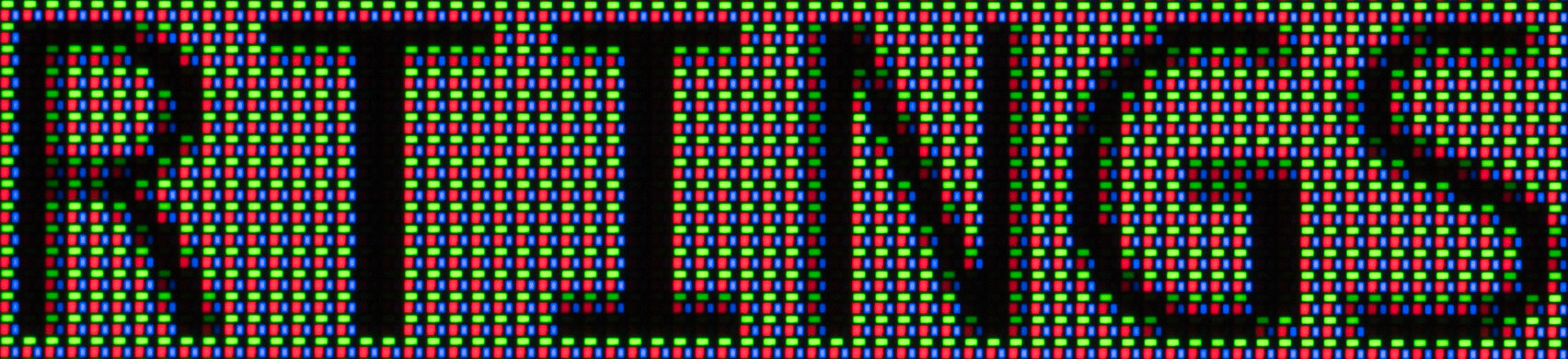
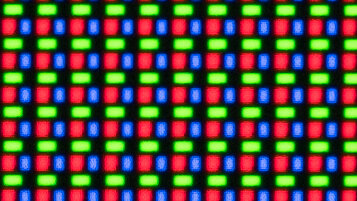
    The text clarity is decent. Enabling Windows ClearType (top photo) improves the boldness of letters. These photos are in Windows 10, and you can also see them in Windows 11 with ClearType on and with ClearType off.

    7.8
    Reflections
    Screen Finish
    Matte
    Total Reflections
    5.2%
    Indirect Reflections
    3.7%
    Calculated Direct Reflections
    1.5%

    The reflection handling is good, as the matte coating effectively reduces glare.

    8.7
    Gradient
    Color Depth
    8 Bit

    The gradient handling is excellent. The monitor displays areas of similar color well, though you can see a small amount of banding.

    Motion
    6.8
    Refresh Rate
    Native Refresh Rate
    100 Hz
    Max Refresh Rate
    100 Hz
    Max Refresh Rate Over DP
    100 Hz
    Max Refresh Rate Over HDMI
    100 Hz
    Max Refresh Rate Over DP @ 10-bit
    N/A
    Max Refresh Rate Over HDMI @ 10-Bit
    N/A

    If you want a monitor with an even higher refresh rate, check out the AOC 24G15N.

    Variable Refresh Rate (VRR)
    Variable Refresh Rate
    No
    FreeSync
    No
    G-SYNC
    No
    VRR Maximum
    N/A
    VRR Minimum
    No VRR
    VRR Supported Connectors
    No VRR

    This monitor doesn't support variable refresh rate technology.

    5.1
    VRR Motion Performance
    See details on graph tool
    Recommended VRR OD Setting
    No VRR
    Variable Overdrive Advertised
    No
    Avg. CAD
    395
    Best CAD
    395
    Worst CAD
    395

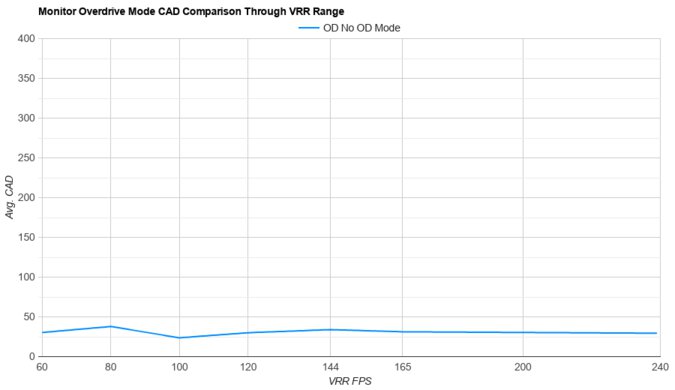
    Although this monitor doesn't support VRR technology, we still measure the CAD at 100Hz and 60Hz, so you can compare it to a monitor with VRR support. The CAD is so high that some of the results exceed the limits of the chart. You can see an alternative chart here.

    3.2
    Refresh Rate Compliance
    See details on graph tool
    See details on graph tool
    Compliance @ Max Hz
    37%
    Compliance @ 120 FPS
    N/A
    Compliance @ 60 FPS
    47%

    The refresh rate compliance is poor, as its response time isn't fast enough to make full-color transitions before the monitor draws the next frame.

    4.2
    CAD @ Max Refresh Rate
    OD Transition Max Refresh Rate
    od-transition-max-refresh-rate-fast-0-31
    OD fast
    0 to 31
    Recommended Overdrive Setting
    Normal
    Avg. CAD
    395
    Best 10% CAD
    181
    Worst 10% CAD
    750

    Overdrive Mode CAD Heatmap RT Chart Pursuit Photo
    Fast Heatmap Chart Photo
    Normal Heatmap Chart Photo

    The CAD at the max refresh rate of 100Hz is bad. Fast-moving objects are blurry, which you can notice even while scrolling through long documents quickly. Unfortunately, using the 'Fast' overdrive setting instead of 'Normal' results in inverse ghosting.

    Response Time @ Max Refresh Rate
    Recommended Overdrive Setting
    Normal
    First Response Time
    17.6 ms
    Total Response Time
    17.7 ms
    RGB Overshoot
    0 RGB
    Worst 10% First Response Time
    33.1 ms
    Worst 10% Total Response Time
    33.1 ms
    Worst 10% RGB Overshoot
    1 RGB

    Overdrive Mode First Response Heatmap Total Response Heatmap RGB Overshoot Heatmap
    Fast Heatmap Heatmap Heatmap
    Normal Heatmap Heatmap Heatmap
    0.0
    CAD @ 120Hz
    OD Transition 120Hz
    N/A
    Recommended Overdrive Setting
    No 120Hz Refresh Rate
    Avg. CAD
    N/A
    Best 10% CAD
    N/A
    Worst 10% CAD
    N/A

    This monitor doesn't support a 120Hz signal.

    Response Time @ 120Hz
    Recommended Overdrive Setting
    No 120Hz Refresh Rate
    First Response Time
    N/A
    Total Response Time
    N/A
    RGB Overshoot
    N/A
    Worst 10% First Response Time
    N/A
    Worst 10% Total Response Time
    N/A
    Worst 10% RGB Overshoot
    N/A

    This monitor doesn't support a 120Hz signal.

    4.4
    CAD @ 60Hz
    OD Transition 60Hz
    od-transition-60-fast-0-31
    OD fast
    0 to 31
    Recommended Overdrive Setting
    Normal
    Avg. CAD
    386
    Best 10% CAD
    200
    Worst 10% CAD
    699

    Overdrive Mode CAD Heatmap RT Chart Pursuit Photo
    Fast Heatmap Chart Photo
    Normal Heatmap Chart Photo

    The CAD at 60Hz is bad. Fast-moving objects are blurry, which you can notice even while scrolling through long documents quickly. Unfortunately, using the 'Fast' overdrive setting instead of 'Normal' results in inverse ghosting.

    Response Time @ 60Hz
    Recommended Overdrive Setting
    Normal
    First Response Time
    13.1 ms
    Total Response Time
    16.9 ms
    RGB Overshoot
    2 RGB
    Worst 10% First Response Time
    26.9 ms
    Worst 10% Total Response Time
    26.9 ms
    Worst 10% RGB Overshoot
    7 RGB

    Overdrive Mode First Response Heatmap Total Response Heatmap RGB Overshoot Heatmap
    Fast Heatmap Heatmap Heatmap
    Normal Heatmap Heatmap Heatmap
    Backlight Strobing (BFI)
    Backlight Strobing (BFI)
    No BFI
    Maximum Frequency
    N/A
    Minimum Frequency
    N/A
    Longest Pulse Width Brightness
    N/A
    Shortest Pulse Width Brightness
    N/A
    Pulse Width Control
    No BFI
    Pulse Phase Control
    No BFI
    Pulse Amplitude Control
    No BFI
    VRR At The Same Time
    No BFI

    This monitor doesn't have a backlight strobing feature to reduce persistence blur.

    0.0
    VRR Flicker
    Dark Gray Flicker
    N/A
    Middle Gray Flicker
    N/A
    Light Gray Flicker
    N/A

    This monitor doesn't support VRR, so there's no VRR flicker.

    10
    Image Flicker
    Flicker-Free
    Yes
    PWM Dimming Frequency
    0 Hz

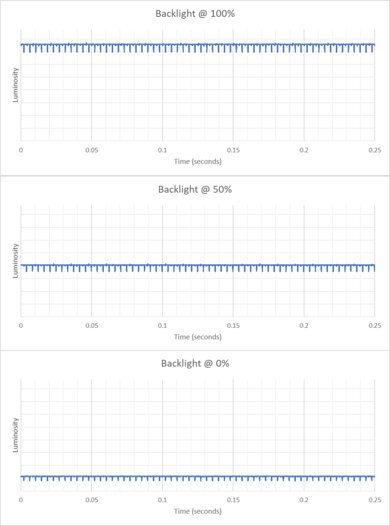
    The backlight remains flicker-free at all brightness levels, which helps reduce eye strain if you're sensitive to flicker.

    Inputs
    8.4
    Input Lag
    Native Resolution @ Max Hz
    7.3 ms
    Native Resolution @ 120Hz
    N/A
    Native Resolution @ 60Hz
    10.7 ms
    Backlight Strobing (BFI)
    N/A

    The monitor has low input lag for a responsive feel.

    5.8
    Resolution
    Native Resolution
    1920 x 1080
    Aspect Ratio
    16:9
    Megapixels
    2.1 MP
    Pixel Density
    93 PPI
    0.5
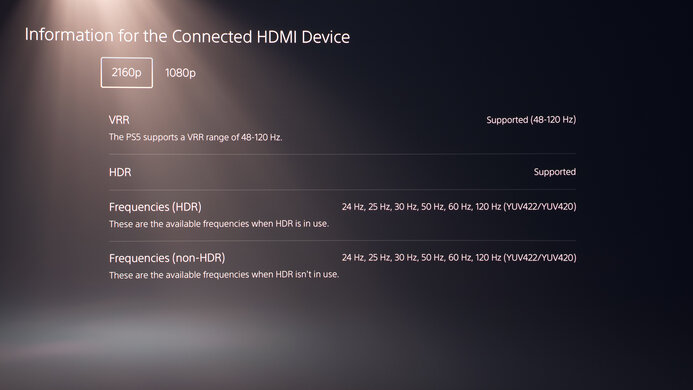
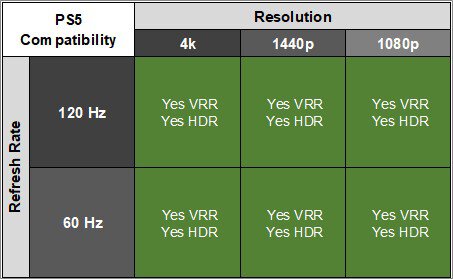
    PS5 Compatibility
    4k @ 120Hz
    No
    4k @ 60Hz
    No
    1440p @ 120Hz
    No
    1440p @ 60Hz
    No
    1080p @ 120Hz
    No
    1080p @ 60Hz
    Yes
    0.7
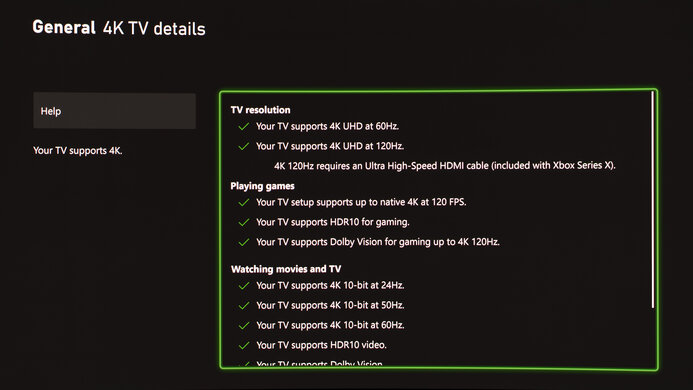
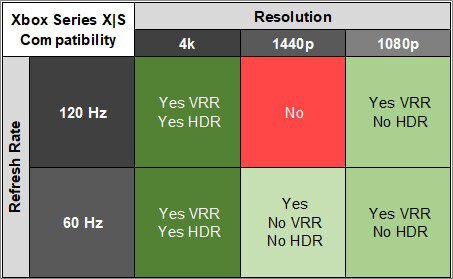
    Xbox Series X|S Compatibility
    4k @ 120Hz
    No
    4k @ 60Hz
    No
    1440p @ 120Hz
    No
    1440p @ 60Hz
    No
    1080p @ 120Hz
    No
    1080p @ 60Hz
    Yes
    Inputs Photos
    Video And Audio Ports
    DisplayPort
    1 (DP 1.2)
    DisplayPort Transmission Bandwidth
    No DisplayPort 2.1
    Mini DisplayPort
    No
    HDMI
    1 (HDMI 1.4)
    HDMI 2.1 Bandwidth
    No HDMI 2.1
    DVI
    No
    VGA
    1
    Daisy Chaining
    No
    3.5mm Audio Out
    No
    3.5mm Audio In
    No
    3.5mm Microphone In
    No
    USB
    USB-A Ports
    3
    USB-A Rated Speed
    5Gbps (USB 3.2 Gen 1)
    USB-B Upstream Port
    Yes
    USB-C Ports
    1
    USB-C Upstream
    No
    USB-C Rated Speed
    5Gbps (USB 3.2 Gen 1)
    USB-C Power Delivery
    15W
    USB-C DisplayPort Alt Mode
    No
    Thunderbolt
    No

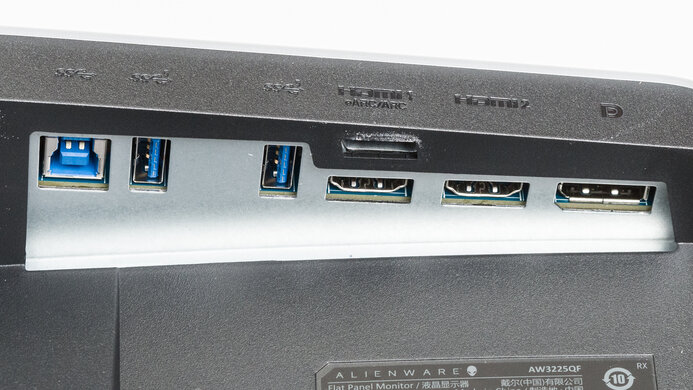
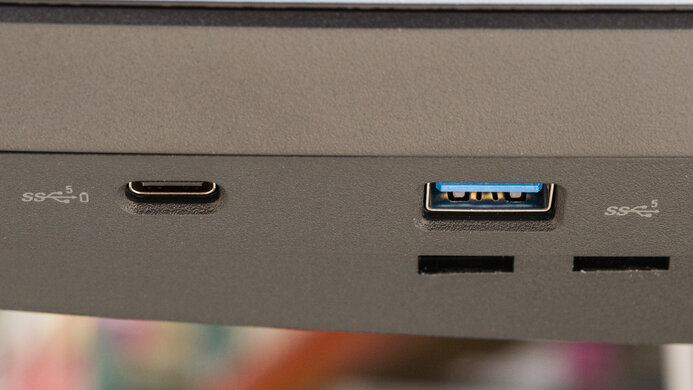
    This monitor can function as a USB hub for up to four devices, including one USB-C device. The USB-C port provides up to 15W of power delivery, which is enough to charge a phone.

    macOS Compatibility

    Connection HDMI 2.0 USB-C to DP
    Max Refresh Rate 100Hz 100Hz
    VRR Range N/A N/A
    HDR No No

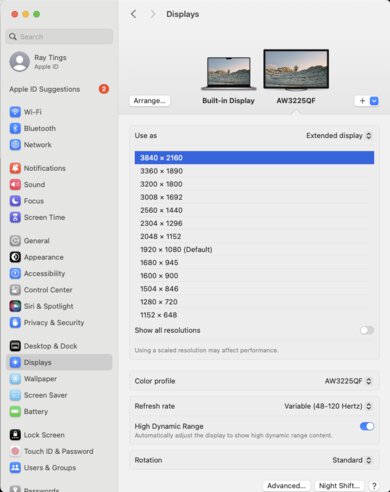
    The monitor works well with macOS. When using a MacBook, windows return to their original position when you open the lid or wake the laptop up from sleep.

    Features
    Additional Features
    HDR10
    No
    Speakers
    No
    RGB Illumination
    No
    Multiple Input Display
    No
    KVM Switch
    No

    This monitor has a limited number of extra features, including:

    • ComfortView Plus: Reduces blue light to help minimize eye strain.
    • Kensington Lock: You can use this to secure the monitor to a solid object.
    On-Screen Display (OSD)