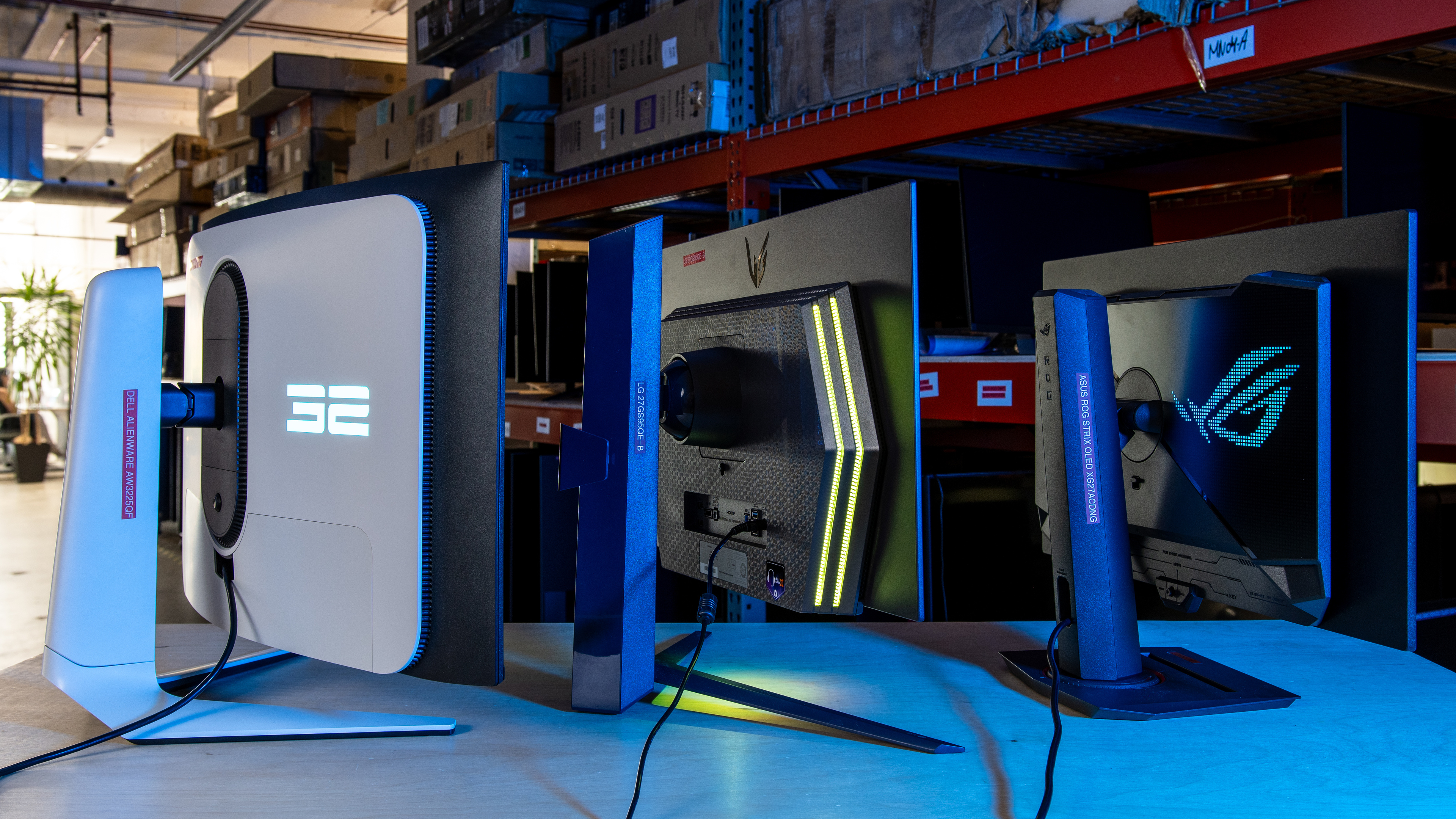
If you're looking for a new gaming monitor, whether you're building your first setup or upgrading your older monitor, it can be confusing navigating everything you need to know and find out. If you're wondering what to look for in a gaming monitor, there are many factors to consider before making a buying decision. From the monitor's size and resolution to its gaming performance and picture quality, all these factors impact your gaming experience. We complete nearly 400 tests on every monitor we buy and test to help make that buying decision easier.
This article breaks down different aspects that impact gaming. You also have to think about which types of games you play, as some require more emphasis on certain aspects than others. Below you can see a quick overview of the major aspects and the gaming categories that they're important for. Keep in mind that there are many other factors that you may want to think about, depending on your use case, like viewing angles and ergonomics, that aren't covered in this article.
| Aspect | Size and Resolution | Motion | Responsiveness | Picture Quality |
|---|---|---|---|---|
| What To Consider |
|
|
|
|
| Important For | Any type of gaming | Competitive gaming Fast-paced games |
Reaction-based games | Graphically-intense or immersive games |
Size And Resolution
One of the first things you'll probably think about before making a buying decision is the monitor's size, followed by its resolution. These two factors are ultimately personal preferences, but certain sizes have advantages for some types of games. For example, 34-inch and bigger ultrawide monitors are advantageous for immersive gaming, like atmospheric or sim racing games, as they offer more horizontal screen space. On the other hand, smaller 24-inch monitors are good choices if you're sitting directly in front of the monitor and you want to see the entire display within your field of vision.
How far away you sit from the monitor may also impact the size you would want to opt for. For example, you need a bigger monitor if you sit further away from the screen than someone who sits a foot away from it. You can learn more about this in our monitor sizing guide. Even choosing whether you want a curved or flat screen is a personal preference, but larger displays tend to be curved.
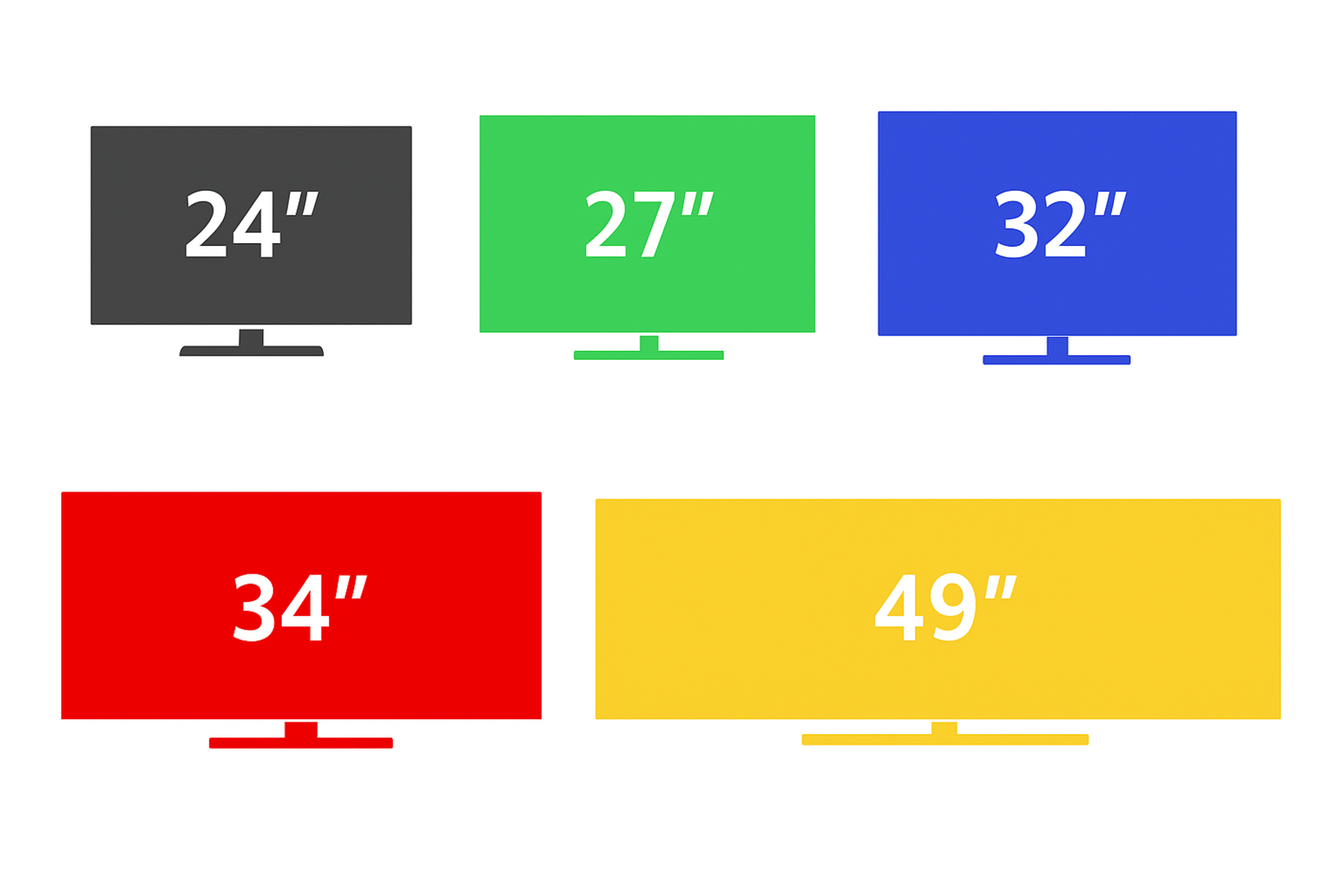
The monitor's size is also tied to its resolution as some sizes only come with certain resolutions, like how 34-inch ultrawide monitors have a 3440x1440 resolution. Other sizes are available with various resolutions. For example, there are 27-inch monitors with 1080p, 1440p, 4k, and 5k resolutions. Choosing the right resolution depends on the games you play and your computer setup.
If you play graphically intense games where details matter, or even text-heavy games, you'd benefit from a higher-resolution display. Specifically, you'd want a monitor with high pixel density, which is a measure of its size and resolution. A 27-inch, 4k monitor has much higher pixel density than a 27-inch, 1440p display. Similarly, a 24-inch, 1440p monitor has higher pixel density than a 32-inch display with the same resolution. The pixel density is one of the main factors behind how clear images and text appear on the monitor.
Below you can see how having a higher resolution and pixel density on a 27-inch monitor impacts its text clarity.
| 27-inch, 1440p 109 PPI |
27-inch, 4k 163 PPI |
|---|---|
 |
 |
However, there are cases where you don't need a high resolution. If you have an entry-level PC that can't sustain a high resolution with a high frame rate, and you play games that benefit from higher frame rates, like Valorant or Counter-Strike 2, then it's better to get a lower-resolution display. This is often the case for competitive and esports gamers who prioritize motion and frame rates over detailed images.
Learn more about the differences between 1080p vs 1440p and 1440p vs 4k.
Motion
For games that have fast-moving objects, like FPS, combat, and sports games, it's important to get a monitor with good motion handling. There are two main factors that impact this: the refresh rate, which is a spec of the monitor, and the response time, which is an indicator of its performance. This means you can have two monitors with the same refresh rate that have different response times and different motion handling.
Refresh Rate
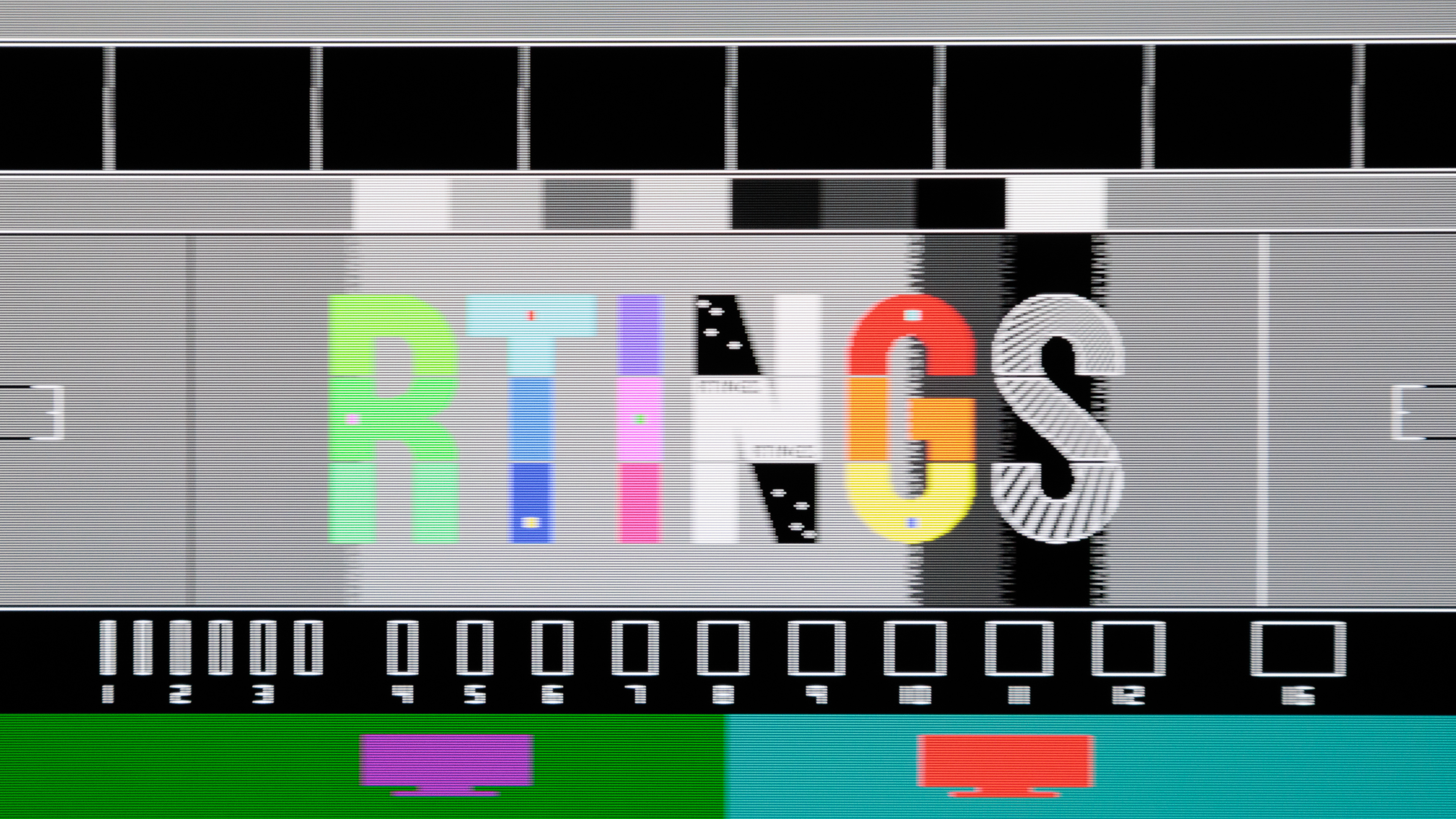
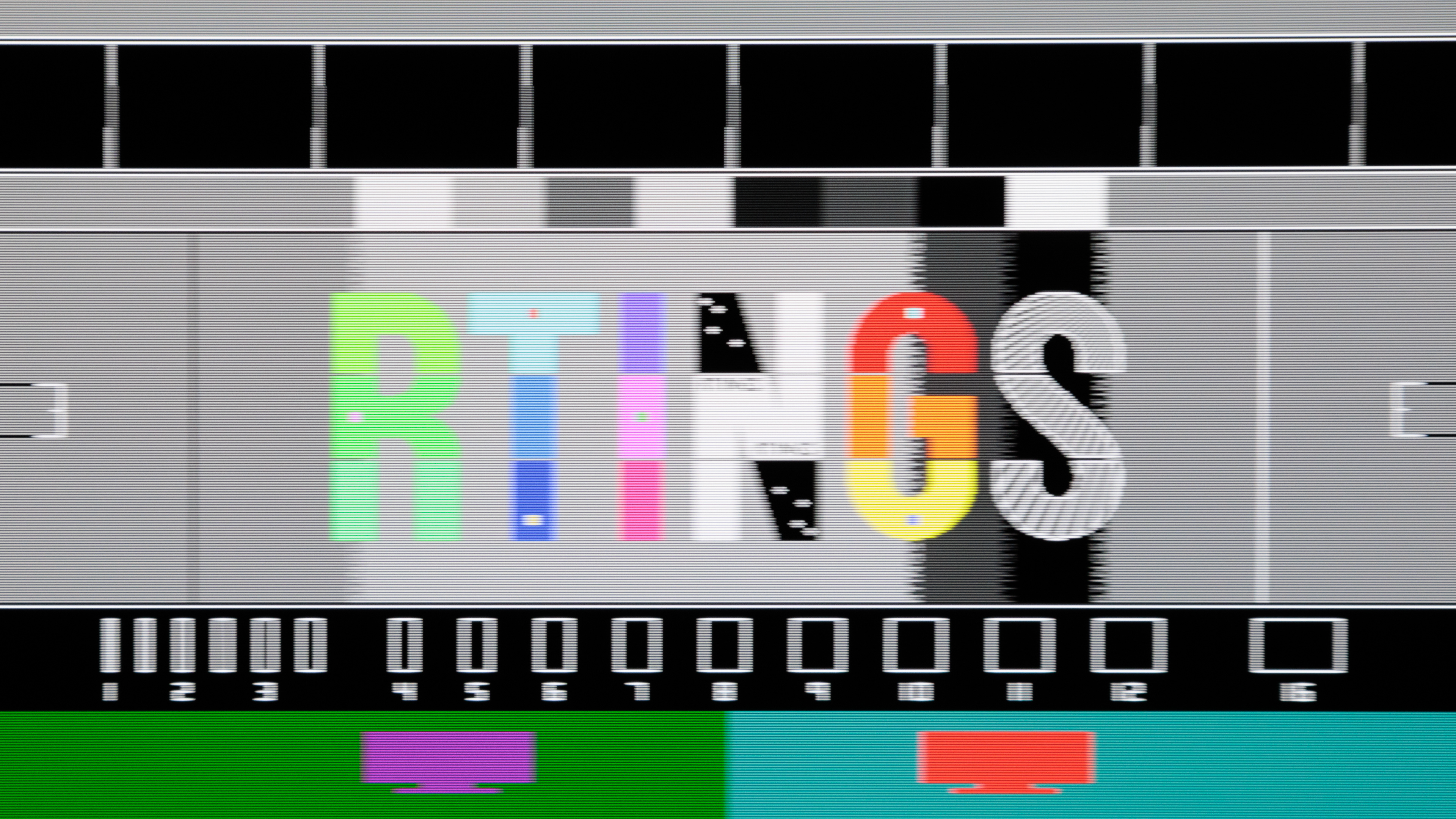
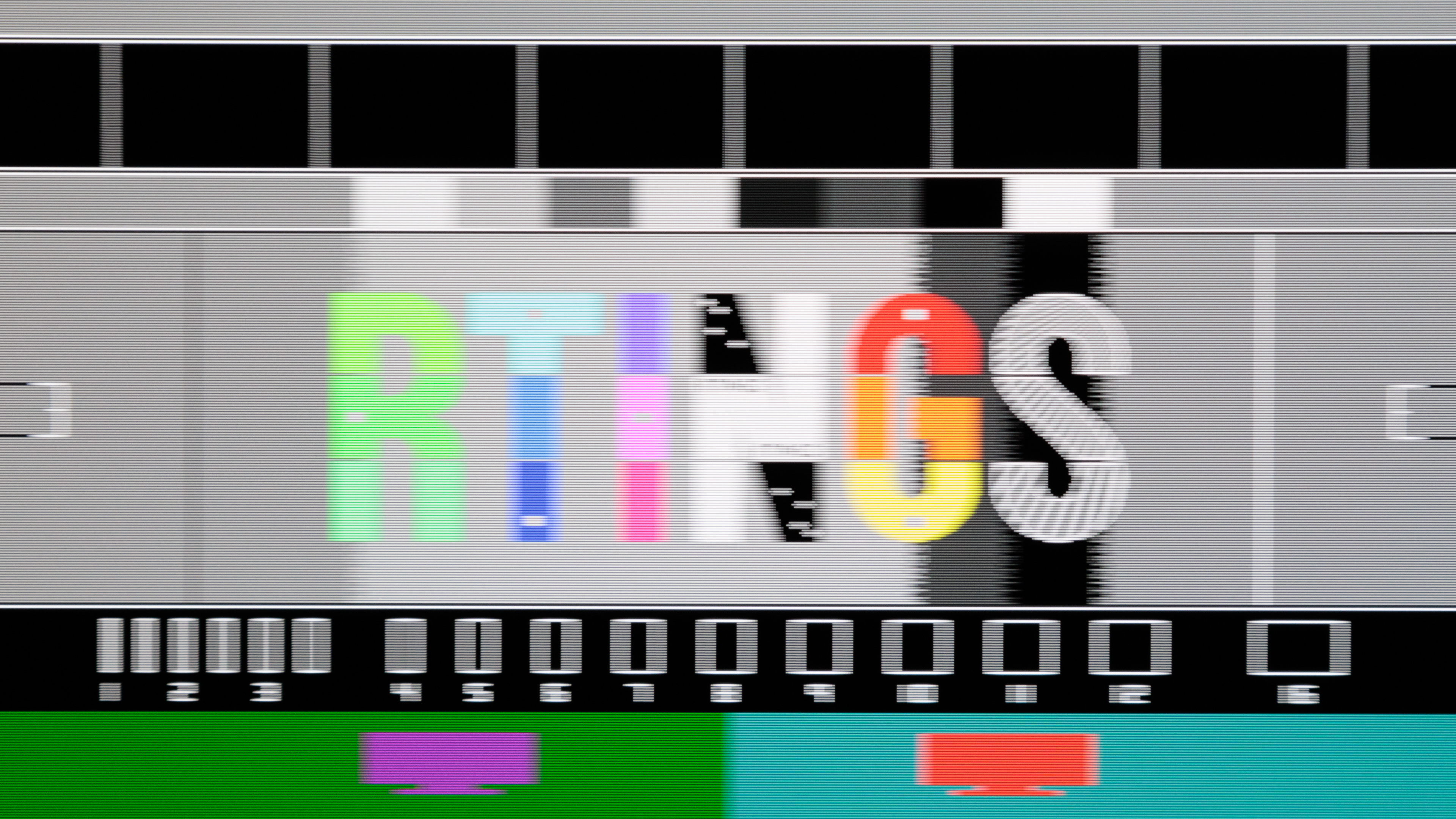
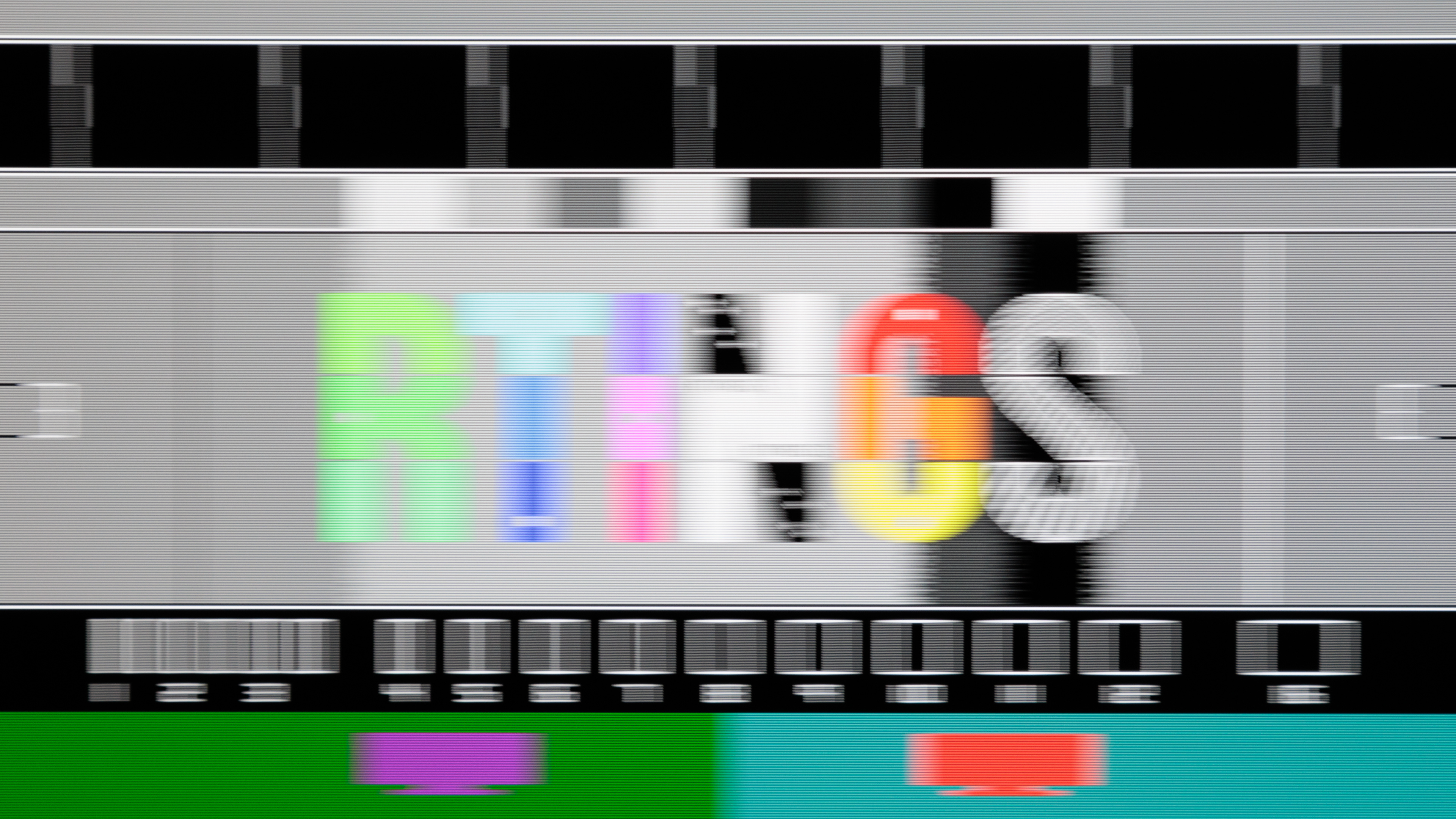
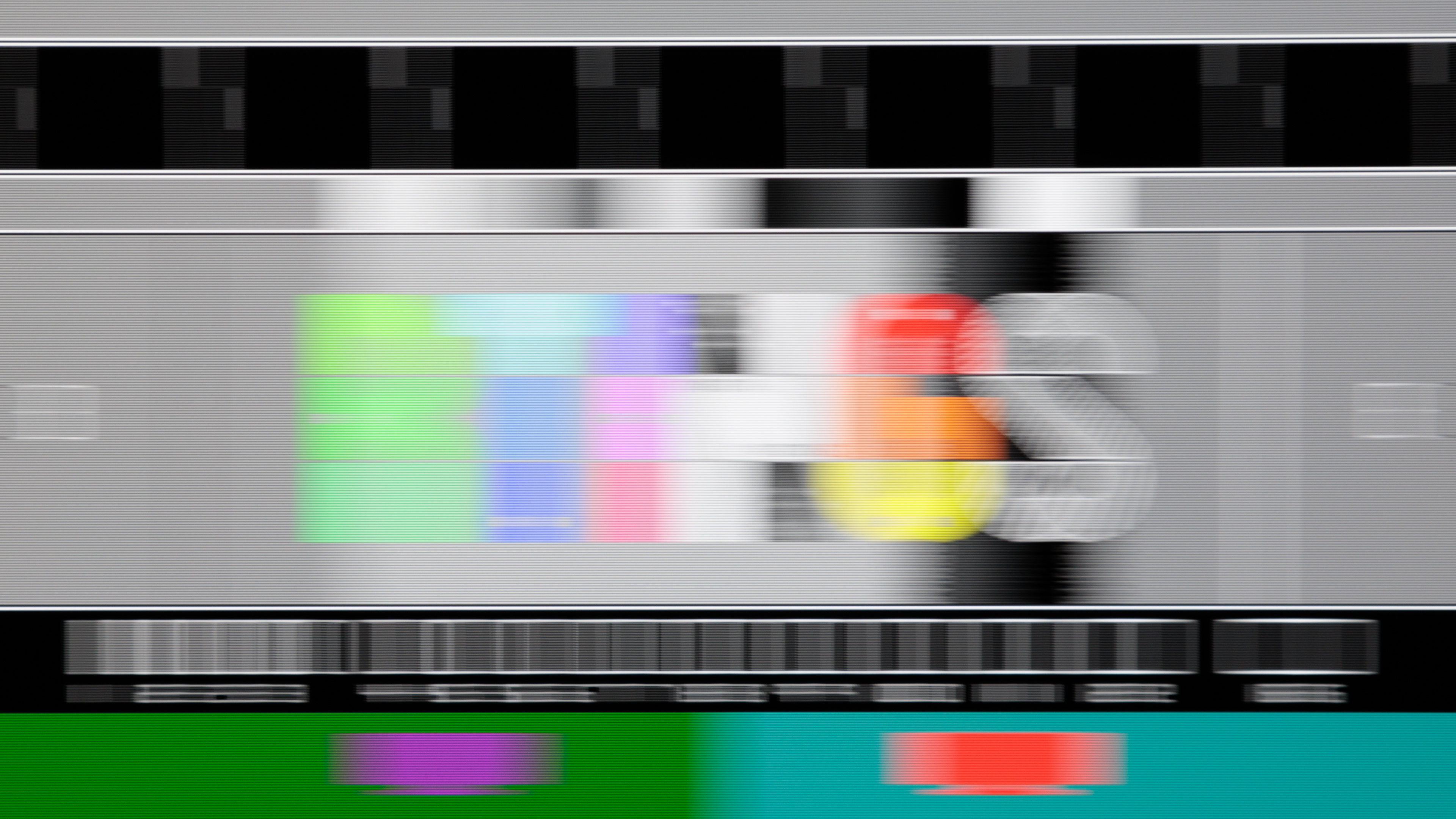
The refresh rate is how many times the monitor refreshes the screen every second; a 240Hz monitor refreshes itself 240 times every second. There are benefits to getting a high-refresh-rate display, as they offer a smoother feel and better motion handling than a monitor with a lower refresh rate. Below you can see what motion looks like on the Sony INZONE M10S at various refresh rates, from 480Hz down to 60Hz. You'll notice that there's a bigger difference in motion between 60Hz and 120Hz than between 360Hz and 480Hz (despite each having a difference of 120Hz), mainly because there are diminishing returns with higher refresh rates.
| 480Hz | 360Hz | 240Hz | 120Hz | 60Hz |
|---|---|---|---|---|
 |
 |
 |
 |
 |
Frame Rate And Input Bandwidth
While it's good to get a monitor with a high refresh rate, you're also limited by your computer, as you need it to output high frame rates. The computer's frame rate and the monitor's refresh rate are tied to each other, as the monitor's refresh rate will usually match the frame rate.
Another factor is the max bandwidth of the computer's video output and the monitor's input. For example, if you have a monitor that supports DisplayPort 2.1 bandwidth, which is up to 80 Gbps, then you also need a graphics card with the same capabilities to take advantage of it. Otherwise, you're limited to the lowest common denominator between your computer and monitor's max bandwidth, which caps the refresh rate that you can get.
An example is with the Dell Alienware AW3423DWF, whose max refresh rate is 165Hz. However, because it's limited to HDMI 2.0 bandwidth, the max refresh rate you can get over HDMI is 100Hz with 8-bit signals or 60Hz with 10-bit signals. So, even if you have a graphics card that supports higher bandwidth and frame rates, the monitor won't be able to accept it.
Learn more about HDMI and DisplayPort connections and their capabilities.
Console Gaming
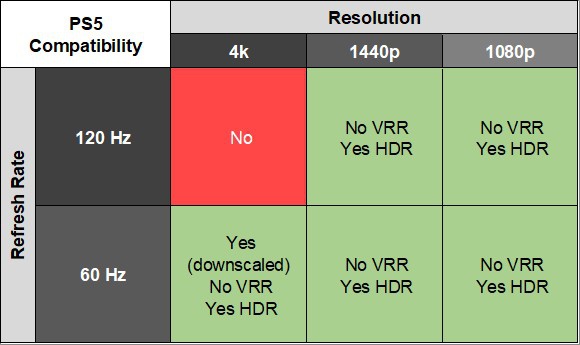
Another limiting factor on the max refresh rate you can get with your monitor is if you're gaming with a PS5, PS5 Pro, Xbox Series X|S, or Nintendo Switch 2. These consoles support a max refresh rate of 120Hz, and in the case of the Switch 2, the max refresh rate with a 4k resolution is 60Hz. Older consoles only support refresh rates up to 60Hz. So, even if you get a monitor with a higher refresh rate, you won't be able to use it to its max.
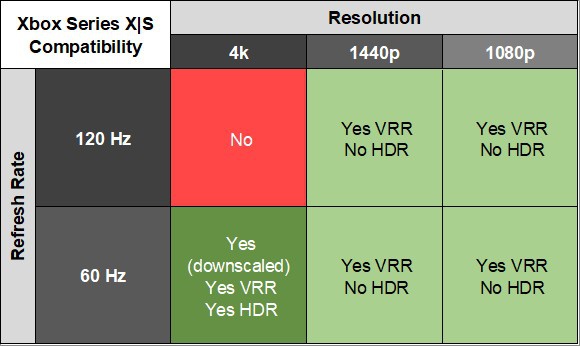
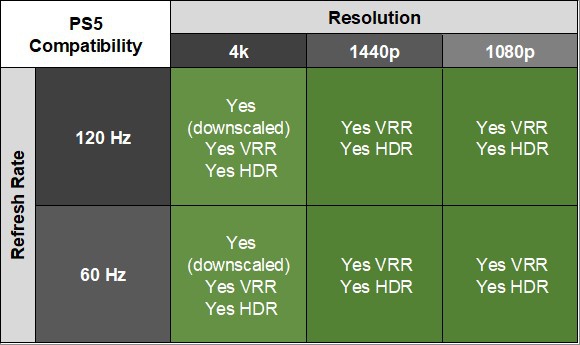
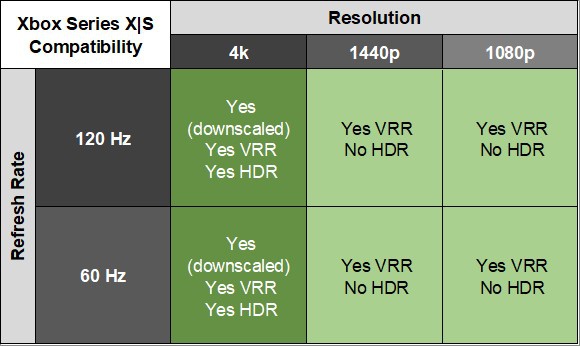
Like with PCs, you also have to think about the monitor's HDMI ports for console gaming. Those with HDMI 2.1 bandwidth tend to support any signal from these consoles, whereas those with HDMI 2.0 bandwidth are more limited. You can see these differences below with two 1440p monitors that don't support the same signals as consoles due to bandwidth limitations.
| HDMI 2.0 | HDMI 2.1 | ||
|---|---|---|---|
| AOC Q27G40XMN | LG 27GS95QE-B | ||
 |
 |
 |
 |
Learn more about our console compatibility testing.
Variable Refresh Rate
A feature that's related to the refresh rate is Variable Refresh Rate (VRR). This adjusts the monitor's refresh rate even when there are fluctuations with the source frame rate, to reduce screen tearing. There are three common types of VRR formats that monitors support: AMD FreeSync, NVIDIA G-SYNC, and HDMI Forum VRR. Pretty much any modern monitor works with FreeSync and G-SYNC, while there's a growing number that support HDMI Forum VRR. A monitor that supports all three will use whichever format your source uses.
Learn more about FreeSync vs G-SYNC.
VRR Flicker
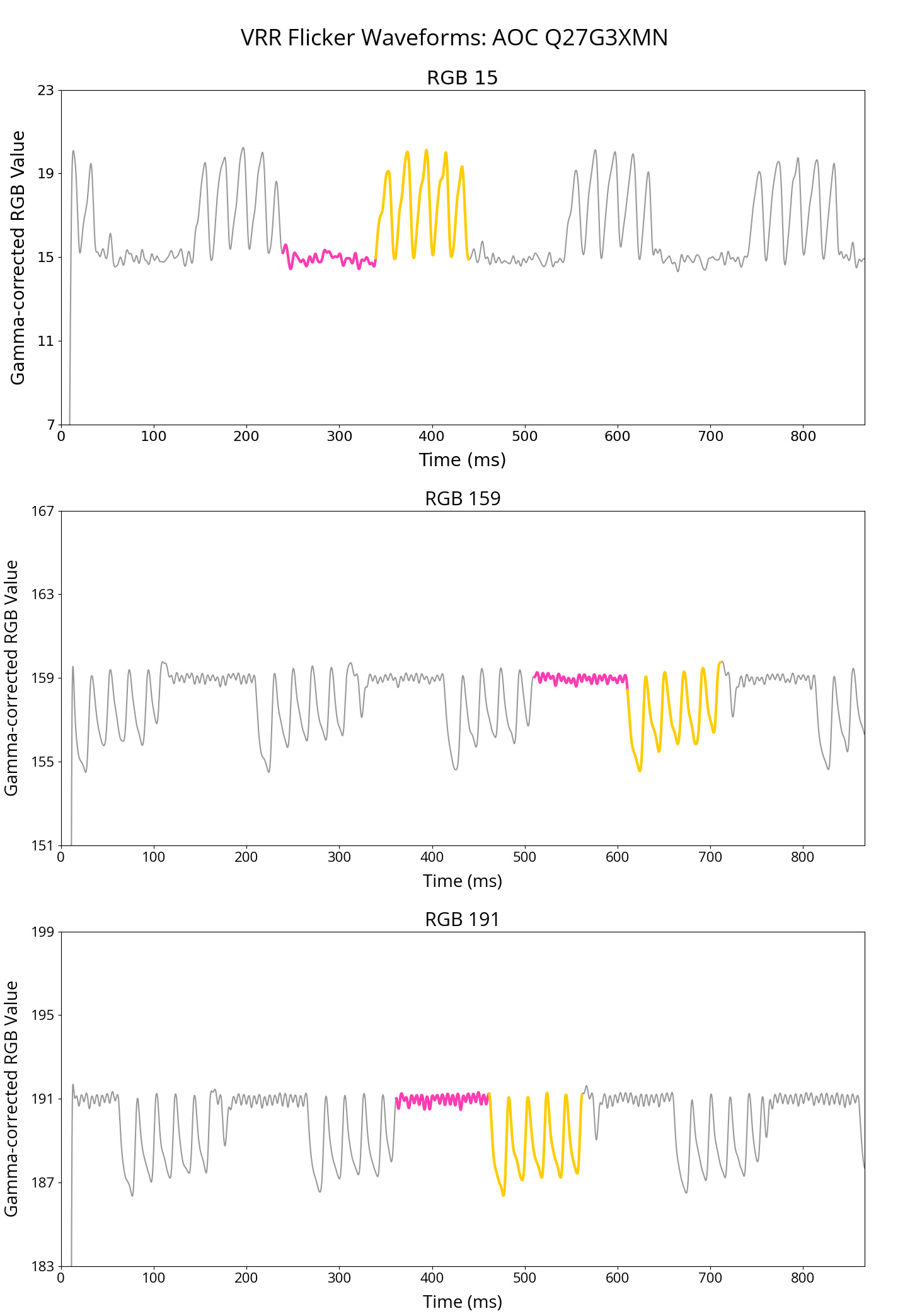
While using VRR is beneficial if the frame rate of your source constantly changes, there's a downside to using VRR. This is because some monitors have VRR flicker when there's a big change in the frame rate, and it's most distracting in dark scenes. Certain panel types, like OLEDs and VAs, are prone to this type of flicker, but other panel types may still have it. You can see what this flicker looks like below by comparing a VA monitor with it to an IPS without.
| VA | IPS |
|---|---|
| AOC Q27G3XMN | LG 27GR95UM-B |
 |
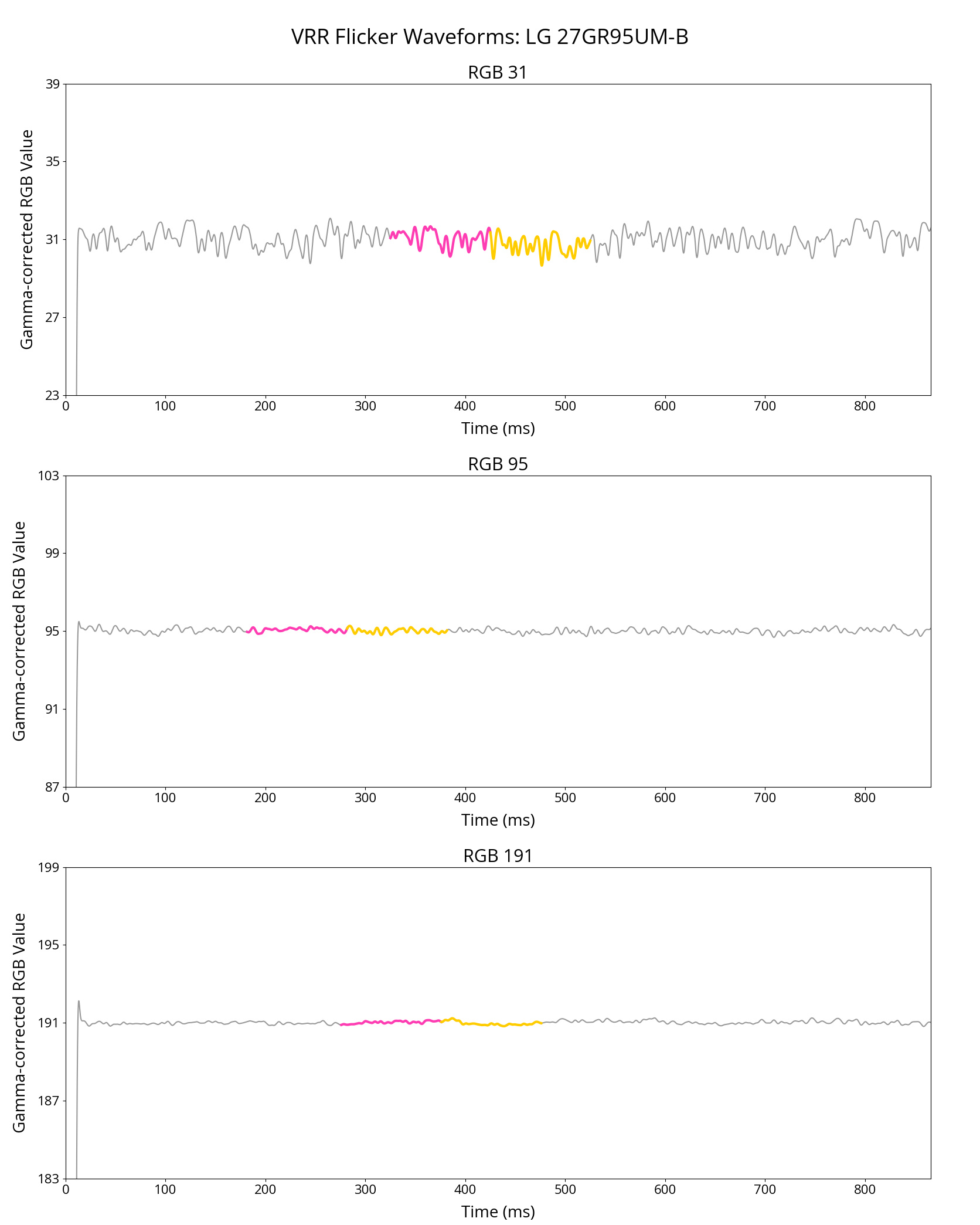 |
If you want to avoid this issue, it's best to get an IPS monitor, set a frame rate cap on your computer, or disable VRR altogether.
Response Time And Cumulative Absolute Deviation
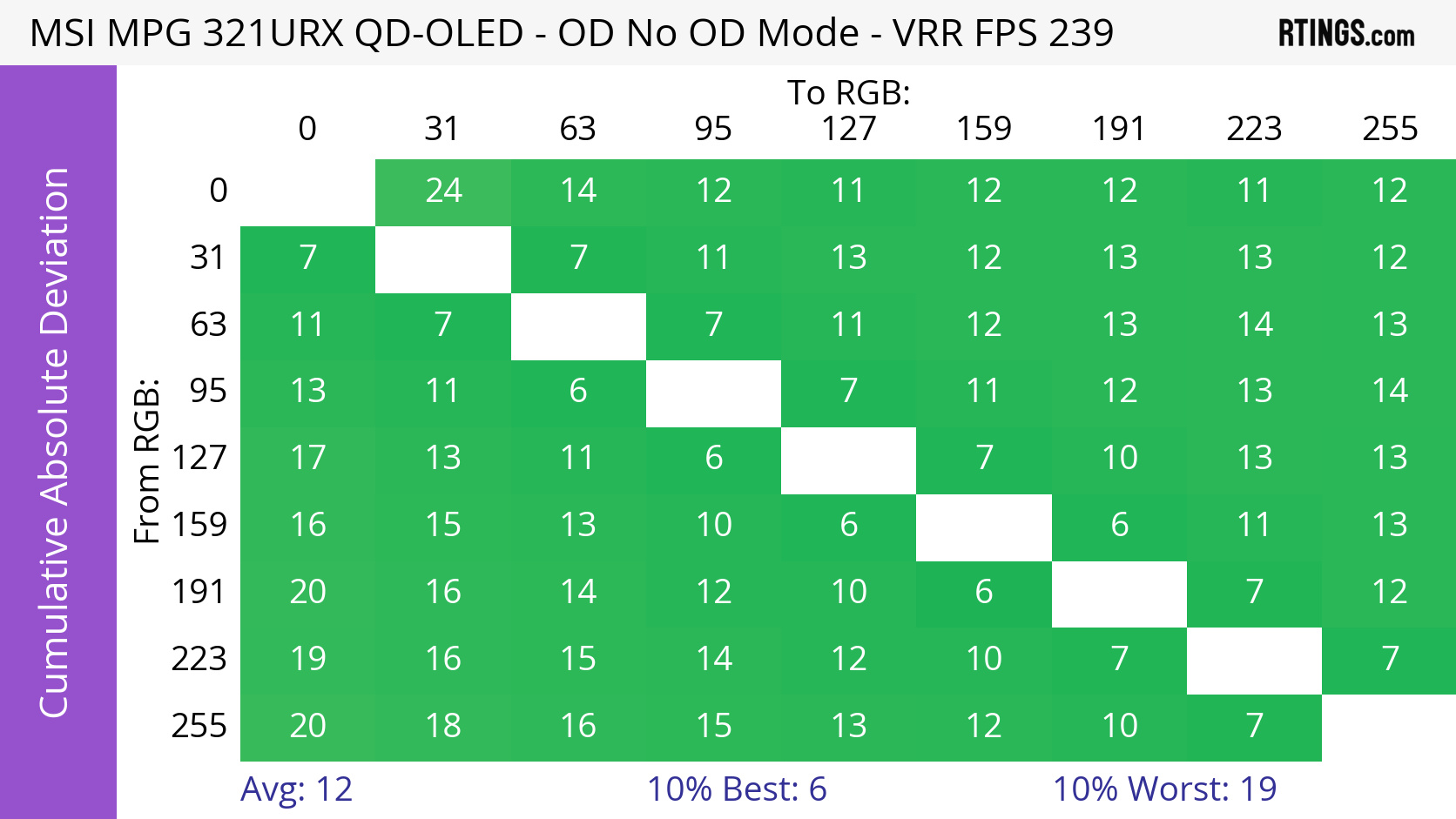
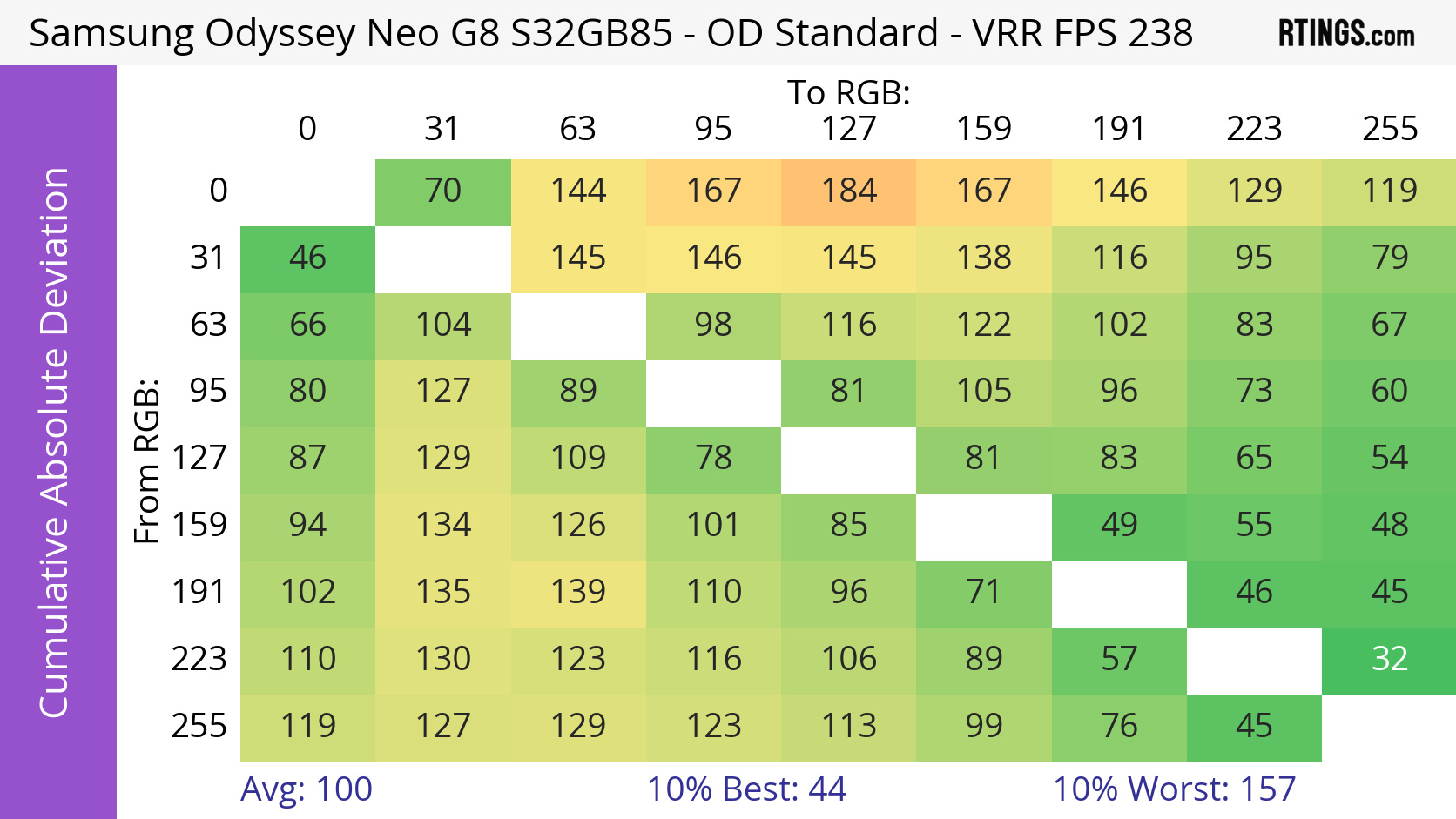
Besides the refresh rate, another factor that impacts motion handling is the monitor's response time, which is a measurement of how quickly pixels transition from one color to the next. Our reviews include data for Cumulative Absolute Deviation (CAD), which is a single metric to define motion handling by including both the response time and overshoot. Essentially, the CAD defines how far away the pixels are from the target during a transition, so a CAD of 0 means that there is no blur that the monitor adds. You may also see or hear of response time used instead of CAD, as it's the more widely accepted term. So, a monitor with a fast response time generally means it has good CAD.
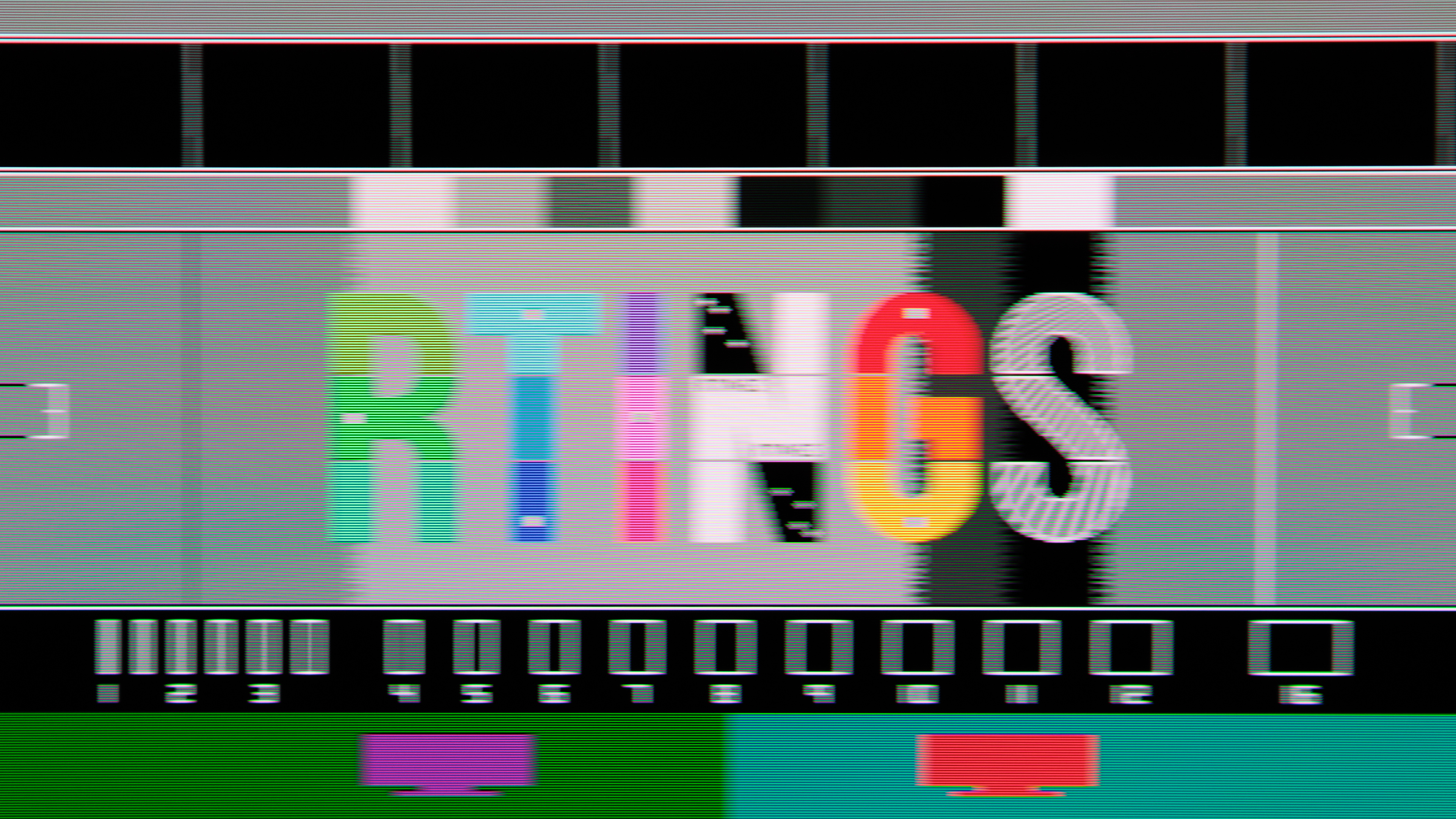
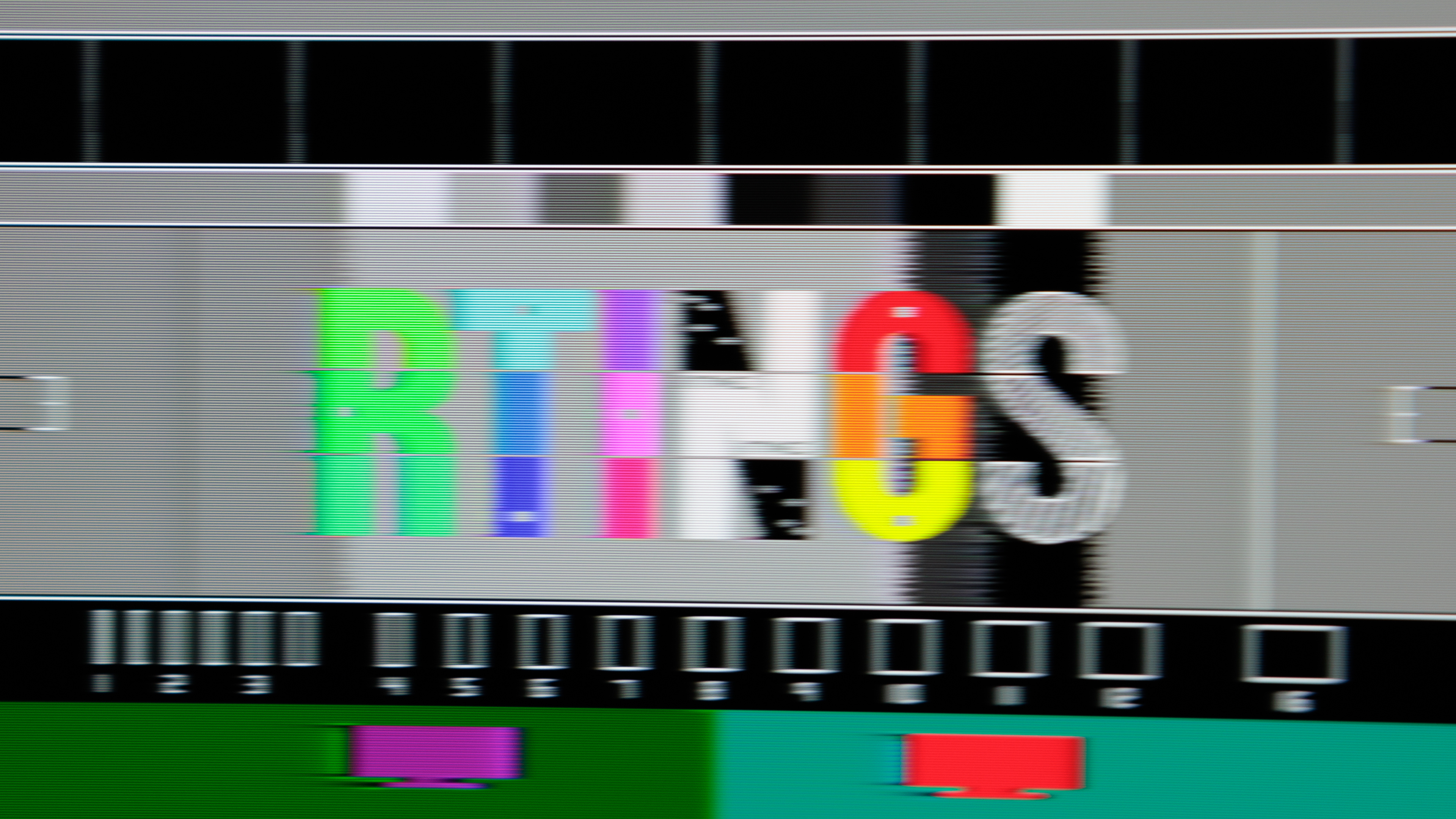
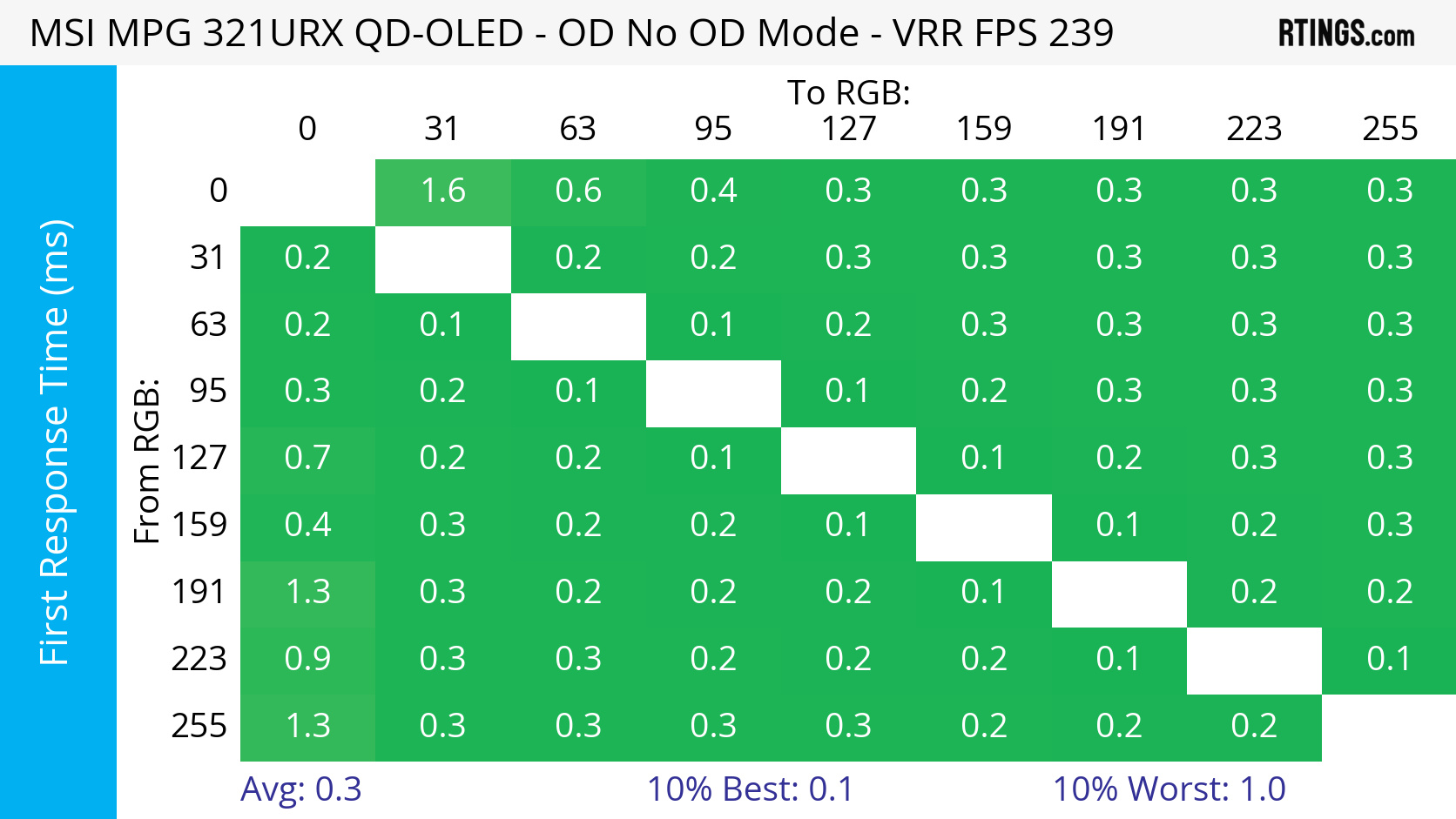
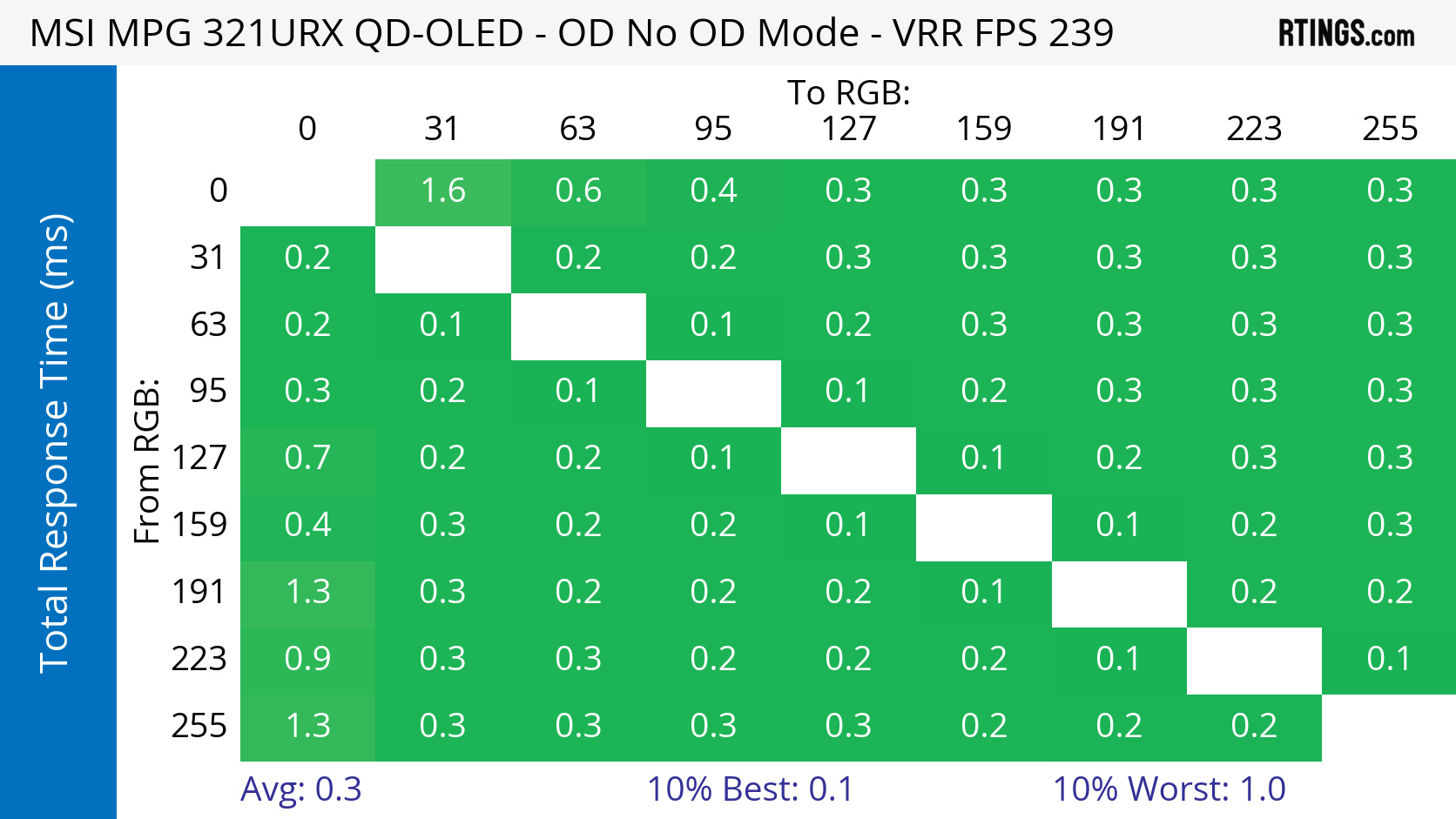
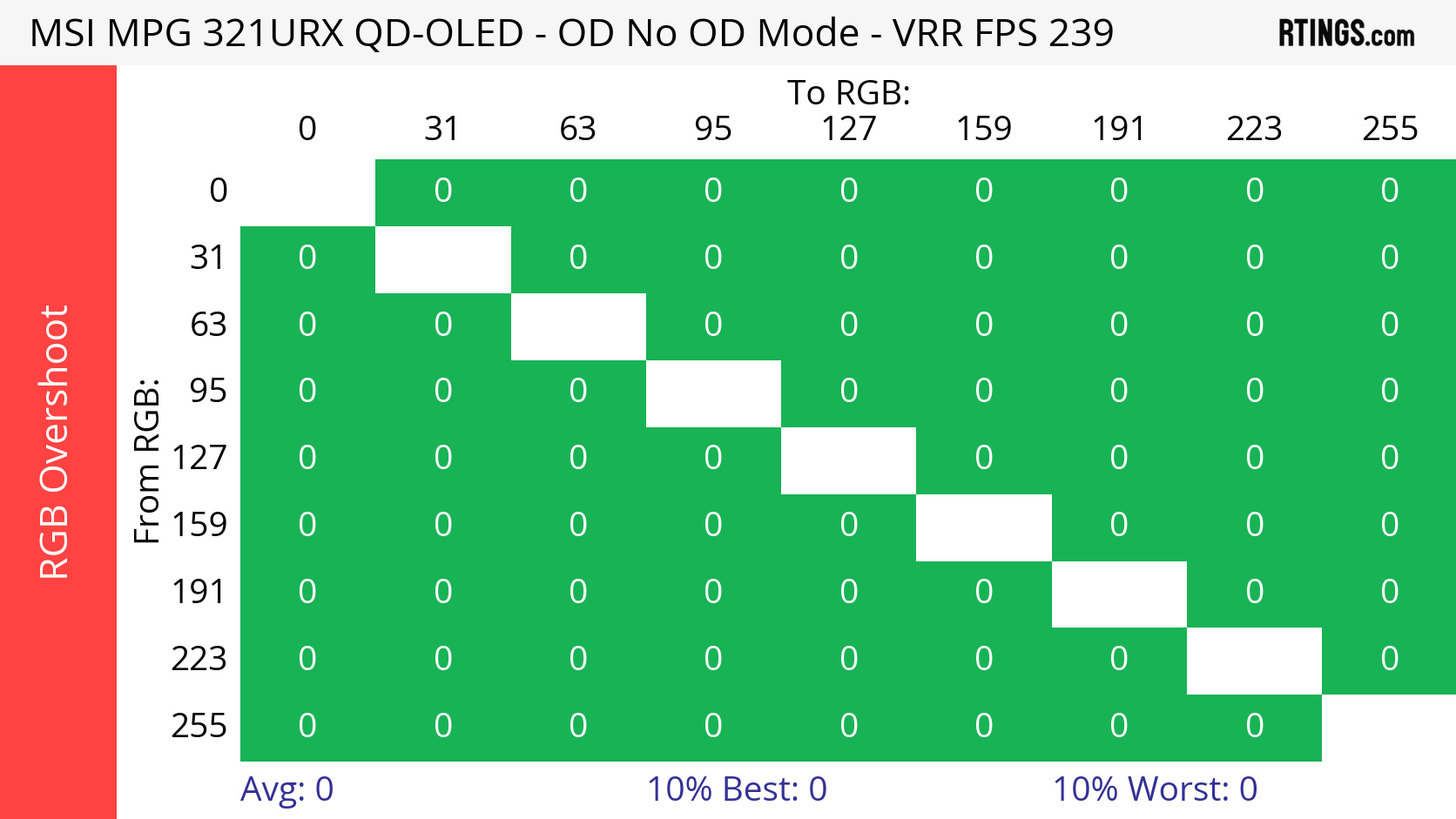
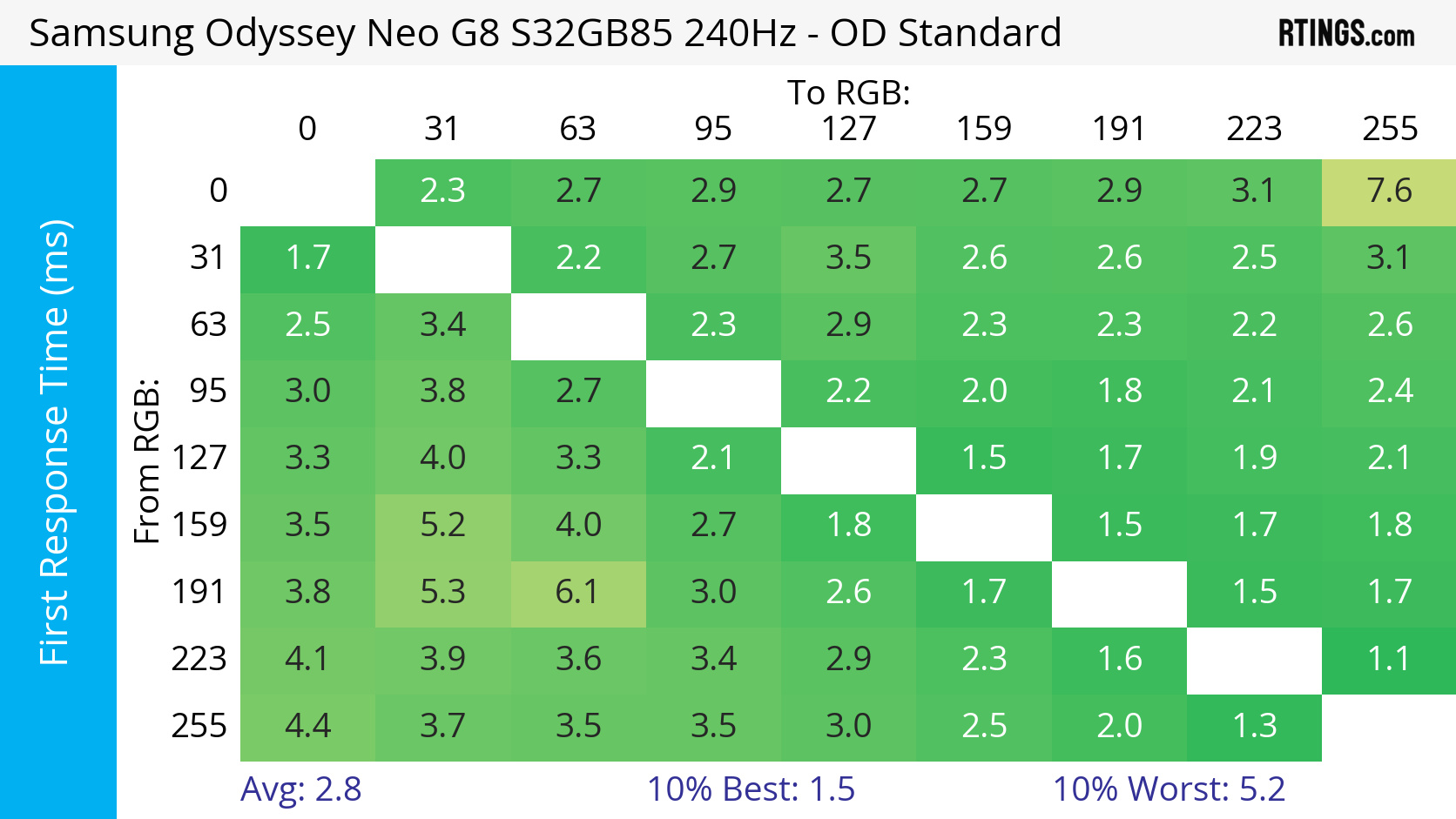
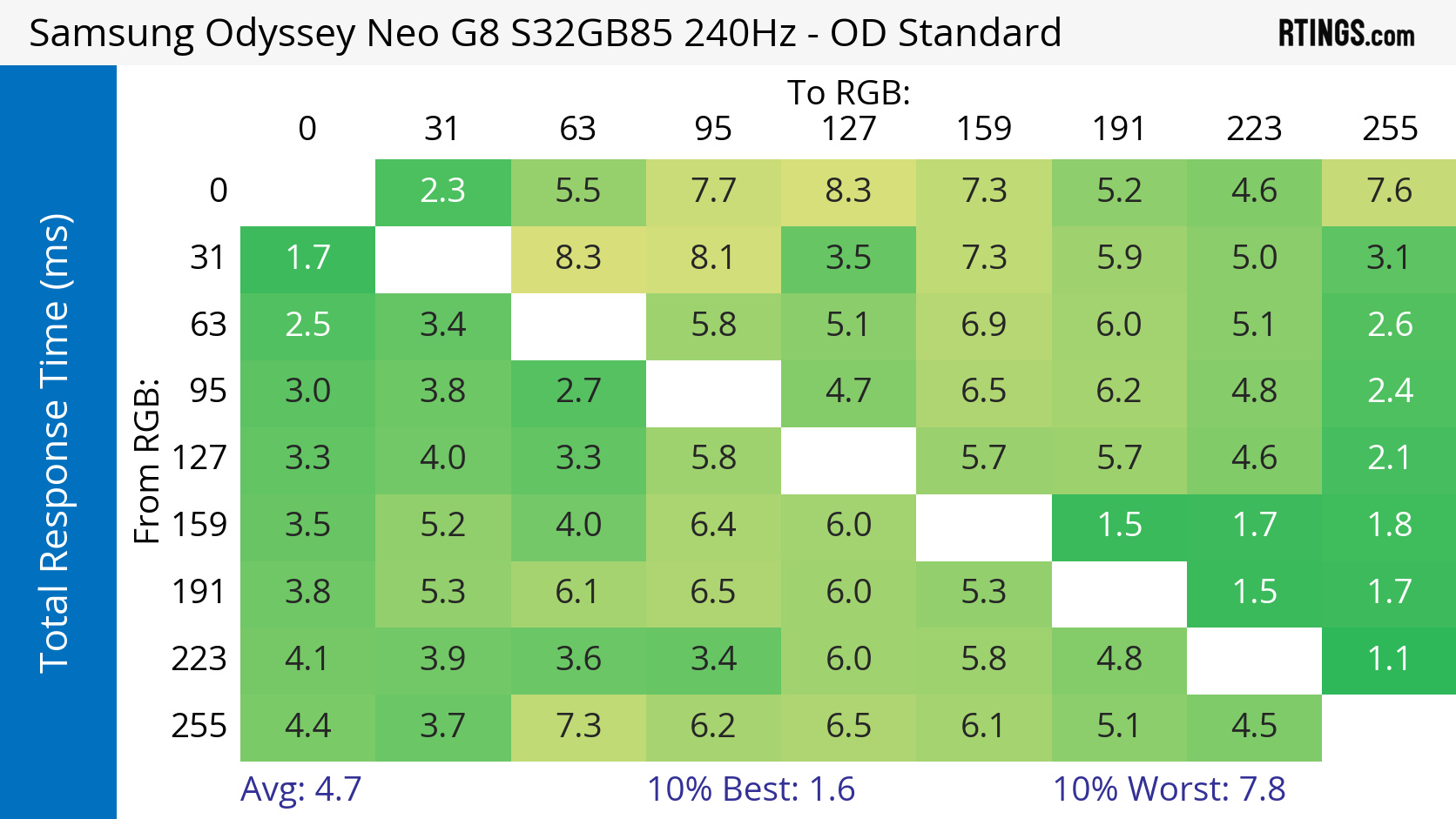
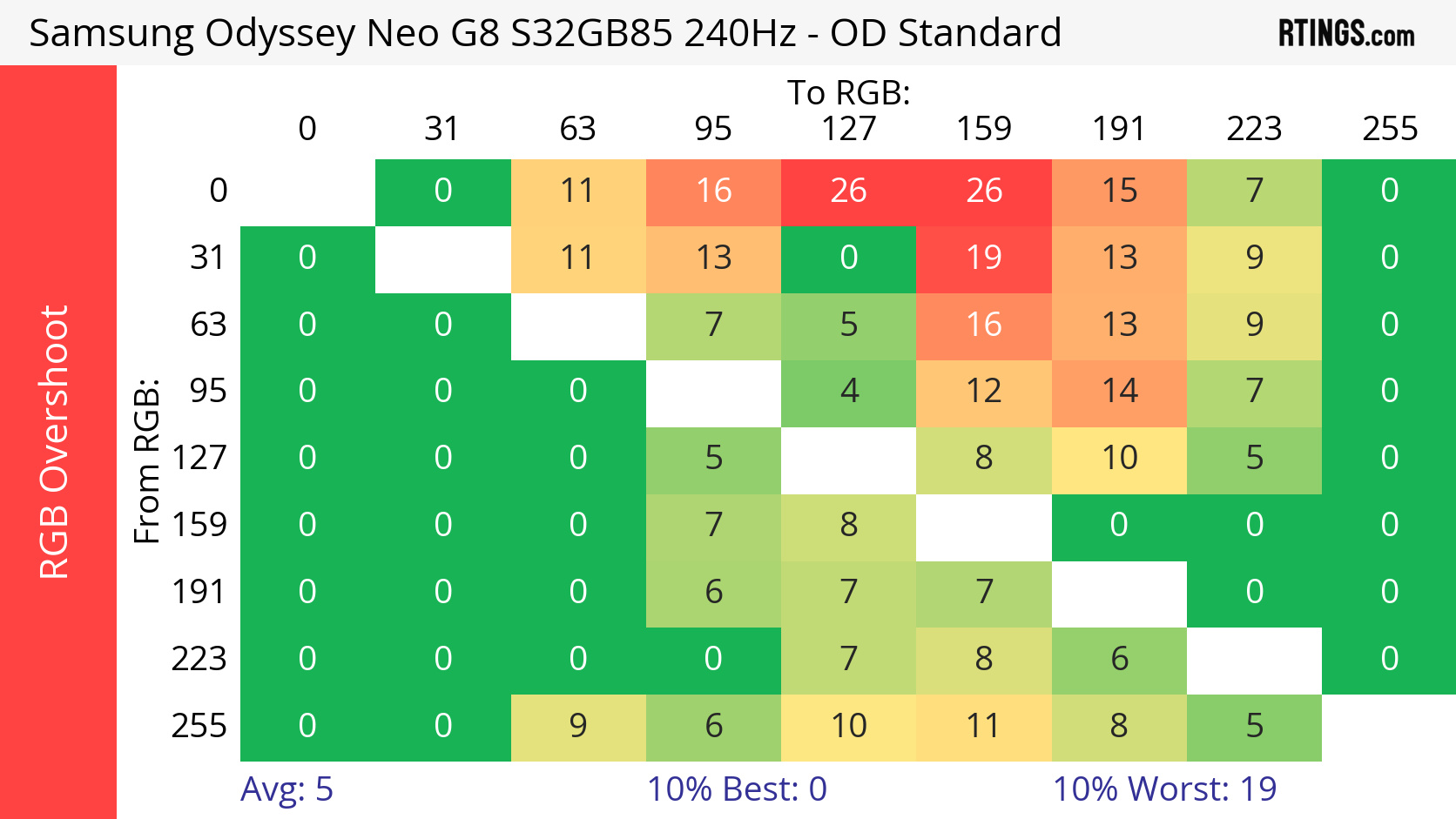
Below, you can see two monitors that each have a max refresh rate of 240Hz, but have different CAD. The response time on the MSI is near-instantaneous, and there's almost no blur behind fast-moving objects. On the other hand, even though the Samsung still has a fast response time and good CAD, it has blur and inverse ghosting with fast-moving objects.
You can click on the links of the Avg. CAD, First Response Time, Total Response Time, and RGB Overshoot to view the heatmaps of all 72 gray-to-gray transitions that we measure.
| MSI MPG 321URX QD-OLED | Samsung Odyssey Neo G8 S32BG85 |
 |
 |
|
Avg. CAD: 12 First Response Time: 0.3 ms Total Response Time: 0.3 ms RGB Overshoot: 0 RGB |
Avg. CAD: 100 First Response Time: 2.8 ms Total Response Time: 4.7 ms RGB Overshoot: 5 RGB |
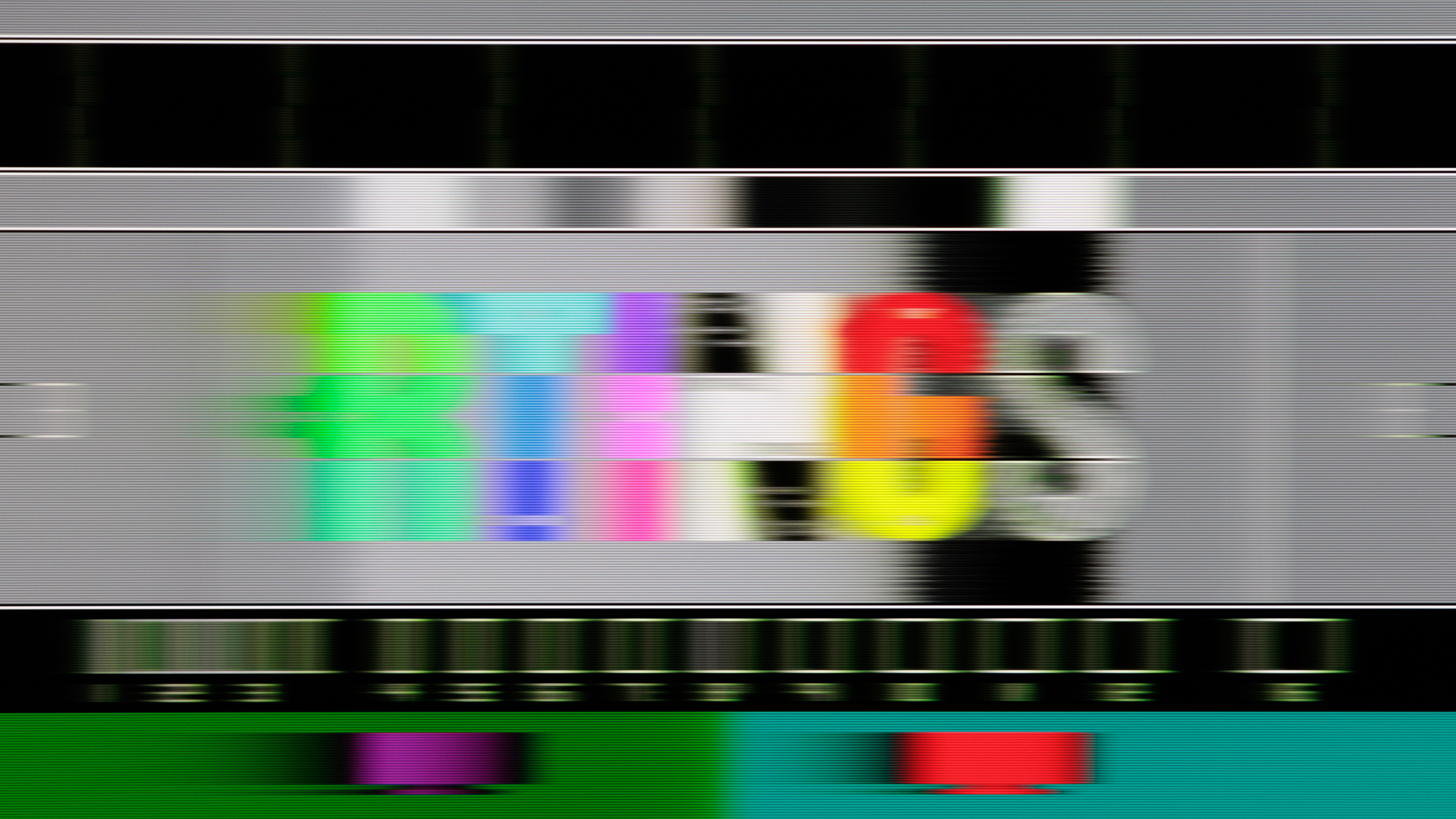
You may see different types of blur on monitors that have worse motion handling. There's general motion blur caused by slow overall response times, black smearing that happens with slow response times in dark transitions (which is often the case with VAs), and inverse ghosting caused by overshoot. You can see three examples of these types at 120Hz:
| Motion Blur | Inverse Ghosting | Black Smearing |
|---|---|---|
 |
 |
 |
OLEDs offer the best motion handling, followed by TN, IPS, and VA panels. But if you play a lot of action games, you'd benefit the most from an OLED.
Also see our recommendations for the best OLED monitors.
Responsiveness
While having a monitor with good motion handling is beneficial for playing games with a lot of fast-moving content, you won't be able to properly play your game if the monitor adds too much latency. This is where the monitor's input lag is the most important factor for its responsiveness.
Input Lag
The input lag is the delay that your monitor adds to your setup's total latency. It includes the time it takes for the monitor to receive the input, process it, and start displaying it on-screen. It's also important to remember that the input lag is only a small part of your system's total latency, as your keyboard, mouse, and computer latency, as well as your Internet connection (if you play online), all add latency.
With the way we measure the input lag, the minimum input lag a monitor can have at any given refresh rate is the frame time divided by half. So, at 240Hz, the frame time is 4.17 ms, and the minimum input lag would be 2.08 ms. Any 240Hz monitor that has input lag under 3.0 ms would be considered great. When looking at the monitor's input lag, you also need to consider the refresh rate you're going to use it at, as you can't get lower input lag than the theoretically minimum. You likely won't notice input lag of under 20-25 ms, but it can negatively impact your gaming performance if it's too high, especially if you need fast reactions.
Most monitors retain their low input even when gaming with VRR or HDR enabled, so you shouldn't worry that enabling certain settings will increase the latency. However, using non-native resolutions may increase the input lag.
Picture Quality
A monitor's motion handling and responsiveness are important factors in how the game feels, but what about how it looks? That's where the monitor's picture quality comes in. There are multiple factors that impact the picture quality, including the panel type, and you should also think about whether you're going to game in a dark or bright room. Generally speaking, OLEDs have the best picture quality in dark rooms, while Mini LED displays are superior in bright rooms.
Learn more about Mini LED vs OLED.
Contrast And Black Uniformity
The contrast ratio is the difference between the monitor's black levels and white levels. Having a high contrast ratio means that blacks look deep and inky next to bright highlights, while a low contrast ratio means they look gray. This alone is one of the more important factors of picture quality in gaming, especially if you play dark scenes in a dark room. You'll want those deep, inky blacks for an immersive gaming experience while properly seeing details.
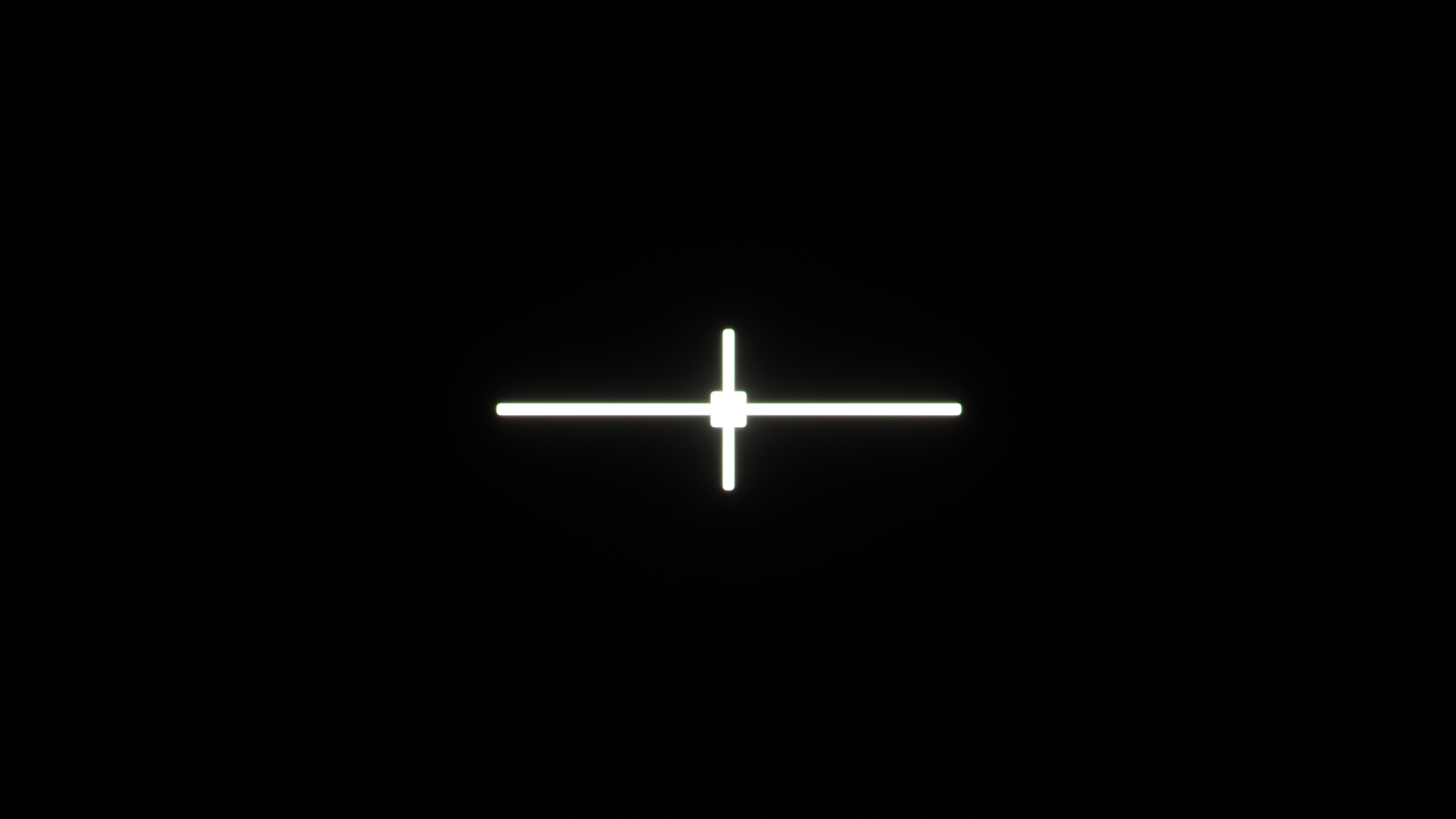
Another factor to consider is the black uniformity. This defines how well the monitor can display an even black level across the screen. Bad uniformity means you could see issues like backlight bleed or clouding, causing a loss of details.
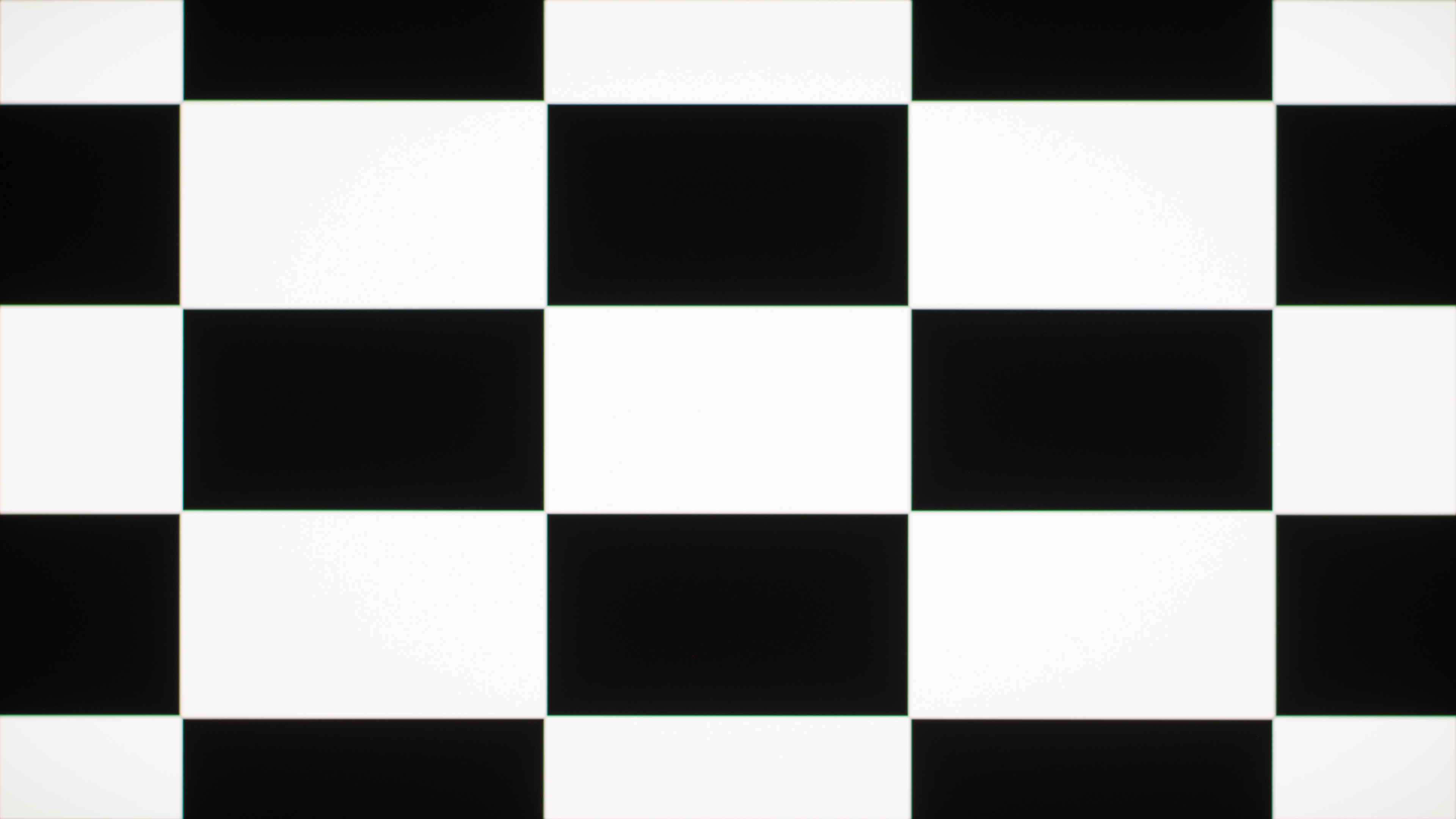
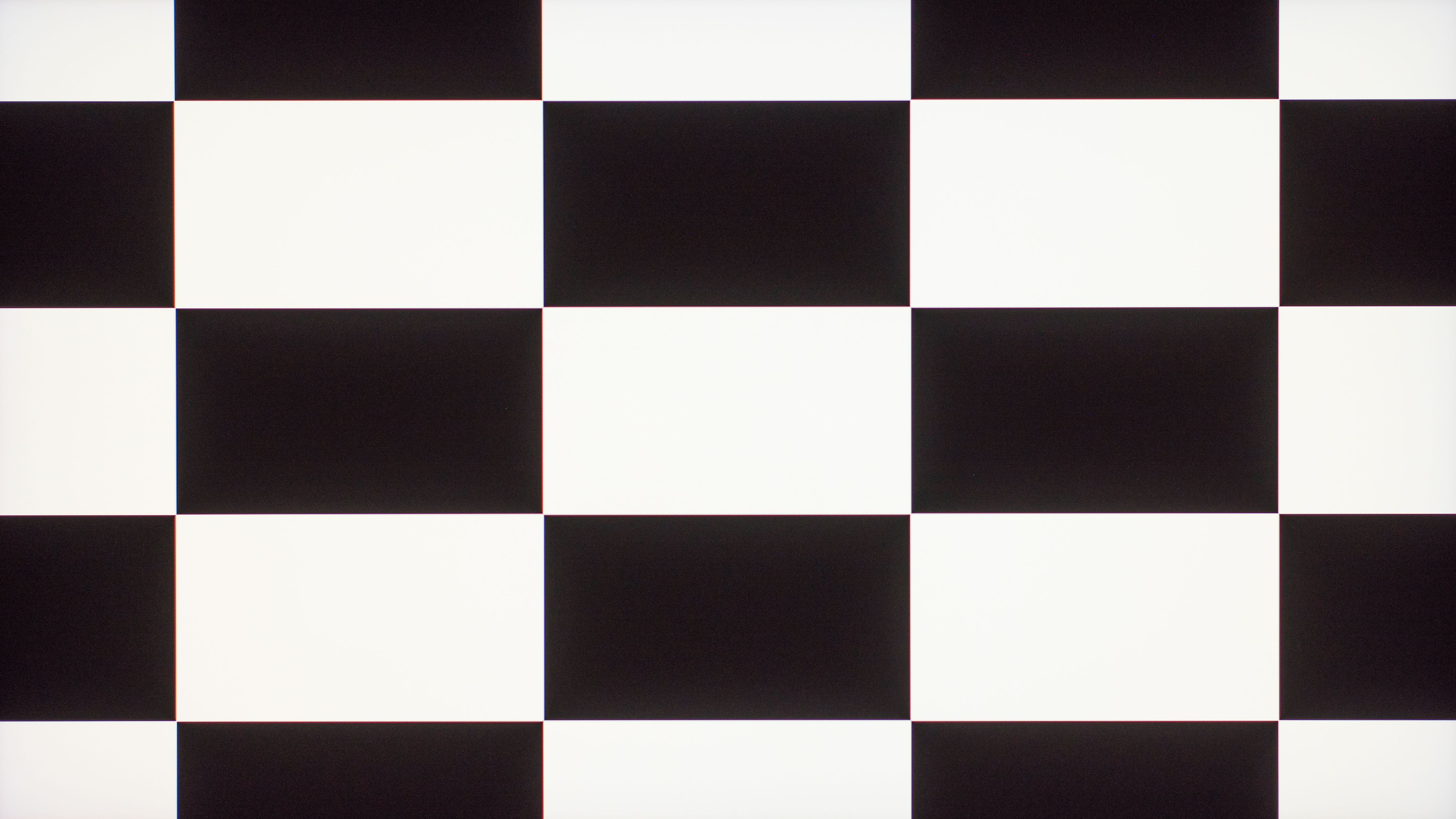
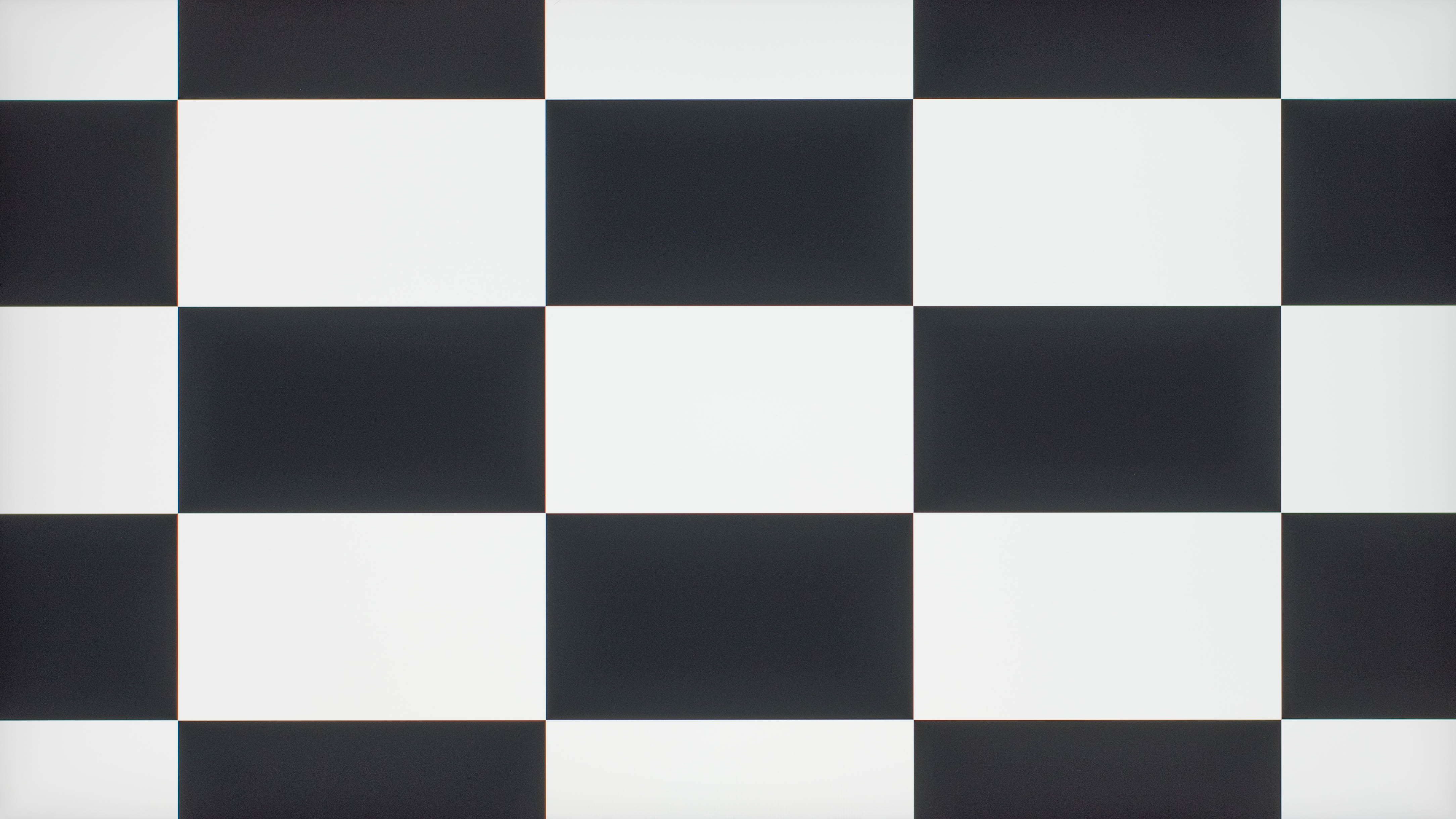
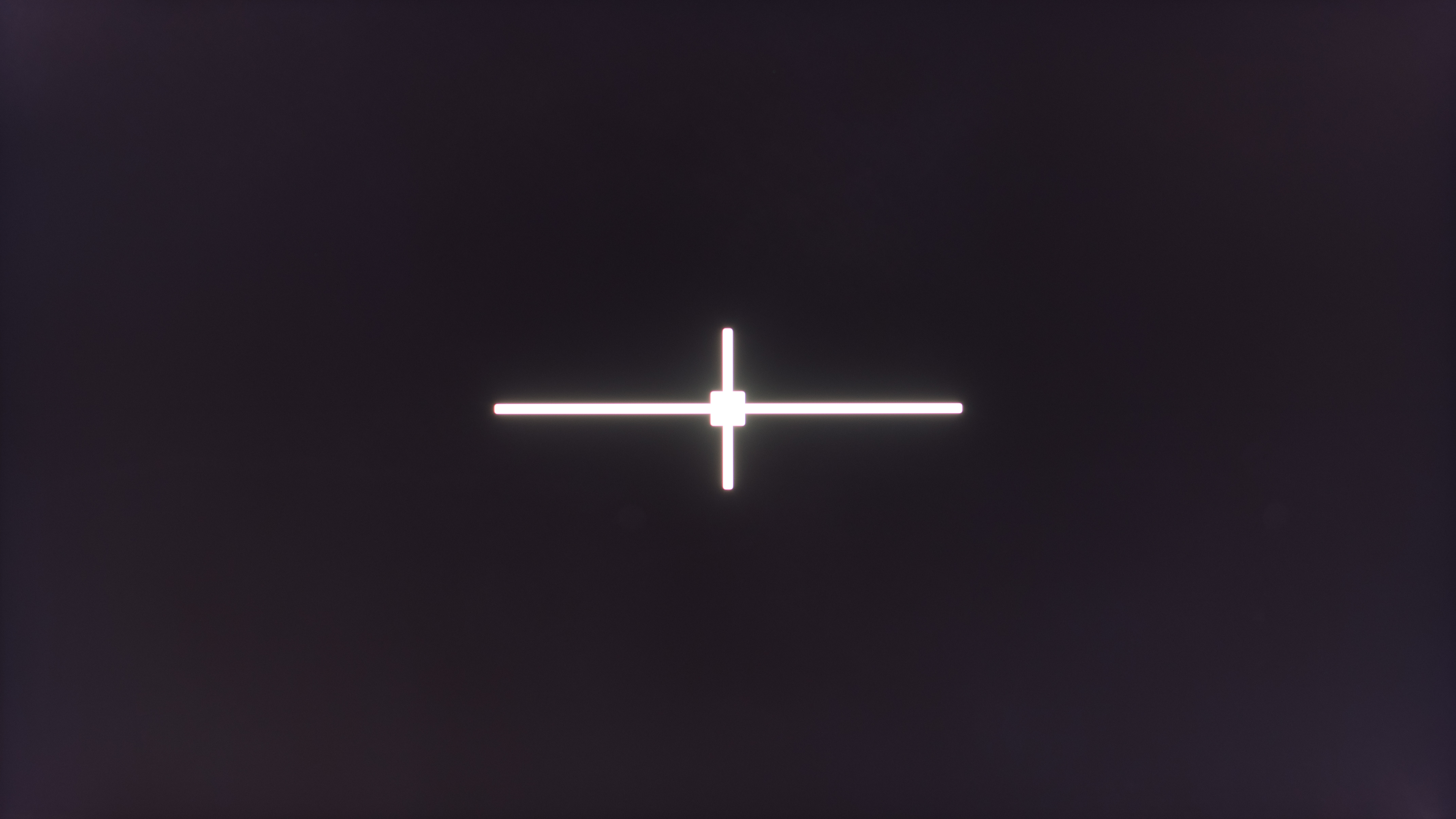
Certain panel types have better contrast than others. OLEDs, in particular, have a near-infinite contrast ratio in dark rooms and perfect black uniformity because they can dim each pixel independently. VA panels have good contrast, too, and are much better than IPS and TN displays. You can see these differences below.
| OLED | VA | IPS |
|---|---|---|
| Dell Alienware AW2725DF | AOC Q27G3XMN | LG 27GR93U-B |
 |
 |
 |
 |
 |
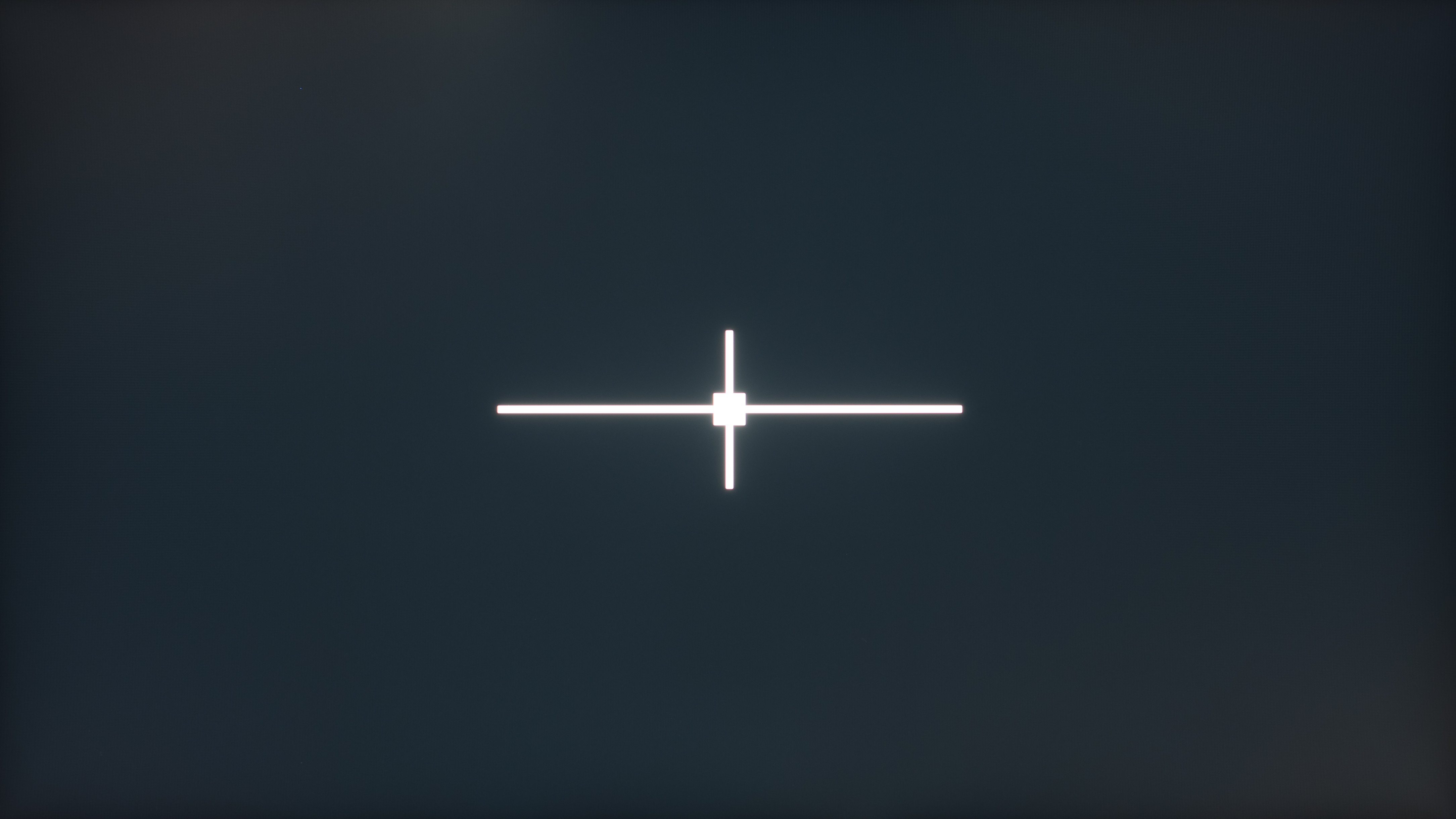 |
It's important to remember that the black levels rise on any monitor when you're using it in a bright room. Some panel types, like QD-OLED, have blacks that look purple in a well-lit environment. If you want the best contrast, it's recommended to use your monitor in a dark room.
Local Dimming
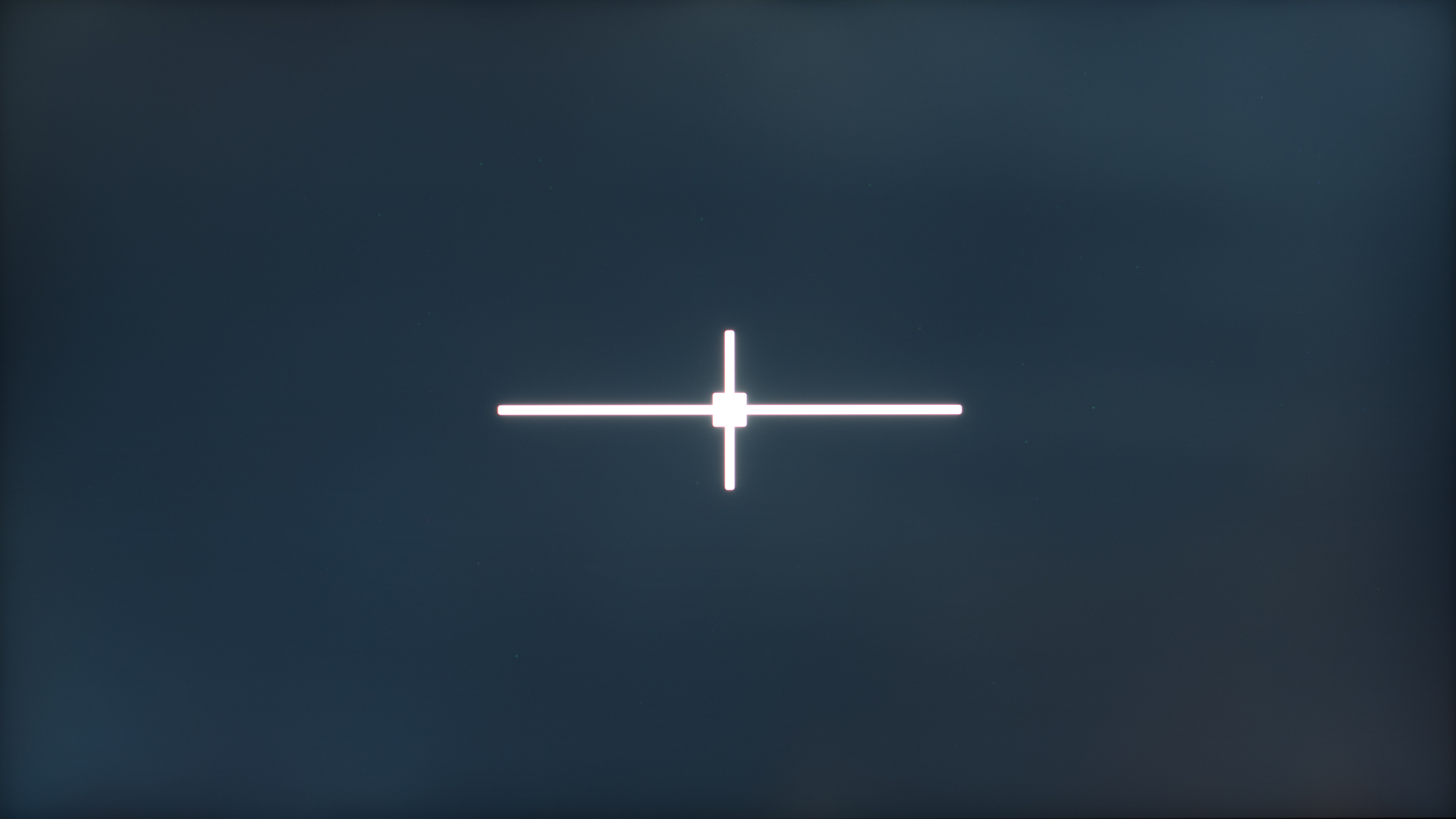
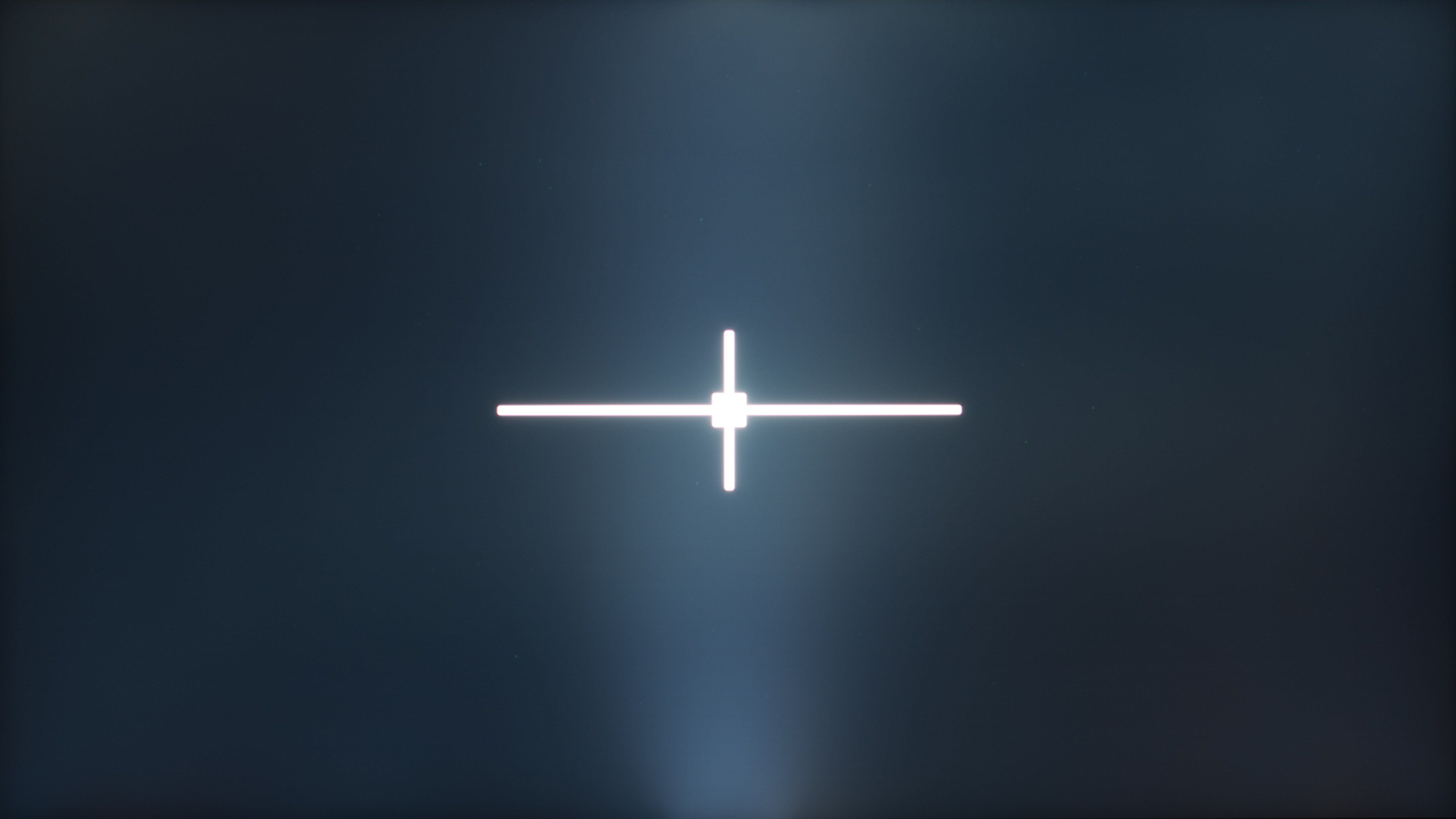
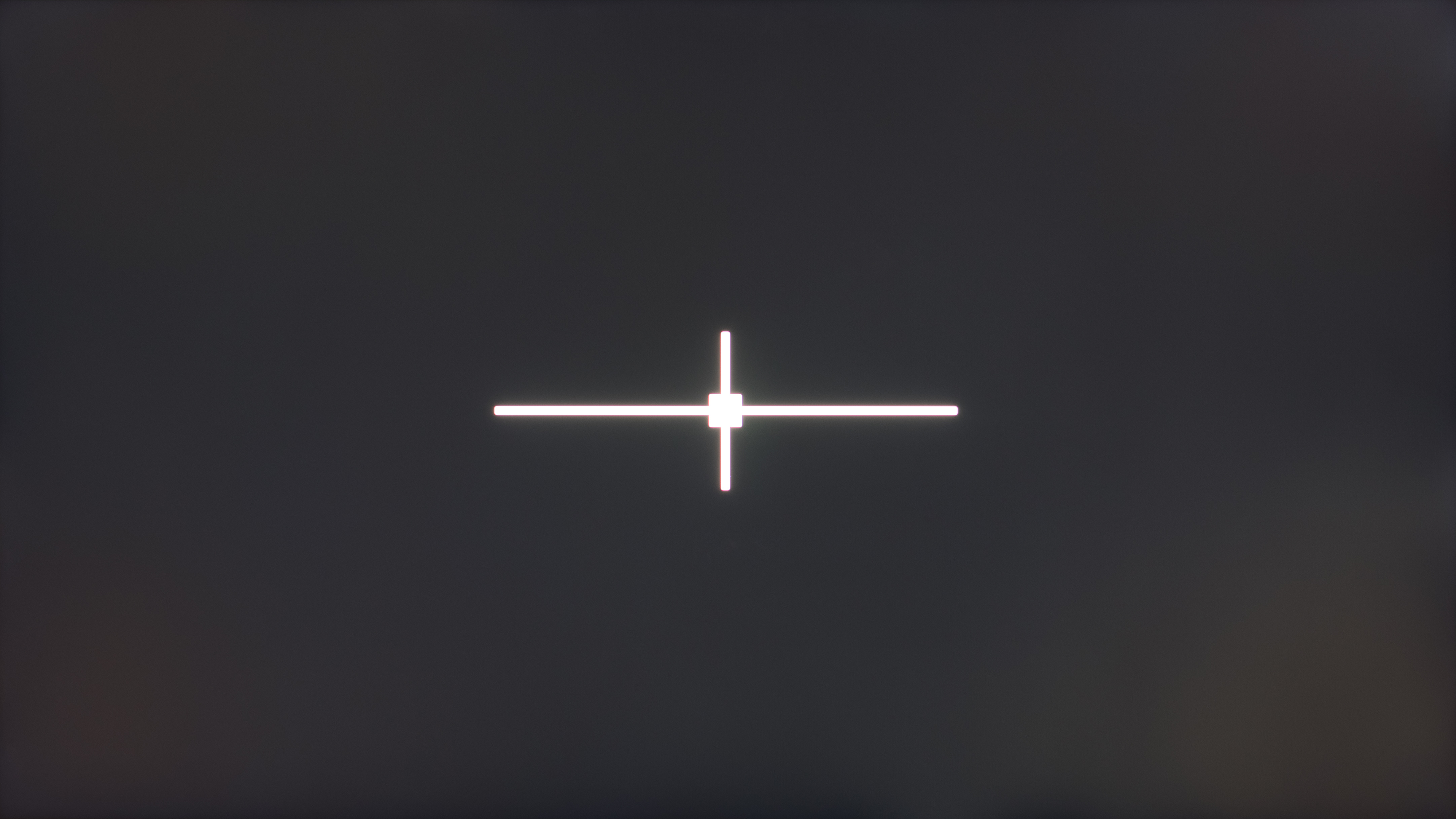
Besides having a high contrast ratio, there are some LED-backlit monitors that use local dimming features to further improve the black levels with brighter highlights. While many monitors use edge-lit local dimming features that are ineffective at improving the picture quality, those with Mini LED backlighting are often much better. In the examples below, you can see how a bad local dimming feature actually makes the picture quality worse, whereas one with good local dimming improves it.
| Edge-Lit Local Dimming | Mini LED Local Dimming | ||
|---|---|---|---|
| Dell Alienware AW2725QF | BenQ MOBIUZ EX321UX | ||
 |
 |
 |
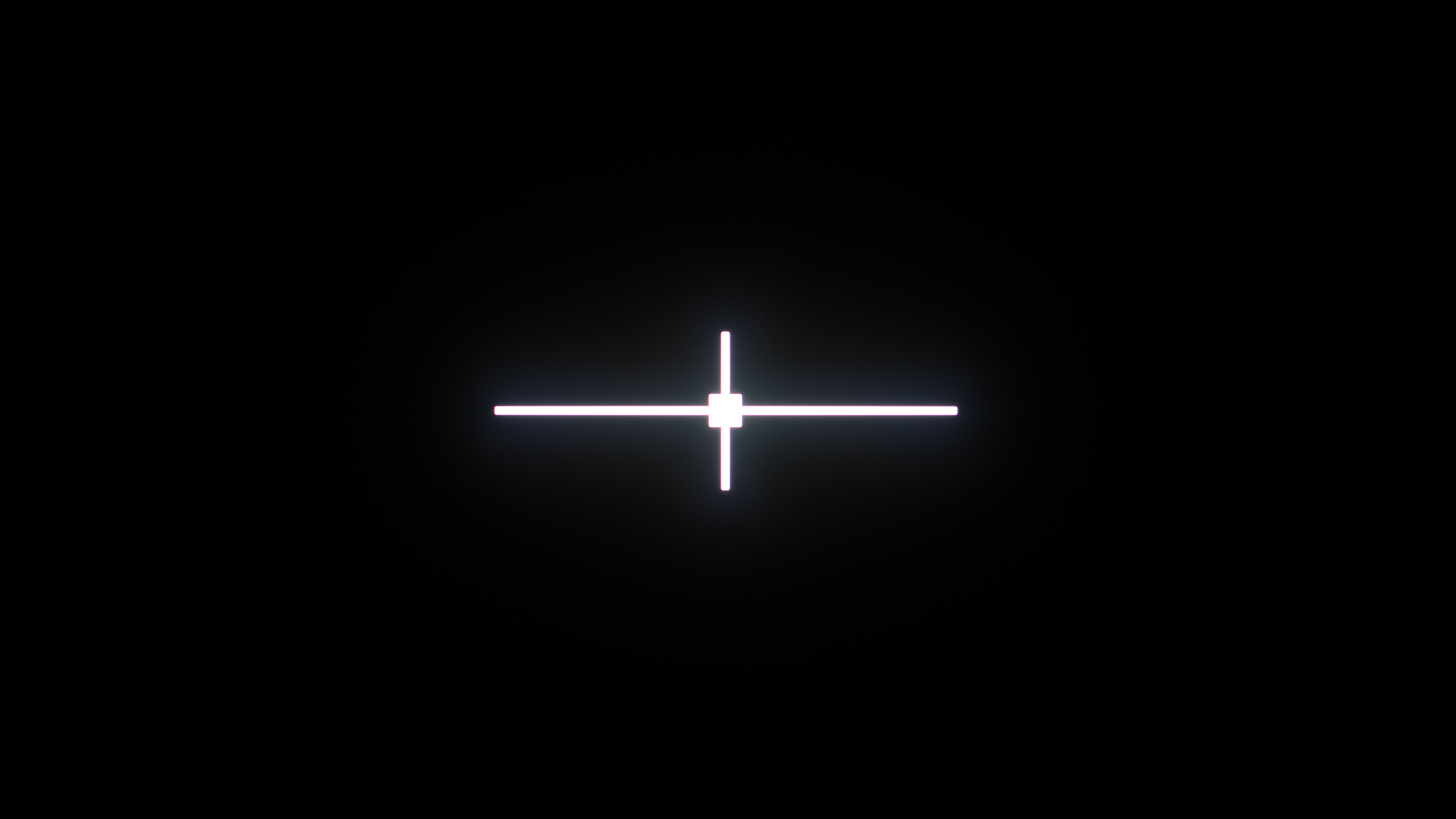 |
If you care about having deep blacks and you don't plan on getting an OLED, the next best option is the get a monitor with Mini LED backlighting.
Brightness
If you want to game in a bright room instead, then it's important to get something that gets bright enough to fight glare. Monitors that can reach over 300-350 cd/m2 are usually good enough to use in most well-lit rooms. However, it's always best to avoid placing your monitor in front of a sunny window because many monitors aren't bright enough to fight that much glare, and direct sunlight can damage the screen.
Another advantage of having high brightness is for HDR. Monitors that can make small highlights pop against the rest of the image help provide an impactful HDR experience. However, it's important for the monitor to make these small highlights brighter than the rest of the image, which many Mini LED and OLEDs can do by reaching over 1,000 cd/m2. If it makes the entire screen bright, small highlights won't pop as much.
Learn more about our brightness testing.
Reflections
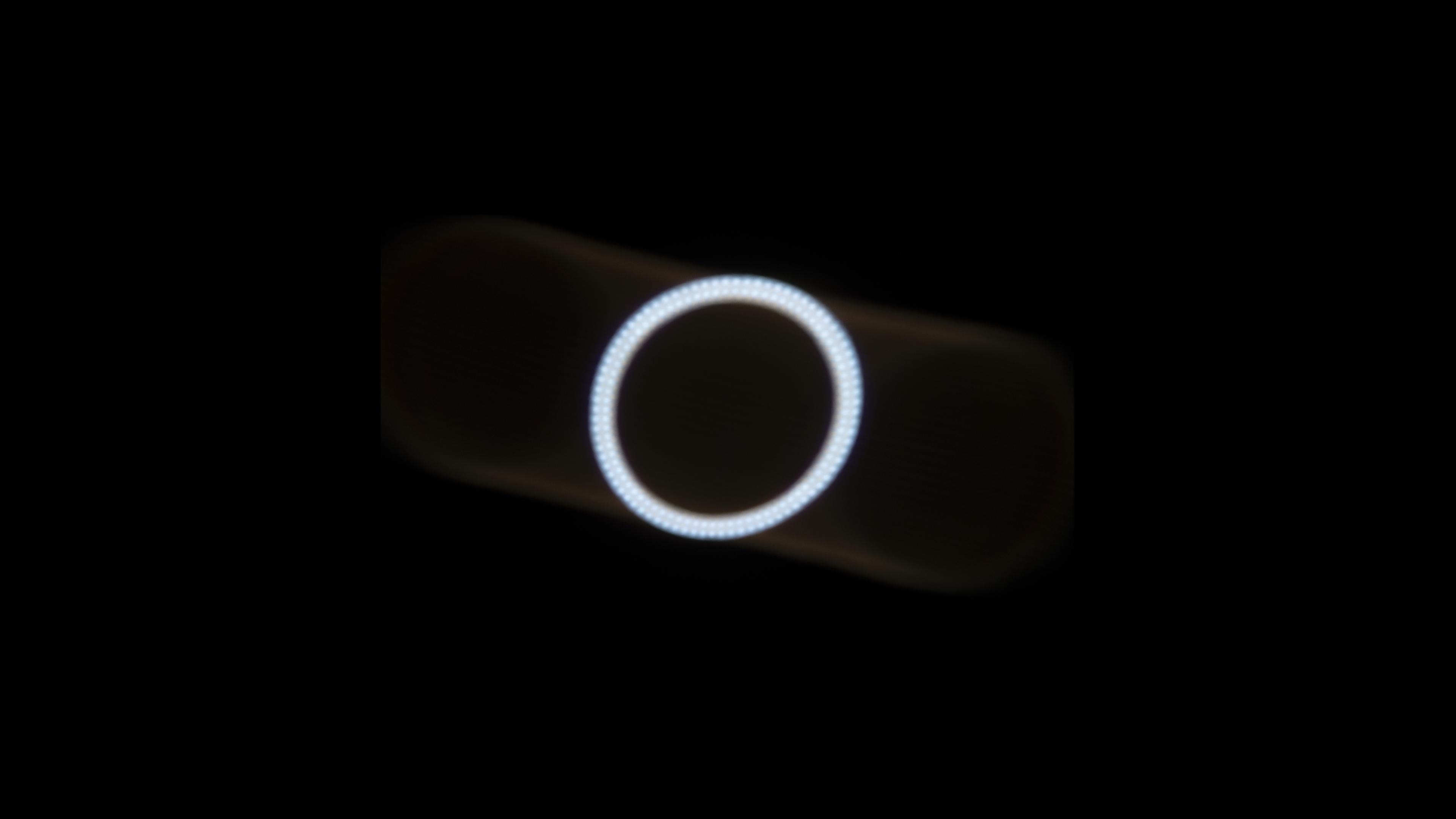
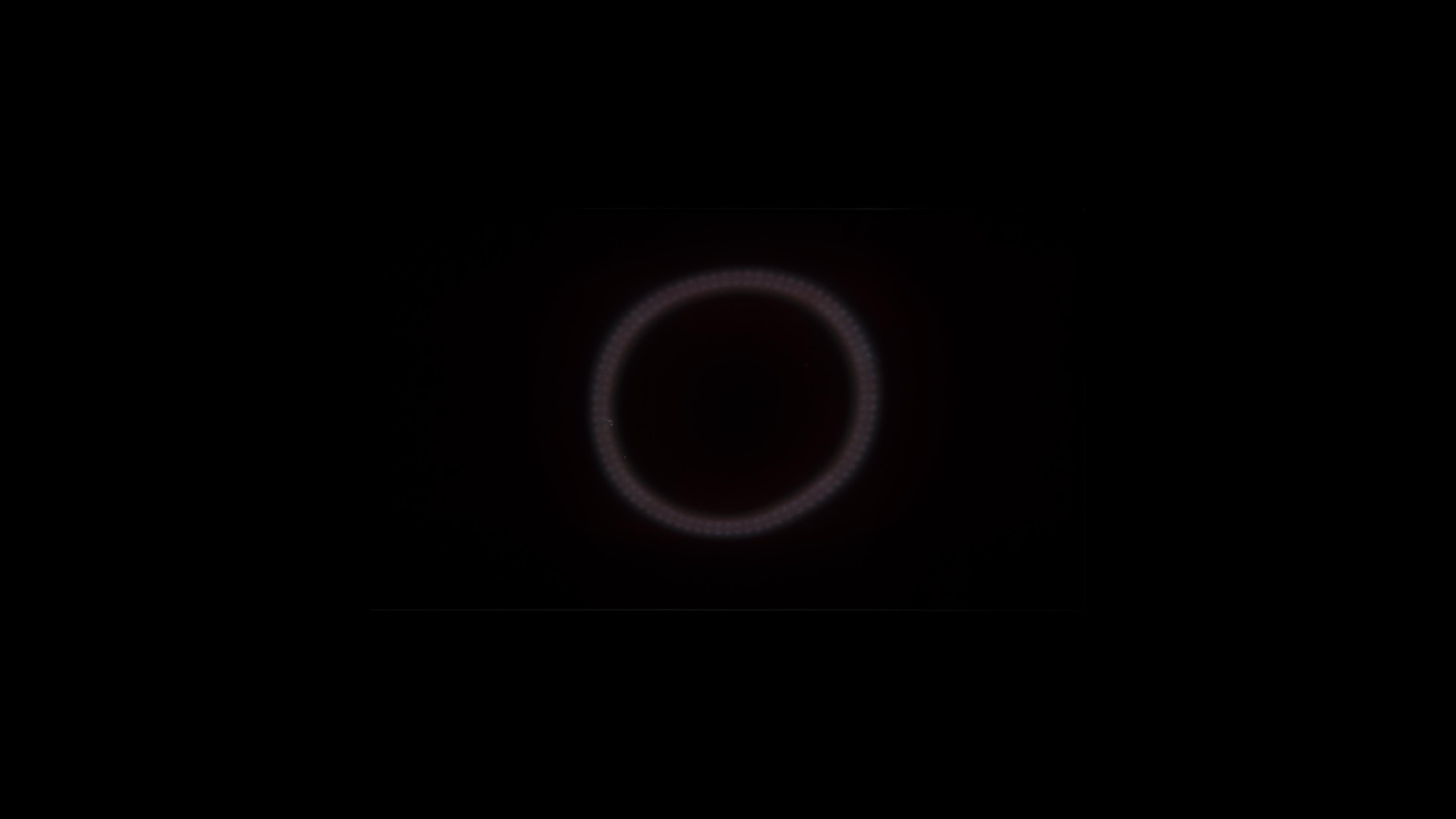
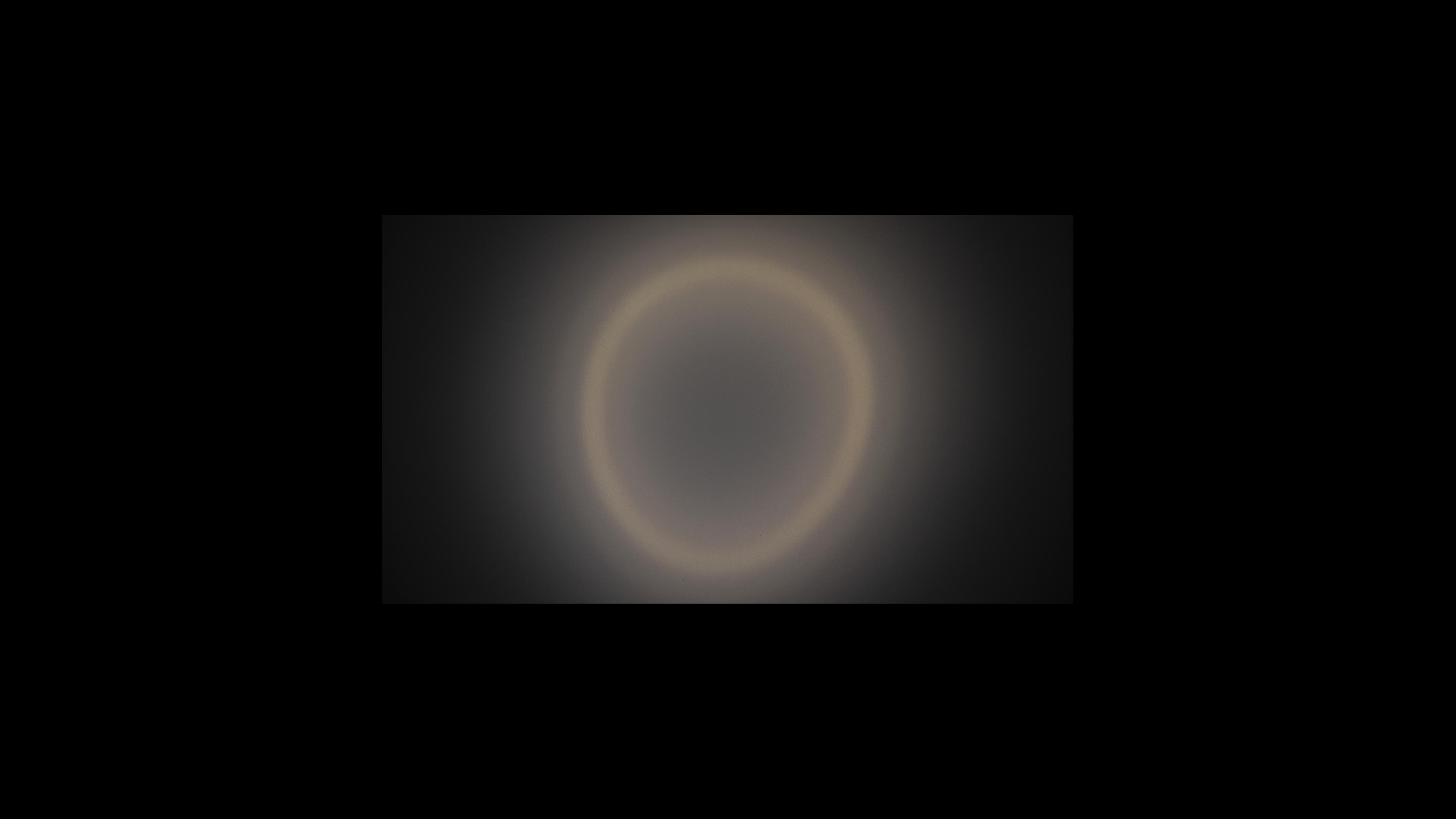
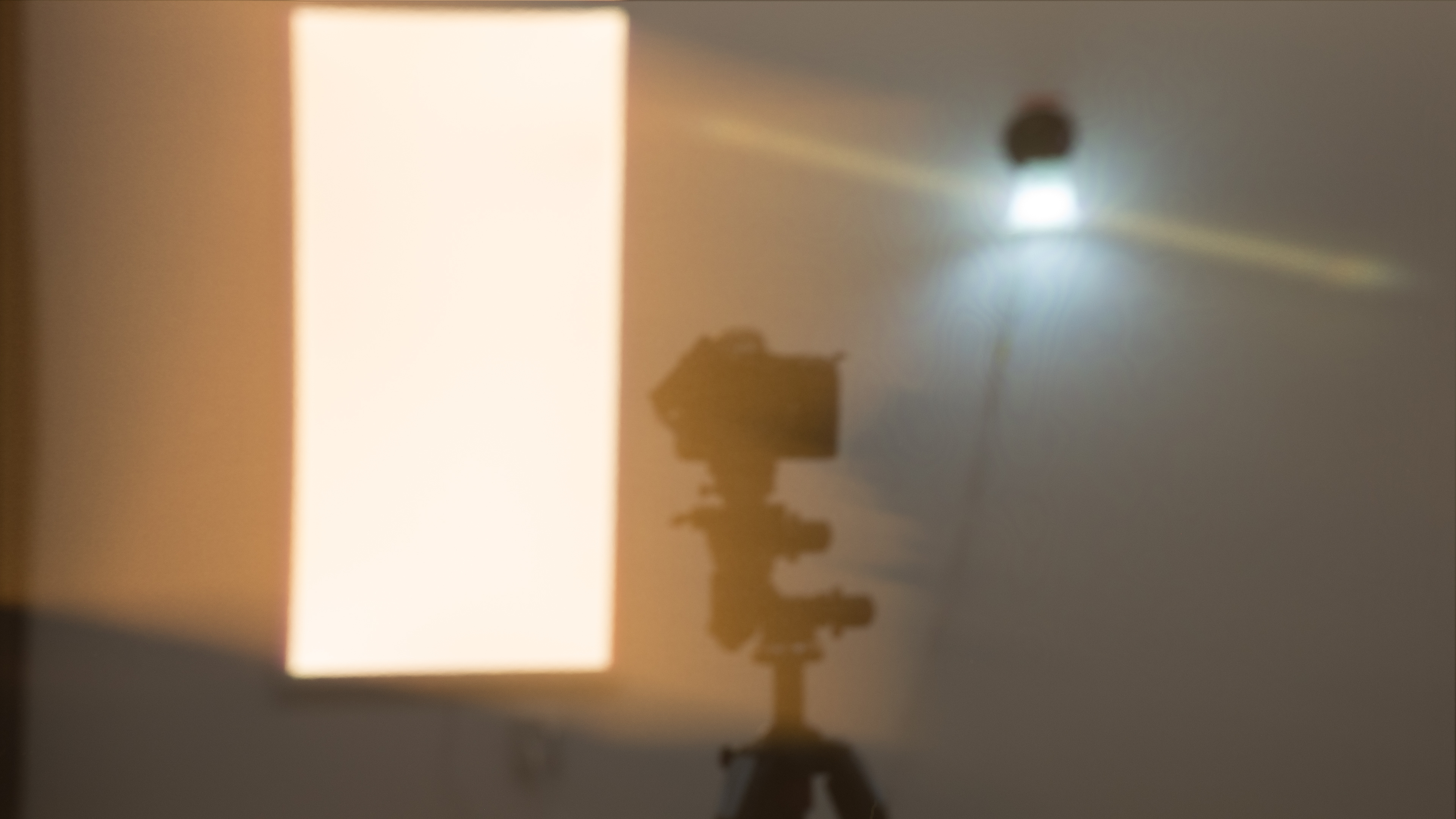
Besides the brightness, it's also important for the monitor to have good reflection handling if you want to use it in a well-lit room. If there's too much light reflecting off the screen, visibility will be an issue no matter how bright the monitor gets. The monitor's screen coating has an impact on this, as matte monitors usually don't have very strong mirror-like reflections, but spread light out across the screen. On the other hand, glossy monitors generally don't spread light out, but have stronger direct reflections instead.
There are still glossy and matte monitors with both good and bad reflection handling. You can see this with the various examples below; even a glossy screen with bad reflections spreads light out, and a reflective matte display has mirror-like reflections. If you find that reflections are too distracting on your monitor while gaming, try moving your light sources away or closing any blinds.
| Glossy | Matte | ||
|---|---|---|---|
| Samsung Odyssey 3D G90XF S27FG900X | Dell Alienware AW2725Q | Samsung Odyssey OLED G81SF S27FG810S | LG 27GR95UM-B |
 |
 |
 |
 |
 |
 |
 |
 |
Learn more about our Direct Reflections and Total Reflected Light tests.
Colors
Whether you're gaming in a dark or bright room, you'll also want a monitor to display good colors in order to have good picture quality. There are different ways of evaluating whether or not a monitor has good colors. We measure both the range of colors it displays and how accurate they are. You'll also want to think about whether you're going to game in SDR or HDR, as these two formats use different color spaces. Below is a breakdown of our color tests and how they impact your gaming:
- SDR Color Gamut: This defines the range of colors a monitor displays in the sRGB and Adobe RGB color spaces. Good coverage is above 85%, and most monitors cover the entire sRGB color space.
- Color Accuracy: Although the color gamut defines how many colors the monitor displays in SDR, we also measure our accurately it displays them. We do this before and after a full calibration, so if you aren't planning on calibrating your monitor, you also know how accurate colors are out-of-the-box. We measure the white balance, saturation, color accuracy, color temperature, and gamma tracking as part of this test.
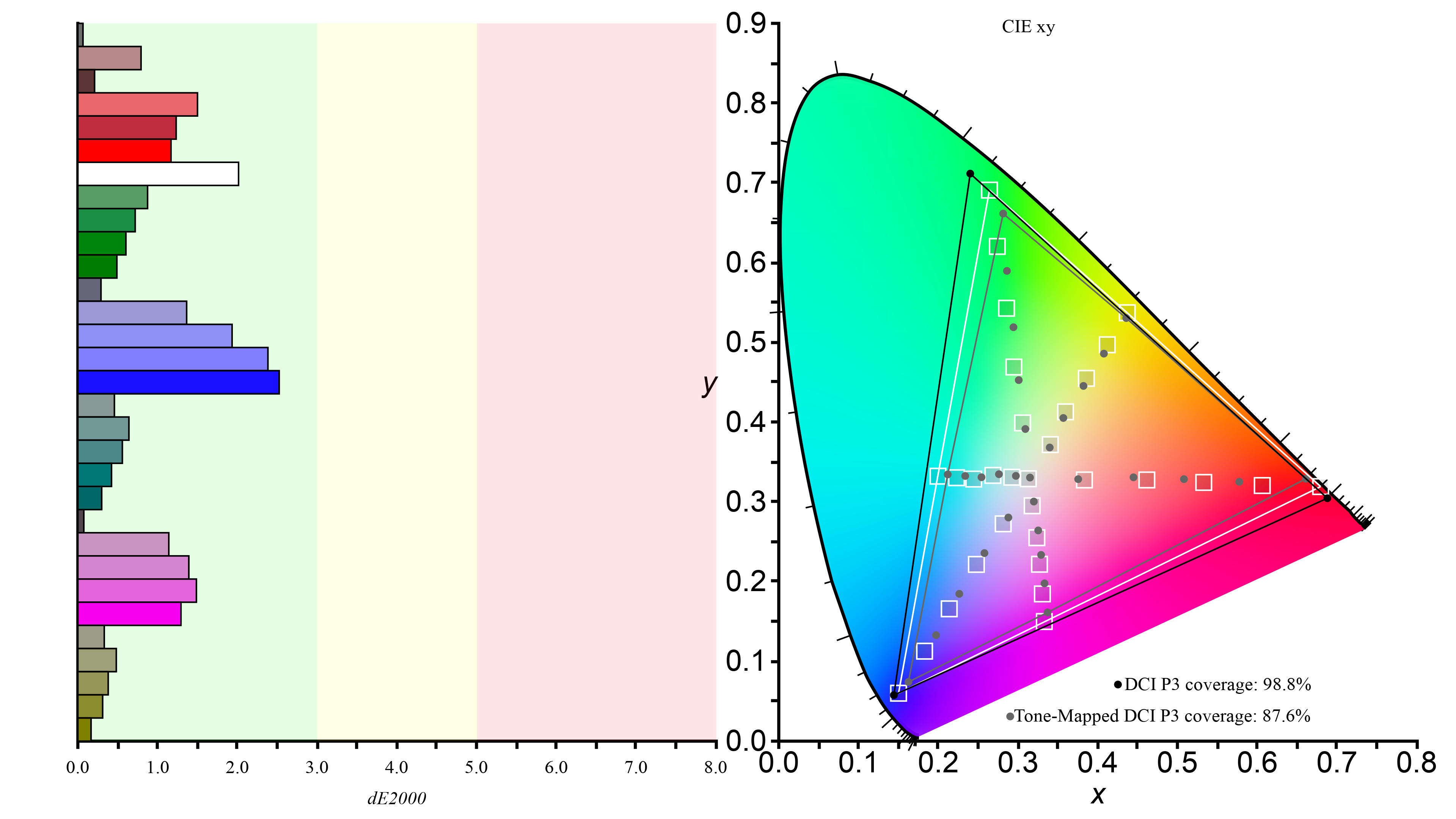
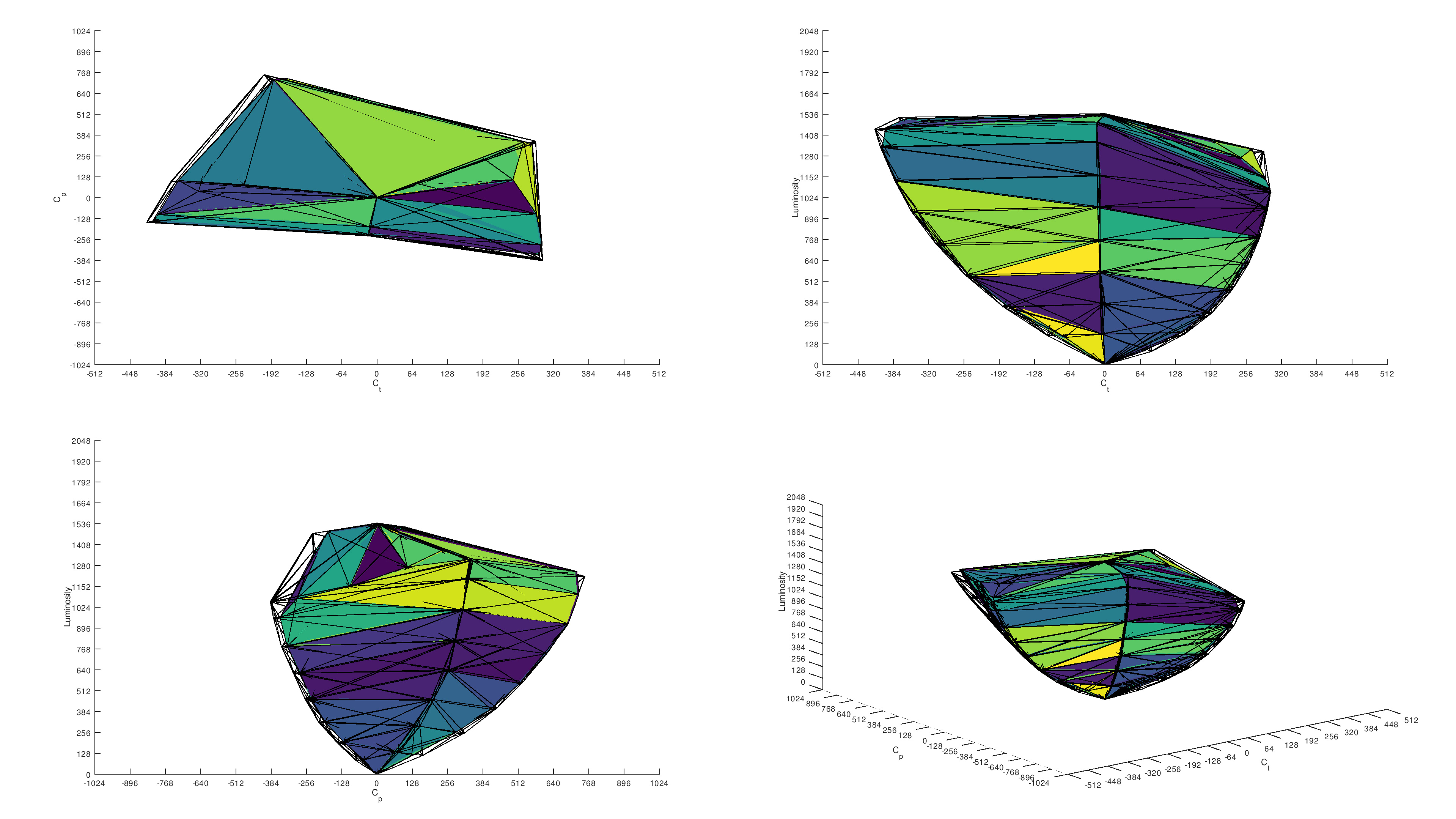
- HDR Color Gamut: Like in SDR, this is the range of colors the monitor displays in the DCI-P3 and Rec. 2020 color spaces, with HDR enabled on the monitor. Many monitors can display over 85% of the DCI-P3 color space, while most are more limited in the wider Rec. 2020 color space, with even the best monitors struggling to reach 90% coverage.
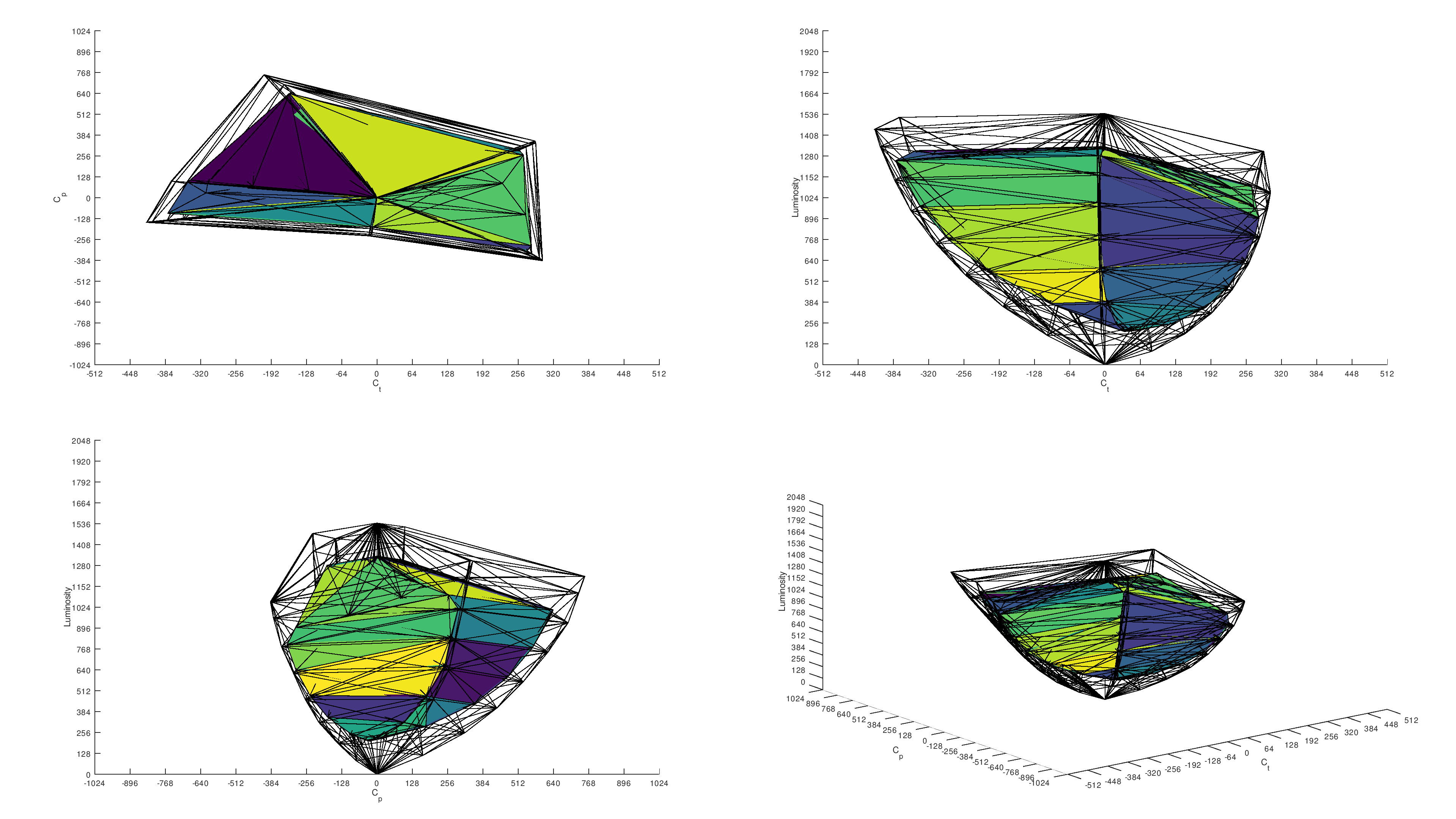
- HDR Color Volume: While the color gamut is the range of colors it displays, the color volume is how bright and dark colors look. This is especially important for a vivid HDR experience, as a monitor with limited color volume looks washed out and colors are muted.
To give you an idea of what our testing is like, below you can see the DCI-P3 color gamut and volume results from two monitors: one with bad colors and one with good colors.
| Dell S2722QC | Dell Alienware AW3225QF | ||
 |
 |
 |
 |
Generally speaking, if you want the best colors, get a QD-OLED monitor. They display the most bright and vivid colors, but there are many WOLED and Mini LED displays that are also good for colors. Unfortunately, many entry-level monitors have limited colors.
Conclusion
There are so many things to consider when you're thinking about what to look for in a gaming monitor. From its specs, like the size, resolution, and refresh rate, to its motion performance and picture quality, there's not one determining factor that makes a monitor a good gaming option. Of course, you also need to think about the games you play; action games require good motion handling, while text-based games need a monitor with a high resolution and sharp text clarity. Because of all these factors, there's not one gaming monitor that's the best for everyone, as what's best for your needs is different from what's best for someone else. That said, thinking about your needs, budget, and the type of games you play is a good start.
There are other factors you might want to consider that we haven't talked about in this article. You can read about more of our tests and guides with all our monitor articles.
If you know what to look for and you're ready to make a buying decision, you can check out our recommendations for the best gaming monitors.